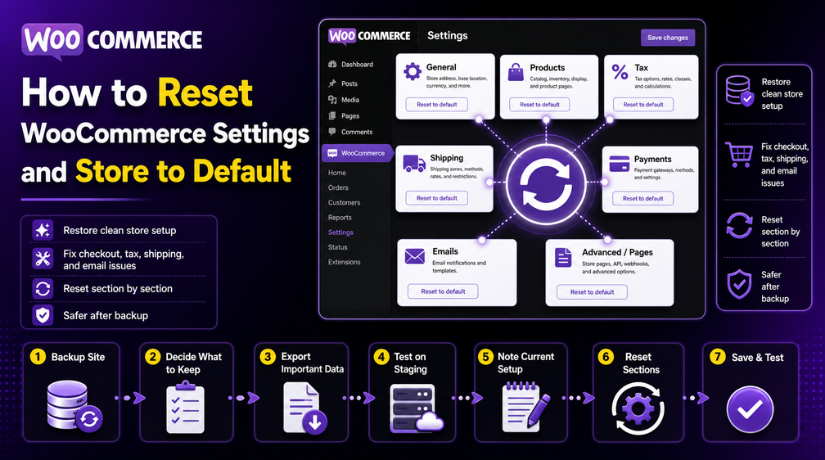
How to Reset WooCommerce Settings and Store to Default (Step-by-Step Guide)
Table of Contents
- Introduction
- What Does Resetting WooCommerce to Default Mean?
- When You May Need to Reset WooCommerce Settings and Store
- Important Things to Do Before Resetting WooCommerce So You Do Not Lose Key Store Data
- How to Reset WooCommerce Settings and Store to Default (Step by Step Guide)
- Common Mistakes to Avoid While Resetting WooCommerce So Problems Do Not Return
- Conclusion
Introduction
Running a WooCommerce store takes many settings and small choices. A small wrong change can affect checkout, taxes, shipping, or emails. That is why many store owners look for ways to reset WooCommerce settings to default when problems grow. Sometimes the issue starts after testing new options. Sometimes it appears after plugin changes or a failed setup. In other cases, the store owner simply wants a clean start. That is where a proper WooCommerce reset settings process becomes useful. Still, not every reset works the same way.
Some methods only change store options. Other methods remove store data and start everything again. Before you make any change, you should know what kind of reset you need. A small settings reset may solve the issue fast. A full Reset WooCommerce store process may be needed only in bigger cases. This guide starts with the basics so you can choose the right path. It also works as a simple WooCommerce troubleshooting guide for store owners who feel confused by reset options.
What Does Resetting WooCommerce to Default Mean?
When people talk about resetting WooCommerce, they may mean different things. One person wants to fix shipping settings only. Another wants to clear products, orders, and test data. Some users want to Restore WooCommerce settings after wrong changes. Others want the store to feel fresh again from the start. That is why understanding the reset type matters first. WooCommerce does not always use one single reset button for every need. Instead, the reset process depends on what you want to change. You may reset only the store setup. You may also reset deeper store data in some cases. If you choose the wrong method, you may remove data by mistake. So before moving ahead, it is important to understand each reset level clearly.
When You May Need to Reset WooCommerce Settings and Store
Not every WooCommerce issue needs a full reset right away. Still, some store problems keep returning after normal fixes. In those cases, a proper WooCommerce reset settings process may save time. It can also bring back clean and stable store behavior. Some users only need to Restore WooCommerce settings in key areas. Others may need to Reset WooCommerce store data before starting again. The right choice depends on the type of problem. Before making changes, it helps to understand the common reasons first.
Wrong Store Settings Were Added During the First WooCommerce Setup
Many store issues begin during the first setup process. A wrong currency can affect product prices and payments. Incorrect tax rules can confuse both the owner and buyer. Shipping zones may be added in the wrong way. Payment methods may be enabled with missing details. These errors can make the store feel broken from day one. In this case, store owners often search for WooCommerce default settings to fix the mess. A reset helps remove wrong setup values and restore control. This is one of the most common reasons to reset WooCommerce settings to default.
Test Products Orders and Demo Data Need to Be Removed
Many store owners test the site before the real launch. They add sample products, fake customer accounts, and test coupons. They also create test orders to check shipping and checkout flow. This process is normal and helpful during development. The problem starts when that test data stays in the store. It can make the dashboard look messy and confusing. It may also affect reports and product lists. In such cases, users often decide to Reset WooCommerce store data for a fresh start. Some even use a WooCommerce reset plugin to speed up the cleanup.
Plugin or Theme Conflicts Changed the Way the Store Works
WooCommerce stores often use many plugins and custom themes together. Sometimes one update changes how the store behaves. Checkout may stop working in the right way. Shipping may fail to load at the correct step. Payment methods may disappear without a clear reason. Store pages may also show the wrong content or layout. These issues often push users to search for Restore WooCommerce settings options. In many cases, a full reset is not needed here. Only selected settings may need to return to normal. That is why WooCommerce reset settings can be useful in conflict cases.
You Want to Rebuild the Store from the Beginning Again
Sometimes the goal is not fixing one small issue. Sometimes the store owner wants to start over completely. Maybe the first setup was rushed and confusing. Maybe the business model changed after launch plans. Some users build a demo store first, then later need a real one. Others simply want a cleaner and better setup structure. In these cases, store owners may choose to Reset WooCommerce store data fully. This gives them a fresh base for the next setup. It can also help before a relaunch or full redesign. A reset works well when the old setup no longer fits the new goal.
Store Data and Settings Have Become Too Messy to Manage
Some WooCommerce stores grow without a clear setup plan. Extra shipping rules, unused coupons, and old product data start building up. Settings are changed many times and then forgotten. This can create confusion for the store owner later. Even simple tasks start taking more time than needed. When this happens, users often look for WooCommerce default settings to simplify everything again. A smart reset can remove the clutter and restore order.
Important Things to Do Before Resetting WooCommerce So You Do Not Lose Key Store Data
A reset can help, but it also carries real risk. That is why preparation matters before any reset begins. Even a small settings change can affect store behavior. A full reset can remove valuable business data very fast. Before you try to Reset WooCommerce settings to default, you should plan carefully. This helps protect products, orders, and customer details. It also makes recovery easier if something goes wrong. These steps should always come before any major WooCommerce reset.
Take a Full Backup of Your Website Before Any Reset Starts
A full backup is the first and most important safety step. It protects your website if the reset causes a bigger issue. The database stores products, orders, users, and settings. Theme and plugin files also matter for store design and features. Your uploaded media should be saved as well. If something goes wrong, a backup lets you restore the site. Without one, lost data may be hard to recover. This rule applies whether you use manual steps or a WooCommerce reset plugin. A backup should never be skipped before a store reset.
Decide Clearly Which WooCommerce Data You Want to Keep Safe
Before you reset anything, know what must stay untouched. Some users want to keep products but remove settings only. Others want to remove test orders but keep customer accounts. Some may want to save coupons, reviews, or shipping rules. This choice affects the reset method you should use. It also prevents mistakes during cleanup. If you do not decide this first, you may remove useful data by accident. That is why planning is a key part of any WooCommerce troubleshooting guide. A smart reset always starts with clear data decisions.
Export Important Product Customer and Order Data Before Changes
Backups are helpful, but exports are useful too. Product CSV files make future imports much easier. Order exports help keep business records safe. Customer exports help if you need to rebuild the store later. Even if you plan to Restore WooCommerce settings only, exports still help. They give you another safe copy of store data. This is especially important before a full Reset WooCommerce store process. Exports make recovery faster and less stressful. They also help if you want to move only selected data back later.
Use a Staging Site First to Test the Reset Safely
A live store should not be your first testing ground. A staging site gives you a safe place to test changes. You can try reset steps without affecting real shoppers. You can also check what gets removed after the reset. This is the best way to understand the real result. If something looks wrong, you can stop before touching the live site. Testing first is smart whether you reset settings or store data. It is also wise before trying any WooCommerce reset plugin. A staging site reduces risk and builds confidence.
Write Down Your Current WooCommerce Setup Before Resetting Anything
Many store owners forget what their current setup includes. After the reset, they struggle to rebuild basic settings. That is why writing things down is important. Save your payment methods and gateway details. Note your shipping zones and tax class setup. Record your store pages and email settings too. These notes help you rebuild the store much faster later. They also help when you want to compare old and new settings. If your goal is to Restore WooCommerce settings, this step is very useful. A few notes now can save many hours later.
How to Reset WooCommerce Settings and Store to Default (Step by Step Guide)
This part explains the reset process in a simple and clear way. You do not need to reset everything together at once. Start with one section and check the result. This method is safer for your live store. It also helps you restore WooCommerce settings without extra confusion. If your goal is to reset WooCommerce settings to default, follow each step slowly. This approach works well as a basic WooCommerce troubleshooting guide for beginners.


Step 1: Reset WooCommerce General Settings Like Store Address Currency and Location
- First, go to WooCommerce > Settings > General in your dashboard. This section controls the basic store setup.
- Check your store address, country, and selling locations carefully.
- Then review the currency, currency position, and customer location options. If any value looks wrong, change it to the correct one.
- Click Save changes after updating the fields. These settings affect many parts of your store. Wrong values here can create bigger problems later.
- That is why general settings should be checked first.
- Many users start here when looking for WooCommerce default settings. It is also the first step in most WooCommerce reset settings work.
Step 2: Reset WooCommerce Product Settings for Inventory Units and Product Display
- Now go to WooCommerce > Settings > Products.
- This section controls product display and stock behavior.
- Check the shop page options and product review settings first. Then move to the inventory section.
- Review stock management, stock hold time, and low stock alerts.
- After that, check weight units and dimension units carefully. If you sell digital products, review downloadable product options too.
- Fix any wrong setting and save the changes. These small settings can affect product pages and stock control.
- If products behave strangely, this area may need cleanup.
- This is an easy way to Restore WooCommerce settings in the product section.
Step 3: Reset WooCommerce Tax Settings in a Careful and Easy Way
- Next, open WooCommerce > Settings > Tax. If you do not see this tab, first enable taxes in the General section.
- Once open, check how prices are entered in your store. Then review the tax display during shopping and checkout.
- After that, open tax classes and tax rates. Remove old or test tax rates if they are no longer needed.
- Make sure the current tax rules match your business needs. Wrong tax settings can confuse customers very quickly.
- They can also create wrong totals during checkout.
- If you want to Reset WooCommerce settings to default, tax settings should be checked with care.
Step 4: Reset WooCommerce Shipping Settings for Zones Methods and Charges
- Now go to WooCommerce > Settings > Shipping.
- Start with the shipping zones list.
- Open each zone and review the regions inside it. Then check the shipping methods added in that zone.
- Look at flat rate cost, free shipping rules, and local pickup options.
- Remove old methods that you no longer use. Also review shipping classes if your products use them. Save the changes after each update.
- Shipping issues often happen because old test rules stay active.
- That is why many users search for WooCommerce default settings in this section. A clean shipping setup can solve checkout problems fast.
Step 5: Reset WooCommerce Payment Settings and Check Each Gateway One by One
- After shipping, open WooCommerce > Settings > Payments.
- Here you will see all enabled payment methods. Start with offline methods like bank transfer or cash on delivery.
- Then check card gateways and other online payment options.
- Open each method and review the saved details. Make sure it is enabled only if needed. If a gateway is not working, disable and set it again.
- Some payment tools may also need reconnection after changes.
- This step is very important because payment issues stop sales directly.
- Many store owners use this step in a WooCommerce troubleshooting guide before trying deeper fixes.
- It is also one of the best ways to Restore WooCommerce settings in checkout.
Step 6: Reset WooCommerce Email Settings So Notifications Work Properly Again
- Next, go to WooCommerce > Settings > Emails. This section controls store email messages and notifications.
- First, check the sender name and sender email address. Then review which email alerts are enabled. Open each email type one by one.
- Check the subject, heading, and message settings carefully. If you changed templates before, review those changes too.
- Wrong email settings can stop order messages from reaching customers. They can also make store emails look unprofessional.
- If emails are not working, this section may need a reset.
- Many users try this step when they want to Reset WooCommerce settings to default in a simple way.
Step 7: Reset WooCommerce Pages Like Shop Cart Checkout and My Account
- Now go to WooCommerce > Settings > Advanced. This section includes your important WooCommerce pages.
- Check the page set for Shop, Cart, Checkout, and My Account. Also review the terms and conditions page if used.
- Make sure each option is linked to the correct page. Wrong page assignments can break the store flow.
- Customers may not reach the checkout properly if pages are mismatched. This problem is common after theme changes or page edits.
- That is why page settings should always be reviewed.
- Fixing this area can quickly restore WooCommerce settings without touching products or orders.
Step 8: Save Changes and Test the Store After Resetting Each Section
- After each section, always click Save changes.
- Then test that part of the store properly.
- Check product pages, shipping, payments, and checkout flow. Also test store emails and account pages if needed.
- Do not reset everything blindly without testing. A simple section-by-section check is much safer. It helps you find the real problem faster.
- This is the smart way to handle WooCommerce reset settings.
- If these steps do not solve the issue, then you can think about a deeper Reset WooCommerce store method or a trusted WooCommerce reset plugin.
Common Mistakes to Avoid While Resetting WooCommerce So Problems Do Not Return
A WooCommerce reset can solve many store issues fast. Still, small mistakes can create bigger problems later. That is why it helps to know the common reset errors. These mistakes often cause data loss, checkout problems, or wasted effort. Avoiding them makes the full reset process much safer. It also helps you get better results from your WooCommerce troubleshooting guide steps.
Resetting WooCommerce Without Taking a Full Backup First
This is the most serious mistake many store owners make. They start deleting or changing settings without a backup copy. If something goes wrong, they have no easy recovery option. Products, settings, orders, and customer details may disappear permanently. Even a simple cleanup can affect more data than expected. That is why a full backup should always come first. This rule applies before manual reset steps too. It also applies before using any WooCommerce reset plugin. A backup protects your store while you work on the reset.
Thinking Settings Reset and Full Store Reset Mean the Same Thing
Many users confuse these two reset types very easily. A settings reset mainly affects store setup values only. A full store reset may remove business data too. That can include products, coupons, orders, and customer accounts. If you only want to fix taxes or shipping, a full reset is too much. Always choose the smallest reset that solves the problem. If needed, you can go deeper later. This is why learning WooCommerce reset settings properly is important. It protects your store from accidental data loss.
Resetting a Live Store Without Testing the Changes First
A live store is not the right place for testing ideas. If something breaks there, real buyers may face the issue. Checkout may stop working during an active sales period. Shipping may fail for important customer regions. Payment gateways may also disappear without warning. That is why a staging site is always safer. It lets you test the reset before touching the real store. This simple step prevents many future support problems. It also helps you restore WooCommerce settings with much more confidence. Testing first is always smarter than fixing live mistakes later.
Forgetting to Export Important Product Order and Customer Data
A full backup is helpful, but exports are also important. Product CSV files make future imports much easier. Order exports protect your business history and reporting data. Customer exports help during future migrations or rebuilds. Without exports, recovery may take more time later. This is especially risky if you fully Reset WooCommerce store data. Always save the important records before removing anything major. This habit makes the reset process safer and easier. It also helps if you rebuild the store later from scratch.
Ignoring Settings Saved by Third Party WooCommerce Plugins
Many WooCommerce stores use extra plugins for important features. These can include shipping, tax, payment, and email tools. Some of these plugins save settings in separate places. That means resetting WooCommerce alone may not reset those settings. So the problem may still remain after cleanup. That is why you should check related plugins carefully too. Review payment gateway plugins and shipping tools one by one. Some may need manual cleanup or setup again after reset. This is a key part of a complete WooCommerce troubleshooting guide. Ignoring it can leave the store half fixed.
Skipping Full Store Testing After the Reset Is Completed
Some users finish the reset and stop there. They do not test the store before opening it again. That creates risk because hidden problems may still remain. Always test product pages, cart, and checkout flow properly. Check shipping rules and payment methods carefully. Test account pages, emails, and coupon behavior too. If you sell physical goods, test shipping calculations again. A reset is successful only when the store works properly after it. Final testing confirms that your WooCommerce default settings are now stable. It also helps avoid future support issues after launch.
Conclusion
Resetting WooCommerce can be a smart way to fix store problems, clean test data, or start fresh with a better setup. The most important step is knowing what you really need. In some cases, you only need to Reset WooCommerce settings to default. In other cases, you may need to Reset WooCommerce store data more deeply. Always start with a full backup and export your important data first. Then reset each section carefully and test the store after every change. This simple approach helps you restore WooCommerce settings safely and avoid bigger issues later. When done the right way, a WooCommerce reset can give your store a cleaner setup, smoother checkout, and better performance.
If your WooCommerce store feels messy, broken, or hard to manage, WooHelpDesk is here to help. Our team can check your setup, find the real issue, and reset only the sections that need attention. Whether you want to fix settings, remove test data, or fully rebuild the store, we can handle the process safely. From backup and cleanup to testing and setup, WooHelpDesk provides reliable support at every step. Contact WooHelpDesk today and let our experts get your WooCommerce store back in proper working condition.



