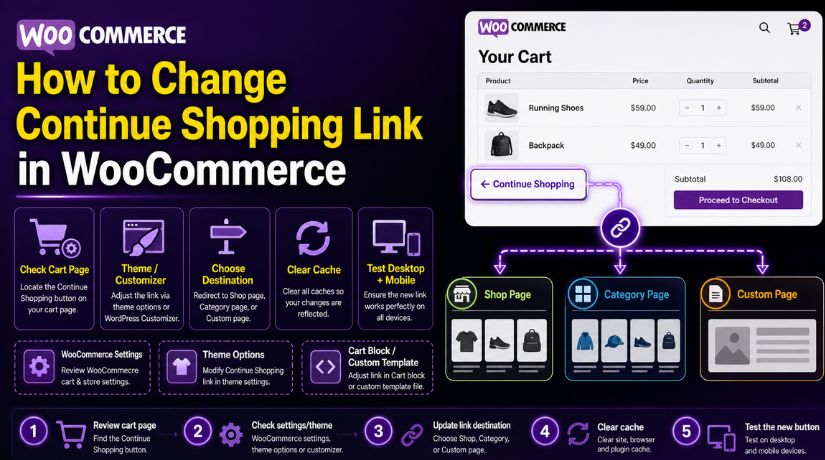
How to Change Continue Shopping Link in WooCommerce Easily (Detailed Guide)
Table of Contents
- Introduction
- What Is the Continue Shopping Link in WooCommerce?
- Why Change the Continue Shopping Link in WooCommerce?
- When Should You Change the Continue Shopping URL?
- Important Things to Check Before Changing the Continue Shopping Link in WooCommerce
- How to Change Continue Shopping Link in WooCommerce Using Settings or Theme Options
- How to Test the New Continue Shopping Link in WooCommerce Before You Use It on a Live Store
- Common Problems You May Face When Changing the Continue Shopping Link in WooCommerce
- Best Practices for Changing the Continue Shopping Link in WooCommerce Without Hurting User Experience
- Conclusion
Introduction
A smooth shopping path helps users stay active in your store. Small cart changes often improve the buying journey very quickly. One useful change is the continued shopping link. Many store owners want more control over this link. They want shoppers to return to a better page. This is why many users search for ways to change the continued shopping link in WooCommerce. The default link may not always fit your sales goal. It may send users to a page with less value. It may also slow the path back to products. A better link can keep users browsing for longer. It can also support more clicks, views, and sales.
The WooCommerce continue shopping link seems like a small detail. Still, it plays a real role in user movement. It helps shoppers leave the cart and keep exploring. When that path feels easy, users often stay engaged. When that path feels weak, some users leave the store. That is why many store owners try to edit the continue shopping button WooCommerce settings. They want better control over product flow. They also want a smarter WooCommerce cart page customization plan. A strong cart page should do more than show totals. It should also guide users toward the next useful action.
Many stores also want to change cart redirect WooCommerce behavior. They may want a better page after add-to-cart actions. They may want a featured category or sale page. Some even want a WooCommerce custom redirect after adding to cart. Others only need to update the WooCommerce continue shopping URL. No matter the reason, the goal stays simple. You want the cart page to support more shopping. You want users to move back into the store fast. In this guide, you will learn the basics first. That makes the next setup steps easier to follow.
What Is the Continue Shopping Link in WooCommerce?
The continue shopping link is a return path for shoppers. It helps users move from the cart to product pages. In many stores, it appears on the cart page. Some themes also show it in the empty cart area. Its job is simple and very helpful. It tells users they can keep browsing products. It gives them a clear way to continue shopping. This creates a better flow inside the store.
For many users, the cart is not the final stop. They may add one item first. Then they may want to browse more products. They may want to compare styles, colors, or prices. The WooCommerce continue shopping link supports that next step. Without this option, users may need extra clicks. They may use the back button or main menu. That can feel slower and less direct. A simple button often works much better.
The link destination can matter more than many owners think. Some stores send users back to the shop page. Some send them to a product category page. Others use a custom page with top items. This is where the WooCommerce continue shopping URL becomes important. If the link points to the wrong place, users may lose focus. If the link points to a useful page, users may keep browsing. That is why store owners often want to change the continued shopping link in WooCommerce. They want the button to support real store goals.
It is also important to know one thing here. WooCommerce does not always show this link the same way. The result can depend on your theme setup. Some themes place the button clearly on the cart page. Some replace it with their own cart design. Some do not show it at all. A page builder or plugin may also control it. That is why two WooCommerce stores can act differently. The feature exists in the shopping flow, but its style can vary.
This also explains why many users ask how to edit the continue shopping button WooCommerce pages. They open the cart page and see something unexpected. The link may go to the shop page only. The button text may look unclear. The link may even disappear after theme changes. In such cases, store owners need to check how their site works. They need to understand what controls that button. Once they know that, it becomes easier to improve the flow.
Why Change the Continue Shopping Link in WooCommerce?
Improve Product Navigation for Shoppers
A clear shopping path helps users move through your store easily. Many shoppers add one item first and then browse more. If the WooCommerce continue shopping link sends them somewhere useful, they stay active longer. If it sends them to a weak page, they may leave. This is why many store owners want to change the continued shopping link in WooCommerce for better navigation.
Send Users Back to More Relevant Pages
Not every store should send users back to the main shop page. Some stores need category pages, sale pages, or custom collections. A better WooCommerce continue shopping URL helps users return to pages that match their interests. This keeps the shopping flow focused and useful. It also improves the overall user experience.
Support Better WooCommerce Cart Page Customization
The cart page should do more than show products and totals. It should also guide users toward the next step. Good WooCommerce cart page customization helps make that happen. When you edit the continue shopping button WooCommerce settings, you improve how the cart page works. This small change can make the page more helpful and more active.
Keep Shoppers Browsing for Longer
A smart continue shopping link can increase product views. When users return to a strong page, they often keep exploring. They may find related items, better offers, or new arrivals. This gives them more reasons to stay on the site. That is one strong reason to change cart redirect WooCommerce behavior.
Promote Important Store Pages More Effectively
Many stores want to push traffic toward selected pages. These may include best sellers, seasonal items, or sale products. The continue shopping button can help support that goal. Instead of wasting that click, you can guide users better. This makes the WooCommerce continue shopping link more useful for store growth.
Match the Shopping Flow to Your Sales Goal
Every store has a different sales plan. Some want to increase category visits. Some want to promote featured items. Some want a better WooCommerce custom redirect after adding to cart. In each case, the continued shopping link should support that plan. A better link helps connect the cart page with your sales goal.
Reduce Confusion During the Buying Journey
Shoppers like clear next steps. They do not want to guess where to click next. A poor link can break the shopping flow very fast. A strong link gives users a simple path forward. This is another reason store owners edit the continue shopping button WooCommerce options for better results.
Make the Store Feel More User-Friendly
Small changes can improve the full store experience. A useful continuous shopping path makes the site feel easier to use. It helps users move with less effort and less confusion. That often leads to better browsing and a smoother cart journey. A well-planned WooCommerce continue shopping URL supports both usability and sales.
When Should You Change the Continue Shopping URL?
When the Current Continue Shopping Link Sends Users to the Wrong Page
You should update the link when it sends shoppers somewhere unhelpful. Many stores use a default path that does not fit their layout. It may send users to a plain shop page or homepage. That page may not match what they were browsing earlier. In that case, the WooCommerce continue shopping URL needs improvement. A better link keeps shoppers close to useful products. This is one common reason to change the continued shopping link in WooCommerce.
When You Want to Send Shoppers Back to the Main Shop Page
Some stores want a simple and direct shopping path. They do not need a custom landing page or category page. They only want users to return to the main product area. That setup works well for small or general stores. It also keeps the cart flow clear and easy. If the current button does not do that, you can edit the continue shopping button WooCommerce settings to improve the path.
When You Want to Guide Users to a More Useful Store Section
Many stores sell products in different groups or collections. In such cases, the shop page may feel too wide. A category page may serve the shopper much better. For example, a fashion store may want users back to shirts. A pet store may want users back to dog supplies. This type of WooCommerce cart page customization helps users stay focused. It also helps them continue browsing with less effort.
When Your Store Uses a Custom Browsing or Sales Flow
Some stores do not follow a basic shopping layout. They use featured pages, seasonal sections, or custom funnels. These stores often need a smarter return path from the cart. They may also use a WooCommerce custom redirect after adding to cart. In that case, the continue shopping button should support the same flow. If it does not, the user journey can feel broken. That is another strong reason to change cart redirect WooCommerce behavior.
Important Things to Check Before Changing the Continue Shopping Link in WooCommerce
Check How Your Current Theme Handles the Cart Page Layout
Before making changes, review how your cart page works now. Some themes use the default WooCommerce cart layout. Others replace it with a custom design or builder layout. In those cases, the WooCommerce continue shopping link may come from the theme. If you skip this check, you may edit the wrong place. A quick review saves time and avoids confusion later.
See Whether Your Theme Already Includes a Button Link Option
Many modern themes include cart and shop controls in settings. They may offer options for cart buttons, return links, or text labels. Always check the customizer or theme panel before changing code. You may find a simple option already available there. That makes the task easier and much safer. It is often the fastest way to change the continued shopping link in WooCommerce.
Take a Full Website Backup Before Making Any Changes
A backup is always a smart first step. Even a small cart change can affect store behavior. If something breaks, you need a safe restore point. This matters more on live WooCommerce stores with active buyers. A backup protects your design, settings, and product data. It also gives you confidence while making updates.
Use a Child Theme If You Plan to Edit Store Files
Never edit your main theme files directly on a live site. Theme updates can remove your changes without warning. A child theme keeps your custom work safe during updates. This matters if you plan to change templates or snippets. It is a basic rule for safe WooCommerce cart page customization. Using a child theme also keeps your store easier to manage later.
Test the Cart Page on Desktop and Mobile Before Finalizing Changes
Always check the cart page on different screen sizes first. A link may look fine on desktop but fail on mobile. Button spacing, alignment, or placement may also change. This can hurt the shopping experience for many users. Test before and after every major change you make. A good WooCommerce continue shopping URL should work well everywhere.
How to Change Continue Shopping Link in WooCommerce Using Settings or Theme Options
Step 1: Open Your WooCommerce Store Settings and Review the Cart Page Setup
- Log in to your WordPress dashboard.
- Go to WooCommerce > Settings.
- Open the Advanced tab.
- Find the page setup section.
- Check whether the Cart page is assigned correctly.
- Make sure the correct cart page is selected.
- Save changes if you update anything.
Step 2: Confirm That Your Shop Page Is Set Properly for Store Navigation
- Stay inside the WooCommerce settings area.
- Check which page is used as the Shop page.
- Make sure the shop page is active and working.
- Open that page on the front end.
- Confirm it shows your products correctly.
- Use this page if you want shoppers to return there.
Step 3: Check Whether Your Theme Already Includes a Continue Shopping Button Option
- Go to your theme settings or theme panel.
- Look for cart, shop, or button options.
- Check whether your theme includes a Continue Shopping setting.
- Review any button link or redirect option.
- Update the link if your theme allows it.
- Save the setting after making the change.
Step 4: Open the WordPress Customizer and Review WooCommerce Display Options
- Go to Appearance > Customize.
- Open the WooCommerce-related sections.
- Check cart page and shop page settings.
- Look for button text, link, or layout controls.
- See whether the continue shopping button is managed there.
- Change the setting if the option is available.
- Publish the changes after updating.
Step 5: Check Whether Your Store Uses the New Cart Block or a Custom Cart Template
- Open the Pages section in WordPress.
- Edit your Cart page.
- Check whether the page uses blocks or a custom layout.
- See whether a page builder controls the design.
- Review the button inside that layout.
- Update the link if the builder or template allows it.
- Save or update the page after editing.
Step 6: Save the Setting or Theme Option After Choosing the Best Shopping Destination
- Decide where you want shoppers to go next.
- Choose a useful page for continued browsing.
- Use the Shop page for a simple store flow.
- Use a category page for more targeted browsing.
- Use a custom page if your store has a special sales path.
- Save the final setting after choosing the destination.
Step 7: Clear Cache and Test the Continue Shopping Button on the Cart Page


- Add a product to your cart.
- Open the cart page on the front end.
- Click the Continue Shopping button.
- Check whether it opens the correct page.
- Clear browser cache if the old link still appears.
- Clear plugin or server cache if needed.
- Test again in a private browser window.
Step 8: Check the Result on Desktop and Mobile Before Finalizing the Change
- Open your store on a desktop device.
- Test the continue shopping button again.
- Open your store on a mobile device.
- Check the button placement and link behavior.
- Make sure the button is easy to see.
- Confirm it works well on both screen sizes.
- Keep the change only after proper testing.
How to Test the New Continue Shopping Link in WooCommerce Before You Use It on a Live Store
Add a Product to the Cart Before You Start the Link Test
Start with a real product from your store. Add that product to the cart like a normal shopper. This helps you test the full cart flow correctly. It also shows how the WooCommerce continue shopping link behaves in real use. A proper test should always begin with a real cart action. That gives you a clear and practical result.
Open the Cart Page and Check Whether the Button Appears Properly
After adding the product, open the cart page at once. Check whether the continue shopping button is visible there. Some themes hide it in certain cart layouts. Some custom templates place it in a different area. This is why the first visual check matters. If the button is missing, you may need more WooCommerce cart page customization. A hidden button cannot support better shopping flow.
Click the Continue Shopping Button and Confirm the Correct Page Opens
Now click the button and watch where it goes. The page should open fast and without confusion. Make sure the link sends users to the right destination. That may be the shop page, a category page, or a custom page. This is the most important part of the test. A good WooCommerce continue shopping URL should support easy browsing. If it opens the wrong page, the change is not ready yet.
Test the New Link on Desktop for Layout and User Experience
Open the cart page on a desktop screen next. Check button placement, text, and page behavior carefully. The button should look clear and feel easy to use. It should not look hidden, broken, or out of place. A desktop test helps you review the full design better. It also shows whether your edit continue shopping button WooCommerce update fits the layout well.
Test the Continue Shopping Link on Mobile Devices Too
Mobile testing is just as important as desktop testing. Many shoppers use phones for WooCommerce purchases today. A button can work on desktop but fail on mobile. It may look too small or move below other elements. That can hurt the buying journey very quickly. A strong WooCommerce continue shopping link should work well on every screen size. Good mobile testing helps prevent user frustration later.
Test the Button as a Guest User and a Logged-In User
Try the same flow with different user types. Test once as a guest shopper first. Then test again with a logged-in customer account. Some stores show different cart behavior for each type. A plugin or custom setup may affect the link path. This matters when you change cart redirect WooCommerce behavior on a live site. Both user types should get a smooth result.
Clear Cache and Test Again if the Old Link Still Appears
If the old link still opens, check your cache next. Browser cache can hold the old cart page version. Caching plugins and CDN settings can do the same. Clear all cache and run the test again. Use a private browser window for a cleaner result. Many store owners think the edit failed when cache is the real issue. Always test again before making more changes.
Common Problems You May Face When Changing the Continue Shopping Link in WooCommerce
Even simple cart edits can create small problems later. The link may not update as expected. The button may disappear after a theme change. A plugin may also control the button without notice. That is why you should know the most common issues first. When you understand these problems, fixing them becomes much easier.
The Continue Shopping Link Does Not Update After Saving the New Settings
This is one of the most common issues on WooCommerce stores. You update the setting, but the old link remains. In many cases, cache is the real reason. Your browser, theme, or caching plugin may load old page data. Clear the site cache and browser cache first. Then test the cart page again on a fresh session. This often fixes the problem quickly.
Sometimes the issue comes from changing the wrong setting. You may edit the theme option, but the builder controls the page. Or you may edit the builder, but a template override controls the link. That is why it is important to check the full source first. A failed update does not always mean the change is wrong. It may only mean another layer controls the button.
Your Theme Overrides the Default WooCommerce Continue Shopping Link Behavior
Many themes replace WooCommerce default layouts with custom designs. This can change the cart page button completely. It may also stop your changes from working as expected. In such cases, the theme becomes the main control point. You must review theme files, settings, or customizer options carefully. This is very common on advanced store designs.
A theme override can also affect button text and placement. That means even a correct link may still look wrong. If the theme handles the full cart design, start there first. Do not assume WooCommerce controls everything on the page. This is a key part of smart WooCommerce cart page customization. Knowing who controls the page helps avoid wasted effort.
The Cart Page Changes Do Not Show on the Frontend After You Edit Them
Sometimes you make the change, but the live page shows nothing new. This often happens with cached layouts or page builder content. It can also happen if you edit a hidden draft layout. Always confirm you changed the live cart page version. Check builder conditions, published status, and cart template assignment. A small setup issue can block the full update.
This problem is also common on staging and live site setups. A user may edit one version and test another version. Then it looks like the change failed completely. Always confirm that you are working on the correct site. Then check the live page again after saving changes. This simple check can save a lot of time.
Cache Prevents the Updated Continue Shopping Button Link from Appearing
Cache can delay almost every cart page change. A cached page may keep showing the old button URL. This can make the update look broken or incomplete. Clear plugin cache, server cache, and CDN cache if needed. Then reload the page and test again. Use a private browser window for a cleaner result.
This matters even more on busy WooCommerce stores. Performance tools often store old versions of important pages. That can affect the WooCommerce continue shopping link and other cart changes. If the link looks wrong after saving, check cache first. It is often the simplest reason behind the problem. Many store owners fix the issue with this step alone.
A Plugin Conflict Changes the Continue Shopping Link or Cart Redirect Flow
Some WooCommerce plugins change cart behavior behind the scenes. They may add redirects, custom buttons, or sales funnel steps. This can affect the continue shopping button without warning. A plugin may even control WooCommerce custom redirects after adding to cart actions. If that happens, your manual changes may not appear. The plugin settings may override everything else.
If you suspect a conflict, review recently added plugins first. Check cart plugins, funnel tools, product add-ons, and template plugins. Disable them one by one on a test site if needed. Then test whether the button behavior changes. This process helps you find the true source faster. Plugin conflicts are common in stores with many custom features.
Best Practices for Changing the Continue Shopping Link in WooCommerce Without Hurting User Experience
Keep the Continue Shopping Link Simple and Easy to Understand
The button should tell users exactly what it does. Clear wording always works better than clever wording. Most shoppers prefer direct and familiar button text. They want quick movement, not extra guessing. A simple WooCommerce continue shopping link supports that goal well. It keeps the cart page easy and user-friendly.
Send Shoppers to a Page That Helps Them Continue Browsing
The destination page should match your store flow. It should help users keep shopping without confusion. In many stores, the shop page works very well. In other stores, a category page works better. Choose a page that feels useful after the cart view. This makes your WooCommerce continue shopping URL more effective. It also supports stronger product discovery.
Avoid Sending Users to Pages That Break the Buying Journey
Do not send users to random or low-value pages. A homepage may not always be the best choice. A contact page is also a poor return path. The continue shopping button should support shopping, not distract from it. This is one of the most important best practices. When you change the shopping link in WooCommerce, always think about the next shopping step.
Match the Link Destination with Your Store Structure and Sales Goal
Every store has a different layout and sales plan. Some stores want more category visits from cart users. Some want to highlight sale pages or featured collections. Some use a WooCommerce custom redirect after adding to cart for the same reason. Your continued shopping path should support that full plan. A strong match between link and goal creates better results.
Make Sure the Button Looks Natural on the Cart Page Design
A useful button also needs good placement and style. It should not look hidden inside the cart layout. It should not clash with the checkout button either. The button should feel like a natural next step. This is why WooCommerce cart page customization matters here. Good design helps users trust the button and click it more often.
Review the Continue Shopping Link After Theme or Plugin Changes
Store updates can change cart behavior without warning. A new theme update may replace the cart layout. A plugin update may change the link or redirect flow. This can affect your edit continue shopping button WooCommerce setup later. Review the cart page after major updates. A small check can prevent bigger problems for shoppers.
Test the Link Often if Your Store Uses Custom Cart Behavior
Some stores use advanced product, cart, or funnel tools. These tools can affect cart buttons and redirect paths. If your store uses that type of setup, test more often. A small plugin change can alter the continued shopping path. This matters even more when you change cart redirect WooCommerce behavior often. Regular testing helps keep the store smooth and stable.
Conclusion
Changing the continue shopping link in WooCommerce is a small update, but it can improve the shopping journey in a big way. It helps users return to the right page faster and continue browsing without confusion. This creates a smoother path inside your store and supports better product discovery. It can also make your cart page more useful for both shoppers and store owners. When you choose the right destination, test it well, and keep the flow simple, this change can improve user experience and support more sales over time.
Need help changing the continue shopping link in WooCommerce the right way? WooHelpDesk can help you update your cart page, improve store navigation, and make your WooCommerce shopping flow work better for real users. Whether you need a simple button update, cart page customization, or full WooCommerce support, our team is ready to help. Visit WooHelpDesk to get expert support for your WooCommerce store.



