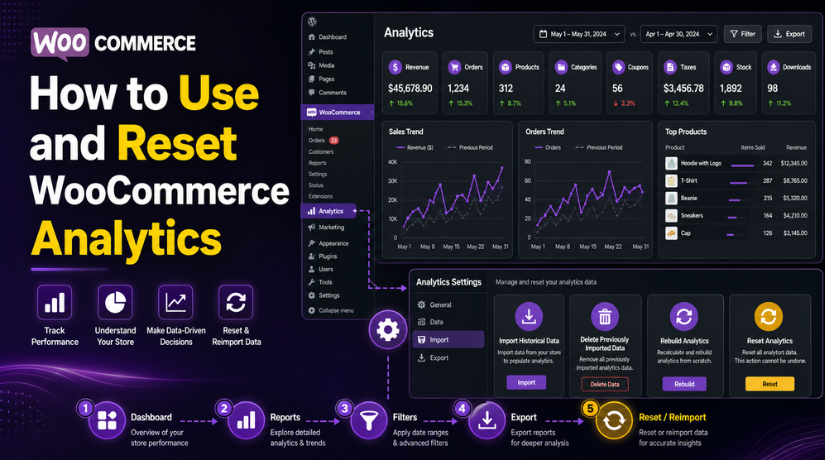
How to Use and Reset WooCommerce Analytics (Complete Guide)
Table of Contents
- Introduction
- What WooCommerce Analytics Really Means for Online Store Owners
- Why WooCommerce Analytics Is Important for Better Store Growth
- How to Use WooCommerce Analytics (Complete Step by Step Guide)
- Things to Check Before Resetting WooCommerce Analytics on Your Store
- How to Reset WooCommerce Analytics (Step by Step Guide)
- Best Practices for Managing WooCommerce Analytics for Better Long-Term Store Tracking
- Conclusion
Introduction
Running an online store without data can create many blind spots. You may sell products daily, but still miss key patterns. That is why WooCommerce Analytics matters for store owners. It shows what is happening inside your store clearly. You can check sales, products, orders, and customer activity. This helps you make better decisions with less guessing. Many store owners use the WooCommerce Analytics dashboard to understand store growth. It gives a cleaner view than older report sections.
It also helps you compare results over time. If you want stronger WooCommerce performance tracking, this tool is very useful. In this guide, you will learn the basics first. You will understand what this feature does. You will also learn why it matters for your store. Later, you can move toward proper WooCommerce Analytics setup and reset steps when needed.
What WooCommerce Analytics Really Means for Online Store Owners
WooCommerce Analytics is a built-in reporting feature inside WooCommerce. It helps store owners track business data in one place. You can use it to study sales, orders, products, and customers. It turns raw store activity into useful reports. This makes daily store management easier and smarter. The main goal is simple. It helps you understand how your store is performing. The WooCommerce Analytics dashboard is designed in a clear way. It shows charts, filters, and detailed report sections. You can review data by date, product, category, or coupon use.
This gives store owners better control over planning. Many users compare it with old WooCommerce reports WooCommerce offered before. The newer analytics section is more advanced and more user-friendly. It gives better filters and better report views. It also supports deeper WooCommerce performance tracking for growing stores. If you want to understand store trends faster, this tool helps a lot. It is especially useful when checking WooCommerce sales reports and product movement over time.
Why WooCommerce Analytics Is Important for Better Store Growth
It Helps You Track Store Sales More Clearly
WooCommerce Analytics helps you understand how your store is selling. You can check total sales, net sales, and refunds easily. This gives you a better view of store income. When you review WooCommerce sales reports often, you can spot changes early. This helps you plan better and avoid wrong business decisions. Clear sales data always supports better store growth.
It Shows Which Products Perform Better Than Others
Not every product sells in the same way. Some products bring more orders and better profit. WooCommerce Analytics helps you find those products quickly. You can also identify items that do not perform well. This helps you improve pricing, product pages, or promotions. Good product-level data makes store planning easier. It also supports better stock and marketing decisions.
It Makes Customer Buying Behavior Easier to Understand
A growing store should understand what customers like to buy. The WooCommerce Analytics dashboard helps you study this pattern. You can review order trends, popular categories, and coupon use. This makes customer behavior easier to understand. When you know what buyers prefer, you can plan offers better. This improves customer experience and helps increase repeat orders over time.
It Helps You Check Order Trends Over Time
Order trends tell you how your store performs during different periods. WooCommerce Analytics helps you compare days, weeks, and months easily. You can see when demand rises or drops. This is useful for planning sales campaigns and inventory. It also helps you prepare for busy shopping periods. Strong order tracking supports smarter store management and better growth planning.
It Supports Better Marketing and Pricing Decisions
Marketing works best when it is backed by real data. WooCommerce Analytics shows how promotions, discounts, and coupons affect sales. You can study what works and what fails. This helps you improve your campaigns with confidence. It also helps you review pricing performance. Better pricing and better promotions can increase sales without wasting your marketing budget.
It Helps You Find Weak Areas in Your Store
Sometimes store problems stay hidden for a long time. Sales may drop, but the reason may not seem clear. WooCommerce performance tracking helps you find those weak points. You may notice poor product performance, low category sales, or coupon misuse. Once you identify the issue, you can work on a solution faster. This helps protect your store from bigger problems later.
It Helps You Plan Store Growth with Real Data
Store growth should be based on numbers, not assumptions. WooCommerce Analytics setup gives you access to useful reports from the start. You can review performance and plan future actions better. Whether you want to expand products, run offers, or improve sales, data helps. Good planning becomes easier when reports are clear. That is why analytics is important for long-term store success.
How to Use WooCommerce Analytics (Complete Step by Step Guide)
Step 1: Log In to Your WordPress Dashboard
- First, open your WordPress admin panel and log in.
- Use an admin or store manager account. This is important because limited user roles may not see all report sections.
- After login, go to the main dashboard.
- From there, you can open the WooCommerce menu and access your store settings and reports.
Step 2: Open the WooCommerce Analytics Section
- In the left sidebar, click WooCommerce.
- After that, click Analytics from the submenu.
- This will open the WooCommerce Analytics dashboard. Here, you will see different report sections in one place.
- This is where WooCommerce performance tracking starts.
- You can use this area to monitor orders, sales, products, stock, and other store activity.
Step 3: Make Sure Your WooCommerce Analytics Setup Is Ready
- Before reading reports, check that your WooCommerce Analytics setup is working properly. In some stores, report data does not appear instantly.
- WooCommerce may need to import past order data first.
- If the dashboard looks empty, review your WooCommerce status and analytics settings.
- Once the data import is complete, the reports will start showing proper store information.
Step 4: Start with the Overview on the WooCommerce Analytics Dashboard
- When the dashboard opens, start with the overview section. This gives a quick summary of your store performance.
- You can see charts, totals, and key trends here.
- This first view helps you understand what is happening in your store.
- It also makes the WooCommerce Analytics dashboard easier to understand before checking each report separately.
Step 5: Select the Right Date Range for Your Report
- Now choose the date range you want to review. You can check today, yesterday, last 7 days, last month, or a custom range.
- This step is very important because report results change by date.
- If you want accurate WooCommerce sales reports, always check the selected period first.
- This helps you avoid confusion while reading store data.
Step 6: Compare One Time Period with Another
- After choosing the date range, use the compare option if needed.
- This helps you compare current results with an earlier period.
- For example, you can compare this month with last month.
- This step helps you measure improvement or decline.
- It is one of the most useful ways to do WooCommerce performance tracking in a simple and practical way.
Step 7: Review the Revenue Report Carefully
- Open the revenue section to check income-related data. Here, you can see gross sales, net sales, refunds, shipping, and taxes.
- This report helps you understand how much your store is earning.
- Good WooCommerce sales reports help you study store growth more clearly.
- They also support better decisions for pricing, offers, and future planning.
Step 8: Check the Orders Report to Understand Buying Activity
- Next, open the orders report.
- This section shows how many orders your store received during the selected period. It also shows order trends and average order values.
- This helps you understand your store activity better. If orders rise or drop, you can check the reason early.
- This makes WooCommerce reports WooCommerce users rely on more useful for daily review.
Step 9: Review Product and Category Performance
- Now open the products and categories reports.
- These sections show which products sell well and which ones need improvement. You can also see which categories perform better than others.
- This helps with promotion, pricing, and stock planning.
- WooCommerce Analytics is very helpful here because it turns product data into useful business insights.
Step 10: Check Coupons, Taxes, Stock, and Downloads Reports
- After that, review the other report sections as needed.
- The coupon report shows discount usage and performance.
- The tax report helps track tax totals.
- The stock report helps you monitor inventory levels. The downloads report is useful for digital products.
- These reports make the WooCommerce Analytics dashboard more complete and more helpful for store owners.
Step 11: Use Filters to Find More Exact Data
- WooCommerce Analytics also gives filter options in many reports.
- You can use filters to narrow your data by product, category, coupon, or other details.
- This helps you focus on one area at a time.
- Filters improve report accuracy and make WooCommerce performance tracking easier when you want detailed store insights instead of general numbers.
Step 12: Export the Report Data When Needed
- If you want to save or share report details, use the export option. This lets you download the report data for later use.
- Exported reports are helpful for team review, record keeping, and deeper analysis. A proper WooCommerce Analytics setup makes exported data more reliable.
- This step is useful when you want to plan store changes using real report numbers.
Step 13: Use the Report Insights to Improve Store Decisions
- The final step is to use the data wisely.
- Do not just read the numbers and leave them. Use them to improve pricing, products, offers, and stock planning.
- This is where WooCommerce Analytics becomes most valuable. It helps you make decisions based on real store activity.
- That is the best way to use analytics for better store growth.
Things to Check Before Resetting WooCommerce Analytics on Your Store
Before you reset WooCommerce Analytics, do not rush the process. A reset may help in some cases, but it is not always the first solution. You should first check whether the issue is really related to analytics data. Sometimes reports look wrong because of delayed imports, test orders, plugin conflicts, or recent store changes. That is why this step matters a lot. A careful review can save time and prevent unnecessary work.
Confirm First If Resetting WooCommerce Analytics Is Really Needed
The first thing you should check is whether a reset is truly necessary. Many store owners reset reports too early. In some cases, the issue is small and temporary. For example, the WooCommerce Analytics dashboard may not update right away after new orders. Sometimes the problem is only related to syncing or data import delay. If the report issue is minor, resetting everything may not be the best step. Always confirm the reason first before making bigger changes.
Check If the WooCommerce Analytics Data Is Only Delayed
Sometimes WooCommerce Analytics data does not appear instantly. This can happen after recent orders, imports, plugin updates, or store changes. If your reports look incomplete, wait and check again after some time. WooCommerce may still be processing the report data in the background. This is common in larger stores with more orders. Before resetting, check whether the data delay is temporary. A simple delay should not lead to a full reset.


Review Plugin or Theme Conflicts Before Resetting Store Reports
Another important step is checking plugin or theme conflicts. Some extensions can affect WooCommerce sales reports or report loading. A custom theme, report plugin, caching plugin, or order-related extension may create unexpected issues. If reports started showing wrong numbers after a recent change, review what was updated. It is better to test conflicts first before resetting analytics. This can help you solve the actual issue without touching existing report data.
Check Whether Test Orders Are Affecting WooCommerce Analytics Reports
Many store owners place test orders while checking payment or checkout flow. These test orders often appear in WooCommerce Analytics reports and create confusion. They can affect revenue totals, order counts, and product performance numbers. If your reports look wrong, review whether demo or test orders are included. This is especially common on live stores during setup changes. If test data is the main issue, then reset may be useful. But first, confirm that these extra orders are really causing the report problem.
Verify If Store Migration or Data Import Caused Report Problems
If you recently moved your store to a new server or domain, analytics issues may happen. Migration can affect report history, imported order data, and tracking consistency. The same problem can happen after bulk product or order import. In these cases, WooCommerce performance tracking may not show correct results right away. Before resetting, check whether the issue started after migration or import. This gives you a clearer reason for the problem and helps you choose the right fix.
Take a Full Website Backup Before Resetting WooCommerce Analytics
Before making any reset-related change, always create a full backup. This step is very important. Even though resetting WooCommerce Analytics usually does not delete actual orders, you should still protect your site first. A full backup should include your database, files, themes, plugins, and media. This gives you a safe restore point if something unexpected happens. Never skip backup before working on reports or store data tools.
Make Sure Your Order Data and Store Information Are Safe
You should also confirm that your actual order data is safe. Resetting analytics is mainly related to report tables and report history. Still, it is smart to review your orders, products, and important records first. Open your store orders and make sure they are visible and complete. This small check gives peace of mind before moving further. It also helps you separate analytics problems from actual store data problems.
How to Reset WooCommerce Analytics (Step by Step Guide)
Step 1: Open the WooCommerce Analytics settings
- Log in to your WordPress dashboard first.
- Then go to WooCommerce → Analytics → Settings.
- WooCommerce uses this area for analytics options, including historical data import controls.
- The Delete Previously Imported Data button appears only after historical data has been imported at least once.
Step 2: Decide whether you need a full rebuild or just a cache reset
- If your numbers look wrong, the first action is usually to clear the analytics cache.
- WooCommerce provides a Reset WooCommerce Analytics cache tool under WooCommerce → Status → Tools.
- This clears cached analytics data and is commonly used when reports appear inaccurate.
Step 3: Clear the WooCommerce Analytics cache
- Go to WooCommerce → Status → Tools.
- Scroll until you find Clear analytics cache or Reset WooCommerce Analytics cache.
- Run that tool first.
- This is the safest reset step because it refreshes cached report data without being the same as deleting your order records.
Step 4: Return to Analytics settings and review the import options
- After clearing the cache, go back to WooCommerce → Analytics → Settings.
- Find the Import Historical Data section.
- This section is used to rebuild the analytics reports from your existing WooCommerce order and customer history.
Step 5: Delete previously imported analytics data if you want a full reset
- If you want a full analytics rebuild, use Delete Previously Imported Data in the Analytics settings.
- WooCommerce states that this option becomes available after historical data has already been imported once.
- This step removes the old imported analytics dataset so it can be rebuilt cleanly.
Step 6: Re-import historical data
- In the same Import Historical Data section, start the import again.
- If you want WooCommerce to rebuild everything, uncheck Skip previously imported customers and orders before starting the import.
- This tells WooCommerce to process the full historical dataset again instead of skipping records that were already imported before.
Step 7: Use the correct date option if reports still look wrong
- If the reports still show zeros or incorrect totals, check Analytics → Settings → Date type and make sure Date Created is selected.
- WooCommerce support guidance specifically recommends this before clearing the cache and importing historical data again in some analytics mismatch cases.
Step 8: Wait for WooCommerce to rebuild the analytics data
- The rebuild runs in the background, so it may not finish instantly.
- Large stores with many orders can take longer because WooCommerce needs to process historical data again.
- If you check too early, the WooCommerce Analytics dashboard may still look incomplete.
- This background processing behavior is also consistent with WooCommerce’s scheduled task system.
Step 9: Refresh and review the reports again
- After the import finishes, open the WooCommerce Analytics dashboard and review revenue, orders, and products first.
- If you previously deleted imported analytics data, the rebuilt reports should now reflect the fresh import.
- If you are checking older legacy reports instead of the newer Analytics area, WooCommerce notes that browser cache can also affect what you see.
Step 10: Troubleshoot further if the reset does not fix the problem
- If the reset still does not work, update WooCommerce database tools first, then clear analytics cache and re-import again.
- WooCommerce support guidance also points to checking scheduled actions or stuck background tasks when imports do not complete properly.
This reset process is for the newer WooCommerce Analytics system. WooCommerce’s older legacy reports work differently, and resetting those older reports is not the same process. WooCommerce recommends using the newer Analytics experience for resetting and historical imports.
Best Practices for Managing WooCommerce Analytics for Better Long-Term Store Tracking
Managing WooCommerce Analytics well is not only about opening reports. It is also about keeping your store data clean and useful. When analytics is managed the right way, store decisions become easier. You can track growth better and avoid confusion in reports. That is why store owners should follow a few simple habits. These habits help the WooCommerce Analytics dashboard stay accurate and useful over time.
Review WooCommerce Analytics Reports on a Regular Schedule
One of the best habits is regular report checking. Do not open WooCommerce Analytics only when something goes wrong. Instead, review reports daily, weekly, or monthly based on your store size. This helps you notice changes early. You can quickly see sales drops, stock issues, or unusual order patterns. Regular review also improves WooCommerce performance tracking because you are always aware of what is happening in your store.
Keep WooCommerce and Related Plugins Updated for Better Report Accuracy
Old plugin versions can create report issues over time. That is why updates matter. Keep WooCommerce, your theme, and related plugins updated carefully. This supports better WooCommerce Analytics setup and smoother report performance. Updates often fix bugs, improve report tools, and support better compatibility. Before updating on a live site, it is still smart to test changes carefully. A stable store setup always supports more reliable analytics.
Avoid Creating Test Orders on the Live Store Whenever Possible
Test orders are one of the most common reasons for messy reports. They can affect revenue totals, order count, and product performance data. This makes WooCommerce sales reports harder to trust. If you need to test checkout or payment flow, try to do it on a staging site instead. If live testing is necessary, keep track of those orders properly. Clean report data always gives better business insight.
Make Sure Store Data Stays Clean and Properly Managed
Analytics depends on the quality of your store data. If product prices, categories, taxes, or orders are not managed properly, reports may also become confusing. Good data management supports a better WooCommerce Analytics dashboard experience. Make sure product details are correct. Check that order statuses are used properly. Review imported data carefully. Clean store records help reports stay useful and easier to understand.
Check WooCommerce Analytics After Major Store Changes
Any major store change can affect reports. This includes migration, bulk product import, large pricing updates, plugin changes, or checkout edits. After such updates, review WooCommerce Analytics carefully. This helps confirm whether tracking still looks correct. If something changes suddenly, you can catch it early. This is a simple but important part of strong WooCommerce performance tracking for growing stores.
Conclusion
WooCommerce Analytics is a useful tool for every online store owner. It helps you understand sales, products, orders, and overall store activity more clearly. When used properly, it supports better planning and stronger decision-making. It also helps you spot report issues before they affect business analysis. If reports ever become inaccurate, you can review the problem, check the setup, and reset analytics carefully when needed. The most important thing is to manage reports regularly and keep your store data clean. That is the best way to make the WooCommerce Analytics dashboard more reliable and useful for long-term growth.
If you are facing problems with WooCommerce Analytics, report errors, or reset issues, WooHelpDesk can help. Our team can check your WooCommerce Analytics setup, review report problems, and fix tracking issues carefully. Whether your analytics data is missing, incorrect, delayed, or affected by store changes, we can support you with the right solution. Reach out to WooHelpDesk for expert WooCommerce help and better store report management.



