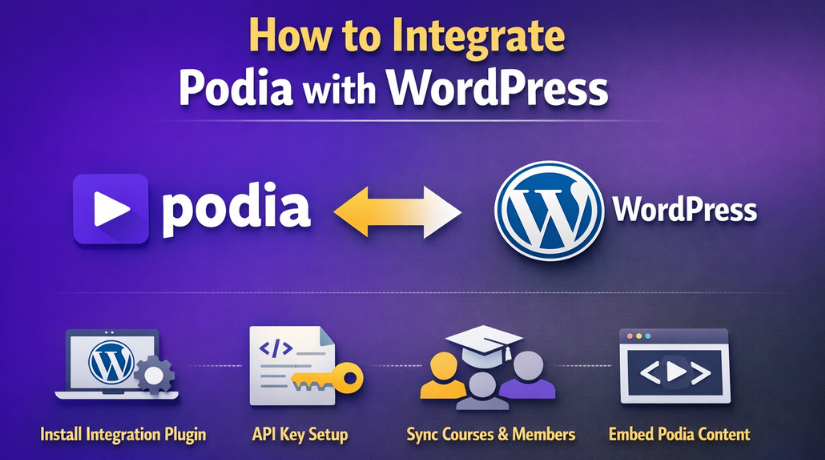
How to Integrate Podia with WordPress (Step-by-Step Guide)
Table of Contents
- Introduction
- What Is Podia and Why Connect It to WordPress?
- Can You Integrate Podia with WordPress?
- Benefits of Integrating Podia with WordPress
- Important Things to Consider Before You Integrate Podia with WordPress on Your Website
- How to Integrate Podia with WordPress In The Easy Way (Complete Guide)
- Common Problems When Connecting Podia to WordPress and How They Can Affect the User Journey
- Best Practices for a Smooth Podia WordPress Integration That Feels Easy for Your Visitors to Use
- Conclusion
Introduction
If you sell courses, digital downloads, memberships, or coaching, you need a website that looks good and sells well. That is why many creators look for a simple way to integrate Podia with WordPress. WordPress gives you strong control over your website pages, blog content, and search visibility. Podia helps you sell products, manage customers, and deliver content without a hard setup. When both platforms work together, you can build a clean site and still keep selling simple.
In this guide, you will learn how Podia WordPress Integration works, why many users choose it, and whether you need a Podia WordPress plugin to get started.
What Is Podia and Why Connect It to WordPress?
Podia is a platform built for creators who want to sell digital products online. You can use it for courses, memberships, downloads, email marketing, and simple website pages. Podia also offers its own site builder, which means some users can run a full website directly on Podia. At the same time, many business owners already have a WordPress site and do not want to rebuild everything from the start. That is where Podia website integration becomes useful. Instead of replacing WordPress, Podia can support the selling side while WordPress keeps handling the main website content.
Even though Podia can build a full website, many users still prefer WordPress for the main front end. WordPress gives better control over page design, themes, plugins, blog structure, and content growth. It is a strong choice for businesses that want to publish helpful articles, target search traffic, and manage many types of pages. If your main goal is long-term content marketing, WordPress often feels more flexible. That is why many users do not want to leave WordPress behind. They want WordPress for content and branding, while Podia handles the product side in a more focused way.
Can You Integrate Podia with WordPress?
Yes, you can integrate Podia with WordPress, and the process is much simpler than many people expect. Podia officially supports using its tools with an existing website. Its help guide explains that creators can connect Podia to an outside site through product links, embedded email forms, and tools like Zapier. That means you do not need to move your whole website just to start selling with Podia. If you already use WordPress, you can continue using it and add Podia where it helps most.
Many users search for a Podia WordPress plugin, but the important point is this: you do not need a special plugin to create a working setup. Podia’s current guidance focuses on links, embedded forms, HTML placement, and automation tools instead of a required WordPress plugin workflow. For many website owners, that is actually better. It means less setup, fewer plugin conflicts, and an easier path for beginners. So, while people often search for a Podia WordPress plugin, the real setup usually depends on adding Podia features into WordPress pages in a simple way.
Benefits of Integrating Podia with WordPress
A smart Podia WordPress Integration lets each platform handle its strongest job. WordPress can manage your main pages, blog posts, and brand content. Podia can handle product delivery, sales pages, and lead collection. Podia’s own help center explains that creators can use an existing website with Podia through links, embeds, and Zapier-based actions. That means you do not need to rebuild your full website to start selling through Podia. This setup saves time and gives you more control over how visitors move from content to checkout.
Better Content Control and More Freedom for Long-Term Website Growth
One major benefit is better control over your content structure. If your main website already runs on WordPress, you can keep your blog, service pages, and important landing pages there. Podia supports this kind of setup because it is designed to work with an existing website instead of forcing a full move. This makes it easier to keep your current design path, content plan, and website structure while still using Podia for product actions. For many creators, this is the most practical reason to integrate Podia with WordPress.
Easier Selling Setup Without Building a Complex Custom System in WordPress
Another strong benefit is a simpler selling setup. Podia already gives creators tools for selling digital products and collecting leads. Its documentation also shows that you can connect product pages and email forms to an outside website in just a few steps. This reduces the need to build every selling feature directly inside WordPress. Instead of creating a complex custom flow, you can let Podia manage the sales side and keep WordPress focused on content and user trust. This makes Podia website integration useful for both beginners and growing businesses.
Better User Experience When Content and Selling Tools Work Together Smoothly
A good setup can also improve the visitor experience. People can read helpful content on your WordPress website and then move to a Podia offer when they are ready. Podia supports external email forms and product links, which helps you place signup and sales actions where they fit naturally. That means your visitors do not need to search around for the next step. A smoother path often creates less confusion and stronger trust. This is one reason many users want to connect Podia to WordPress instead of using only one platform for everything.
Faster Launch and More Flexibility as Your Business Starts to Expand
Speed is another clear advantage. Podia says its existing website connection can be set up in minutes, which makes it a good choice for creators who want a faster launch path. You can begin with simple product links or embedded forms and improve the setup later. Podia also supports custom domains and subdomains, so businesses can create a cleaner structure as they grow. For example, a main website can stay on WordPress while courses or products live on a separate branded subdomain. This gives Podia WordPress integration more room to grow over time.
Important Things to Consider Before You Integrate Podia with WordPress on Your Website
Before you begin, you should decide how both platforms will work together. Podia can act as a full website on its own, but it also supports outside websites through links, embeds, and forms. Because of that, you need a clear plan before you build anything. If the setup is not planned well, visitors may feel confused when they move between pages or domains. A simple plan helps your Podia WordPress Integration feel clean, natural, and easy to use from the start.
First Decide the Main Goal of Your Website and Sales Funnel
Start by defining your main goal. Are you selling a course, a download, a membership, or coaching access? That decision affects where your key pages should live and where your calls to action should point. Podia supports product pages, forms, and audience collection, so it can handle several selling tasks well. But your WordPress site may still be the best place for traffic-building content and detailed brand pages. When you decide this early, it becomes easier to build a smoother customer path.
Decide Which Platform Should Handle Content and Which Should Handle Sales
You should also decide which platform does which job. In many cases, WordPress handles the main website content while Podia manages product actions and lead capture. Podia’s help articles support this approach by showing how outside websites can link to Podia products and embed Podia email forms. This clear role split helps you avoid duplicate pages and mixed messaging. It also makes future updates easier because each platform has a defined purpose. This is an important step when planning a strong Podia WordPress integration flow.
Make Sure Your Branding Looks Consistent Across WordPress and Podia Pages
Brand consistency matters before launch. If visitors move from WordPress to Podia and the design feels very different, trust can drop. Podia allows custom domains or subdomains, which can help the transition feel more connected to your main brand. Embedded forms can also keep more of the experience inside your existing website pages. Even if the tools are different, the colors, tone, and page purpose should still feel connected. This makes the full Podia website integration look more professional and easier to trust.
Think Carefully About User Flow, Redirects, and Lead Tracking Before Going Live
User flow is another important area. Podia lets you control what happens after form signups, including showing a message or redirecting users to another page or URL. This gives you flexibility, but it also means you should plan each next step clearly. A visitor should always know what to do after reading, clicking, or signing up. You should also think about how you will track clicks, form actions, and sales movement across both platforms. Good planning here can prevent confusion later.
Review Technical Setup Details Like Domains, Embeds, and Form Placement Early
Finally, review the technical pieces before launch. Podia supports custom domain connections through CNAME records, and it allows creators to use either a root domain or a subdomain. It also supports embedded email forms on external websites, which can be placed where lead collection matters most. These options are helpful, but they need careful placement and testing. If your forms appear on the wrong page or your domain path feels messy, the customer journey can weaken. This is why many users asking about a Podia WordPress plugin really need planning more than another plugin.
How to Integrate Podia with WordPress In The Easy Way (Complete Guide)
To make Podia WordPress Integration simple, give each platform a clear role. Use WordPress for your main website pages and blog content. Use Podia for product pages, checkout, and lead collection. Follow these steps one by one.


Step 1: Set Up Your Podia Account and Create the Product You Want to Sell First
- Open your Podia account.
- Create the product you want to sell.
- Add the product title and details.
- Upload your course, download, or membership content.
- Check your sales page settings.
- Make sure the product is ready before linking it anywhere.
Step 2: Prepare Your WordPress Website Pages Before Adding Podia Elements
- Open your WordPress website dashboard.
- Decide which pages will support your Podia offer.
- Choose important pages like the homepage, blog posts, and landing pages.
- Think about where visitors will click next.
- Keep your setup clean and focused.
Step 3: Add Podia Product Links to WordPress Pages, Menus, and Important Call Areas
- Copy your Podia product page link.
- Go to your WordPress page or post.
- Add the link to text, buttons, or images.
- Place the same link in menus if needed.
- Add it where users can easily see it.
- Check that the link opens the correct Podia page.
Step 4: Add Clear Podia Buttons and Calls to Action on the Right WordPress Pages
- Use clear button text.
- Write simple action lines like “Buy Now” or “Get Access.”
- Add buttons near useful content.
- Place buttons at the top and bottom of key pages.
- Do not hide important links inside long text.
- Make the next step clear for visitors.
Step 5: Embed Podia Email Forms into WordPress When You Want to Collect Leads
- Create or open your Podia email form.
- Copy the embed code from Podia.
- Open the WordPress page where you want the form.
- Add a Custom HTML block.
- Paste the form code into that block.
- Save and preview the page.
- Check that the form displays properly.
Step 6: Set Up Redirect Behavior So Visitors Always Reach the Right Next Step
- Decide what happens after form submission.
- Choose whether users should see a thank-you message.
- Or send them to another page after signup.
- Use a clear next step after checkout.
- Make sure visitors do not feel lost.
- Keep the user journey smooth and simple.
Step 7: Use a Clean Domain or Subdomain Structure
- Decide how your website and Podia pages should look together.
- Use matching branding on both platforms.
- Keep the same logo, tone, and colors.
- Use a clean subdomain if needed.
- Make the move from WordPress to Podia feel natural.
- Build trust with a consistent brand look.
Step 8: Test Every Link, Form, and Checkout Step Before You Publish the Full Setup
- Click every button on your WordPress site.
- Test every Podia link.
- Submit every form.
- Check the checkout path.
- Test on desktop and mobile.
- Fix any broken or confusing step before going live.
Step 9: Publish the Integration and Start Watching User Actions and Results Closely
- Publish the pages after testing.
- Watch where users click most.
- See which pages send traffic to Podia.
- Improve weak buttons or low-click areas.
- Update your layout if visitors drop off.
- Keep improving the setup over time.
Common Problems When Connecting Podia to WordPress and How They Can Affect the User Journey
Even a simple Podia WordPress Integration can run into small issues if you skip testing or planning. Most problems are not severe, but they can still hurt trust, reduce clicks, or break the path to signup and purchase. Podia’s help articles already point to a few areas where users need to be careful, especially around link format, embedded form behavior, and redirect rules. If you know these issues early, your setup will be easier to fix and easier to scale.
Broken or Incorrect Podia Links Can Send Visitors to the Wrong Place
One common issue is a broken link or an incomplete URL. Podia says you should enter the full URL, including https:// and the needed subdomain, when adding links. If the URL is incomplete, users may reach the wrong page or hit an error. This problem often happens when people rush through setup and do not test each link after saving it. If you want to connect Podia to WordPress smoothly, every button and text link should be checked before going live.
Embedded Email Forms May Work Differently Than You Expect Across Many Pages
Another issue comes from embedded forms. Podia explains that there is currently only one version of the embeddable email form. That means the same tags and success behavior apply to all places where you use that form. If you change the redirect or tags later, the change affects all embedded versions. Many users expect separate behavior on each page, but that is not how the current form setup works. This is a key detail for anyone planning a larger Podia website integration across several WordPress pages.
Design Mismatch Between WordPress and Podia Can Make the Journey Feel Disconnected
A design gap is another common problem. Your WordPress pages may use one style, while your Podia pages use another. Podia supports custom domains and subdomains, which can help make the transition feel more branded, but visual mismatch can still happen if you do not plan colors, tone, and page purpose carefully. Visitors notice when the experience feels split. A clean brand match can make your Podia WordPress integration feel more trustworthy and easier to follow.
Redirect Rules Can Cause Confusion If You Expect Different Pages for Different Products
Redirect settings can also create confusion. Podia allows a redirect for successful checkouts, but its help article notes that the same redirect URL applies to all products. You cannot set a different outside thank-you page for each product in that shared checkout success setup. This matters if you sell more than one product and want each buyer to land on a different custom page. Knowing this rule early helps you build a cleaner Podia WordPress Integration plan.
Weak Testing Can Leave Mobile Users and Buyers Stuck Midway Through the Process
The last big problem is not testing enough. Links may work on one page but fail in another place. Forms may submit correctly but send visitors to the wrong page. A buyer may complete checkout and land somewhere unexpected. These issues are usually small, but together they can lower trust and reduce sales. A better process is to test each page, each action, and each next step before you depend on the system. That is the safest way to make your Podia WordPress Integration reliable and user-friendly.
Best Practices for a Smooth Podia WordPress Integration That Feels Easy for Your Visitors to Use
A good Podia WordPress Integration should feel smooth from the first click. Visitors should understand where they are, what to do next, and how to complete the action. If the setup feels confusing, users may leave before they sign up or buy. That is why a few simple best practices can make a big difference. When you integrate Podia with WordPress, focus on clarity, trust, and a clean user journey from start to finish.
Keep the Full Setup Simple So Visitors Never Feel Lost While Moving Between Platforms
The best setup is often the simplest one. Do not add too many paths, buttons, or page options at once. Start with one clear goal on each page. If the page is about a course, guide the visitor toward that course. If the page is about a lead magnet, guide the visitor toward the form. A simple structure makes Podia website integration easier to manage and easier to improve later. It also reduces mistakes during setup and testing.
Maintain the Same Branding Across WordPress Pages and Podia Pages for Better Trust
Your website should feel like one brand, not two separate systems. Use the same logo, colors, button style, and tone across both platforms. When people move from WordPress to Podia, they should still feel that they are inside the same business. This creates more trust and lowers confusion. A strong visual match also makes your Podia WordPress integration look more professional. Even small brand details can improve the full experience for new visitors.
Use Clear Calls to Action So Every Visitor Knows the Next Step
Visitors should never guess what to do next. Your calls to action should be short, direct, and easy to notice. Use simple button text that explains the action clearly. Good examples include joining a course, starting a membership, or downloading a file. Add these buttons where interest is highest, such as after helpful content or inside key landing sections. This small step can greatly improve how you connect Podia to WordPress in a user-friendly way.
Place Your Podia Links in the Most Important WordPress Pages Instead of Everywhere
Do not place Podia links on every page just because you can. Be more strategic. Add links where visitors are already interested in the offer. Blog posts, landing pages, home sections, and service pages often work best. Each link should have a purpose and support the page content around it. A targeted setup feels cleaner and converts better. It also helps your Podia WordPress Integration stay focused instead of looking random or forced.
Test the Full Path Regularly So Broken Steps Do Not Hurt Signups or Sales
Even a simple setup can break over time. A link can change, a button can stop working, or a form may not load correctly on some screens. That is why regular testing matters. Check your pages on desktop and mobile. Click every important button. Submit each form. Review what users see after signup or purchase. A well-tested system gives people confidence. It also keeps your Podia website integration working the way you planned.
Make Sure the Full Setup Works Well for Mobile Users on Smaller Screens
Many visitors will reach your website from a mobile device. If the setup only looks good on desktop, you may lose a large part of your audience. Check spacing, button size, form display, and page flow on smaller screens. Make sure text stays readable and action buttons stay easy to tap. A mobile-friendly setup improves trust and reduces drop-off. This is a very important part of any strong Podia WordPress integration plan.
Track User Behavior and Improve Weak Areas Over Time for Better Results
A good integration is not something you set once and ignore. Watch how visitors use it. See which pages send traffic to your Podia offers. Notice which buttons get clicks and which pages lose users. Then improve the weak parts one by one. You may need better button text, a stronger page layout, or a more direct user path. Small updates over time can make your Podia WordPress Integration much stronger without rebuilding everything.
Conclusion
If you want a flexible website with simple selling tools, this setup makes a lot of sense. WordPress gives you strong control over pages, blog content, and website growth. Podia gives you an easier way to manage digital products, customer access, and lead collection. When both platforms are used with a clear plan, the process feels much easier than many people expect. You do not always need a complex Podia WordPress plugin or a hard custom build to get started. A smart path, clean links, and simple forms are often enough to integrate Podia with WordPress successfully. Start with a basic setup, test the user journey, and improve the experience as your website grows.
If you want help with Podia WordPress Integration, WooHelpDesk can support your setup. Our team can help you plan the user journey, place links correctly, style the pages better, and fix issues that affect sales or signups. We can also help if your current Podia website integration feels confusing, looks inconsistent, or does not guide users clearly. If you want a smoother way to connect Podia to WordPress, WooHelpDesk is ready to help you build a cleaner and more effective setup for your business.



