How to Fix WordPress Fatal Error (Step-by-Step)
Last Updated: April 10, 2026
Table of Contents
- What Is a WordPress Fatal Error?
- How Fatal Errors Affect Your Website
- Common Fatal Error Messages
- How to Read WordPress Error Logs
- What Causes Fatal Errors in WordPress?
- WordPress Fatal Error Fix Checklist
- How to Fix Fatal Error Without Admin Access
- Fatal Error vs 500 Error vs White Screen
- Preventing WordPress Fatal Errors
- Common Mistakes to Avoid
- When to Get Expert Help
- Frequently Asked Questions
- Conclusion
A WordPress fatal error stops your entire website from loading, leaving visitors staring at a blank screen or a cryptic error message. Whether you manage a WooCommerce store or a content site, a fatal error demands immediate action. In this guide, the WooHelpDesk support team walks you through every step to diagnose and resolve WordPress fatal errors based on thousands of real support cases we have handled.
What Is a WordPress Fatal Error?
A WordPress fatal error is a critical PHP error that completely stops your website from executing code. Unlike warnings or notices that may go unnoticed, a fatal error halts all processing and typically displays a white screen or an error message such as “There has been a critical error on this website.”
Since WordPress 5.2, the platform includes a built-in recovery mode that emails the admin a special login link when a fatal error is detected. This feature helps site owners regain access even when the front end is completely down. However, if your WordPress version is older or the email notification fails, you will need to troubleshoot manually using the steps in this guide.
How Fatal Errors Affect Your Website
When a fatal error occurs, the impact goes beyond a broken page. WooCommerce stores can lose 10 to 30 percent of revenue for every hour of downtime, and returning customers who encounter errors are less likely to come back. Search engines that crawl your site during an outage may deindex pages. Customers trying to complete a purchase on your WooCommerce store will abandon their carts. Based on support cases we have handled at WooHelpDesk, even 30 minutes of downtime from a fatal error can lead to lost revenue and damaged trust. Google Search Console will also flag the affected URLs with 5xx server errors, which can hurt your rankings if the issue persists.
Common Fatal Error Messages
Recognizing the specific error message helps you pinpoint the root cause faster. Here are the most frequent fatal error messages WordPress displays:
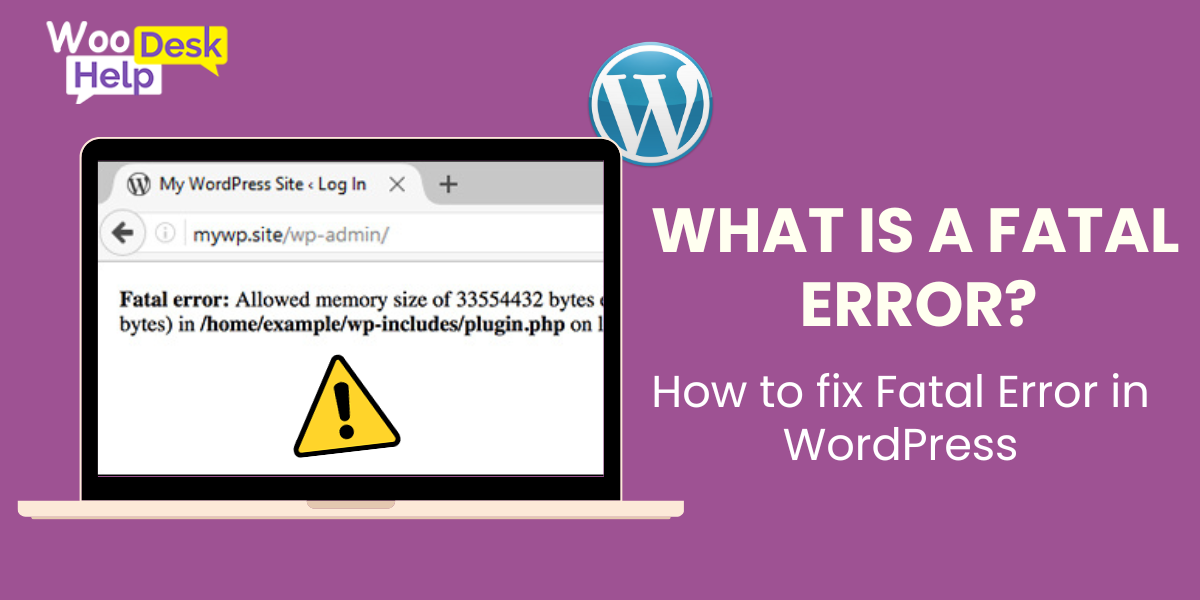
- Fatal error: Allowed memory size exhausted — Your site exceeded the PHP memory limit, often caused by a resource-heavy plugin or a large database query.
- Parse error: syntax error, unexpected — A coding mistake in a theme file, plugin, or functions.php. This often happens after manually editing code.
- Fatal error: Call to undefined function — A plugin or theme is calling a function that does not exist, usually because a dependency is missing or a file failed to load.
- Fatal error: Cannot redeclare function — Two plugins or a plugin and theme are defining the same function name, creating a conflict.
- Critical error: There has been a critical error on this website — The generic WordPress 5.2+ recovery mode message that replaces the white screen of death.
How to Read WordPress Error Logs (Fast Diagnosis)
Before jumping into fixes, learn to read the error log so you target the exact cause. A typical PHP fatal error log entry looks like this:
[10-Apr-2026 08:15:32 UTC] PHP Fatal error: Uncaught Error: Call to undefined function wc_get_product() in /home/user/public_html/wp-content/plugins/custom-plugin/includes/class-product.php on line 142
Here is what each part tells you:
Date and time: When the crash happened, useful for correlating with a recent update or change.
Error type: “Fatal error” confirms the site stopped executing. Other types like “Warning” or “Notice” do not crash the site.
Description: The specific PHP function or class that failed. In this example, wc_get_product() is a WooCommerce function, which means a plugin tried to call it before WooCommerce loaded.
File path and line number: The exact file causing the crash. Paths containing /plugins/ point to a plugin issue, /themes/ to a theme issue, and /wp-includes/ to a core file problem.
Use this quick mapping to decide your next step: if the path mentions a plugin folder, deactivate that plugin first. If it points to a theme file, switch to a default theme. If it references wp-includes, you may need to reinstall WordPress core files. This approach saves time compared to blindly deactivating everything.
What Causes Fatal Errors in WordPress?
Understanding the root cause is half the battle. In our experience fixing thousands of WordPress sites, plugin conflicts account for over 60 percent of all fatal errors. Here are the primary causes:
Plugin Conflicts
When two plugins try to modify the same functionality, they can clash and trigger a fatal error. A common example is running two caching plugins simultaneously or using a security plugin that conflicts with a page builder. After a plugin update, incompatible code changes can also break your site. WooCommerce extensions are particularly prone to this when they are not updated to match the latest WooCommerce release. A common result is the WooCommerce checkout page not working, which directly impacts sales.
Theme Compatibility Issues
Themes that use deprecated WordPress functions or hooks will eventually break after a core update. A theme built for PHP 7.4 may throw fatal errors on a server running PHP 8.2 because of stricter type handling and removed functions. Always verify your theme supports your current PHP version before updating.
PHP Memory Limit Problems
WordPress and its plugins need a minimum amount of server memory to run. The default PHP memory limit on many shared hosting plans is 64 MB or 128 MB. Resource-intensive operations like importing large product catalogs, running backups, or generating reports can exhaust this limit and trigger a fatal error. According to the official WordPress documentation, increasing the memory limit to 256 MB resolves the majority of memory-related fatal errors.
Server Configuration Errors
Mismatched PHP versions, corrupted .htaccess files, and incorrect file permissions can all cause fatal errors. Migrating a site to a new server without matching the PHP version and extensions is a frequent trigger. Hosting providers sometimes update PHP versions across shared servers, which can break older plugins that rely on removed functions.
Bad or Modified Code
Pasting code snippets from the internet into your functions.php file without understanding them is risky. A single missing semicolon, bracket, or incorrect function call will cause a parse error that takes down your entire site. This is why we always recommend using a code-specific plugin or staging environment for testing changes before applying them to a live site.
WordPress Fatal Error Fix Checklist: Step-by-Step
To fix a WordPress fatal error, check your error logs first, then enable debug mode, deactivate plugins, switch themes, and increase your PHP memory limit. Follow these steps in order to systematically isolate and resolve the problem.
Step 1: Check Your Error Logs
Error logs record exactly which file and line of code caused the crash. Log in to your hosting control panel (cPanel, Plesk, or your host’s custom dashboard) and look for the error_log file in your site’s root directory or the wp-content folder. Many hosts also provide a dedicated “Error Log” section under the hosting dashboard. Look for the most recent entry that mentions “Fatal error” and note the file path — it will tell you whether a plugin, theme, or core file is responsible.
Step 2: Enable WordPress Debug Mode
If you cannot find the error log or need more detail, enable WordPress debug mode. Connect to your site via FTP or your hosting file manager, open wp-config.php, and add or change these lines just before the “That’s all, stop editing!” comment:
define('WP_DEBUG', true);
define('WP_DEBUG_LOG', true);
define('WP_DEBUG_DISPLAY', false);
This writes all errors to a debug.log file inside wp-content without displaying them to visitors. The official WordPress debugging guide covers additional constants you can enable for deeper diagnostics. After identifying the issue, remember to set WP_DEBUG back to false on your live site.
Step 3: Deactivate All Plugins
If the error log points to a plugin or you are unsure, deactivate all plugins at once. Access your site files via FTP and rename the wp-content/plugins folder to plugins_disabled. This instantly deactivates every plugin. Load your site — if it works, the problem is a plugin. Rename the folder back to plugins, then re-enable each plugin one at a time through the WordPress admin dashboard, refreshing the site after each activation to find the culprit.
Step 4: Switch to a Default Theme
If disabling plugins does not fix the error, your theme may be the cause. Via FTP, navigate to wp-content/themes and rename your active theme’s folder. WordPress will automatically fall back to a default theme like Twenty Twenty-Four. If the error disappears, contact your theme developer for a fix or check for available updates.
Step 5: Increase Your PHP Memory Limit
For memory exhaustion errors, increase the PHP memory limit by editing wp-config.php and adding this line before “That’s all, stop editing!”:
define('WP_MEMORY_LIMIT', '256M');If this does not work, try editing your .htaccess file and adding php_value memory_limit 256M, or create a php.ini file with memory_limit = 256M. Some managed hosting providers require you to change this setting through their dashboard. Contact your host if you cannot modify the limit yourself.
How to Fix Fatal Error Without Admin Access
When a fatal error locks you out of wp-admin entirely, you need alternative access methods. Here are the most reliable approaches:
- FTP / SFTP access: Use an FTP client like FileZilla to connect to your server, navigate files, and rename plugin or theme folders as described above.
- Hosting File Manager: Most hosting providers offer a browser-based file manager in cPanel or their custom control panel. This works identically to FTP without installing additional software.
- WordPress Recovery Mode: Check your admin email for a recovery mode link from WordPress. This link gives you temporary backend access to deactivate the problematic plugin or theme.
- phpMyAdmin: As a last resort, you can deactivate plugins directly in the database. Open phpMyAdmin, find the wp_options table, locate the active_plugins row, and modify the serialized array to deactivate specific plugins.
Fatal Error vs 500 Error vs White Screen of Death
These three issues look similar from the front end, but each has a different root cause and fix path. Understanding the difference helps you troubleshoot faster.
| Error Type | Root Cause | What You See | Fix Difficulty |
|---|---|---|---|
| PHP Fatal Error | Plugin or theme PHP crash | Error message or blank screen | Medium |
| 500 Internal Server Error | Server misconfiguration, .htaccess corruption, or PHP timeout | Generic server error page | High |
| White Screen of Death | PHP crash before any output, often memory exhaustion | Completely blank page | High |
A fatal error usually displays a specific PHP message or the WordPress recovery mode screen. A 500 internal server error returns a generic server-level response and may not appear in PHP error logs at all. The white screen of death is the most frustrating because it gives zero feedback, but enabling WP_DEBUG will almost always reveal the underlying fatal error behind it. If you see a 500 error, start by checking your .htaccess file and server error logs rather than following the plugin deactivation steps above.


Preventing WordPress Fatal Errors
Prevention saves hours of emergency troubleshooting. Based on our experience supporting WordPress and WooCommerce sites at WooHelpDesk, these practices dramatically reduce fatal error incidents:
- Use a staging environment: Test all plugin, theme, and core updates on a staging copy before applying them to your live site.
- Keep regular backups: Automated daily backups let you restore a working version within minutes. Use a reliable backup plugin and store copies offsite.
- Check plugin compatibility before updating: Incompatible updates can trigger issues like the WooCommerce empty cart issue. Read the changelog and check the plugin support forum for reports of conflicts before clicking “Update.”
- Monitor PHP version compatibility: When your host upgrades PHP, verify all your plugins and themes support the new version. The WordPress Plugin Check tool can help identify issues.
- Use managed WordPress hosting: Managed hosts handle server optimization, automatic updates, and staging environments, reducing the risk of configuration-related fatal errors.
Common Mistakes to Avoid
When facing a WordPress fatal error, avoid these pitfalls that can make the situation worse:
- Editing live files without a backup: Always download a copy of the file before making changes. A single typo in wp-config.php or functions.php can create a second fatal error on top of the first.
- Installing multiple plugins to fix one error: Adding more code to a broken site increases complexity. Stick to the systematic checklist above instead.
- Ignoring the error log: The error log tells you exactly what went wrong. Skipping it means you are guessing, which wastes time and risks introducing new problems.
- Updating everything at once: Updating WordPress core, all plugins, and your theme simultaneously makes it impossible to identify which update caused the error. Update one component at a time.
- Not testing after the fix: After resolving the fatal error, test your entire site including checkout, forms, and key pages. A fix in one area can occasionally break something else.
When to Get Expert Help
Not every fatal error requires professional intervention, but some situations call for it. Consider reaching out to a WordPress support specialist if:
- Your error log points to WordPress core files rather than a plugin or theme, which may indicate a corrupted installation.
- The fatal error reappears after every fix attempt, suggesting a deeper server-level or database issue.
- Your WooCommerce store is losing active orders and revenue during the downtime, making speed critical.
- You are running a multisite network where one fatal error can cascade across multiple sites.
- The error involves payment processing — for example, a Stripe webhook delivery failure triggered by a plugin crash.
At WooHelpDesk, our support team resolves most fatal errors within 15 to 30 minutes because we have handled thousands of similar cases across WordPress and WooCommerce sites of all sizes.
Frequently Asked Questions
What is a critical error in WordPress and how is it different from a fatal error?
A critical error and a fatal error are essentially the same thing. Since WordPress 5.2, the platform displays a user-friendly “critical error” message instead of the raw PHP fatal error. Both indicate that a PHP process has stopped executing due to a code-level failure. The critical error screen also triggers WordPress recovery mode, which emails the site admin a special login link.
How do I fix a WordPress fatal error without FTP access?
If you do not have FTP access, use your hosting provider’s file manager through cPanel or their control panel. You can also check your email for the WordPress recovery mode link, which provides temporary admin access. As a last resort, contact your hosting support team — they can rename plugin or theme folders on your behalf.
Can hosting issues cause fatal errors in WordPress?
Yes. Hosting-related causes include low PHP memory limits on shared plans, PHP version upgrades that break older plugins, misconfigured server settings, and corrupted .htaccess files after server migrations. Upgrading to a managed WordPress host with proper resource allocation eliminates most server-related fatal errors.
How do I find which plugin is causing a fatal error?
Check your error log first — it typically names the exact plugin file. If the log is unclear, deactivate all plugins by renaming the plugins folder via FTP, then reactivate them one by one. The site will break again when you activate the problematic plugin, confirming the cause.
Does updating PHP fix WordPress fatal errors?
Updating PHP can fix fatal errors caused by bugs in older PHP versions, but it can also introduce new fatal errors if your plugins or theme are not compatible with the newer PHP version. Always check plugin compatibility and test on a staging site before upgrading PHP on your live server.
Why does my WordPress site show a blank white screen?
A blank white screen, commonly called the WordPress white screen of death, is a fatal error where PHP crashes before any output is generated. The most common causes are plugin conflicts, exhausted PHP memory, and PHP syntax errors. Enable WP_DEBUG to reveal the underlying error message, then follow the fix checklist above.
How do I recover a crashed WordPress website quickly?
The fastest recovery method is restoring from a recent backup. If no backup is available, check the WordPress recovery mode email, then follow the troubleshooting checklist: review error logs, disable plugins via FTP, switch to a default theme, and increase the PHP memory limit. Most fatal errors can be resolved within 15 to 30 minutes using this approach.
How do I fix a fatal error caused by editing functions.php?
If a code change in your theme’s functions.php triggered the fatal error, connect to your site via FTP or your hosting file manager and navigate to wp-content/themes/your-theme/functions.php. Open the file and remove or correct the code you recently added. If you are unsure which change caused the issue, replace the entire file with a fresh copy from your theme’s original ZIP package. To avoid this problem in the future, use the Code Snippets plugin instead of editing functions.php directly — it lets you disable individual snippets without crashing your site.
Where is the debug.log file located in WordPress?
The debug.log file is stored at wp-content/debug.log on your server. It only exists when WP_DEBUG and WP_DEBUG_LOG are both set to true in wp-config.php. You can view it through FTP, your hosting file manager, or by downloading it from the wp-content directory. On some managed hosting platforms, the log may be stored in a different location — check your host’s documentation or error log viewer for the exact path.
Can a theme update cause a WordPress fatal error?
Yes. Theme updates can introduce fatal errors when the new version uses PHP functions or WordPress hooks that conflict with your current plugins, or when the update requires a higher PHP version than your server runs. Before updating your theme, always create a full site backup. If a theme update does cause a fatal error, connect via FTP, navigate to wp-content/themes/, and rename the updated theme folder. WordPress will fall back to a default theme and restore access so you can investigate the conflict.
Conclusion
WordPress fatal errors are stressful but fixable. The key is following a systematic approach: check your error logs, enable debug mode, isolate plugins and themes, and verify server settings. By adopting preventive measures like staging environments, regular backups, and compatibility checks, you can avoid most fatal errors entirely. If you need professional help resolving a persistent WordPress or WooCommerce error, the WooHelpDesk support team is available around the clock to diagnose and fix your site.
For related troubleshooting guides, see our articles on fixing WordPress 500 internal server errors and best WordPress vulnerability scanner plugins.



