How to Optimize WordPress Database Tables Using phpMyAdmin on HostGator WordPress Hosting
Introduction
Database performance plays a vital role in determining the speed, stability, and responsiveness of a WordPress website. Over time, unnecessary data, fragmented tables, and unused records can accumulate within the database, leading to slower page load times and reduced system efficiency. For websites hosted on platforms such as HostGator, regular database optimization is essential to maintain optimal performance and reliability.
This guidde explains how to optimize WordPress database tables using phpMyAdmin. It provides step-by-step instructions for accessing the hosting control panel, launching phpMyAdmin, selecting relevant WordPress tables, and executing optimization commands. By following this guide, website administrators can improve database efficiency, reduce server load, and enhance overall website performance through proper database maintenance practices.
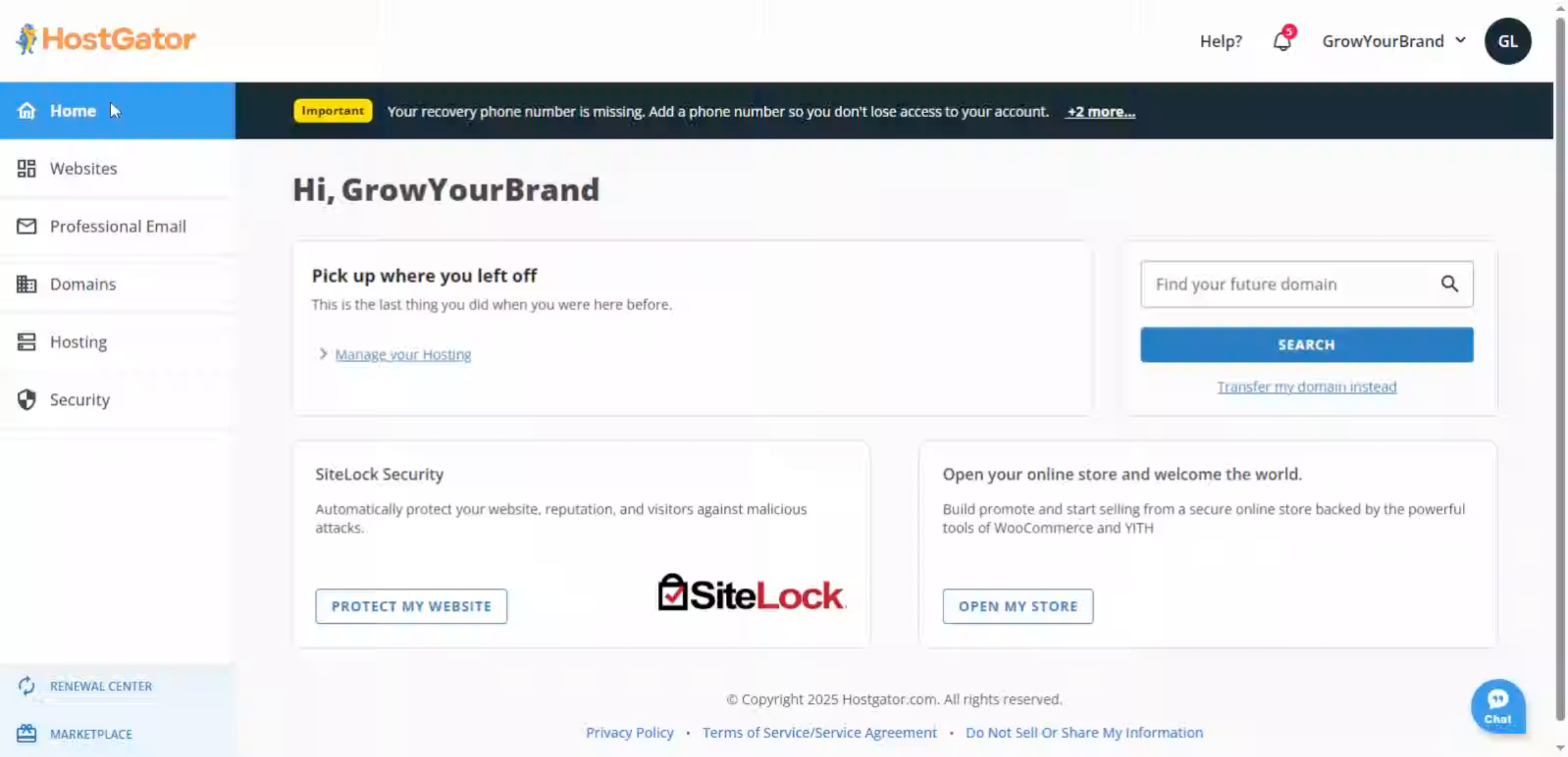
1. HostGator Dashboard
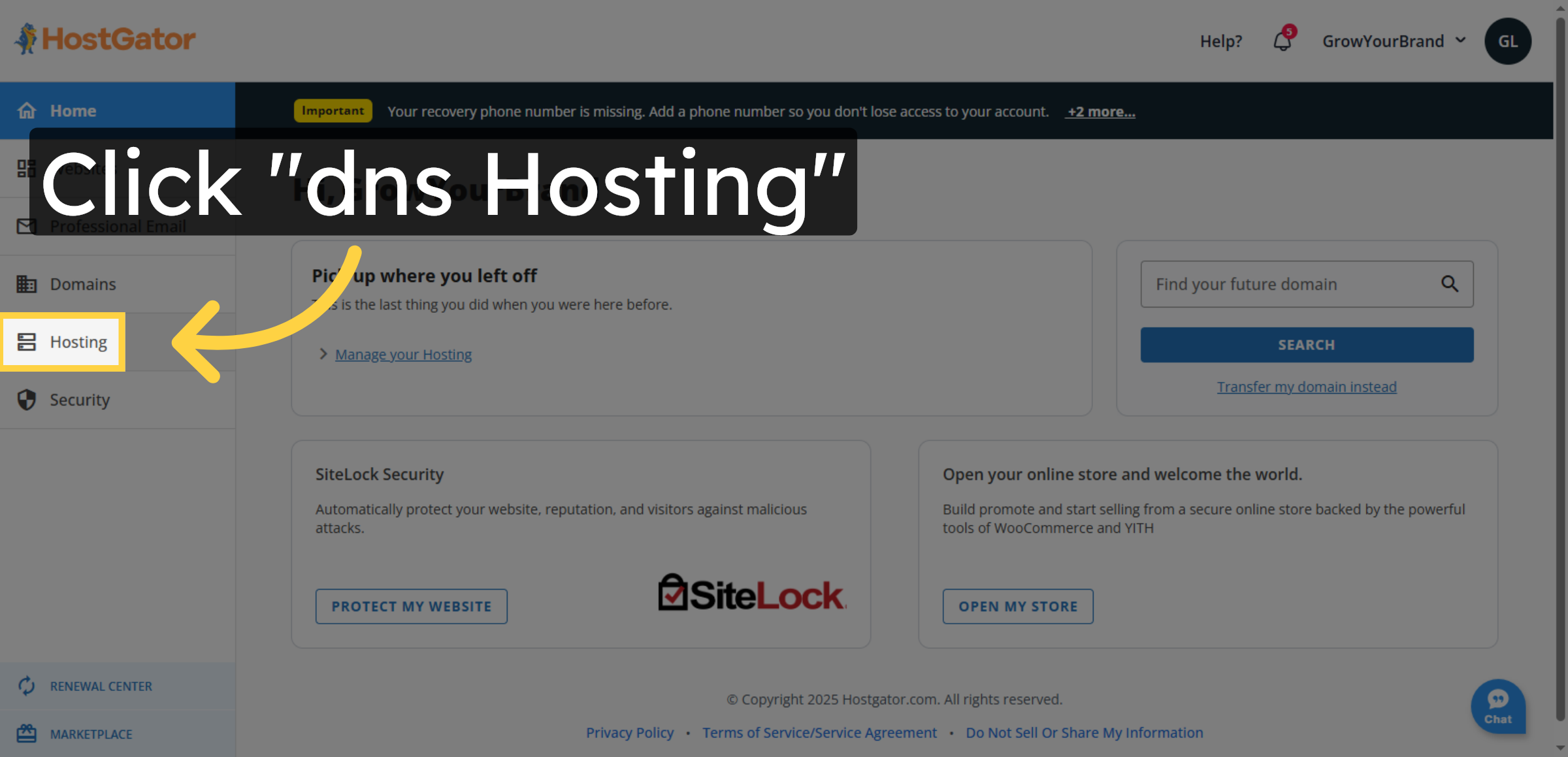
2. Access DNS Hosting
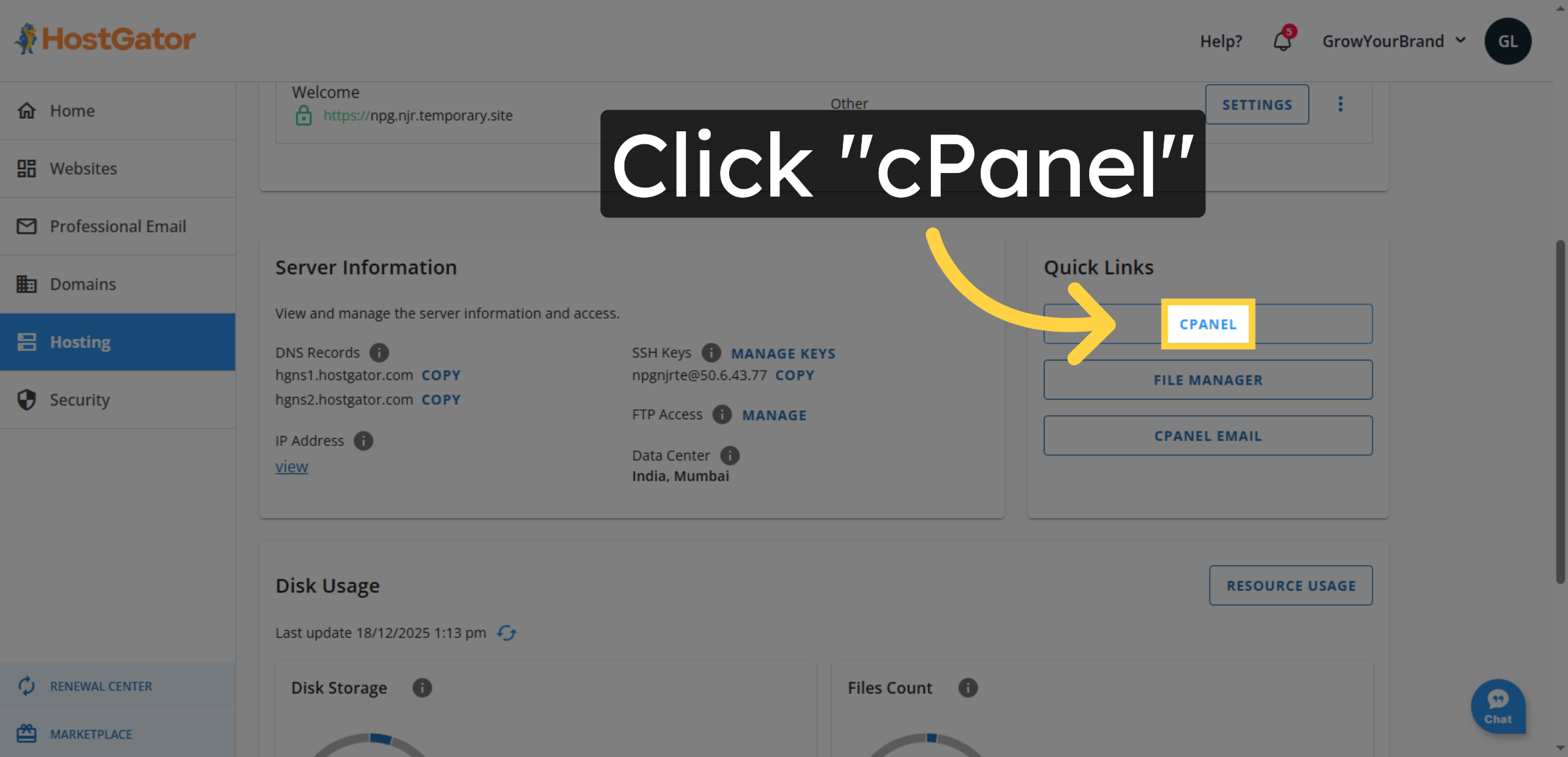
3. Open cPanel Interface
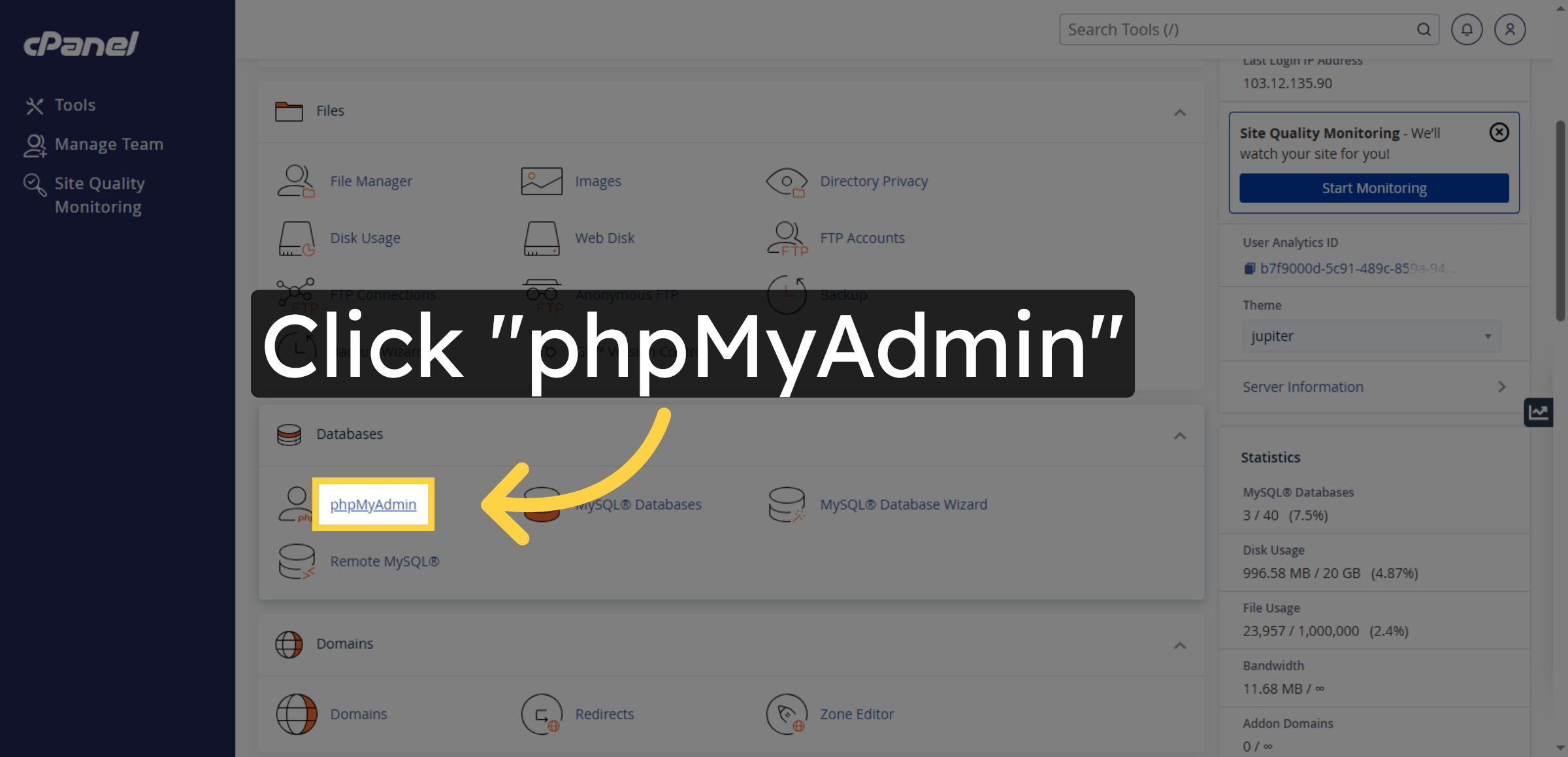
4. Launch phpMyAdmin
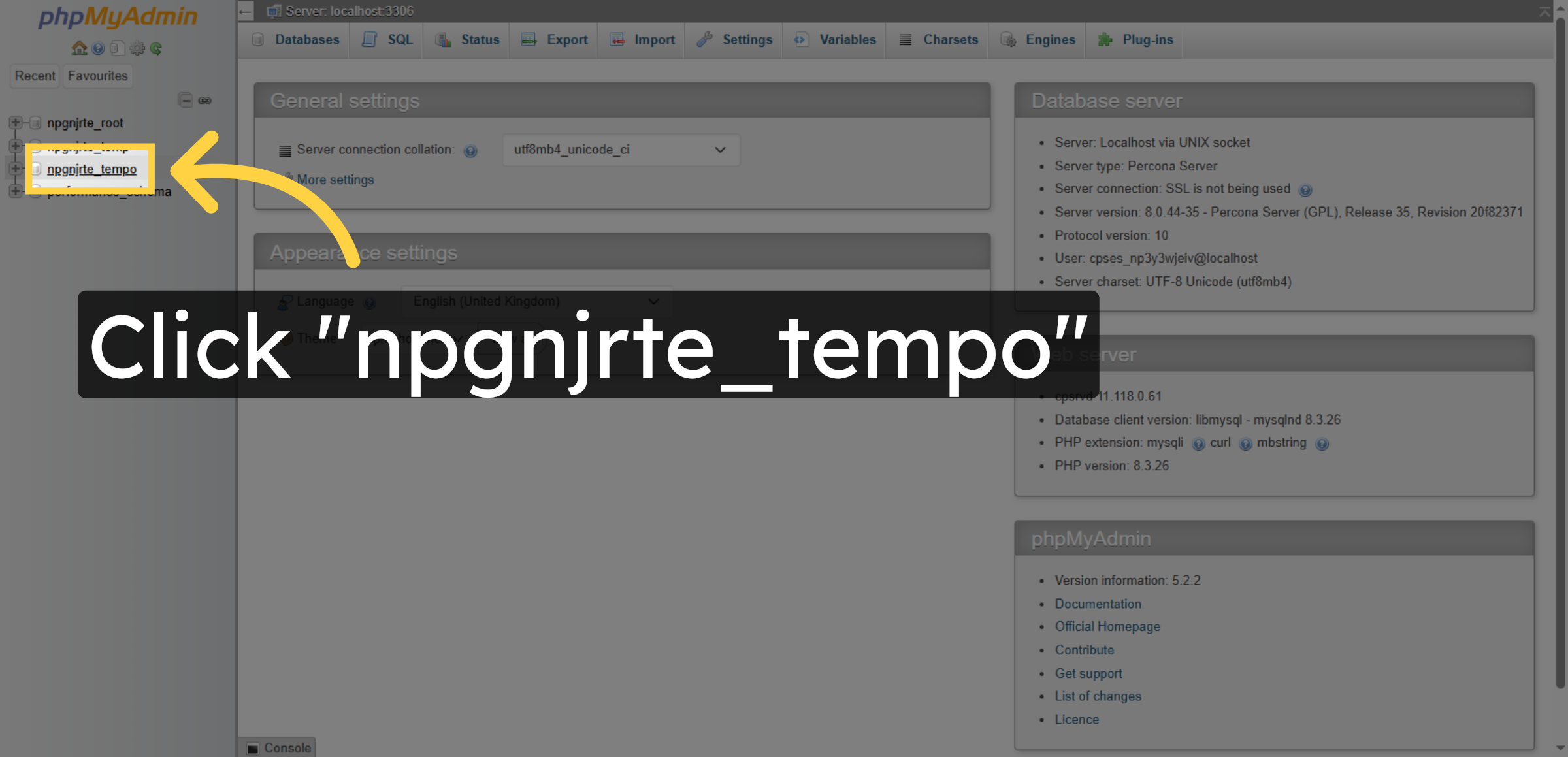
5. Select WordPress Database
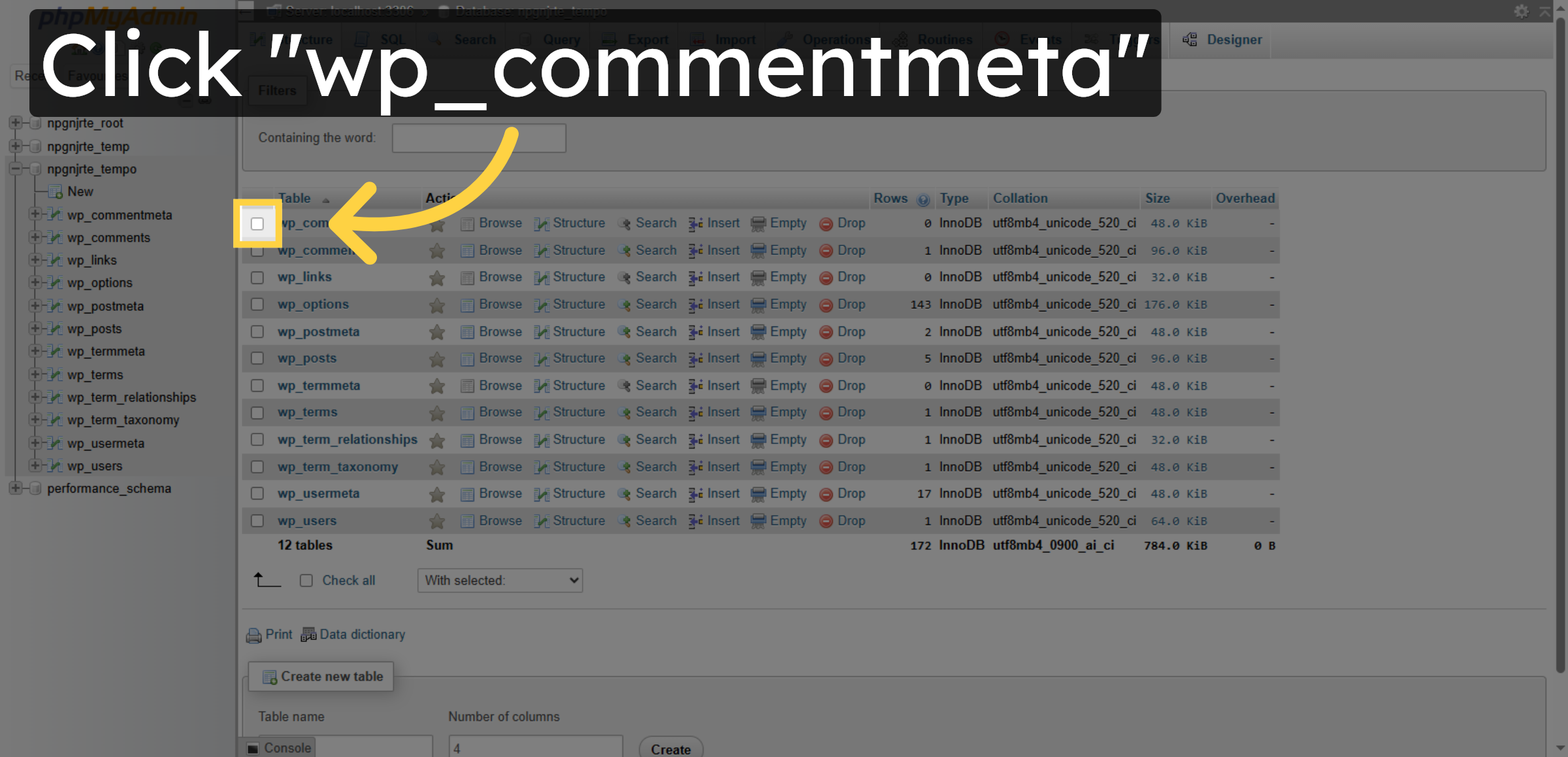
6. Select wp_commentmeta Table
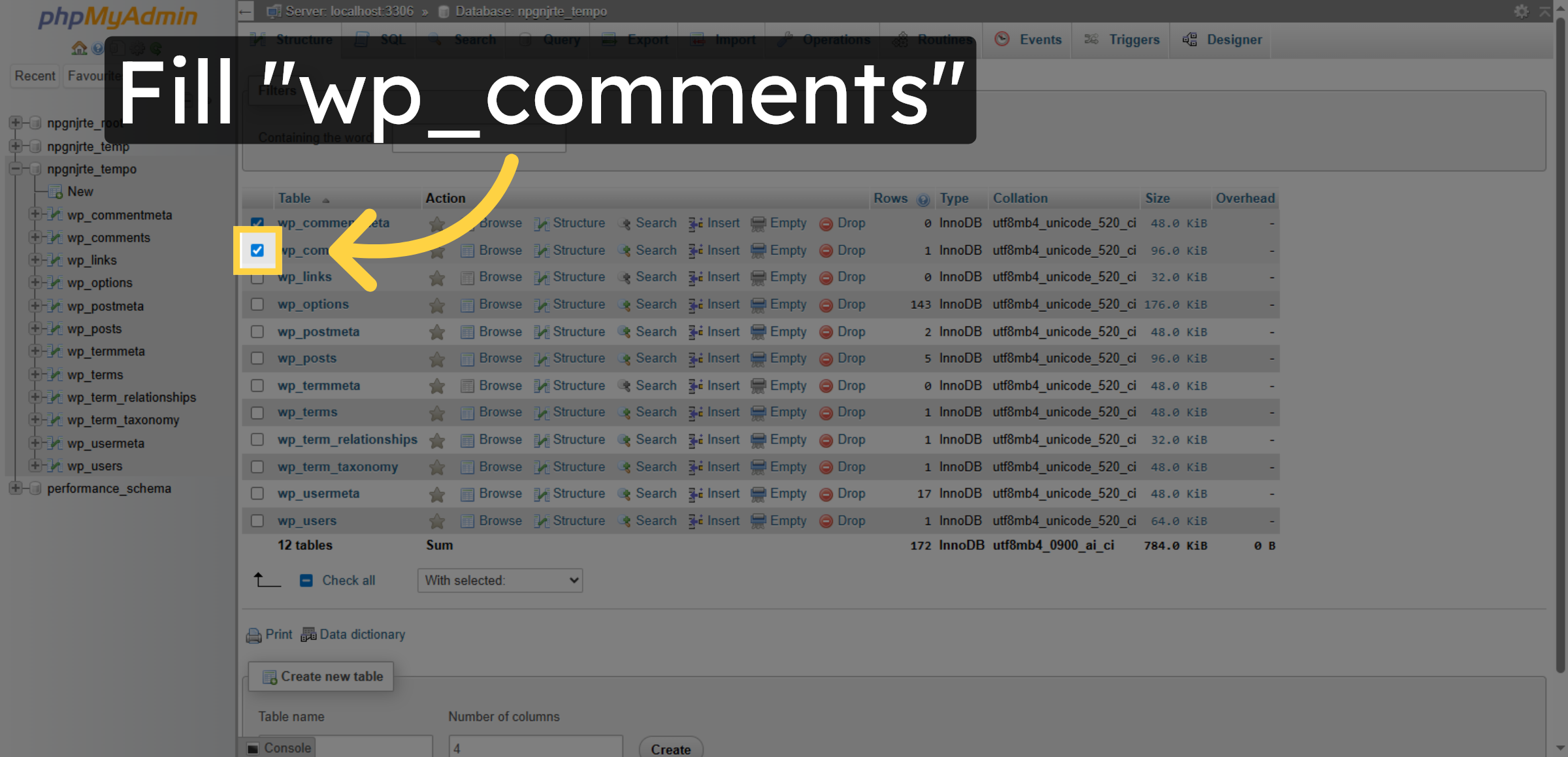
7. Enter wp_comments Table
8. Select wp_links Table
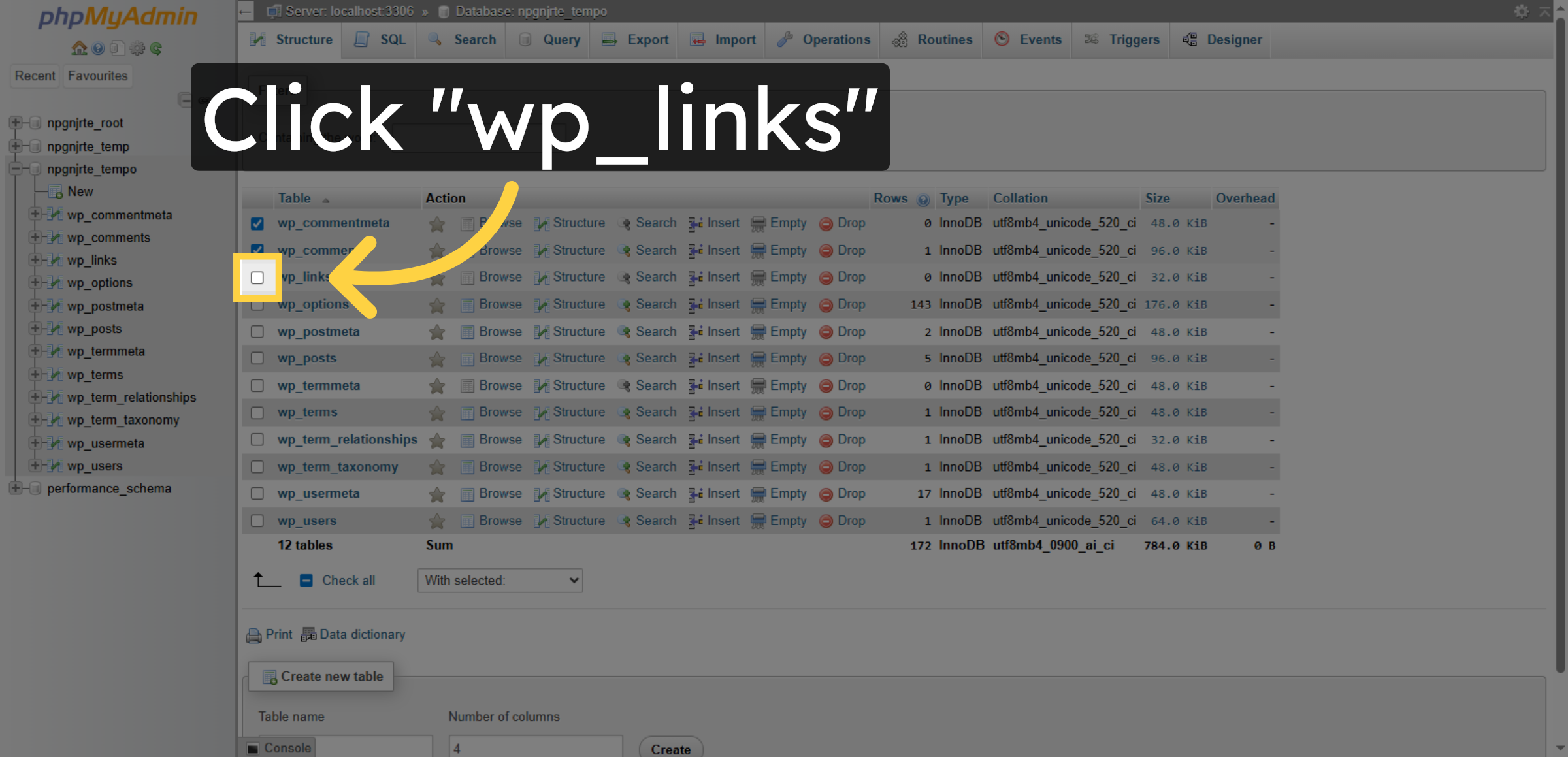
9. Select wp_options Table
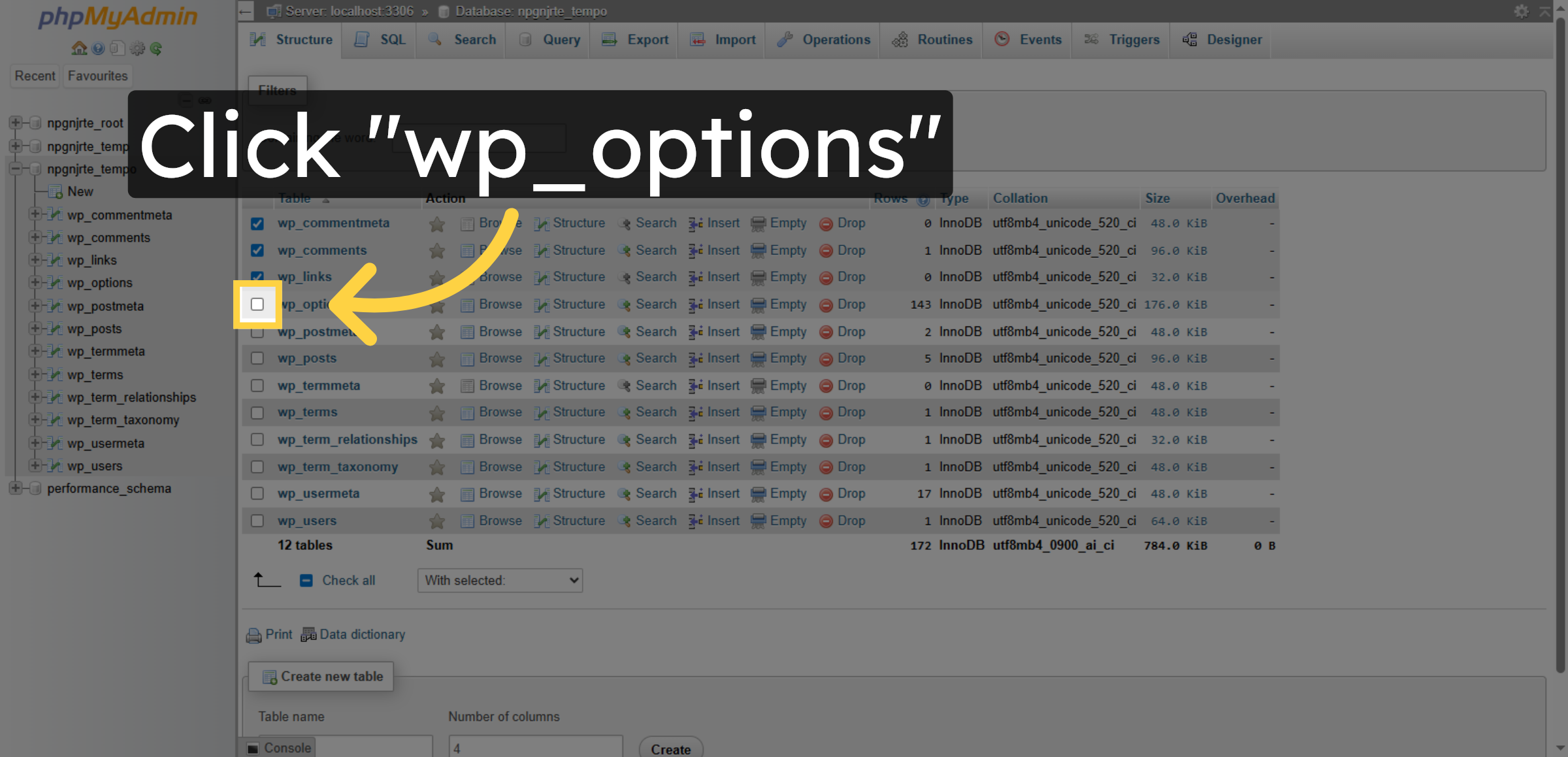
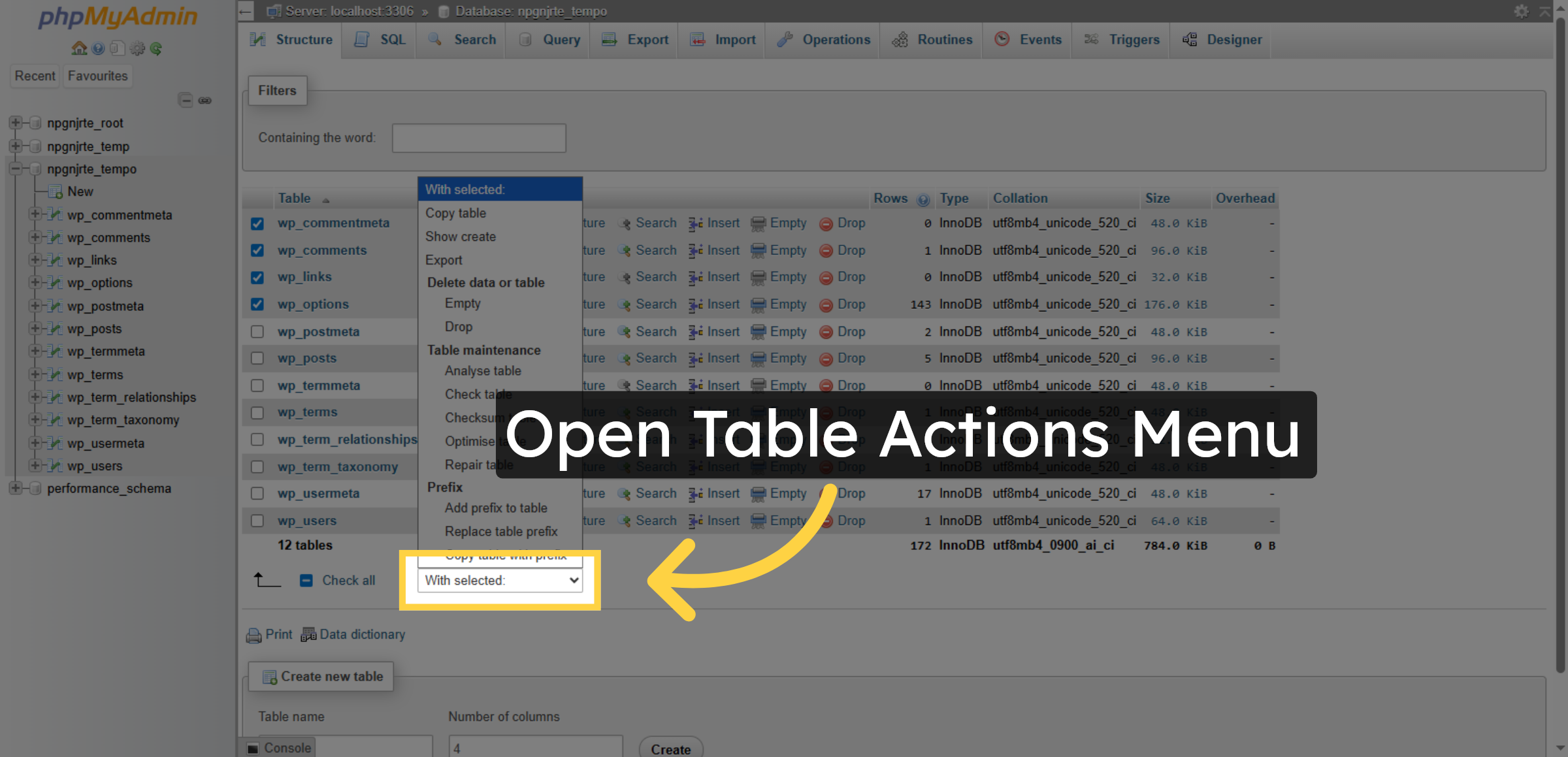
10. Open Table Actions Menu


11. Click Optimize table
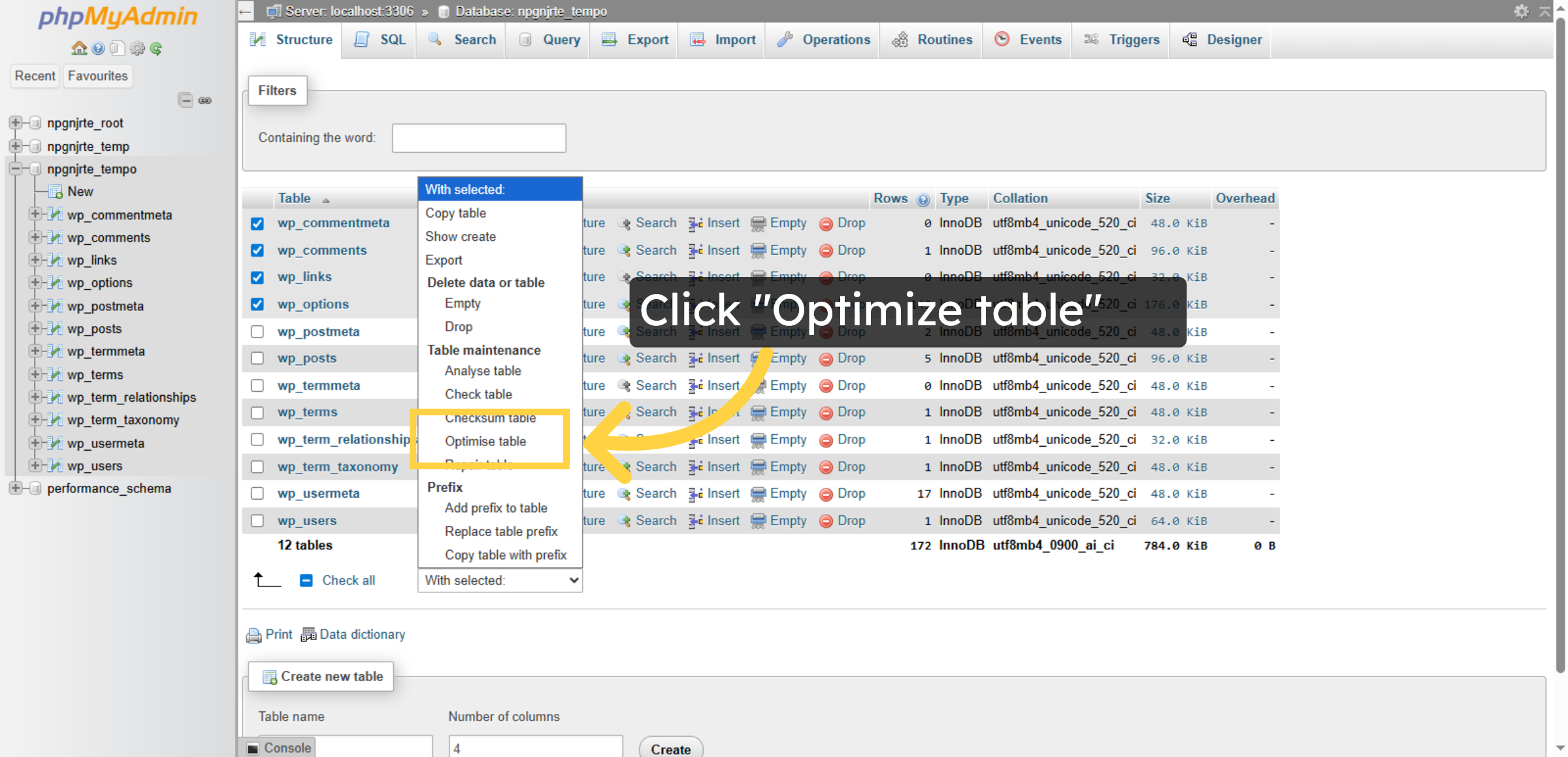
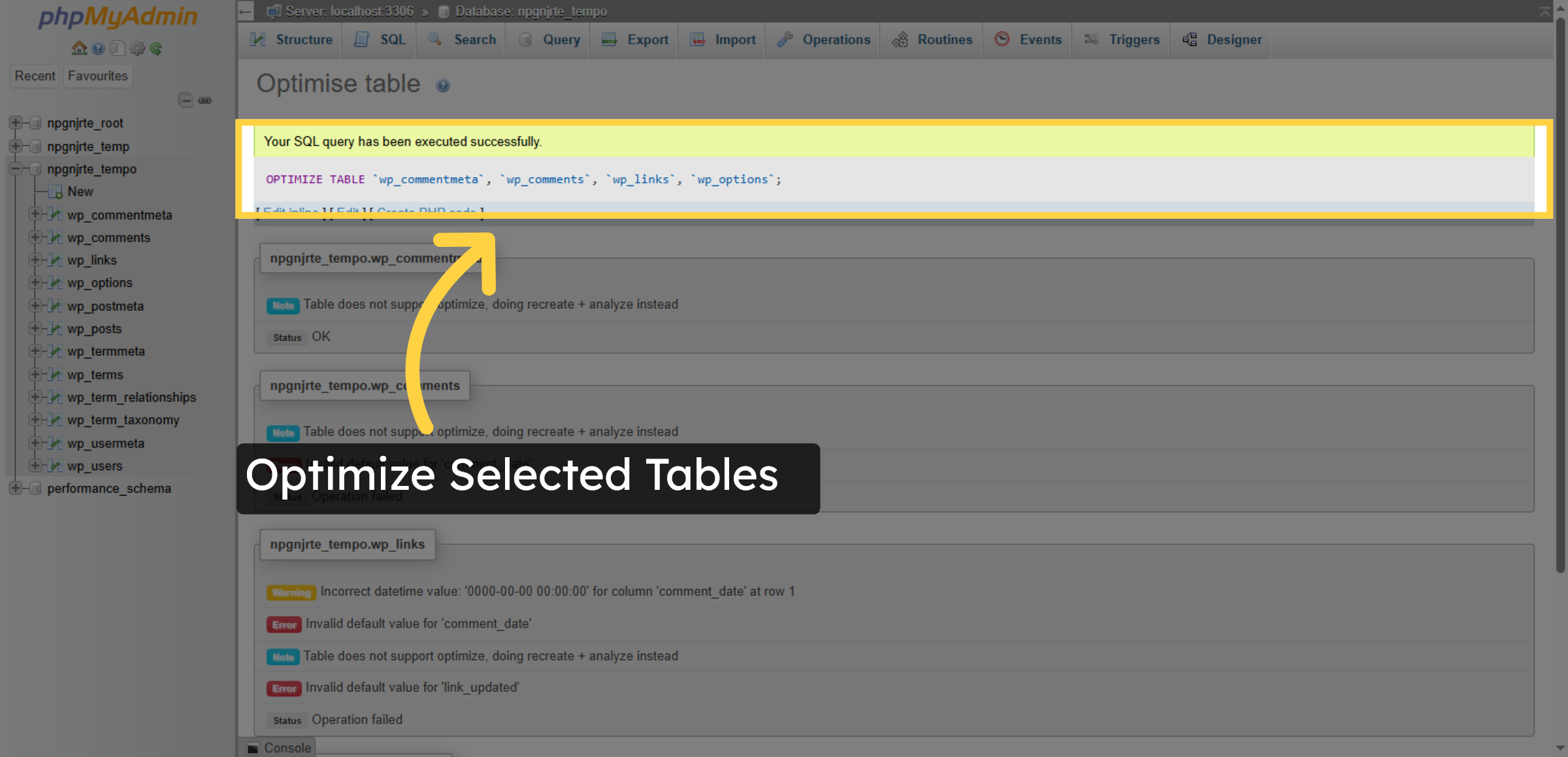
12. Optimize Selected Tables
Conclusion
Regular database optimization is a key component of effective WordPress website management. By following the steps outlined in this guide, you have successfully optimized essential WordPress database tables using phpMyAdmin, resulting in improved query performance and reduced data fragmentation. These enhancements contribute directly to faster website loading times and better system stability.
To maintain long-term performance, it is recommended to schedule periodic database maintenance, remove unnecessary records, and create backups before making structural changes. Consistent monitoring and optimization ensure that your database remains clean, efficient, and capable of supporting website growth. With proper database management practices in place, your website will continue to deliver reliable and high-quality user experiences.
WooHelpDesk Support
Need professional assistance with WordPress database optimization, performance tuning, backups, or troubleshooting? WooHelpDesk provides expert technical support to help you maintain a fast and efficient website.
Visit: https://www.woohelpdesk.com
Call Us Toll-Free: +1 888 602 0119 (US & Canada)
Performance Optimization | Secure Maintenance | Trusted Support
Contact WooHelpDesk today for reliable WordPress and hosting optimization solutions.



