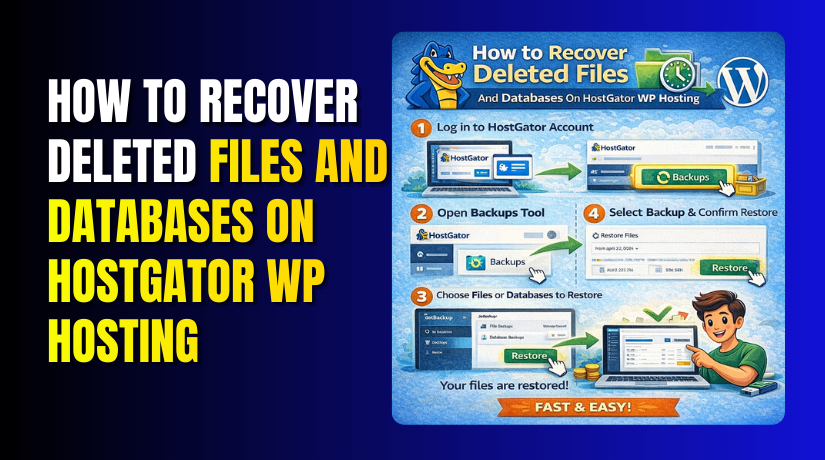
How to Recover Deleted Files And Databases On HostGator WP Hosting
Introduction
Accidental deletion of website files or databases can cause serious disruptions, including website downtime, data loss, and accessibility errors. Such incidents may occur due to incorrect file handling, system failures, or unauthorized modifications. For WordPress websites hosted on platforms like HostGator, having reliable recovery methods is essential to restore normal operations quickly and minimize business impact.
This guidde explains how to recover deleted files and databases on HostGator WordPress hosting using two effective methods: restoring files from the File Manager’s Trash folder and recovering data through backup plugins. It provides step-by-step instructions for accessing hosting tools, locating deleted files, restoring website directories, importing backup data, and reconfiguring site settings. By following this guide, users can efficiently recover lost content and restore website functionality with minimal downtime.
1. HostGator Dashboard
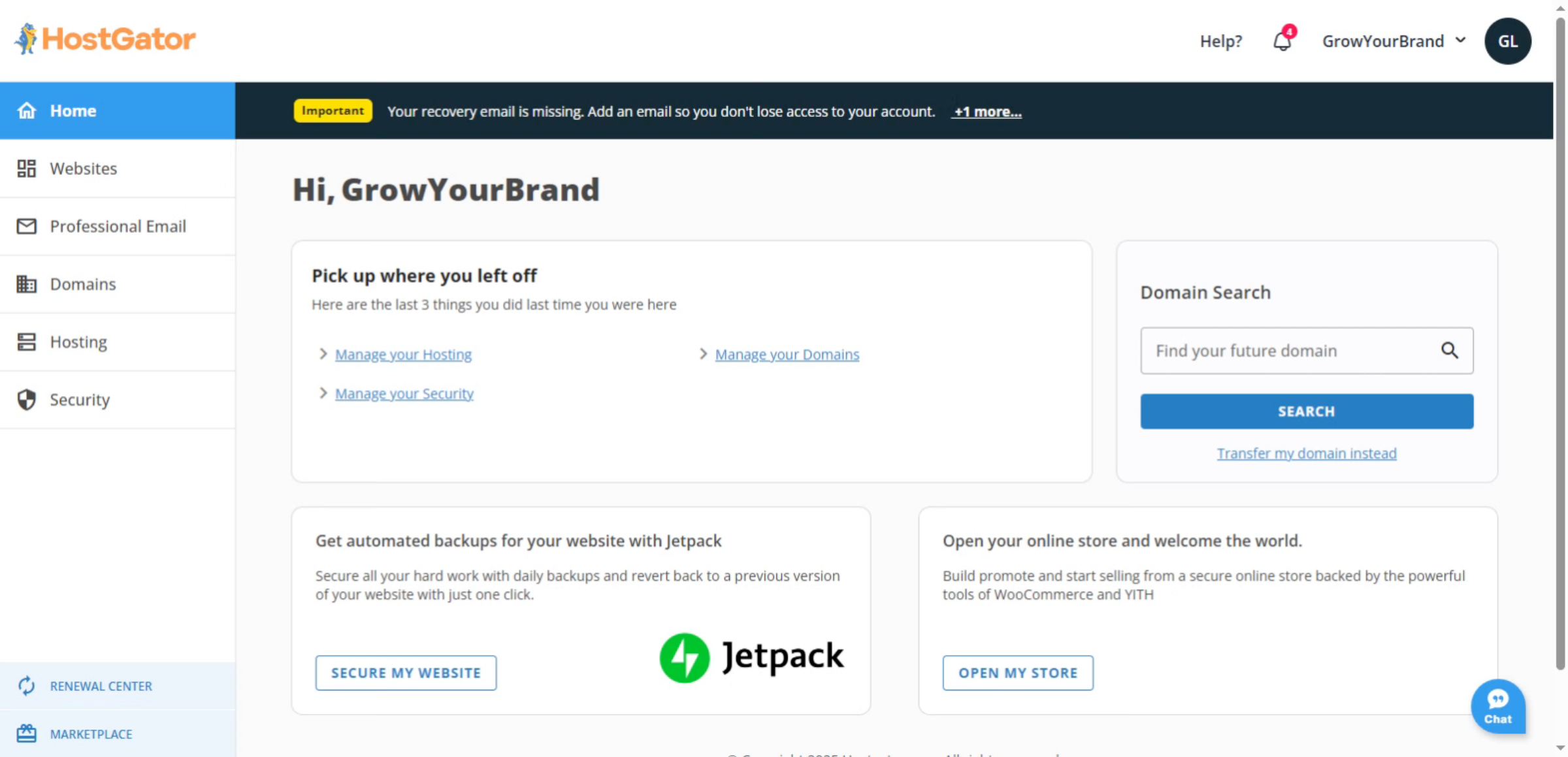
2. Access Dashboard Websites

3. Open Website Settings

4. Select Website URL
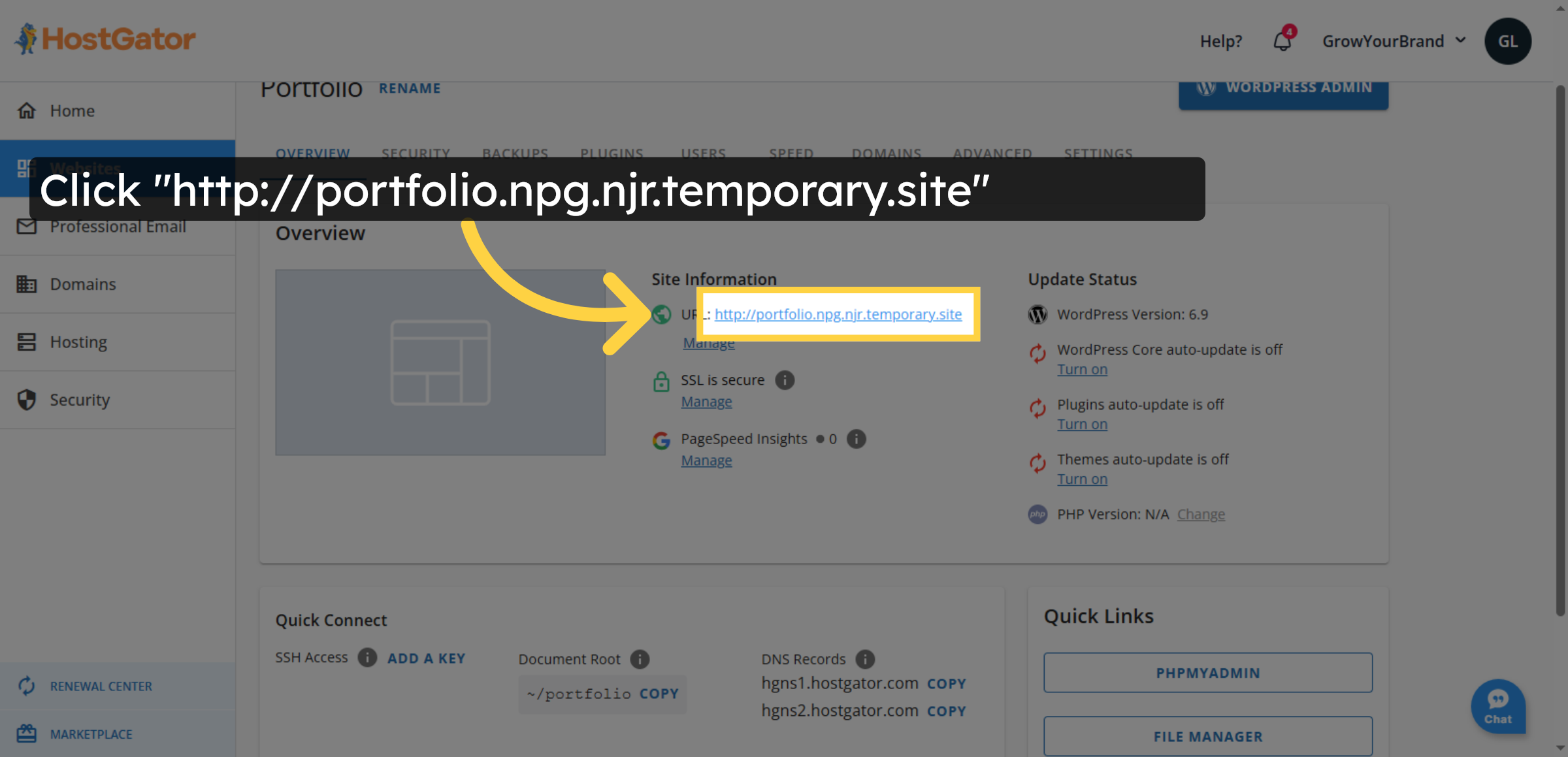
5. Switch To Website Tab
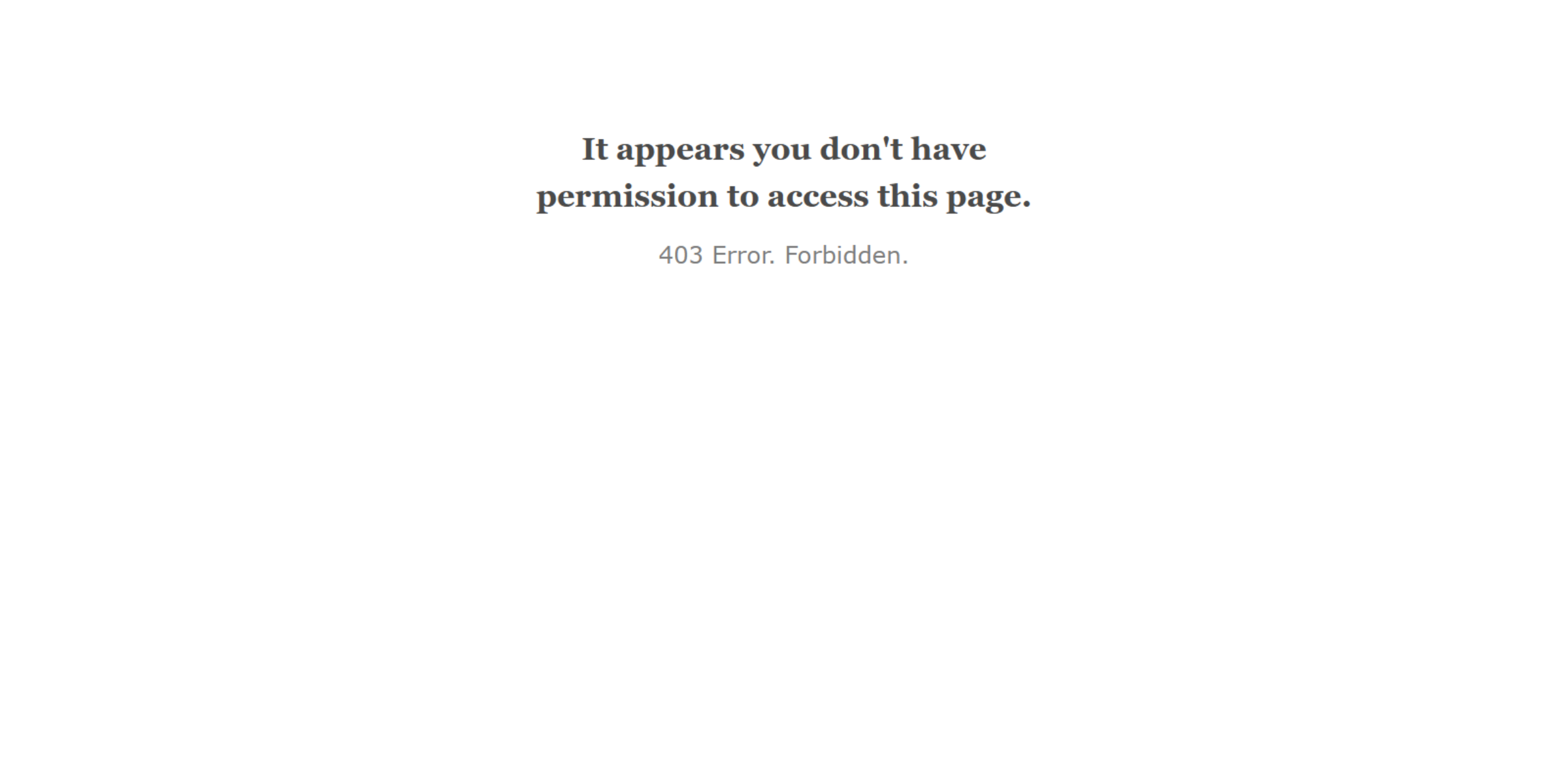
6. Open File Manager
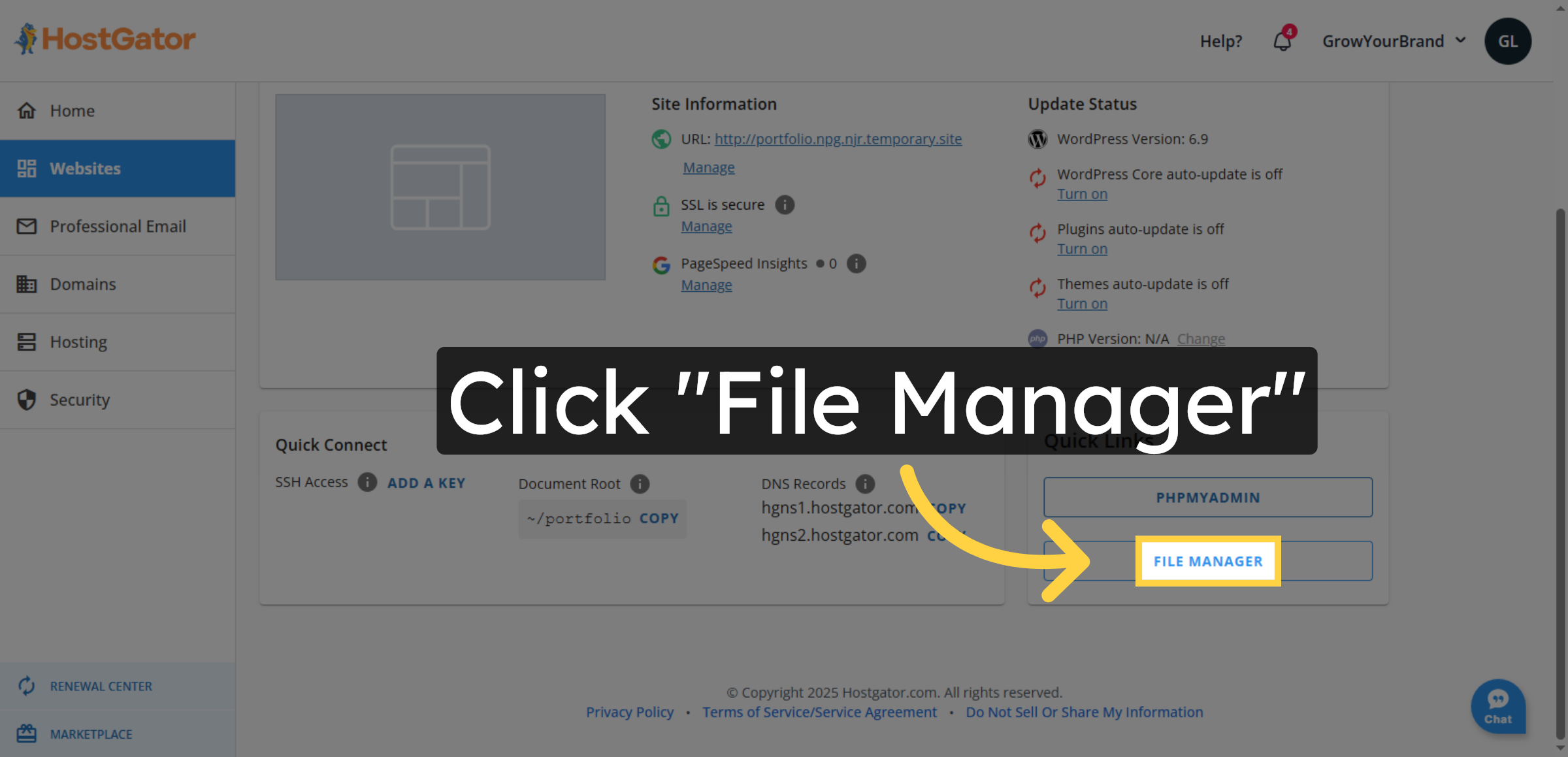
7. Open Website Directory
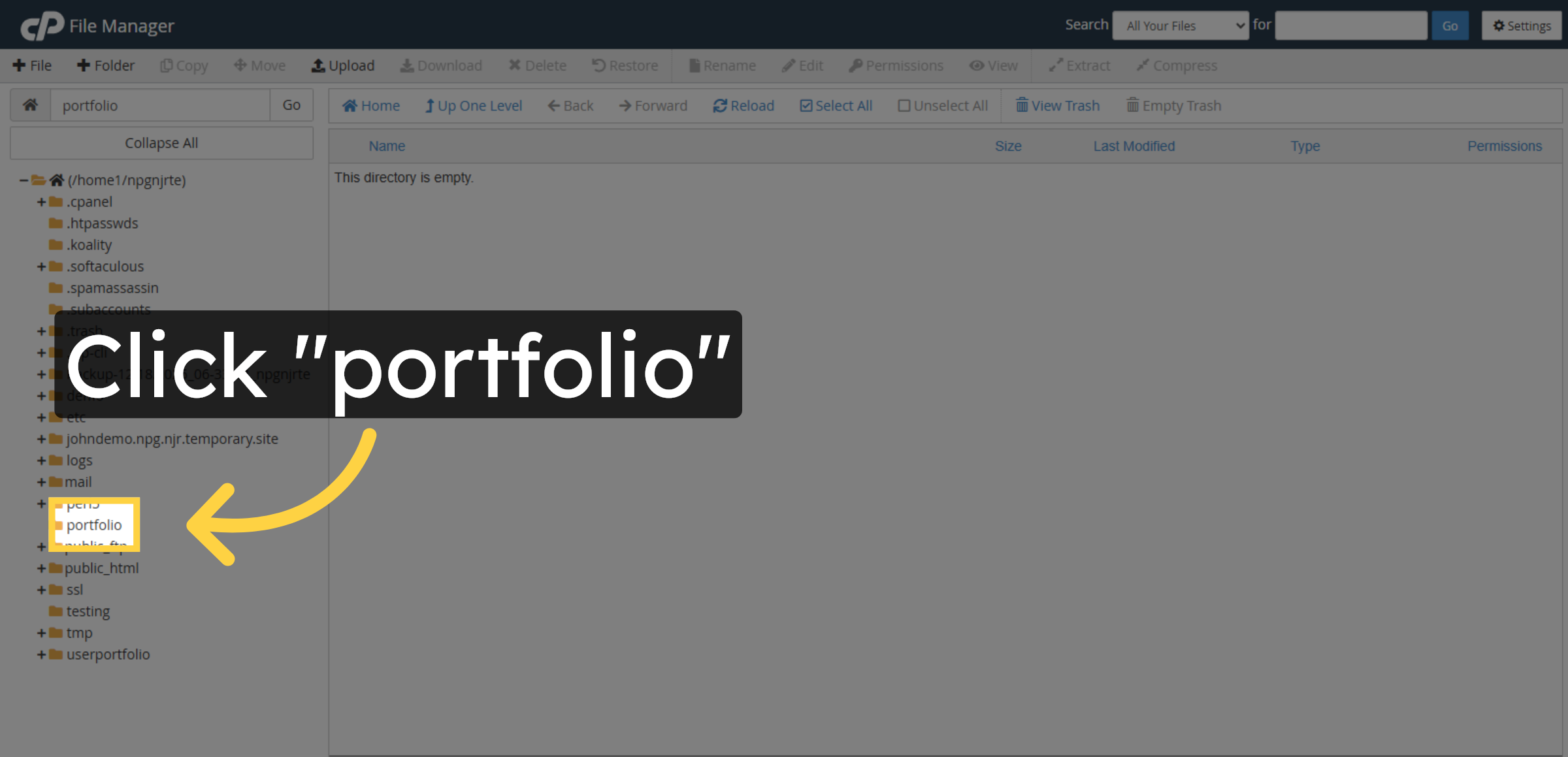
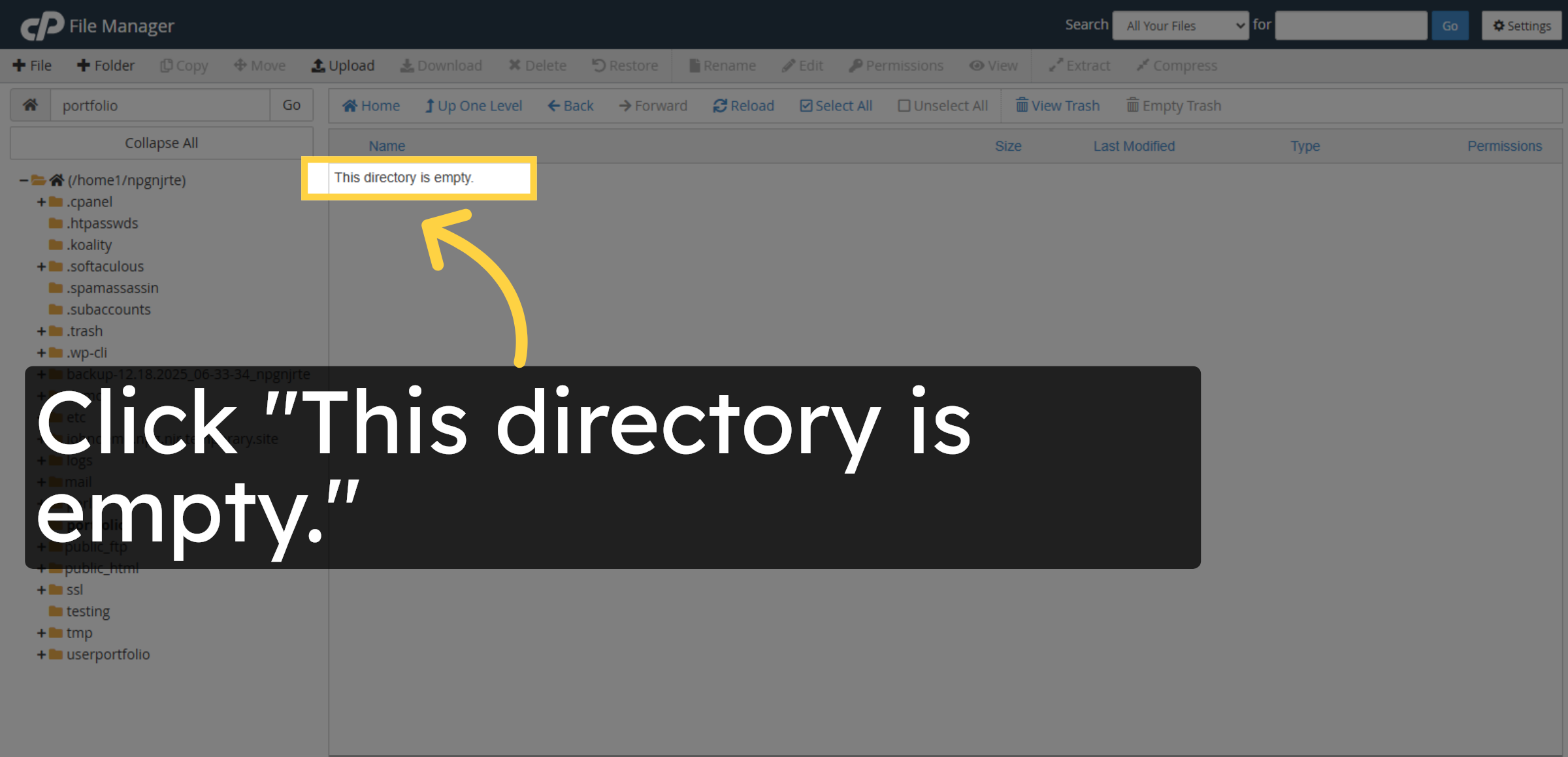
8. Check Directory Contents
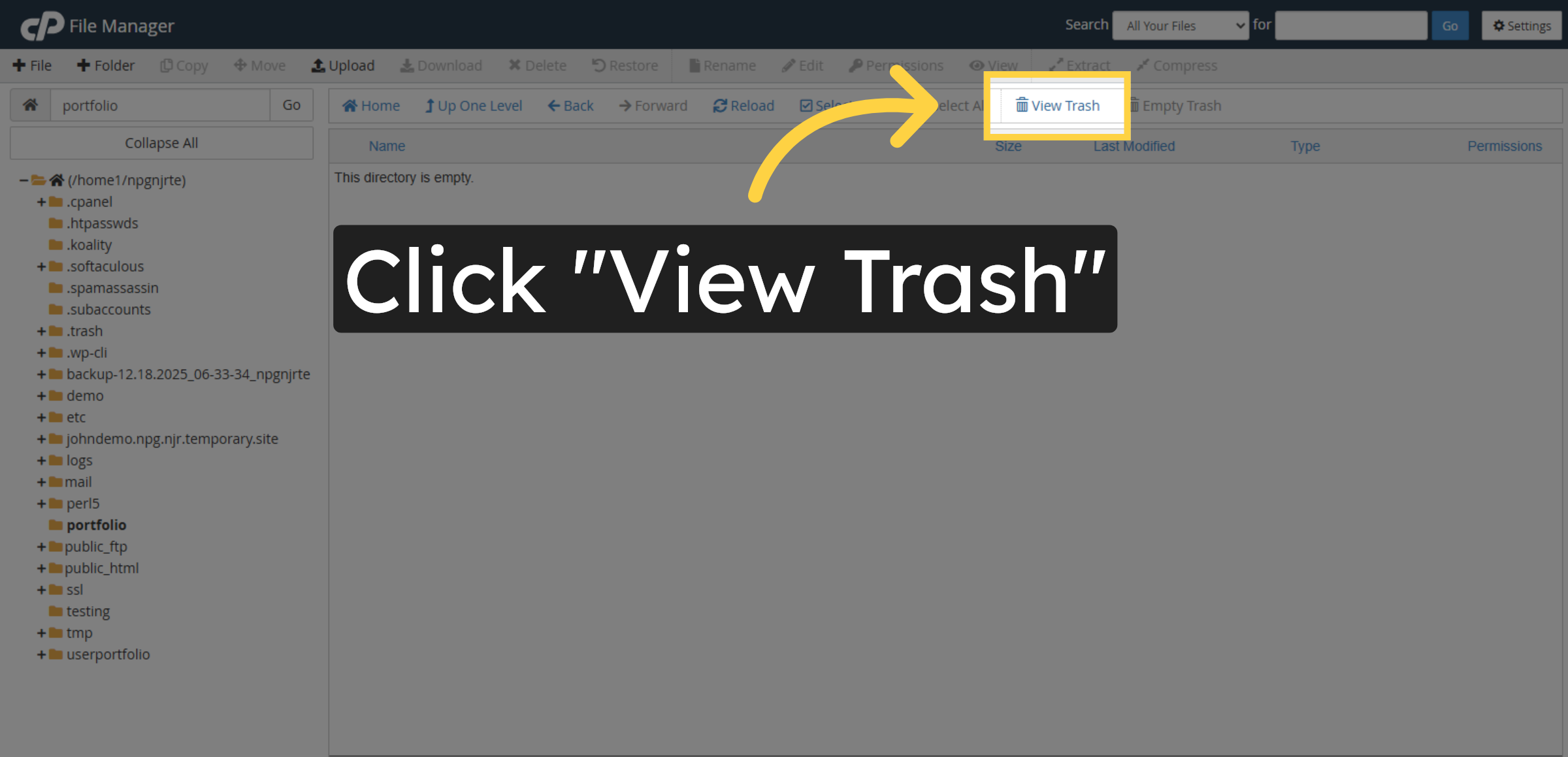
9. Open Trash Folder
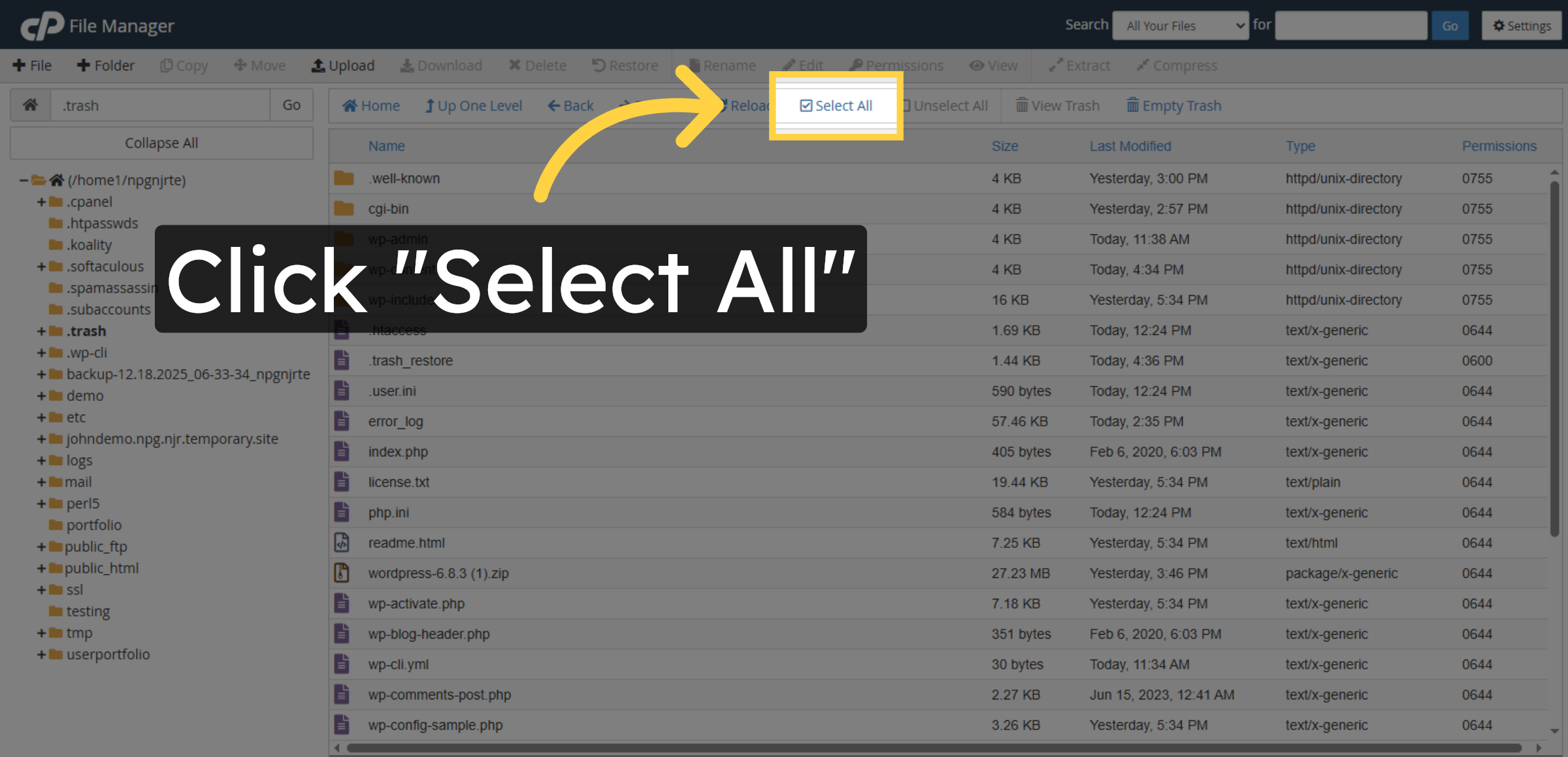
10. Select All Deleted Files
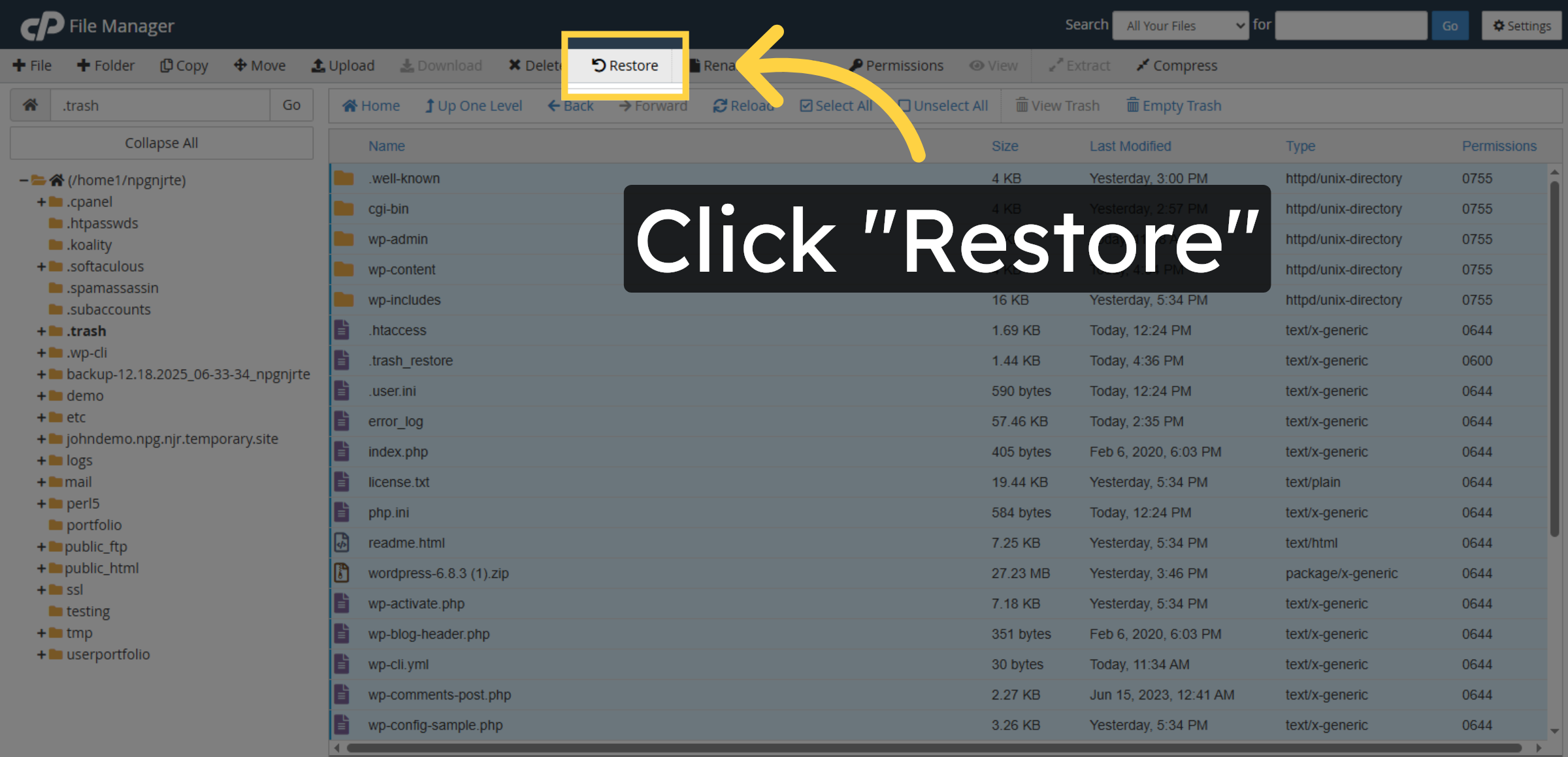
11. Initiate File Restore
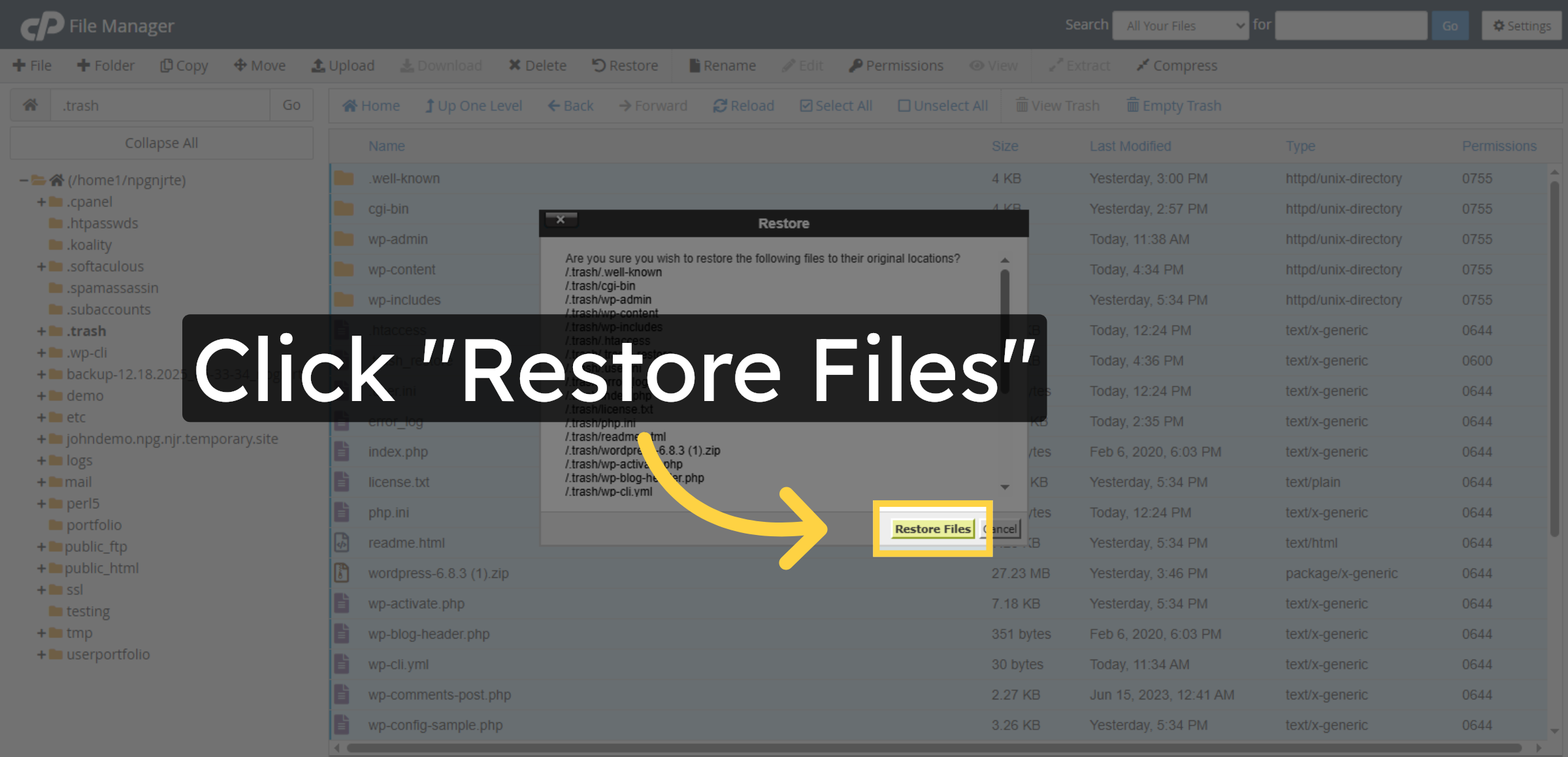
12. Confirm Restore Action
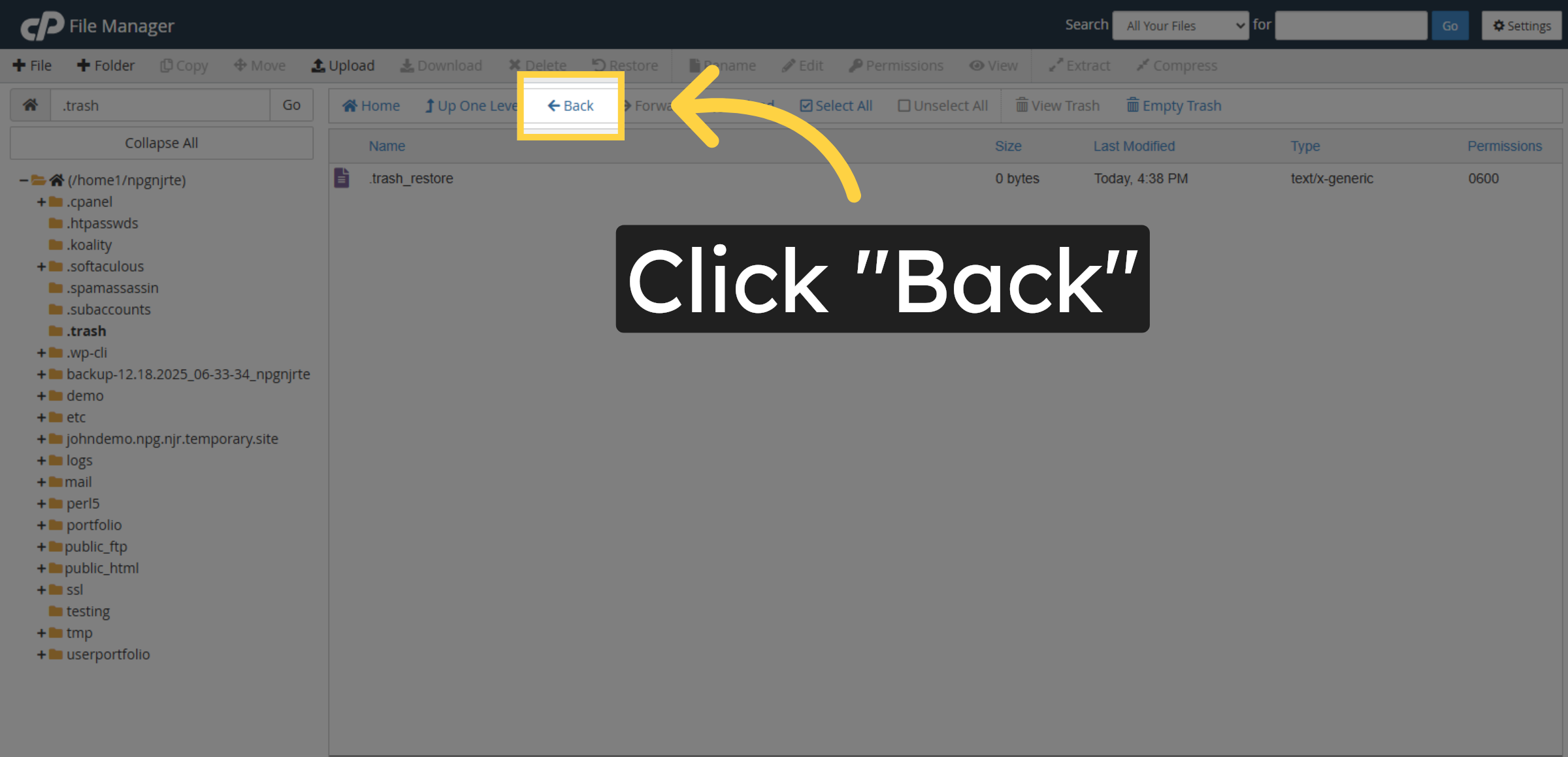
13. Return To Previous View
14. Select Portfolio Section
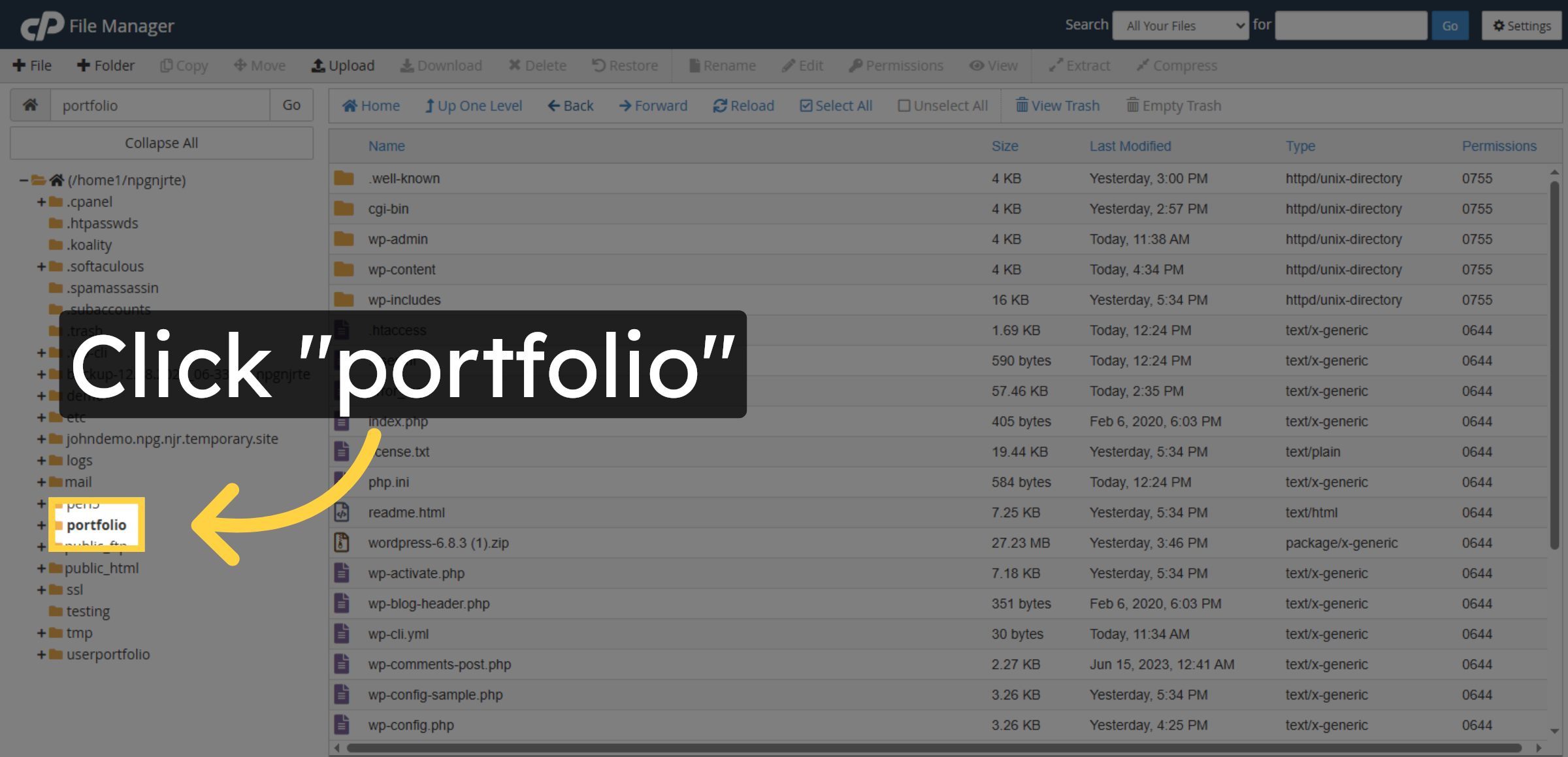
15. Reopen Website URL
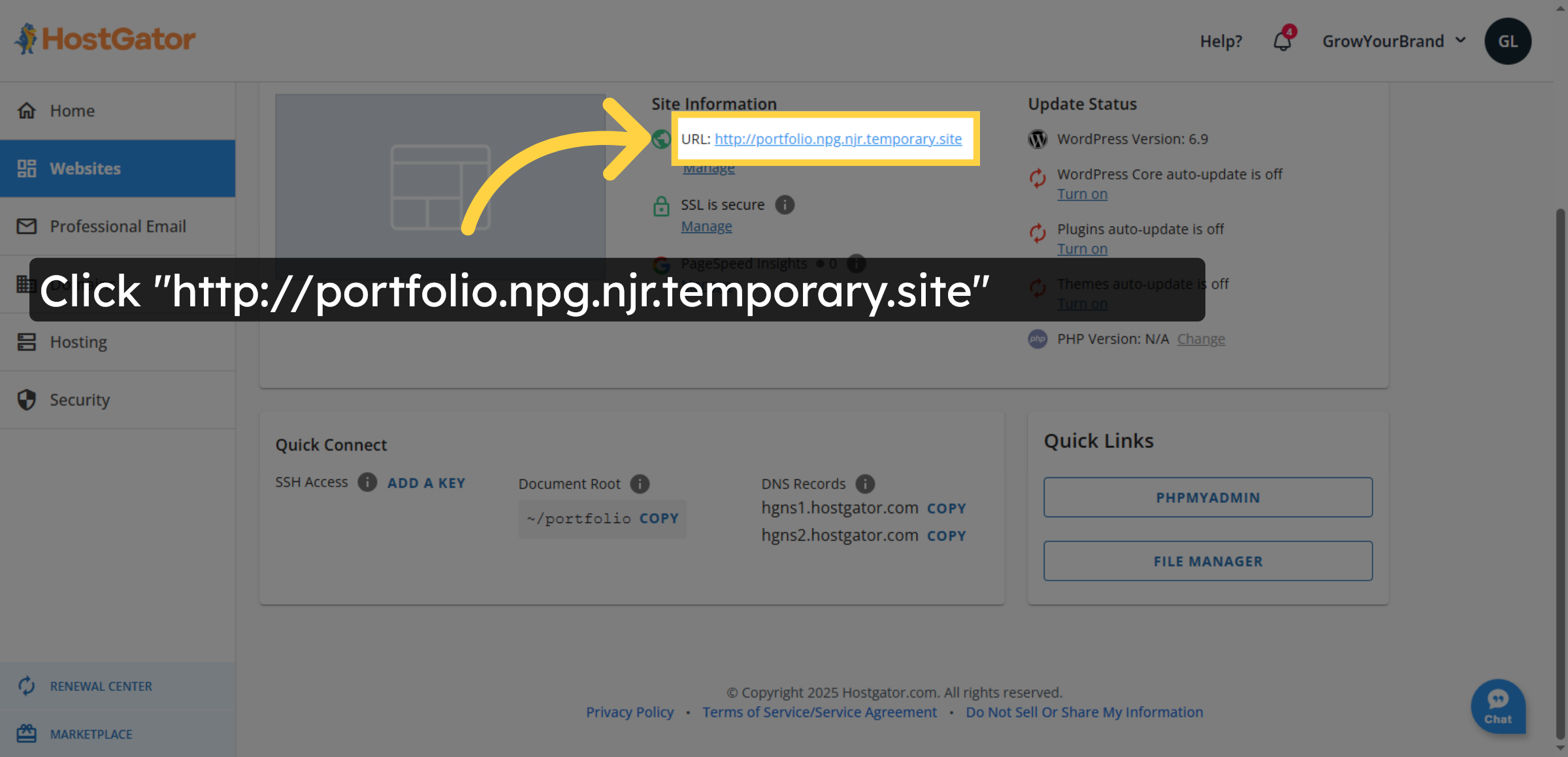
16. Switch To Website Tab

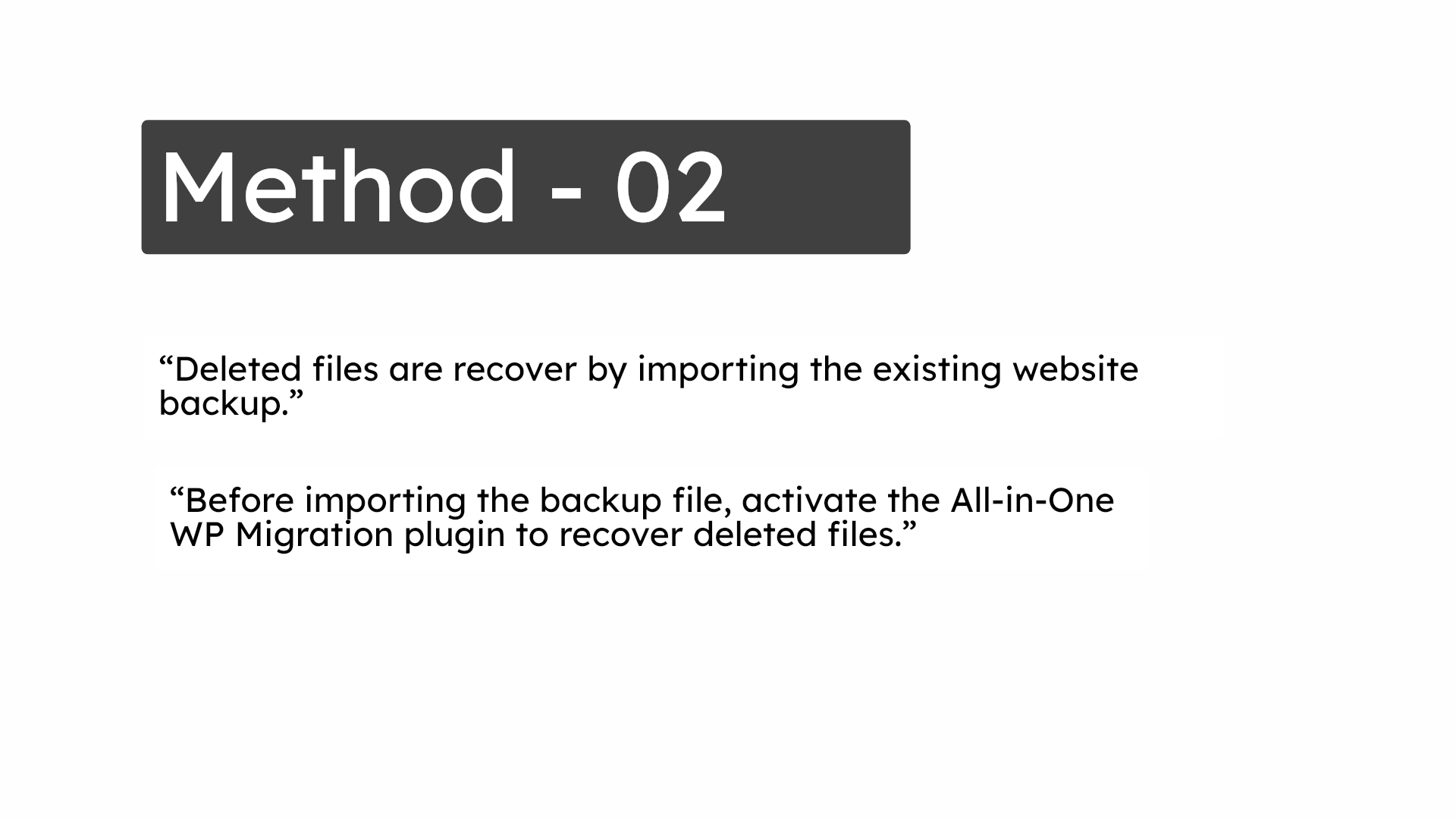
17. Method – 02
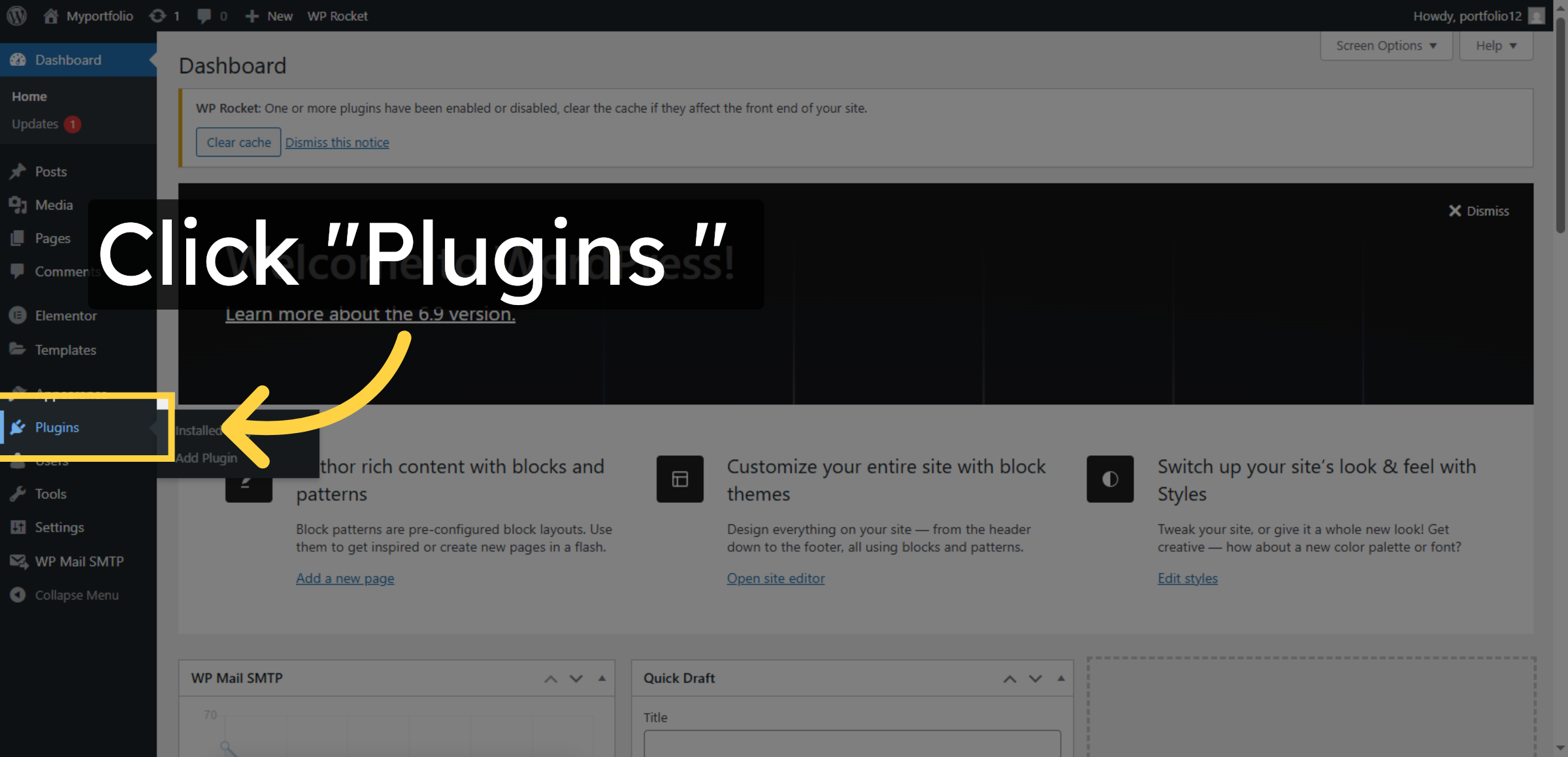
18. Open Plugins Section
19. Add New Plugin
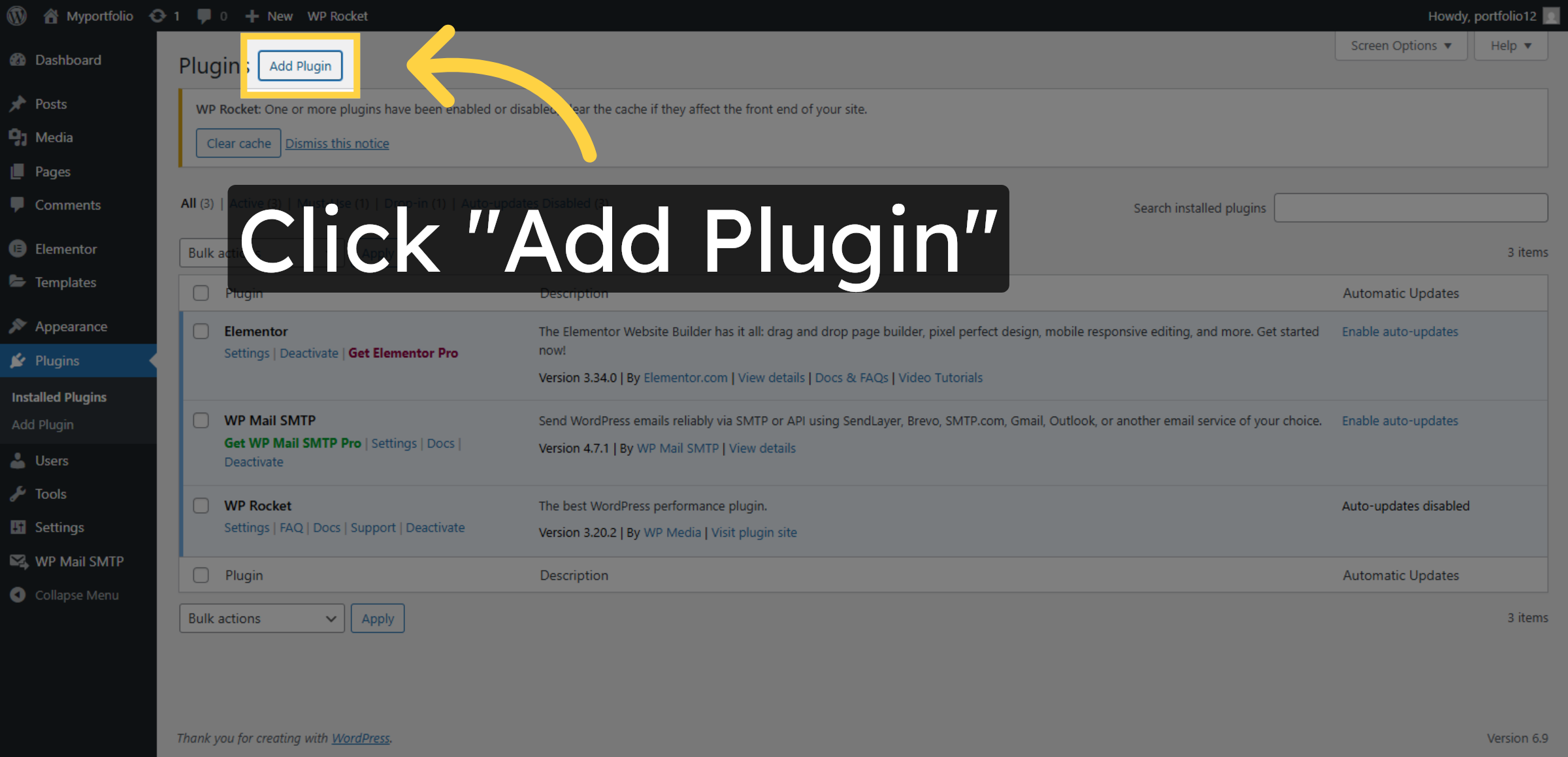
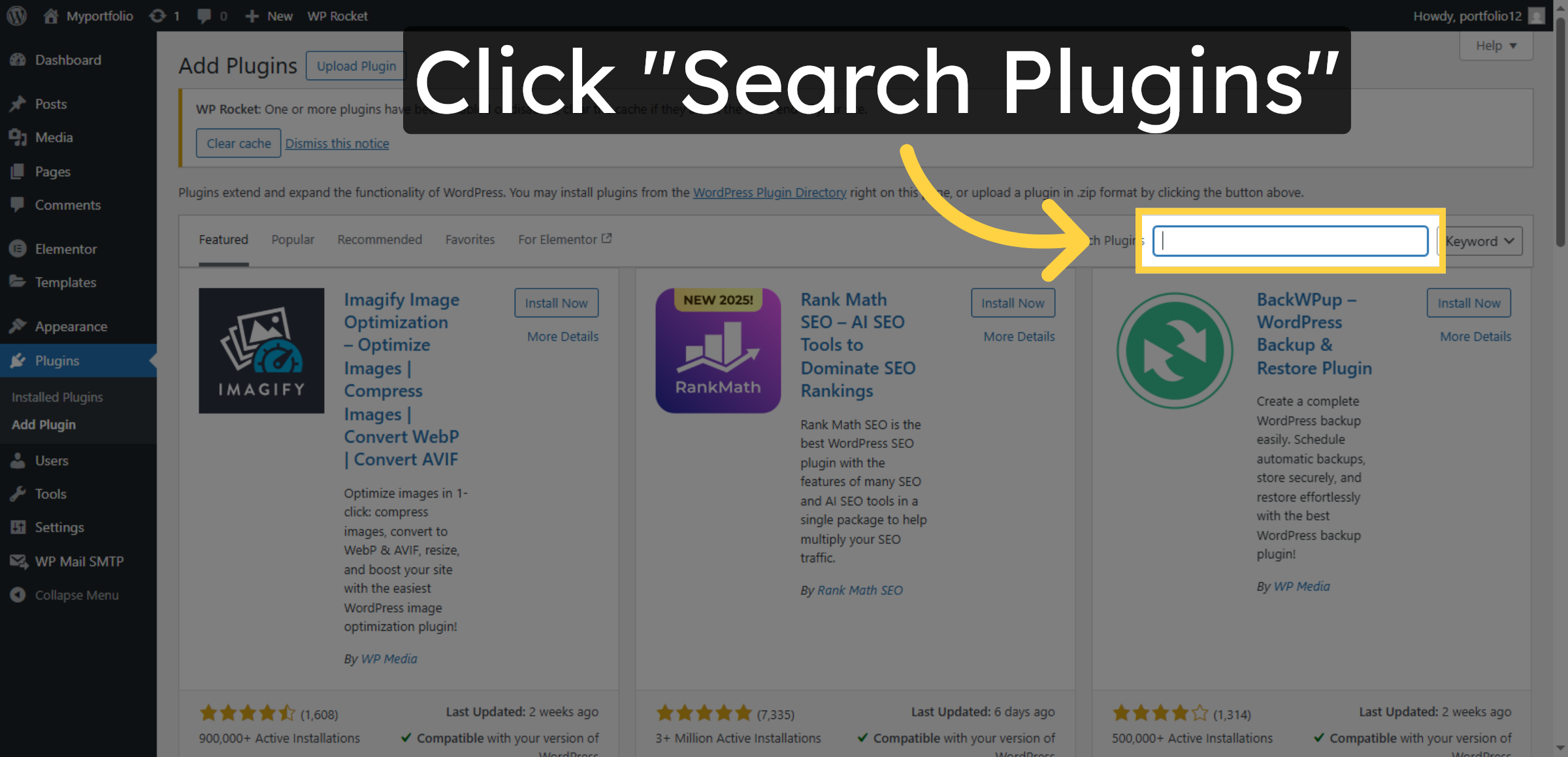
20. Access Plugin Search


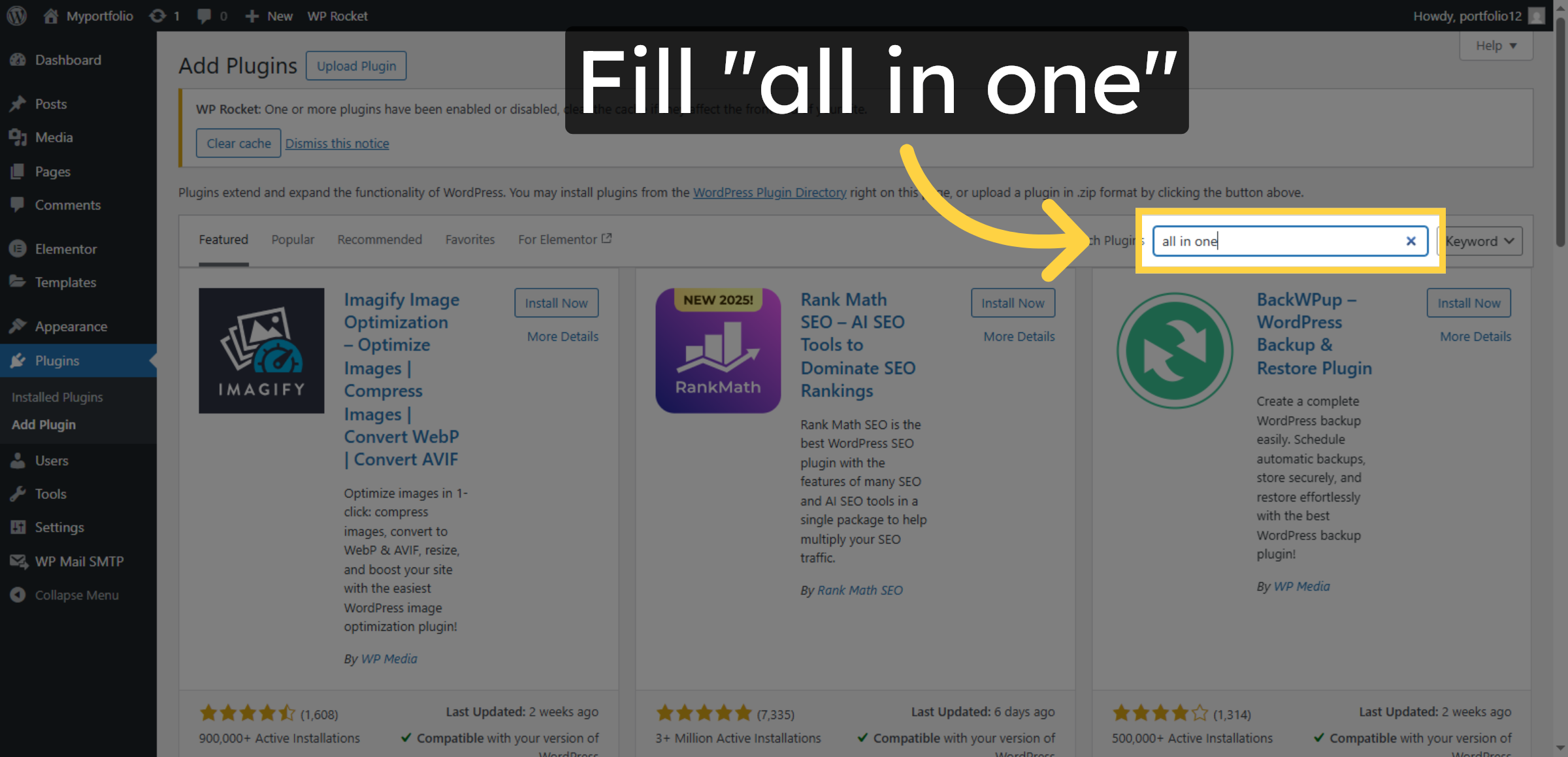
21. Search Backup Plugin
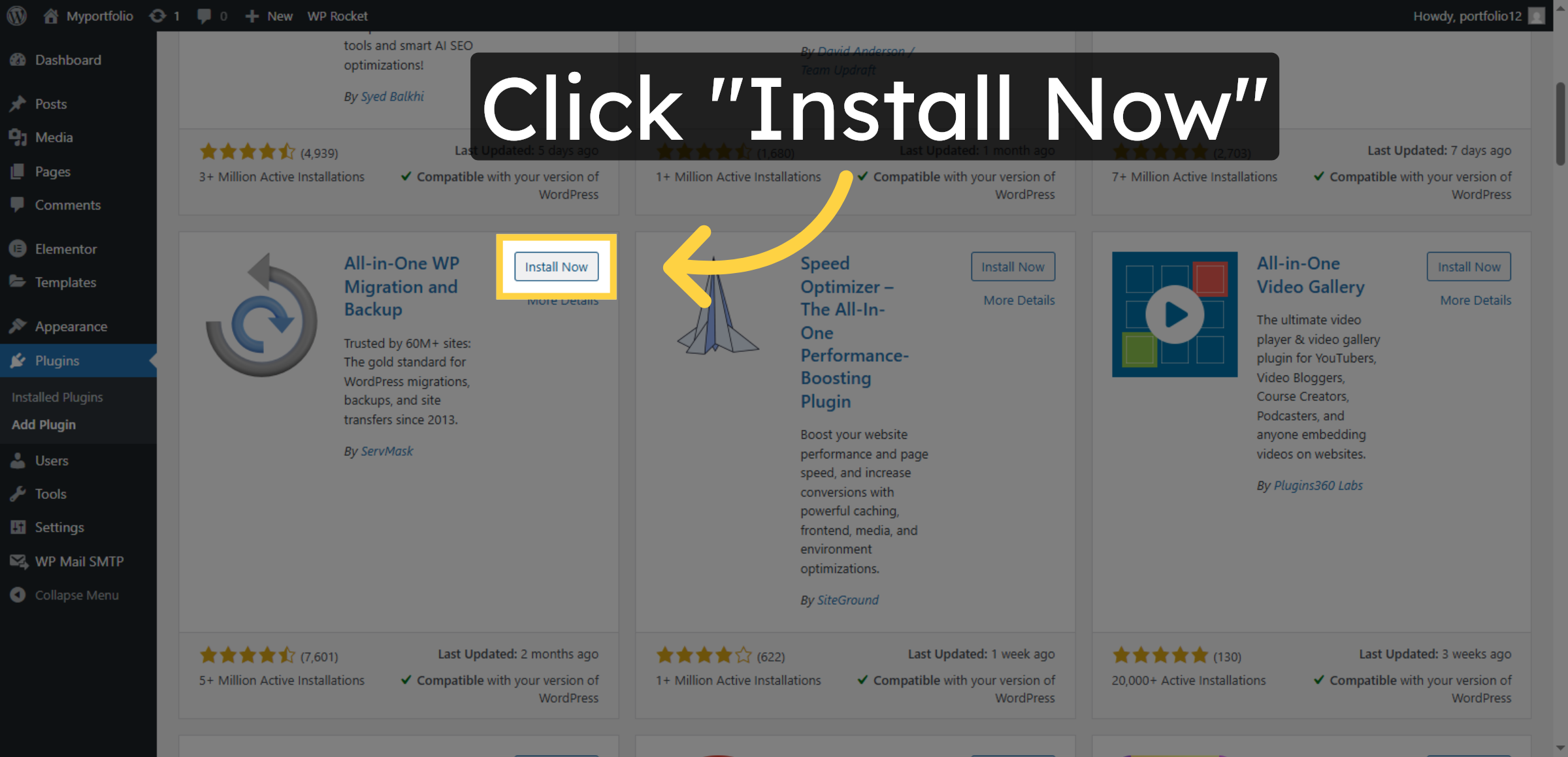
22. Install Backup Plugin
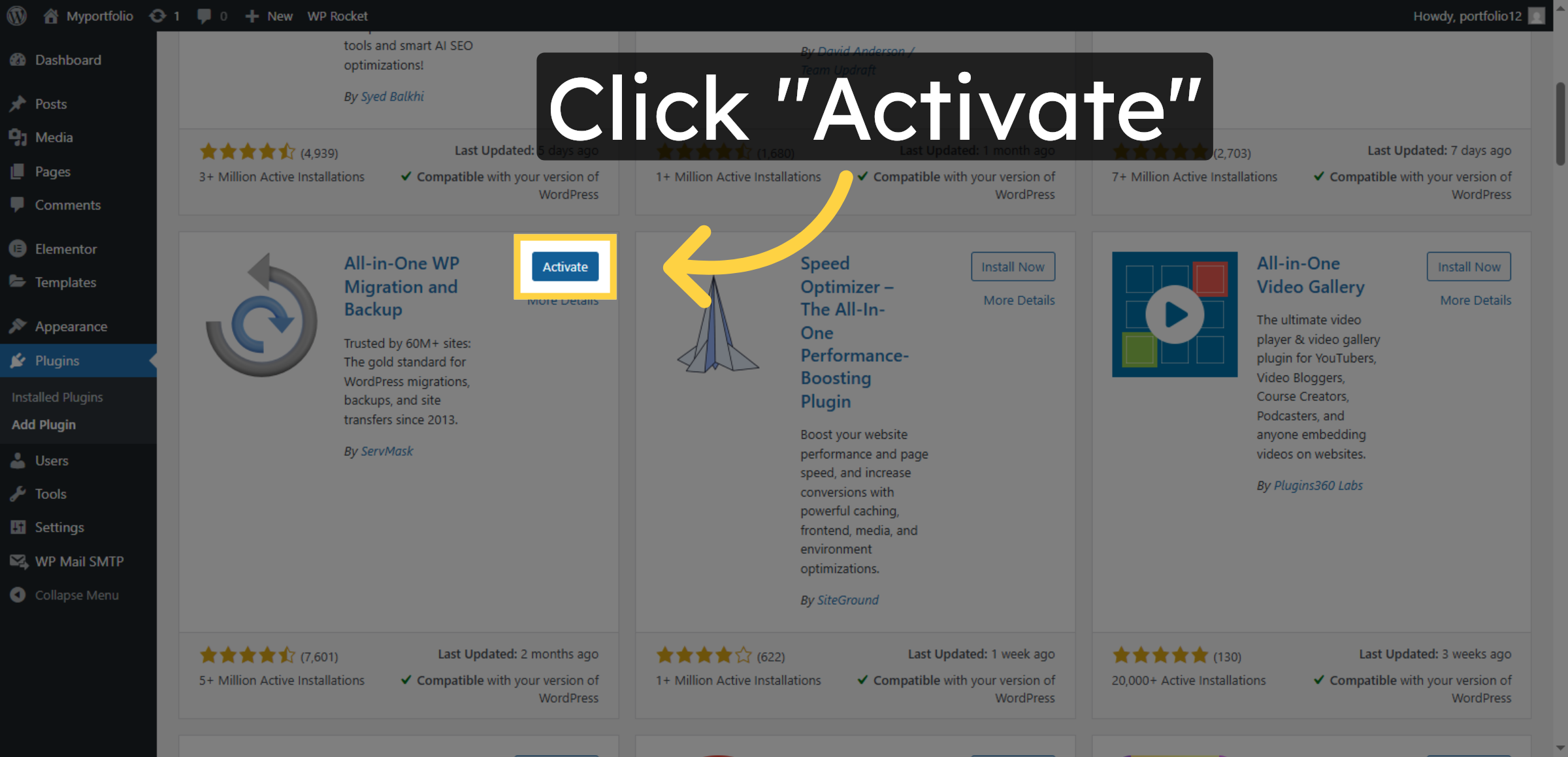
23. Activate Backup Plugin
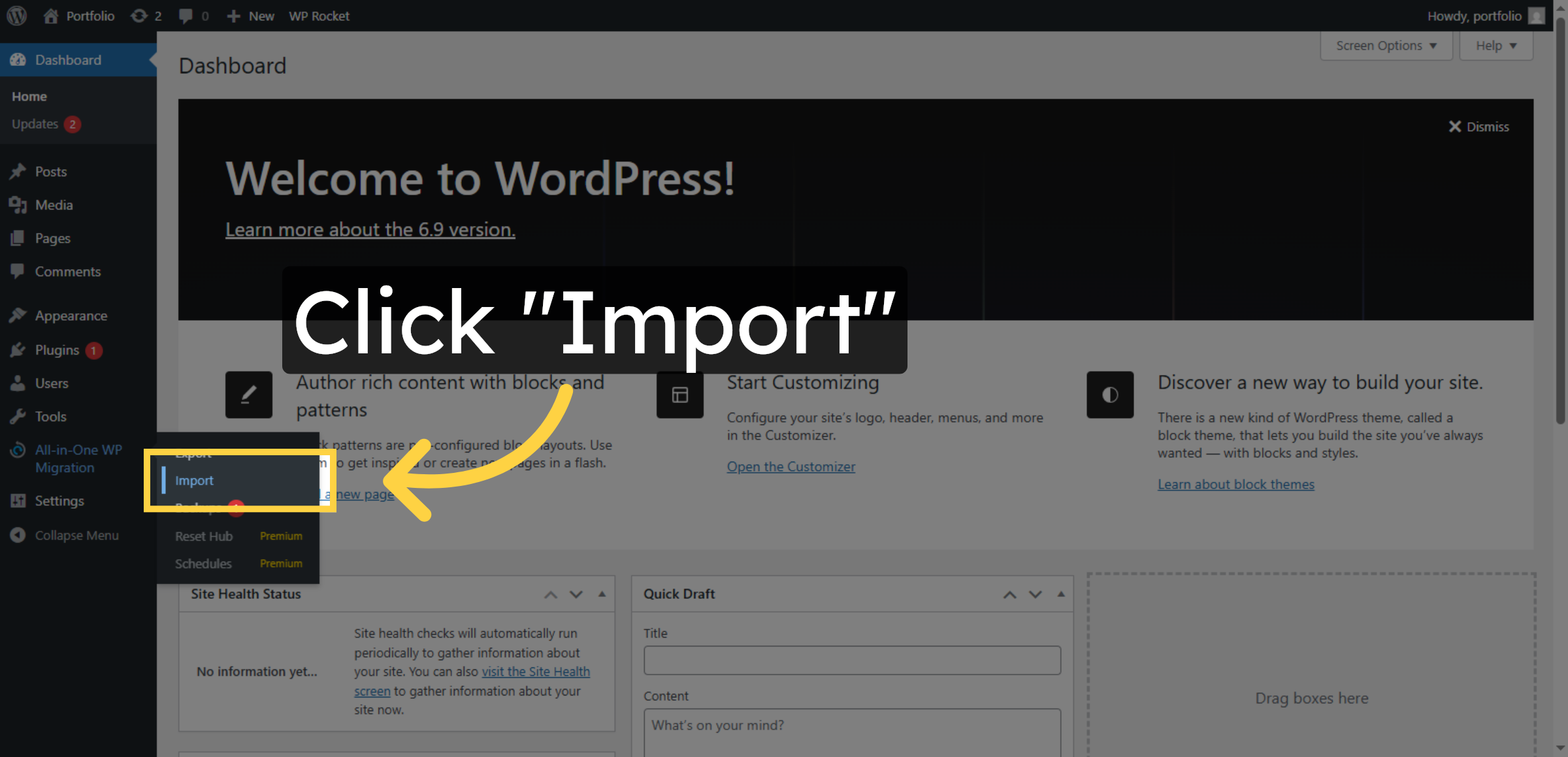
24. Click Import Button
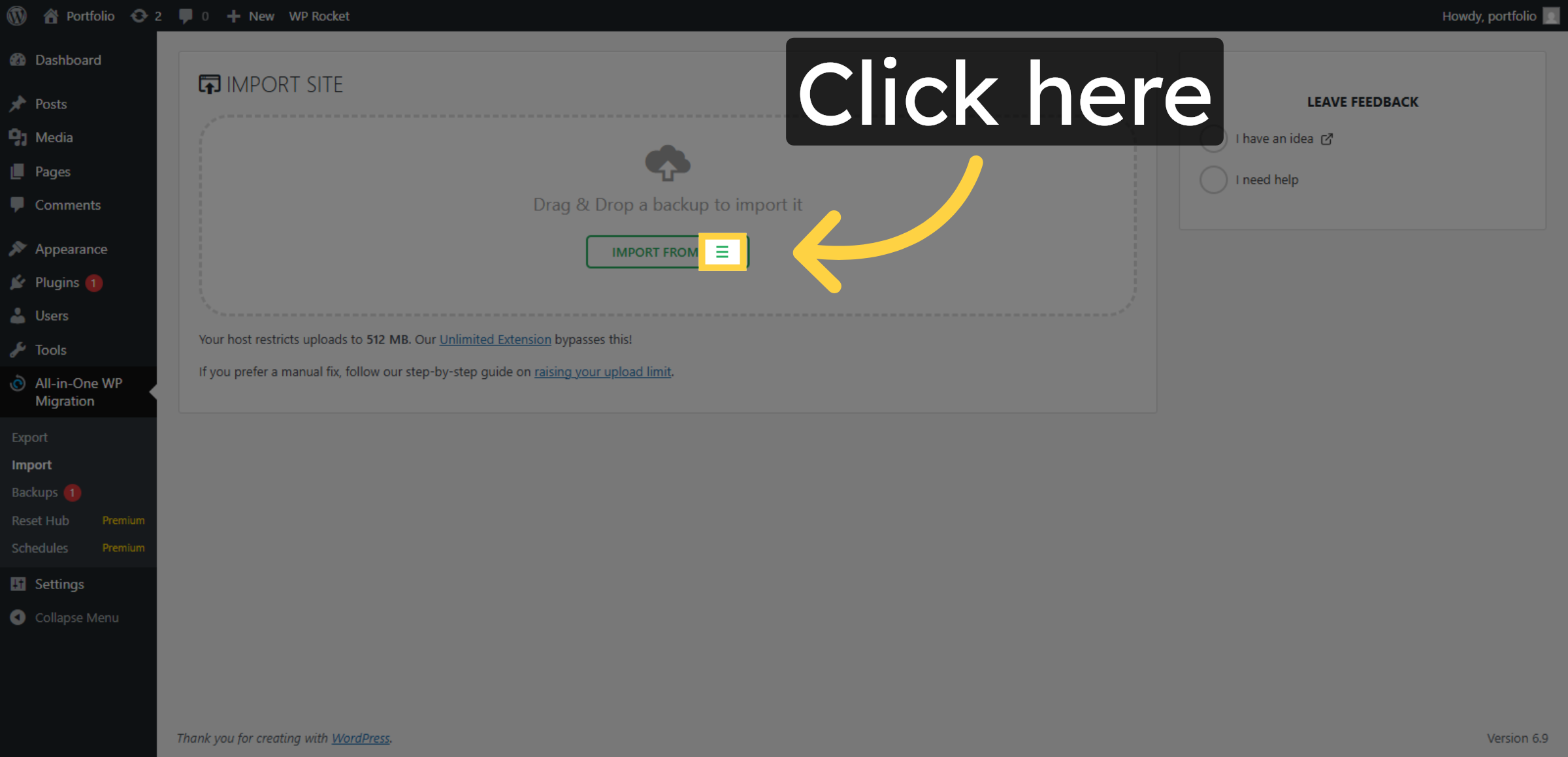
25. Open Import Options
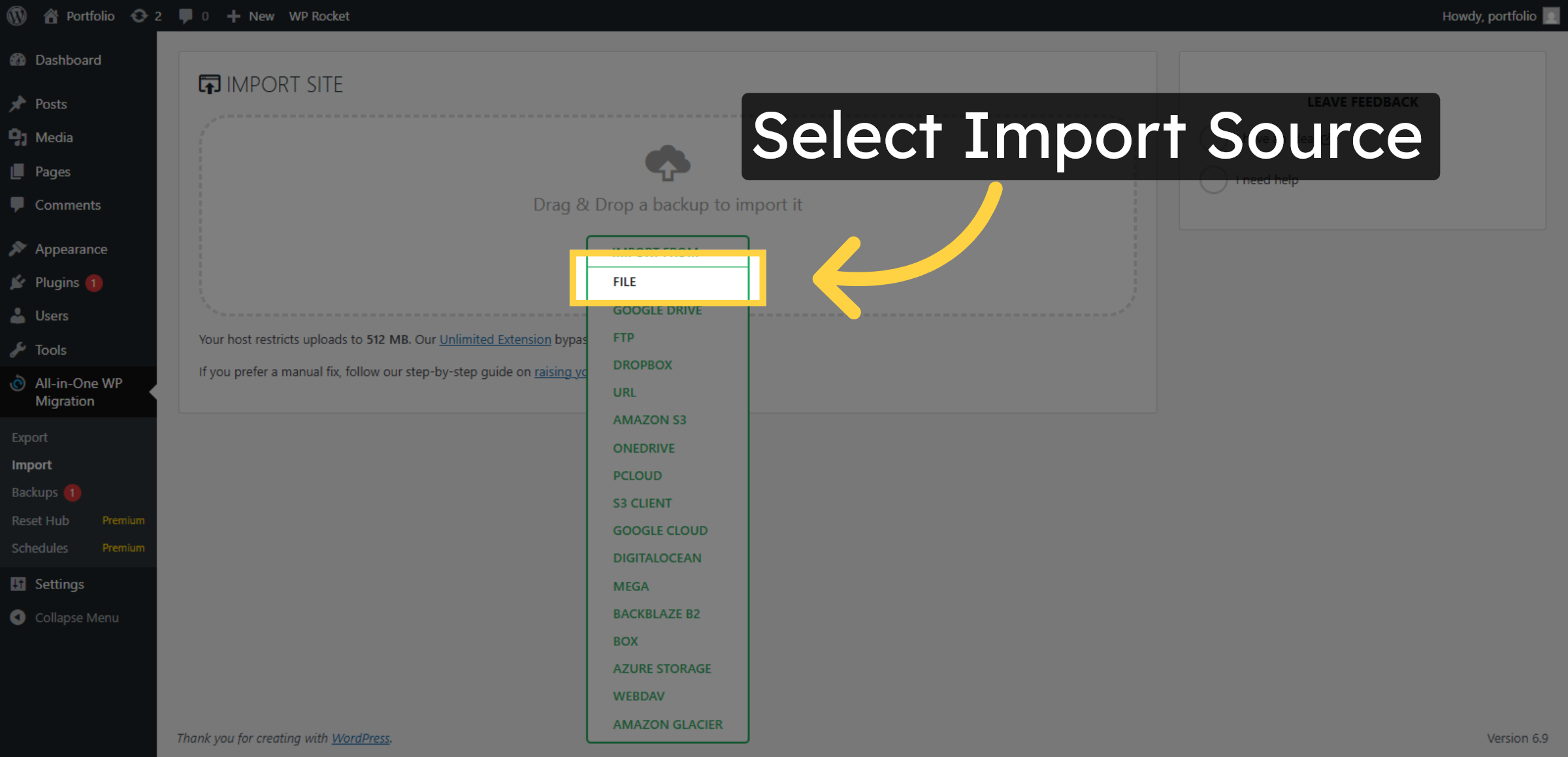
26. Select Import Source
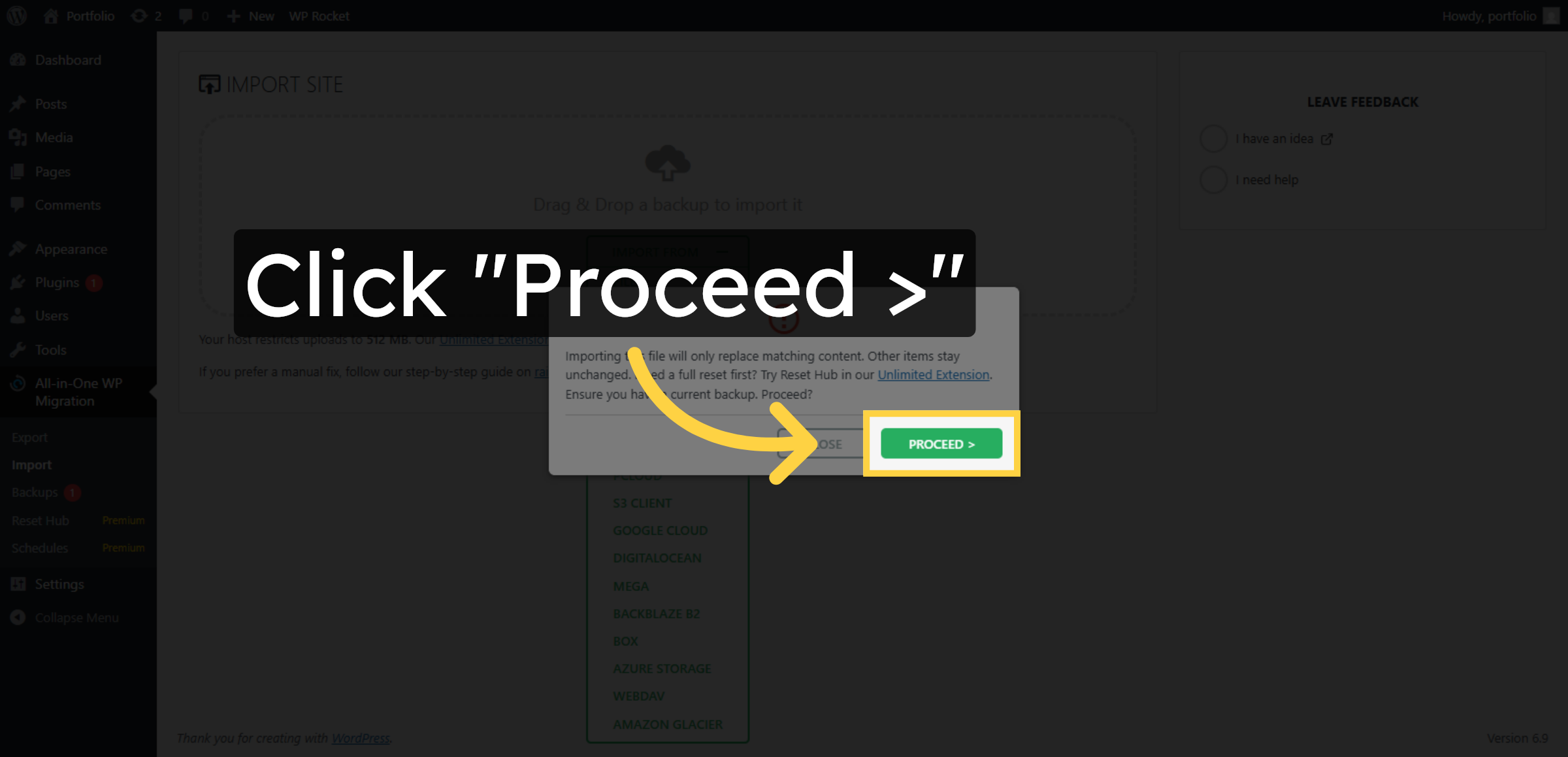
27. Click Proceed Button
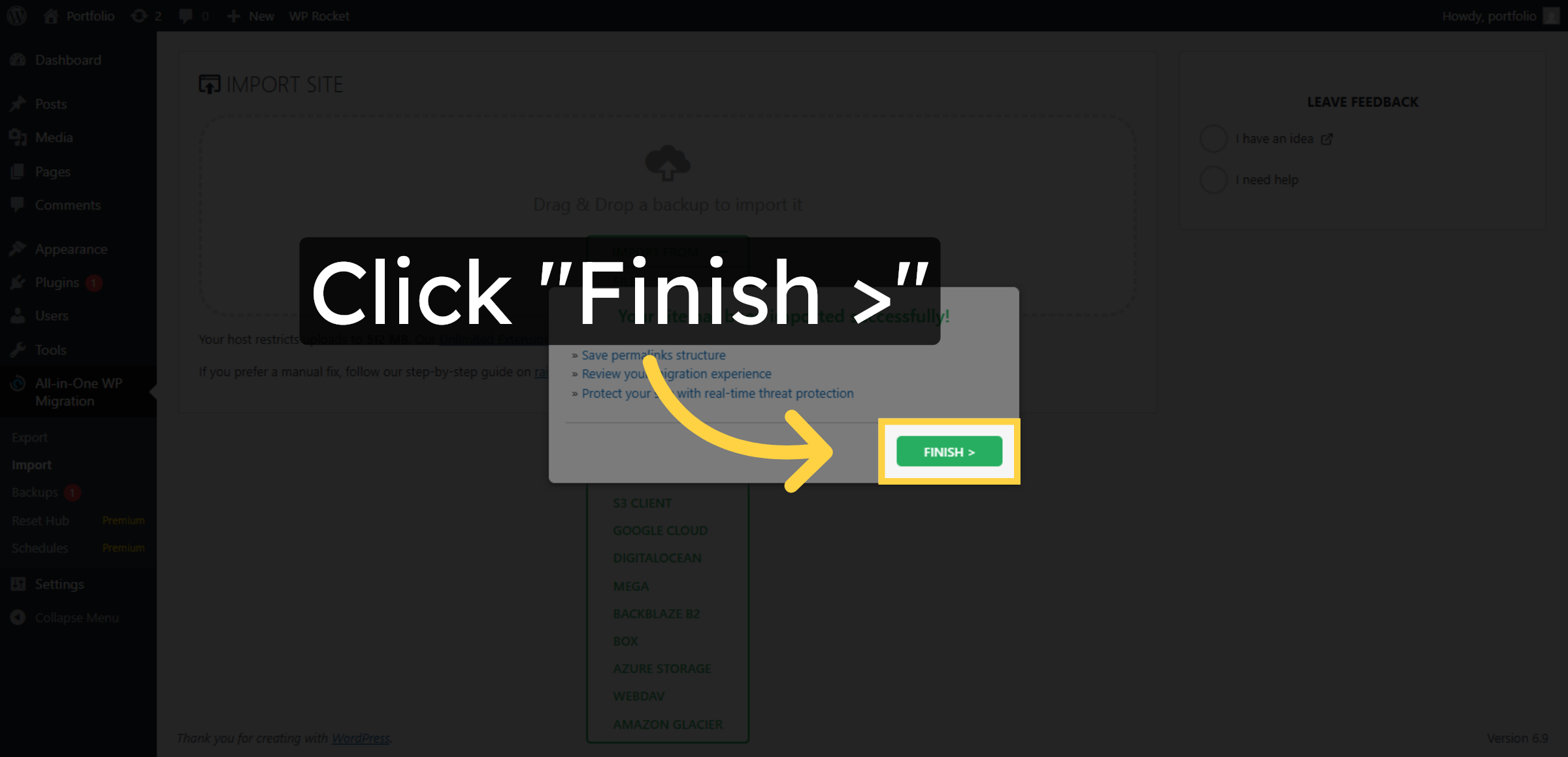
28. Click Finish Button
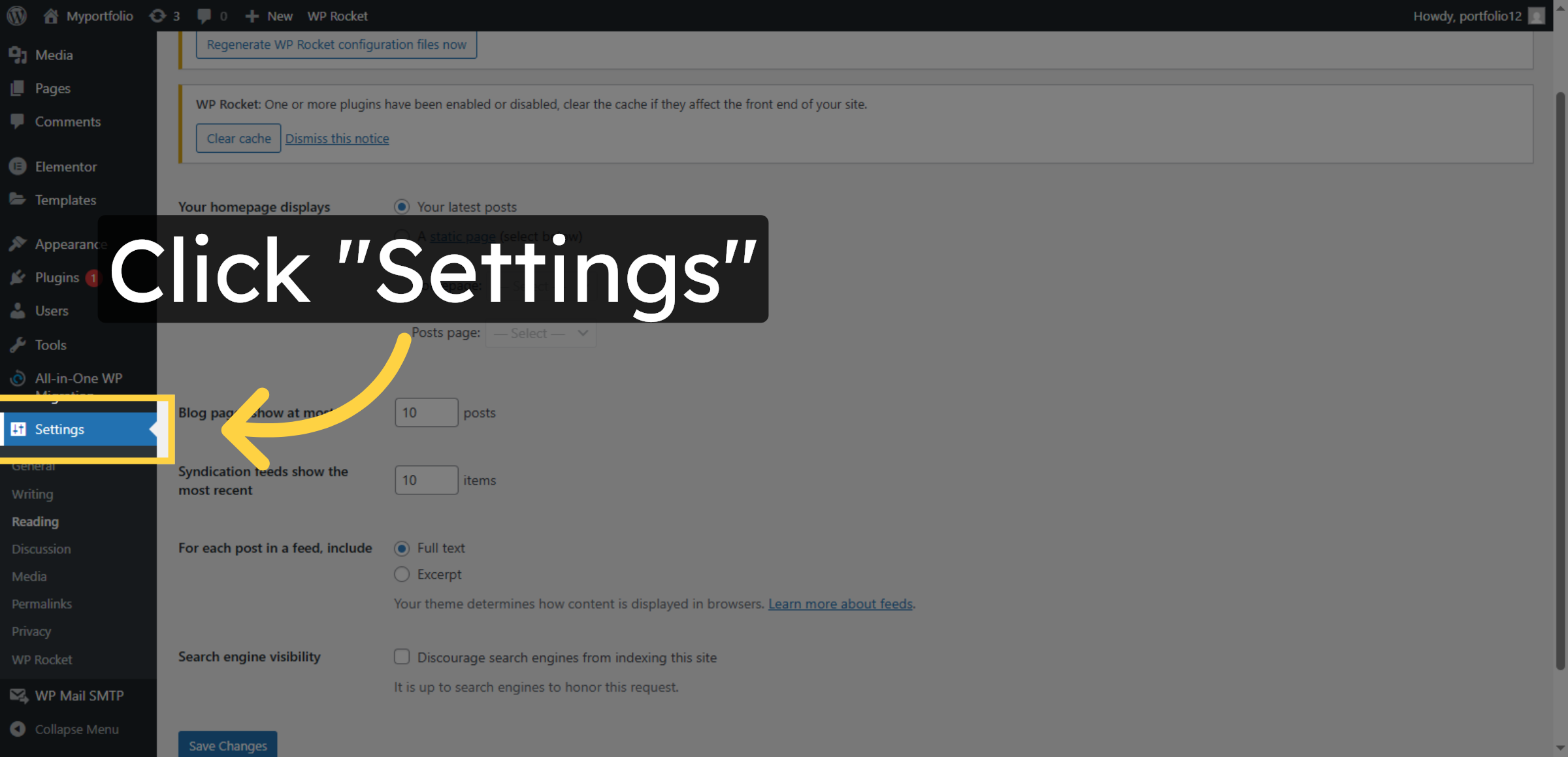
29. Navigate to Settings
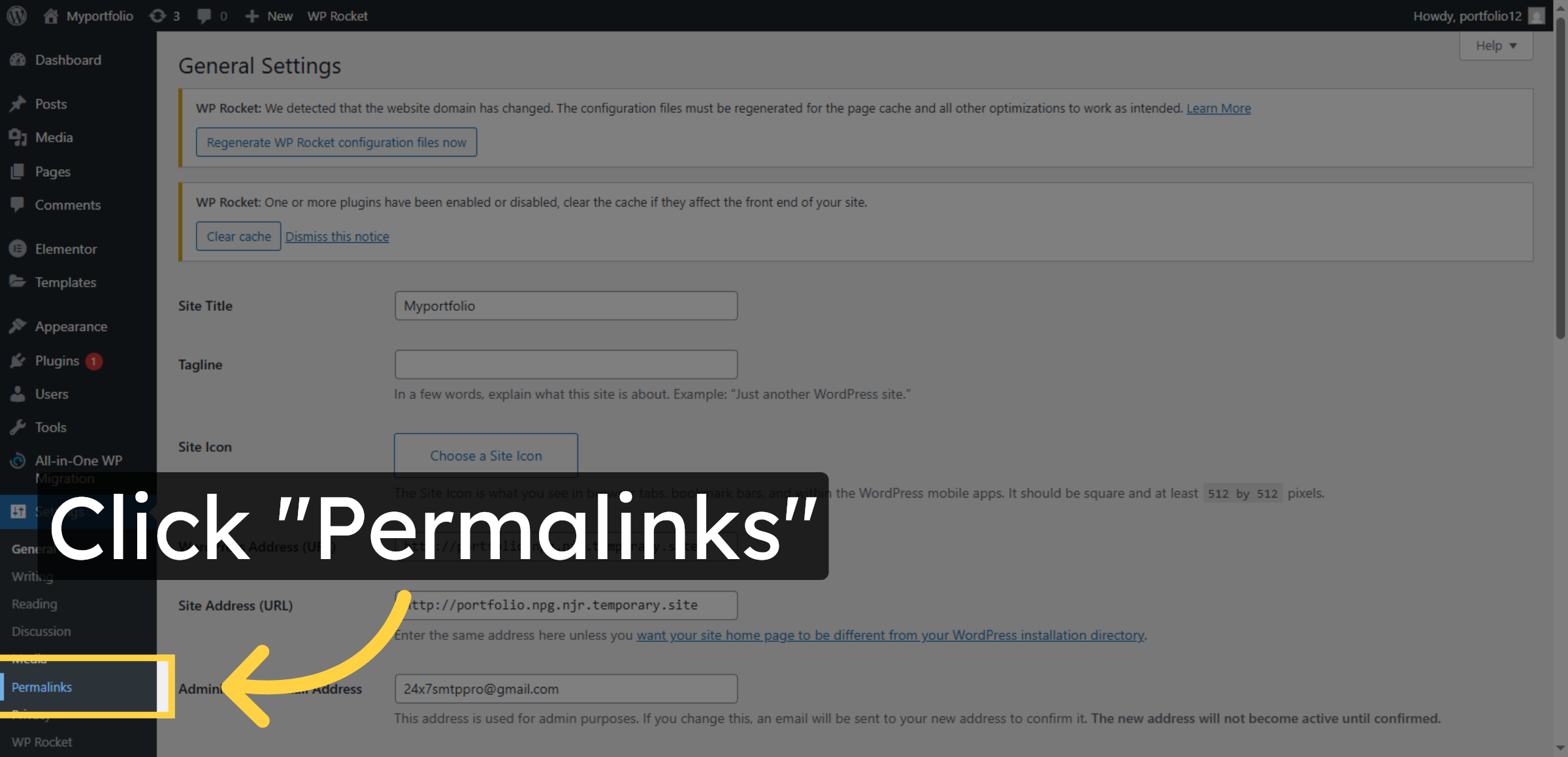
30. Select Permalinks Section
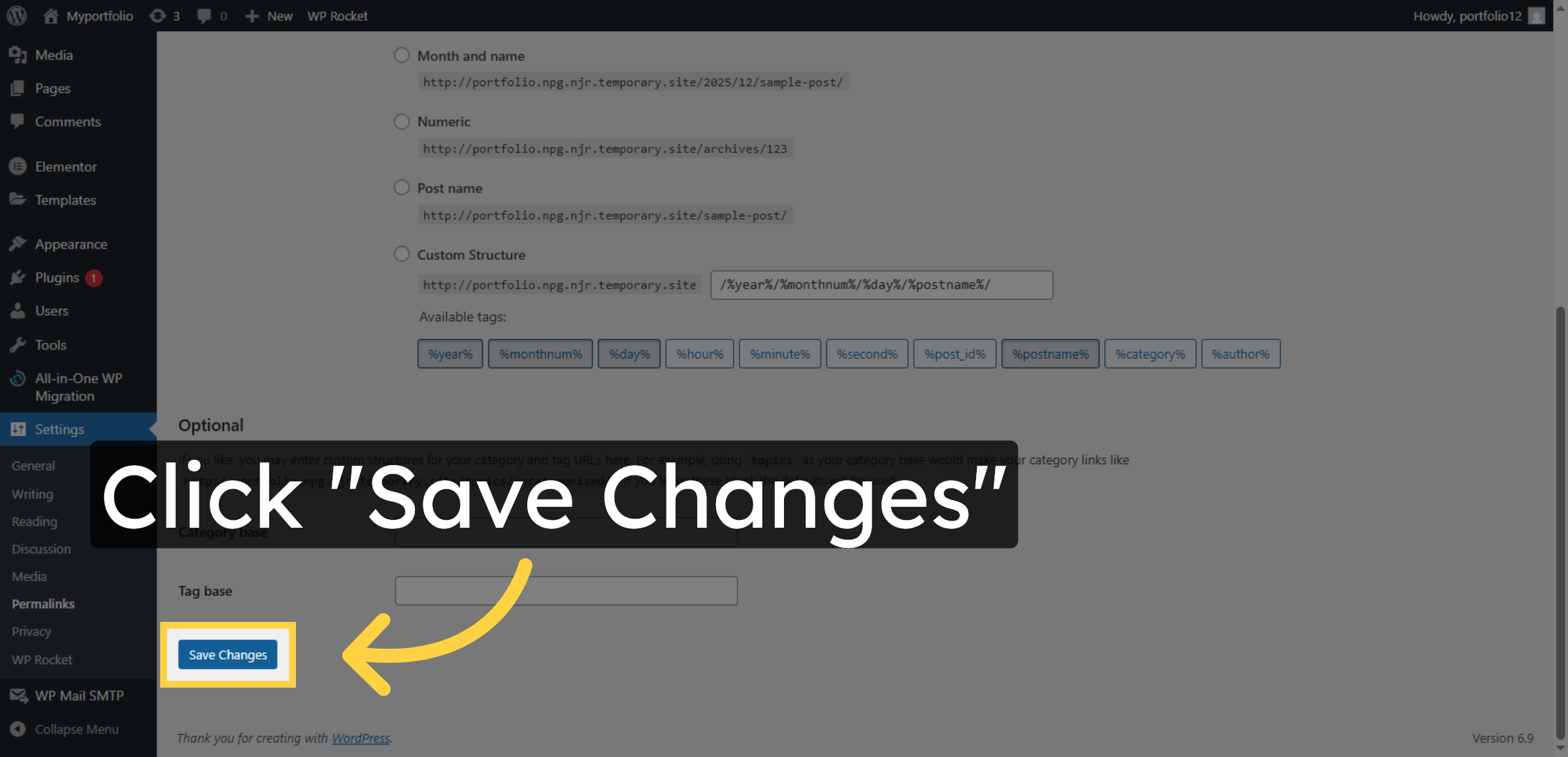
31. Save Permalink Changes
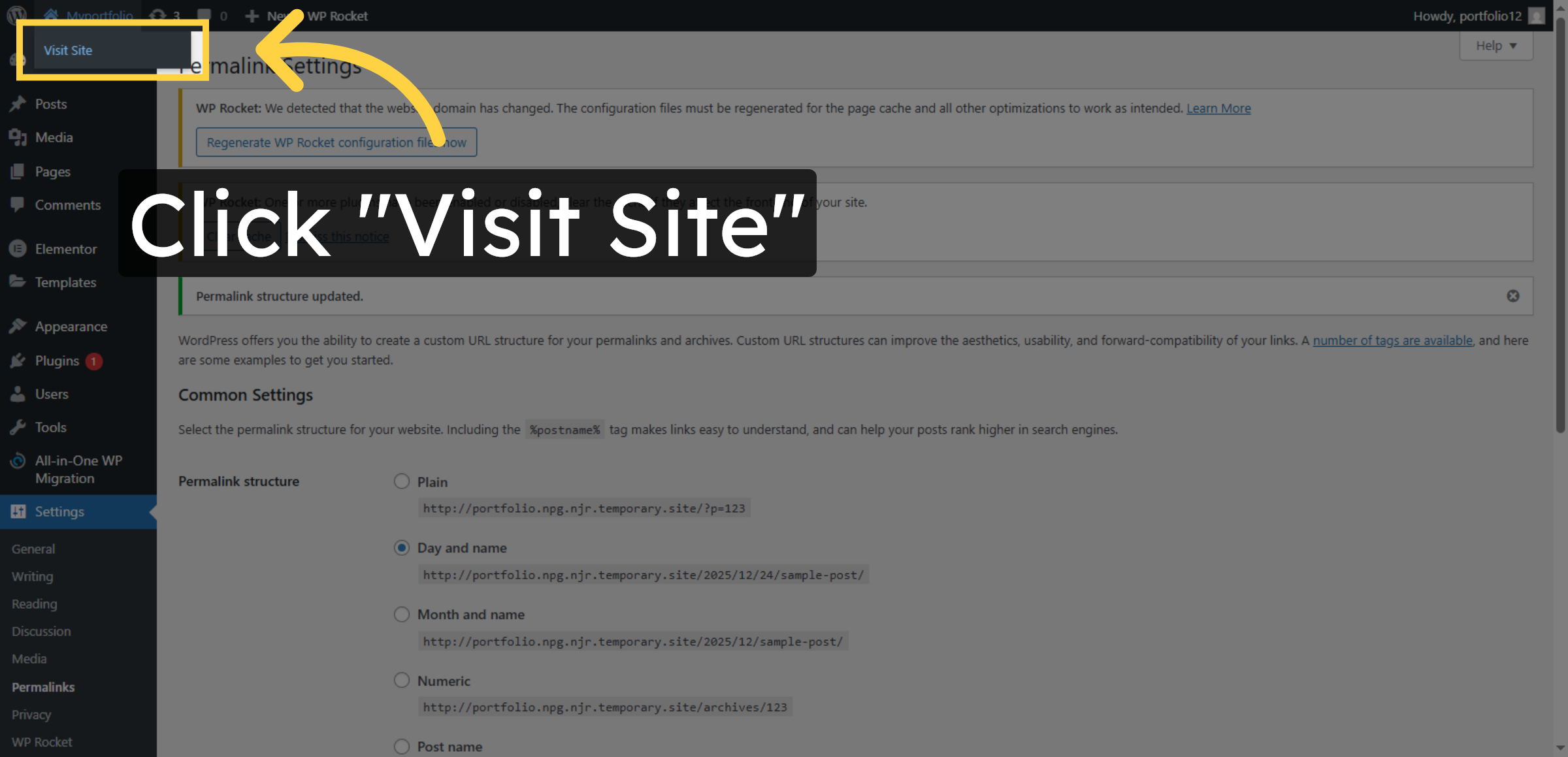
32. Visit Your Site
33. Open Myportfolio Section

Conclusion
File and database recovery is a critical skill for maintaining website stability and operational continuity. By following the procedures outlined in this guide, you have successfully restored deleted website files and database records using HostGator’s File Manager and backup restoration tools. These recovery methods help resolve access errors, reinstate missing content, and restore full website functionality.
To reduce the risk of future data loss, it is recommended to implement regular automated backups, monitor file changes, and restrict unauthorized access. Periodic testing of recovery procedures also ensures faster response during emergencies. With proactive recovery planning and consistent data protection practices, your website remains resilient, secure, and prepared for unexpected technical challenges.
WooHelpDesk Support
Need professional assistance with file recovery, database restoration, backup management, or emergency website repair? WooHelpDesk provides expert technical support to help you restore your website quickly and securely.
Visit: https://www.woohelpdesk.com
Call Us Toll-Free: +1 888 602 0119 (US & Canada)
Fast Recovery | Secure Restoration | Trusted Support
Contact WooHelpDesk today for reliable WordPress and hosting recovery solutions.



