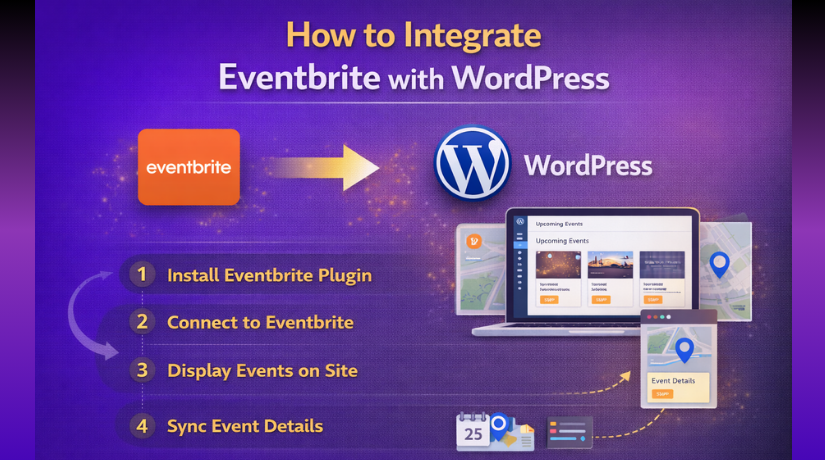
How to Integrate Eventbrite with WordPress (Step-by-Step Guide)
Table of Contents
- Introduction
- What Is Eventbrite in WordPress?
- What Are Uses of Eventbrite in WordPress?
- Things You Need Before Starting Eventbrite Integration on Your WordPress Website
- How to Integrate Eventbrite with WordPress (Step By Step Guide)
- Common Problems You May Face During Eventbrite and WordPress Integration
- Conclusion
Introduction
If you run events, your website should help people find them fast. That is where Eventbrite WordPress Integration becomes very useful. Eventbrite helps you create events, manage registrations, and handle ticket sales in one place. WordPress helps you present that event content on your own website in a clean and trusted way. When you integrate Eventbrite with WordPress, visitors can view event details, click registration links, and sometimes even complete checkout from your site, depending on the setup you use. Eventbrite also supports embedded checkout for websites, and WordPress users can connect Eventbrite content through available plugin and embed options.
This setup is useful for many site owners. It works well for coaches, schools, local businesses, nonprofits, creators, and event organizers. Instead of sending people through many different pages, you can keep your event promotion connected to your own brand. A good Eventbrite WordPress integration can make your website look more complete and help visitors take action faster. In this guide section, you will understand what Eventbrite means inside WordPress and why so many websites use it for event promotion.
What Is Eventbrite in WordPress?
Eventbrite in WordPress means your WordPress site pulls in or displays Eventbrite event content. That content may include event titles, dates, venue details, ticket buttons, and registration access. In simple words, WordPress becomes the place where people see your events, while Eventbrite handles the event system behind them. This makes it easier to manage event details in one platform while still showing them on your own website. Some tools fetch events directly from Eventbrite, while others use embed or checkout options to place Eventbrite content inside a page or post.
Many website owners choose this setup because it removes extra manual work. You do not need to rebuild every event page from scratch on WordPress. Instead, an Eventbrite plugin WordPress setup can connect your Eventbrite account, pull events, and show them in a more website-friendly format. Current plugin options in the WordPress plugin directory can display Eventbrite events, connect with an API key, and let publishers place event content inside posts or pages. That makes it easier to manage updates and keep the event display current.
You can also think of this as a practical WordPress event booking system approach for sites that already use Eventbrite for registrations. WordPress handles the website design and content experience. Eventbrite handles the event registration side. When both work together, you get a smoother path from event discovery to ticket action. This is one reason many site owners want to integrate Eventbrite with WordPress instead of keeping their event promotion separate.
What Are Uses of Eventbrite in WordPress?
Showing Upcoming Events Clearly on Your WordPress Website
One main use of Eventbrite in WordPress is showing upcoming events clearly. This helps visitors see your event dates, timings, and details fast. They do not need to search on another platform first. Your website becomes the main place for event updates. This also makes your site look more active and useful for visitors.
Letting Visitors Check Event Details Without Leaving Your Website
Eventbrite in WordPress helps users read full event details on your site. They can check the title, date, time, venue, and ticket details easily. This creates a smoother user experience for every visitor. People trust websites more when important information is easy to find. It also keeps users engaged on your pages longer.
Making Ticket Booking Easier for Interested Visitors
Another big use is simple ticket booking from your website. After you integrate Eventbrite with WordPress, users can move toward registration faster. This reduces extra steps during the booking process. A smooth path often helps more users complete the action. That is why many websites use it as a simple WordPress event booking system.
Promoting Free and Paid Events in a More Professional Way
Eventbrite works well for both free and paid events. You can use it to promote workshops, classes, seminars, webinars, and local meetups. Your website can present these events in a more branded way. This makes the event section look professional and organized. It also helps visitors understand the value of the event quickly.
Adding Eventbrite Events to WordPress Pages and Blog Posts
You can also add Eventbrite events to WordPress pages and posts. This is useful when writing event-related blogs or announcements. For example, you can publish a blog post about a workshop and place the event details inside that post. This connects your content and event promotion together. It is a smart use of Eventbrite WordPress Integration.
Helping Businesses and Organizers Manage Event Promotion Better
Eventbrite in WordPress helps many types of website owners. Businesses can promote launches and live sessions. Coaches can promote training programs. Nonprofits can promote fundraisers and awareness events. Schools can share seminars and student activities. This makes Eventbrite WordPress integration useful for many industries and event goals.
Improving Trust and Keeping Your Event Branding Consistent
When visitors see events on your own website, trust improves. Your branding, colors, and message stay consistent across the site. This makes your event promotion look more reliable and polished. It also helps visitors feel they are dealing with a serious brand. A good Eventbrite plugin WordPress setup supports that experience well.
Saving Time While Managing Events More Efficiently
Eventbrite also saves time for website owners and event teams. You do not need to rebuild event content again and again. Once connected, it becomes easier to manage event display and updates. This makes your work faster and more organized. That is another strong reason many users choose to integrate Eventbrite with WordPress.
Things You Need Before Starting Eventbrite Integration on Your WordPress Website
A Working WordPress Website Is the First Thing You Need
Before you start, your WordPress website should work properly. Your dashboard should open without errors. Your pages should also load correctly on the front end. A stable site makes Eventbrite WordPress Integration much easier. If your site already has issues, the setup may fail or show errors later.
Admin Access Is Required for Plugin Installation and Settings
You need full admin access to your WordPress dashboard. This is important because you must install plugins and change settings. Without admin access, you cannot complete the full setup. You may also miss important plugin options. This is a basic requirement before you integrate Eventbrite with WordPress.
An Active Eventbrite Account Must Be Ready Before Setup
You also need a working Eventbrite account before starting. This account is where your events will be created and managed. If the account is not active, the connection will not work properly. Your Eventbrite account is the main source of your event details. That is why it must be ready first.
At Least One Event Should Be Created in Eventbrite
Before plugin setup, create at least one event in Eventbrite. This helps you test the connection and display settings later. It also makes setup easier because real event data is available. A test or live event both can work well. This step helps you add Eventbrite events to WordPress more smoothly.
Event Details Should Be Complete Before Integration Starts
Your event title, time, date, venue, image, and ticket details should be filled. Incomplete event details can make your event section look weak. Visitors may also miss important booking information. Good event data improves both design and user experience. It also supports a stronger WordPress event booking system setup.
Your Theme and Editor Should Support the Plugin Layout


You should check your theme and page editor before setup. Some plugins work best with Gutenberg blocks. Others may support shortcodes, widgets, or page builders. This matters because layout support affects how your event section appears. A good Eventbrite plugin WordPress setup should fit your site design easily.
WordPress Core Theme and Plugins Should Be Updated
Before starting, update WordPress core, your active theme, and plugins. Old files can create conflicts during integration. Updated systems work better and stay more secure. This also lowers the risk of plugin errors later. A clean and updated site gives better results for Eventbrite WordPress integration.
How to Integrate Eventbrite with WordPress (Step By Step Guide)
Step 1: Choose an Eventbrite Plugin That Matches Your Website Setup
- Start by choosing a plugin that fits your website needs.
- Some plugins only show event lists on pages.
- Some also support checkout inside your website.
- Some plugins support blocks, shortcodes, widgets, or Elementor.
- Pick the one that matches your editor and layout style.
Step 2: Make Sure Your Eventbrite Account and Event Are Ready
- Make sure your Eventbrite account is active.
- Confirm that you have organizer access in Eventbrite.
- Create at least one event before starting the setup.
- A ready event helps the plugin pull real event data.
- This also makes testing much easier later.
Step 3: Get Your Eventbrite API Key or Private Token
- Open your Eventbrite account settings or developer area.
- Find your API key or private token there.
- Copy the token carefully without changing anything.
- Keep it ready because the plugin will ask for it.
- This token connects your WordPress site with Eventbrite.
Step 4: Install the Plugin from Your WordPress Dashboard
- Log in to your WordPress admin dashboard.
- Go to the Plugins section from the left menu.
- Click Add New Plugin at the top.
- Search for the Eventbrite plugin you selected.
- Click Install Now and wait for the process to finish.
Step 5: Open the Plugin Settings and Connect Eventbrite
- After installation, click Activate.
- Open the plugin settings page from the dashboard.
- Paste your Eventbrite API key or private token.
- Save the settings properly.
- This step connects WordPress with your Eventbrite account.
Step 6: Choose How You Want to Show Events on Your Website
- Decide where and how your events should appear.
- Some plugins offer blocks for the WordPress editor.
- Some plugins offer shortcodes or widget options.
- Some may also support Elementor layouts.
- Choose the display style that fits your website best.
Step 7: Add the Event Feed to a Page, Post, or Sidebar
- Open the page, post, or sidebar area you want.
- Insert the Eventbrite block if the plugin uses blocks.
- Paste the shortcode if the plugin uses shortcodes.
- Add the widget if the plugin supports sidebar display.
- Save the page after placing the event section.
Step 8: Adjust the Layout, Details, and Styling
- Review how the events look on the page.
- Change the layout if the plugin gives display options.
- Check titles, dates, images, and button text.
- Make sure the section matches your website design.
- Keep the layout clean and easy to read.
Step 9: Enable On-Site Checkout If Your Plugin Supports It
- Check whether your plugin supports on-site checkout.
- Turn on that option in the plugin settings.
- Make sure your website has SSL and uses HTTPS.
- Test whether ticket booking opens correctly on your site.
- This helps users book without leaving your website.
Step 10: Test the Event Page Before Publishing It Fully
- Open the event page on the desktop first.
- Check the title, image, date, and event details.
- Click the ticket or registration button to test it.
- Open the same page on mobile devices too.
- Make sure the full layout works properly everywhere.
Step 11: Clear Plugin Cache If Events Do Not Appear Correctly
- Check whether the plugin stores cached event data.
- Clear the cache from the plugin settings if needed.
- Refresh the page after clearing the cache.
- See whether new event changes now appear correctly.
- Repeat the test if the feed still looks outdated.
Step 12: Keep the Plugin and WordPress Updated
- Update WordPress core on time.
- Update the Eventbrite plugin regularly.
- Also update your theme and related plugins.
- This helps avoid bugs and compatibility problems.
- A fully updated site keeps the integration more stable.
Common Problems You May Face During Eventbrite and WordPress Integration
Plugin Not Connecting to Eventbrite Because the API Token or Account Access Is Wrong
One common problem appears at the connection stage. The plugin may fail to connect with Eventbrite even after installation. In most cases, this happens when the private token is missing, copied wrong, or added in the wrong plugin field. Some Eventbrite WordPress tools depend on the Eventbrite API connection to pull events into the website, so even a small token mistake can stop the full setup. If your Eventbrite WordPress Integration is not starting correctly, first check the token, account access, and saved plugin settings carefully.
Events Not Showing on the Website Even After the Plugin Looks Active
Sometimes the plugin installs correctly, but the events still do not appear. This usually happens when the display block, shortcode, or widget was not added properly to the page. It can also happen when the event source is not connected correctly inside the plugin settings. Since many tools use different output methods like blocks, shortcodes, widgets, or Elementor elements, one wrong placement can stop the feed from showing on the front end. If you want to add Eventbrite events to WordPress, always check both the plugin connection and the display method together.
Layout and Design Problems Can Make the Event Section Look Broken or Untidy
Another common issue is poor event layout on the page. The event area may look too wide, too narrow, or out of place with your theme. This often happens when the plugin display style does not match your page builder or editor. Some plugins are built around blocks, while others also support shortcodes, widgets, and Elementor layouts. If the selected method does not fit your current page design, the result can look messy. A strong Eventbrite plugin WordPress setup should match your editor, page structure, and website style from the start.
Ticket Button or Registration Flow May Not Work Properly on the Front End
In some cases, the event appears correctly, but the booking action fails. Visitors may click the ticket button and see nothing happen, or the registration flow may not open smoothly. This issue matters more when you use Eventbrite embedded checkout on your site. Eventbrite’s own setup guidance says embedded checkout can keep attendees on your website, but the website must use HTTPS to qualify. If your booking flow fails, check the event link, embedded checkout settings, and SSL status first. This step is very important when your site works like a WordPress event booking system.
Old Plugin Files or Website Conflicts Can Create Setup and Display Errors
WordPress websites often use many plugins and theme features together. Because of that, one tool can affect another. A plugin conflict, outdated theme file, or old WordPress version can create loading issues, design breaks, or failed event output. This does not always mean the Eventbrite plugin is bad. Sometimes the problem comes from the website environment around it. If you integrate Eventbrite with WordPress, keep your core files, theme, and related plugins updated so the connection stays stable and easier to manage over time.
Simple Fix Checks Can Solve Many Eventbrite and WordPress Problems Faster
Before you change too many settings, start with a few simple checks. Recheck your Eventbrite token and save the plugin connection. Confirm your event is live and available to display. Review whether you used the correct block, shortcode, or widget on the page. Test the page on mobile and desktop. If you use embedded checkout, confirm your site runs on HTTPS. These small checks solve many common issues without deeper troubleshooting. They also help your Eventbrite WordPress integration stay cleaner and easier to test.
Conclusion
Eventbrite and WordPress can work very well together when the setup is done correctly. WordPress helps you present events on your own website in a branded way. Eventbrite helps manage registration, ticket flow, and event handling in the background. Many current WordPress tools support event display through blocks, shortcodes, widgets, and similar methods, while Eventbrite also supports embedded checkout for websites that meet its setup requirements. That is why this setup is useful for businesses, creators, coaches, schools, and event organizers who want better event promotion on their own site.
If you plan each step carefully, the process becomes much easier. Start with the right plugin. Connect your Eventbrite account correctly. Place the event section in the right area. Then test the full booking flow before publishing it widely. A smooth setup helps you add Eventbrite events to WordPress in a way that looks professional, works clearly, and supports more user action on your website.
If you need help with Eventbrite WordPress Integration, plugin setup, layout fixes, or event display issues, WooHelpDesk can help you. Our team can assist with plugin installation, Eventbrite connection, WordPress troubleshooting, and front-end event display improvements. If your event section is not loading, the booking button is not working, or the plugin is conflicting with your theme, reach out to WooHelpDesk for WordPress support that is focused, practical, and easy to follow.



