
How to Fix the WordPress Failed to Open Stream Error Step-by-Step
Table of Contents
- What Is the “WordPress Failed to Open Stream Error?
- What Causes the ‘Failed to Open Stream’ Error in WordPress?
- What is the Impact of Failed to Open Stream on a WordPress Site?
- How to Identify the “WordPress Failed to Open Stream Error
- How to fix WordPress Failed to Open Stream Error
- Preventing the “WordPress Failed to Open Stream Error” in the Future
- Conclusion
What Is the “WordPress Failed to Open Stream Error?
The WordPress “failed to open stream” error usually appears when PHP cannot read, include, require, or write to a file or directory that WordPress, a plugin, or a theme is trying to use. In many cases, the full message also shows the reason, such as “No such file or directory” or “Permission denied.” That detail is important because it tells you whether the problem is a missing file, a wrong path, or a file access issue.
What Causes the ‘Failed to Open Stream’ Error in WordPress?
The “WordPress Failed to Open Stream” error arises when WordPress cannot access a required file or directory. Understanding the common causes is essential for effective troubleshooting. Below are detailed explanations of these causes:
- Incorrect File Paths
When WordPress attempts to load a file using an incorrect path, it results in the WordPress error failed to open stream. This often occurs due to typographical errors in file references or misconfigured settings. Ensuring accurate file paths is crucial for proper site functionality.
- Missing Files or Directories
If a file or directory that WordPress relies on is missing, it triggers the WordPress failed to open stream file missing error. This can happen if files are accidentally deleted or not uploaded correctly. Verifying the presence of all necessary files helps prevent this issue.
- Incorrect File and Directory Permissions
Improper permissions can restrict WordPress from accessing essential files, leading to the failed to open stream permissions WordPress error. On many WordPress hosts, files are commonly set to 644 and directories to 755, but the correct setup can vary by server ownership and hosting configuration. Instead of forcing one permission pattern everywhere, confirm that PHP and WordPress can read the required files safely without making permissions overly open.
- Plugin Conflicts
Conflicts between plugins can cause the failed to open stream WordPress plugin conflict error. This occurs when plugins interfere with each other’s operations or when a plugin calls a missing file. Deactivating plugins individually can help identify the problematic one.
- Theme Issues
Errors within a theme can lead to the failed to open stream themes WordPress issue. This may happen if the theme references files that are missing or has coding errors. Switching to a default theme can help determine if the current theme is the cause.
- Server Configuration Problems
Misconfigured server settings can result in the WordPress stream error server issue. Issues like incorrect PHP configurations or insufficient server resources can hinder WordPress’s ability to access files. Reviewing server settings or consulting the hosting provider can address these problems.
- Corrupted .htaccess File
A broken .htaccess file is not one of the most common direct causes of a “failed to open stream” message, but it can contribute to related access problems on some Apache-based setups. If the issue started after permalink, cache, or security-rule changes, regenerating .htaccess is worth testing after you confirm the error is not coming from a missing file or bad path.
- Issues After Site Migration
After migrating a WordPress site, incorrect paths or missing files can lead to the WordPress stream error after migration. Ensuring all files are properly transferred and updating configurations post-migration are essential to prevent this issue.
By understanding these common causes, you can effectively diagnose and implement the appropriate WordPress stream error solution to maintain your site’s functionality.
What is the Impact of Failed to Open Stream on a WordPress Site?
The “Failed to Open Stream” error in WordPress can significantly disrupt your website’s functionality. Below are several impacts this error may have:
- Website Inaccessibility
When WordPress cannot load essential files due to the WordPress failed to open stream error, it may render the entire site inaccessible. Visitors attempting to access your website could encounter a blank page or a fatal error message, leading to a poor user experience and potential loss of traffic.
- Broken Website Features
Specific functionalities may fail if certain files aren’t accessible, resulting in a WordPress file stream error. Features such as contact forms, image galleries, or e-commerce capabilities might stop working, which can frustrate users and diminish the site’s effectiveness.
- Administrative Challenges
This error can also affect the WordPress admin area, hindering tasks like updating plugins or themes. For instance, a failed to open stream WordPress plugin conflict might prevent administrators from accessing the dashboard, complicating site management and maintenance.
- Security Vulnerabilities
The error itself does not automatically create a security vulnerability. However, if it is caused by file tampering, malware, incorrect permissions, or broken update processes, it can be a sign of a larger maintenance or security problem that should be investigated quickly.
- SEO Performance Decline
This error can affect SEO indirectly if it breaks important pages, templates, internal links, or core functionality for crawlers and users. The ranking impact is usually not from the phrase “failed to open stream” itself, but from the real outcome, such as inaccessible pages, missing content, poor page experience, or repeated server-side failures.
How to Identify the “WordPress Failed to Open Stream Error
When WordPress encounters a problem accessing a file or directory, the WordPress failed to open stream error typically appears. Identifying the root cause involves a series of straightforward steps:
- Check the Error Message Details
The error message often includes the specific file path and the reason. It might say “permission denied” or “no such file or directory.” Understanding these clues helps narrow down the issue. - Review File Paths
Incorrect file paths are a common cause of the WordPress error failed to open stream. Verify that the paths in your code or configuration files match the actual locations of the files. - Examine File and Folder Permissions
If permissions are set too restrictively, you may see the failed to open stream permissions WordPress error. Check that directories are set to 755 and files to 644. Adjusting permissions can resolve access problems. - Check for Missing Files or Directories
If a required file is missing, the error may state something like “no such file or directory.” Ensuring all files are present is key to resolving the WordPress failed to open stream file missing issue. - Look for Plugin or Theme Conflicts
Sometimes, plugins or themes reference files that no longer exist. This can cause a failed to open stream WordPress plugin conflict or failed to open stream themes WordPress error. Deactivating plugins or switching themes temporarily can help identify if one is the source of the error. - Check .htaccess and Server Configurations
A corrupted .htaccess file can also lead to a WordPress stream error htaccess. Resetting permalinks or regenerating the .htaccess file often helps. Similarly, reviewing server settings can uncover configuration issues that block file access. - Use Debugging Tools and Logs
Enabling WordPress debugging or reviewing server logs can provide more insight. Logs can reveal the exact file or directory causing the WordPress stream error server issue and guide you to a solution. - On a staging site, enable WP_DEBUG and WP_DEBUG_LOG so WordPress writes errors to wp-content/debug.log. Keep WP_DEBUG_DISPLAY off on live sites so visitors do not see raw PHP warnings on the screen.
How to fix WordPress Failed to Open Stream Error
When this error appears, it typically means WordPress cannot access a file it needs. Fixing it often involves checking file paths, permissions, and server configurations.


Before changing plugins, themes, or file permissions, copy the full error message and note whether it says “No such file or directory,” “Permission denied,” or another specific reason, because that detail usually points to the correct fix much faster. Here are steps you can take to resolve the issue:
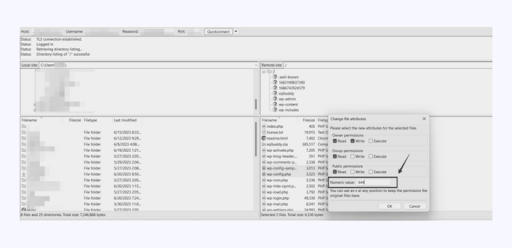
- Check File Permissions
- Make sure your WordPress installation’s file permissions are set up correctly. Your WordPress directory should include 644 files and 755 directories. To check and modify your file permissions, you can use your cPanel or an FTP client.

2. Deactivate plugin
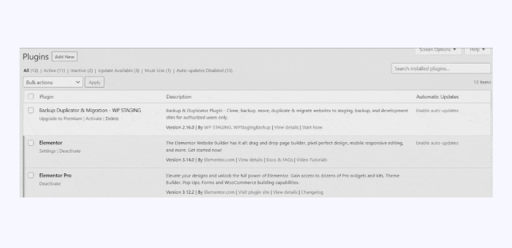
- Temporarily deactivate plugins one by one to check whether a plugin is calling a missing file, using a wrong path, or writing to a location it cannot access. After each deactivation, test the same page again so you can identify the exact plugin that triggered the error.
3. Switch Back to a Default WordPress Theme
- Switch temporarily to a default WordPress theme, such as Twenty Twenty-Five, to test whether the active theme is referencing a missing template, include file, asset, or function file.

4. Reinstall WordPress Core Files
If you believe the error is due to missing or corrupted files, reinstalling the WordPress core may fix it. Start by backing up your website, then refer to the official WordPress documentation to perform a fresh installation. By replacing damaged or missing files, you can often resolve the issue quickly.
Step 1: Download the most recent version of WordPress
- Visit the official WordPress website (https://wordpress.org) to download the latest WordPress version. Save the installation package to your computer.
Step 2: Unzip the WordPress installation package.
- After downloading, use an archiving tool like WinRAR or 7-Zip to extract the WordPress package. Once extracted, you’ll have a folder containing the WordPress files.
Step 3: Use FTP to connect to your website.
- To continue with the reinstallation, connect to your website’s server via FTP (File Transfer Protocol). An FTP client like FileZilla can help you establish the connection. If you don’t know your FTP login details, you can obtain them from your hosting provider.

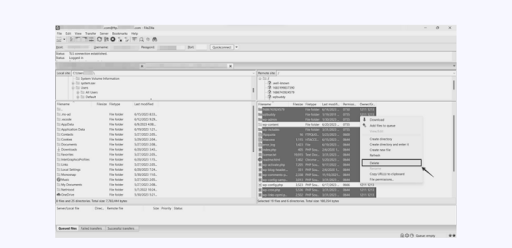
Step 4: Remove the existing WordPress files.
- In your FTP client’s remote server view, go to the root directory of your WordPress installation. Remove all files and folders, but leave the “wp-content” folder and the “wp-config.php” file. This ensures a clean setup for the reinstallation process.
Step 5: Transfer the new WordPress files to your server.
Using your FTP client’s local view, locate the WordPress files you extracted earlier. Select all files and folders from that folder and upload them to your site’s root directory on the server. The upload time will vary based on your internet speed.
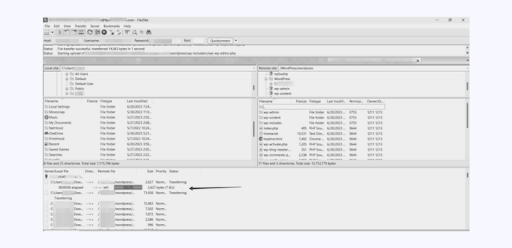
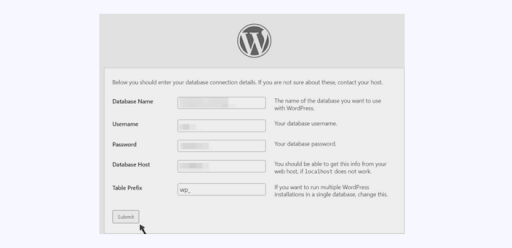
Step 6: Execute the WordPress installation script.
After the files are uploaded, open your browser and go to your WordPress site. You’ll see the WordPress installation script. Follow the on-screen steps to set up the database, create an admin account, and finalize the installation.
Step 7: Confirm and test your installation.
Once the installation is complete, log in to your WordPress dashboard. Check that all content, themes, and plugins are present. Test your site’s features to ensure everything is functioning as expected.
Preventing the “WordPress Failed to Open Stream Error” in the Future
- Maintain Accurate File Paths
Ensure all file paths in your WordPress setup are correct. The WordPress fails to open stream problem might be caused by incorrect paths .Regularly verify that themes and plugins reference existing files. This practice minimizes errors and maintains site functionality. - Set Appropriate File Permissions
Correct file permissions are essential for WordPress operations. FGenerally, folders should have permissions set to 755 and files to 644.. Misconfigured permissions can cause the failed to open stream permissions WordPress error. Review permissions after migrations, manual uploads, plugin installs, restores, or server changes so you can catch ownership or access issues before they break the site. - Keep Themes and Plugins Updated
Regularly updating themes and plugins ensures compatibility. Outdated components can cause the failed to open stream WordPress plugin conflict error. Keep WordPress core, plugins, and themes updated, but test important updates in staging first when possible. That helps you catch missing files, path changes, or compatibility issues before they affect the live site. - Regularly Back Up Your Website
Consistent backups are crucial for recovery from errors. In case of a WordPress failed to open stream file missing issue, backups allow for quick restoration. Use reliable backup solutions and store copies securely. Regular backups safeguard against data loss and downtime. - Monitor Server Configurations
Ensure your server settings are optimized for WordPress. Misconfigurations can lead to the WordPress stream error server issue. Work with your hosting provider to maintain proper configurations. Regular monitoring helps prevent server-related errors. - Use Reliable Hosting Services
Select hosting companies that offer robust assistance and uptime assurances. Quality hosting minimizes the risk of encountering the WordPress stream error after migration. Research and select hosts known for WordPress compatibility. Reliable hosting ensures a stable environment for your site. - Test Changes in a Staging Environment
Test new plugins or upgrades in a staging environment before implementing them. This approach helps uncover potential problems without disturbing the live site. It reduces the likelihood of the WordPress error failed to open stream occurring due to untested changes. - Regularly Scan for Malware
Malware can corrupt files, leading to errors. Use security plugins to scan your site regularly. Detecting and removing malware promptly prevents the WordPress file stream error. Maintaining site security is essential for smooth operation. - Limit the Number of Installed Plugins
Only install necessary plugins to reduce potential conflicts. A high number of plugins increases the risk of errors. Regularly review and deactivate unused plugins. This practice minimizes the chances of a failed to open stream WordPress directory issue.
Conclusion
The fastest way to fix a “failed to open stream” error is to read the full message first, identify whether the issue is a missing file, wrong path, or permission problem, and then test the related plugin, theme, or core file carefully. That approach is more reliable than making random changes, and it also reduces the risk of creating a second problem while trying to fix the first one.
If you need further assistance, consider visiting Woo Help Desk for professional WordPress and WooCommerce support.



