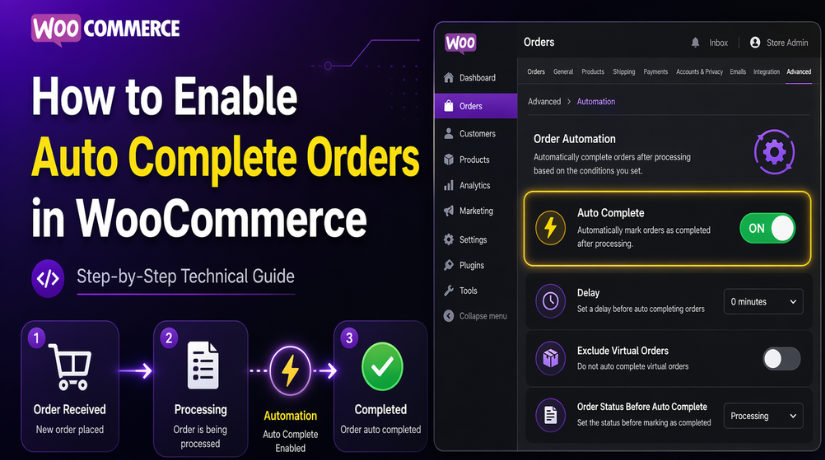
How to Enable Auto Complete Orders in WooCommerce Easily (Complete Guide)
Table of Contents
- Introduction
- What Does Auto Complete Orders Mean in WooCommerce?
- Many WooCommerce Store Owners Want to Enable Auto Complete Orders
- Important Things You Should Check Carefully Before Enabling Auto Complete Orders in WooCommerce
- How to Enable Auto Complete Orders in WooCommerce Using a Plugin
- Common Problems You May Face After Enabling Auto Complete Orders in WooCommerce
- How to Test Auto Complete Orders Safely Before Using It on a Live WooCommerce Store
- Best Practices You Should Follow When Using Auto Complete Orders in WooCommerce
- Conclusion
Introduction
Managing order status is a daily task for every WooCommerce store owner. Many store owners want a faster way to finish paid orders. That is why WooCommerce auto complete orders is a popular setup. It reduces manual work and saves valuable time every day. Instead of checking each order one by one, the system can update the status for you. This makes store management smoother and more organized. It also helps teams handle more orders without extra effort. Many digital stores use this method to improve their workflow. Many service-based stores also prefer this easy process. When set correctly, WooCommerce automatically completes orders and can support a cleaner order system. In this guide, you will learn what this feature means and why many store owners use it.
What Does Auto Complete Orders Mean in WooCommerce?
WooCommerce uses order statuses to track each step of a purchase. These statuses help store owners know what is happening. After payment, many orders move into the Processing status first. This usually means the order is paid but not finished. For physical items, the store may still need packing and shipping. That is why WooCommerce does not always mark orders complete.
The Completed status means the order is fully finished. It also tells the store that no more action is needed. In many cases, digital products can skip manual checking. This is where WooCommerce order status automatically completed becomes useful. It allows the store to move certain paid orders faster. This setup is common when no shipping or manual work is needed. It also supports a better customer experience after checkout. When the system handles this step automatically, store owners save time and reduce delays.
Many WooCommerce Store Owners Want to Enable Auto Complete Orders
Store owners want easier ways to manage growing online orders. Manual updates can take time and slow daily operations. This is why many users search for WooCommerce order status change automatically solutions. They want fewer repeated tasks inside the WooCommerce dashboard. They also want a better system for handling simple paid orders. This feature is especially useful for digital and service stores. It helps reduce missed updates and human errors. It can also improve team speed during busy sales periods. When used the right way, it makes order handling much easier. Below are the main reasons store owners want this setup.
Auto Complete Orders in WooCommerce Saves Time and Manual Effort
Manually updating every paid order takes time and attention. This becomes harder when order volume starts growing quickly. Store owners often check the same steps again and again. That repeated work can slow the whole process. With WooCommerce auto complete orders, the system can handle this task. This means fewer clicks and fewer manual updates each day. It also helps small teams work more efficiently. Store owners can then focus on support, products, and sales. This simple change can improve everyday store management. It is one of the biggest reasons users enable this feature.
Automatically Completing WooCommerce Orders Speeds Up Daily Order Management
Faster order handling helps a store run more smoothly. When order status updates happen on time, work becomes easier. Staff do not need to open every order manually. They can trust the system for suitable order types. This is why WooCommerce automatically completes orders and is useful for many businesses. It creates a quicker workflow inside the admin panel. It also reduces confusion when many new orders arrive together. A fast status update helps store owners stay organized. It can also make follow-up actions more consistent. This includes emails, access delivery, and internal tracking.
Auto Complete Order Settings Are Helpful for Digital Product Stores
Digital product stores usually do not need packing or shipping. Once payment is successful, the order is often ready. That makes automation a smart choice for these stores. Many users search how to auto complete virtual orders WooCommerce for this reason. Virtual products usually need quick access after payment. Customers expect their files or services without delay. If the order stays in Processing, it may create confusion. Automatic completion helps avoid that problem. It lets the customer see a finished order sooner. It also supports instant delivery for downloads and access-based products. This setup works well when no manual review is needed.
Auto Complete Orders Work Well for Service and Virtual Business Models
Some stores sell services instead of physical products. Others sell bookings, memberships, or digital access plans. These businesses often do not need shipping steps. In such cases, automatic completion fits the workflow better. It removes an extra step from the order process. This is why many stores use an auto complete orders WooCommerce plugin. A plugin can help apply clear rules without coding. It can also support different product and payment conditions. For service-based stores, this setup can improve order speed. It can also reduce admin work during busy periods. When used correctly, it creates a better process for both the seller and the customer.
Important Things You Should Check Carefully Before Enabling Auto Complete Orders in WooCommerce
Check What Type of Products You Sell in Your WooCommerce Store
Before enabling WooCommerce auto complete orders, review the type of products you sell. This is the first and most important step. Virtual and downloadable products usually work well with auto completion. They do not need packing or shipping. Physical products are different because they often need manual handling. If you enable automation for the wrong product type, orders may complete too early. That can confuse both the store owner and the customer.
Review How Your Payment Gateway Confirms Successful Orders
Your payment gateway plays a big role in order automation. Some gateways confirm payments instantly after checkout. Others take more time to verify the payment. This affects when WooCommerce order status automatically completes should happen. If payment confirmation is delayed, the order may remain in Processing for some time. That is why you should always check how your gateway works before enabling automatic completion.
Confirm Whether Your Store Needs Manual Order Review
Not every order should be completed without checking. Some stores need manual review before marking orders as finished. This is common for custom products, high-value items, or risky transactions. In such cases, automation may not be the right choice for every order. You should decide which orders need a staff review first. This helps avoid mistakes and gives you better control over your store workflow.
Take a Full Backup Before Making Any WooCommerce Changes
It is always smart to take a backup first. Even a small setting change can affect order flow. If something does not work as expected, a backup helps you restore the site quickly. This step is very important when using a plugin or changing order rules. A backup protects your store data, settings, and customer order information. It also gives you peace of mind during testing.
Test the Setup on a Staging Site Before Using It Live
A staging site is the safest place for testing. It lets you check the full setup without affecting real customers. You can test whether WooCommerce order status change automatically works correctly for your store. You can also see how different products and payment methods behave. If something goes wrong, your live store stays safe. Once everything works properly on staging, you can apply the same setup on the live site with more confidence.
How to Enable Auto Complete Orders in WooCommerce Using a Plugin
Step 1: Choose a Suitable WooCommerce Auto Complete Orders Plugin
- Choose a plugin that supports automatic order completion.
- Make sure it is easy to manage.
- Check that it works with your WooCommerce version.
- See whether it supports rule-based settings.
- This helps WooCommerce auto complete orders work correctly.
- A good plugin can help WooCommerce automatically complete orders without code.
- Check plugin reviews before installing it.
- Also review update history and support availability.
Step 2: Install the Auto Complete Orders Plugin on Your Website
- Go to your WordPress dashboard.
- Open the Plugins section.
- Click Add New.
- Search for the plugin name.
- If you already downloaded the file, click Upload Plugin.
- Install the plugin on your website.
- This is the first setup step for an auto complete orders WooCommerce plugin.
- Make sure the installation finishes without errors.
Step 3: Activate the Plugin After Successful Installation
- Click the Activate button after installation.
- This will enable the plugin on your website.
- After activation, the settings usually appear in WooCommerce or plugin settings.
- Your store is now ready for the next setup step.
- Activation is required before WooCommerce order status change automatically can be configured.
Step 4: Open the Plugin Settings and Review the Available Options
- Open the plugin settings page from the dashboard.
- Read all available options carefully.
- Do this before saving anything.
- Some plugins allow rules for all orders.
- Some allow rules only for selected order types.
- This step is important because WooCommerce order status automatically completed should happen only when needed.
- Review each setting one by one.
Step 5: Select Which Orders Should Complete Automatically
- Choose which order types should auto complete.
- Some store owners use this only for virtual products.
- Others use it only for paid orders.
- This setup works well for stores selling downloads or services.
- It is also useful for users searching how to auto complete virtual orders WooCommerce.
- Do not apply it to physical products unless your workflow supports it.
- Set the rules based on your store needs.
Step 6: Set Product-Based or Payment-Based Rules if the Plugin Supports Them
- Check whether the plugin offers advanced rule settings.
- Look for product-based rules.
- Look for payment-based rules.
- Product-based rules help separate digital and physical items.
- Payment-based rules help ensure only paid orders complete automatically.
- These settings improve order accuracy.
- They also reduce wrong order completion.
- This helps WooCommerce automatically complete orders in a controlled way.
Step 7: Save the Plugin Settings After Finishing the Configuration
- Save the plugin settings after setup.
- Do not leave the page without saving changes.
- This step applies the rules to your WooCommerce store.
- Once saved, the plugin starts working based on your settings.
- Review the saved settings once again.
- This helps confirm that WooCommerce auto complete orders are configured correctly.
Step 8: Place a Test Order to Check Whether the Plugin Works Properly
- Place a test order on your website.
- Use a product type that matches your selected rules.
- Complete the checkout process.
- Check the order status after payment.
- Confirm whether the order changes correctly.
- This is the best way to test whether WooCommerce order status automatically completed is working.
- Also check order emails and order notes.
- Make sure everything works normally.
Step 9: Review the Results and Adjust the Plugin Rules if Needed
- Review the test result carefully.
- If the order stays in Processing, check the plugin rules again.
- If the order completes too early, change the settings.
- Review the product conditions.
- Review the payment conditions.
- Make small changes where needed.
- Test again after updating the rules.
- Once everything works correctly, use the setup on the live store.
Common Problems You May Face After Enabling Auto Complete Orders in WooCommerce
After enabling WooCommerce auto complete orders, you should watch the results carefully. The setup may look correct at first. Still, some stores face problems after activation. These issues usually come from payment flow, product settings, or plugin rules. Some problems are small and easy to fix. Others can affect customer emails, shipping steps, or order records. That is why testing and review are very important. If you understand the common issues early, you can fix them faster and keep your store running smoothly.
Some WooCommerce Orders Still Stay in Processing Even After Setup
One common issue is that orders remain in Processing. Store owners often expect them to complete right away. However, the payment gateway may not confirm payment instantly. Some gateways send the final payment notice after a delay. When that happens, WooCommerce order status automatically completed may not run on time. Product type can also cause this issue. If the product is not marked correctly, the order may stay in Processing. This is common when a virtual item is saved as a physical one. A wrong plugin rule can also stop the status change. If you want WooCommerce to automatically complete orders, you must review payment and product settings together. A small mismatch can stop the whole process.
Some WooCommerce Orders Complete Too Early and Create Workflow Problems


Another common issue is early order completion. This happens when rules are too broad. For example, a store may apply automation to all orders. That can create problems for physical products. Those items may still need packing, shipping, or manual checking. If they complete too early, staff may miss important steps. Customers may also think the order is fully finished. This can lead to confusion and support requests. A store should only automate the right order types. This is why how to auto complete virtual orders WooCommerce is such a common search. Virtual and downloadable items are usually safer for automation. Physical items often need more careful control. If your setup is too open, it can create workflow problems instead of solving them.
Email Notifications and Store Workflow Actions May Stop Working Properly
Order status controls many actions inside WooCommerce. It does not only change the label on an order. It can also trigger emails, stock updates, downloads, invoices, and internal notes. If the status changes too soon, those actions may run at the wrong time. Some store owners notice missing or unexpected emails after setup. Others see workflow steps getting skipped. This can happen when WooCommerce order status changes automatically without proper testing. Some plugins depend on the Processing stage before moving forward. If an order jumps directly to Completed, those plugins may not behave normally. This is very important for stores using shipping tools, invoice plugins, or custom workflows. Before using WooCommerce auto complete orders on a live store, always review what other actions depend on order status.
Plugin and Theme Conflicts Can Affect Auto Complete Orders in WooCommerce
WooCommerce stores often use many plugins together. Some control checkout, payments, shipping, or custom emails. If one plugin changes the order flow, it may affect automation. This can lead to conflicts with your completion rules. A theme can also cause issues if it changes checkout behavior. In some stores, an auto complete orders WooCommerce plugin works well alone but fails with other tools. The plugin may not receive the right payment signal. Or another plugin may stop the order from updating. This can create mixed results across different orders. Some orders complete correctly, while others do not. When this happens, testing is the best solution. You should check the setup with only the needed plugins active. That helps you find the real cause faster.
How to Test Auto Complete Orders Safely Before Using It on a Live WooCommerce Store
Testing is one of the most important parts of this setup. Many store owners skip testing and face problems later. A quick check can save many hours of fixes. It can also protect your customer experience. If you want WooCommerce to automatically complete orders in the right way, test every part carefully. You should not rely only on plugin settings. You should confirm that the full order flow works as expected. The safest method is to test each stage one by one.
Create a Safe Testing Area Before Checking Your Auto Complete Order Setup
Start by testing on a staging site if possible. A staging site is safer than a live store. It lets you place test orders without affecting real customers. You can review plugin behavior, order notes, and emails freely. If something breaks, your live store stays safe. This is the best place to test WooCommerce order status automatically completed rules before launch. If you do not have staging, use a low-risk testing method on the live site. Still, staging is always the better choice.
Place Test Orders Using Different Product Types and Payment Conditions
Next, place several test orders on the store. Do not test with only one product. Use different product types to check the full behavior. Try a virtual product, a downloadable product, and a physical product if needed. Also test different payment methods if your store uses more than one. This helps you see whether WooCommerce order status changes automatically only for the right cases. It also shows whether your rules are too wide or too narrow. A complete test gives better results than a single order check.
Review the Order Status Change After Payment Is Successfully Completed
After placing the order, check the status carefully. See whether the order moves from Processing to Completed at the right time. Make sure the payment is actually successful before expecting automation. Some gateways delay confirmation, so timing matters here. If the order does not complete, review the plugin conditions again. If it completes too soon, narrow the rules. This test shows whether your WooCommerce auto complete orders setup is working correctly. It also helps you confirm whether the problem comes from payment, product type, or plugin settings.
Check Emails, Stock Updates, Order Notes, and Customer Experience After Testing
Do not stop after checking the status only. Review the full result after each test order. Check whether the right customer email was sent. Make sure stock updates still work normally. Read the order notes inside WooCommerce. Confirm that downloads, invoices, or access rules also work correctly. This is important because WooCommerce automatically completes orders and can affect many connected actions. A status change may look correct while another workflow fails in the background. That is why full testing matters more than a quick status check.
Repeat the Test After Any Change to Plugin Rules or WooCommerce Settings
If you make any changes, test again. Even a small rule update can affect order flow. A payment method change can also affect automation. The same is true after WooCommerce updates or plugin updates. Store owners should not assume the setup will always behave the same way. Repeat the test whenever something changes in checkout, products, or payments. This keeps your automation safe and reliable. It also helps ensure WooCommerce order status automatically completed only when it should. A few extra tests can prevent bigger problems later.
Best Practices You Should Follow When Using Auto Complete Orders in WooCommerce
Use Auto Complete Orders Only Where It Truly Makes Sense
Before enabling WooCommerce auto complete orders, check whether your store really needs it. This setup works best for digital products, services, memberships, and virtual items. These orders usually do not need packing or shipping. That makes automatic completion a better fit. If your store handles physical products, you should be more careful. The goal is to use automation only where it supports your real workflow.
Keep Physical Product Orders Under Manual Review
Physical products often need more steps before completion. They may need packing, shipping, tracking, or manual checking. If such orders complete too early, it can create confusion. Staff may miss an important step. Customers may also think the product has already been shipped or delivered. That is why physical orders should usually stay under manual review, even if WooCommerce automatically completes orders works well for digital items.
Test the Setup After Every WooCommerce or Plugin Update
A setup that works today may change after an update. WooCommerce updates can affect order flow and status rules. Plugin updates can also change how automation behaves. This is very important when WooCommerce order status is automatically completed depending on plugin settings. After each update, place a test order and check the full result. A quick test helps catch problems early.
Monitor How Your Payment Gateway Handles Successful Payments
Payment gateway behavior has a direct effect on order automation. Some gateways confirm payment instantly. Others may take more time. This can affect when WooCommerce order status change automatically should happen. If payment confirmation is delayed, the order may stay in Processing longer. That is why you should monitor how each payment method works. This helps you build more accurate automation rules.
Keep Backups and Order Logs Enabled for Safety
Even a small settings change can affect your order process. That is why backups are important before making changes. If something goes wrong, you can restore the site faster. Order logs are also useful because they help you review what happened. If an order completes too soon or fails to update, logs can help you find the cause. This makes your WooCommerce auto complete orders setup safer and easier to manage.
Use Clear and Limited Rules Instead of Broad Automation
Do not apply automatic completion to every order without checking the details. Broad rules can create mistakes. It is better to use limited and clear conditions. For example, complete only virtual orders or only paid service orders. This is also helpful for store owners searching how to auto complete virtual orders WooCommerce. Narrow rules give better control and reduce risk.
Review Plugin Settings Regularly to Make Sure Everything Still Works
If you use an auto complete orders WooCommerce plugin, do not set it once and forget it. Store settings can change over time. New products, new payment methods, or checkout changes can affect plugin behavior. That is why regular review is important. Check the rules from time to time and confirm they still match your store needs. This keeps the automation useful and reliable.
Conclusion
Enabling auto complete orders in WooCommerce can make order management much easier. It helps reduce manual work and saves time every day. This setup works especially well for virtual products, downloadable items, services, and simple order flows. It can also improve speed inside your WooCommerce dashboard. Still, you should not apply it to every order without checking your store needs first. Product type, payment gateway behavior, plugin rules, and testing all matter. A careful setup helps avoid early completion, missed workflow steps, and customer confusion. When used the right way, WooCommerce auto complete orders can support a smoother and more reliable store process.
If you need help setting up WooCommerce auto complete orders the right way, WooHelpDesk can help. Whether you want to use a plugin, check your order flow, or test the full setup safely, the team can guide you step by step. WooHelpDesk can also help you avoid wrong order status changes and plugin conflicts. If you want a smooth and reliable WooCommerce store setup, get in touch with WooHelpDesk.



