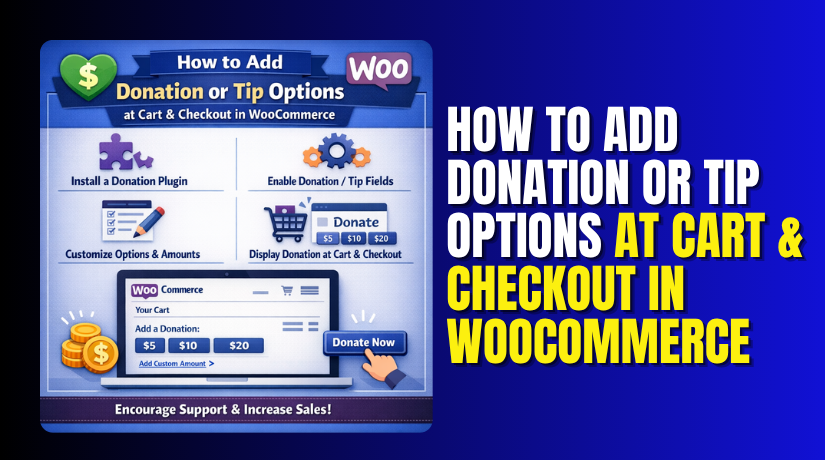
How to Add Donation or Tip Options at Cart & Checkout in WooCommerce (Complete Guide)
Table of Contents
- Introduction
- What Is Donation or Tip Options at Cart & Checkout in WooCommerce?
- Why Adding Donation or Tip Options at Cart and Checkout Helps WooCommerce Stores
- Benefits Of Adding Donation or Tip Options at Cart & Checkout in WooCommerce
- Important Things to Decide Before Setting Up Donation or Tip Options in WooCommerce
- How to Add Donation or Tip Options at Cart & Checkout in WooCommerce Using a Plugin (Step By Step)
- How Donation and Tip Amounts Appear in WooCommerce Orders
- Common Problems with Donation and Tip Options in WooCommerce and How to Fix Them
- Conclusion
Introduction
Many WooCommerce stores want more value from each order. A simple extra option can help achieve that goal. You can ask buyers to add a small donation. You can also offer a tip before order completion. This approach works well for many business types. It also fits service stores and cause-based stores. Many owners now use a WooCommerce donation plugin for this setup. Others focus on a simple WooCommerce tip at checkout option. Both choices can improve the buying flow.
Both can also support a better user experience. If you want to accept donations WooCommerce gives you many flexible ways. It also supports smart setup through plugins and checkout tools. This makes it easier to grow revenue without changing products.
It also helps you offer something meaningful during checkout. Many store owners now use this method as part of WooCommerce checkout customization. It is easy to understand and useful for customers. It can also make the cart page more engaging. A good setup keeps the option clear and optional. That is why this feature is becoming more common today.
What Is Donation or Tip Options at Cart & Checkout in WooCommerce?
Donation and tip options are extra amount choices for customers. These choices appear during cart or checkout steps. A donation is usually linked to support. It may support a cause, campaign, or business goal. A tip is usually linked to appreciation. It lets customers reward service, support, or convenience.
In WooCommerce, both can be added easily. Many tools let you add donation WooCommerce features without much effort. Some plugins add fixed amount buttons. Others allow a custom amount field. This gives customers more freedom during checkout. A donation may be one-time only. A tip may be a flat amount. It can also be a percentage of the order. This is why many stores now use a WooCommerce tips feature. It helps customers give more in a simple way. The option is usually shown near totals. It may also appear before payment methods.
That makes the choice easy to notice. When built well, it feels natural and helpful. It does not disturb the checkout process. It simply adds one more useful step. This is one reason WooCommerce checkout customization matters so much today.
Why Adding Donation or Tip Options at Cart and Checkout Helps WooCommerce Stores
It Gives Customers an Easy Way to Support Your Store
Many customers like supporting brands they already trust. A donation or tip option makes that support simple. They can add a small extra amount quickly. They do not need another page or process. This makes the experience smooth and natural. Many stores use a WooCommerce donation plugin for this reason. It helps them accept donations WooCommerce customers can add easily.
It Can Increase Your Average Order Value
Even small extra amounts can improve order totals. A tip of one or two dollars helps. A small donation can also raise revenue over time. When many customers choose the option, the impact grows. This makes the feature useful for many stores. A good WooCommerce tips feature can support this goal well. It adds value without changing product pricing.
It Improves the Checkout Experience for Support-Based Stores
Some businesses depend on service and customer care. These stores often want a better way to receive appreciation. A WooCommerce tip at checkout option works very well here. It gives buyers a clear chance to say thanks. This works well for food, delivery, and support businesses. It also feels familiar to many customers today. This is one smart form of WooCommerce checkout customization.
It Helps Cause-Based Stores Collect Extra Support
Some WooCommerce stores support social or local causes. For them, a donation option is more than extra income. It also shares a message with the buyer. Customers may feel happy to support something meaningful. This can create a stronger brand connection. Many owners add donation WooCommerce options for this purpose. It helps raise funds during normal purchases.
It Reaches Customers at the Best Time
Cart and checkout pages are strong decision moments. The customer is already ready to place an order. That makes this the best time to show extras. A donation or tip option fits naturally there. It does not interrupt the shopping journey. Instead, it becomes a small final choice. A WooCommerce donation plugin can place this feature in the right spot.
It Keeps the Extra Amount Optional and User Friendly
Customers do not like forced charges at checkout. That is why donation and tip options work best when optional. Buyers can choose based on comfort and interest. This creates a better feeling during payment. It also builds more trust with your audience. A well-made WooCommerce tips feature keeps the flow simple. It supports the order without creating pressure.
It Reduces the Need for Separate Donation Pages
Some stores create a separate page for donations. That method can add extra steps for users. Many customers may leave before finishing that process. Adding the option at cart or checkout is easier. It saves time and keeps everything in one place. This is why many store owners use WooCommerce checkout customization tools. They want support options inside the normal buying flow.
It Makes Your Store Look More Flexible and Modern
Today, customers expect more personalized checkout options. Donation and tip tools help meet that expectation. They show that your store understands customer behavior. They also make checkout feel more useful and updated. This can improve the overall store image. A clean WooCommerce tip at checkout setup helps with that. It adds function without making the page confusing.
Benefits Of Adding Donation or Tip Options at Cart & Checkout in WooCommerce
Adding donation or tip options can do more than collect extra money. It can also improve the shopping experience. These options give customers more choice during payment. They also help store owners build stronger customer support. A smart WooCommerce donation plugin can make this process simple. It can also help with better WooCommerce checkout customization. Below are the main benefits you should know before setup.
Increase Average Order Value Without Changing Product Prices
A small tip or donation can raise order totals. Customers may add a small amount with ease. This extra amount may look small at first. But over many orders, it adds real value. You do not need to increase product prices. You do not need to create new products either. You simply add one extra checkout option. This is why many stores use a WooCommerce tips feature. It helps improve revenue in a simple way. A good WooCommerce tip at checkout option can support this goal well.
Support Charity, Community, or Brand Causes More Easily
Some stores want to support a bigger purpose. They may help local groups or social causes. They may also run special support campaigns. Donation options make this much easier to manage. Customers can join the cause during checkout. They do not need to visit another page. This keeps the process simple and direct. Many owners use a WooCommerce donation plugin to do this. It helps them accept donations WooCommerce customers can add quickly. This also makes your store feel more meaningful.
Let Customers Show Appreciation in a Simple Way
Many buyers want to show support after good service. A tip option gives them that chance. This works well for service-based online stores. It also works for food and delivery businesses. Customers often like simple ways to say thanks. A clear WooCommerce tip at checkout setup does exactly that. It allows appreciation without making the process hard. It also feels natural at the payment stage. This type of WooCommerce checkout customization improves the user journey.
Improve Customer Engagement During the Final Buying Step
Checkout should not feel cold or rushed. Small added choices can make it more interactive. Donation and tip options do that well. They invite the customer to take part. They also make the checkout page feel more complete. This can improve the final order experience. A store that feels active often feels more trusted. That is another reason to carefully add donation WooCommerce options carefully. A strong WooCommerce tips feature can support engagement without causing confusion.
Create a Better and More Flexible Checkout Experience
Modern checkout pages should offer useful options. Donation and tip fields can add that flexibility. Customers can decide what feels right for them. They are not forced into any extra payment. This keeps the process fair and user-friendly. It also shows that your store values choice. Many owners use WooCommerce checkout customization to improve this stage. A good setup keeps the page clear and smooth. It also helps accept donations WooCommerce stores want to collect easily.
Important Things to Decide Before Setting Up Donation or Tip Options in WooCommerce
Before you install any plugin, plan the setup first. This helps you avoid confusion later. It also helps you choose the right feature style. A good plan improves the final checkout experience. It also makes your WooCommerce donation plugin work better. Below are the main setup decisions you should make first.
Fixed Amount or Custom Amount for Donations and Tips
First, decide how customers will enter the amount. Some stores prefer fixed amount buttons. These may be small values like $1, $5, or $10. This method is simple and fast. Other stores prefer a custom amount field. This gives the customer more control. Both options can work very well. A fixed setup is easier to manage. A custom field feels more flexible for users. Many tools that accept donations WooCommerce support both options. Choose the one that fits your store best.
Show the Option on the Cart Page, Checkout Page, or Both
Next, decide where the option should appear. Some stores show it on the cart page. Others prefer to place it at checkout. Some use both pages for better visibility. Each choice has a different effect. Cart page placement gives customers more time. Checkout placement feels more direct and final. A good WooCommerce tip at checkout setup often works best for fast action. This choice is a key part of WooCommerce checkout customization.
Keep the Option Optional or Use a Pre-Selected Style
You should also decide how the option behaves. Most stores keep it fully optional. This is the safest and most user-friendly method. Customers can choose based on interest. Some stores use a pre-selected option instead. That can increase added amounts in some cases. But it can also confuse or upset buyers. It is better to keep the choice clear. A smart WooCommerce tips feature should never feel forced. Clear setup builds more trust during payment.


Use a Flat Amount or Percentage for Tip Collection
Tips can be added in two main ways. You can set a flat amount. You can also use a percentage of the order. A flat amount is simple and easy to understand. A percentage changes based on cart value. This may work better for service stores. It may also suit larger orders. A WooCommerce donation plugin or tip tool may support both. Choose the method that matches your store type. This helps add donation WooCommerc or tip features in a smarter way.
Offer One-Time Donations or Add Support for Recurring Giving
Some stores collect support only once per order. Others may want recurring donations instead. A one-time amount is easier for most stores. It fits normal cart and checkout flow. Recurring giving needs more planning and setup. It may also need extra plugin support. If your goal is simple checkout support, use one-time donations first. This keeps the process easy for customers. It also makes WooCommerce checkout customization more manageable from the start.
How to Add Donation or Tip Options at Cart & Checkout in WooCommerce Using a Plugin (Step By Step)
Adding a donation or tip option with a plugin is the easiest method for most stores. WooCommerce extensions and add-ons can place donation fields on the cart or checkout, and some also support preset or custom amounts. WooCommerce’s own ecosystem includes tools for checkout add-ons, tipping at cart and checkout, and donation-focused extensions.
Step 1: Choose the Right Plugin for Donation or Tip Setup
- Start by deciding what you want to collect.
- If you only want tips, choose a tip plugin.
- If you want to support a cause, choose a donation plugin.
- If you want more checkout control, a checkout field plugin may work better.
- WooCommerce currently offers extensions for tipping at cart and checkout, checkout add-ons, and donation campaigns, so your plugin choice should match your exact goal.
Step 2: Install and Activate the Plugin in WordPress
- Go to your WordPress dashboard and open the Plugins section.
- Click Add New and upload or search for your chosen plugin.
- Then click Install and Activate.
- After activation, the plugin usually adds a new settings area in WooCommerce or in its own menu.
- This is the first step if you want to use a WooCommerce donation plugin or set up a WooCommerce tip at checkout option.
Step 3: Open the Plugin Settings and Review the Main Options
- After activation, open the plugin settings page.
- Check the available options one by one.
- Most plugins let you control amount type, field label, display location, and order summary behavior.
- Checkout Add-Ons is designed to add fields at checkout, while donation and tipping tools add settings for donation or tip placement and amount control.
Step 4: Select Where the Donation or Tip Option Should Appear
- Now choose the page where customers will see the option.
- Some plugins let you show it on the cart page.
- Others place it at checkout.
- Some donation tools also support both locations.
- This is an important part of WooCommerce checkout customization because placement affects how easily customers notice the option before they pay.
Step 5: Set Fixed Amounts or Enable a Custom Amount Field
- Next, decide how customers will enter the amount.
- Many donation and tip tools support preset values.
- Some also let users type a custom amount.
- WooCommerce Product Add-Ons supports a customer-defined price field, which WooCommerce specifically notes can be used for donations or tips.
- This gives store owners a flexible way to accept donations WooCommerce customers choose themselves.
Step 6: Add Clear Label Text for the Field
- Write a short and clear label for the option.
- Good examples include “Add a donation,” “Leave a tip,” or “Support this cause.” The label should match your store type and explain the purpose quickly.
- Many add-on tools let you edit the field title and description, which helps you add donation WooCommerce options in a cleaner and more user-friendly way.
Step 7: Save the Settings and Check the Cart or Checkout Page
- After entering the settings, save the plugin configuration.
- Then visit your cart or checkout page from the front end.
- Confirm that the option appears in the correct place.
- Make sure the label looks clear and the amount choices display properly.
- Plugins built for checkout add-ons, tipping, or donation campaigns are designed to show these options directly during the buying flow.
Step 8: Test Whether the Amount Updates the Order Total
- Add a product to the cart and choose a donation or tip amount.
- Then check if the total updates correctly.
- Move to checkout and review the order summary again.
- The extra amount should stay visible in the totals section.
- This step is very important because a WooCommerce tips feature should work smoothly before you show it to real customers.
- Checkout add-ons are specifically designed so customers can view and modify these added fields during checkout.
Step 9: Place a Test Order and Review the Order Details
- Complete a test order before going live.
- Then open the order inside WooCommerce admin.
- Check whether the donation or tip appears in the order breakdown.
- Also review the customer-facing order summary if your plugin supports that display.
- This helps confirm that your WooCommerce donation plugin setup is working as expected.
- WooCommerce donation and tipping extensions are built to carry these added values through the normal order flow.
Step 10: Keep the Setup Simple for Better Results
- Do not overload the checkout page with too many choices.
- Use clear labels, a few smart amounts, and easy placement.
- Customers respond better when the option feels simple and optional.
- A clean setup improves the buying flow and makes WooCommerce checkout customization more effective.
- That is the best way to make your WooCommerce tip at checkout or donation option work well for your store.
How Donation and Tip Amounts Appear in WooCommerce Orders
After setup, the next important step is order display. You need to see how the added amount appears. Your customers should also see it clearly. This helps avoid confusion during payment. It also keeps the checkout experience clean. A good WooCommerce donation plugin should show the extra amount properly. The same rule applies to a WooCommerce tip at checkout setup. If the amount does not display well, customers may not trust it. That is why this part matters so much.
Donation or Tip Amounts Should Appear Clearly in the Cart Totals Section
The cart page is often the first place where customers review totals. If they add a donation or tip, it should appear there. The extra amount should show as a separate line. It should not look hidden or mixed. Clear display helps customers understand what they selected. It also reduces cart confusion before checkout. This is one important part of WooCommerce checkout customization. When you add donation WooCommerce options, always check this section first. The cart total should update right away. The amount label should also stay easy to read.
Donation or Tip Amounts Should Stay Visible in the Checkout Summary
Customers review order details again at checkout. The donation or tip amount should still appear there. It should remain listed near fees or order totals. This gives customers one final review before payment. If the amount disappears here, customers may feel unsure. That can reduce trust and stop conversion. A proper WooCommerce tips feature keeps the value visible at this stage. A clear WooCommerce tip at checkout display also supports smoother payment completion. Always make sure the amount stays linked to the order summary. That keeps the checkout process simple and honest.
Store Owners Should Check Order Details in WooCommerce Admin
The order should not only display on the front end. It should also appear in the admin panel. This helps store owners track all extra payments. If a donation or tip is missing there, reporting becomes harder. It may also create support problems later. Open a test order and review the breakdown carefully. Check whether the added amount is listed correctly. This is very important when using a WooCommerce donation plugin. You need to confirm the order data saves properly. This also helps you accept donations WooCommerce stores want to manage professionally.
Customers Should Also See the Added Amount in Emails and Invoice Views
After order placement, customers often check confirmation emails. Some also download invoices from their account area. The donation or tip amount should appear in those places too. This helps maintain clear order records. It also shows the store is transparent. A missing amount in email can confuse the buyer. They may wonder whether the payment was added. That is why this check matters during testing. Good WooCommerce checkout customization should support a full order view. That includes cart, checkout, admin, and customer email records.
Common Problems with Donation and Tip Options in WooCommerce and How to Fix Them
Even after setup, small issues can still appear. Some problems affect the display. Others affect order totals or payment flow. These issues are common during checkout changes. The good thing is that most fixes are simple. You just need to test each area carefully. A stable WooCommerce tips feature should work across all key steps. Below are the main issues store owners often face.
Donation or Tip Field Not Showing at Checkout
Sometimes the donation or tip option does not appear. This usually happens because of wrong display settings. The plugin may be set for cart only. It may also be disabled on the checkout page. In some cases, the theme layout hides the field. Start by checking plugin settings first. Then clear cache and test again. Also switch to a default theme for a quick check. This can show whether the theme causes the issue. A WooCommerce tip at checkout option must be tested on the live checkout layout. That helps you find display problems faster.
Added Amount Not Being Included in the Final Order Total
A customer may select the amount, but the total may not change. This is a serious problem for store owners. It means the feature is visible but not working. First, test with one simple product. Then choose the donation or tip again. Review the cart and checkout totals carefully. If the amount still does not update, check plugin conflicts. Also review any custom fee or pricing rules. A strong WooCommerce donation plugin should update totals instantly. If not, the setup needs correction before launch.
Theme or Plugin Conflicts Can Break the Donation or Tip Feature
WooCommerce stores often use many plugins together. Some of them may affect cart or checkout behavior. A checkout plugin may conflict with another fee tool. A theme may also change templates too heavily. This can break display or order logic. To test this, disable extra plugins one by one. Then check whether the donation feature works again. This method helps find the conflict source. If you add donation WooCommerce options, always test them with your main plugins. That makes the feature safer for real users.
Tip Features May Not Work Properly with Modern Checkout Blocks
Some stores now use checkout blocks instead of classic checkout pages. Not every plugin supports both styles equally. A donation or tip field may work on classic checkout only. That can create display gaps after updates. Before choosing any plugin, test it with your current setup. If your store uses blocks, confirm support first. This is an important part of WooCommerce checkout customization today. A smart WooCommerce tips feature should match your checkout system. Otherwise, the field may not load correctly.
Tax and Fee Display Can Confuse Customers if Labels Are Not Clear
Donation and tip amounts should be easy to understand. If labels are weak, buyers may confuse them with tax. They may also think the store added a hidden fee. This can create trust issues during checkout. Always use clear wording for the extra amount. Write whether it is a tip or donation. Keep it separate from tax labels and shipping lines. This helps customers understand the order better. It also helps accept donations WooCommerce stores want to collect in a clean and honest way.
Conclusion
Adding donation or tip options can improve checkout in simple ways. It gives customers more choice during payment. It can also support higher order value over time. For some stores, it builds stronger customer support. For others, it helps raise funds for a cause. The key is using a clean and optional setup. A good WooCommerce donation plugin makes that process easier. A clear WooCommerce tip at checkout option can also improve user experience. When you test the setup well, the feature becomes more reliable. That helps both store owners and customers.
Want help adding donation or tip options in WooCommerce the right way? WooHelpDesk can help you set up the feature properly. We can assist with plugin setup, checkout placement, styling, and testing. We can also help fix display issues and plugin conflicts. If you want smooth WooCommerce checkout customization, our team is ready to support you. Reach out to WooHelpDesk and improve your WooCommerce store with expert help.



