Introduction
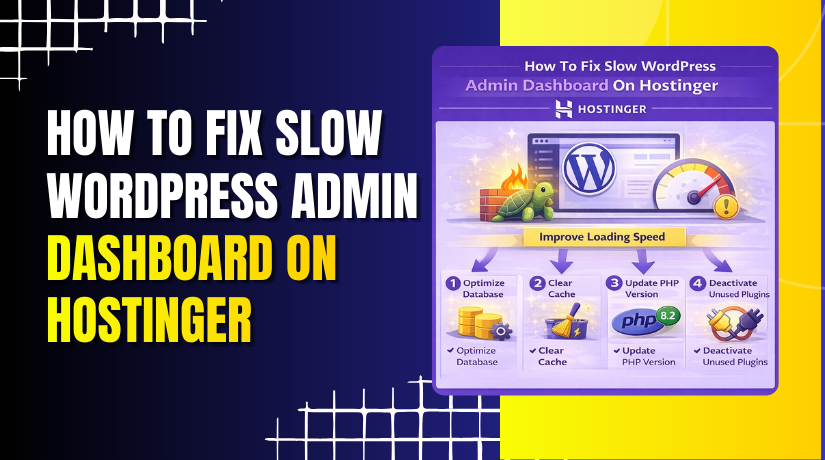
A slow WordPress admin dashboard can significantly affect productivity and website management. This issue is commonly caused by overloaded server resources, heavy or unnecessary plugins and themes, database bloat, low PHP memory limits, or improper hosting configuration on Hostinger. When the admin area becomes sluggish, even simple tasks like editing posts or updating plugins can take longer than expected. In this guide, you’ll learn how to identify and fix a slow WordPress admin dashboard by removing unused plugins and themes, optimizing PHP configuration settings, and increasing execution time and memory limits. Additionally, you’ll explore an alternative method using the WP Rocket plugin to optimize the database, reduce server load, and improve overall admin performance. Following these steps helps restore a fast, responsive, and efficient WordPress admin experience.
1. Why this happens?
A slow WordPress admin dashboard happens when server resources are overloaded or plugins, themes. It is commonly caused by heavy plugins, database bloat, low PHP memory limits, or hosting configuration issues on Hostinger.
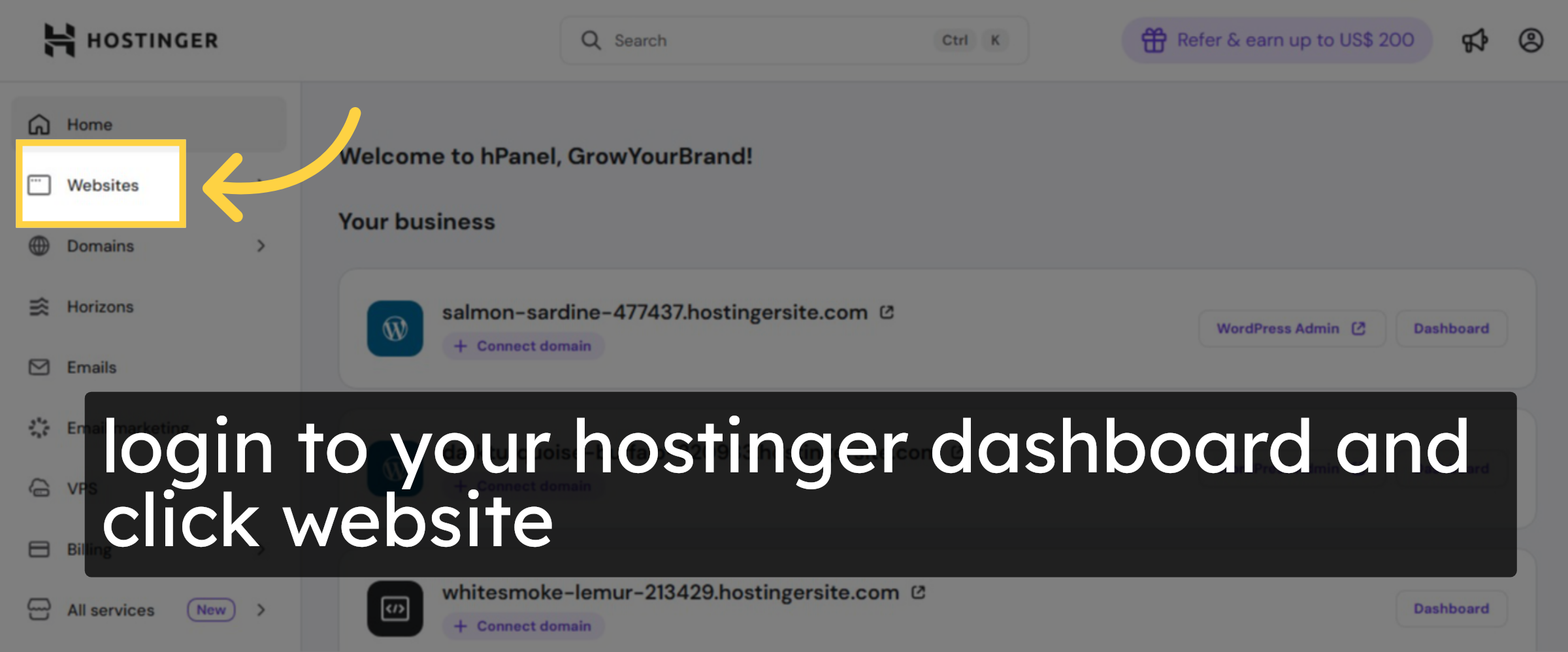
2. open hostinger panel
login to your hostinger’s Account and open dashboard.
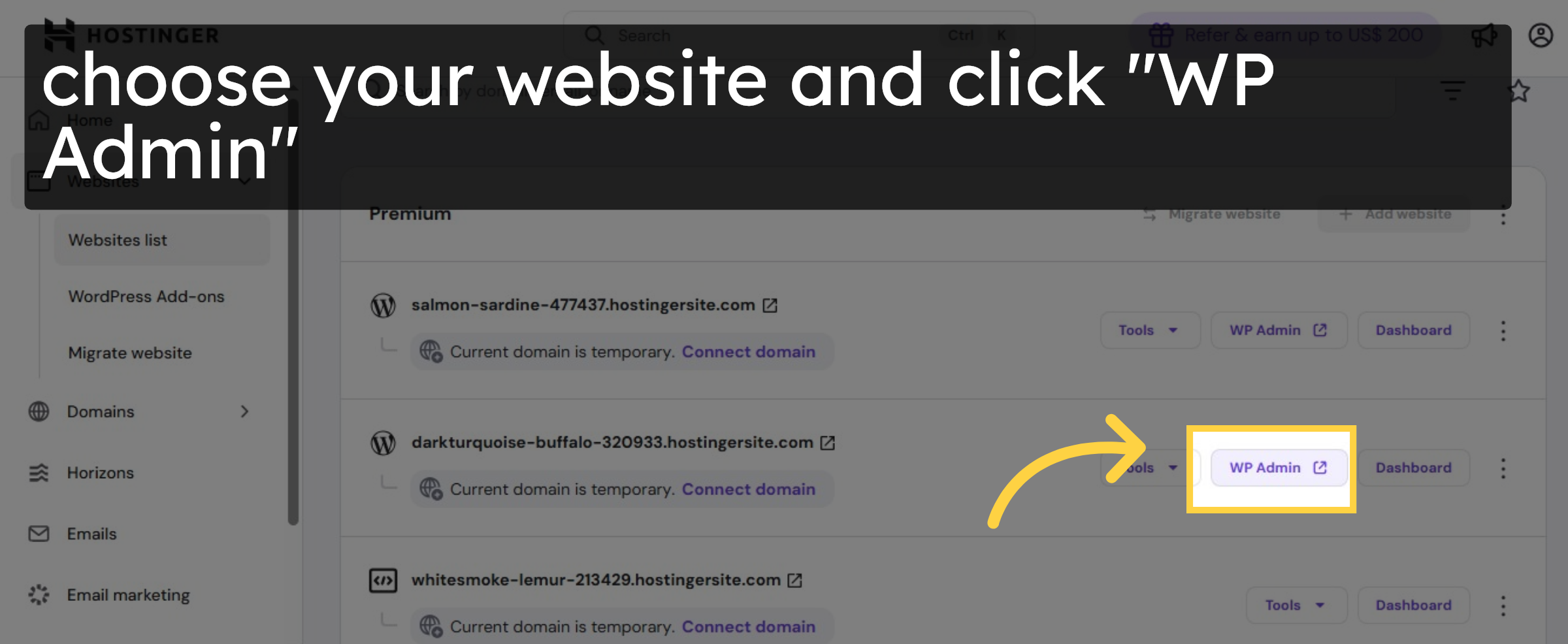
3. choose your site
select your site and open wordpress Admin Dashboard.
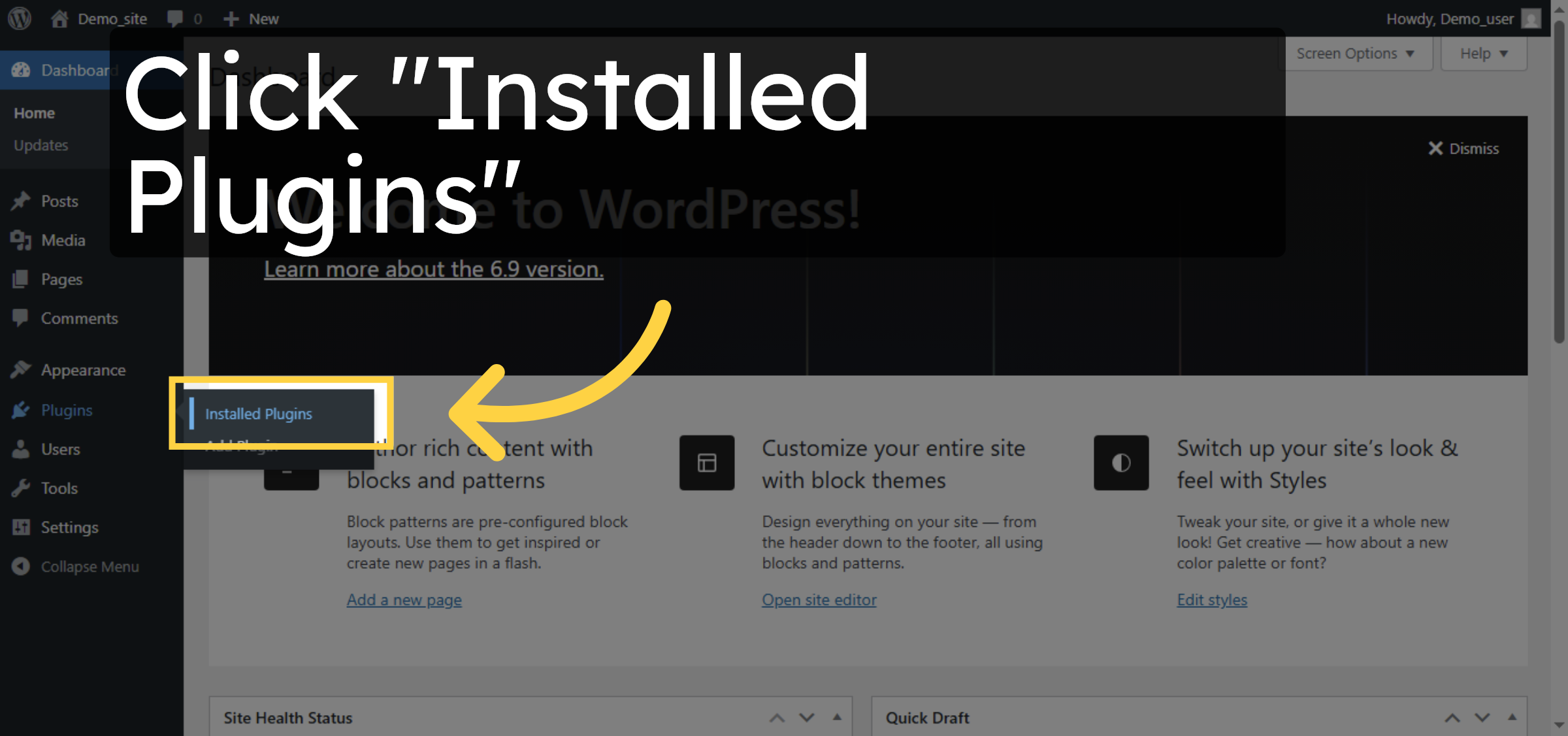
4. Open Installed Plugins
Click Installed Plugins to view all plugins currently active on your WordPress site.
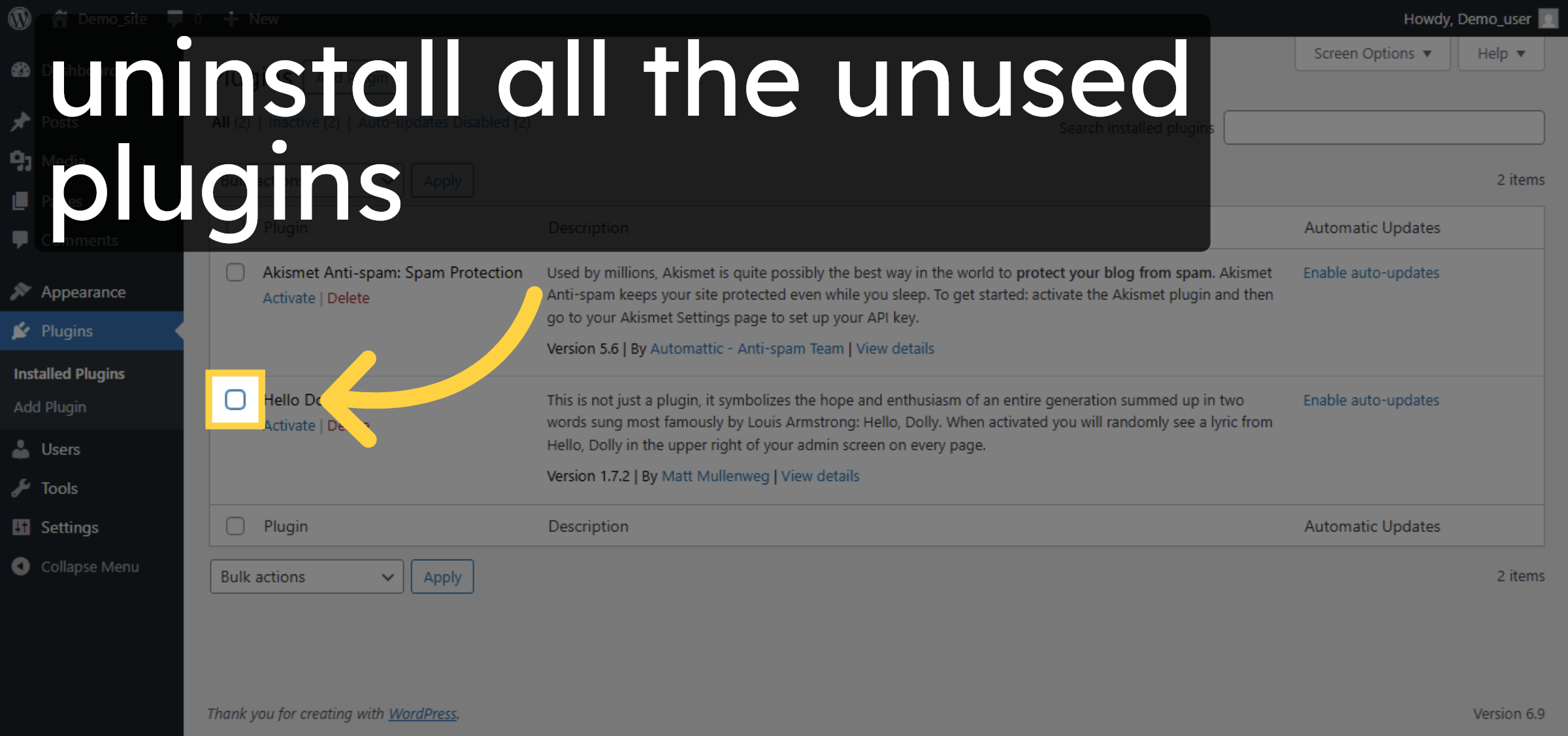
5. Delete unecessary plugins.
Delete all the unecessary plugins.
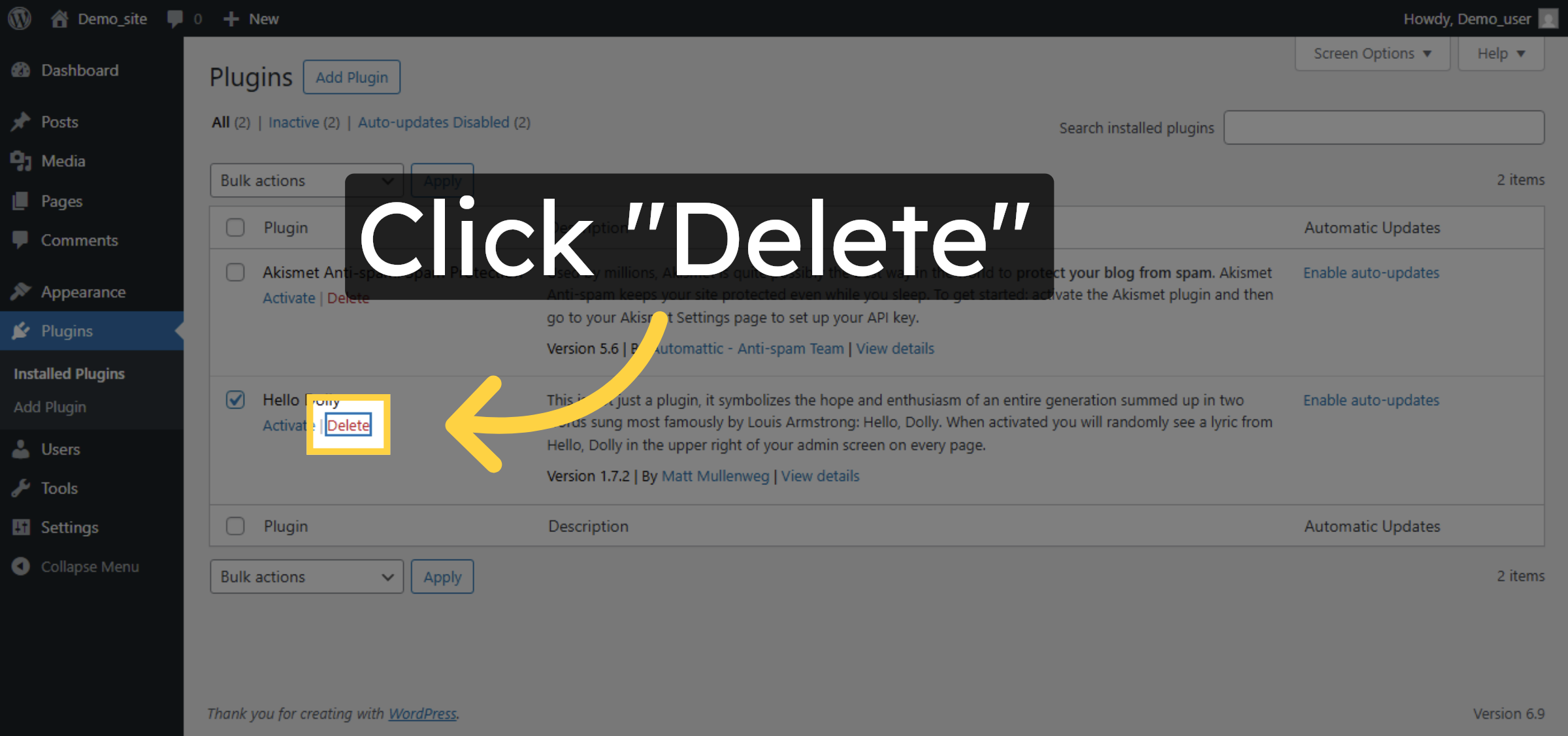
6. Delete Selected Plugin
Click Delete to remove the plugin from your WordPress installation.
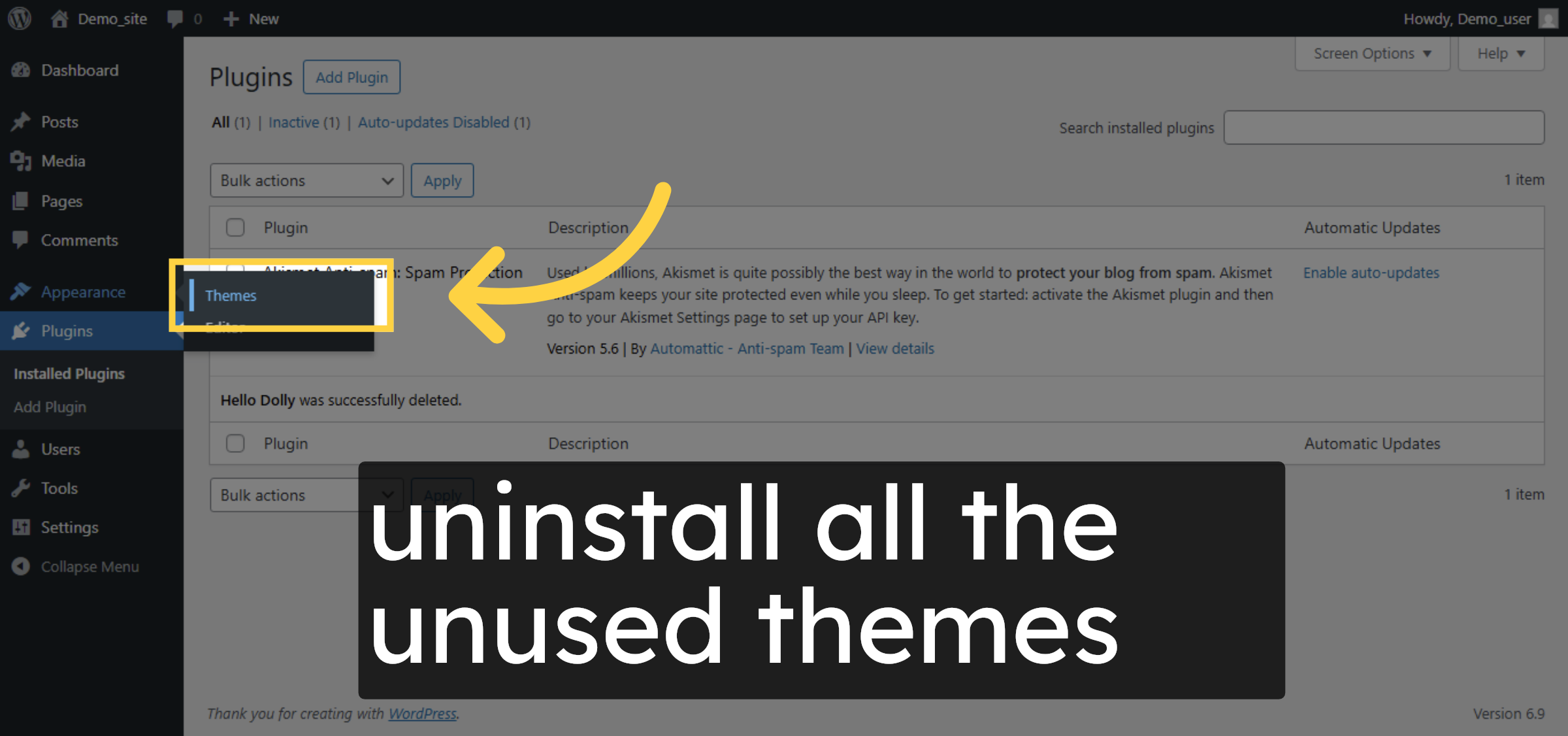
7. Access Themes Section
Click Themes to manage the active and available themes on your WordPress site.
8. Delete unecessary themes.
Delete All the unecessary Themes.
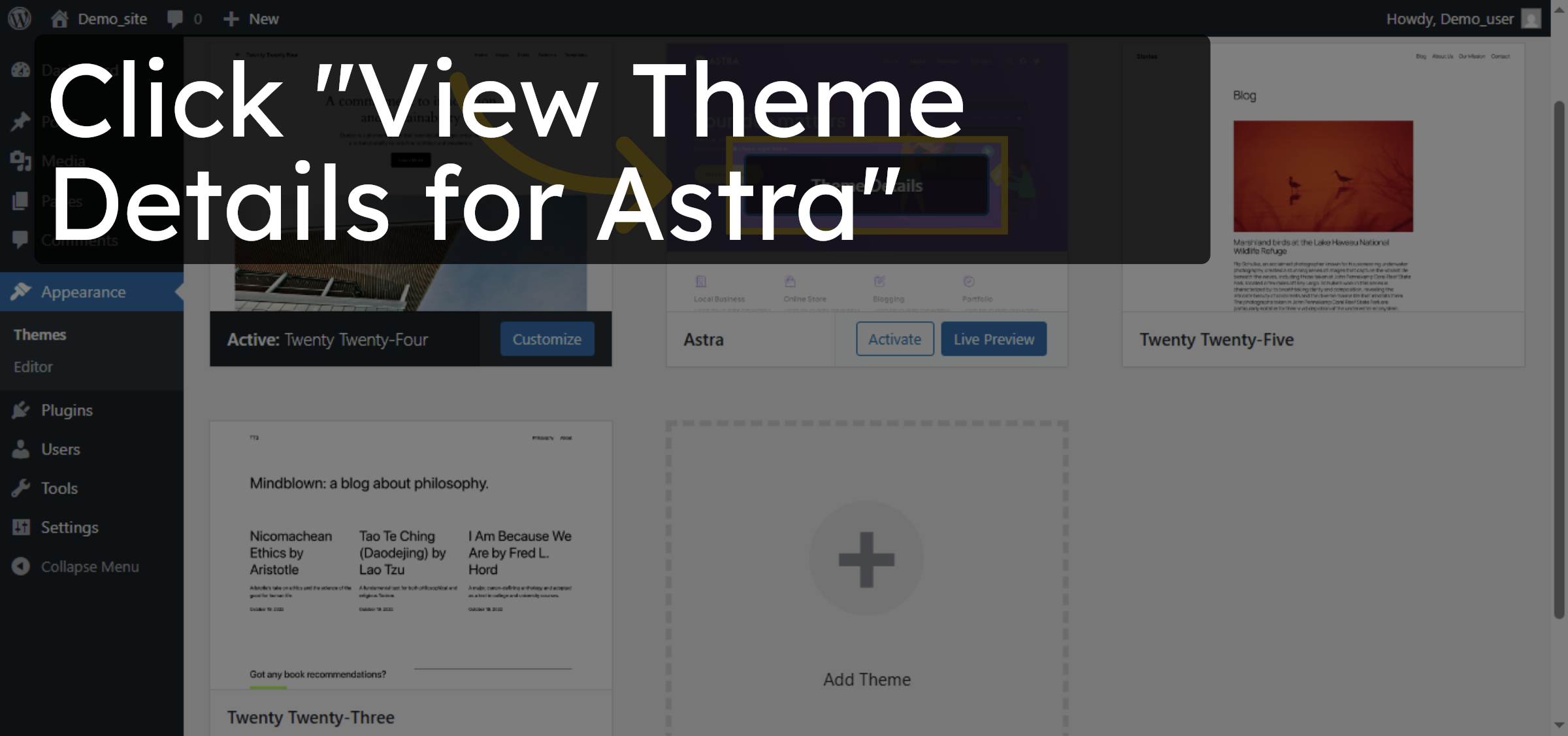
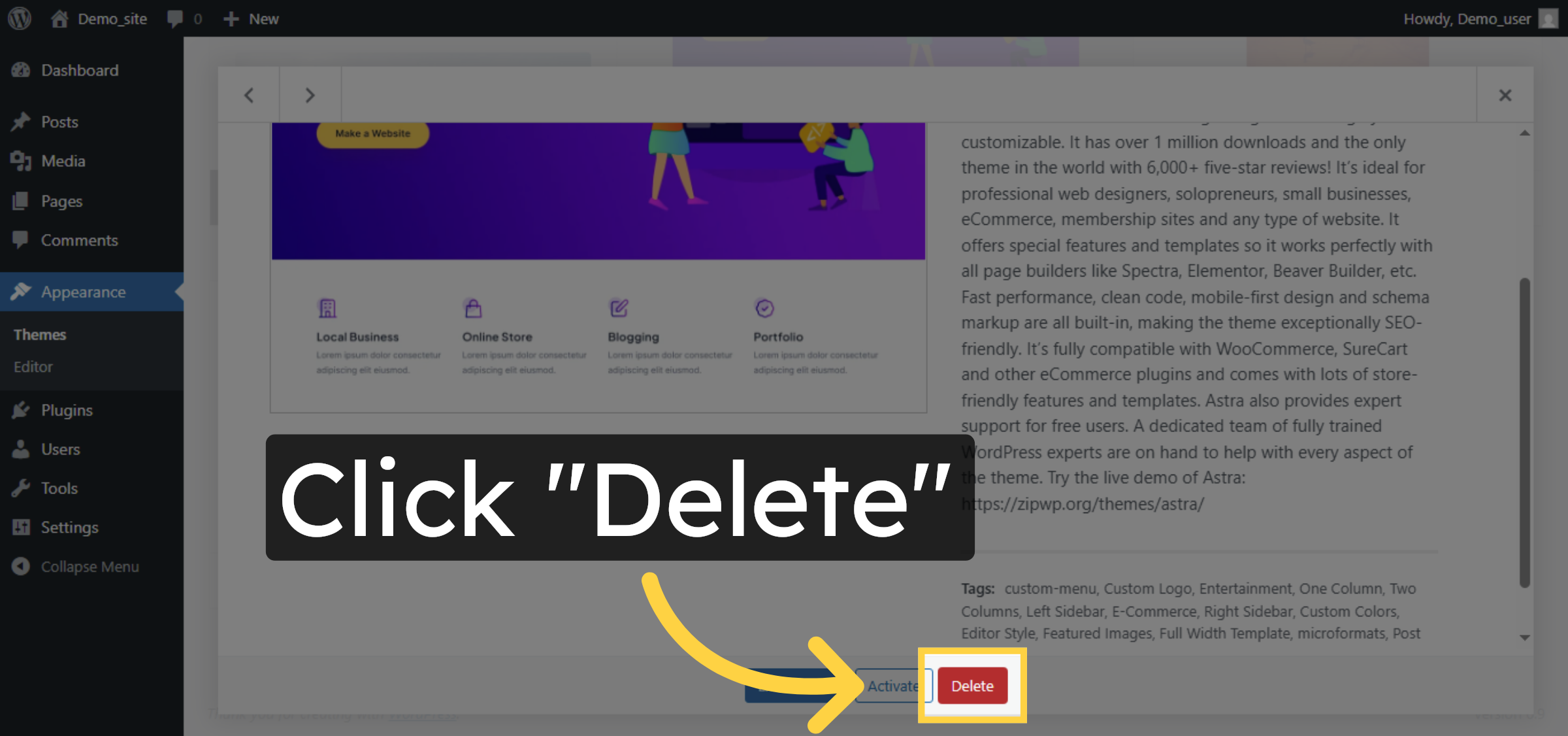
9. Delete theme
Click Delete to remove the theme from your WordPress themes directory.
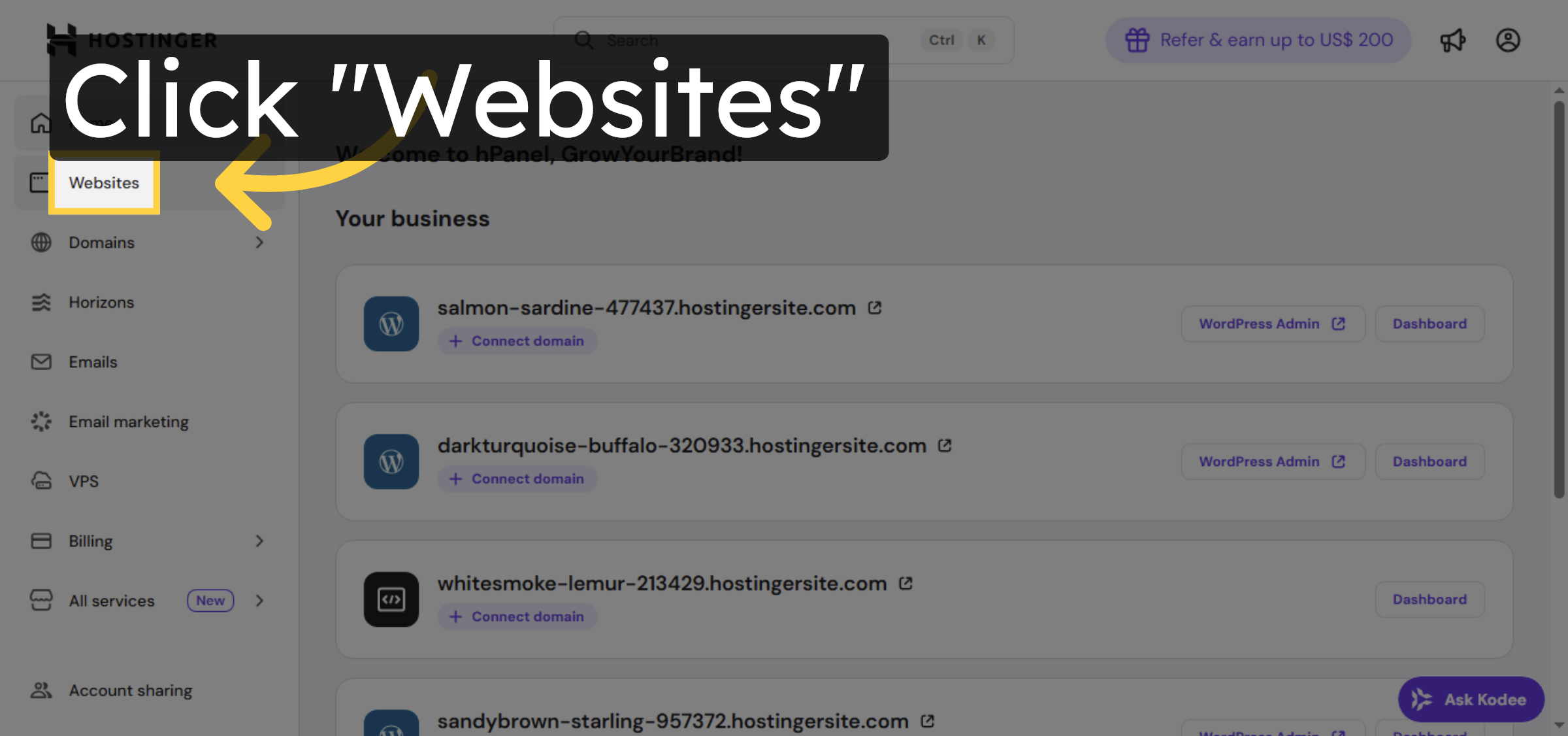
10. Open Hostinger Dashboard
Click Websites to view and manage your hosted websites within Hostinger.
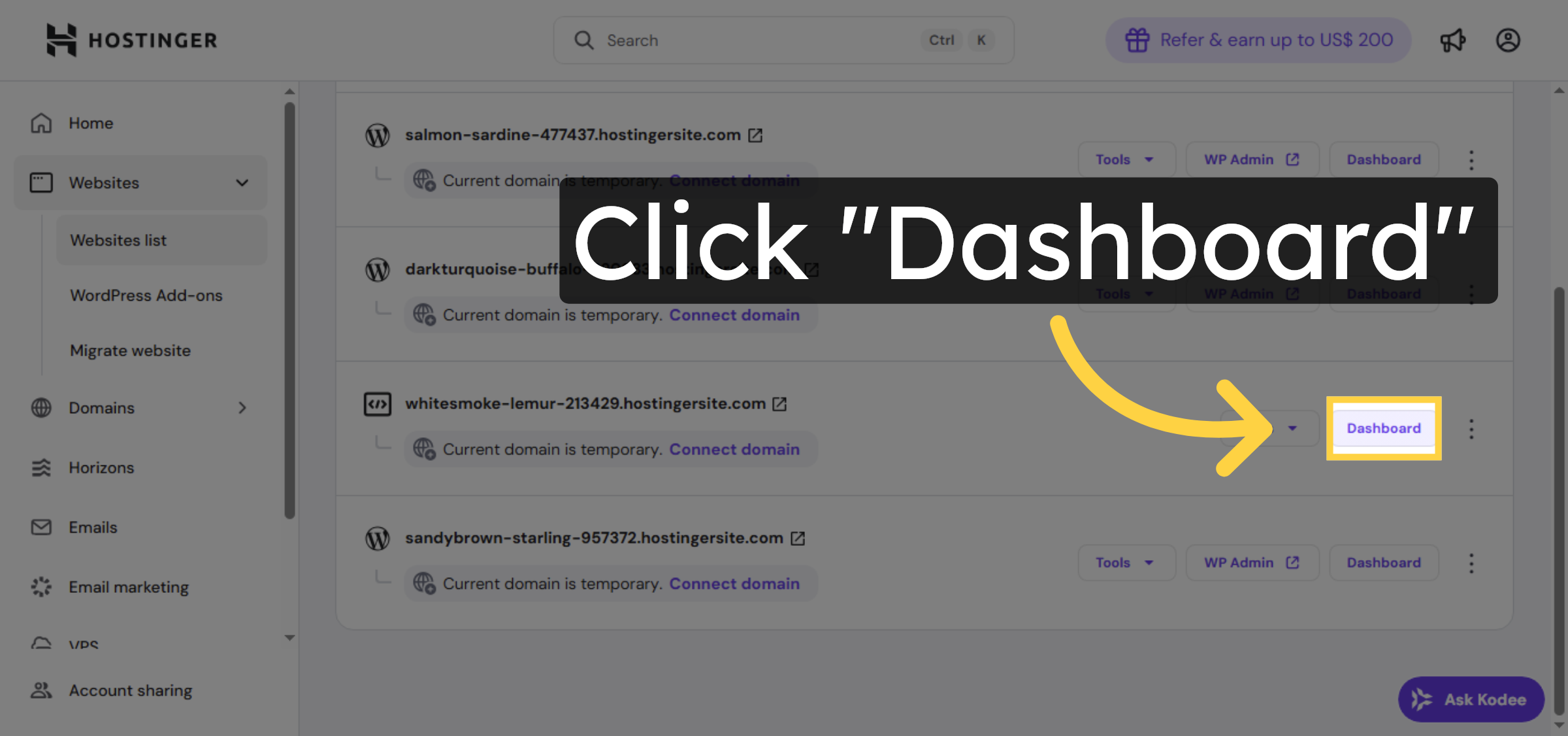
11. Access Website Dashboard
Click Dashboard to open the control panel for your specific website.
12. Open Advanced Settings
Click Advanced to access advanced configuration options for your hosting environment.
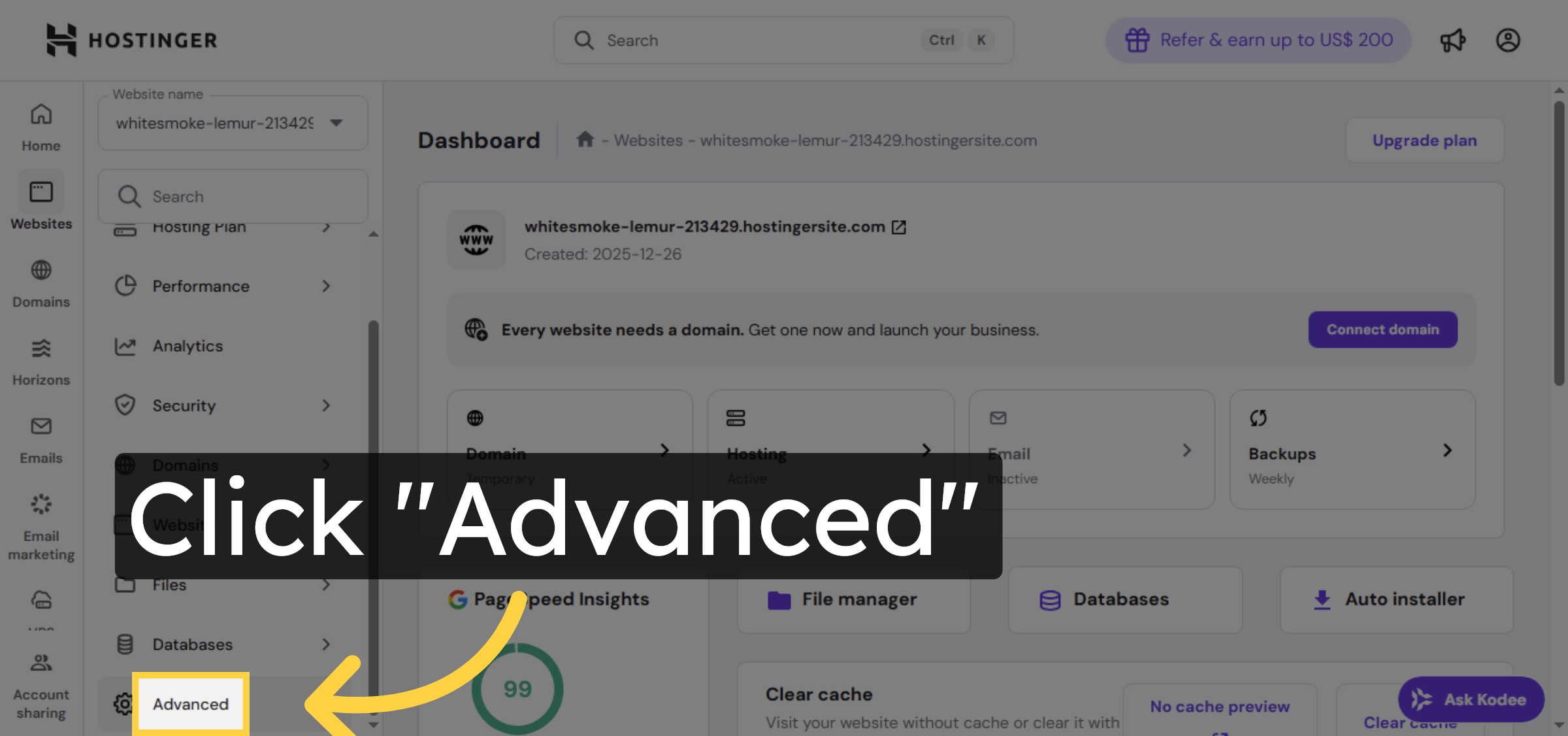
13. Open PHP Configuration
Click PHP Configuration to modify PHP settings for your hosting account.
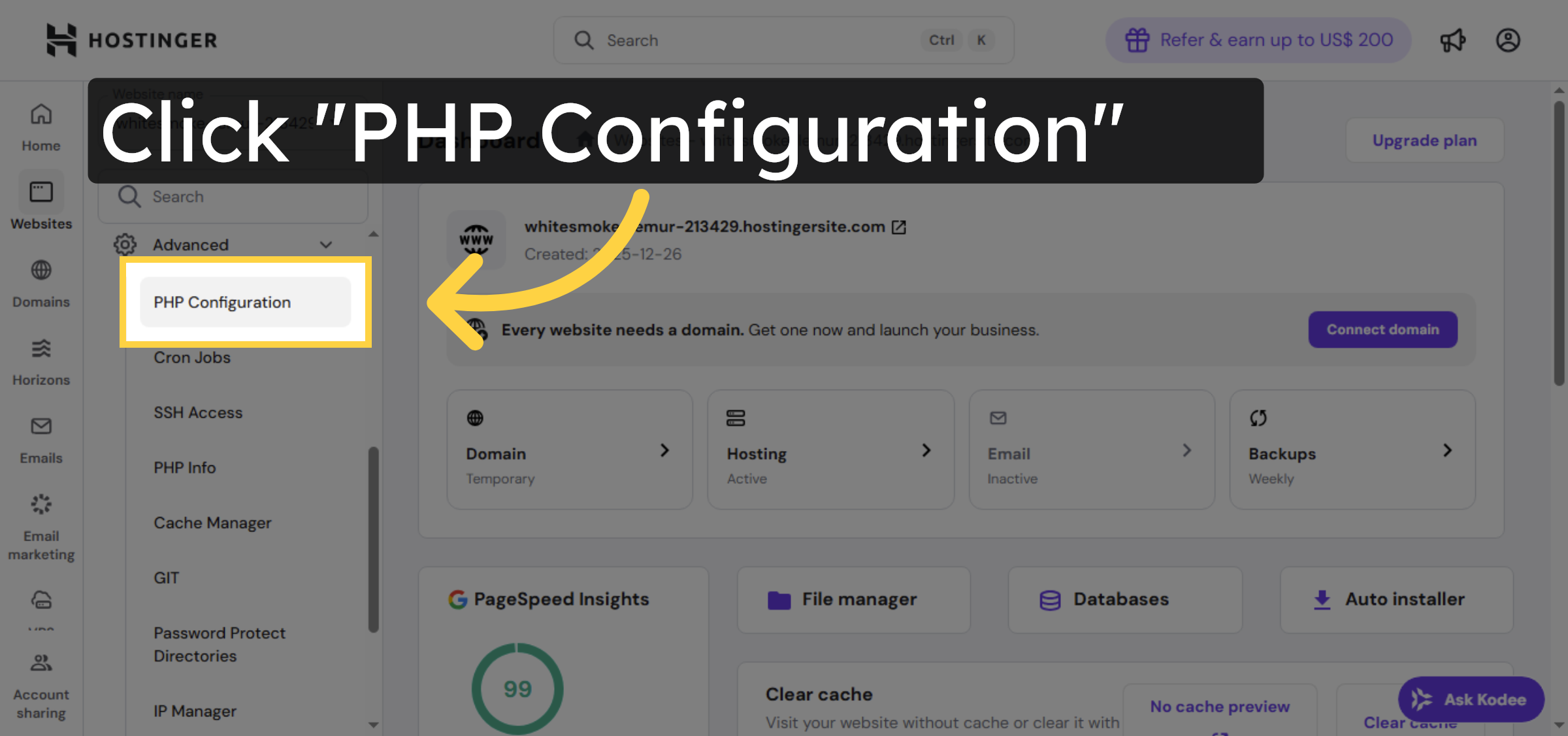
14. Access PHP Options
Click PHP options to view and adjust specific PHP parameters.
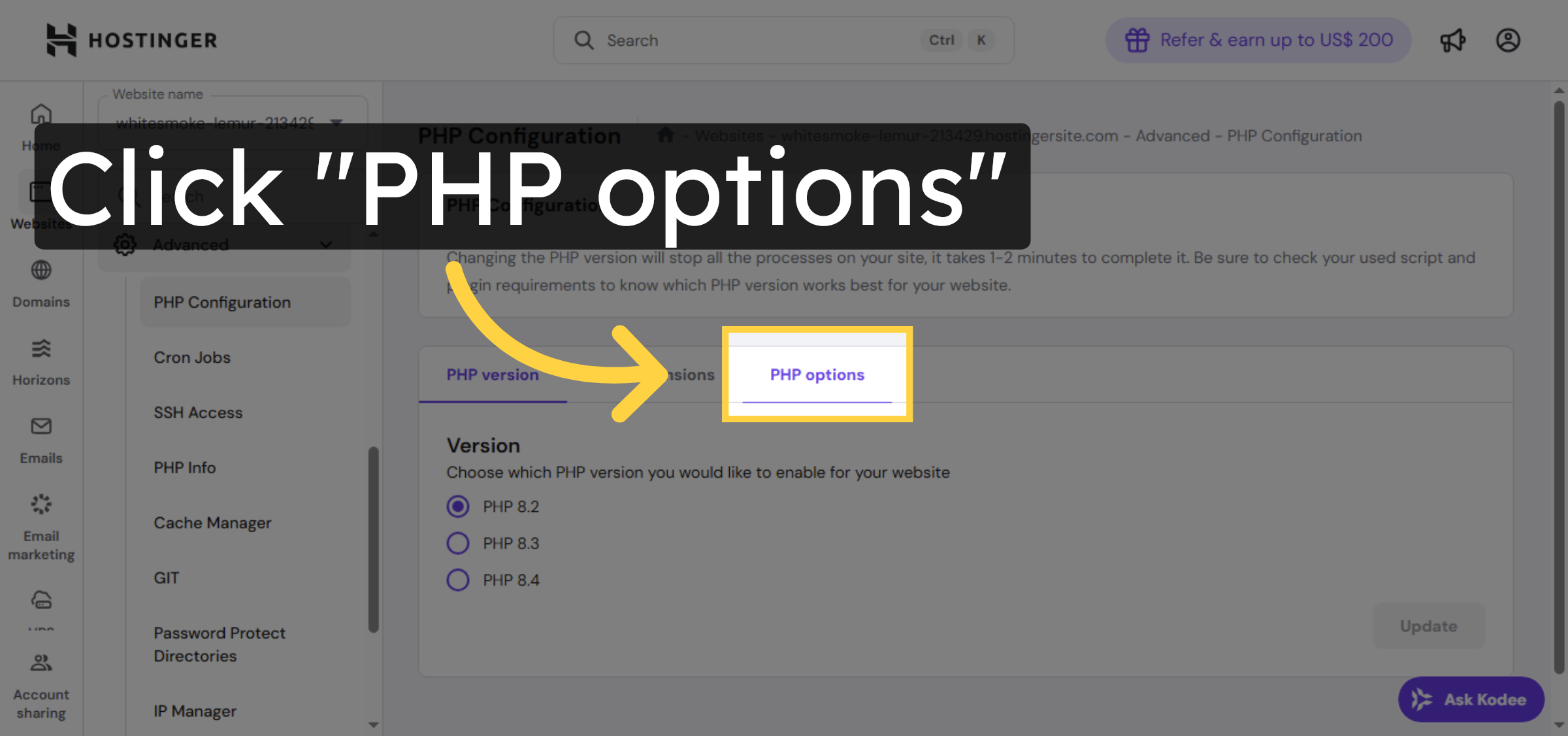
15. increase maxExecution time.
increase maxExecution time if it seems to be low
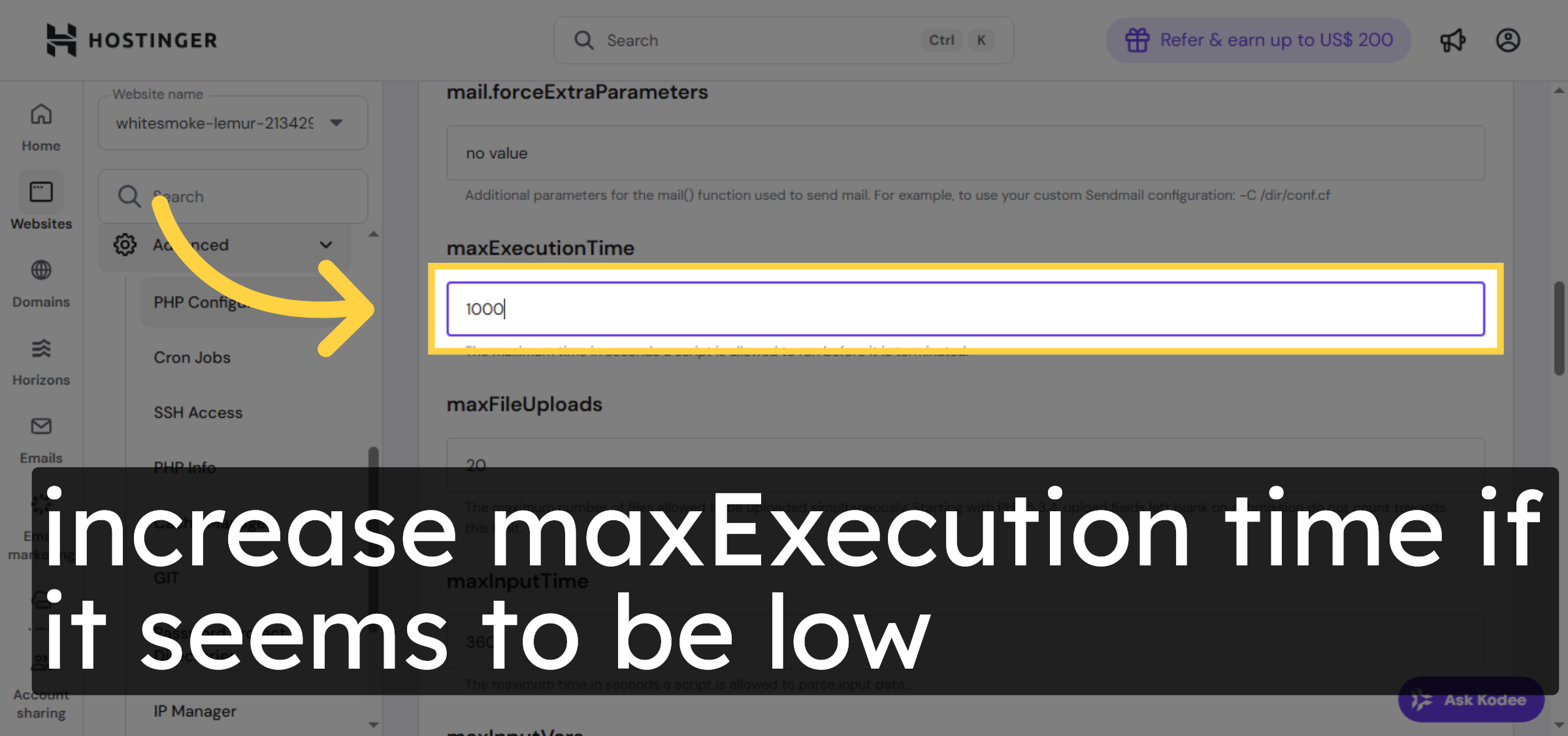
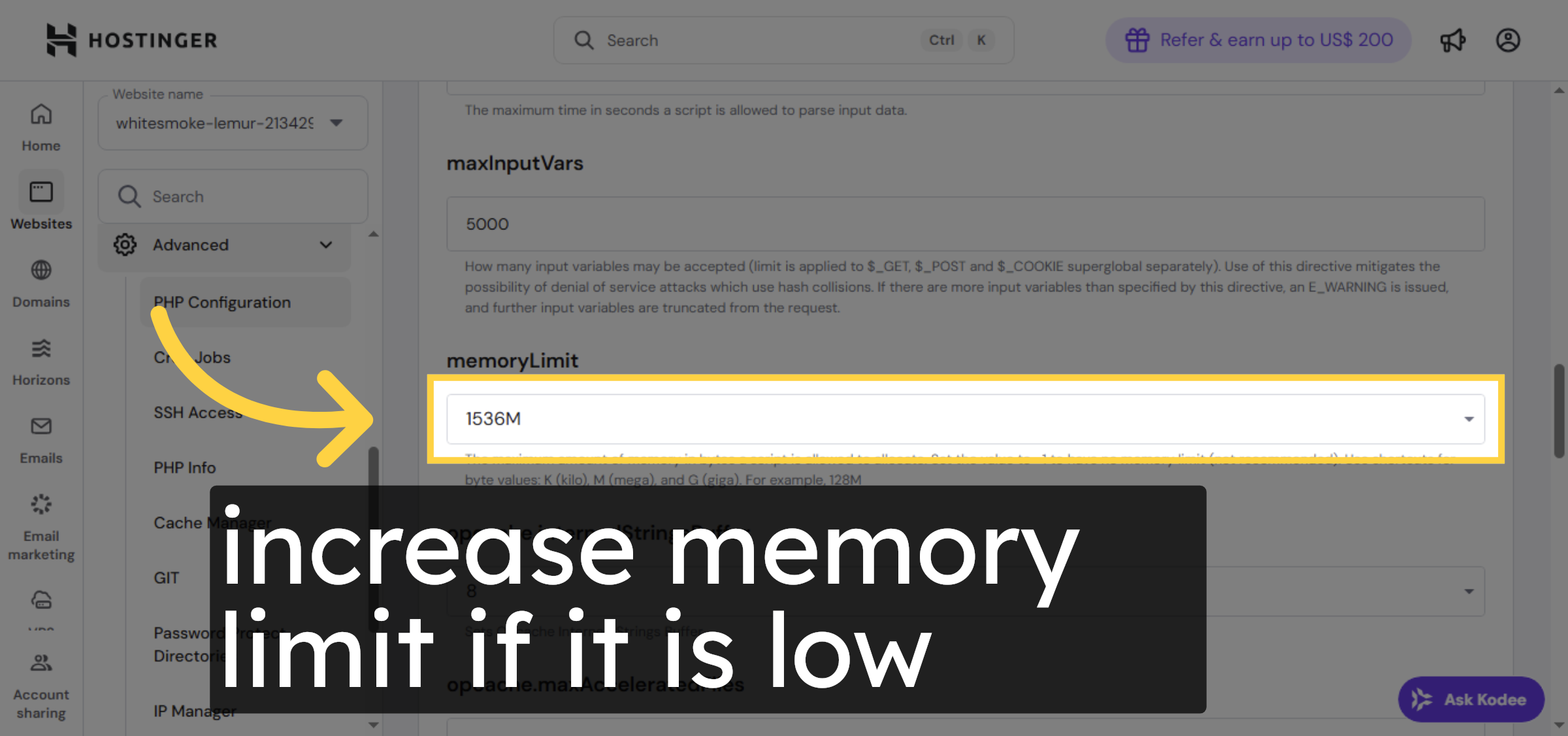
16. Select PHP Memory Limit
Increase memory limit if it seems to be low.
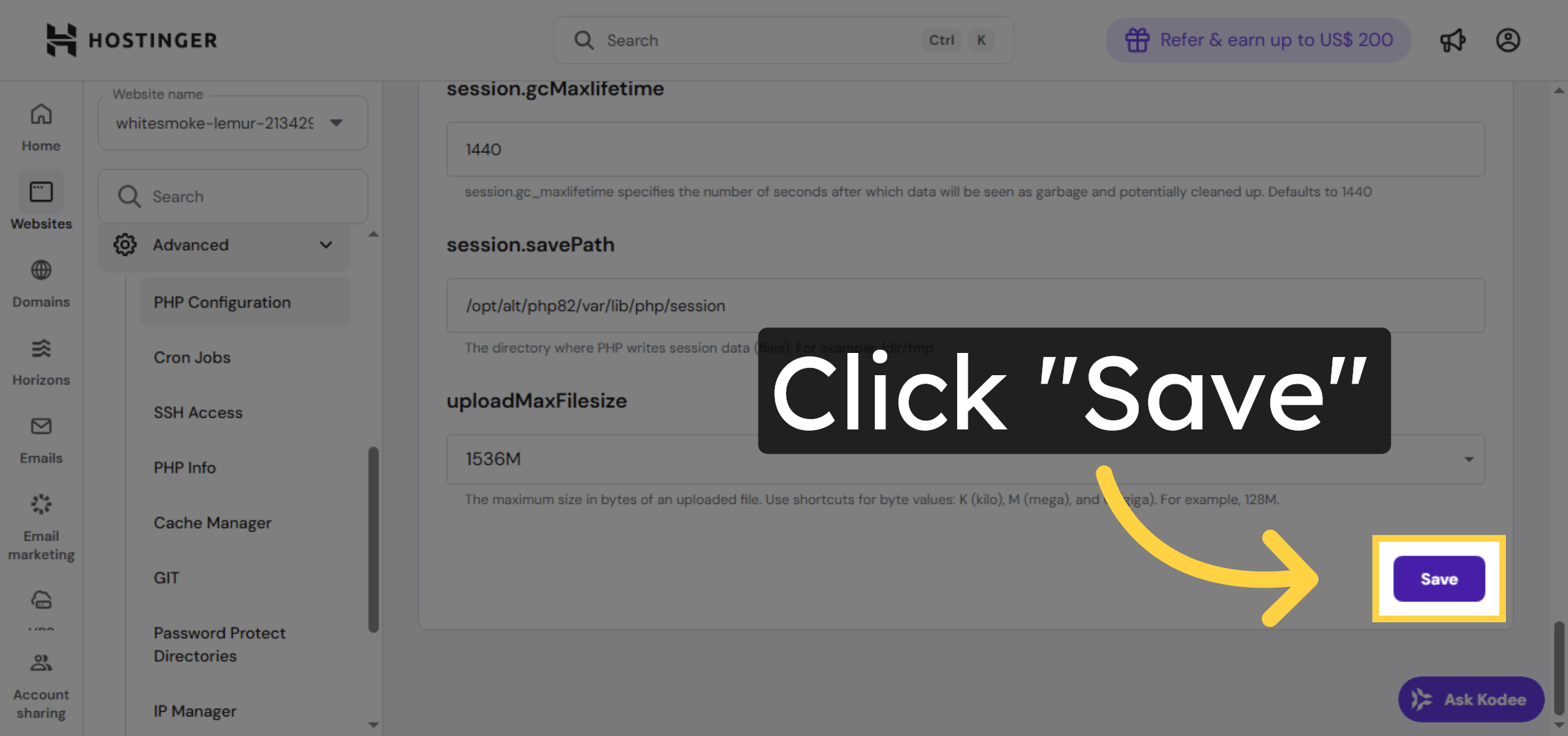
17. Save PHP Configuration
Click Save to apply the updated PHP configuration settings.
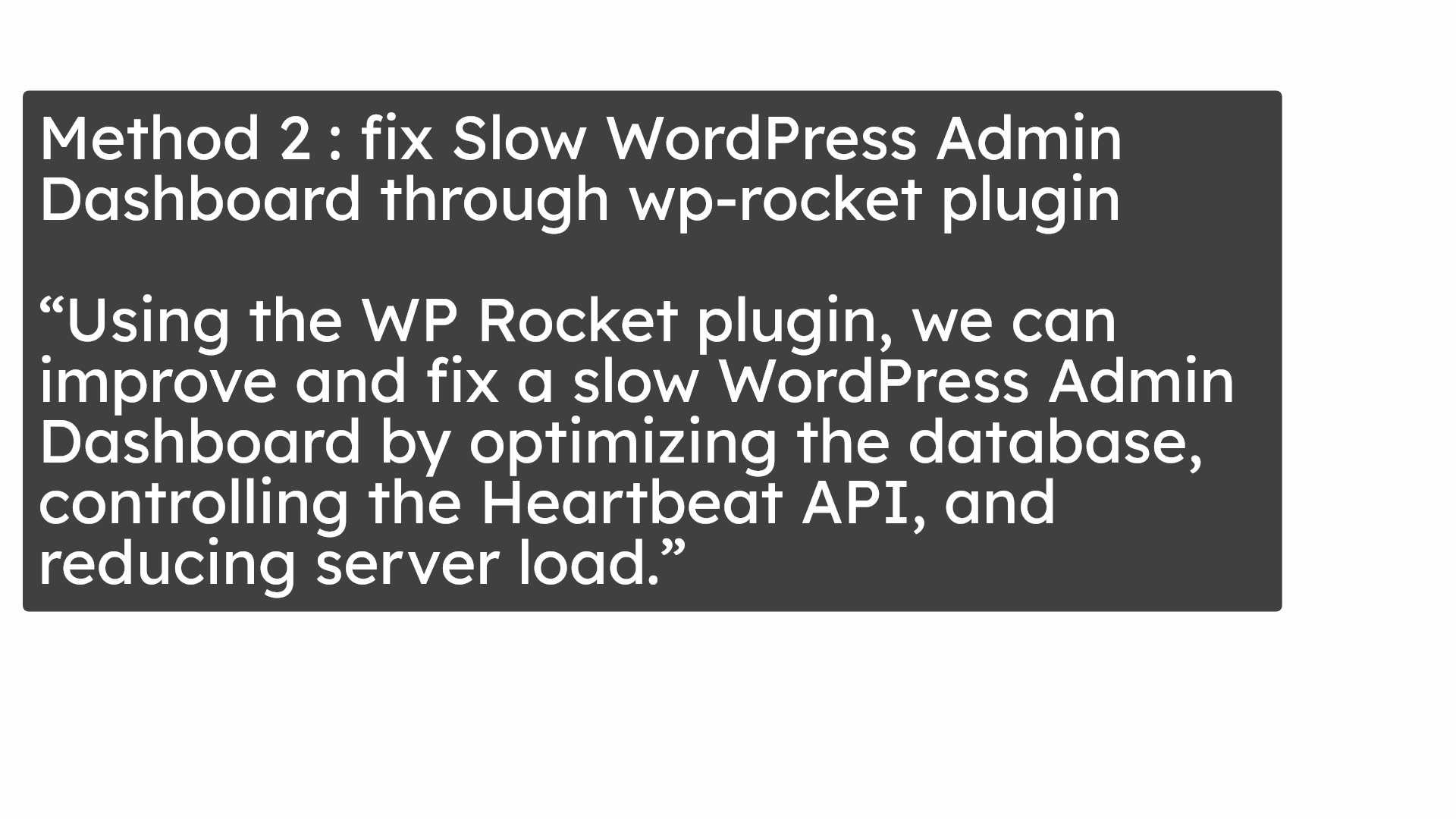
18. Another Method to Fix(Method 2)
Method 2 : fix Slow WordPress Admin Dashboard through wp-rocket plugin. “Using the WP Rocket plugin, we can improve and fix a slow WordPress Admin Dashboard by optimizing the database, controlling the Heartbeat API, and reducing server load.”
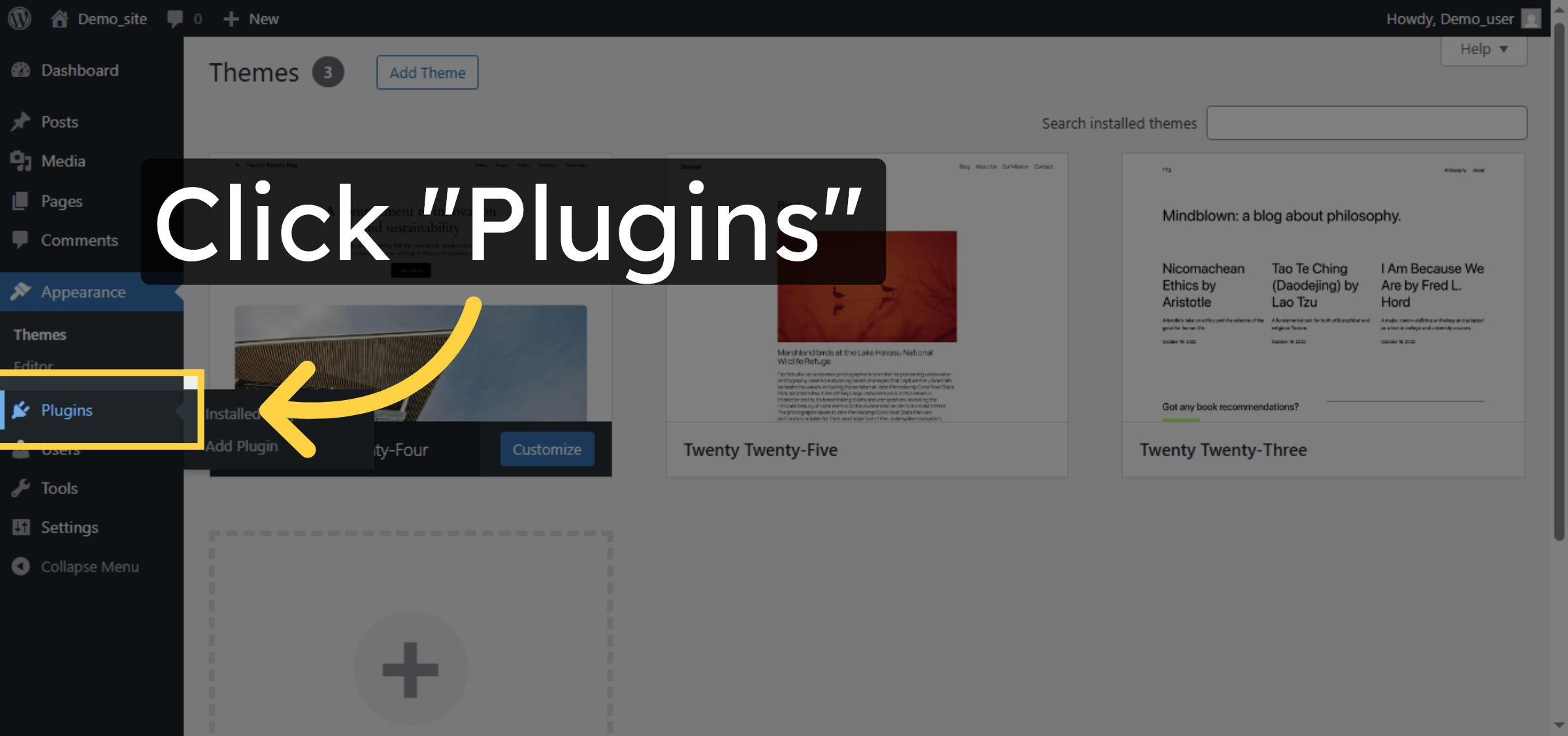
19. Open Plugins Menu
Click Plugins to manage installed plugins on your WordPress site.
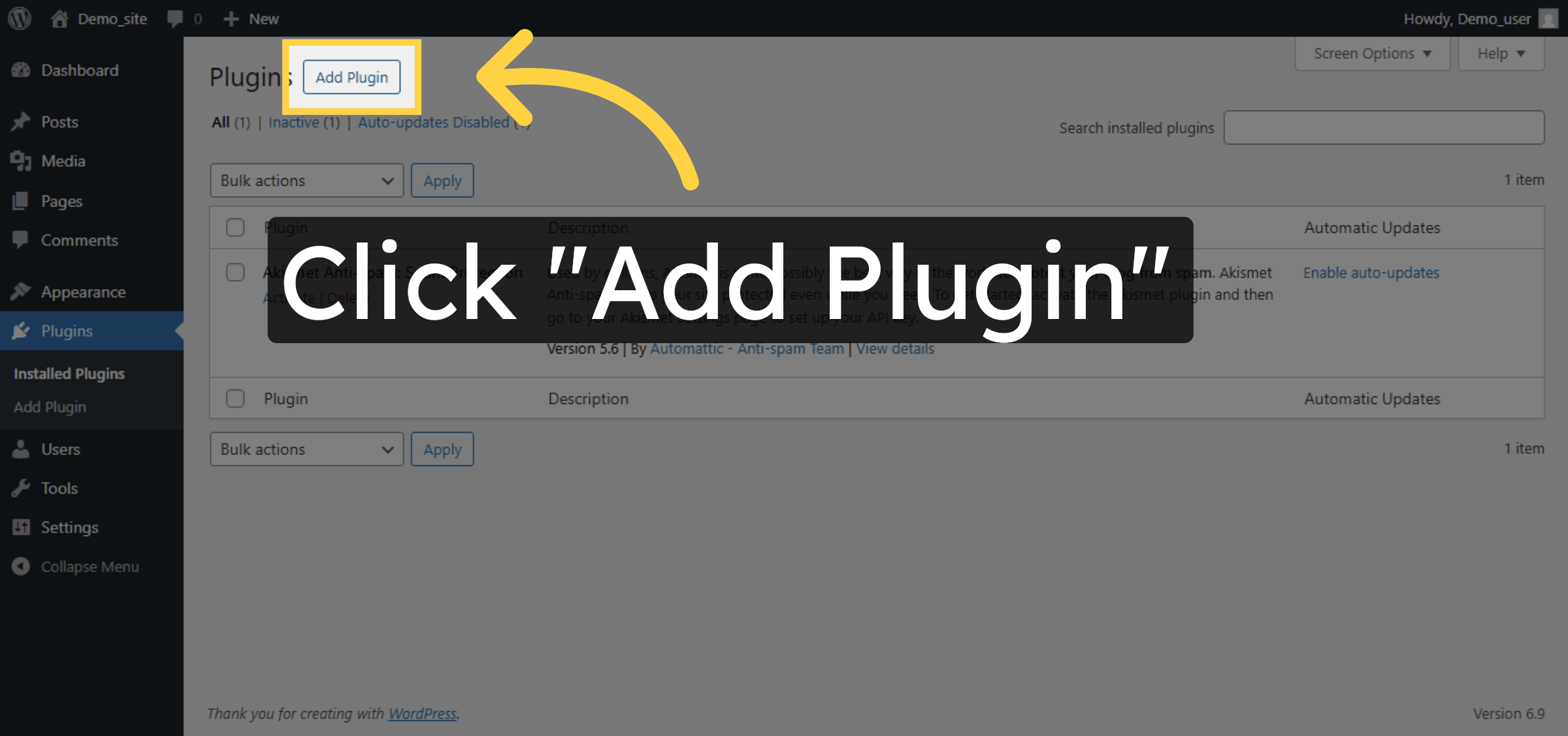
20. Add New Plugin
Click Add Plugin to begin installing a new plugin to your WordPress site.
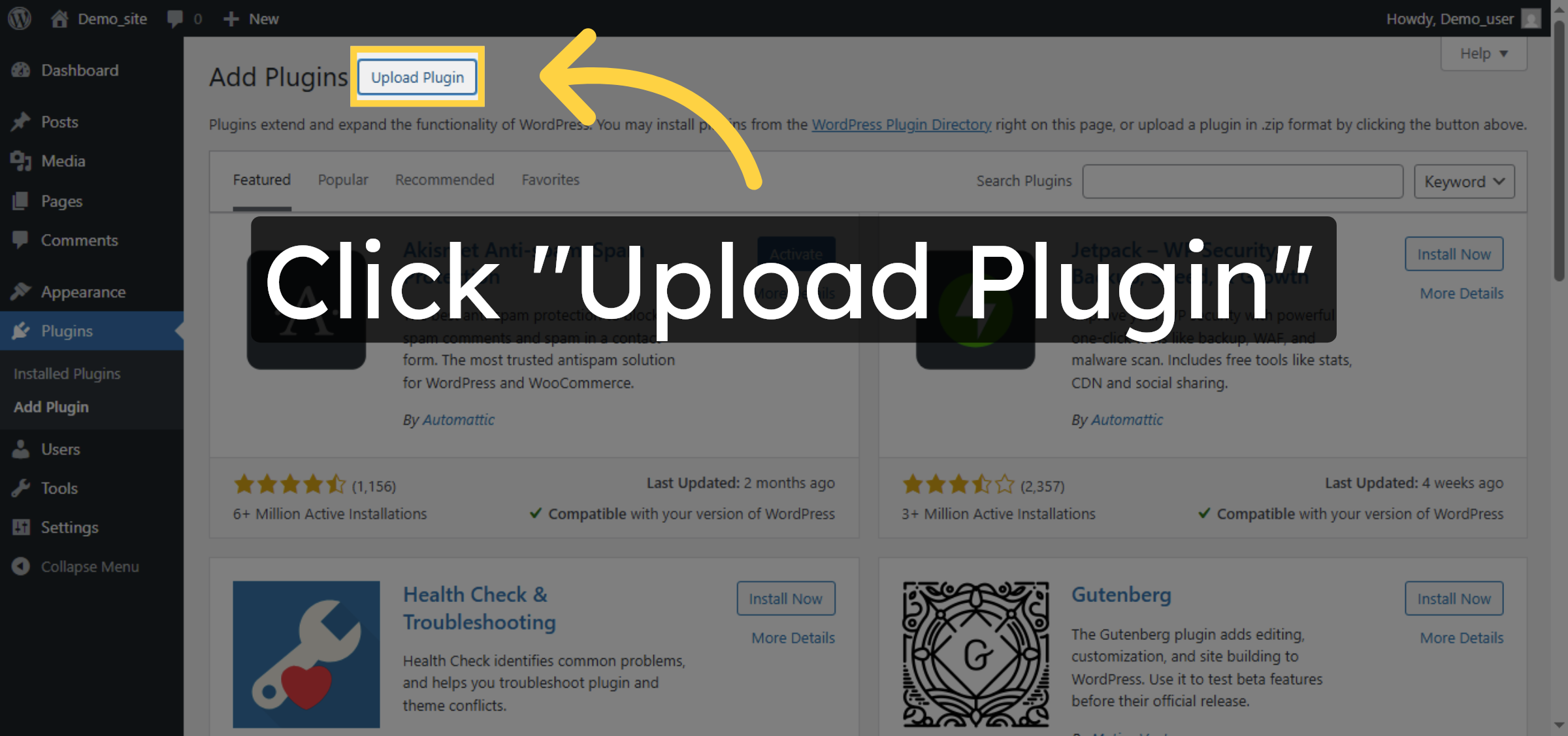
21. Upload Plugin File
Click Upload Plugin to upload a plugin file from your computer.
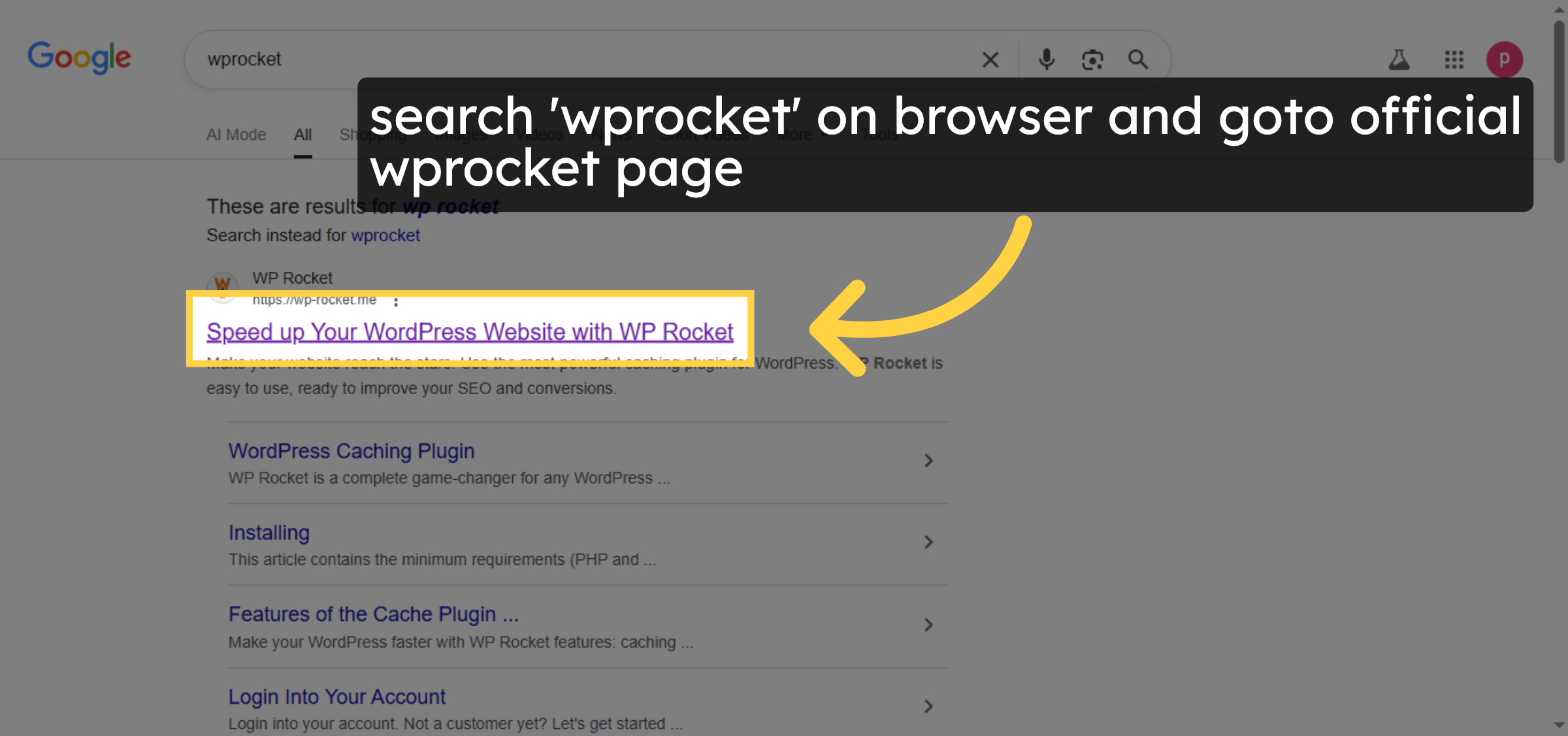
22. Goto WP Rocket Website
search ‘wprocket’ on browser and goto official wprocket page
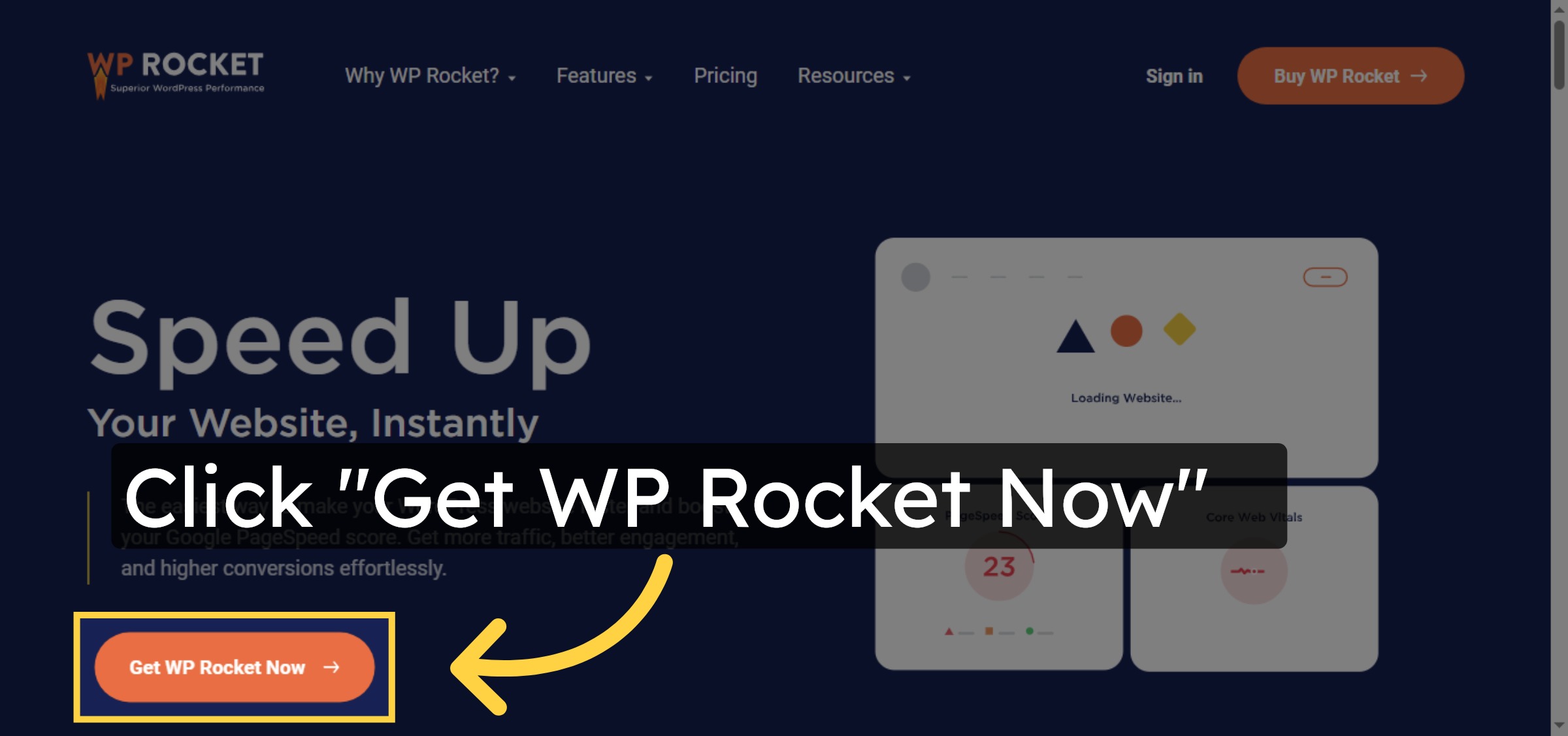
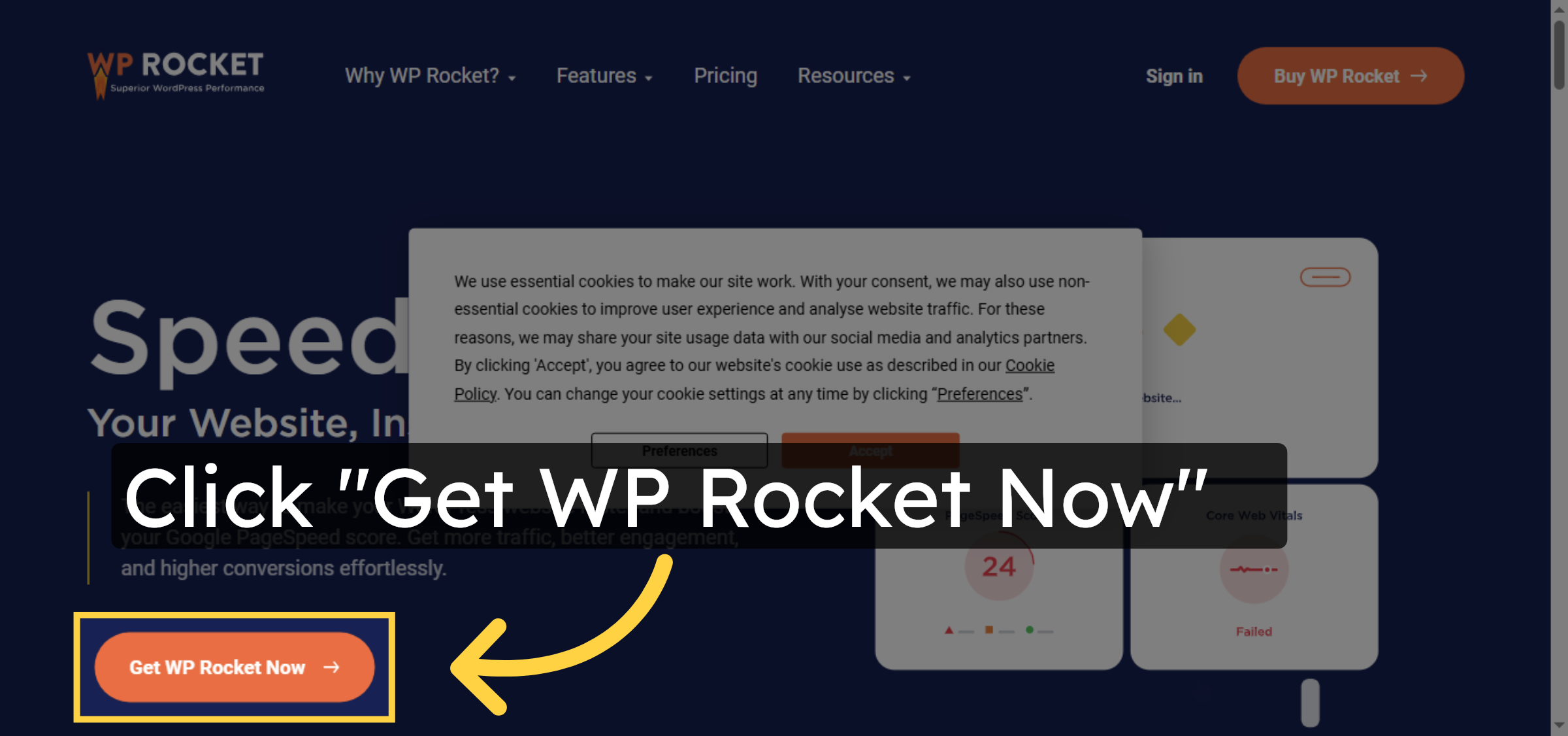
23. Initiate WP Rocket Purchase
Click Get WP Rocket Now to start the process of obtaining the plugin.
24. Confirm WP Rocket Purchase
Click Get WP Rocket Now again to confirm your intent to acquire the plugin.
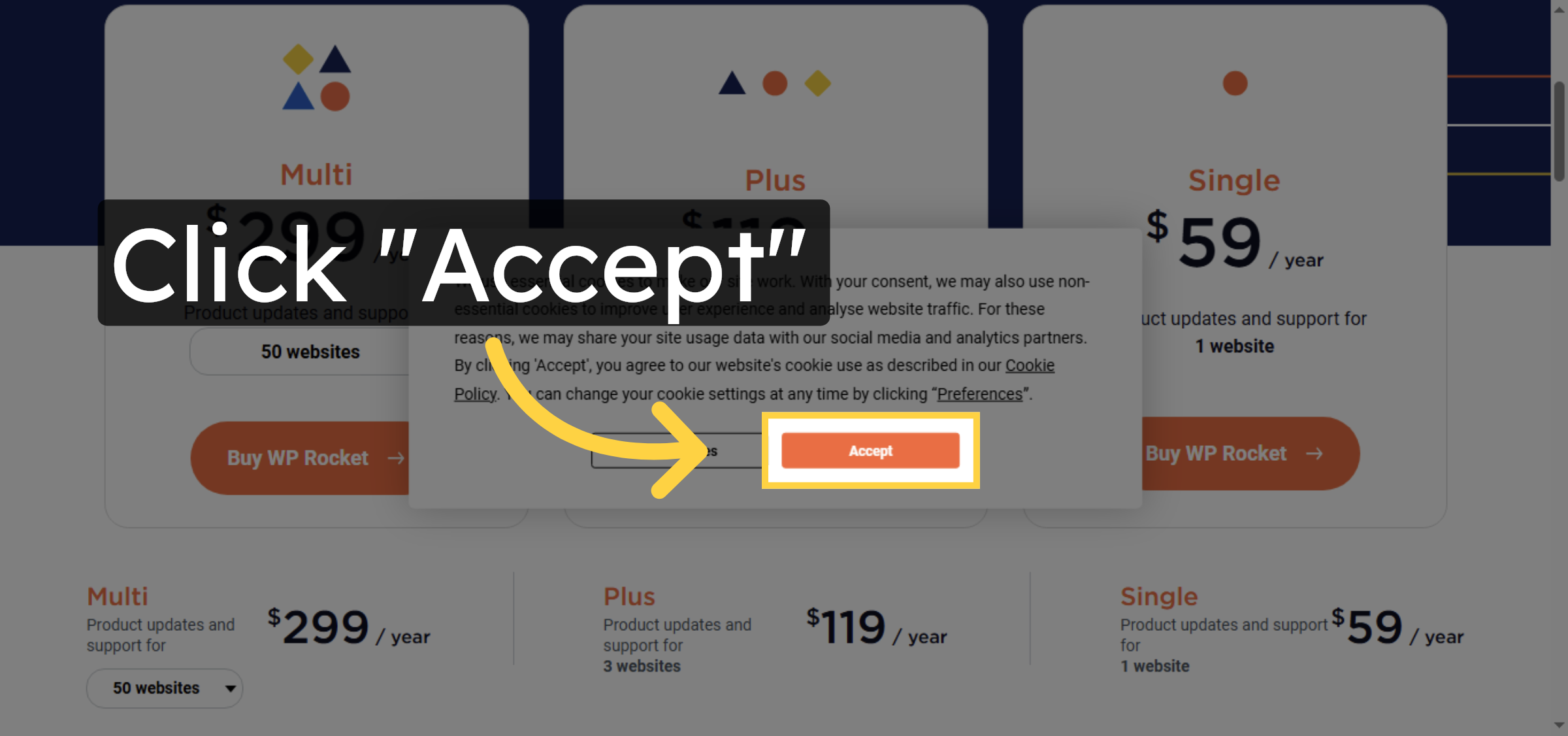
25. Accept WP Rocket Terms
Click Accept to agree to the terms and conditions for WP Rocket and purchase plugin file according to your need and budget.
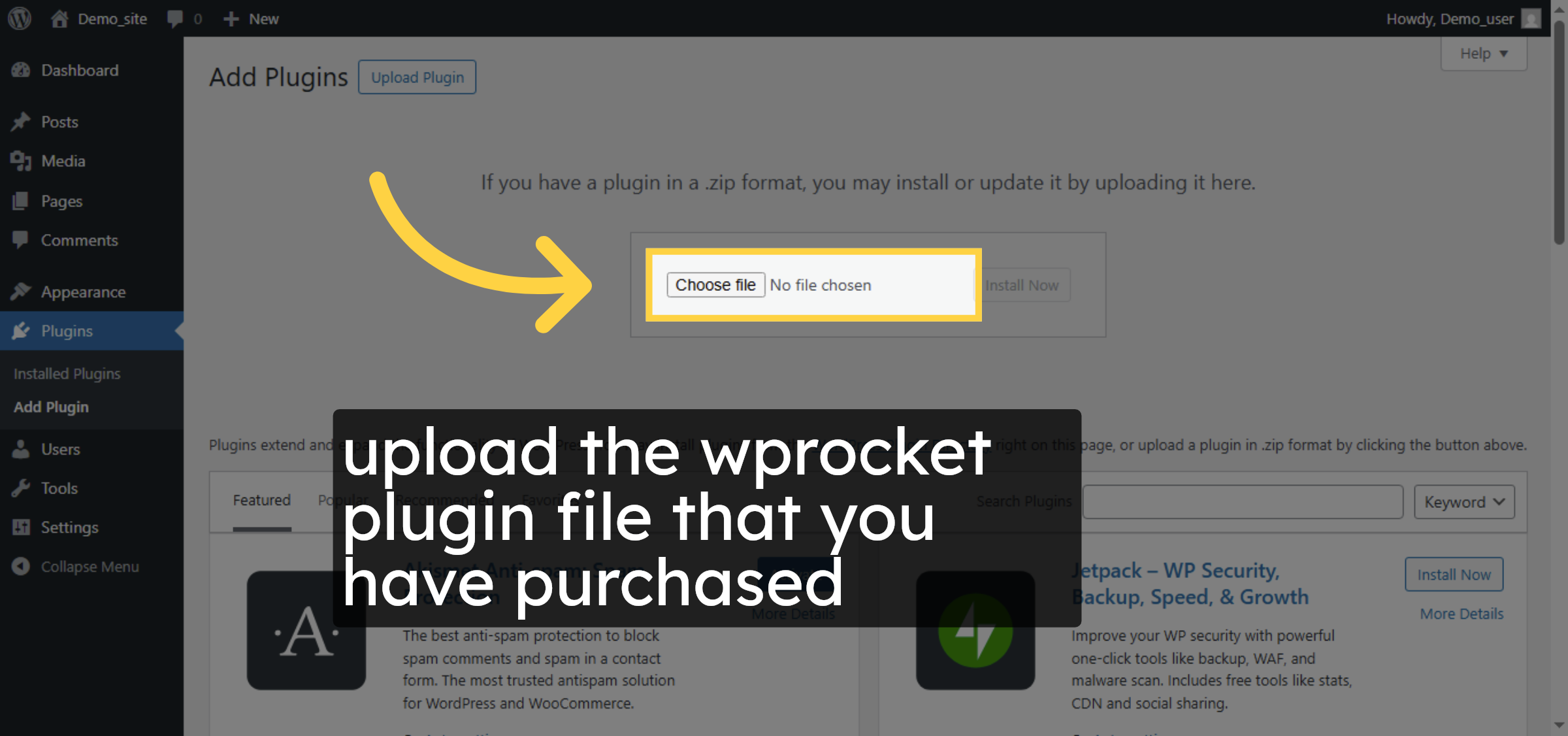
26. Select Plugin Zip File
Switch to wordpress plugin page and upload the wprocket plugin file that you have purchased.
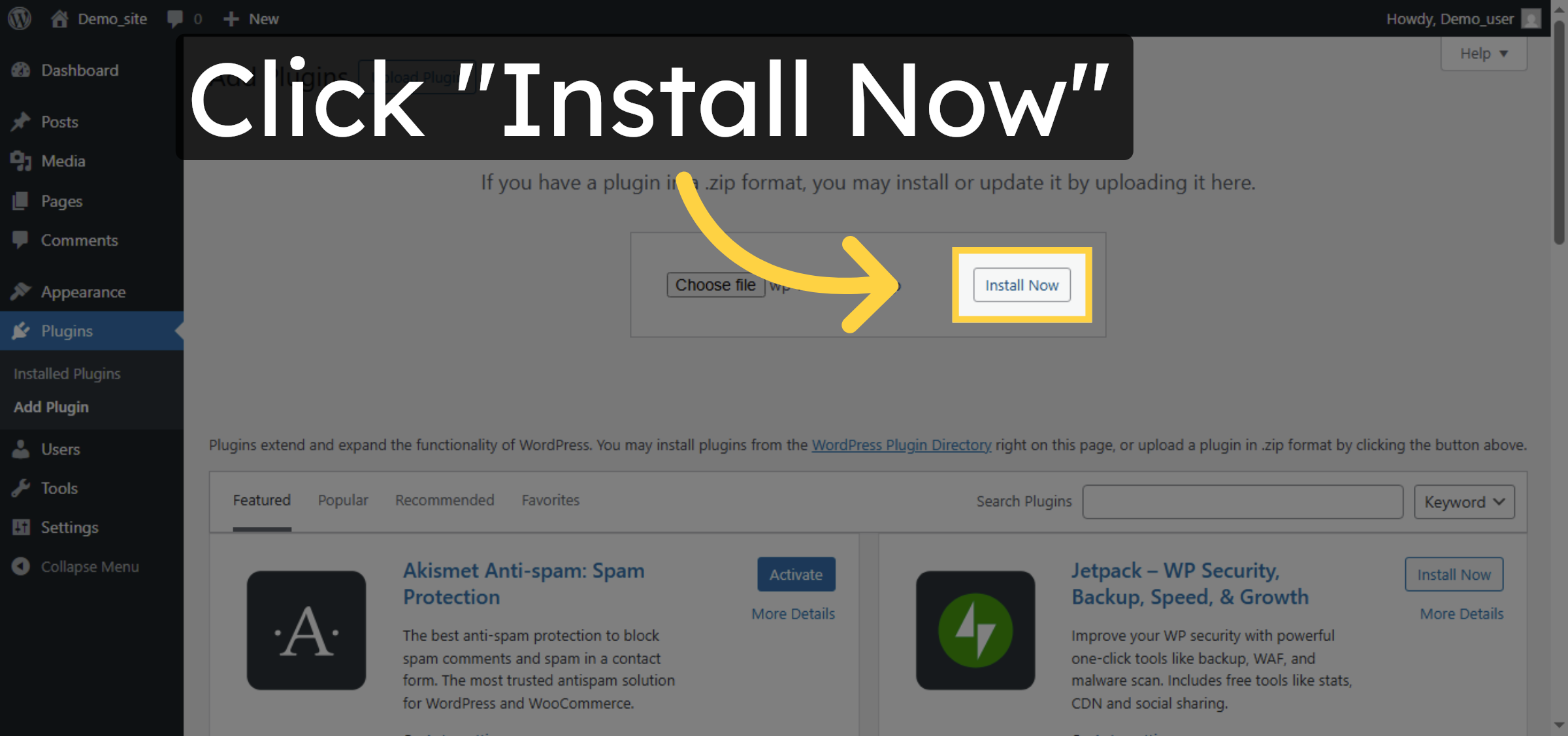
27. Install WP Rocket Plugin
Click Install Now to begin installing the WP Rocket plugin on your WordPress site.
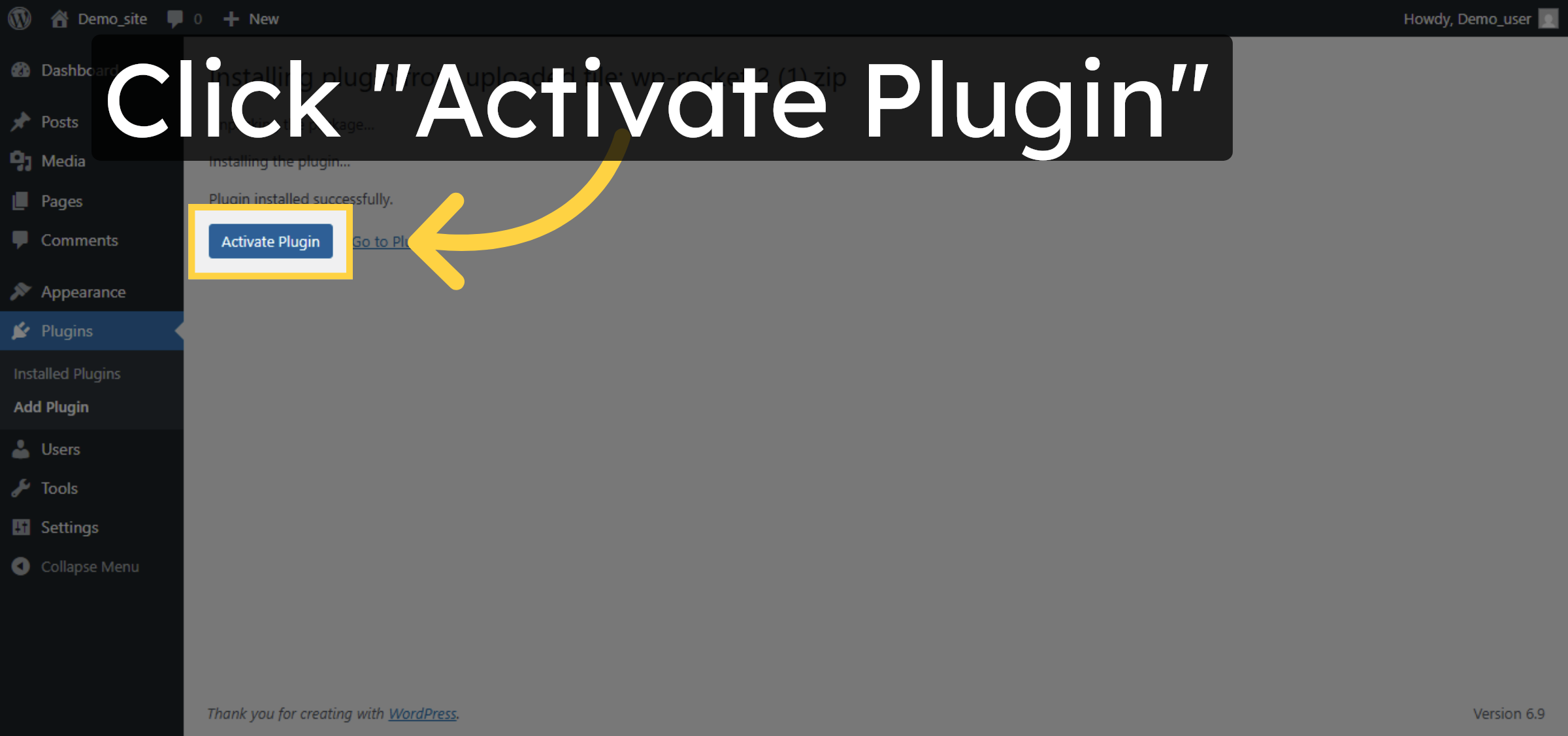
28. Activate WP Rocket Plugin
Click Activate Plugin to enable WP Rocket functionality on your site.
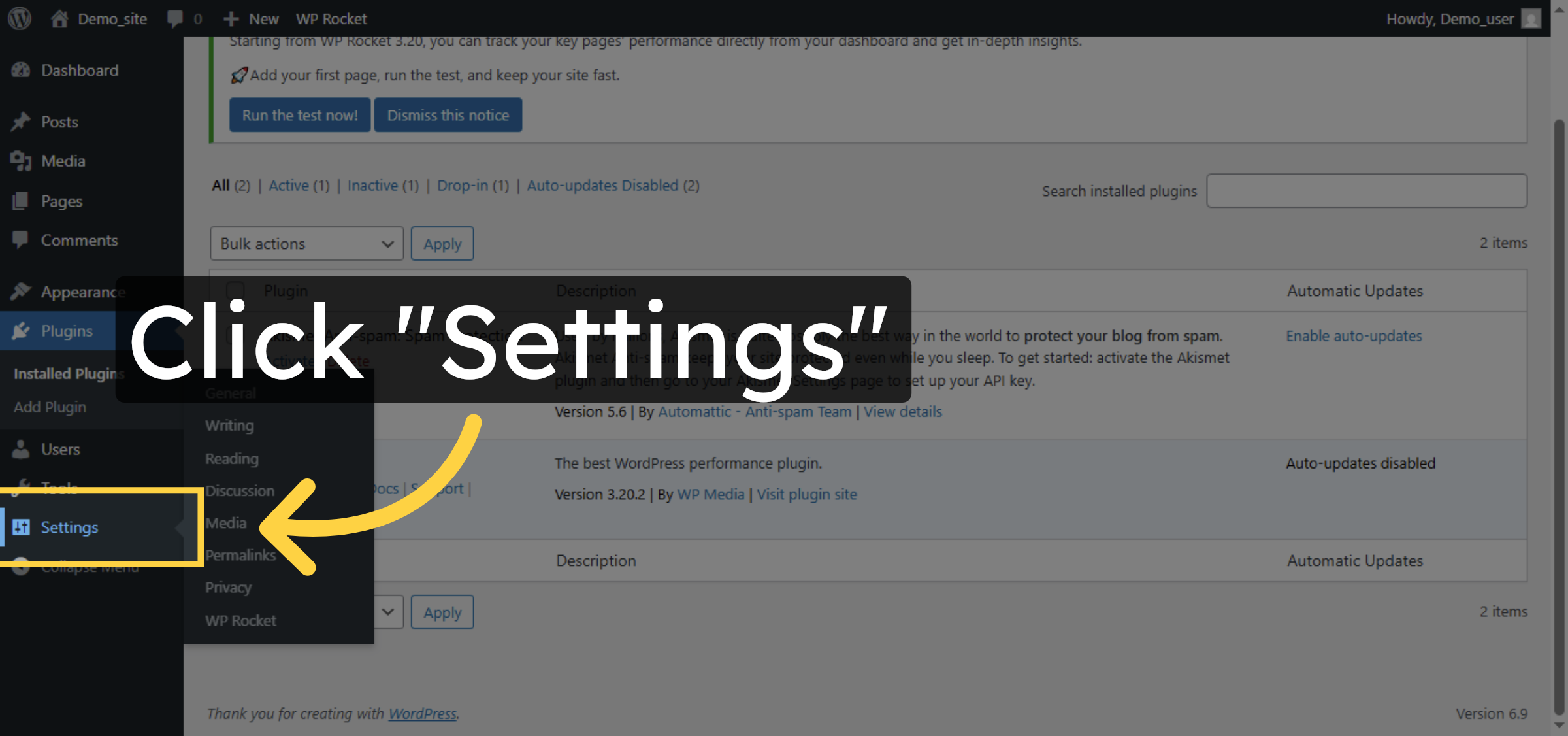
29. Open Plugins Settings
Click Settings to access configuration options for your installed plugins.
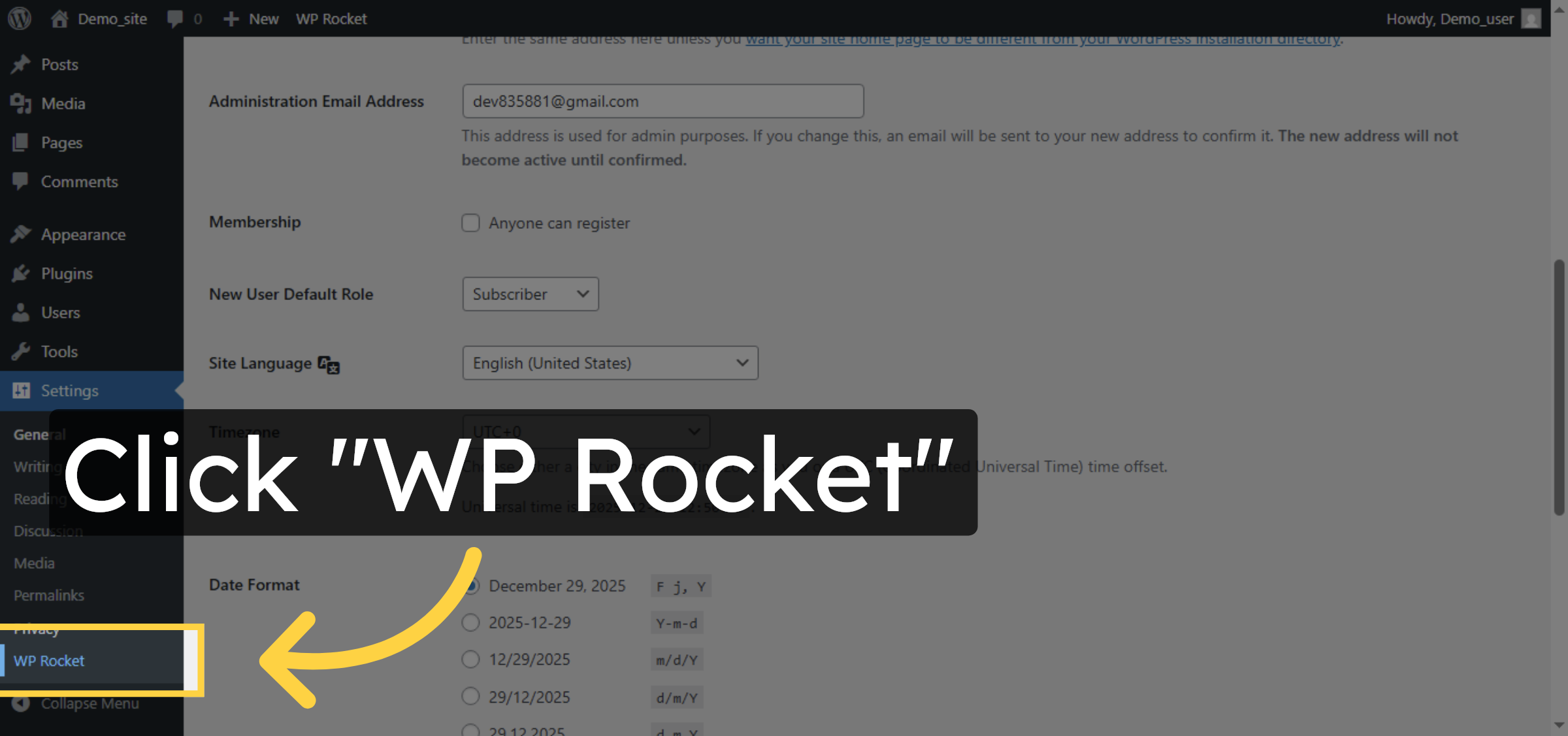
30. Access WP Rocket Settings
Click WP Rocket to open the plugin’s settings page for optimization.
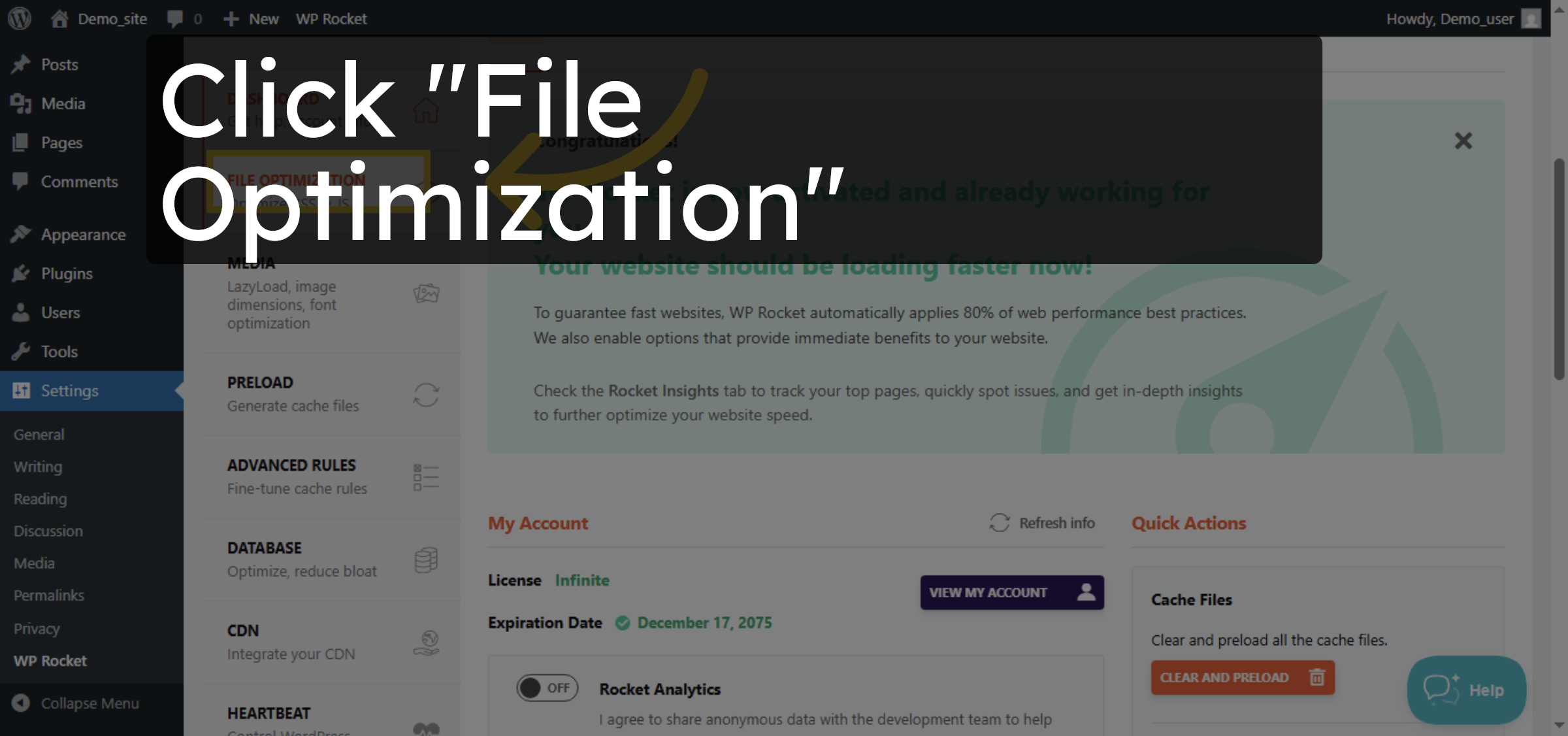
31. Open File Optimization Tab
Click File Optimization to configure options related to CSS and JavaScript files.
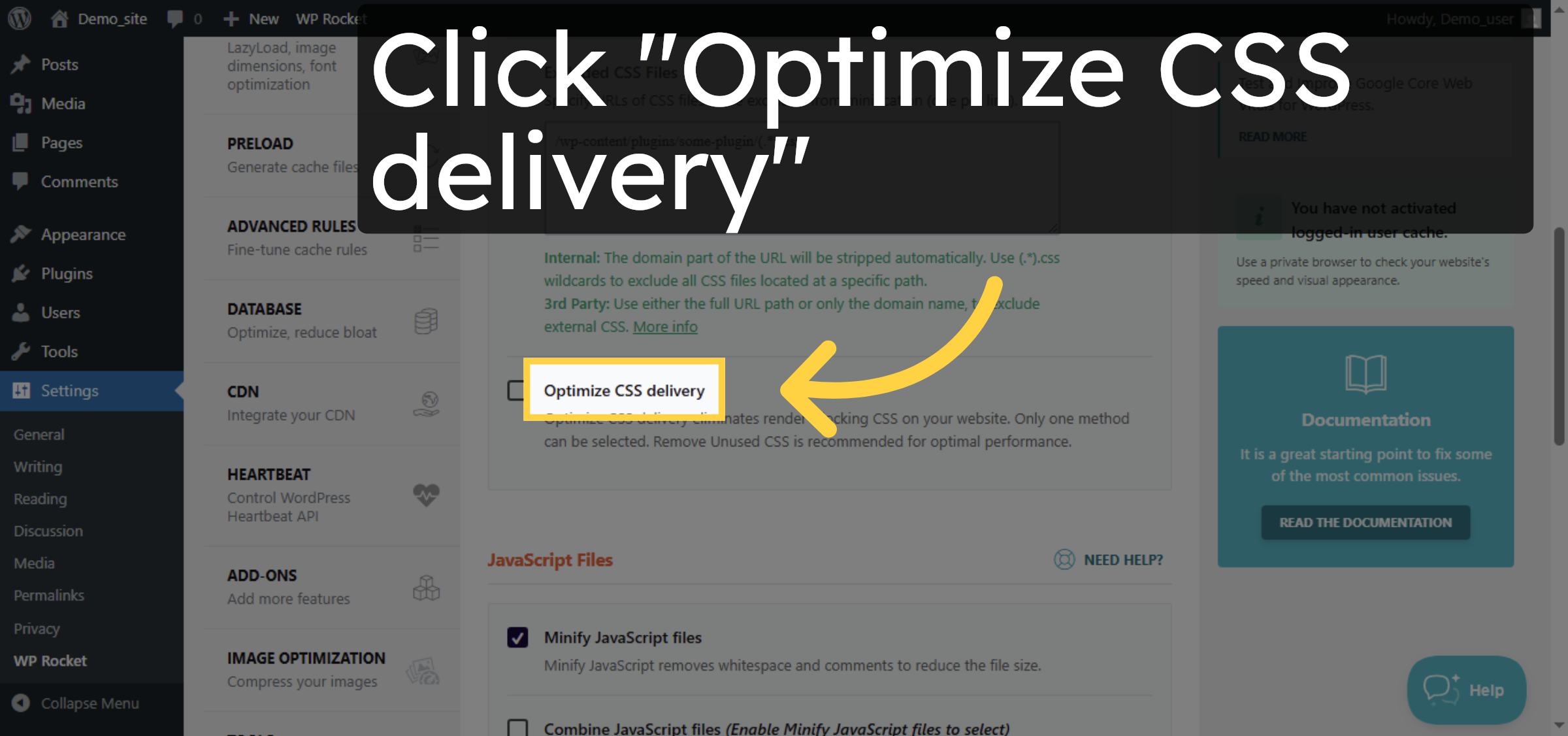
32. Enable CSS Delivery Optimization
Click Optimize CSS delivery to improve how CSS files load on your site.
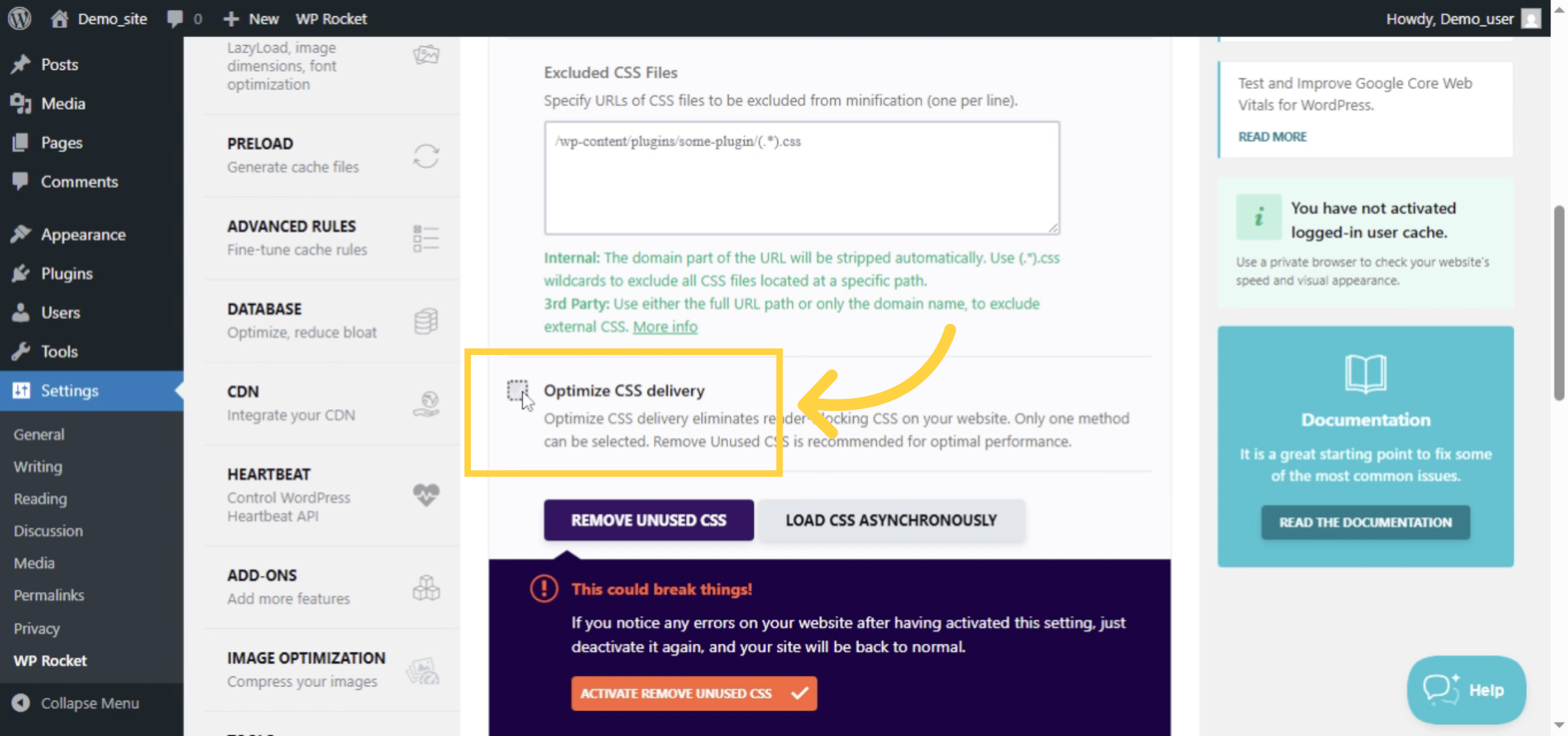
33. Set CSS Delivery Delay
E specify the delay time for CSS delivery optimization.
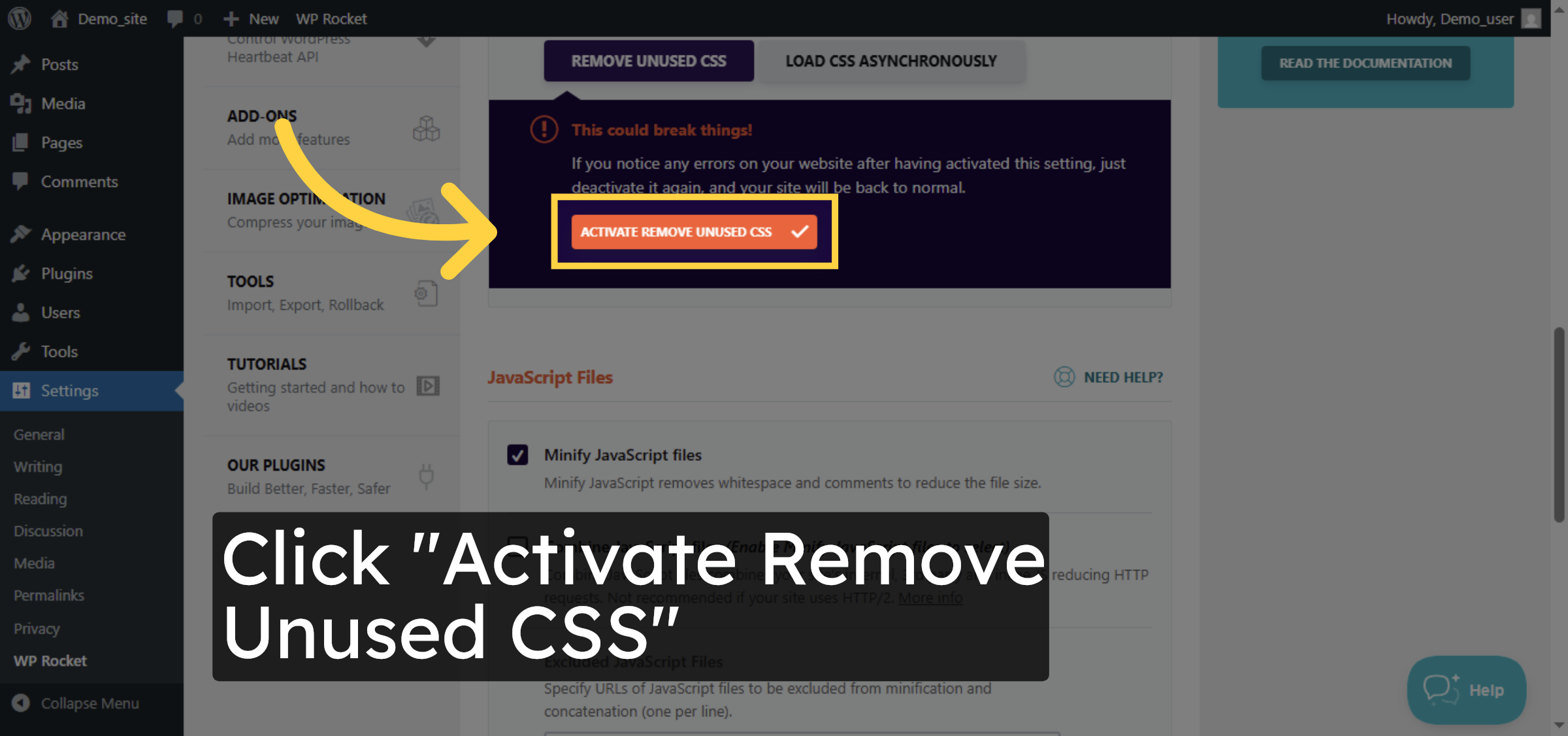
34. Activate Remove Unused CSS
Click Activate Remove Unused CSS to eliminate unnecessary CSS and speed up loading.
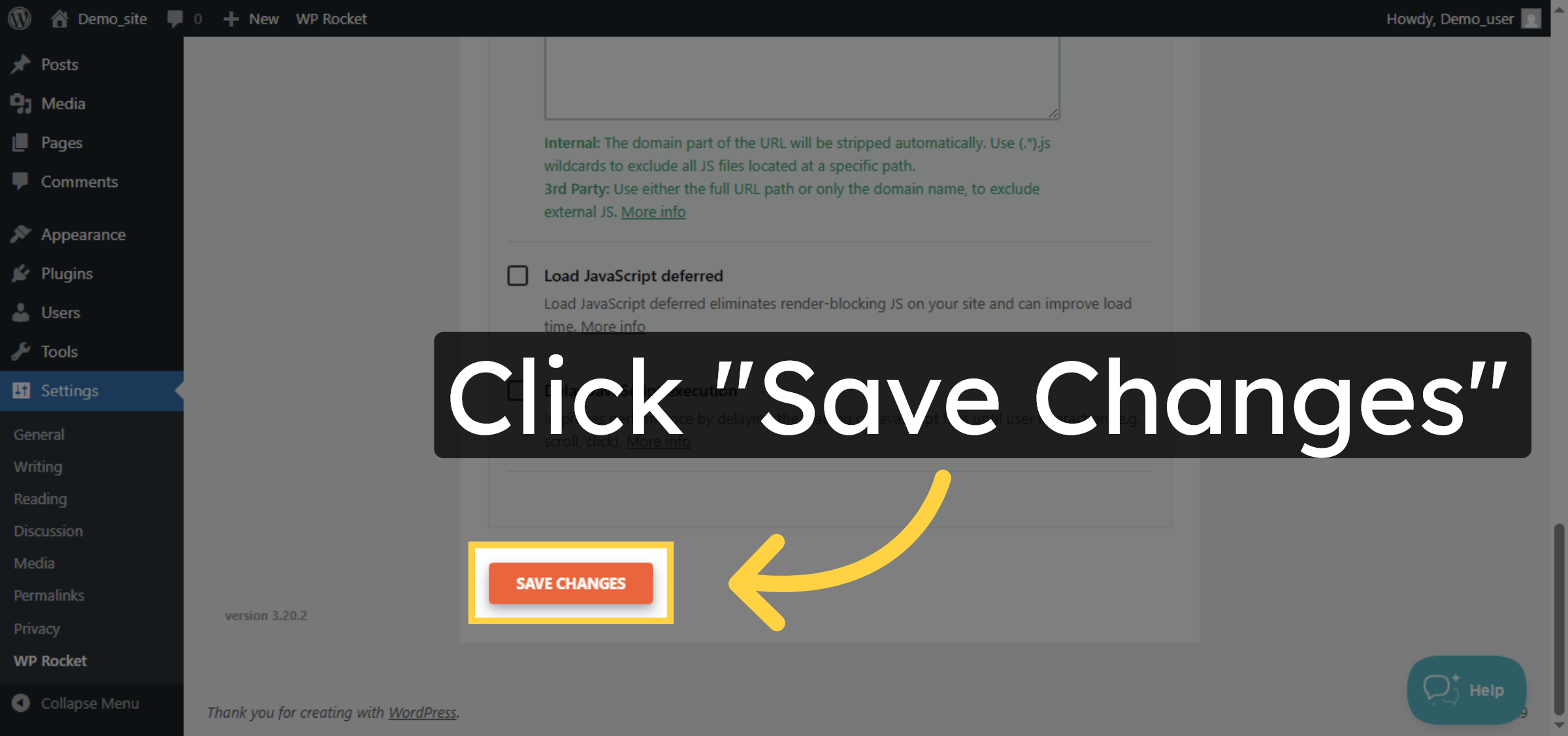
35. Save File Optimization Changes
Click Save Changes to apply your file optimization settings in WP Rocket.
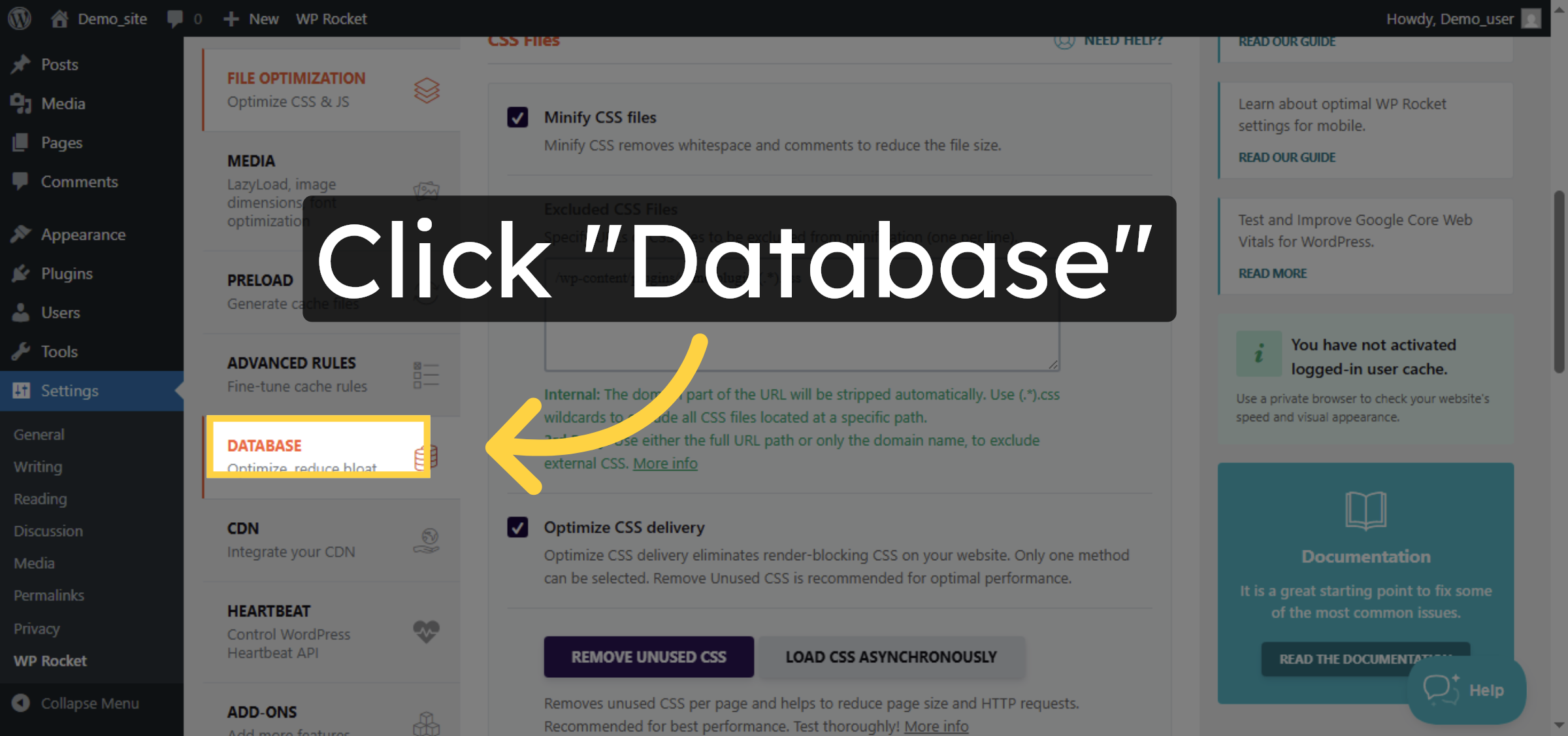
36. Open Database Tab
Click Database to access database optimization features within WP Rocket.
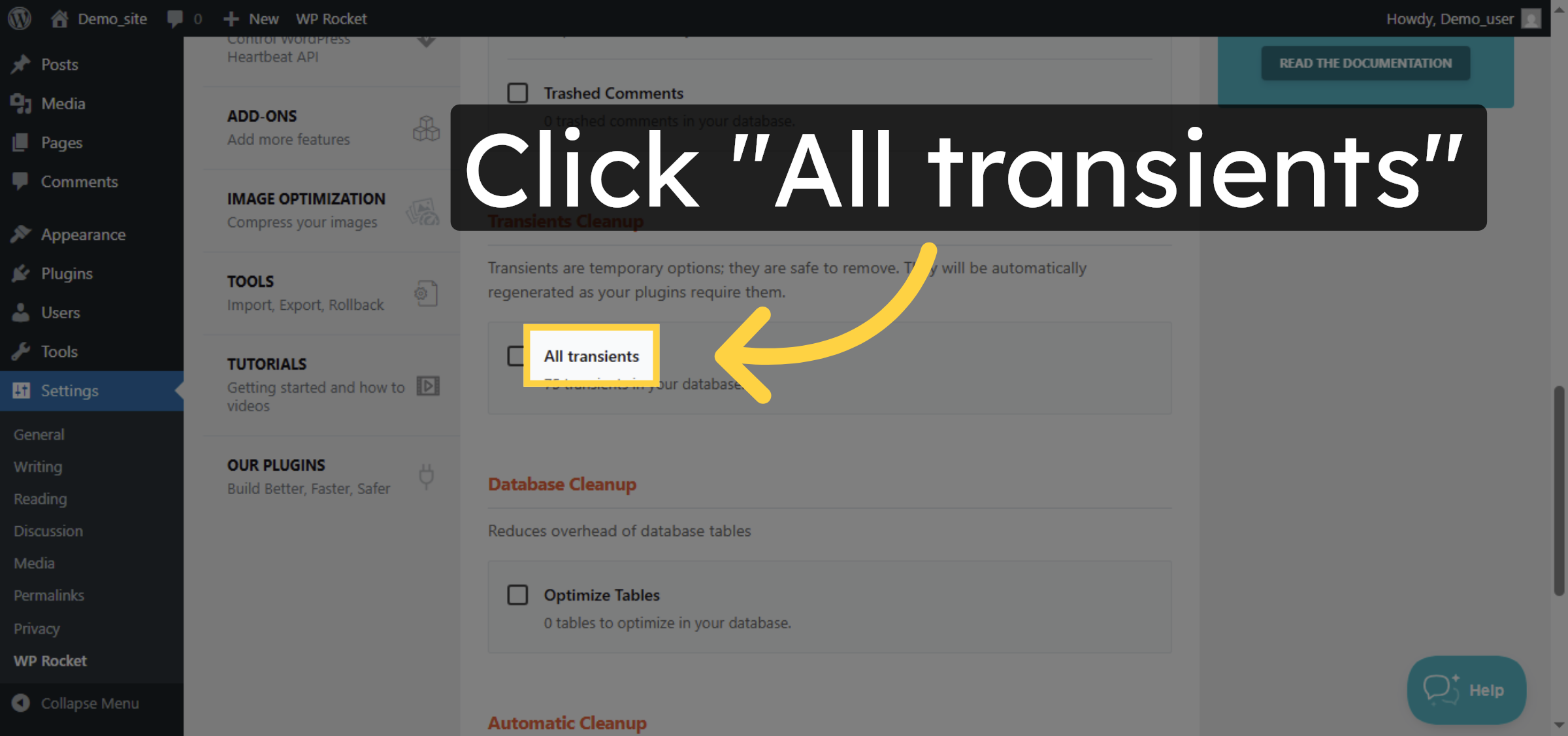
37. Select All Transients
Click All transients to choose all temporary cached data for cleanup.
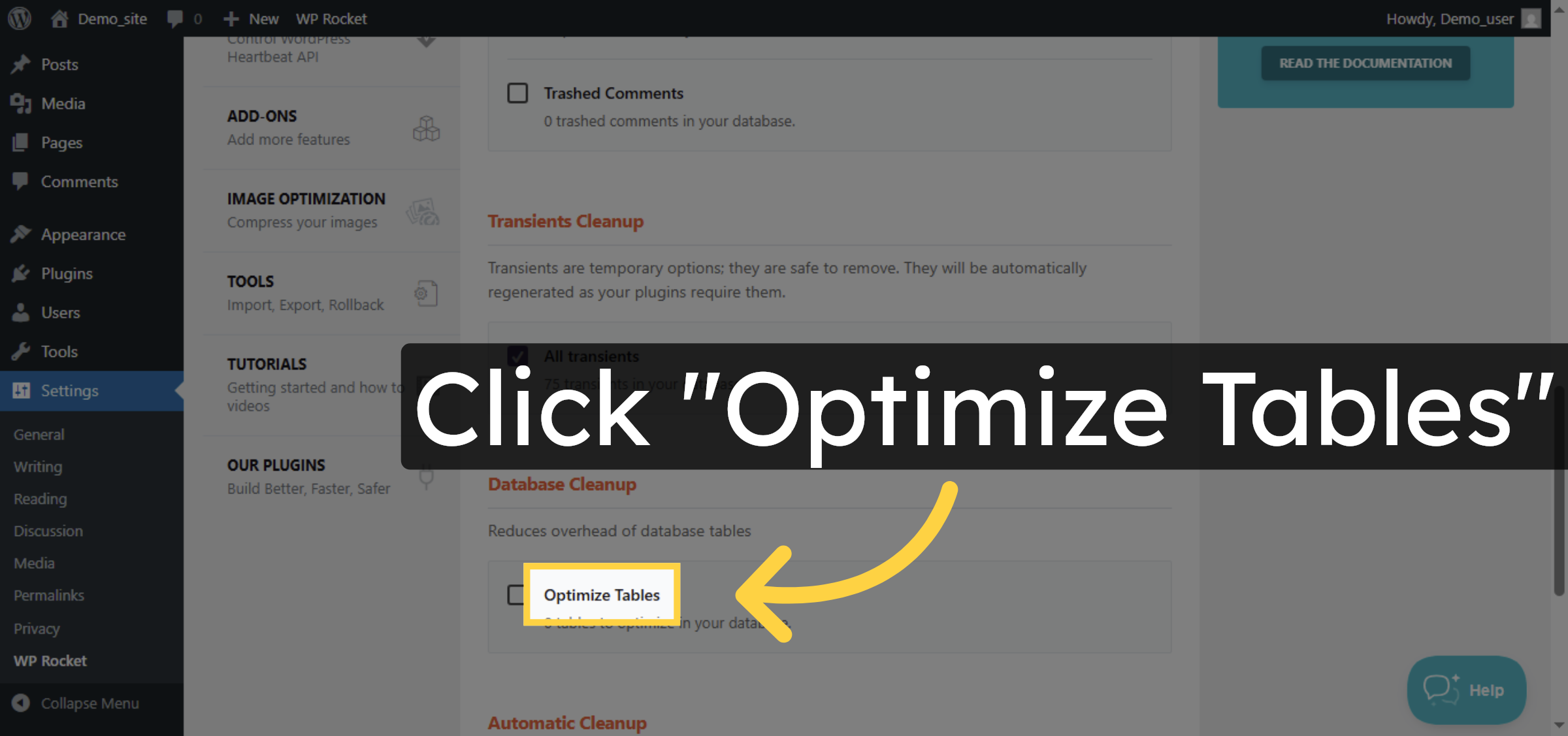
38. Select Optimize Database Tables
Click Optimize Tables to improve database performance by optimizing tables.
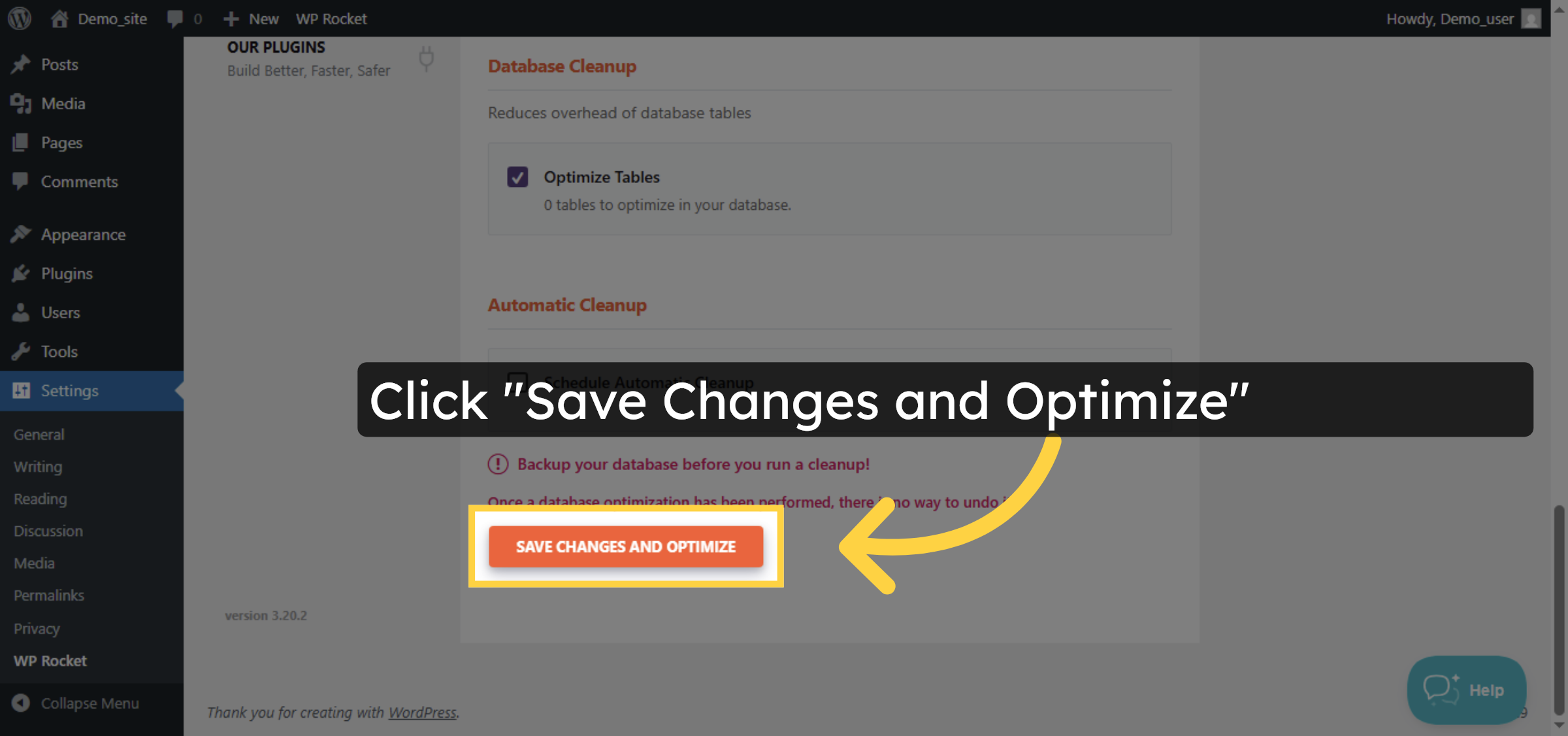
39. Save And Optimize Database
Click Save Changes and Optimize to apply database optimizations and improve site speed.
40. Problem fixed.
After fixing you can check that performance is improved.
Conclusion
By following the steps outlined in this guide, you can successfully fix a slow WordPress admin dashboard on Hostinger. Removing unnecessary plugins and themes, optimizing PHP settings, and using performance tools like WP Rocket helps reduce server load and improve admin responsiveness. Regular maintenance and performance optimization are best practices for ensuring a smooth and efficient WordPress management experience.
Visit: https://www.woohelpdesk.com
Call Us Toll-Free: +1 888 602 0119 (US & Canada)
Get professional support for WordPress configuration, hosting management, performance optimization, and troubleshooting.