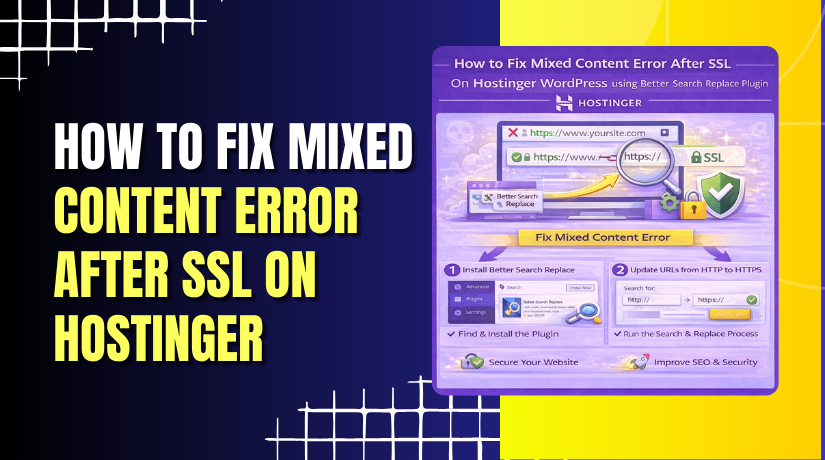
How to Fix Mixed Content Error After SSL On Hostinger WordPress using Better Search Replace Plugin
4 mins read

How to Fix Mixed Content Error After SSL On Hostinger WordPress using Better Search Replace Plugin

Introduction

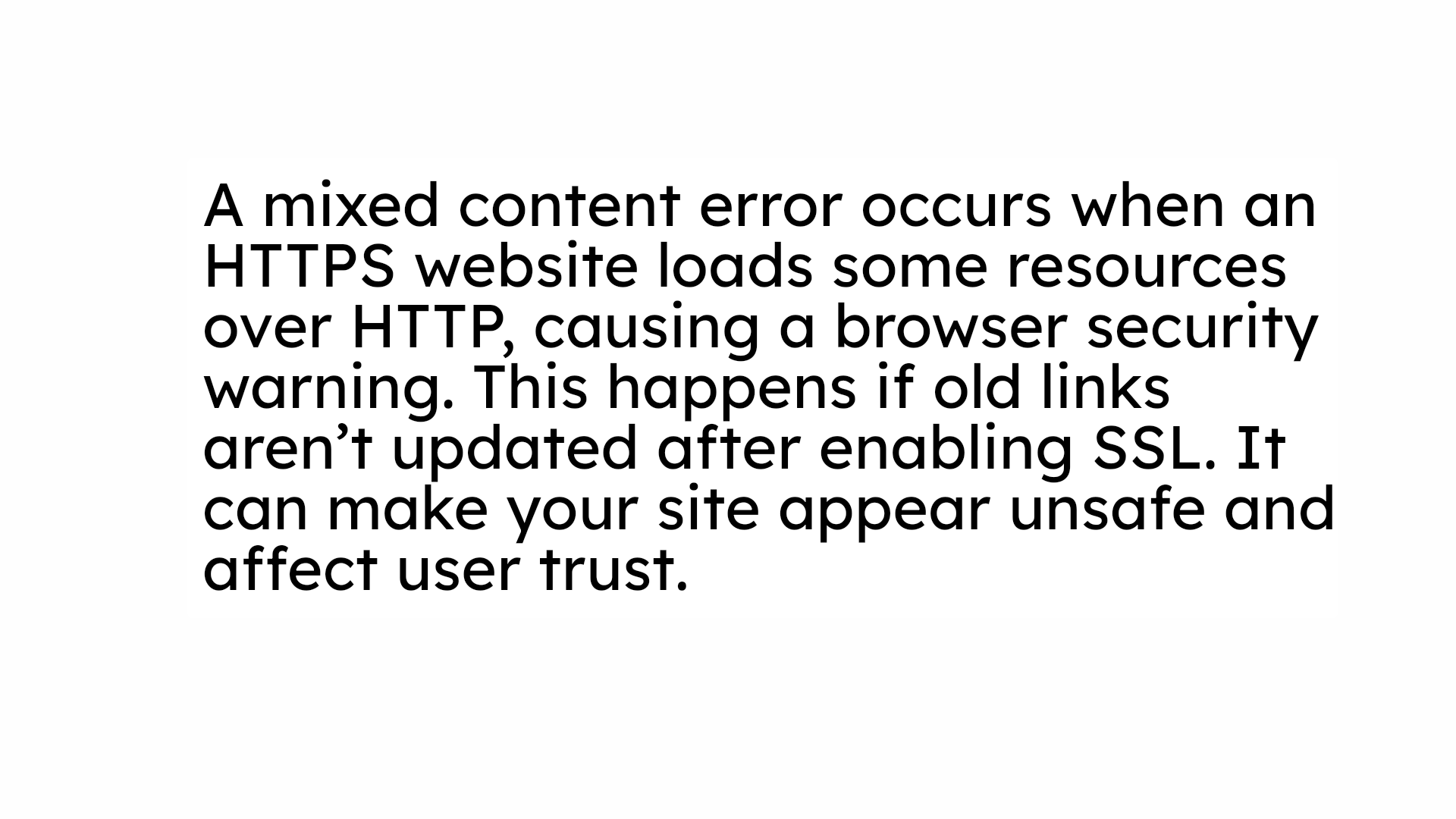
Mixed content errors often occur after enabling SSL on a WordPress website when some resources still load using HTTP instead of HTTPS. These errors can prevent your site from appearing fully secure and may reduce visitor trust and search engine rankings. In this guide, you will learn how to fix mixed content issues on a Hostinger WordPress website using the Better Search Replace plugin. This method helps update outdated URLs stored in your database and ensures all website elements load securely over HTTPS. By following these steps, you can eliminate browser warnings, improve site security, and maintain a professional online presence.


1. Problem
Problem

2. Hostinger hPanel

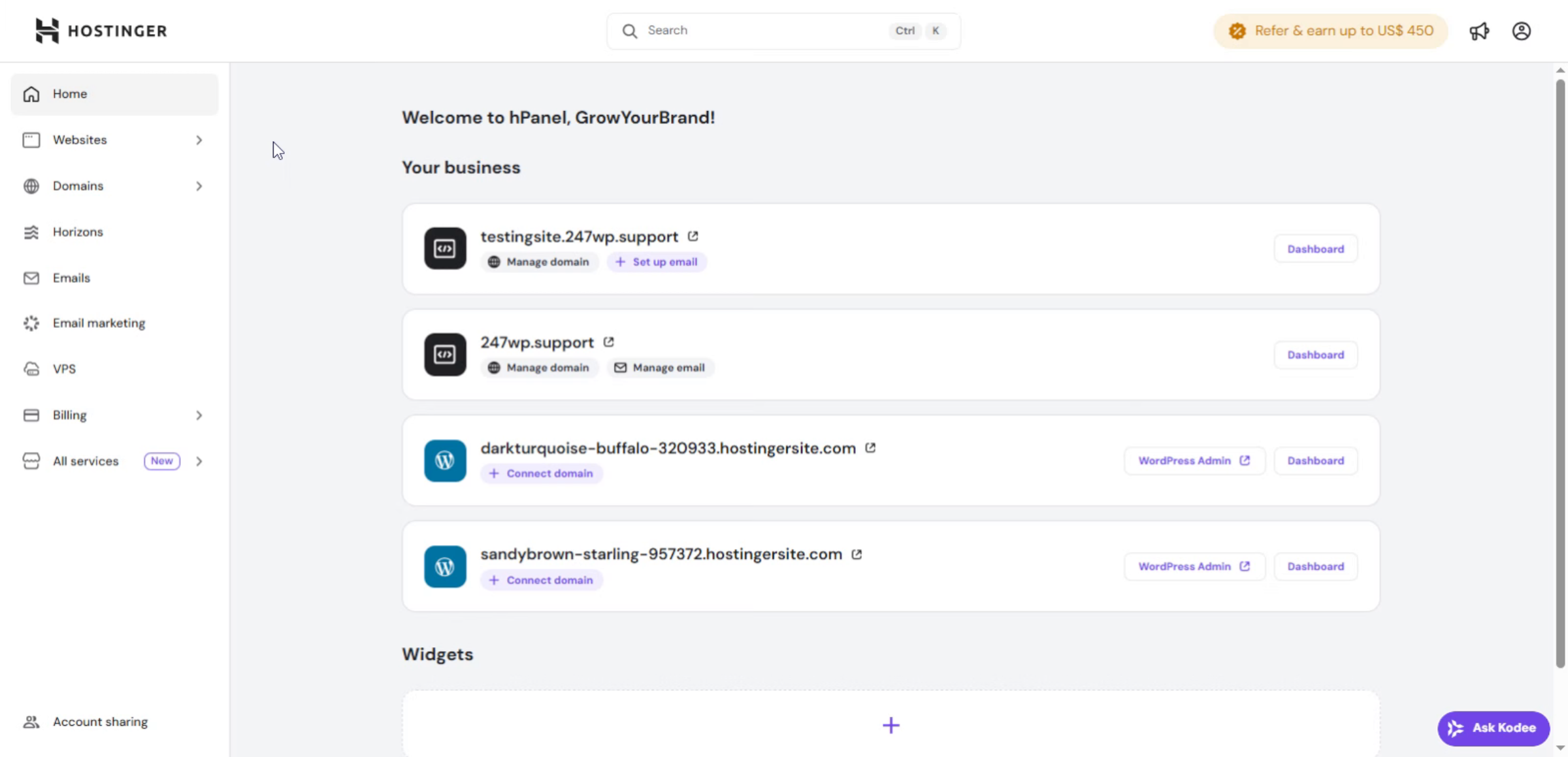
This section of the Hostinger dashboard is used to fix mixed content errors after SSL activation, ensuring the WordPress website loads fully over HTTPS without security warnings.

Hostinger hPanel

3. Navigate to Websites Section
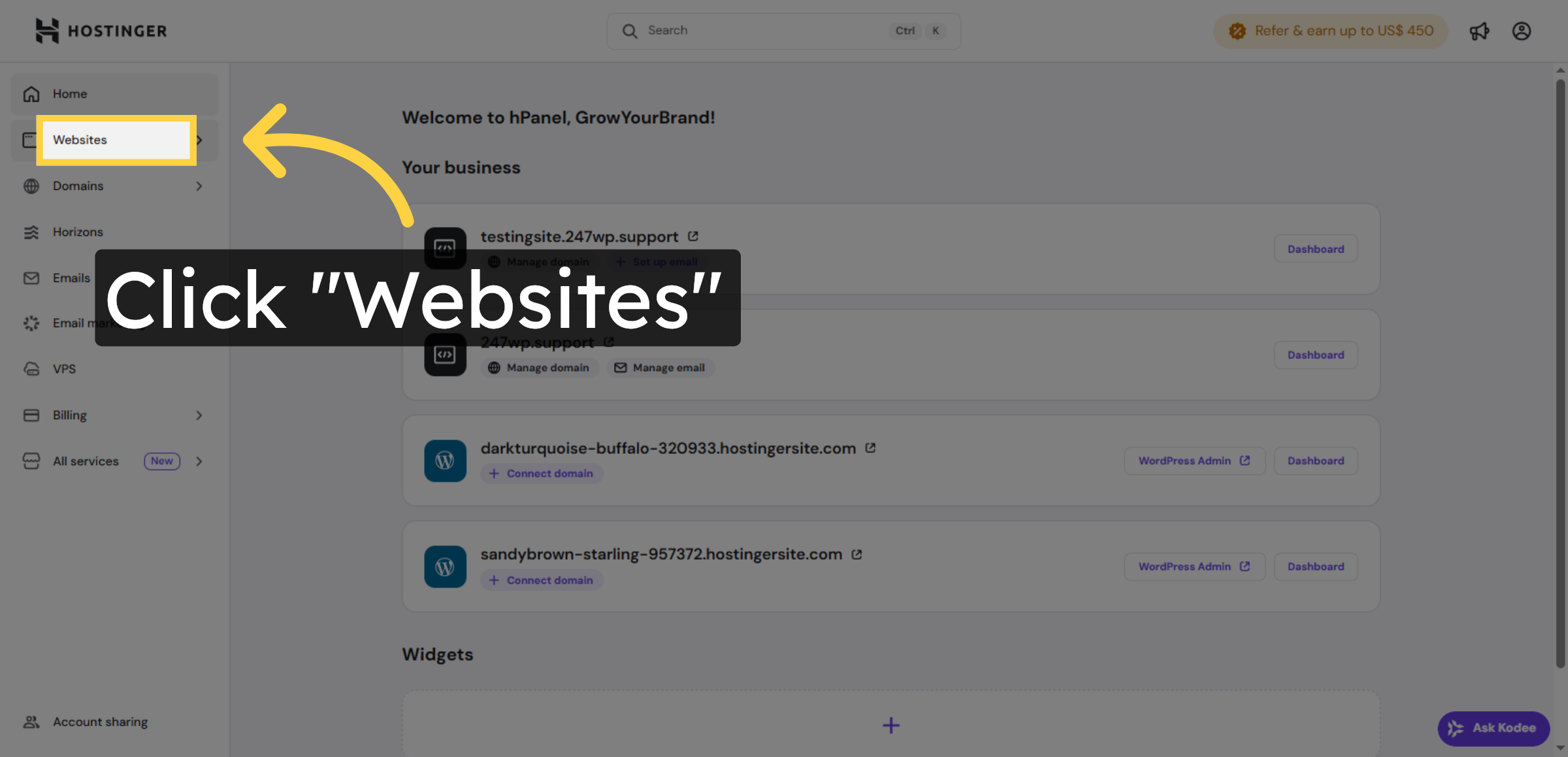
Click the Websites menu in your Hostinger account to access your website list.

Navigate to Websites Section

4. Open Website Dashboard
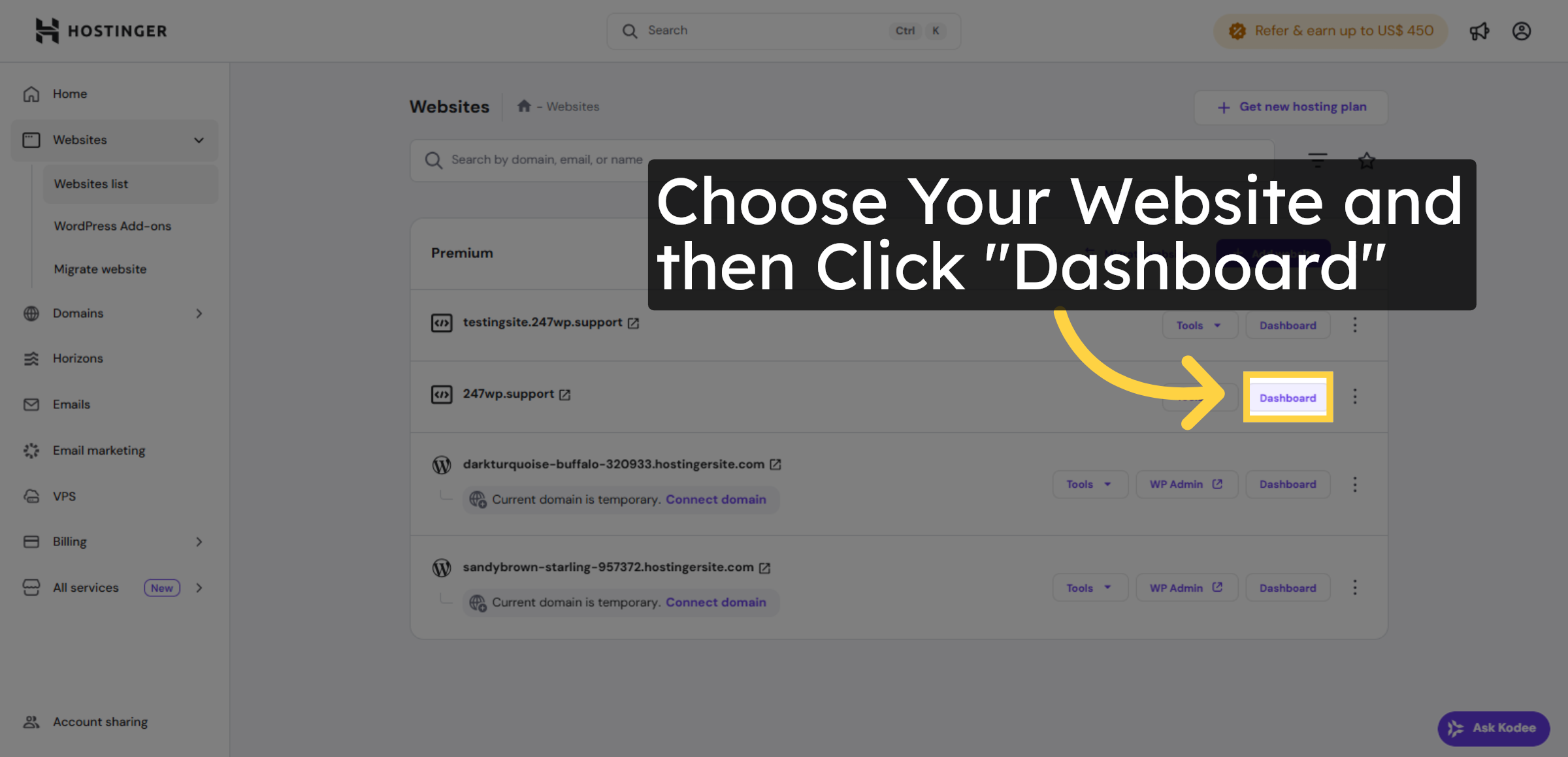
Click the Dashboard button next to the website you want to manage.

Open Website Dashboard

5. Select Your WordPress Site
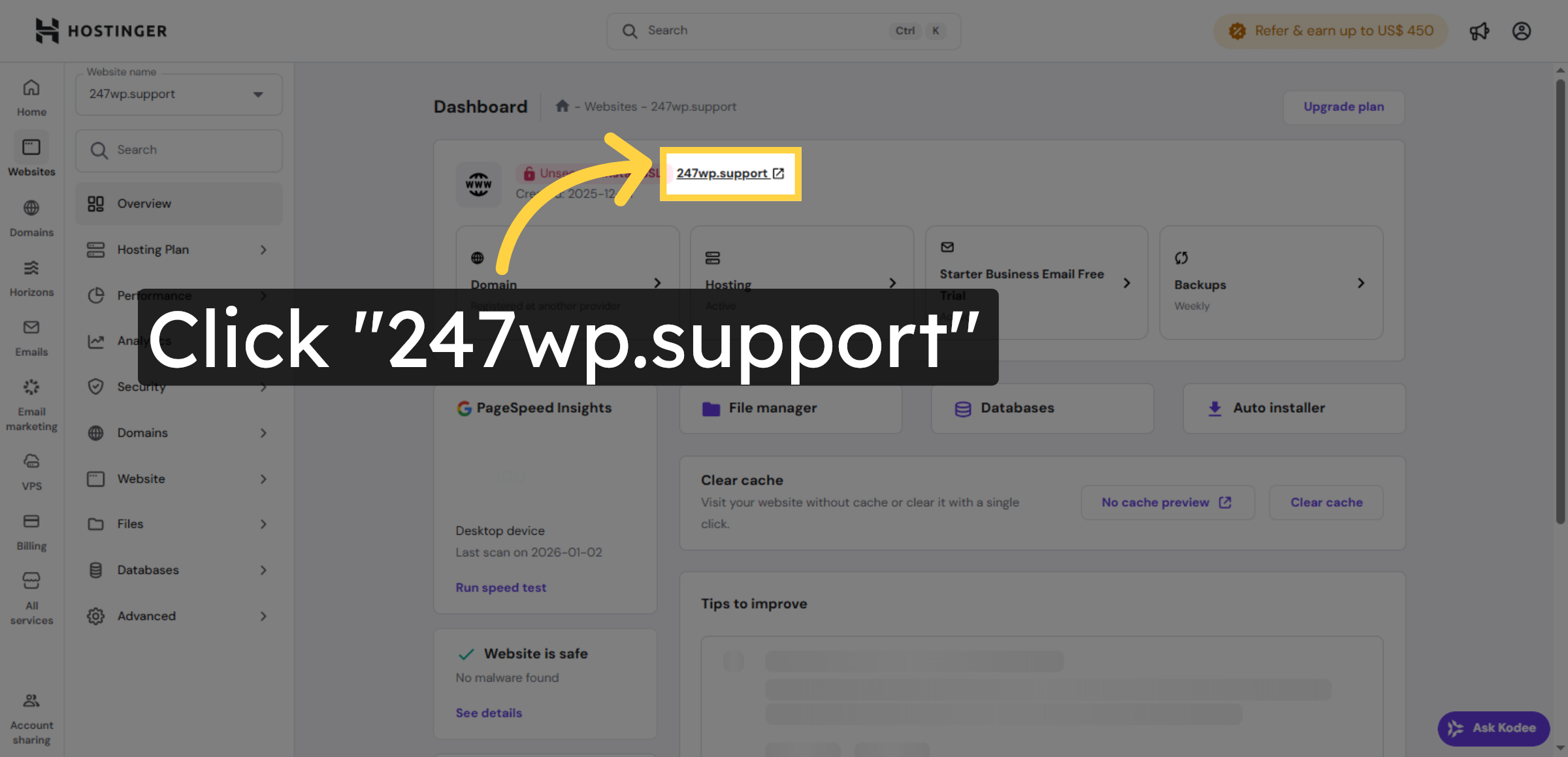
Click the domain name of your WordPress site to open its management dashboard.

Select Your WordPress Site

6. Mixed Content Error Detected
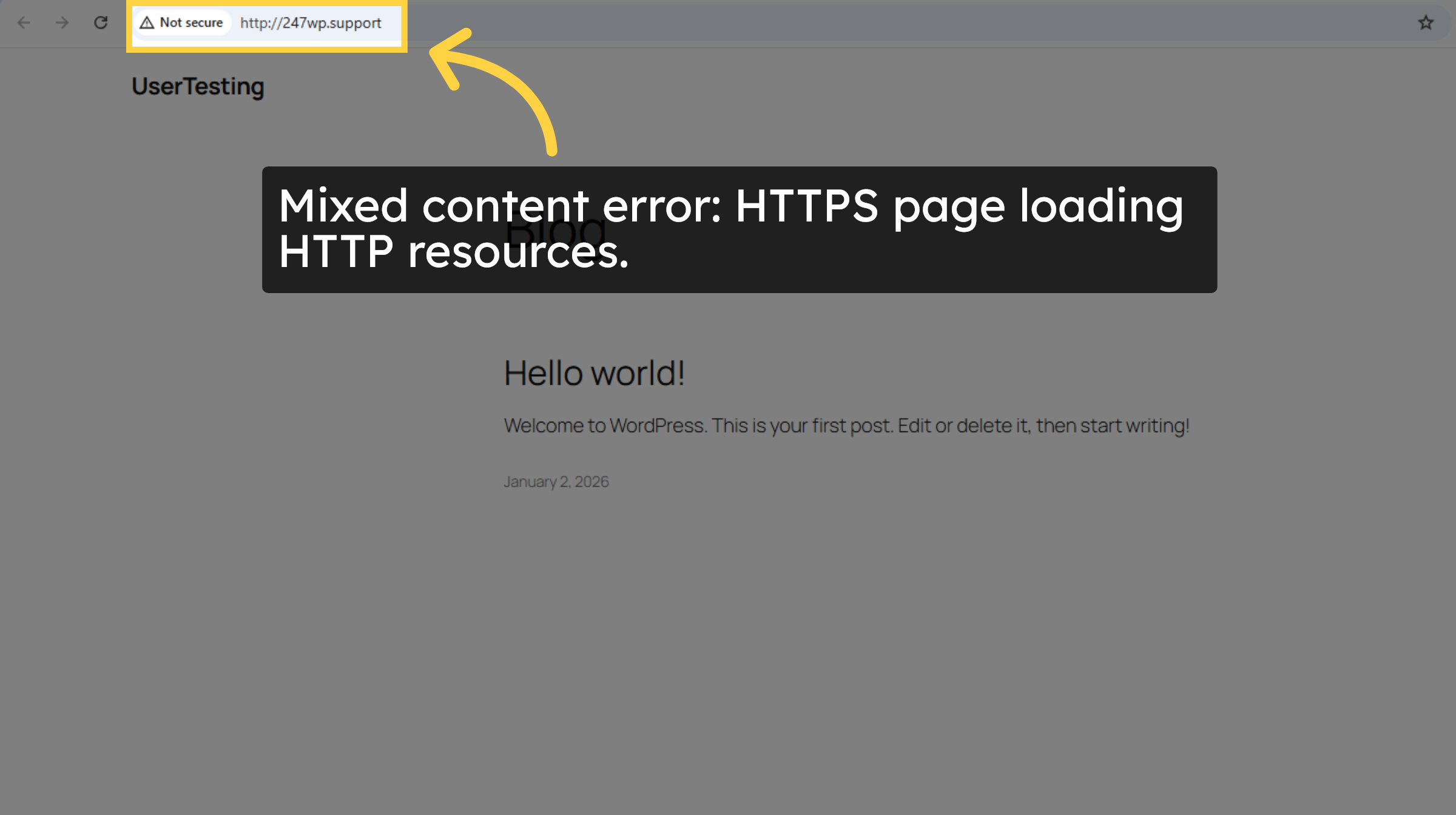
The website is using HTTPS, but some resources are still loading over HTTP, causing the site to appear not secure.

Mixed Content Error Detected

7. Switch to WordPress Dashboard
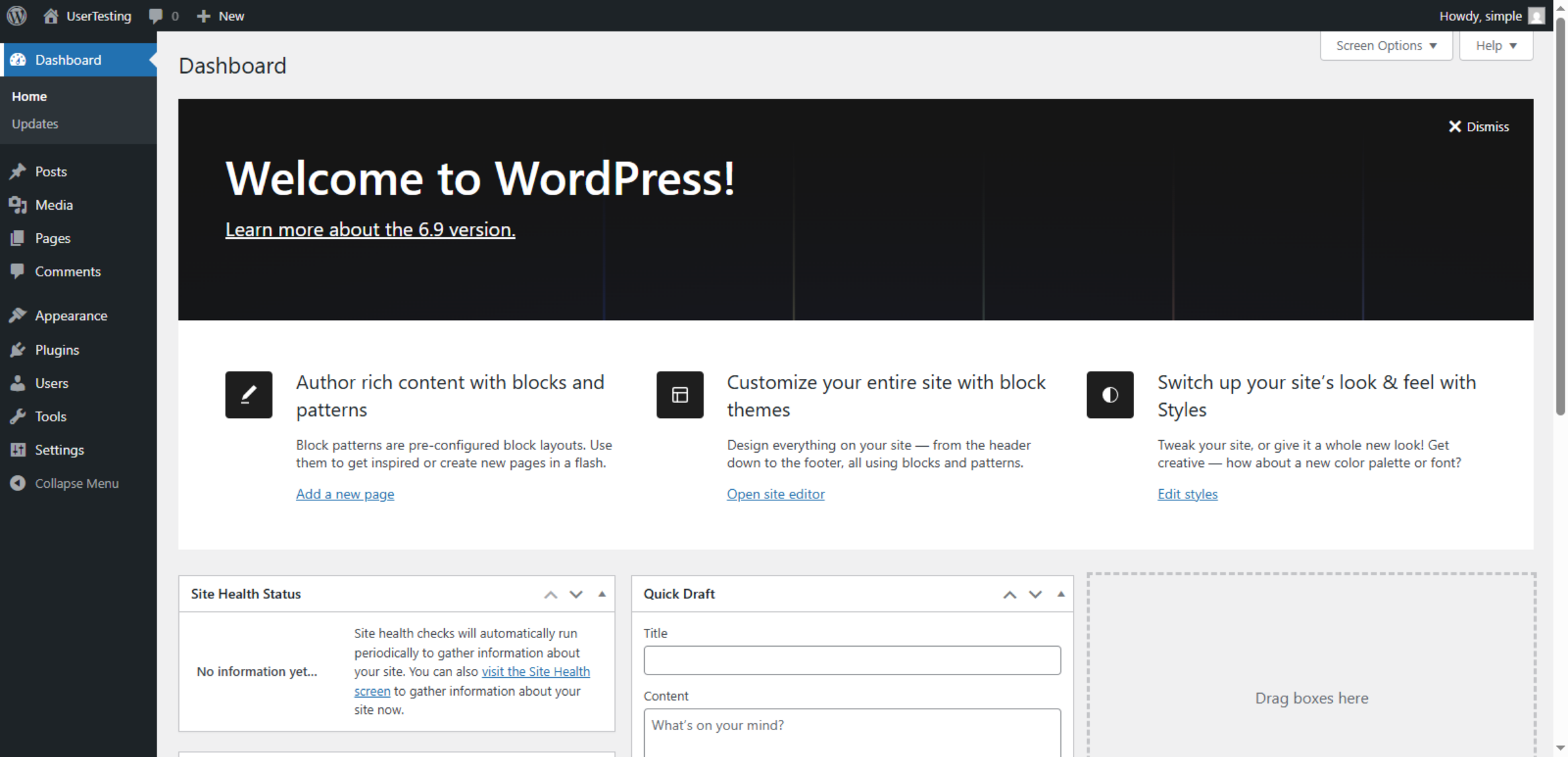
Switch to the WordPress dashboard for your selected site to manage its settings.

Switch to WordPress Dashboard

8. Open Plugin Installation
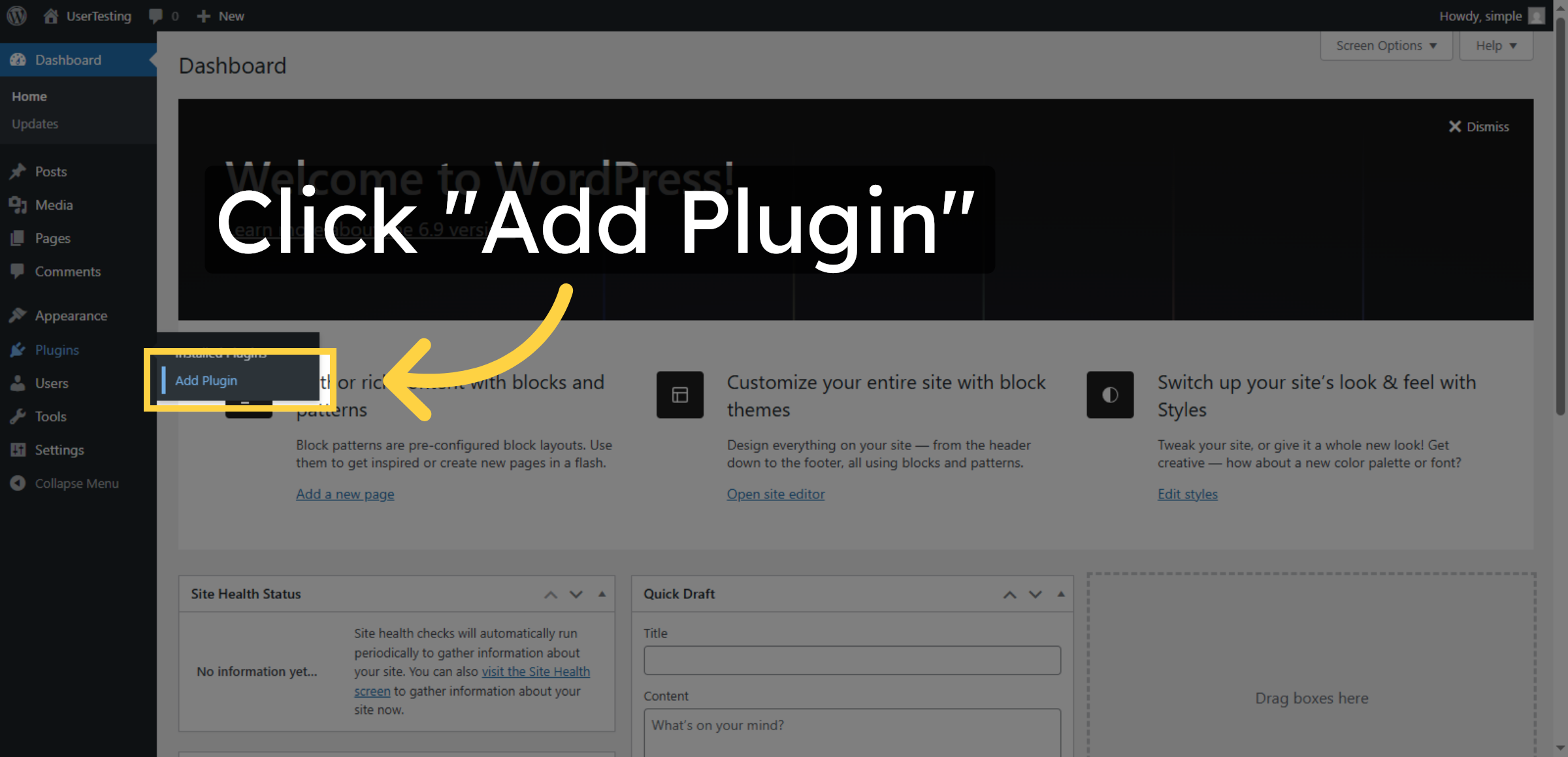
Click Add Plugin to start installing a new plugin for your WordPress site.

Open Plugin Installation

9. Search for Plugin
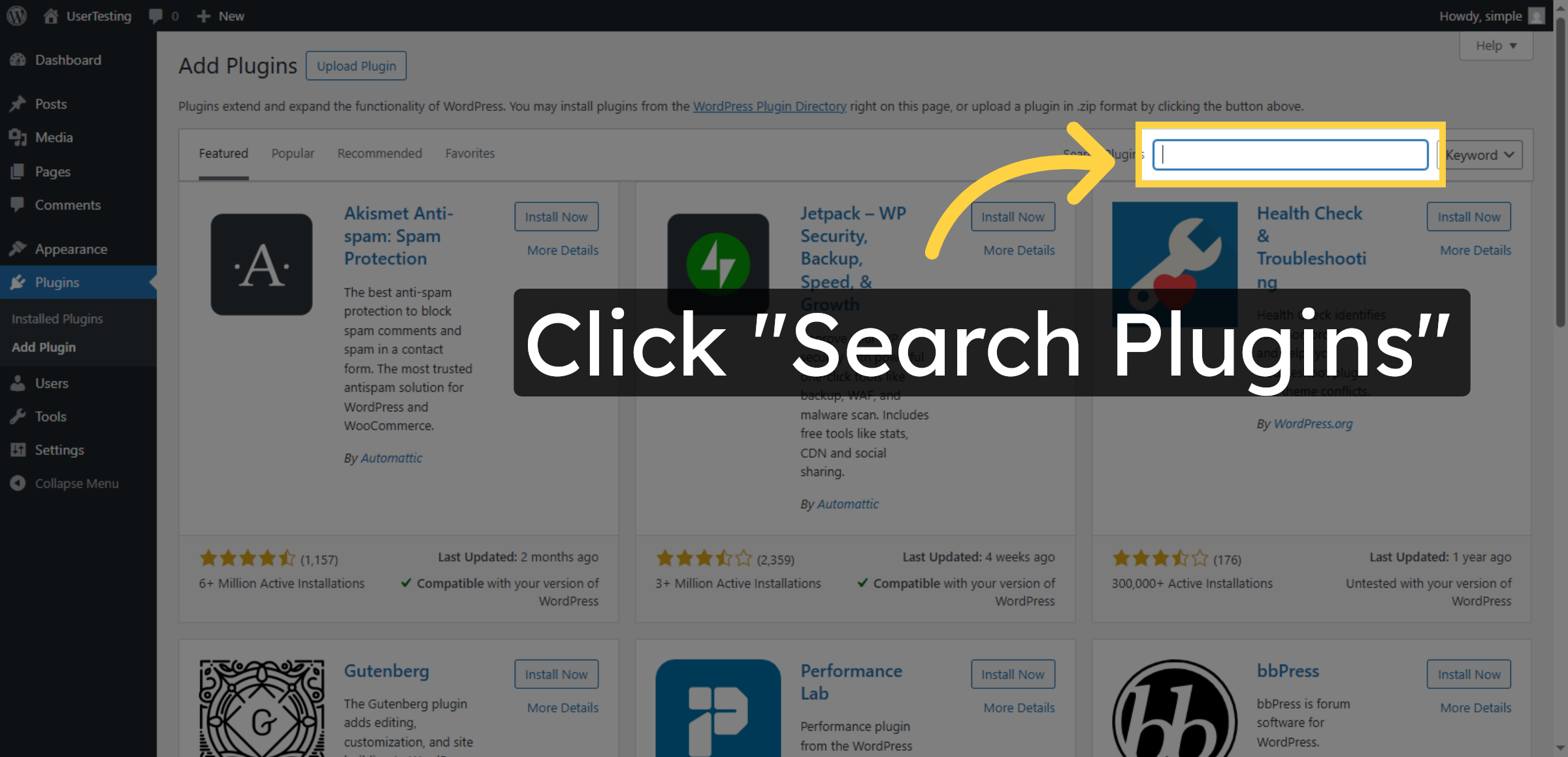
Click the Search Plugins field to find the plugin needed for URL replacement.

Search for Plugin

10. Enter Plugin Name
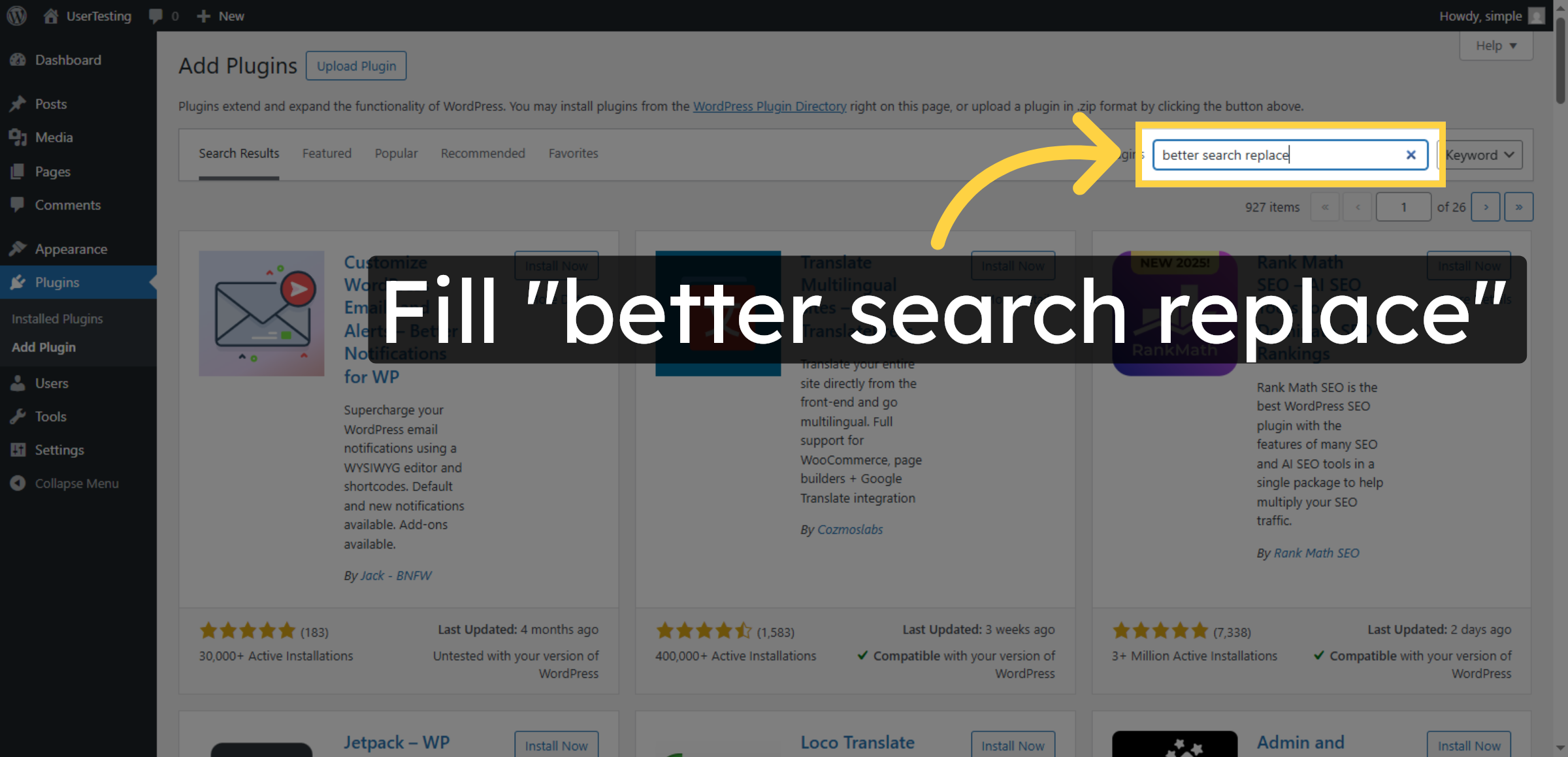
Enter better search replace in the search box to locate the plugin.

Enter Plugin Name

11. Install Plugin
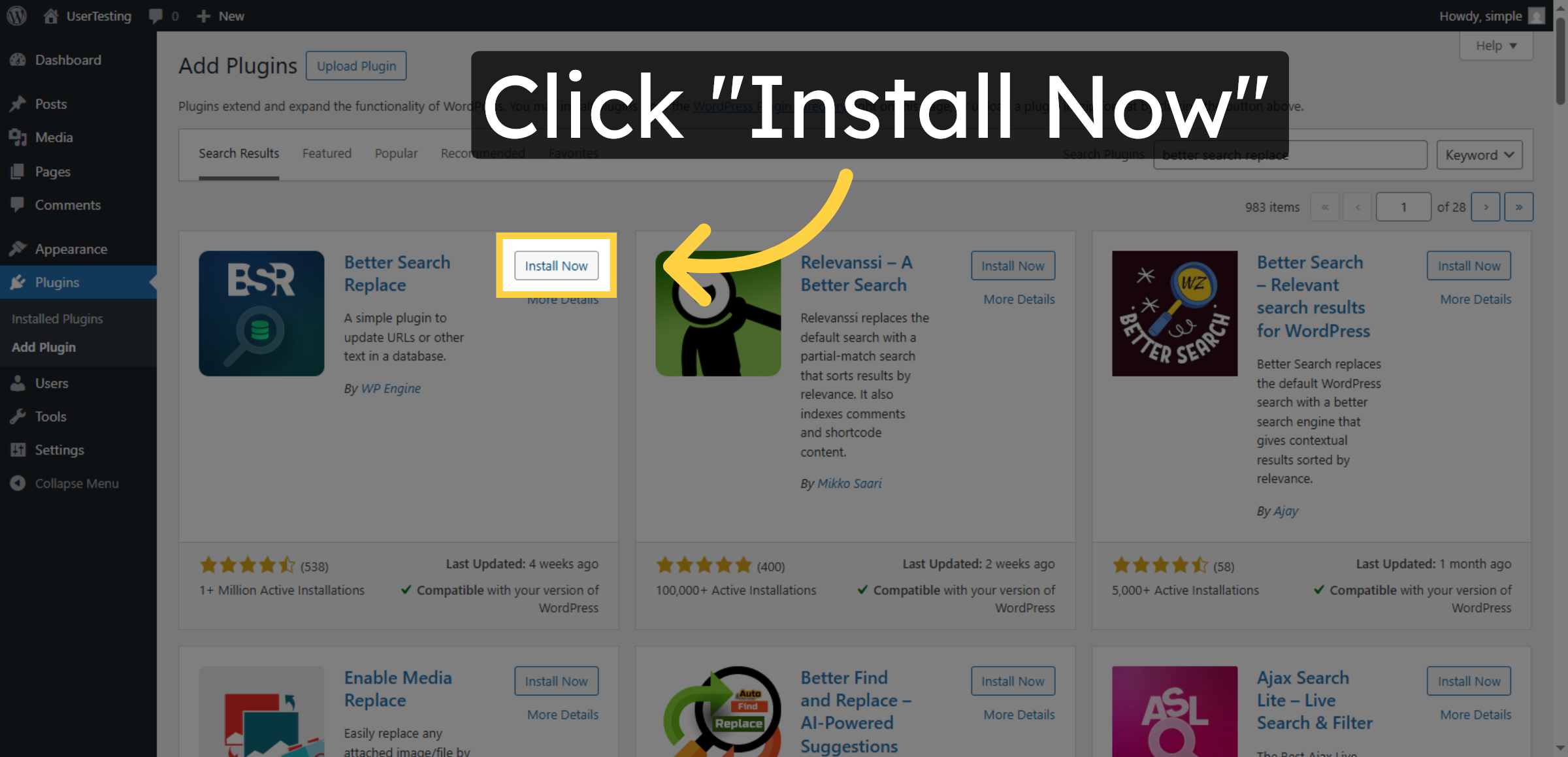
Click Install Now to add the Better Search Replace plugin to your WordPress site.

Install Plugin

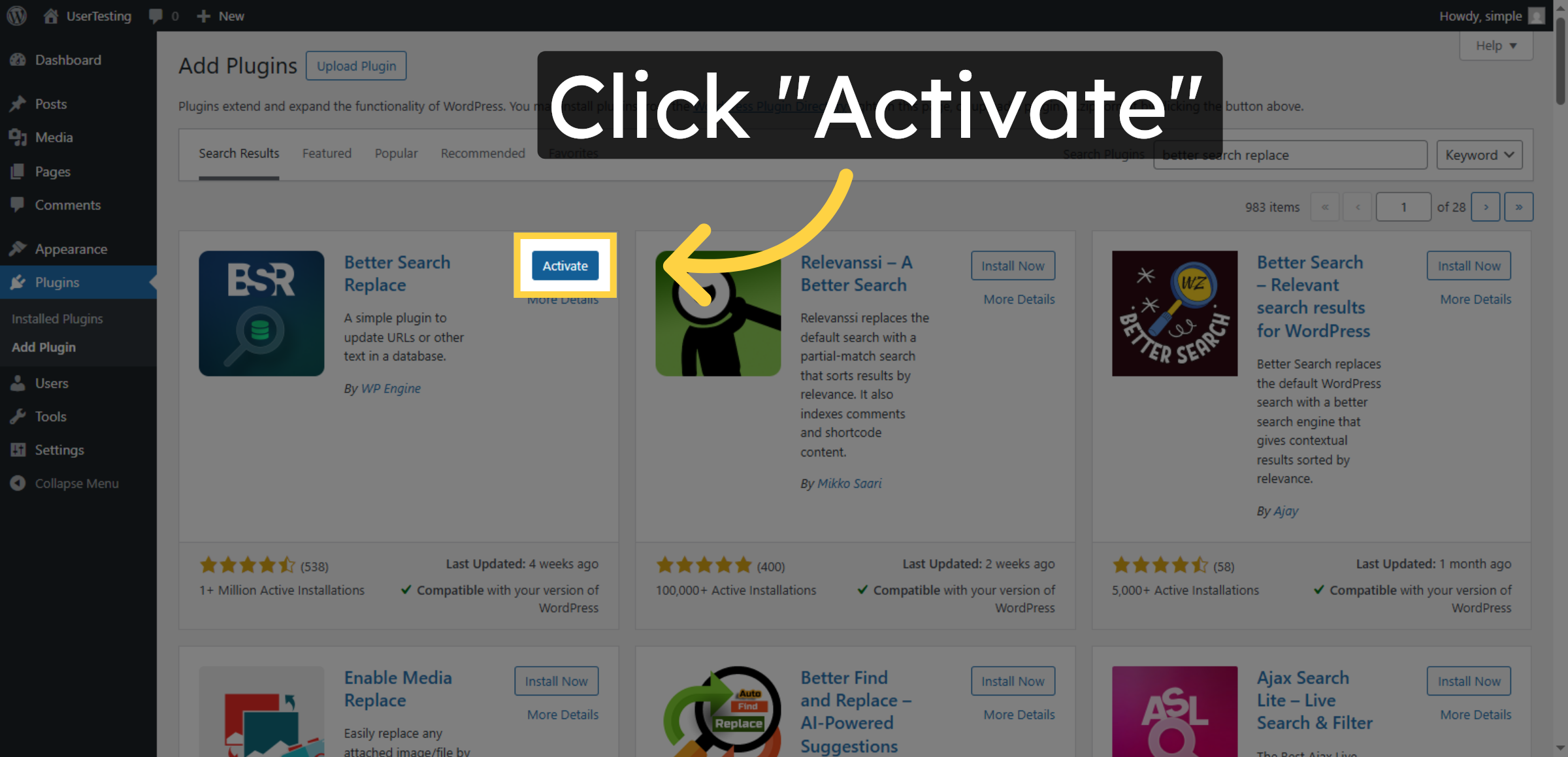
12. Activate Plugin

Click Activate to enable the Better Search Replace plugin after installation.

Activate Plugin

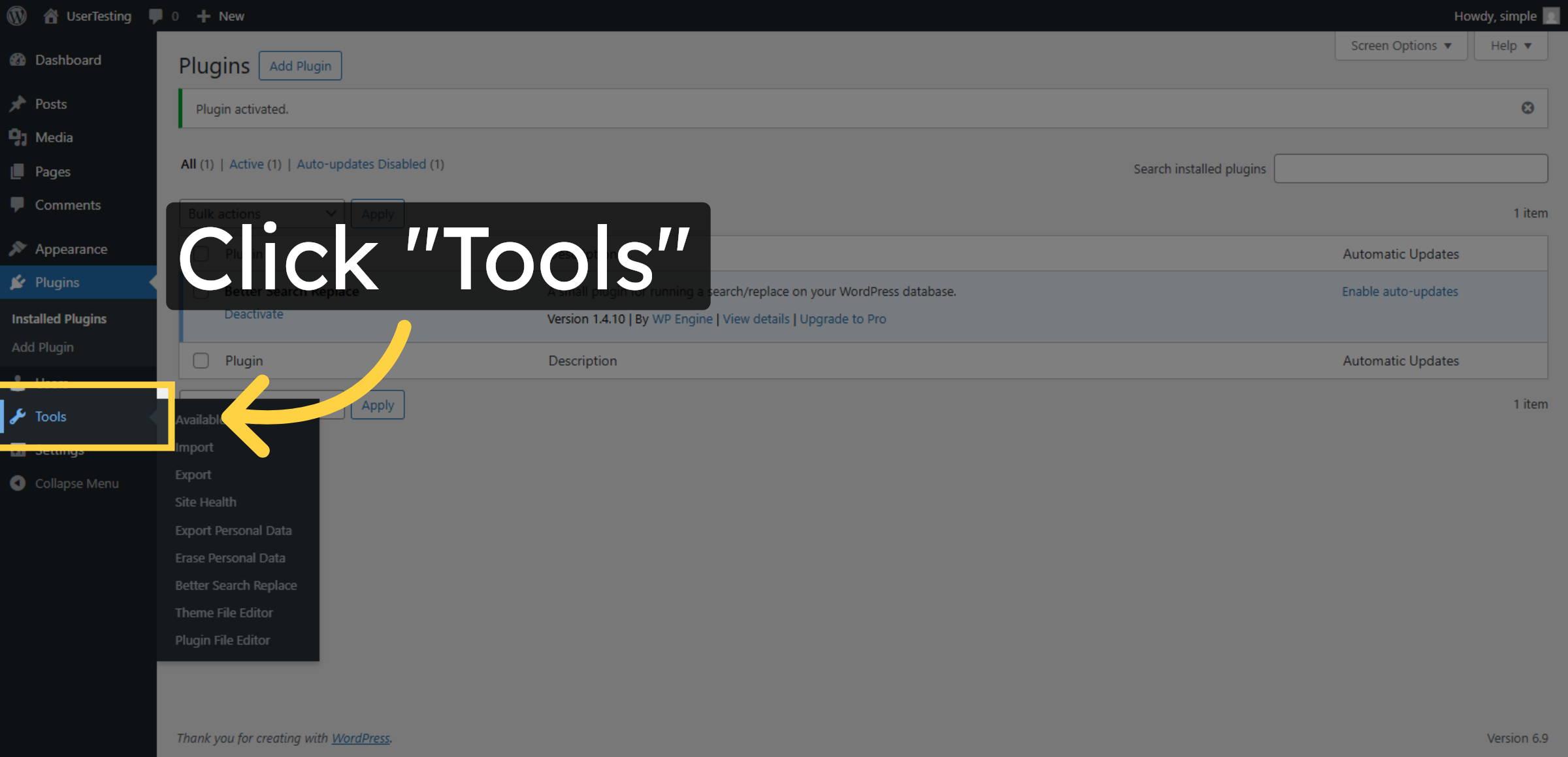
13. Open Tools Menu

Click Tools in the WordPress dashboard to access plugin utilities.

Open Tools Menu

14. Select Better Search Replace
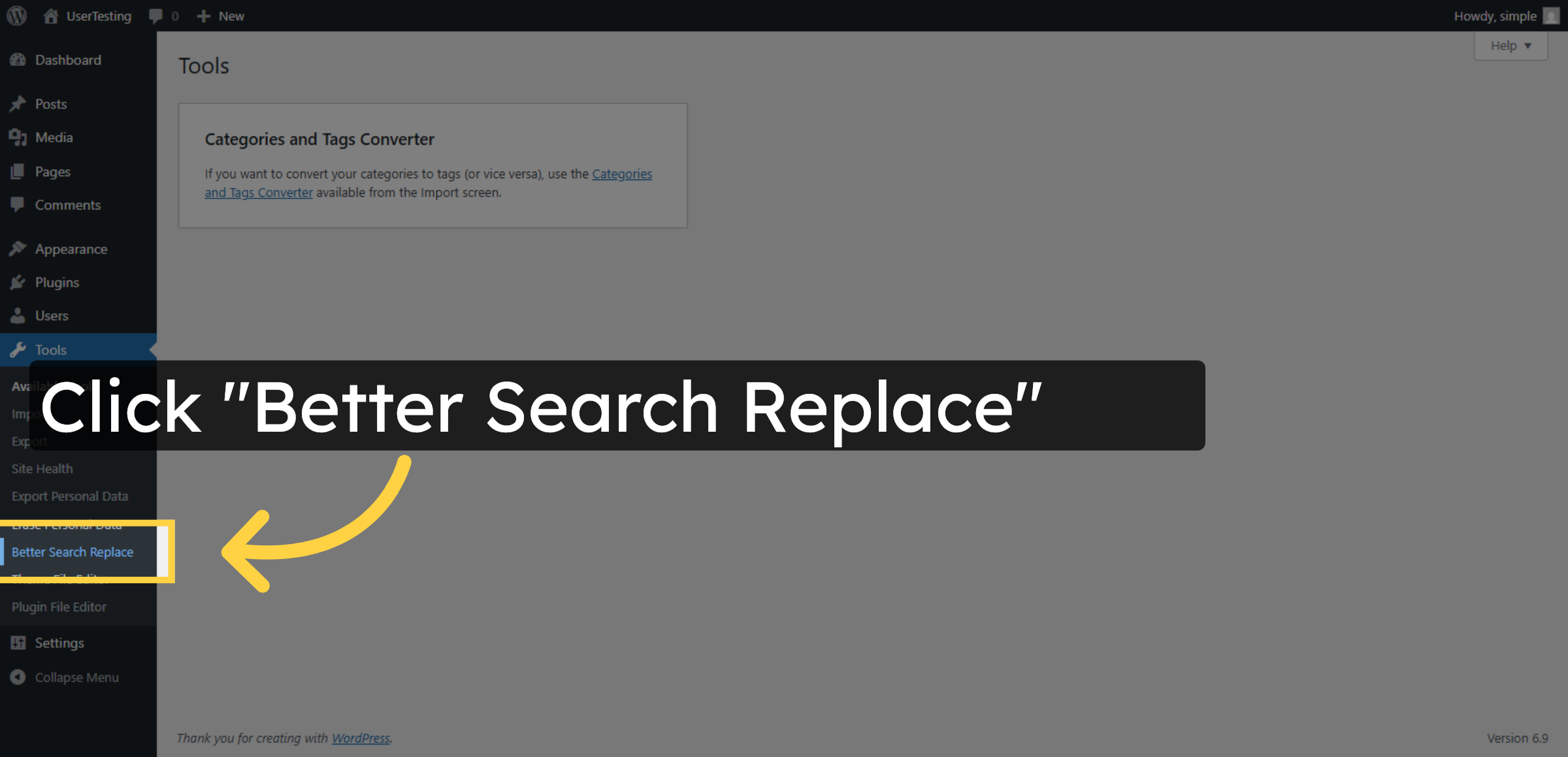
Click Better Search Replace under Tools to open the plugin interface.

Select Better Search Replace

15. Locate Search Field
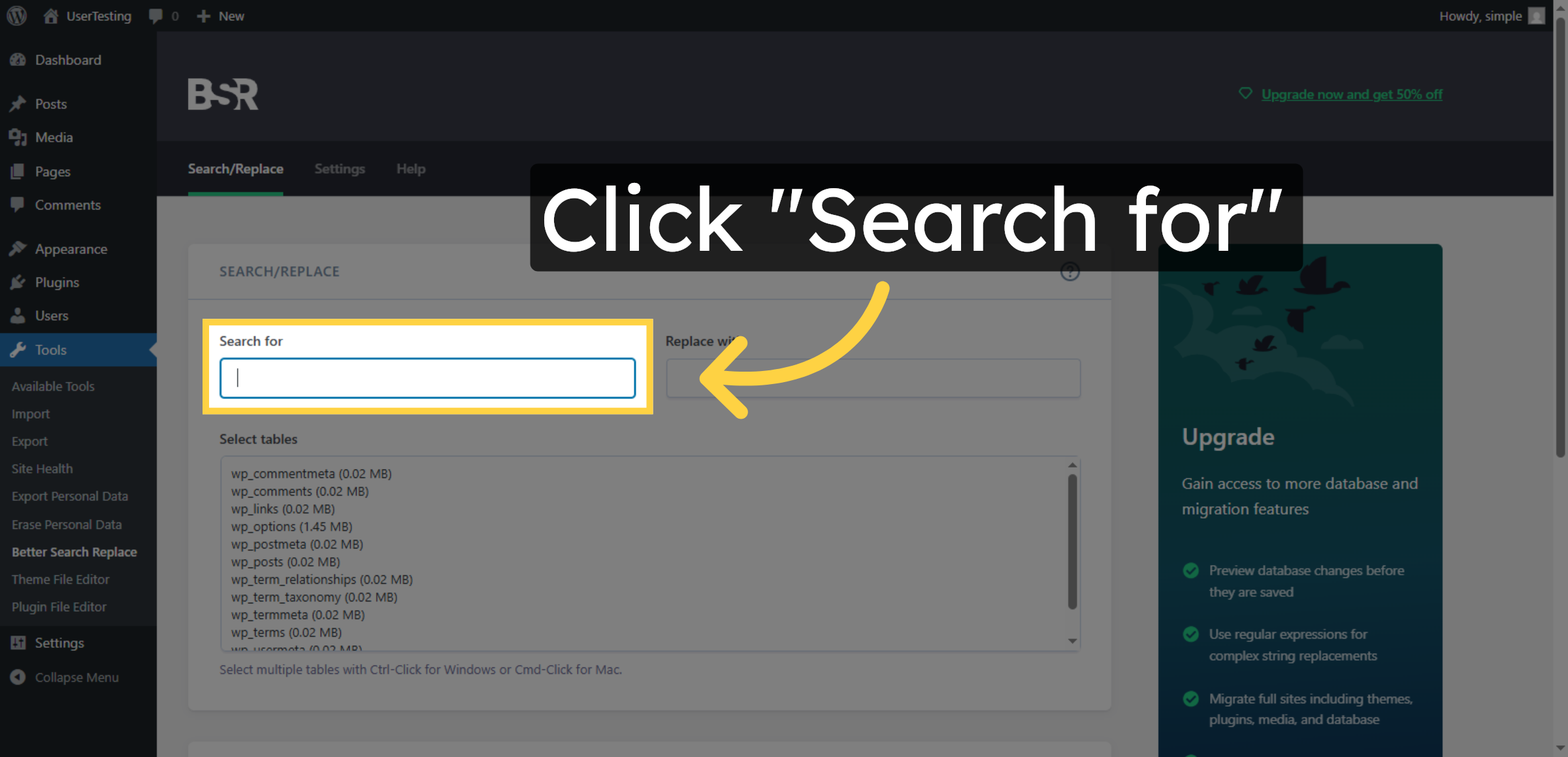
Click the Search for field to specify the URL you want to replace.

Locate Search Field

Ad Banner

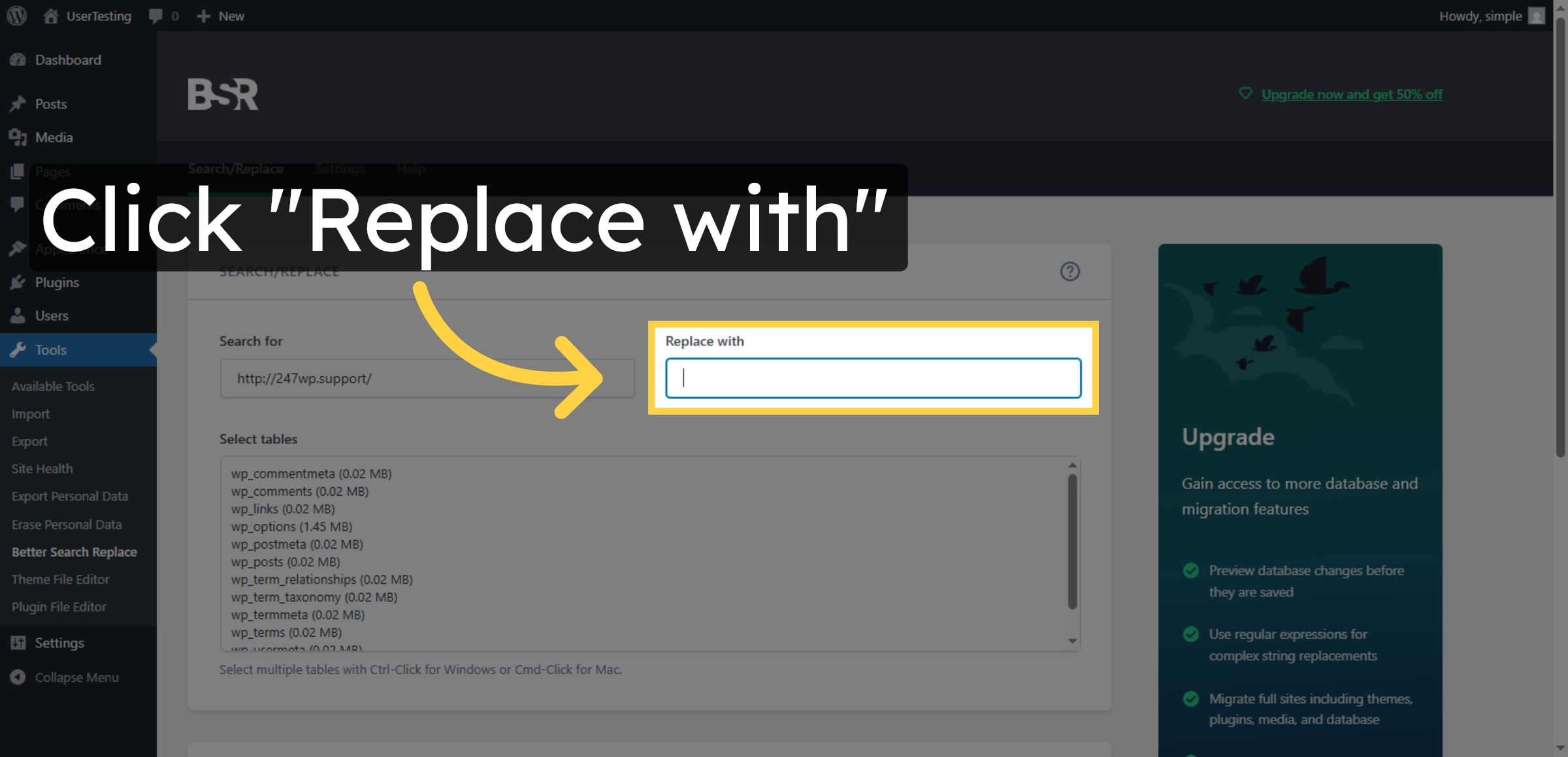
16. Locate Replace Field

Click the Replace with field to enter the new URL for replacement.

Locate Replace Field

17. Enter Old URL
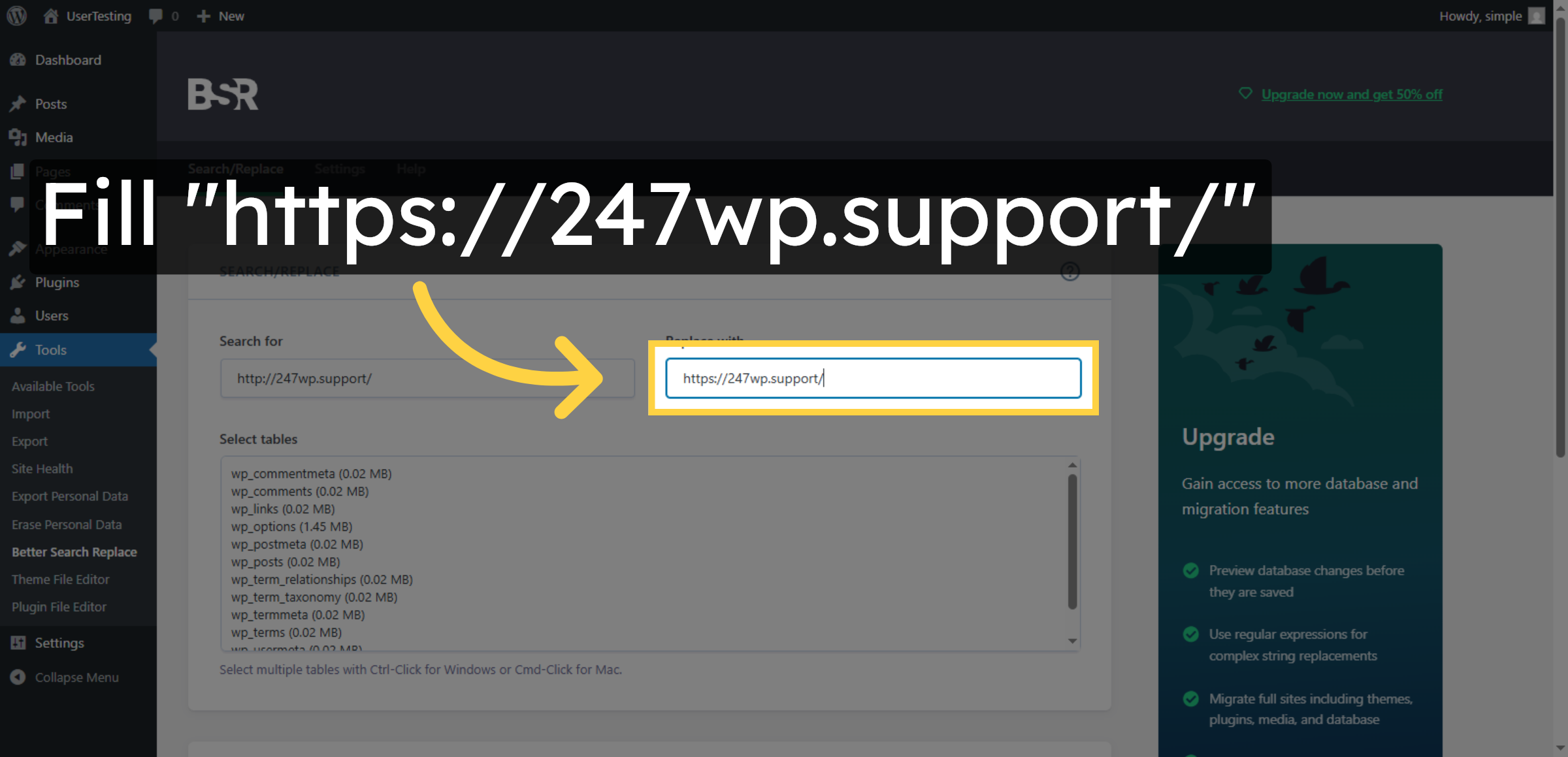
Enter https://247wp.support/ as the URL to search for in your database.

Enter Old URL

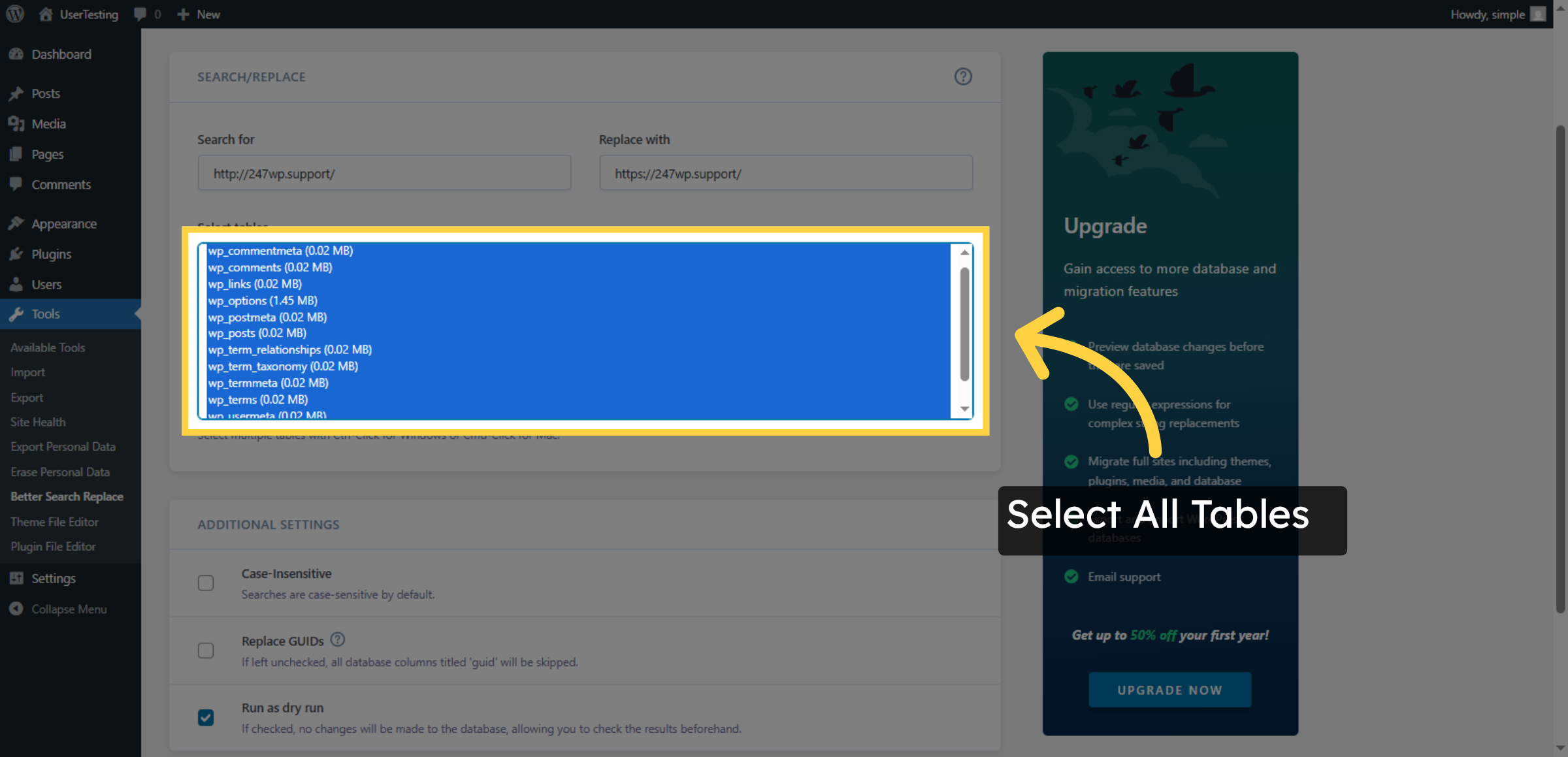
18. Select All Tables

Select all relevant WordPress database tables including wp_commentmeta, wp_comments, wp_links, wp_options, wp_postmeta, wp_posts, wp_term_relationships, wp_term_taxonomy, and wp_termmeta.

Select All Tables

19. Disable Dry Run Mode
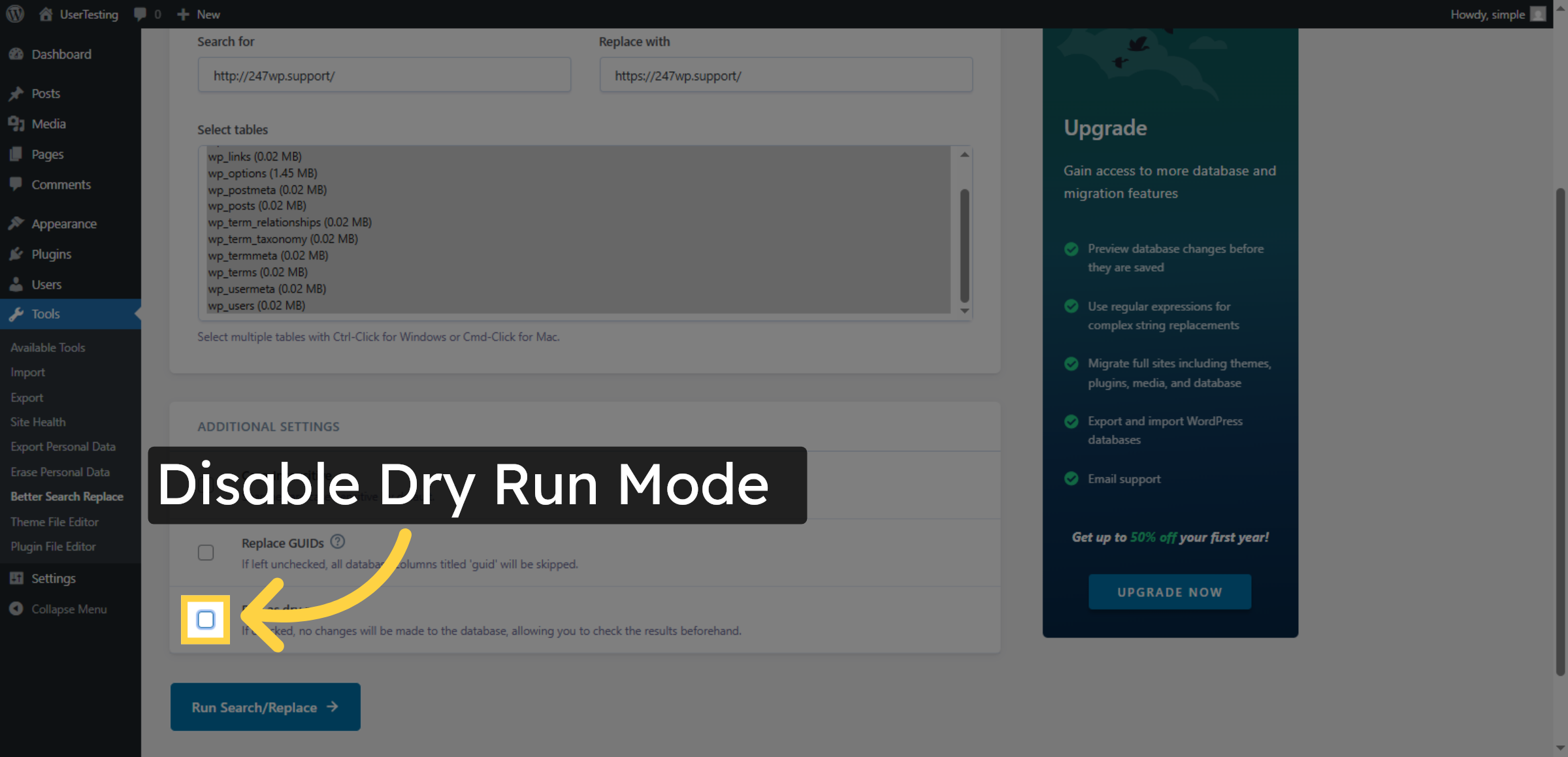
Fill on to enable the dry run option for safe testing.

Disable Dry Run Mode

20. Execute Search and Replace
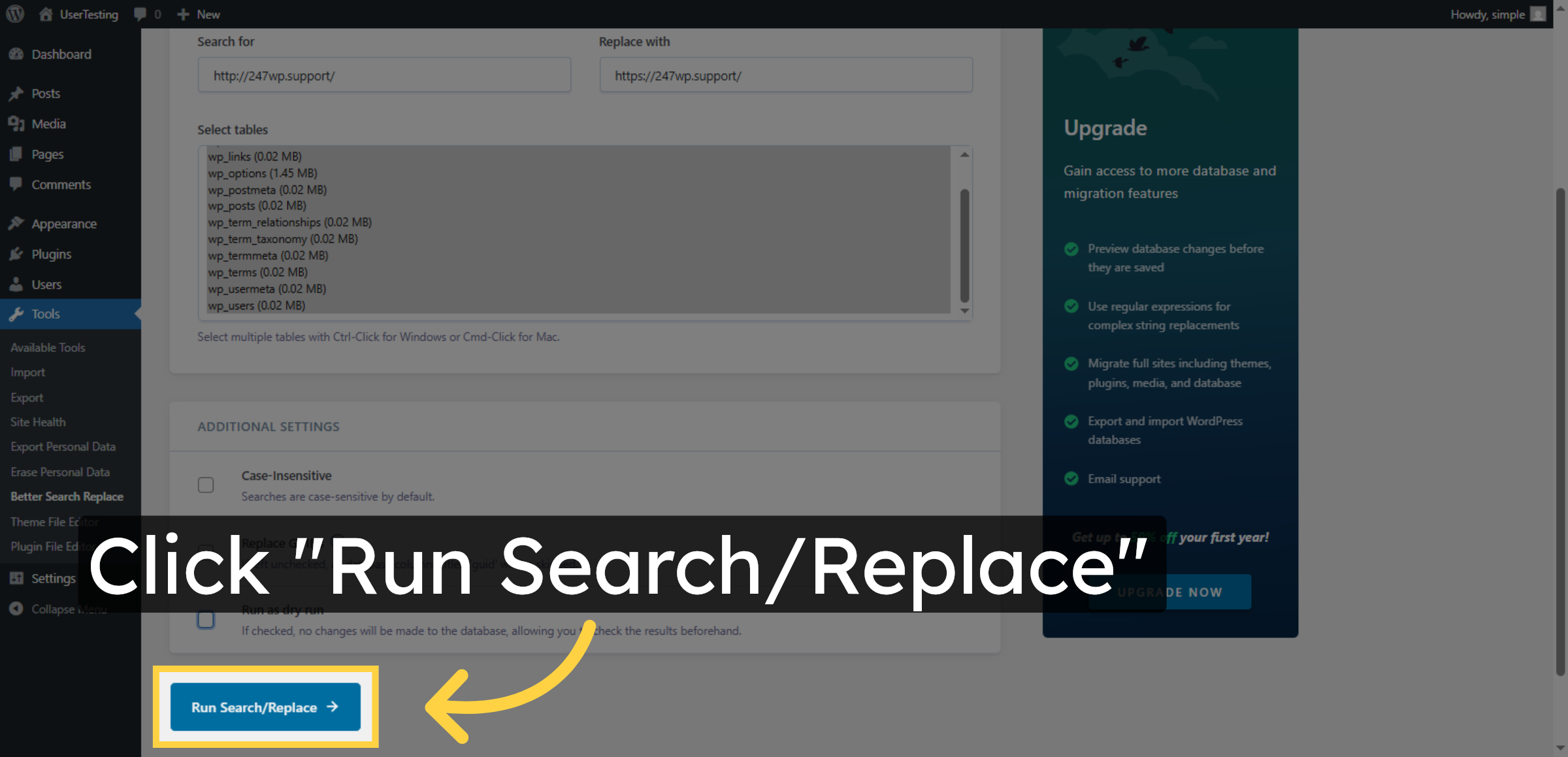
Click Run Search/Replace to start the URL replacement process in dry run mode.

Execute Search and Replace

21. Access Settings Menu
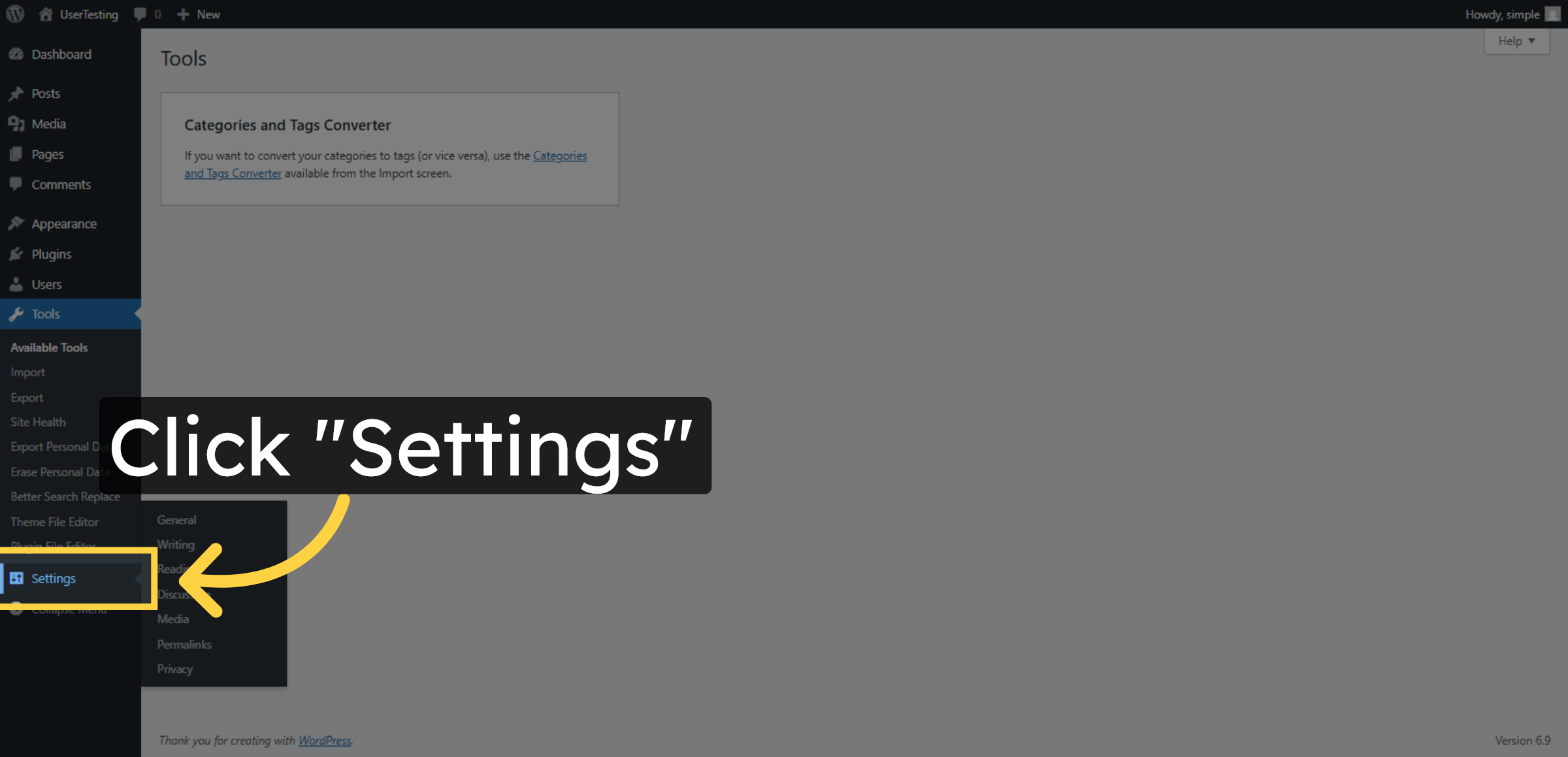
Click Settings in the WordPress dashboard to adjust site configurations.

Access Settings Menu

22. WordPress & Site URL Settings
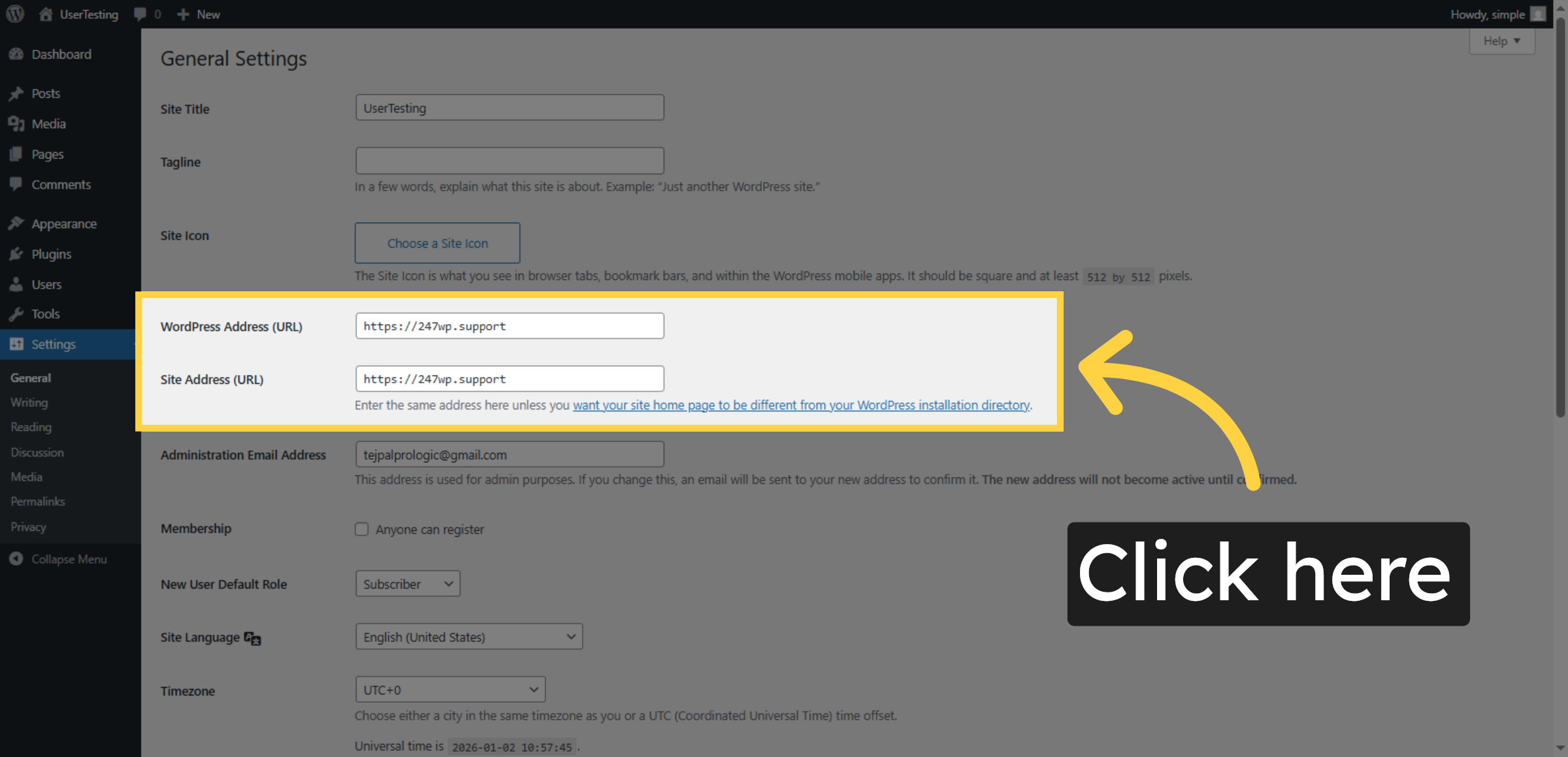
Click here to open the General Settings page where site URLs are configured.

WordPress & Site URL Settings

23. Save Settings Changes
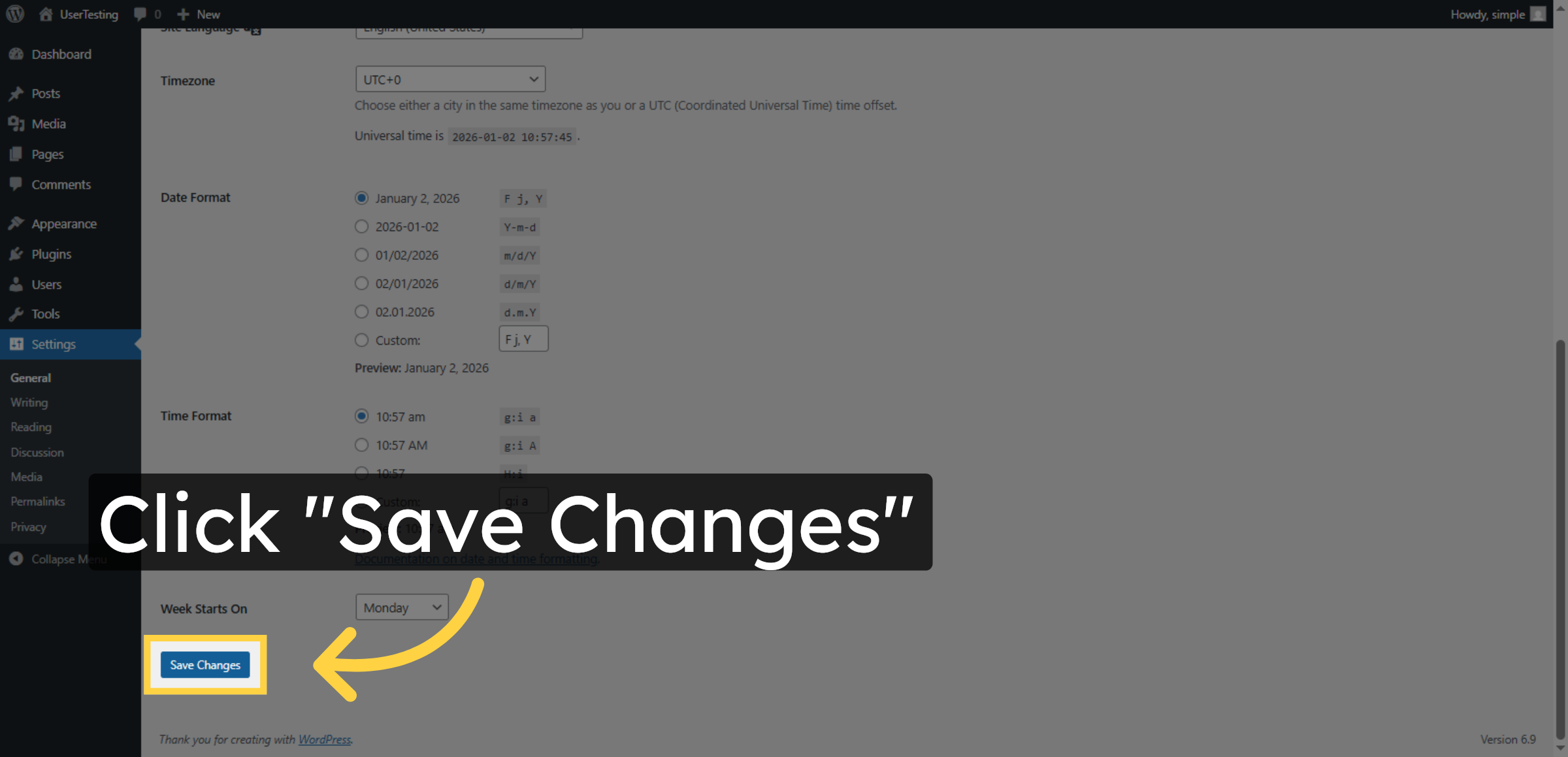
Click Save Changes to apply any updates made to your site settings.

Save Settings Changes

24. Return to Site
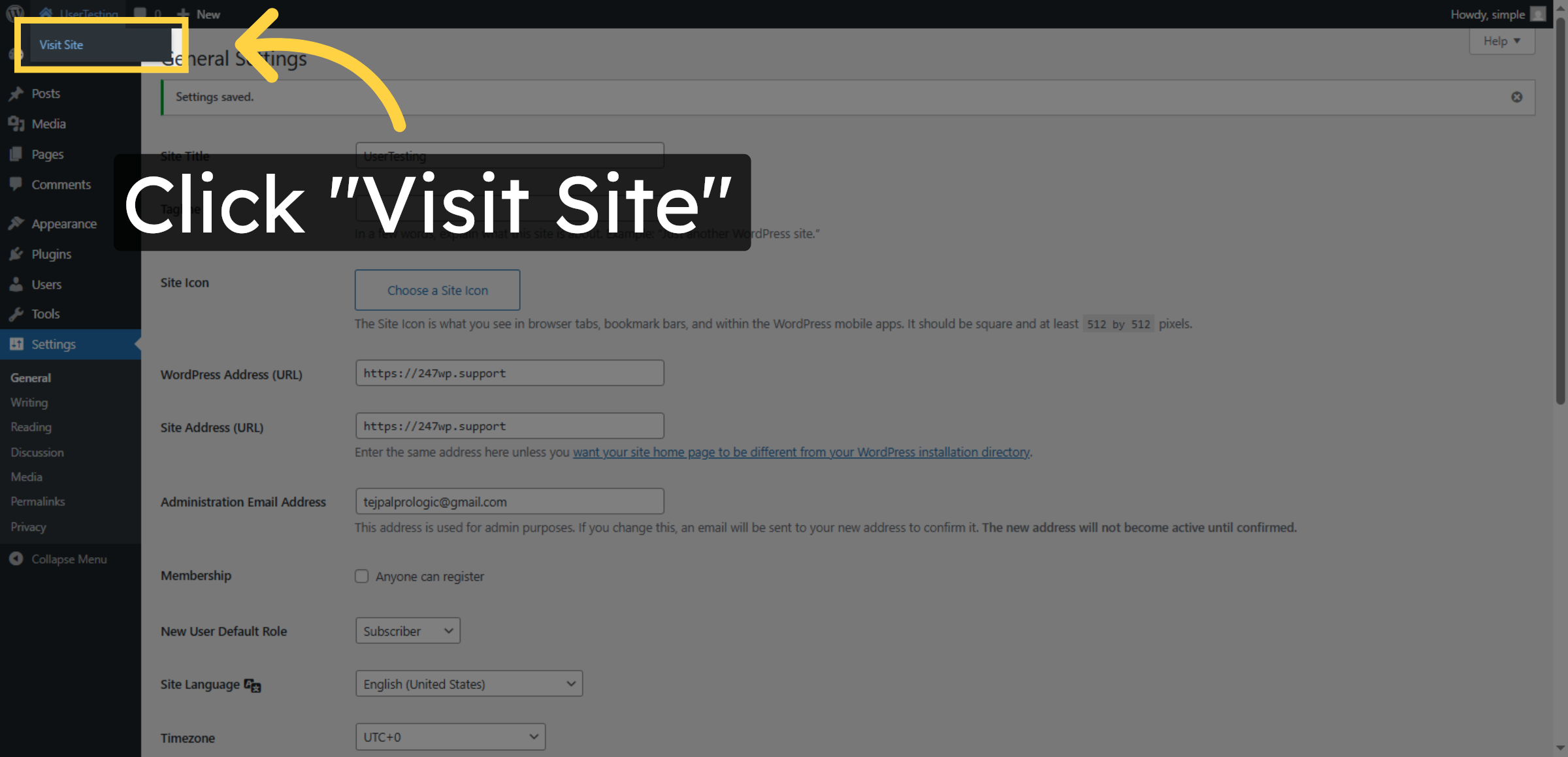
Click Visit Site to view your WordPress site with updated settings.

Return to Site

25. Secure WordPress Blog Setup
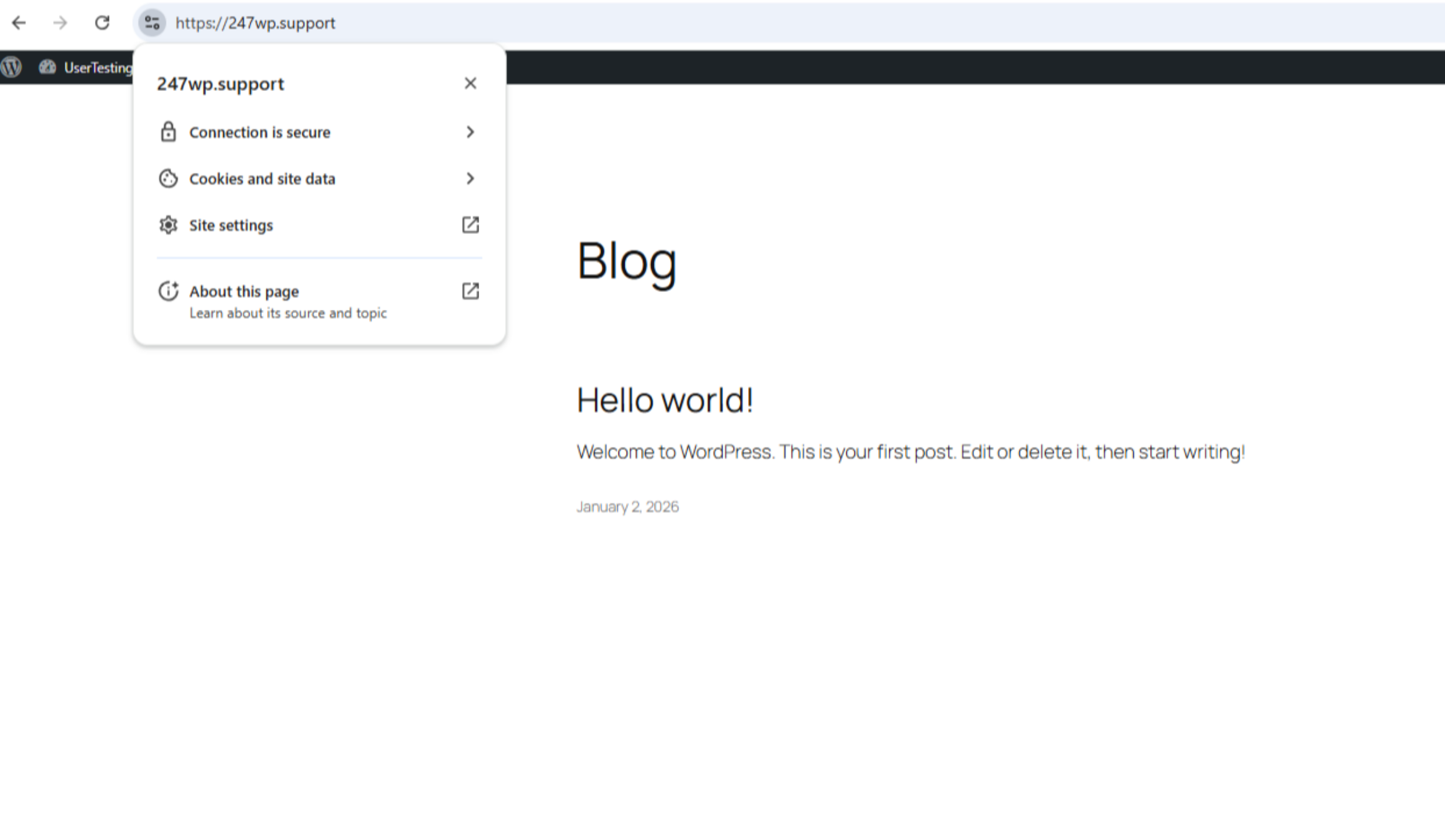
Secure WordPress Blog Setup

Conclusion

By following this guide, you have successfully resolved mixed content errors on your Hostinger WordPress website using the Better Search Replace plugin. You updated insecure HTTP URLs, optimized database records, and ensured that all website resources now load securely over HTTPS. This process improves website security, enhances user trust, and supports better performance and SEO rankings. Maintaining proper SSL configuration and regularly checking for mixed content issues will help keep your website stable, safe, and professionally maintained.

WooHelpDesk Support 

Need expert assistance with SSL errors, WordPress optimization, or website security?

Visit: https://www.woohelpdesk.com
Call Us Toll-Free: +1 888 602 0119 (US & Canada)

Get reliable support from certified WordPress professionals and keep your website running smoothly and securely.


 

Leave a Reply

Your email address will not be published. Required fields are marked *

Leave a Reply

Your email address will not be published. Required fields are marked *