Introduction
Moving a WordPress website from a localhost environment to Hostinger WordPress Hosting is an essential step in making your website accessible to users worldwide. A locally hosted website is useful for development and testing, but it must be transferred to a live server before it can be published online.
This guide explains the manual process of exporting your localhost website, preparing the Hostinger hosting environment, setting up databases, uploading WordPress files, configuring the wp-config.php file, and importing your website data using the All-in-One WP Migration plugin. It also covers the final installation steps and basic configuration required to make your website fully functional.
1. NOTE
2. Localhost Website
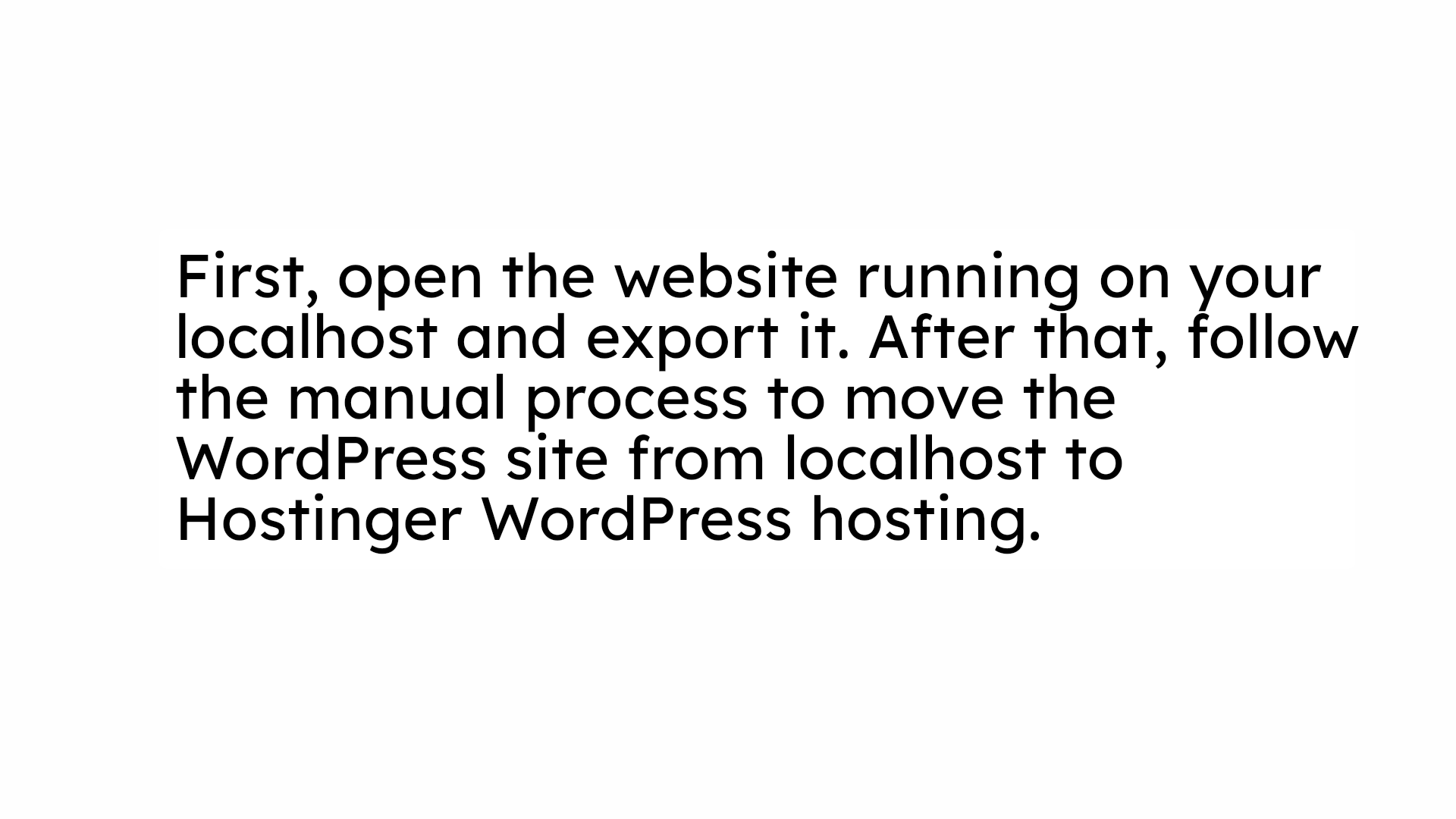
This screen shows the WordPress website running on a local system. It will be manually moved to Hostinger hosting to make the site live online.
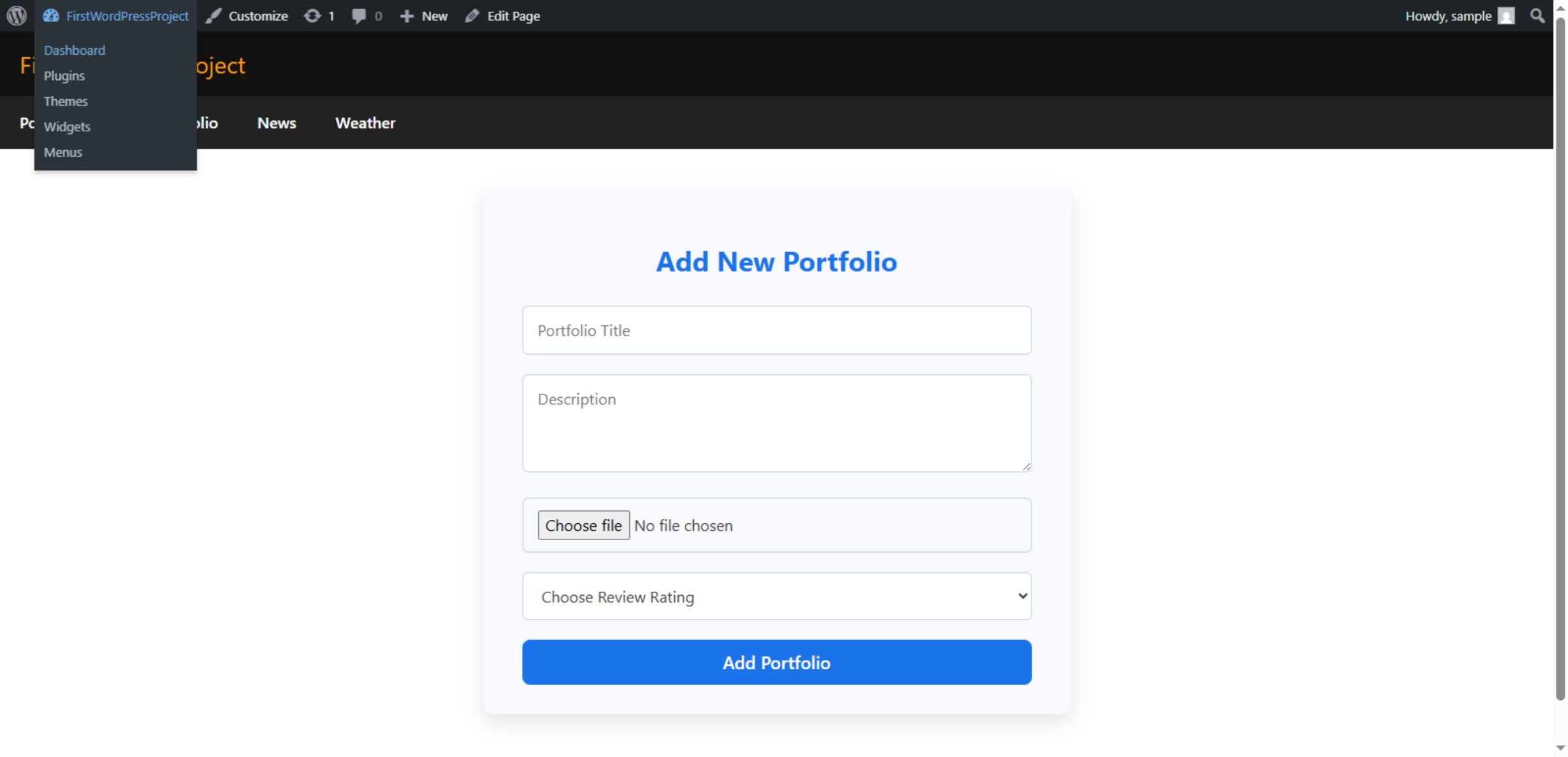
3. Open Add Plugin Page
This option is used to add new plugins to the WordPress website for additional features and functionality.
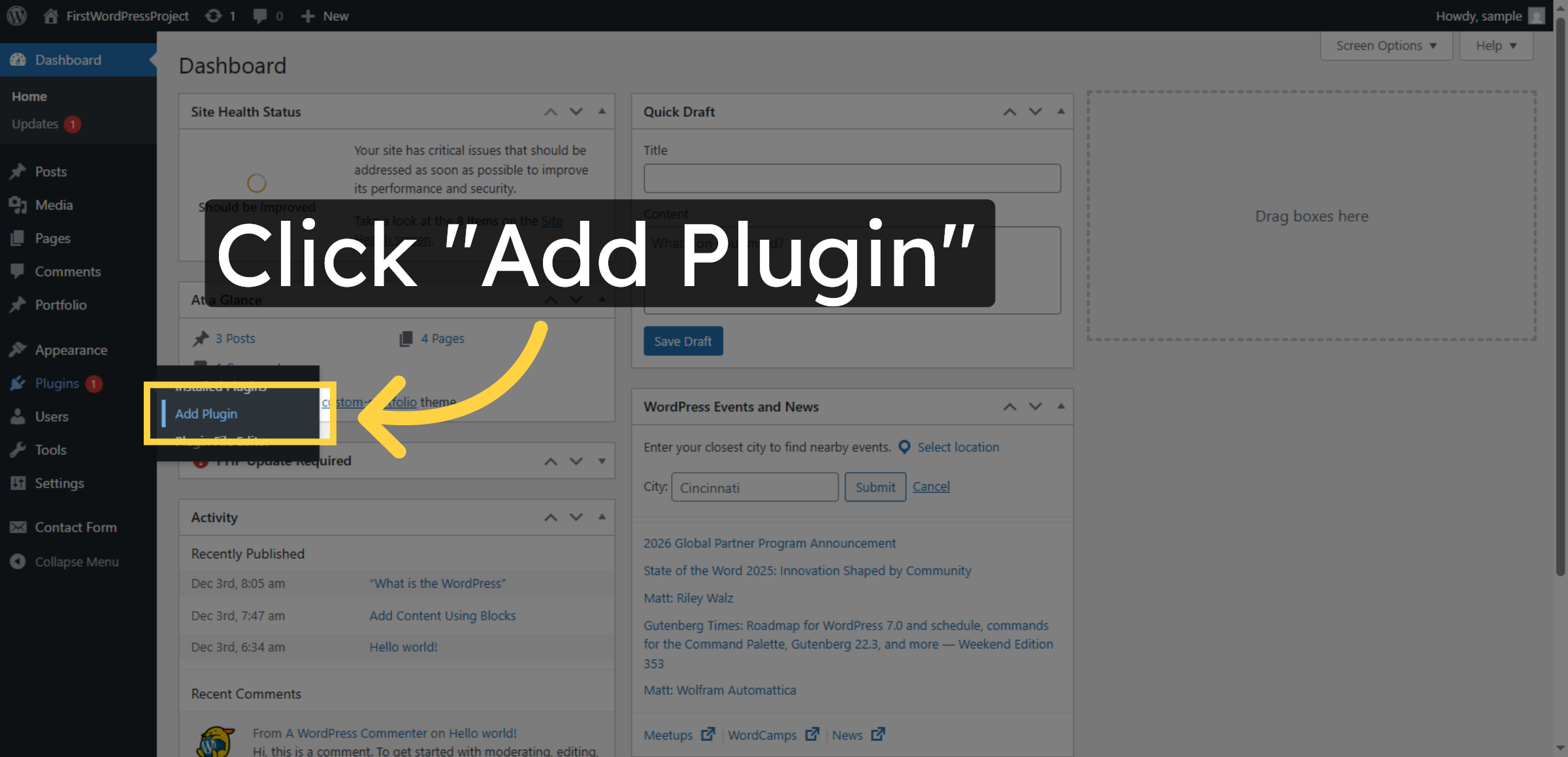
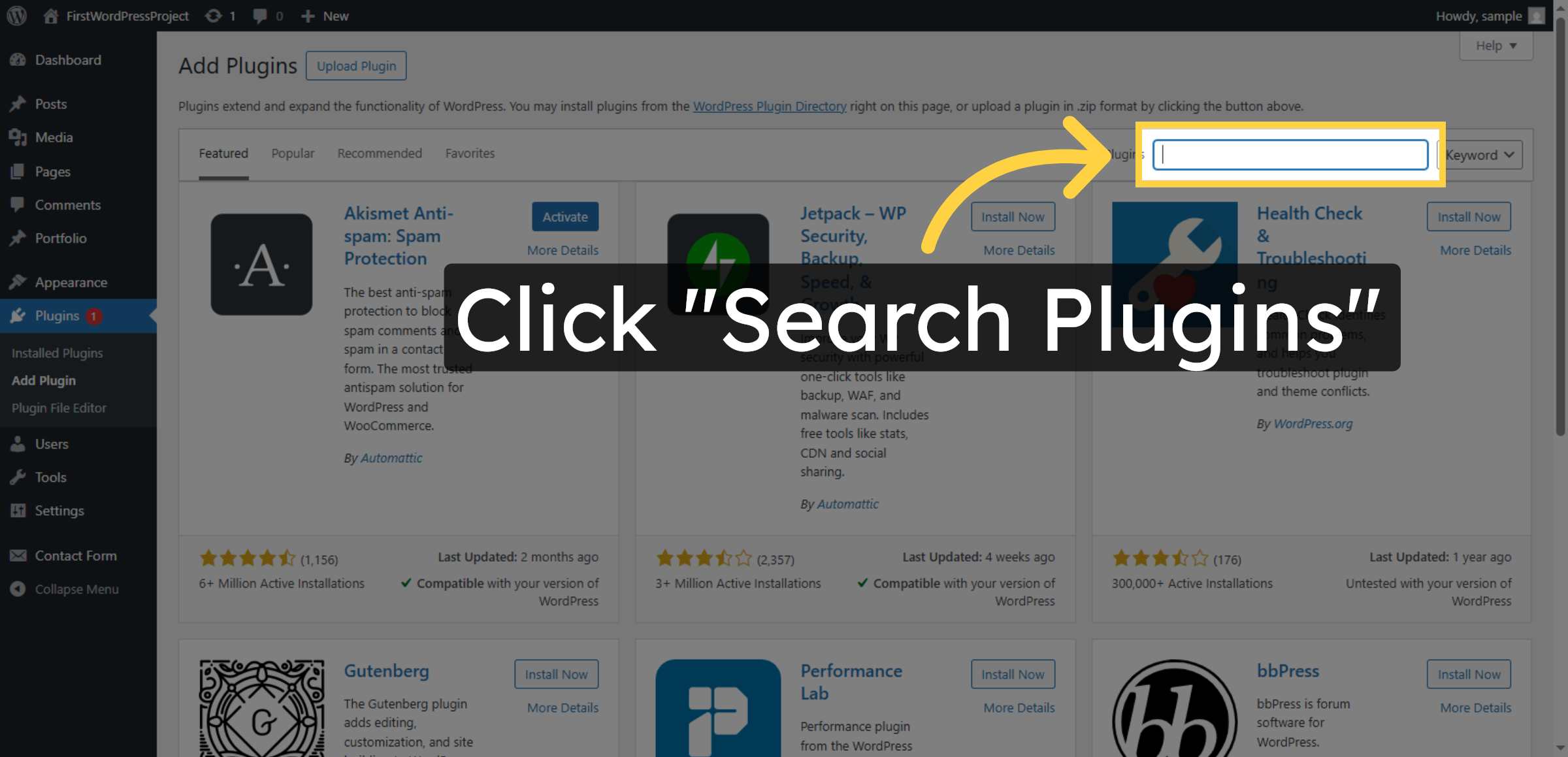
4. Access Plugin Search
Click Search Plugins to find the migration plugin needed for export.
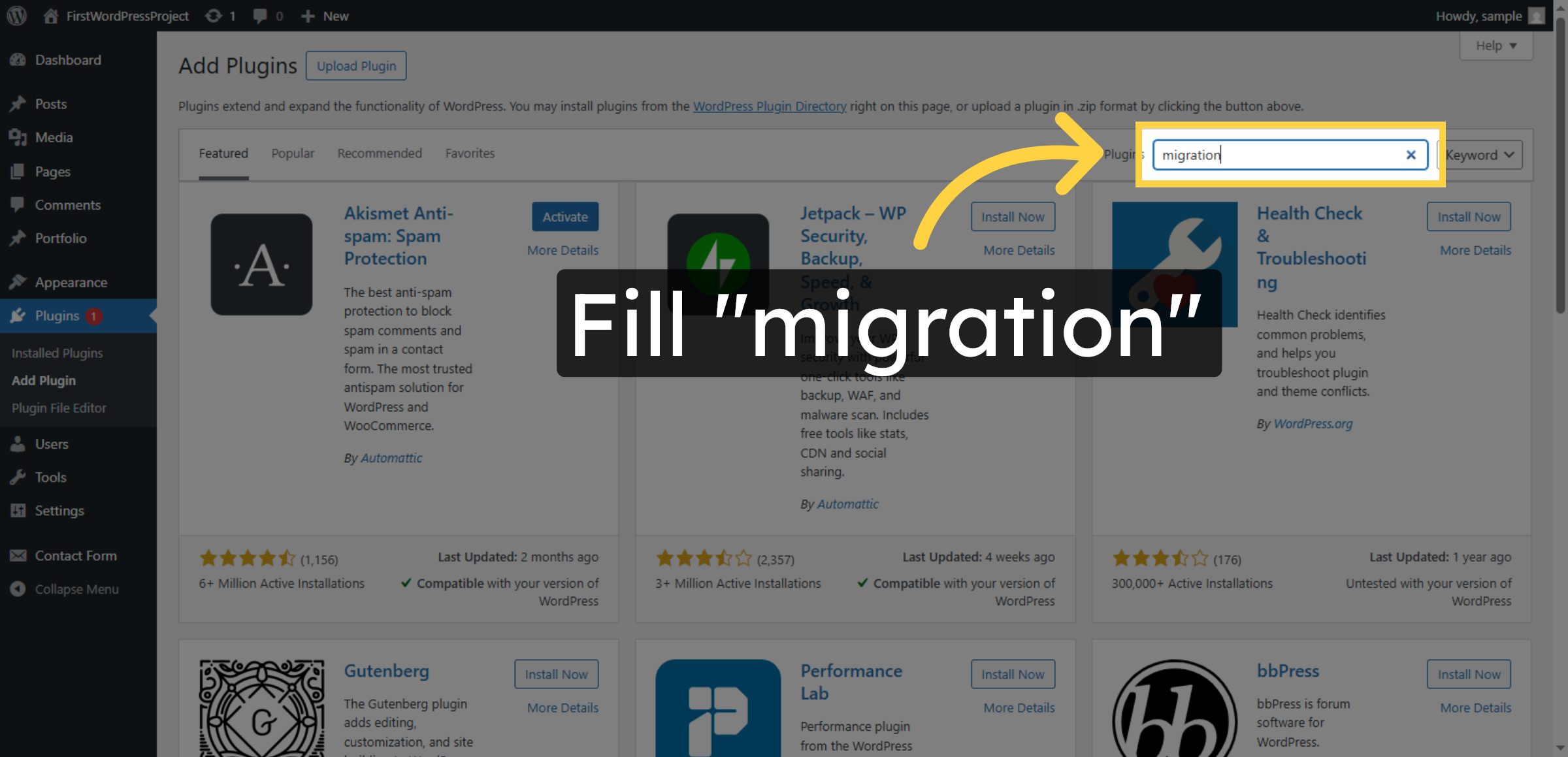
5. Enter Migration Keyword
Enter the keyword migration in the search field to locate the All-in-One WP Migration plugin.
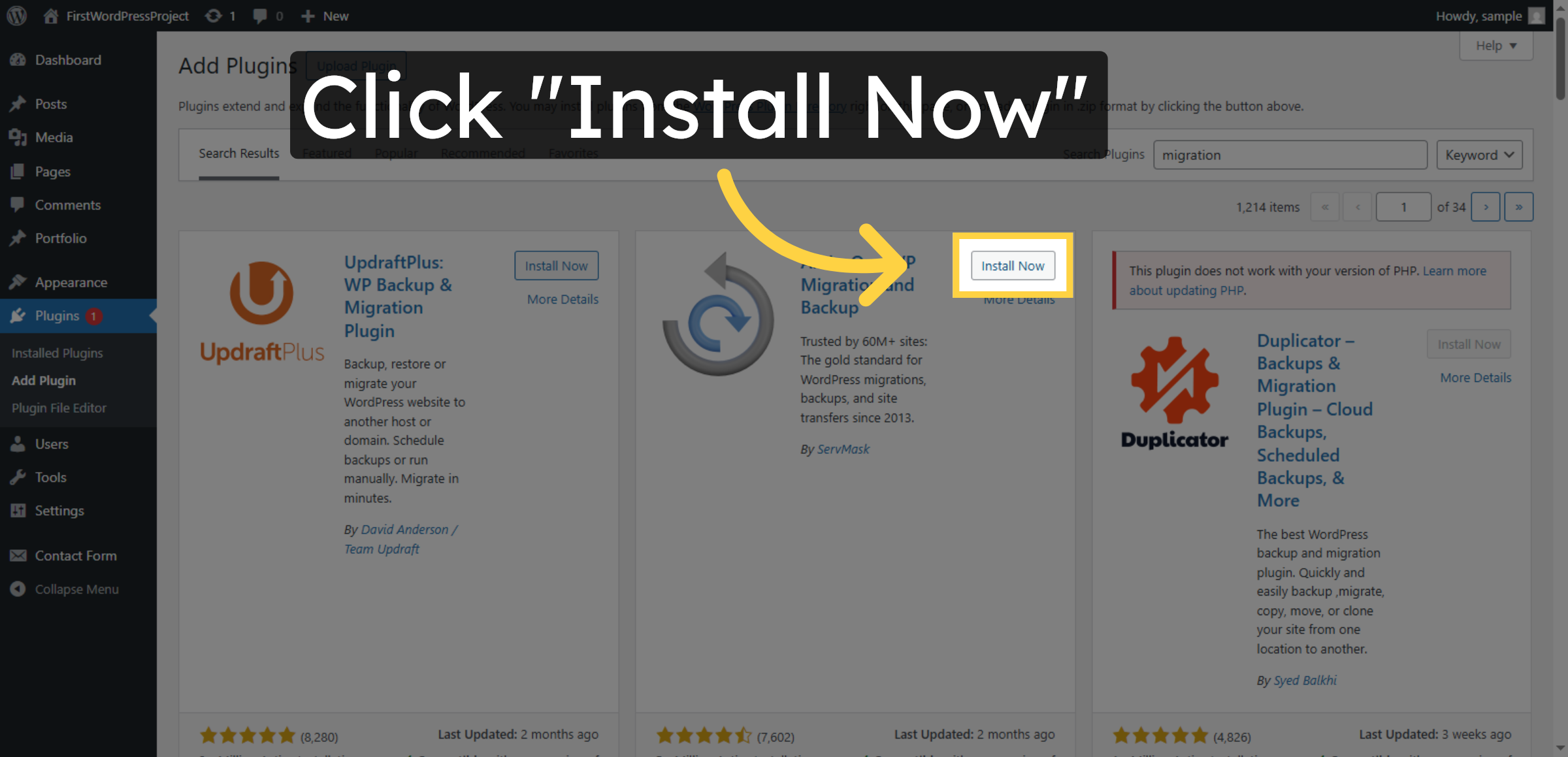
6. Install Migration Plugin
Click Install Now to add the All-in-One WP Migration plugin to your WordPress site.
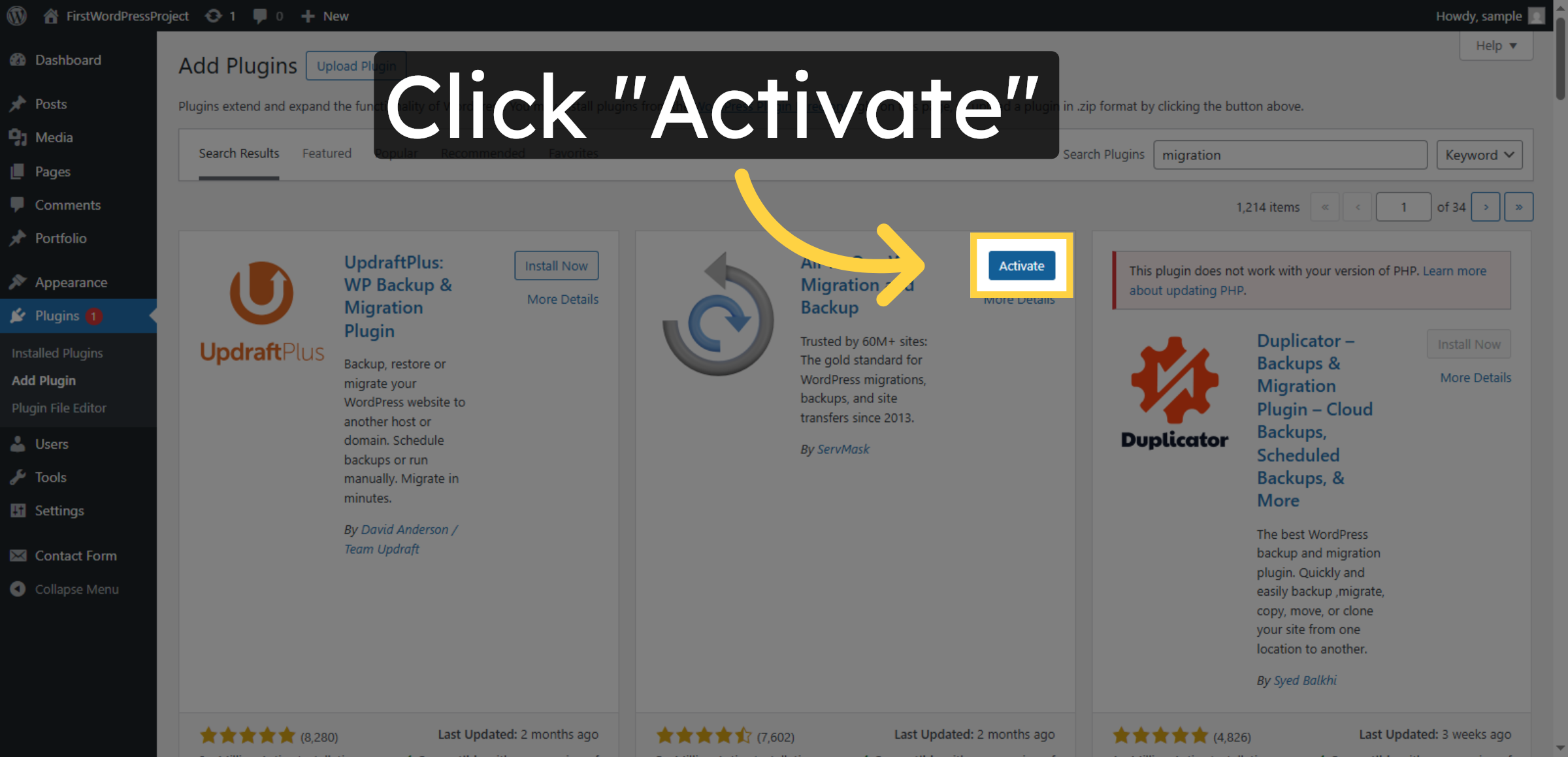
7. Activate Migration Plugin
Click Activate to enable the All-in-One WP Migration plugin for use.
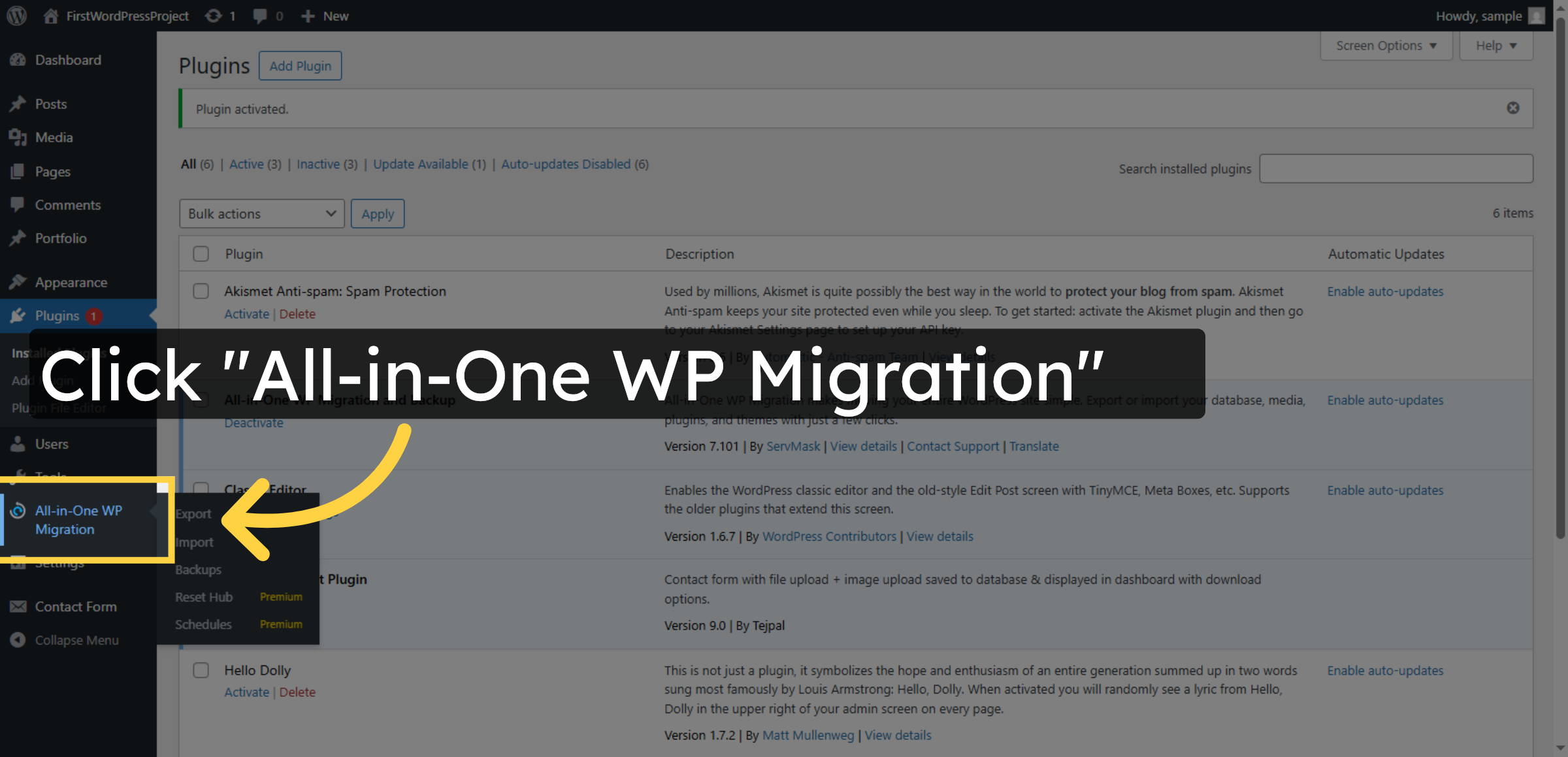
8. Open Migration Plugin
Click All-in-One WP Migration in the WordPress menu to access its features.
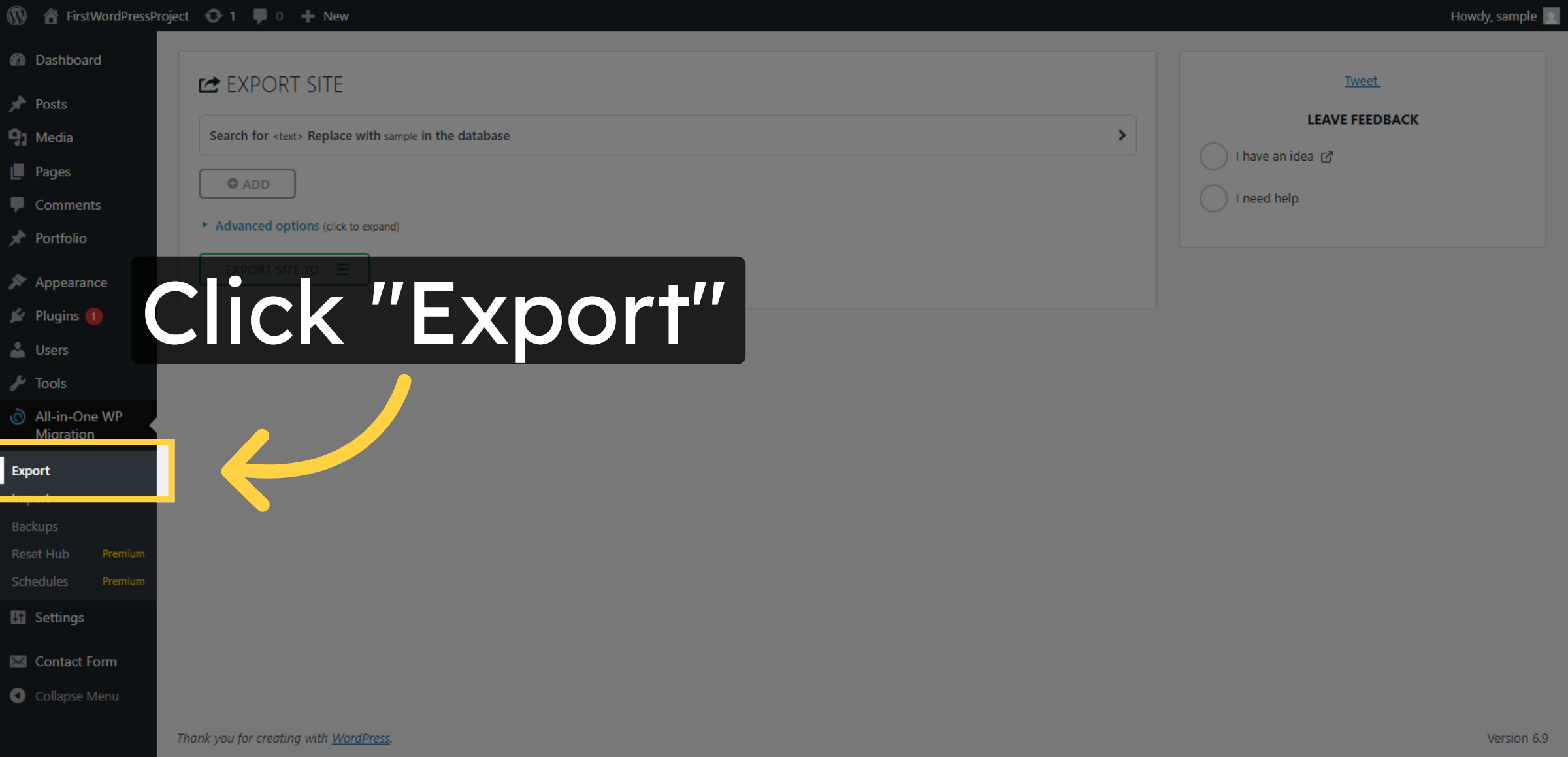
9. Select Export Option
Click Export to prepare your site data for transfer.
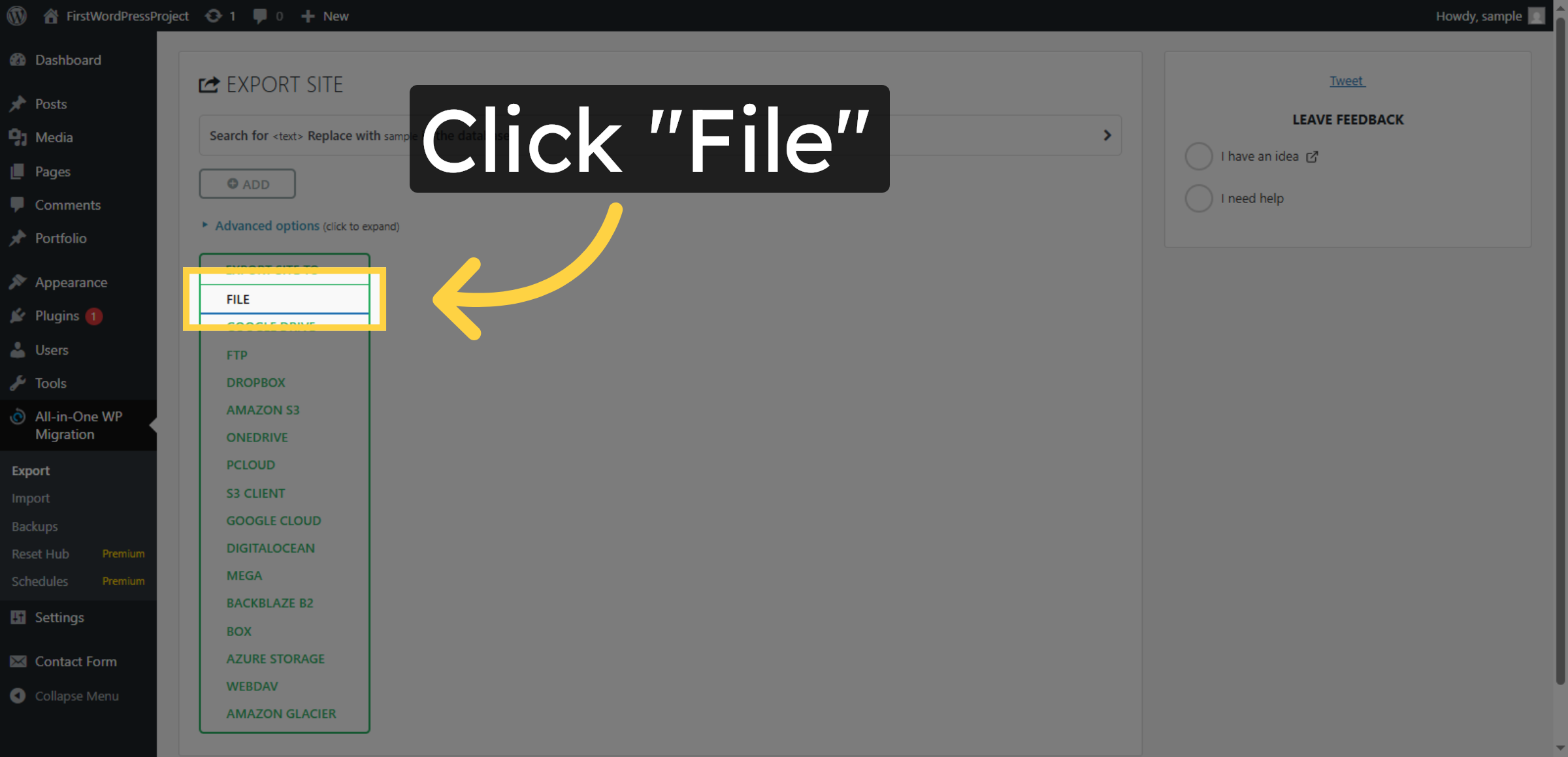
10. Choose Export File
Click File to select the export format for your site backup.
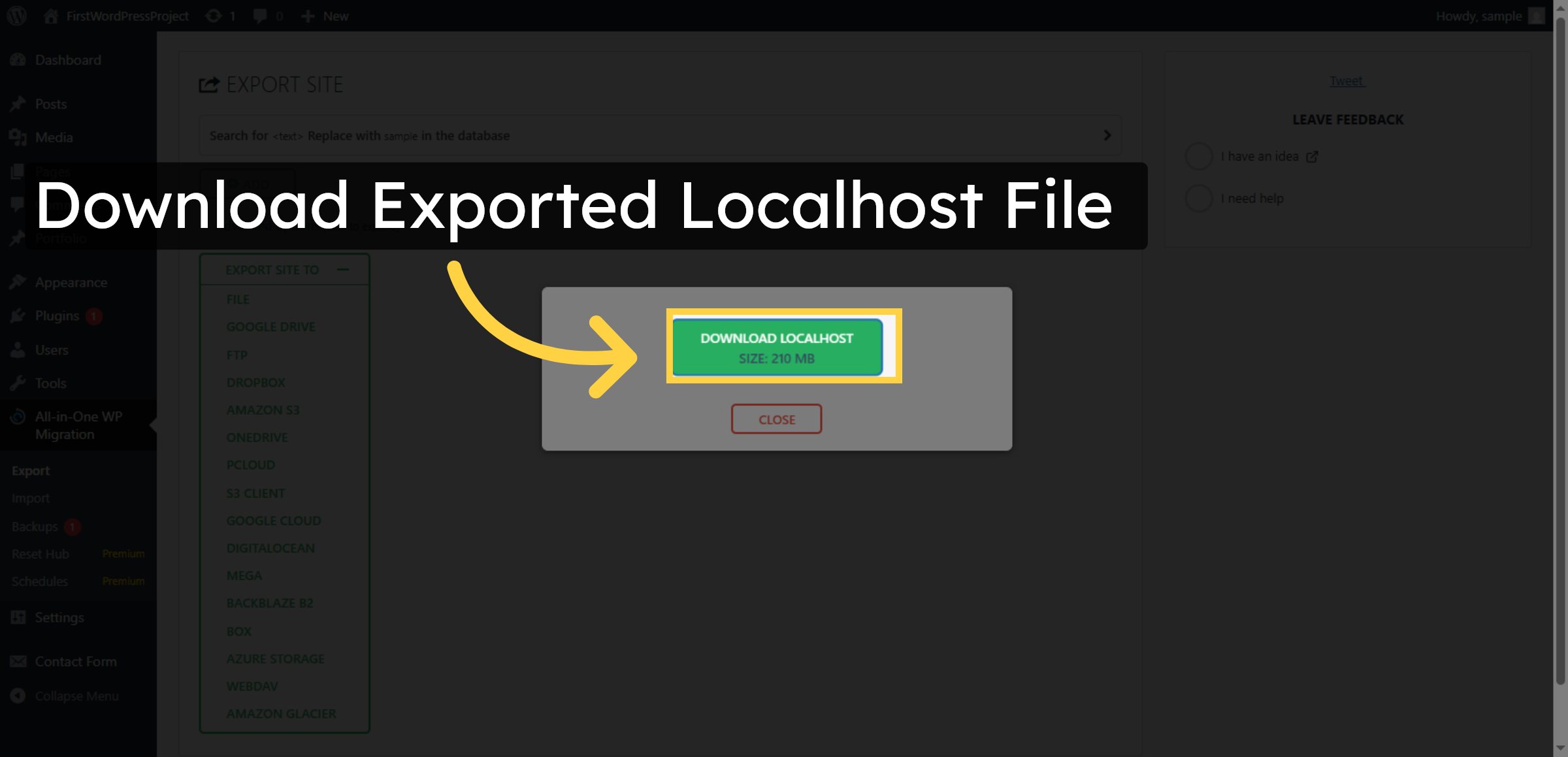
11. Download Exported Localhost File
Click the displayed file size to view details about the exported site file.
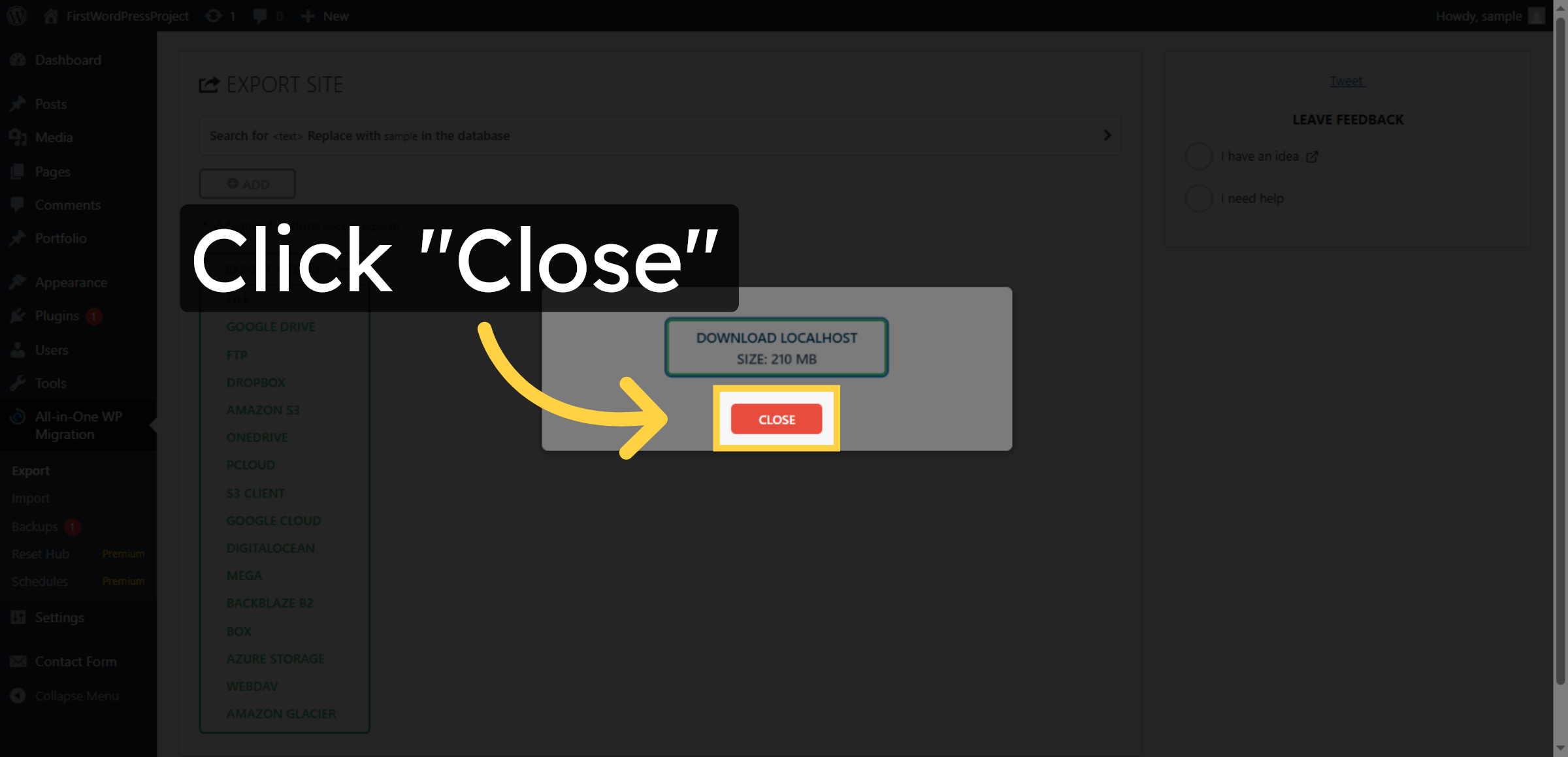
12. Close Export Window
Click Close to exit the export interface after the file is ready.
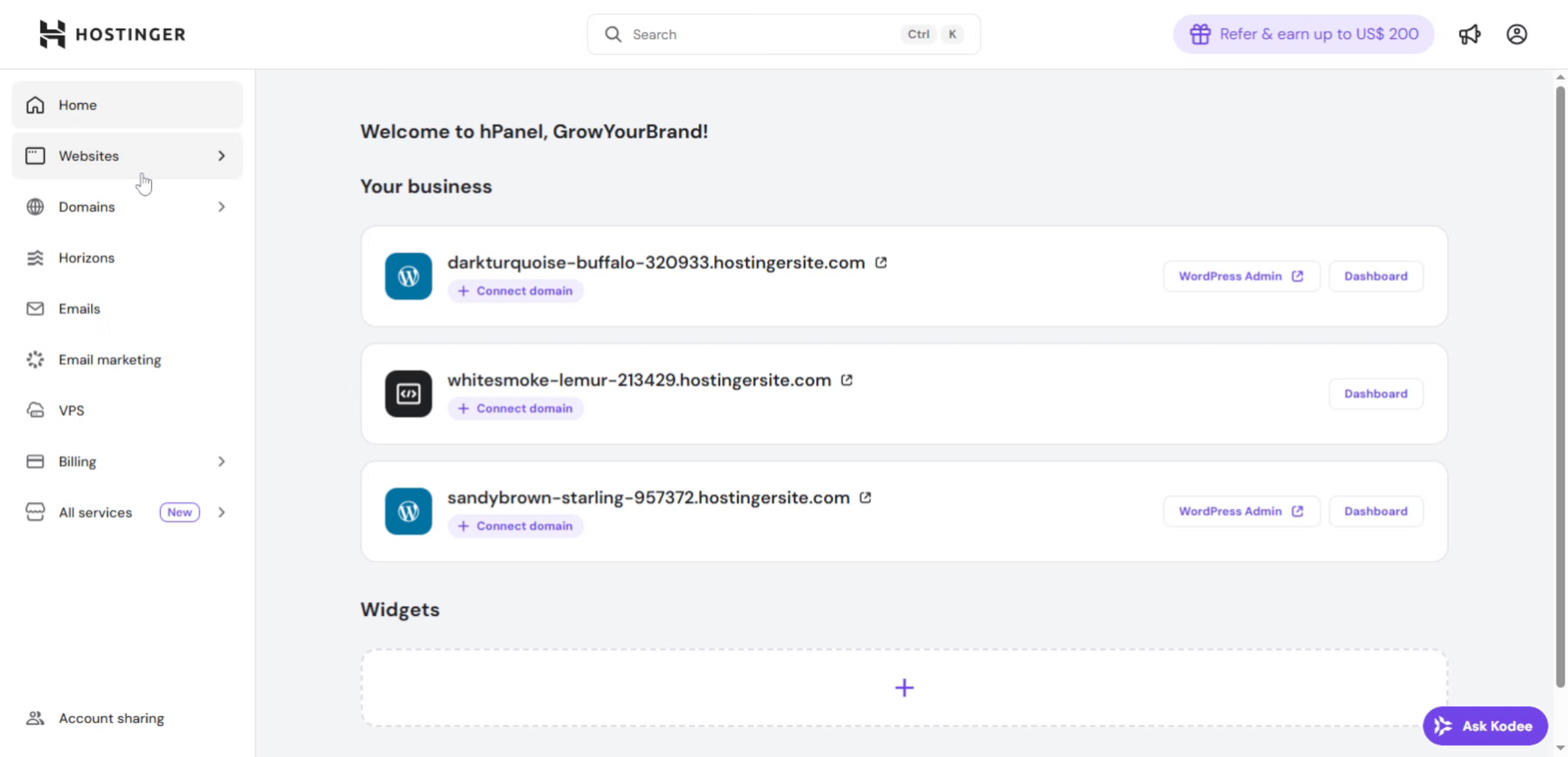
13. Hostinger Dashboard
You will learn the complete process from database setup to final site configuration.
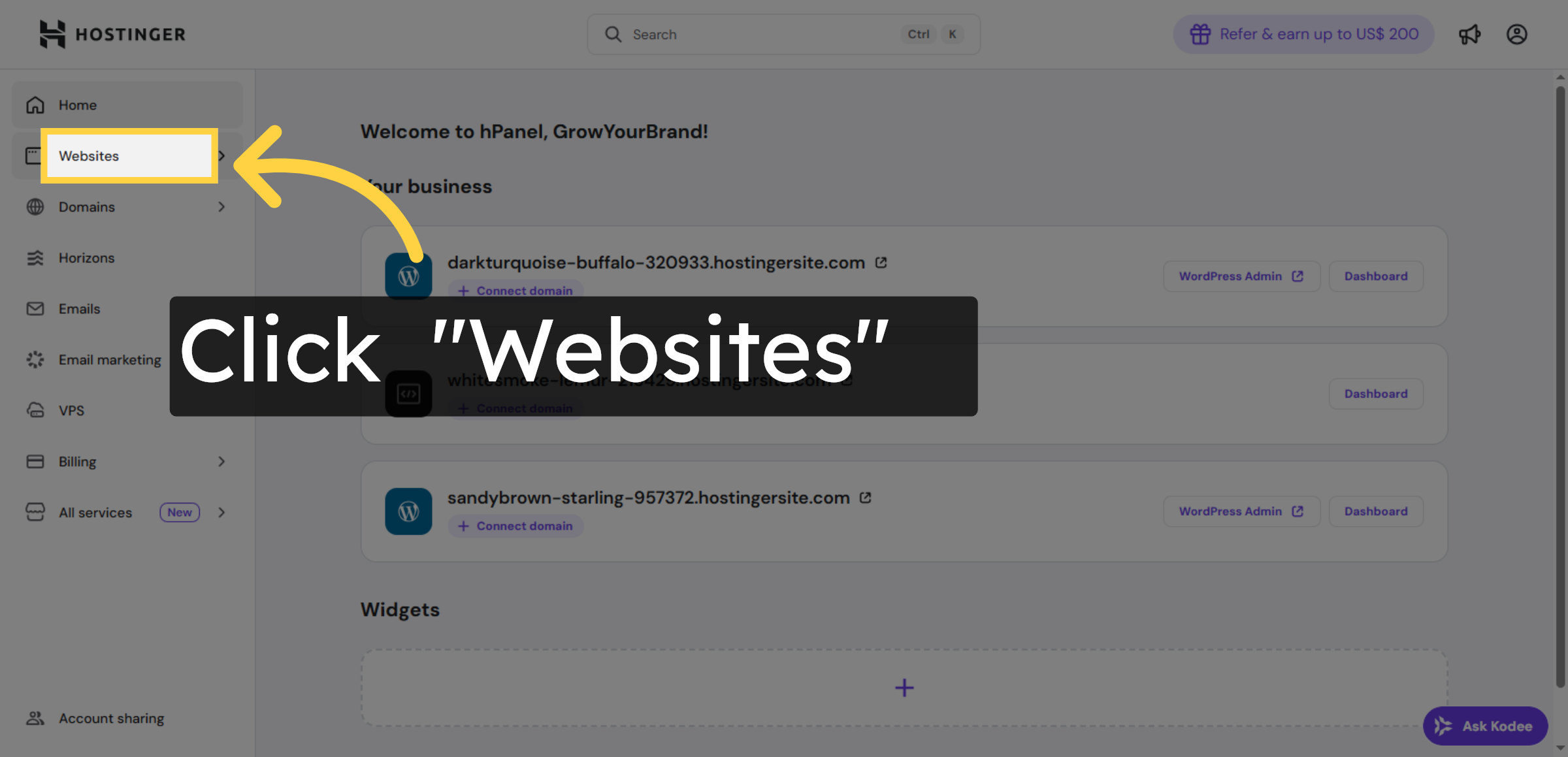
14. Navigate to Websites Section
Click the Websites section in your Hostinger control panel to begin managing your sites.
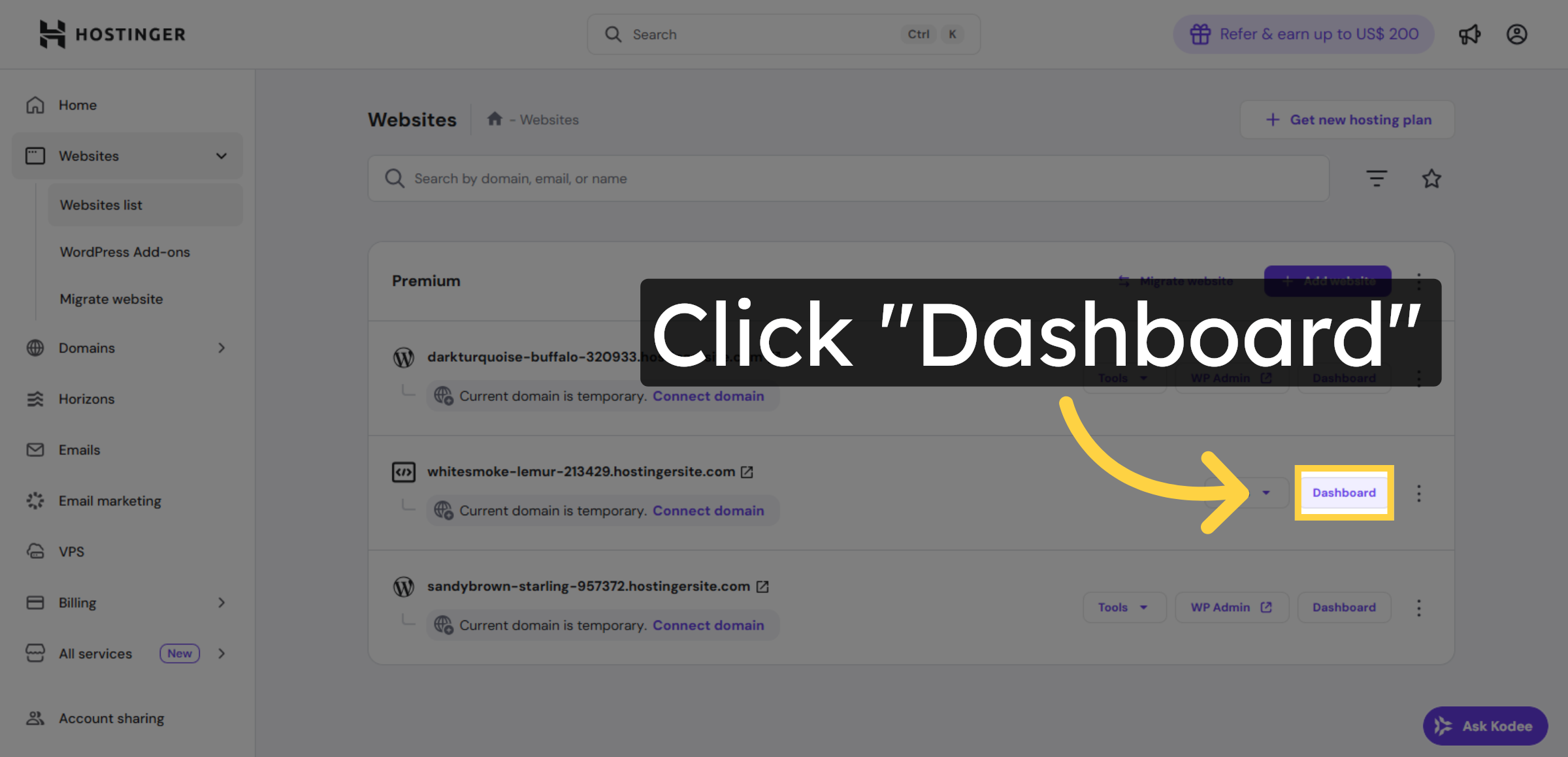
15. Open Website Dashboard
Click Dashboard to access the management area for your selected website.
16. Access Databases Menu
Click Databases to manage your MySQL databases for WordPress installation.
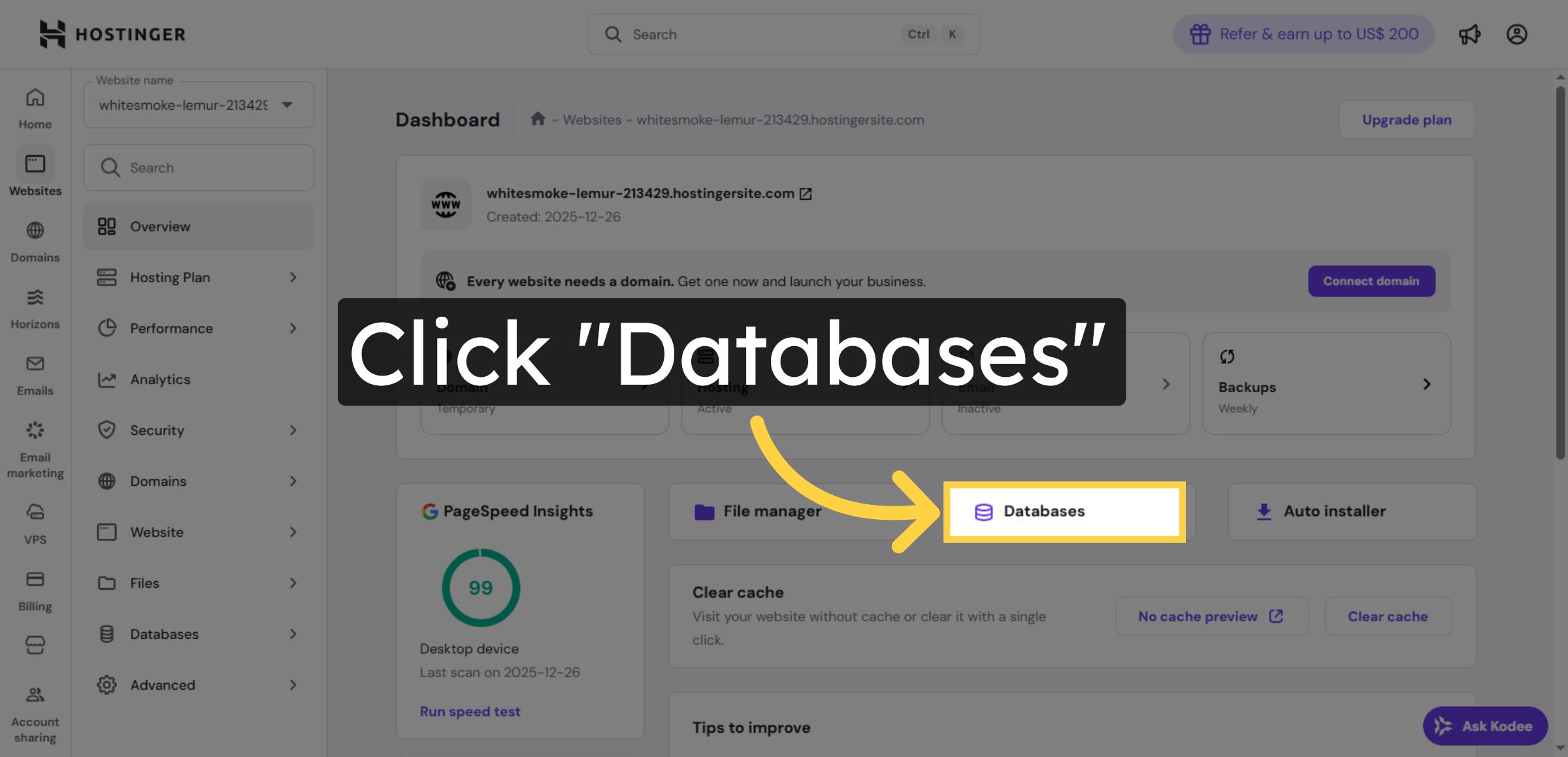
17. Choose Database Name
Click the database name to confirm the database you will use for WordPress.
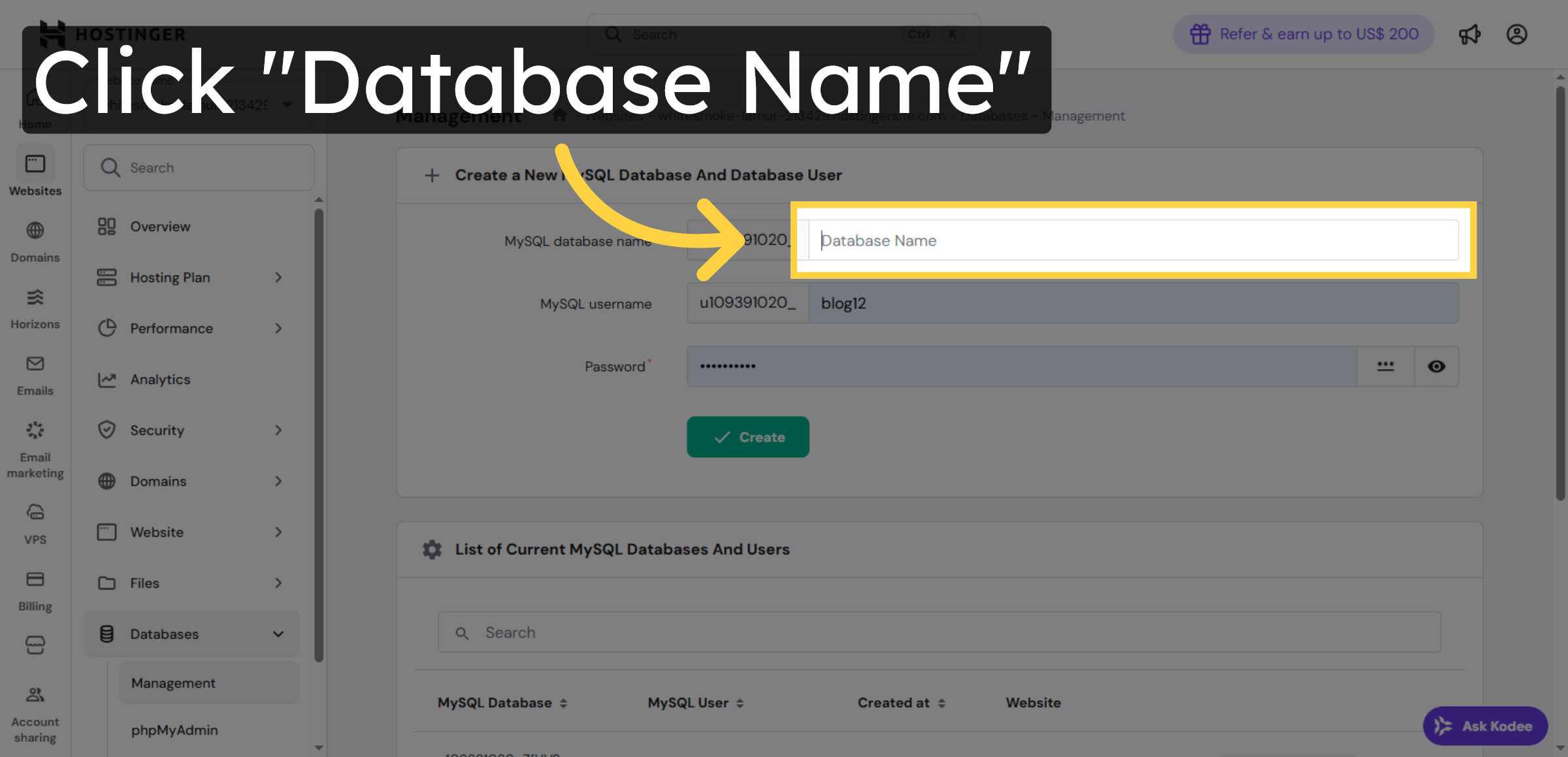
18. Select Database User
Click the database user to assign permissions for WordPress access.
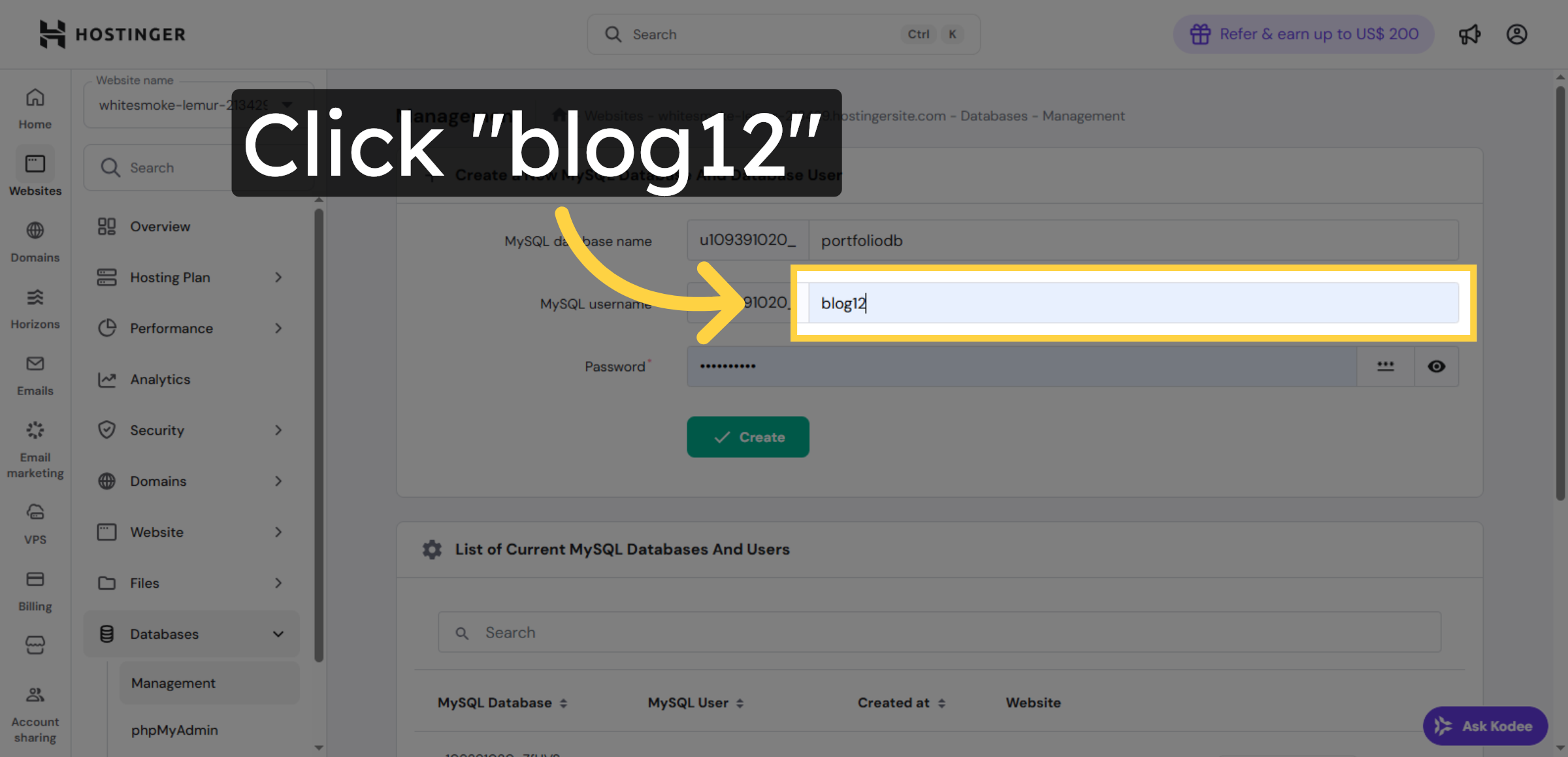
19. Enter password
Fill password field.
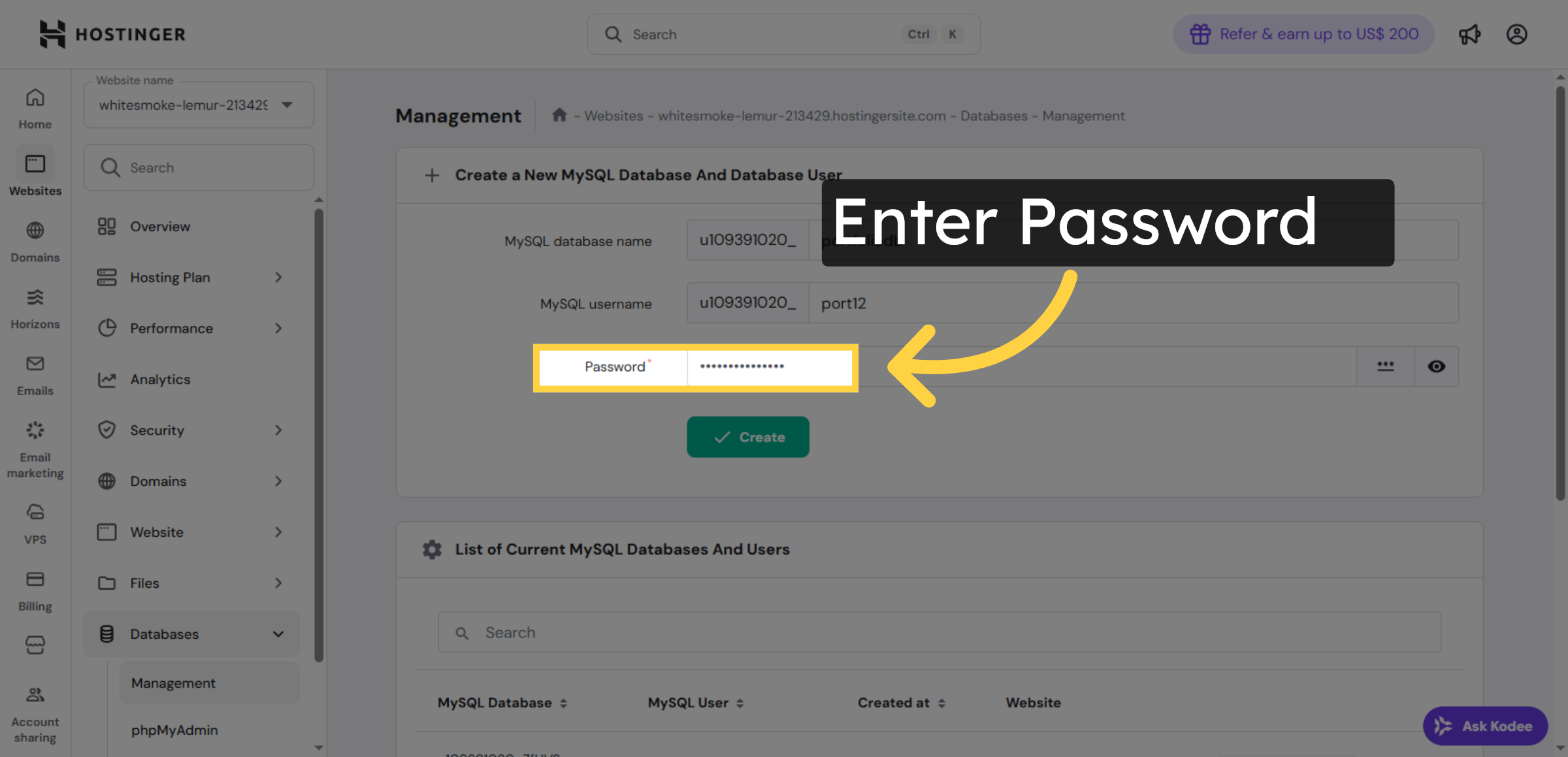
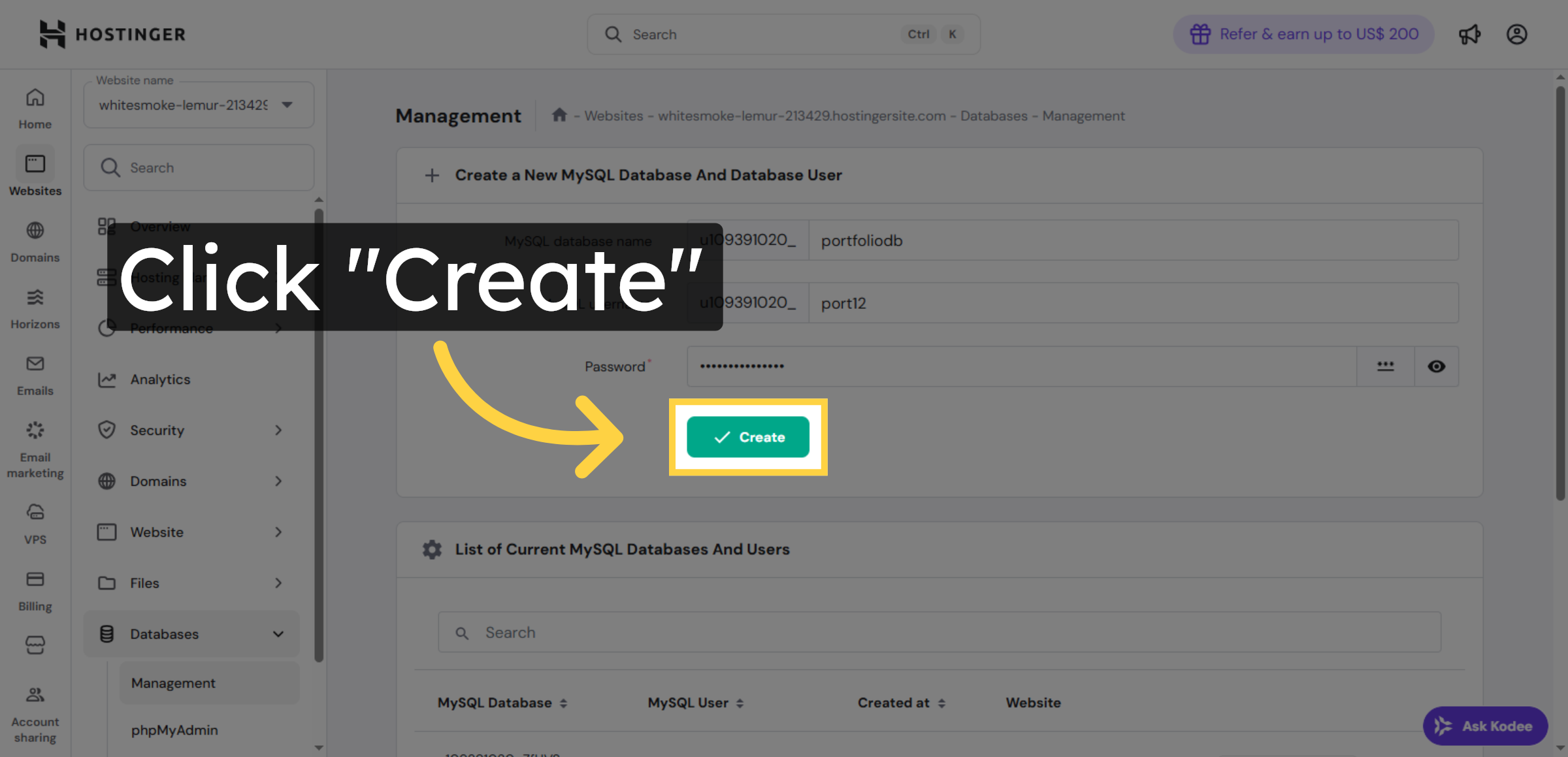
20. Create Database User
Click Create to finalize the database user setup for WordPress.
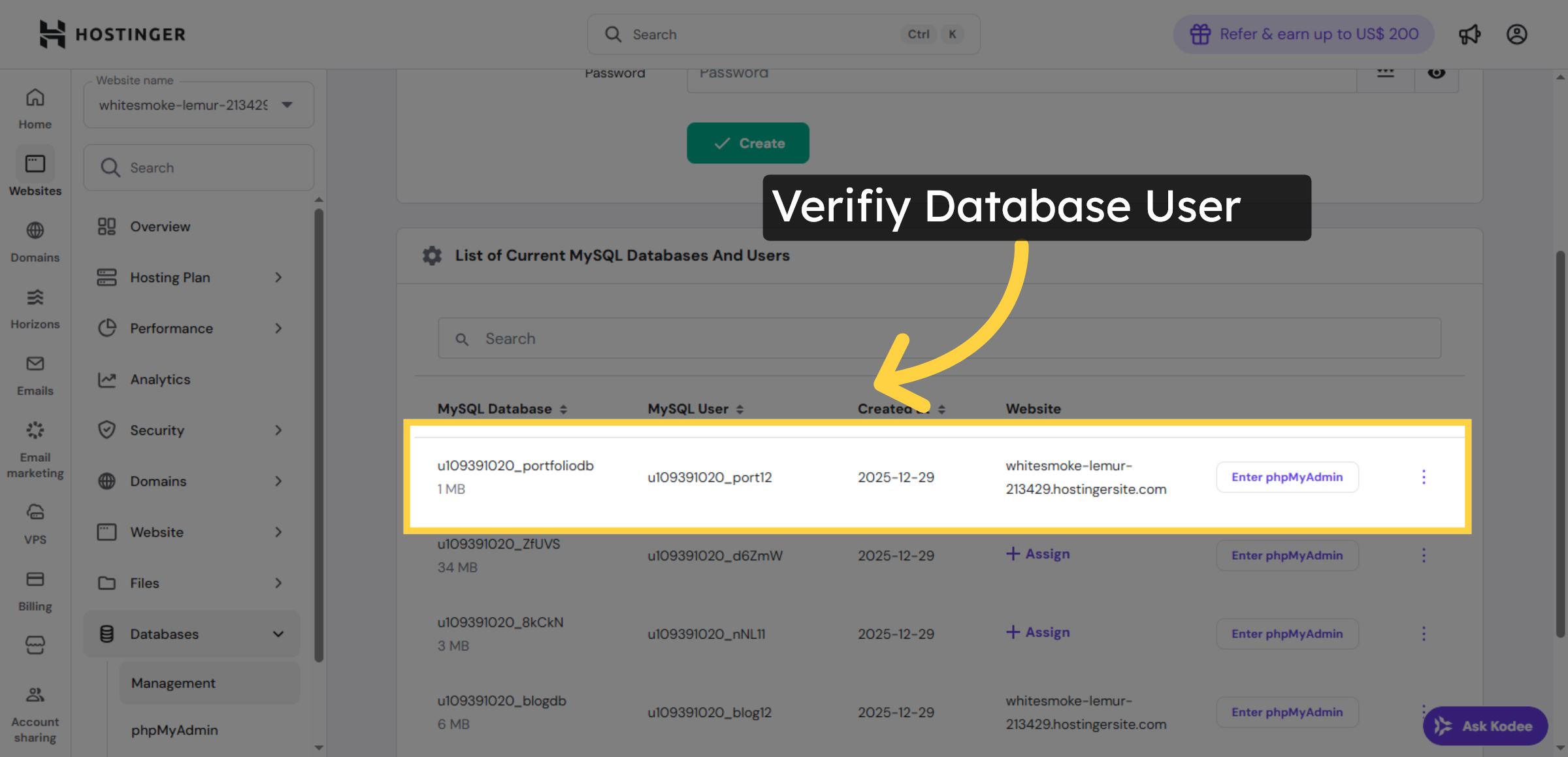
21. Verify Database User
Click the database entry to view or manage its settings.
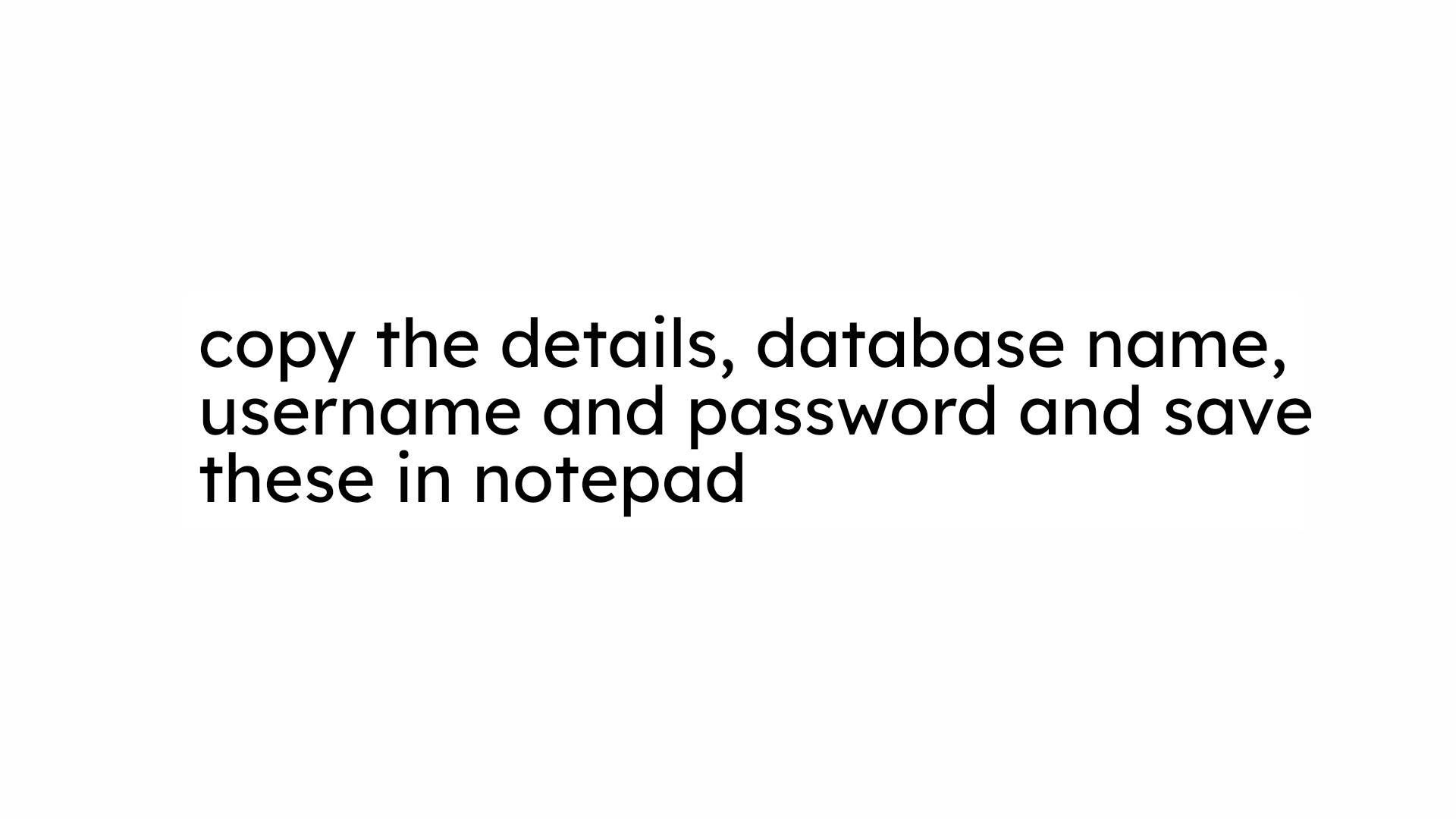
22. NOTE
23. Open Google Website
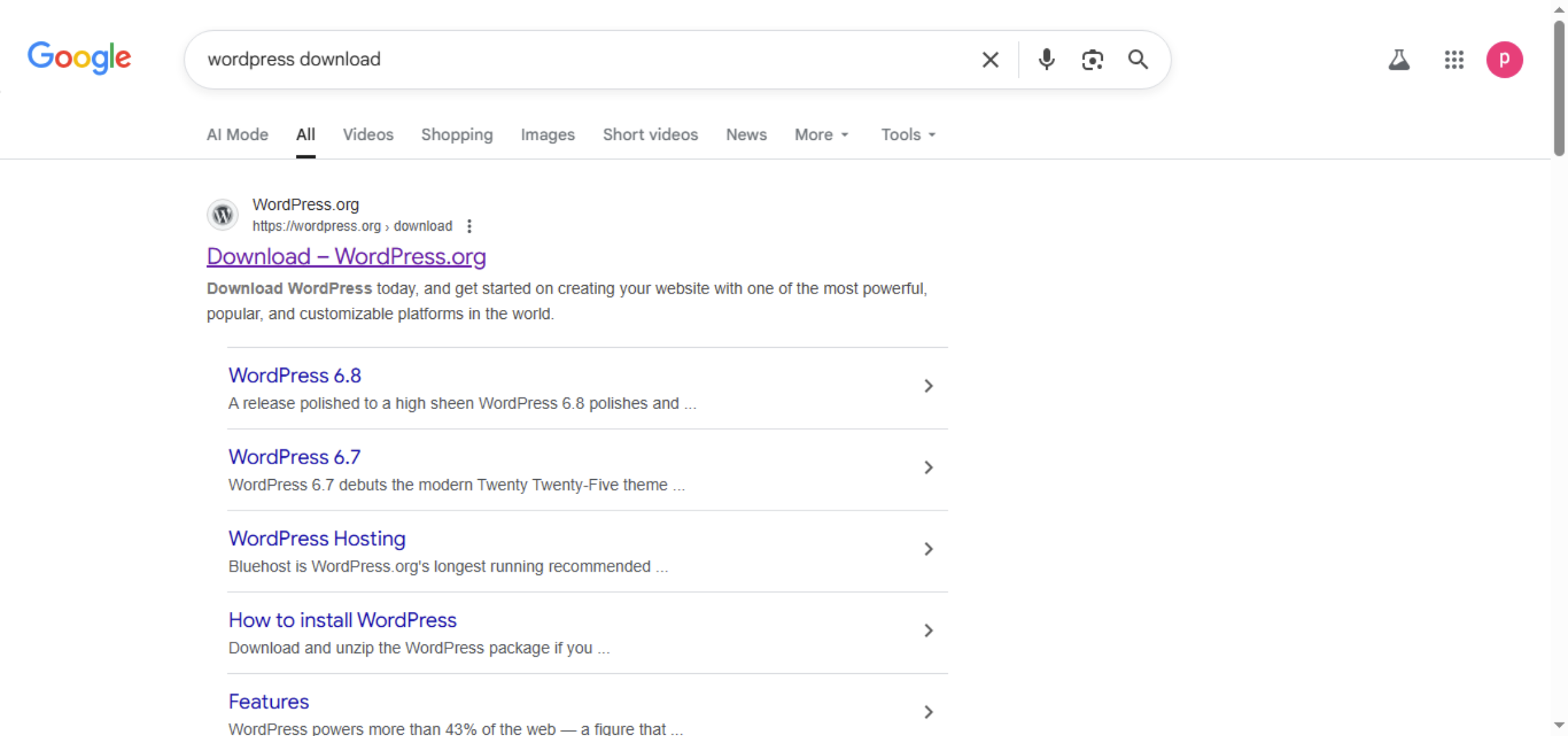
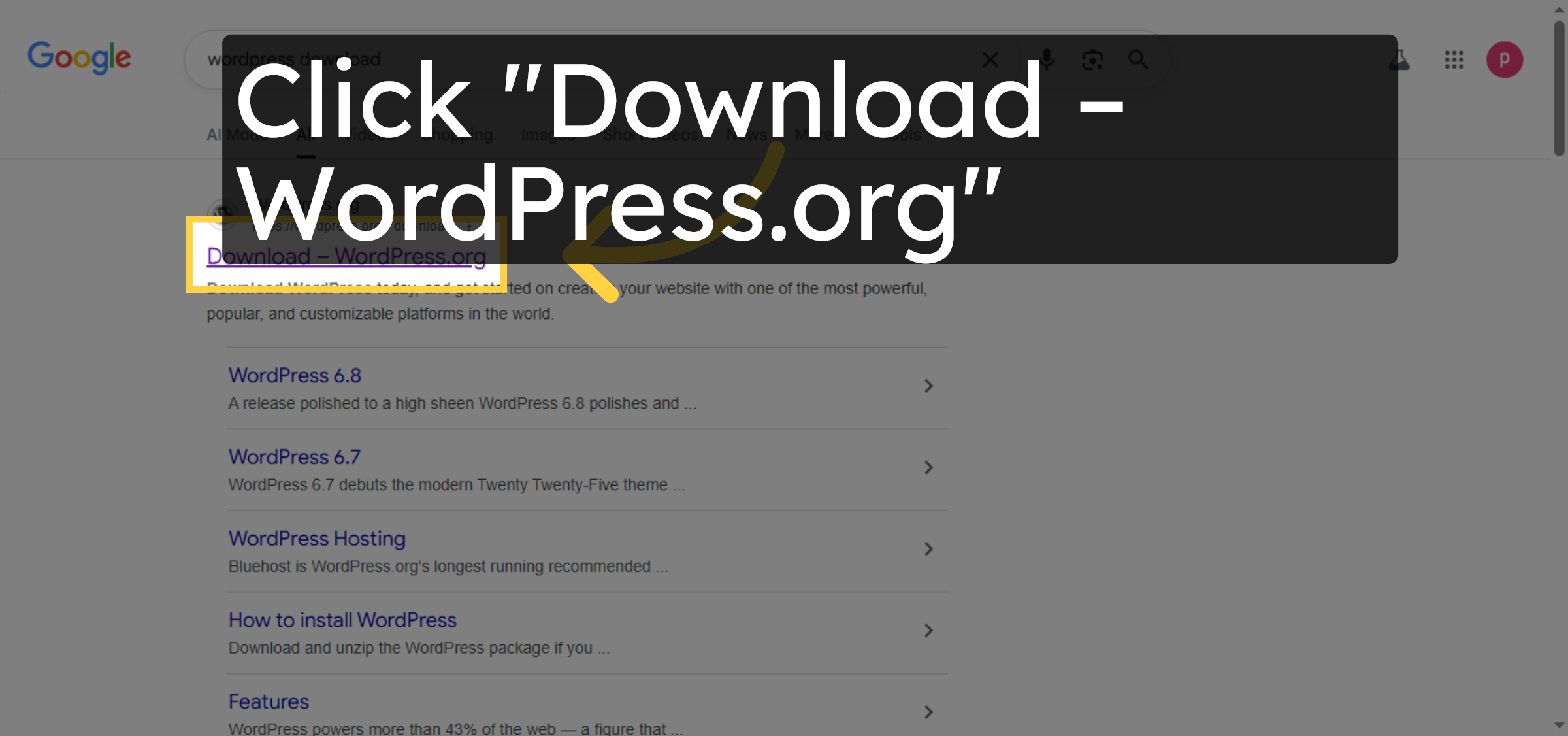
24. Access WordPress Download
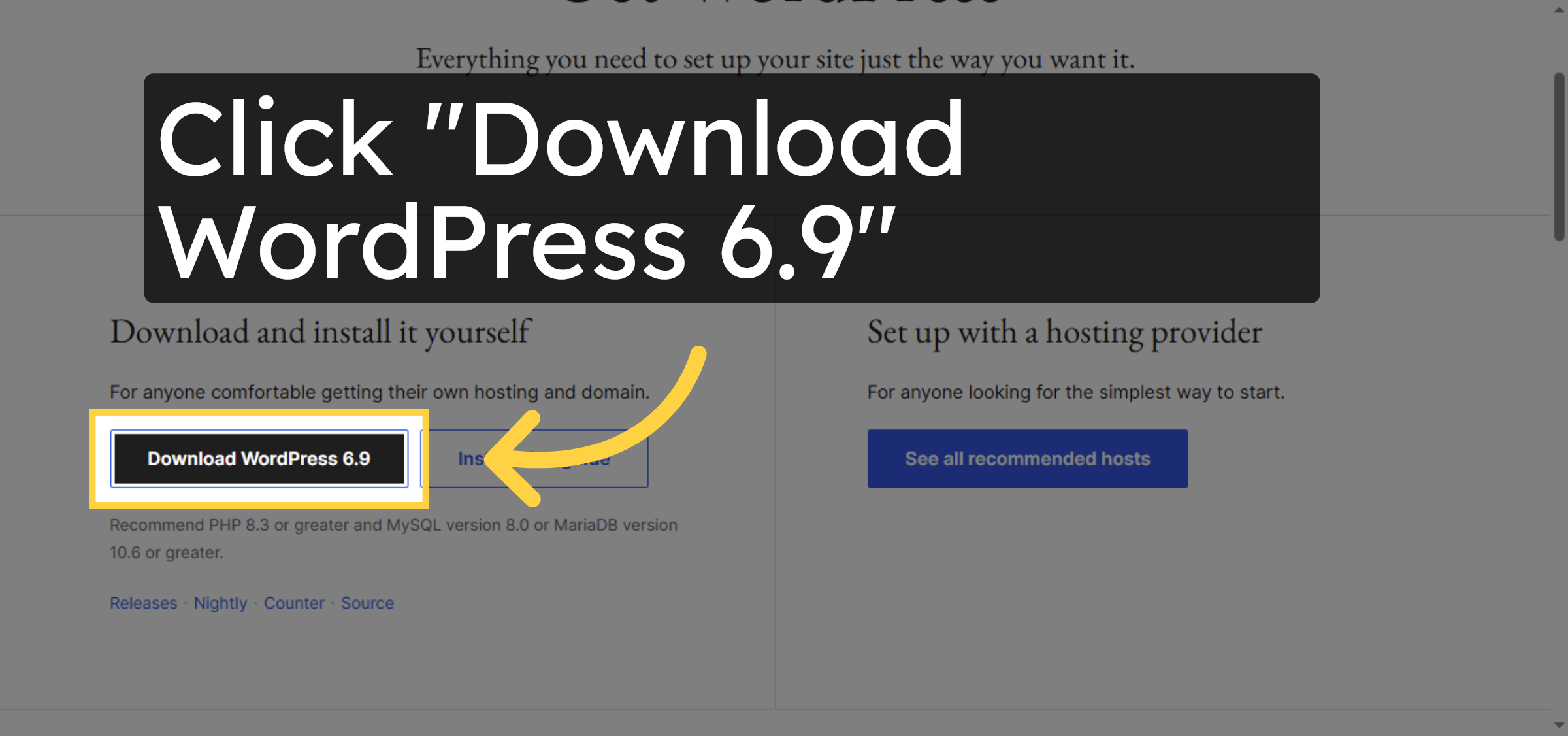
25. Download WordPress
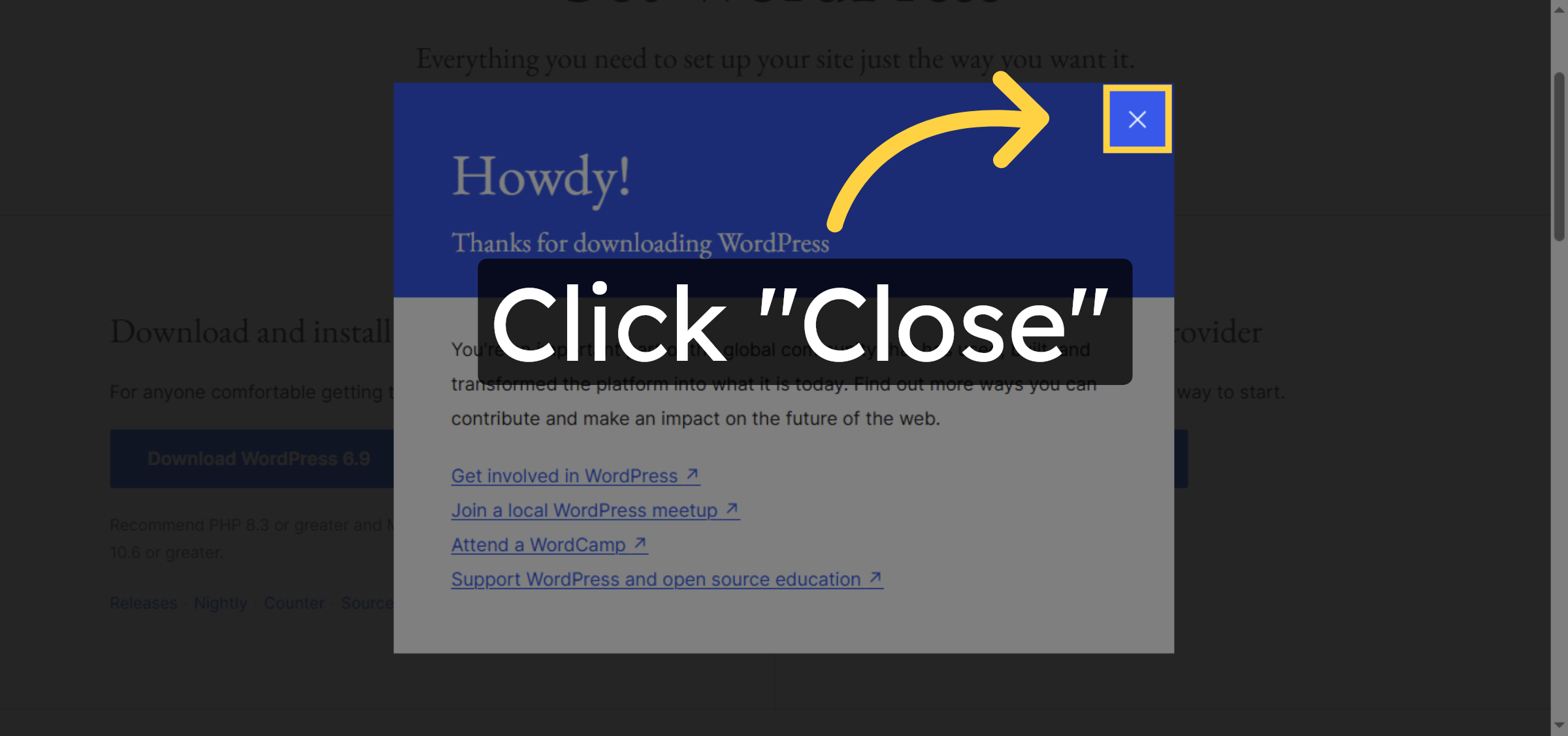
26. Close Download Popup
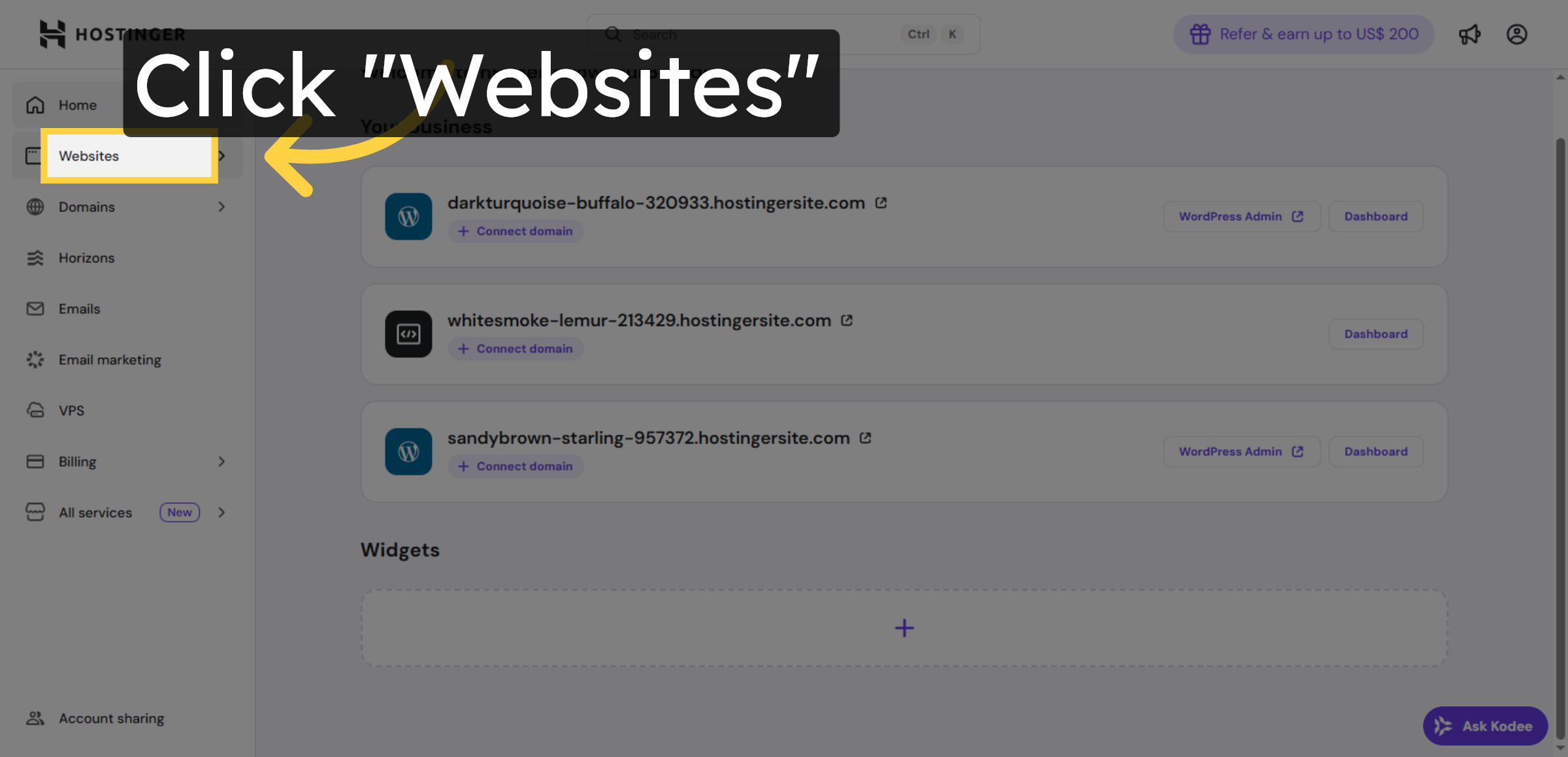
27. Return to Websites Section
Click Websites to navigate back to your list of managed sites.
28. Open Website Dashboard Again
Click Dashboard to access your website’s control panel.
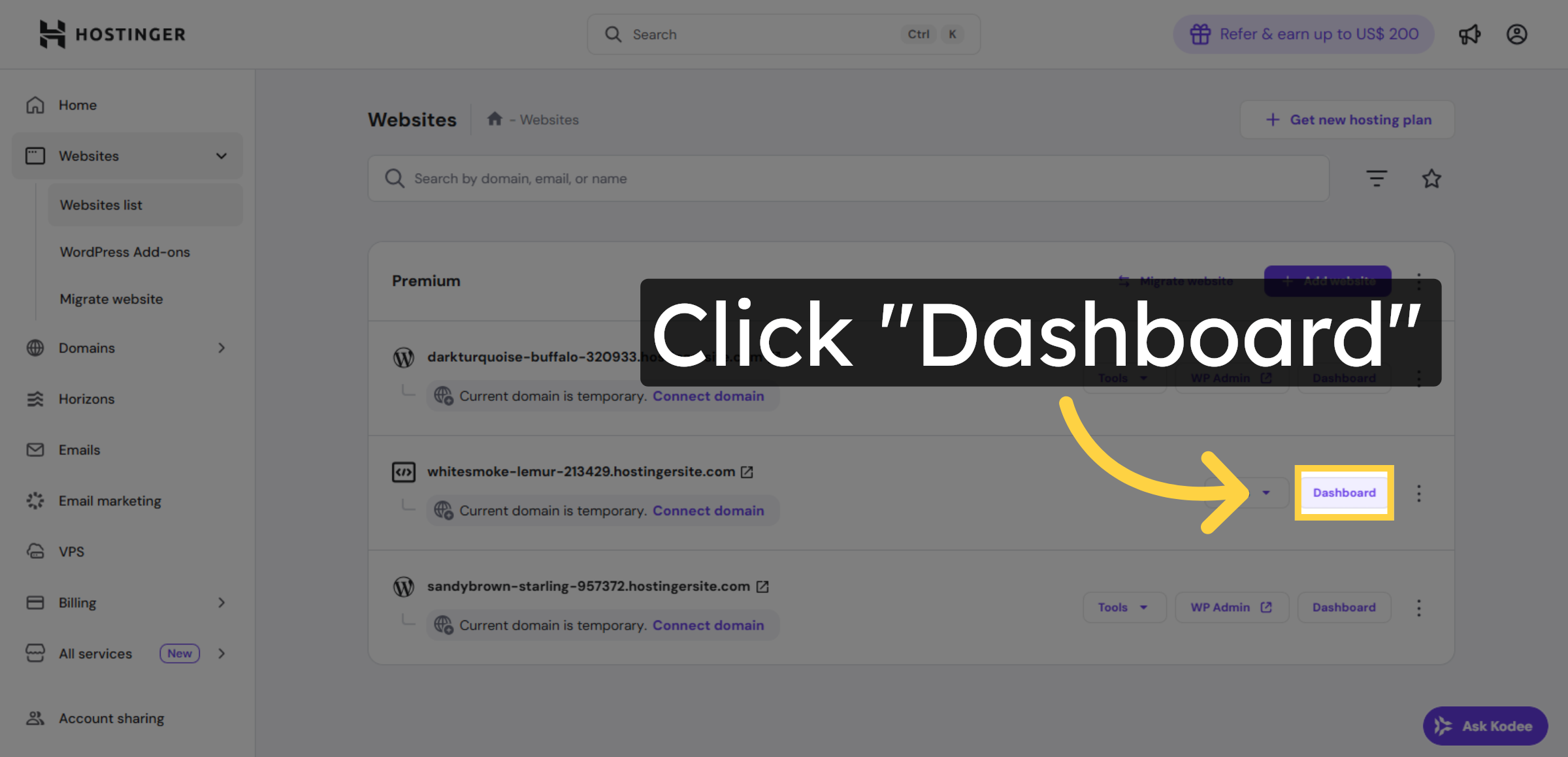
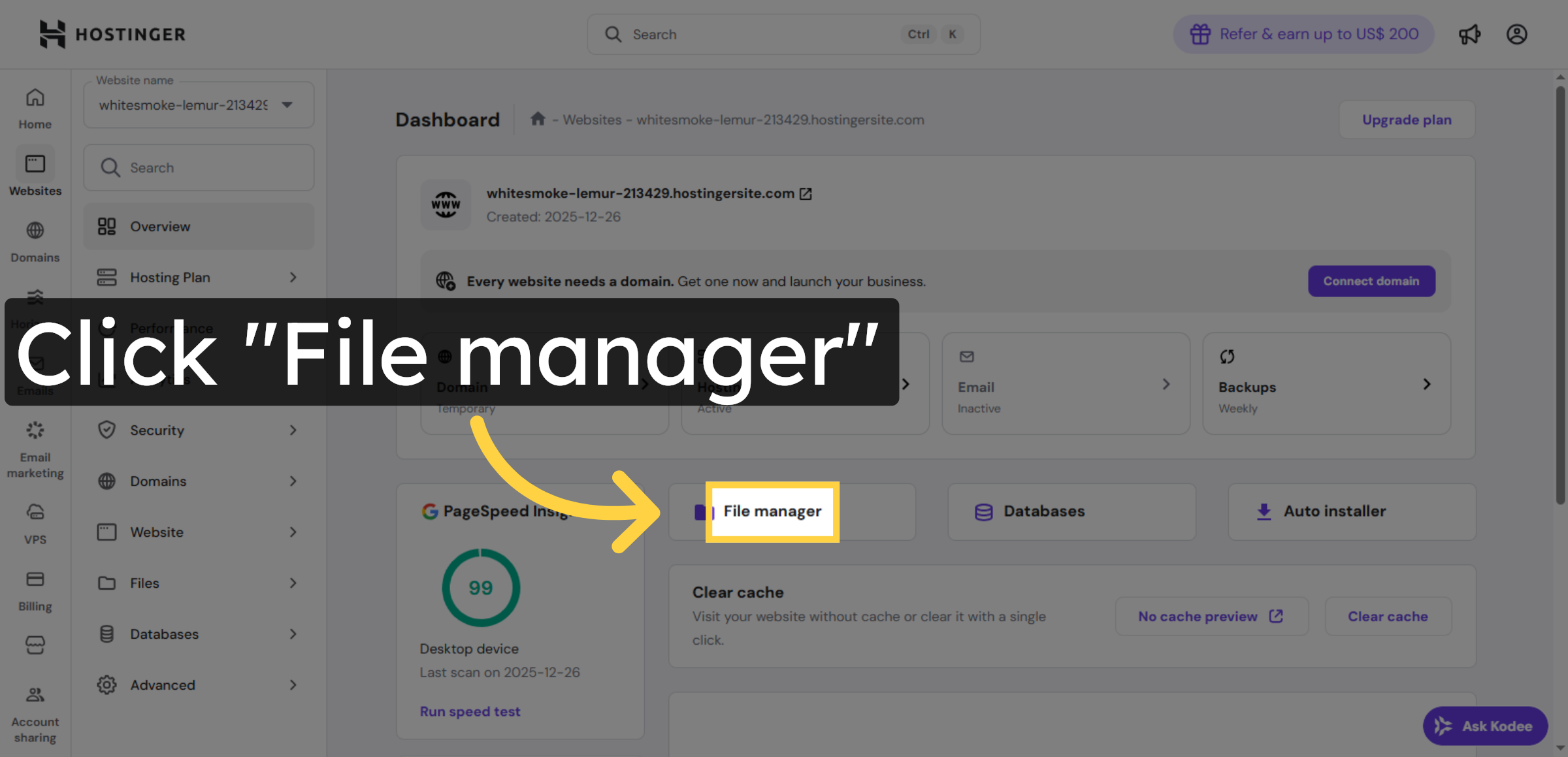
29. Access File Manager
Click File Manager to manage your website files directly.
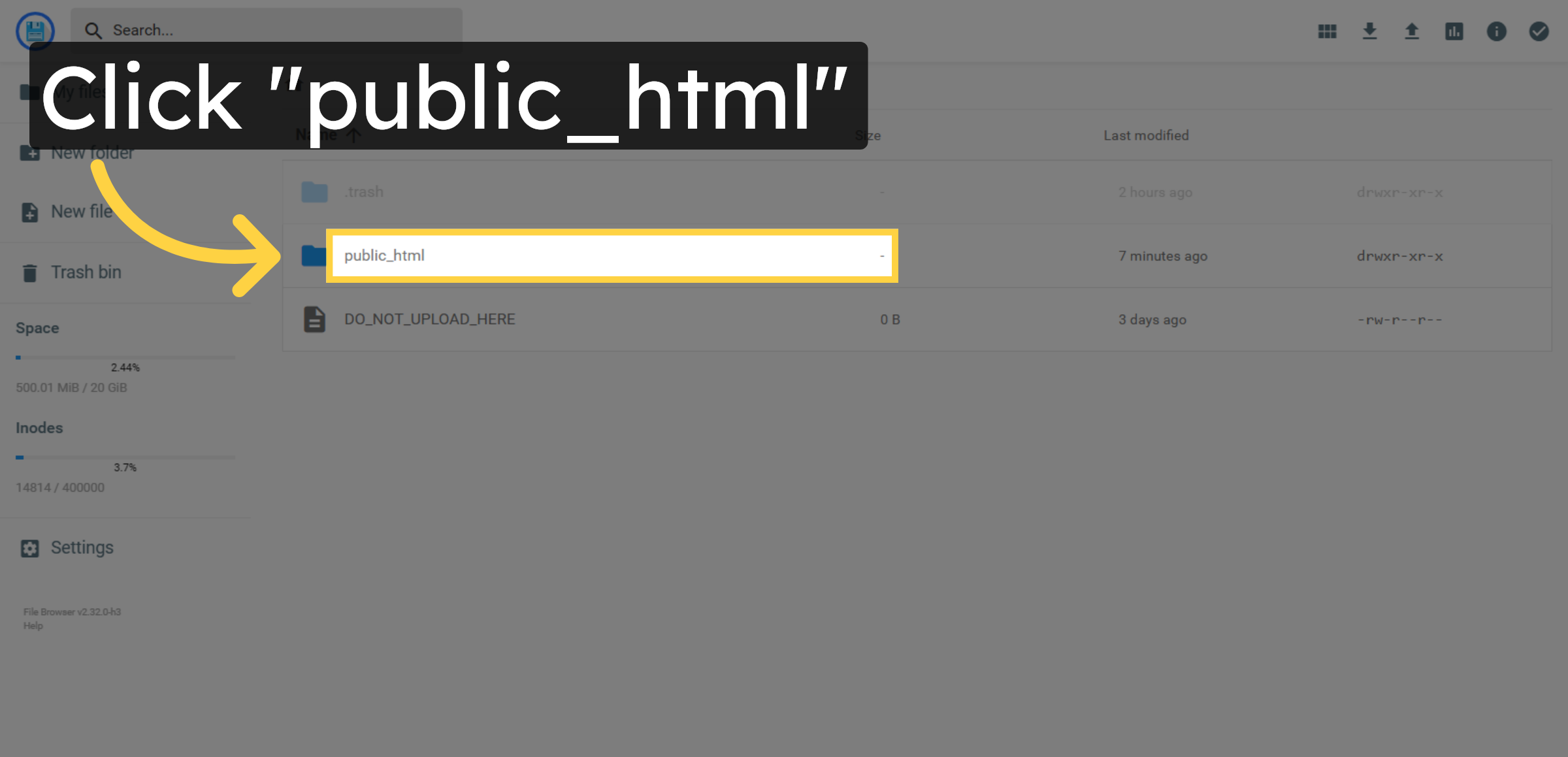
30. Open Public HTML Folder
Click public_html to view the root directory of your website files.
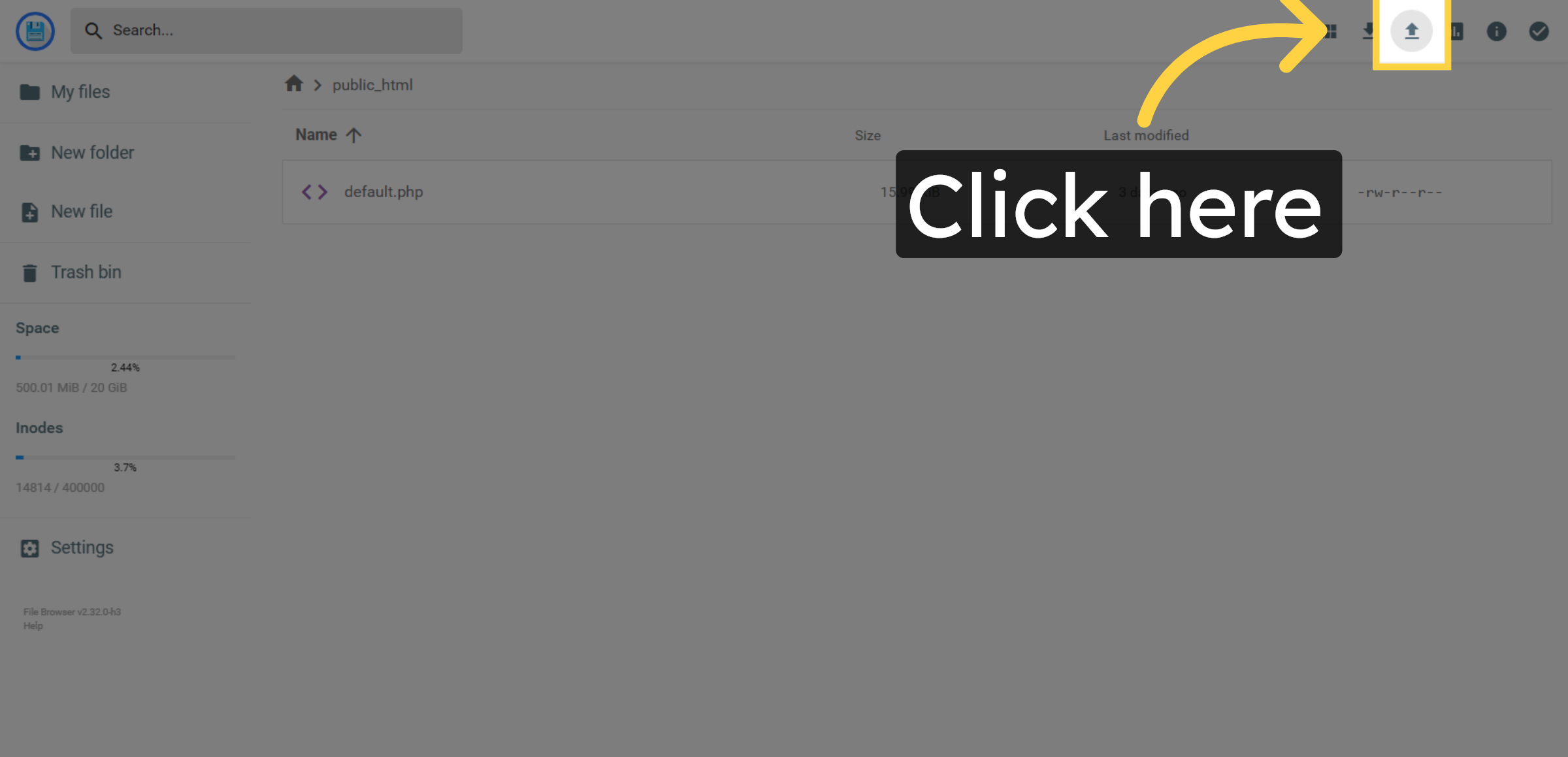
31. Click New File Option
Click here to create or upload new files in the public_html directory.
32. Select File Menu
Click File to open file-related options such as upload or create.
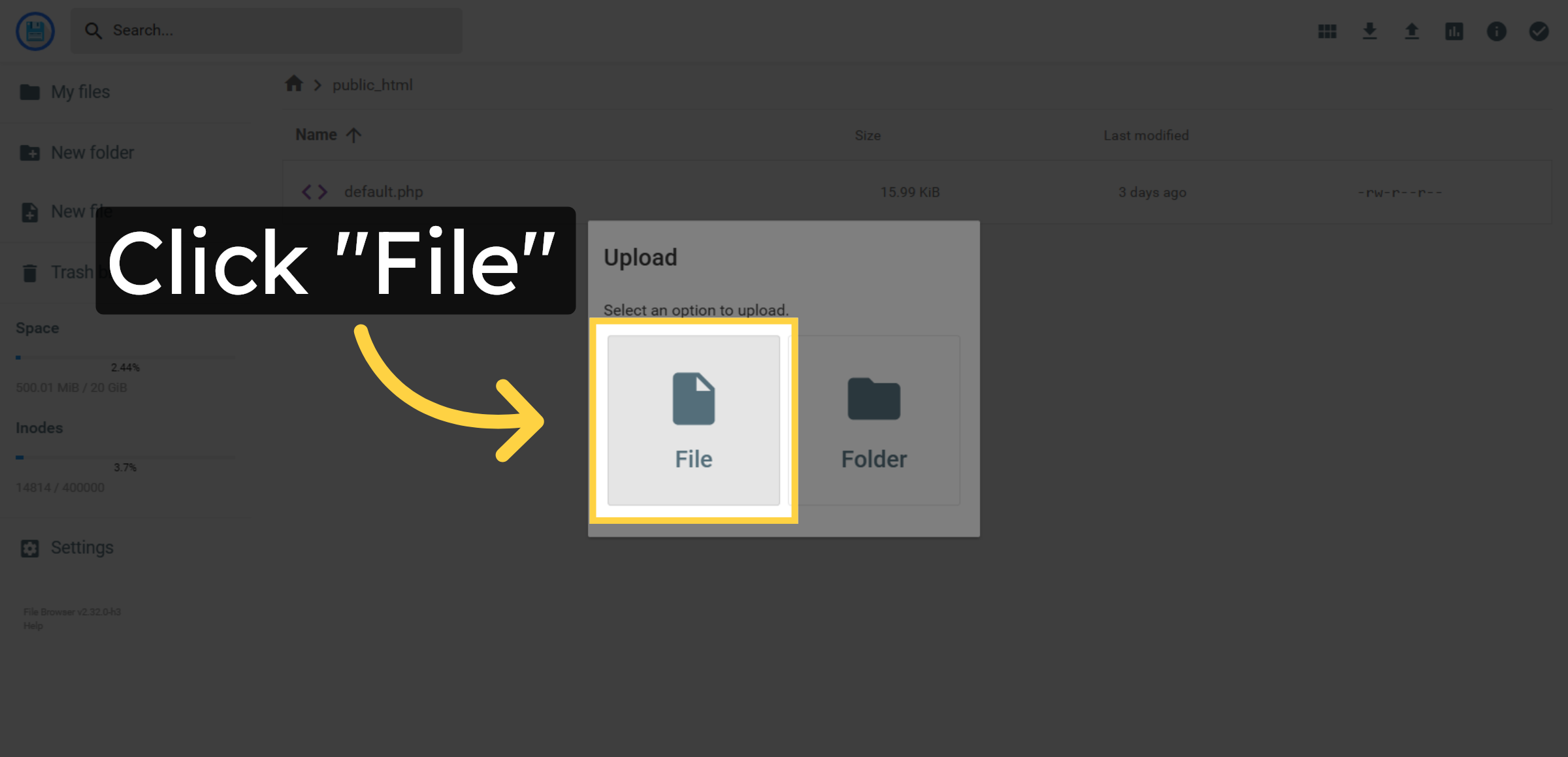
33. Review File Browser Interface
Review the file browser interface to manage your website files efficiently.
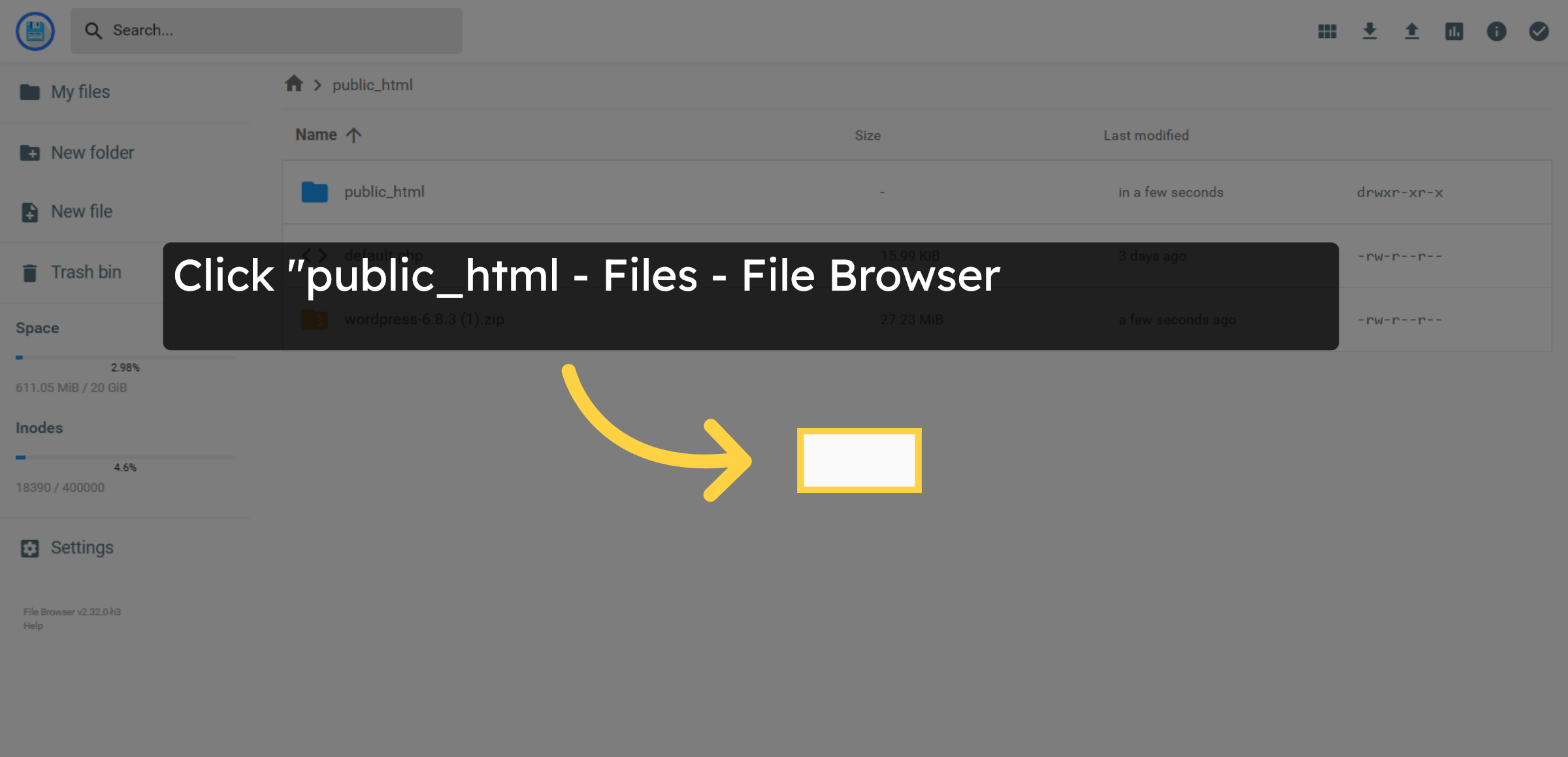
34. Select WordPress Zip File Again
Click the WordPress zip file again to confirm your selection.
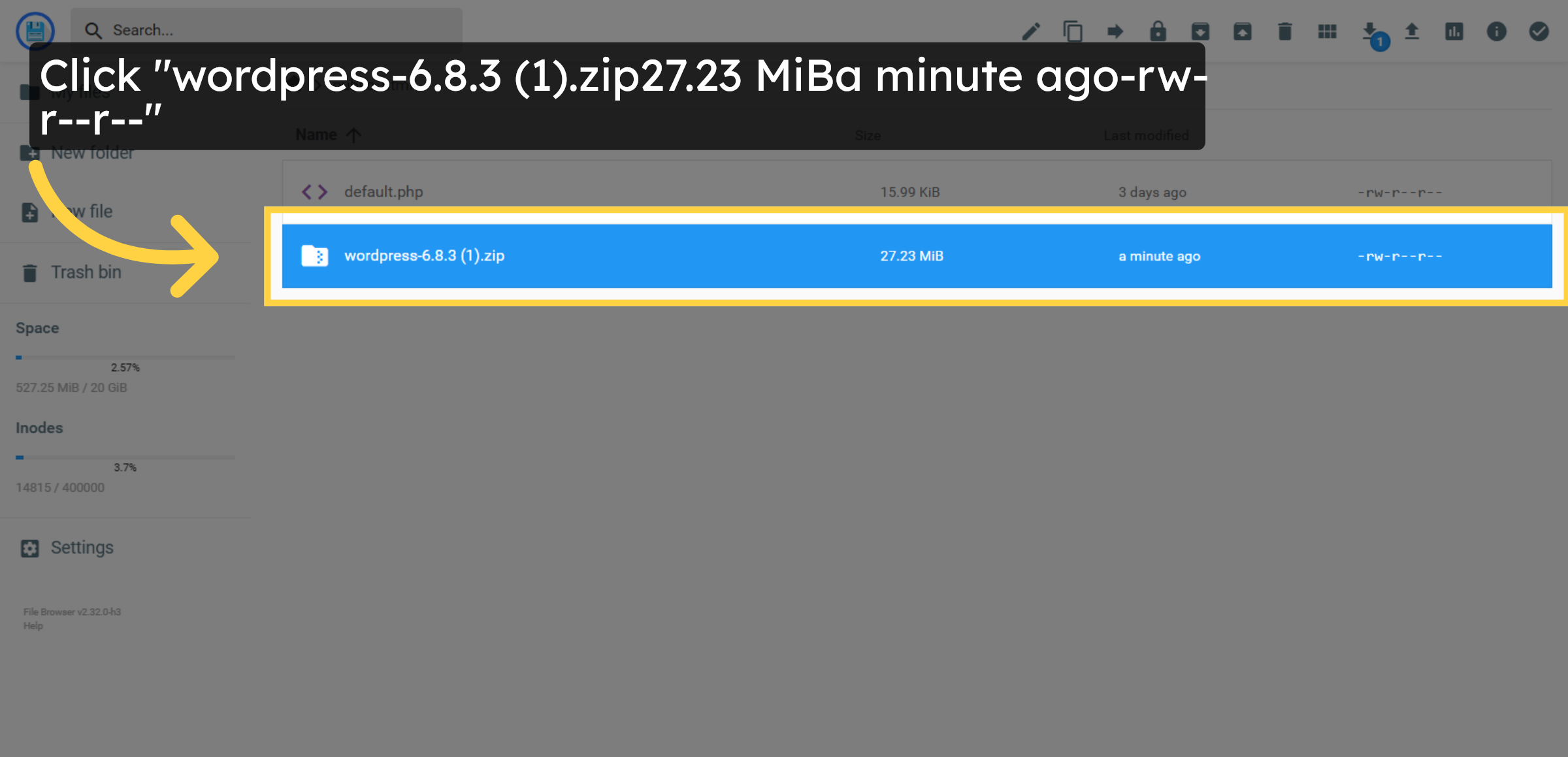
35. Extract WordPress Files
Click Extract to unzip the WordPress installation files into your directory.
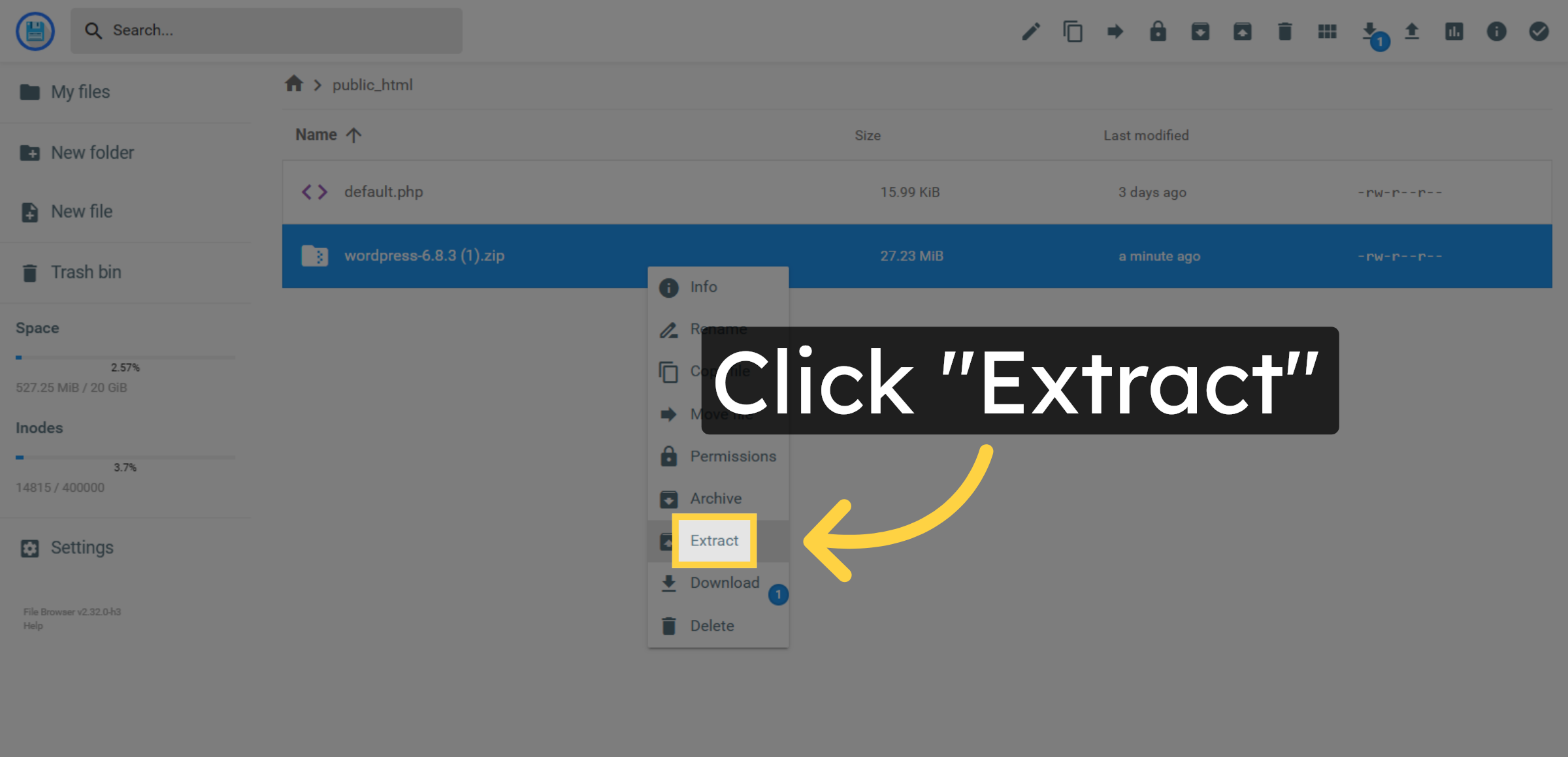
36. Return to Public HTML Folder
Click public_html to return to your website’s root folder.
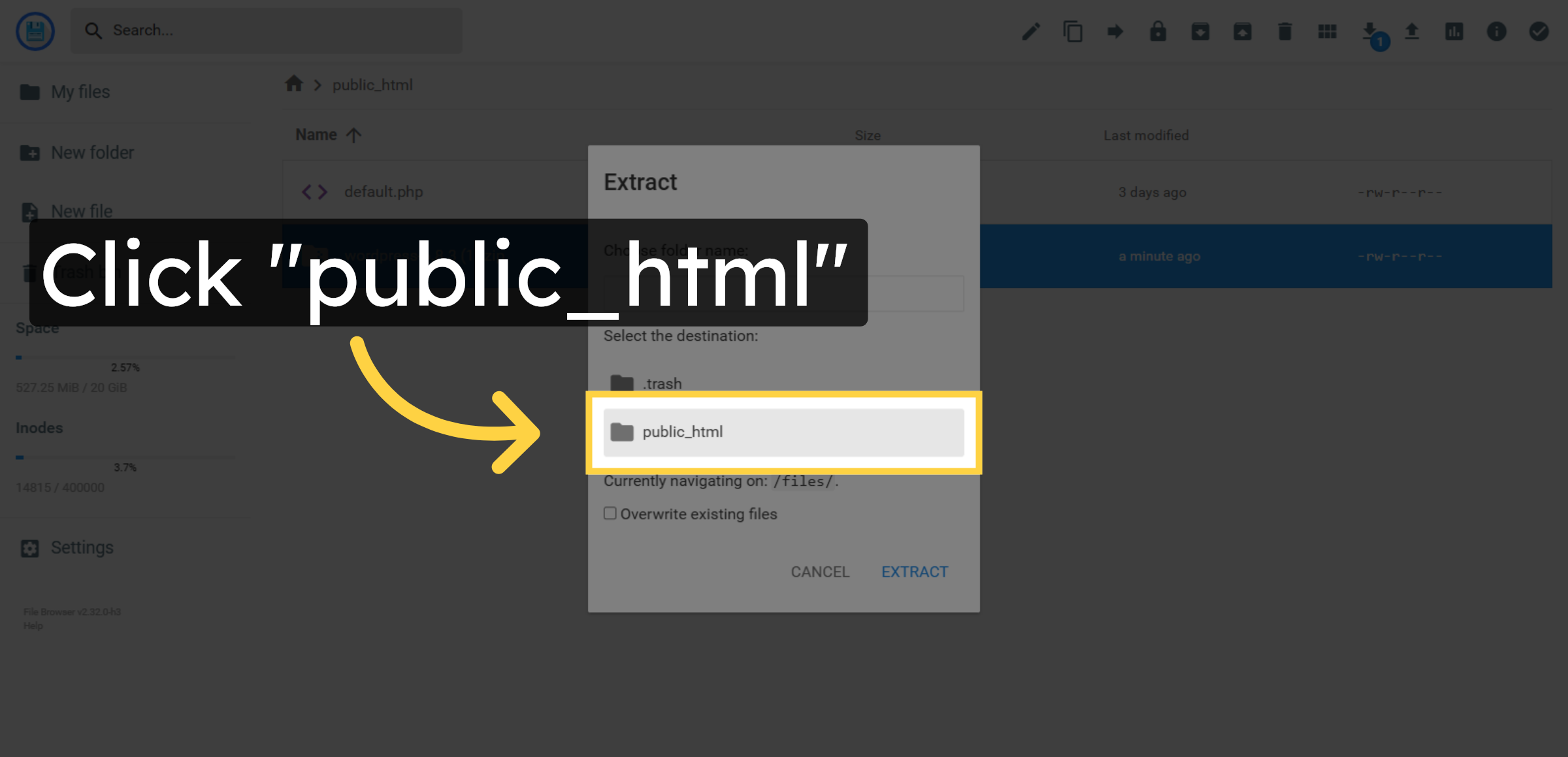
37. Enter Extraction Folder Name
Enter the folder name where WordPress files will be extracted.
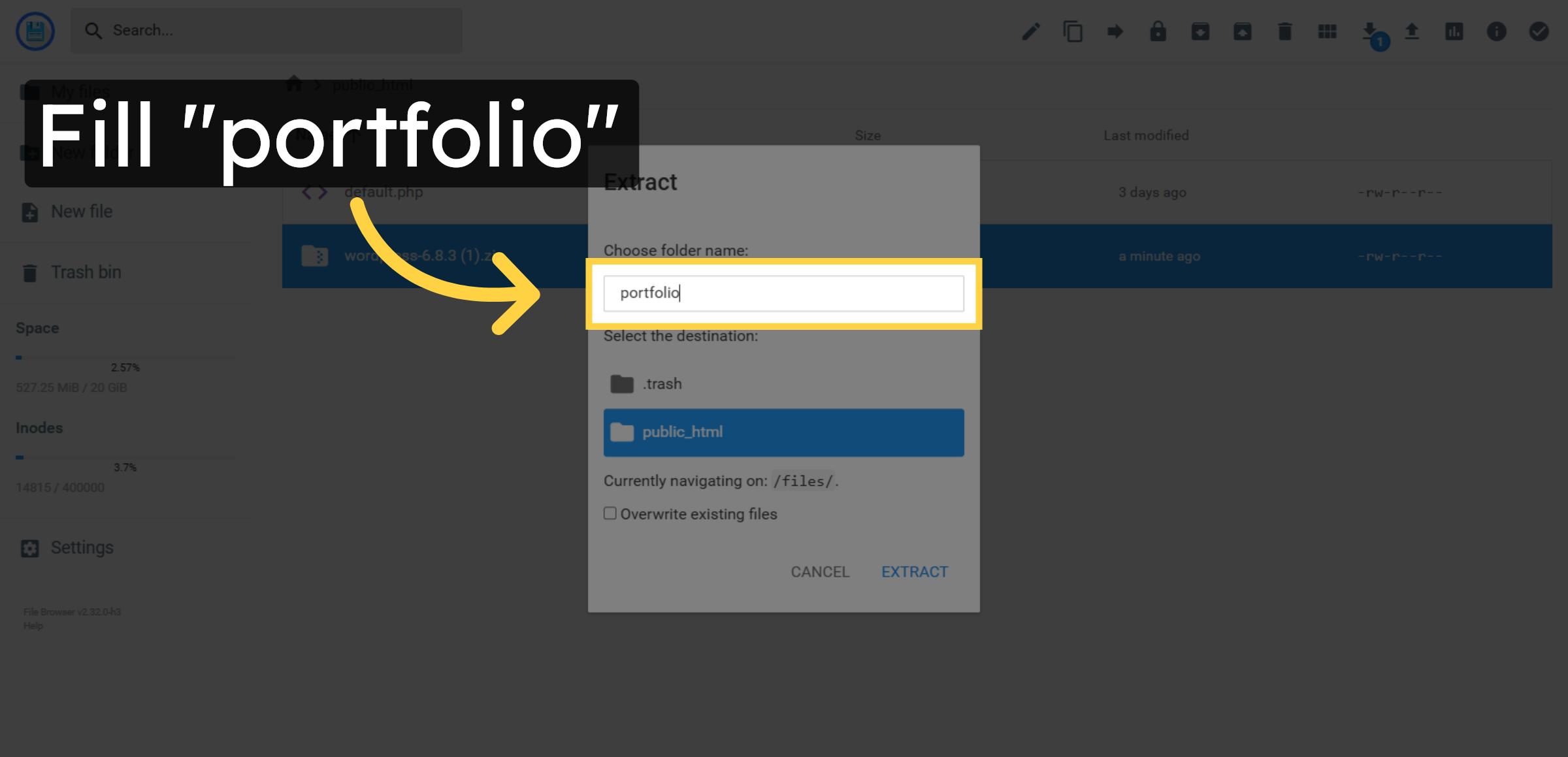
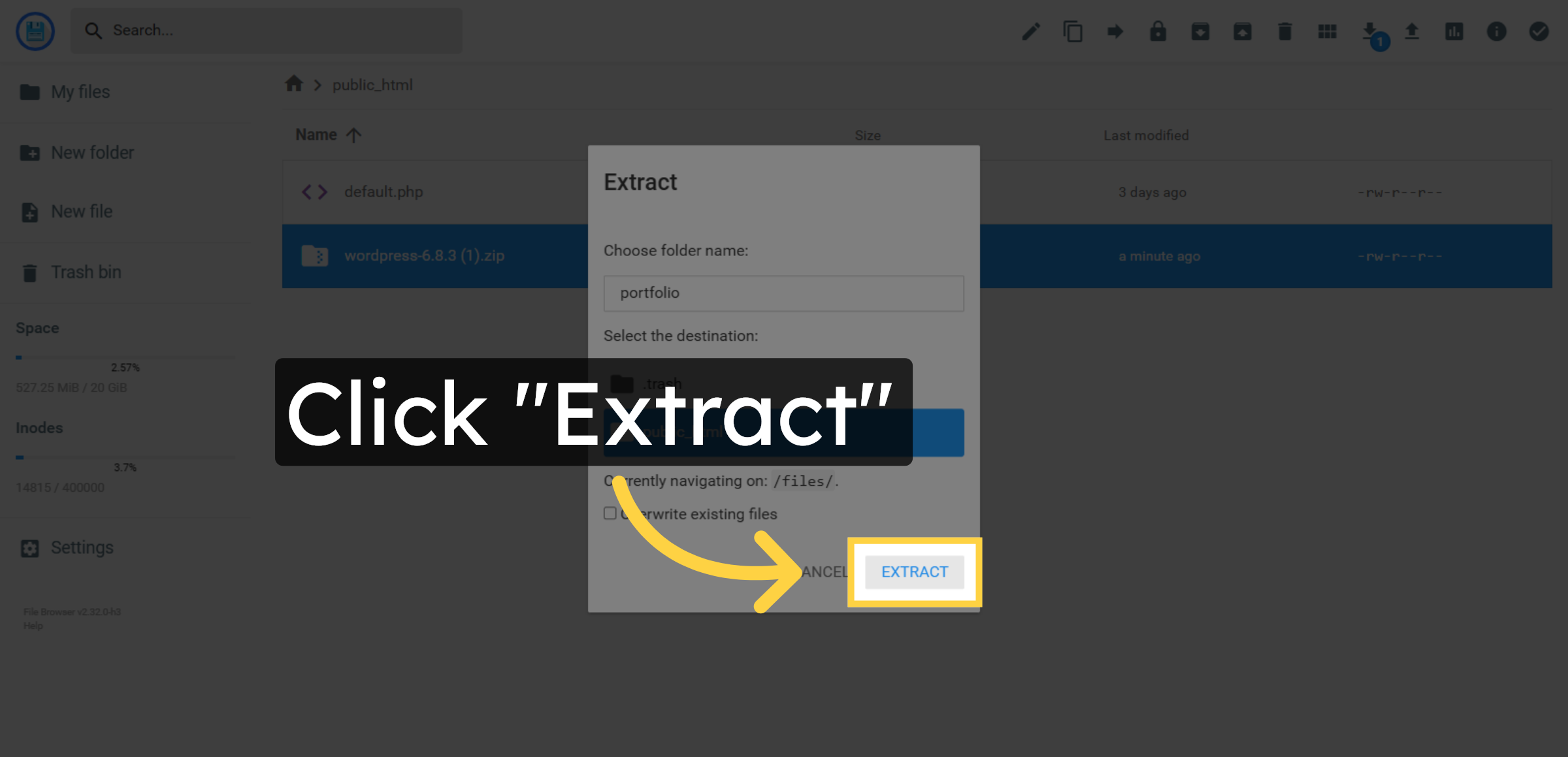
38. Confirm Extraction
Click Extract to start extracting WordPress files into the specified folder.
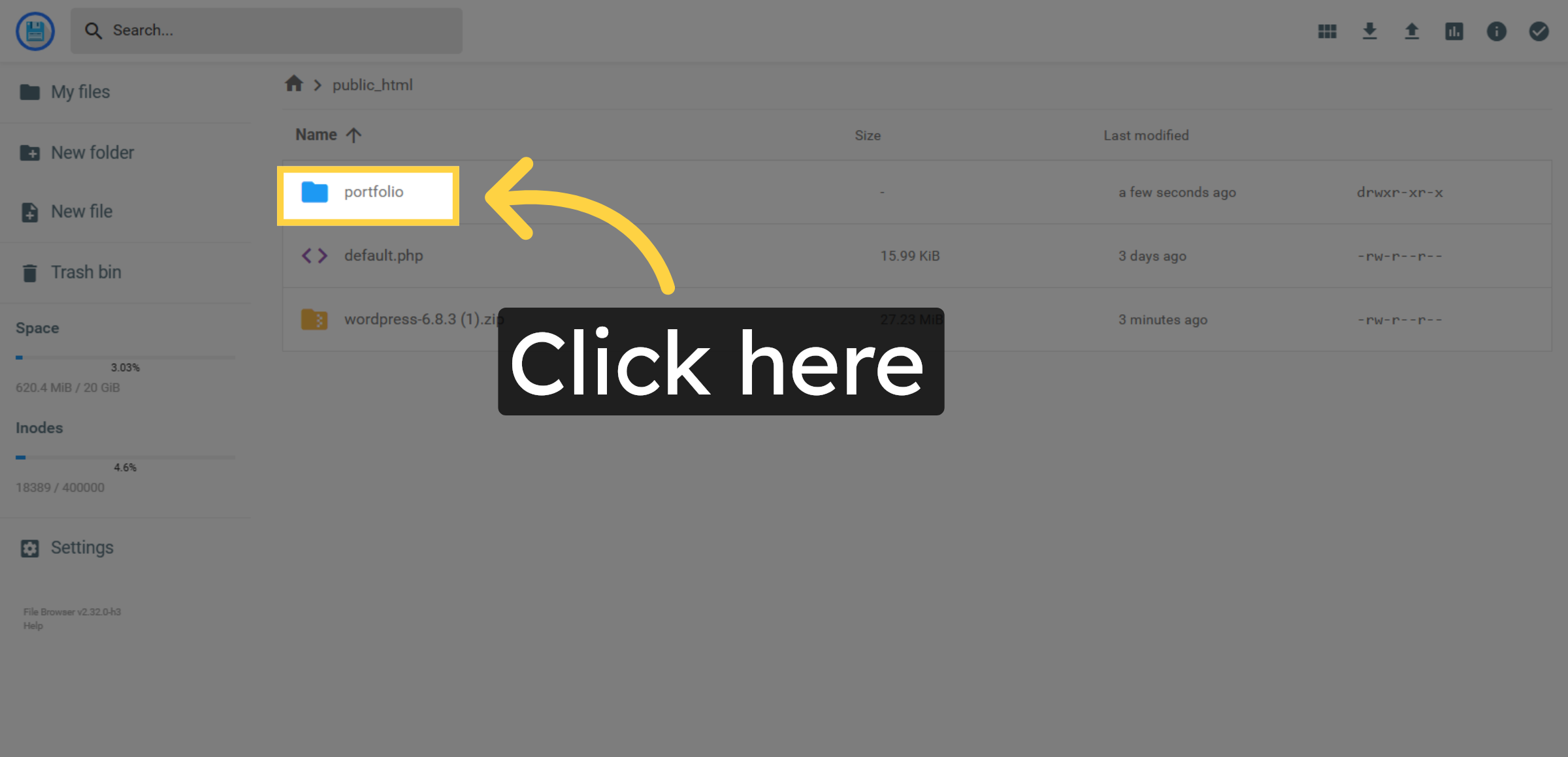
39. Click Confirmation Button
Click here to confirm the extraction process completion.
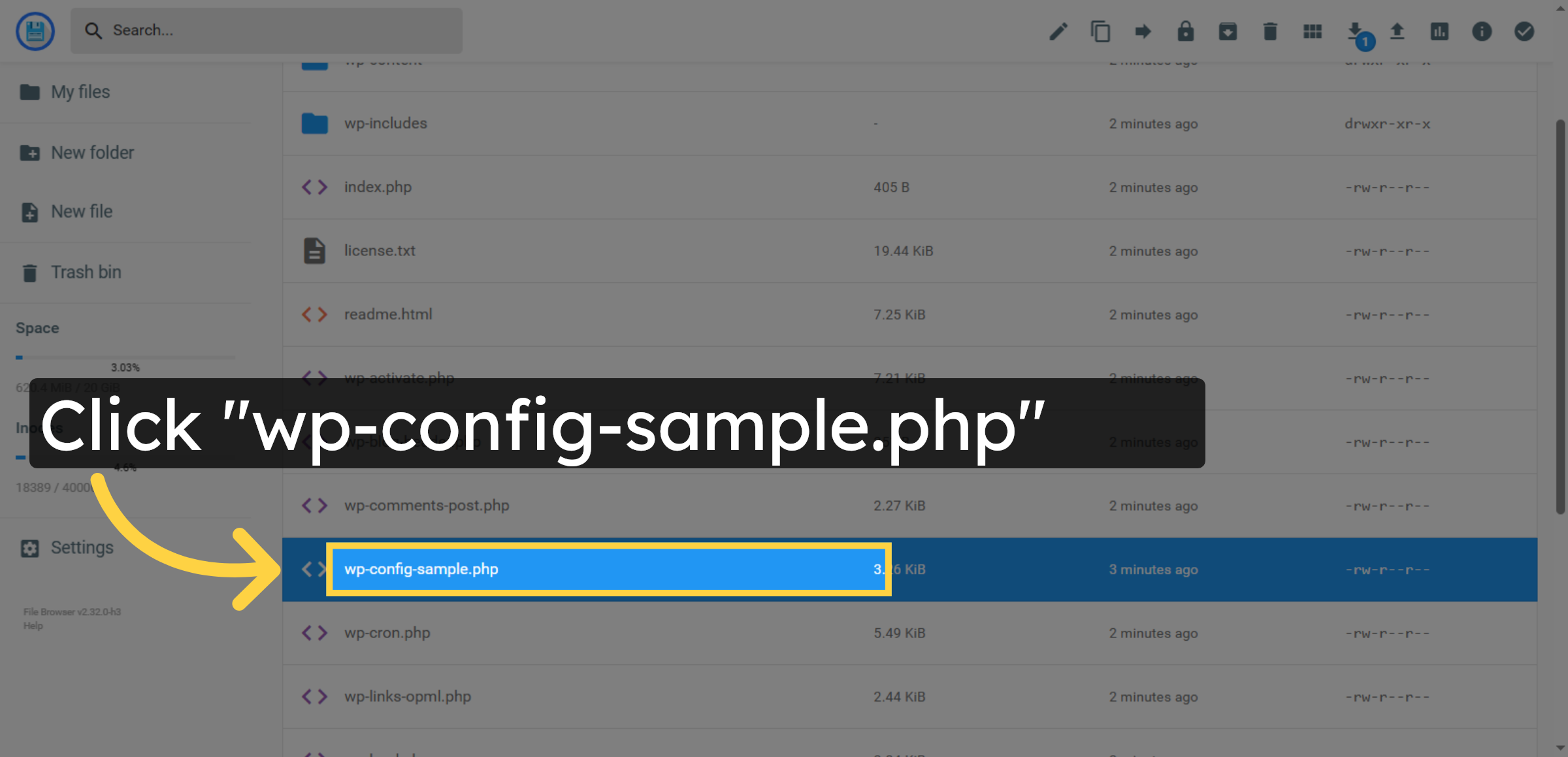
40. Select wp-config Sample File
Click wp-config-sample.php again to open the file editor.
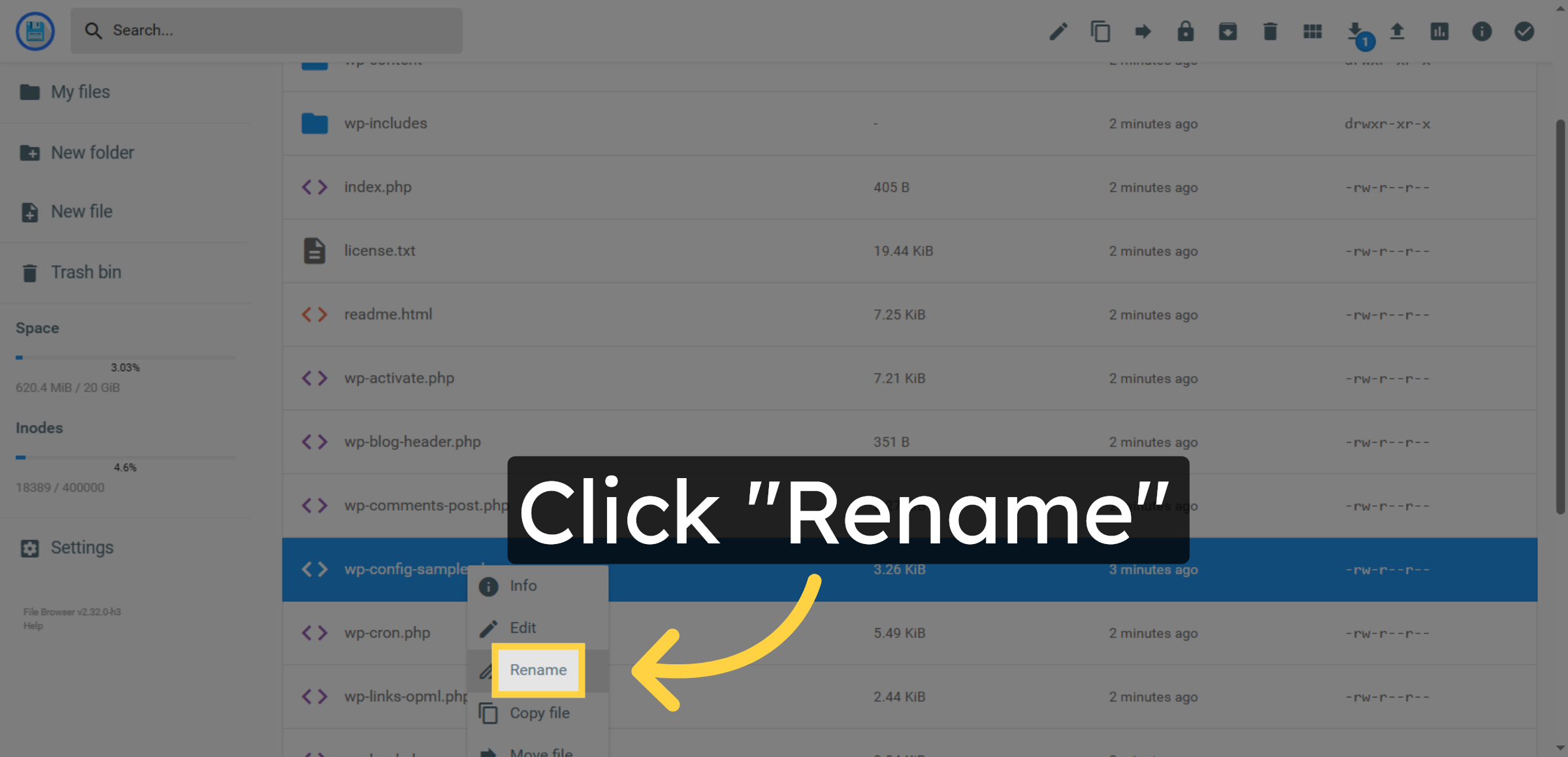
41. Choose Rename Option
Click Rename to change the file name for configuration.
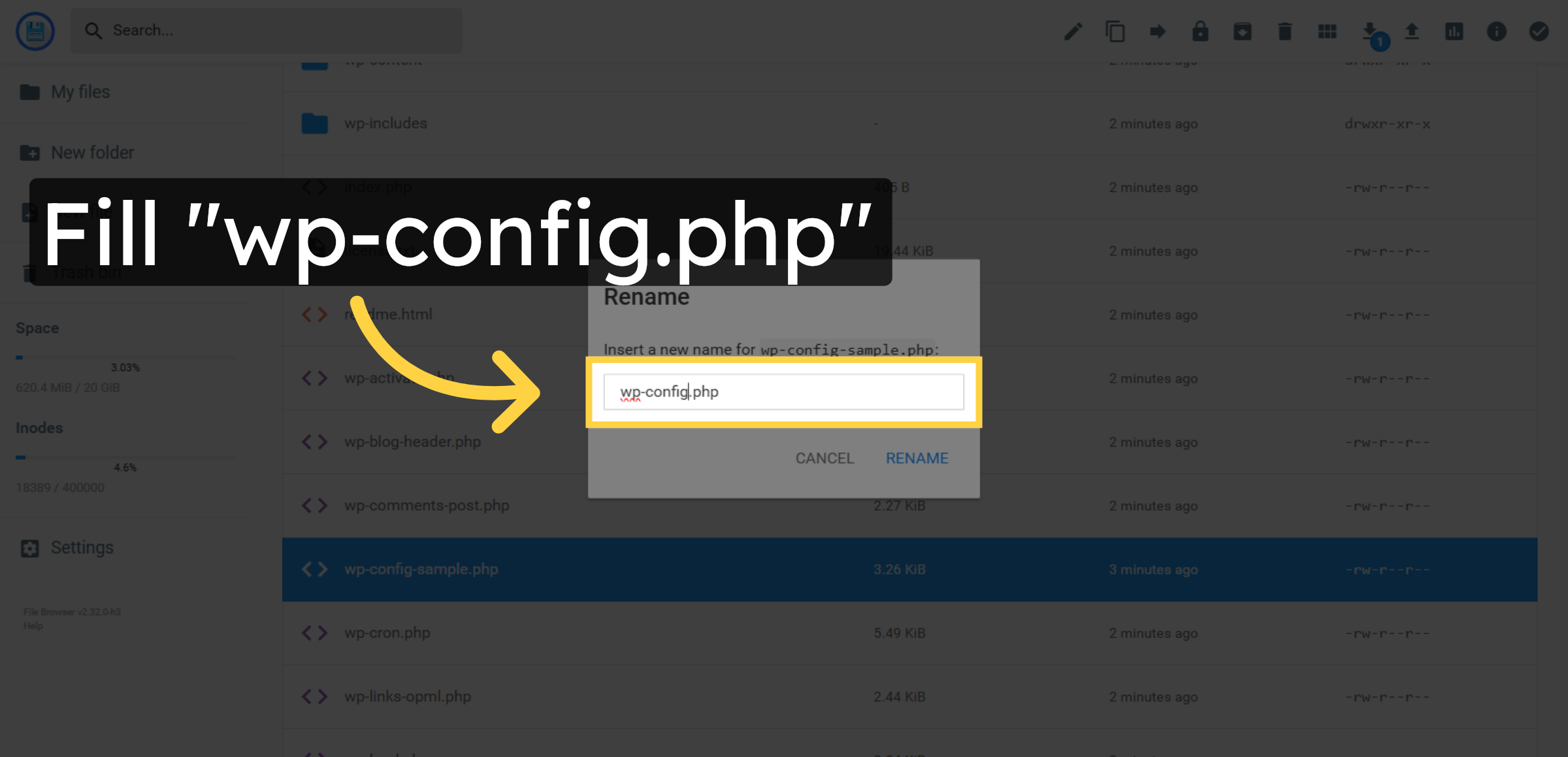
42. Rename Configuration File
Enter wp-config.php as the new file name to enable WordPress configuration.
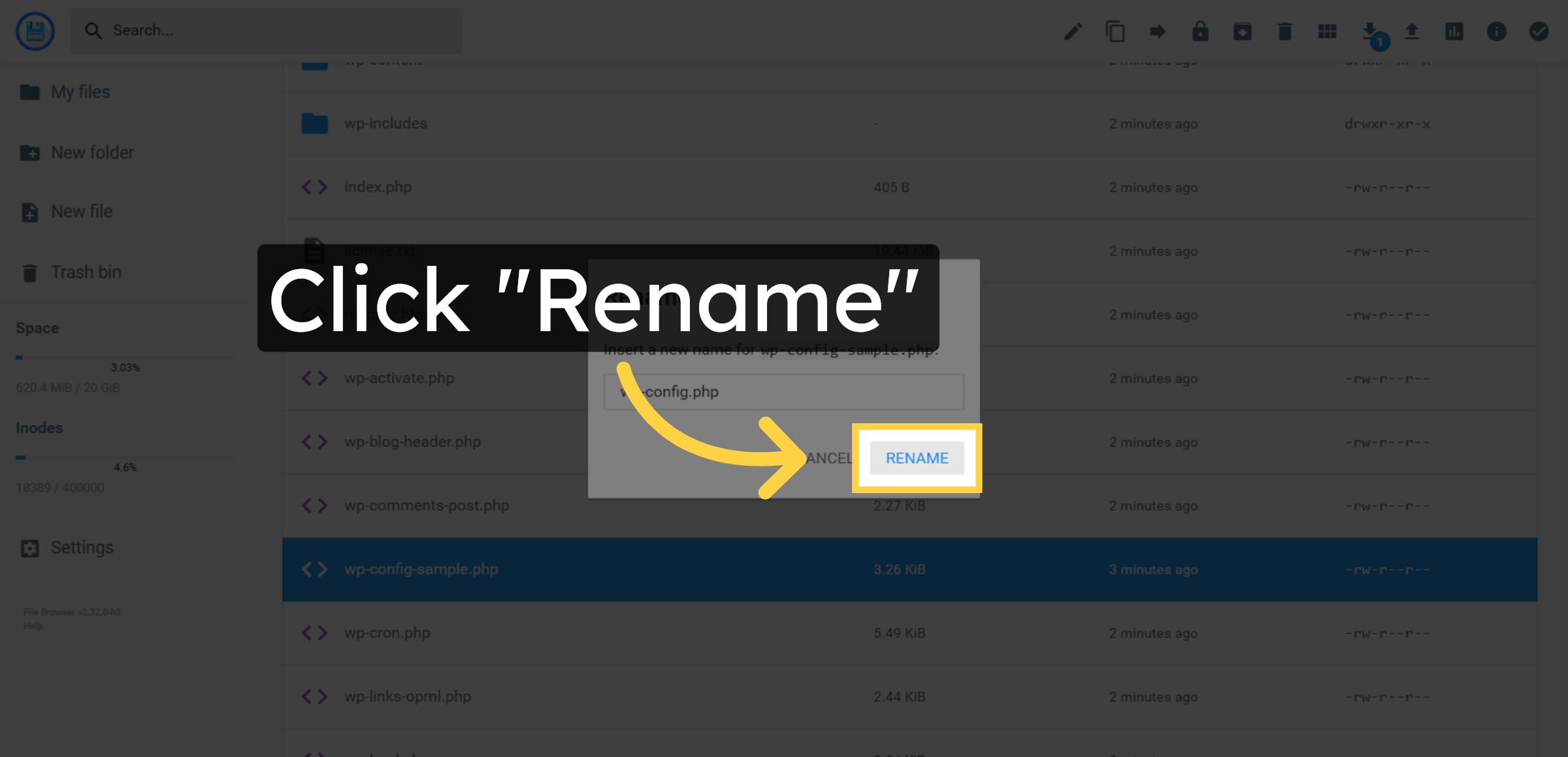
43. Confirm Rename Action
Click Rename to save the new file name.
44. Open wp-config.php File
Click wp-config.php to edit the WordPress configuration settings.
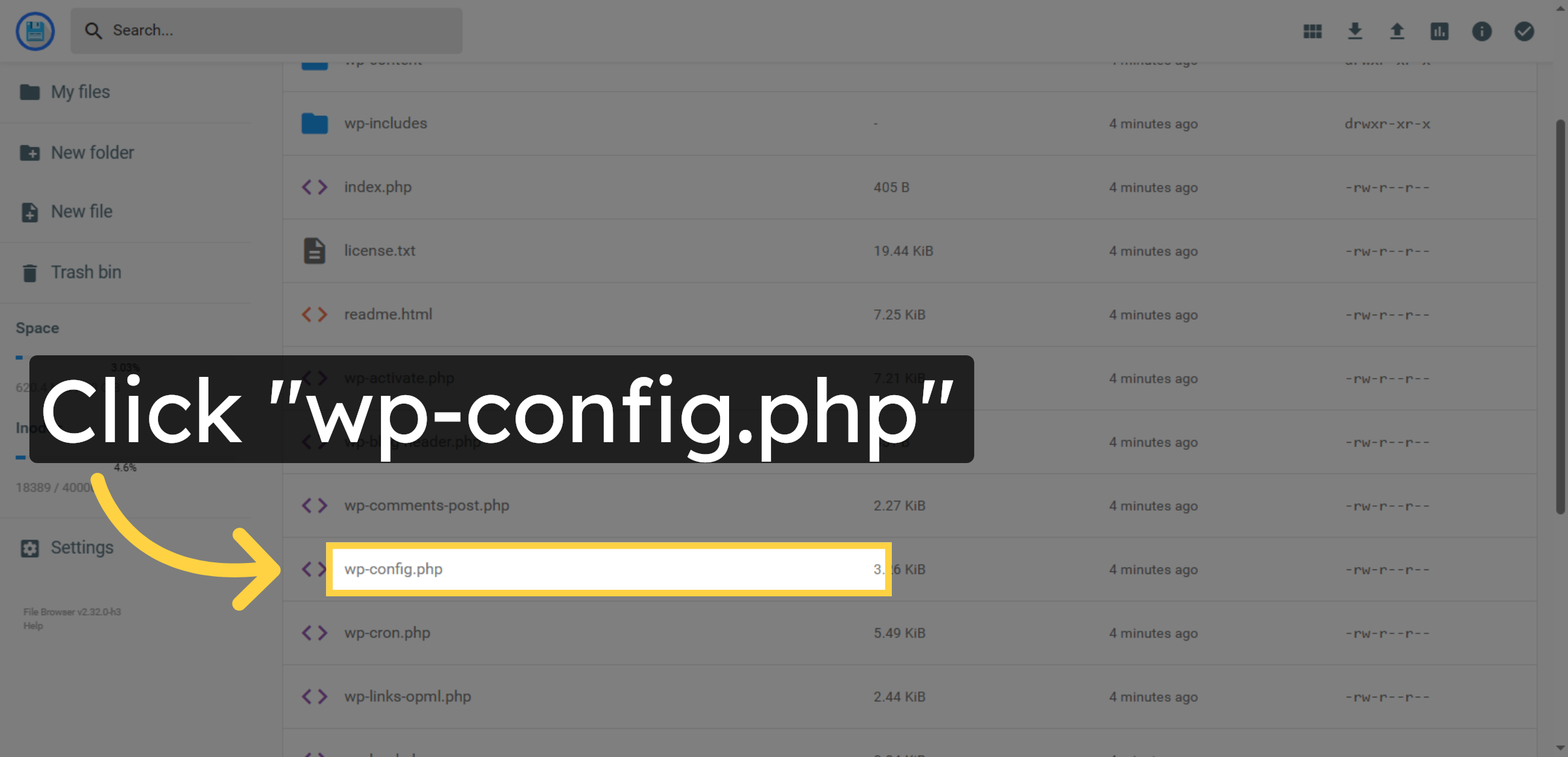
45. Select wp-config.php File
Click wp-config.php again to ensure the file is open for editing.
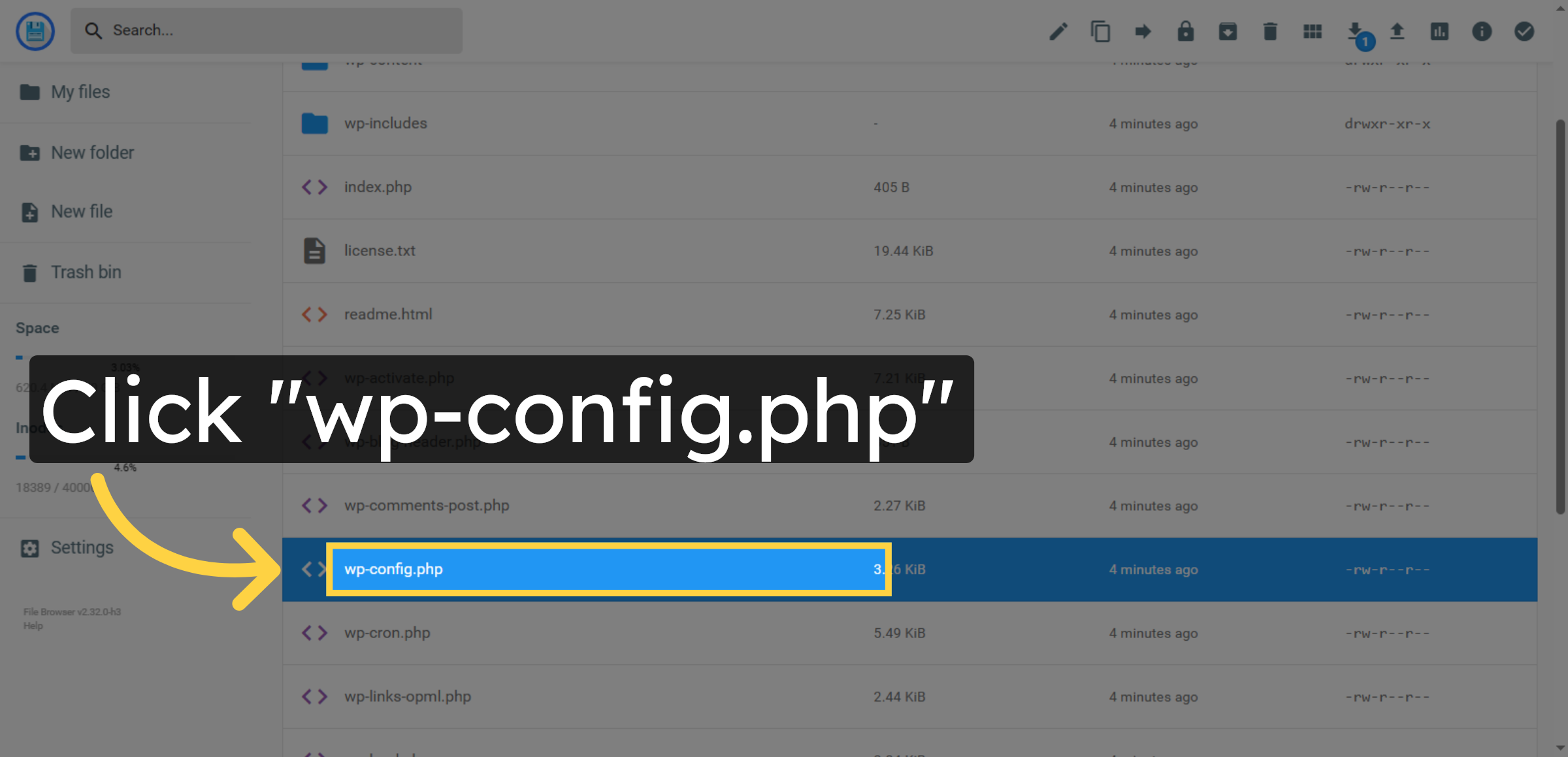
46. Review Configuration File Details
Review the wp-config.php file instructions and comments for setup guidance.
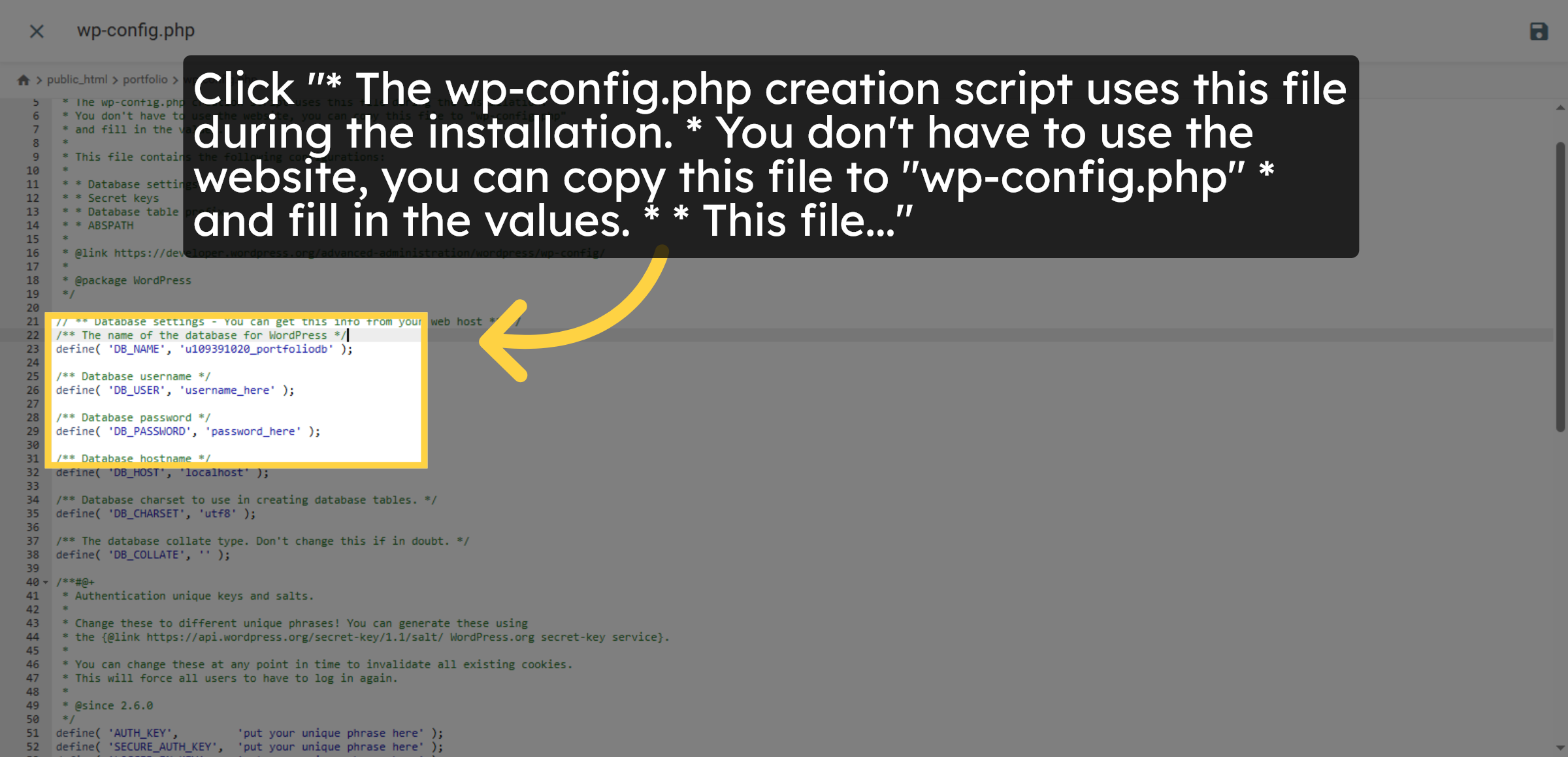
47. Enter Database Password in Config
Enter your database password in the wp-config.php file to enable connection.
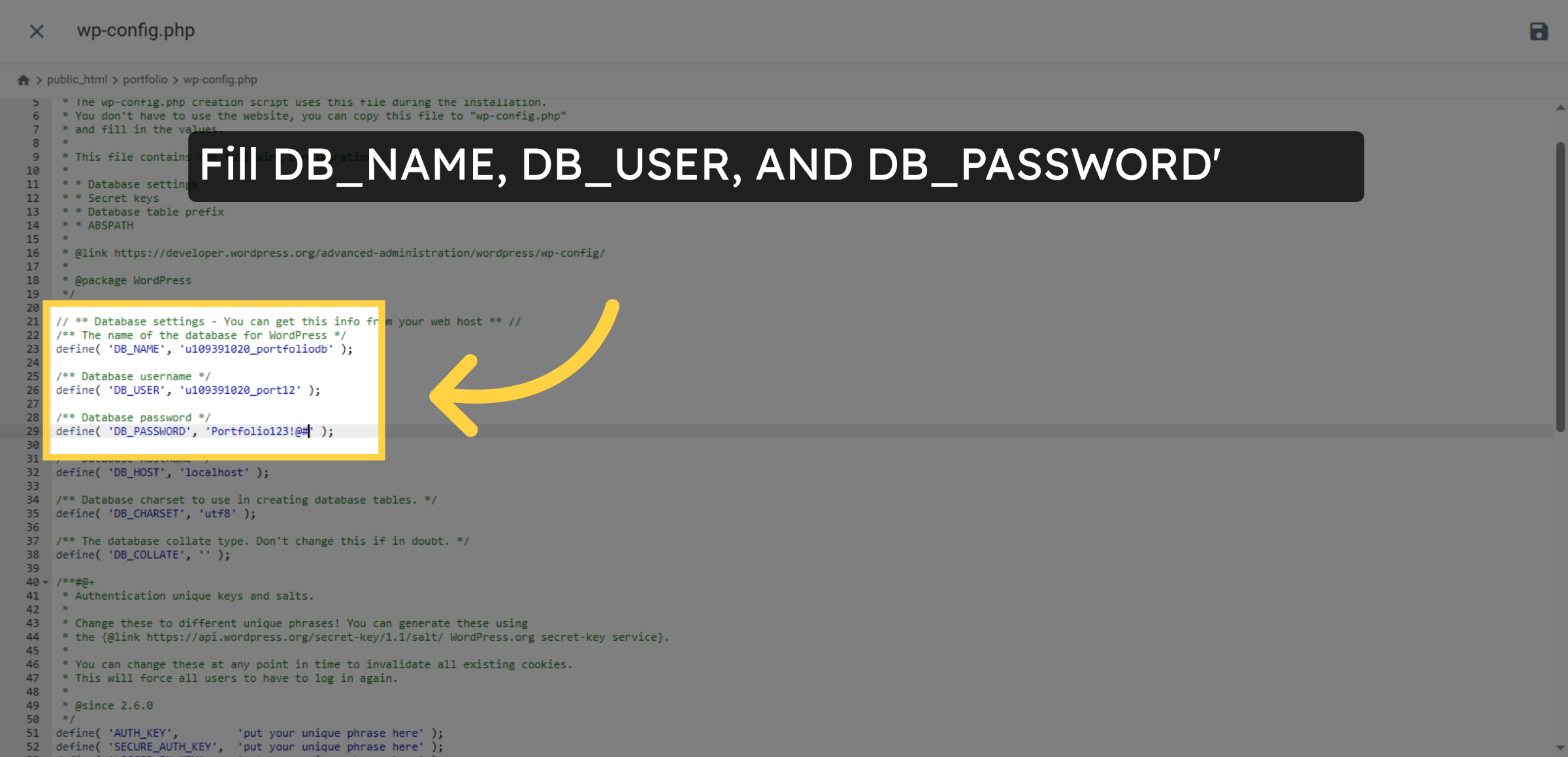
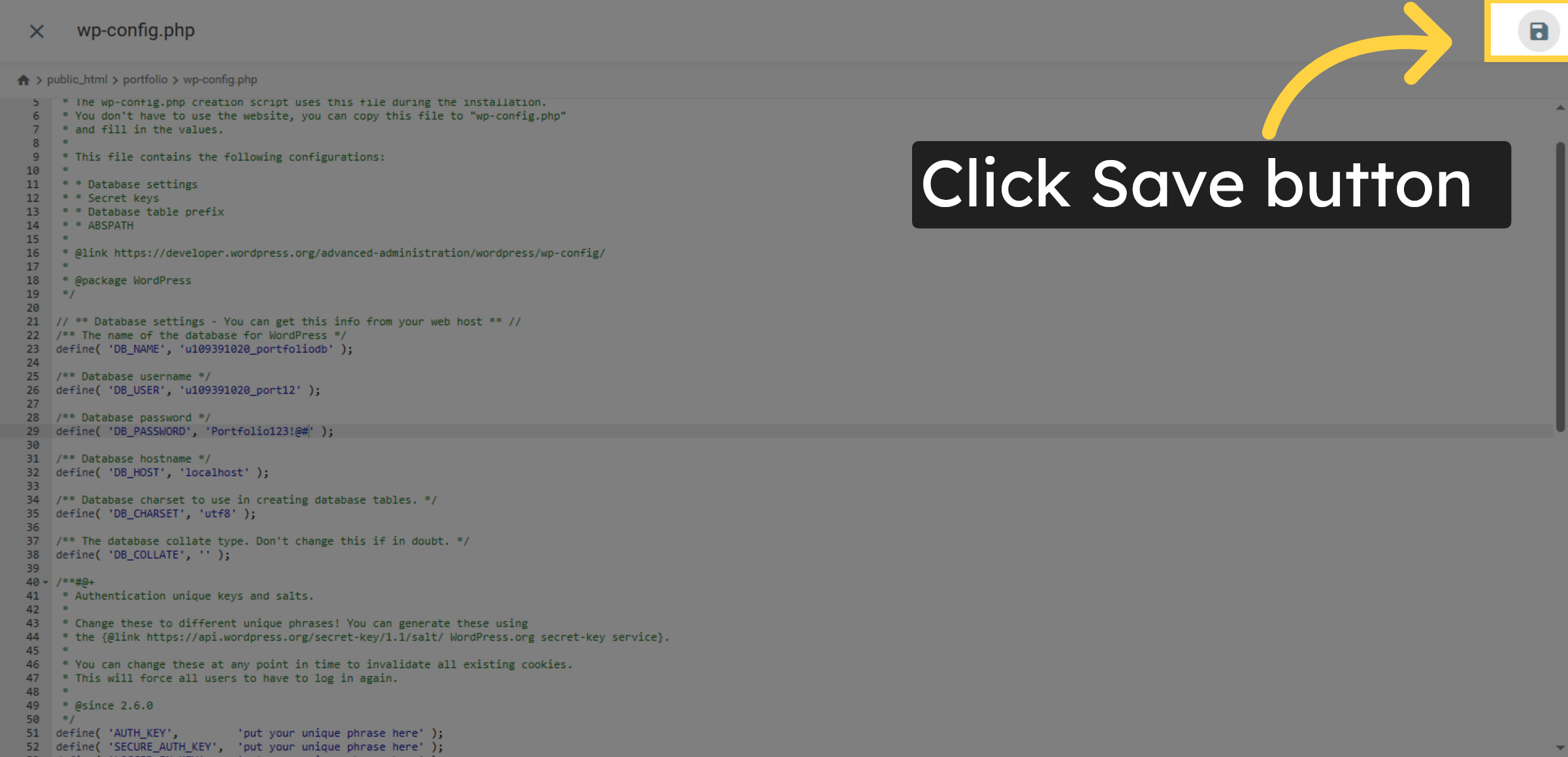
48. Click to Save Changes
Click here to save the changes made to the wp-config.php file.
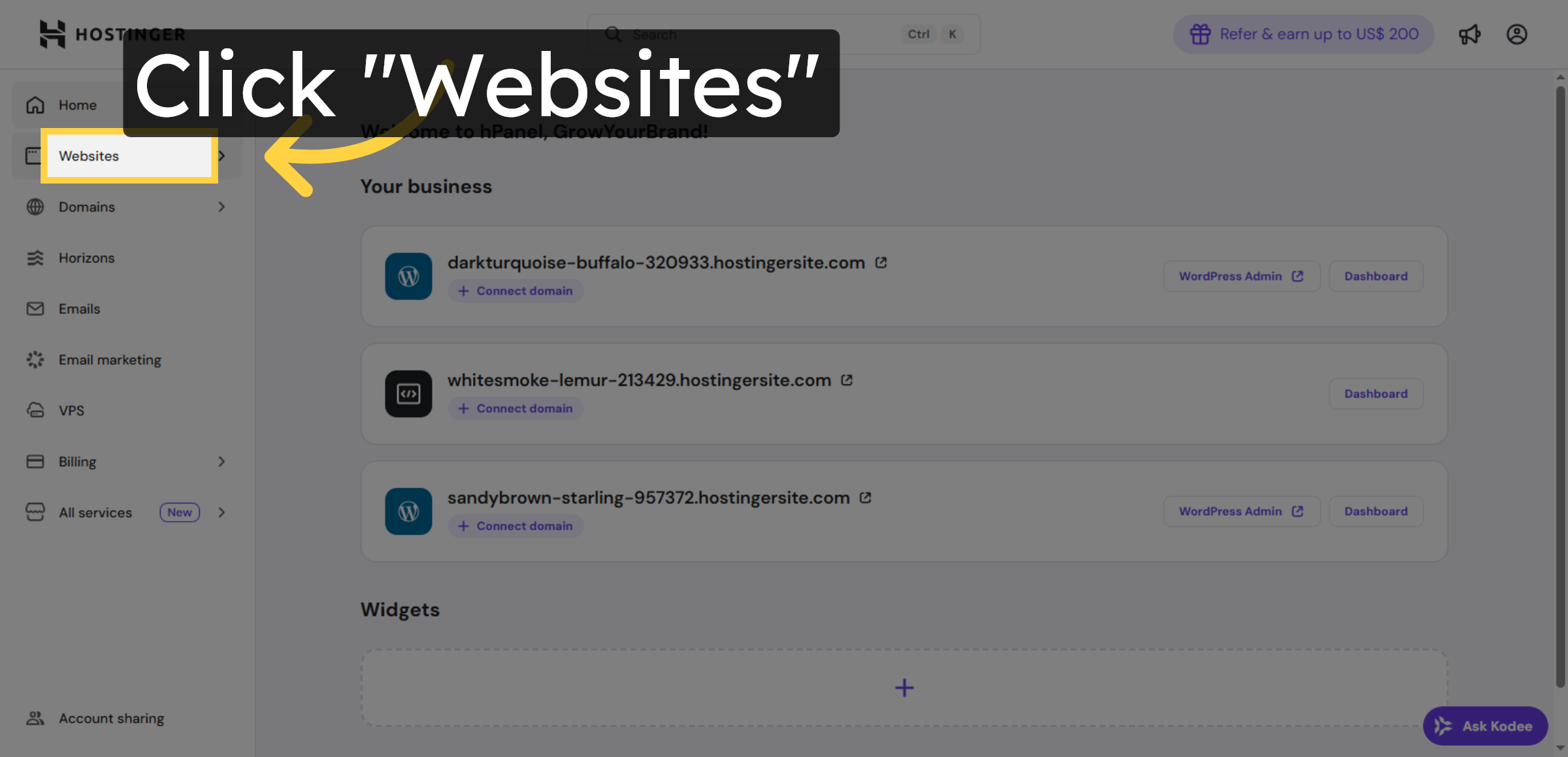
49. Navigate to Websites Section
Click Websites to return to your list of managed sites.
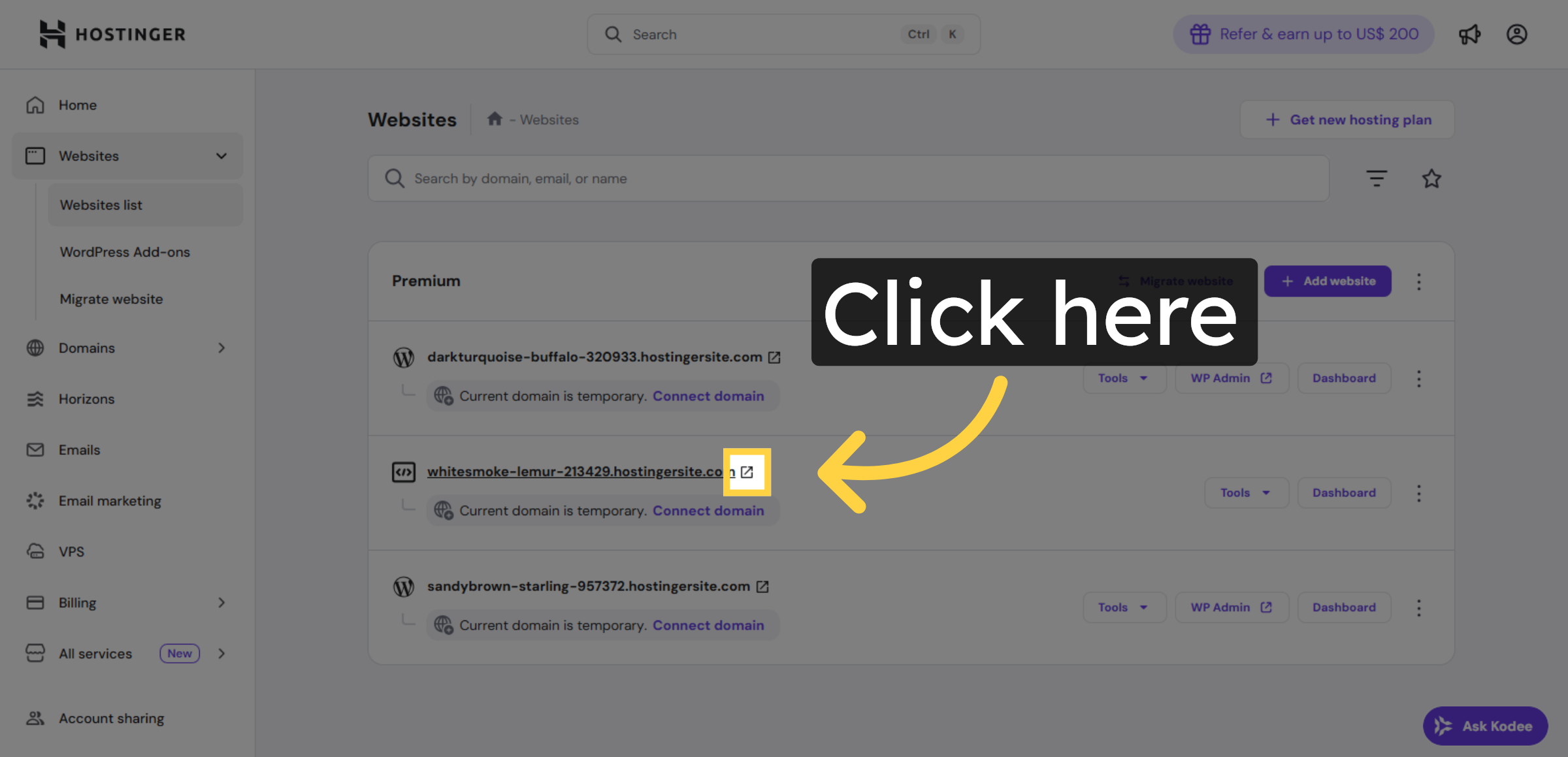
50. Click Website Management
Click here to open the management dashboard for your website.
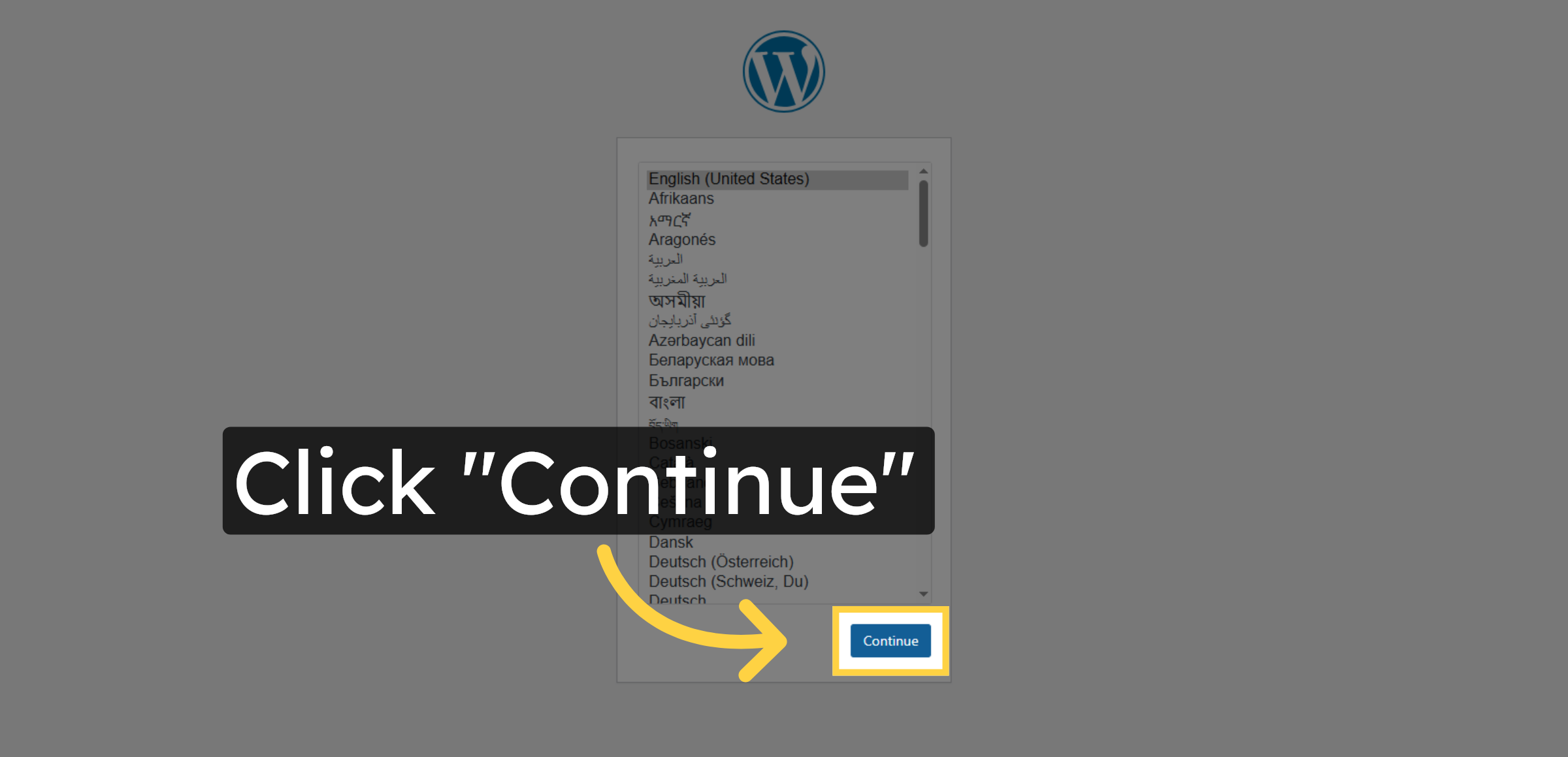
51. Click Continue Installation
Click Continue to proceed with the WordPress installation process.
52. Enter Site Title
Enter your desired site title to identify your WordPress website.
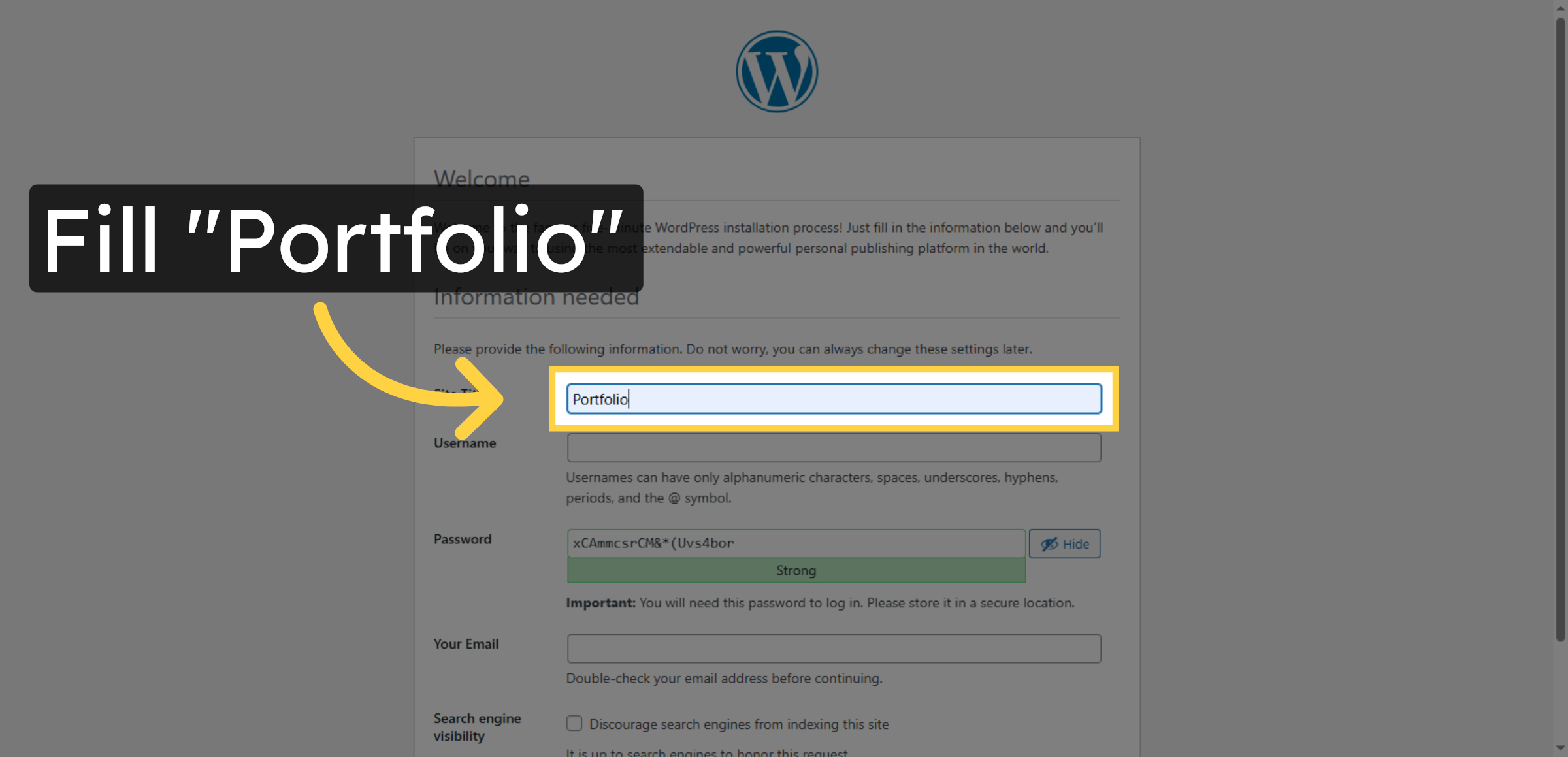
53. Enter Username
Enter your chosen username for WordPress administration access.
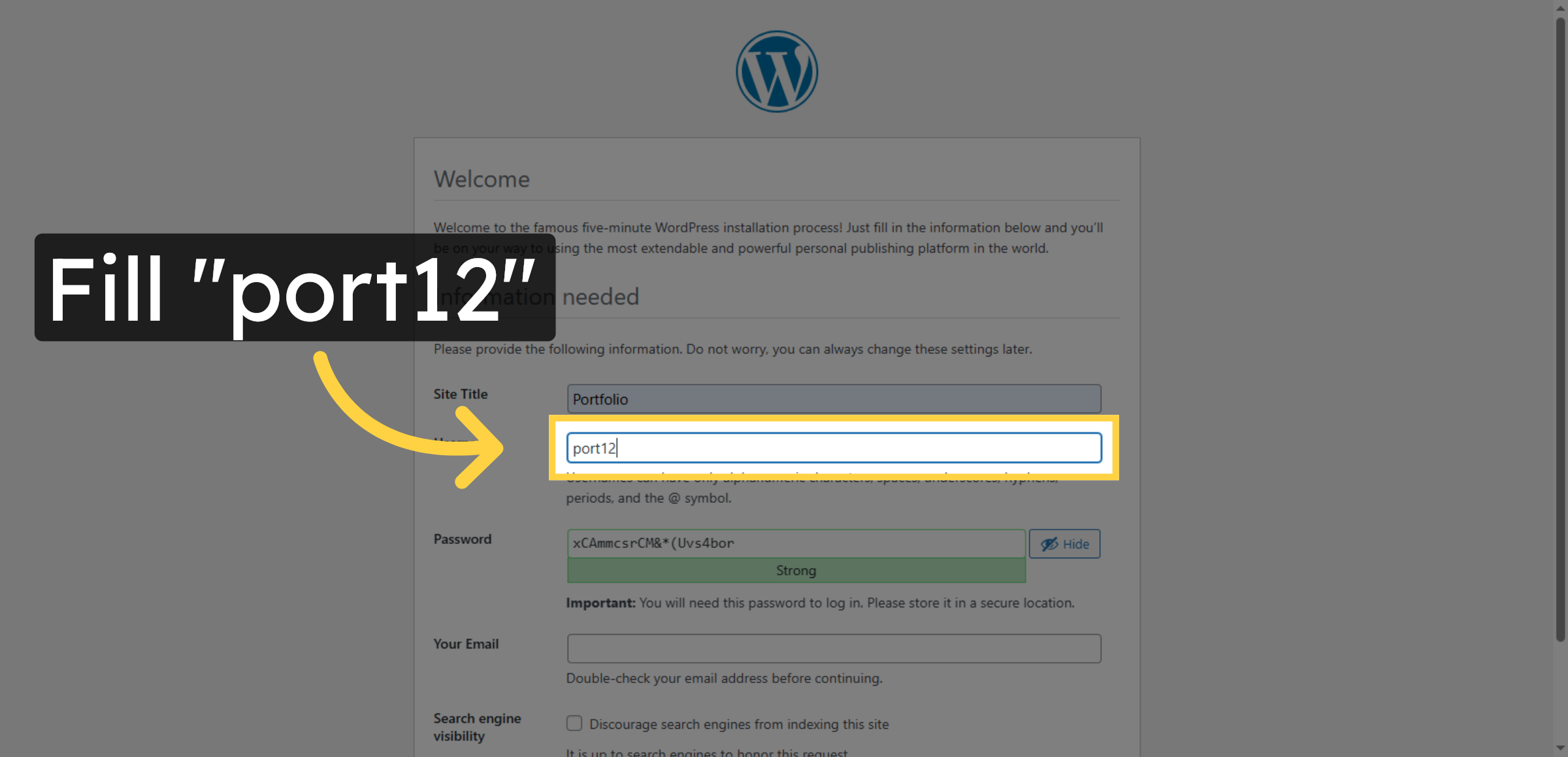
54. Confirm Password Entry
Confirm your password by entering it again for accuracy.
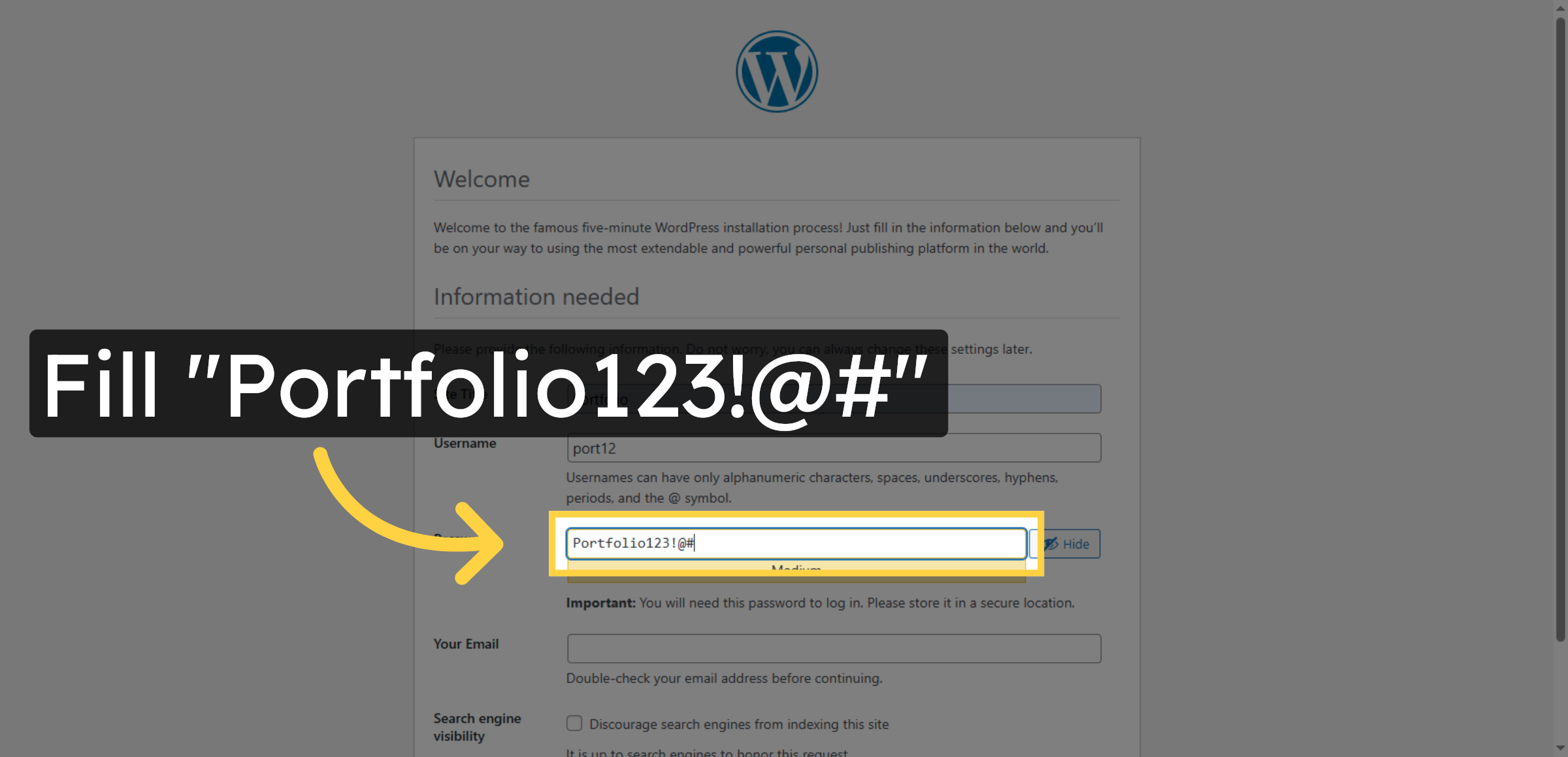
55. Enter Email Address
Enter your email address to receive WordPress notifications and password resets.
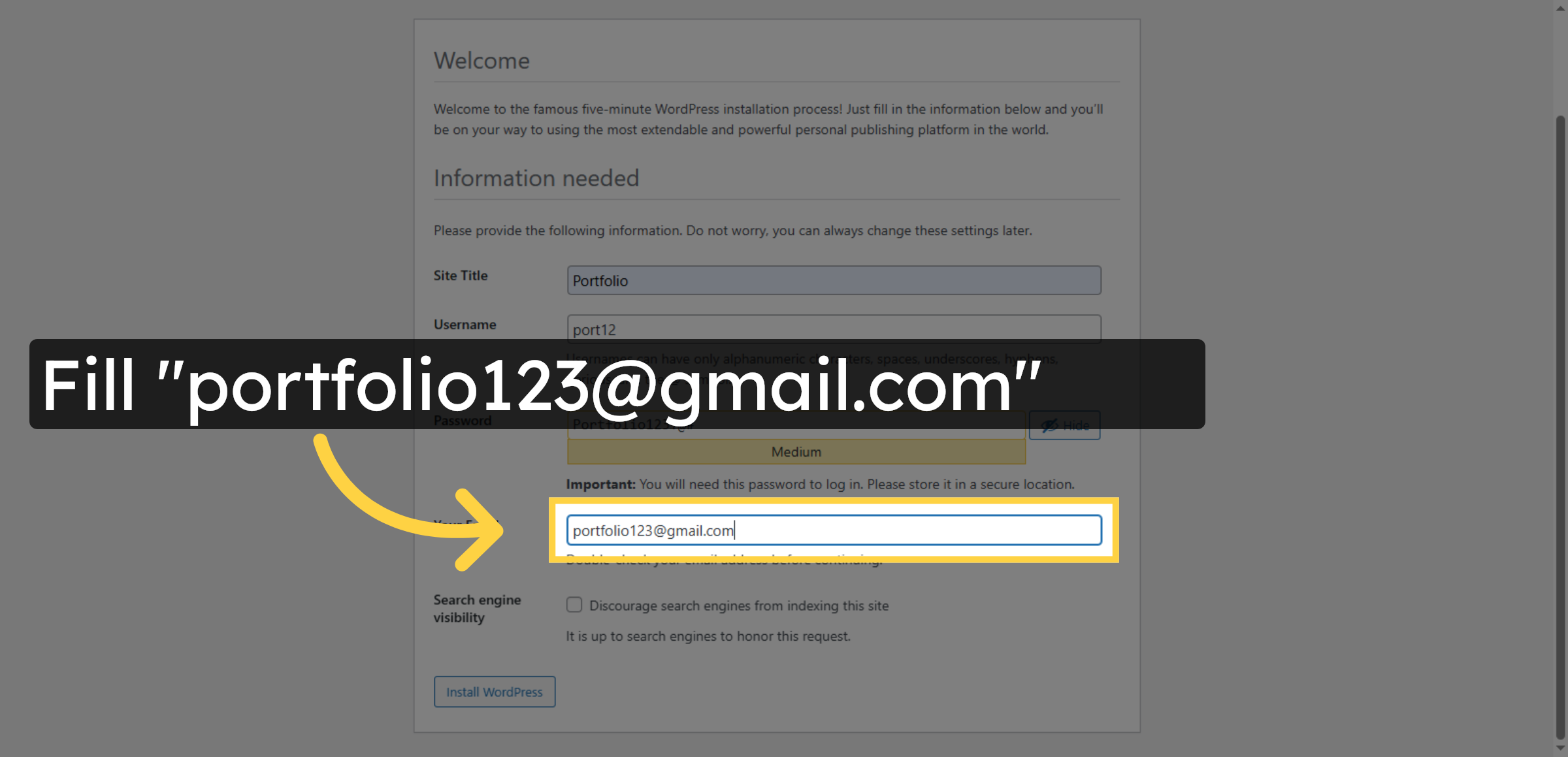
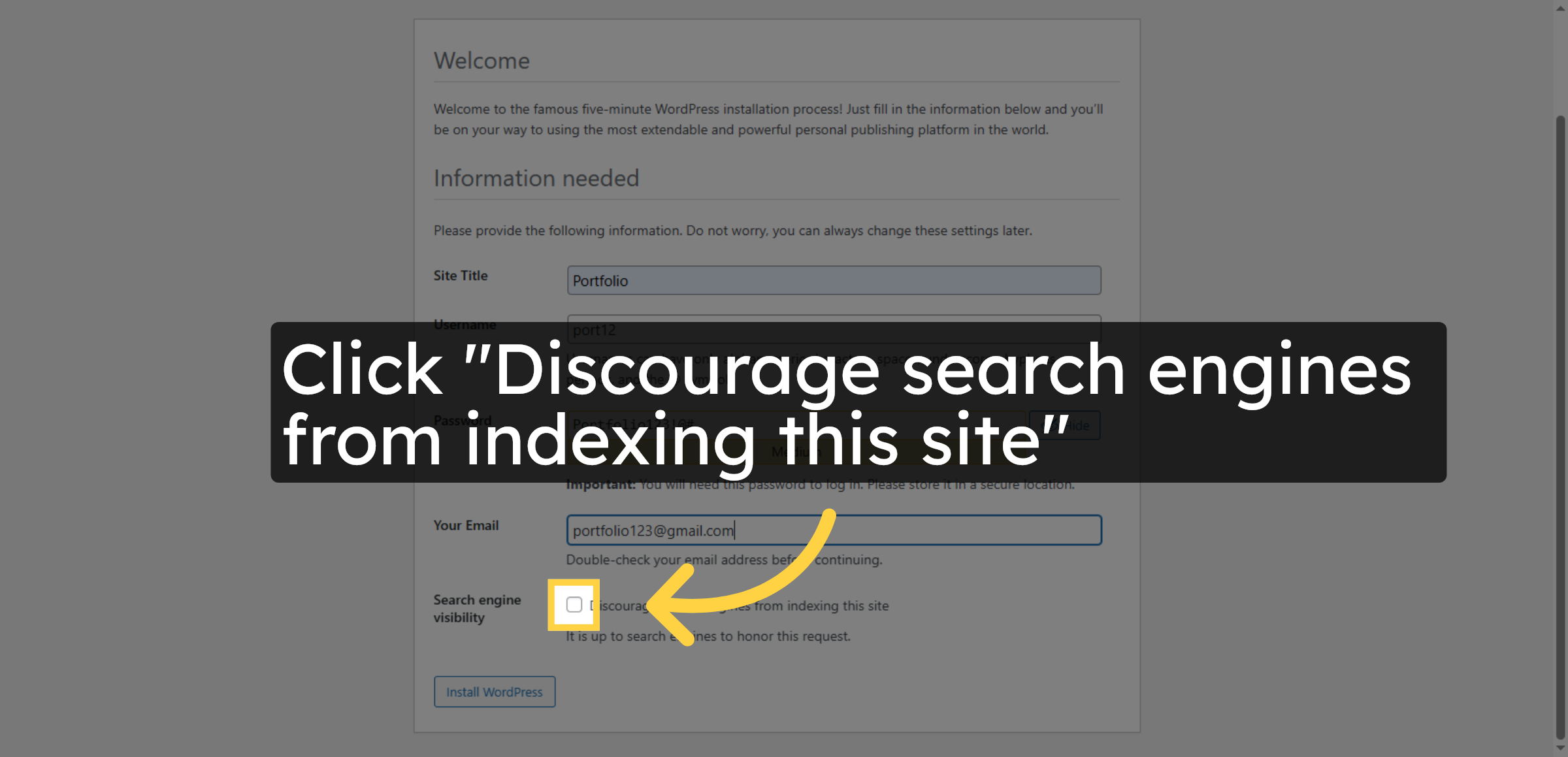
56. Disable Search Engine Indexing
Click to discourage search engines from indexing your site during setup.
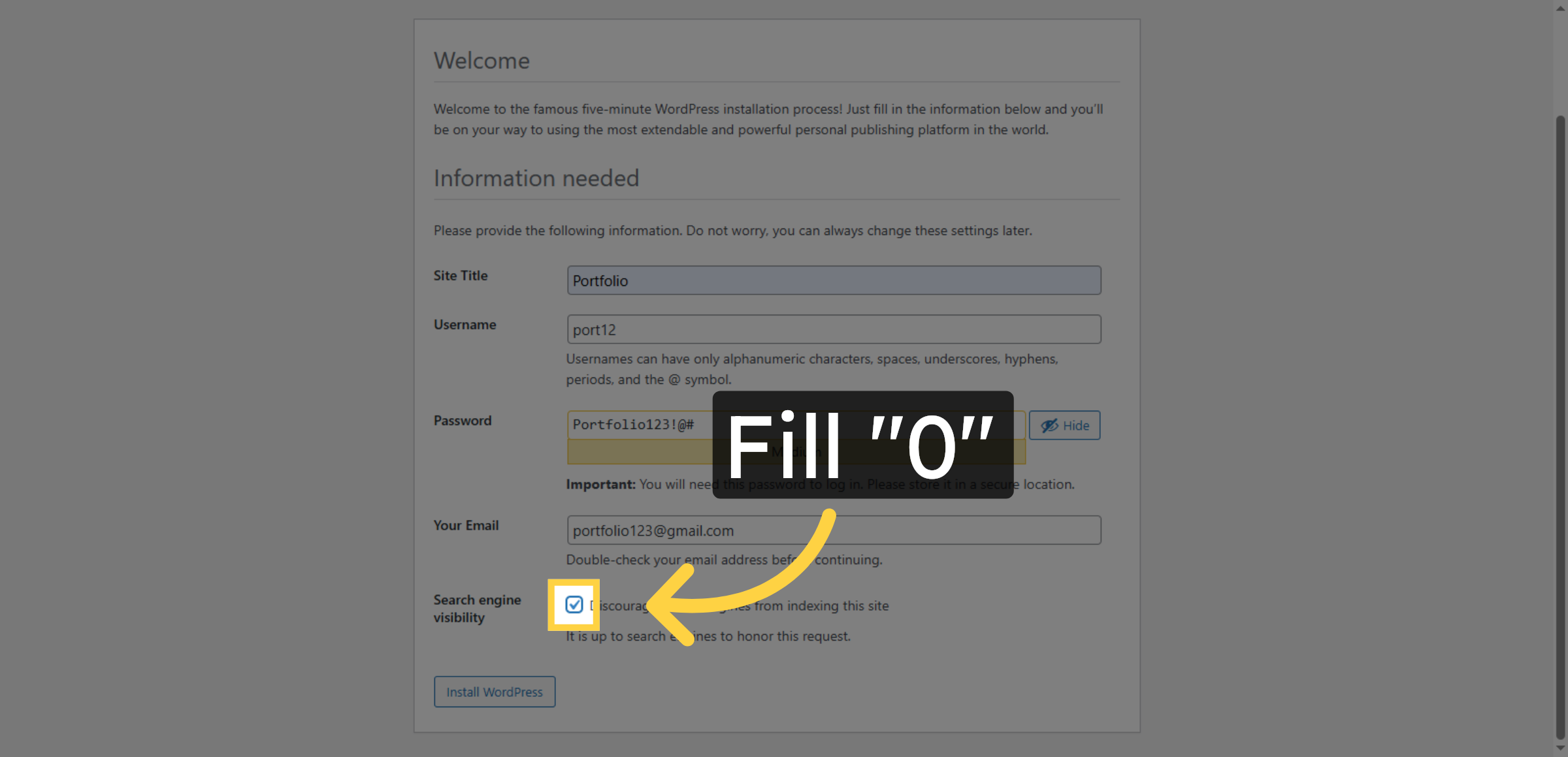
57. Enter Zero to Disable
Enter 0 to confirm that search engines should not index your site.
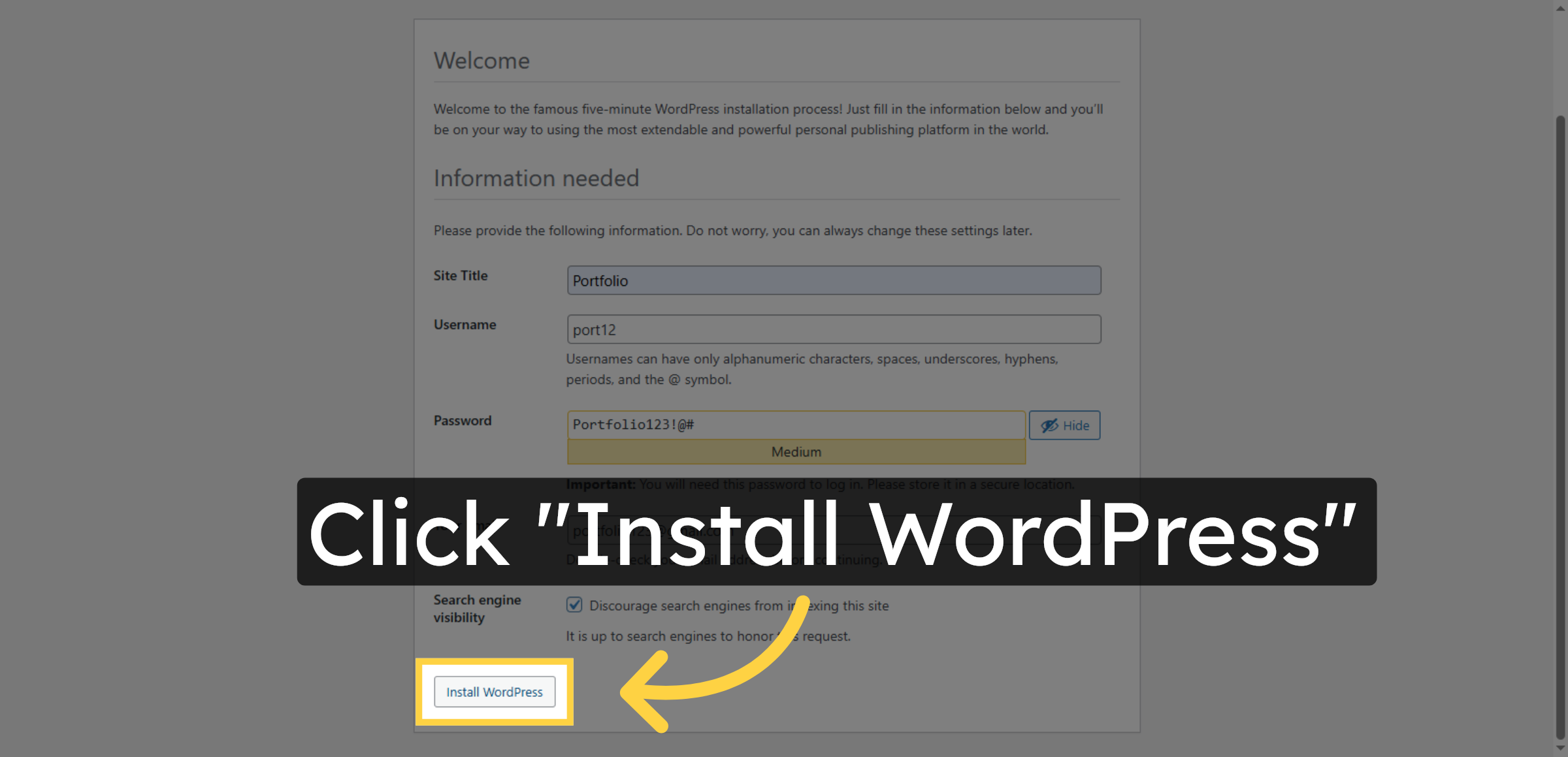
58. Install WordPress
Click Install WordPress to complete the manual installation process.
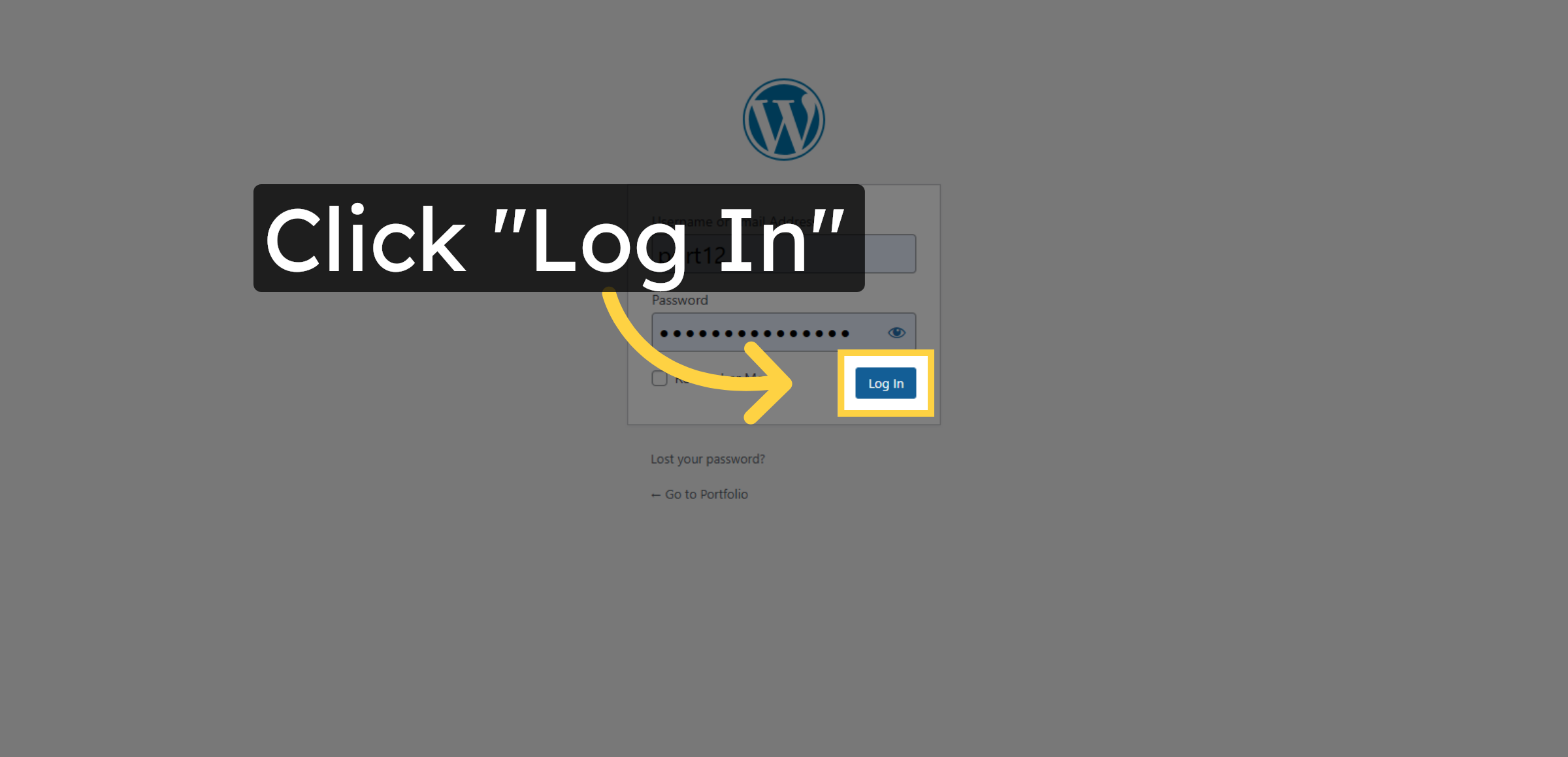
59. Click Log In
Click Log In to access your new WordPress admin dashboard.

60. Submit Login Form
Click Log In to access your WordPress administration panel.
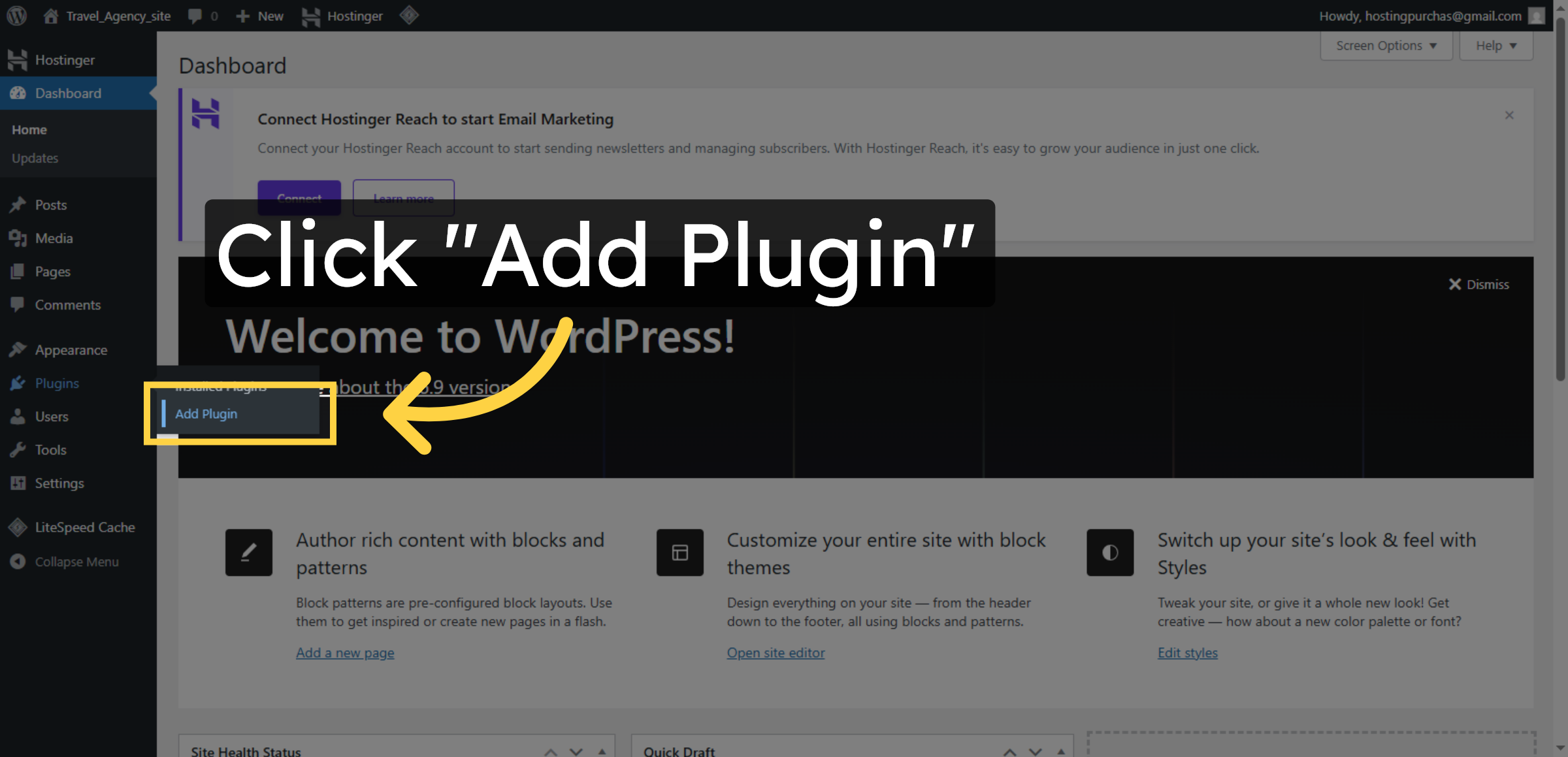
61. Open Plugin Installation
Click Add Plugin in the new WordPress dashboard to install necessary plugins.
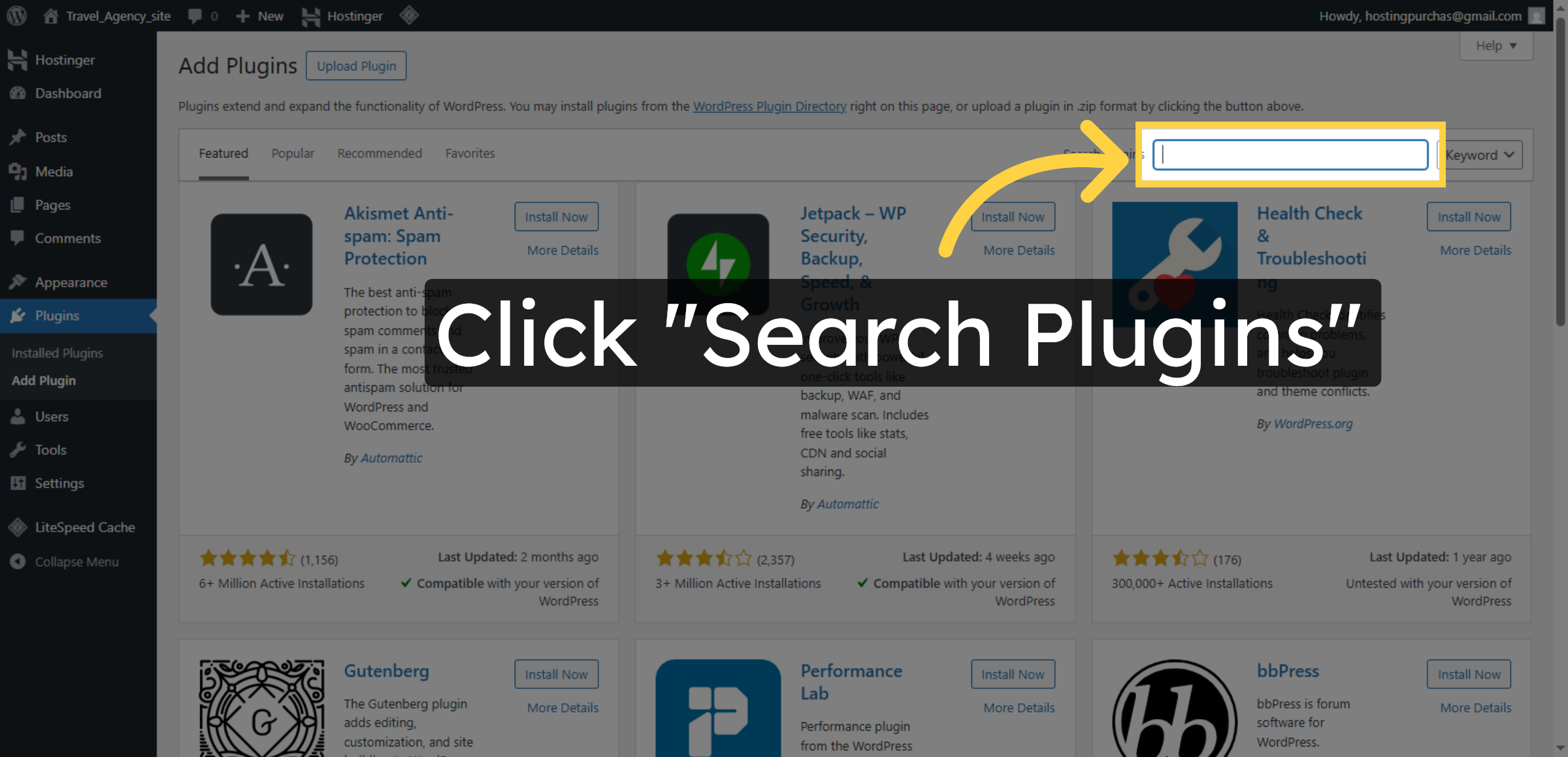
62. Search for Migration Plugin
Click Search Plugins to find the migration plugin for importing your site.
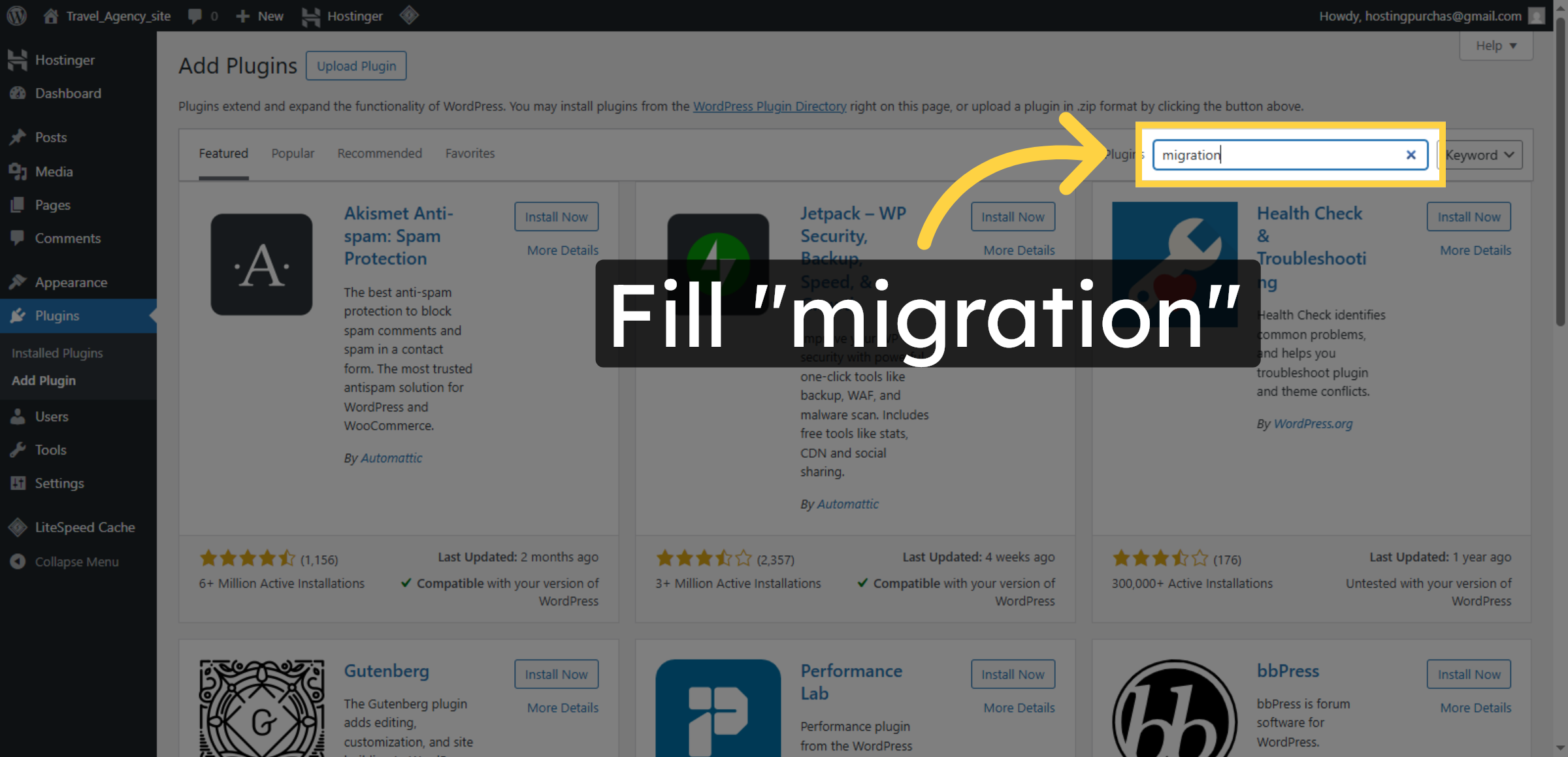
63. Enter Migration in Search
Enter migration in the search box to locate the All-in-One WP Migration plugin.
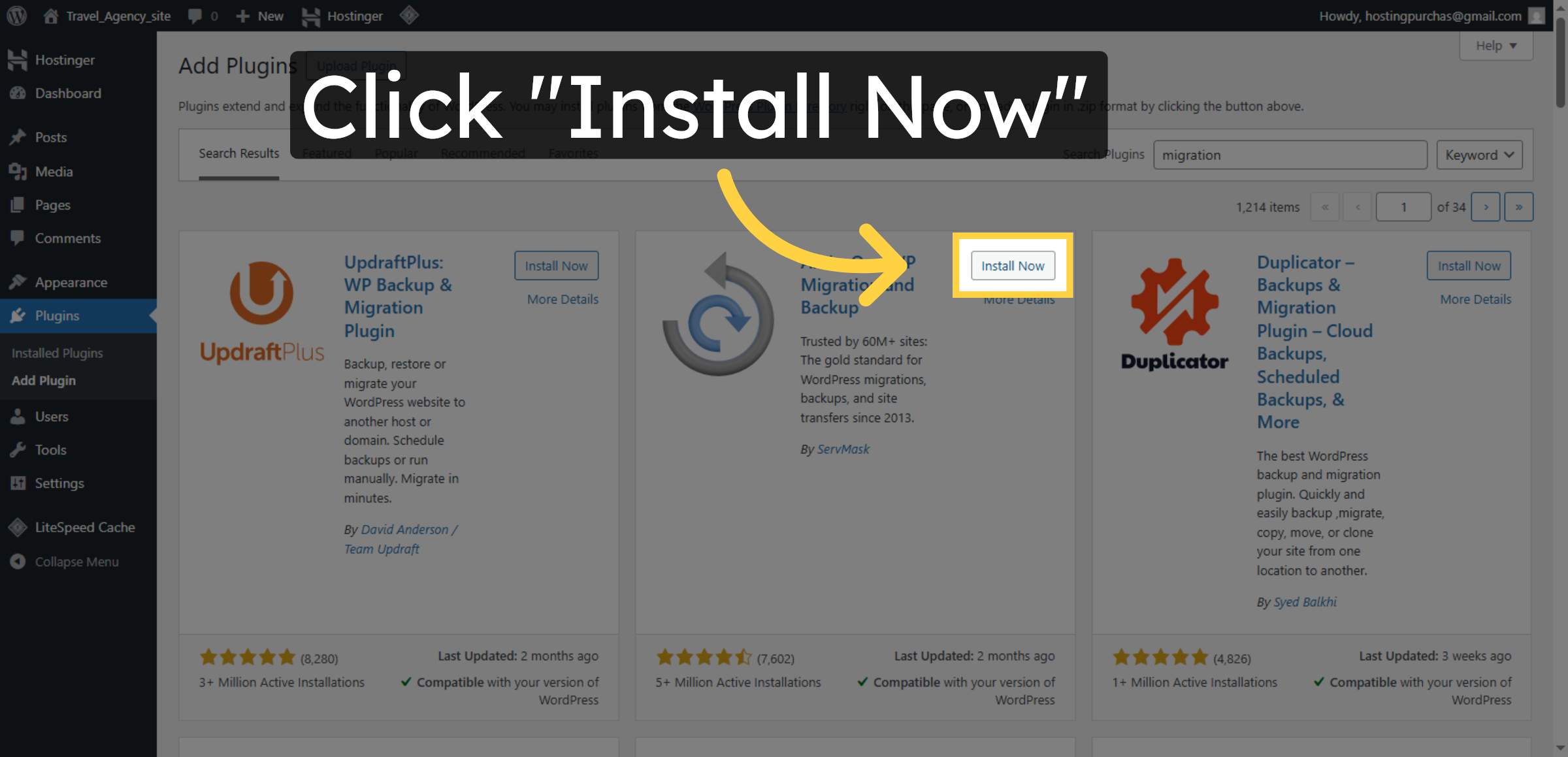
64. Install Migration Plugin
Click Install Now to add the migration plugin to your new WordPress site.
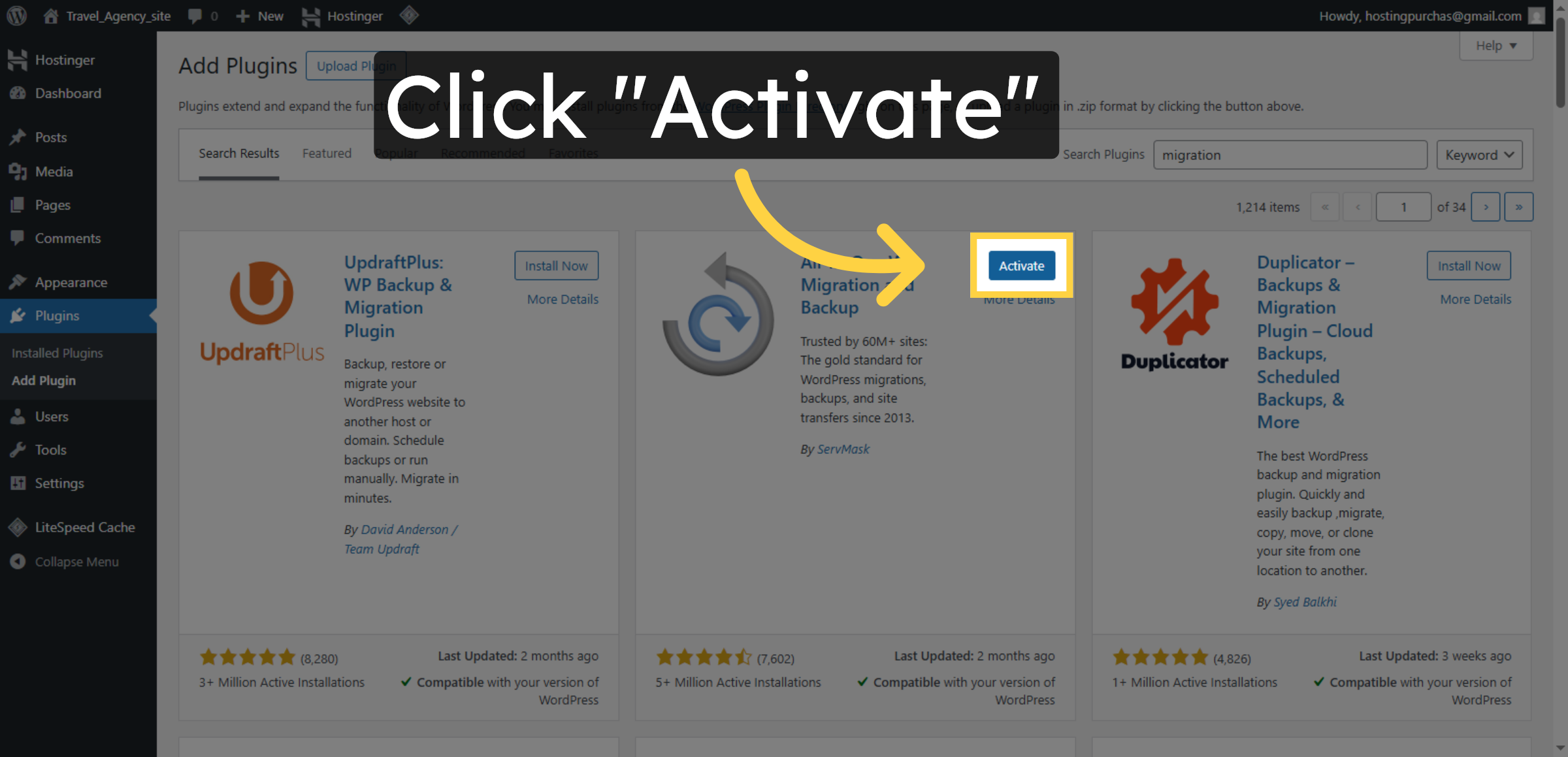
65. Activate Migration Plugin
Click Activate to enable the migration plugin for importing your site data.
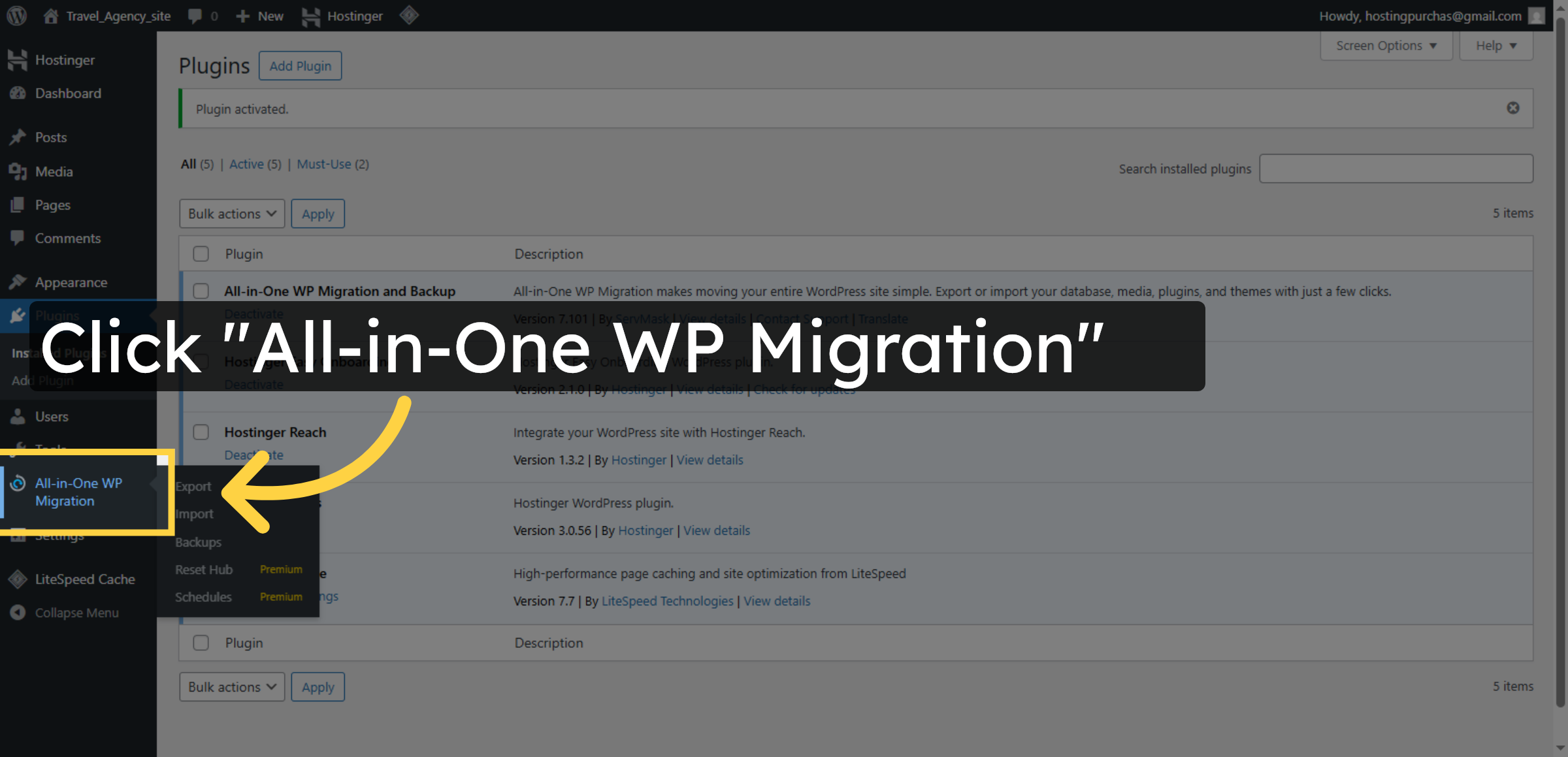
66. Open Migration Plugin Menu
Click All-in-One WP Migration to access the plugin’s import features.
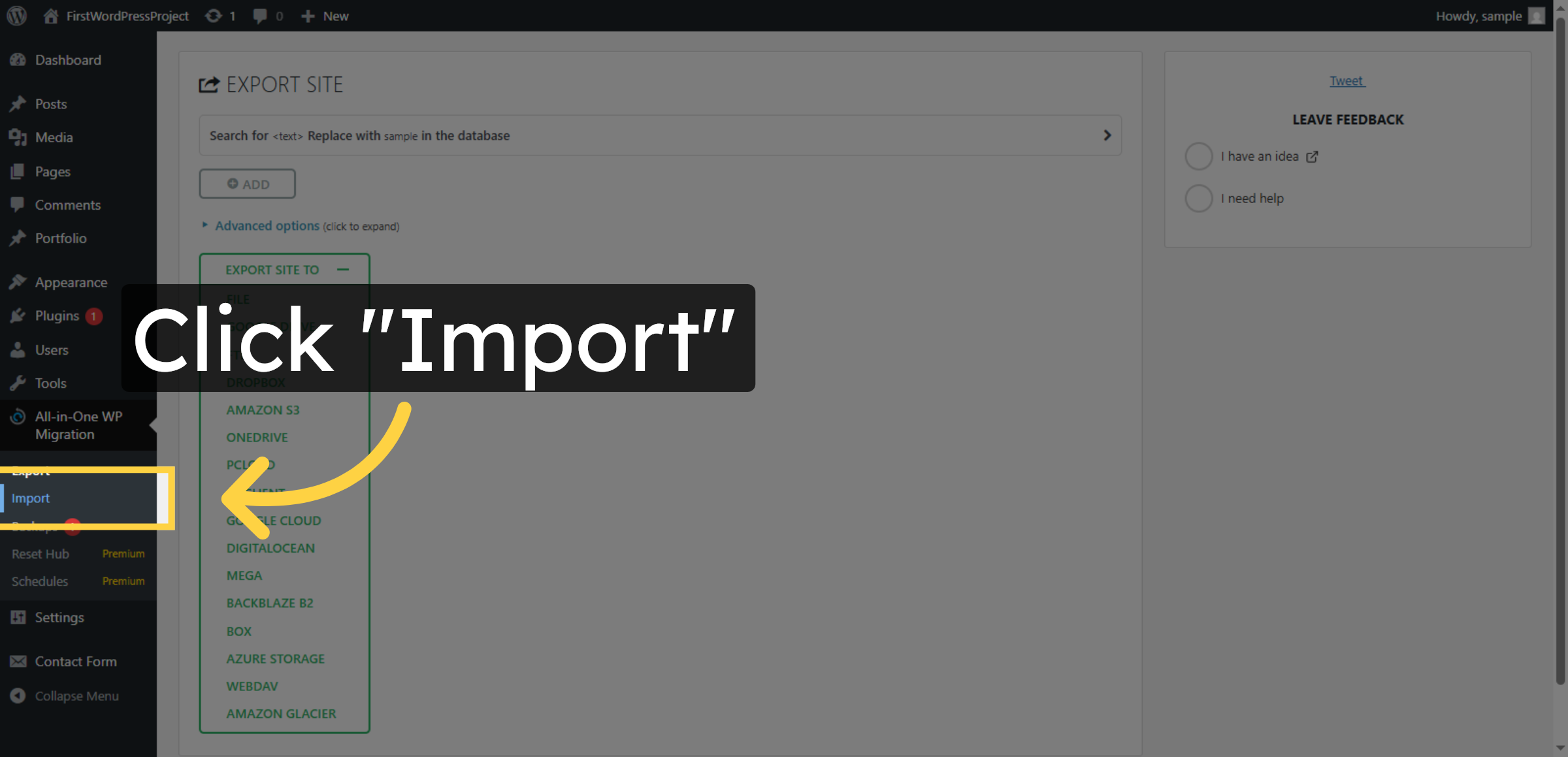
67. Select Import Option
Click Import to begin importing your site data into the new host.
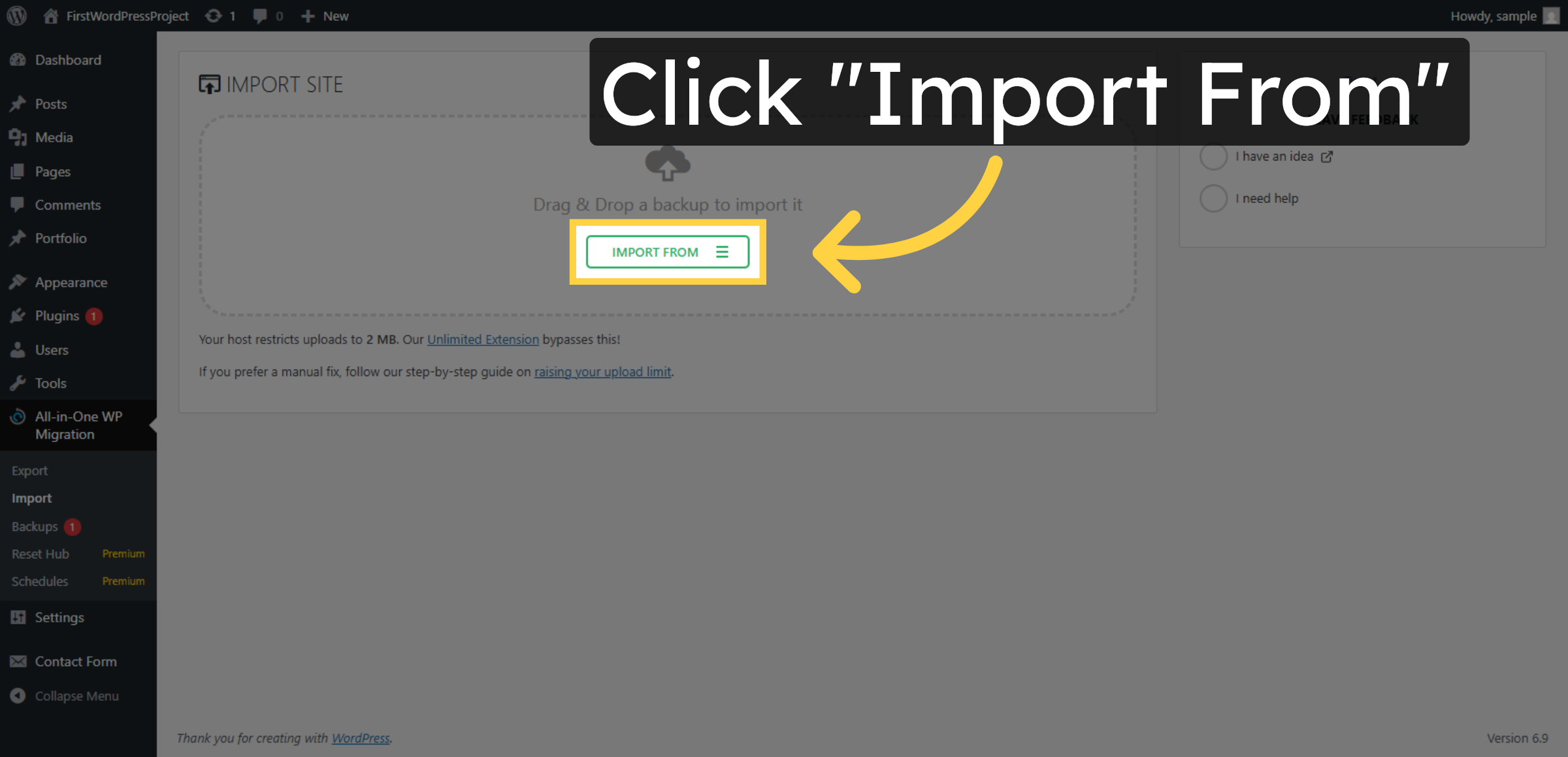
68. Open Import From Menu
Click Import From to choose the source of your site backup file.
69. Choose Import Source
Click the appropriate area to select the file import source.
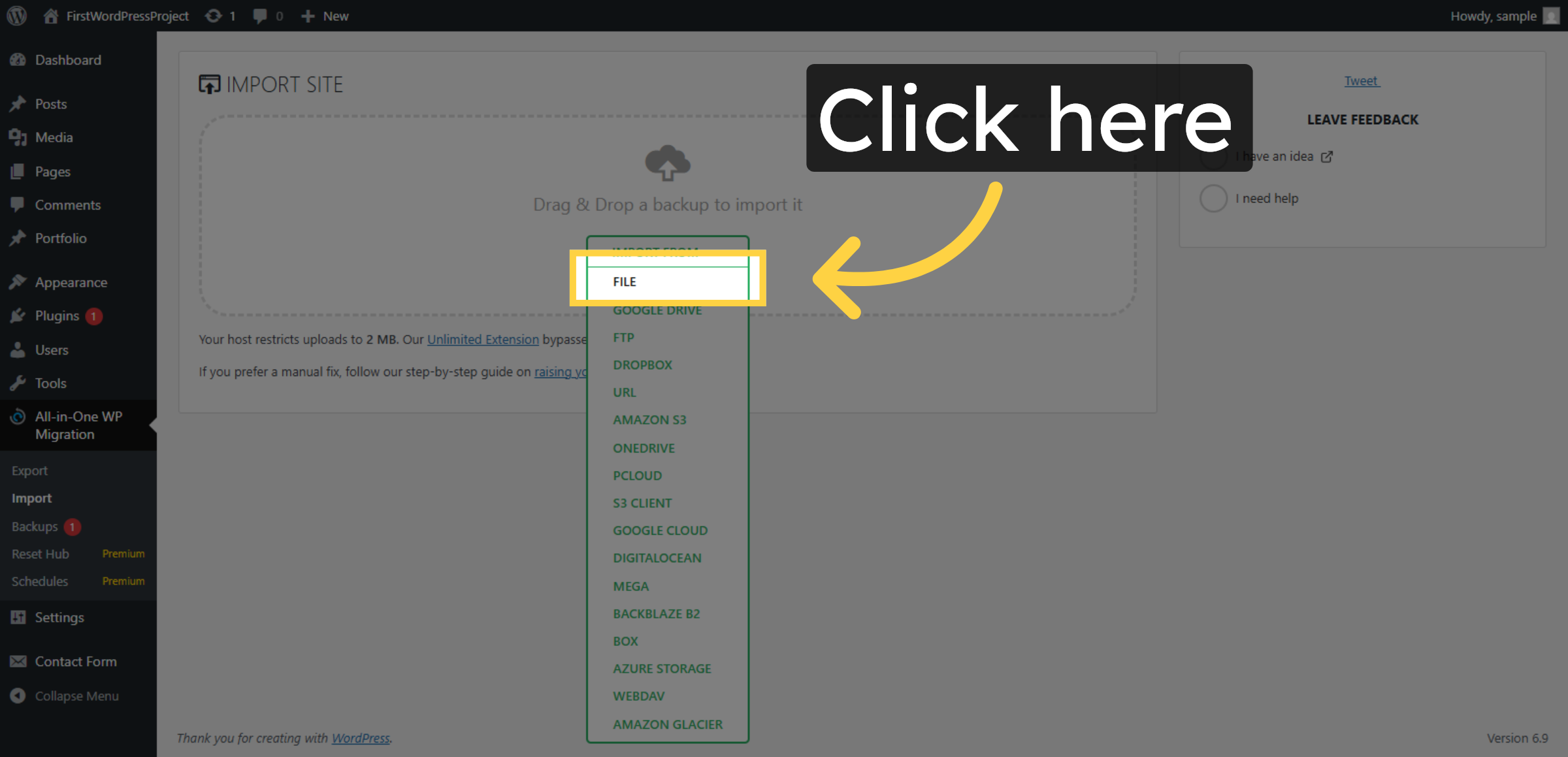
70. Click Proceed Button
Click Proceed > to finalize the migration and apply changes.
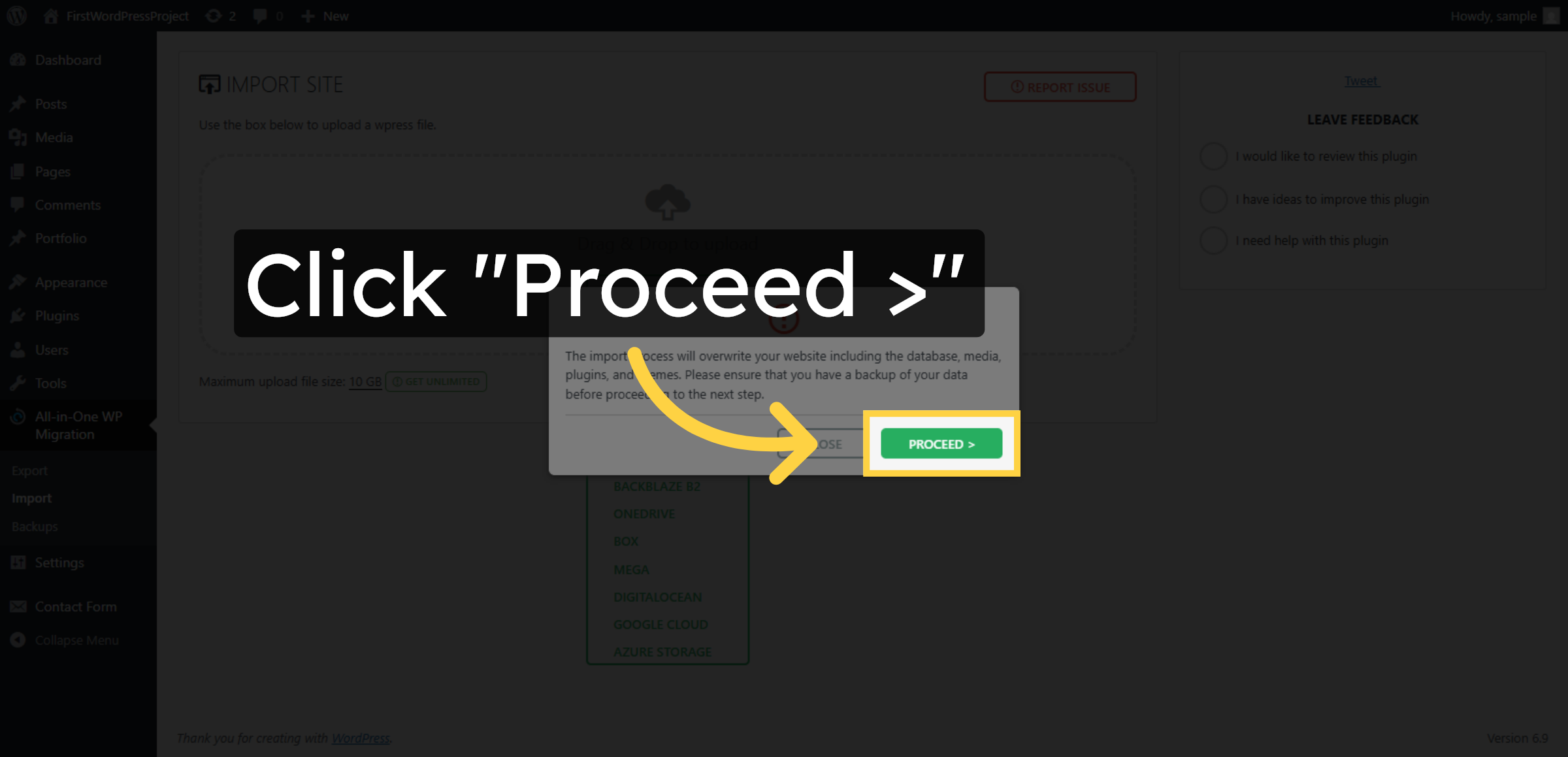
71. Close Completion Window
Click Close to exit the import completion interface.
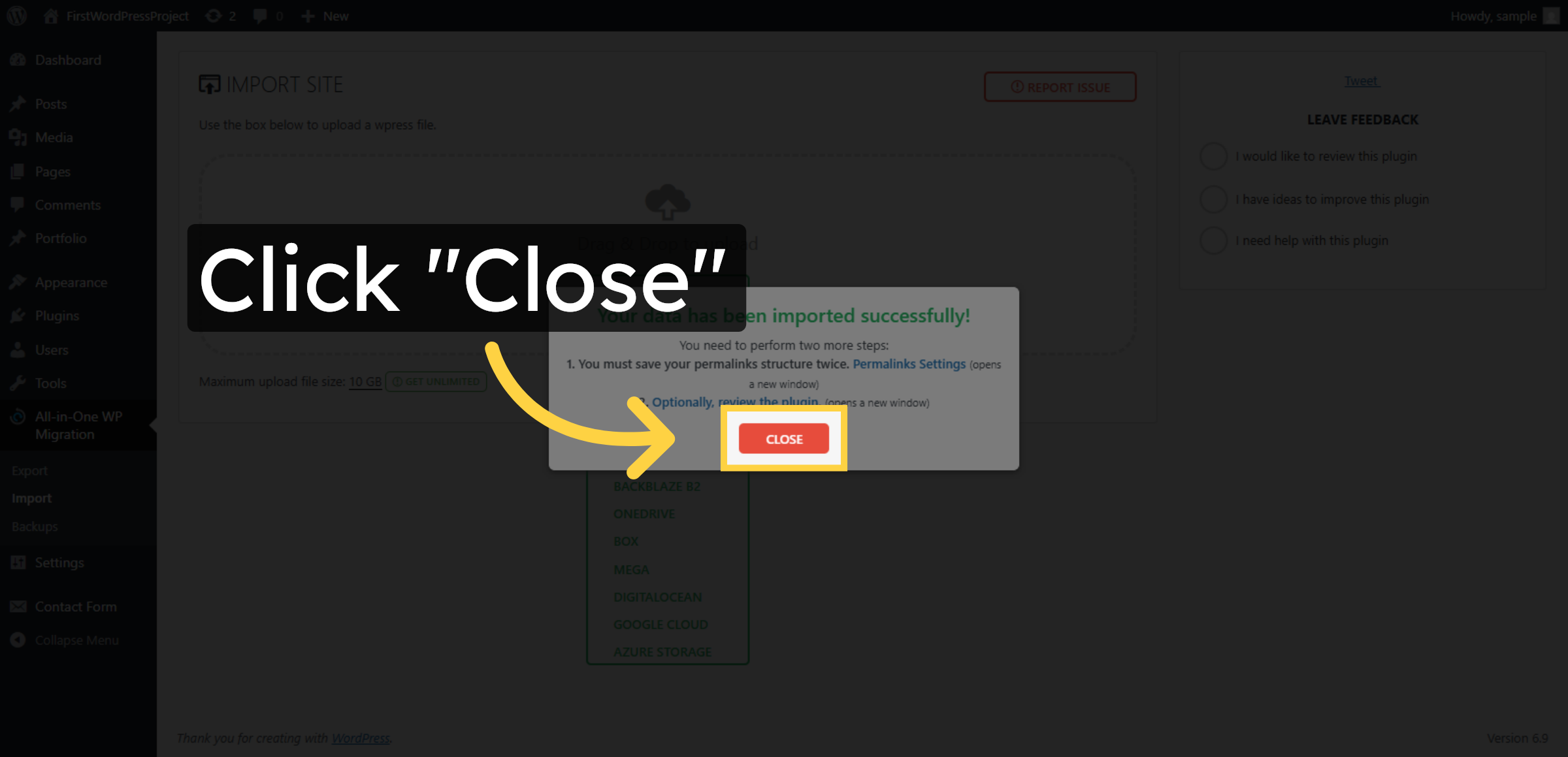
72. Visit Migrated Site
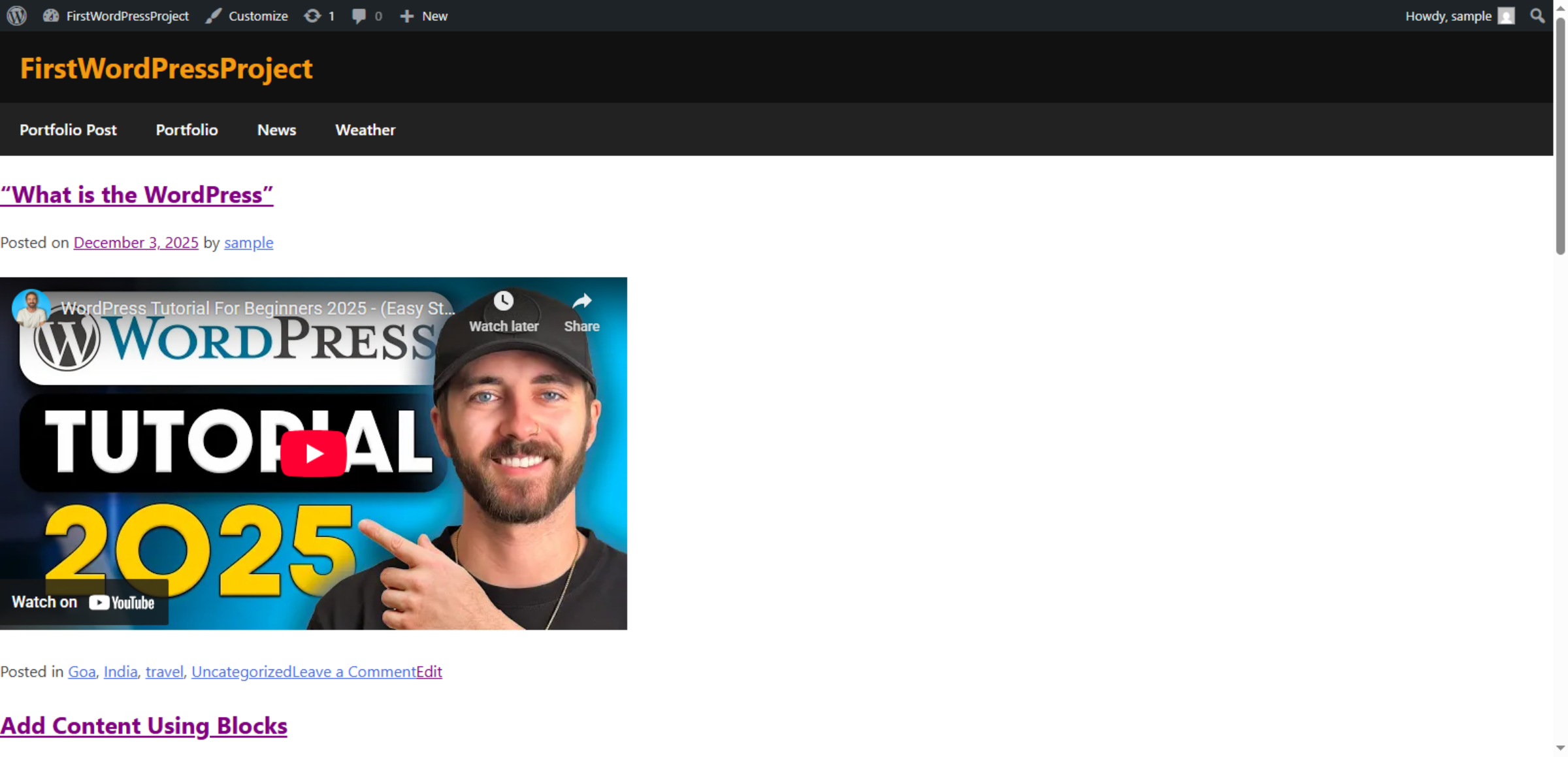
Click Visit Site to view your WordPress site now hosted on Hostinger WP hosting.
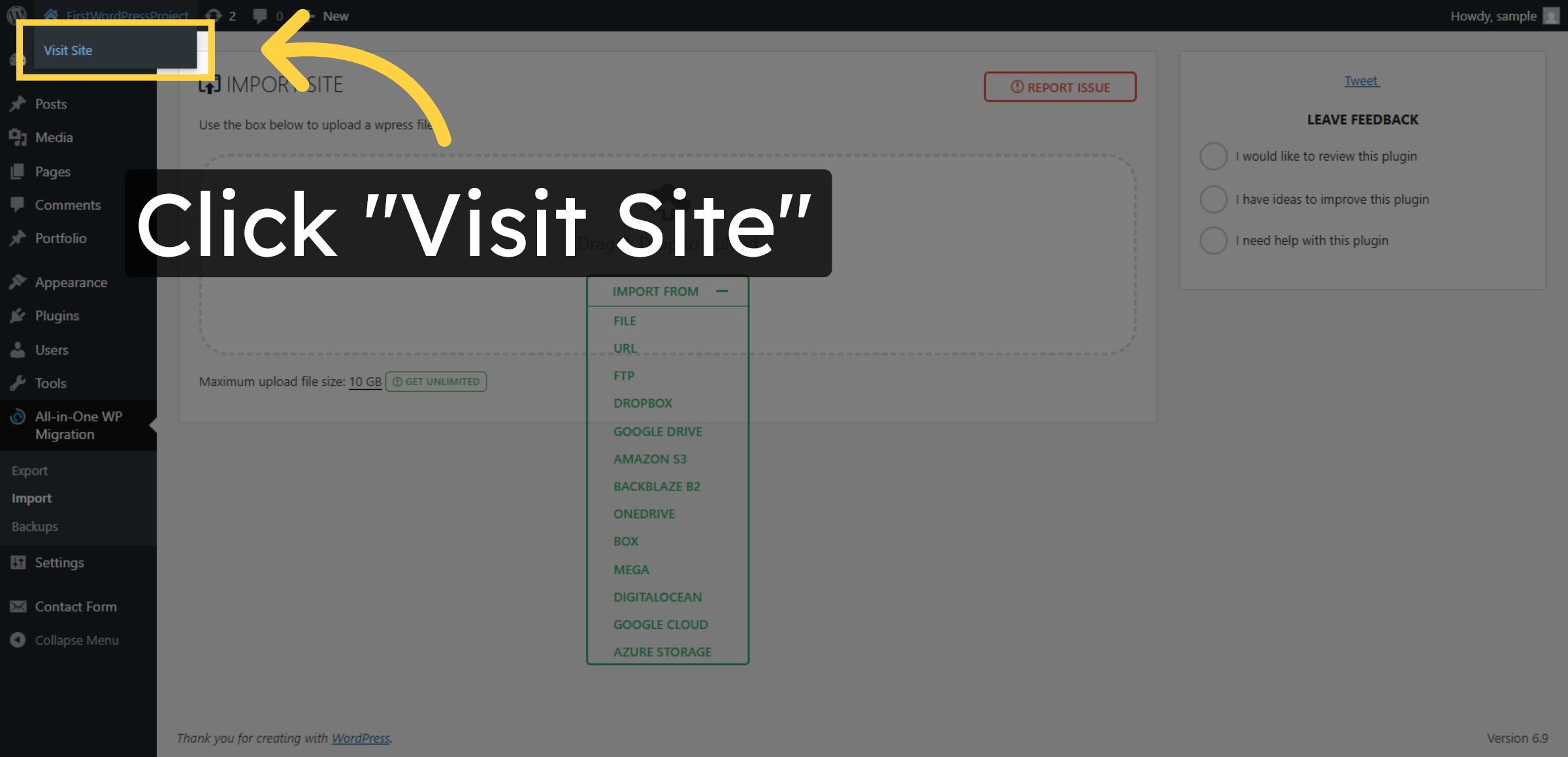
73. Access WordPress Info Page
Click What is the WordPress to learn more about your new WordPress installation.
Conclusion
By completing the steps in this guide, you have successfully moved your WordPress website from localhost to Hostinger WordPress Hosting. Your website files, database, themes, plugins, and content have been properly transferred and configured for live hosting.
After migration, verifying site functionality, checking links, and testing forms ensures that your website runs smoothly in the new environment. Updating permalink settings and enabling search engine indexing when your site is ready will further improve visibility and performance.
Regular backups, security updates, and performance monitoring are recommended to maintain long-term website stability and reliability.
WooHelpDesk Support
Need professional help with WordPress migration, hosting setup, or technical configuration? WooHelpDesk provides expert support to ensure your website runs smoothly and securely.
Visit: https://www.woohelpdesk.com
Call Us Toll-Free: +1 888 602 0119 (US & Canada)
Expert Support | Secure Migration | Reliable Hosting Solutions