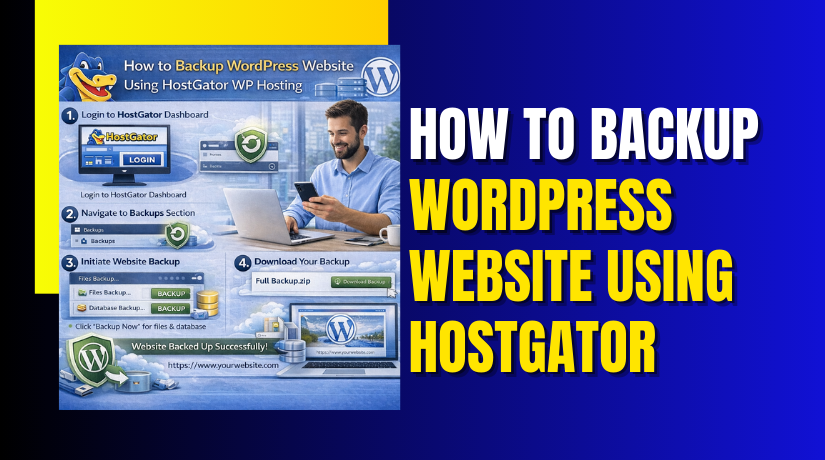
How to Backup WordPress Website Using HostGator WP Hosting
Introduction
Regular website backups are essential for protecting your WordPress site from data loss, cyber threats, accidental deletions, and technical failures. Without reliable backups, recovering your website after an unexpected issue can be difficult and time-consuming. Hosting platforms such as HostGator provide a stable environment, but maintaining independent backups ensures an additional layer of security and control over your website data.
This guidde explains how to back up a WordPress website using HostGator WP Hosting and a reliable backup plugin. It covers the complete process, including accessing the WordPress dashboard, installing and activating a backup plugin, creating full website backups, and downloading backup files for secure storage. By following this guide, website owners can safeguard critical website files, databases, and configurations, ensuring quick recovery and uninterrupted online operations.
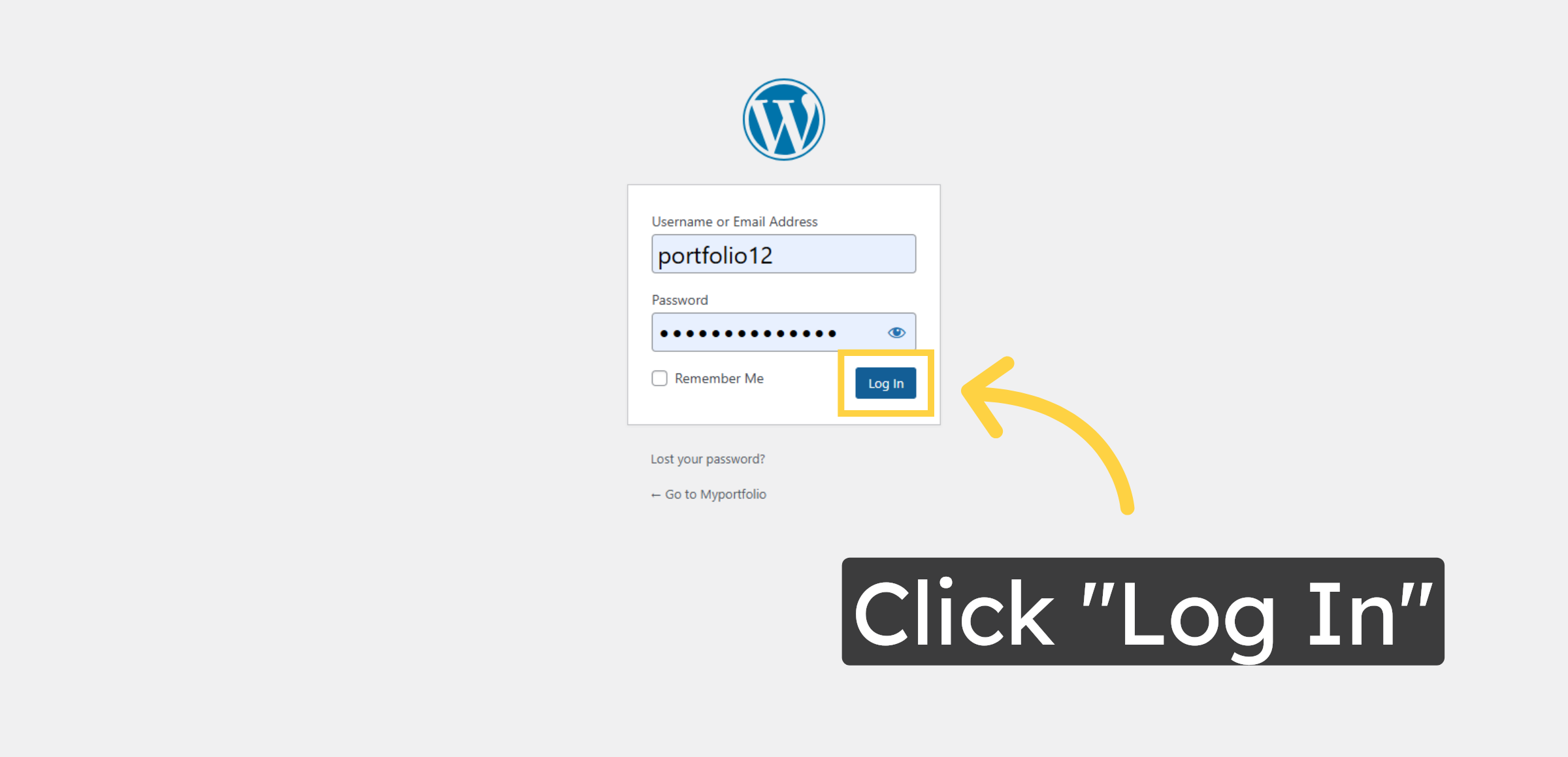
1. Enter your username and password, then click the Login button.
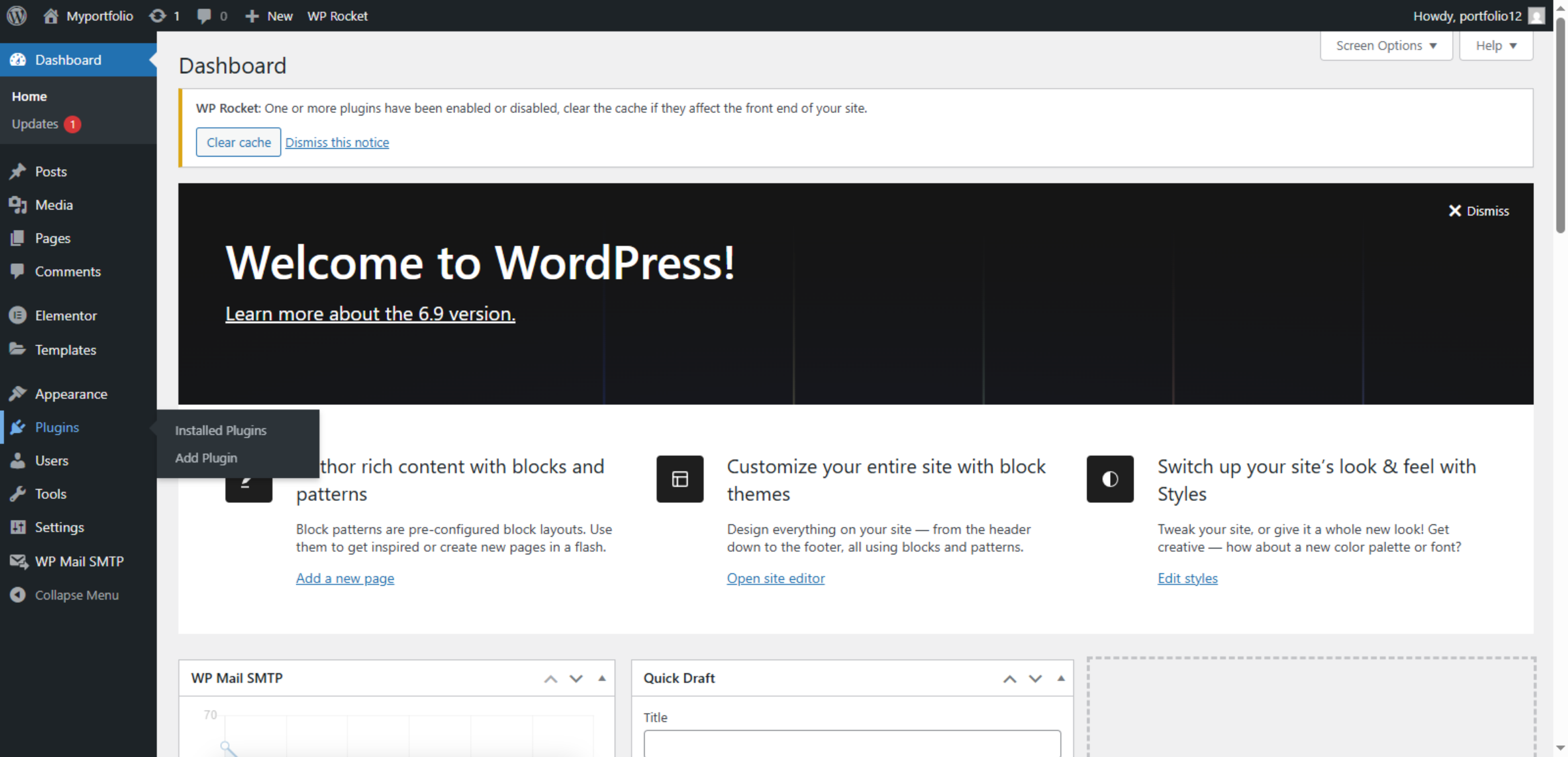
2. Access WordPress Dashboard
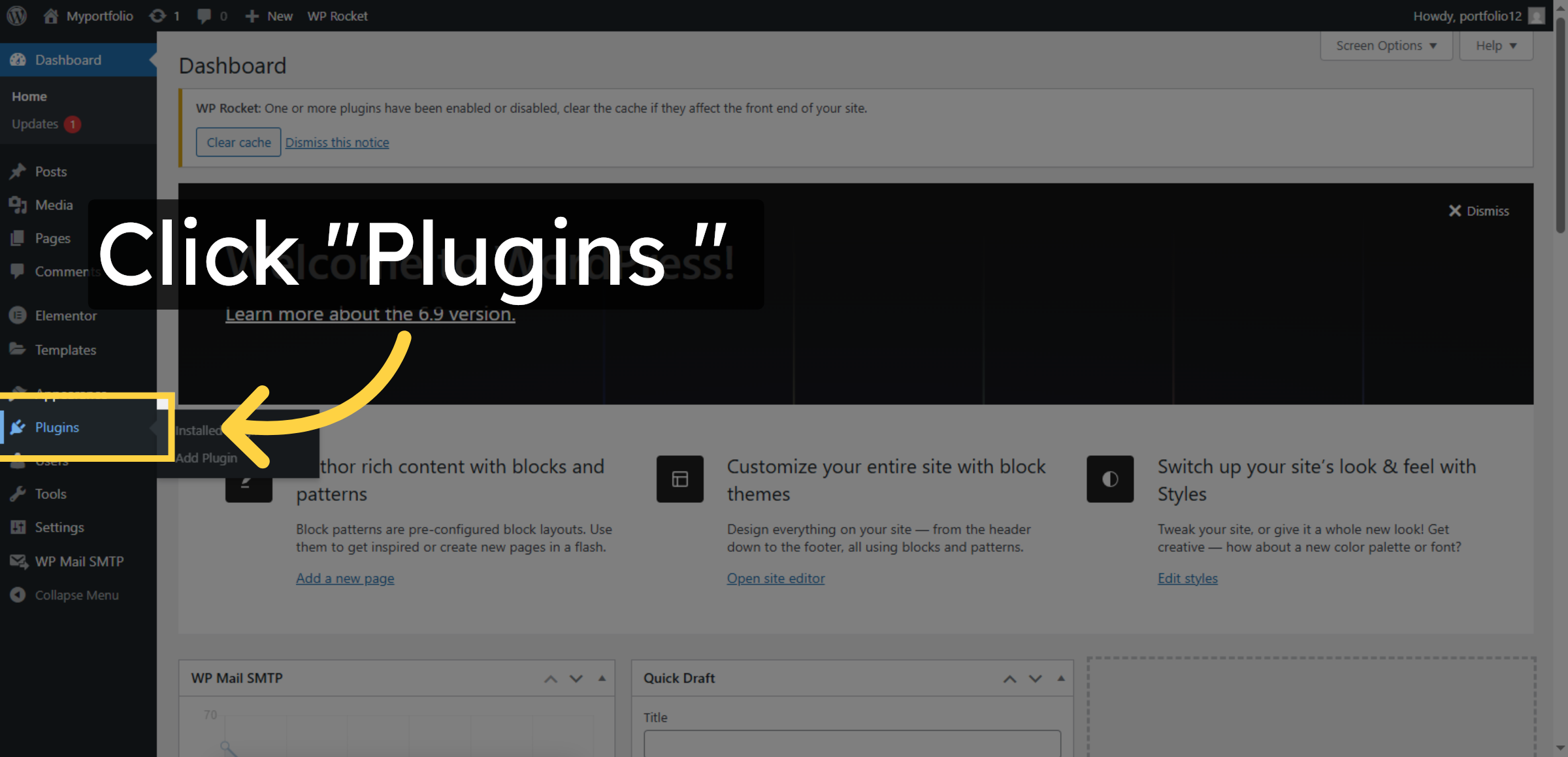
3. Open Plugins Section
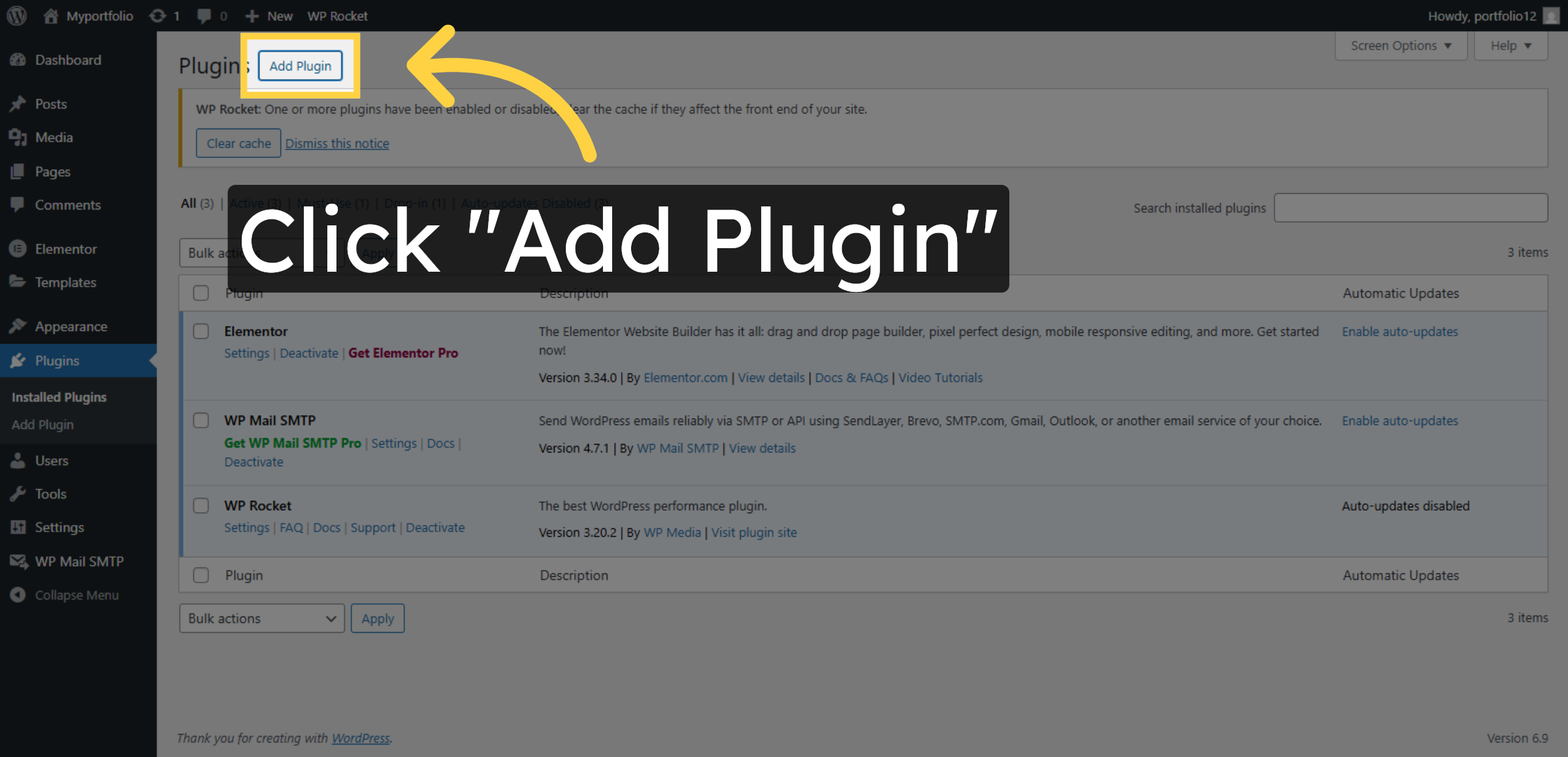
4. Add New Plugin
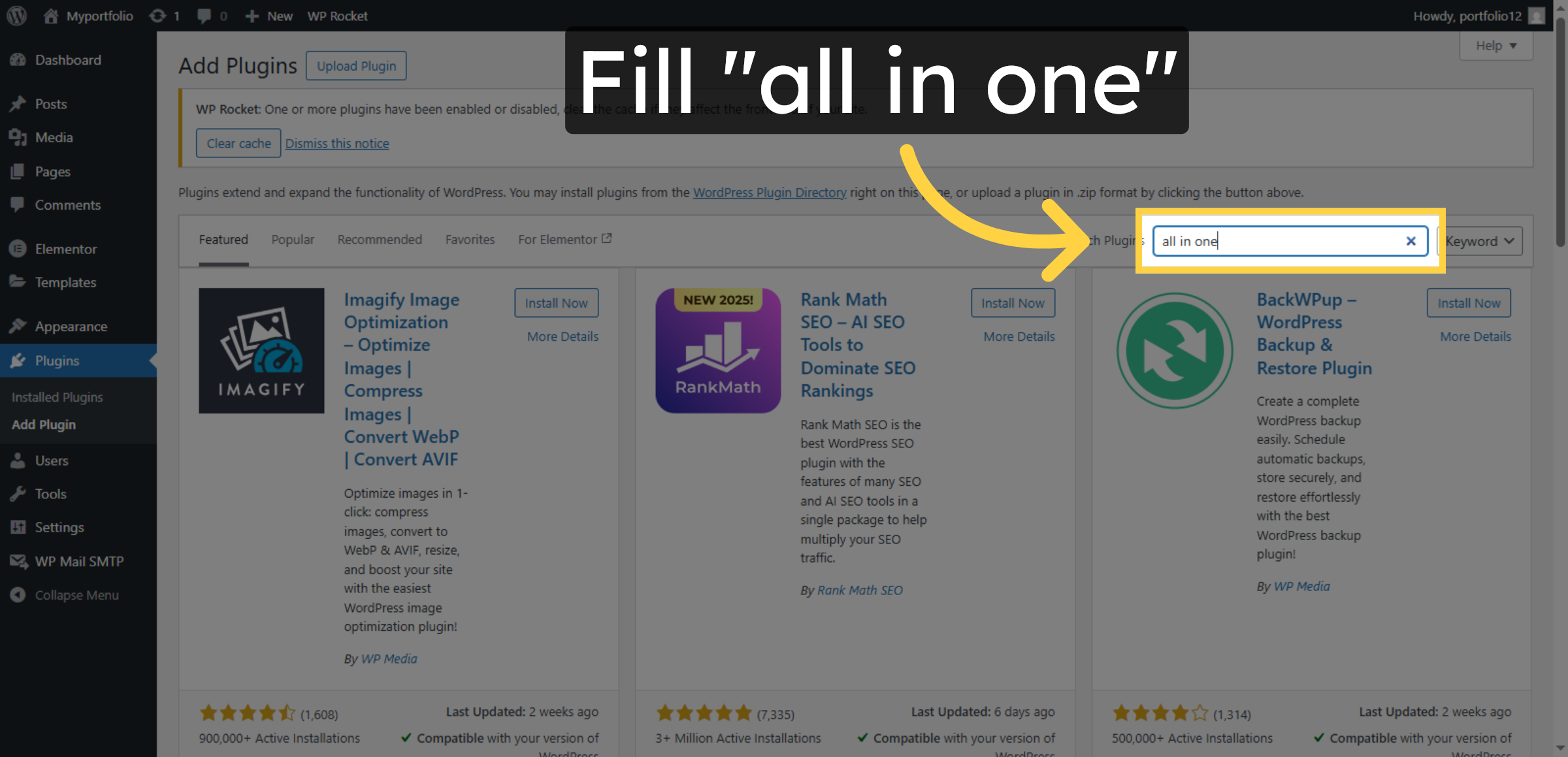
5. Search Backup Plugin
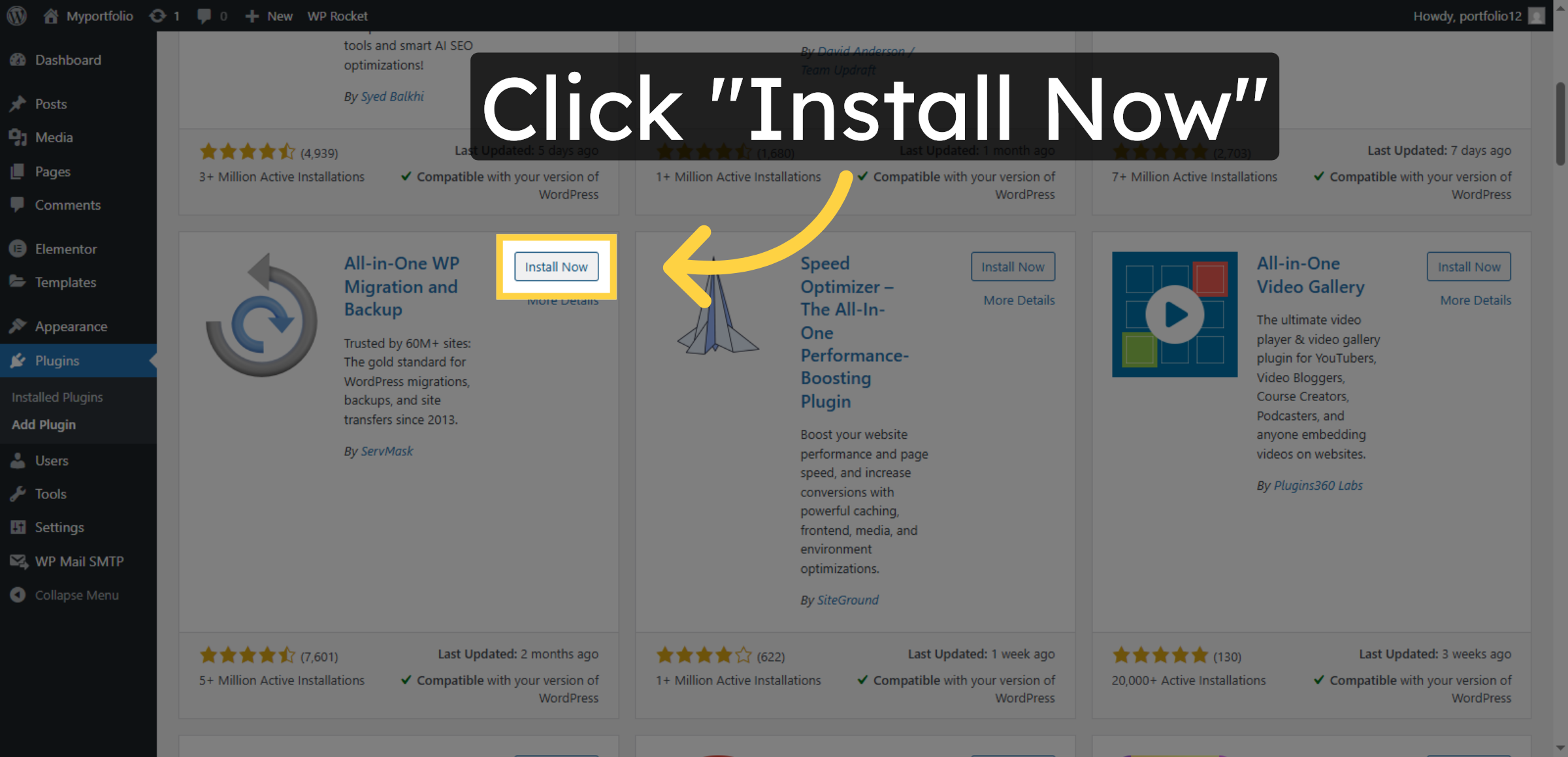
6. Install Backup Plugin
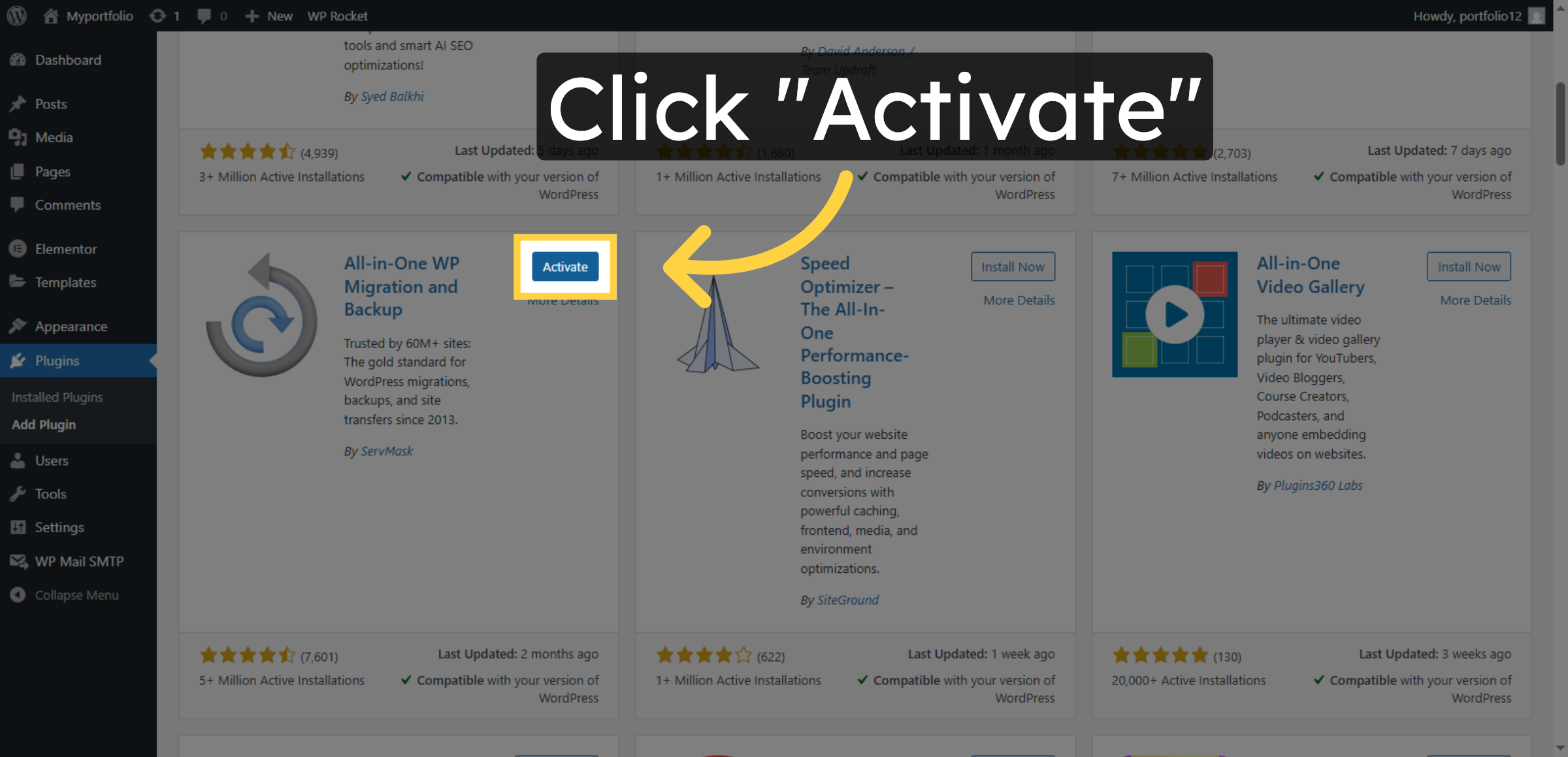
7. Activate Backup Plugin
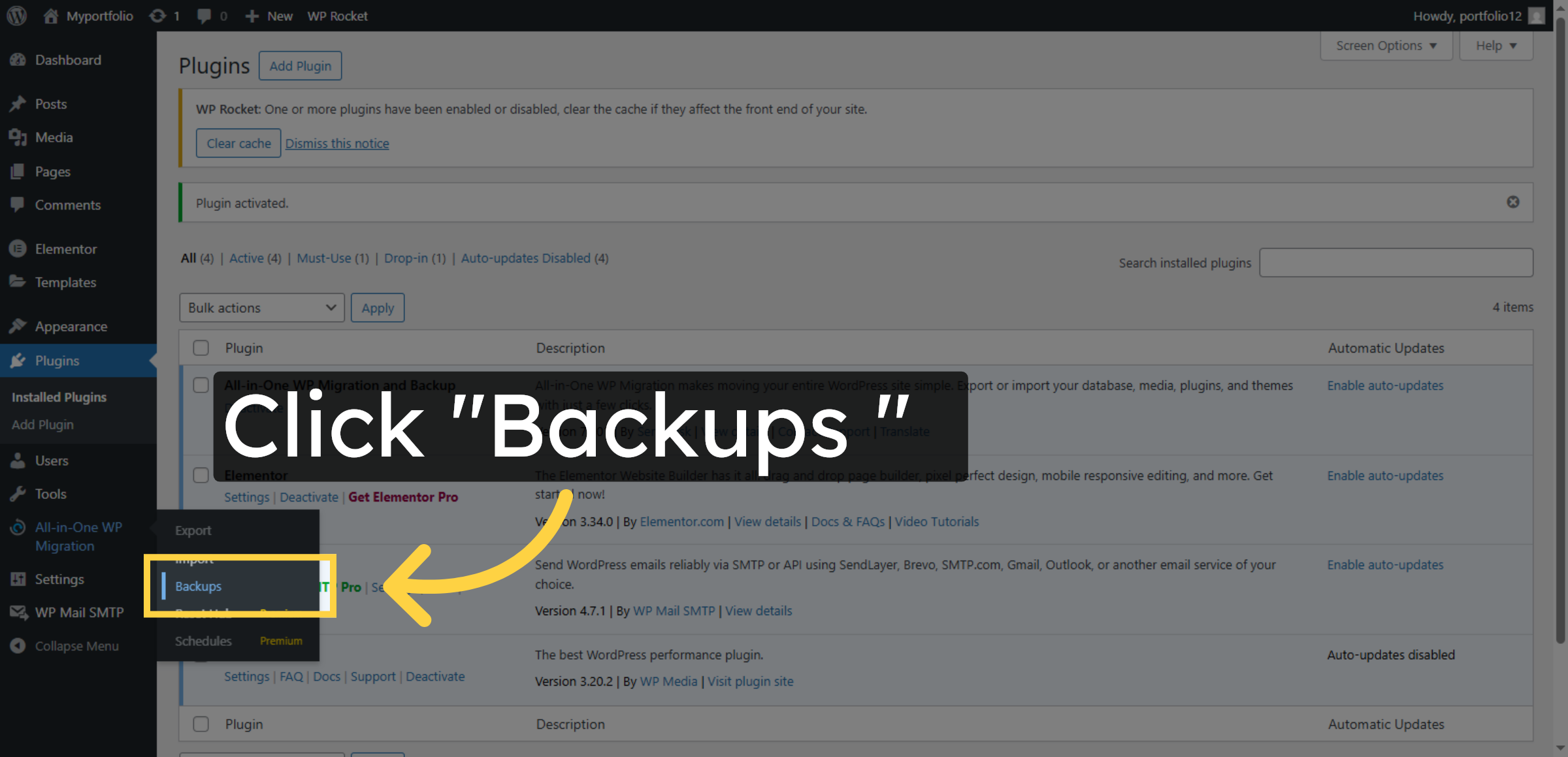
8. Open Backups Tab
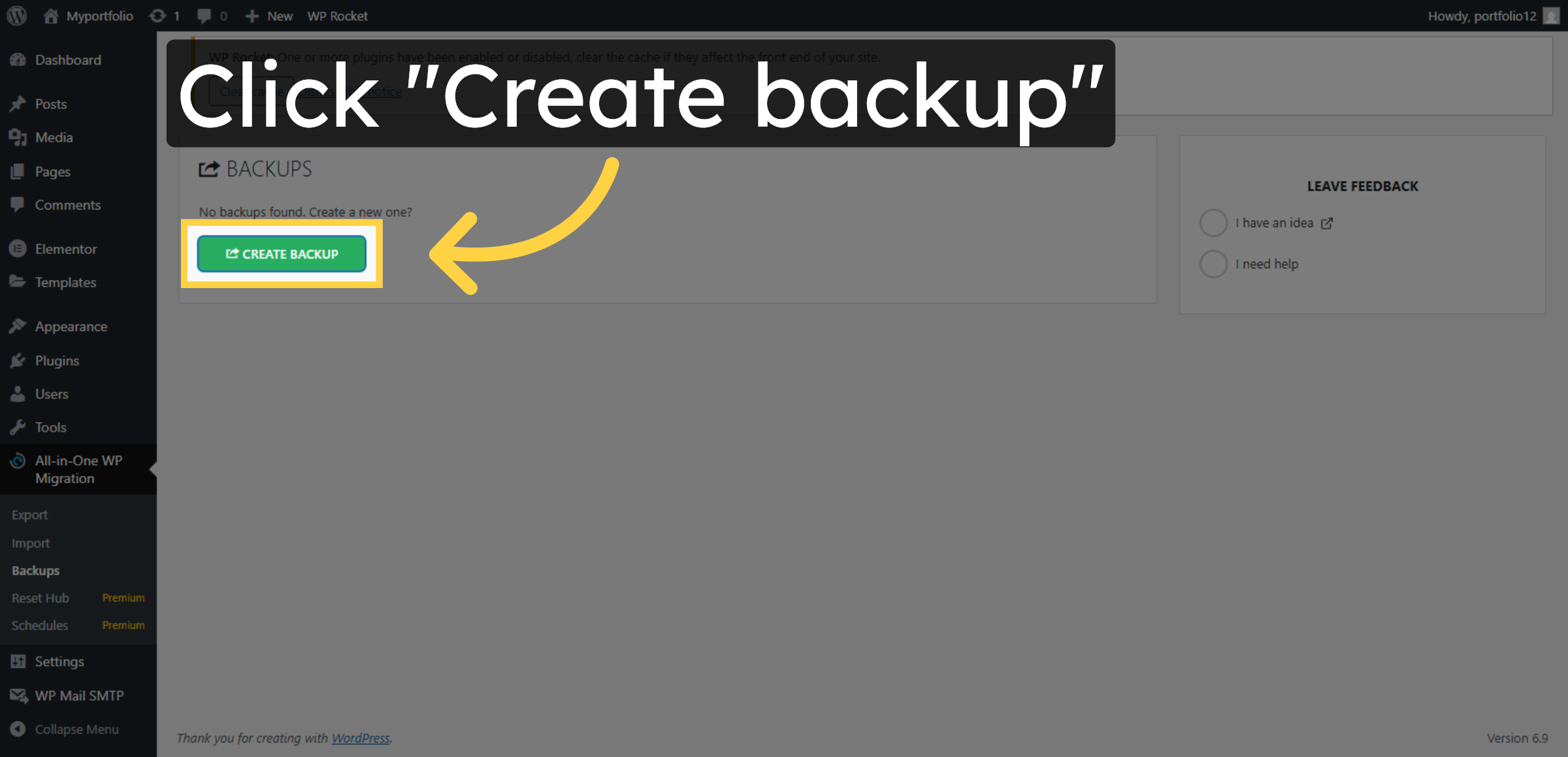
9. Create New Backup


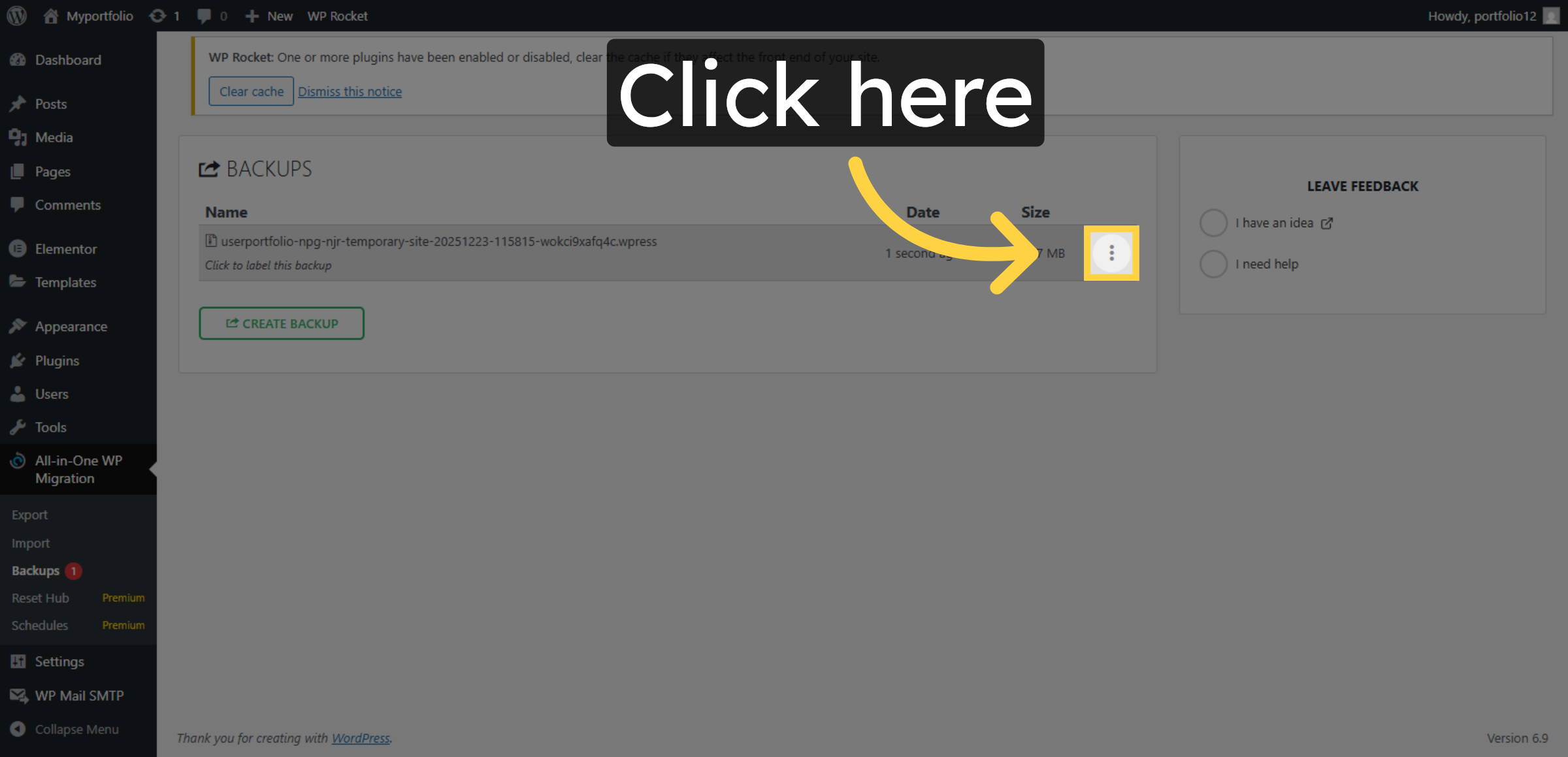
10. Access Download Link
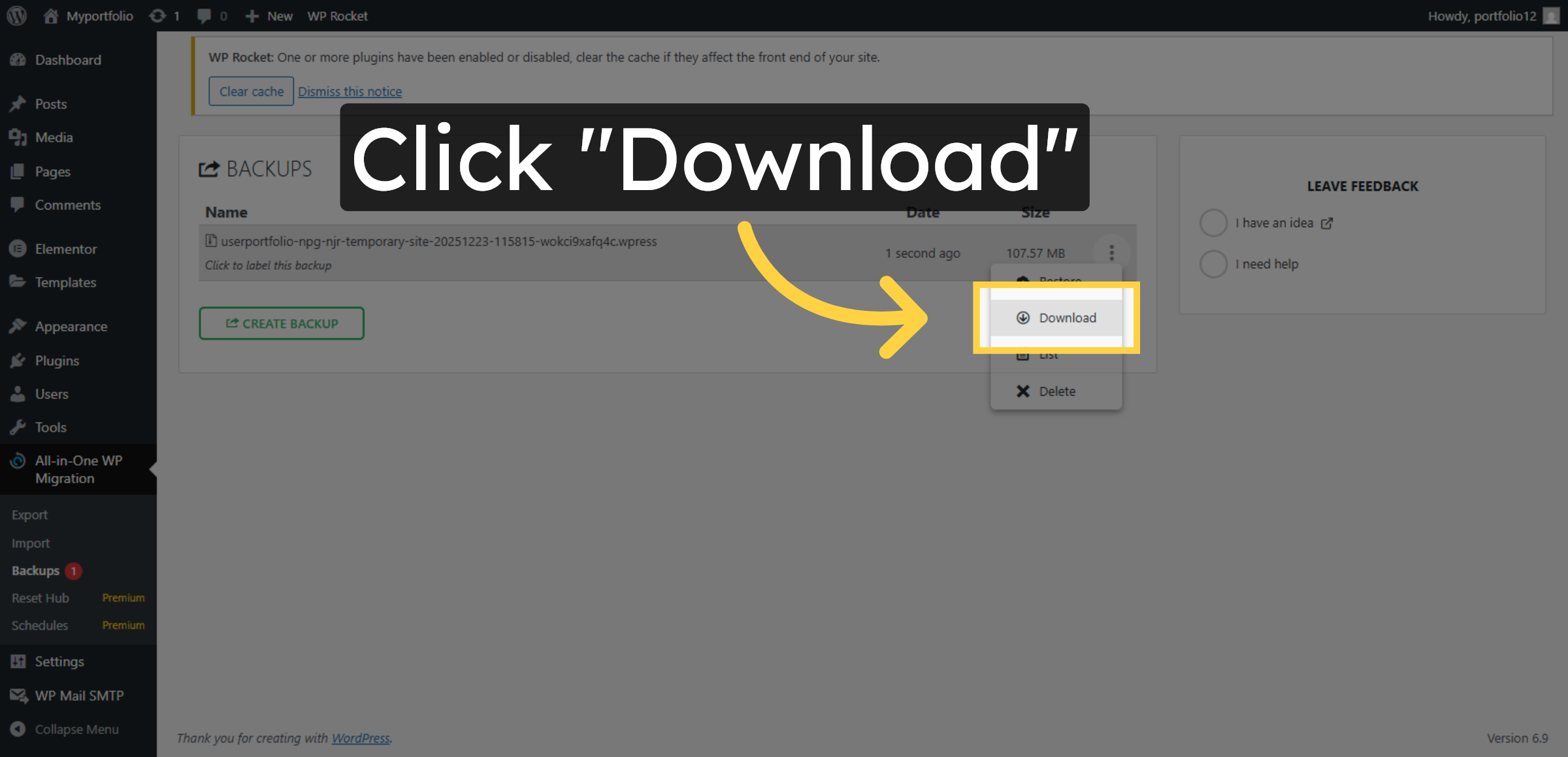
11. Download Backup File
Conclusion
Maintaining regular backups is a fundamental best practice for every WordPress website owner. By following the steps outlined in this guide, you have successfully created and downloaded a complete backup of your WordPress website using a dedicated backup plugin on HostGator hosting. This backup serves as a reliable recovery point in case of system failures, security breaches, or accidental data loss.
To ensure maximum protection, it is recommended to schedule frequent backups, store copies in multiple secure locations, and periodically test restoration processes. Consistent backup management minimizes downtime, protects valuable data, and provides peace of mind. With a reliable backup strategy in place, your website remains secure, resilient, and prepared for any unexpected challenges.
WooHelpDesk Support
Need professional assistance with WordPress backups, data recovery, website restoration, or hosting maintenance? WooHelpDesk provides expert technical support to keep your website protected and operational.
Visit: https://www.woohelpdesk.com
Call Us Toll-Free: +1 888 602 0119 (US & Canada)
Secure Backups | Fast Recovery | Trusted Support
Contact WooHelpDesk today to ensure your WordPress website is always safe and recoverable.



