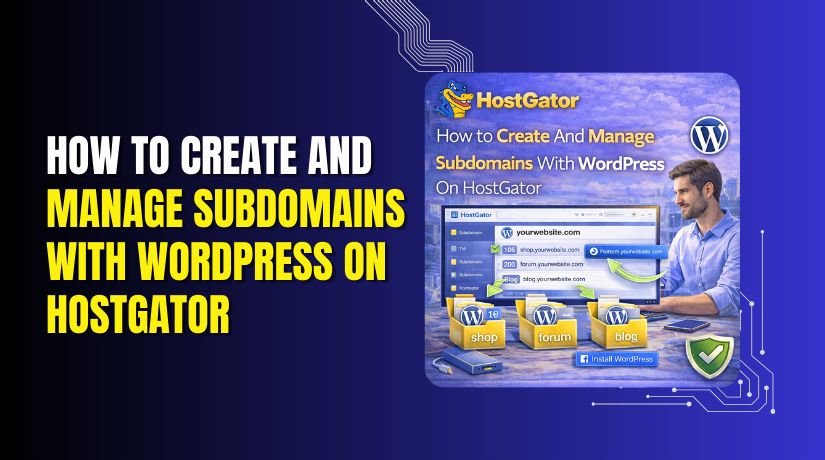
How to Create And Manage Subdomains With WordPress On HostGator
7 mins read

How to Create And Manage Subdomains With WordPress On HostGator

Introduction

Creating and managing subdomains is an effective way to organize website content, host multiple projects, and expand your online presence without purchasing additional domains. Subdomains allow website owners to run separate WordPress installations for portfolios, blogs, test environments, or business sections under the same primary domain. Hosting providers such as HostGator offer powerful tools through cPanel and domain management features to simplify subdomain creation and configuration.

This guide provides a detailed, step-by-step process for creating and managing subdomains on HostGator WordPress hosting and installing WordPress on a newly created subdomain. It covers domain setup, file management, WordPress file extraction, database creation, user configuration, and final installation procedures. By following this guide, users can efficiently deploy fully functional WordPress websites on subdomains while maintaining centralized control over their hosting environment.

1. HostGator Dashboard
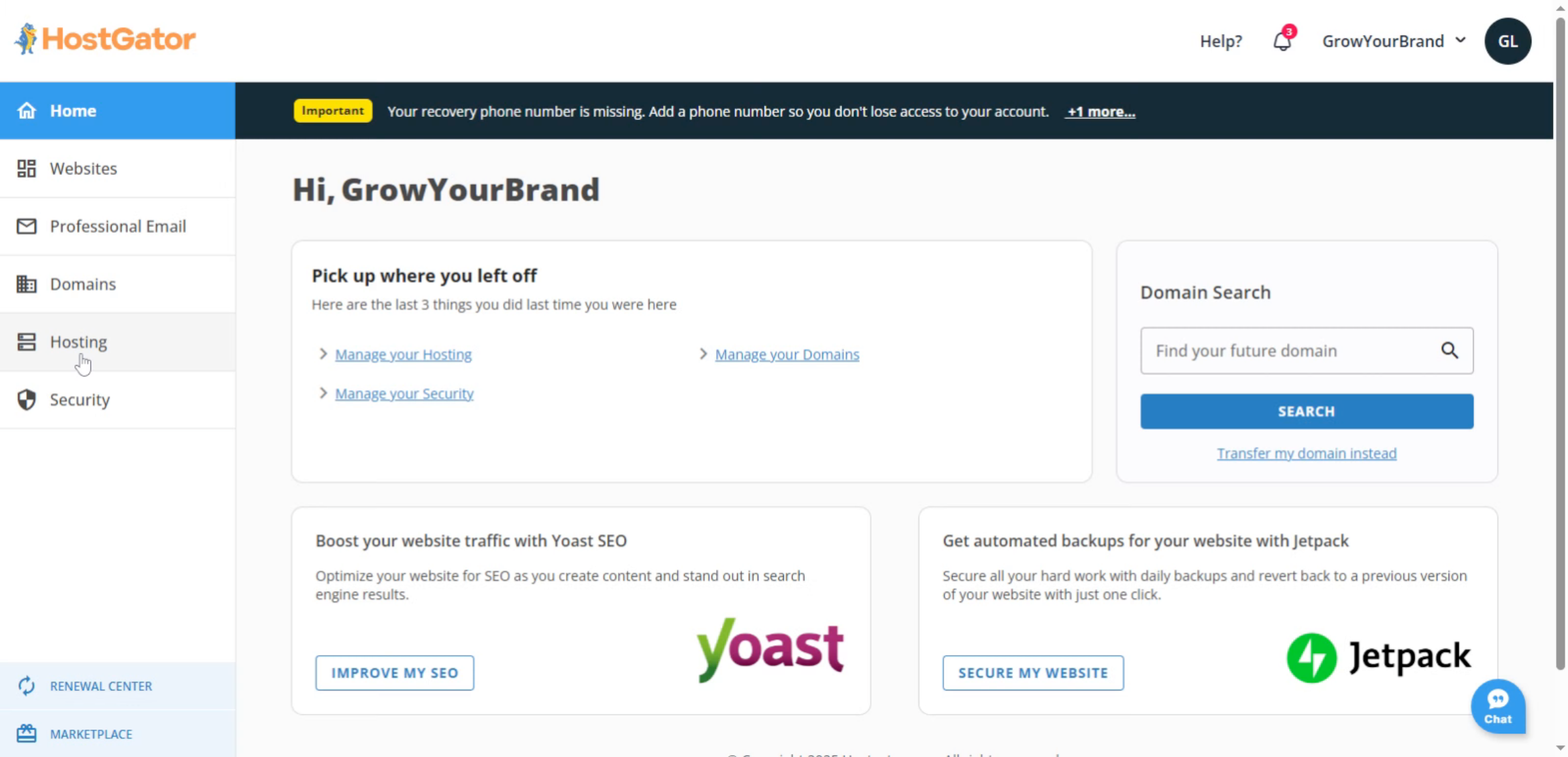
This screen shows the HostGator dashboard, where you can manage hosting and domain settings to create and set up subdomains for your WordPress website.

Introduction

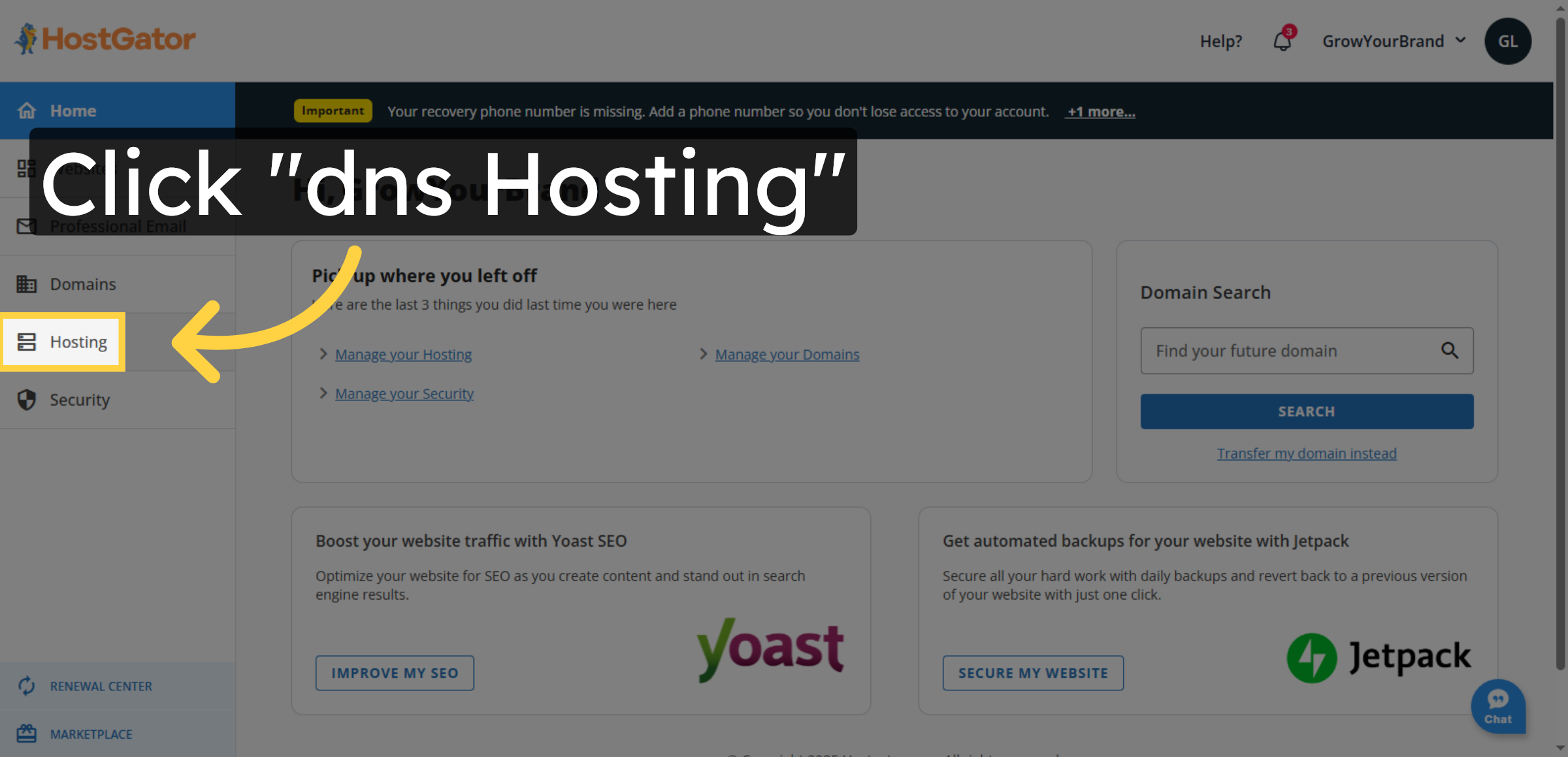
2. Access DNS Hosting

Click the DNS Hosting option to begin managing your domain settings.

Access DNS Hosting

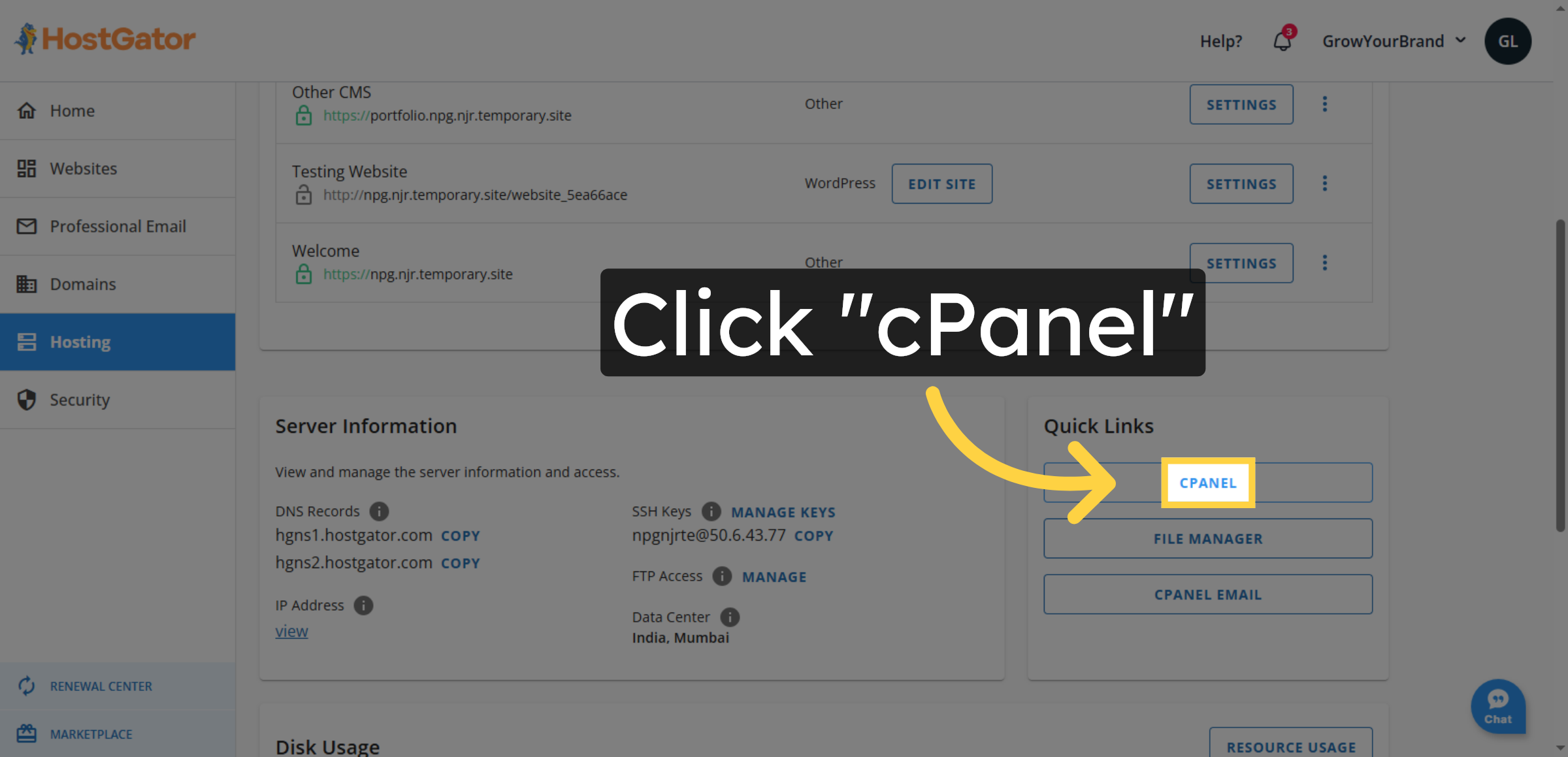
3. Open cPanel

Click cPanel in the HostGator hosting section to access advanced tools for managing subdomains, databases, files, and WordPress settings.

Open cPanel

4. Navigate To Domains Section
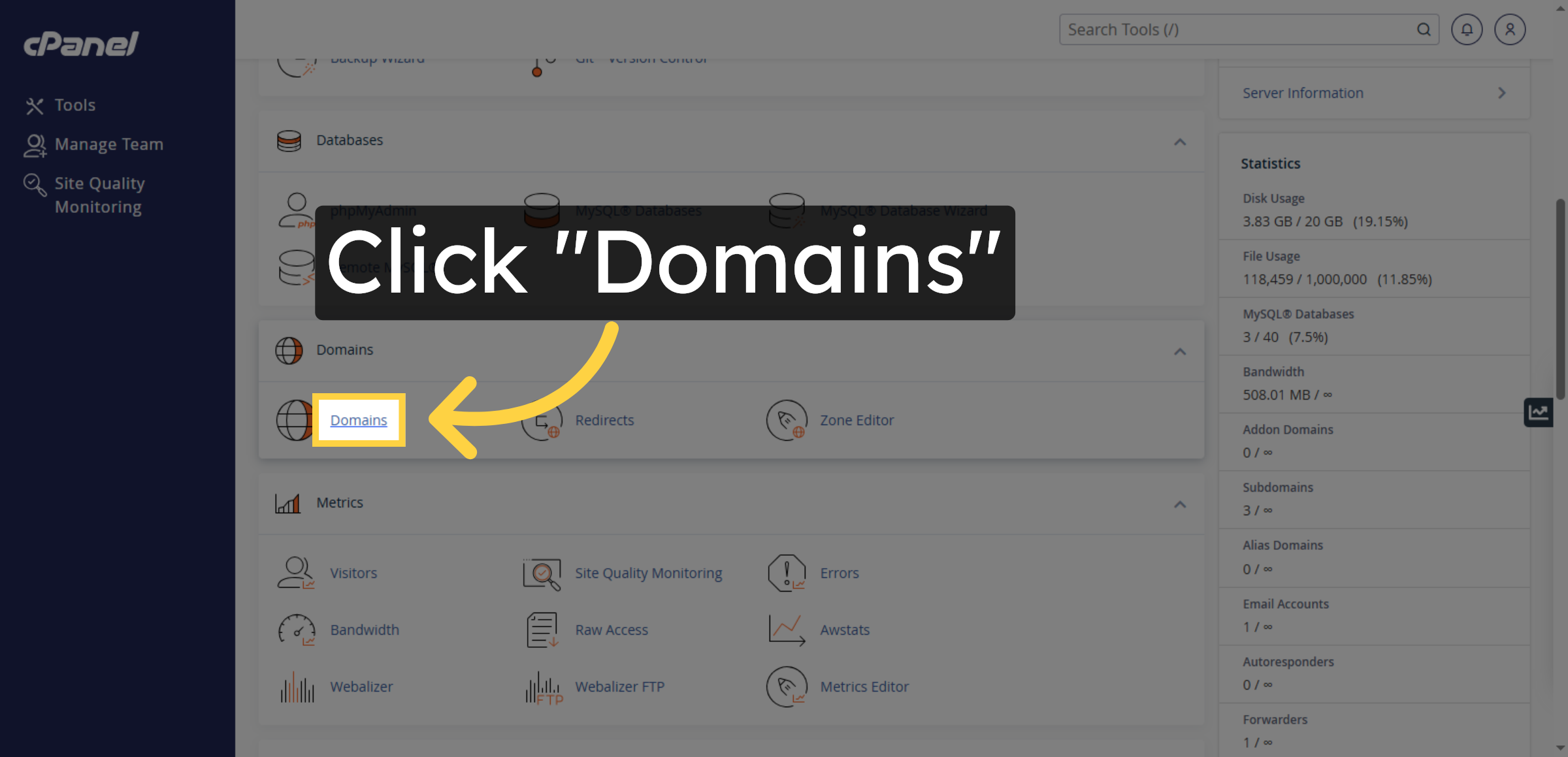
Click the Domains section to manage your domain configurations.

Navigate To Domains Section

5. Initiate New Domain Creation
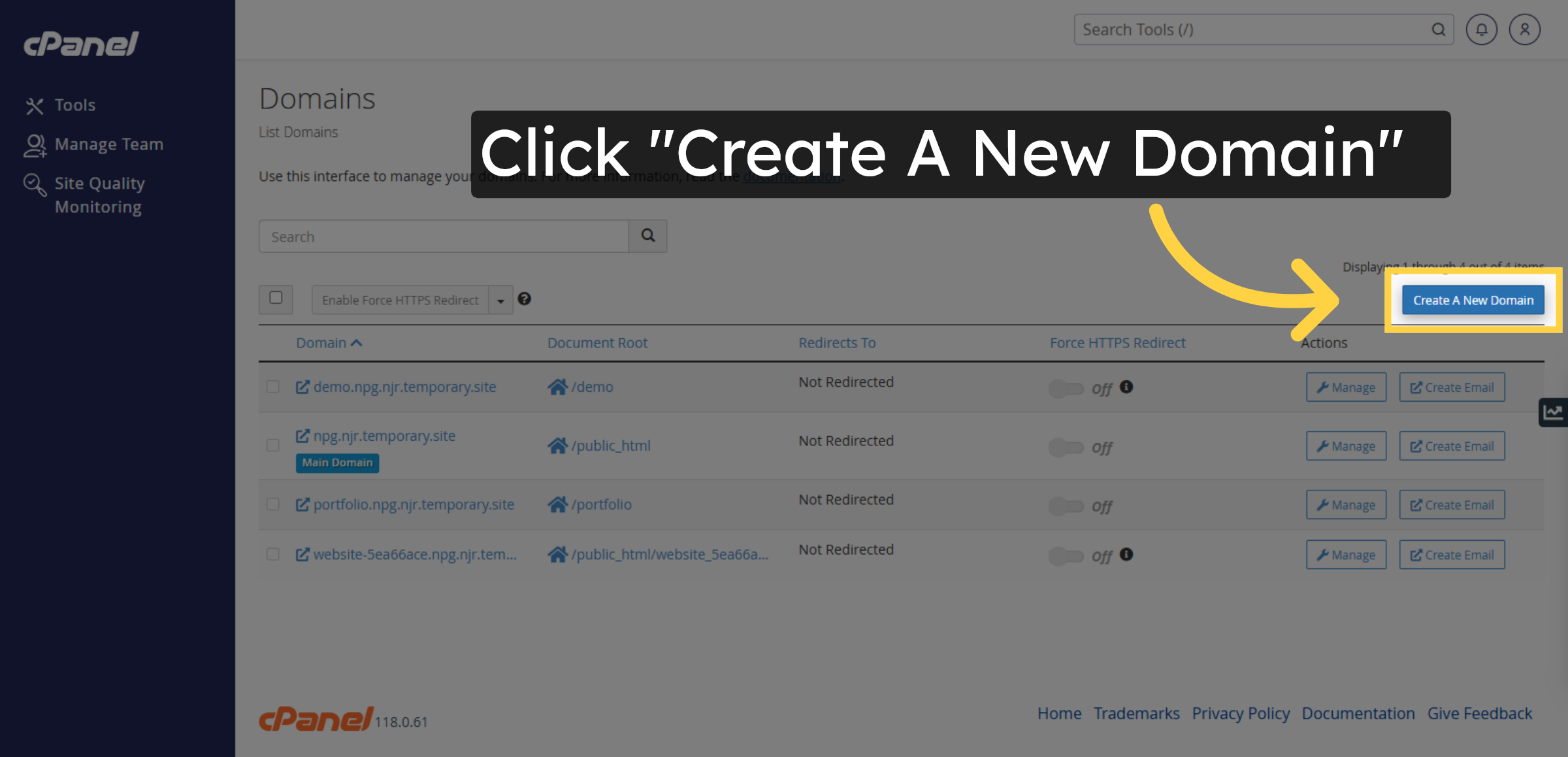
Click Create A New Domain to start adding a subdomain.

Initiate New Domain Creation

6. Enter Subdomain Full Name
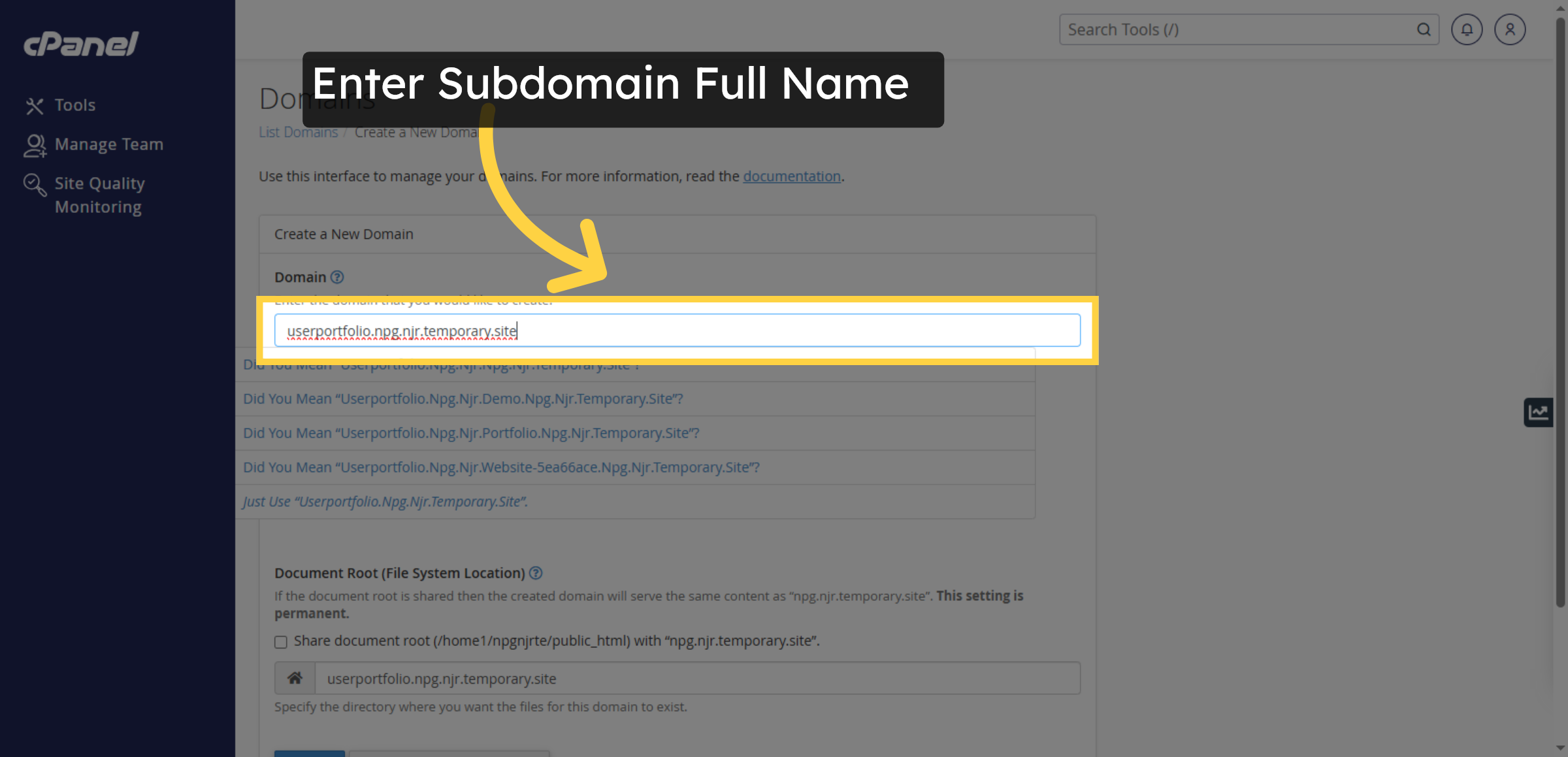
Enter the full subdomain name such as userportfolio.npg.njr.temporary.site.

Enter Subdomain Full Name

7. Enter Subdomain Directory
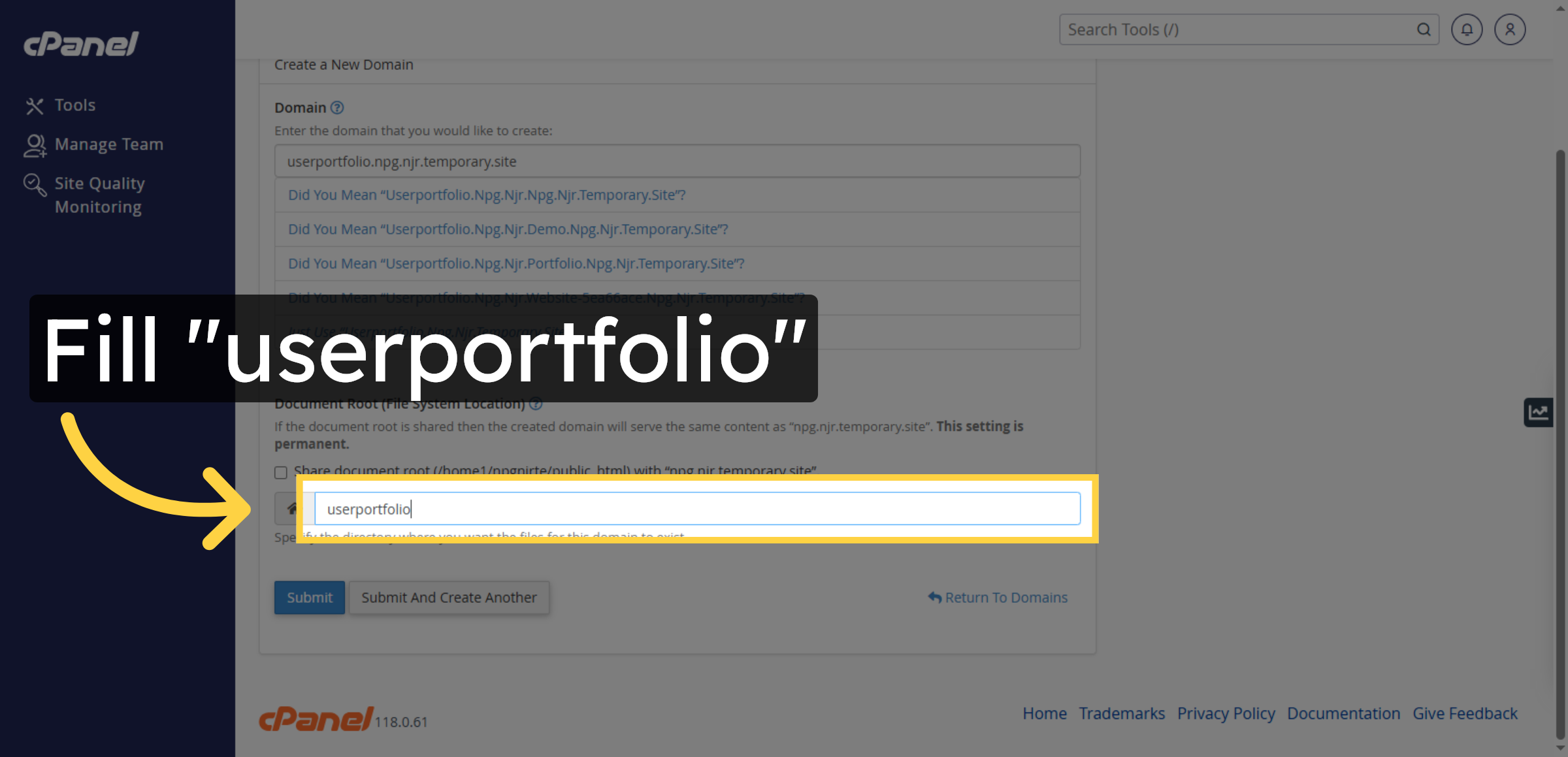
Enter the directory name userportfolio for the subdomain files.

Enter Subdomain Directory

8. Submit Subdomain Creation
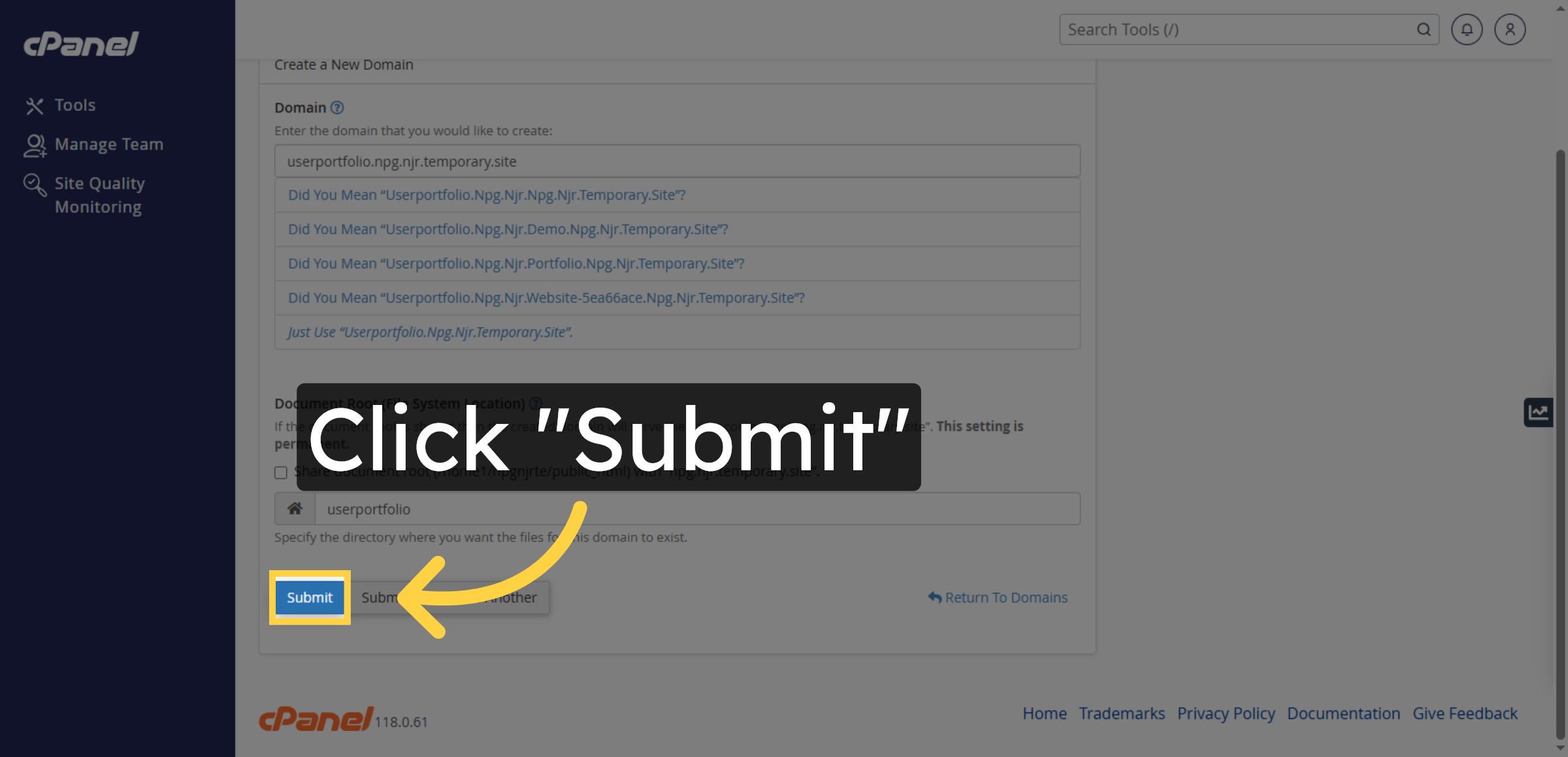
Click Submit to create the new subdomain with the specified settings.

Submit Subdomain Creation

9. Open Subdomain Management
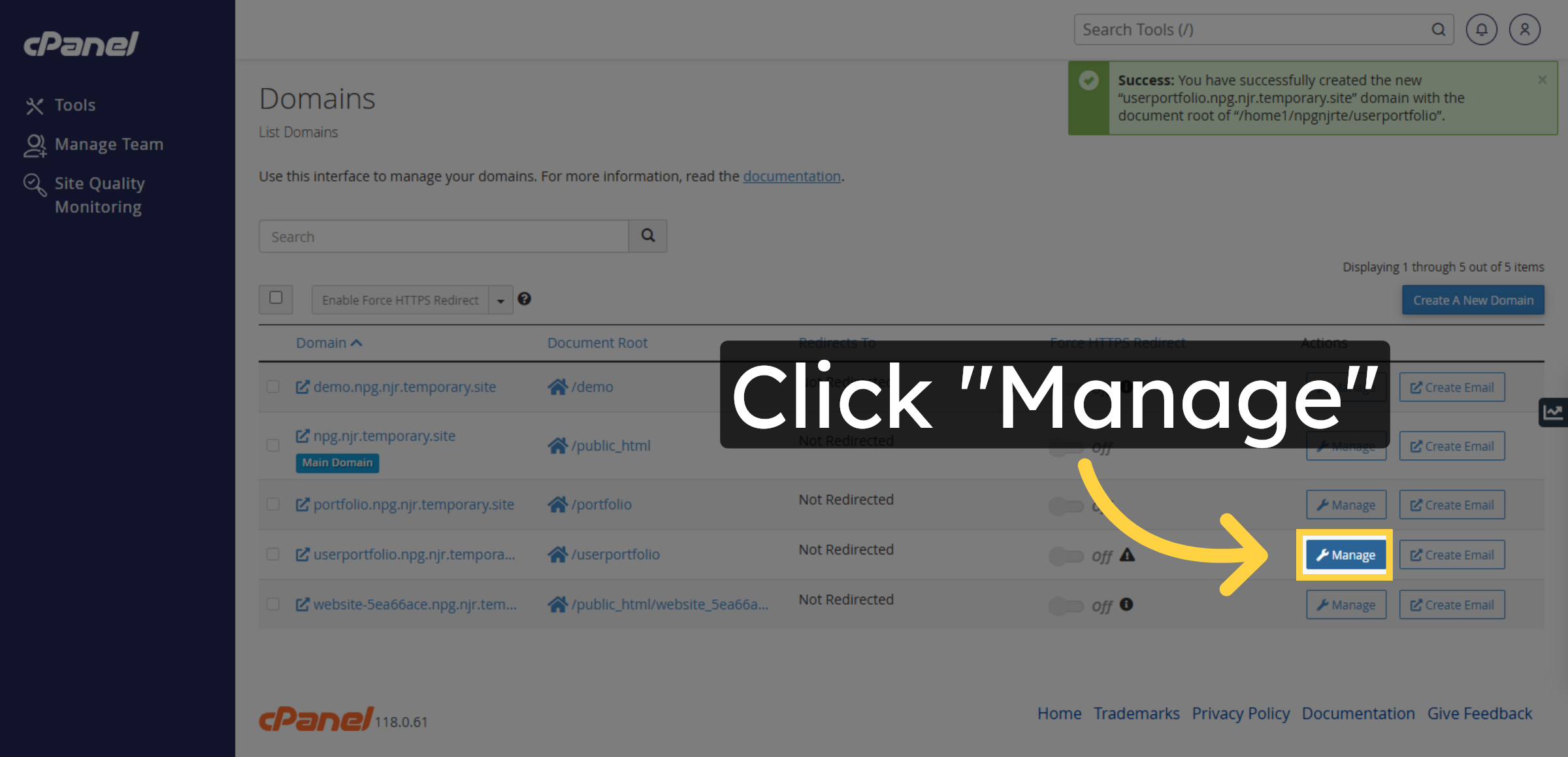
Select the specific subdomain you want to manage in order to access and control its files and settings.

Open Subdomain Management

10. Access Subdomain Folder
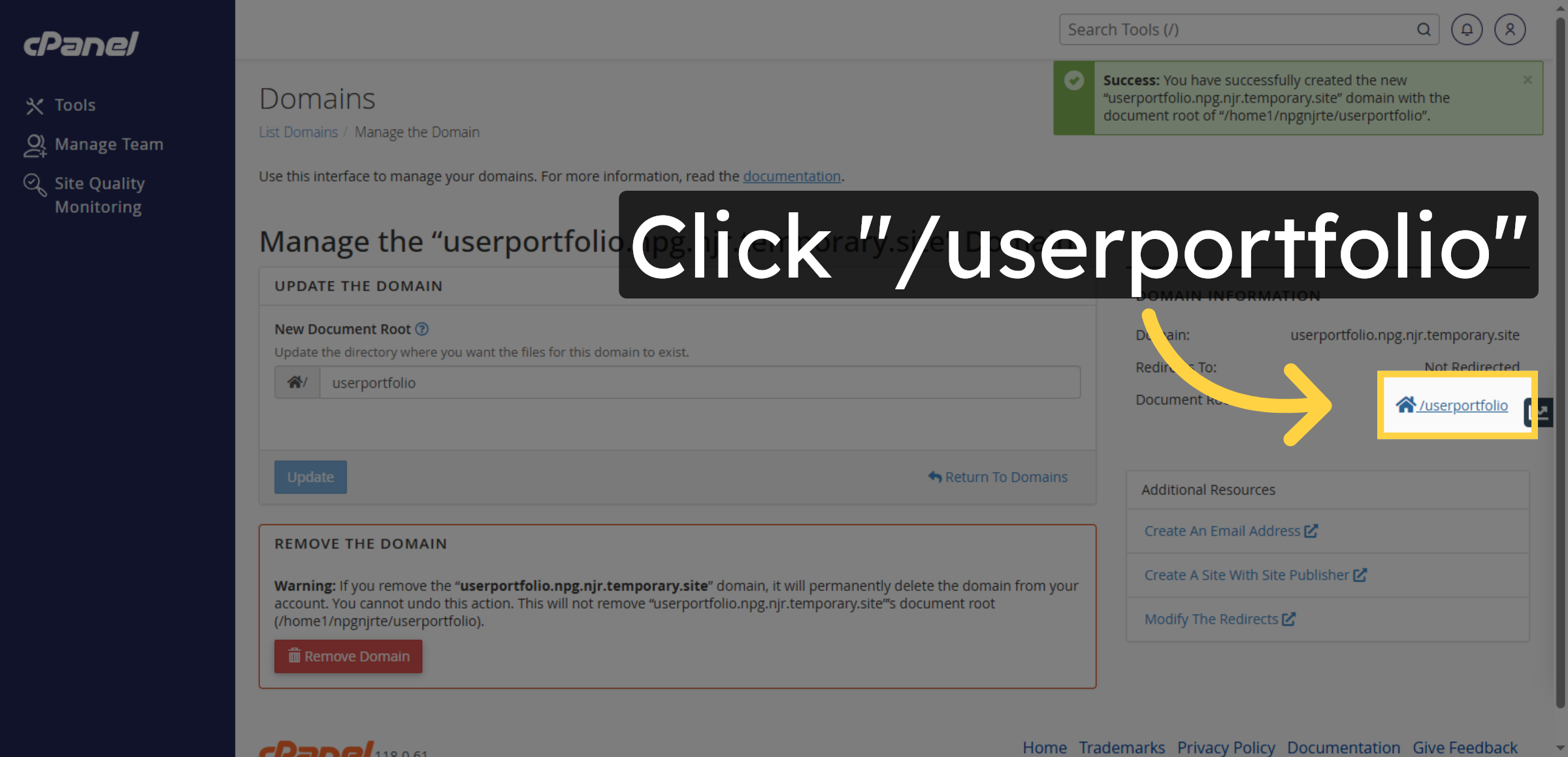
Click the /userportfolio folder to view the subdomain’s root directory.

Access Subdomain Folder

11. Open Upload Interface
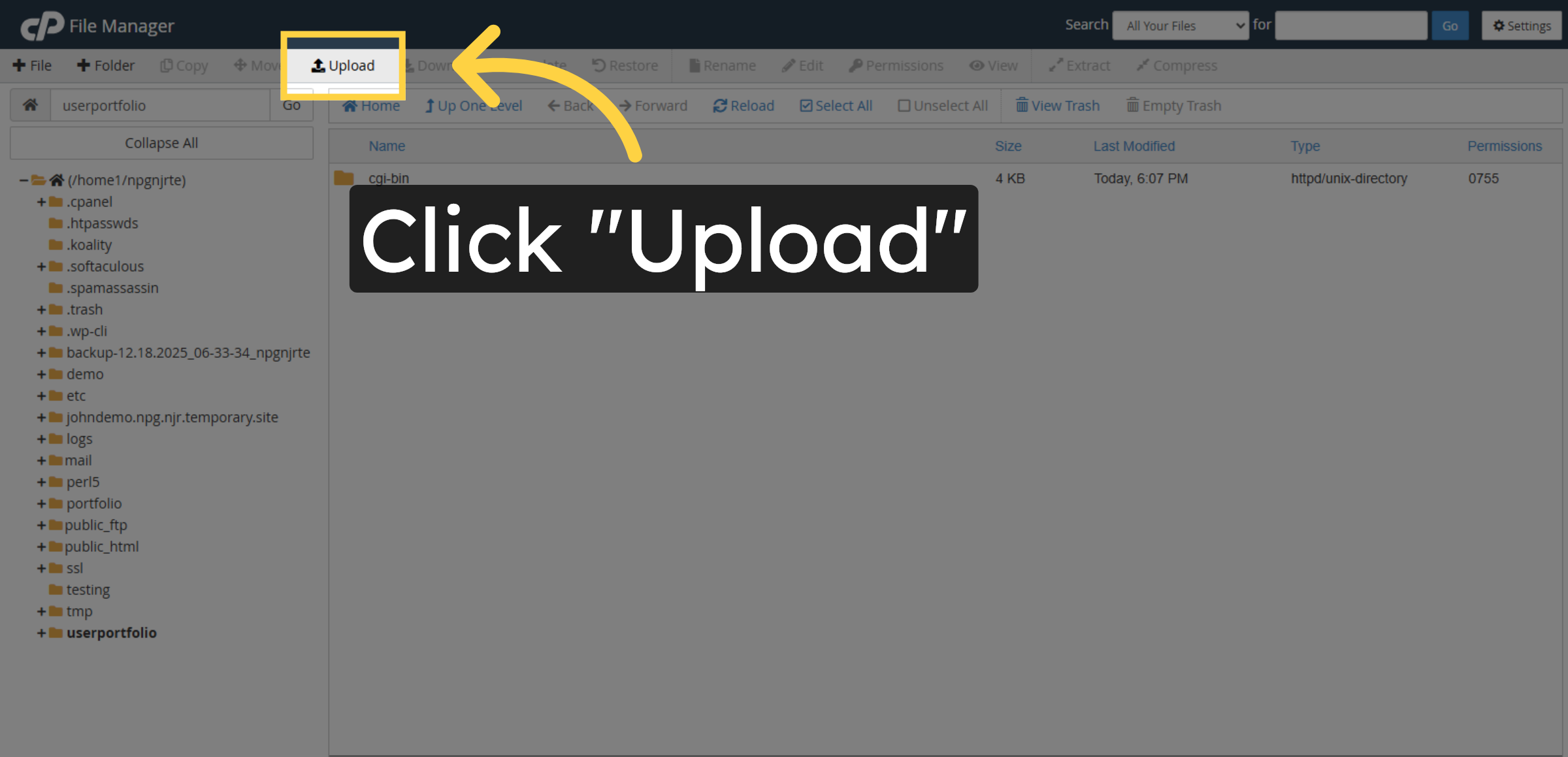
Click Upload to add files to the subdomain directory.

Open Upload Interface

12. Download WordPress
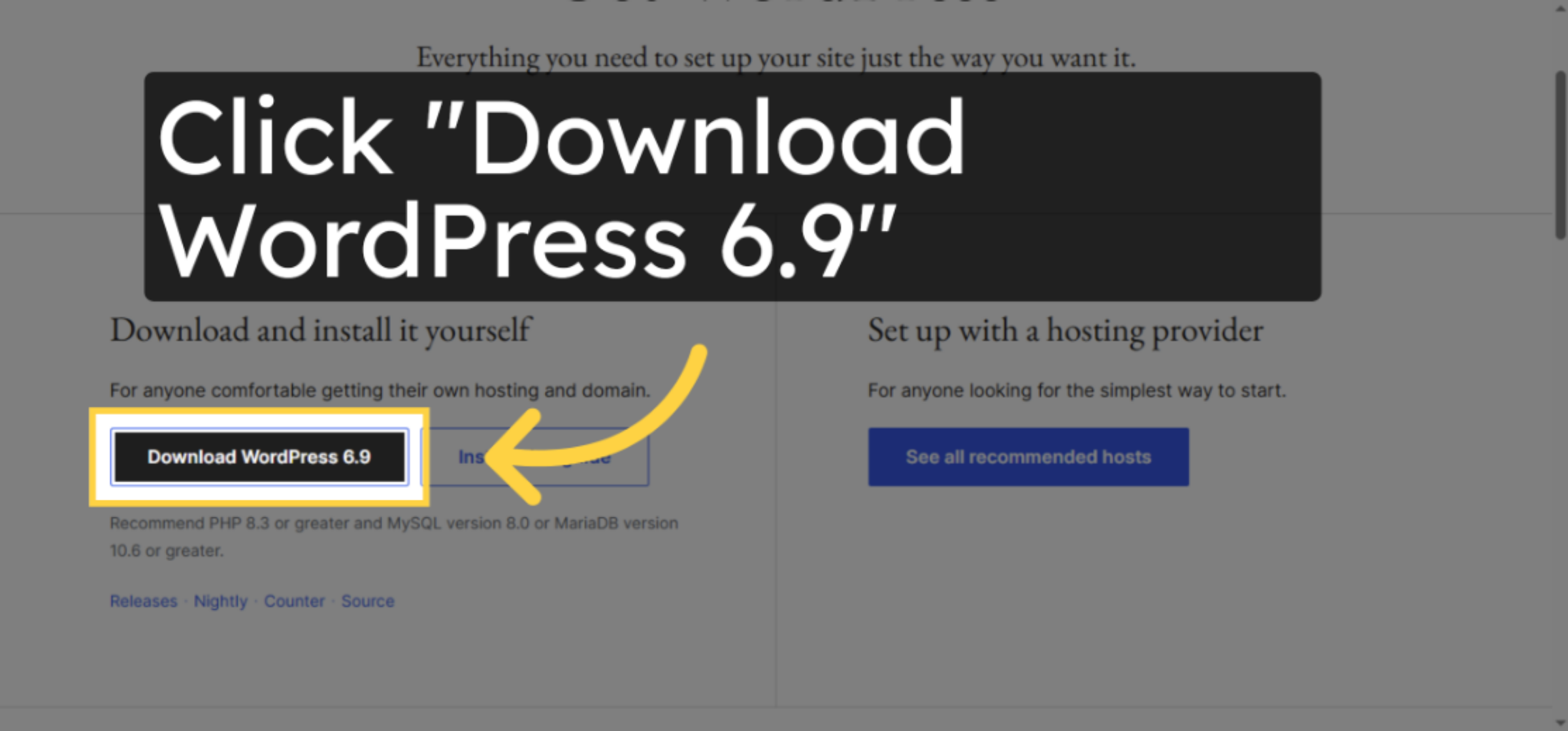
Download from https://wordpress.com/

Download WordPress

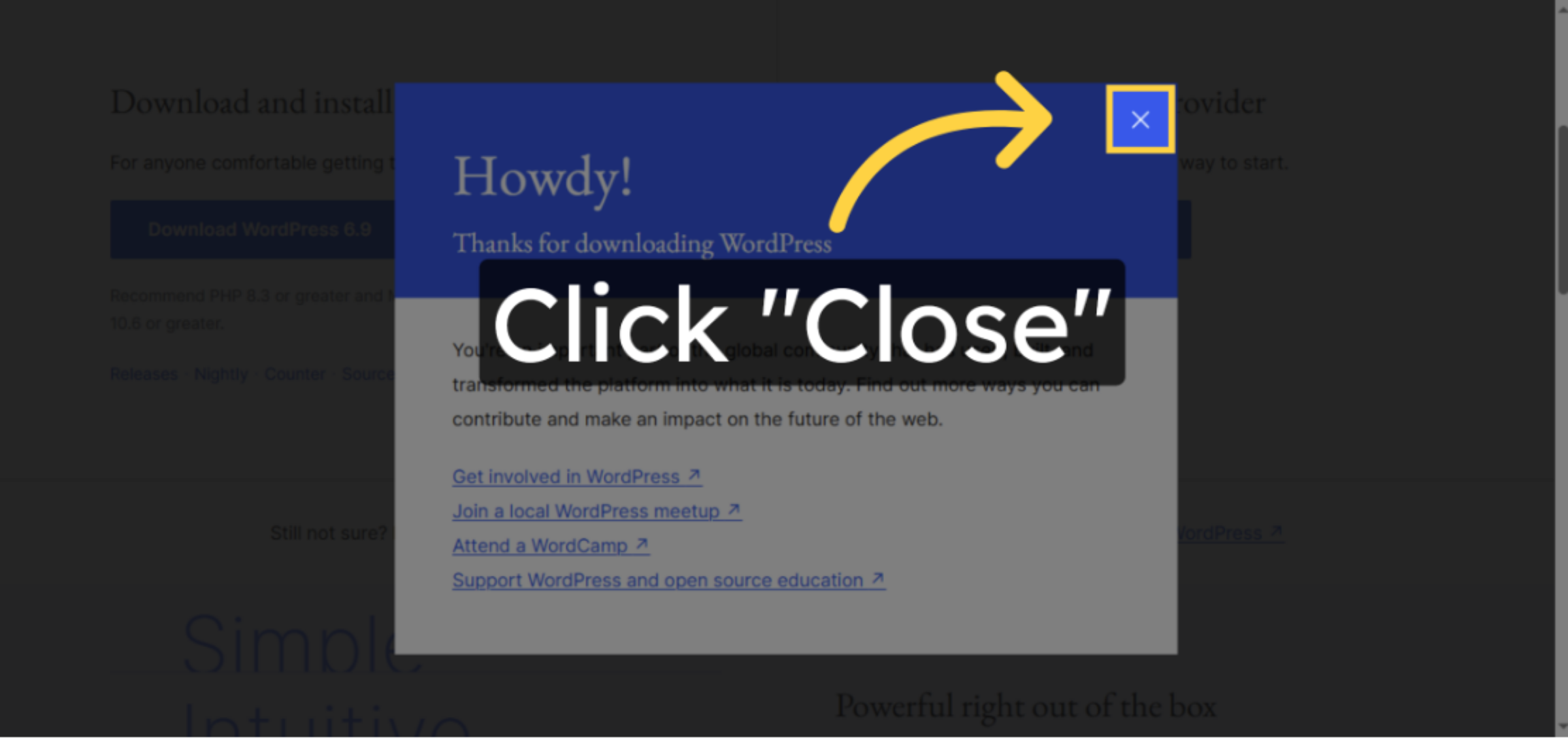
13. Close the Popup Window
14. Select File To Upload
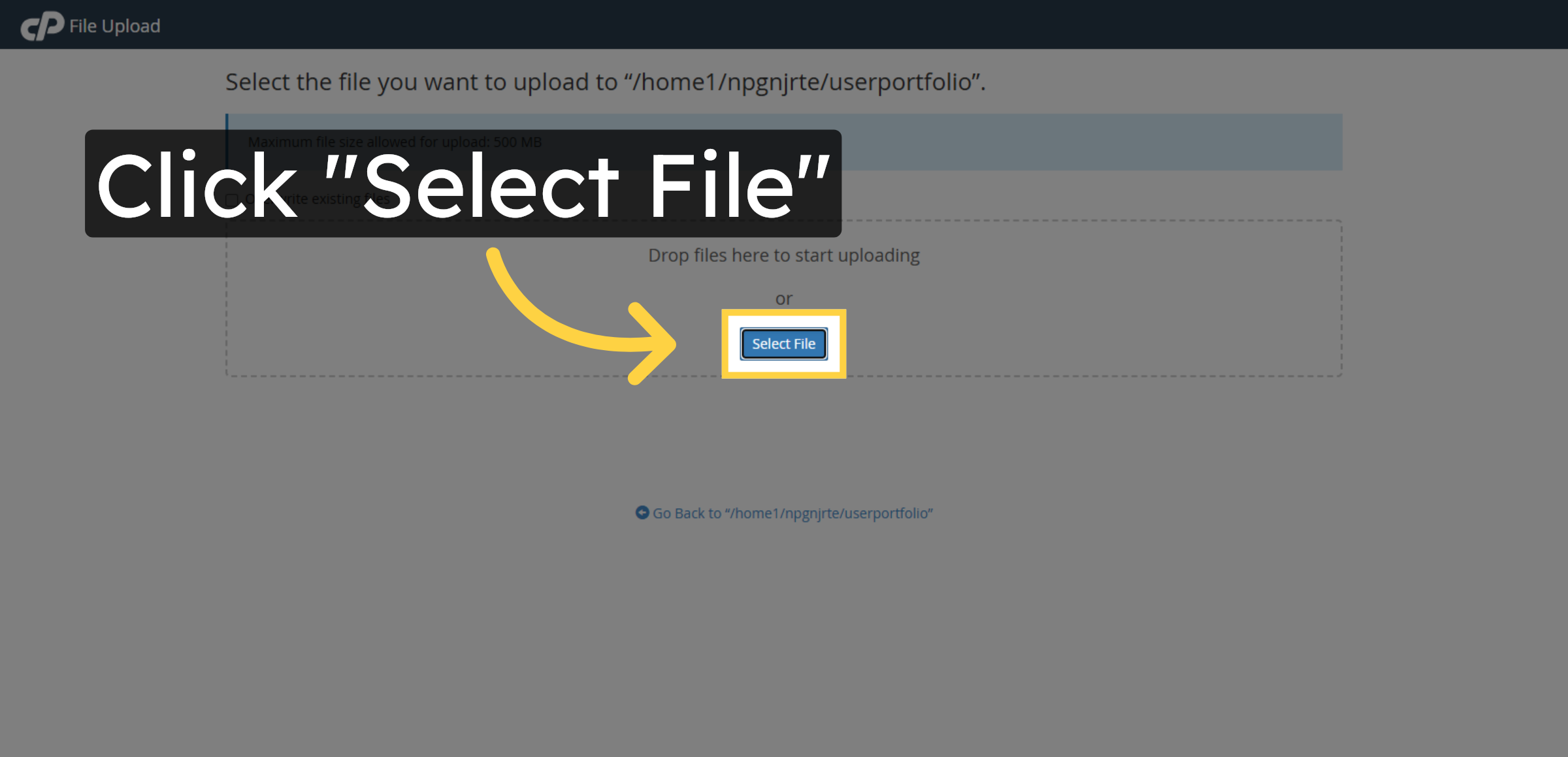
Click Select File to choose the WordPress installation package from your computer.

Select File To Upload

15. Choose WordPress Zip File
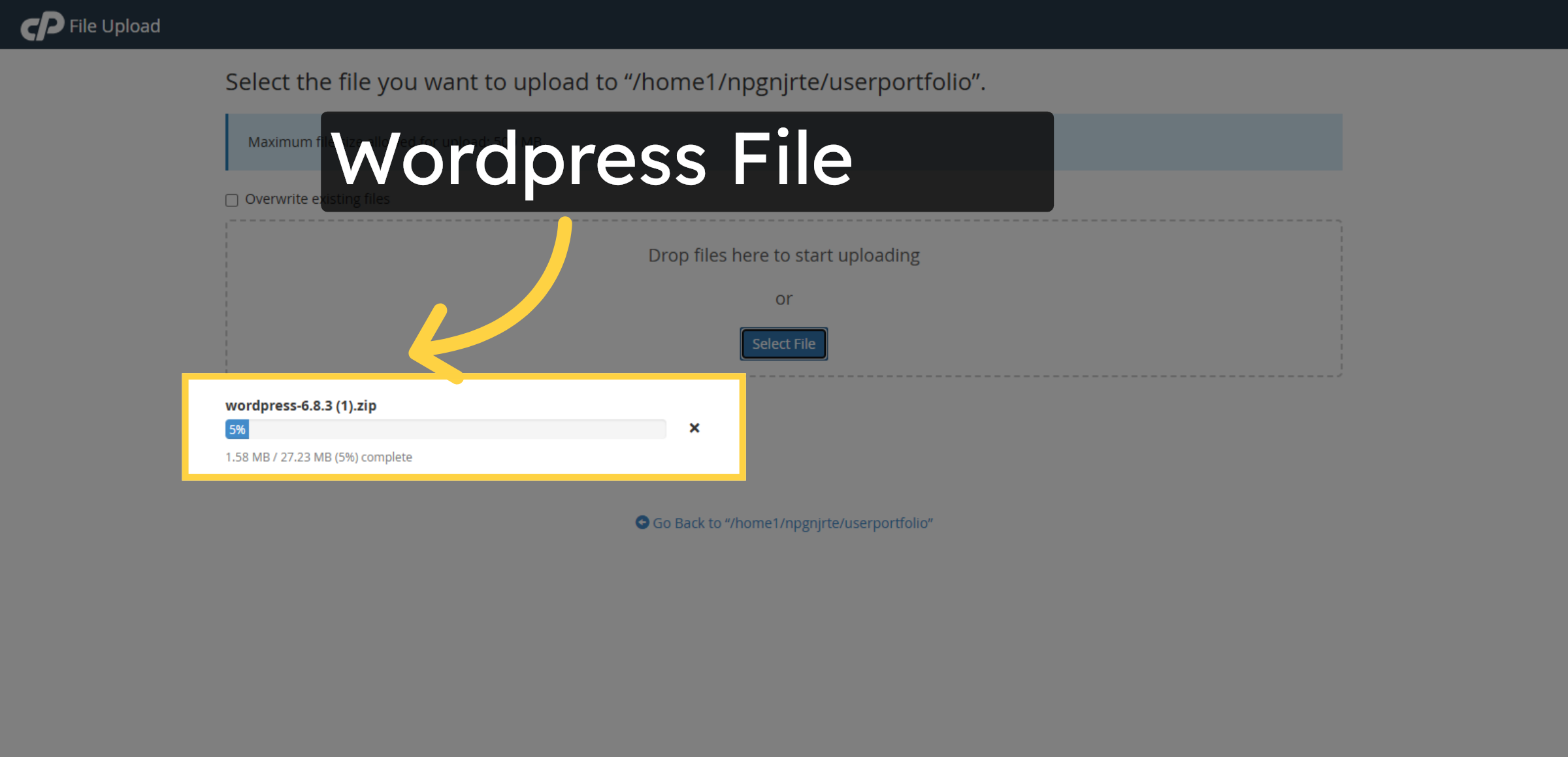
Select the WordPress zip file from the file manager to upload for installation.

Choose WordPress Zip File

16. Return To Subdomain Directory
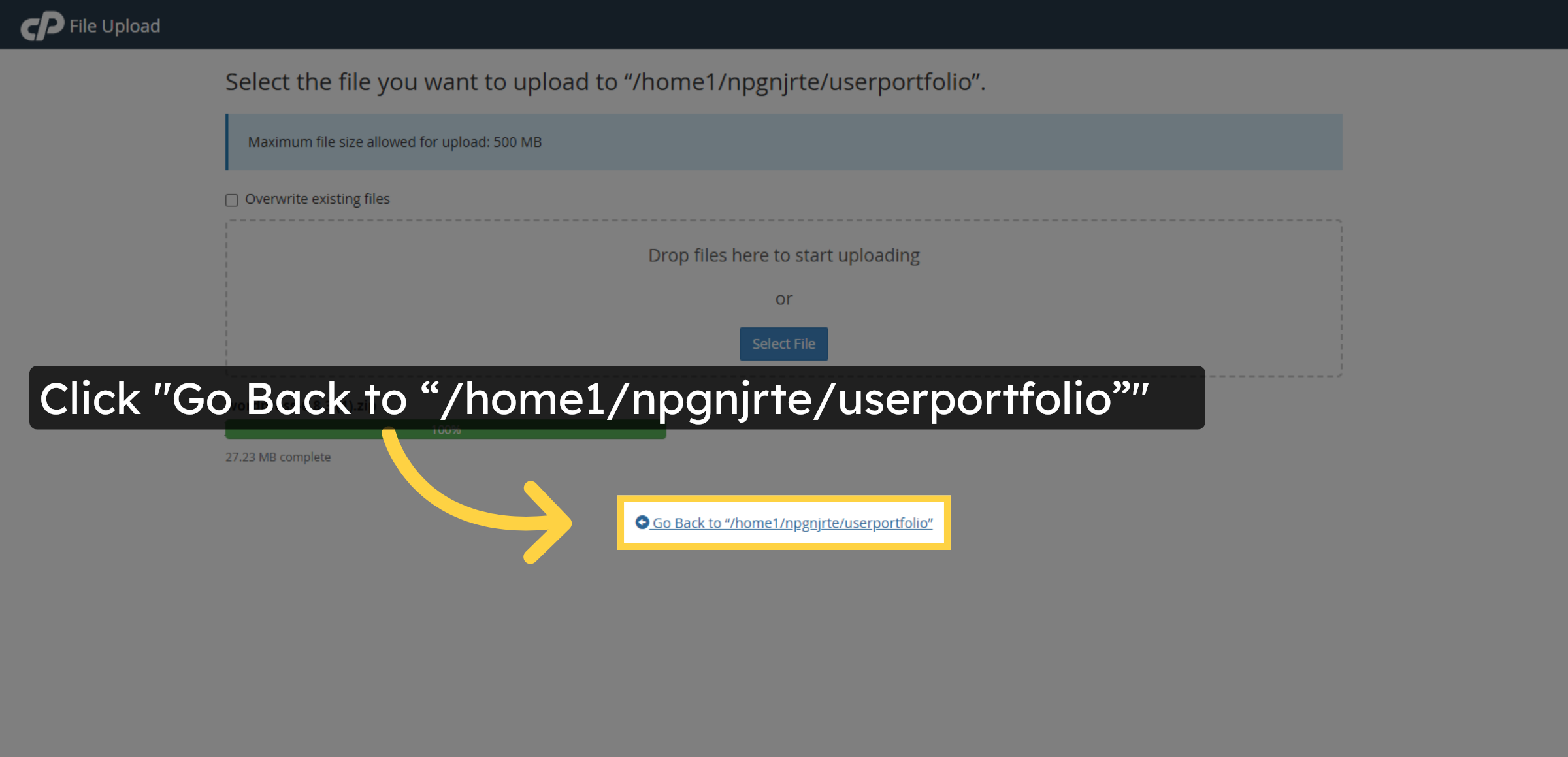
Click Go Back to /home1/npgnjrte/userportfolio to return to the subdomain folder.

Return To Subdomain Directory

17. Select WordPress Zip File
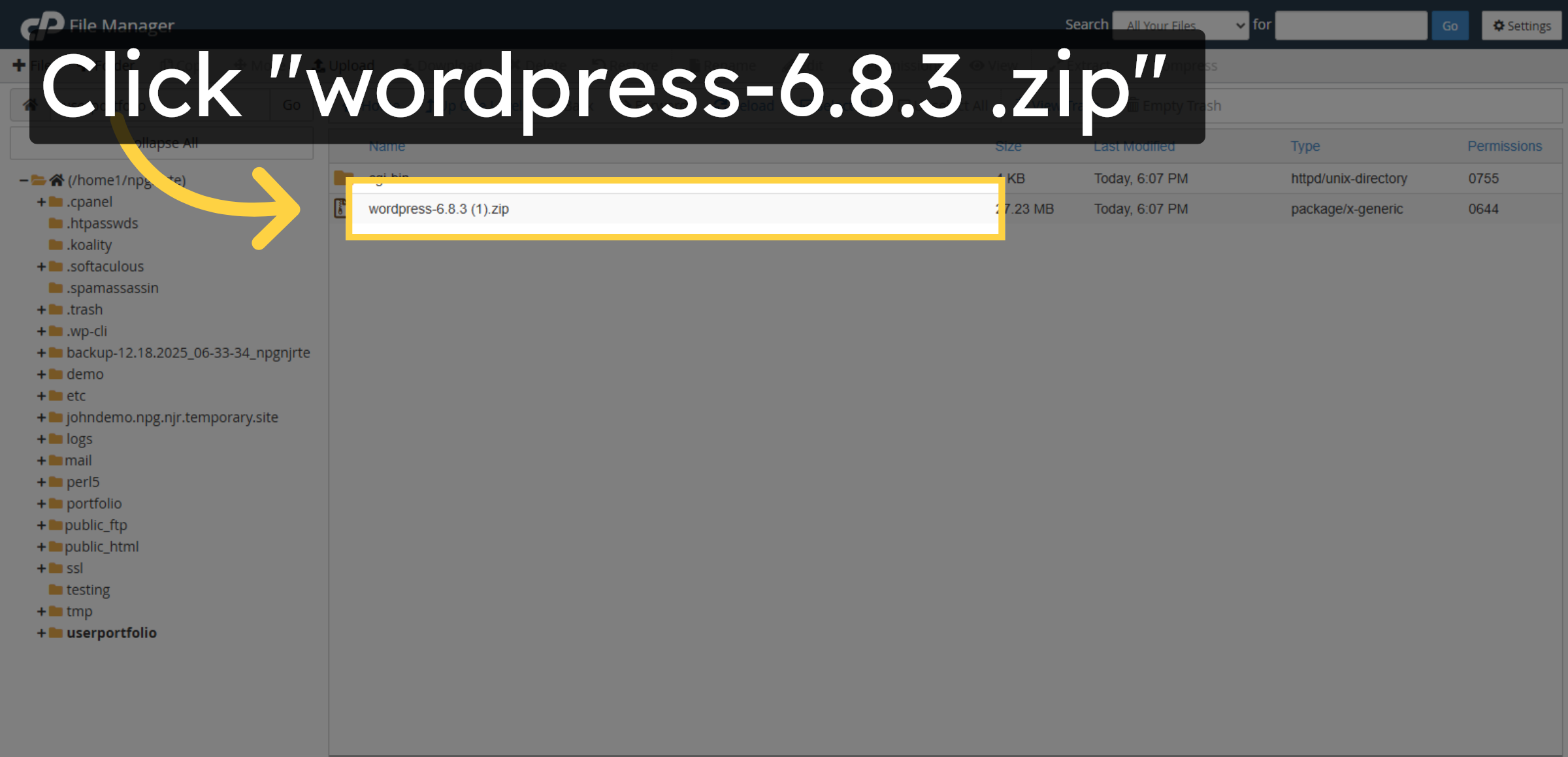
Click the WordPress zip file named wordpress-6.8.3 (1).zip to prepare for extraction.

Select WordPress Zip File

18. Extract WordPress Files
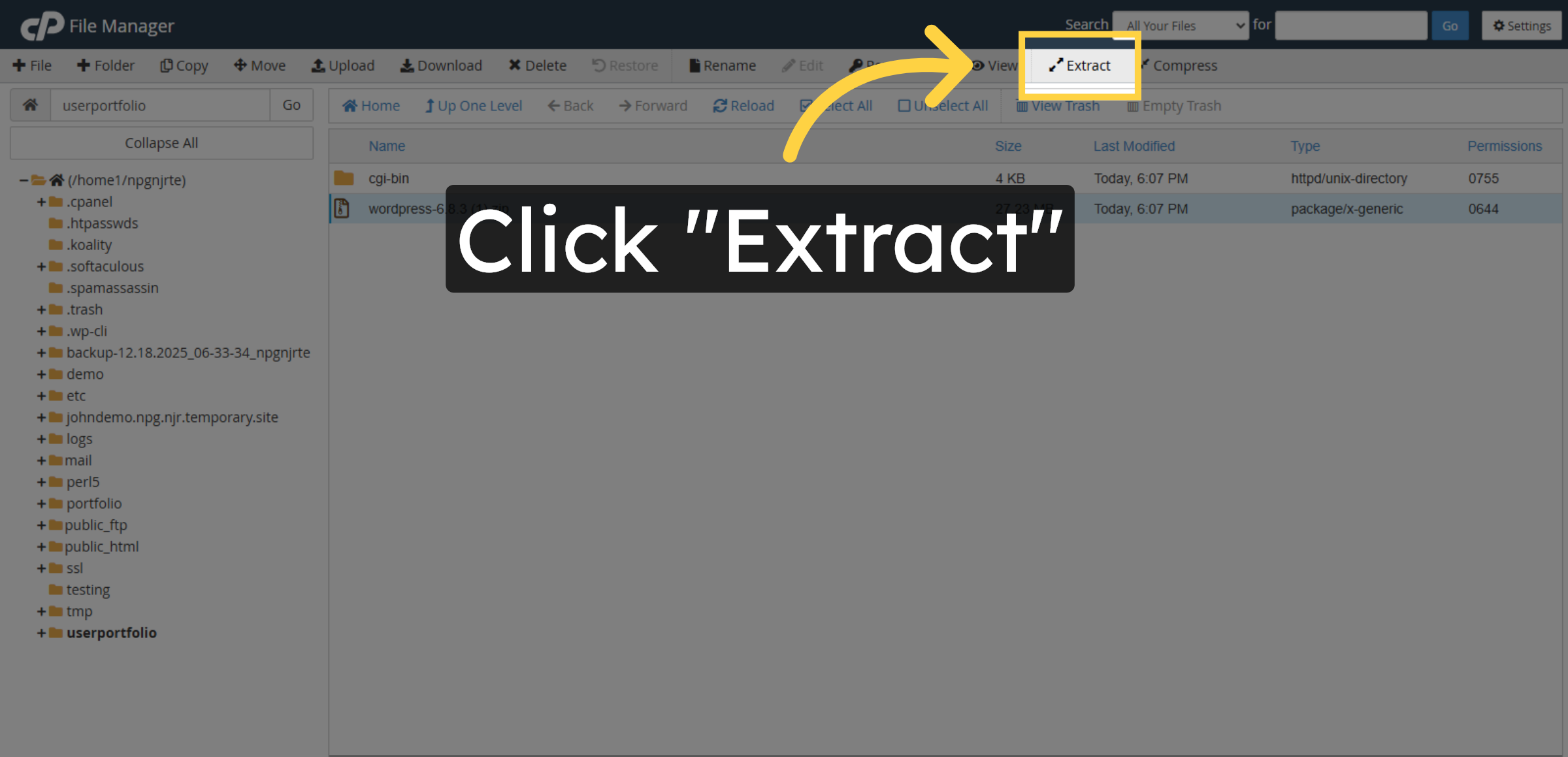
Click Extract to begin unpacking the WordPress installation files.

Extract WordPress Files

19. Confirm Extraction
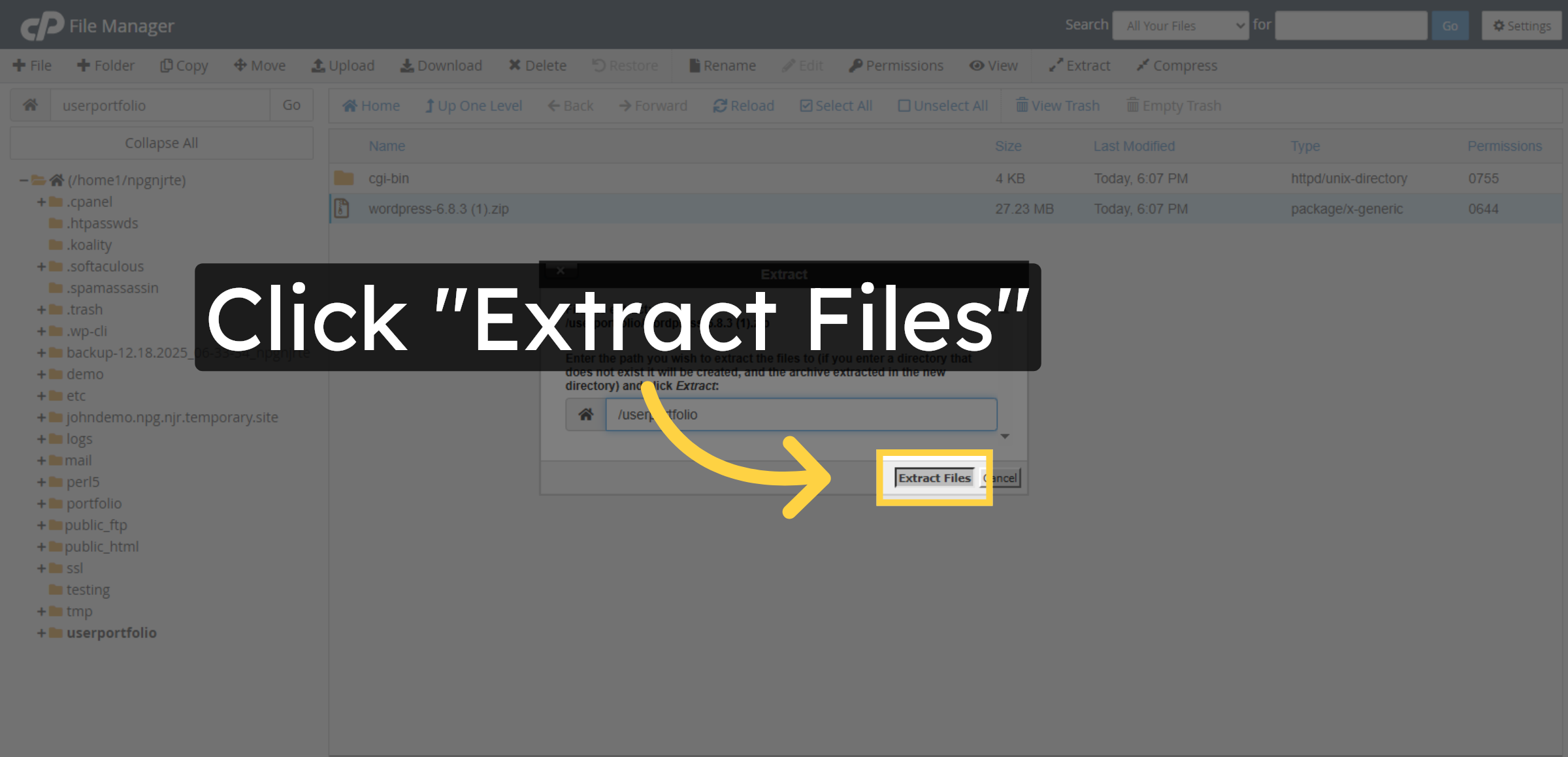
Click Extract Files to confirm and proceed with extracting the files.

Confirm Extraction

20. Close Extraction Window
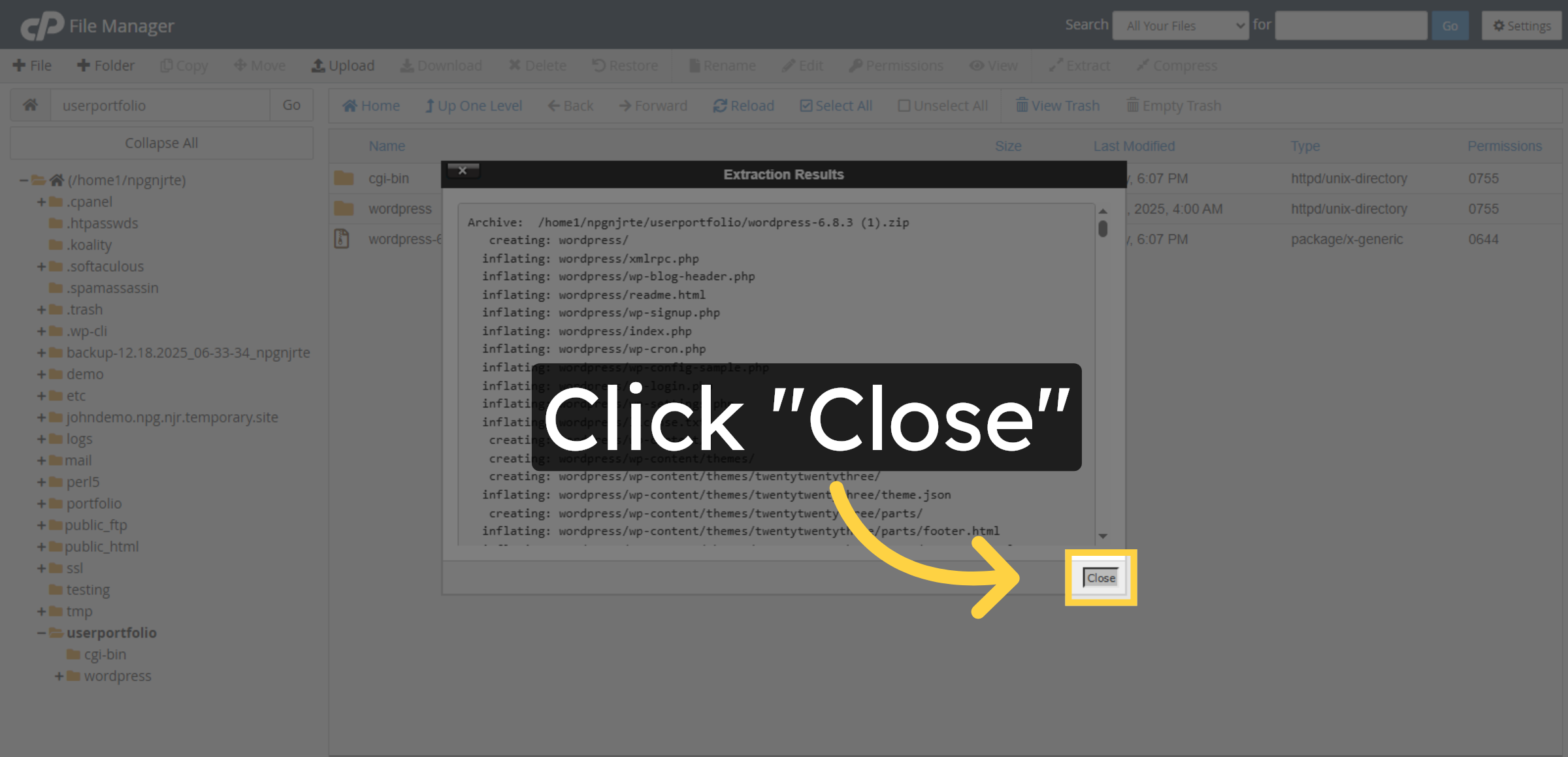
Click Close to finish the extraction process and close the dialog.

Close Extraction Window

21. Open Inner WordPress Folder
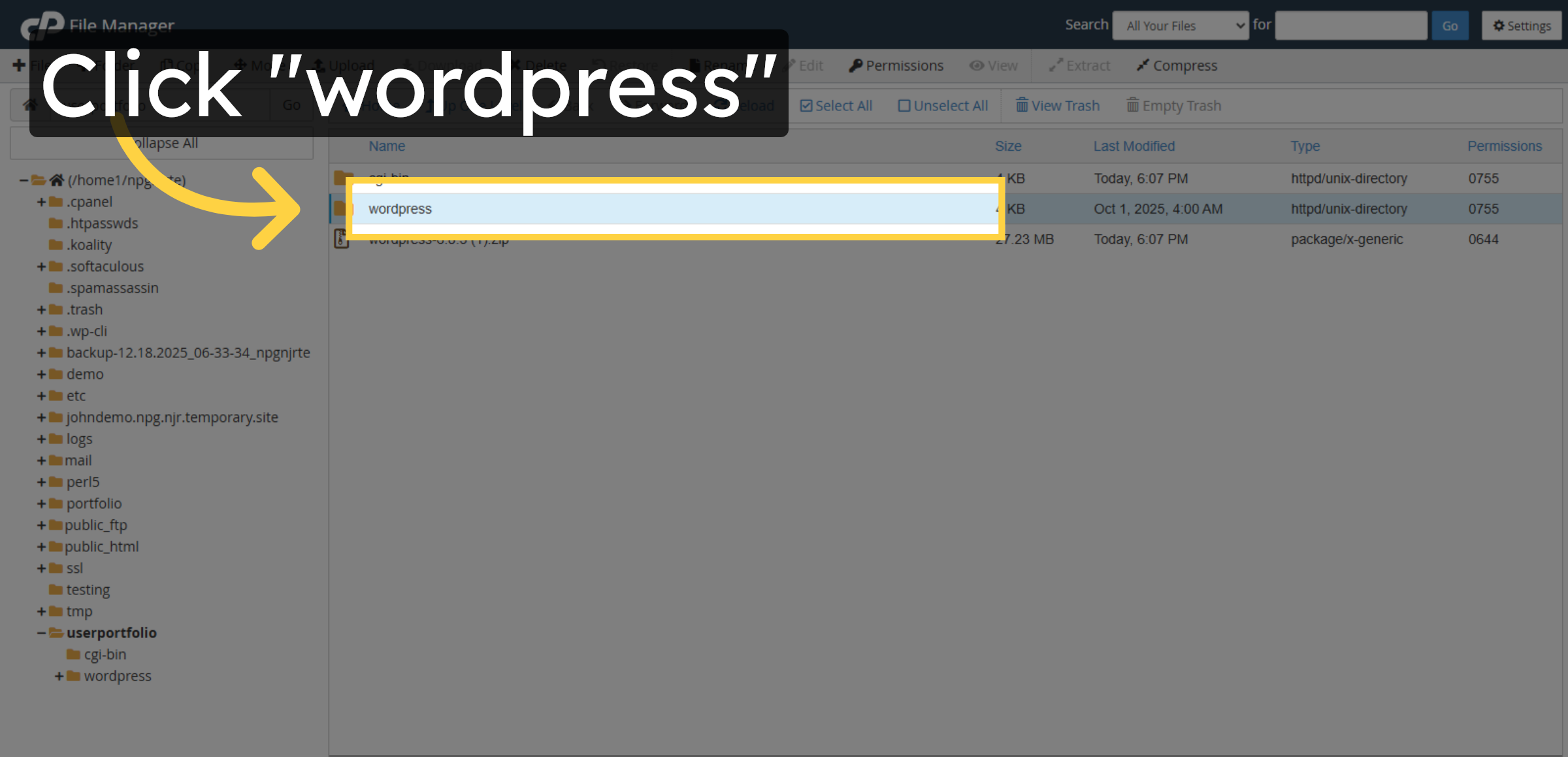
Click the wordpress folder inside to view all WordPress installation files.

Open Inner WordPress Folder

22. Select All WordPress Files
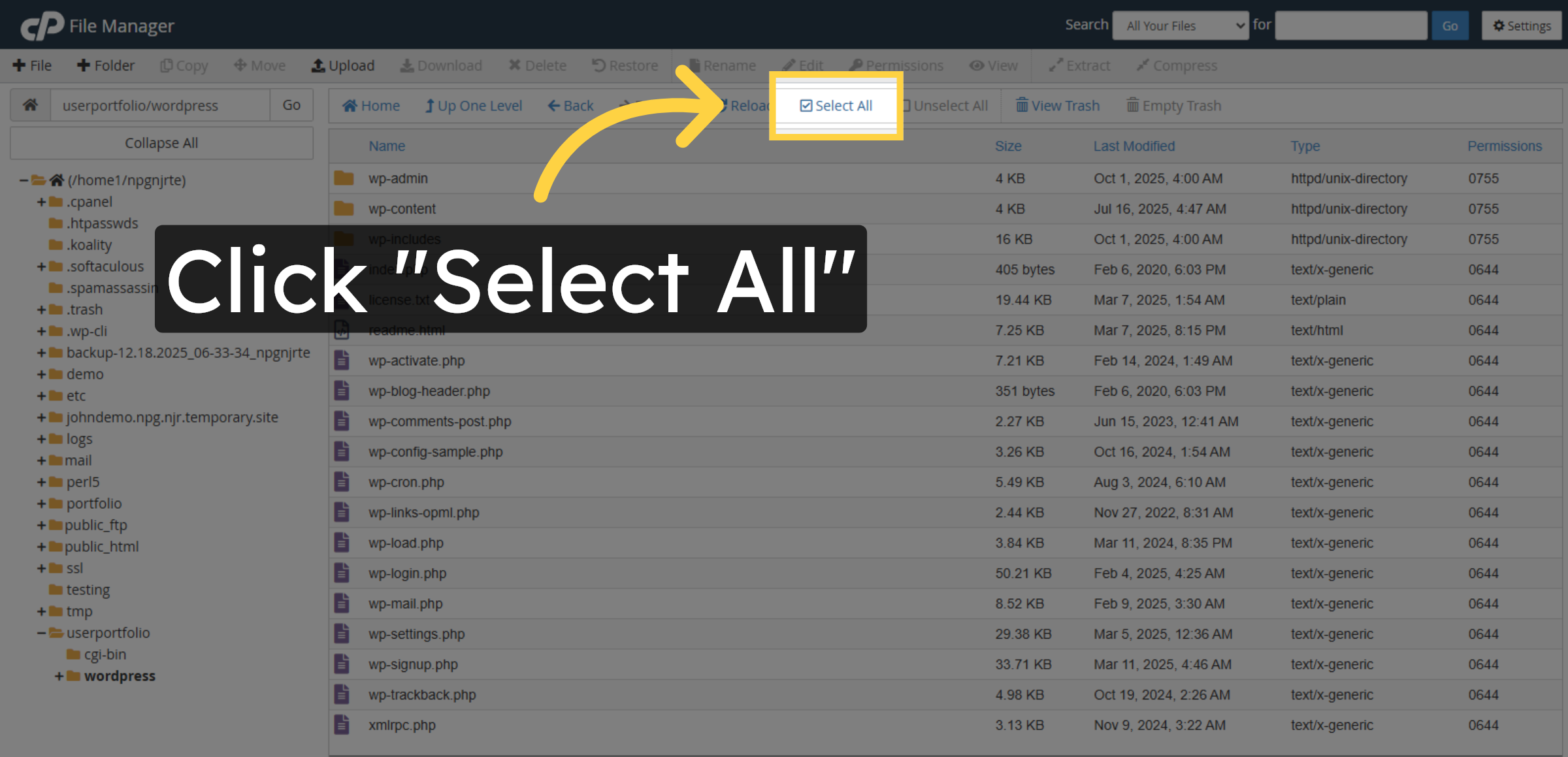
Click Select All to highlight all files for moving.

Select All WordPress Files

23. Initiate File Move
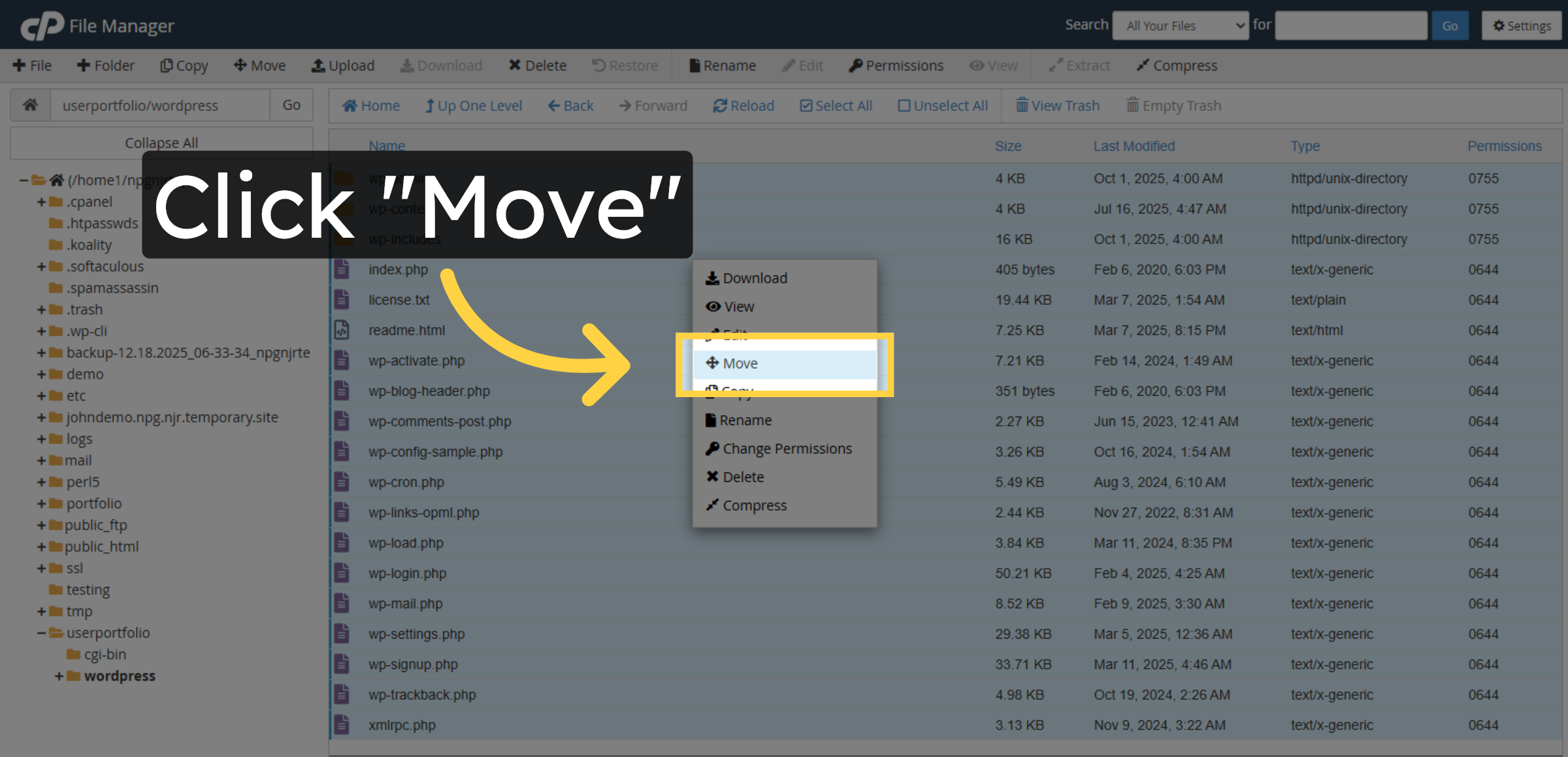
Click Move to start relocating the WordPress files to the subdomain root.

Initiate File Move

24. Specify Destination Folder
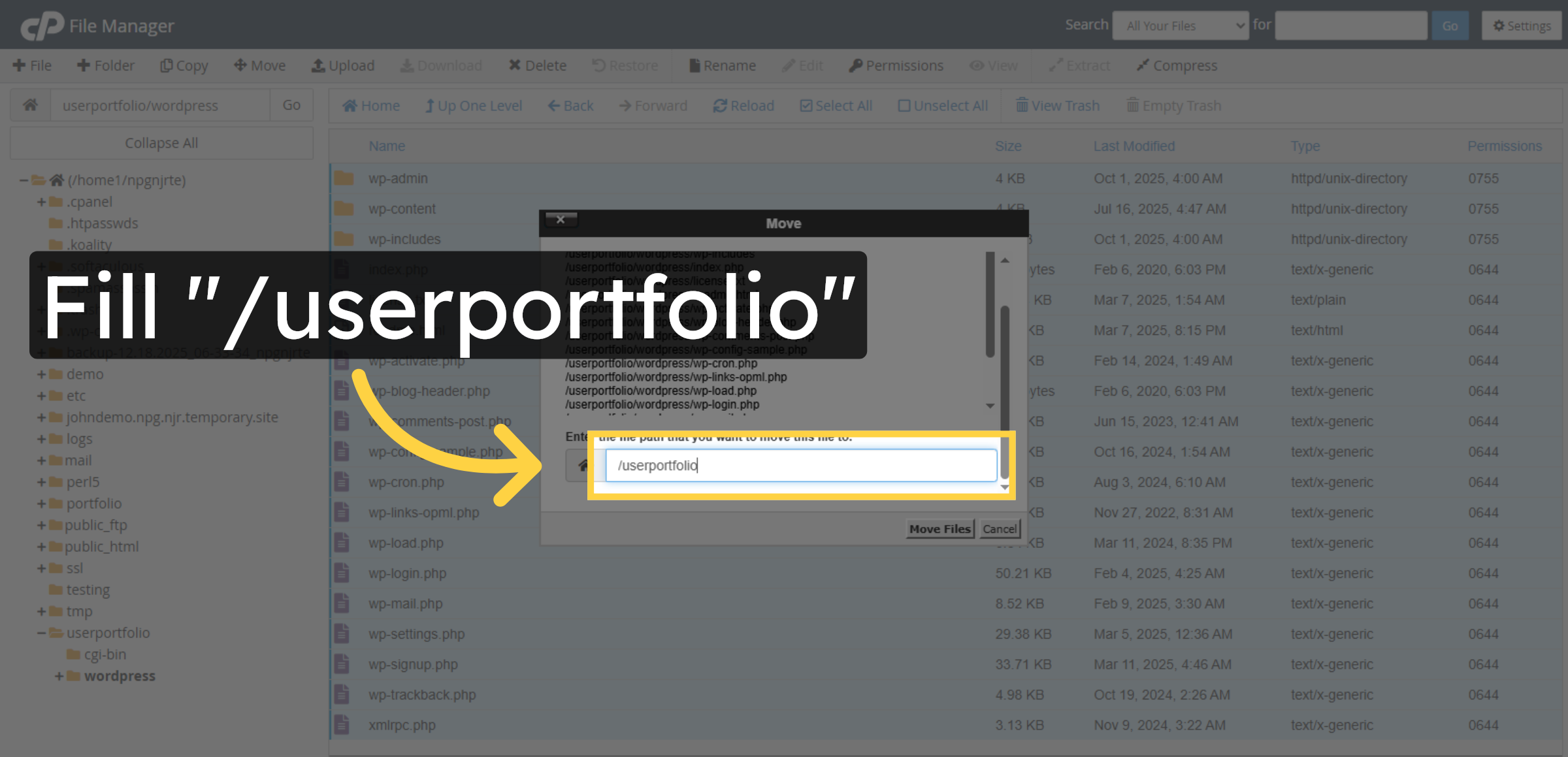
Enter /userportfolio as the destination folder for the WordPress files.

Specify Destination Folder

25. Confirm File Move
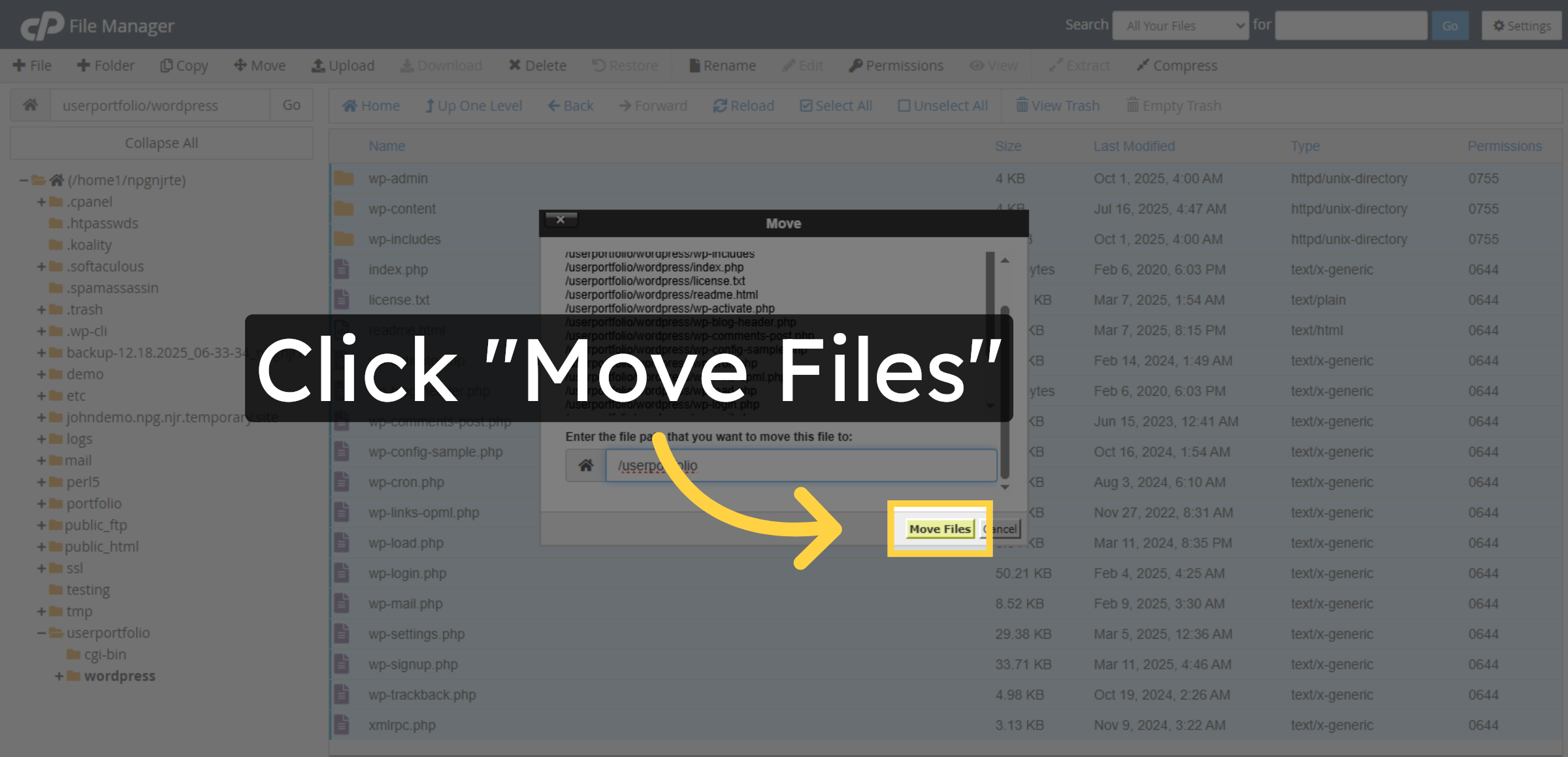
Click Move Files to transfer all selected WordPress files to the subdomain directory.

Confirm File Move

26. Navigate Up One Level
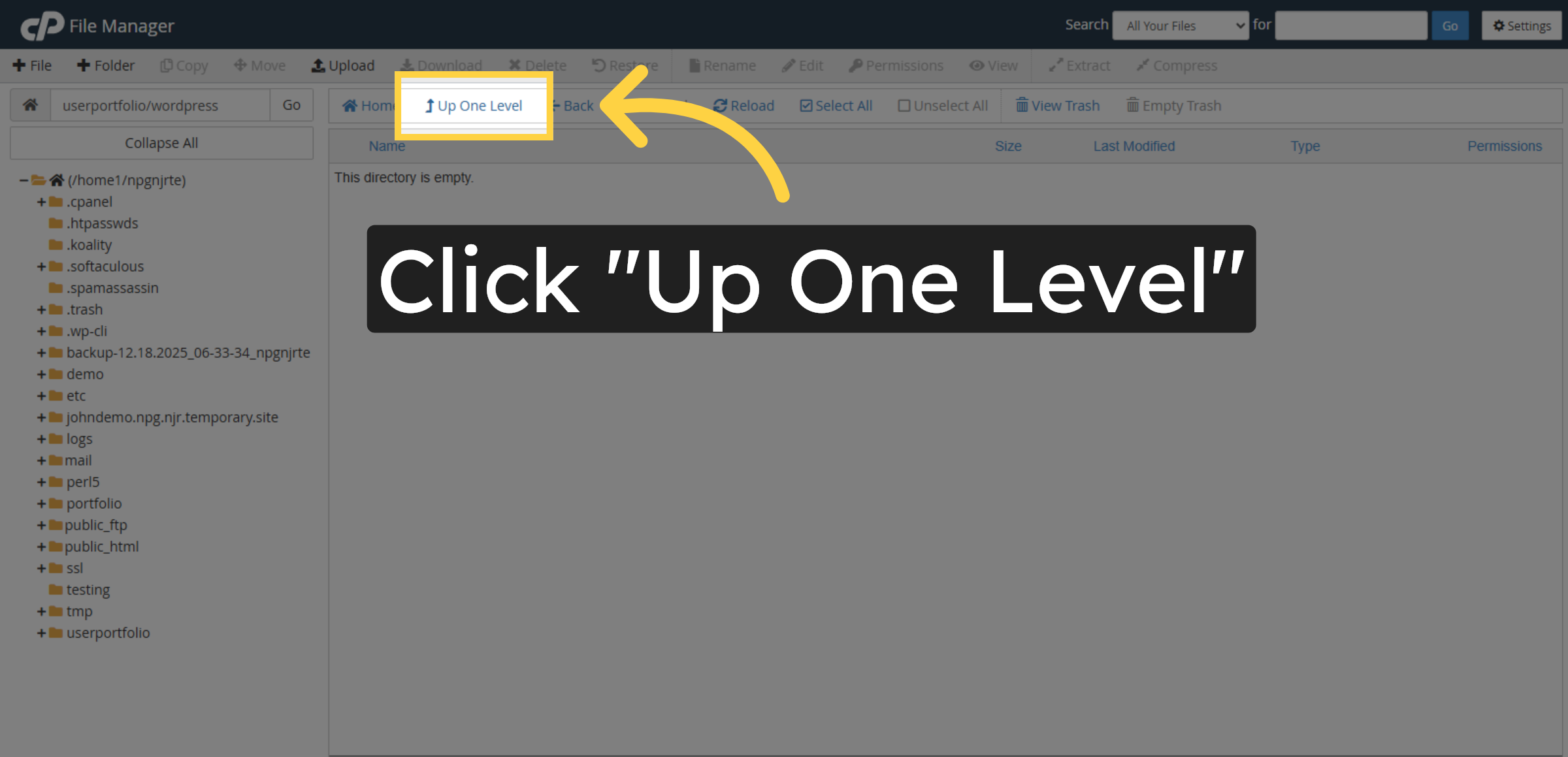
Click Up One Level to move back to the parent directory.

Navigate Up One Level

27. Open WordPress Folder
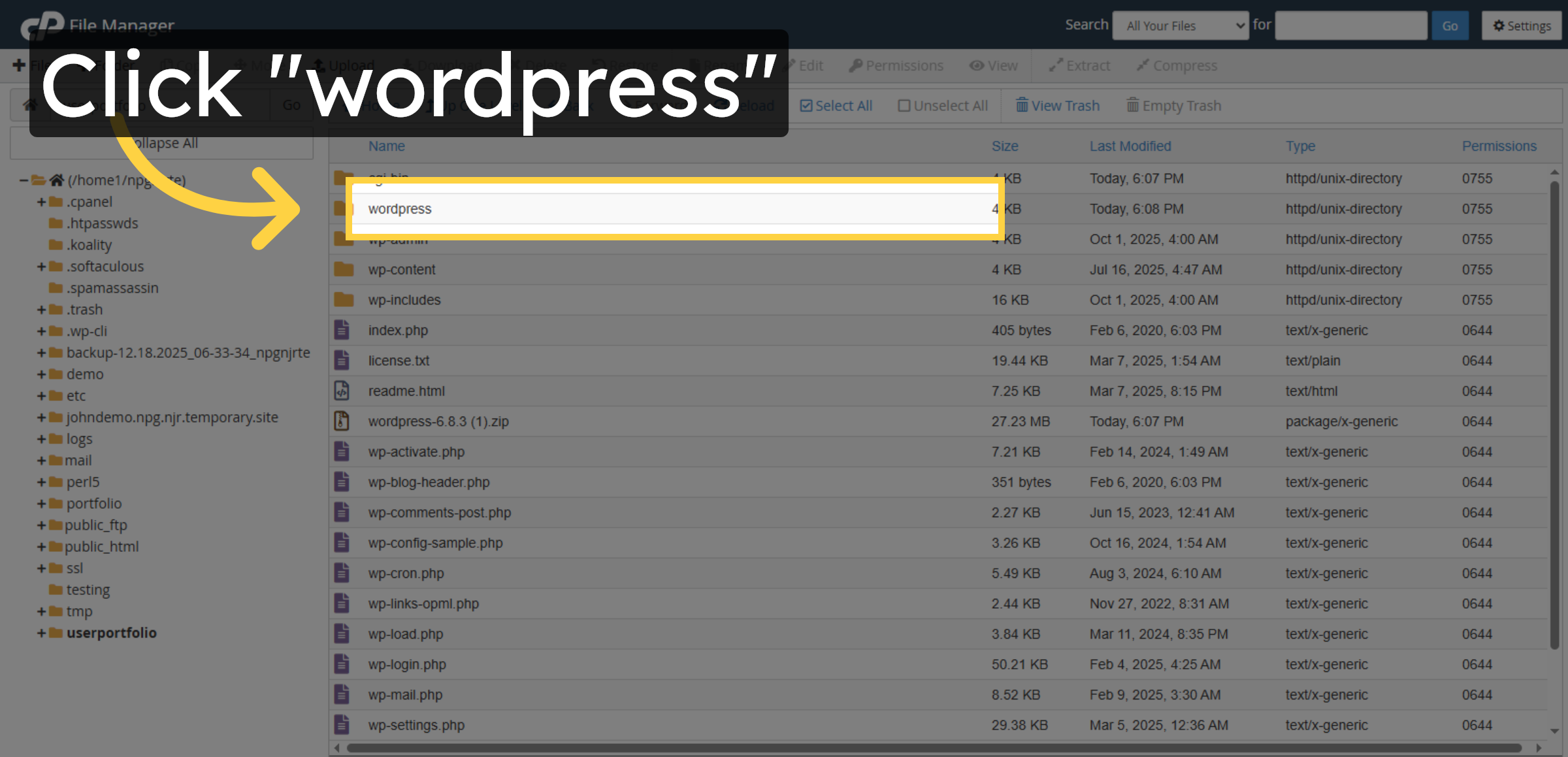
Click the wordpress folder to access remaining files.

Open WordPress Folder

28. Delete WordPress Folder
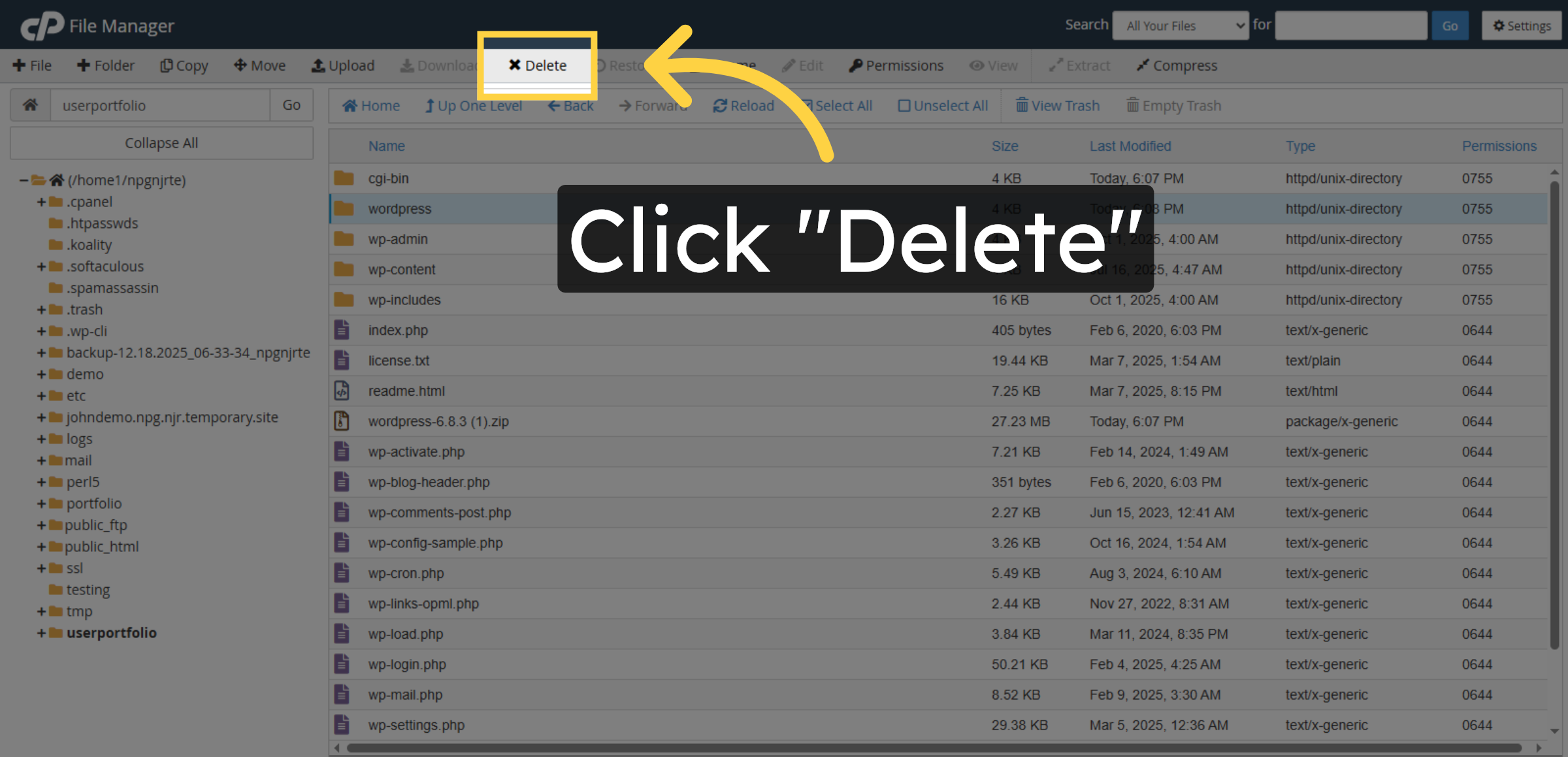
Click Delete to remove the now-empty wordpress folder.

Delete WordPress Folder

29. Confirm Deletion
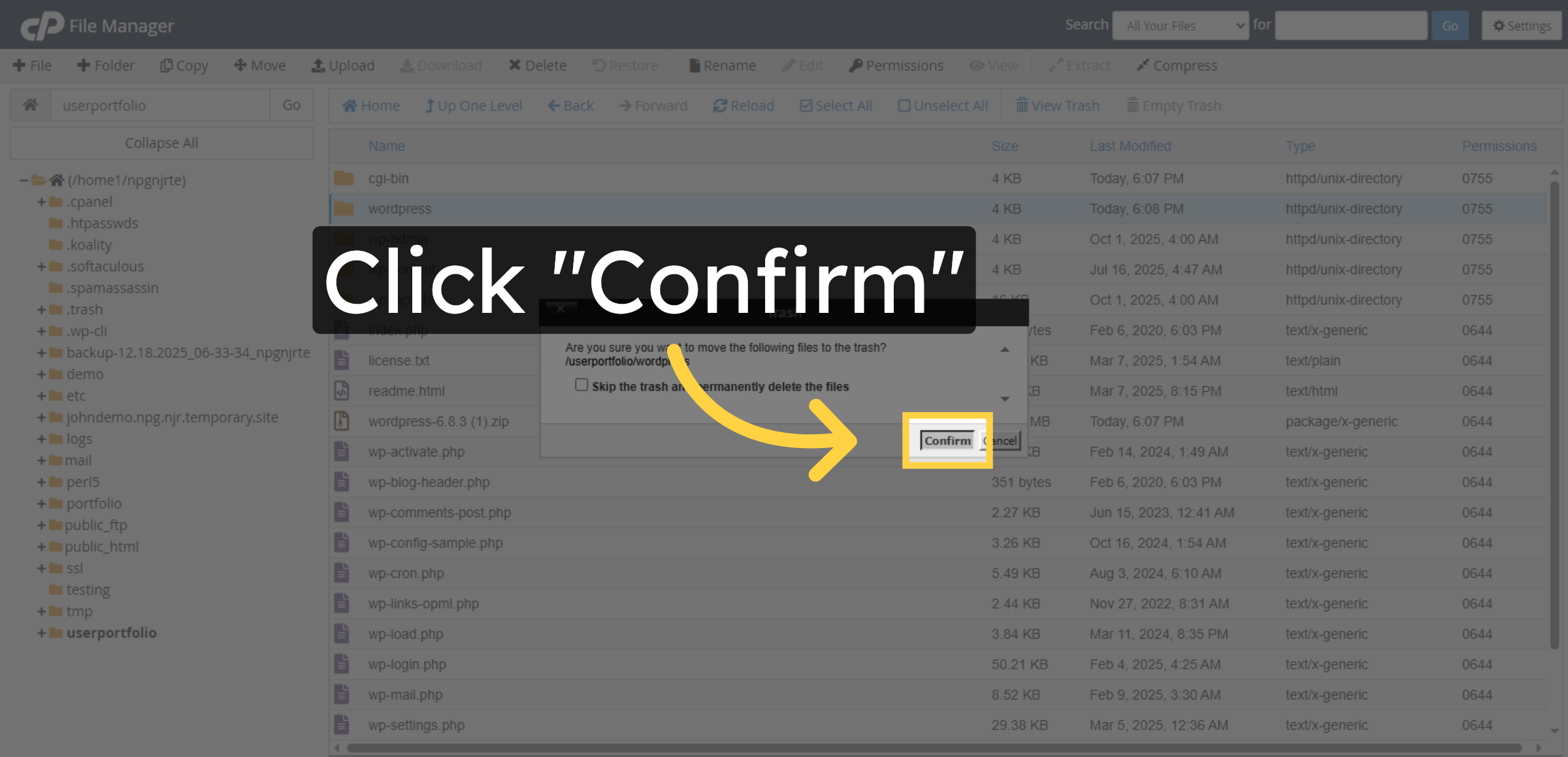
Click Confirm to finalize the deletion of the wordpress folder.

Confirm Deletion

30. Access Control Panel
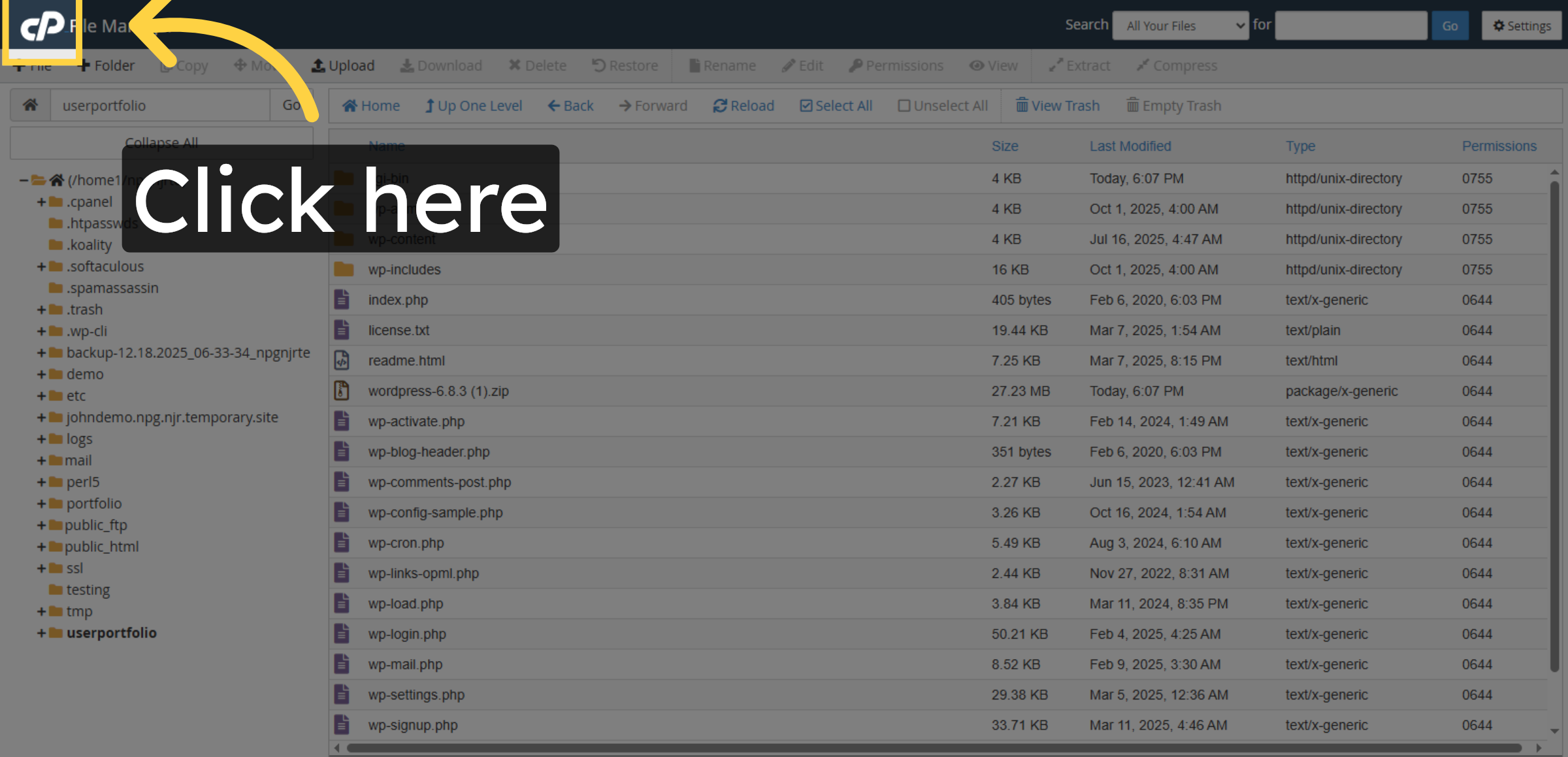
Click here to return to the main control panel interface.

Access Control Panel

31. Open MySQL Database Wizard
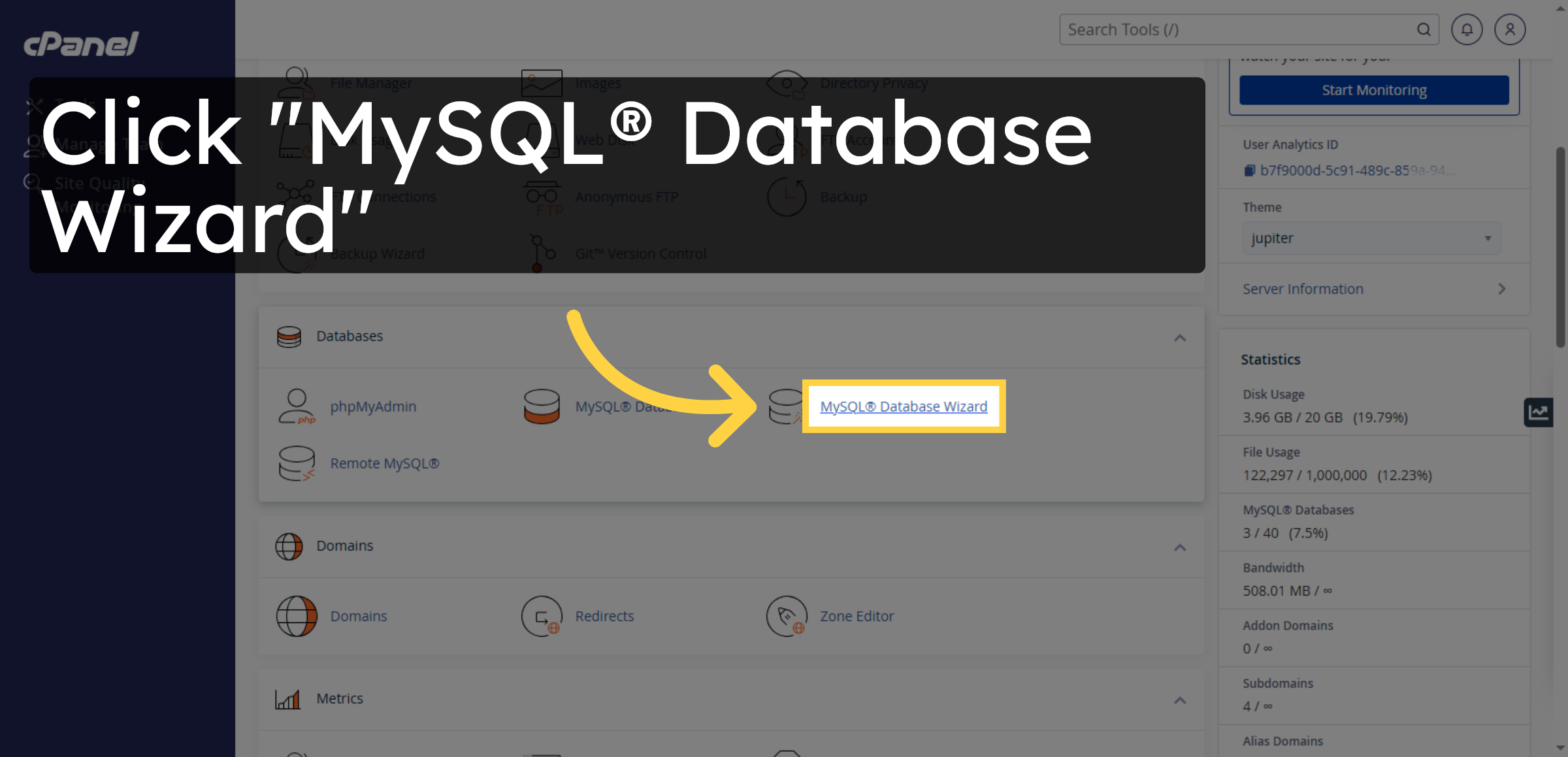
Click MySQL® Database Wizard to create a new database for WordPress.

Open MySQL Database Wizard

32. Enter Database Name
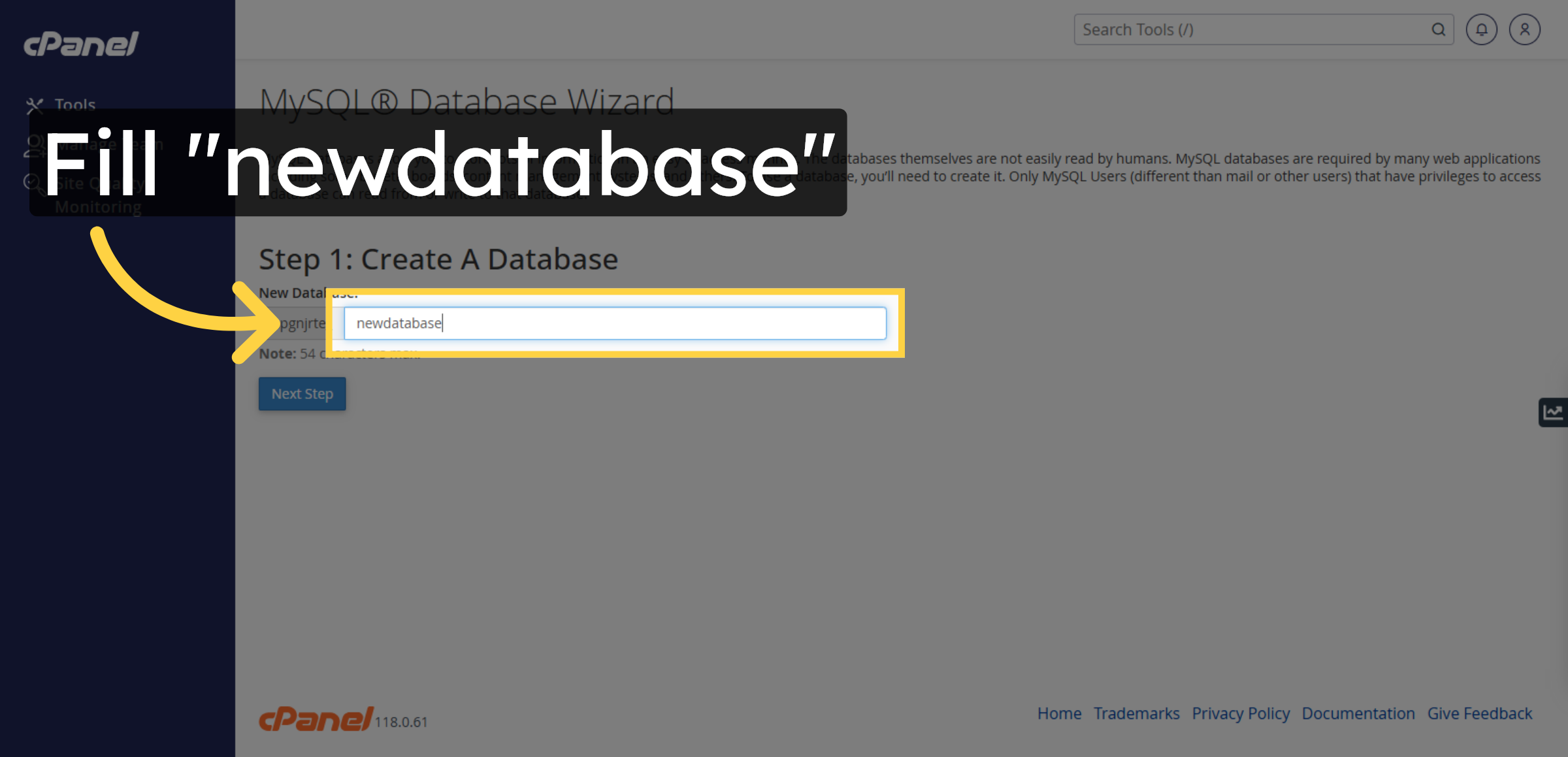
Enter a name for your new database to be used with WordPress.

Enter Database Name

33. Proceed To Next Step
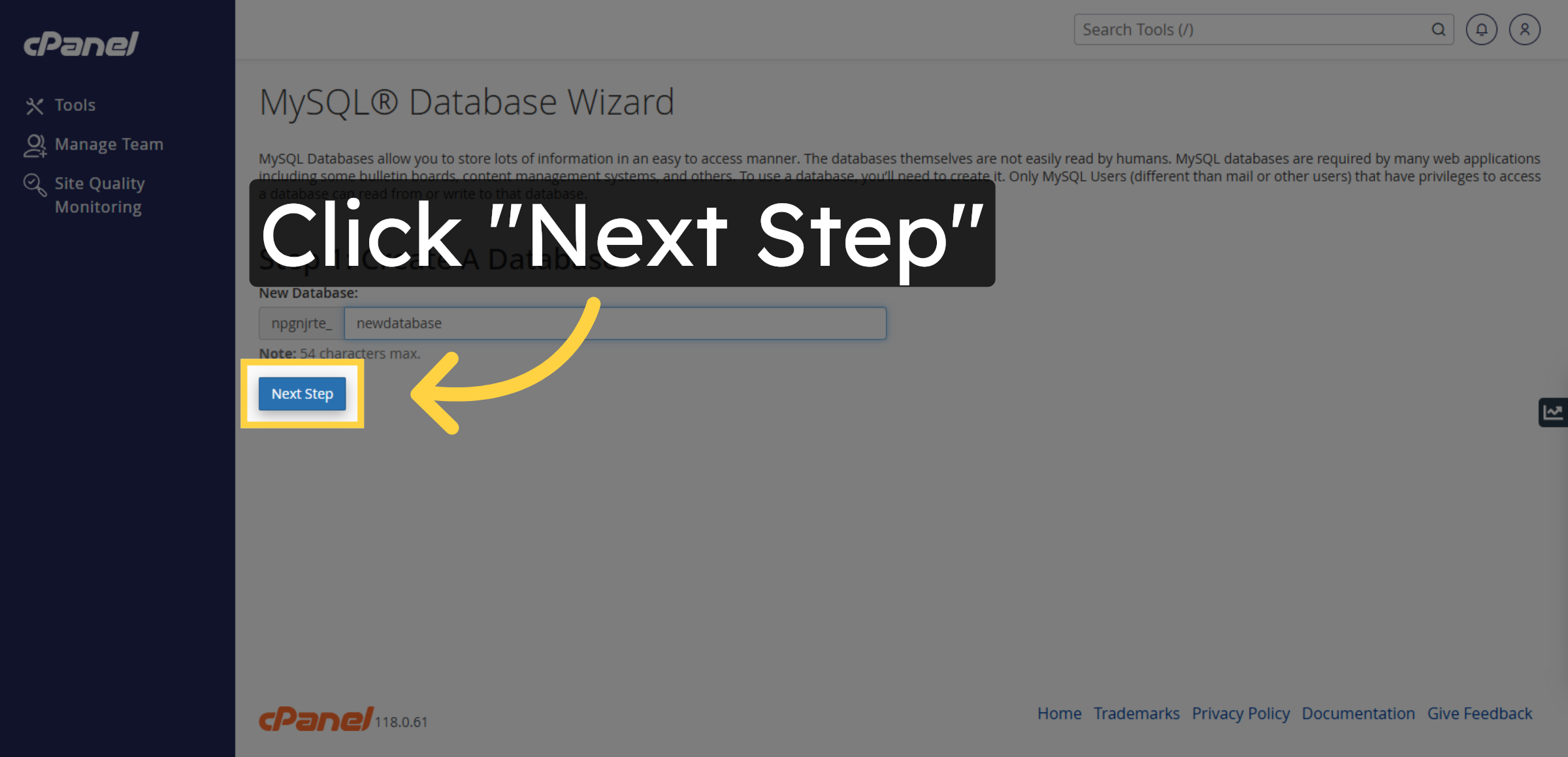
Click Next Step to continue the database creation process.

Proceed To Next Step

34. Enter Database Username
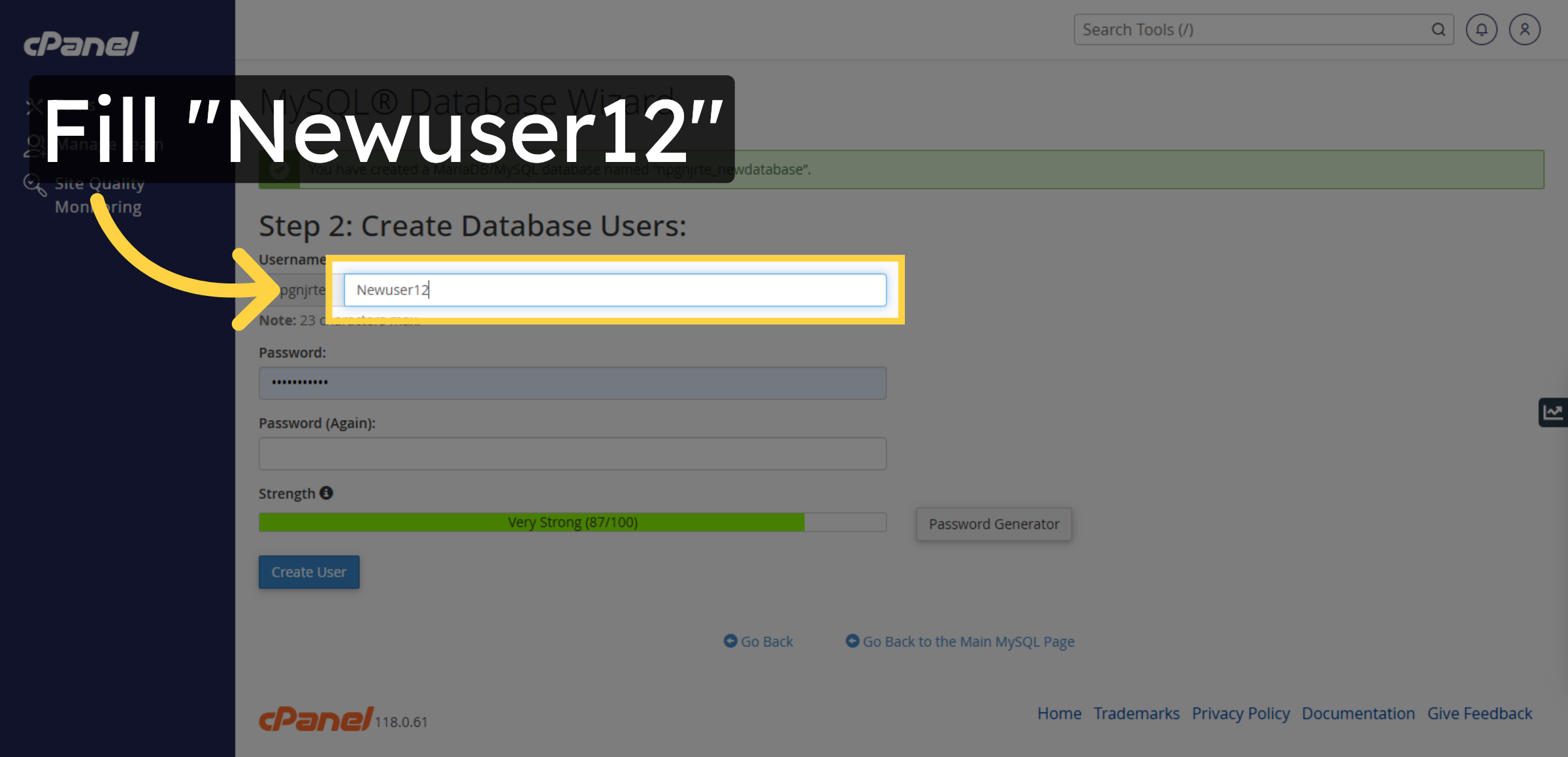
Enter a username for the database user account.

Enter Database Username

35. Enter Database Password
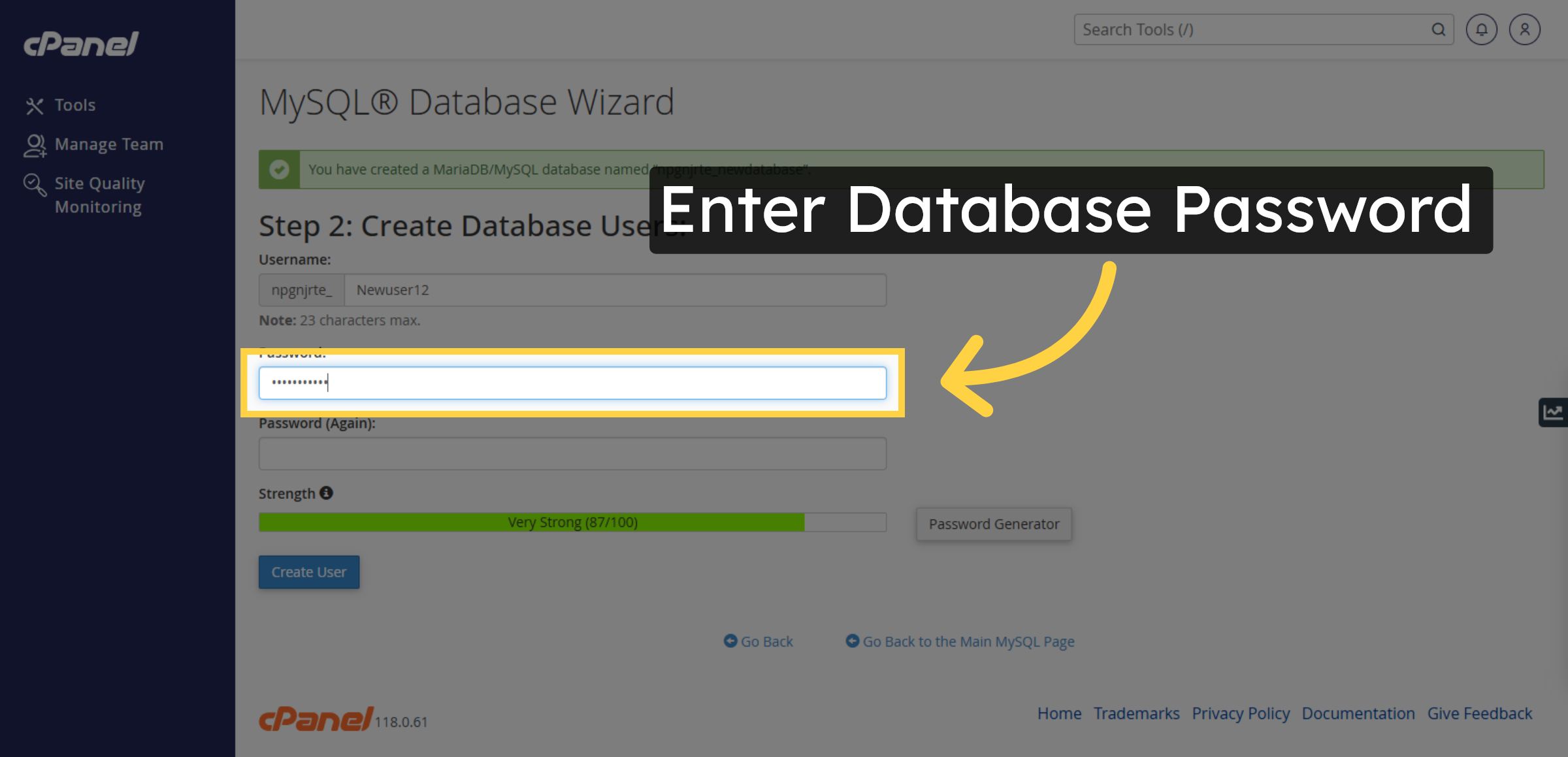
Enter the password for the database user account.

Enter Database Password

Ad Banner

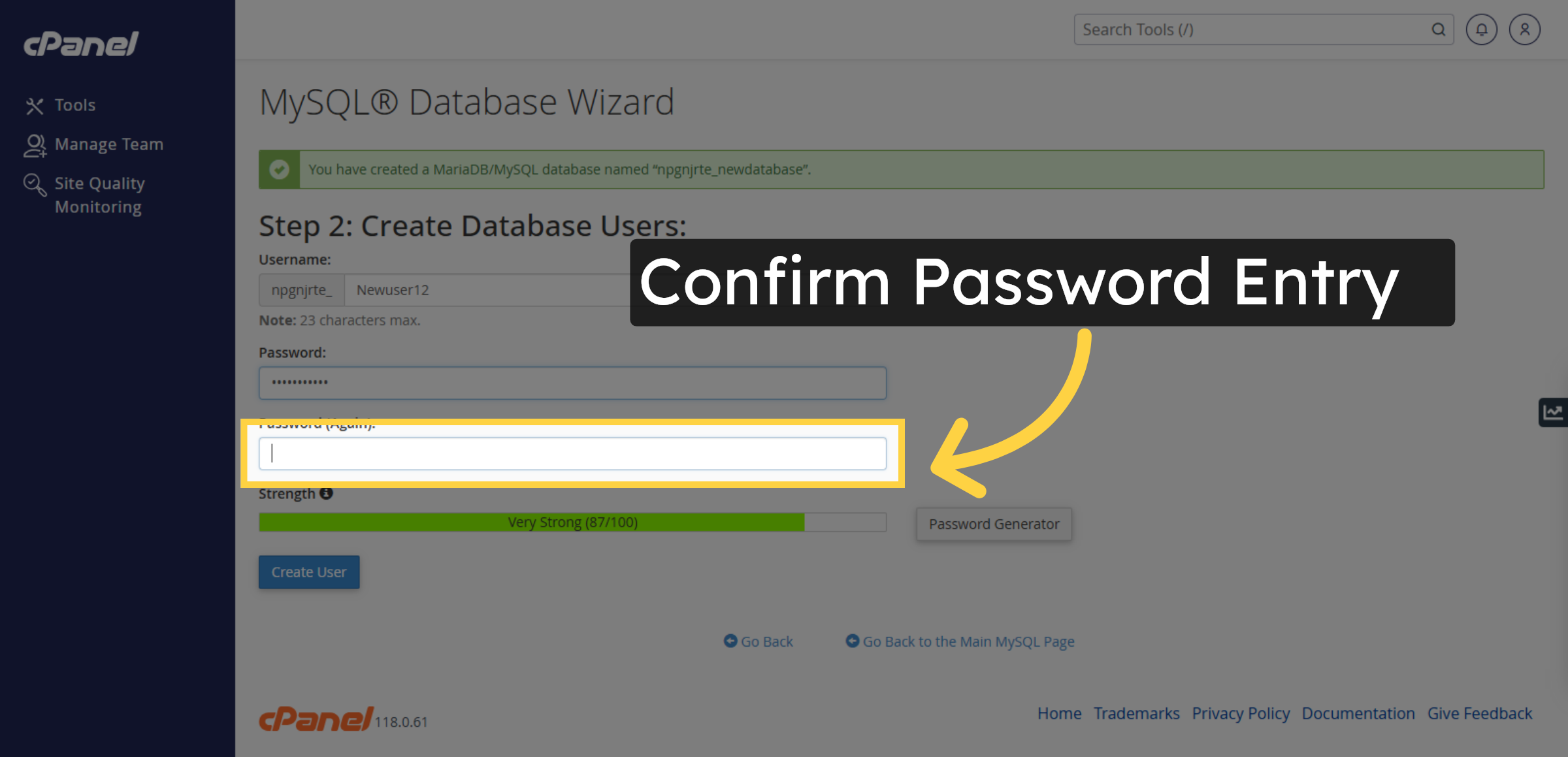
36. Re-enter Database Password

Click Password (Again) to confirm the database user’s password.

Re-enter Database Password

37. Create Database User
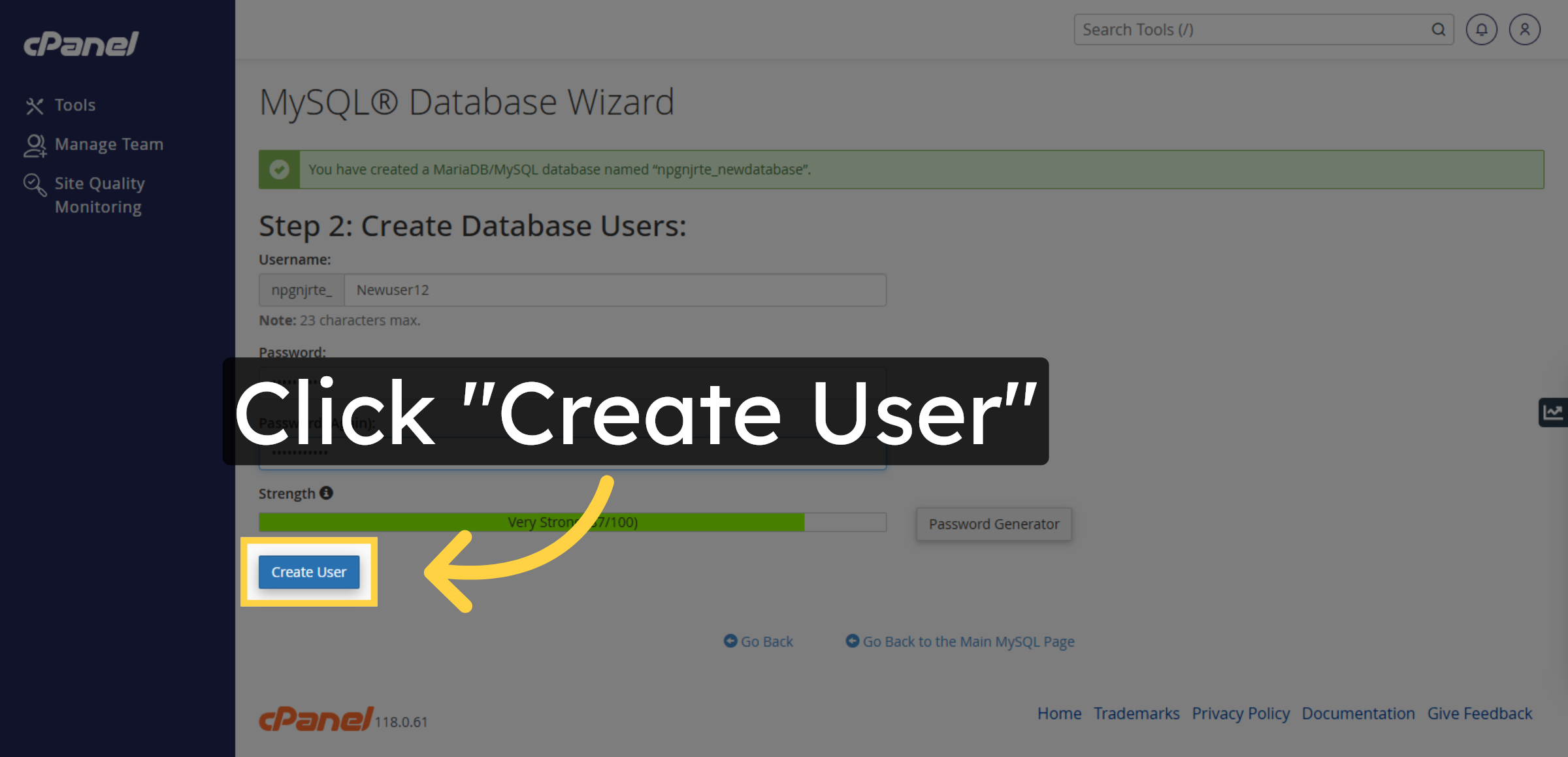
Click Create User to finalize the database user creation.

Create Database User

38. Grant All Privileges
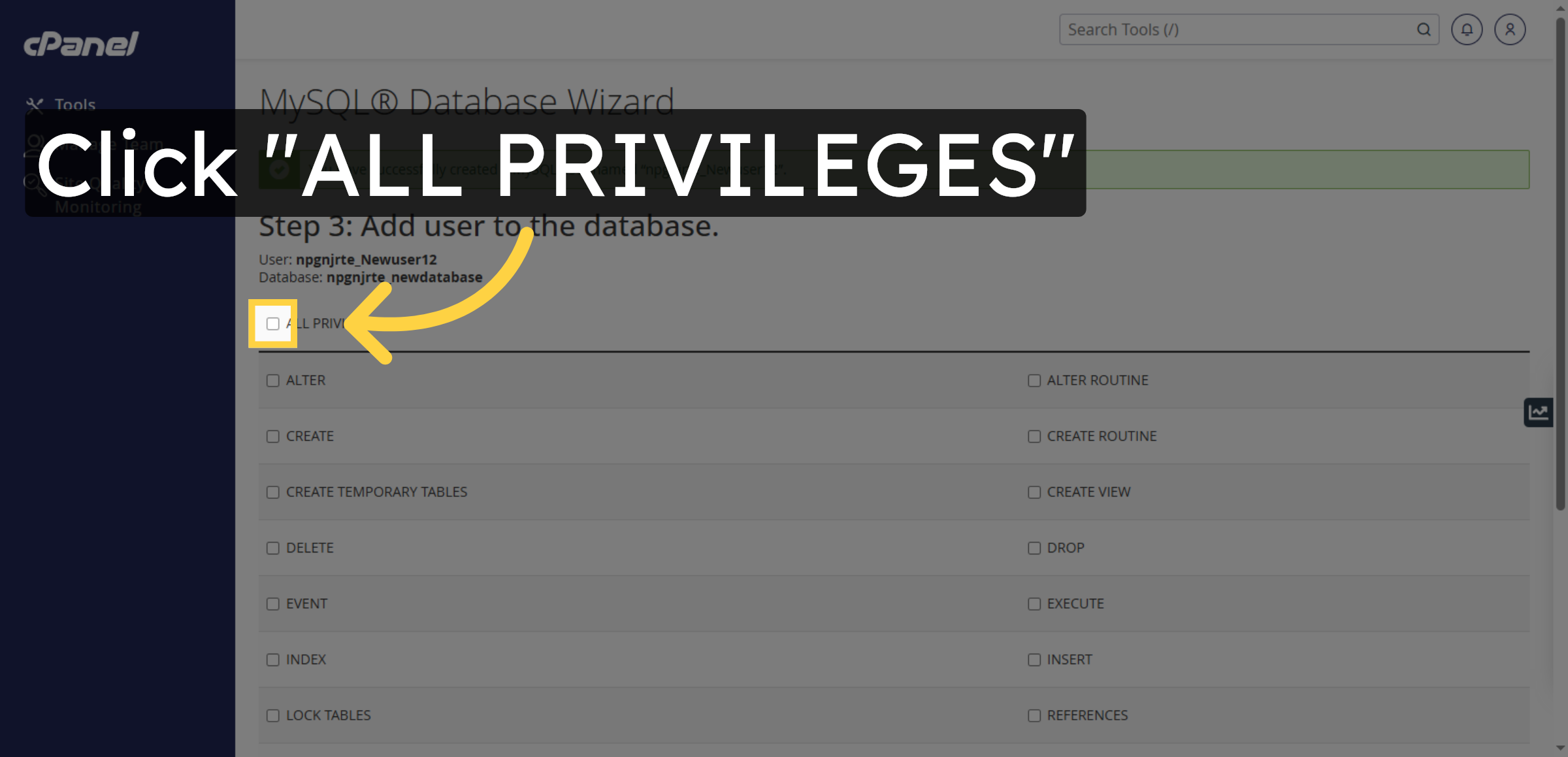
Click ALL PRIVILEGES to assign full permissions to the database user.

Grant All Privileges

39. Confirm Privileges Selection
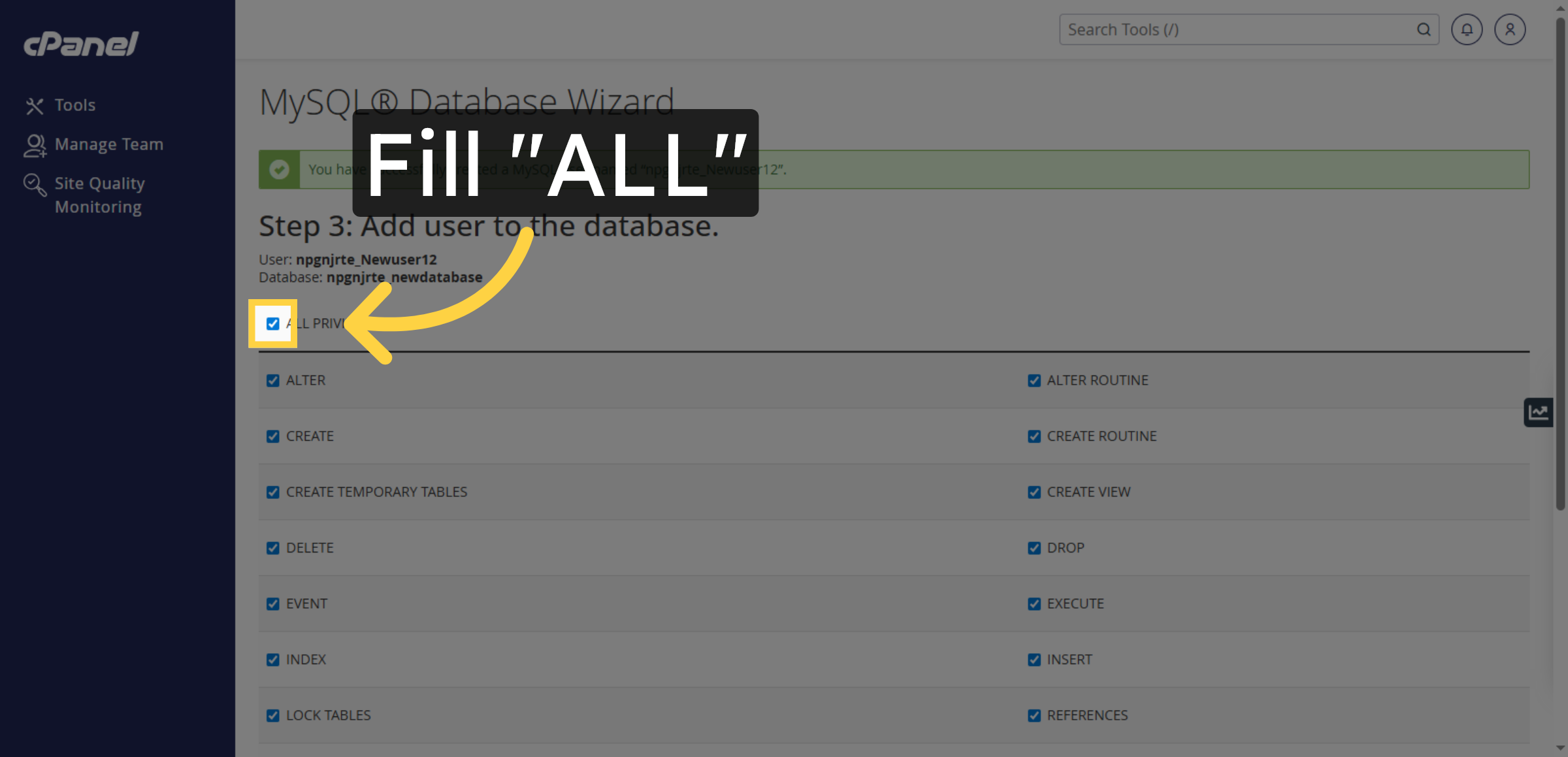
Fill ALL to ensure all privileges are selected for the user.

Confirm Privileges Selection

40. Apply Privilege Changes
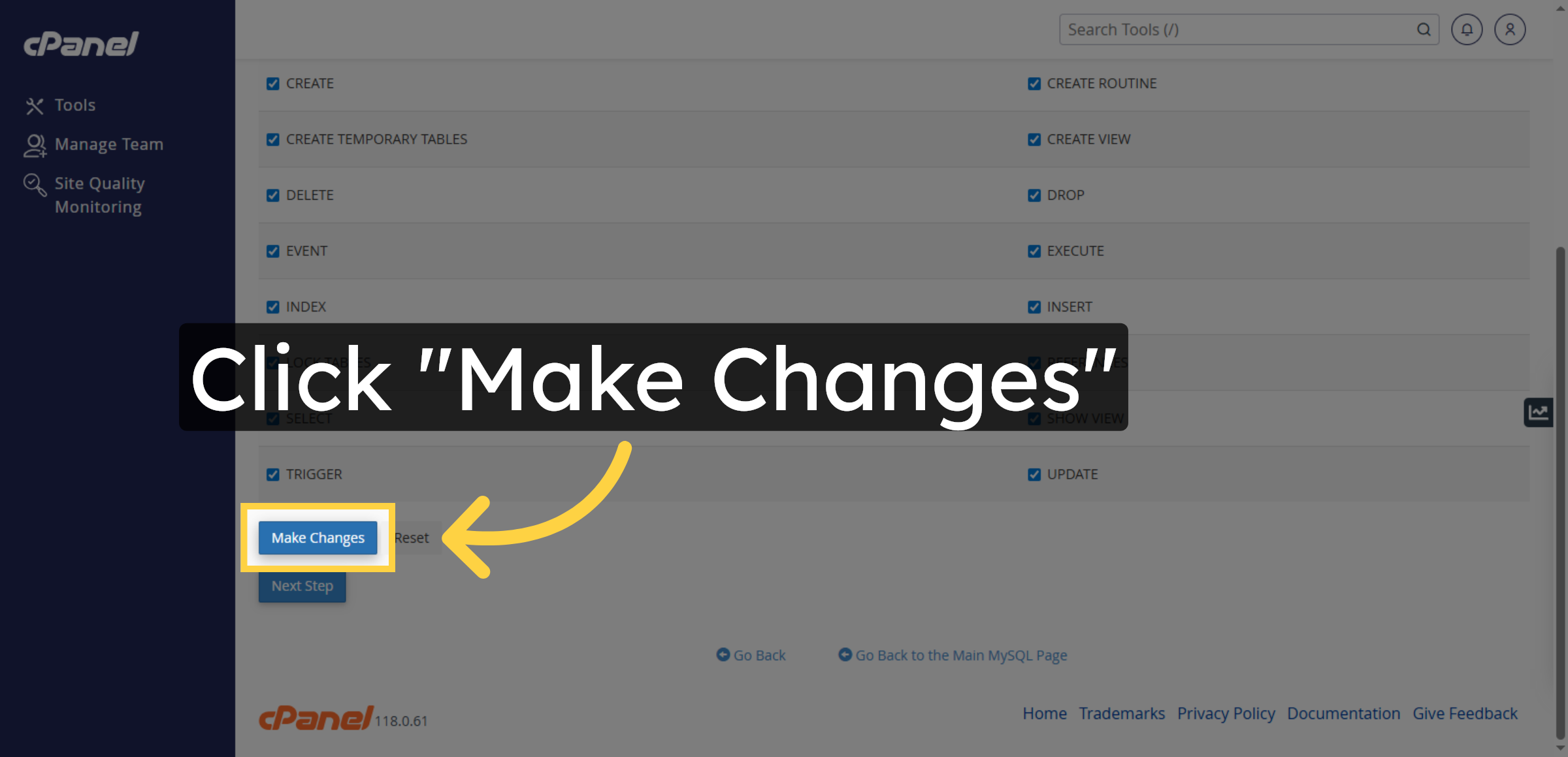
Click Make Changes to save the database user permissions.

Apply Privilege Changes

41. Switch to WordPress Site
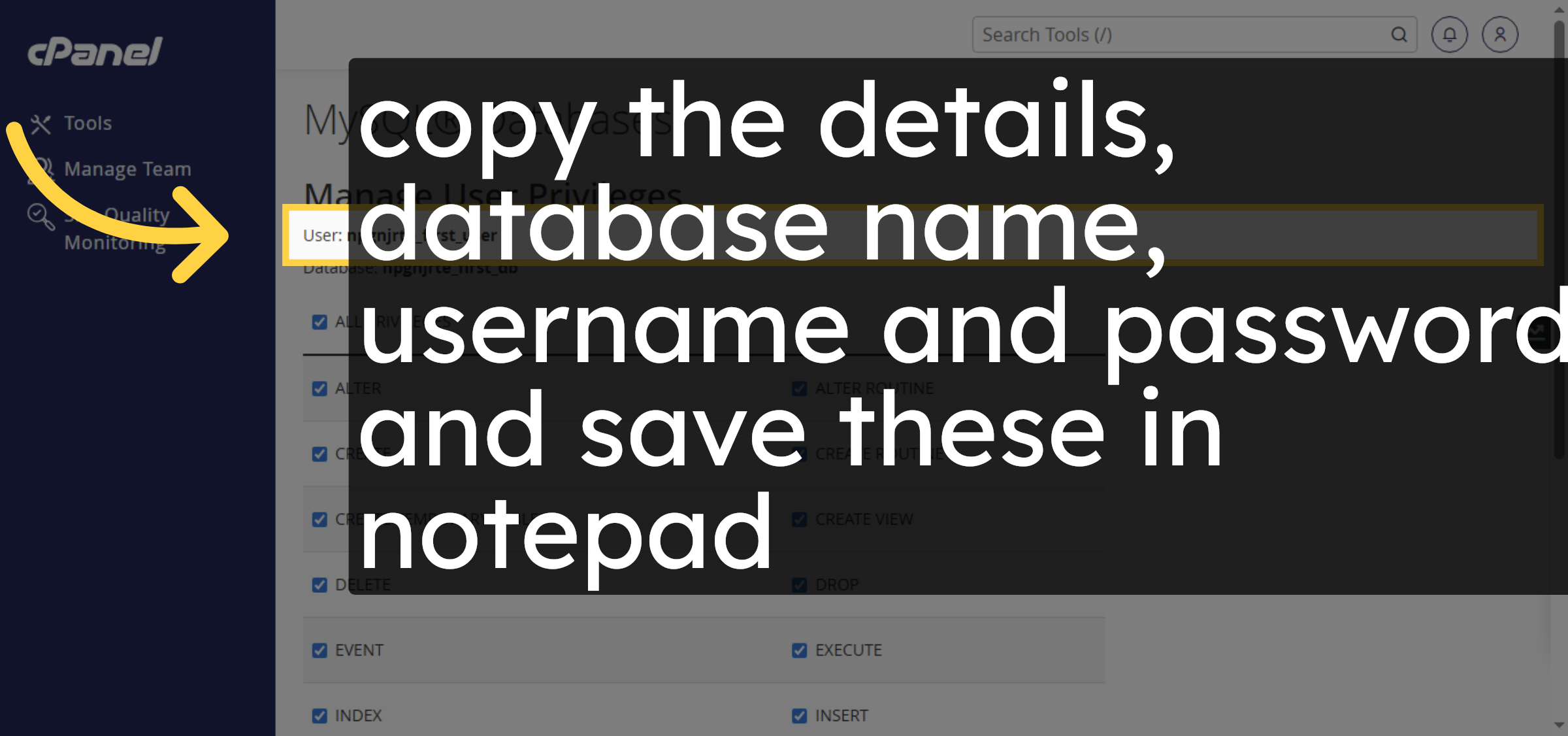
Switch to wordpress.org to download the latest WordPress package.

Switch to WordPress Site

42. Return To Control Panel
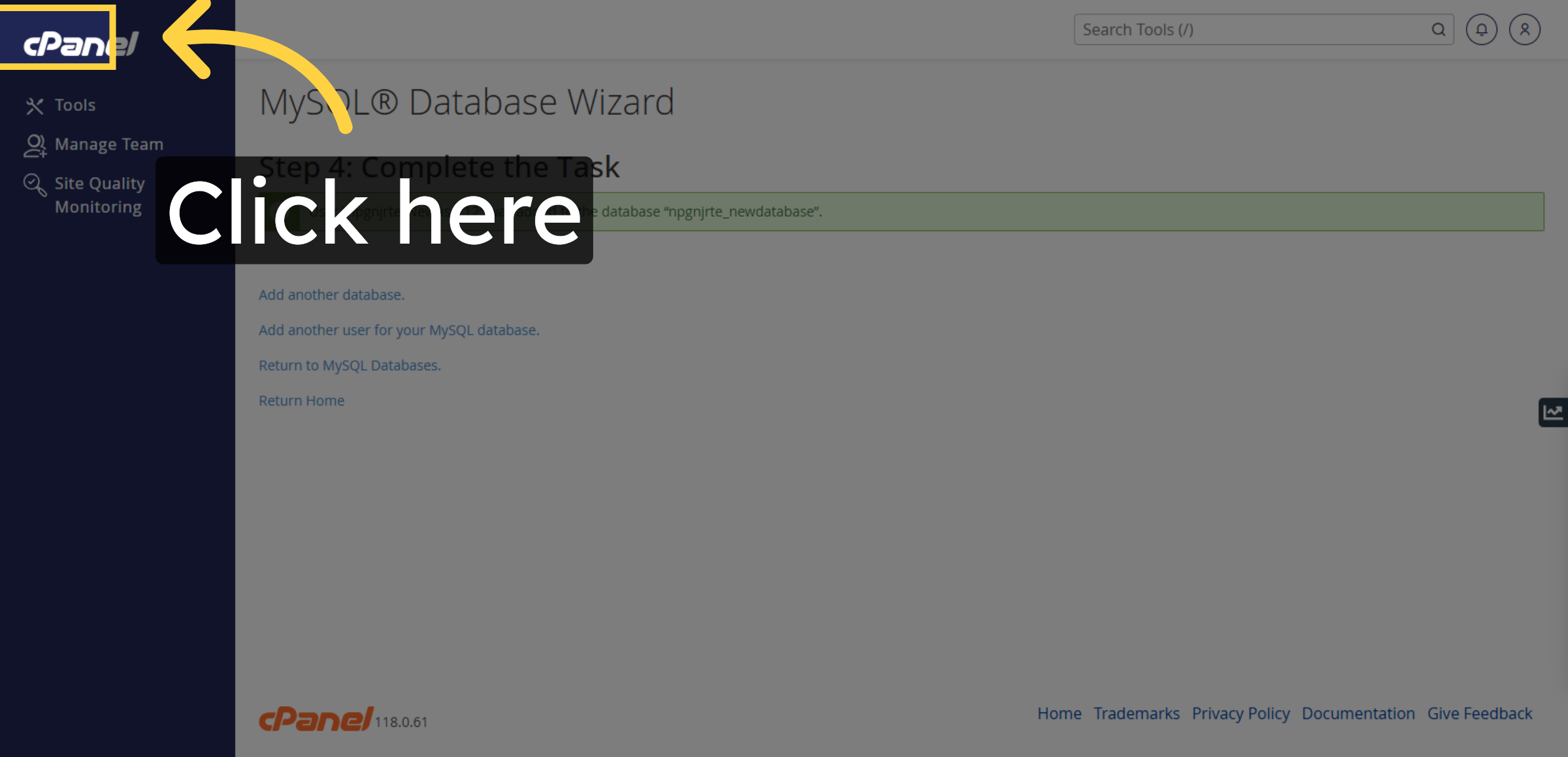
Click here to go back to the main control panel interface.

Return To Control Panel

43. Open Domains Section
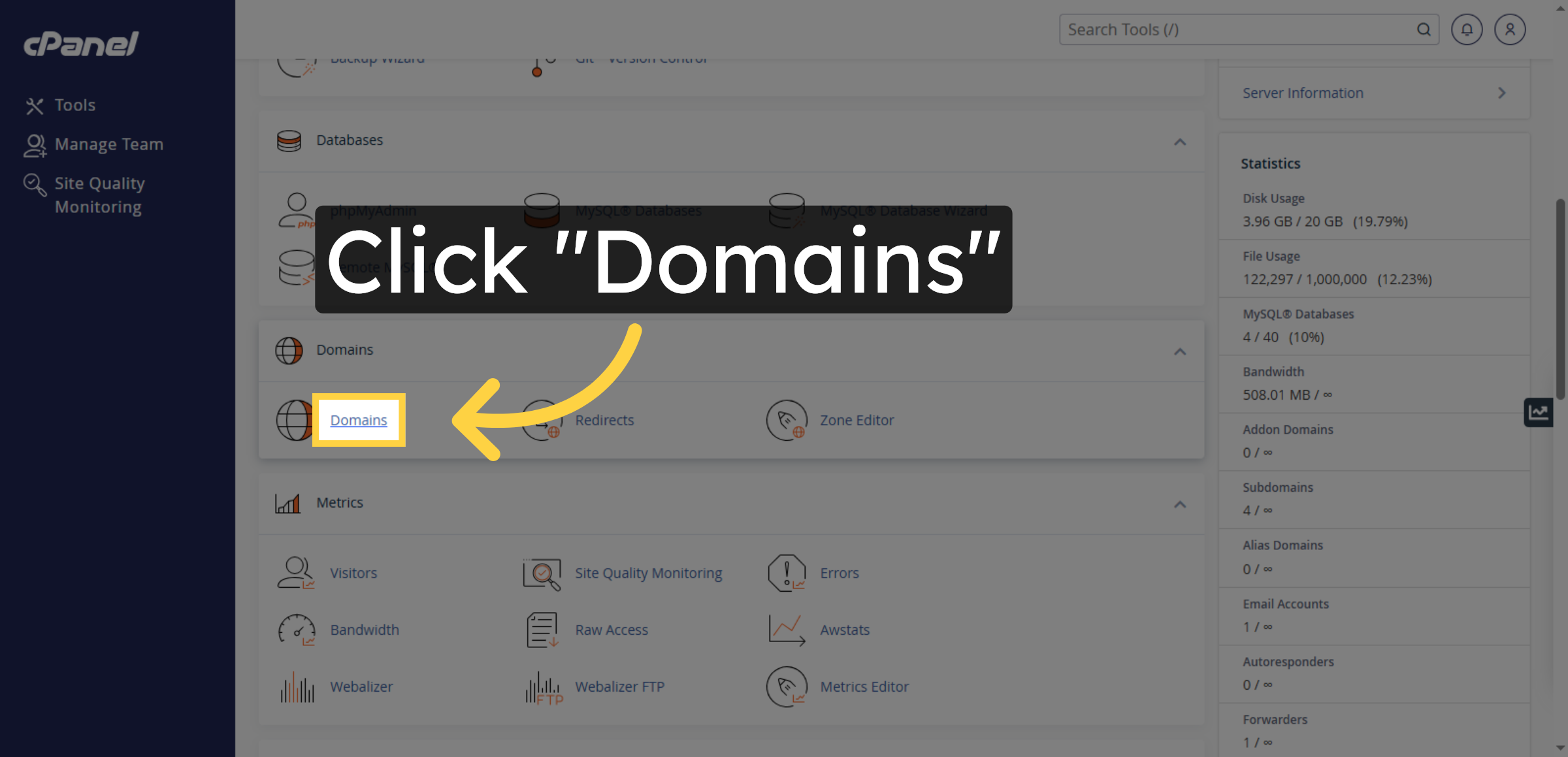
Click Domains to manage your domain and subdomain settings.

Open Domains Section

44. Select Subdomain
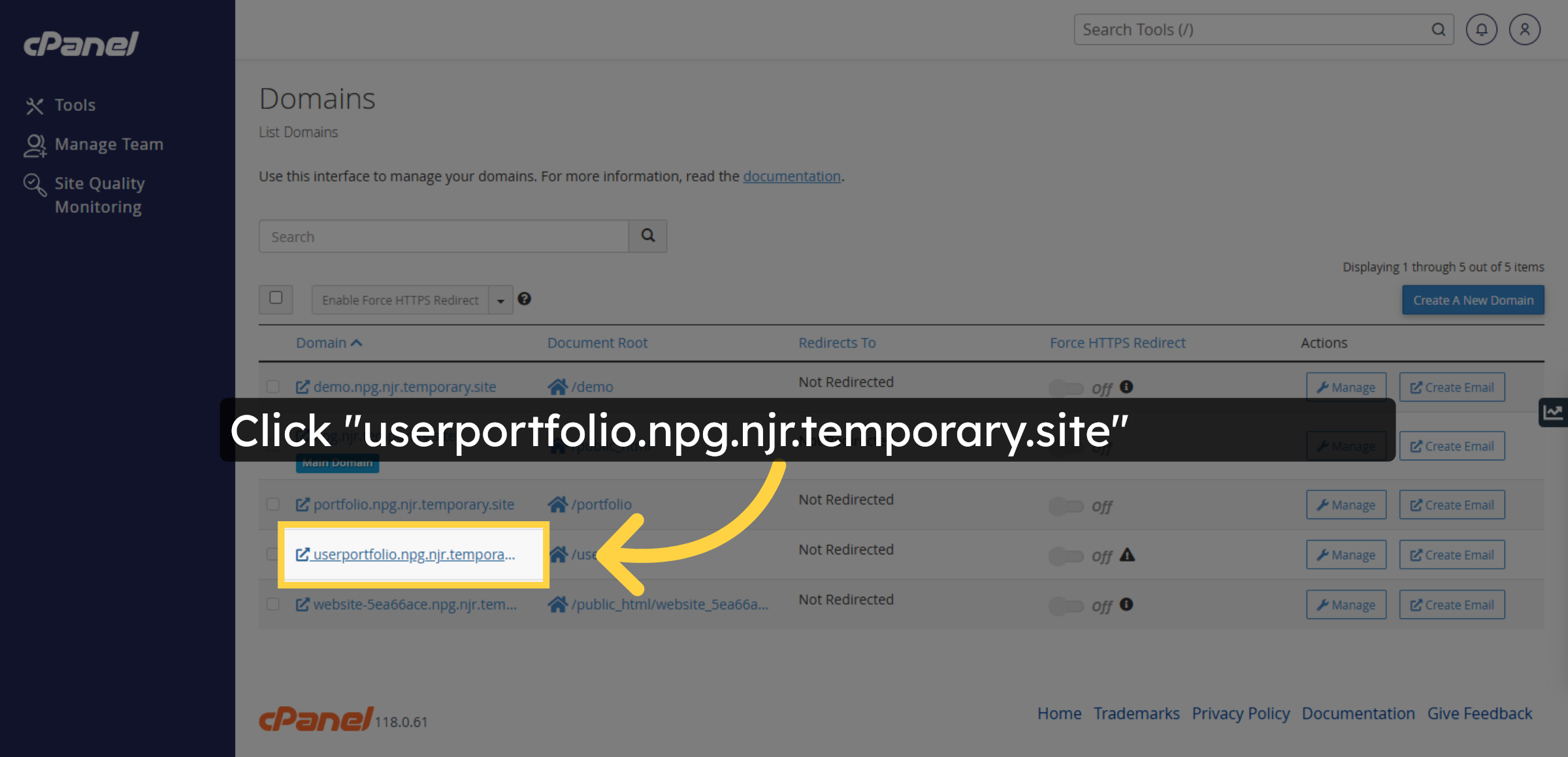
Click userportfolio.npg.njr.temporary.site to access its settings.

Select Subdomain

45. Continue WordPress Setup
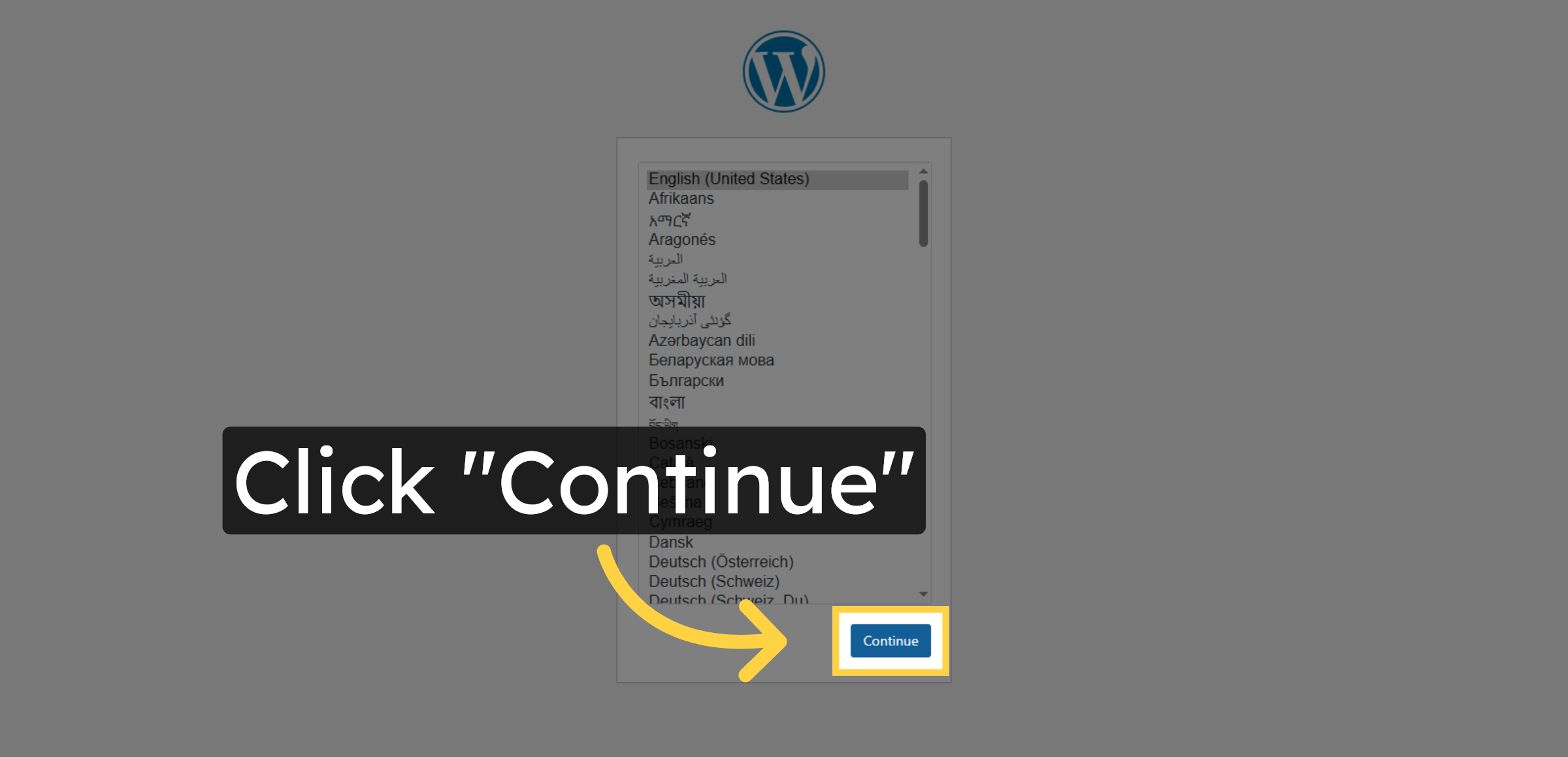
Click Continue to proceed with the WordPress installation process.

Continue WordPress Setup

46. Start WordPress Installation
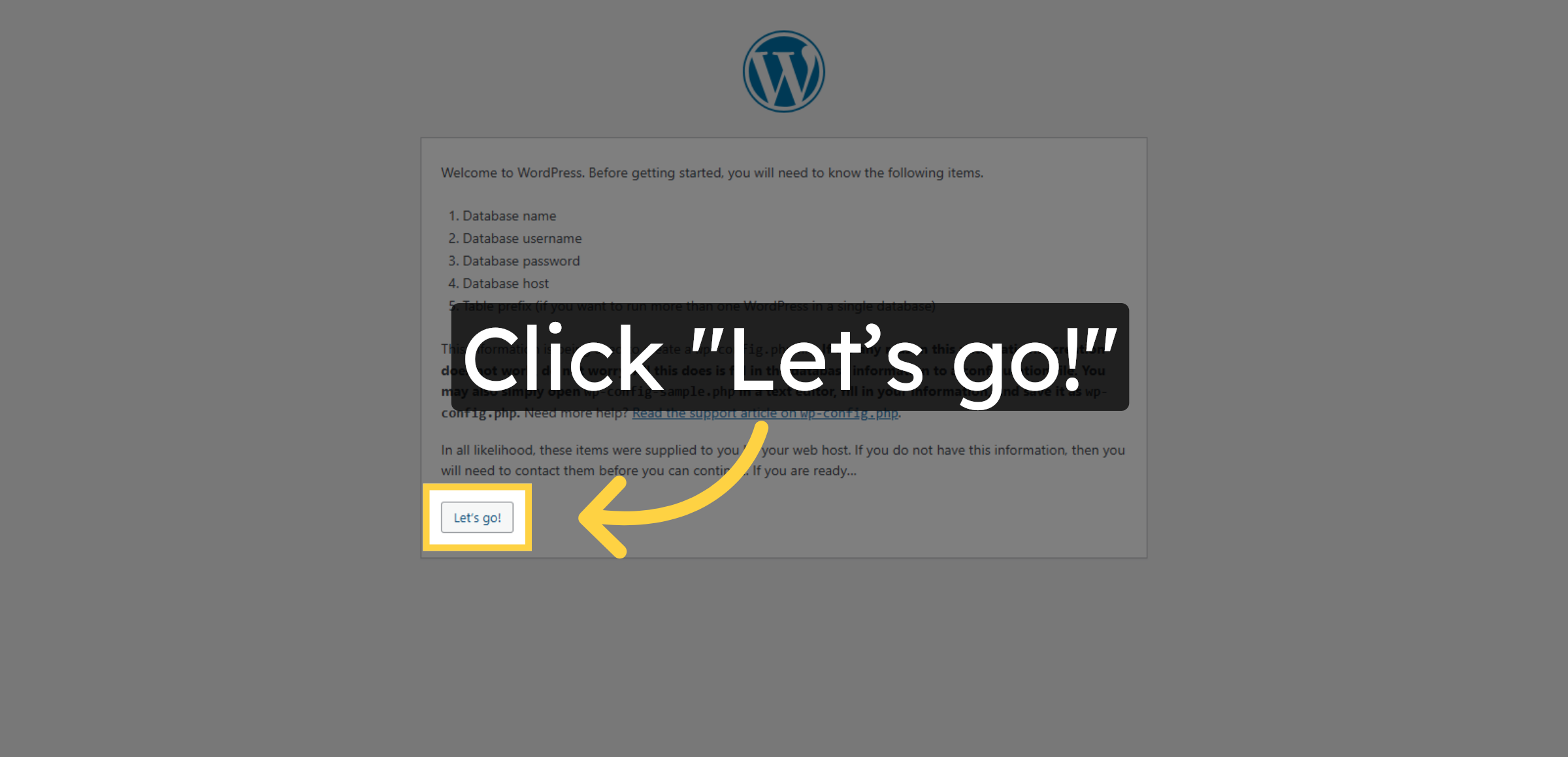
Click Let’s go! to begin configuring WordPress on your subdomain.

Start WordPress Installation

47. Enter Database Name
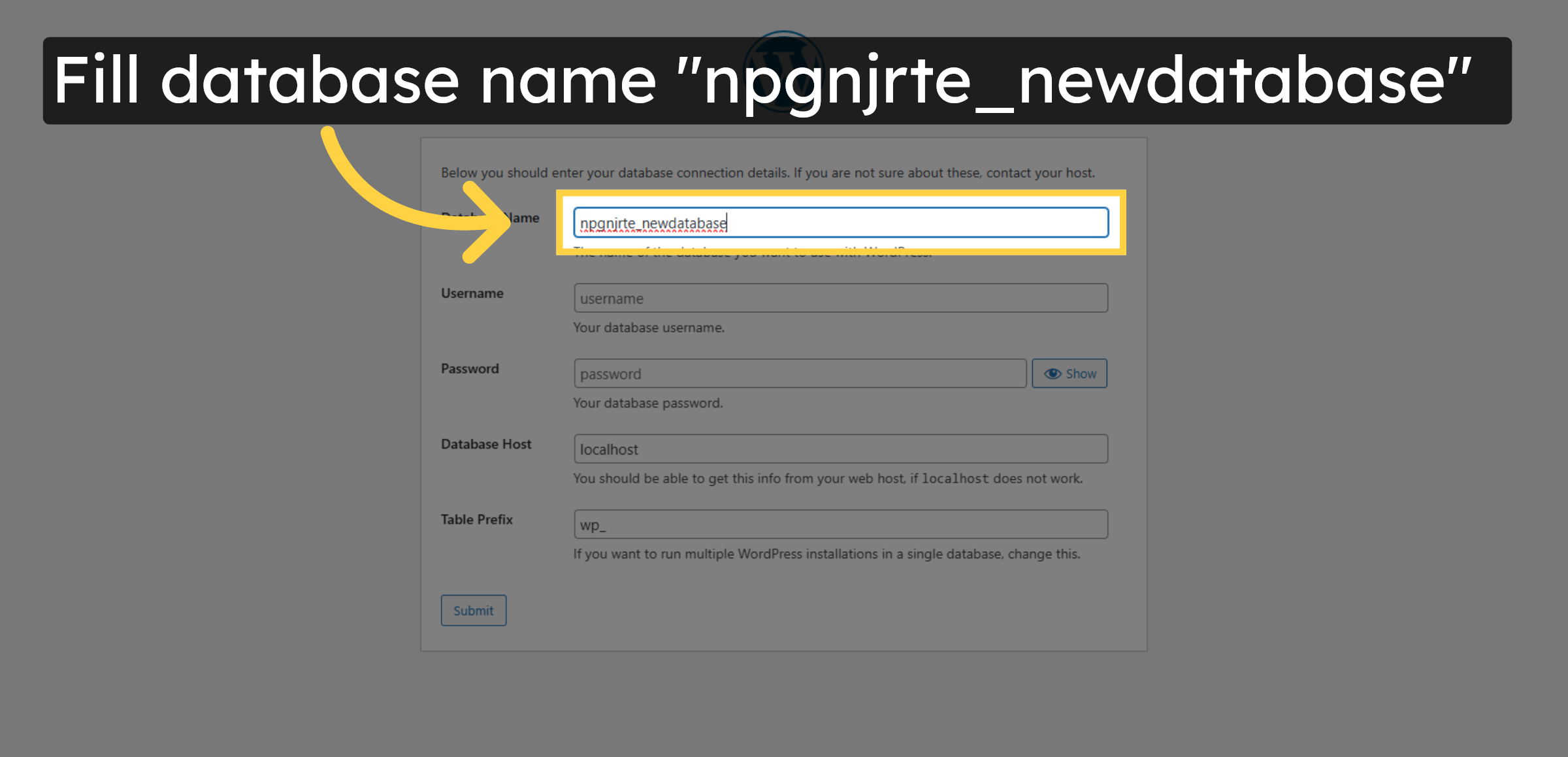
Enter the name of the database created for WordPress installation.

Enter Database Name

48. Select Username Field
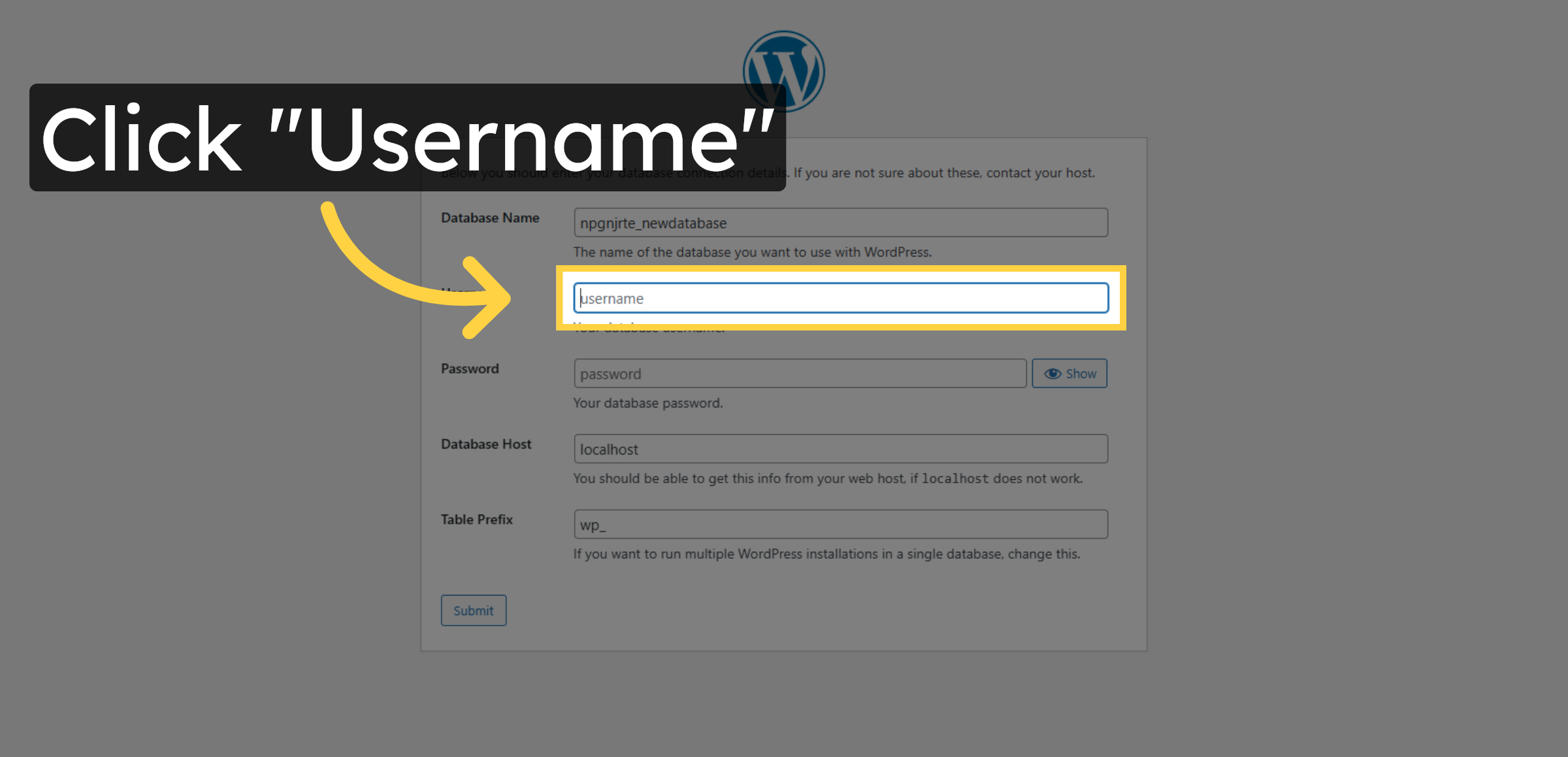
Click Username to enter the database user credentials.

Select Username Field

49. Enter Database Username
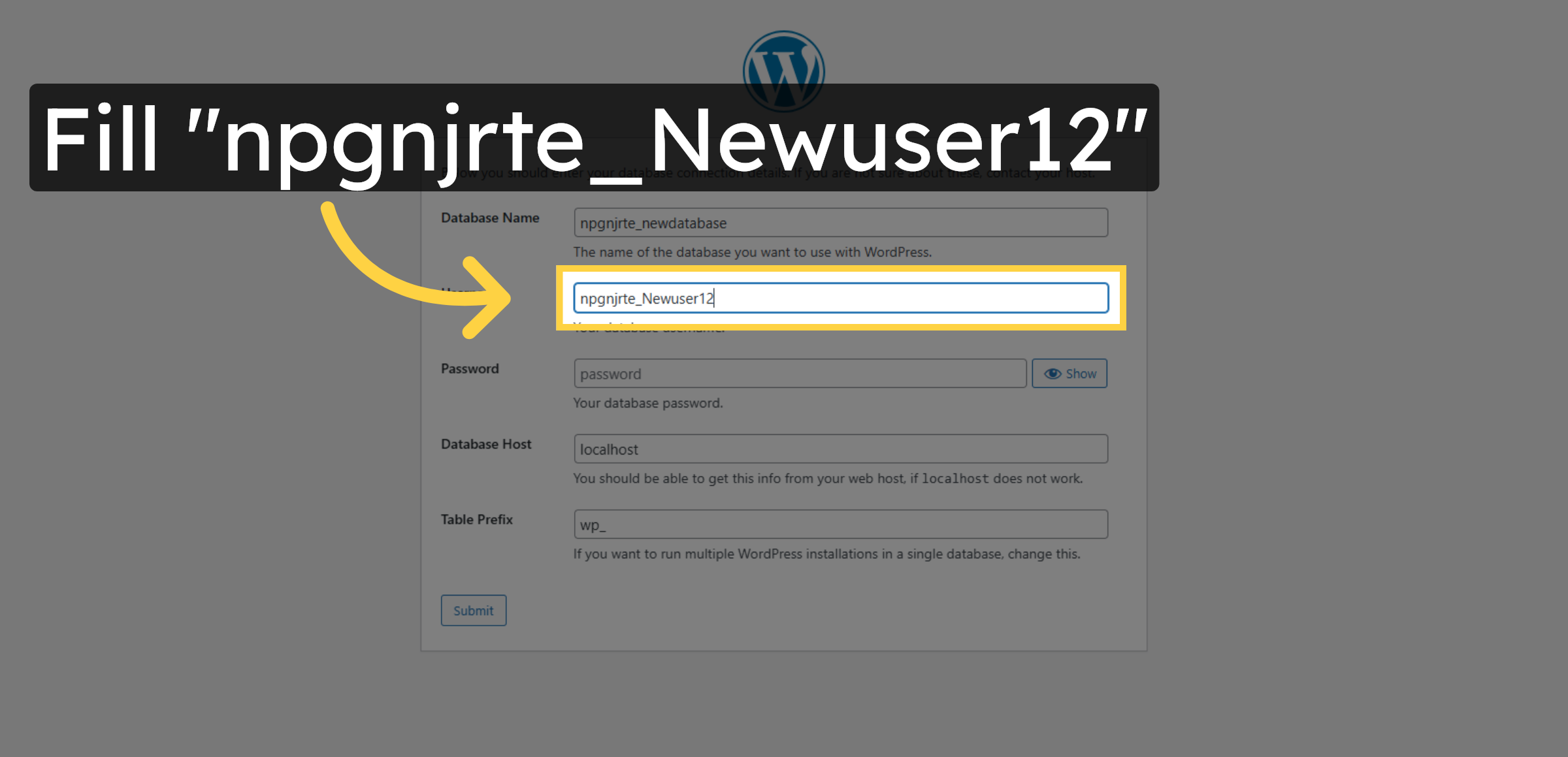
Enter the database username associated with your WordPress database.

Enter Database Username

50. Enter Database Password
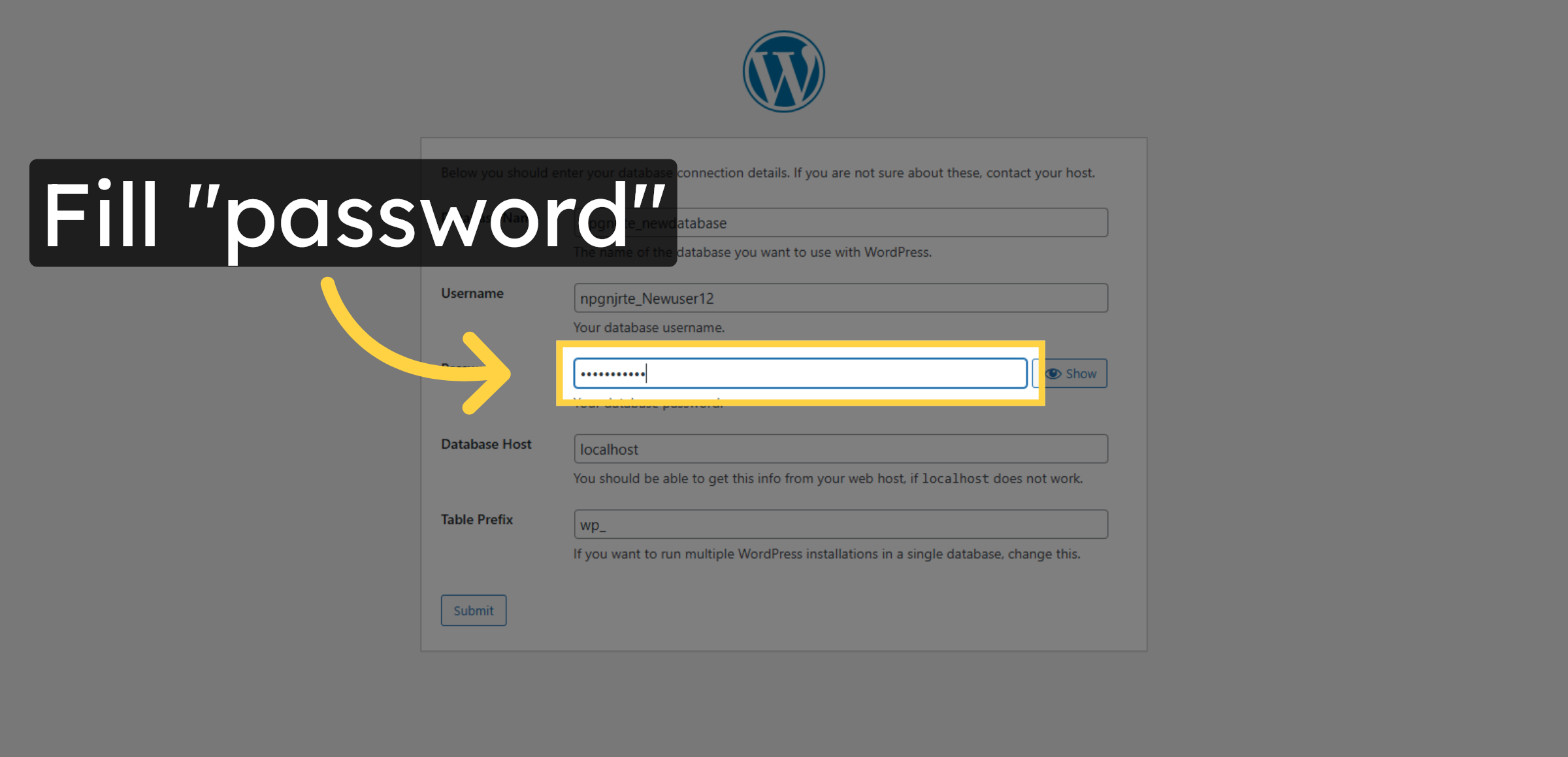
Enter the password for the WordPress database user.

Enter Database Password

51. Submit Database Credentials
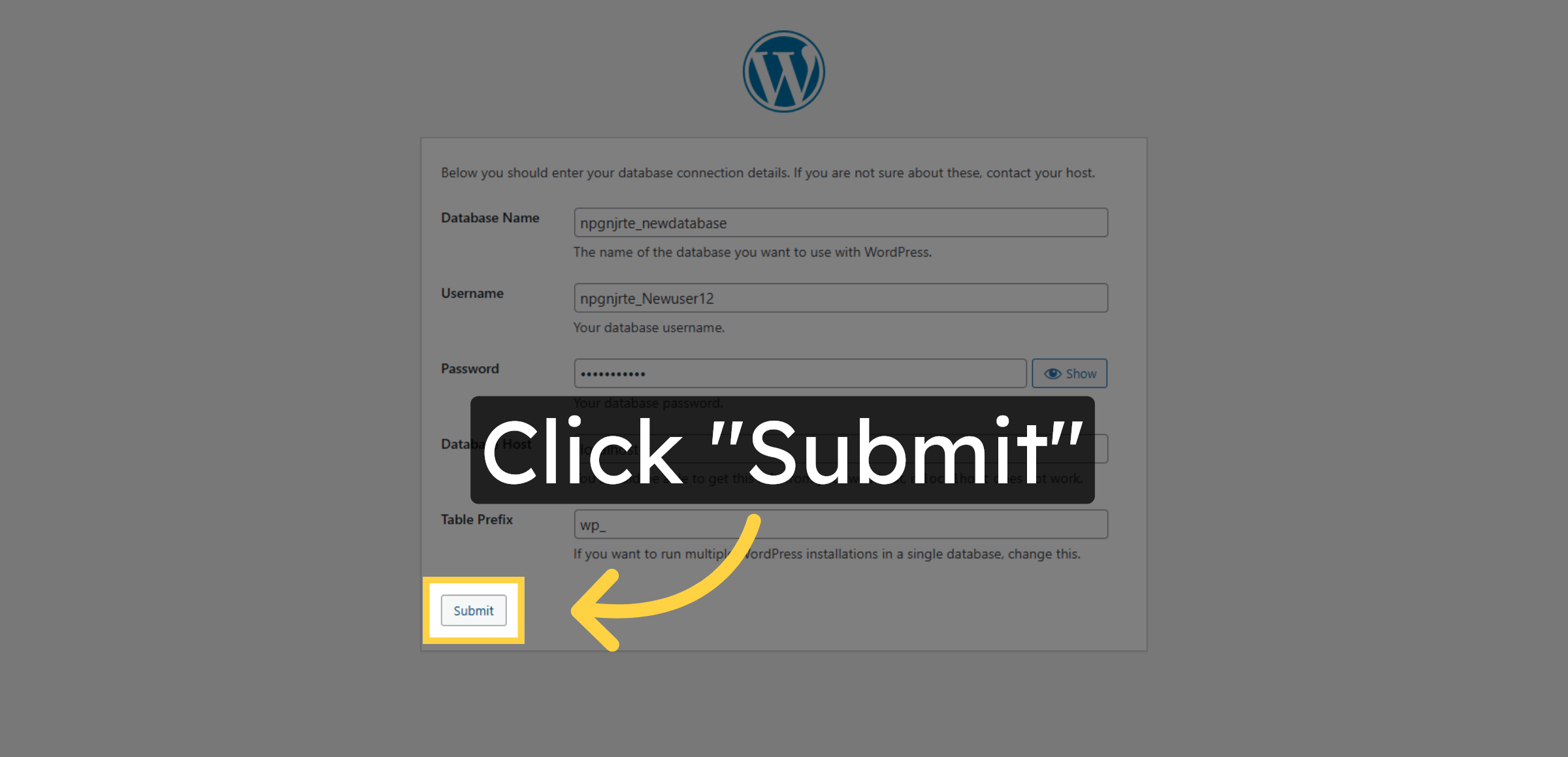
Click Submit to verify the database connection details.

Submit Database Credentials

52. Run WordPress Installation
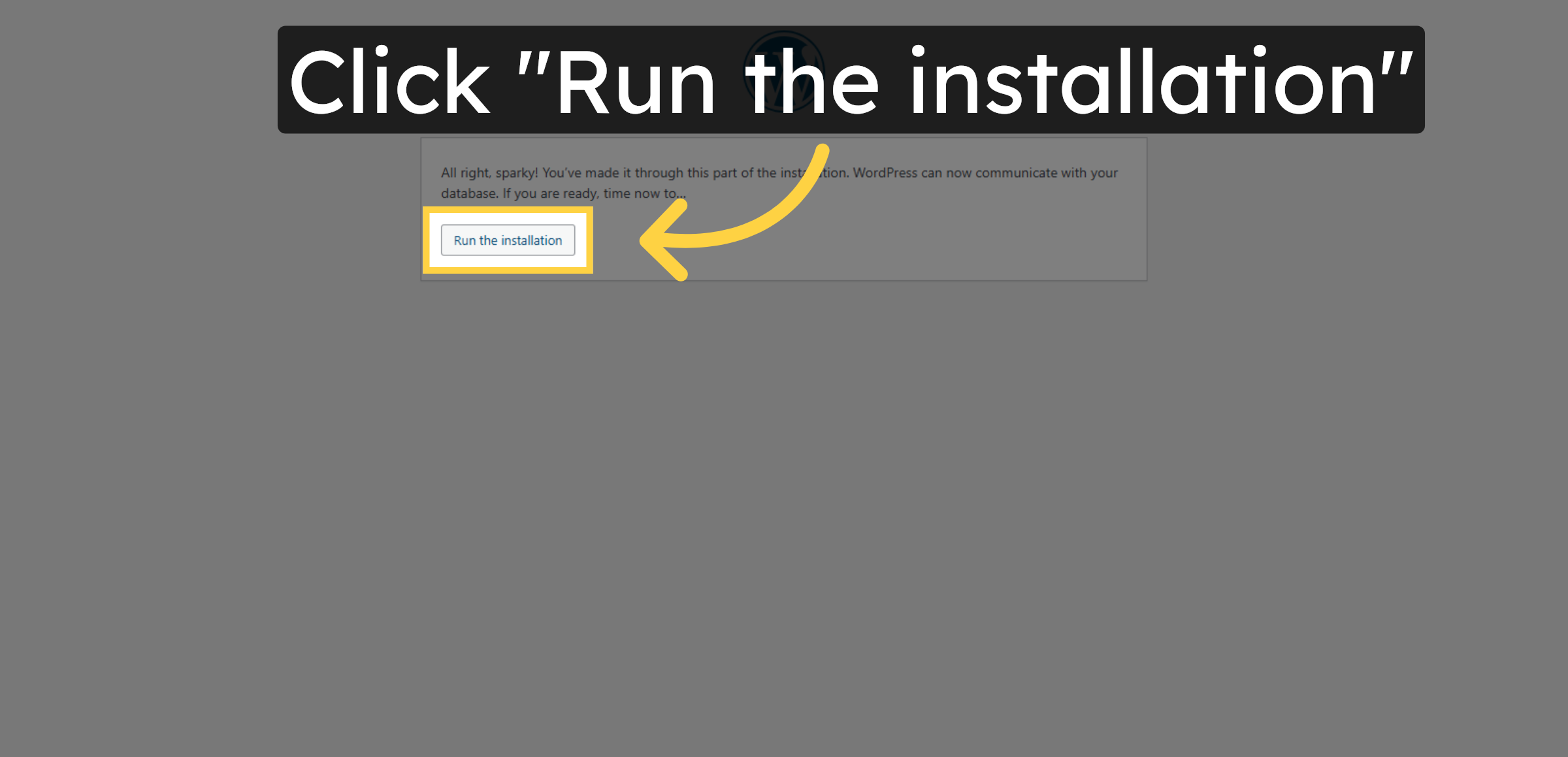
Click Run the installation to start setting up WordPress.

Run WordPress Installation

53. Enter Site Title
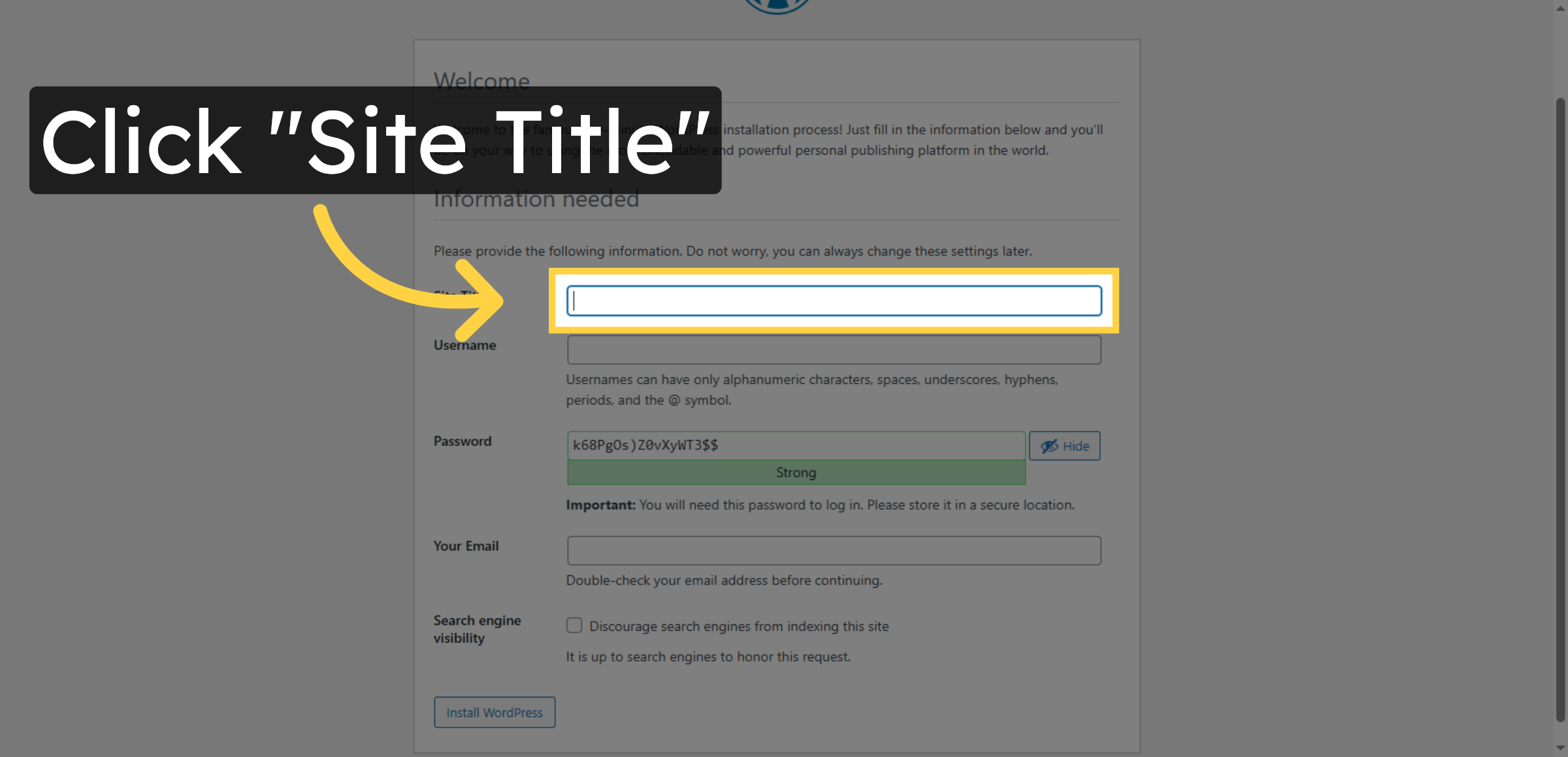
Click Site Title and enter the desired name for your WordPress site.

Enter Site Title

54. Fill Site Title
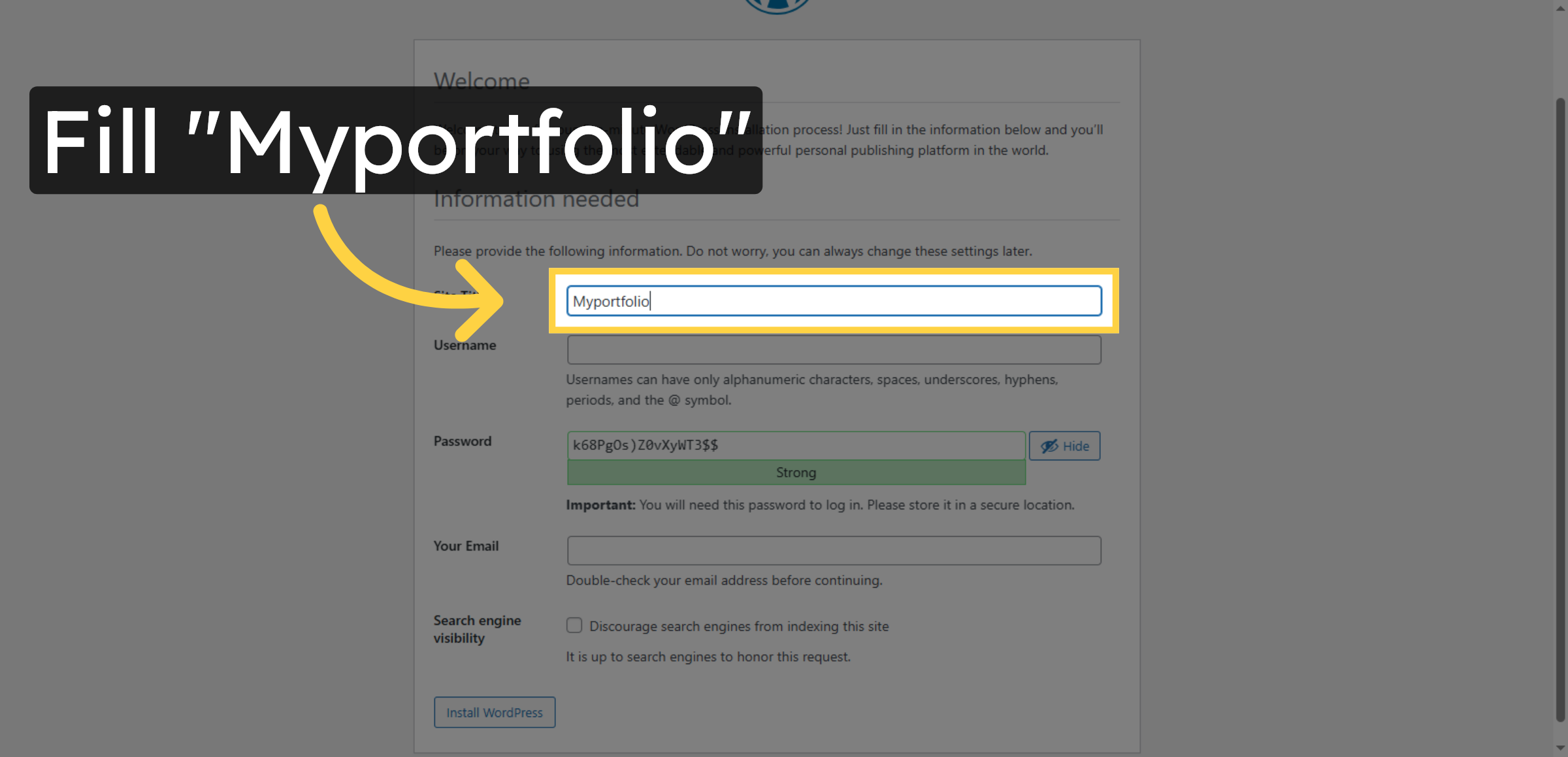
Enter your chosen site title such as Myportfolio.

Fill Site Title

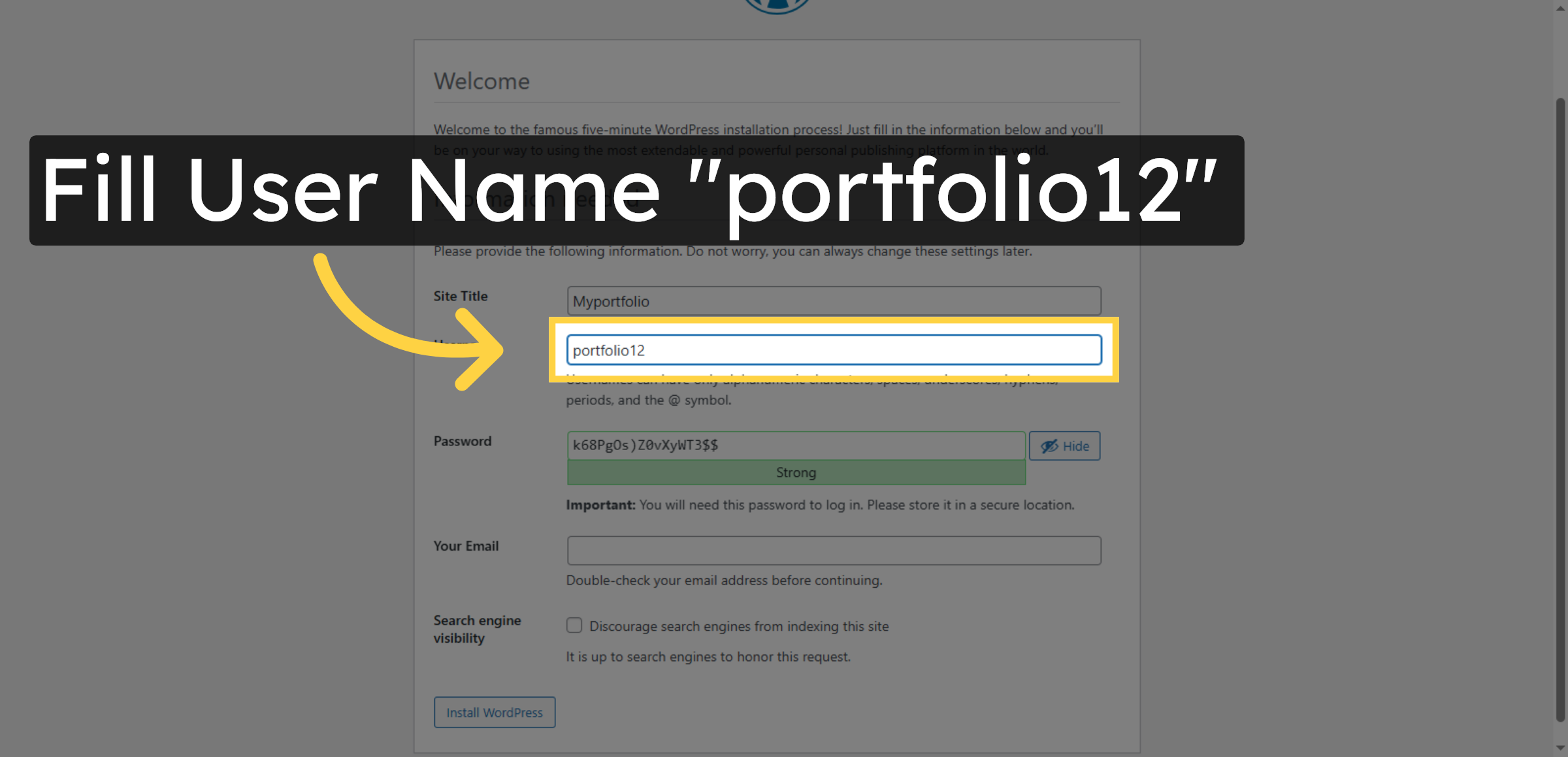
55. Enter Username

Fill in the username for your WordPress admin account.

Enter Username

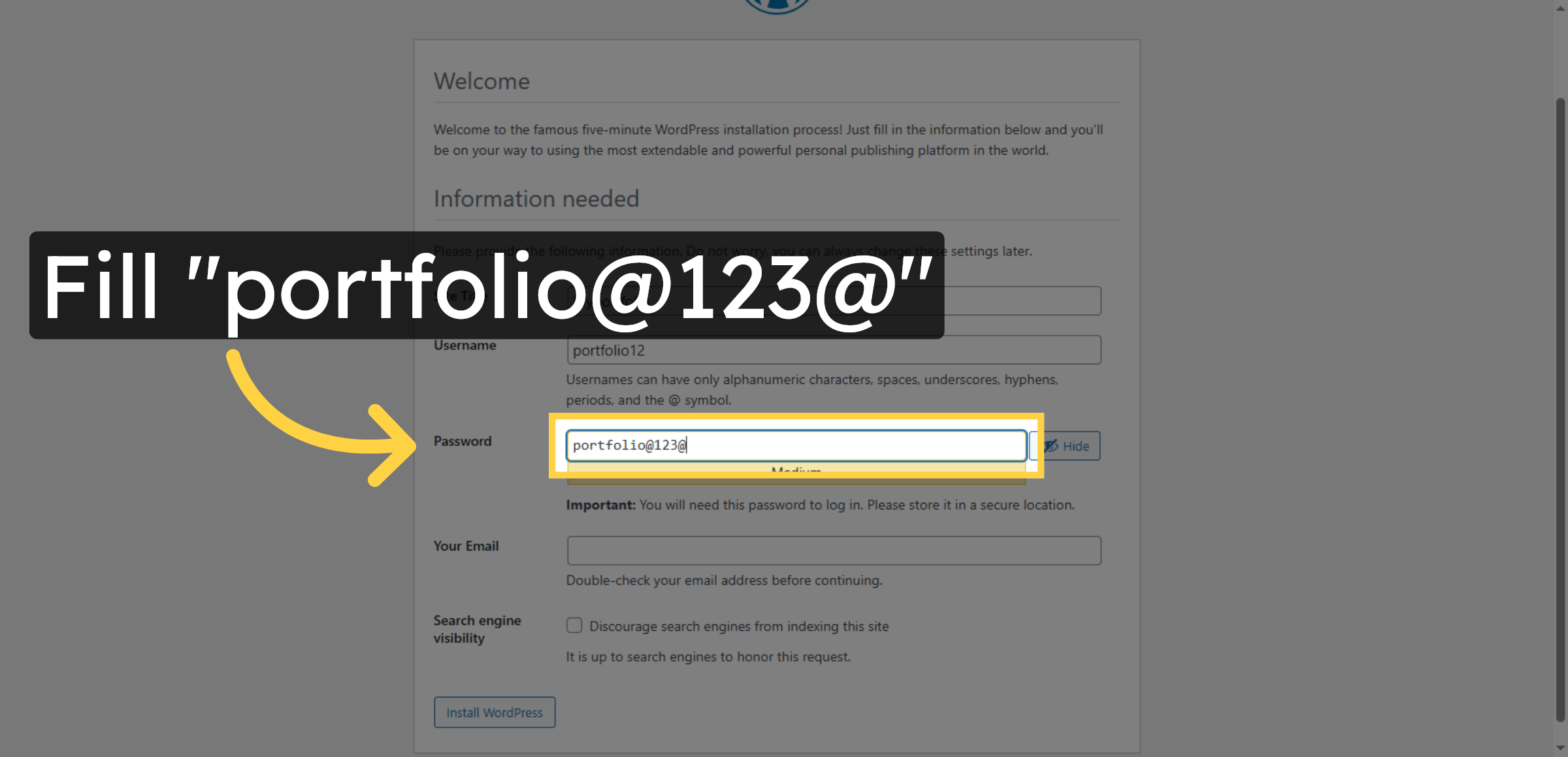
56. Enter Password

Fill Password on this field

Enter Password

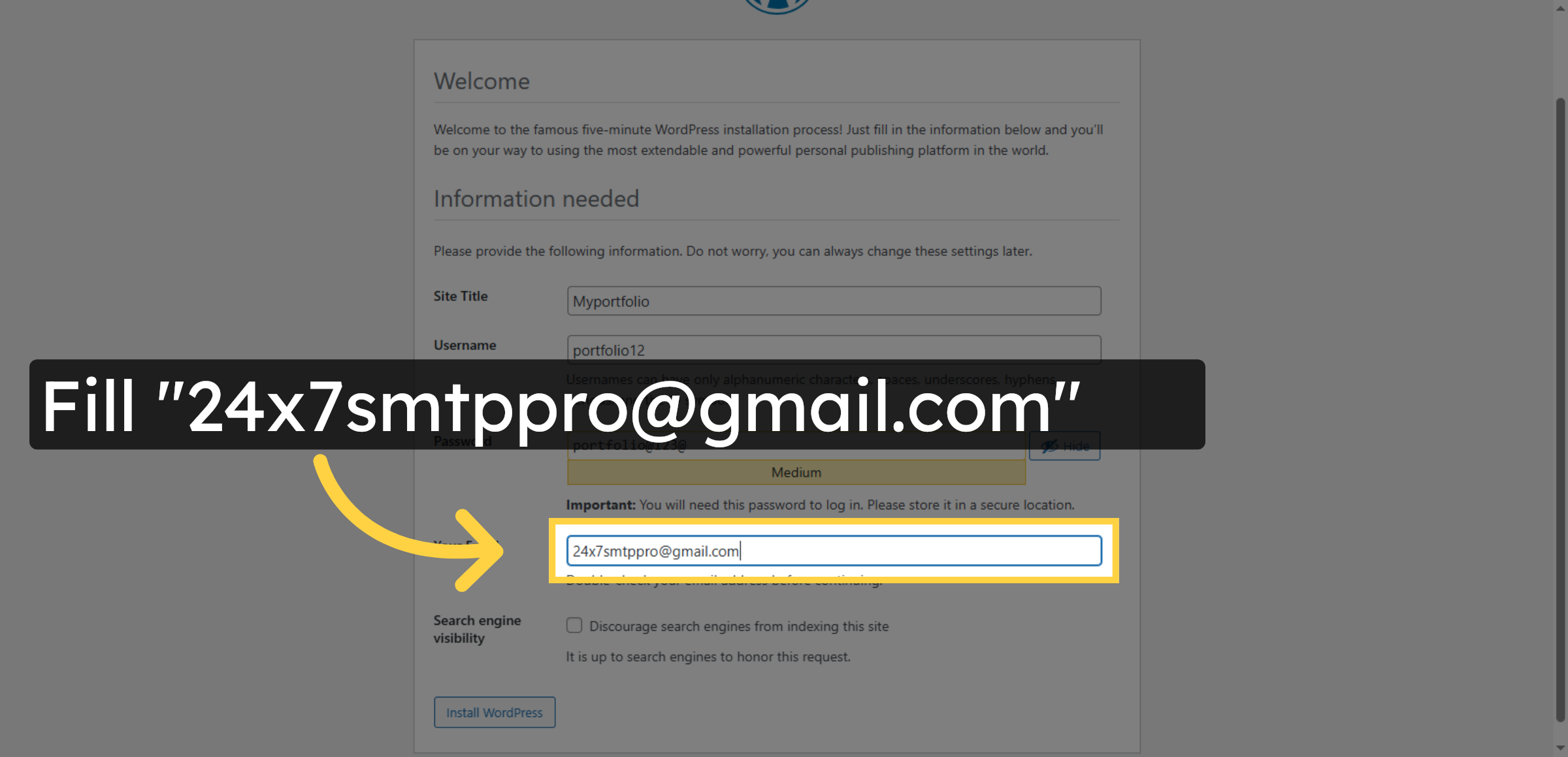
57. Enter Admin Email

Click Your Email and enter the email address for admin contact.

Enter Admin Email

58. Install WordPress
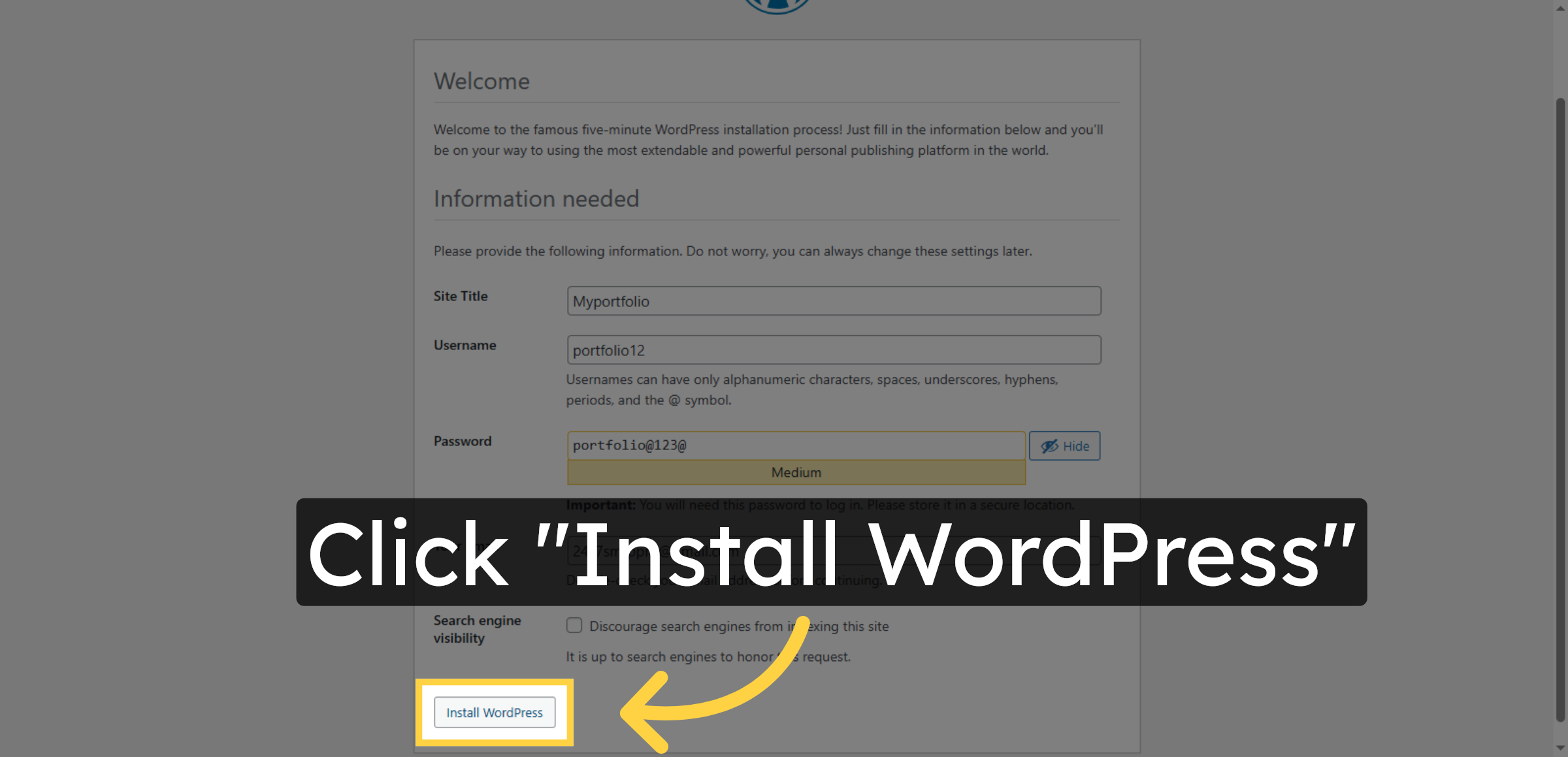
Click Log In to access your new WordPress admin dashboard.

Install WordPress

59. Login WordPress
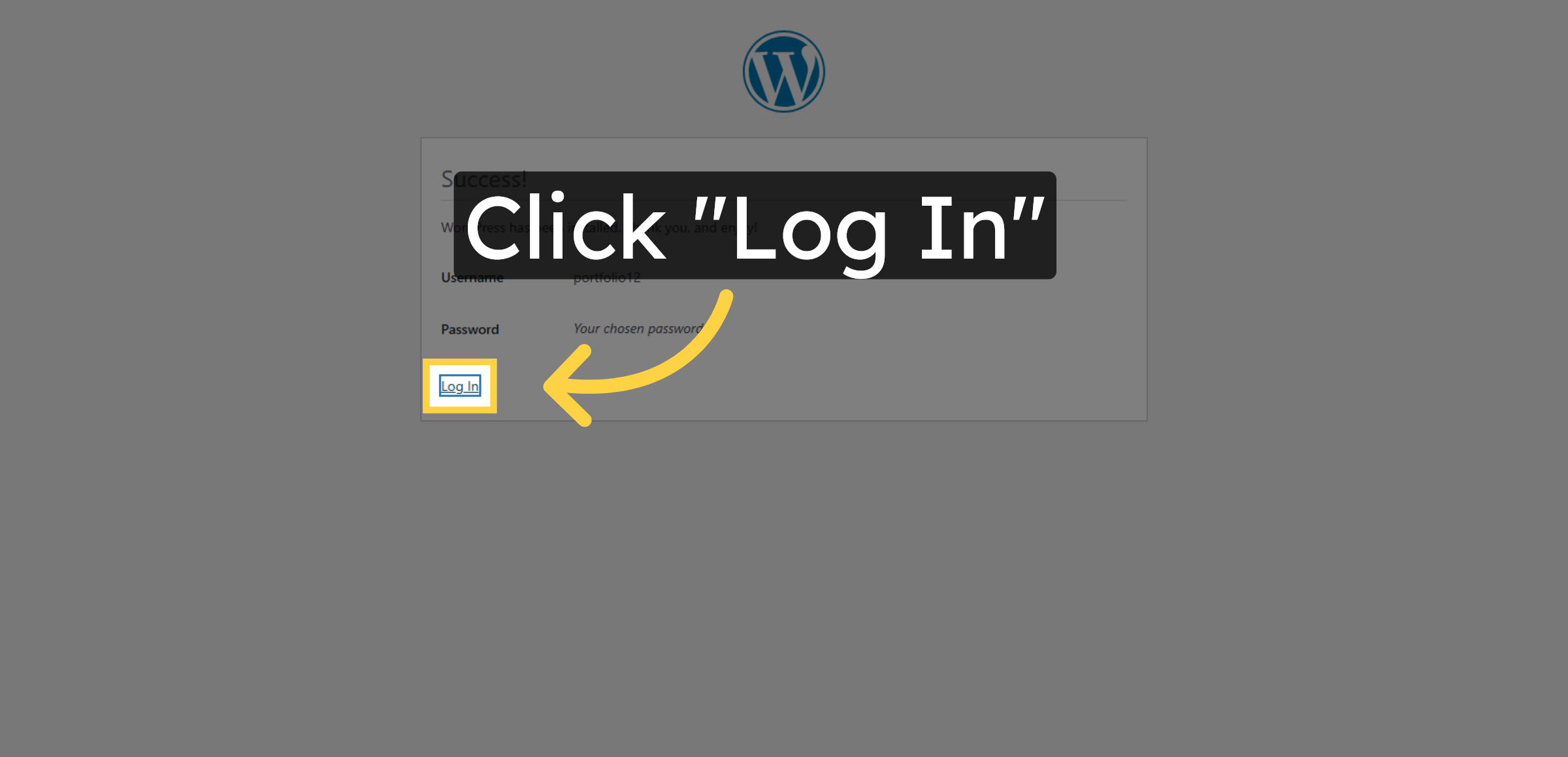
Fill in your WordPress admin password to log in securely.

Login WordPress

60. Fill Username and Password
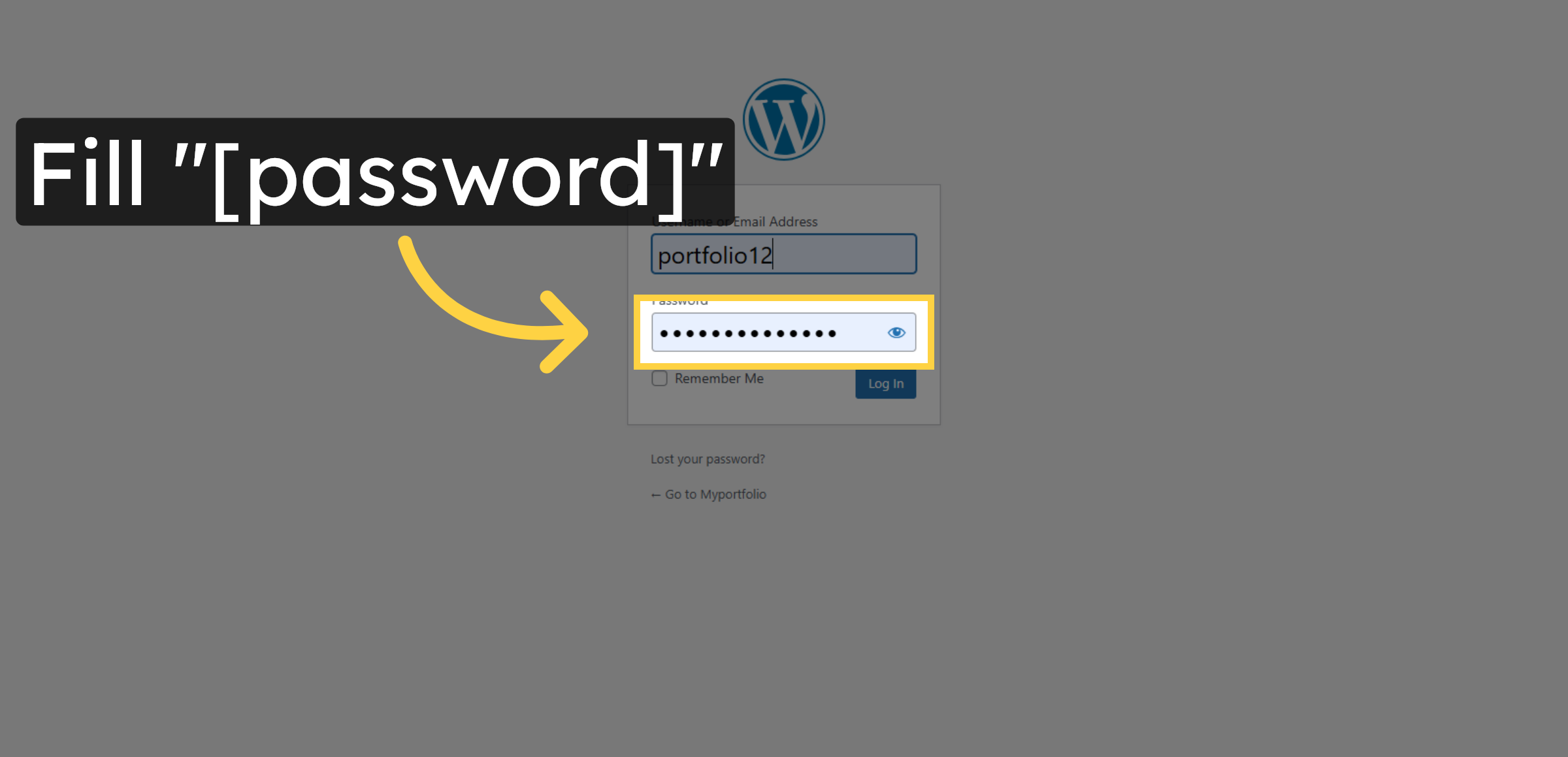
Click Remember Me to stay logged in on this device.

 Fill Username and Password

61. Click Login In button
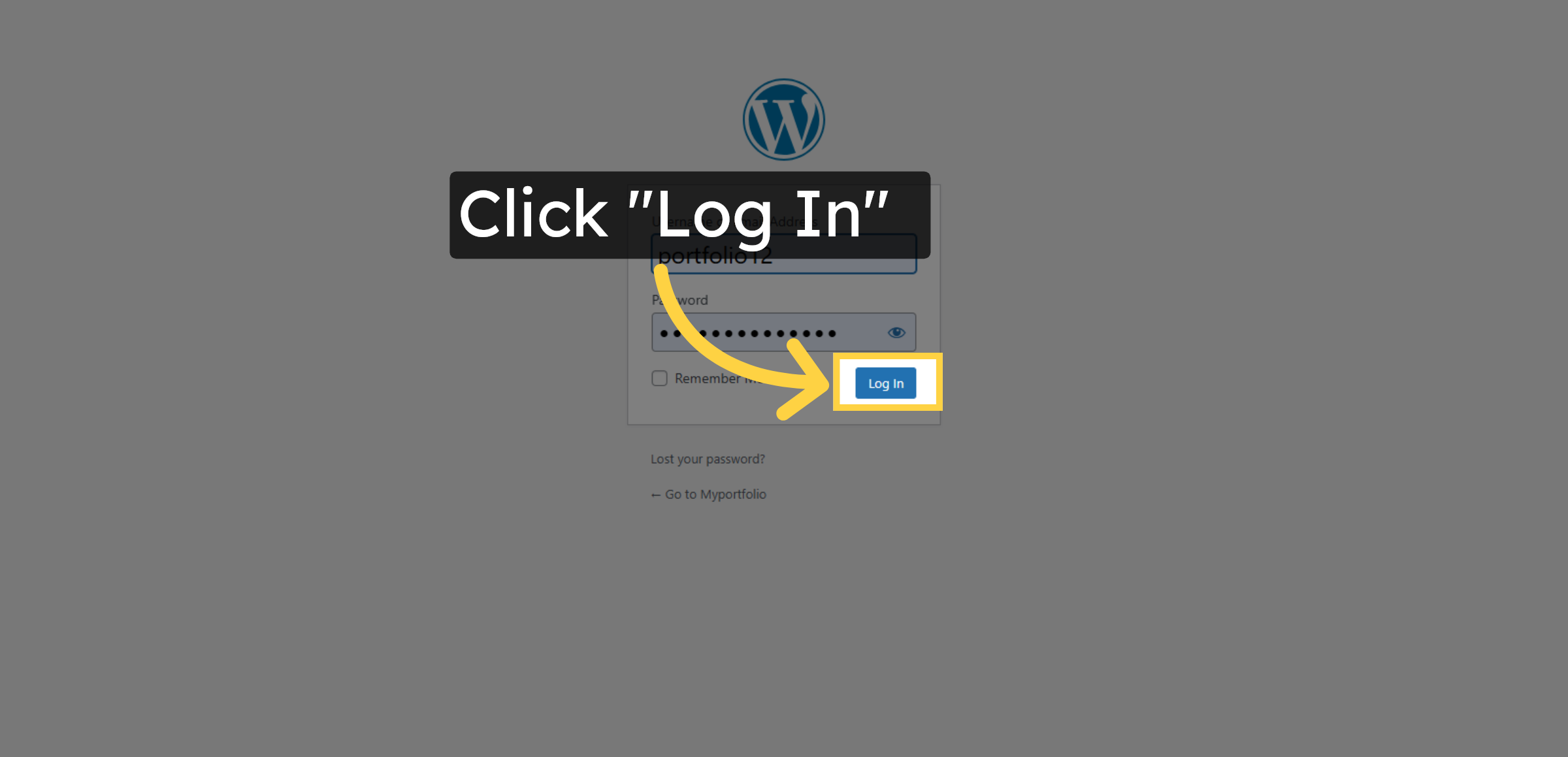
Fill forever to keep your login active indefinitely.

Click Login In button

62. Access Site Home
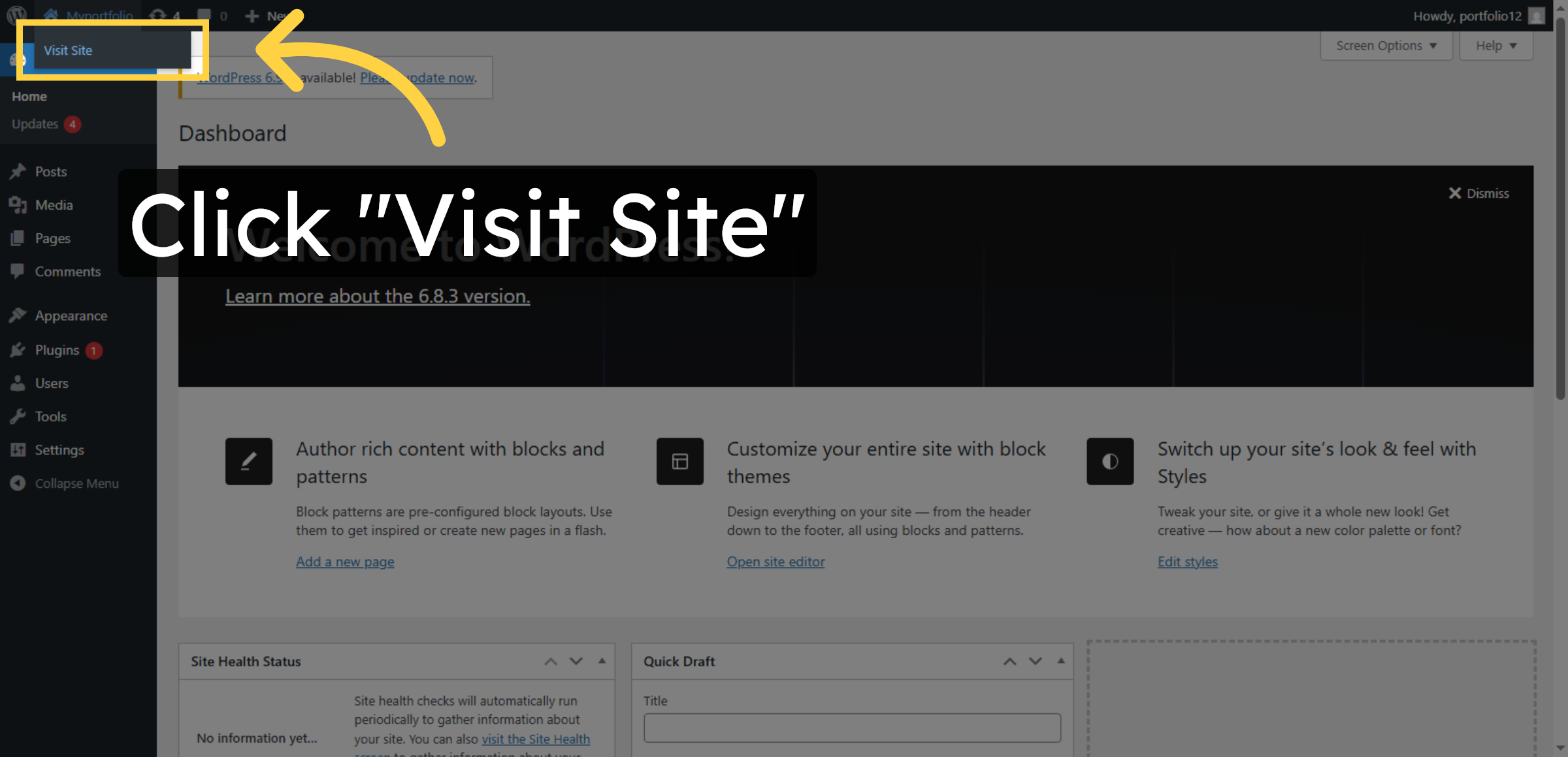
Click Myportfolio to go to your WordPress site homepage.

Access Site Home

63. Click “Myportfolio”
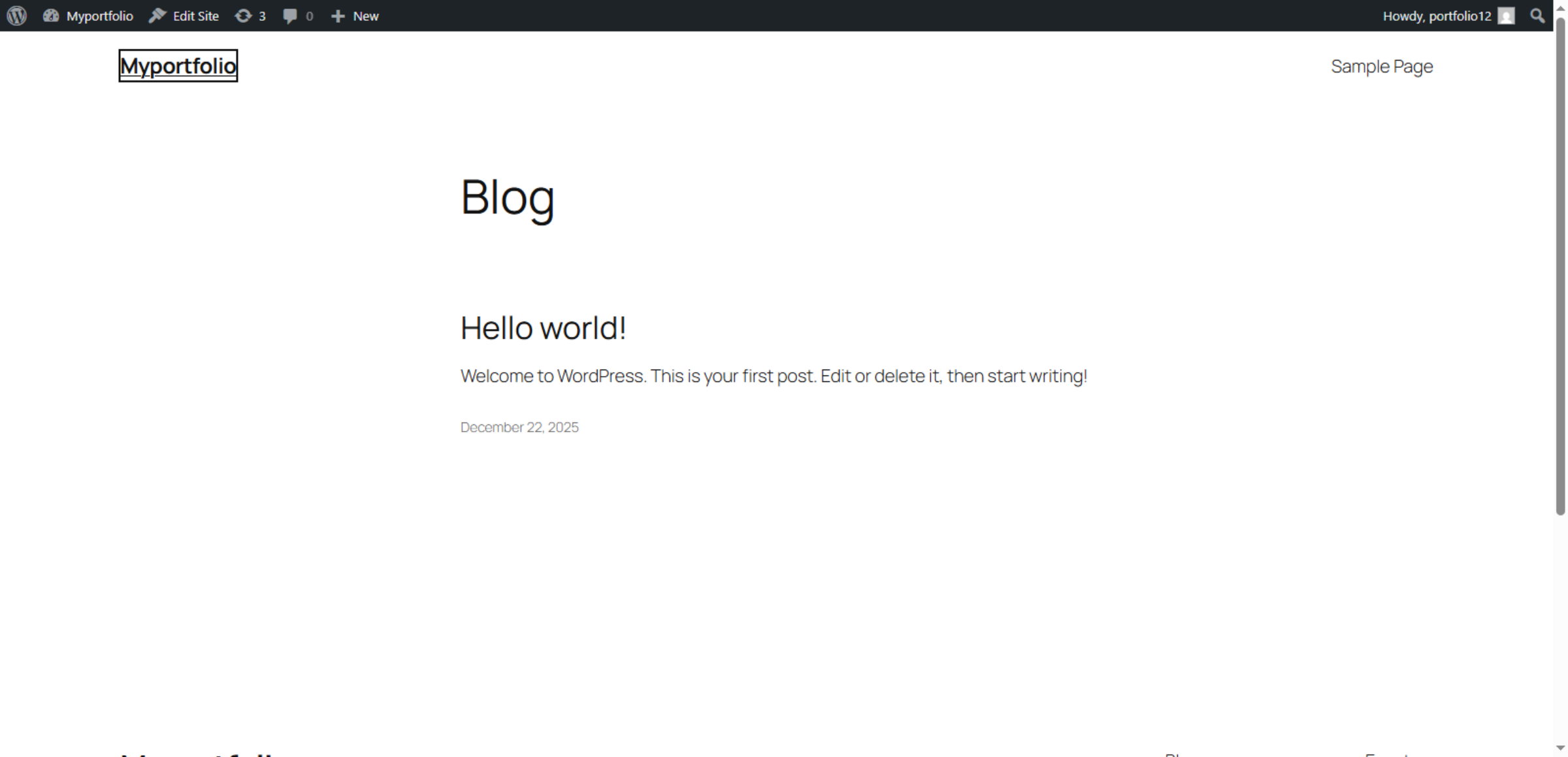
Navigate to “Myportfolio”

Click 'Myportfolio'

Conclusion

Proper subdomain management and WordPress installation are essential for maintaining a structured, scalable, and professional web presence. By completing the steps outlined in this guide, you have successfully created a subdomain, uploaded and configured WordPress files, established a secure database connection, and launched a fully operational WordPress website. This setup enables you to manage multiple projects independently while leveraging the same hosting infrastructure.

To ensure long-term stability and security, it is recommended to regularly update WordPress, monitor database performance, maintain backups, and review domain configurations. Consistent maintenance will help prevent technical issues and optimize website performance. With these best practices in place, your subdomain-based WordPress site will remain reliable, secure, and adaptable to future growth.

WooHelpDesk Support

Need professional assistance with subdomain configuration, WordPress installation, hosting setup, or website optimization? WooHelpDesk offers expert technical support to help you manage and scale your online presence with confidence.

 Visit: https://www.woohelpdesk.com

Call Us Toll-Free: +1 888 602 0119 (US & Canada)
 Expert Setup | Secure Configuration | Reliable Support

Contact WooHelpDesk today for trusted WordPress and hosting support solutions.

Leave a Reply

Your email address will not be published. Required fields are marked *

Leave a Reply

Your email address will not be published. Required fields are marked *