How to Manage WordPress Databases Using phpMyAdmin in HostGator
Introduction
Effective database management is essential for maintaining the performance, security, and reliability of a WordPress website. Every WordPress site stores critical information—such as user accounts, posts, settings, and system configurations—within its database. When hosted on platforms like HostGator, administrators often need direct access to these databases for troubleshooting, optimization, and maintenance tasks.
This guidde explains how to manage WordPress databases using phpMyAdmin within HostGator hosting. It provides clear, step-by-step instructions for accessing the database panel, selecting relevant tables, executing SQL queries, editing user records, and safely deleting unnecessary data. By following this guide, users can gain better control over their website’s backend operations, resolve data-related issues efficiently, and ensure accurate management of WordPress user information and system records.
1. HostGator Dashboard
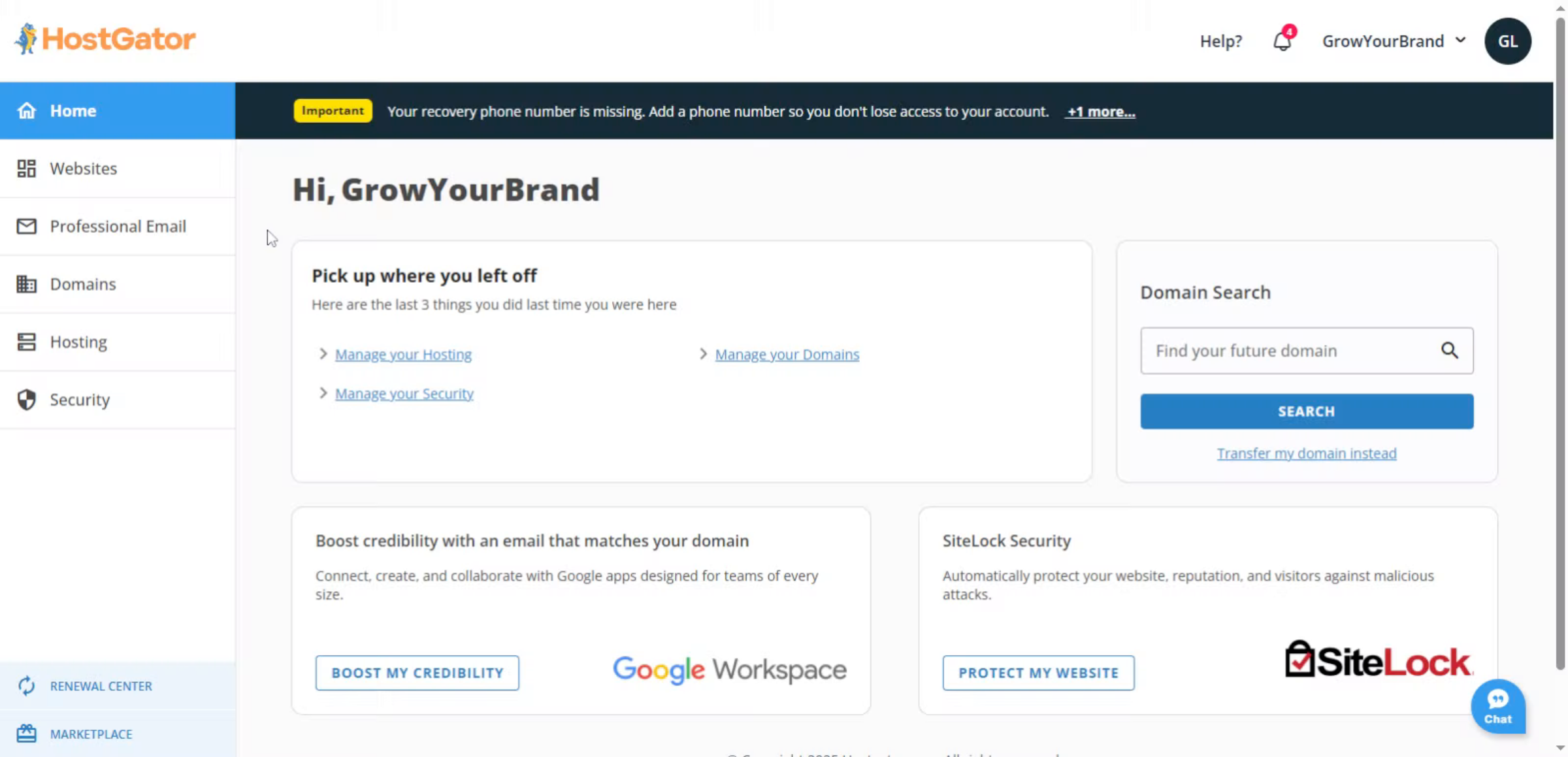
2. Access Dashboard Websites
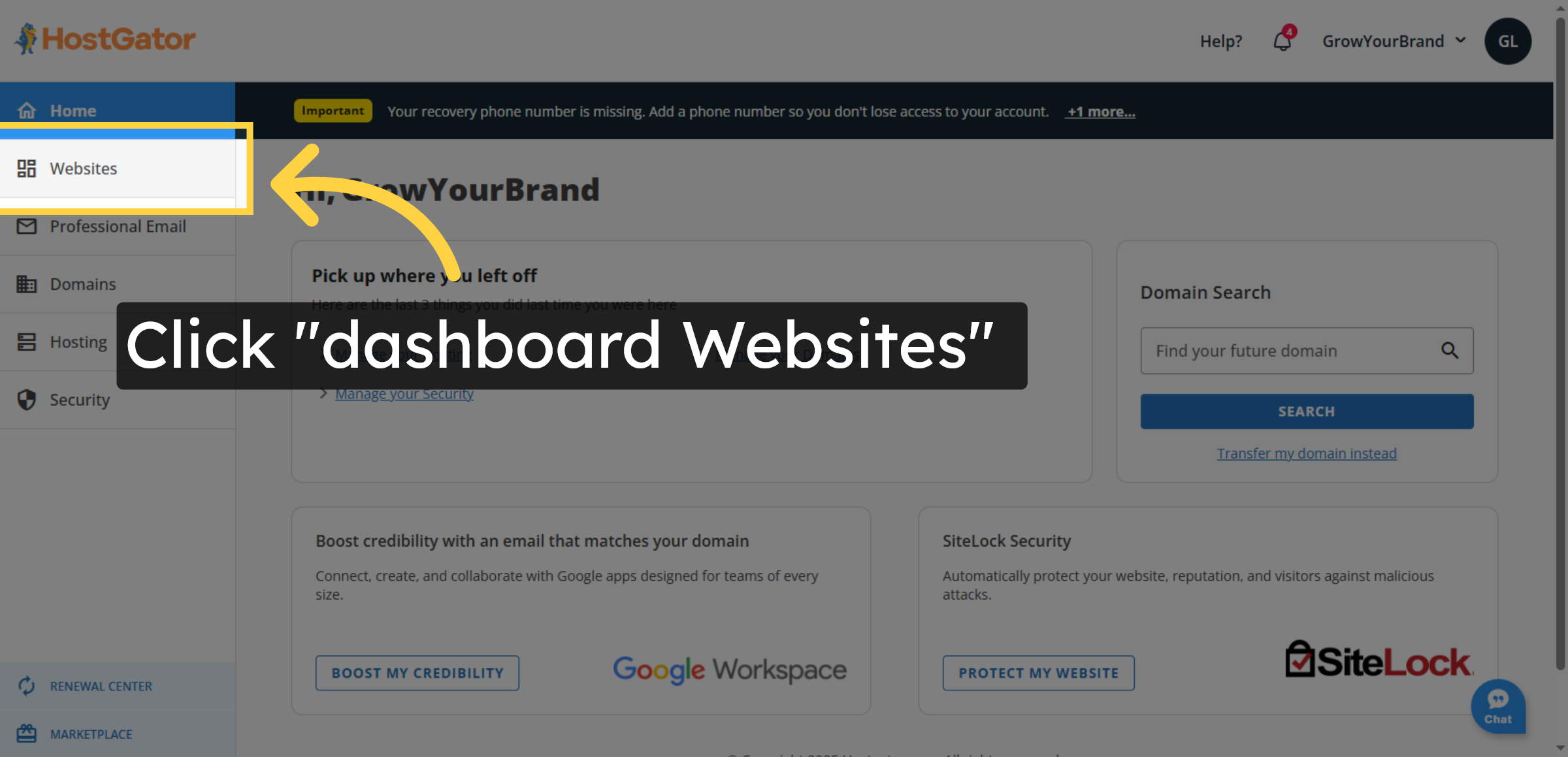
3. Open Settings Menu
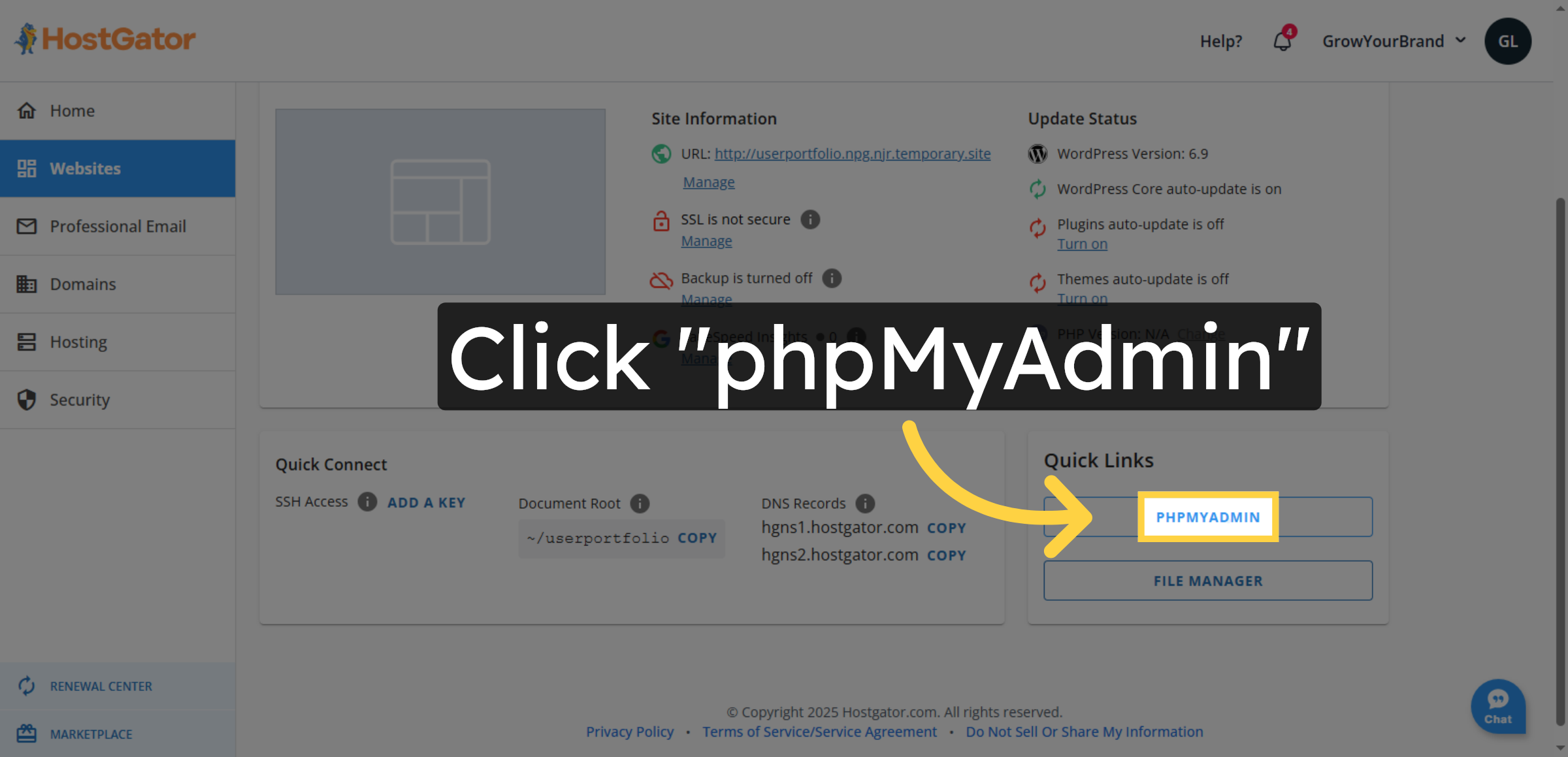
4. Click phpMyAdmin
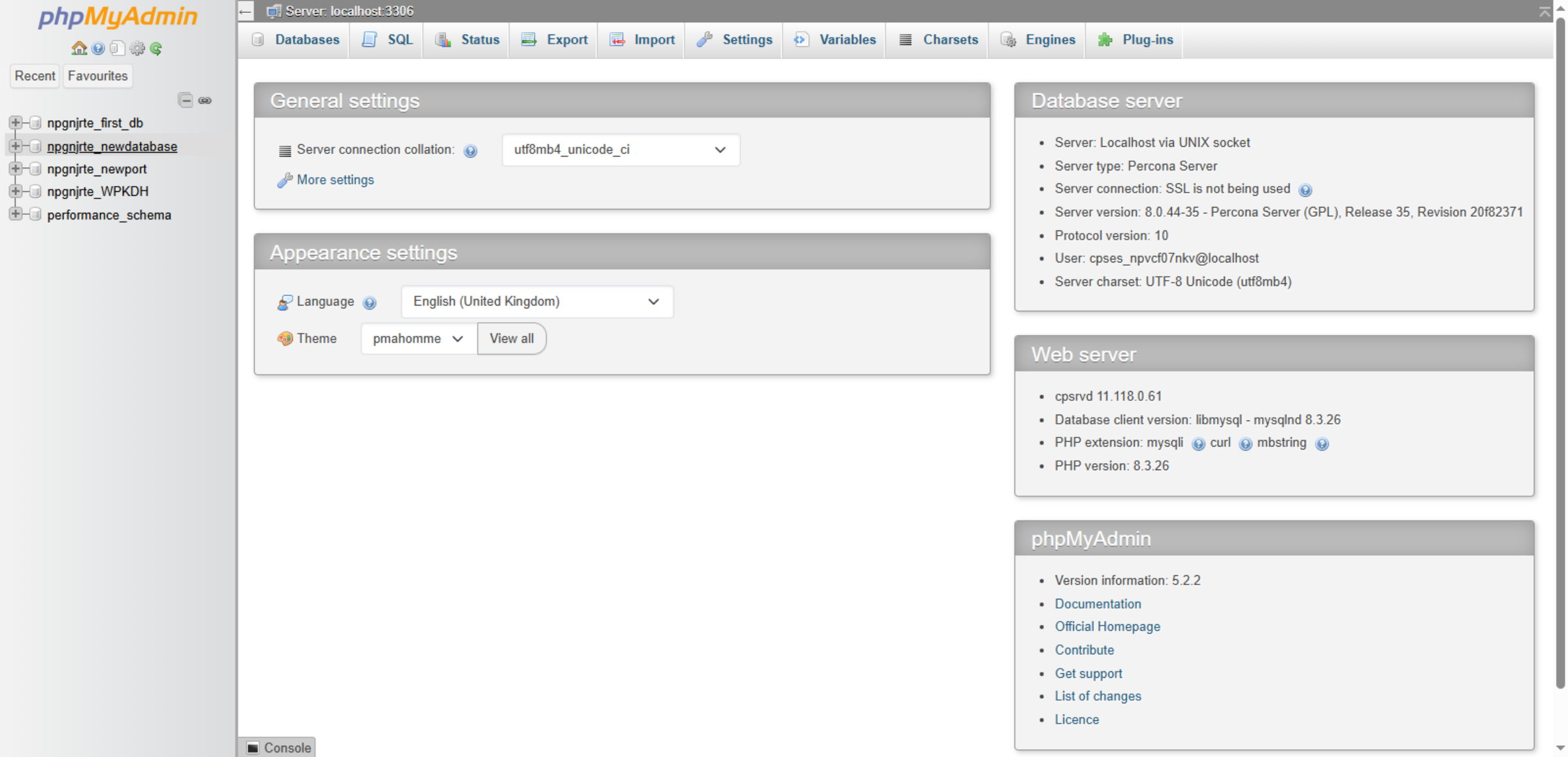
5. phpMyAdmin Database Management Panel
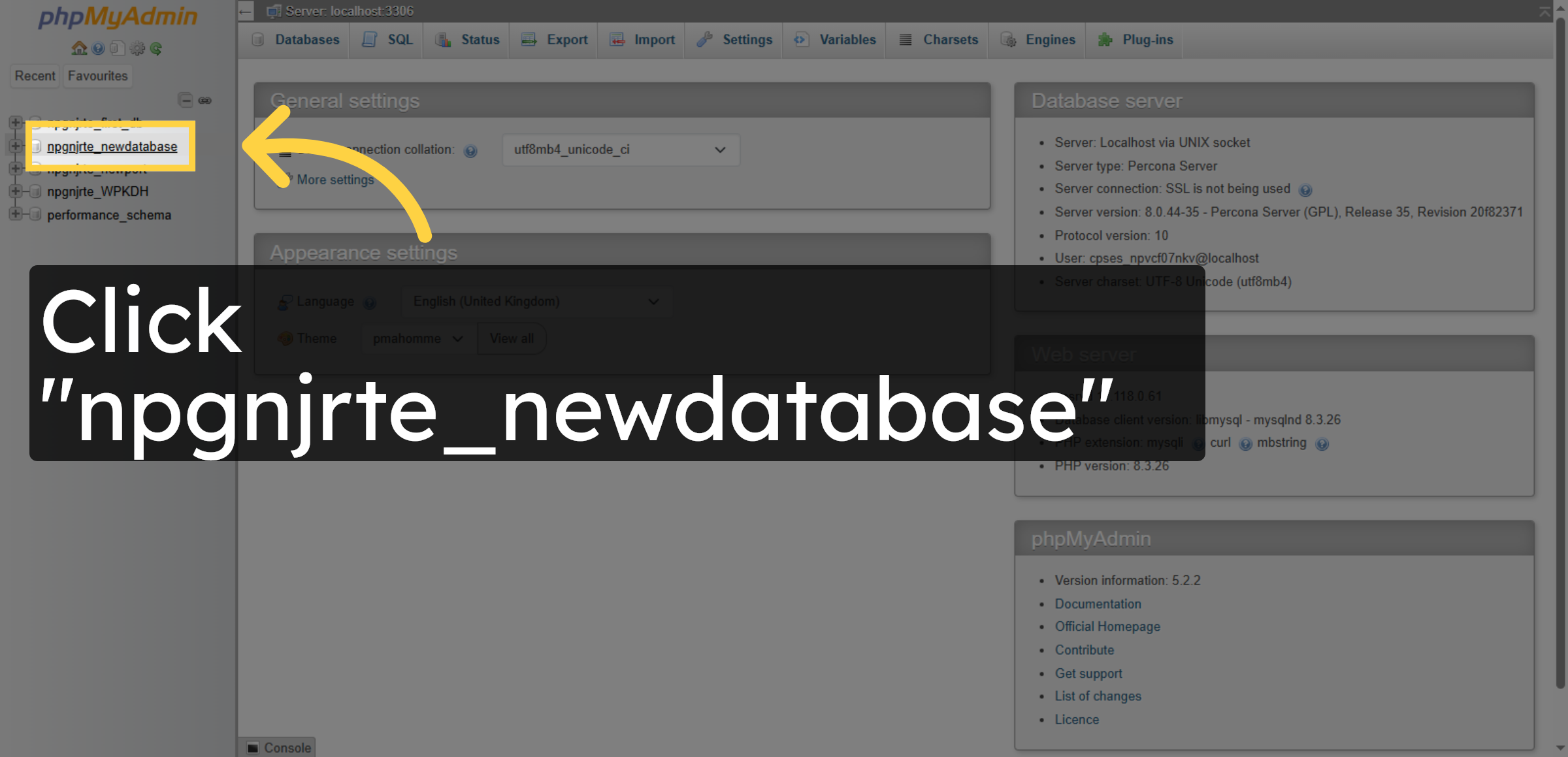
6. Select Your Database
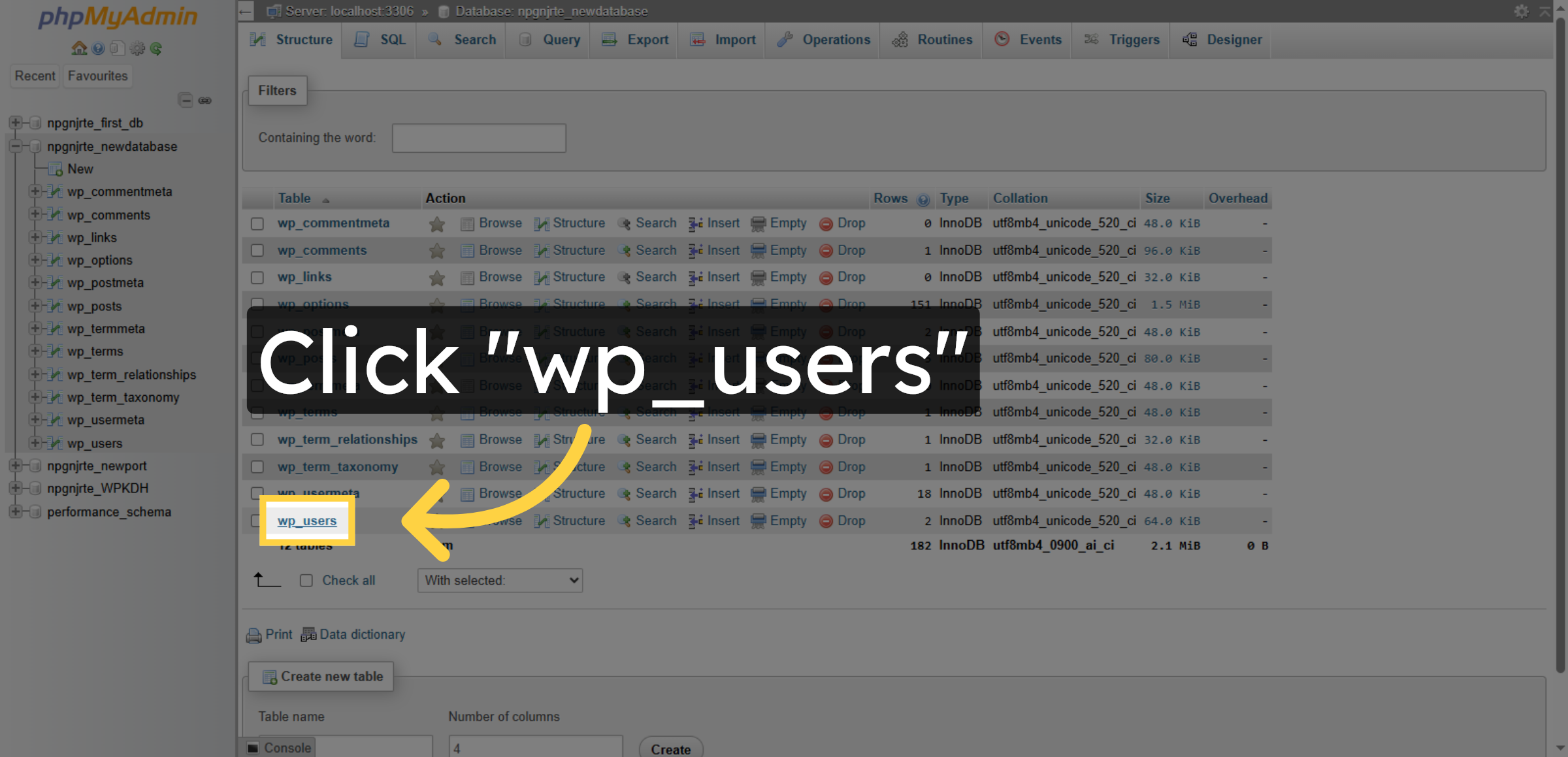
7. Open Users Table
8. Navigate to SQL Tab
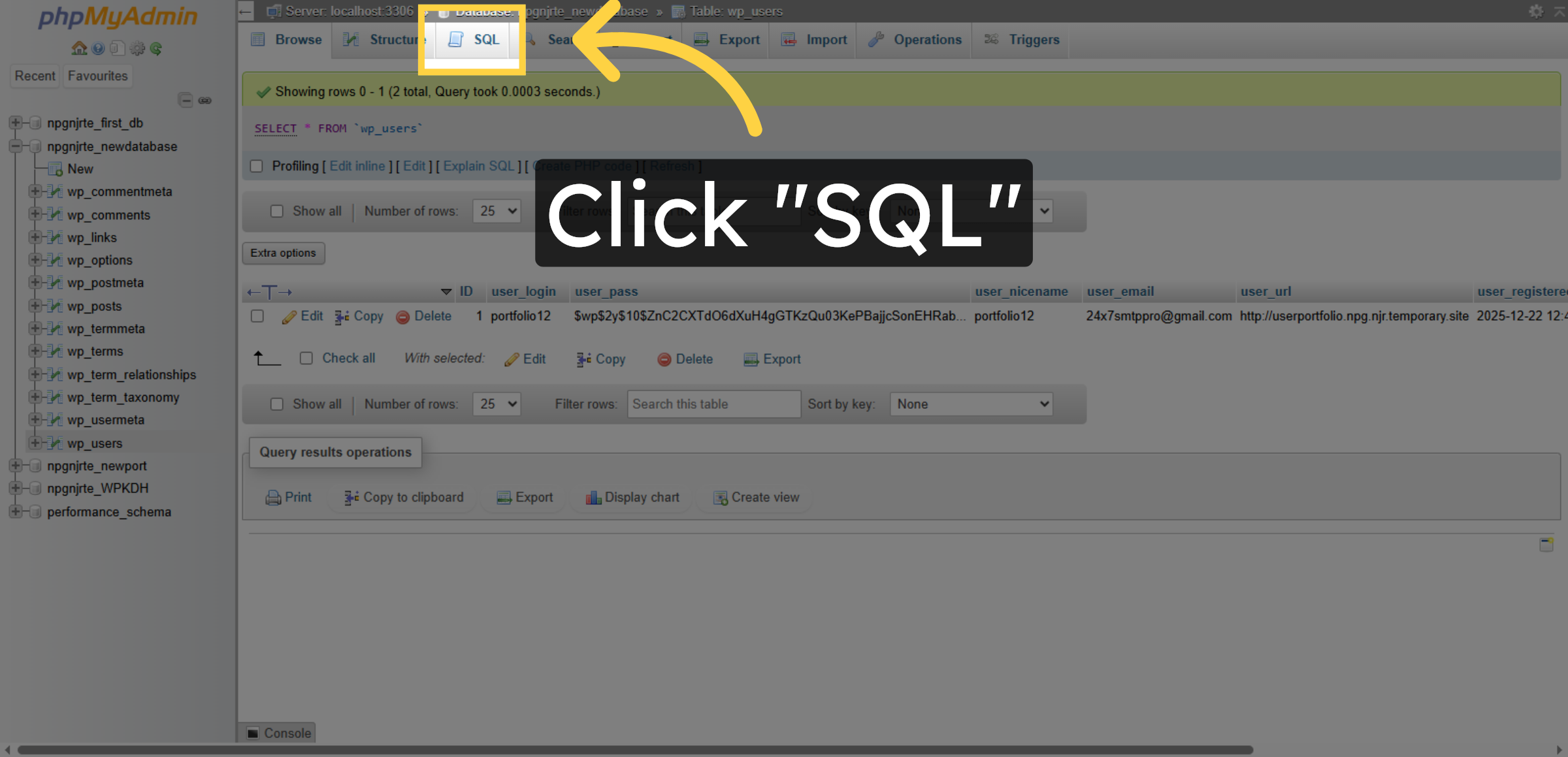
9. Select And Remove Query Statement
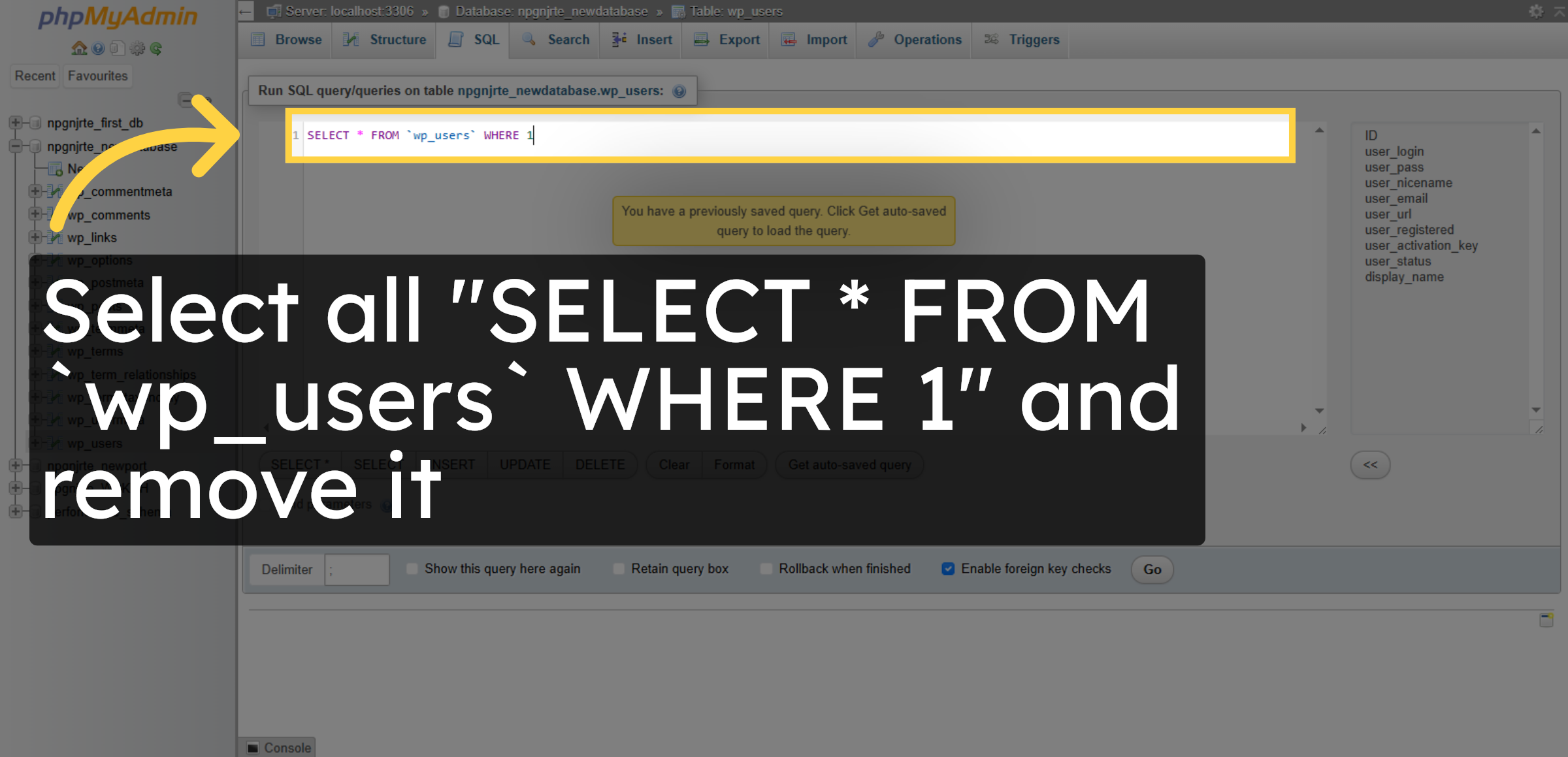
10. Execute Query for adding new user
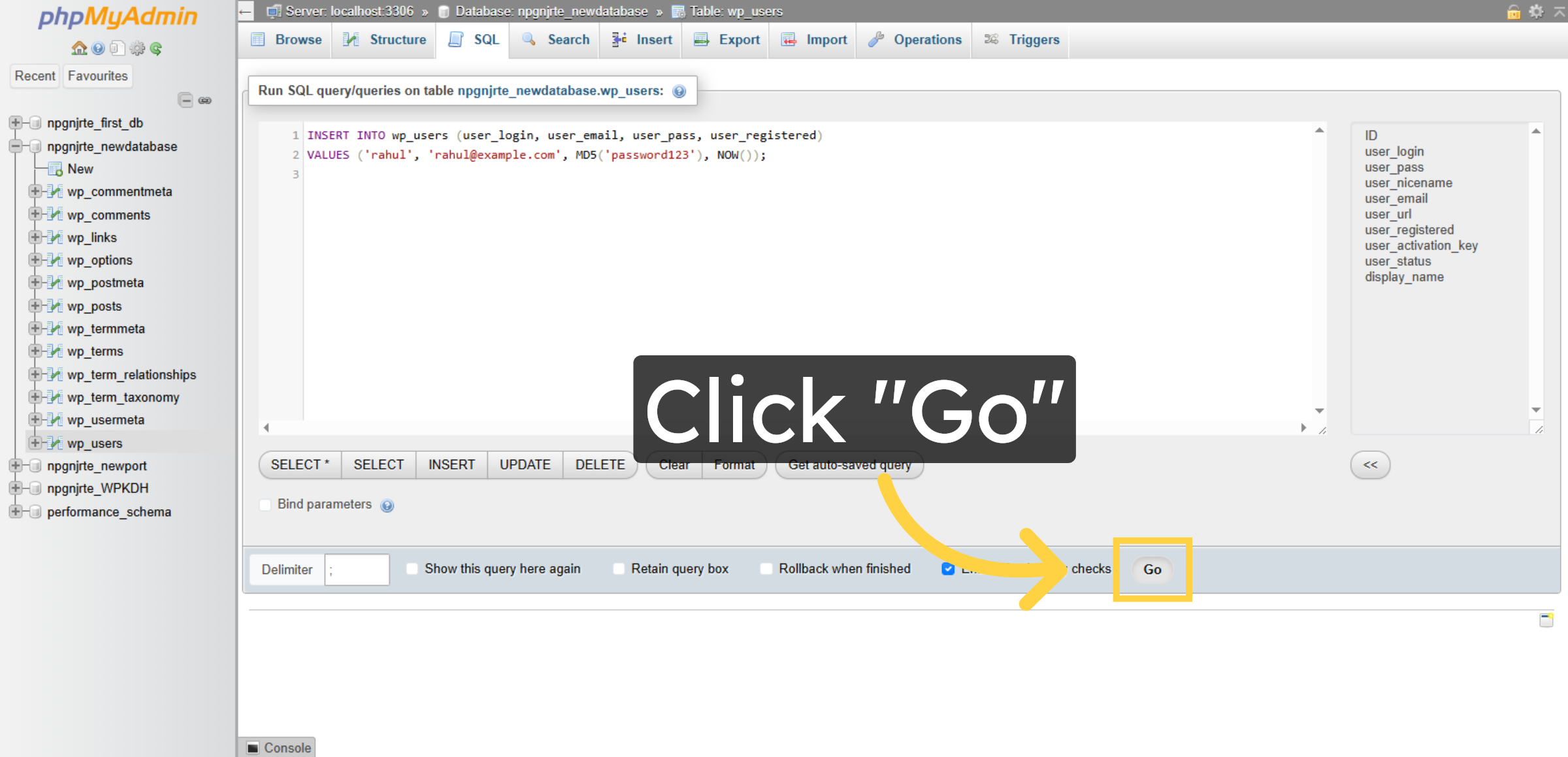
11. Reopen Users Table
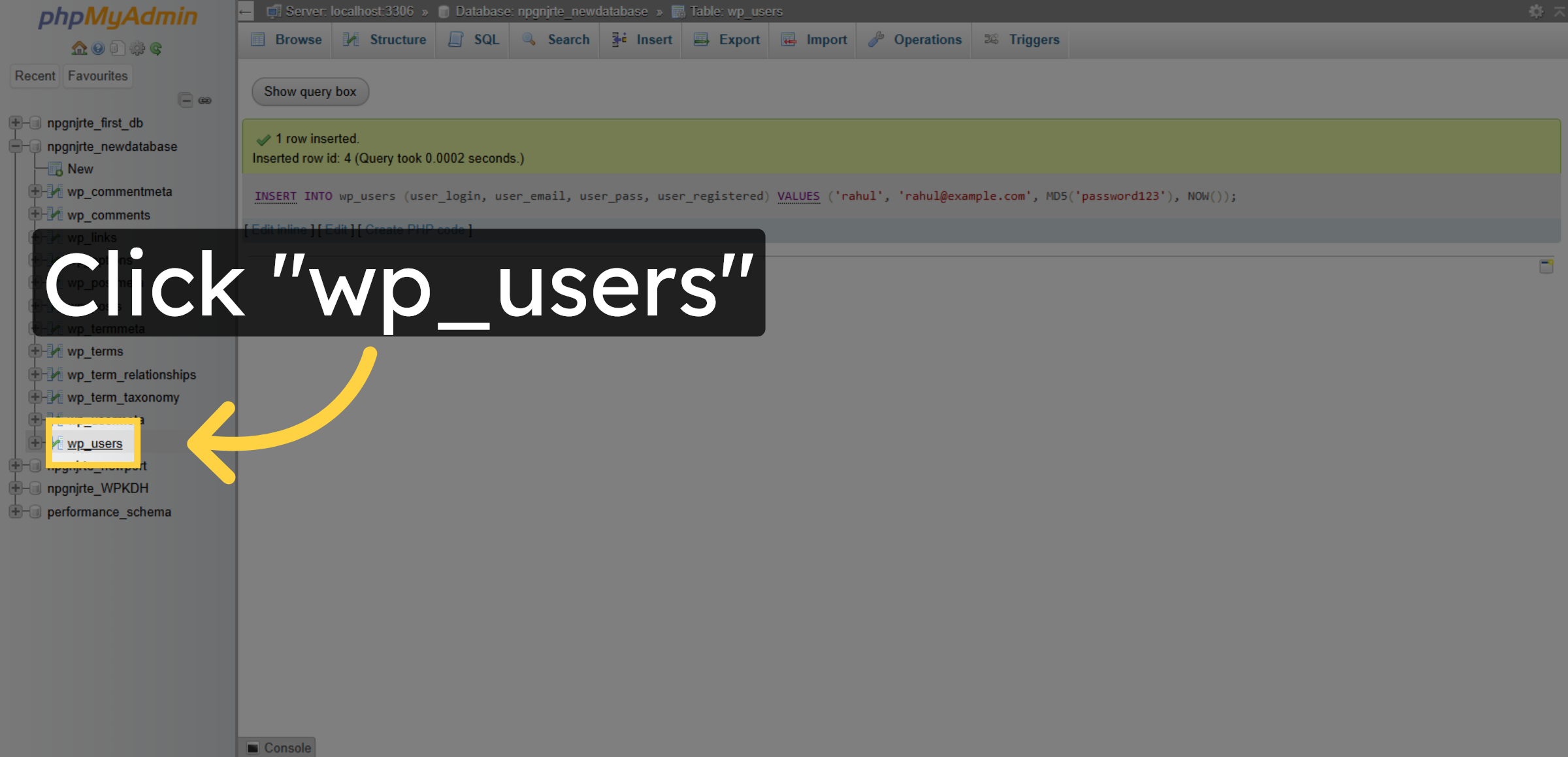
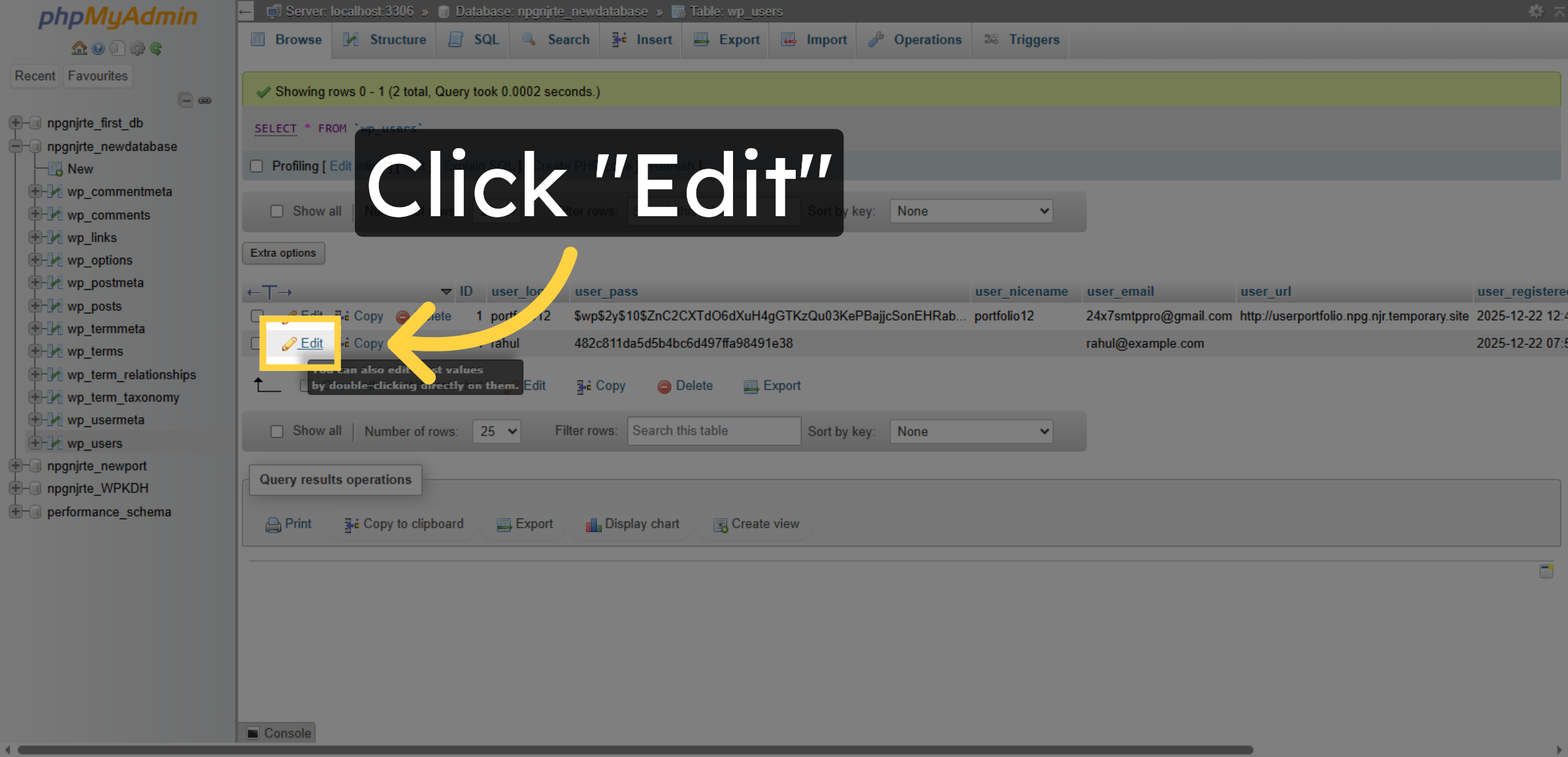
12. Edit User Record
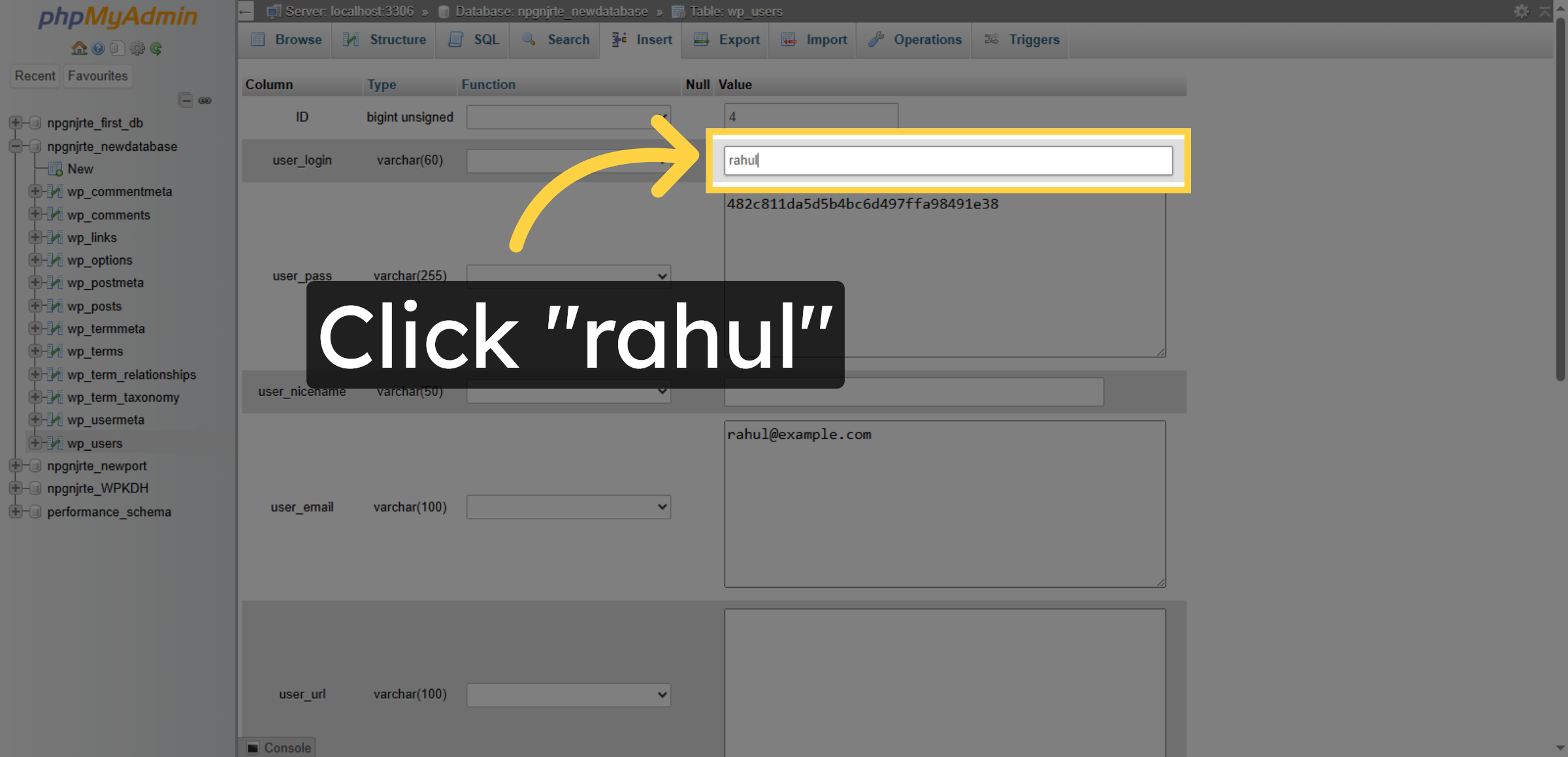
13. Select Username Field


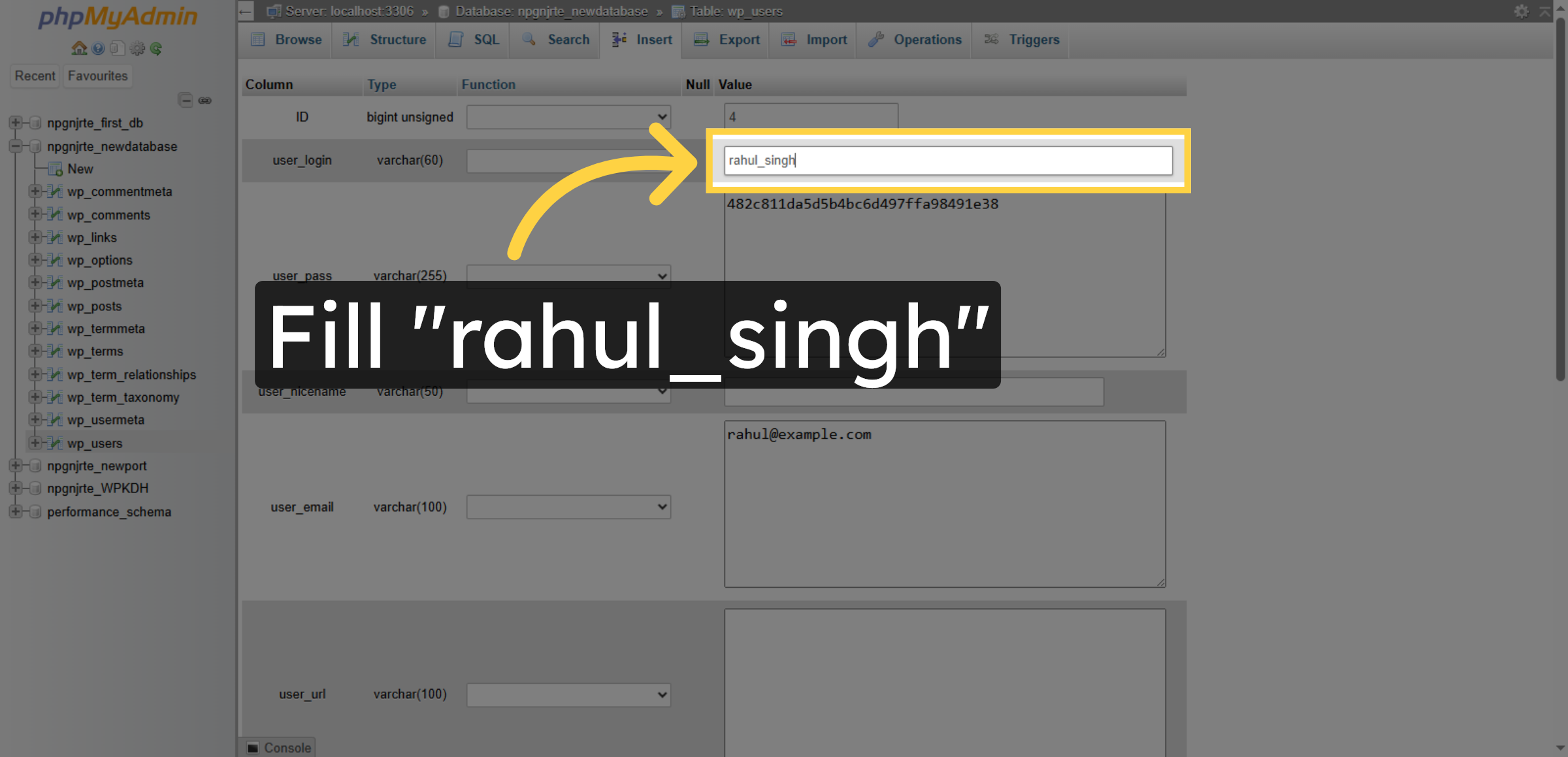
14. Update Username
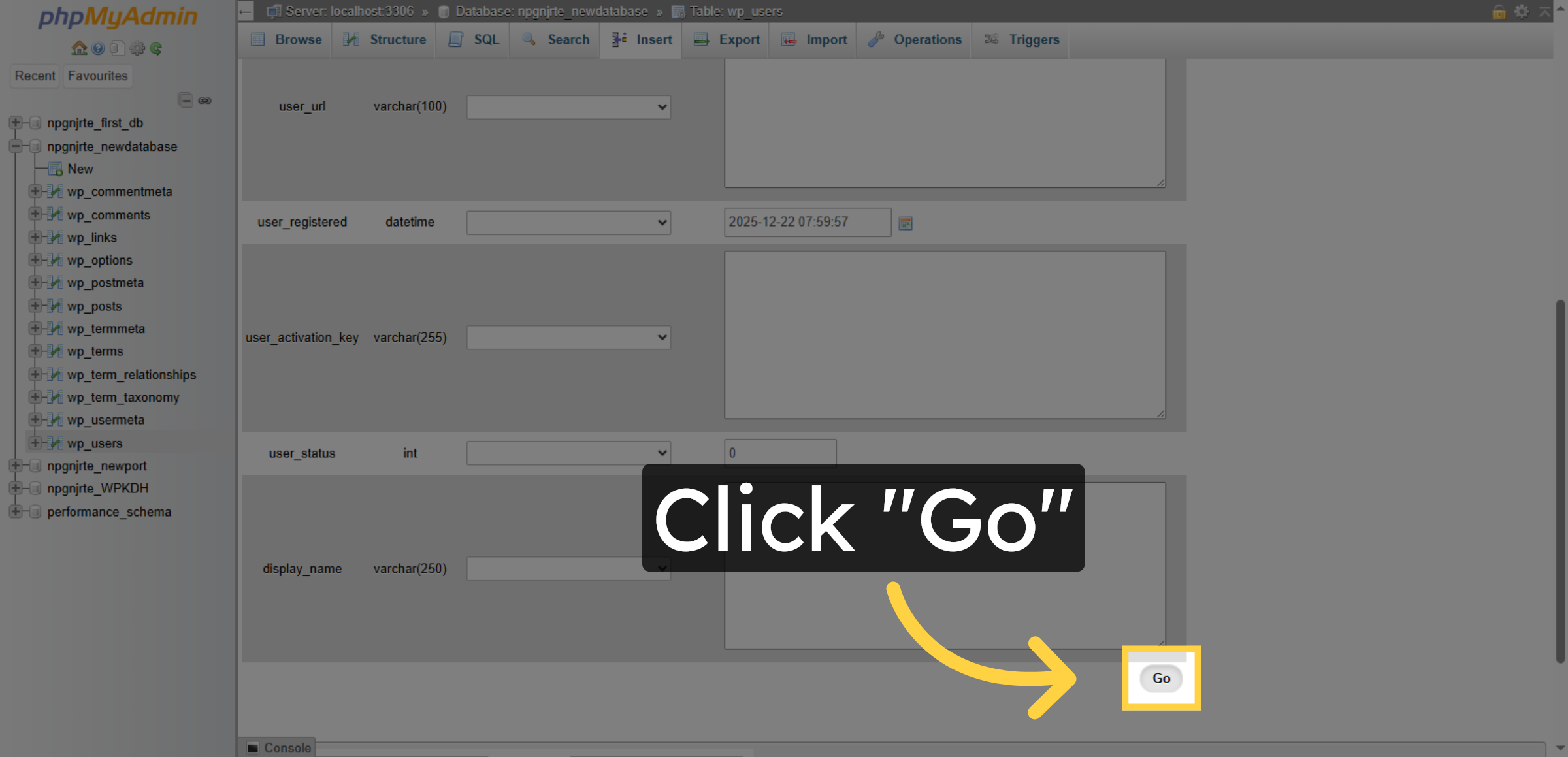
15. Save Changes
16. Delete User Record
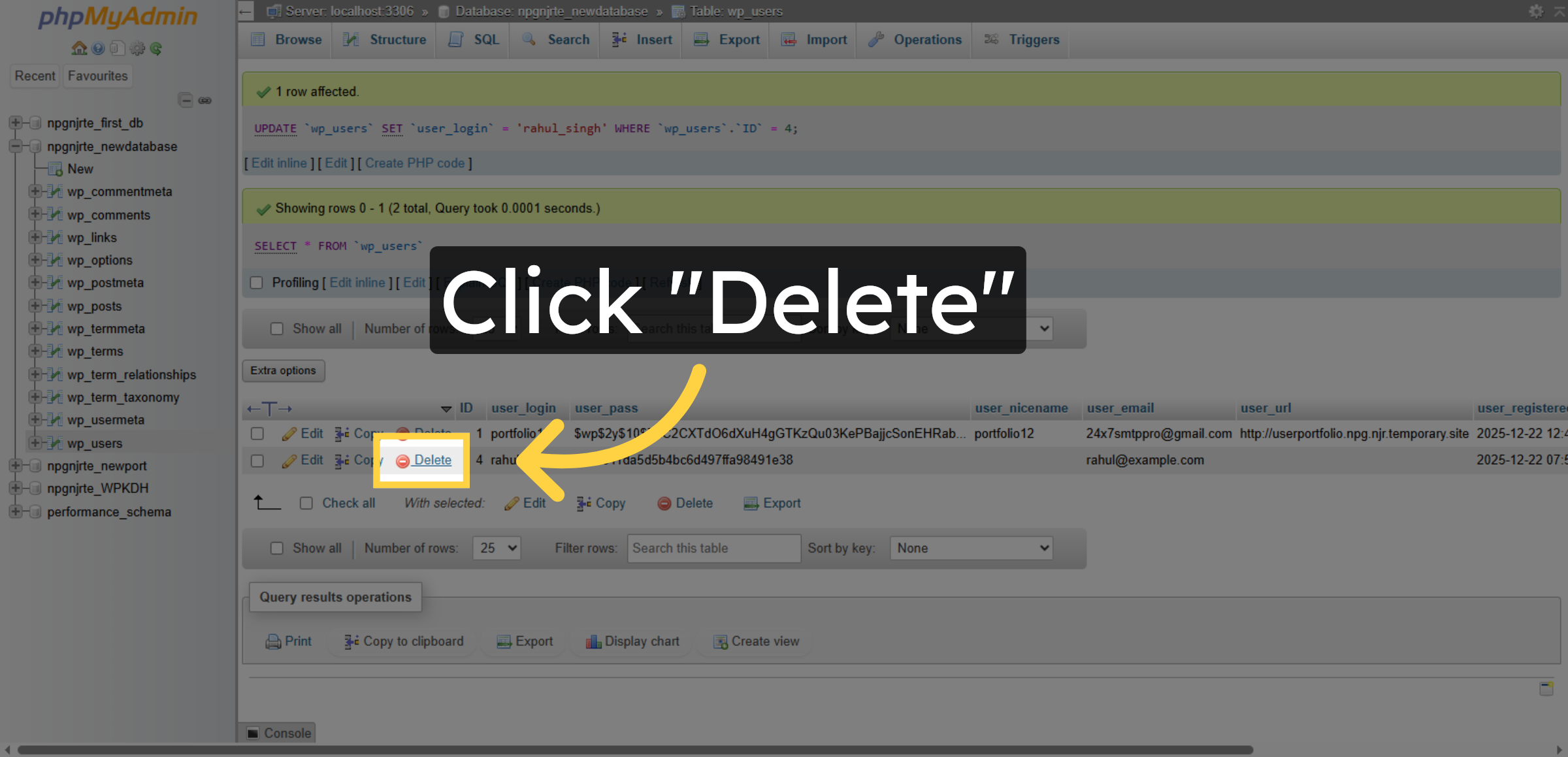
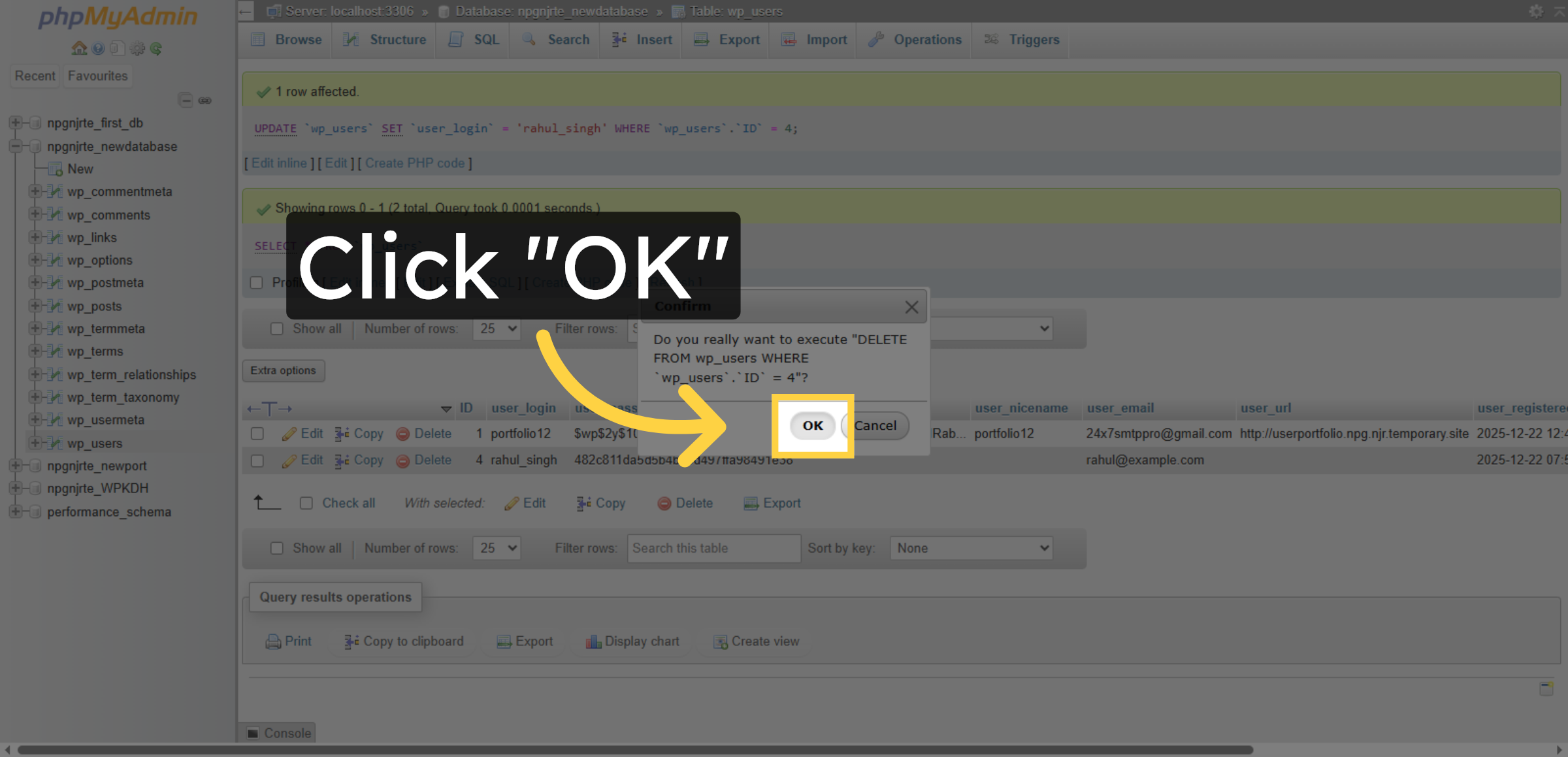
17. Confirm Deletion
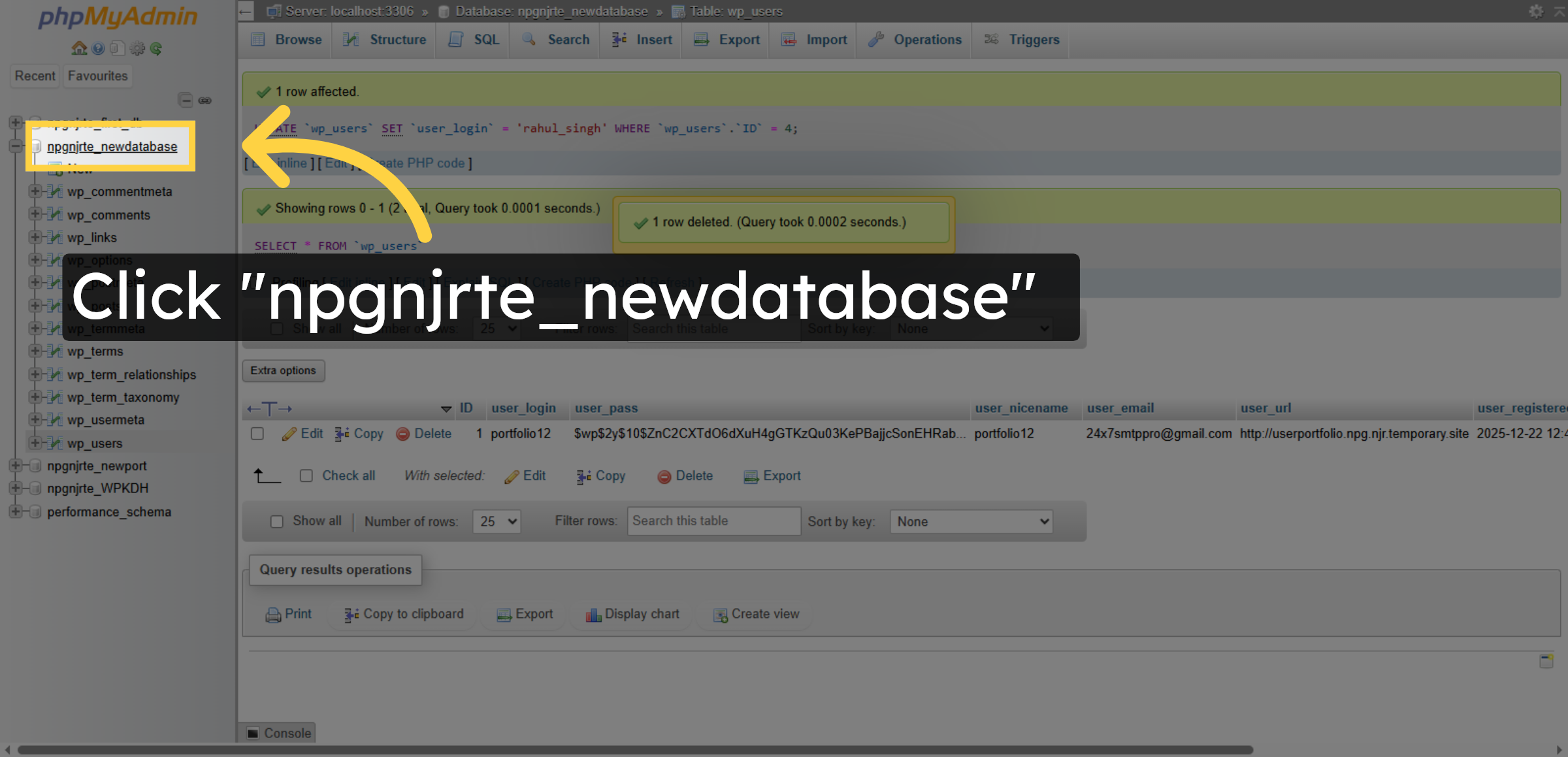
18. Return to Database
Conclusion
Proper database management plays a crucial role in ensuring the smooth functioning of a WordPress website. By following the steps outlined in this guide, you have successfully learned how to access and manage your WordPress database using phpMyAdmin on HostGator hosting. This includes viewing database tables, executing SQL queries, editing user records, and securely deleting unwanted entries.
Regular database maintenance helps prevent data corruption, improves website performance, and strengthens system security. It is recommended to create backups before making any changes and periodically review database activity to avoid potential issues. With consistent monitoring and responsible management practices, your website will remain stable, secure, and optimized for long-term success.
WooHelpDesk Support
Need expert assistance with WordPress database management, troubleshooting, data recovery, or website optimization? WooHelpDesk offers professional support to ensure your website operates smoothly and securely.
Visit: https://www.woohelpdesk.com
Call Us Toll-Free: +1 888 602 0119 (US & Canada)
Reliable Support | Secure Solutions | Fast Technical Assistance
Contact WooHelpDesk today for dependable WordPress and hosting support services.



