How To Use BlueHost File Manager via FTP for WordPress Editing
3 mins read

How To Use BlueHost File Manager via FTP for WordPress Editing

Introduction

Setting up an FTP account on BlueHost is an essential step for managing WordPress files efficiently and securely. FTP (File Transfer Protocol) allows you to access, upload, download, and edit website files directly on the server, making it especially useful for advanced file management, troubleshooting, and bulk updates. This guide walks you through the complete process of creating an FTP account from the BlueHost dashboard, configuring access through cPanel, and connecting to your server using the FileZilla FTP client. From setting up FTP credentials to installing FileZilla and accessing the public_html directory, each step is explained clearly to ensure a smooth setup. By following this guide, you gain direct control over your website files, enabling safer edits, faster file transfers, and better overall site management compared to browser-based file editors.

1. Click Websites Tab
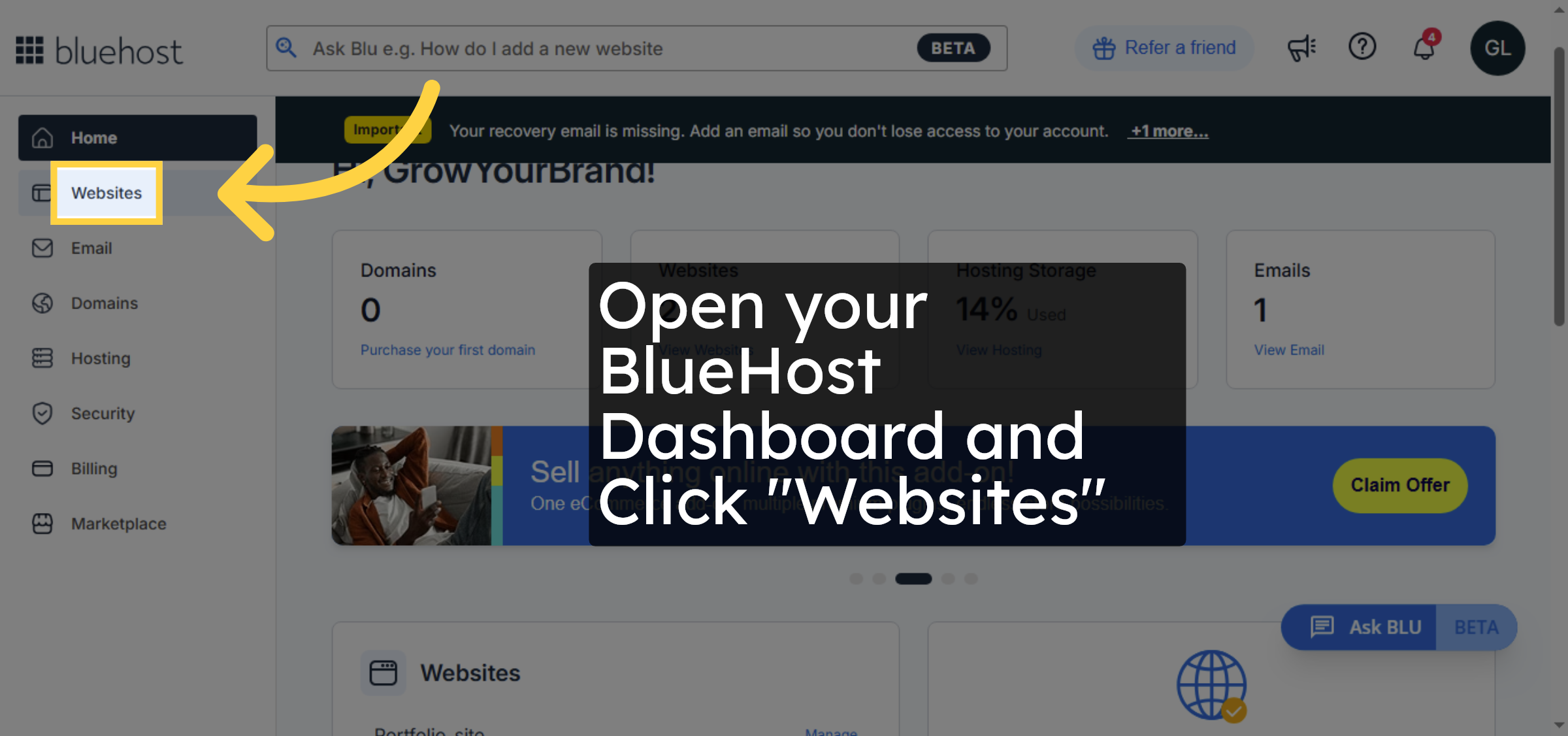
Open your BlueHost Dashboard and Click “Websites”

Click Websites Tab

2. Click Manage Button
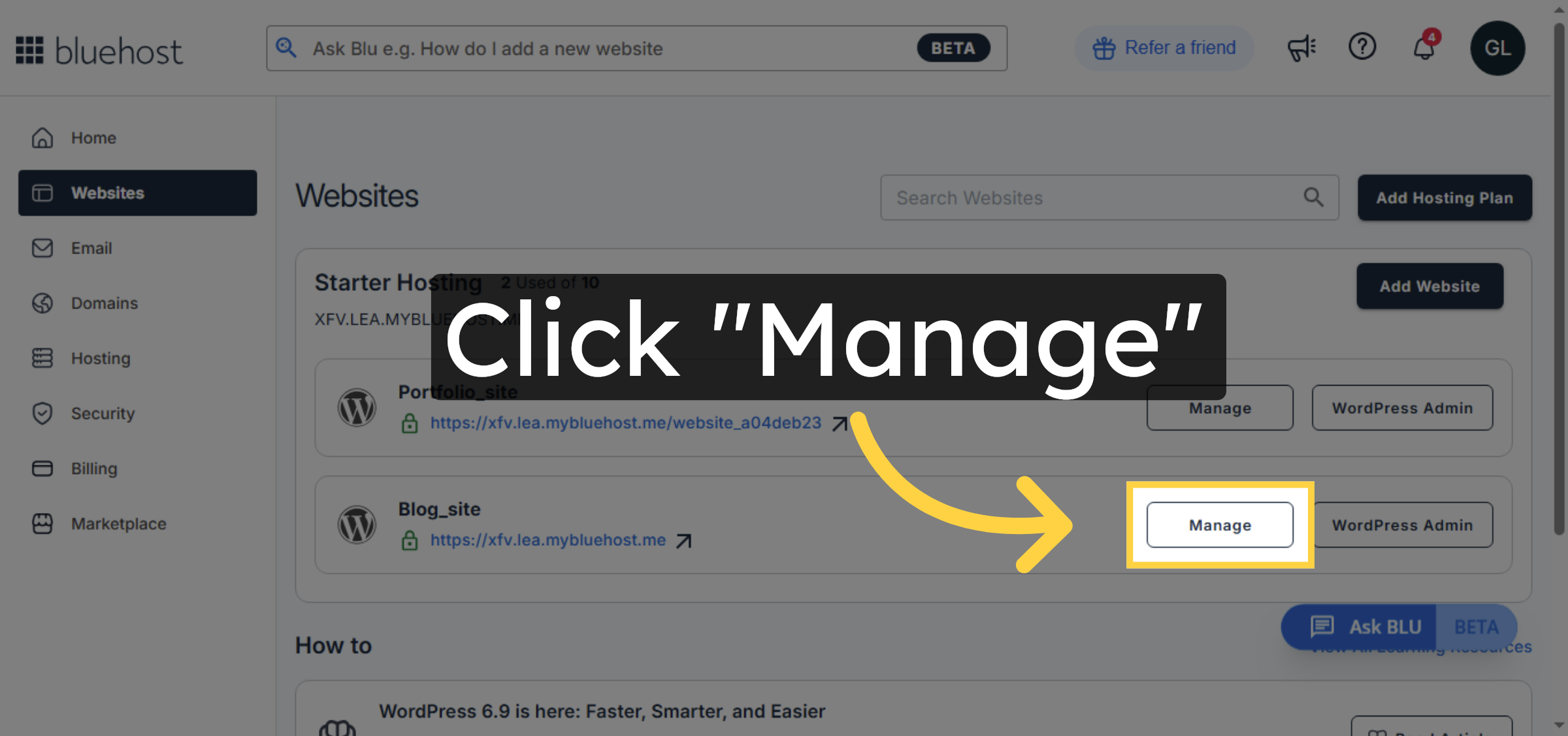
Click the Manage button next to the website you want to edit to access its settings.

Click Manage Button

3. Access cPanel
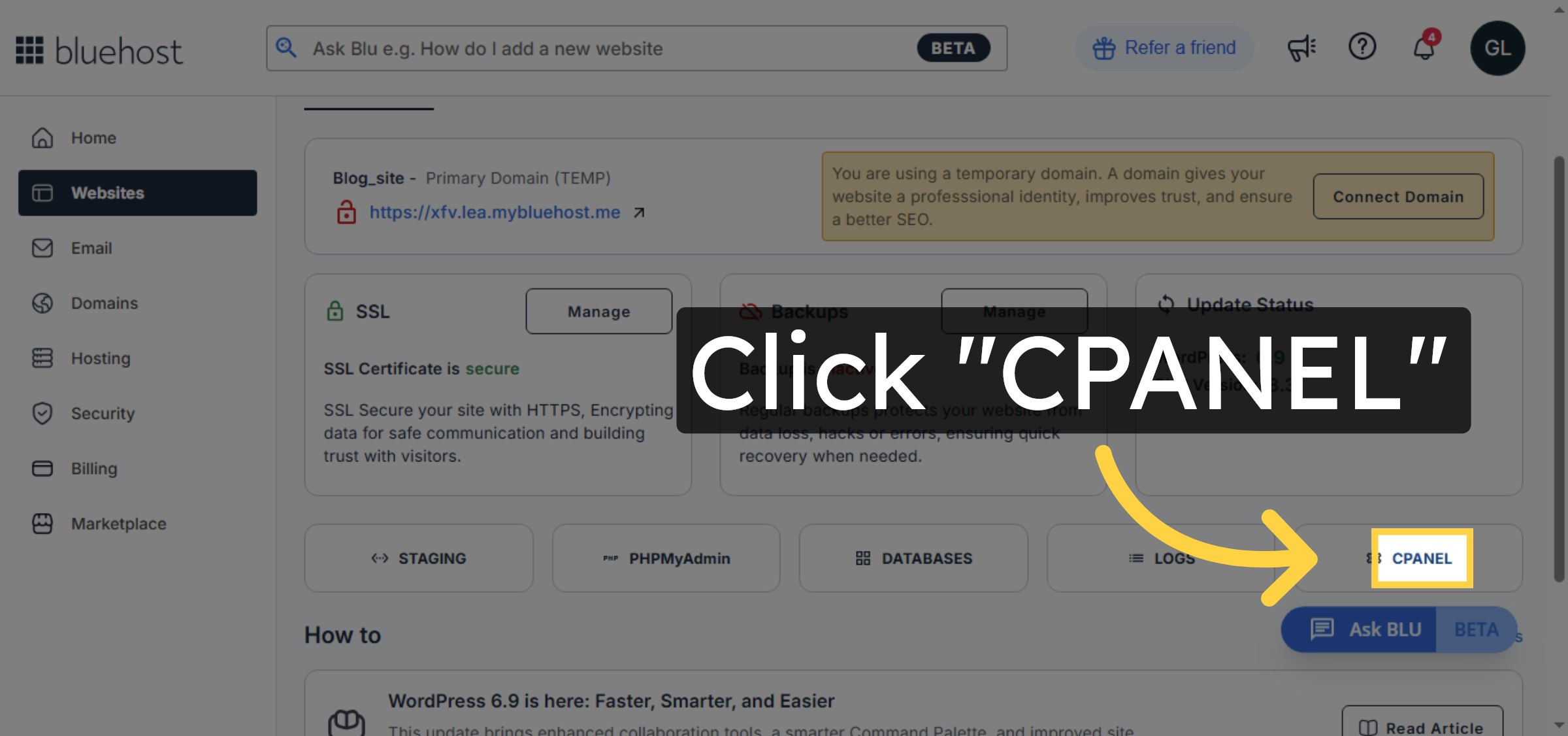
Click the Cpanel option to open the control panel for your hosting account.

Access cPanel

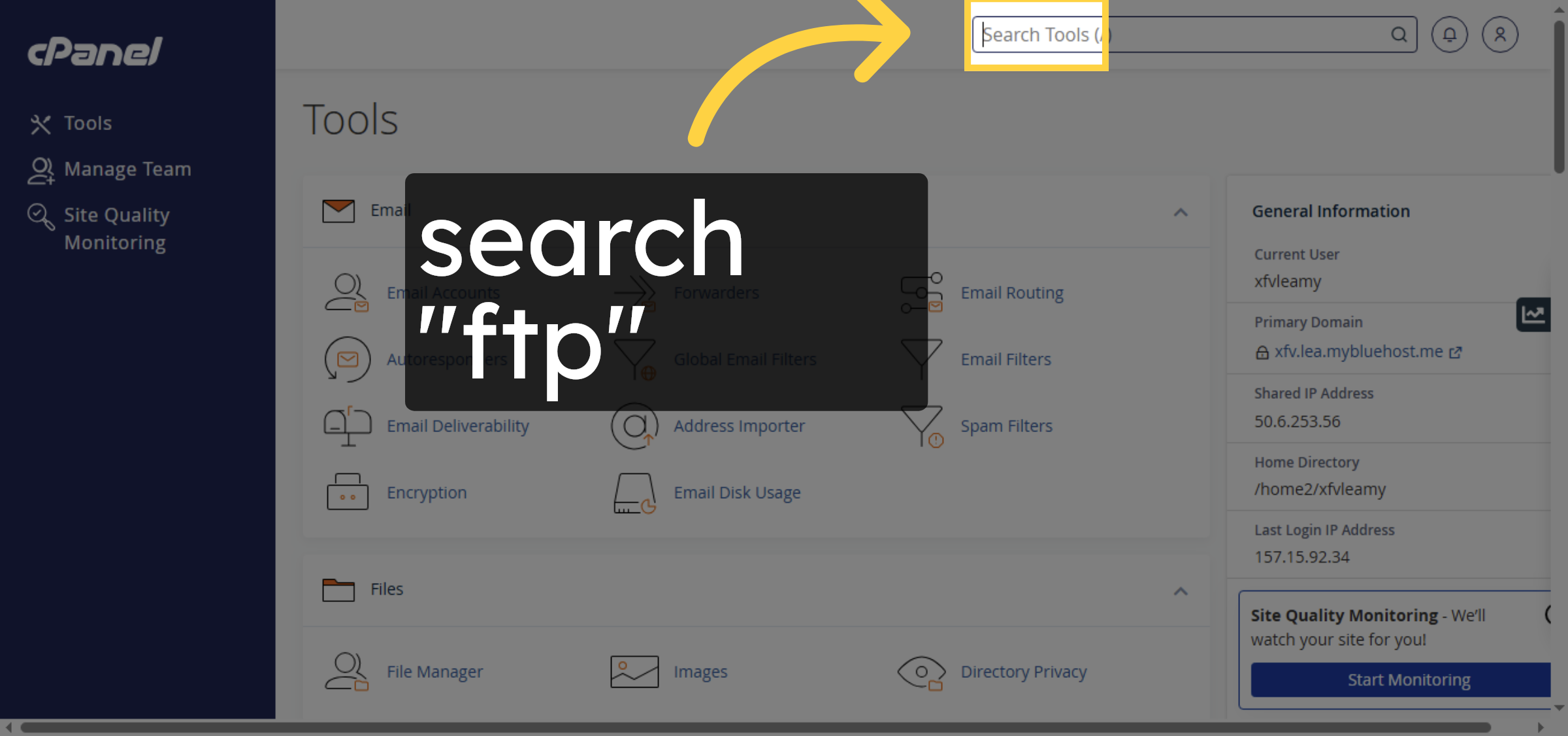
4. search for ftp

click on search bar and search “ftp”

search for ftp

5. Proceed to Next Step
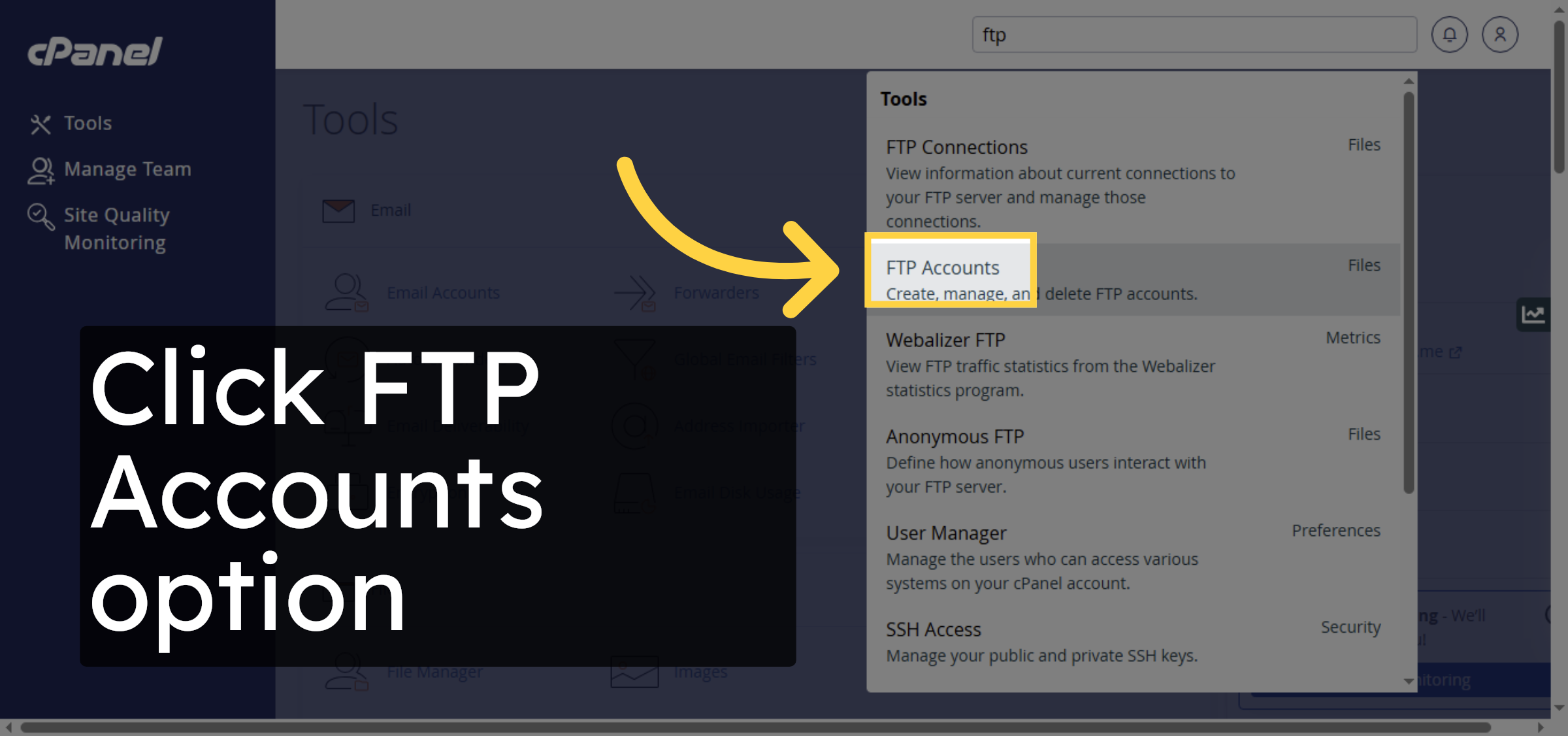
Click FTP Accounts option

Proceed to Next Step

6. Enter FTP Username
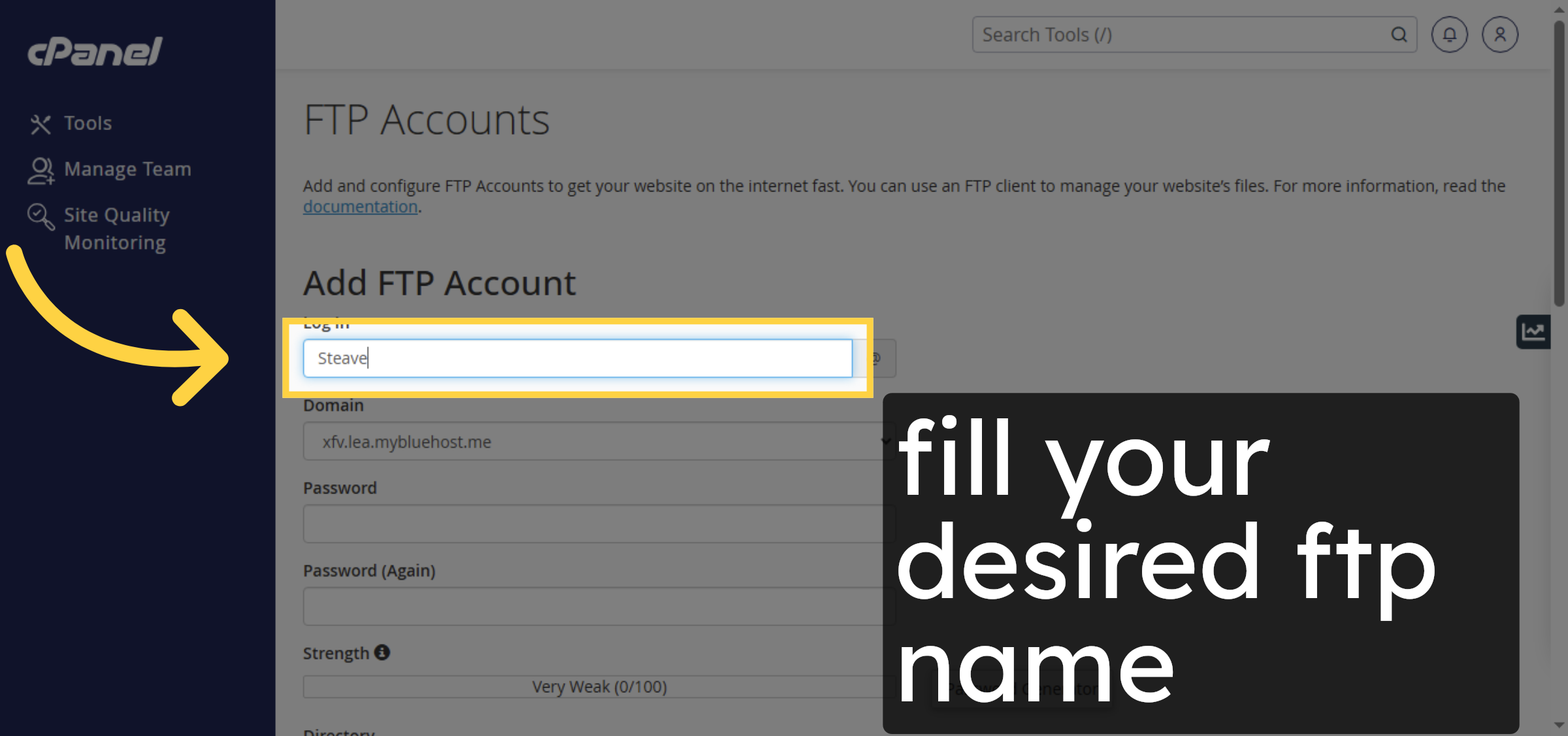
Enter your desired FTP username to identify the account for file transfers.

Enter FTP Username

7. Select FTP Domain
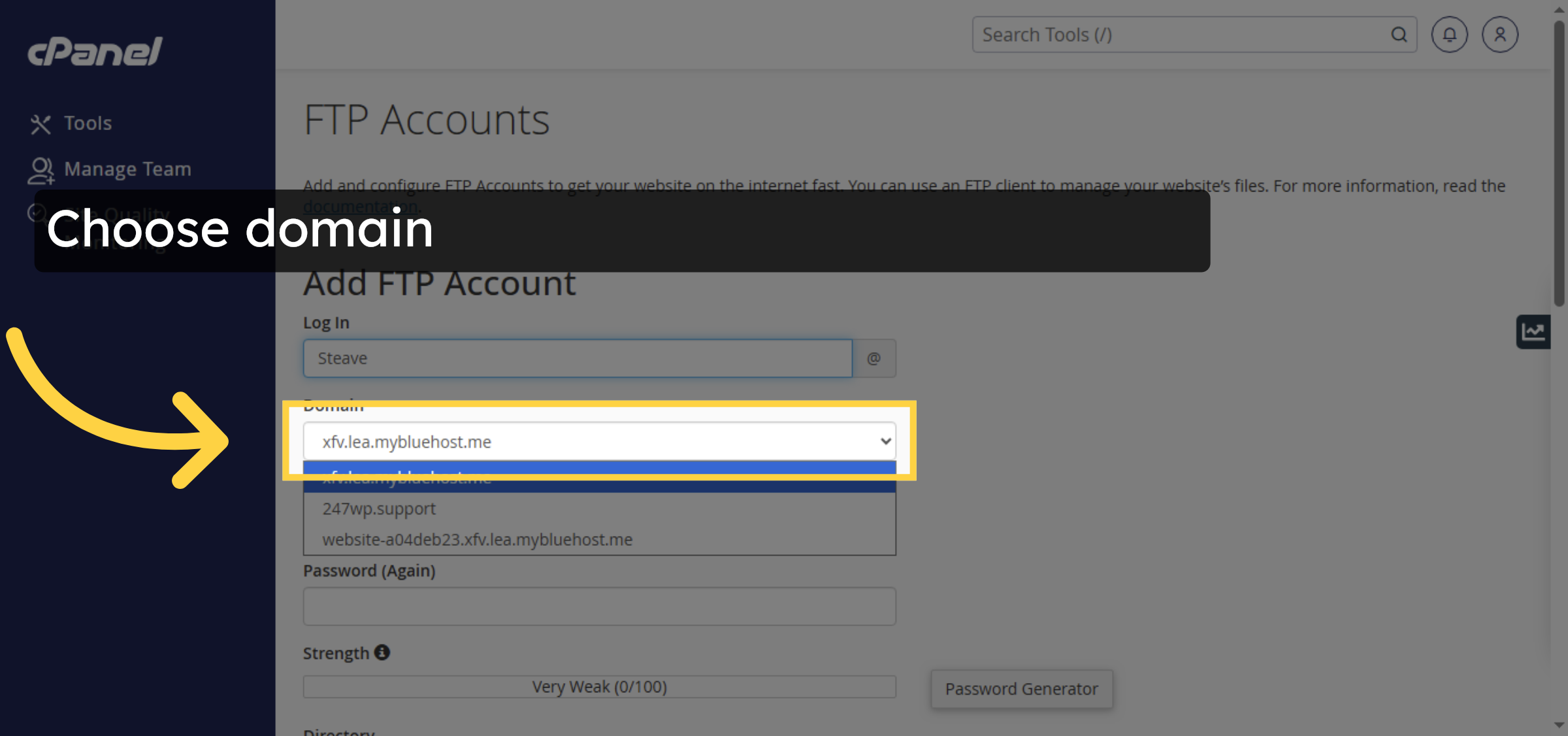
Select the appropriate FTP domain associated with your hosting account.

Select FTP Domain

8. create password
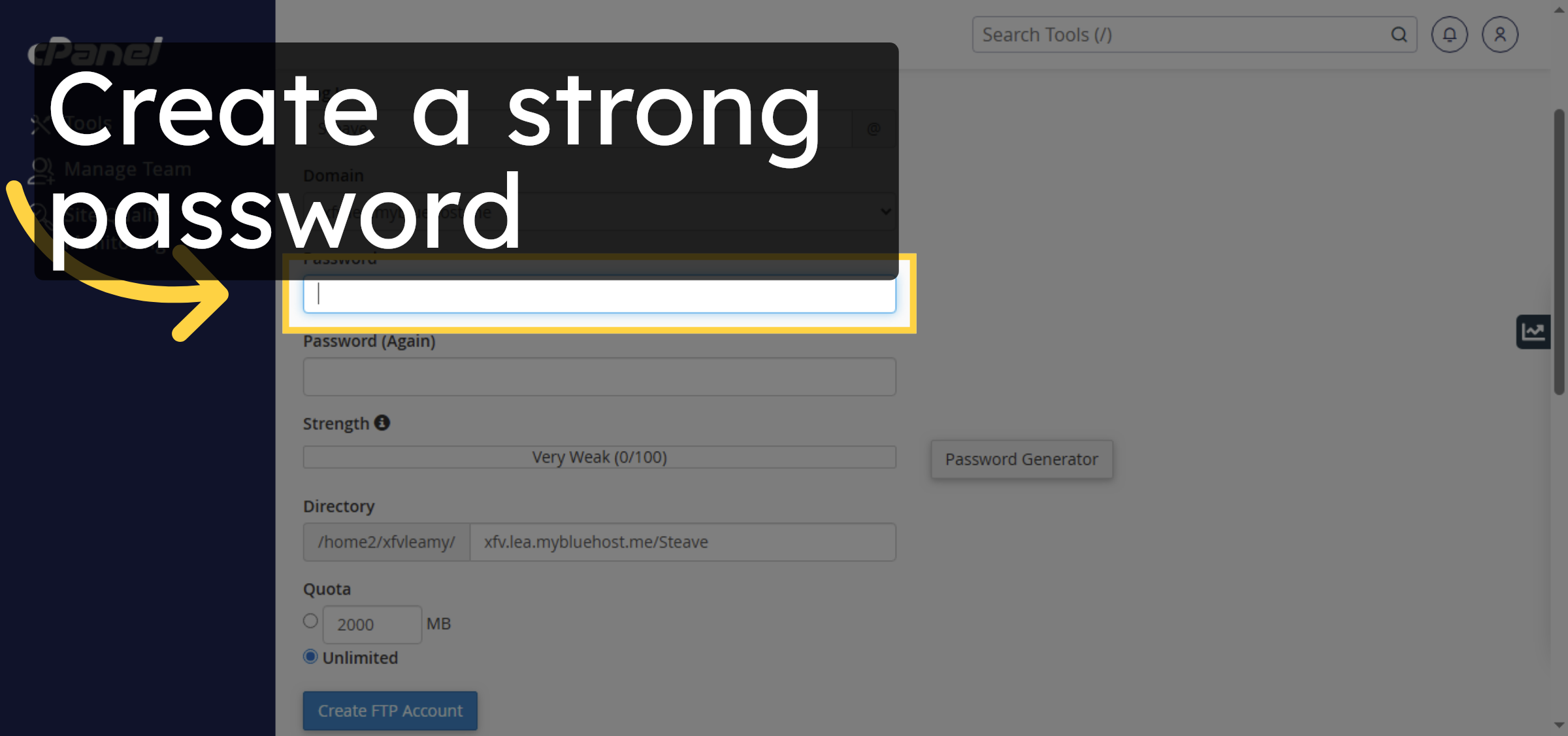
Create a strong password.

create password

9. Get full file access
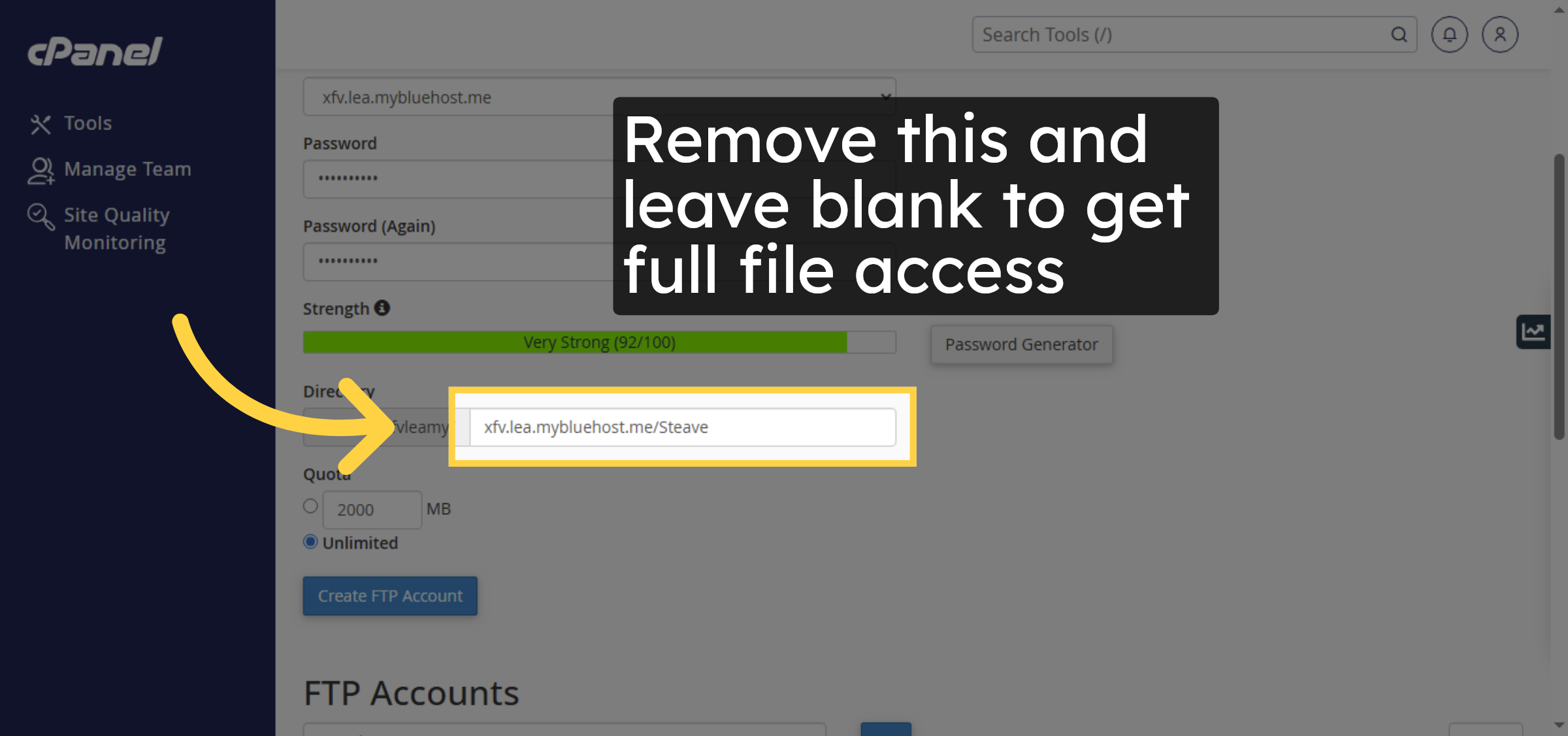
Remove this and leave blank to get full file access

Get full file access

10. Create FTP Account
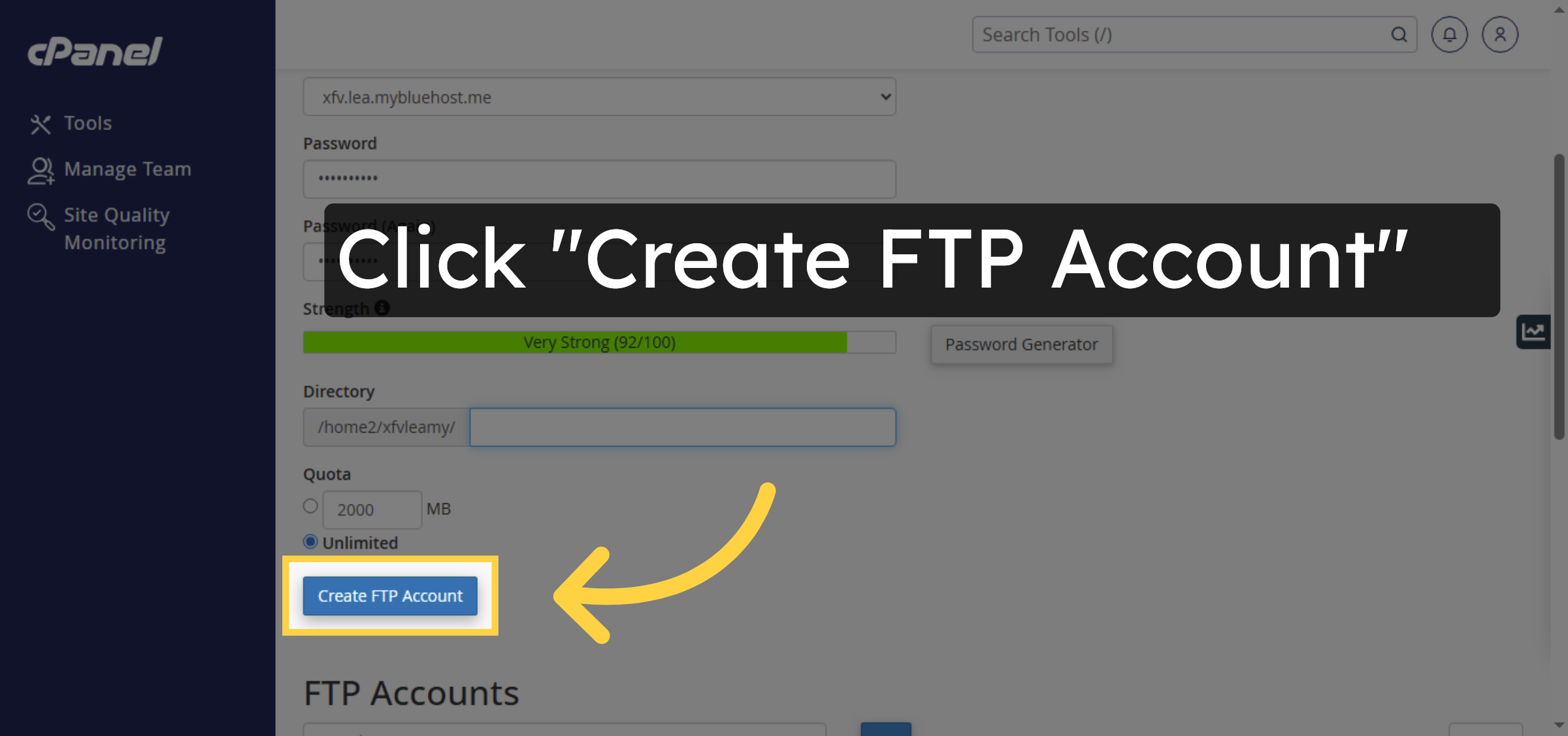
Click the Create FTP Account button to finalize the setup of your new FTP user.

Create FTP Account

11. Configure FTP Client
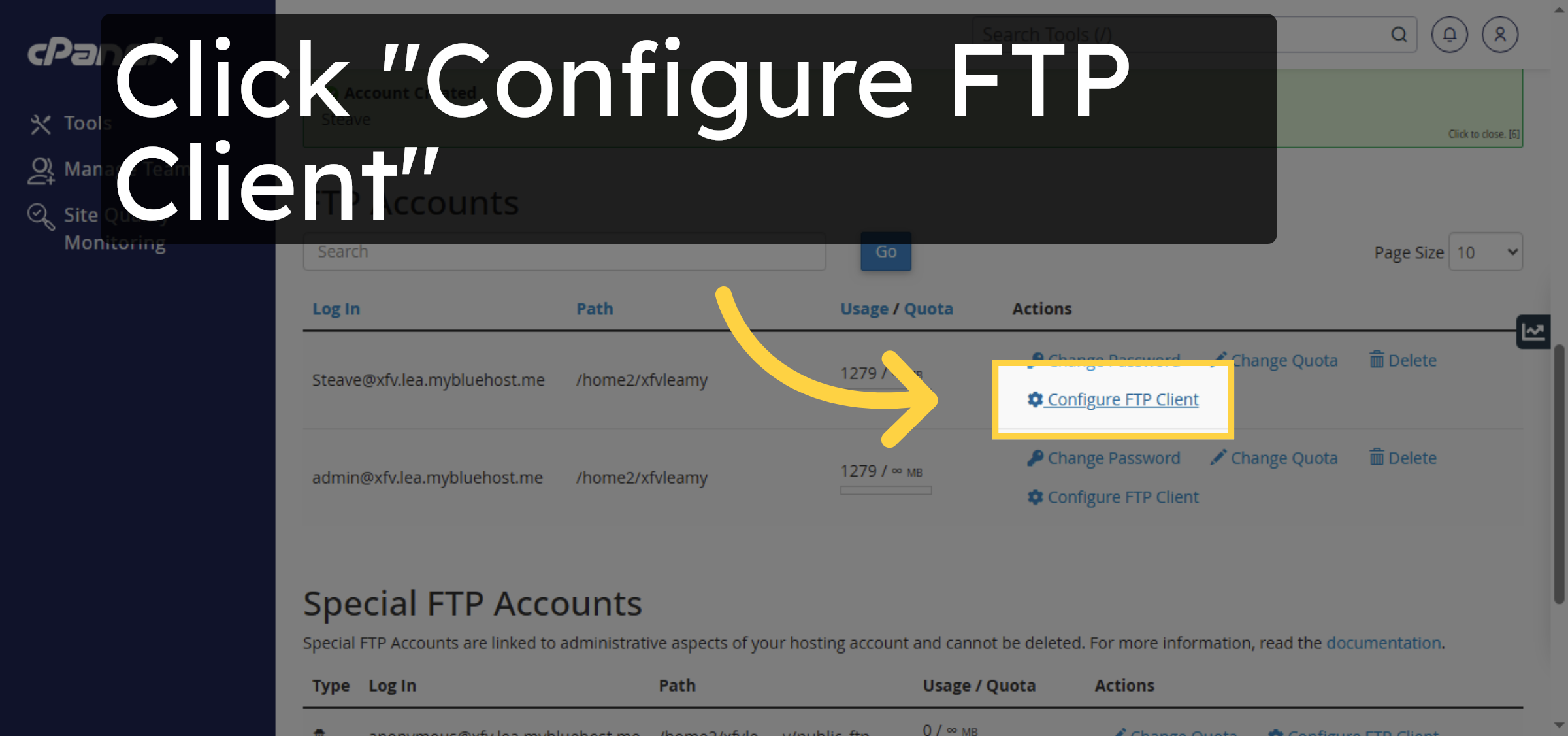
Click Configure FTP Client to view connection details and setup instructions.

Configure FTP Client

12. View FTP Connection Info
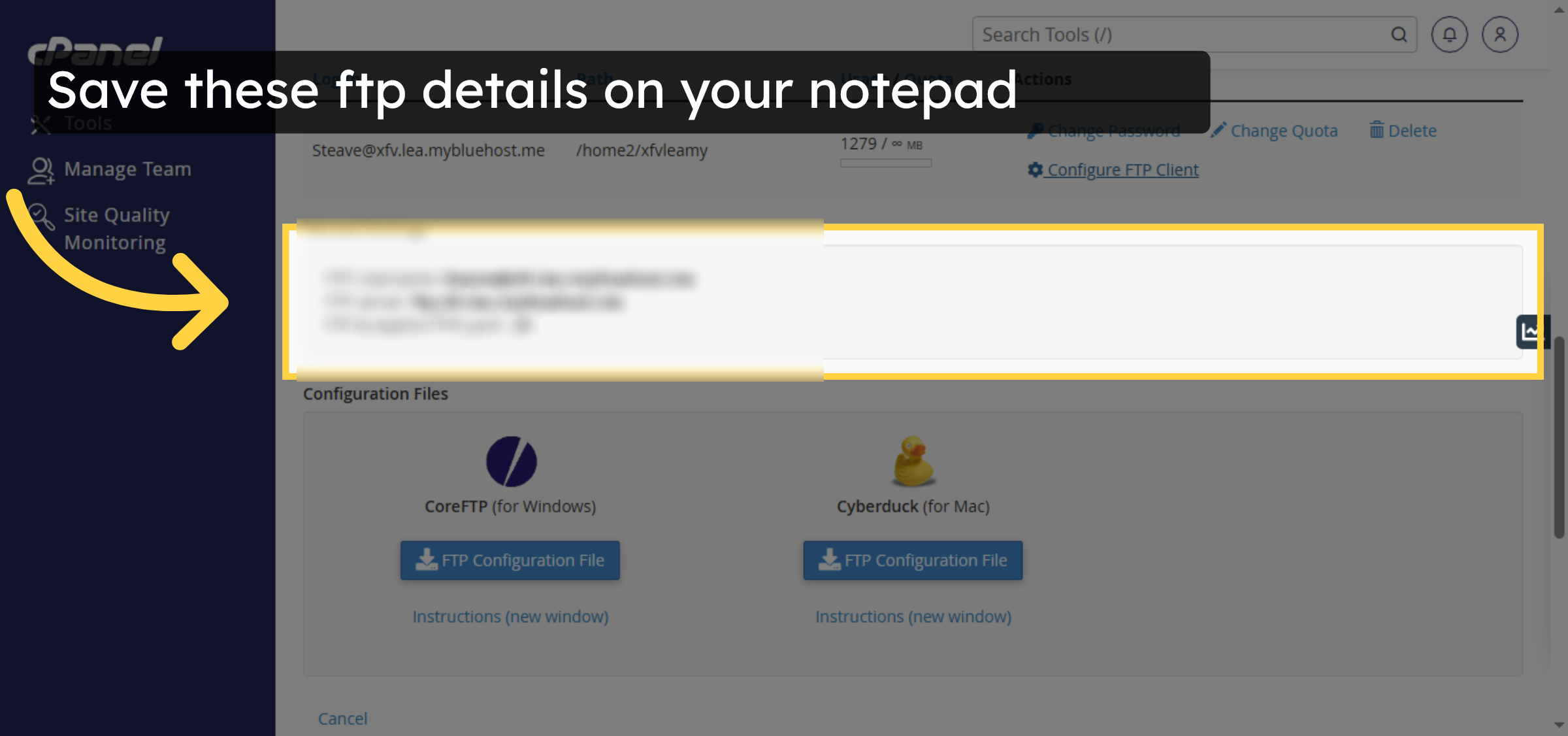
Save these ftp details on your notepad

View FTP Connection Info

13. Select FileZilla Website
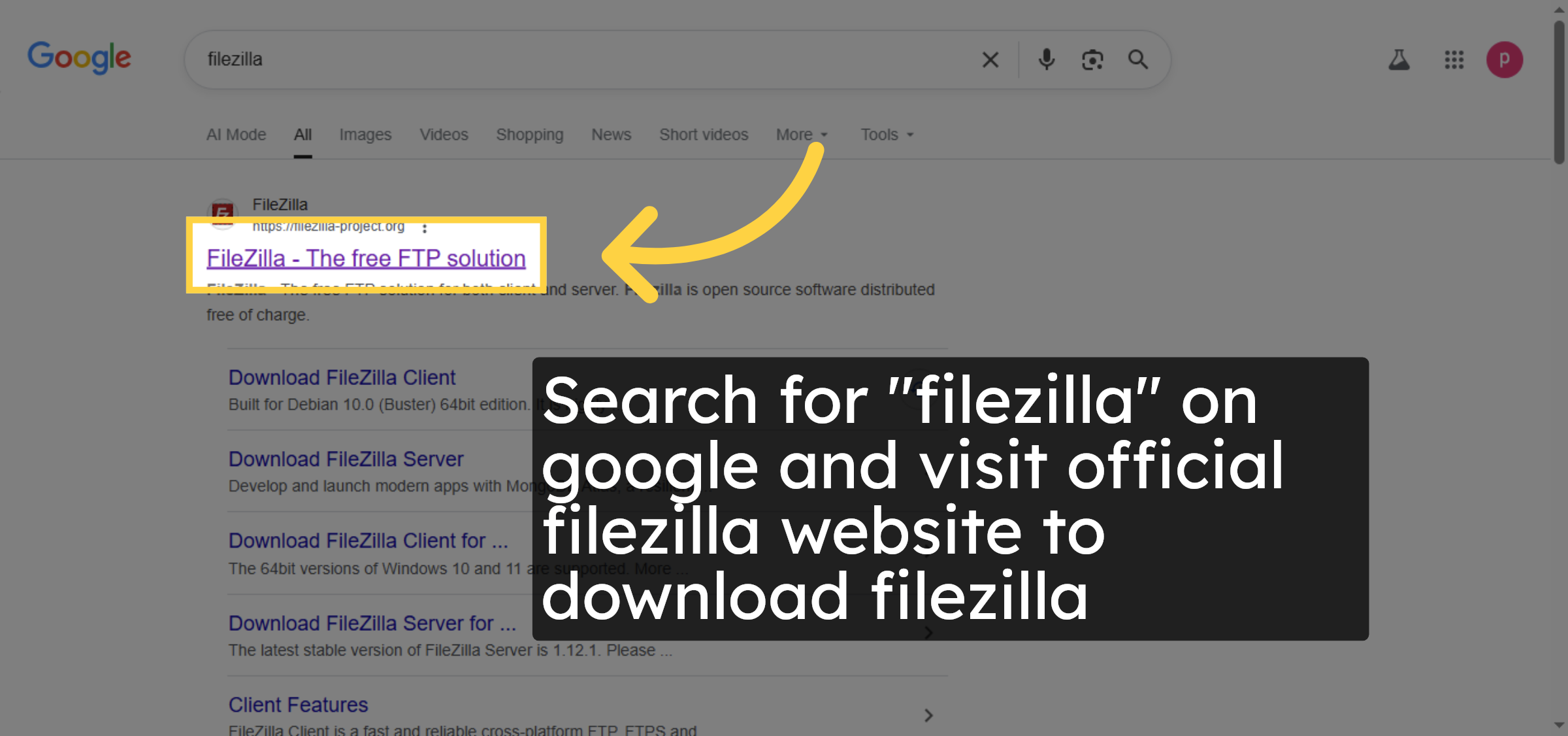
Search for “filezilla” on google and visit official filezilla website to download filezilla.

Select FileZilla Website

Ad Banner

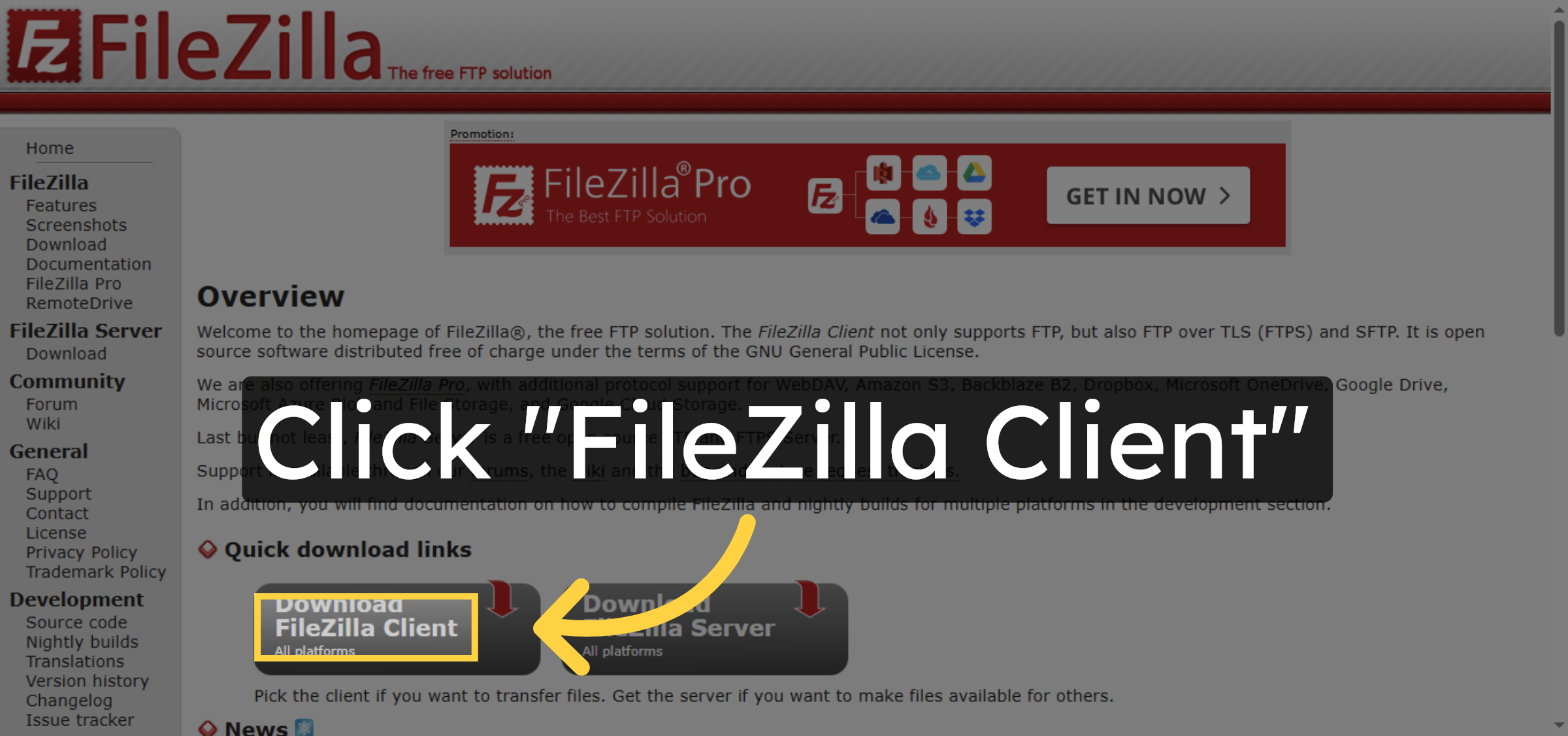
14. Access FileZilla Client Page

Click the FileZilla Client link to go to the download page for the FTP software.

Access FileZilla Client Page

15. Choose FileZilla Client Version
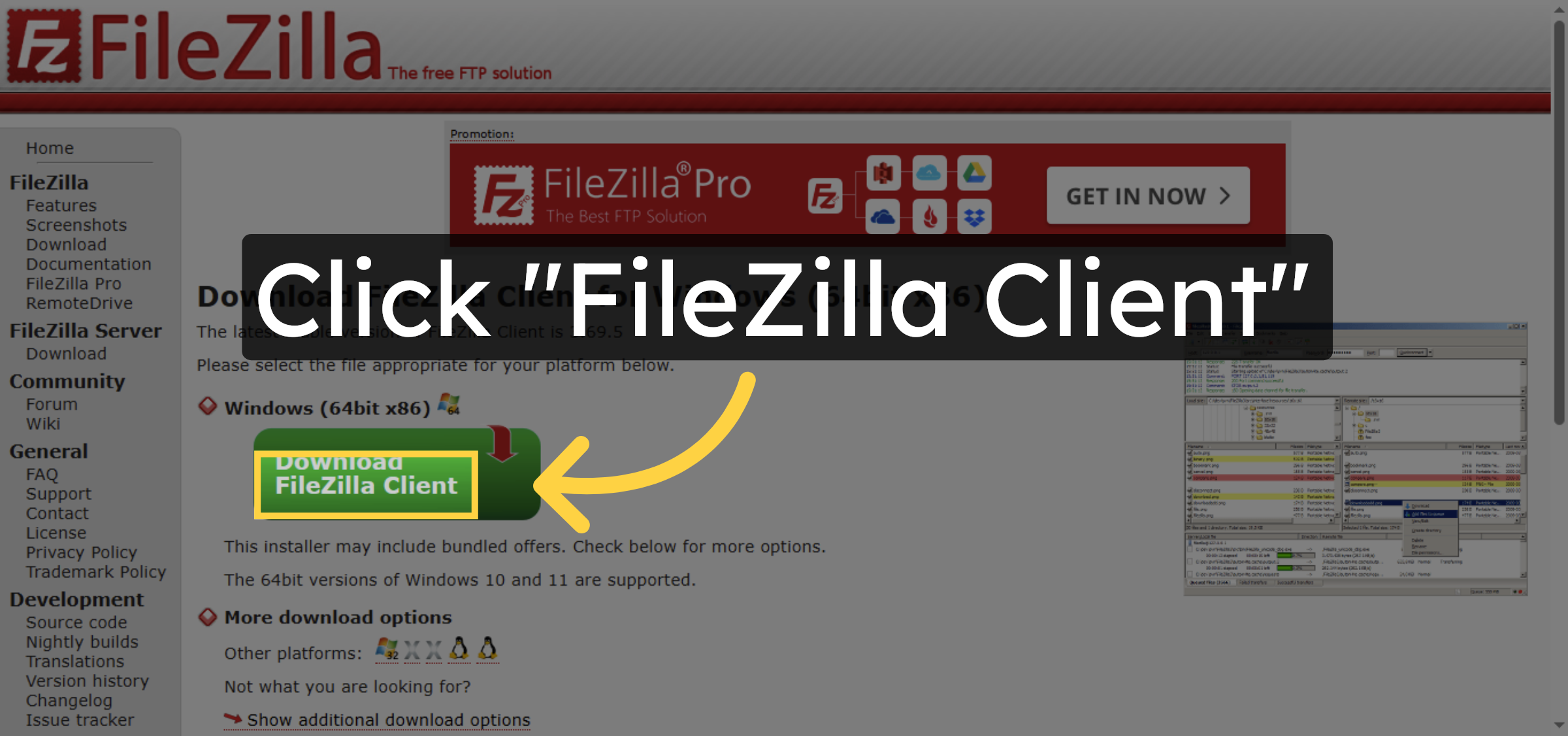
download filezilla.

Choose FileZilla Client Version

16. Download FileZilla Client
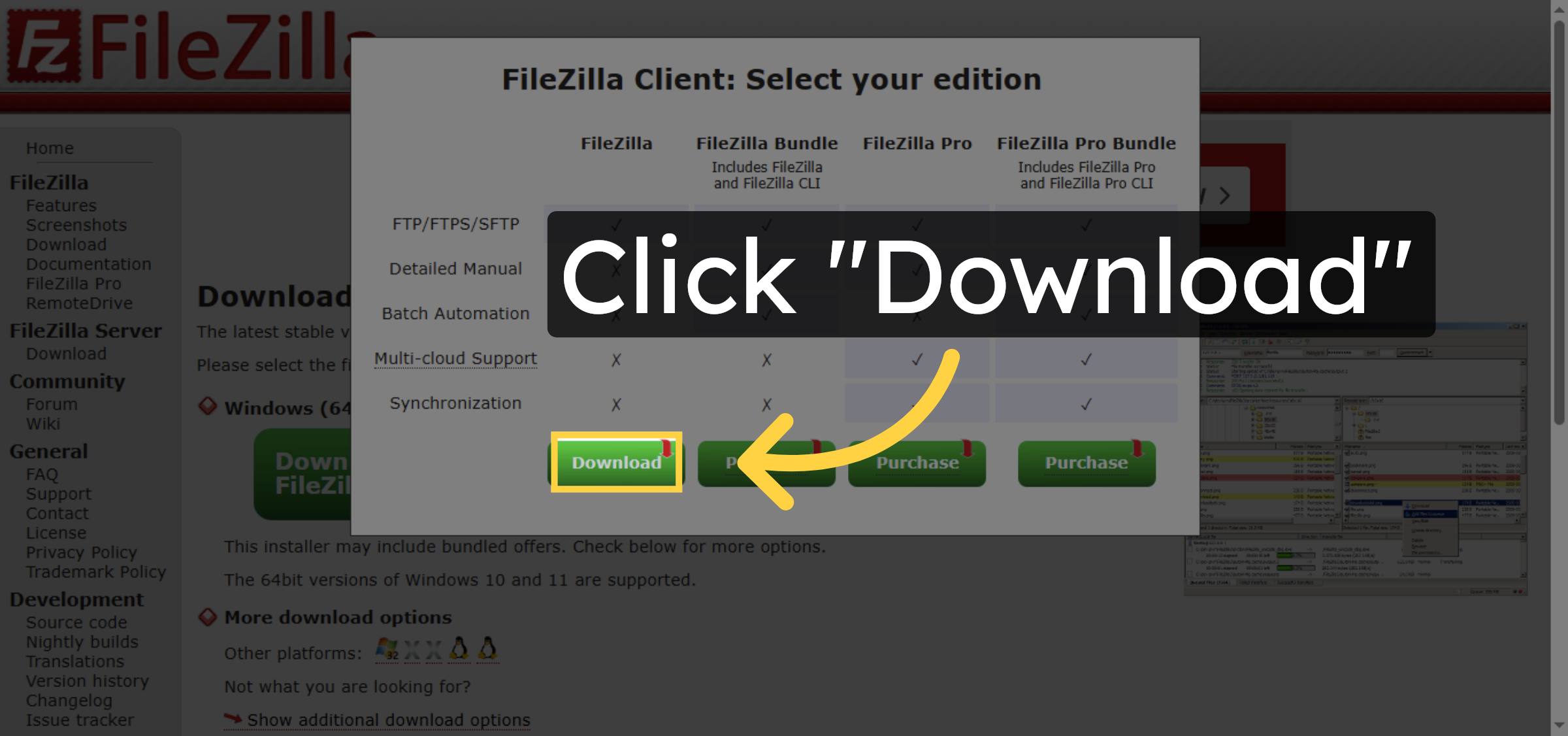
Click the Download button to start downloading the FileZilla FTP client to your computer.

Download FileZilla Client

17. Install filezilla
After downloading filezilla install the filezilla with the default configuration on your system

Install filezilla

18. Filezilla Interface
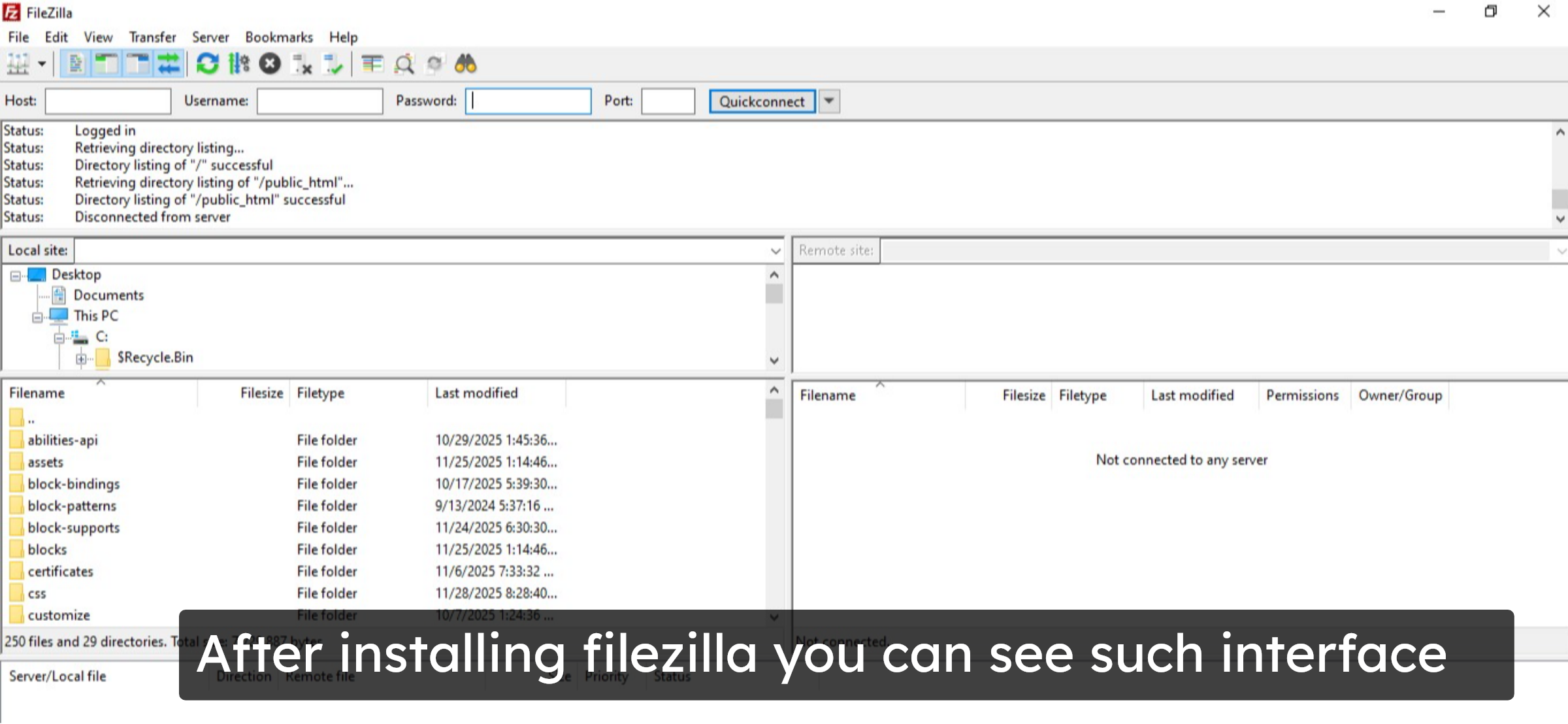
After installing filezilla you can see such interface

Filezilla Interface

19. fill ftp details
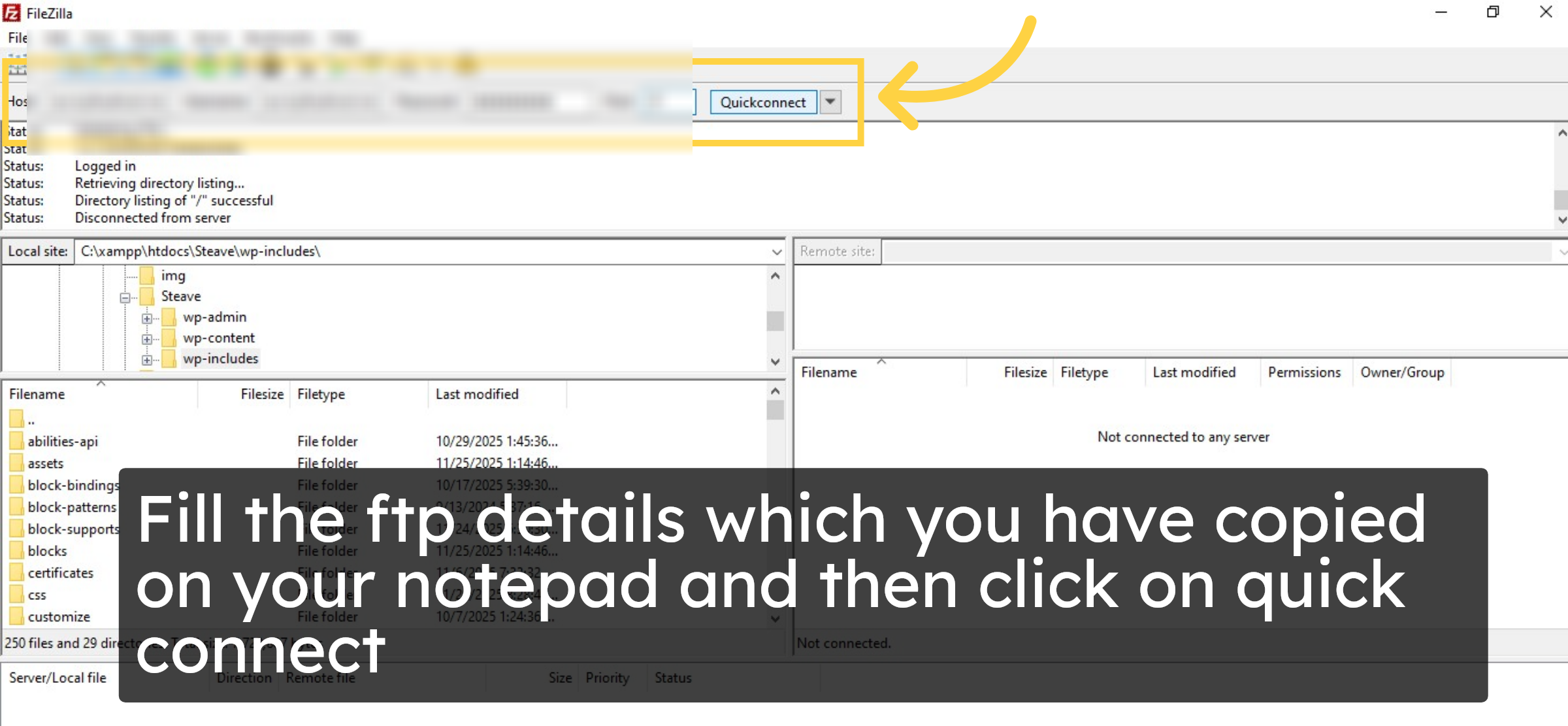
Fill the ftp details which you have copied on your notepad and then click on quick connect

fill ftp details

20. Check server files
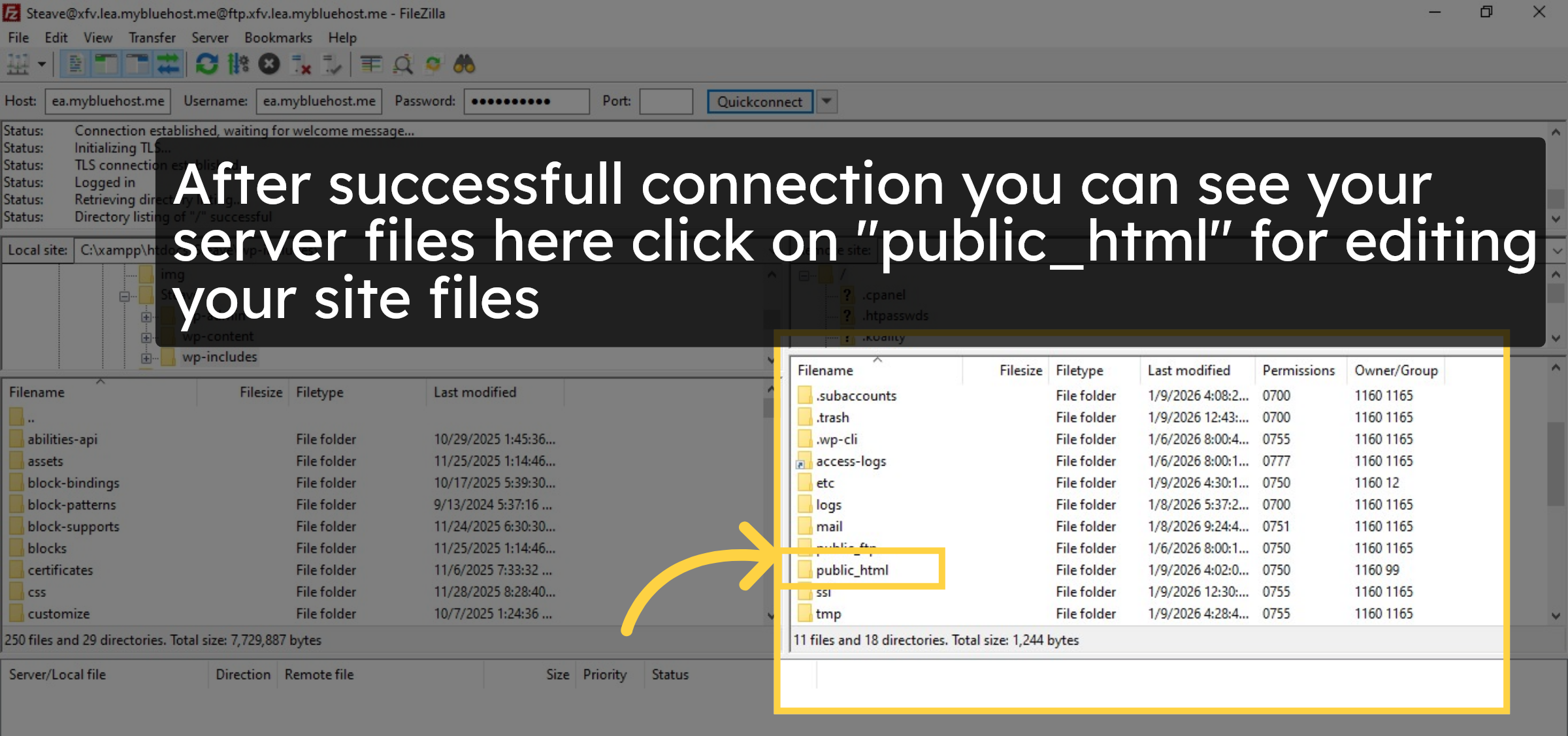
After successfull connection you can see your server files here click on public_html for editing your site files.

Check server files

21. Edit your files
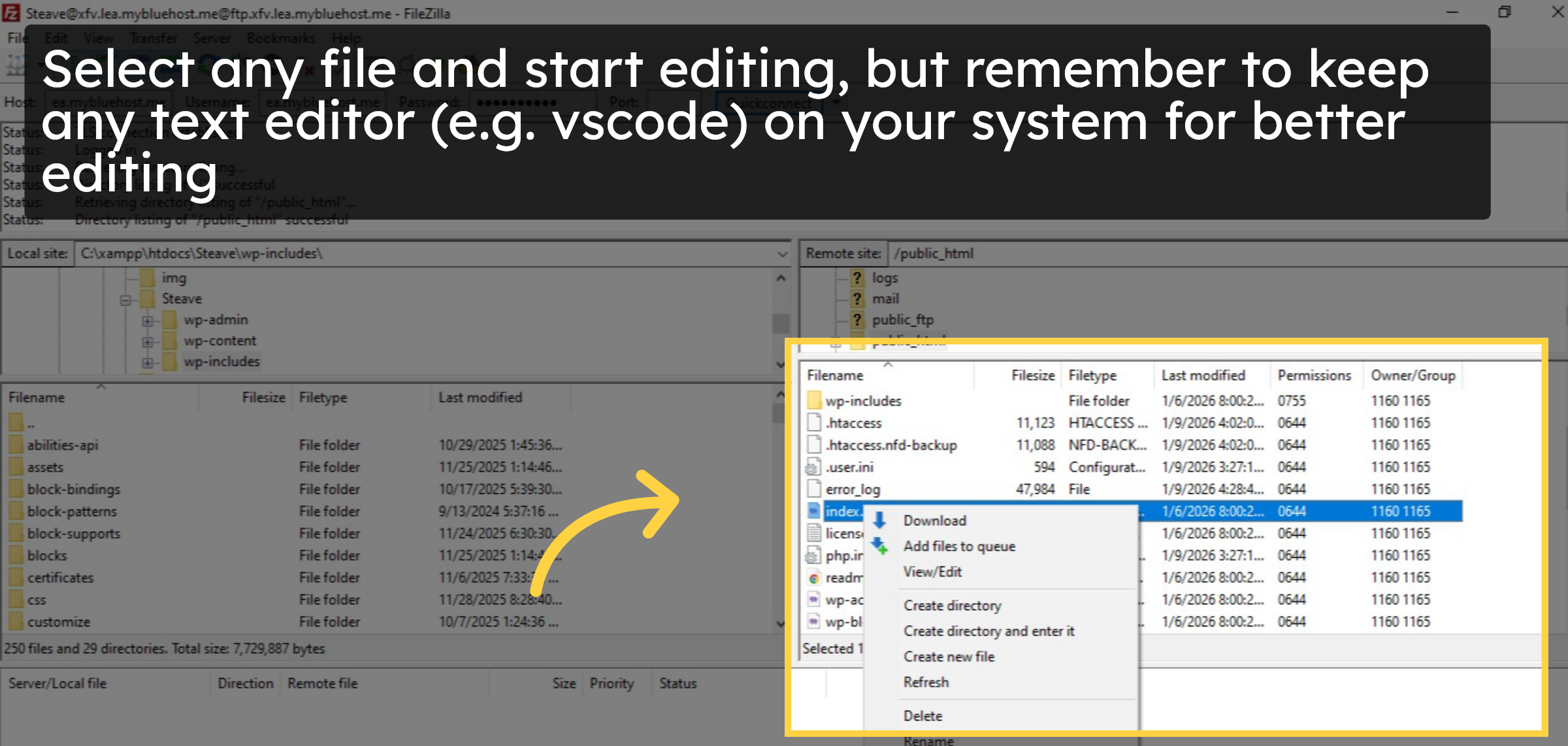
Select anyfile and start editing, but remember to keep any text editor such as vscode on your system for better editing

Edit your files

Conclusion

By completing the steps in this guide, you have successfully created an FTP account in BlueHost and connected it to your website using the FileZilla FTP client. This setup allows you to securely access and manage your WordPress files, making tasks such as editing core files, uploading assets, and troubleshooting issues more efficient. Using FTP provides greater flexibility and reliability for maintaining your website’s file structure and content.

  • Visit: https://www.woohelpdesk.com

  • Call Us Toll-Free: +1 888 602 0119 (US & Canada)

  • Get professional support for FTP setup, WordPress file management, hosting configuration, troubleshooting, and WooCommerce assistance


Leave a Reply

Your email address will not be published. Required fields are marked *

Leave a Reply

Your email address will not be published. Required fields are marked *