How to Set Up Automated WordPress Backups On HostGator
Introduction
Automated website backups are essential for protecting WordPress sites from data loss, cyber threats, system failures, and accidental errors. Relying solely on manual backups can be time-consuming and may leave your website vulnerable if backups are missed. Hosting platforms such as HostGator provide a reliable environment, but configuring automated backups ensures continuous data protection and greater peace of mind.
This guidde explains how to set up automated WordPress backups on HostGator hosting using the UpdraftPlus backup plugin. It provides step-by-step instructions for accessing the hosting dashboard, installing and activating the plugin, configuring backup schedules, and selecting appropriate backup frequencies for files and databases. By following this guide, website owners can establish a consistent and reliable backup system that safeguards critical website data and enables quick recovery when needed.
1. Access HostGator Dashboard
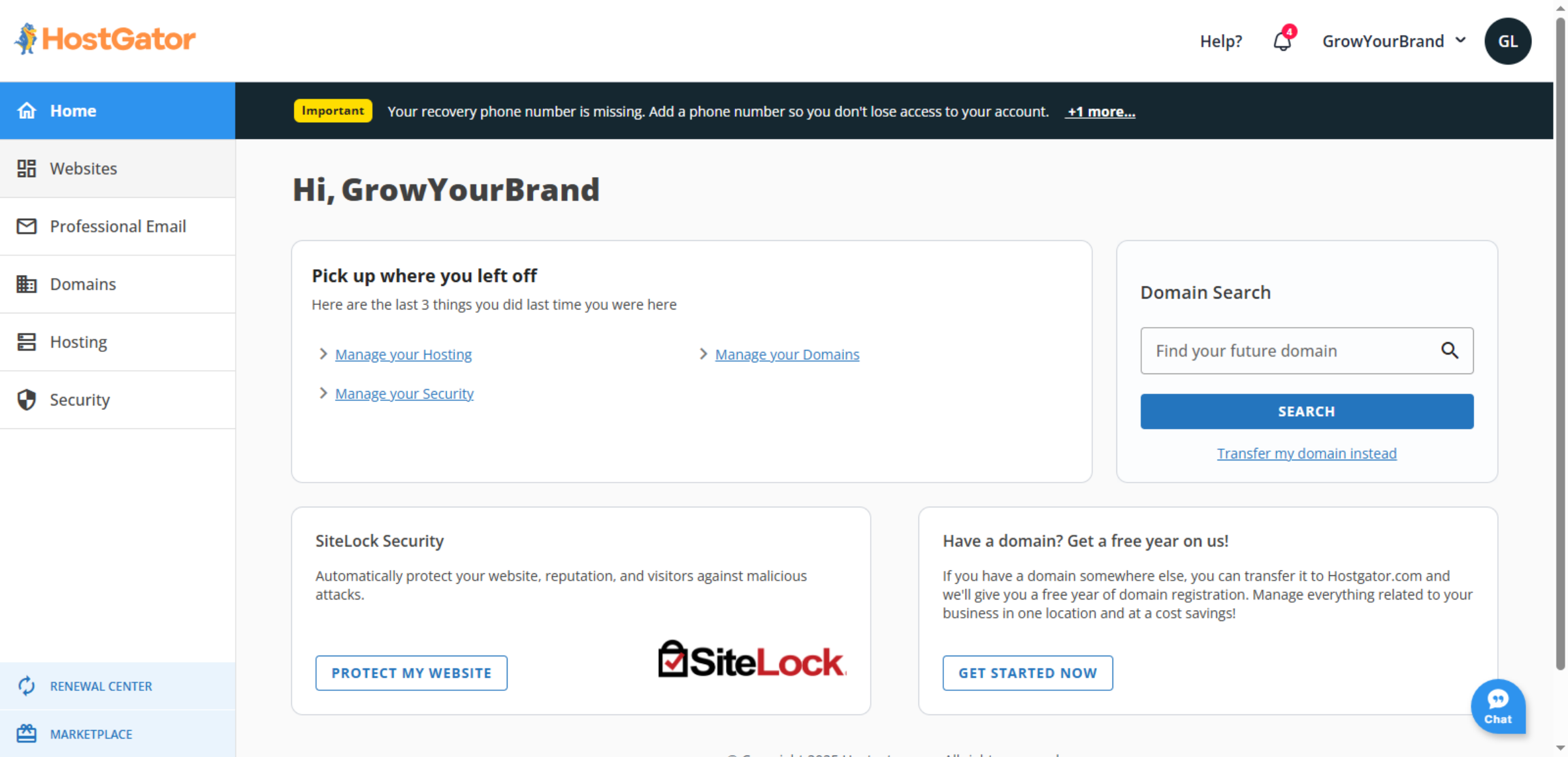
2. Access Dashboard Websites
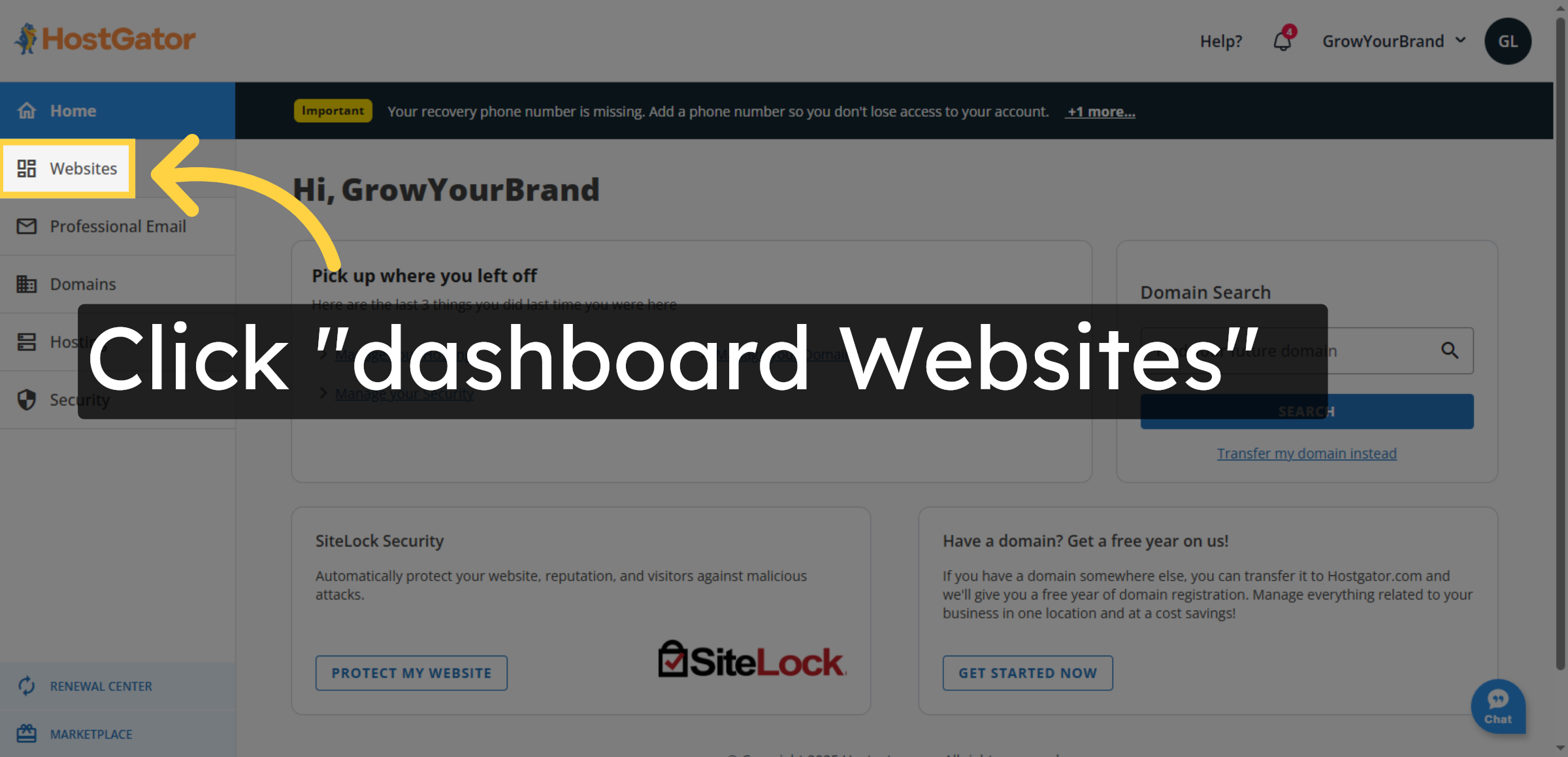
3. Open Settings Menu
4. Enter WordPress Admin
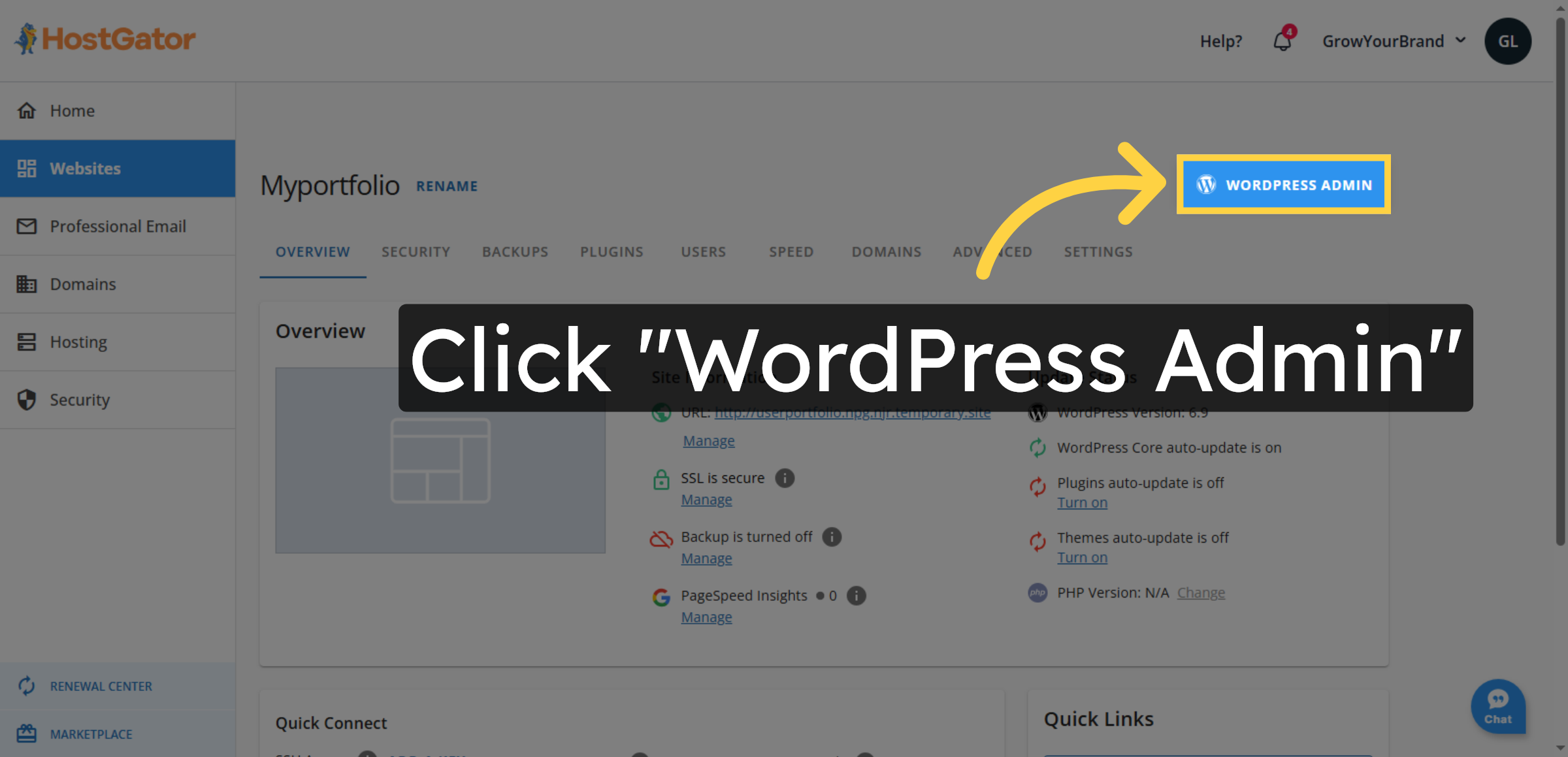
5. Switch To Temporary Site
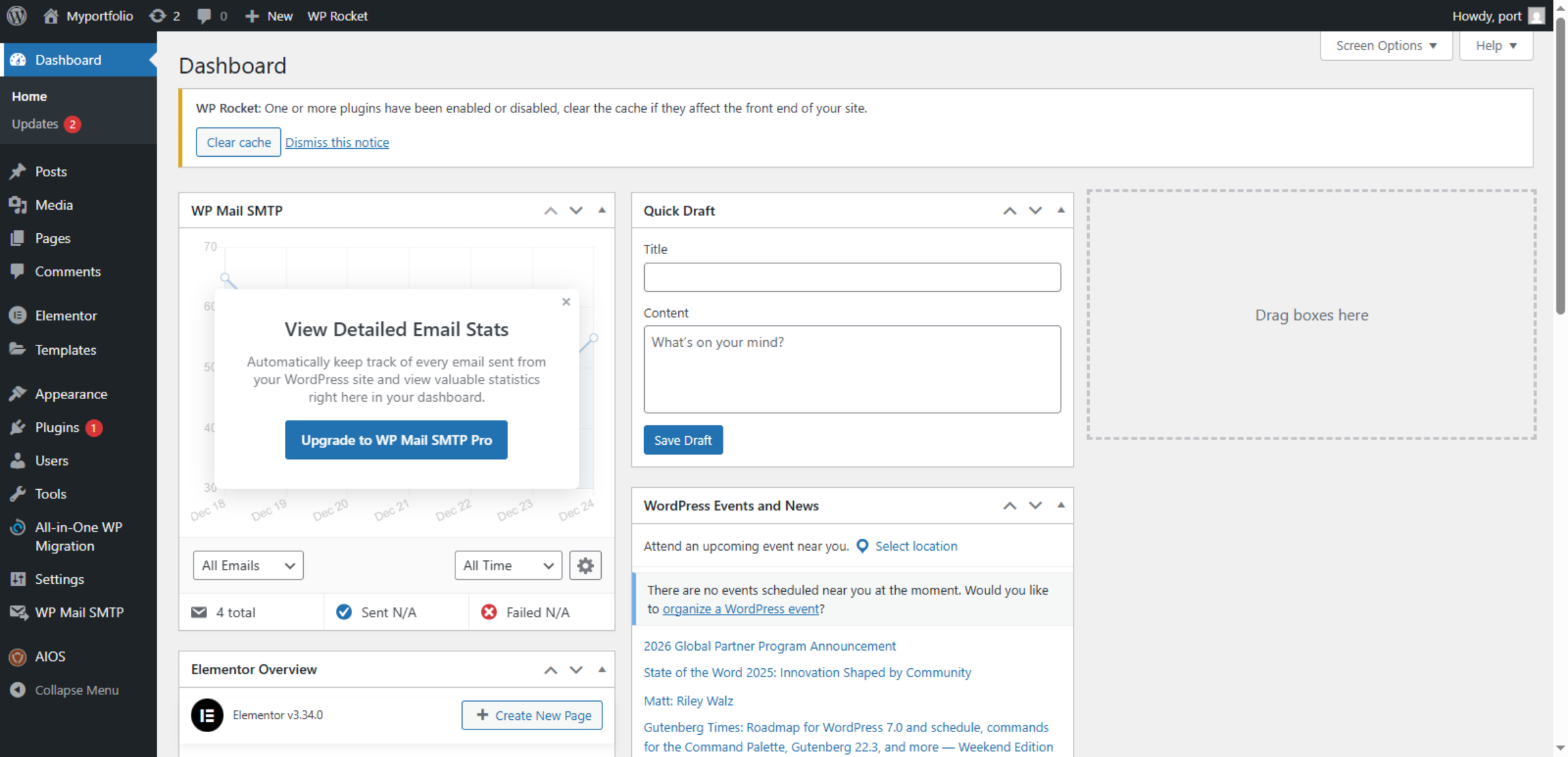
6. Add New Plugin

7. Search For Plugins
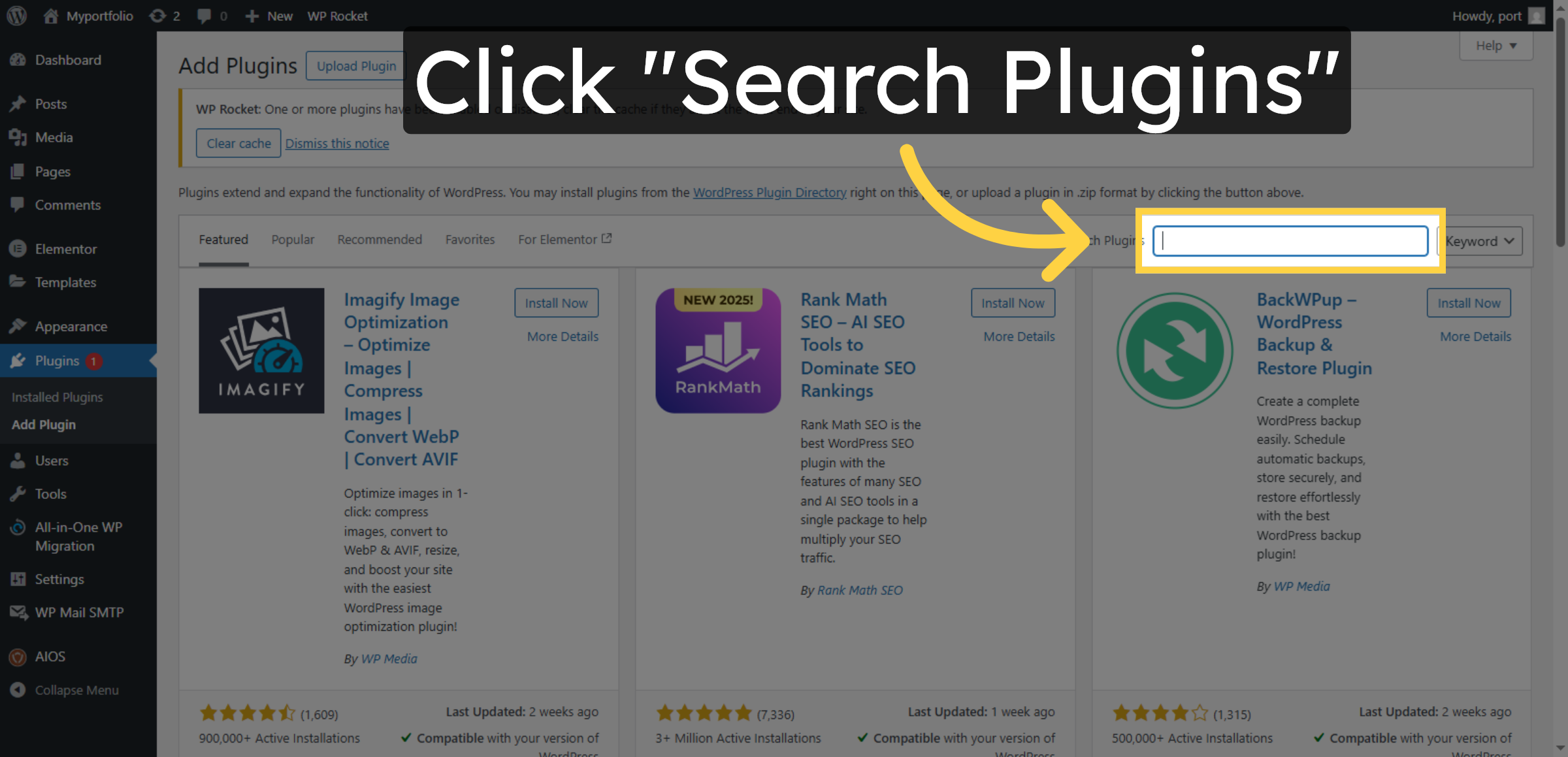
8. Enter Plugin Name
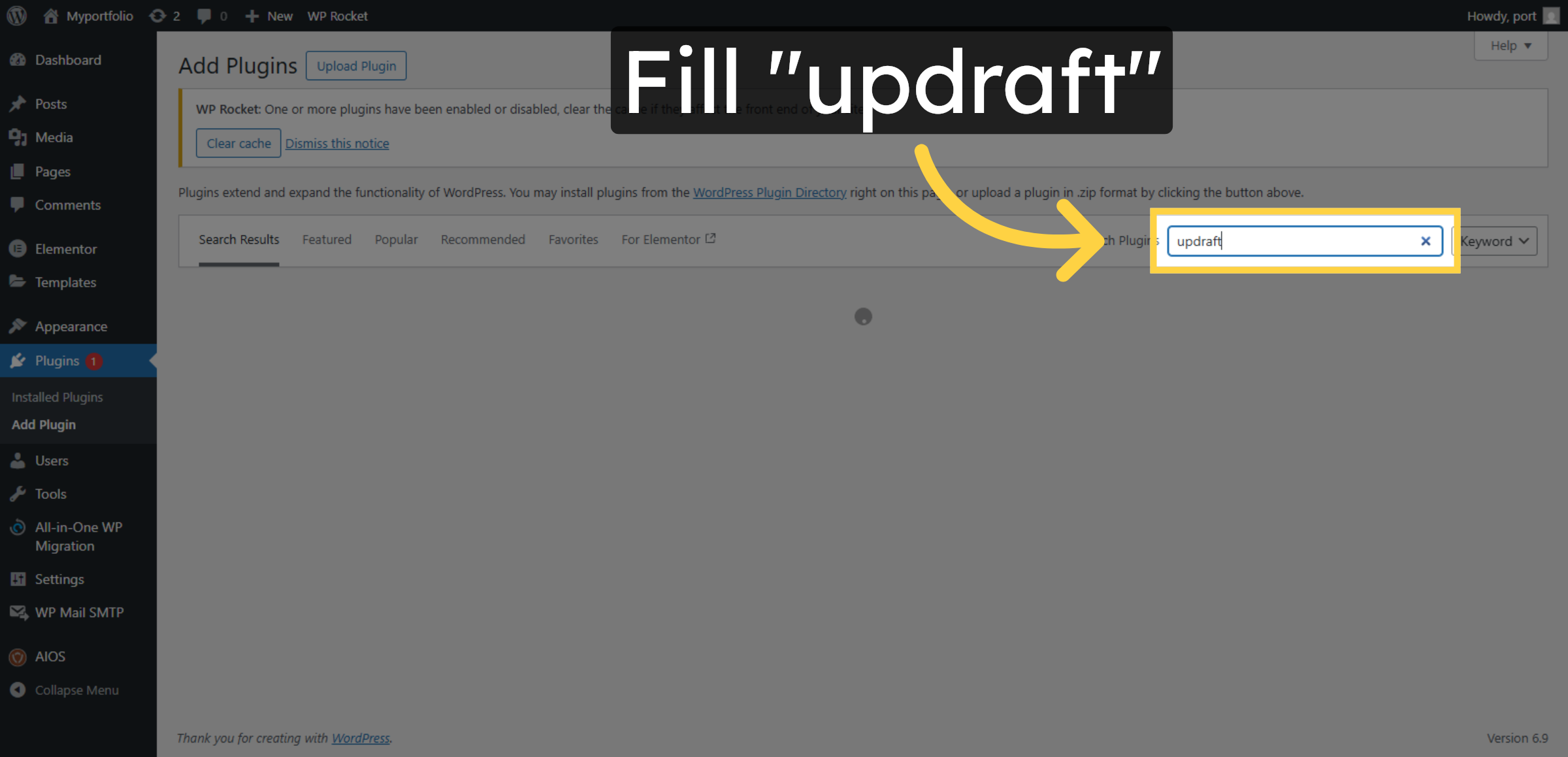
9. Install UpdraftPlus Plugin
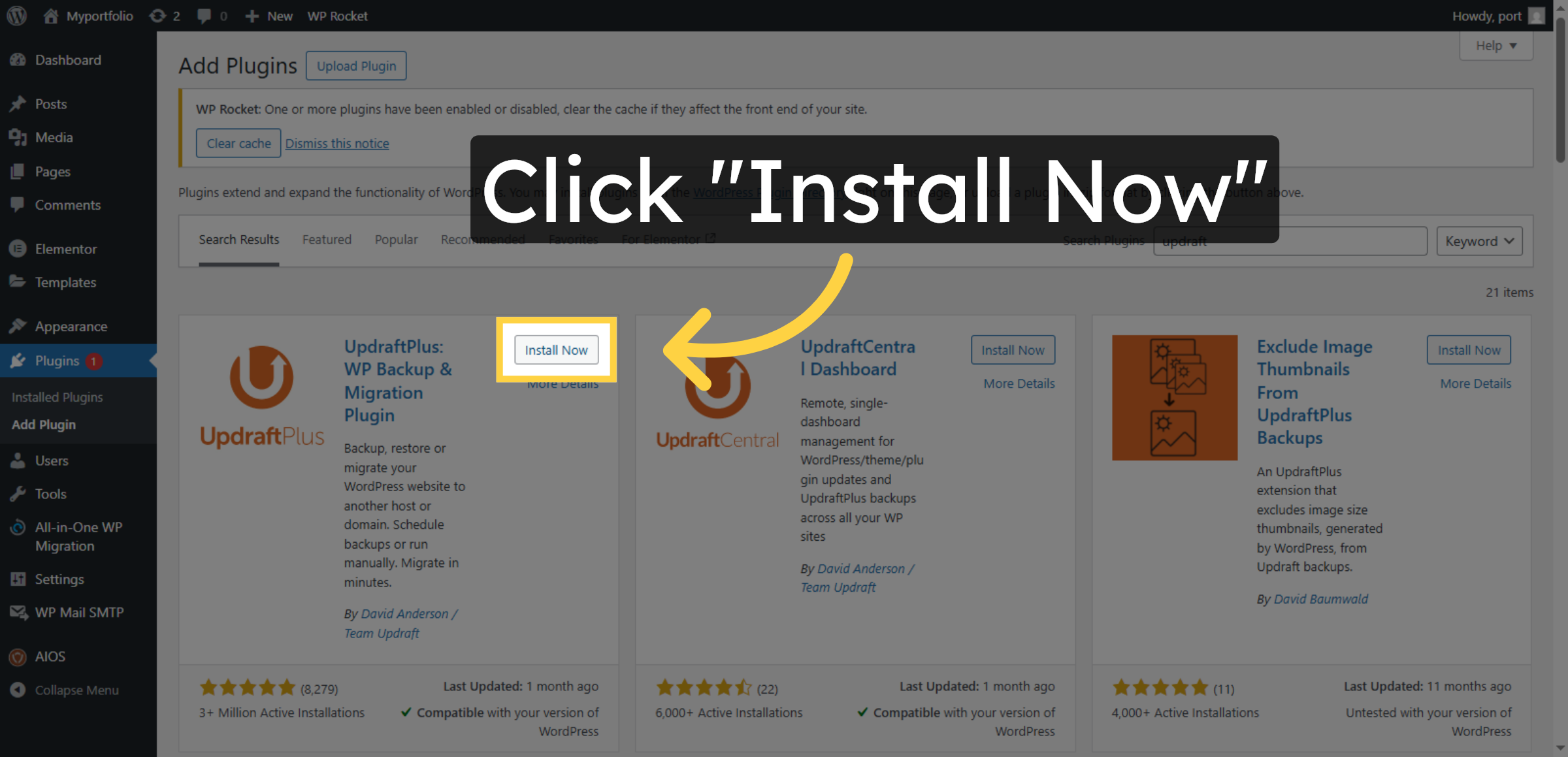
10. Activate Installed Plugin
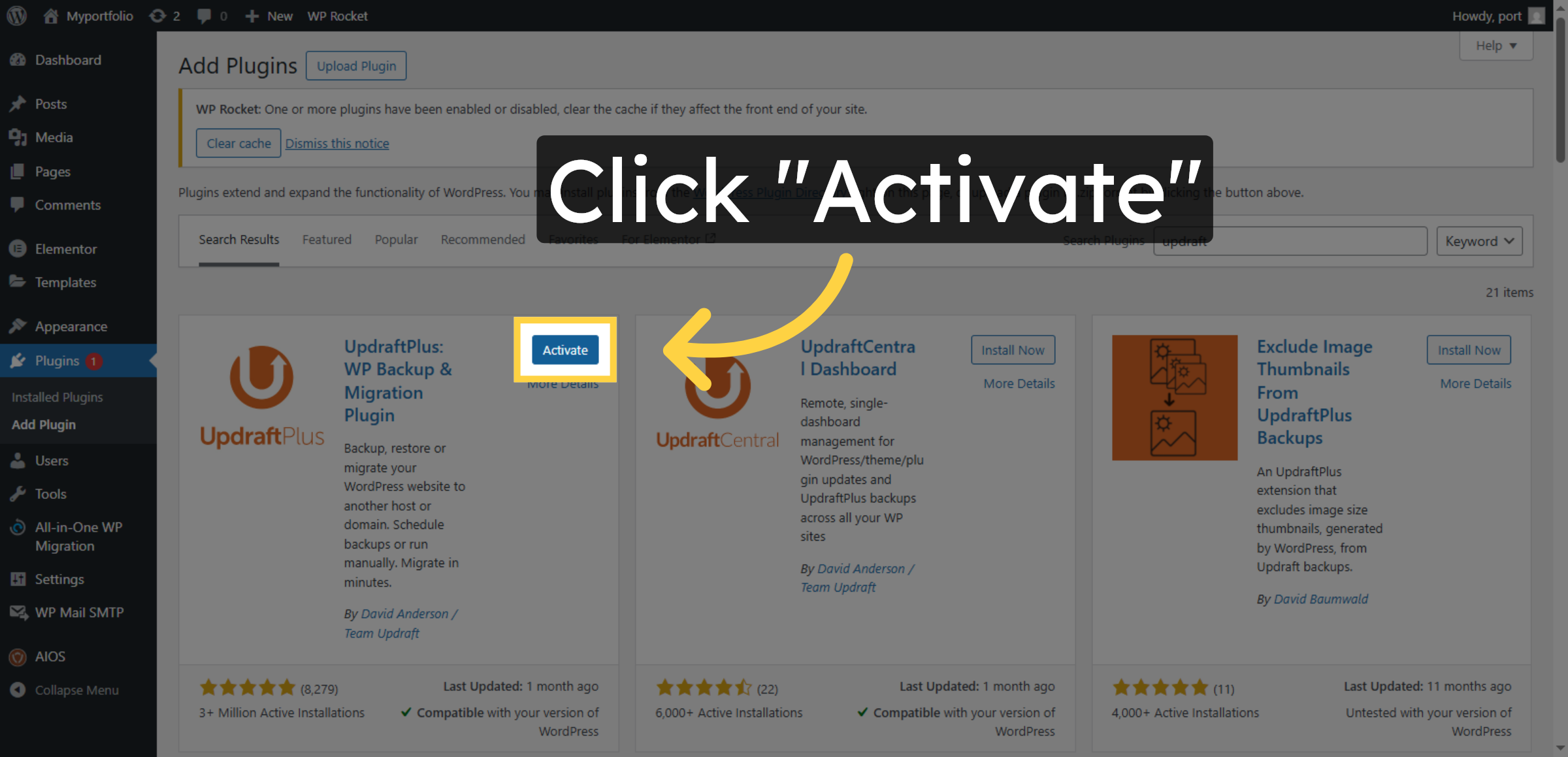
11. Open UpdraftPlus Settings
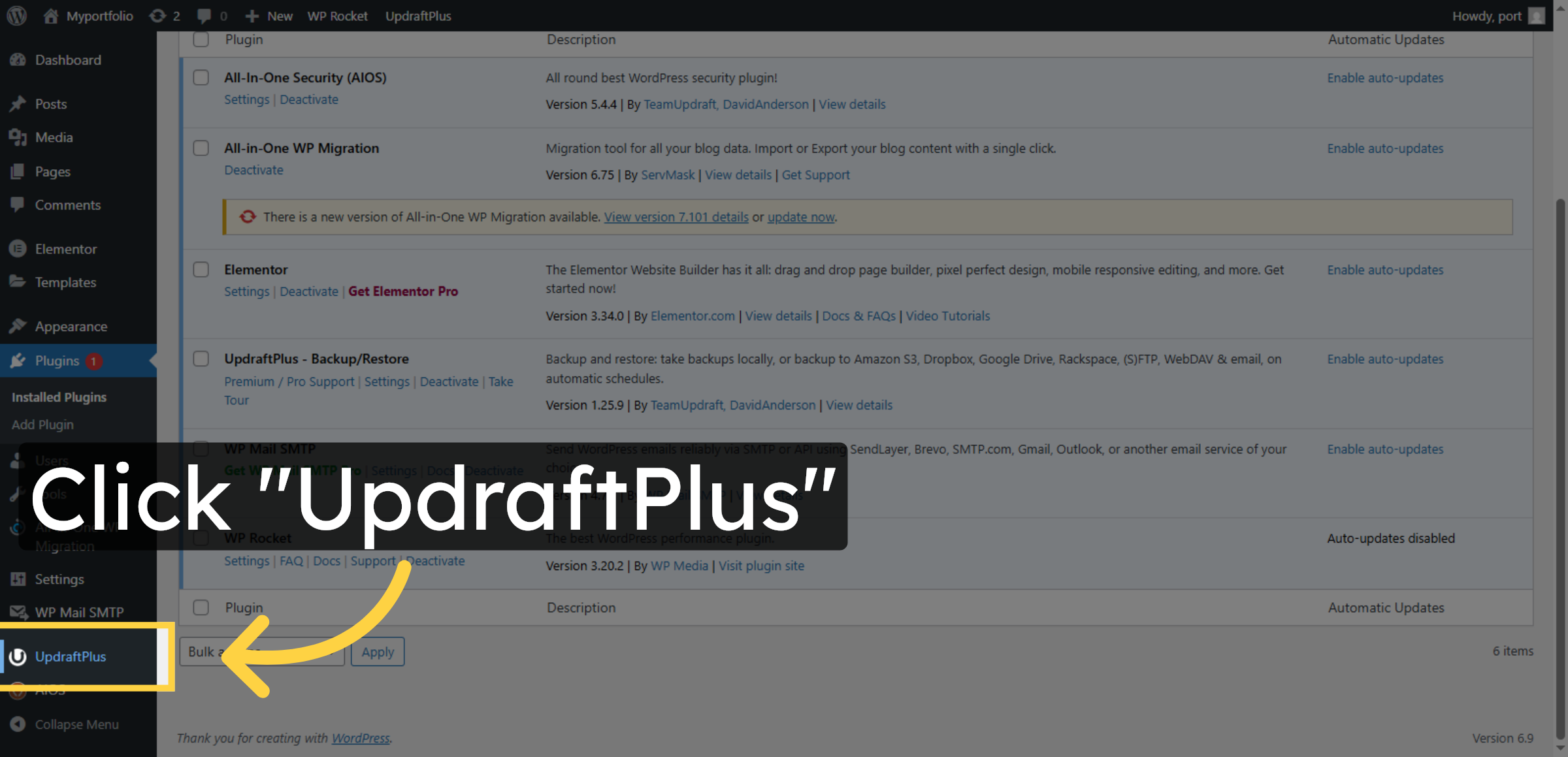
12. Access UpdraftPlus Settings
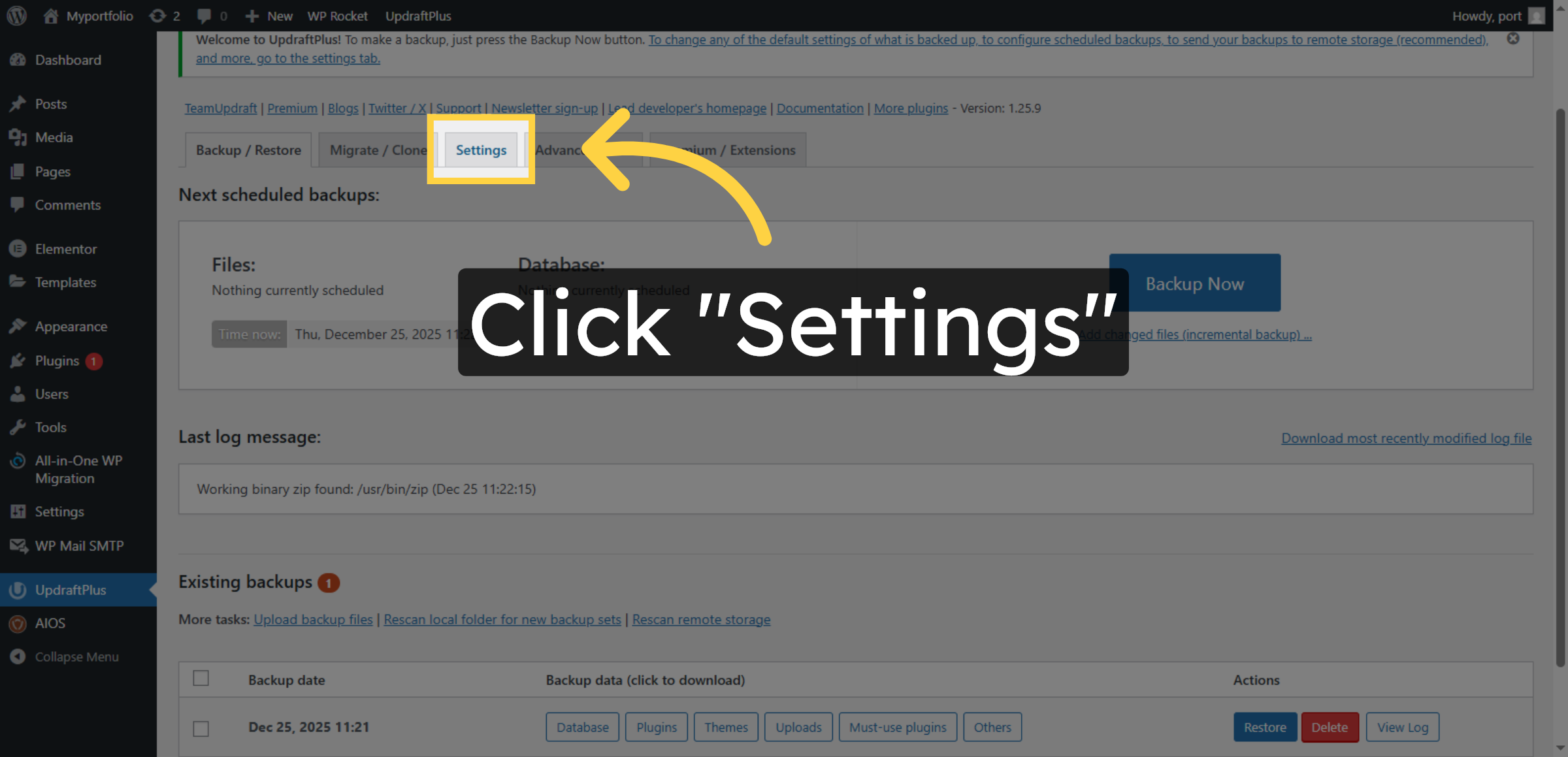


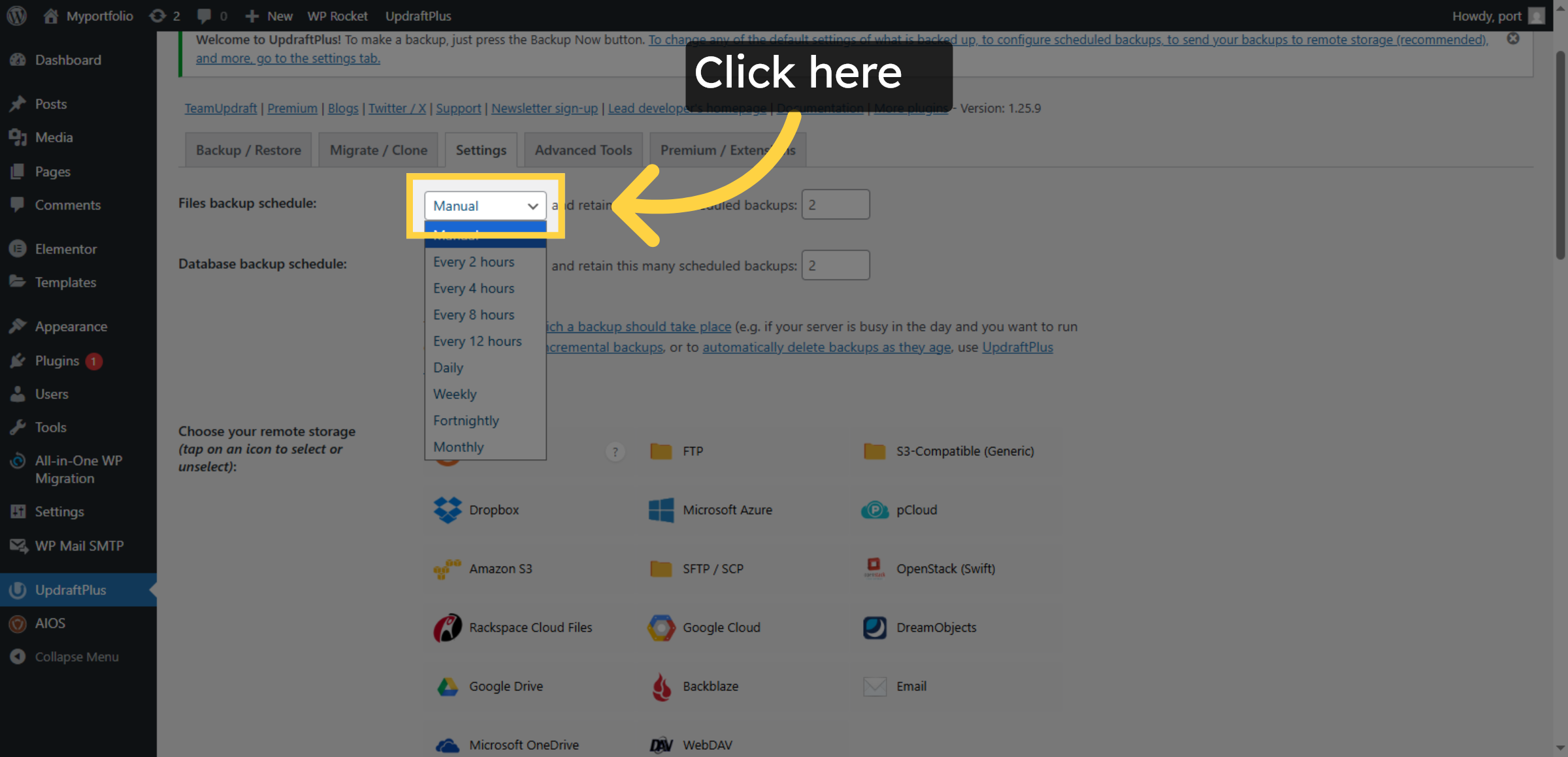
13. Open Backup Schedule Options
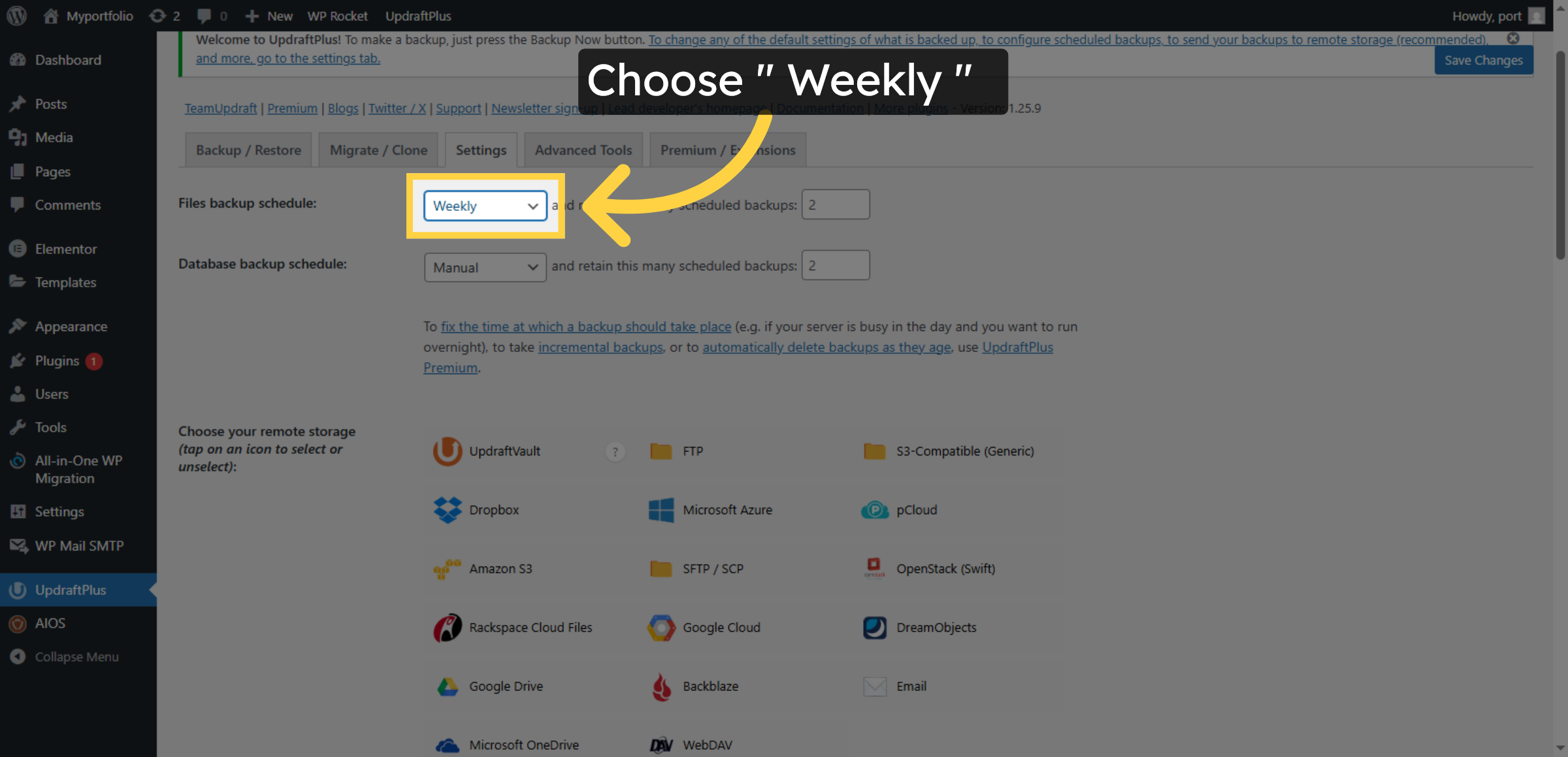
14. Select Backup Frequency
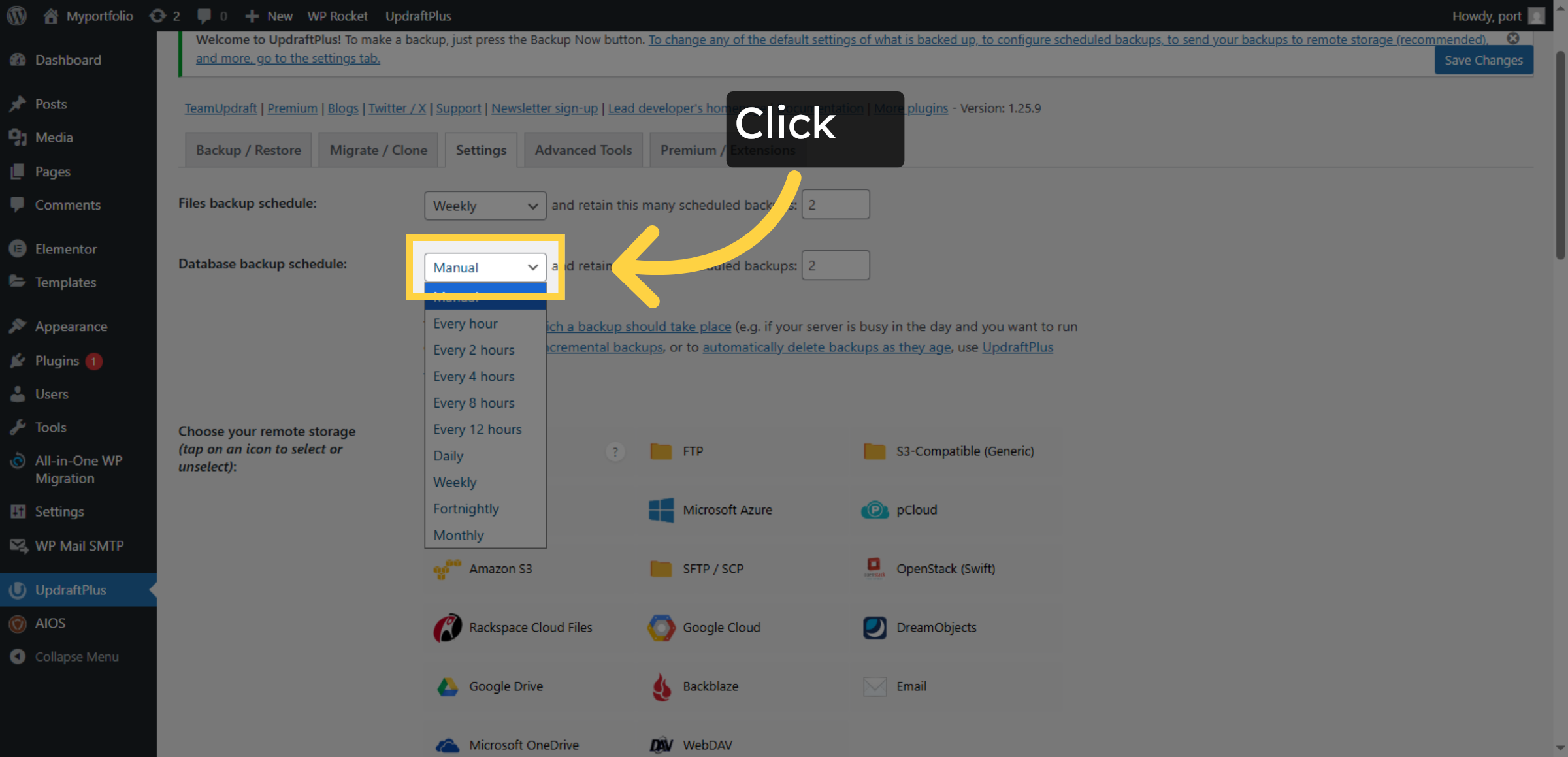
15. Open Database Backup Schedule
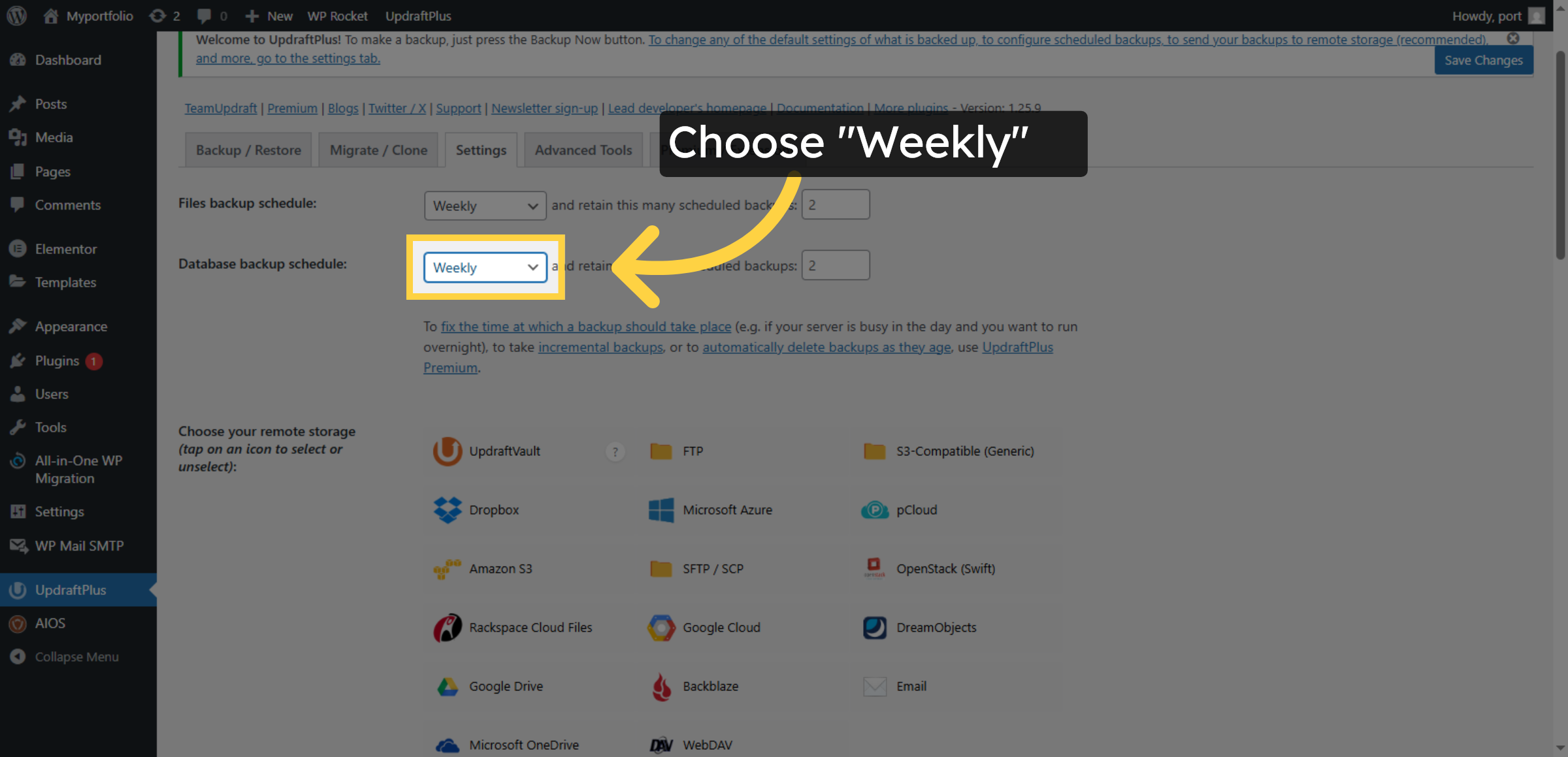
16. Select Database Backup Frequency
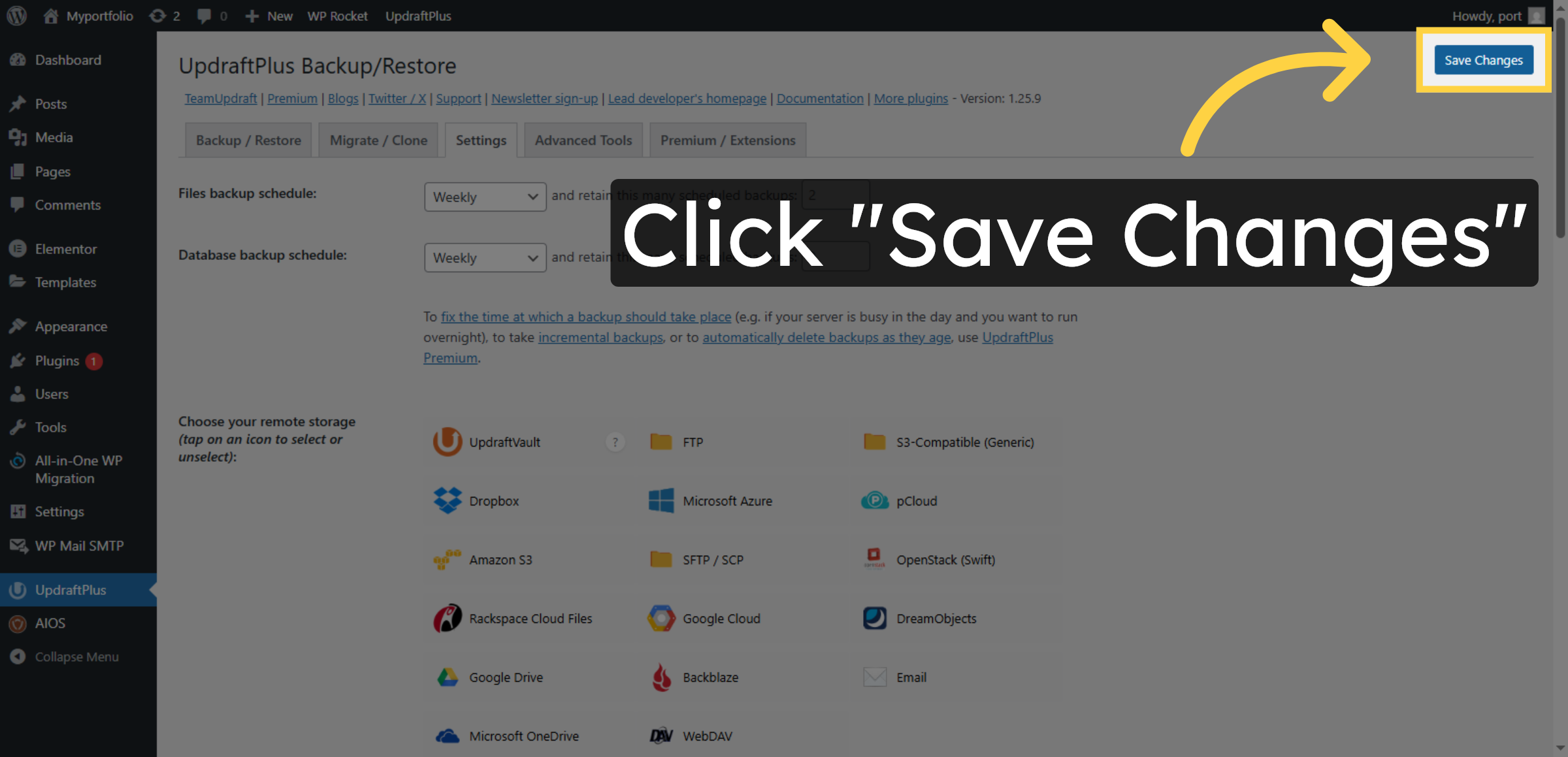
17. Save Backup Settings
Conclusion
Implementing automated backups is a fundamental best practice for maintaining website security and operational stability. By following the steps outlined in this guide, you have successfully configured UpdraftPlus to perform scheduled backups of your WordPress website on HostGator hosting. These automated backups help ensure that your website data is regularly protected without requiring manual intervention.
To maximize protection, it is recommended to periodically review backup schedules, verify backup integrity, and store copies in secure remote locations. Regular monitoring and timely updates to backup settings further strengthen your website’s recovery readiness. With an automated backup system in place, your website remains resilient, secure, and prepared for unexpected technical challenges.
WooHelpDesk Support
Need professional assistance with automated backups, data recovery, cloud storage integration, or website maintenance? WooHelpDesk provides expert technical support to keep your website protected and operational.
Visit: https://www.woohelpdesk.com
Call Us Toll-Free: +1 888 602 0119 (US & Canada)
Reliable Automation | Secure Storage | Trusted Support
Contact WooHelpDesk today for dependable WordPress backup and hosting support solutions.



