How to Manage WordPress Databases Using phpMyAdmin in Hostinger
2 mins read

How to Manage WordPress Databases Using phpMyAdmin in Hostinger

Introduction

Managing your WordPress database is essential for maintaining website performance, security, and data integrity. Hostinger provides access to phpMyAdmin through its hPanel, allowing users to view, edit, back up, and manage database records efficiently. In this guide, you will learn how to access phpMyAdmin, navigate database tables, run SQL queries, edit user records, and safely delete unwanted data.


1. Hostinger hPanel
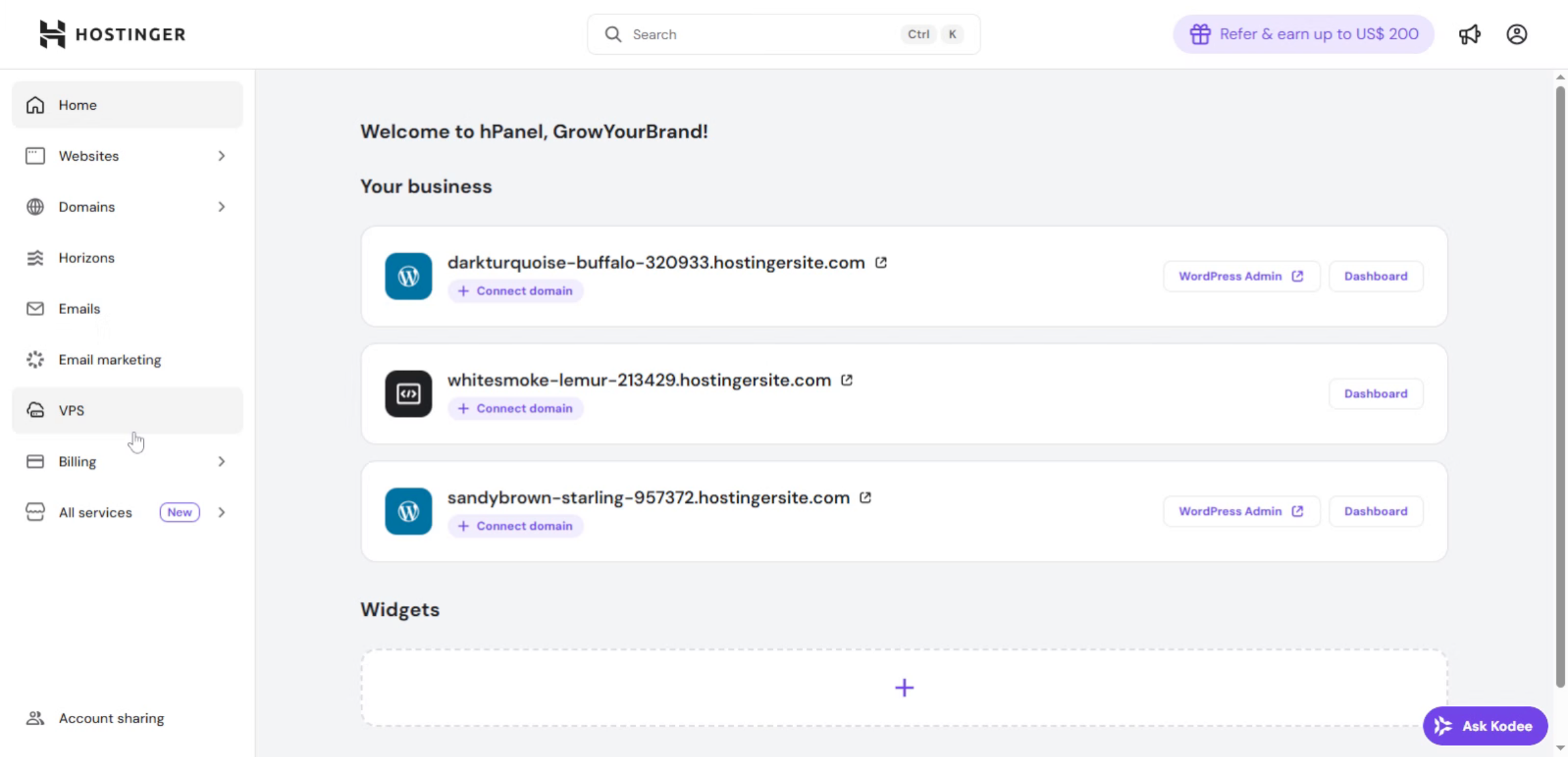
This section of the Hostinger dashboard allows you to access phpMyAdmin, where you can manage the WordPress database, including viewing tables, editing data, and importing or exporting database files.

Hostinger hPanel

2. Navigate to Websites Section
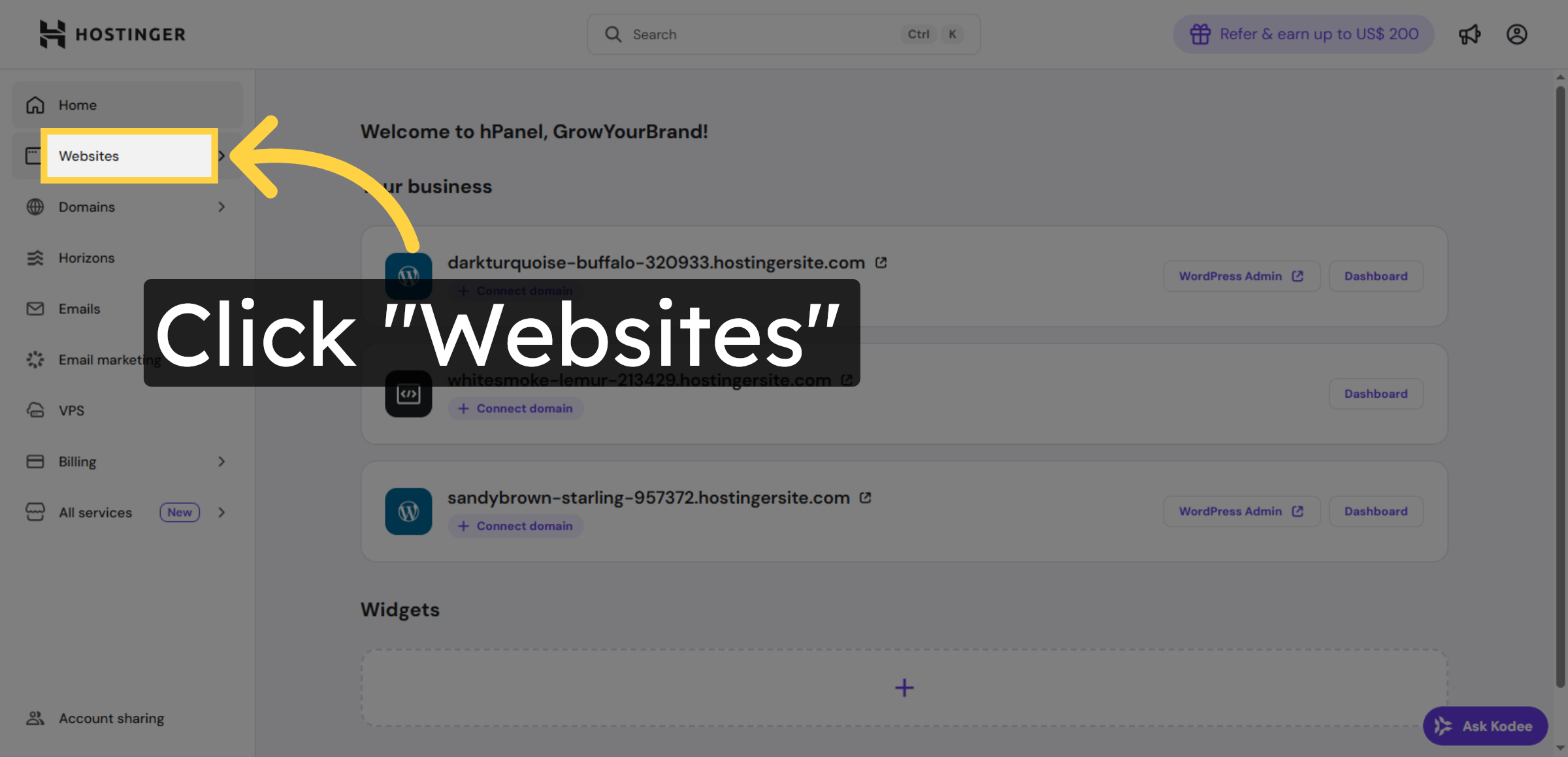
Click “Websites” to access your list of hosted sites in Hostinger.

Navigate to Websites Section

3. Open Website Dashboard
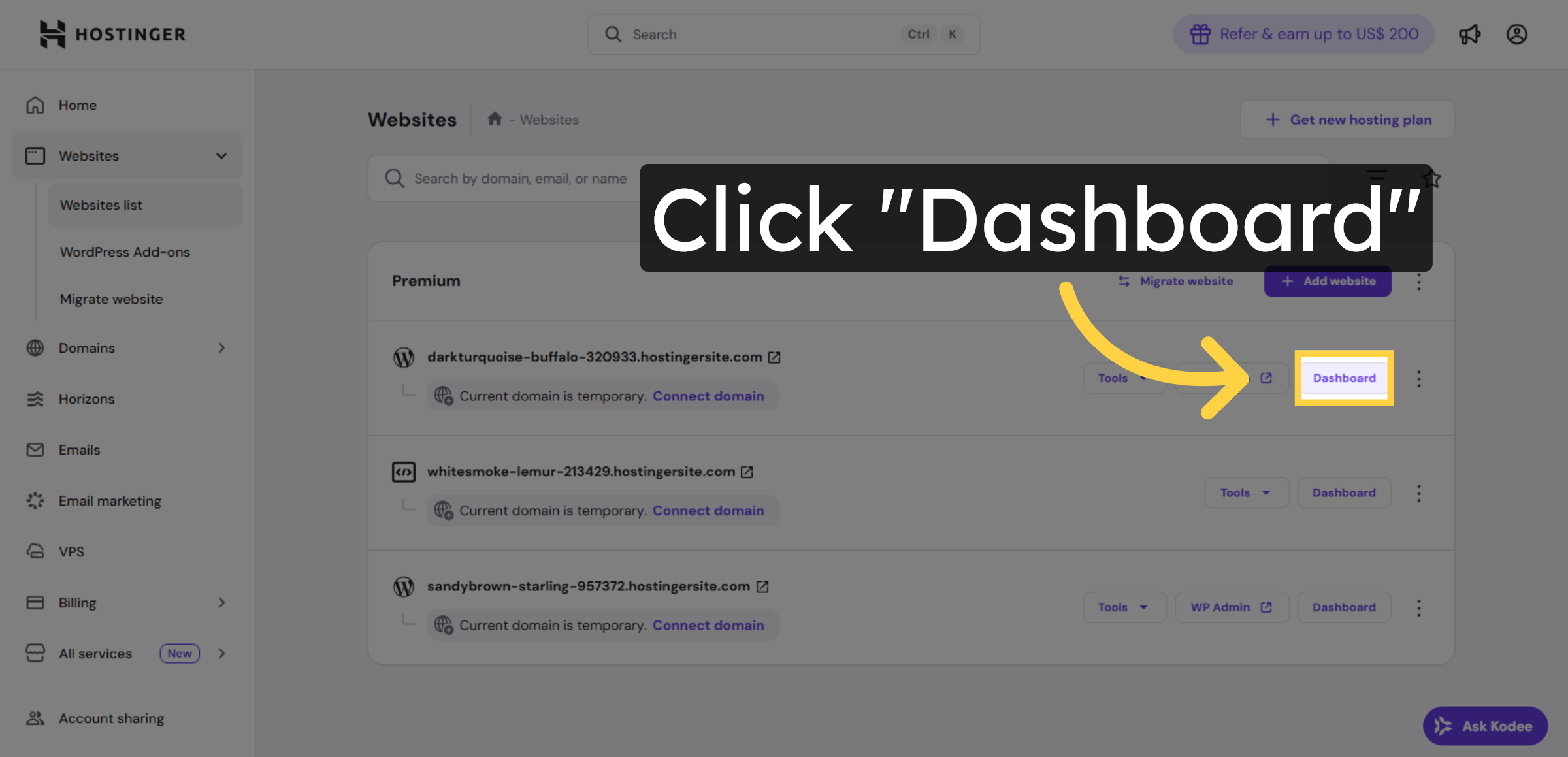
Click “Dashboard” to open the control panel for your selected website.

Open Website Dashboard

4. Access Databases Menu
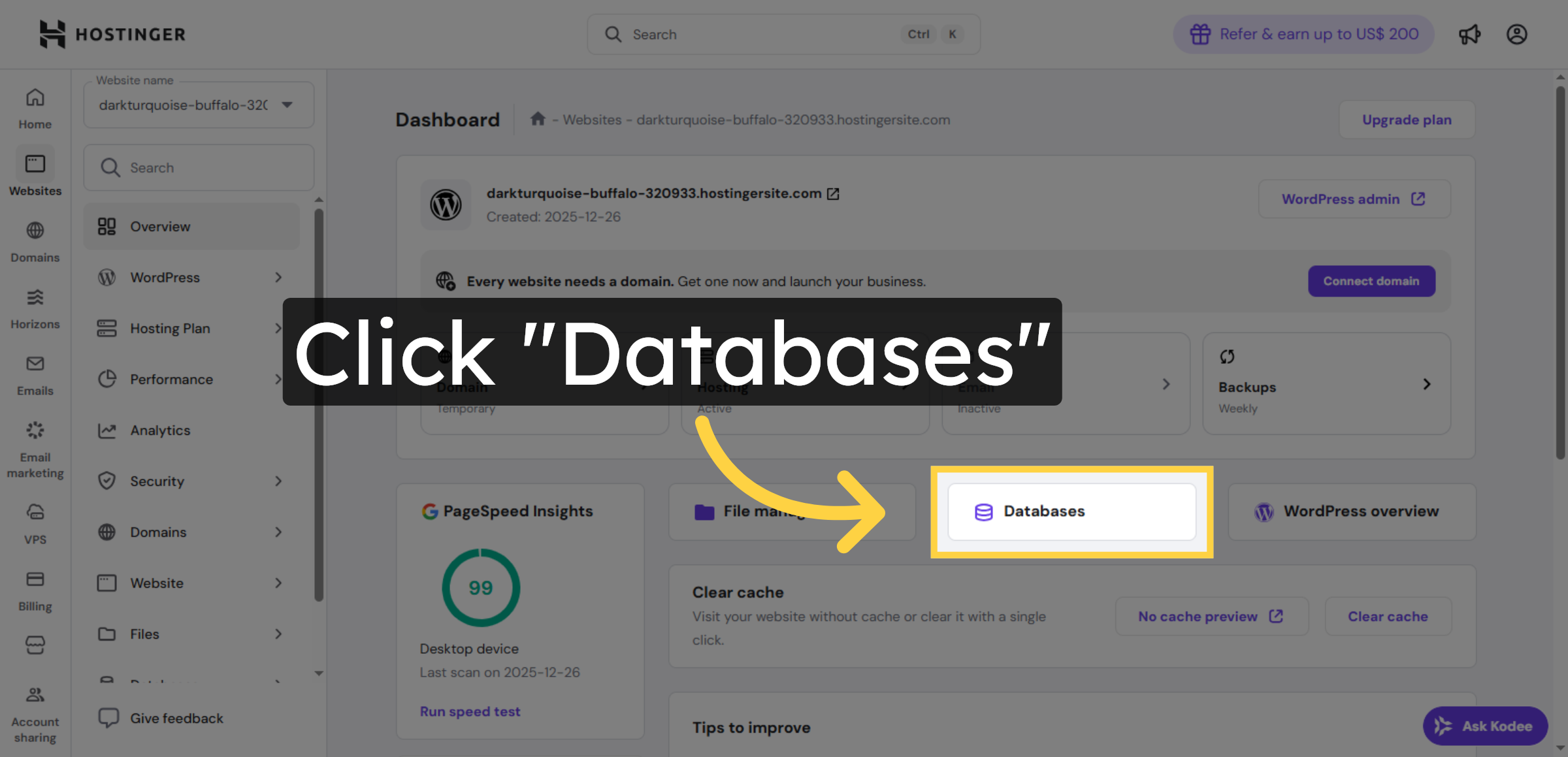
Click “Databases” to view and manage your website’s databases.

Access Databases Menu

5. Click phpMyAdmin Interface
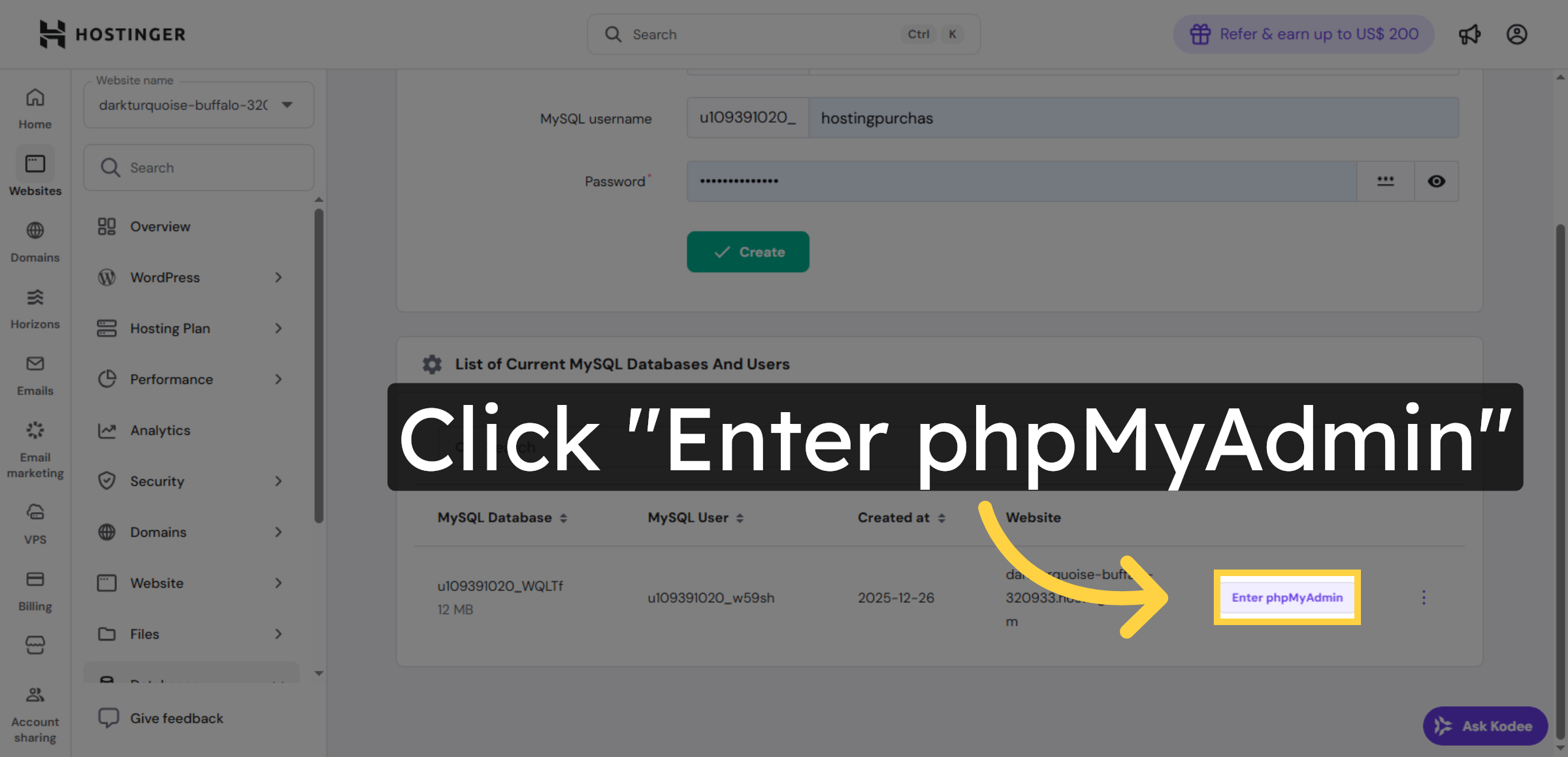
Click “Enter phpMyAdmin” to open the phpMyAdmin tool for database administration.

Click phpMyAdmin Interface

6. Switch to Database Server
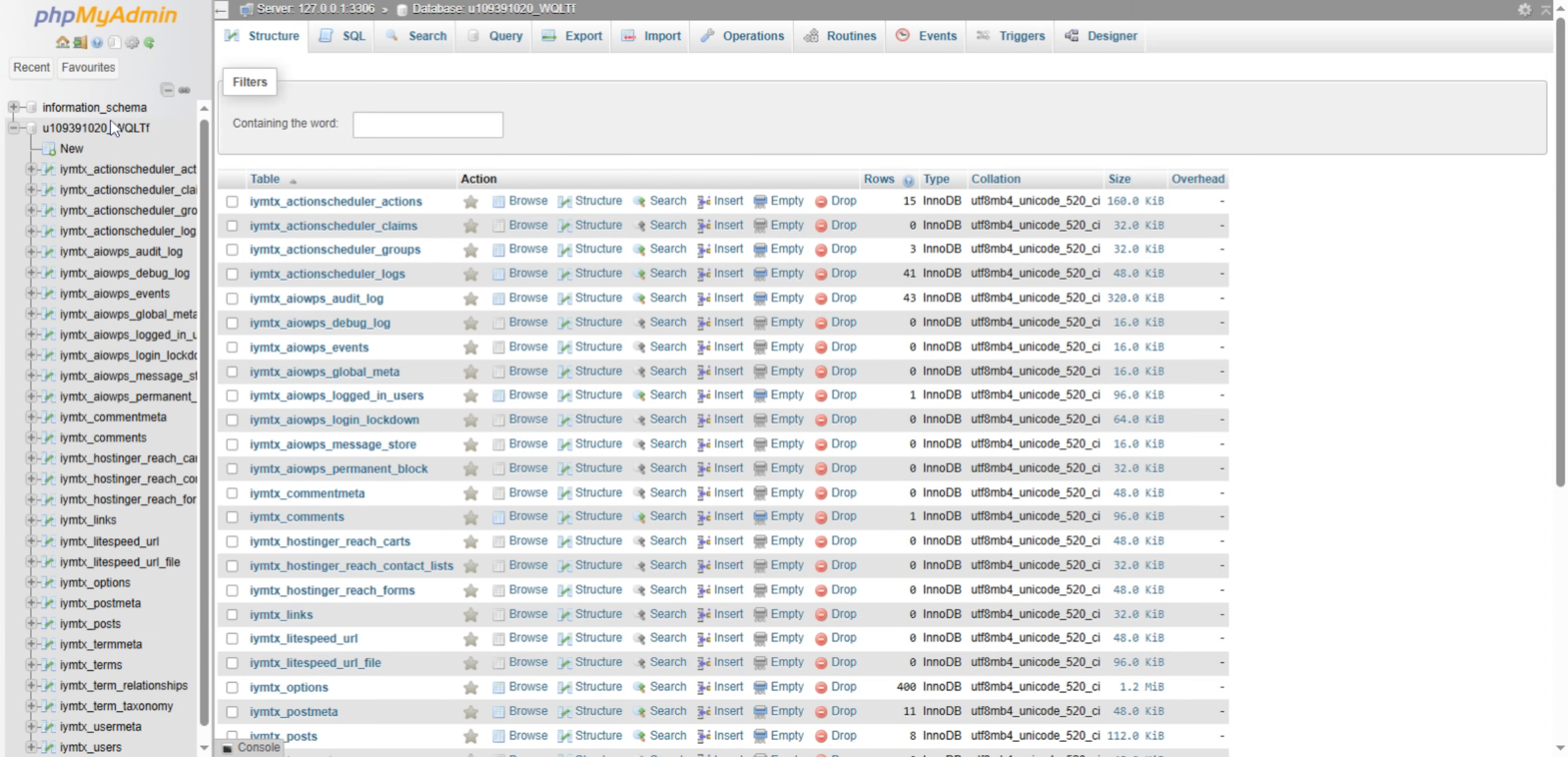
This screen shows phpMyAdmin, where the WordPress database tables are displayed. It is used to manage website data such as posts, users, settings, and to import or export the database when needed.

Switch to Database Server

7. Open User Table
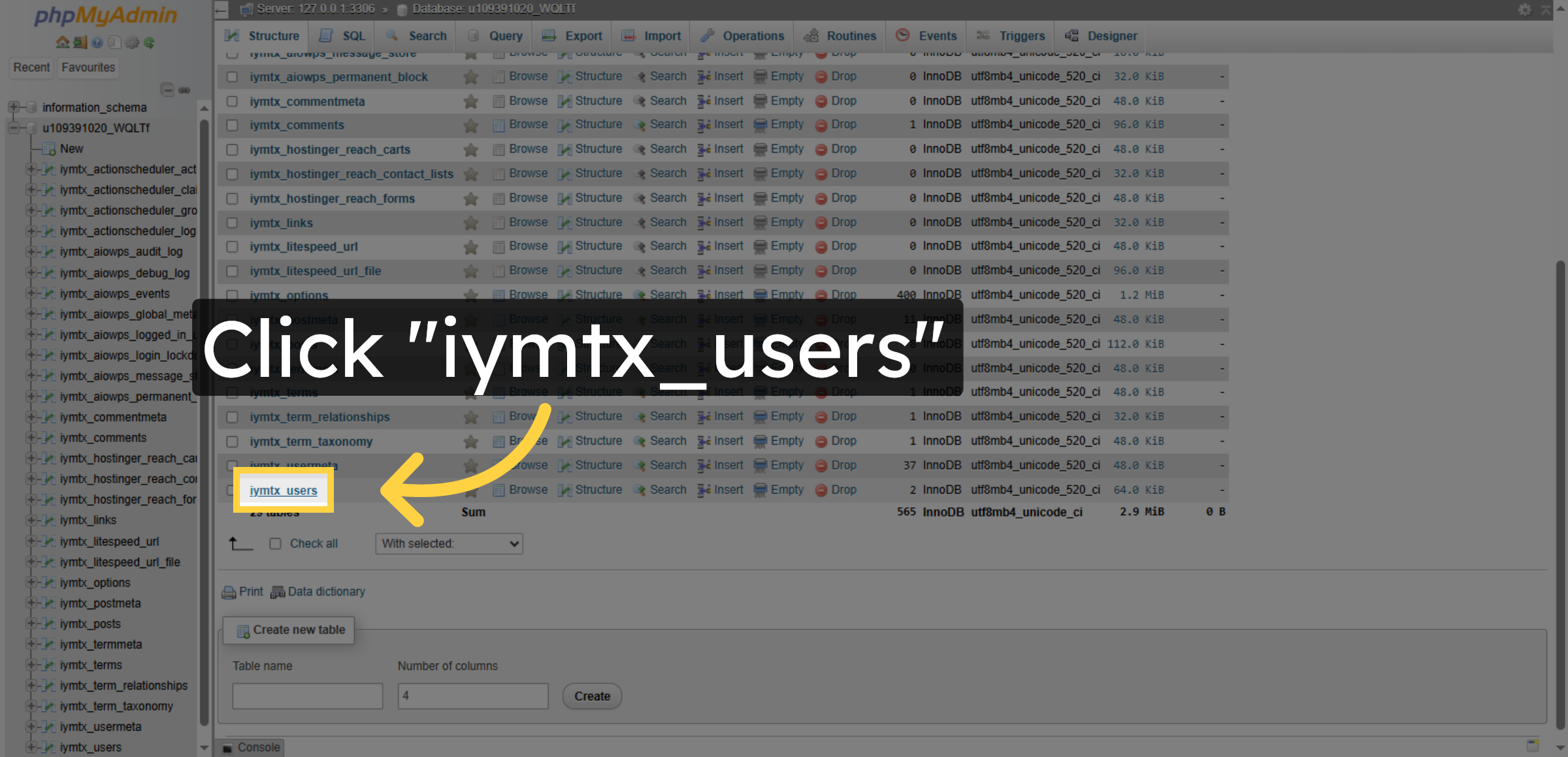
Click the iymtx_users table to access the user records in the database.

Open User Table

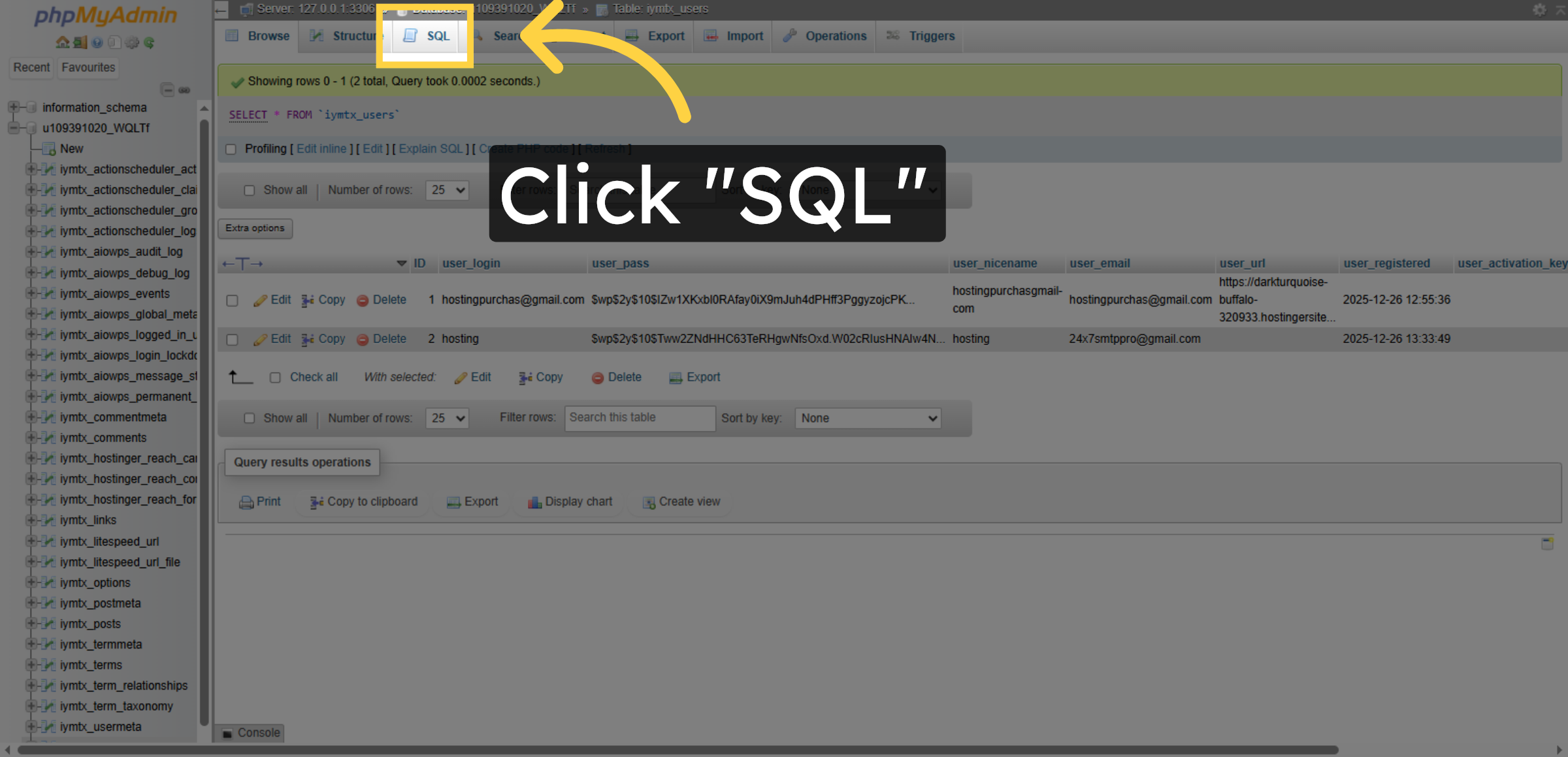
8. Access SQL Tab

Click the SQL tab to prepare for running database queries.

Access SQL Tab

9. Select All User Records
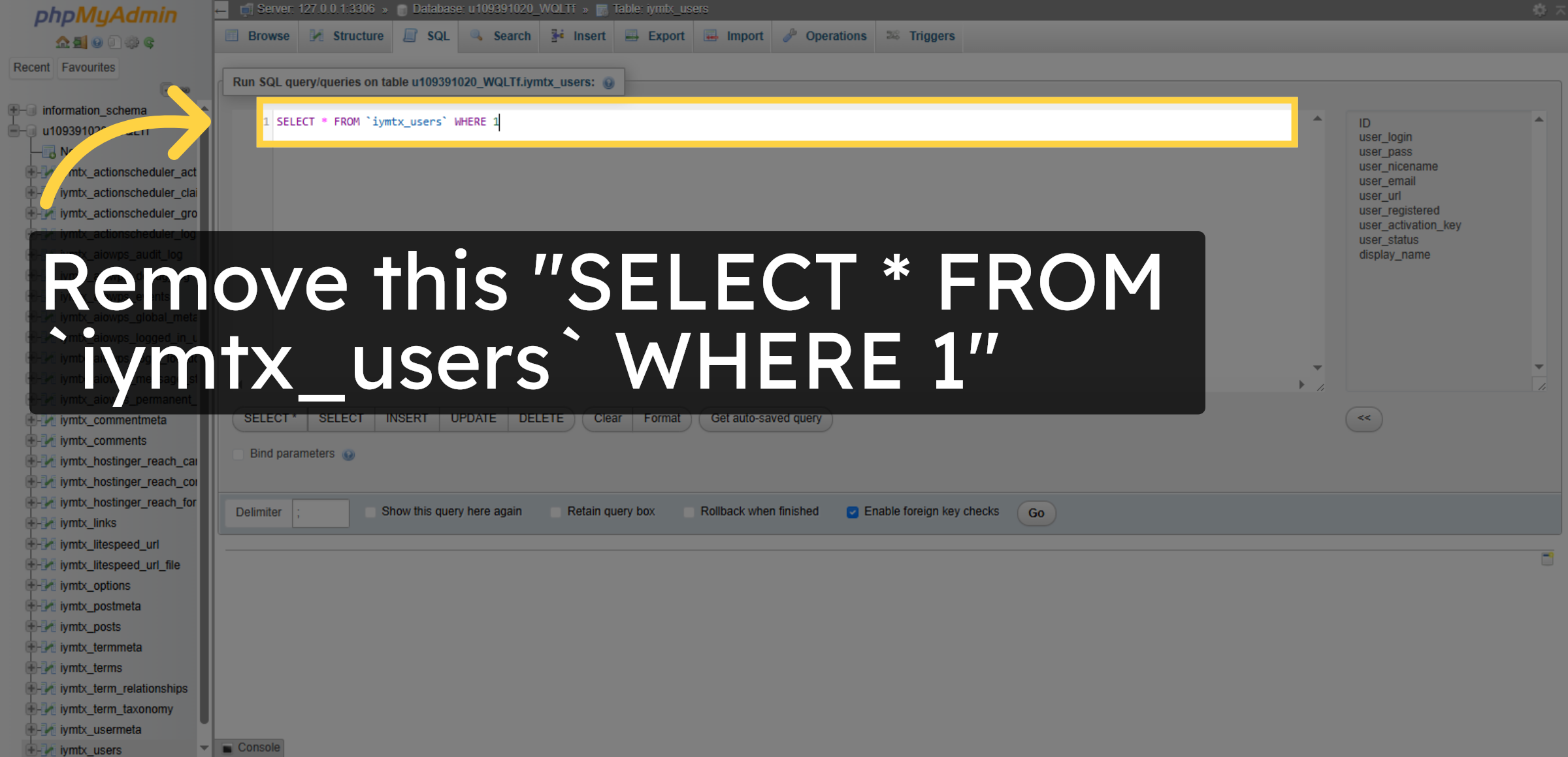
Click the query “SELECT * FROM `iymtx_users` WHERE 1” to retrieve all user records from the table.

Select All User Records

10. Run SQL Query Again
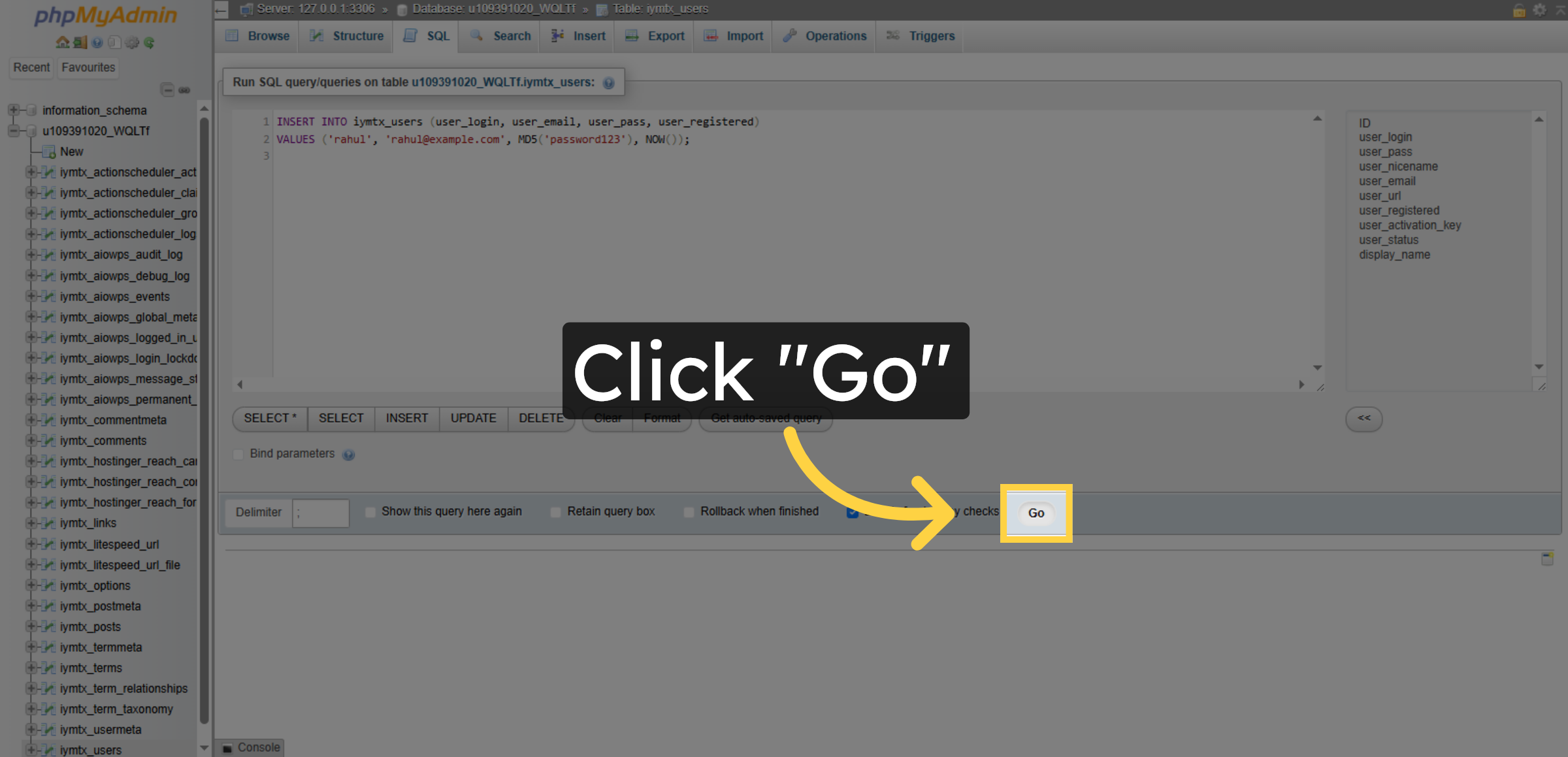
Click the Go button to execute the current SQL query and refresh the results.

Run SQL Query Again

11. Reopen User Table
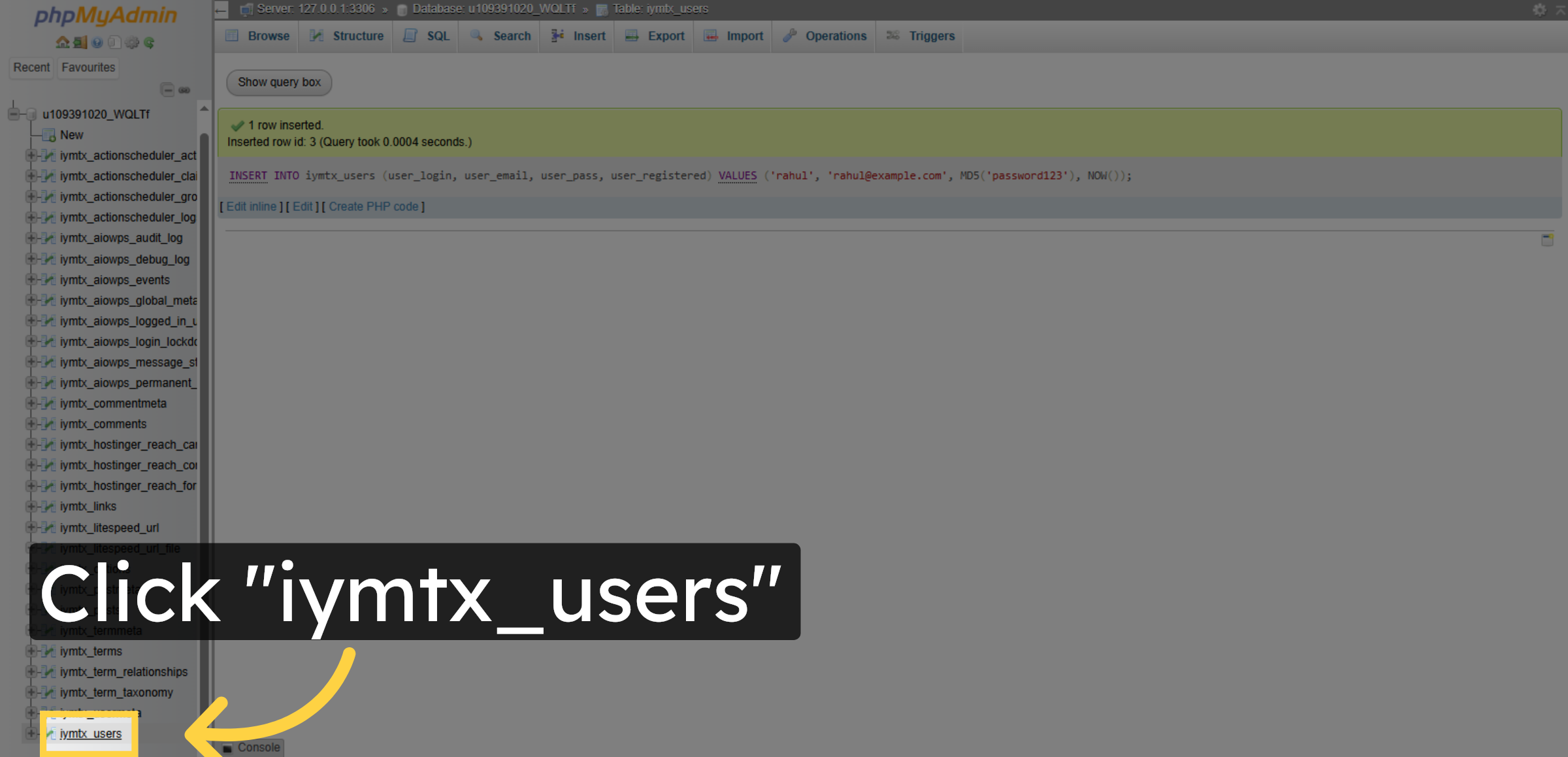
Click the iymtx_users table to return to the user records overview.

Reopen User Table

Ad Banner

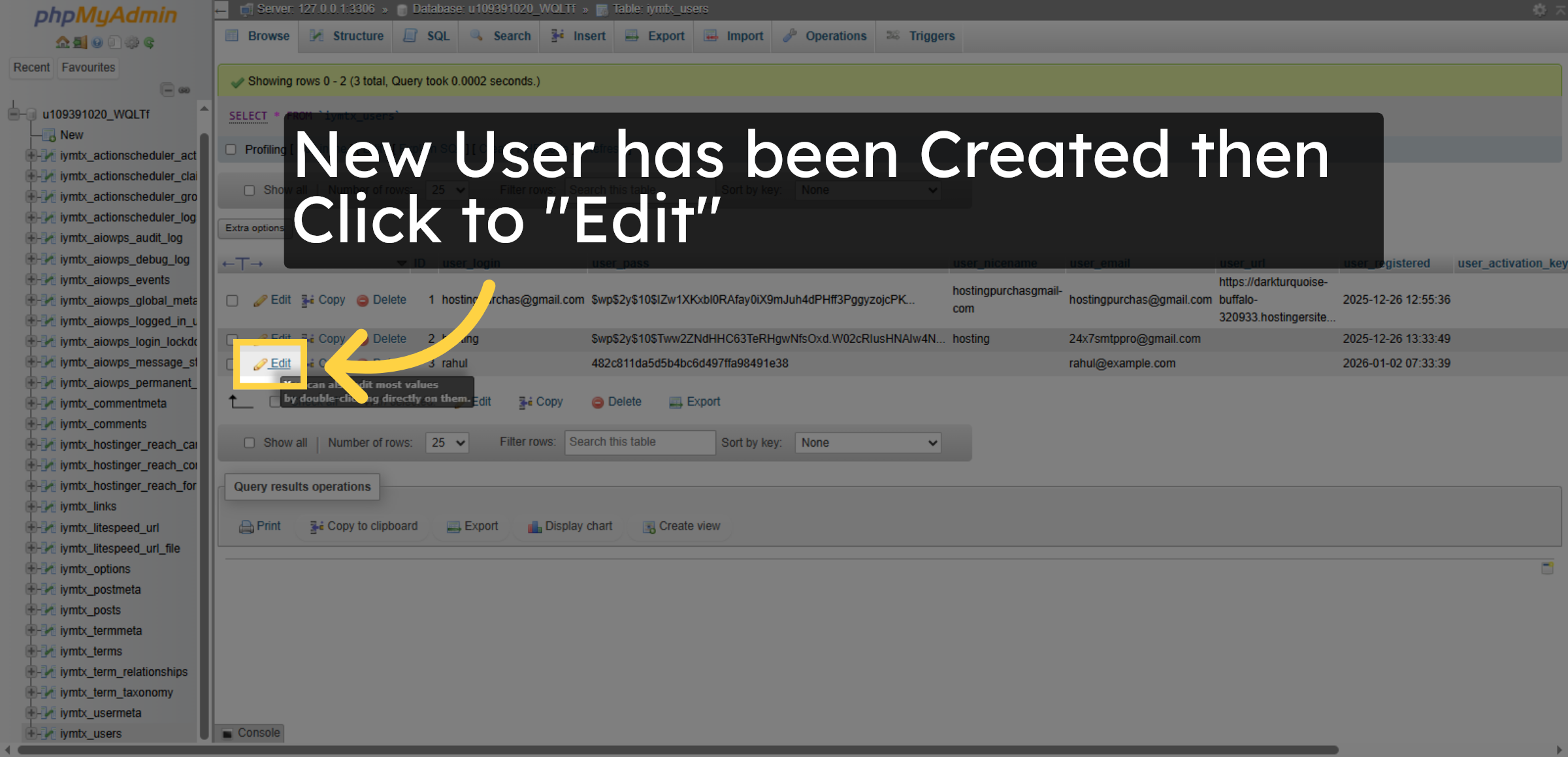
12. Edit User Record

Click the Edit option to modify a specific user record.

Edit User Record

13. Select Username Field
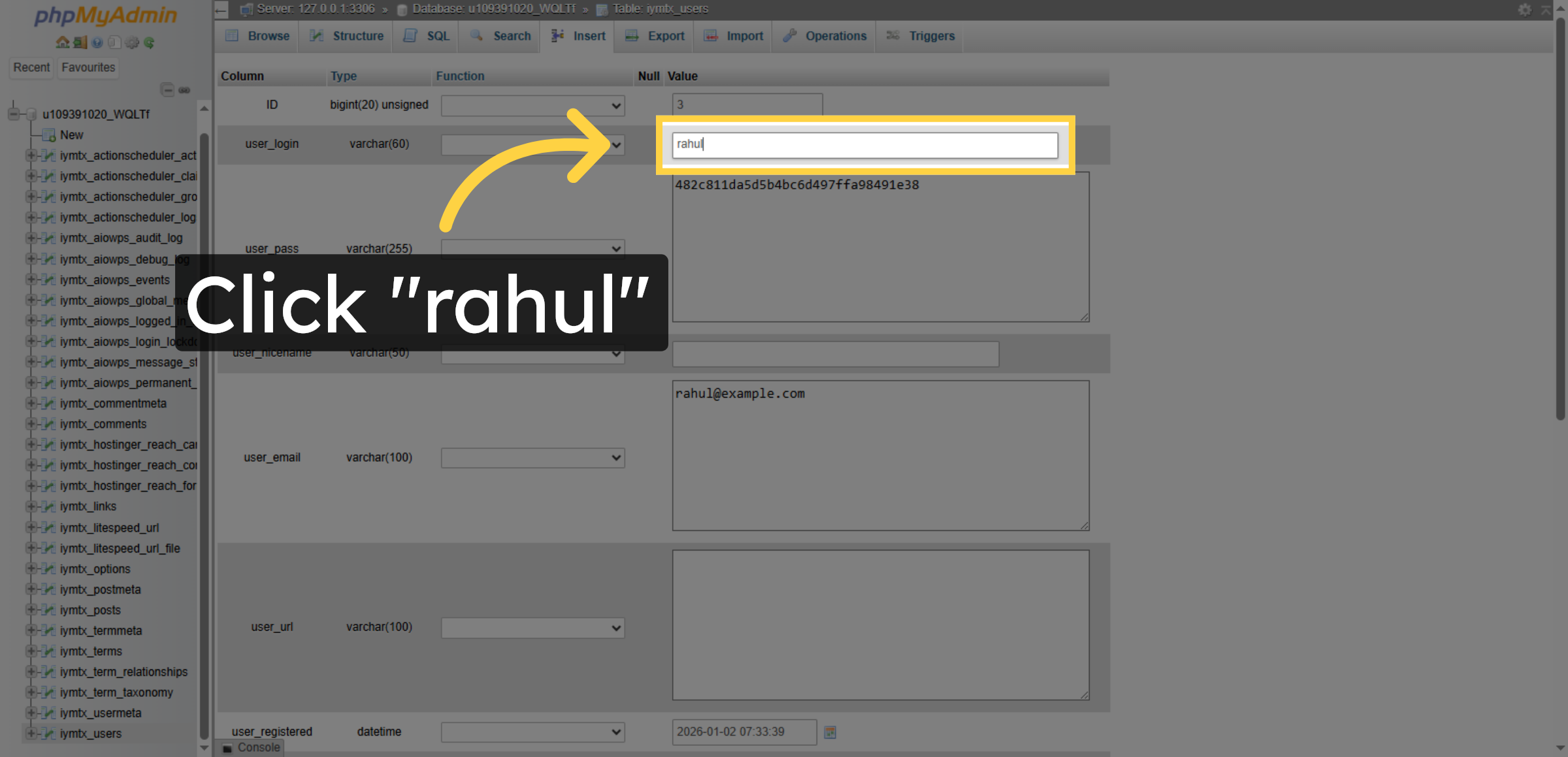
Click the username field to prepare for editing the user’s name.

Select Username Field

14. Select Updated Username
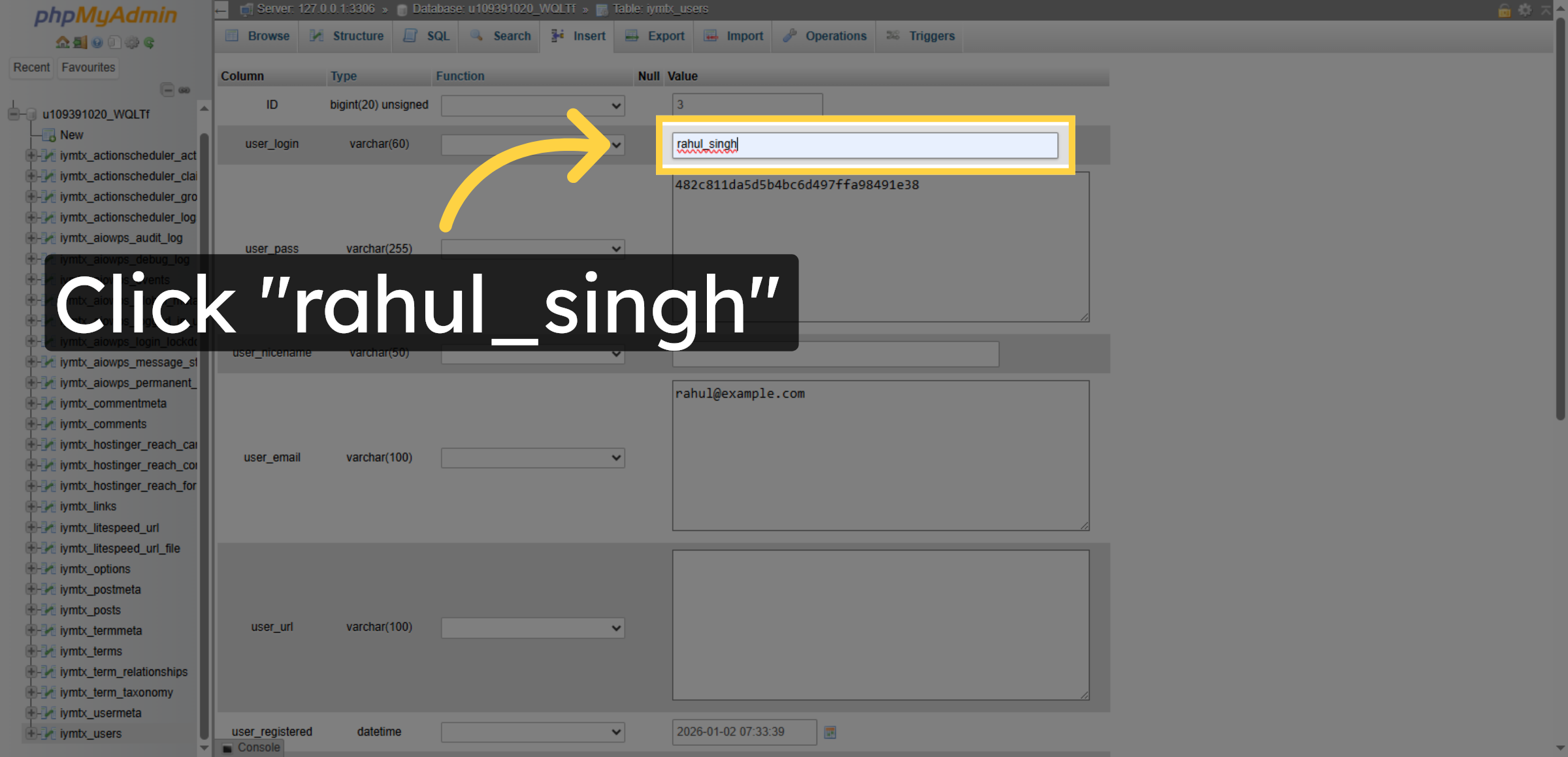
Click the updated username field to confirm the change.

Select Updated Username

15. Save Changes
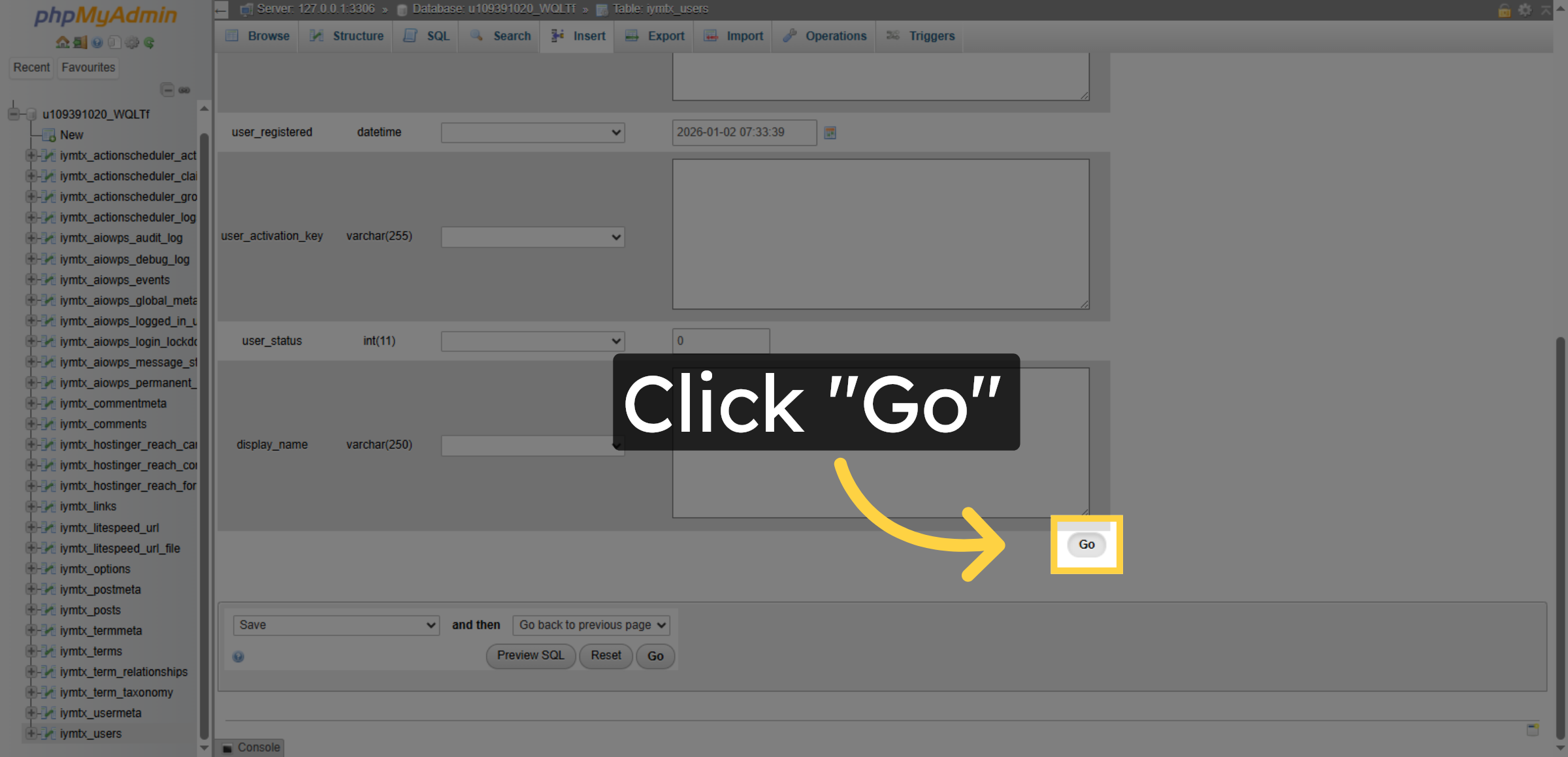
Click the Go button to save the modifications made to the user record.

Save Changes

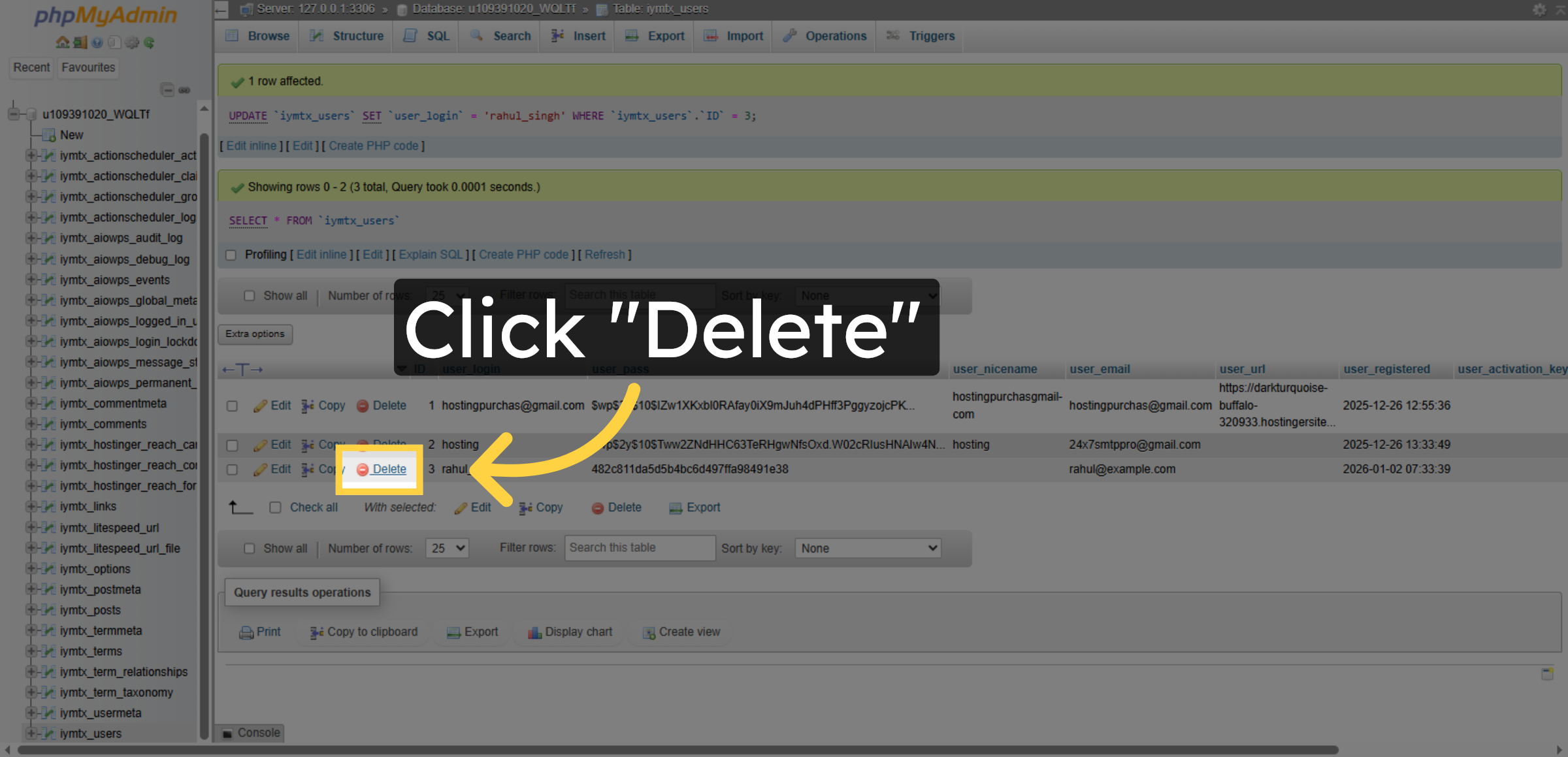
16. Delete User Record

Click the Delete option to remove a user record from the database.

Delete User Record

17. Confirm Deletion
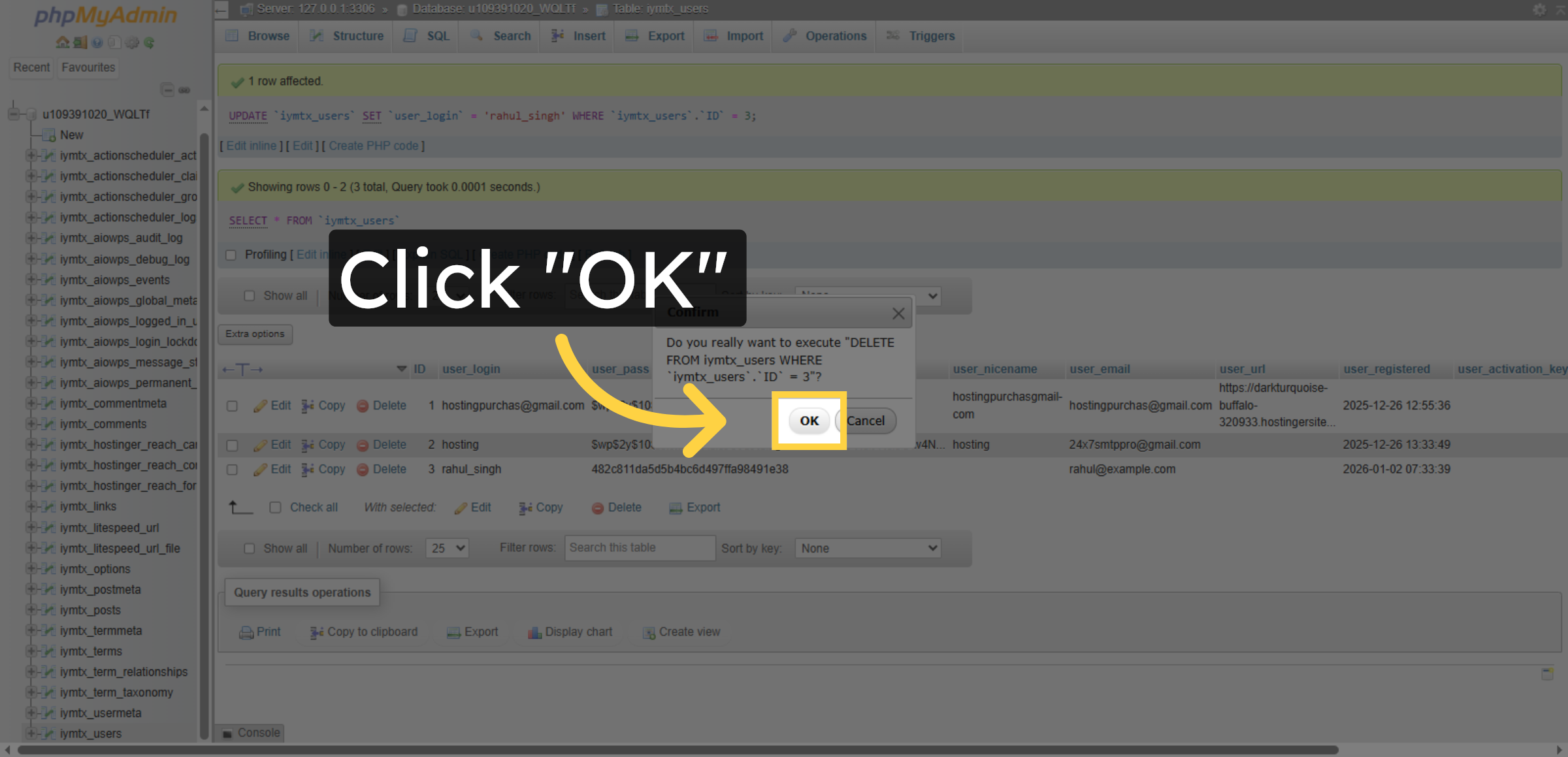
Click OK to confirm and complete the deletion of the user record.

Confirm Deletion

Conclusion

By following this guidde, you have successfully accessed and managed your WordPress database using phpMyAdmin in Hostinger. You learned how to view user tables, execute SQL queries, edit database entries, and delete records securely. Proper database management helps improve website stability, enhances security, and ensures smooth WordPress operations. Regular backups and careful handling of database changes are recommended to avoid data loss.

WooHelpDesk Support

Need expert assistance with WordPress database management, backups, optimization, or recovery?

Visit: https://www.woohelpdesk.com
Call Us Toll-Free: +1 888 602 0119 (US & Canada)

Our specialists are available to help you manage and protect your website data with confidence.


Leave a Reply

Your email address will not be published. Required fields are marked *

Leave a Reply

Your email address will not be published. Required fields are marked *