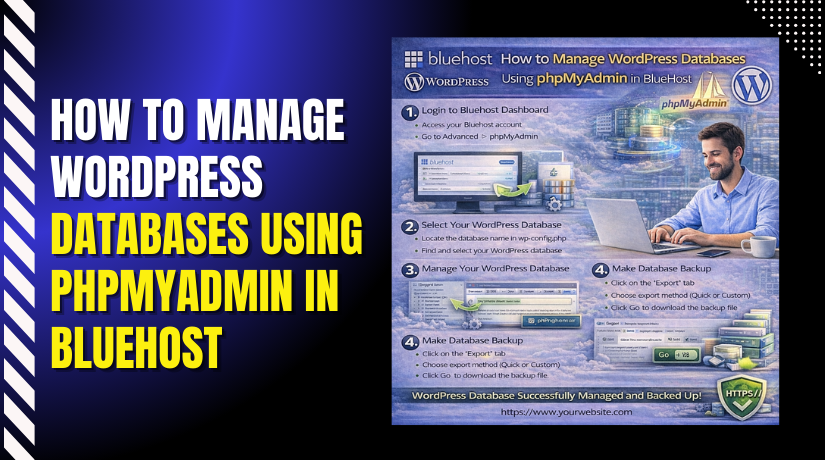
How to Manage WordPress Databases Using phpMyAdmin in Bluehost
3 mins read

How to Manage WordPress Databases Using phpMyAdmin in Bluehost

Introduction

Managing your WordPress database is essential for maintaining website performance, security, and data accuracy. The database stores important information such as user accounts, posts, settings, and system records. Bluehost provides access to phpMyAdmin through cPanel, allowing administrators to safely view, edit, insert, and delete database records.

This guidde explains how to manage WordPress databases using phpMyAdmin in Bluehost hosting. It covers accessing the control panel, opening phpMyAdmin, running SQL queries, editing user records, and deleting unnecessary data. By following this guide, users can efficiently manage backend data and resolve database-related issues.


1. Access Bluehost Account Dashboard
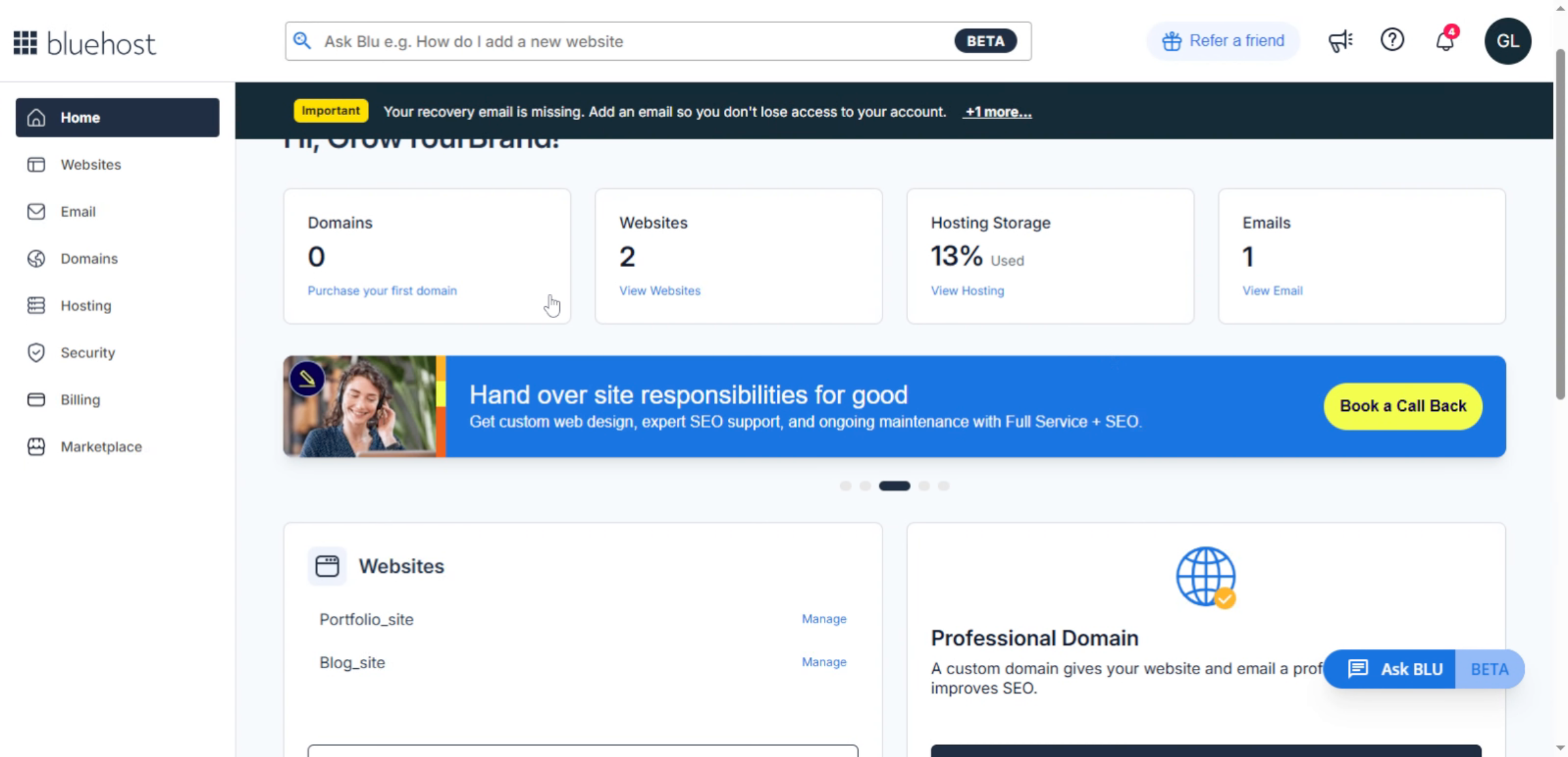
Access the Bluehost Account Dashboard to open phpMyAdmin, where you can view, edit, import, and export your WordPress databases securely and efficiently.

 Access Bluehost Account Dashboard

2. Access Hosting Section
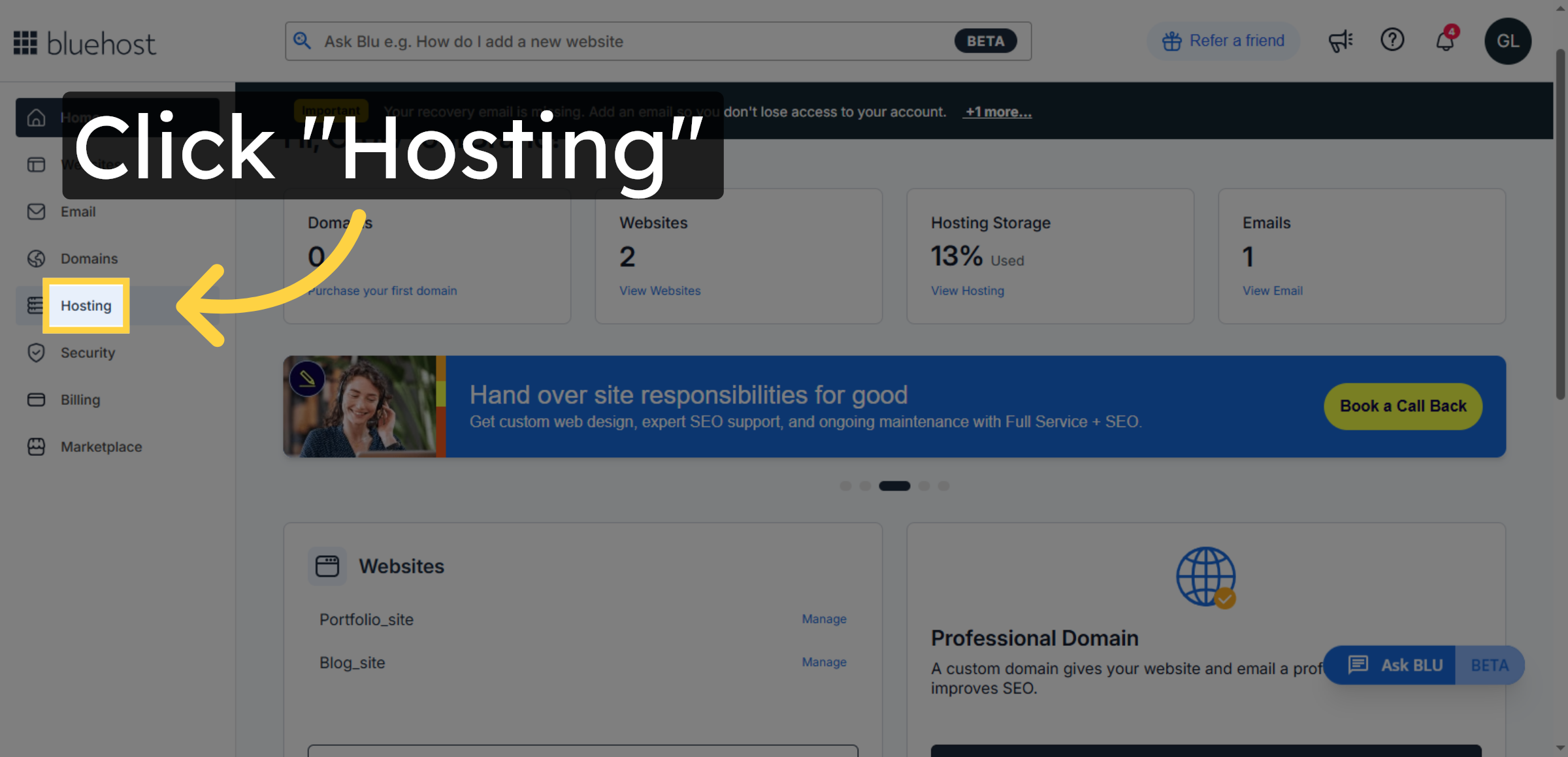
The Hosting section allows you to access advanced tools like cPanel and phpMyAdmin, which are required to manage your WordPress database.

Access Hosting Section

3. Open cPanel Interface
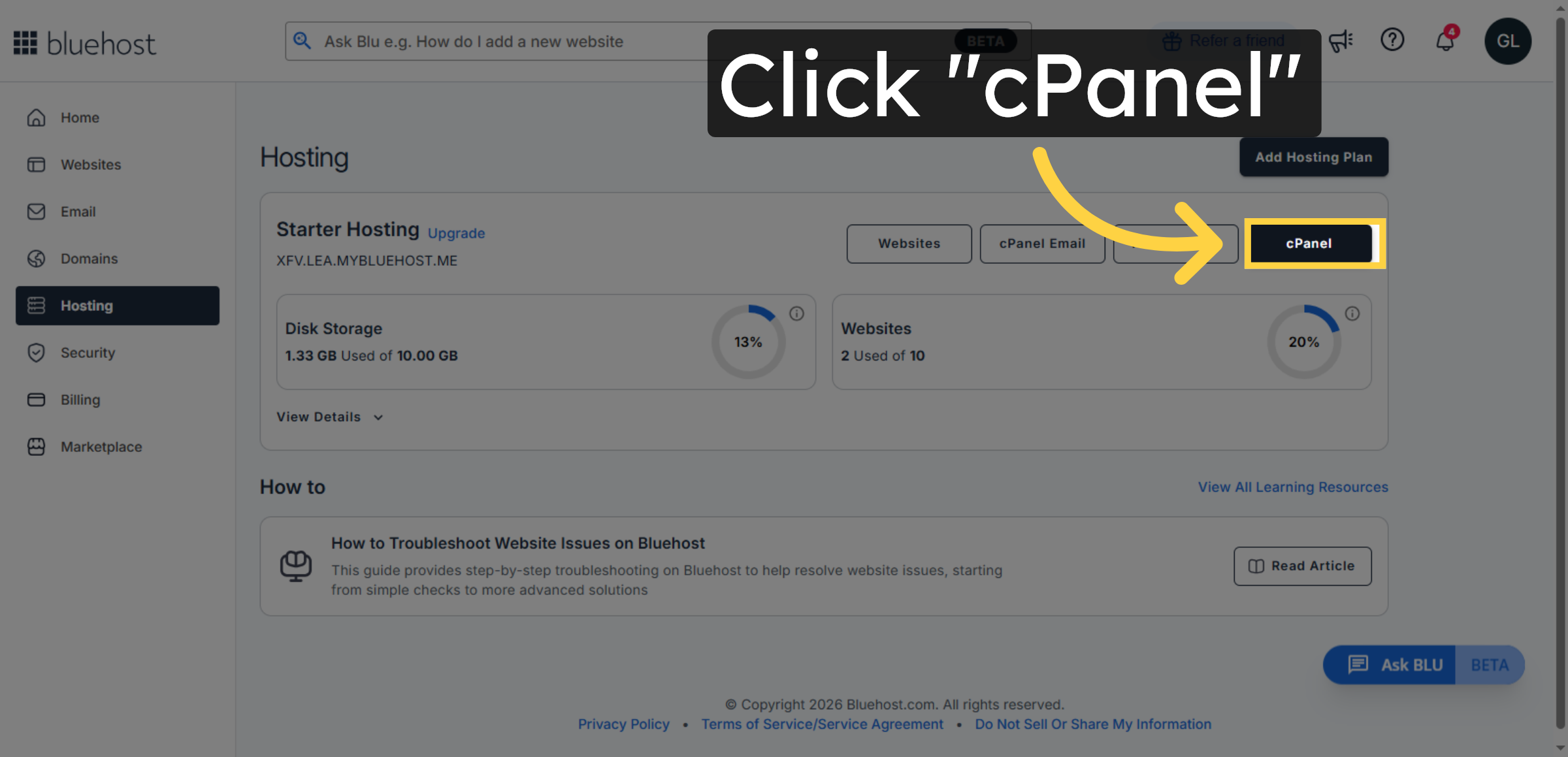
Click the cPanel which is the main control panel where you can manage databases, files, emails, and tools like phpMyAdmin for WordPress database management.

Open cPanel Interface

4. Switch to Bluehost cPanel
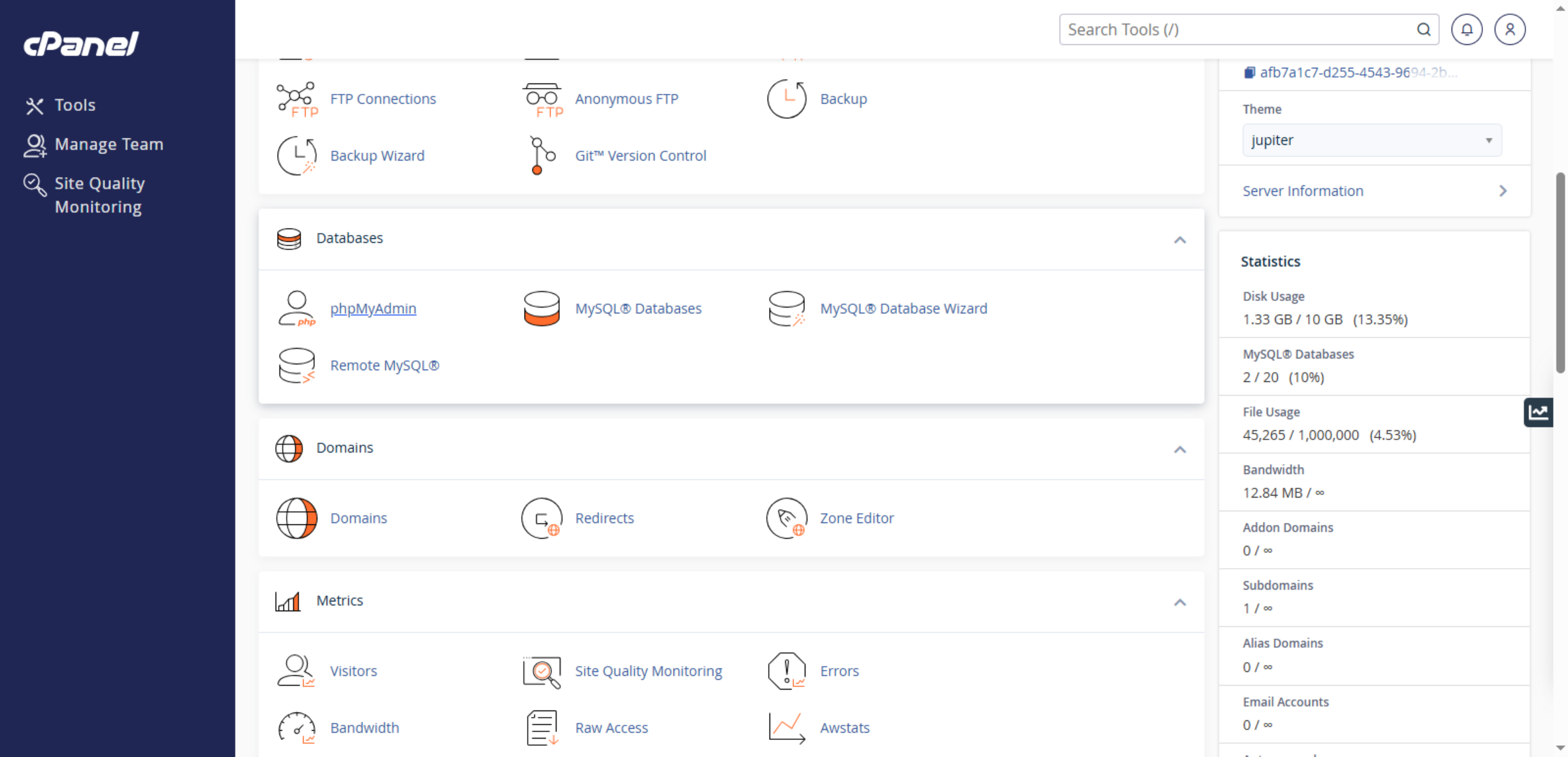
Switch to the specific Bluehost cPanel provided to access your hosting control panel securely.

Switch to Bluehost cPanel

5. Click phpMyAdmin Tool
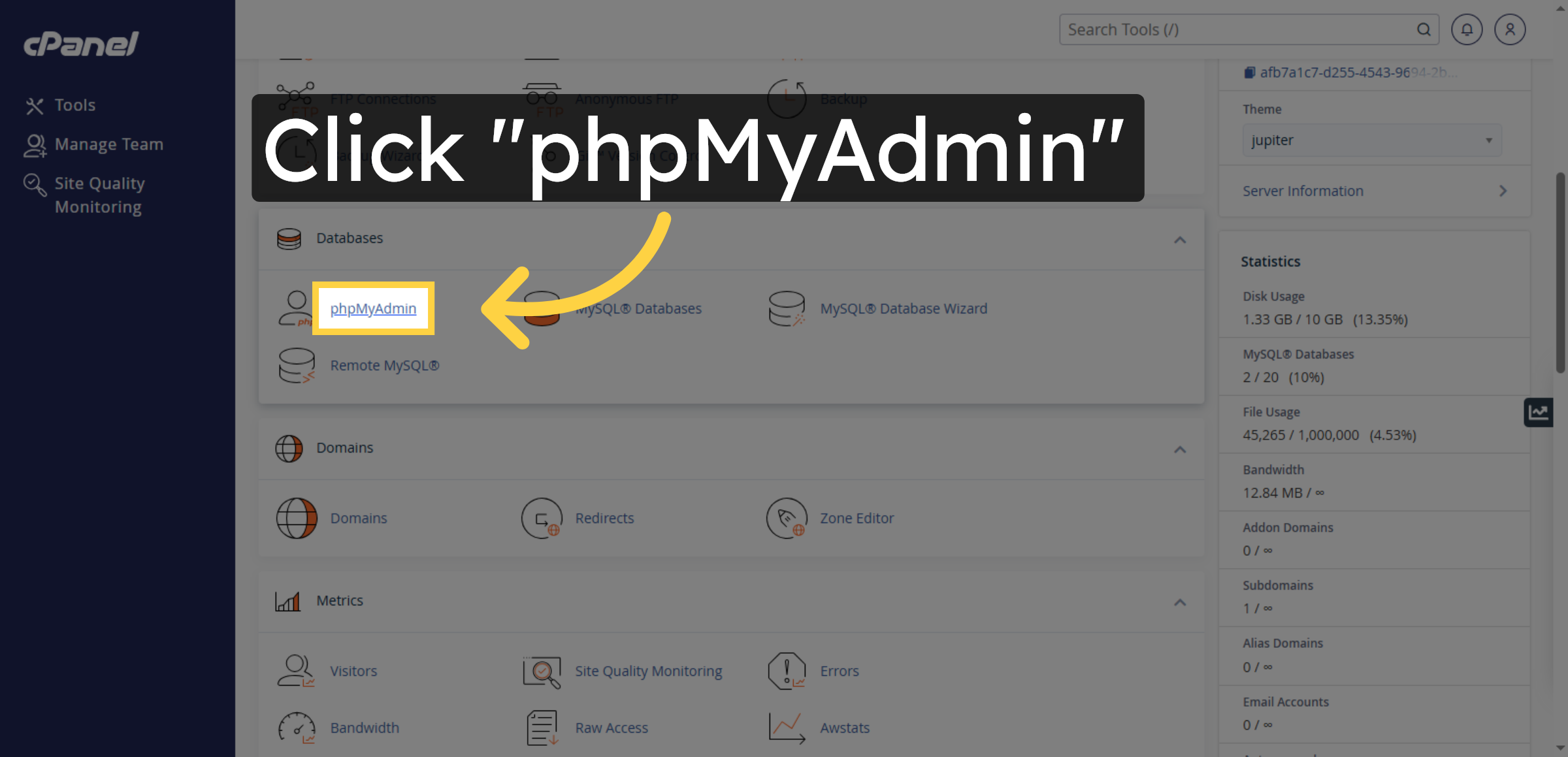
Click phpMyAdmin to open the database management panel. From here, you can view and manage your WordPress database, including tables, data, backups, and troubleshooting tasks.

Click phpMyAdmin Tool

6. Open phpMyAdmin Interface
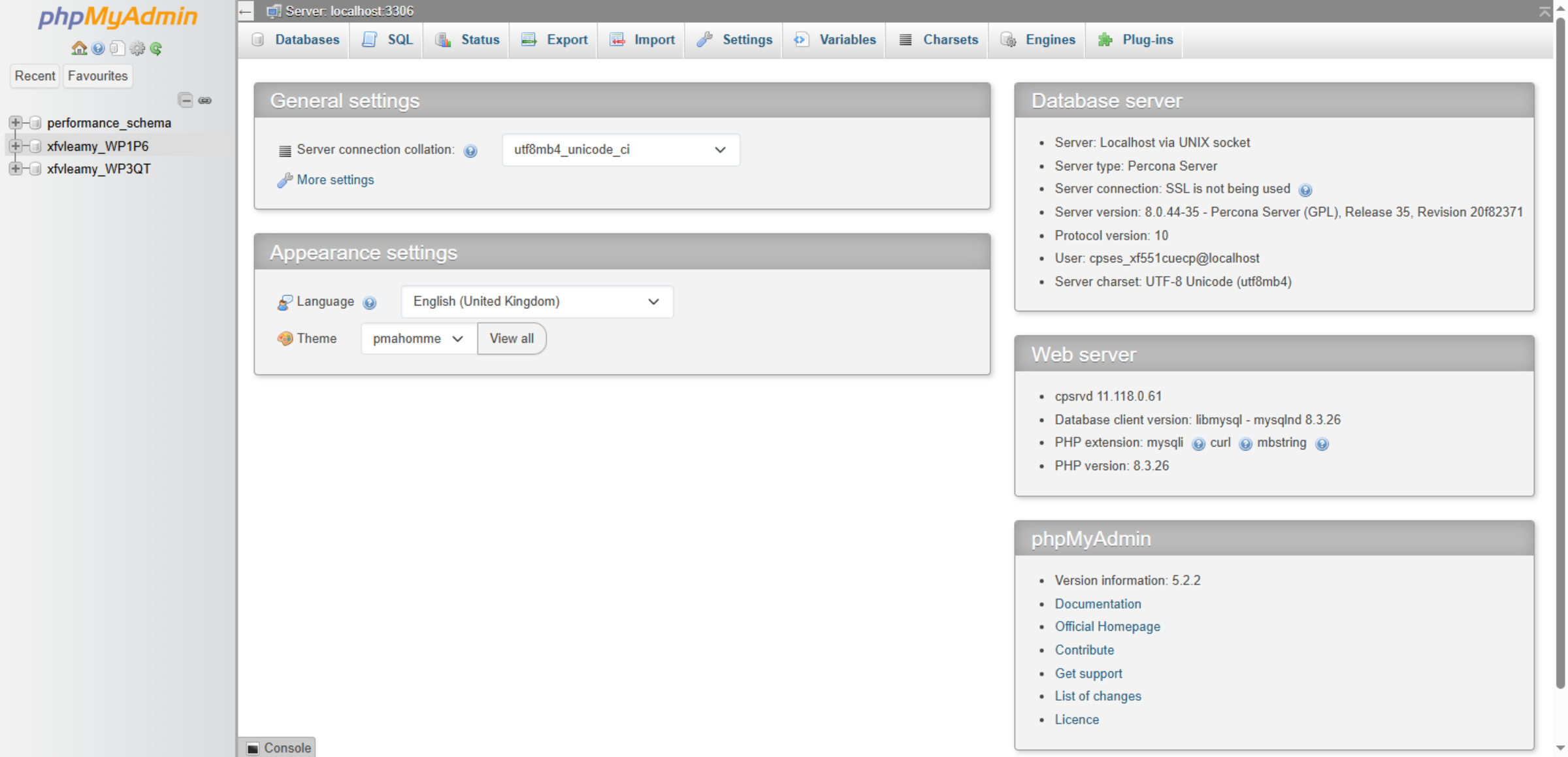
Click the indicated area to enter the phpMyAdmin environment where you can manage your databases.

Open phpMyAdmin Interface

7. Select WordPress Database
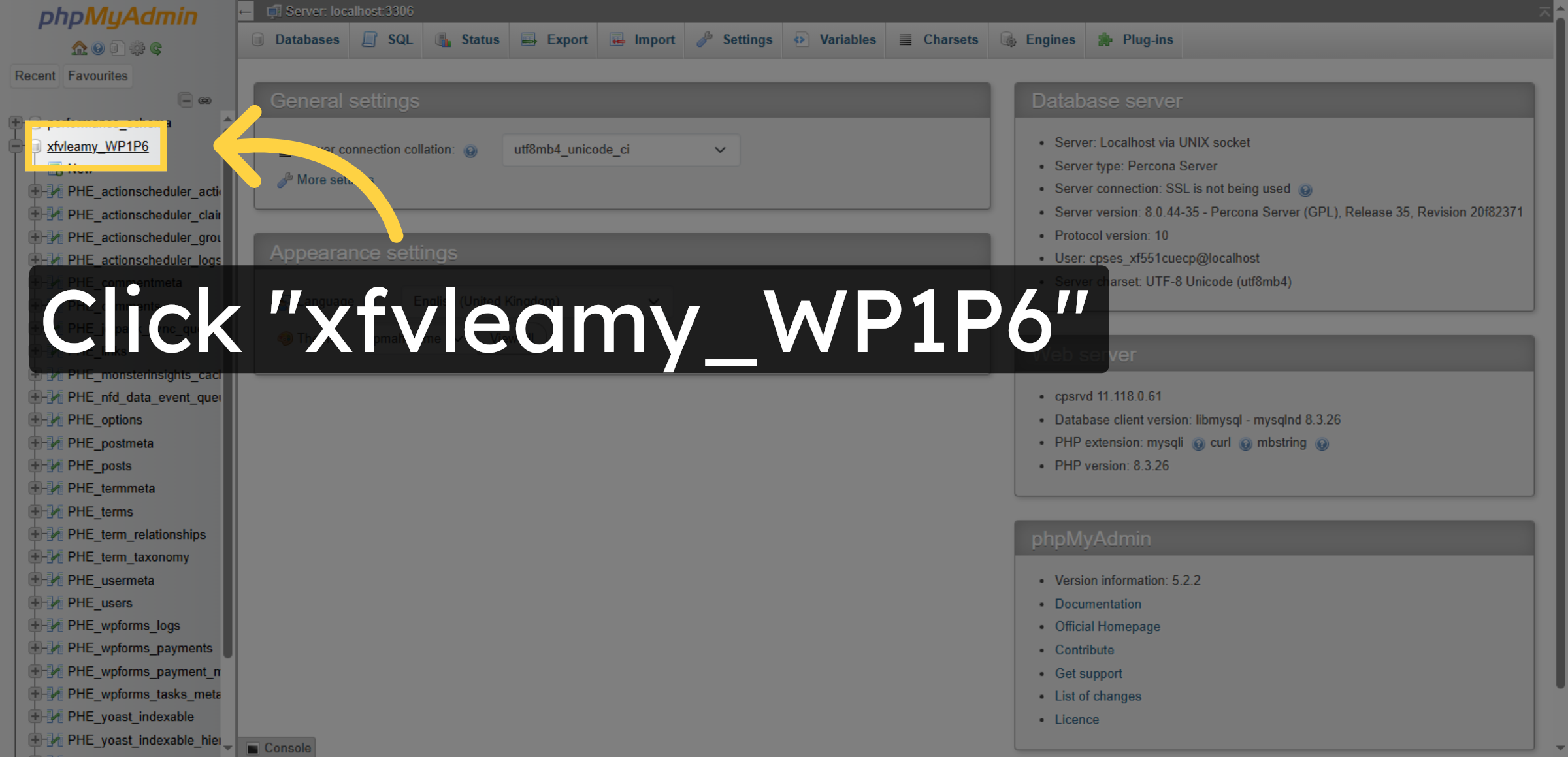
Click the WordPress database name to view and manage its tables and data.

Select WordPress Database

8. Open Users Table
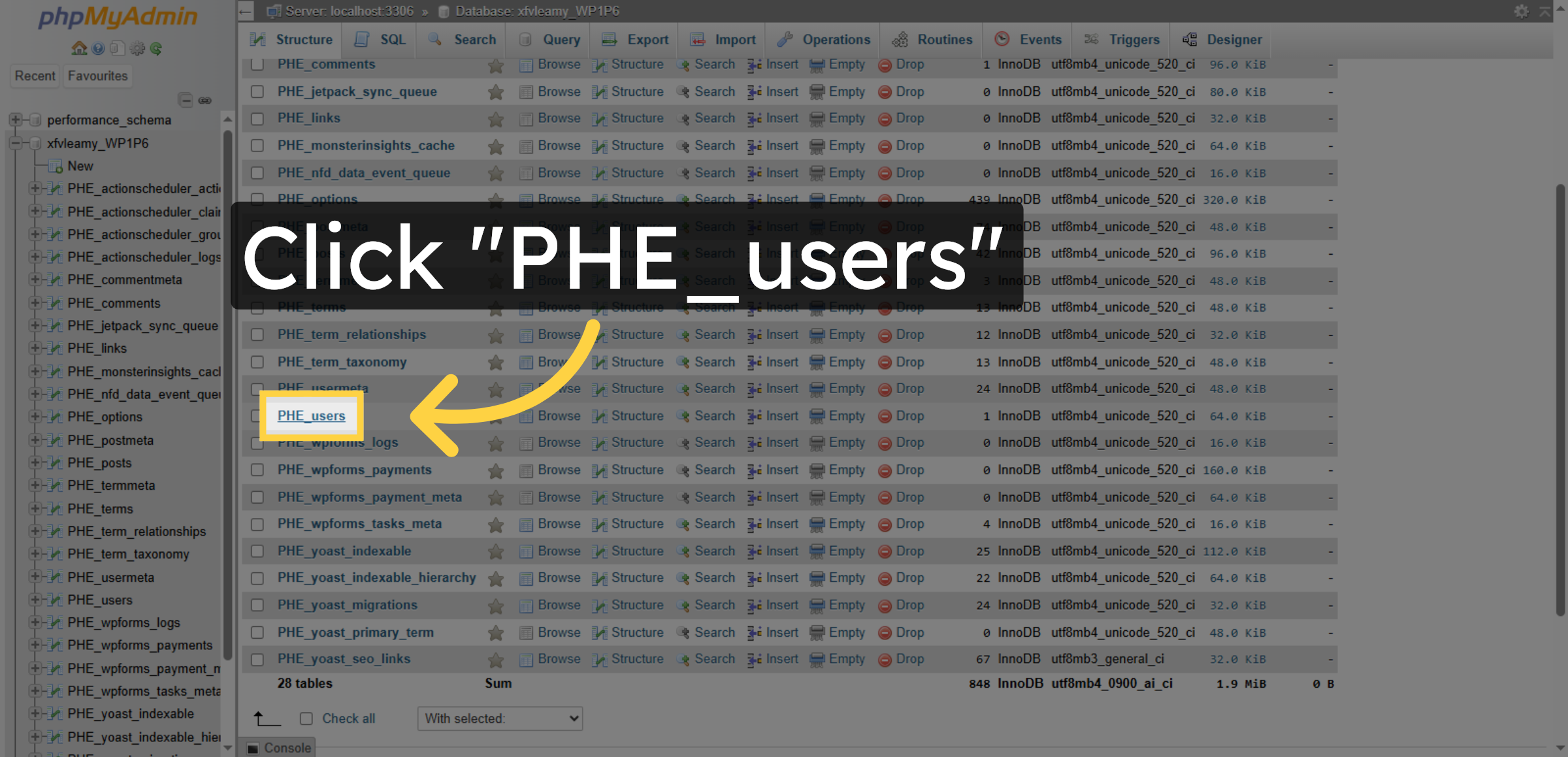
Click the users table within the WordPress database to access user-related data entries.

Open Users Table

9. Access SQL Query Tab
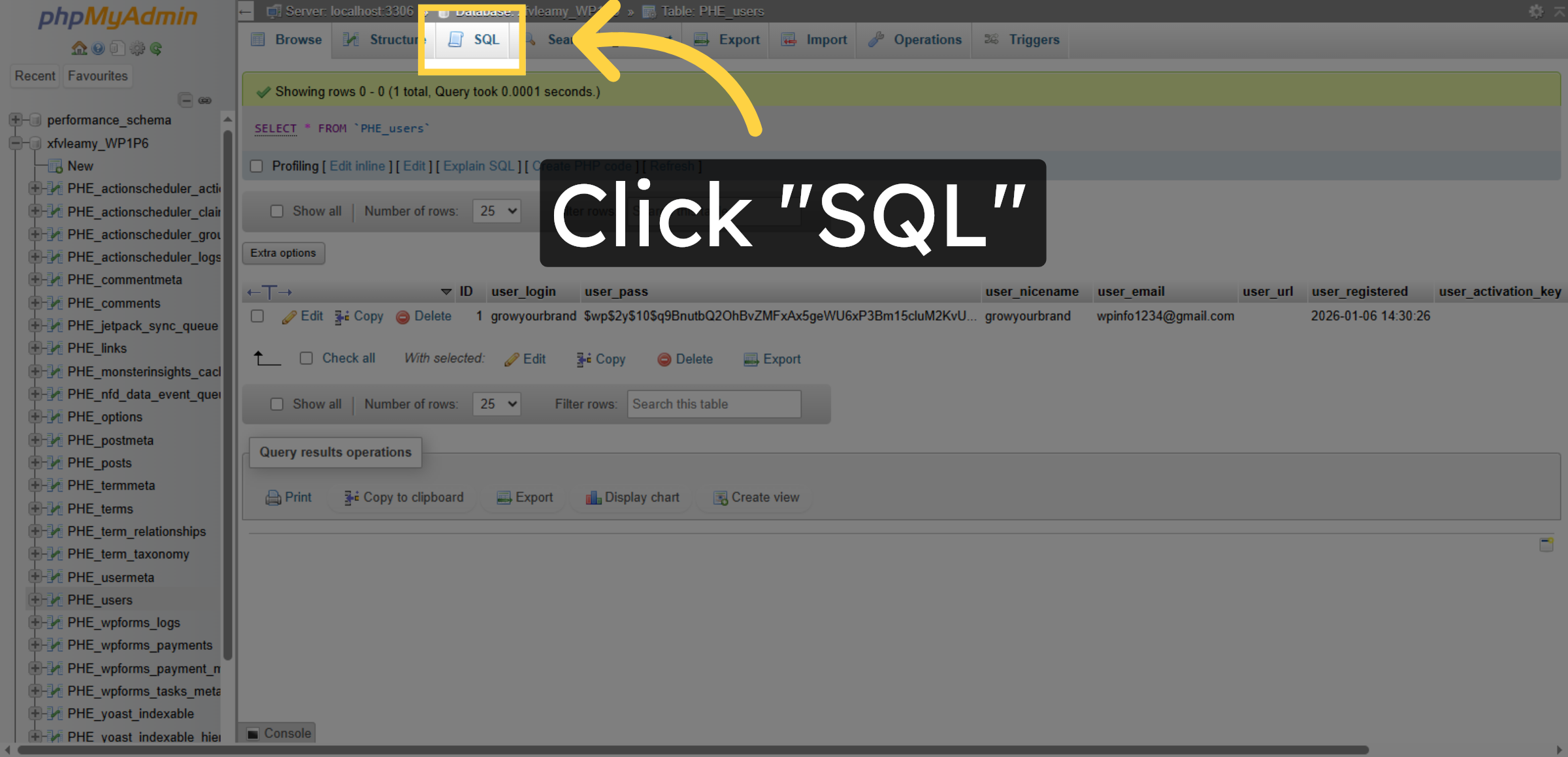
Click the SQL tab to prepare and execute custom database queries.

Access SQL Query Tab

10. Select All User Records and Remove
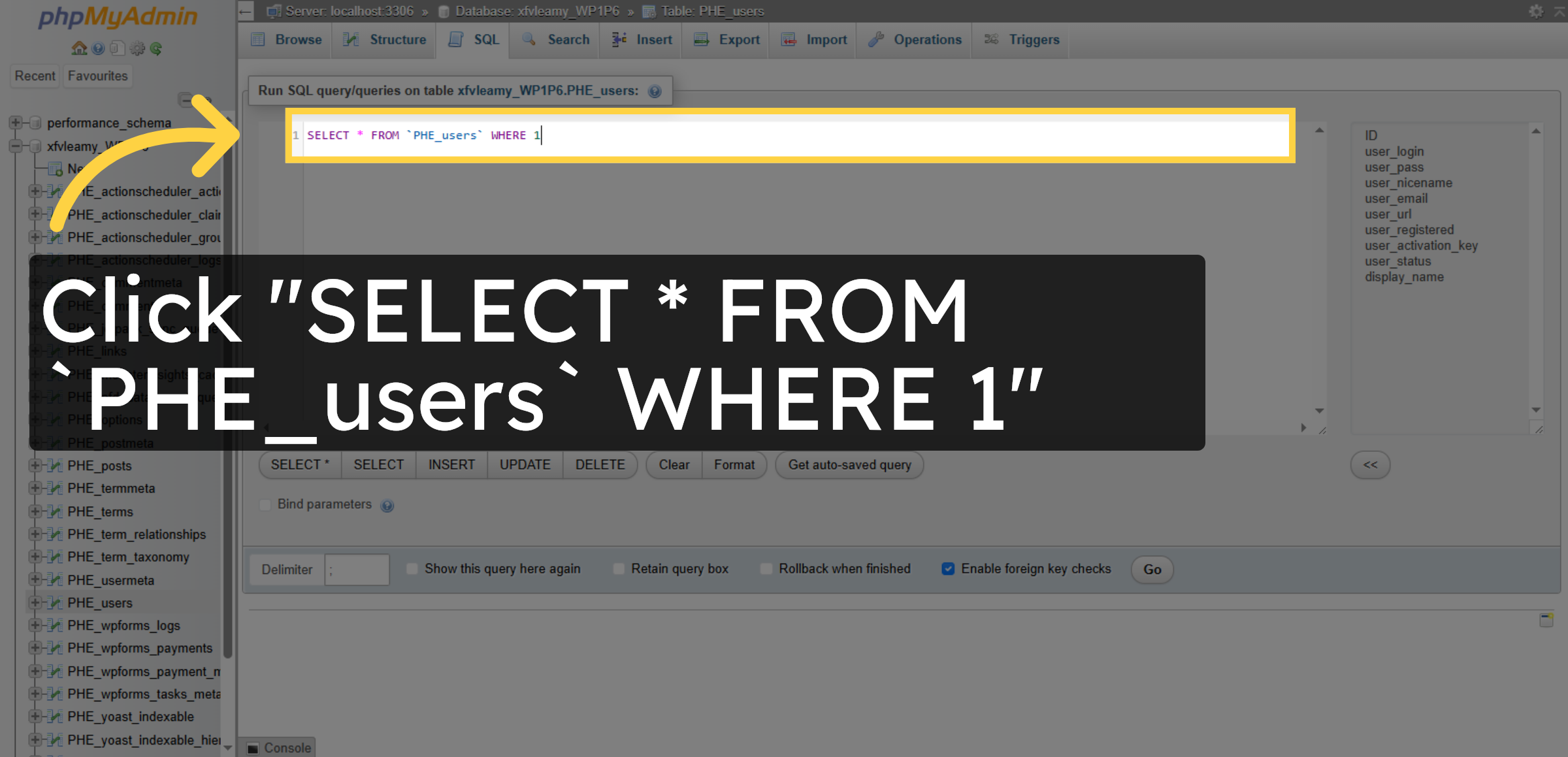
Click the query labeled SELECT * FROM the users table to retrieve all user records.

Select All User Records and Remove

11. Inserting New User
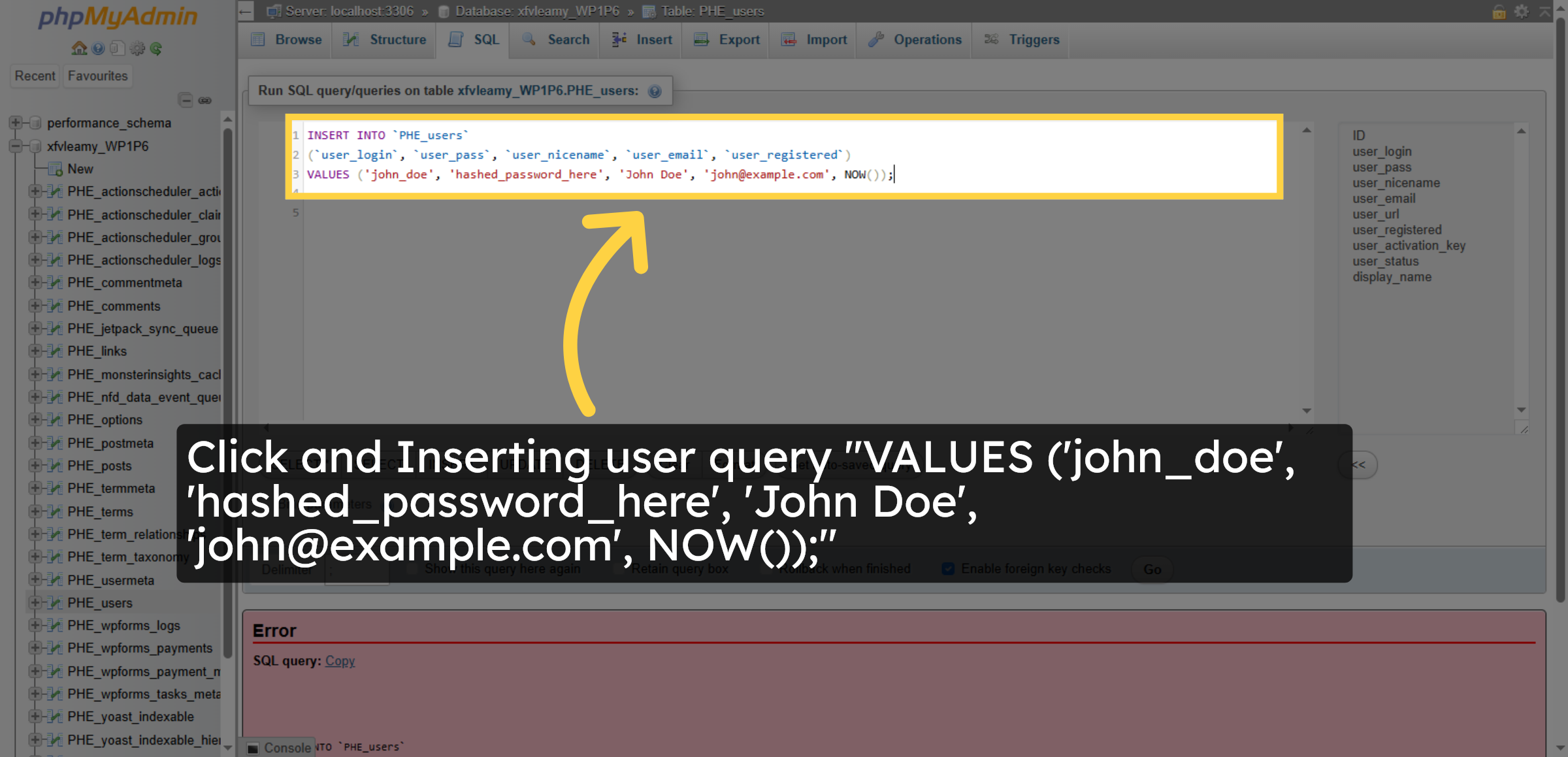
Click the SQL statement including a timestamp to review the insertion of user data with date information.

 Inserting New User

12. Run Timestamped Insert Query
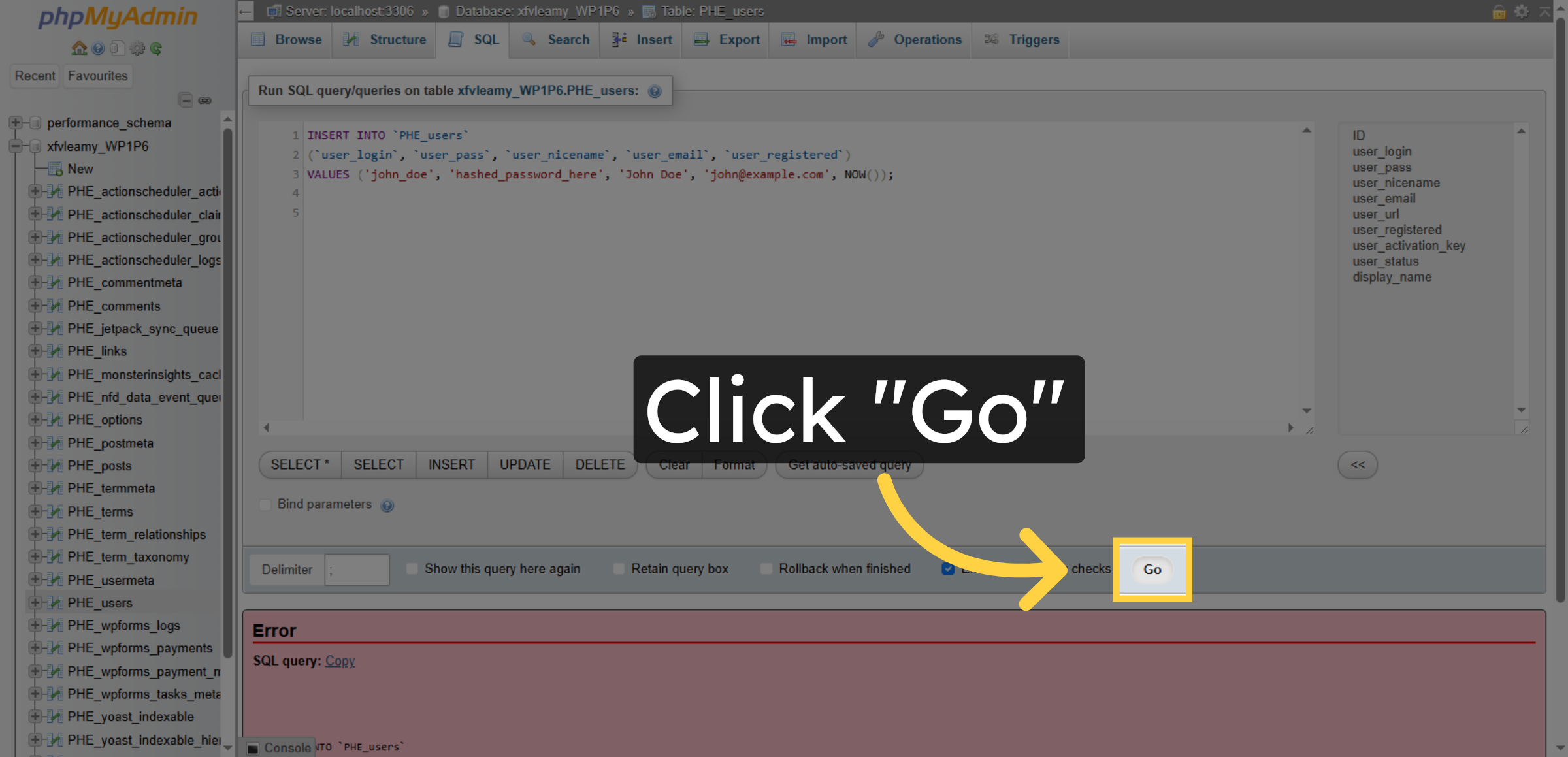
Click the Go button to execute the insert query that adds a user record with the current timestamp.

Run Timestamped Insert Query

13. New User Inserted
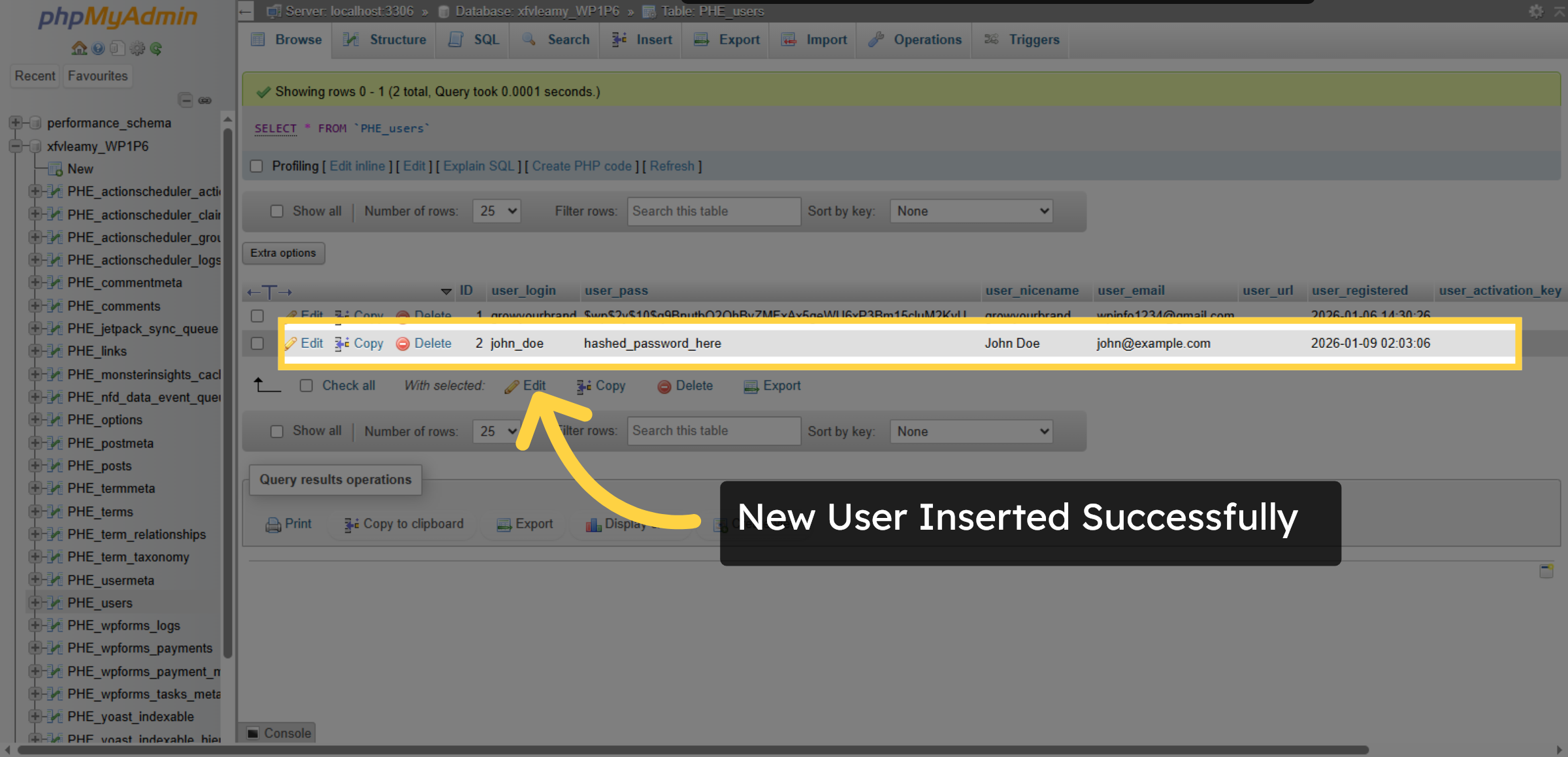
Click to view the columns of the users table, including user ID, login, password, and email fields.

New User Inserted

Ad Banner

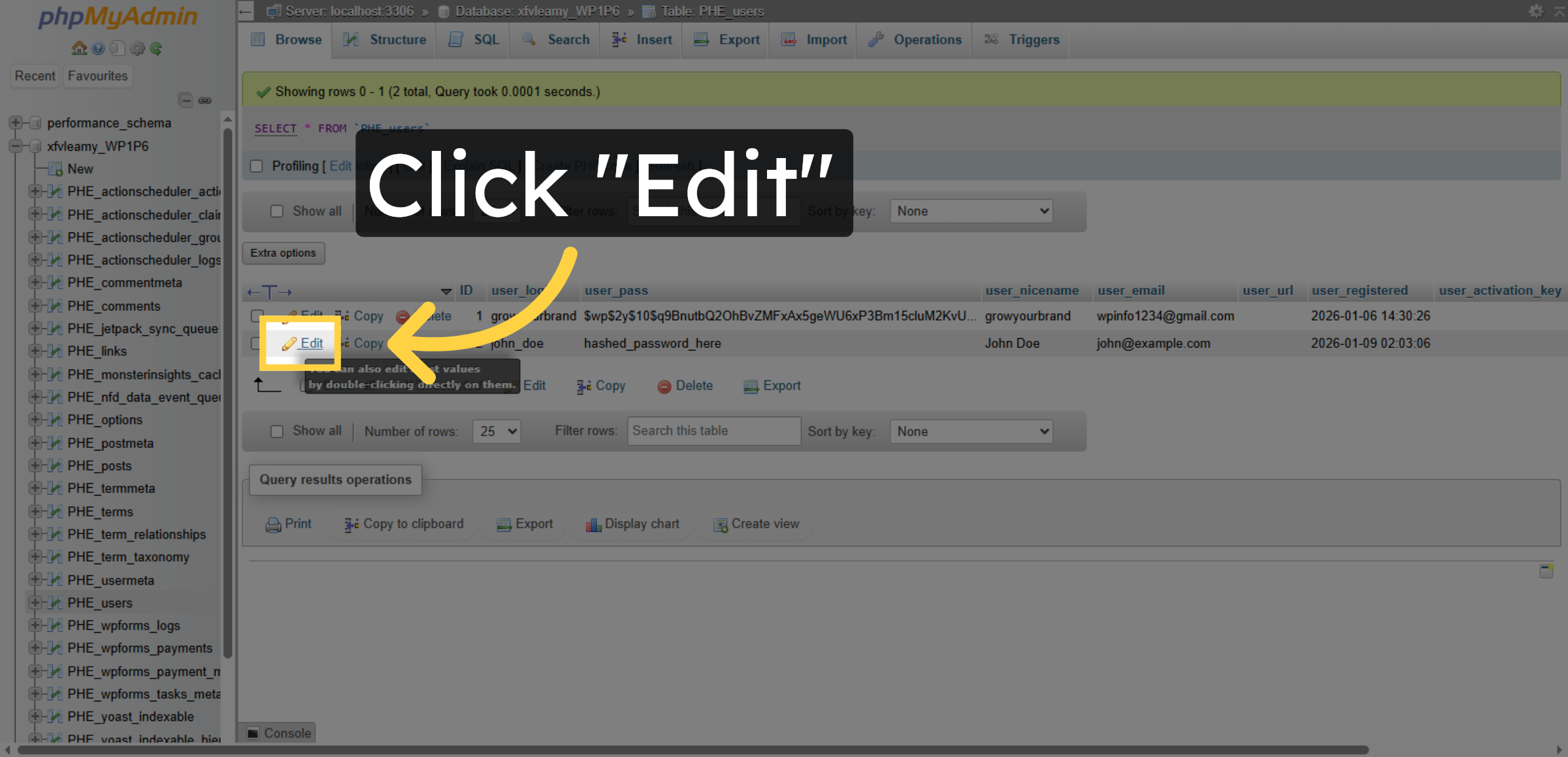
14. Edit User Record

Click the Edit option to modify the details of a specific user record in the database.

Edit User Record

15. Select User Name Field and Update it
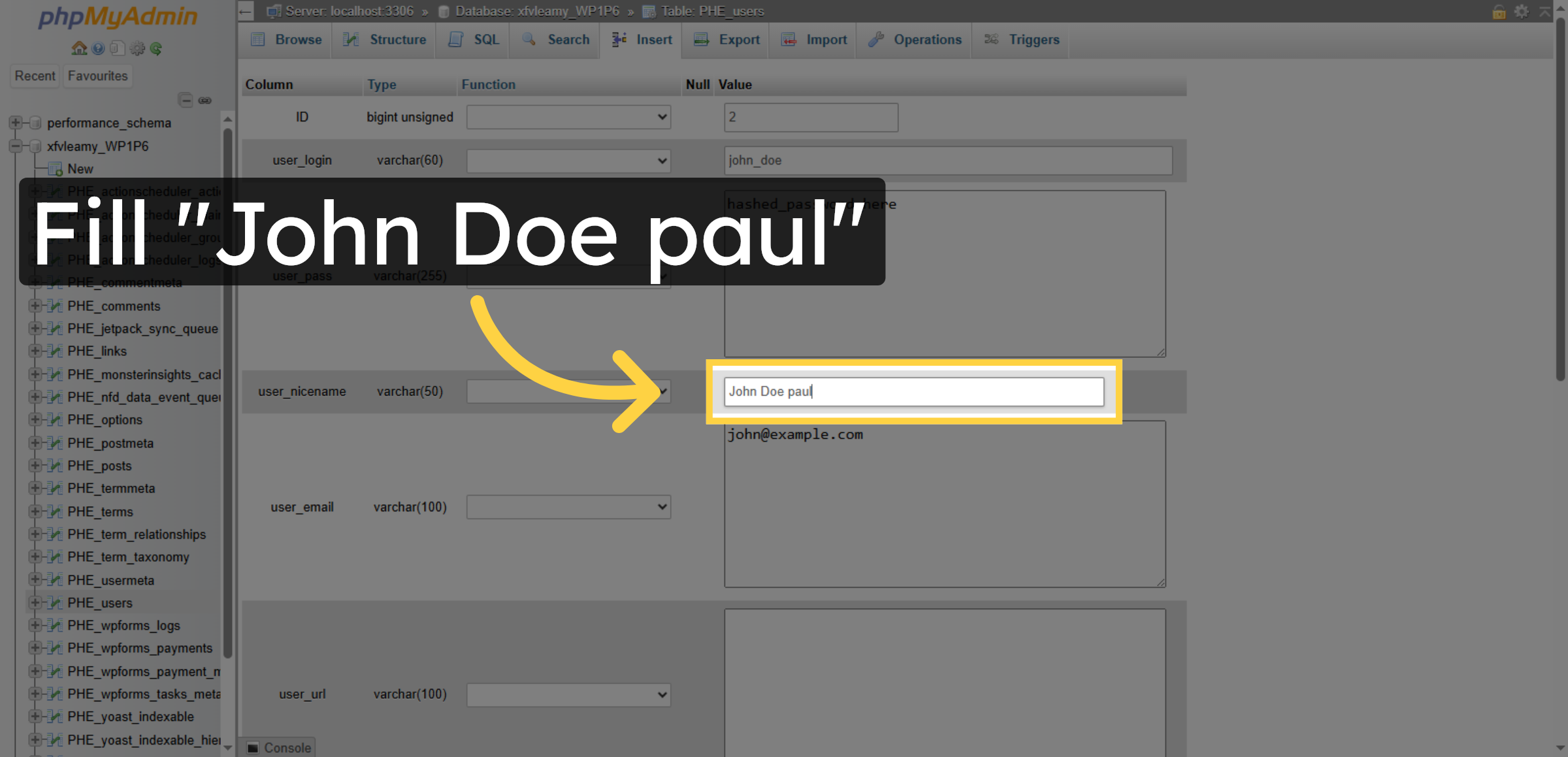
Enter the full name in the user name field to update the user’s display name in the database.

Select User Name Field and Update it

16. Select and Update User Email Field
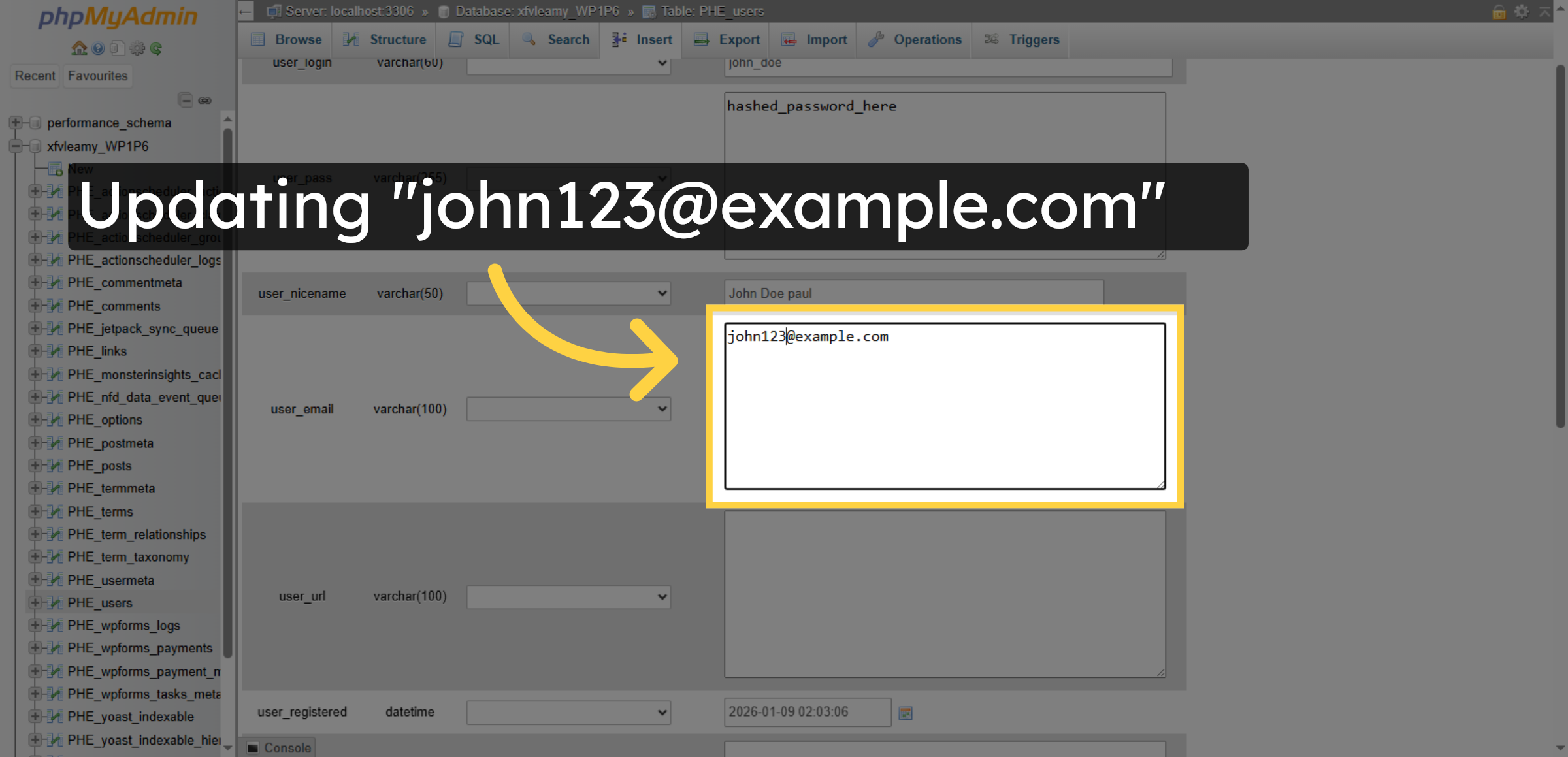
Enter your email address in the user email field to update the user’s contact information.

Select and Update User Email Field

17. Save User Record Changes
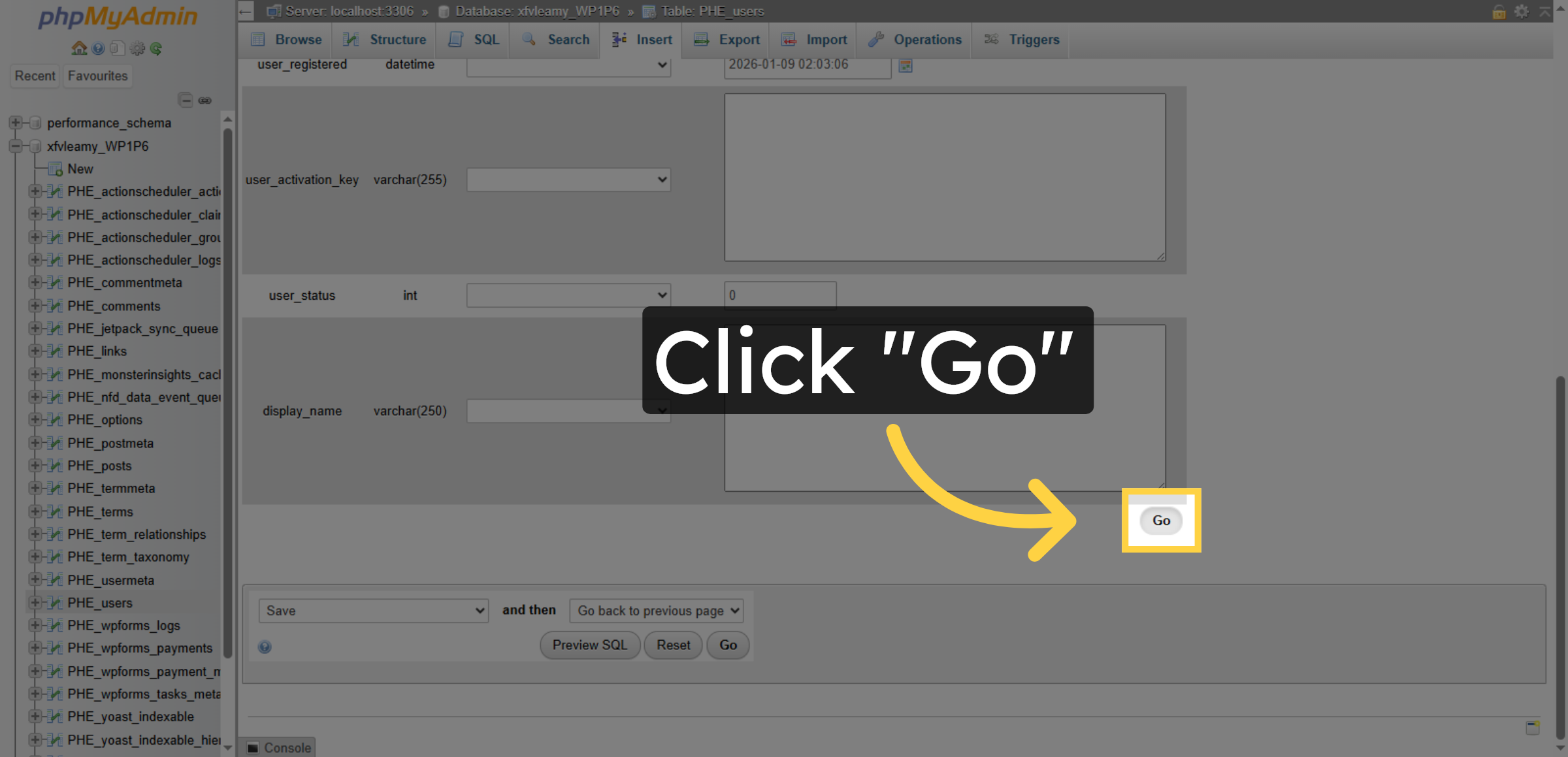
Click the Go button to save the changes made to the user record in the database.

Save User Record Changes

18. Delete User Record
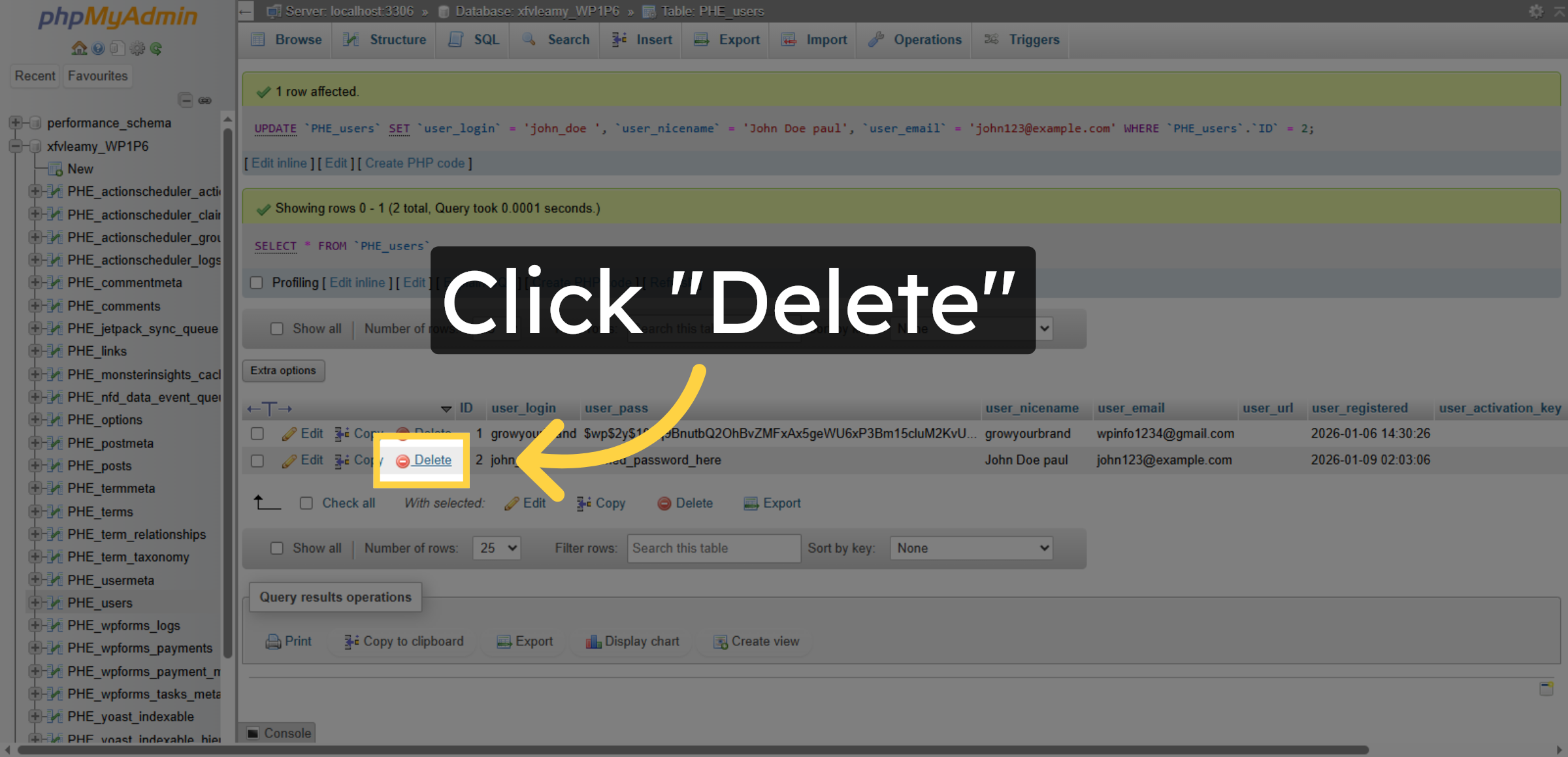
Click the Delete option to remove a user record from the database permanently.

Delete User Record

19. Confirm Deletion
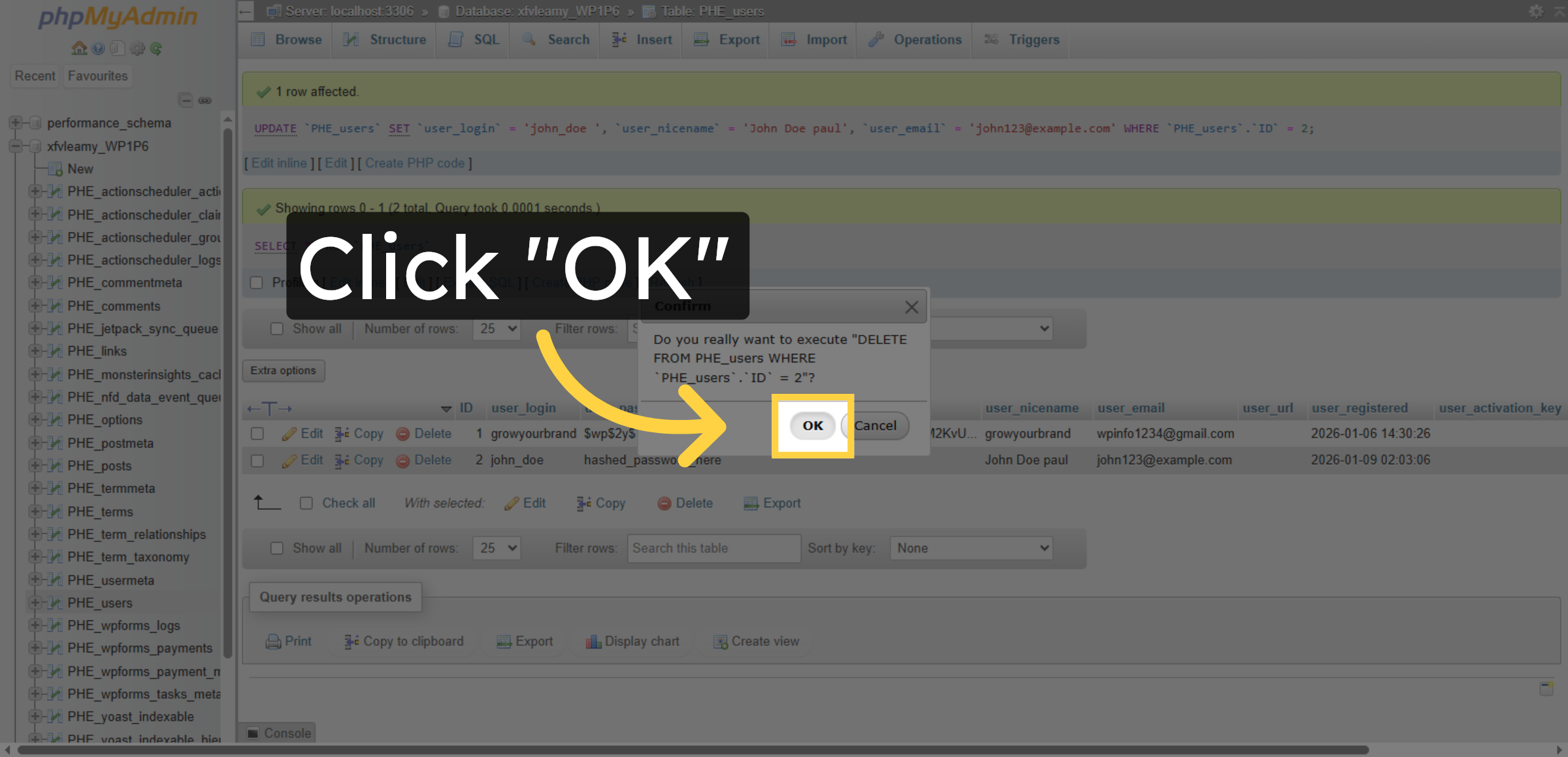
Click OK to confirm the deletion of the selected user record from the database.

Confirm Deletion

Conclusion

By following this guide, you have successfully learned how to access and manage your WordPress database using phpMyAdmin on Bluehost. You can now view tables, insert new records, update user information, and remove unwanted entries safely. These skills help improve website stability and data accuracy.

To avoid data loss, always create backups before making major changes and review database entries carefully. Regular database maintenance will help keep your website secure and optimized.

 WooHelpDesk Support

Need help with WordPress database management, backups, or troubleshooting? WooHelpDesk is here to support you.

Visit: https://www.woohelpdesk.com

Call Us Toll-Free: +1 888 602 0119 (US & Canada)
 Secure Management | Expert Support

Contact WooHelpDesk today for reliable database assistance.


Leave a Reply

Your email address will not be published. Required fields are marked *

Leave a Reply

Your email address will not be published. Required fields are marked *