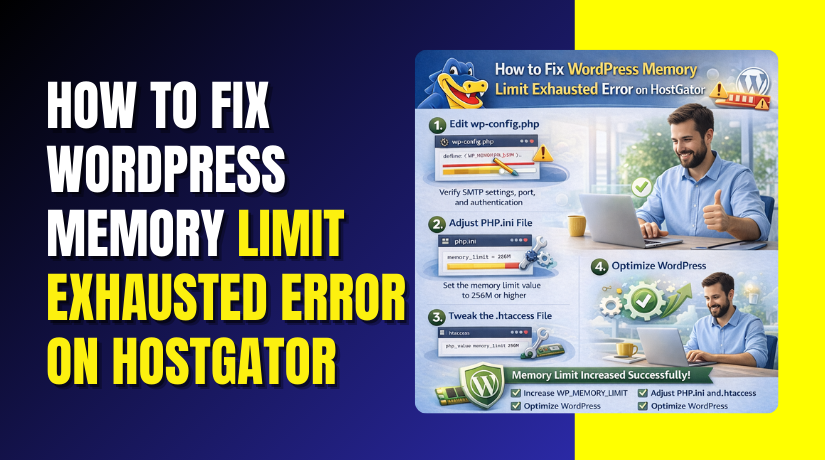
How to Fix WordPress Memory Limit Exhausted Error on HostGator
Introduction
The “WordPress Memory Limit Exhausted” error is a common issue that occurs when a website exceeds the PHP memory allocated by the hosting server. This problem is often triggered by resource-intensive plugins, poorly optimized themes, large media files, or complex scripts running in the background. When insufficient memory is available, WordPress may fail to load properly, display critical errors, or stop executing important functions.
This guidde explains how to resolve the WordPress memory limit exhausted error on HostGator WP Hosting by adjusting PHP configuration settings through the cPanel interface. It provides step-by-step instructions for accessing the MultiPHP INI Editor, selecting the correct configuration location, increasing memory limits, and modifying execution time values. By following this guide, website administrators can restore normal site functionality, improve system stability, and prevent recurring memory-related issues.
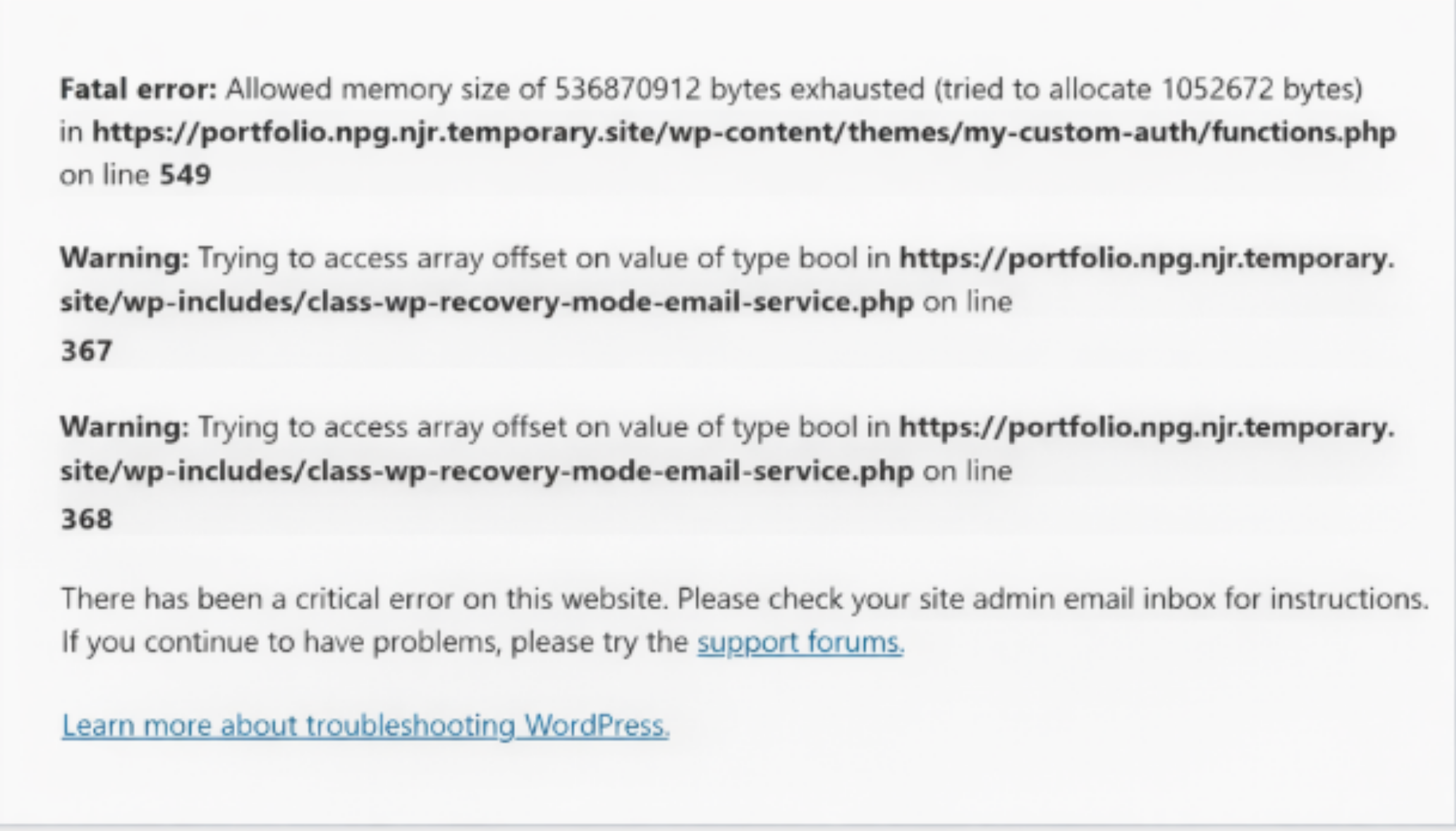
1. problem: WordPress Memory Limit Exhausted Error
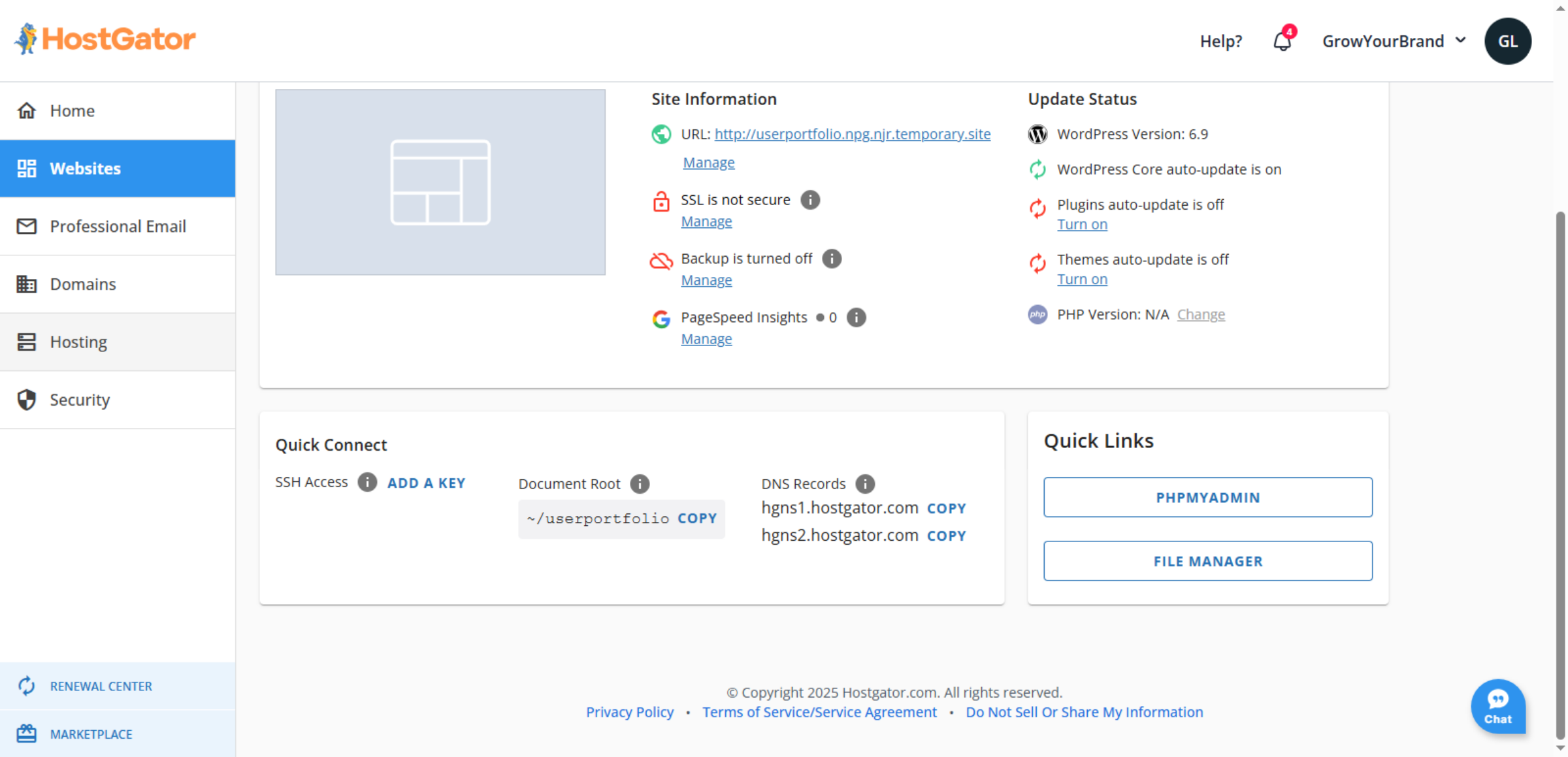
2. Navigate to HostGator Website
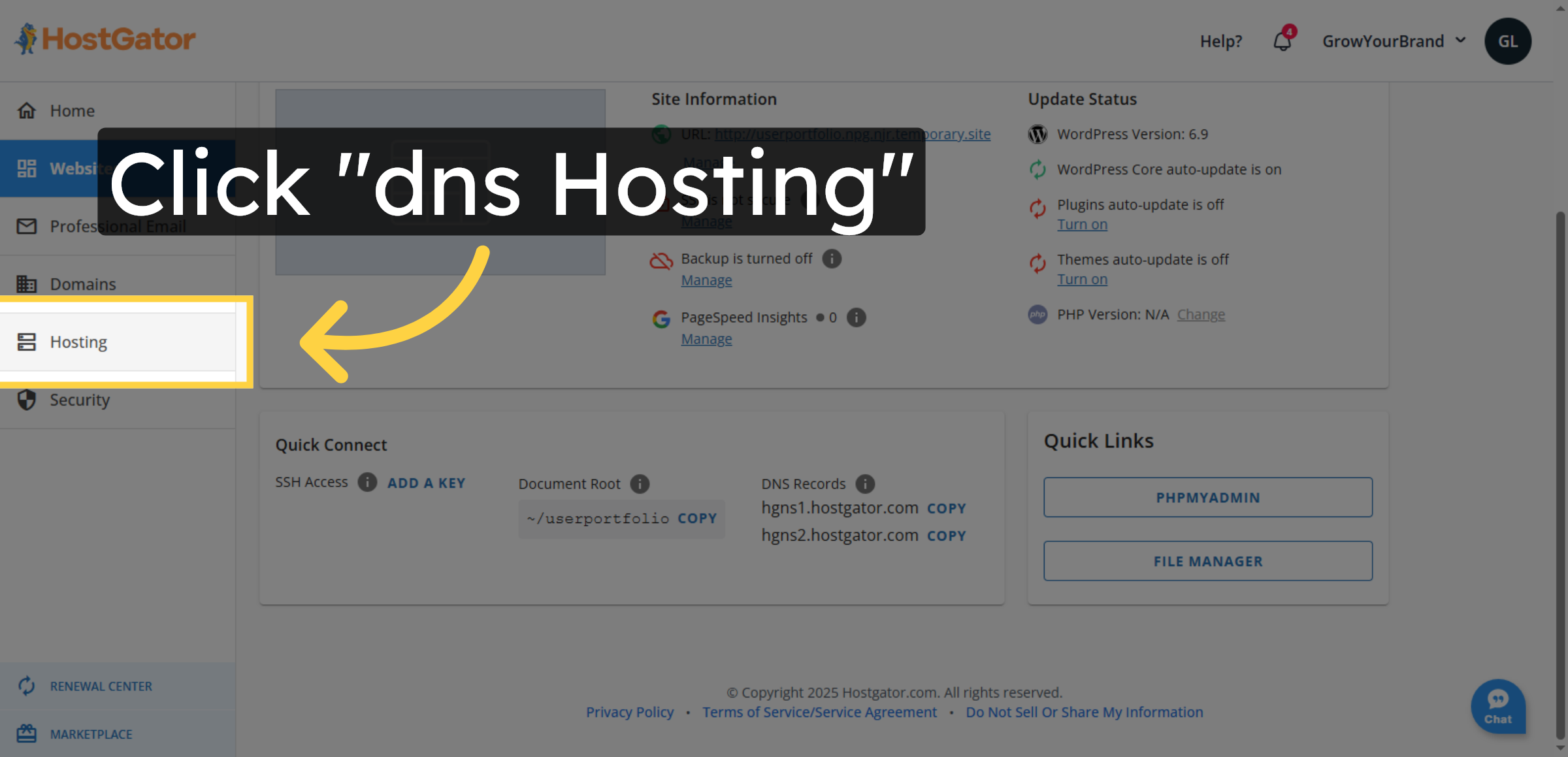
3. Access DNS Hosting Section
4. Click Cpanel
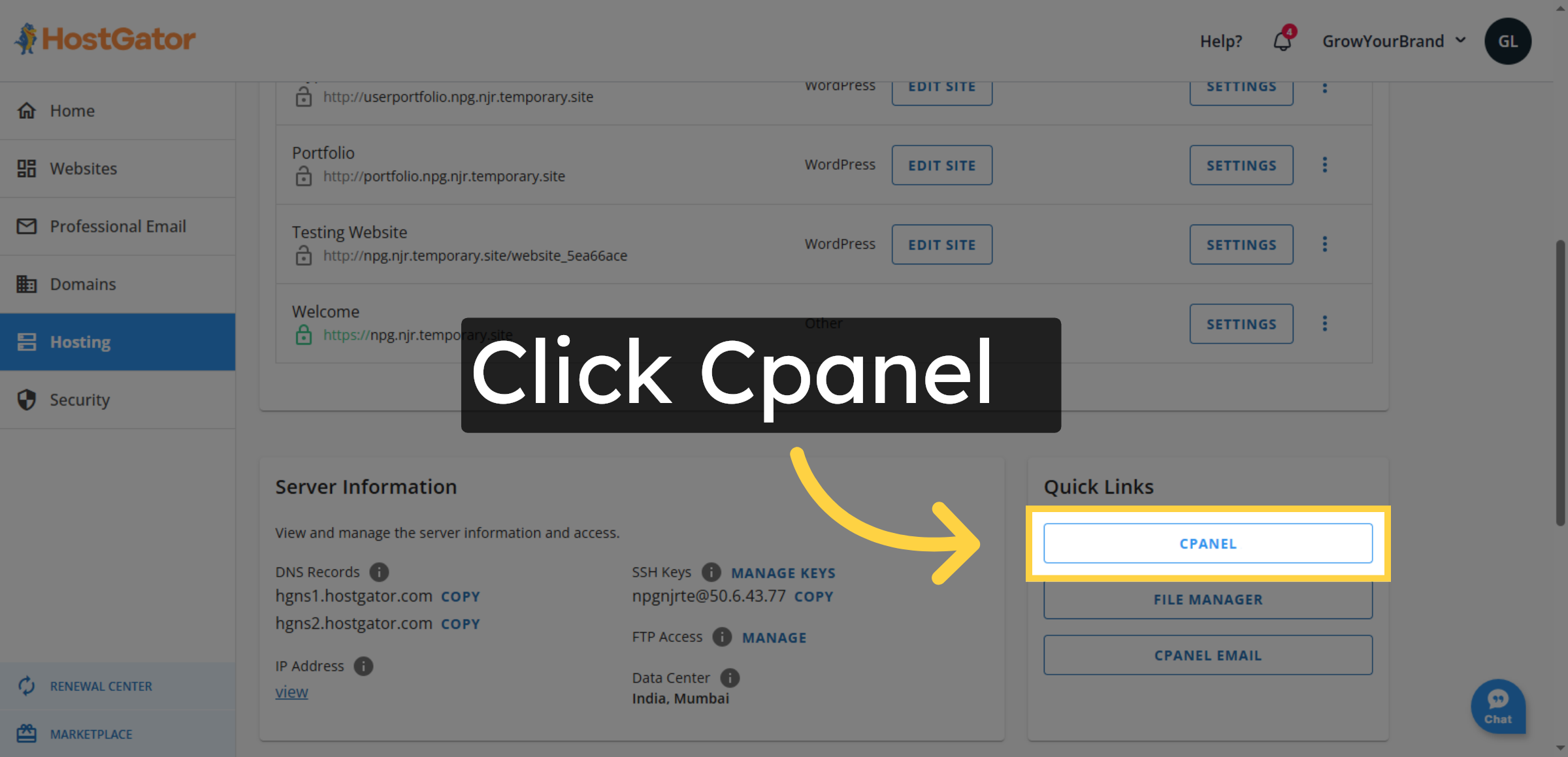
5. Open MultiPHP INI Editor
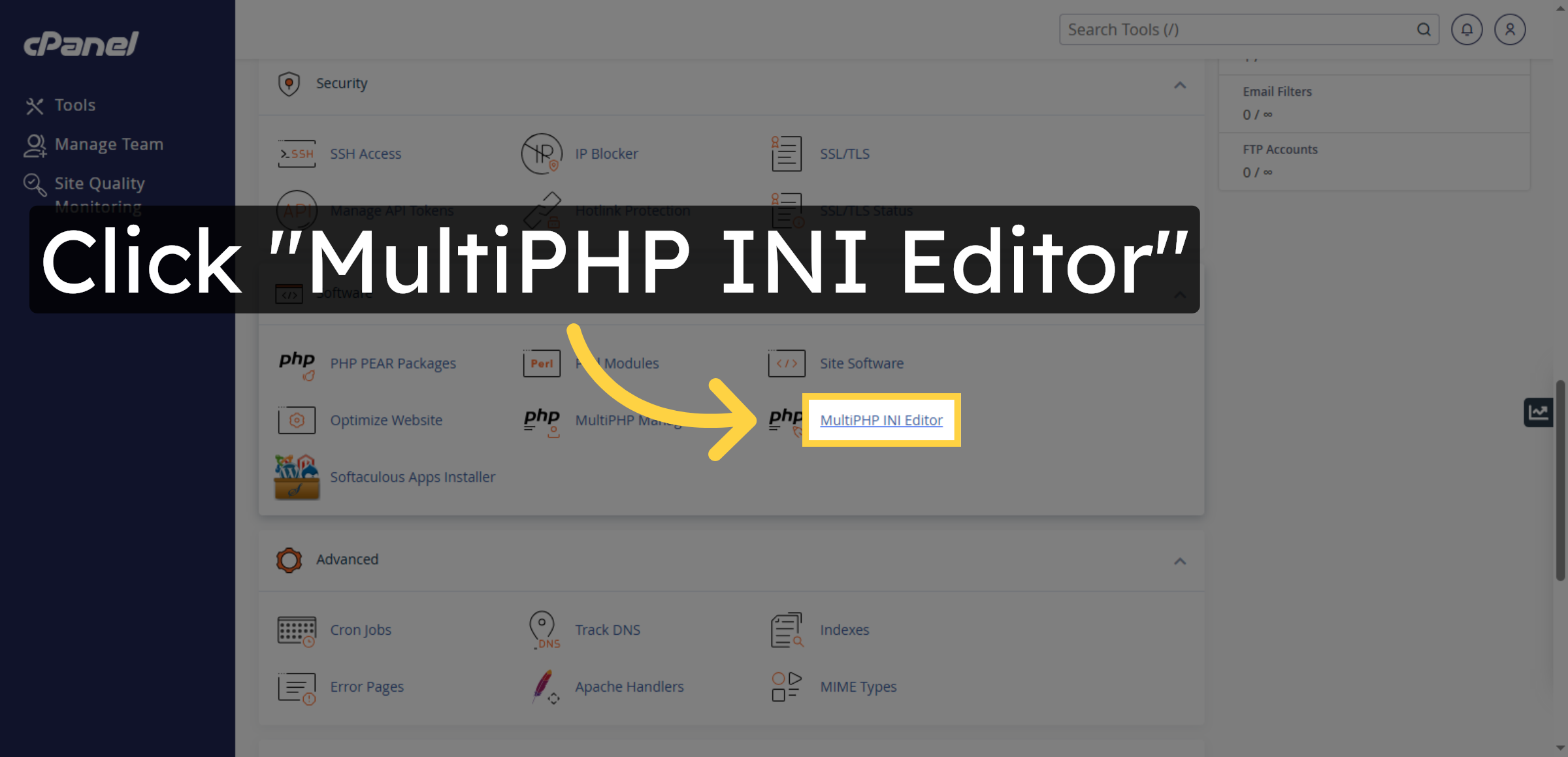
6. Select Configuration Location
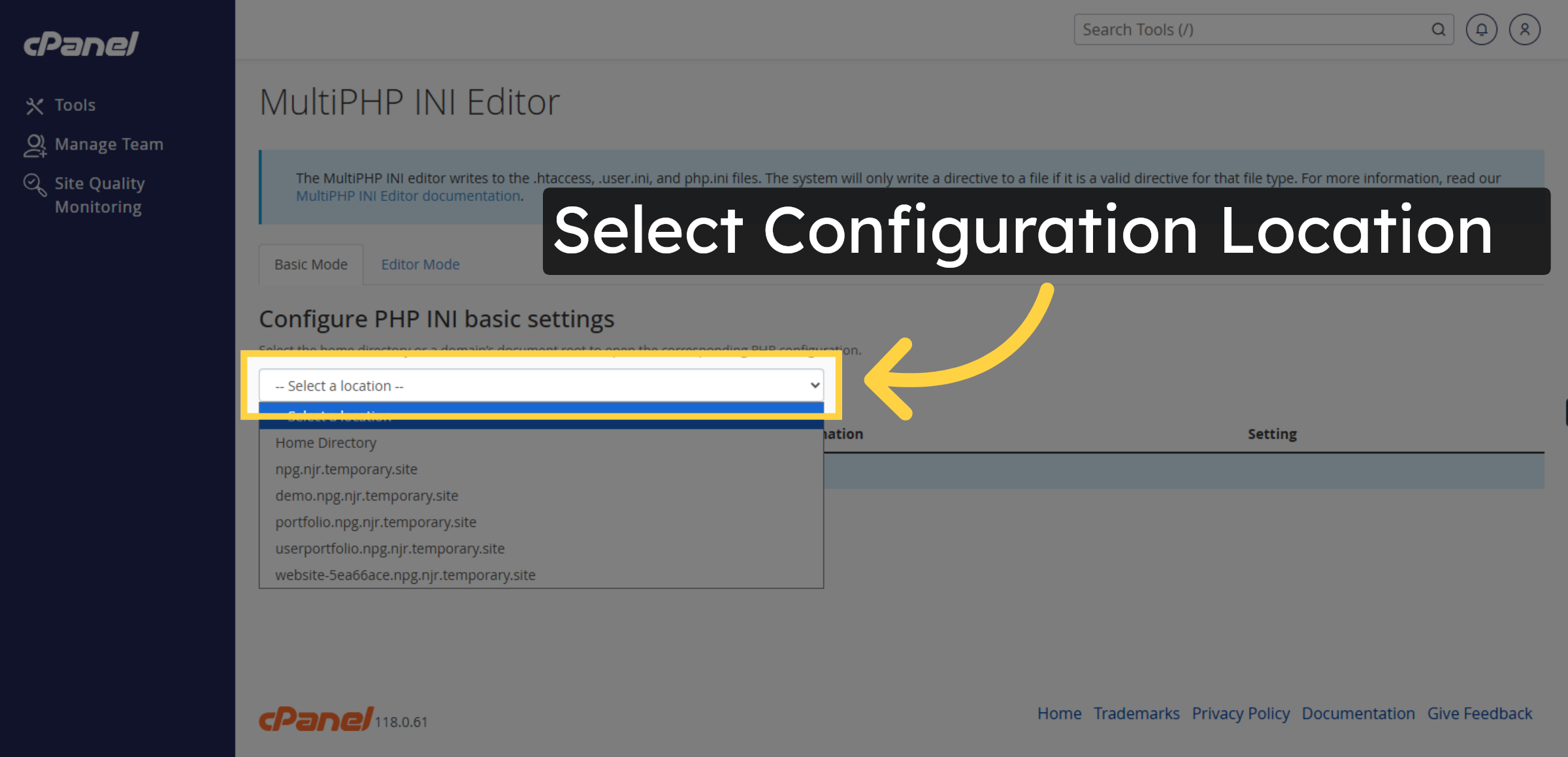
7. Select Home Directory Again
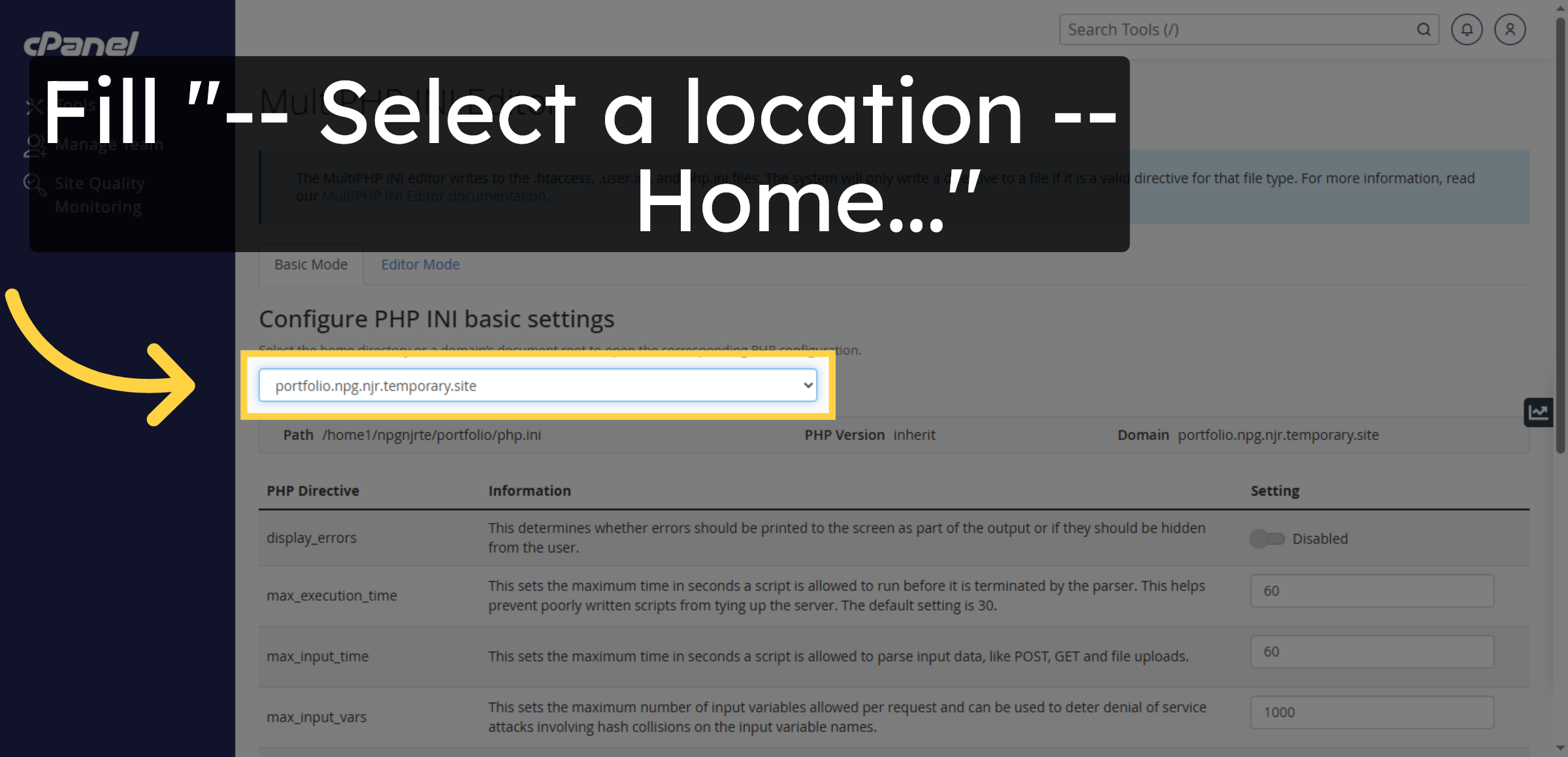
8. Select Max Execution Time
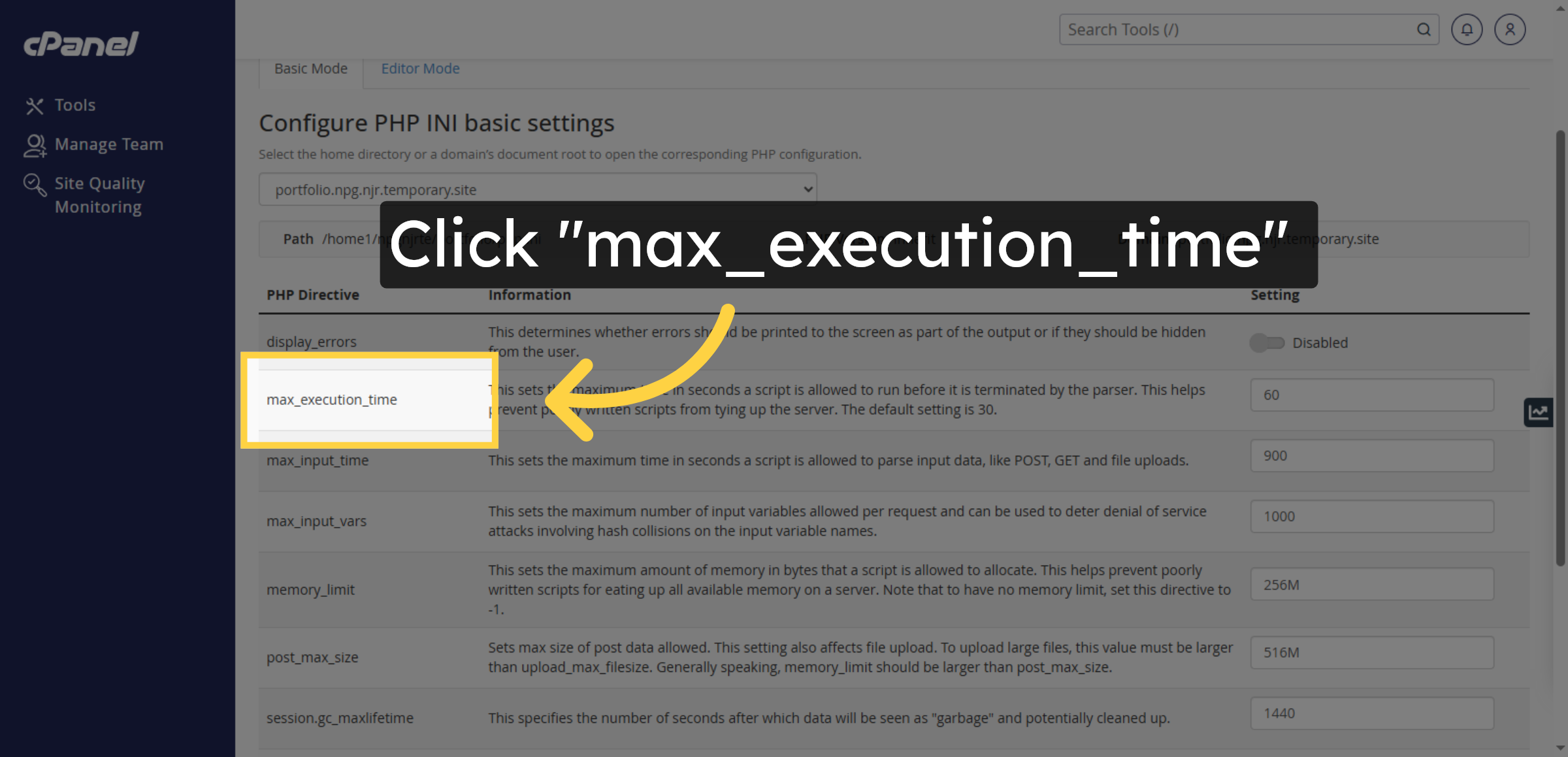
9. Choose Current Execution Time
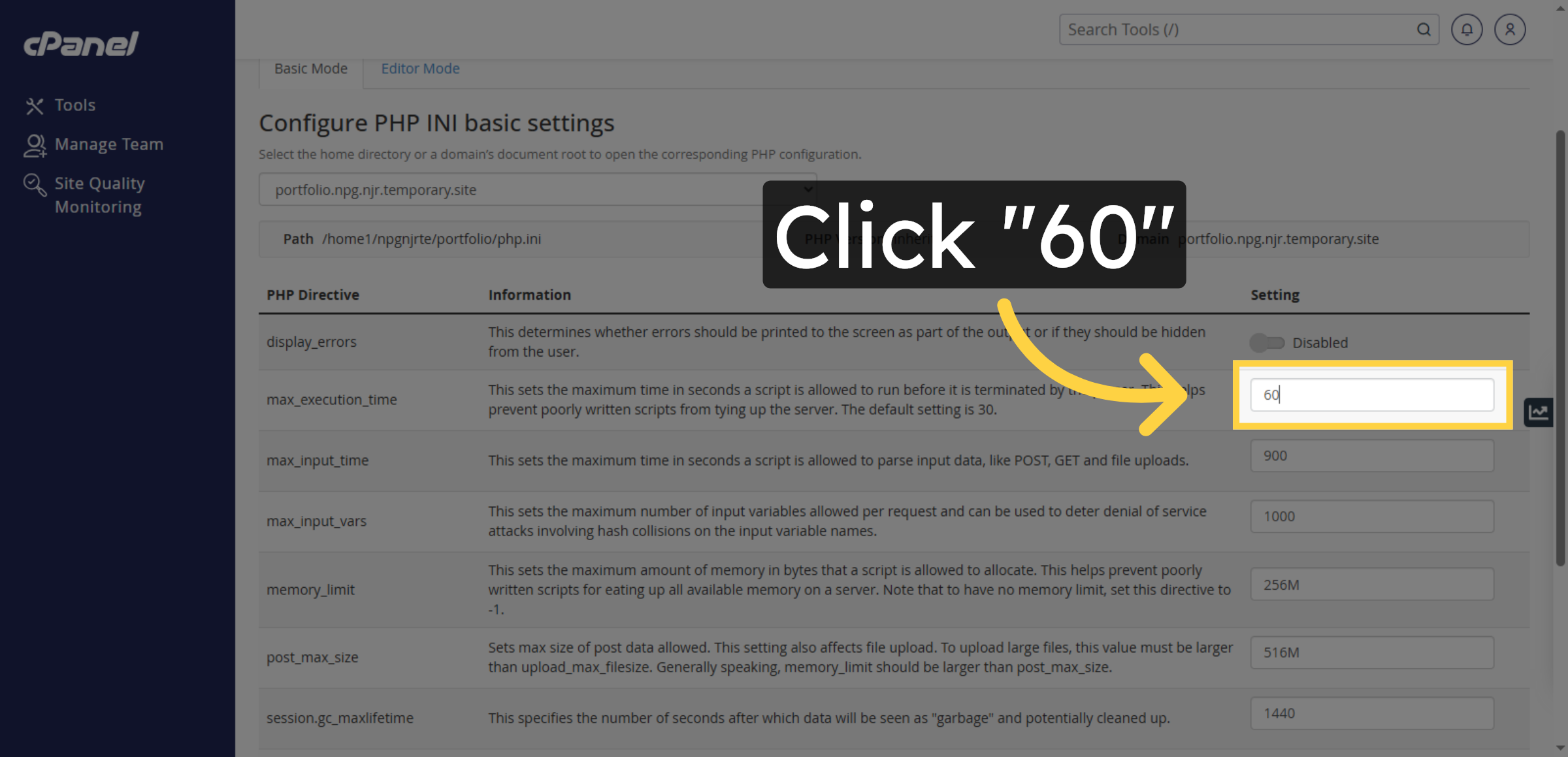
10. Choose Current Execution Time
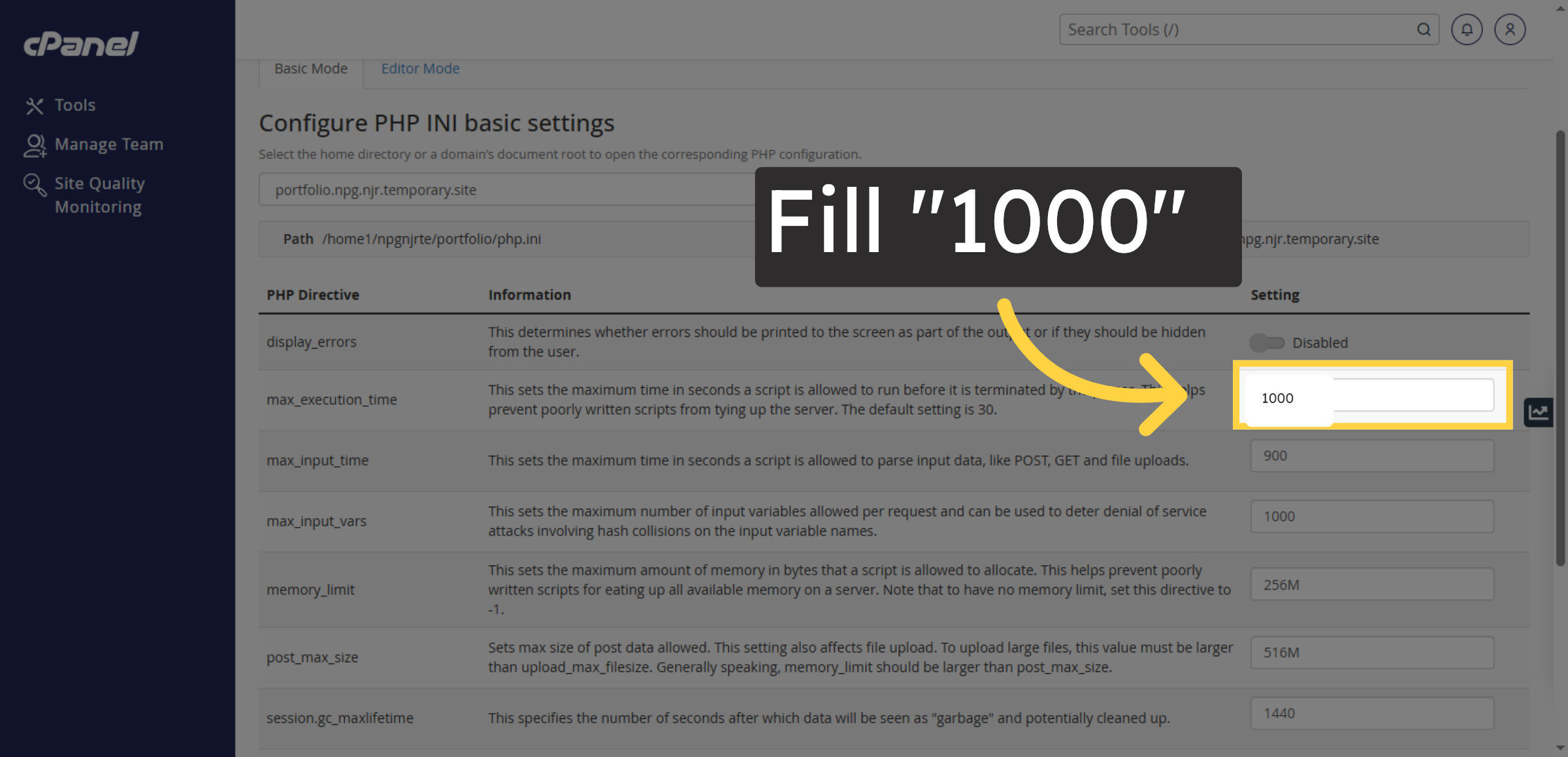
11. Select Memory Limit Setting
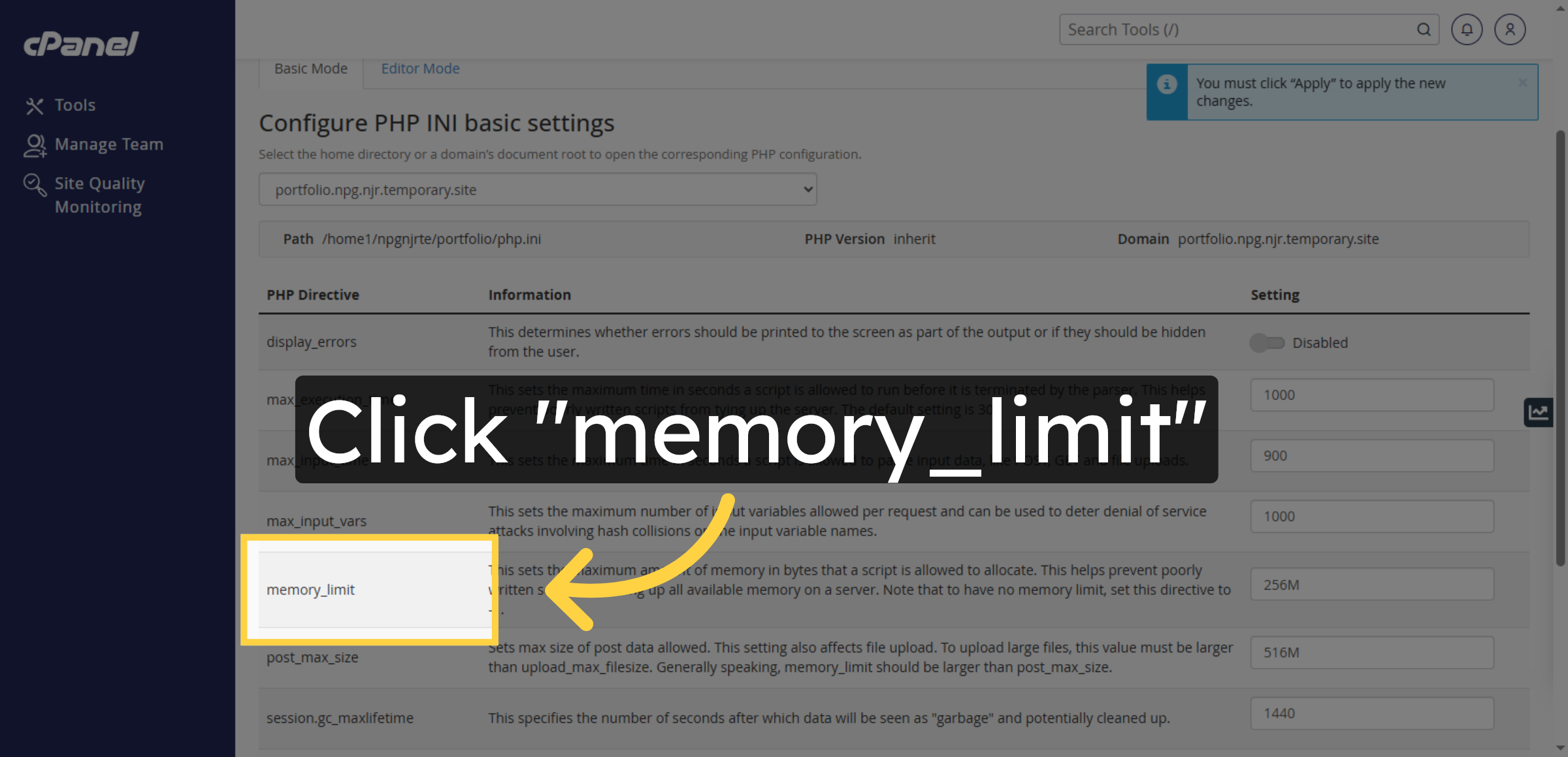
12. Choose Current Memory Limit
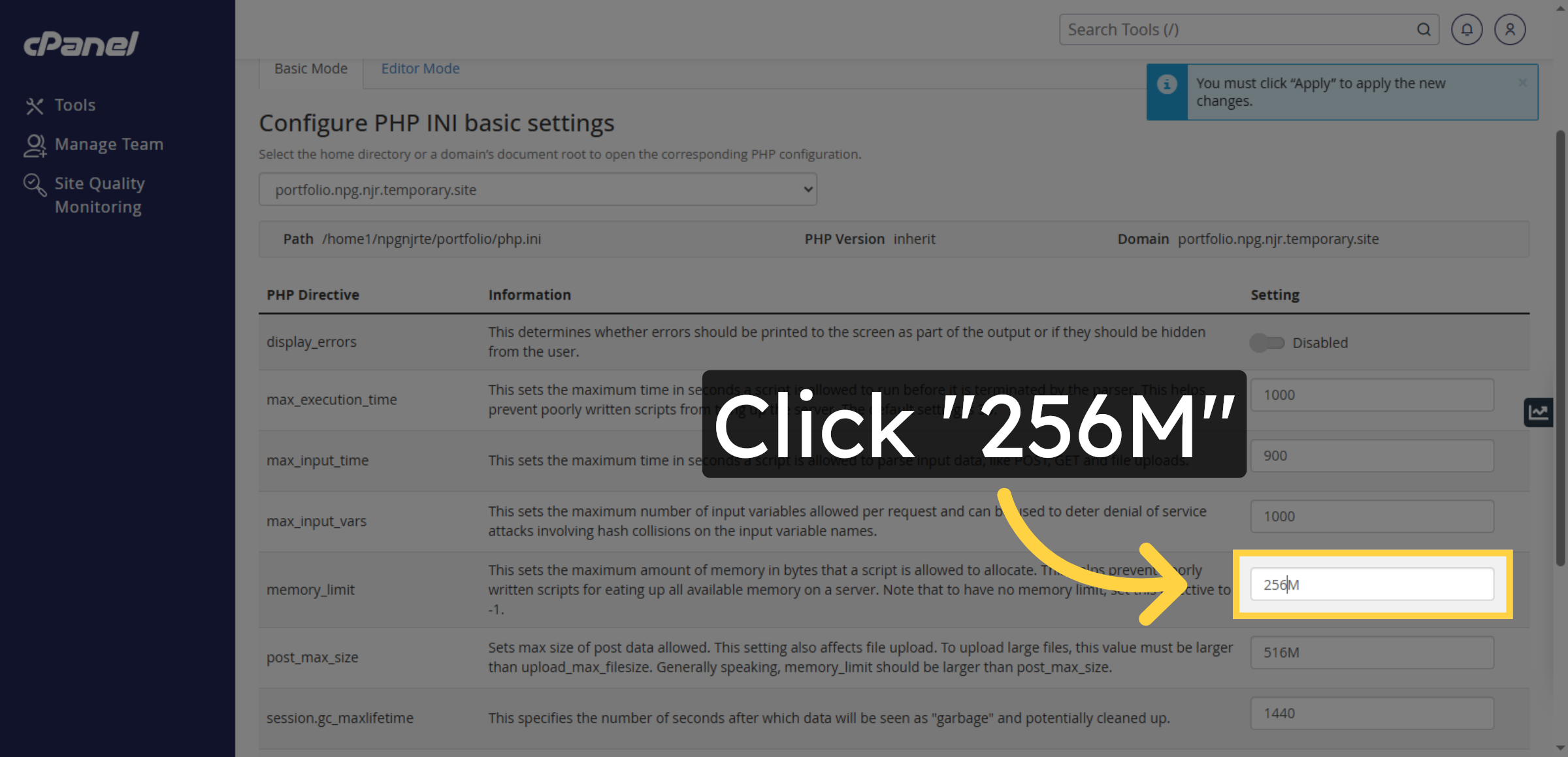


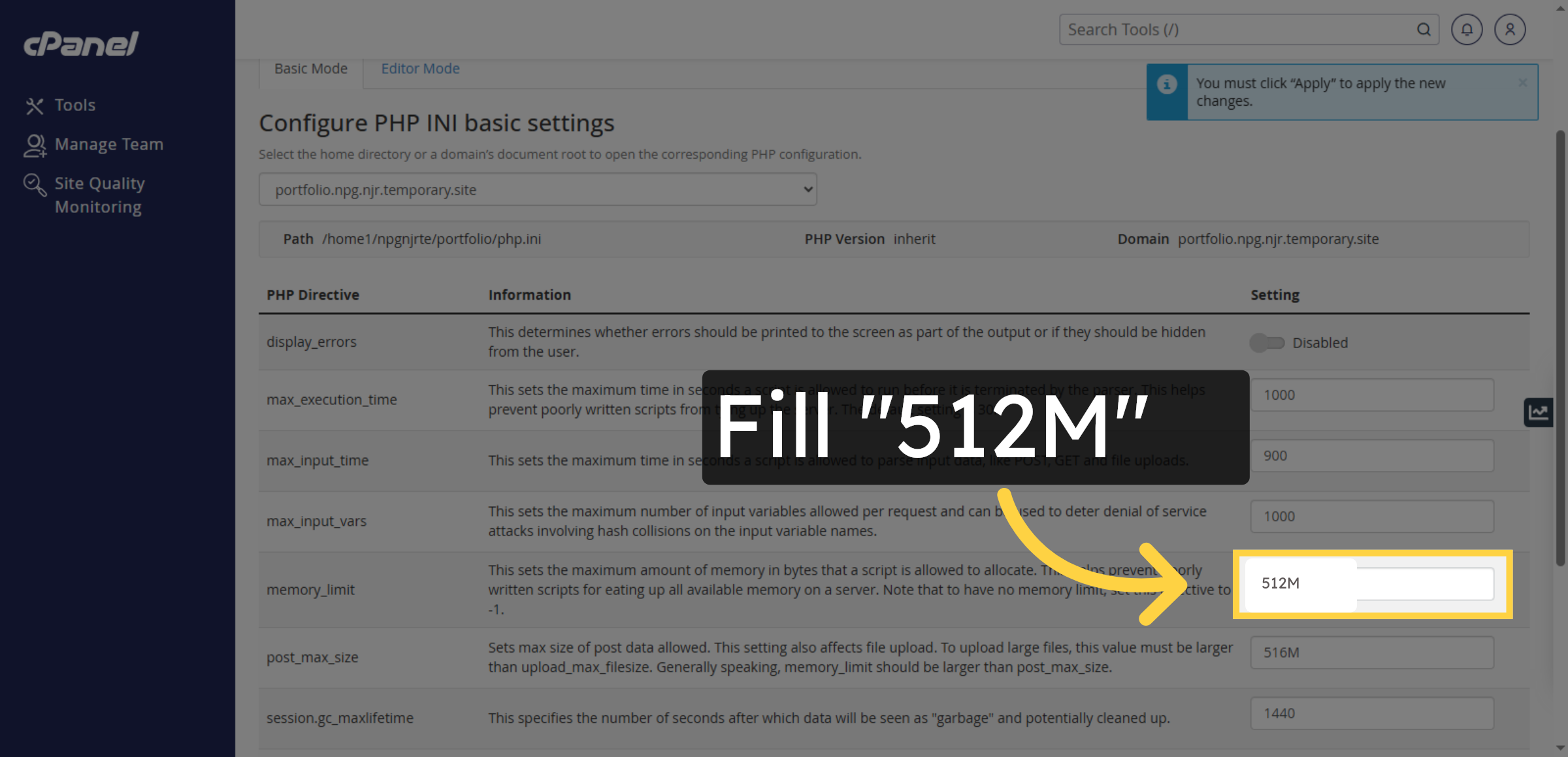
13. Enter New Memory Limit
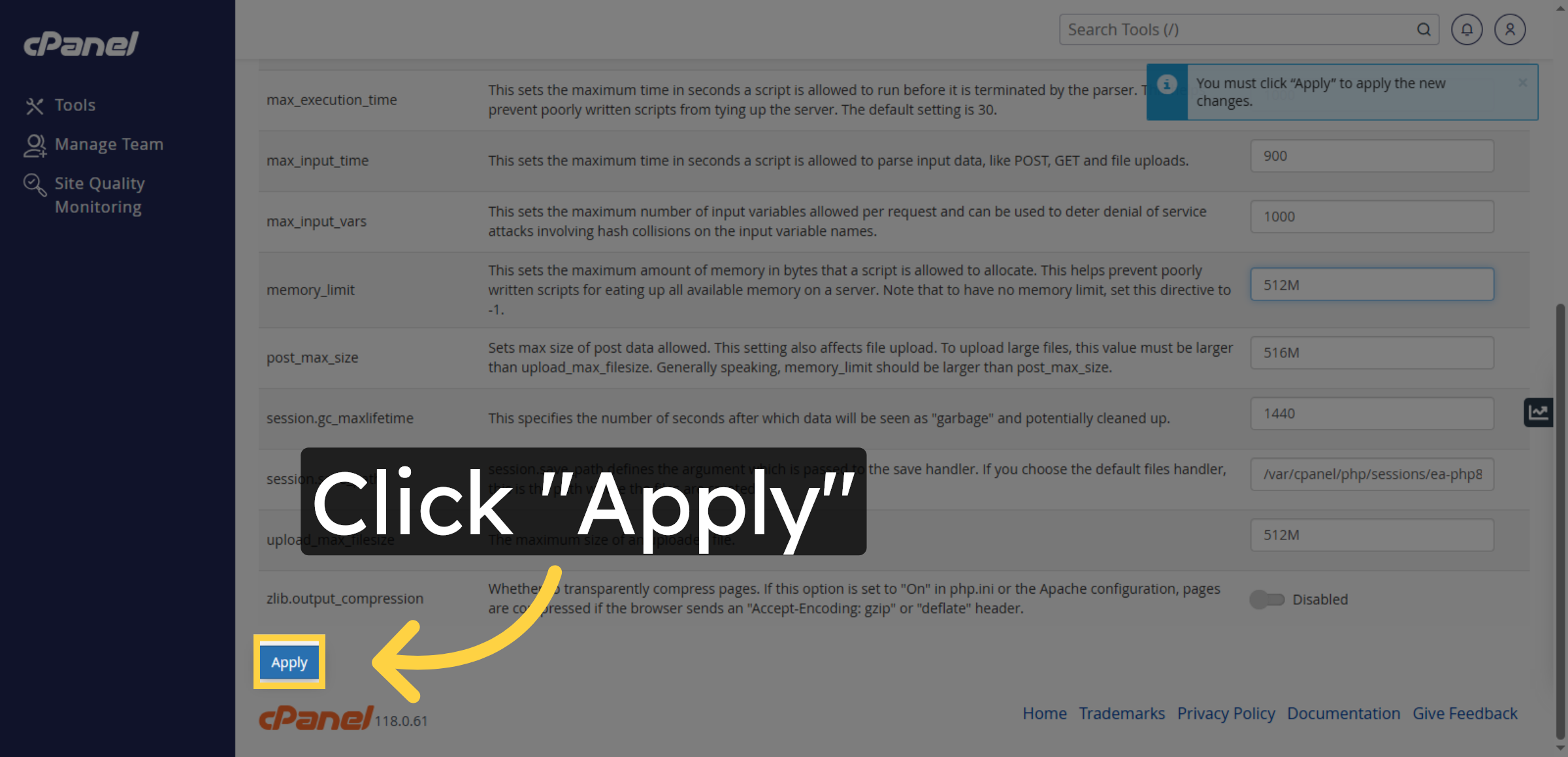
14. Apply Configuration Changes
15. Switch to “portfolio.npg.njr.temporary.site”
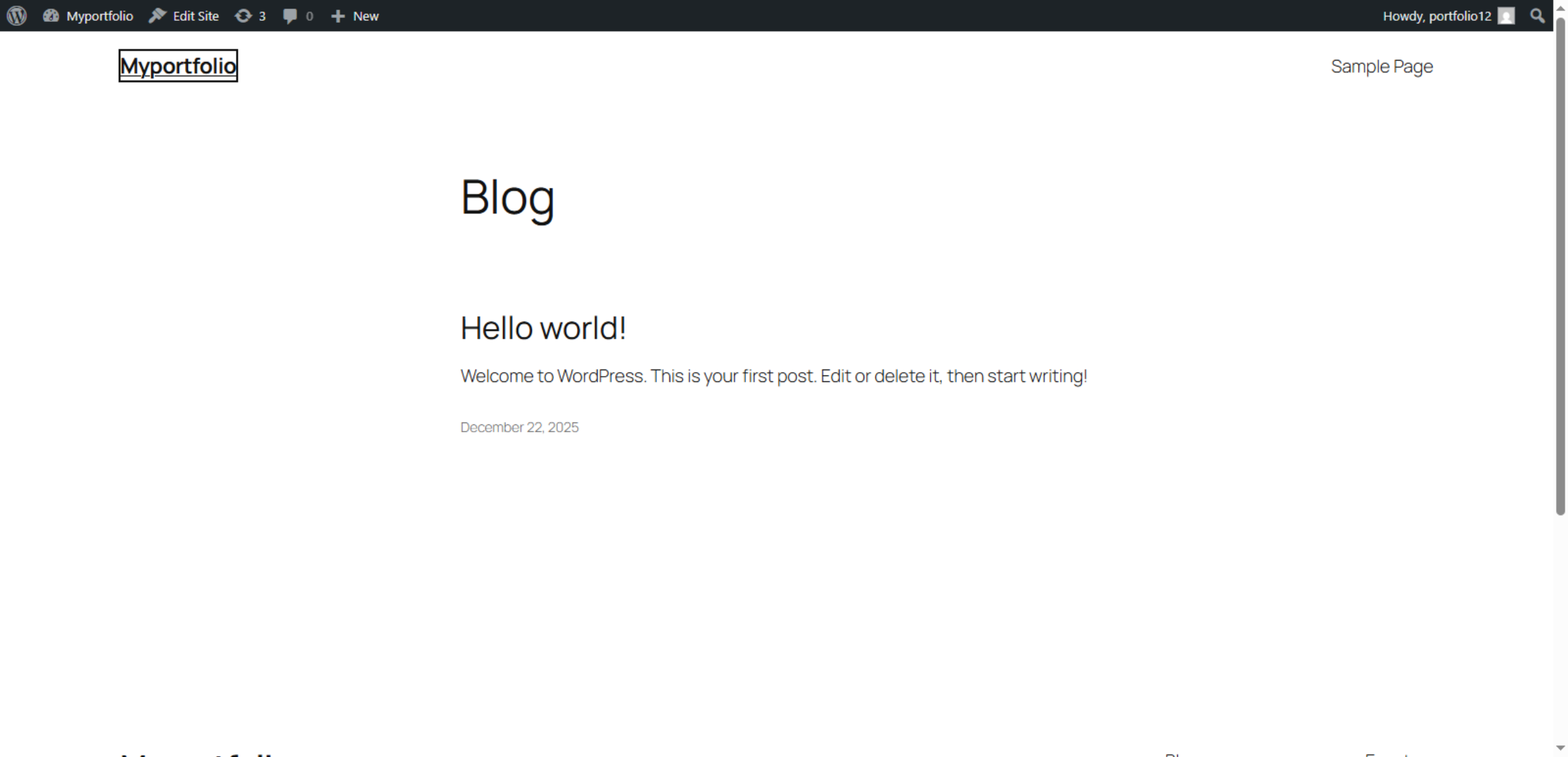
16. Increasing the WordPress memory limit usually resolves the Memory Limit Exhausted error, and both the website and dashboard start working smoothly.
Conclusion
Resolving memory limit errors is essential for maintaining smooth website performance and uninterrupted operations. By completing the steps outlined in this guide, you have successfully increased PHP memory limits and optimized execution settings on your HostGator hosting environment. These adjustments help ensure that WordPress has sufficient resources to run plugins, themes, and scripts efficiently.
To prevent future memory-related problems, it is recommended to regularly review installed plugins, remove unnecessary extensions, optimize website content, and monitor resource usage. Keeping WordPress and PHP configurations up to date further enhances system reliability. With proper resource management practices in place, your website will remain stable, responsive, and capable of handling growing traffic and functionality demands.
WooHelpDesk Support
Need professional assistance with WordPress error resolution, server configuration, performance optimization, or hosting maintenance? WooHelpDesk provides expert technical support to keep your website running smoothly.
Visit: https://www.woohelpdesk.com
Call Us Toll-Free: +1 888 602 0119 (US & Canada)
Error Resolution | Resource Optimization | Trusted Support
Contact WooHelpDesk today for reliable WordPress and hosting support solutions.



