How To Fix WordPress Memory Limit Exhausted Error On BlueHost
Introduction
A fatal error in WordPress is often caused by insufficient PHP memory limits or an outdated PHP version. When your website exceeds the allocated execution time or memory, WordPress may stop loading and display a critical error message. This guide walks you through resolving such fatal errors on Bluehost hosting by adjusting PHP configuration settings through cPanel. You will learn how to increase the PHP execution time and memory limit using the MultiPHP INI Editor, as well as how to update your website to the latest supported PHP version if the issue persists. By following these steps, you can restore your website’s functionality, improve performance, and ensure compatibility with modern WordPress themes and plugins.
1. Fatal Error
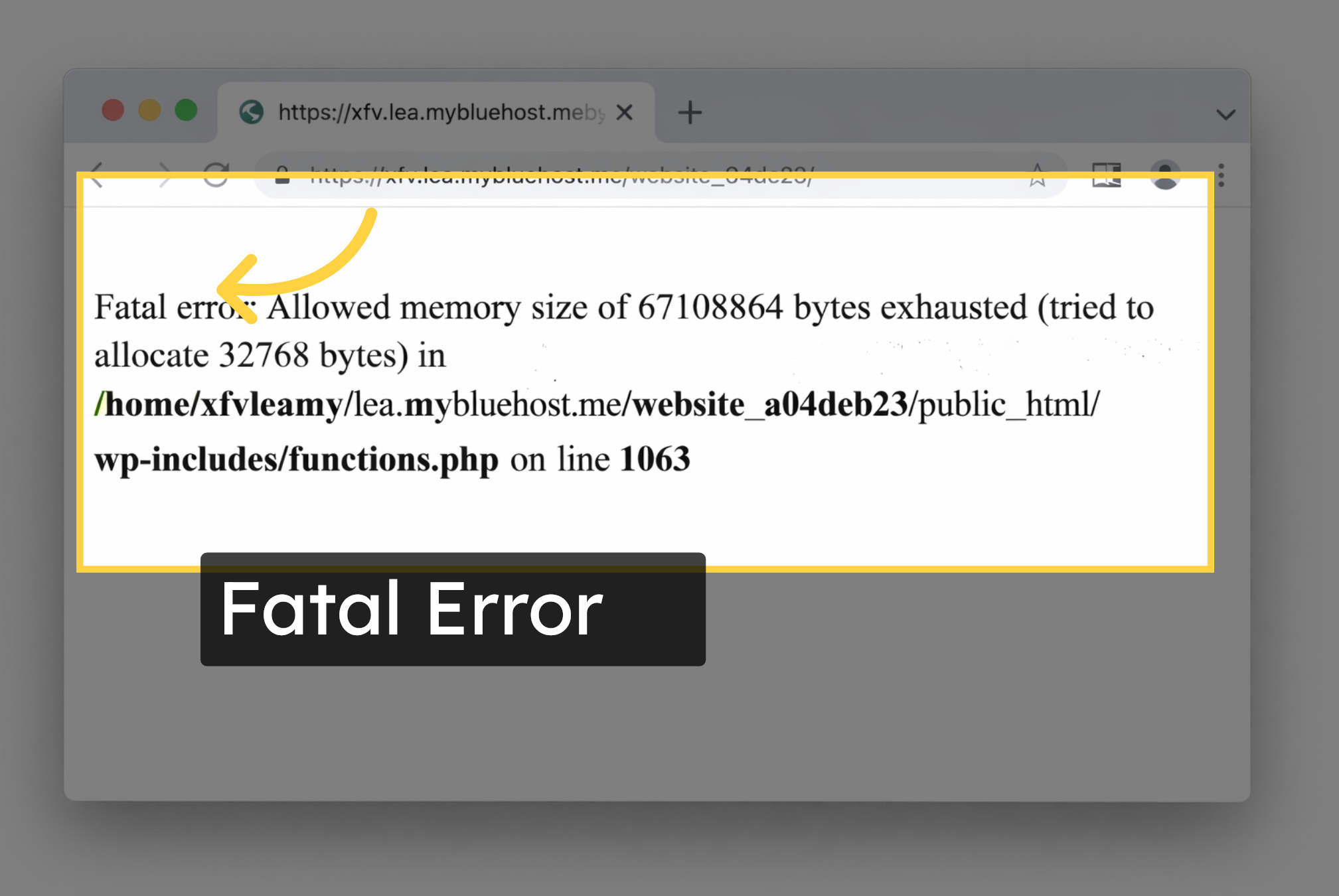
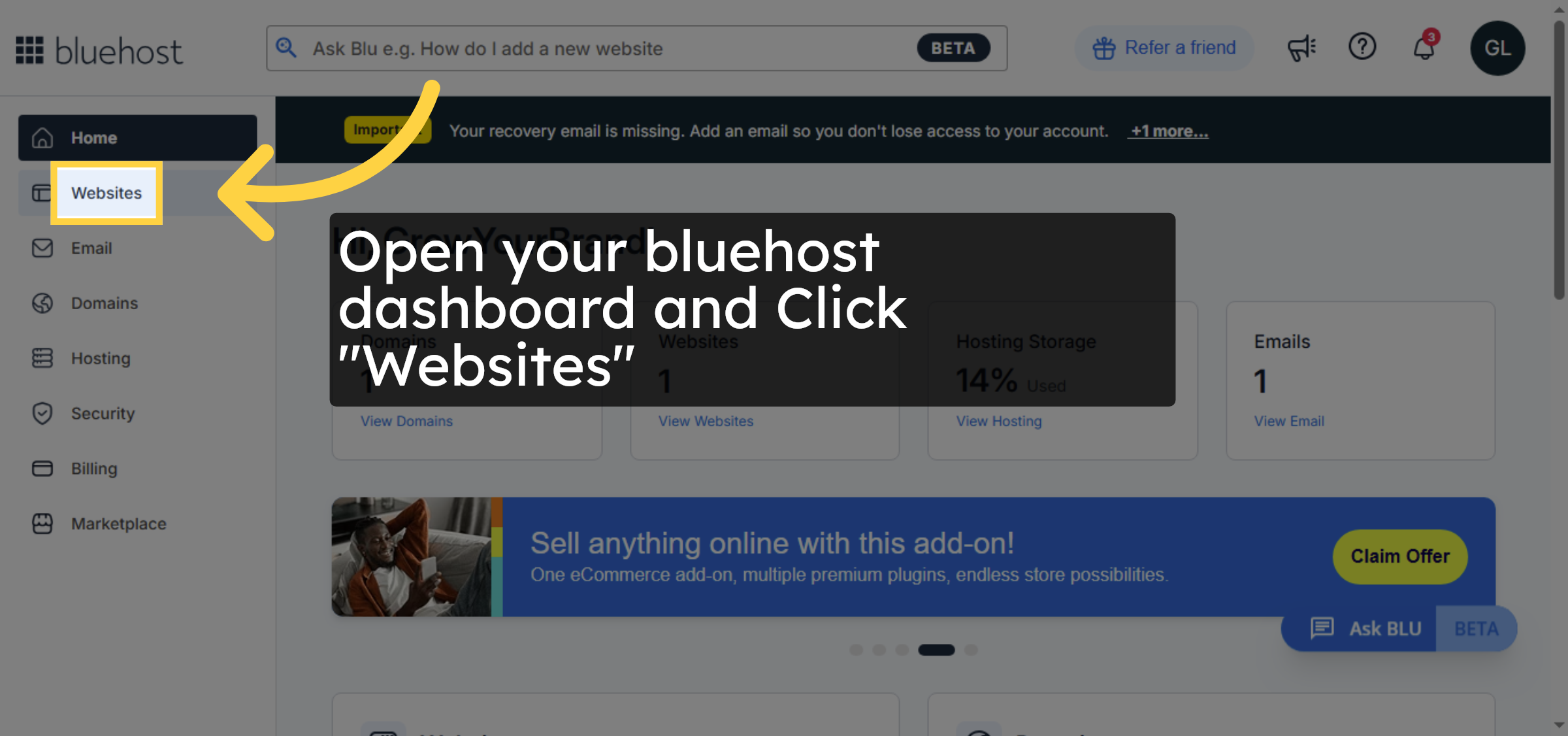
2. Navigate to Websites Section
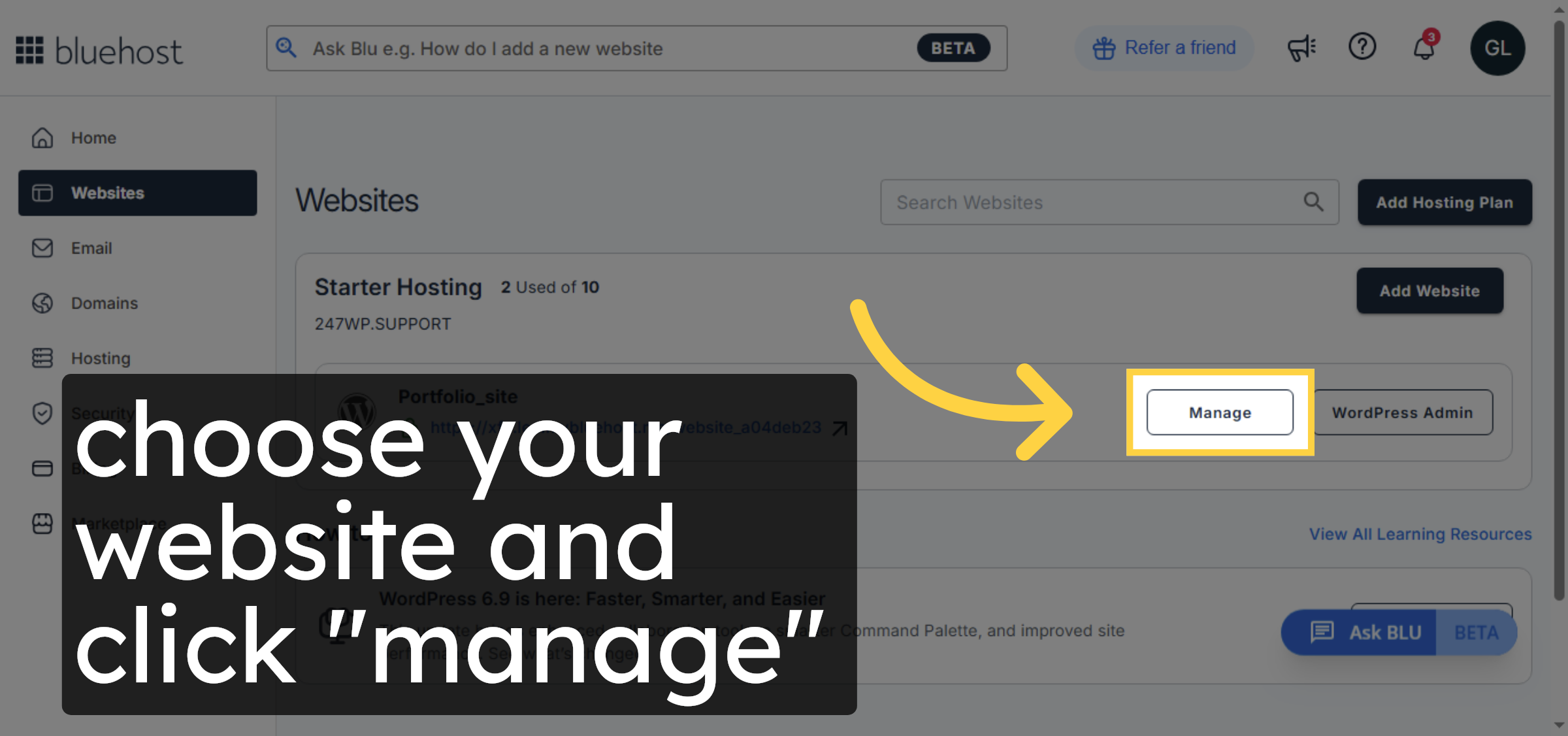
3. Open Website Management
4. Access cPanel Interface
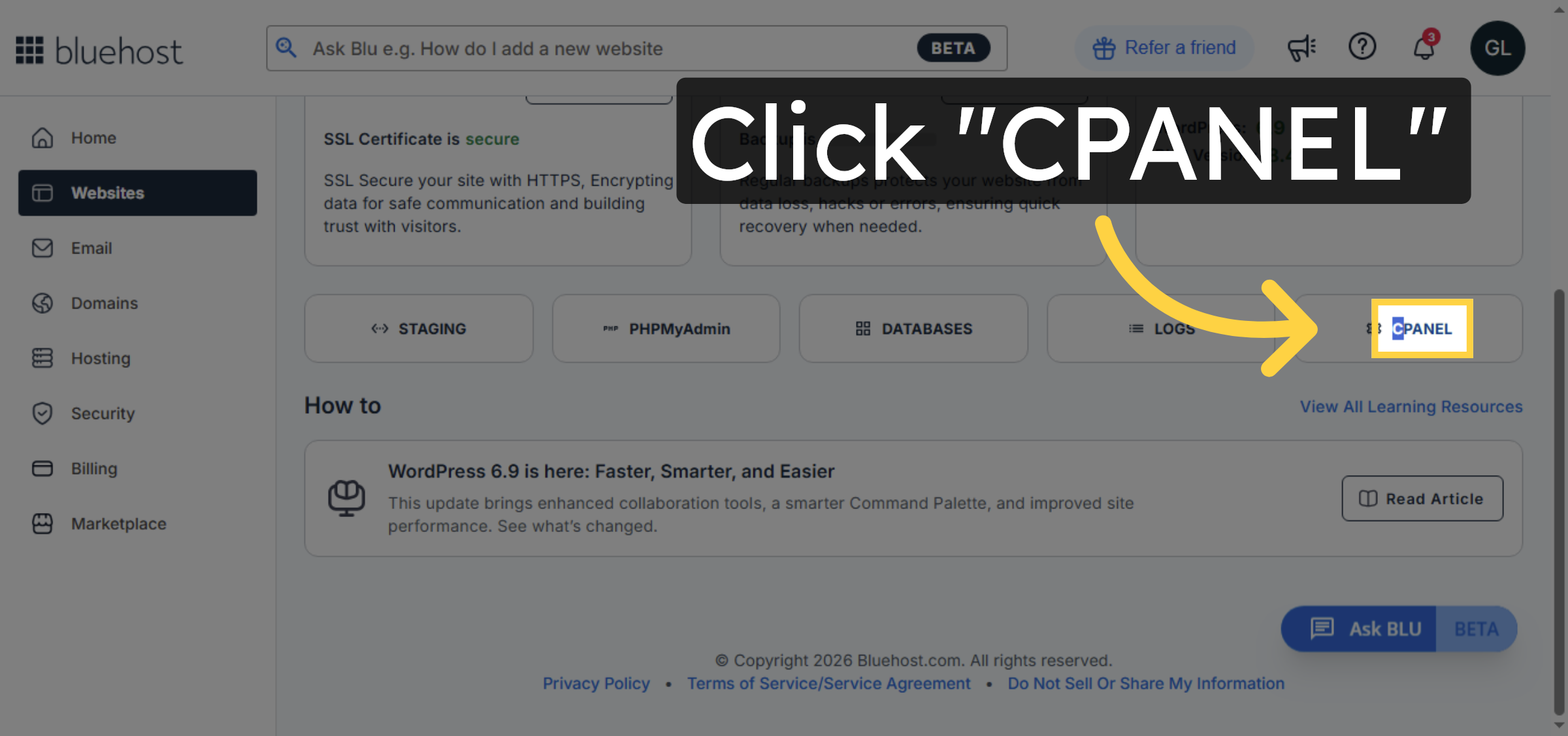
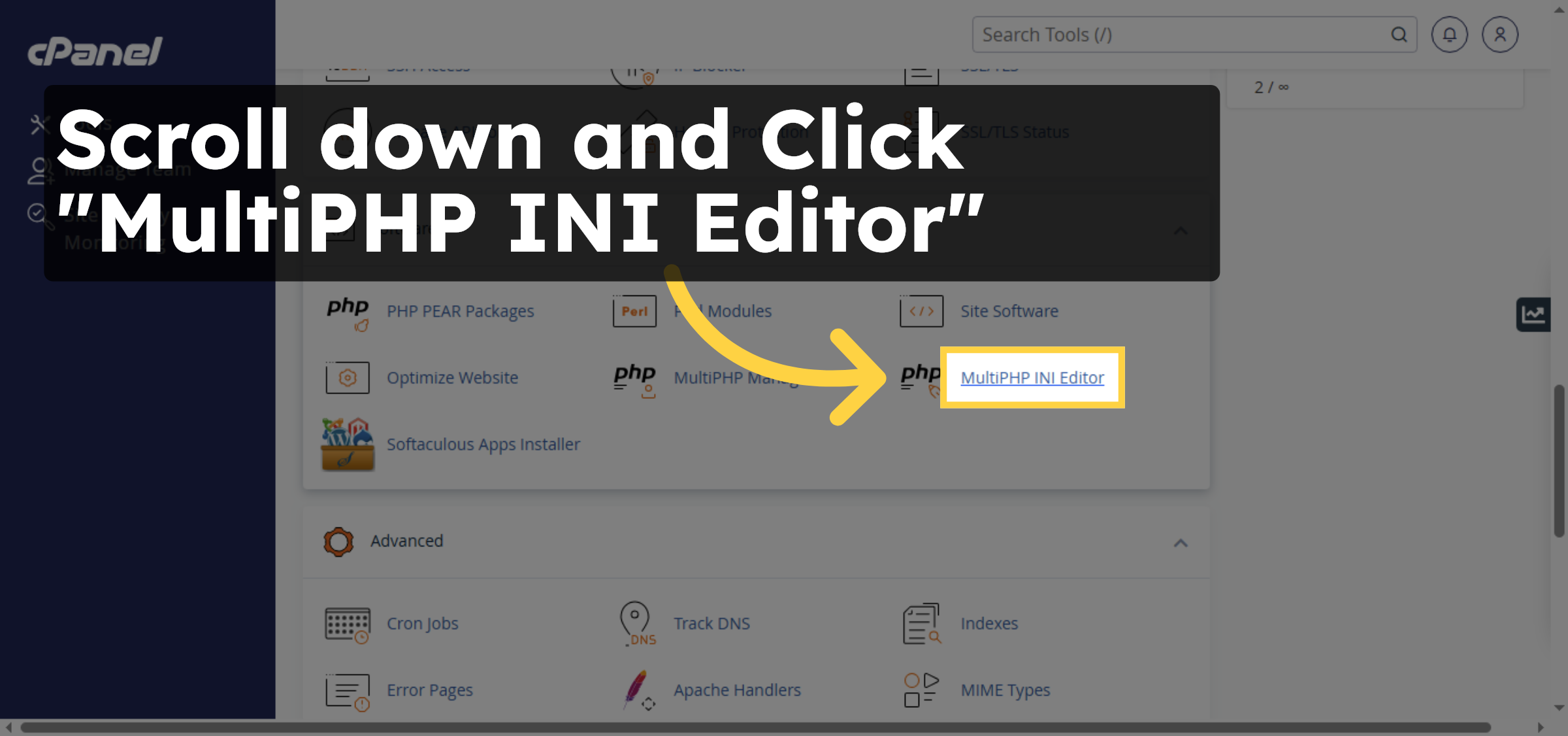
5. Open MultiPHP INI Editor
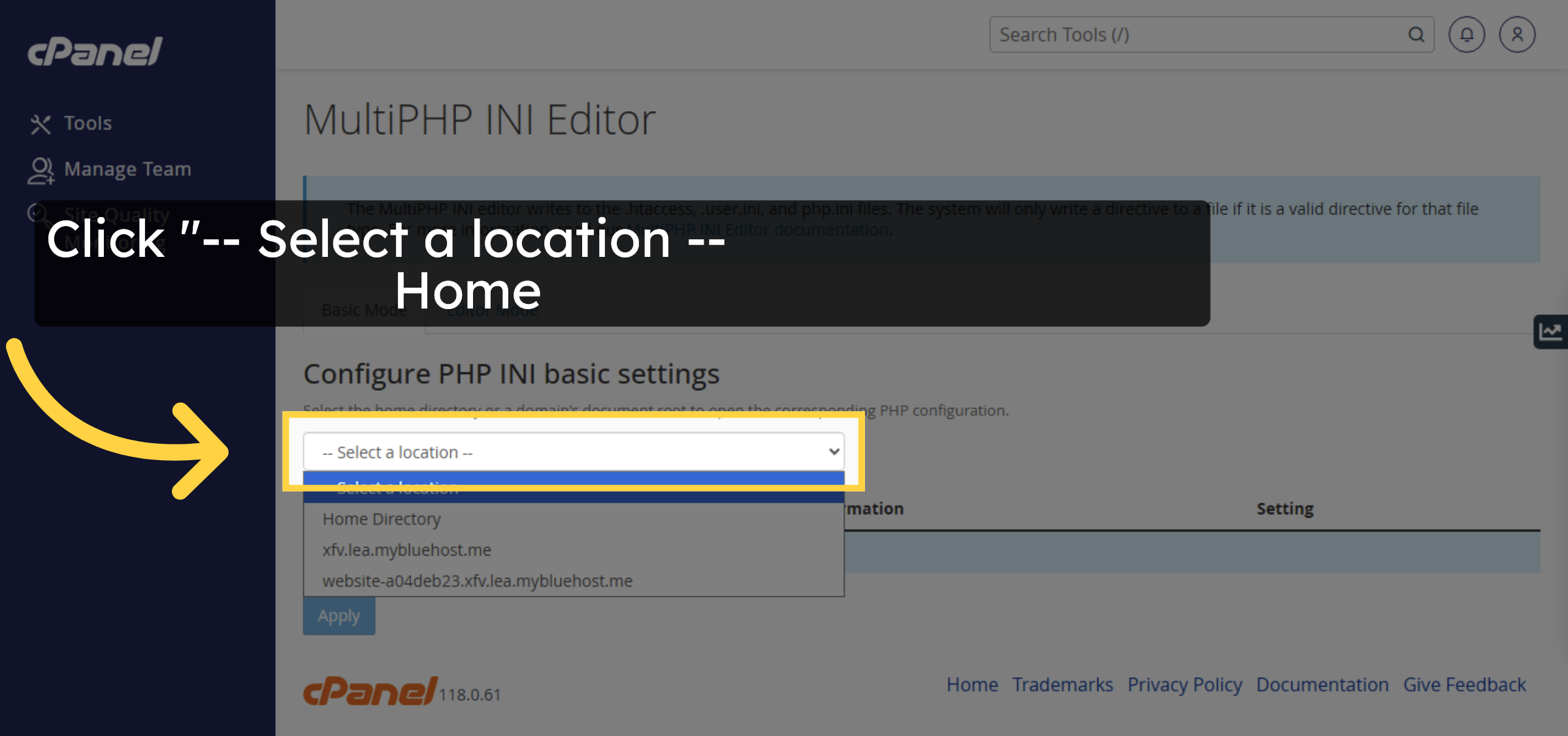
6. Select Configuration Location
7. increase Execution time
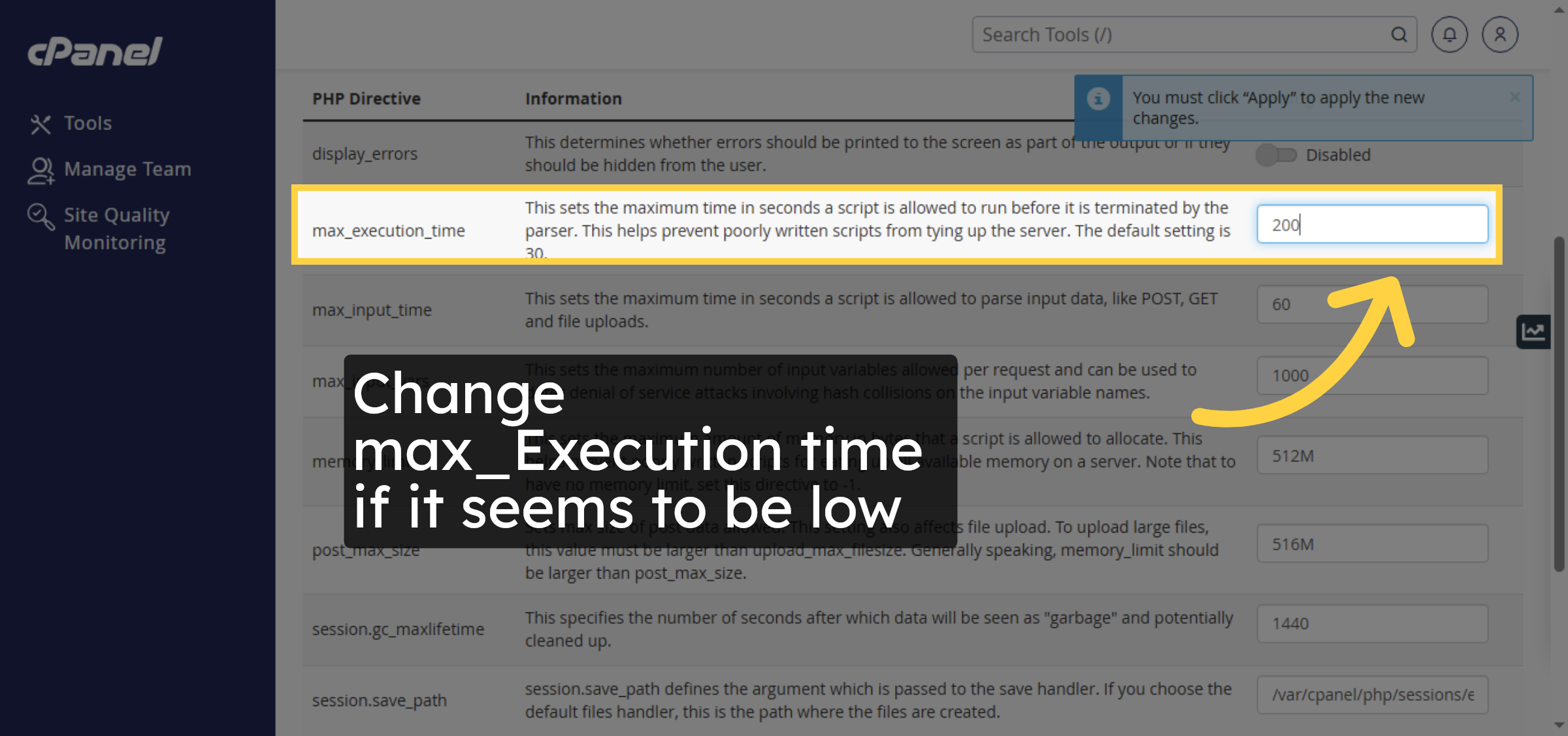
8. Update Memory Limit
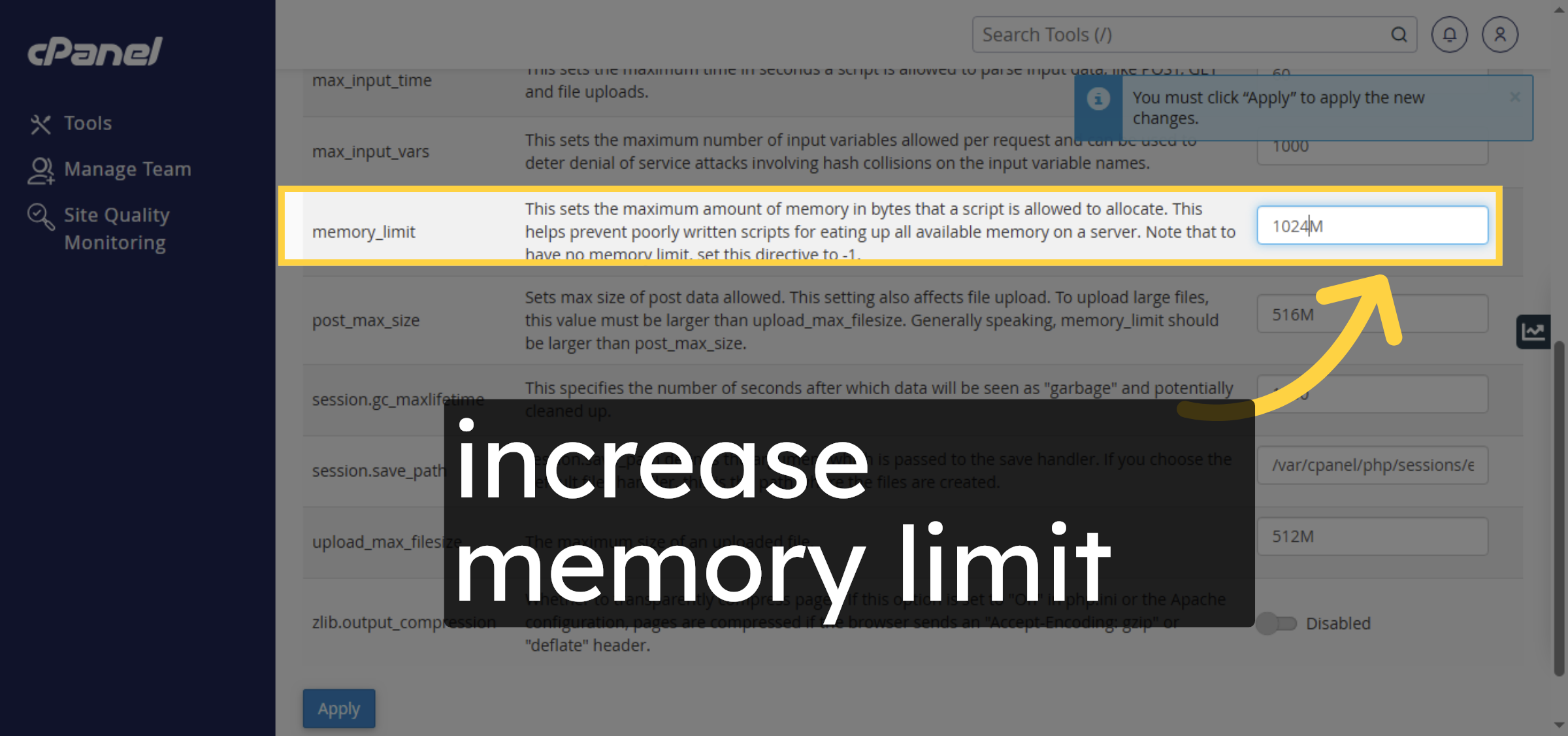
9. Apply PHP Configuration Changes
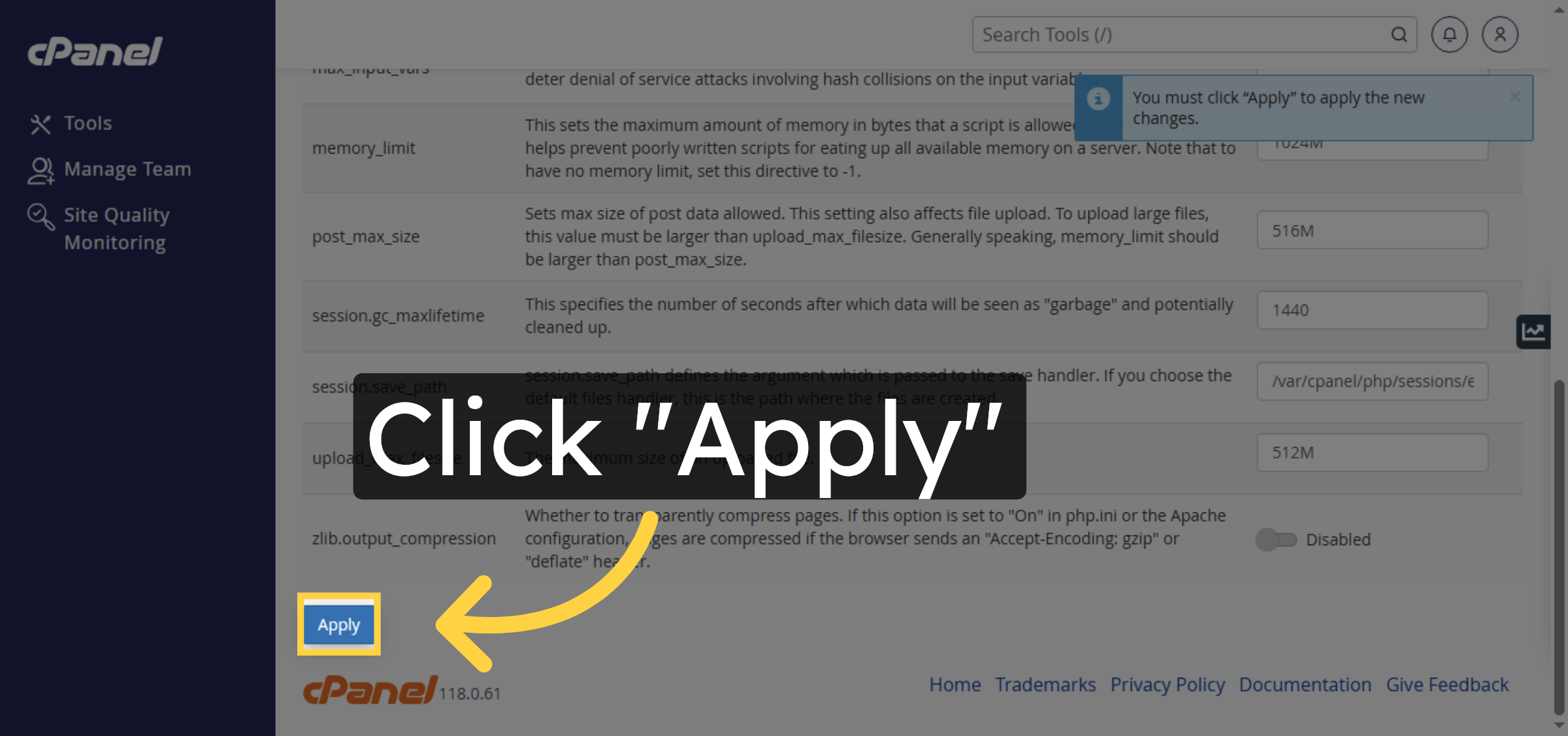
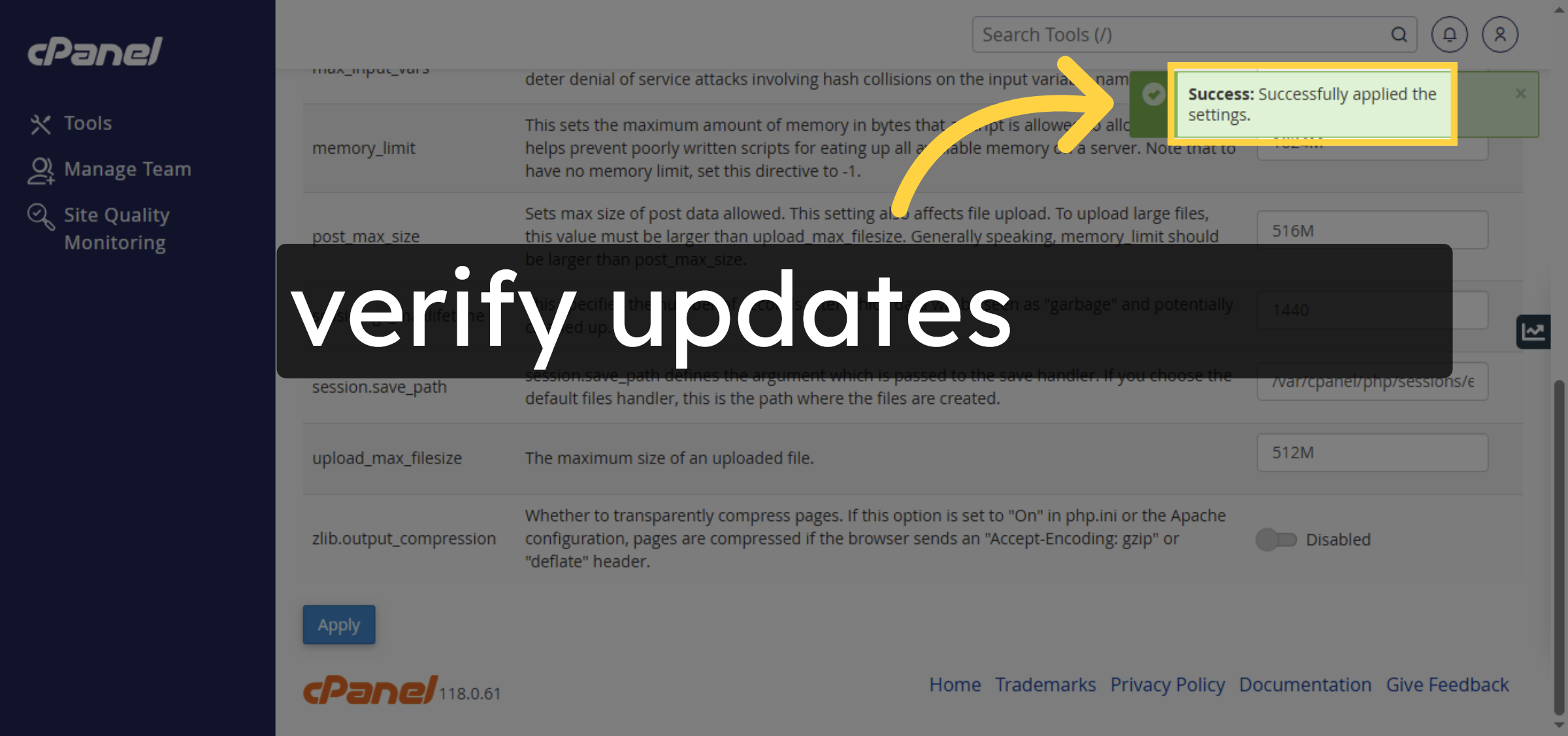
10. Confirm Settings Applied
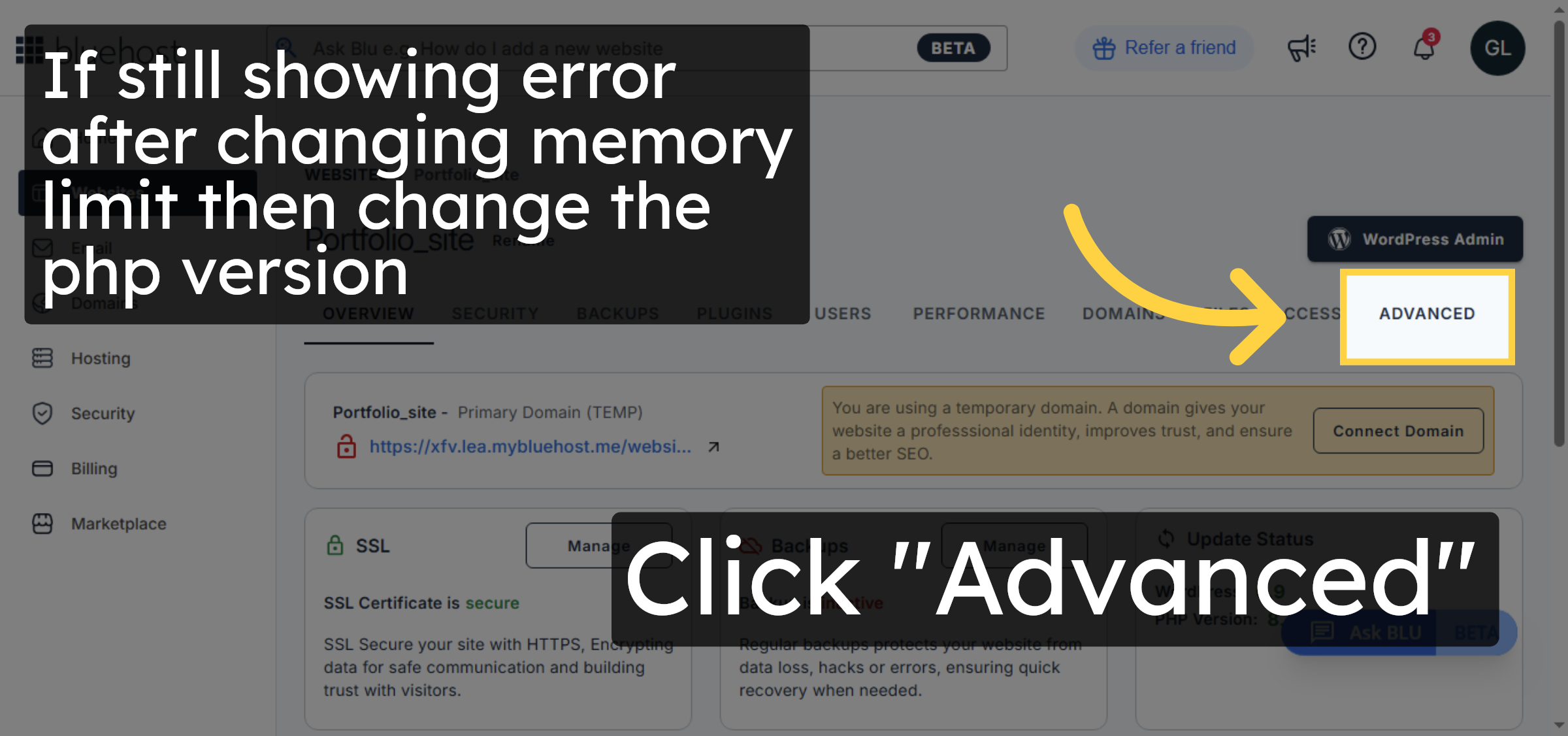
11. Open Advanced Settings


12. Select PHP Version Change
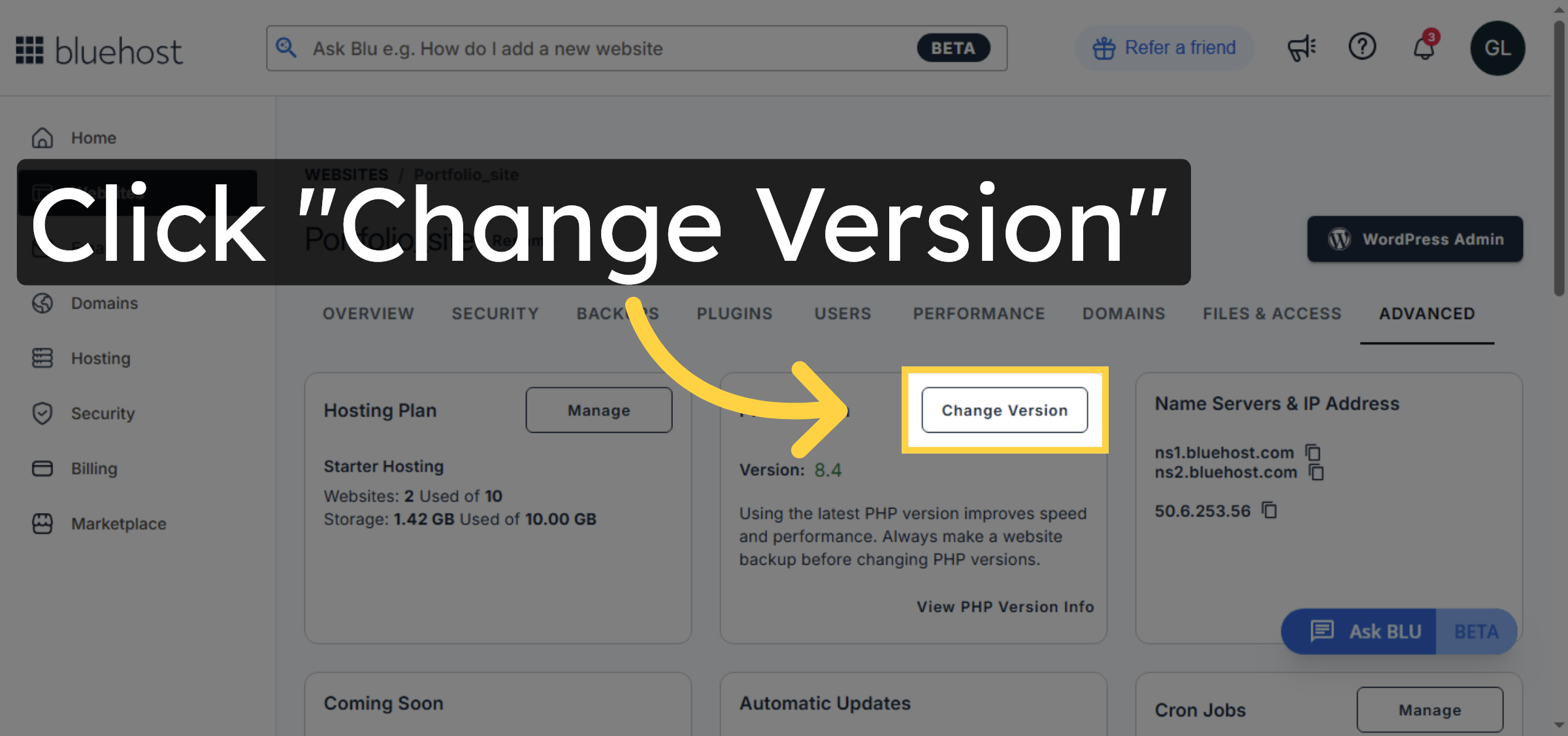
13. Choose Latest PHP Version
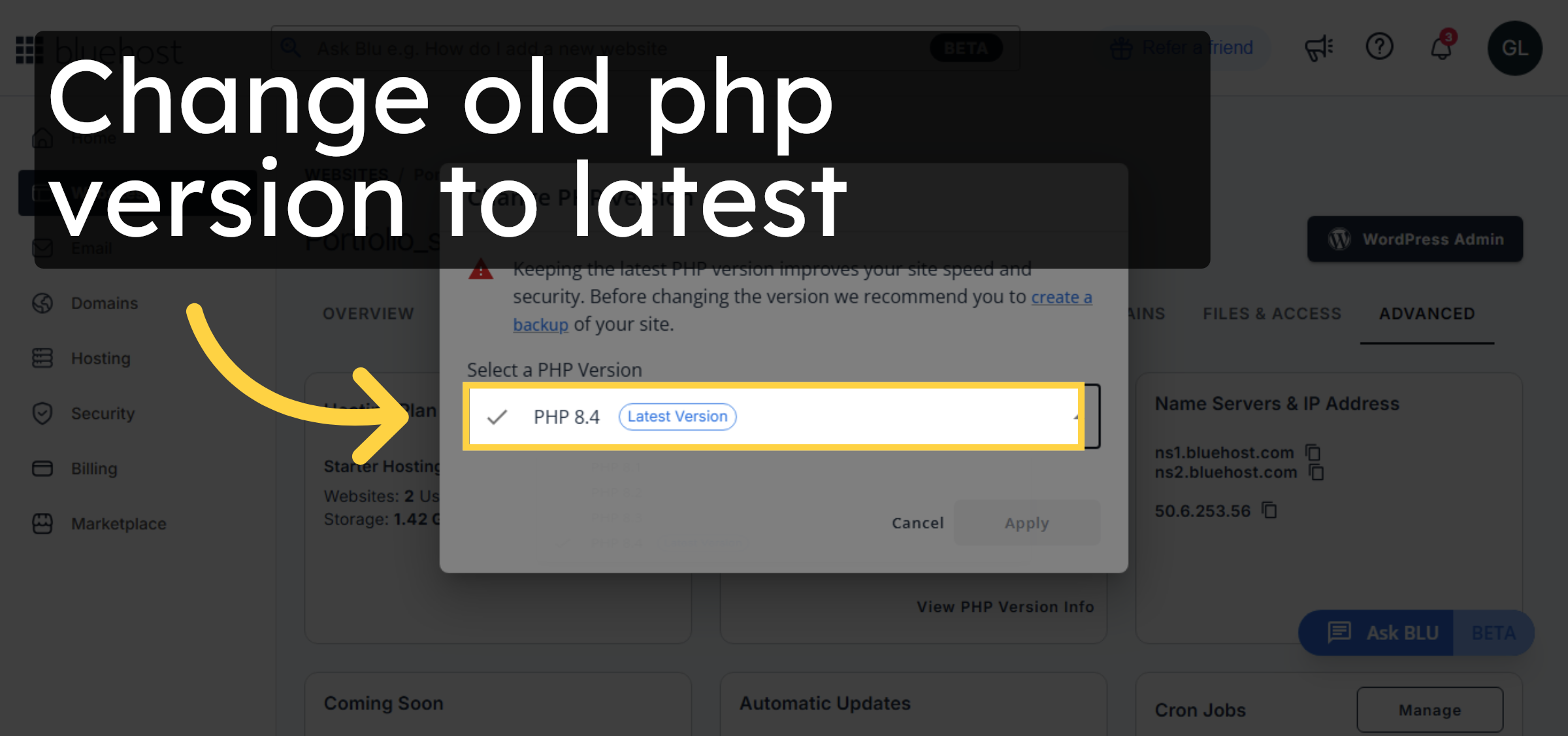
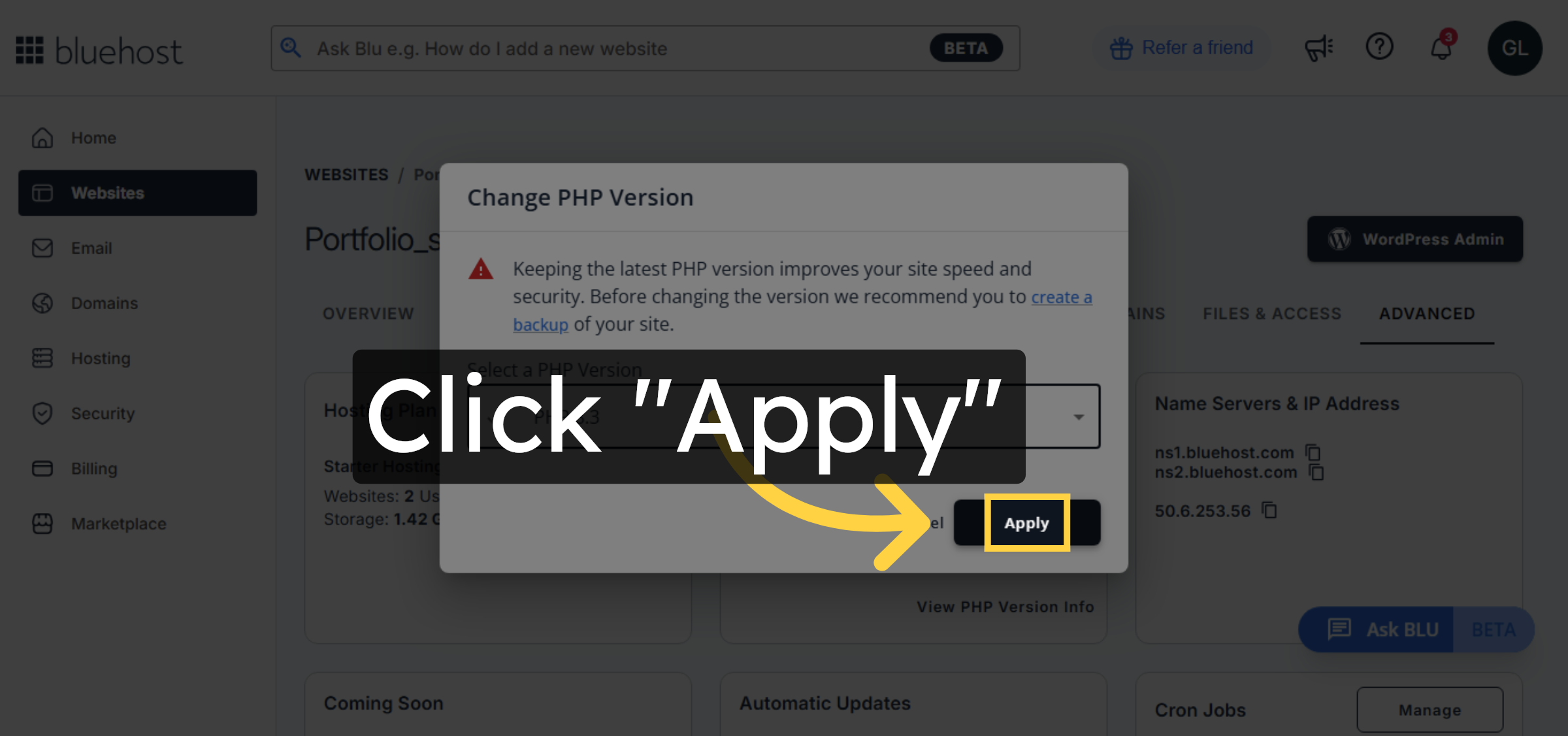
14. Apply PHP Version Update
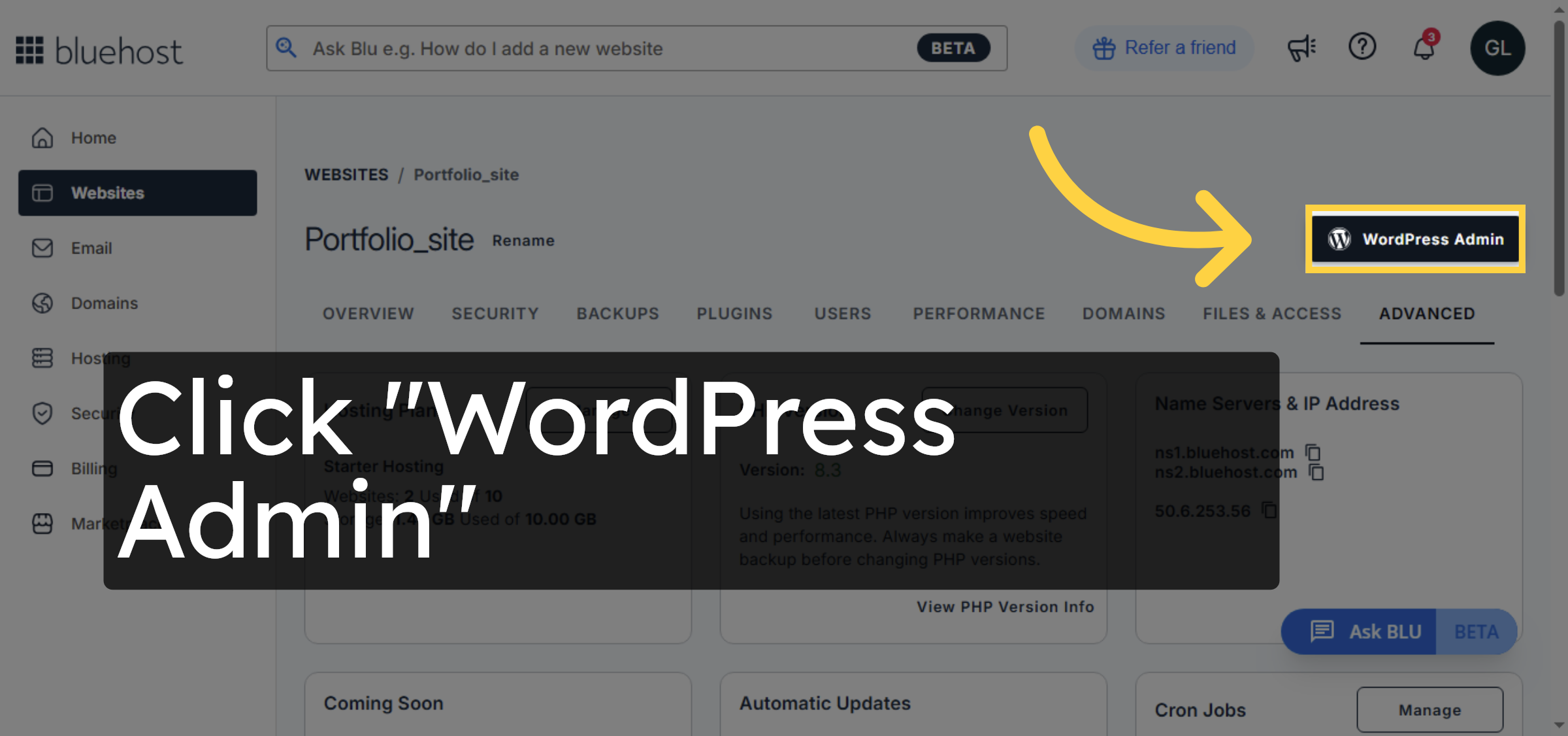
15. Access WordPress Admin
16. Open your site
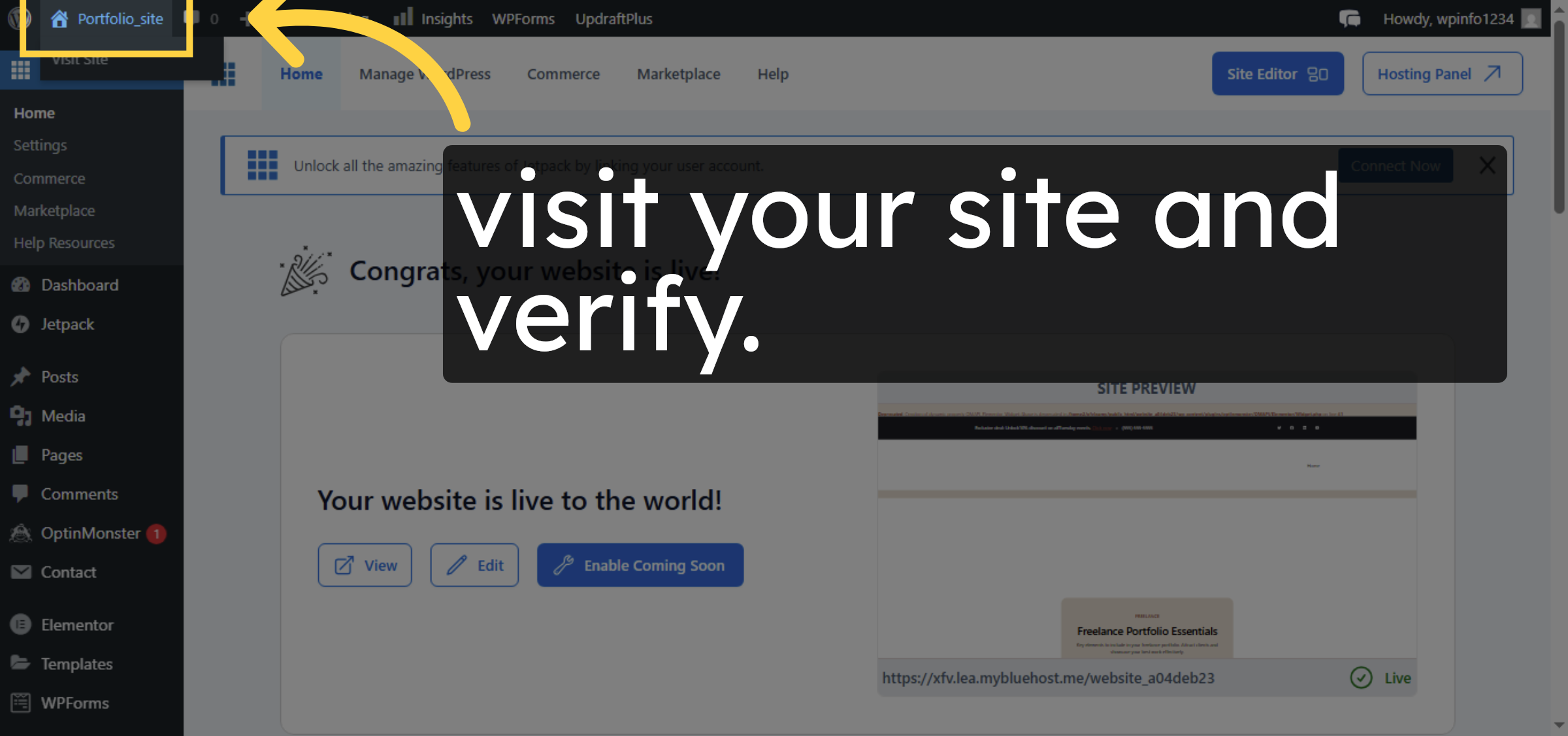
17. Acknowledge changes
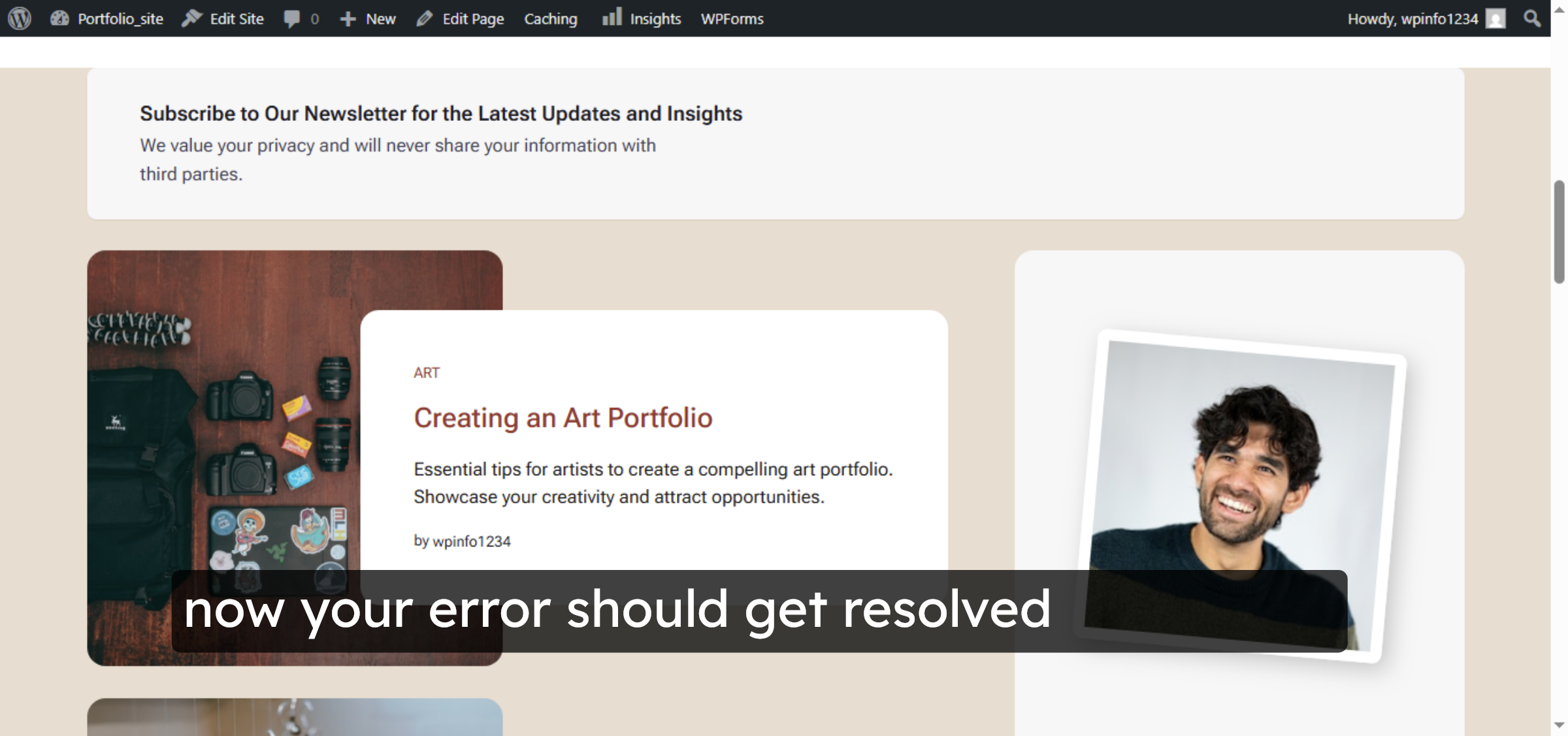
Conclusion
By following the steps in this guide, you have successfully increased the PHP execution time and memory limit and updated the PHP version on Bluehost hosting. These changes help resolve WordPress fatal errors caused by resource limitations and compatibility issues. Regularly reviewing PHP settings and keeping your PHP version up to date ensures better performance, stability, and security for your WordPress website.
-
Visit: https://www.woohelpdesk.com
-
Call Us Toll-Free: +1 888 602 0119 (US & Canada)
-
Get professional support for WordPress fatal error fixes, PHP configuration, Bluehost hosting management, performance optimization, and WooCommerce solutions



