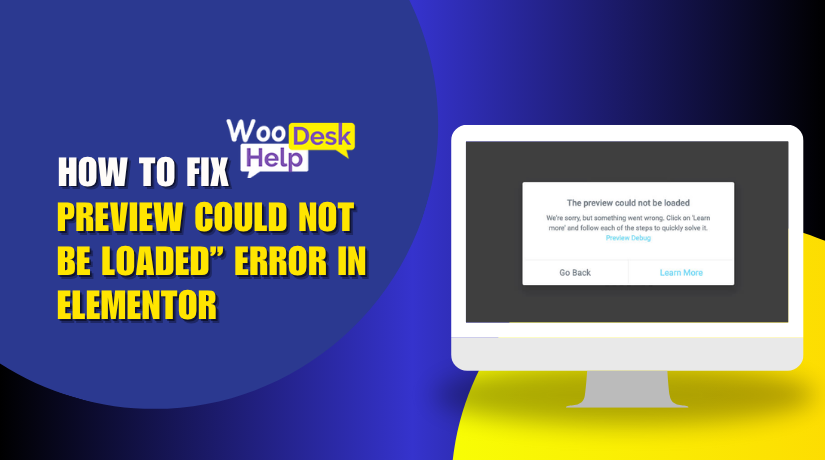
How to Fix the “Preview Could Not Be Loaded” Error in Elementor (Step-by-Step)
Table of Contents
- Introduction
- What Is the “Preview Could Not Be Loaded” Error?
- Specific Error Types – 403 & 500
- Elementor & WooCommerce Conflicts
- Plugins That Commonly Conflict with Elementor in WooCommerce Sites
- Step-by-Step Fix: Solving WooCommerce & Elementor Preview Errors
- Server-Level Issues and Advanced Debugging
- Server Configuration Issues
- Advanced Debugging for Developers
- When to Contact Hosting or Expert Support
- Conclusion
Introduction
Elementor is one of the most popular page builders for WordPress. Without knowing any code, it enables people to create visually appealing websites. Elementor is used by many WooCommerce site owners to create beautiful landing pages and product pages.
However, sometimes things don’t work as expected. One common issue users face is the “Preview Could Not Be Loaded” error. When attempting to use the Elementor editor to update a page or post, this error appears.
It stops you from seeing the live preview of your changes. This might be annoying, particularly if you have an urgent update or are on a deadline.
We’ll go over everything you need to know in this tutorial. From the meaning of the error to the step-by-step instructions for fixing it. From the meaning of the error to the step-by-step instructions for fixing it.
What Is the “Preview Could Not Be Loaded” Error?
When this error appears, the Elementor editor fails to load the preview pane. You might see a gray screen or a message saying:
“Preview could not be loaded. Please check for console errors.”
This message means that Elementor is unable to load the live view of your page. The builder still opens, but you can’t see what you’re editing. It’s like working blind.
This issue can happen for many reasons. The following are the most typical scenarios in which this issue occurs:
- After updating Elementor or WordPress
- When editing a WooCommerce product page
- Due to server or plugin conflicts
- After switching themes
- When using custom code or scripts
In simple terms, Elementor needs to talk to your WordPress site and server. If that communication fails, the preview doesn’t load. Think of it like trying to load a video with a slow internet connection — the content is there, but it won’t show.
Several things can block Elementor’s ability to load previews:
- Hosting server restrictions
- Broken or conflicting plugins
- Security or firewall rules
- Low PHP memory limit
- Theme compatibility issues
Sometimes, browser errors can also block the preview. In most cases, this problem isn’t permanent. You can fix it with the right steps.
Specific Error Types – 403 & 500
When the “Preview Could Not Be Loaded” error shows up, it can appear with different error codes. Two of the most common are the 403 Forbidden Error and the 500 Internal Server Error.
These codes help you understand what’s causing the problem. Let’s break down each one and learn how to fix them.
403 Error in Elementor
The 403 error means that access is being blocked. Elementor is trying to load the preview, but something is saying “No, access denied.” This usually comes from your server or security settings.
Common causes of a 403 error:
- Access is being blocked by a security plugin or firewall.
- Your hosting server has mod_security rules in place
- Requests are blocked by a content delivery network (CDN).
- File permissions are not set correctly
- A plugin or .htaccess rule is denying access
When Elementor tries to load the preview, it uses REST API calls. If your server blocks these calls, the preview can’t load.
How to fix the 403 error:
- Turn off security plugins like Wordfence or iThemes Security for the time being.
- Inquire with your hosting company about if mod_security is enabled.
- Whitelist the REST API pathways for WordPress and Elementor.
- Examine and adjust file permissions (use 644 for files and 755 for folders).
- Clear your CDN cache, or disable the CDN temporarily
Turn off “Bot Fight Mode” and review the firewall rules if you’re using Cloudflare.
A 403 error is usually security-related, so checking server or plugin rules is key.
500 Error in Elementor
A more widespread problem is the 500 internal server error. It indicates that the server encountered an issue and was unable to complete the request.
This often happens due to plugin conflicts, memory issues, or corrupted files.
Common causes of a 500 error:
- A plugin conflict or outdated plugin
- The PHP memory limit is set too low.
- Corrupted .htaccess file
- Server is overloaded or misconfigured
- Theme or custom code error
When Elementor fails to load because of a 500 error, the whole editing process can crash.
How to fix the 500 error:
- Try disabling all plugins other than Elementor to see if it fixes the issue.
- Try again after switching to a default theme, such as Twenty Twenty-One.
- Raise the PHP memory limit to 256M or more.
- Regenerate the .htaccess file by saving your permalinks again
- Check server error logs or enable WordPress debug mode
Here’s how to increase PHP memory manually:
define( ‘WP_MEMORY_LIMIT’, ‘256M’ );
In your wp-config.php file, add the line above right before the one that reads, “That’s all, stop editing!”
If these steps don’t help, contact your hosting support. Ask them to check for PHP or Apache/Nginx errors on the server.
Both the 403 and 500 errors are common but solvable. The solution is typically simple once the problem has been determined.
Elementor & WooCommerce Conflicts
Many WordPress site owners use Elementor to design beautiful pages, while relying on WooCommerce to manage online stores. Both tools are powerful on their own. But when combined, they sometimes don’t play nicely—especially when it comes to Elementor’s preview feature not loading.
If you’re facing the “Preview Could Not Be Loaded” error while editing WooCommerce product pages, this section is for you.
Why WooCommerce Can Break Elementor’s Preview
WooCommerce adds custom templates, dynamic fields, and shortcodes to product pages. Elementor works best with static content, so when it tries to load previews of dynamic WooCommerce content, errors can occur.
Here’s why this happens:
- WooCommerce templates rely on live product data: The preview may break if a product ID or dynamic field isn’t properly available during editing.
- Archive and single-product templates behave differently: Elementor may struggle with WooCommerce’s template hierarchy.
- Dynamic pricing, custom product fields, and inventory visibility can prevent Elementor from rendering the preview correctly.
- WooCommerce conditional display settings may stop certain widgets from appearing unless specific conditions are met (e.g., product in stock, user logged in, etc.).
These conflicts can result in Elementor failing to generate a working preview. You may just see a gray screen or an error message.
Plugins That Commonly Conflict with Elementor in WooCommerce Sites
The issue doesn’t always come from WooCommerce itself. In many cases, third-party WooCommerce extensions are the real problem.
Here are some plugin types that often cause Elementor preview issues:
- Product variation or swatches plugins
(e.g., “Variation Swatches for WooCommerce”) - Quick view or Ajax add-to-cart plugins
(These load product data using JavaScript, which may block Elementor’s preview) - Wishlist or comparison plugins
(Like YITH plugins that load content conditionally) - Custom product page builders
(Other page builders or Woo-specific editors that conflict with Elementor) - Caching and optimization plugins
(Such as WP Rocket or Autoptimize, which could delay or minify necessary scripts)
Even plugins designed for performance can block Elementor’s REST API calls or scripts needed for live preview.
Step-by-Step Fix: Solving WooCommerce & Elementor Preview Errors
If Elementor fails to load the preview when editing WooCommerce pages, the issue likely comes from a plugin conflict or dynamic content problem. Don’t worry; the steps listed below will help you resolve this.
Every stage enables you to identify the problem’s origin and swiftly resolve it.
- Enable Safe Mode in Elementor
Safe Mode is one of the easiest ways to test for conflicts. It allows you to open Elementor without running other plugins or themes in the background.
How to do it:
- Go to WordPress Dashboard > Elementor > Tools
- Click the “Safe Mode” tab
- Enable Safe Mode and open your product page in the Elementor editor
What it does:
This mode runs Elementor in isolation. If the preview loads now, the issue is likely with a plugin or your theme.
- Deactivate WooCommerce Add-ons One by One
Many WooCommerce extensions load scripts and filters that interfere with Elementor. Disabling them temporarily helps you find the conflict.
Steps:
- Go to Plugins > Installed Plugins
- Start by deactivating WooCommerce add-ons (especially Ajax cart, wishlist, or variation plugins)
- After deactivating each one, refresh Elementor and check if the preview loads
Tip:
Make notes as you go. This helps you track down the plugin causing the issue.
- Switch to a Default WordPress or WooCommerce Theme
Sometimes, the theme you’re using overrides WooCommerce templates. That can confuse Elementor and break the preview.
How to check:
- Go to Appearance > Themes
- Activate a default theme like Storefront, Twenty Twenty-Three, or Hello Elementor
- Open the page again in Elementor
What to watch for:
If Elementor now loads the preview successfully, your original theme is likely causing the error. For compatibility fixes, you might have to get in touch with the theme creator.
- Check Dynamic Fields and Shortcodes
WooCommerce often uses dynamic fields and shortcodes that depend on live product data. If these fields don’t have values or aren’t linked properly, Elementor might fail to render them.


Check for the following:
- Are you using custom fields (via ACF, MetaBox, JetEngine)?
Ensure they are assigned to an actual product. - Are you using shortcodes inside Elementor widgets?
Confirm they are outputting valid content when previewed.
Fixes:
- Assign the product template to an existing product
- Replace or update broken shortcodes
- Reconnect dynamic tags to proper fields
- Update All Plugins, WooCommerce, and Elementor
Compatibility problems are frequently caused by outdated software.
What to do:
- Get the most recent version of Elementor.
- Update WooCommerce, your theme, and all related plugins
- After updating, clear all caches
Why it matters:
Bug fixes and improvements in updates often solve preview problems without further action.
- Clear All Types of Cache
Cached content can prevent Elementor from loading live previews properly. Make sure you clear:
- Browser cache
- Page cache (from plugins like WP Rocket)
- Object cache (like Redis or Memcached)
- CDN cache (if using Cloudflare or similar)
Tip:
Also, purge the Elementor cache under Elementor > Tools > Regenerate Files.
- Regenerate CSS & Sync Elementor Library
Sometimes Elementor stops rendering the preview because its internal files are broken or outdated. This can happen after a plugin update, theme switch, or database migration.
You can fix this easily by refreshing Elementor’s CSS and syncing its library.
Steps:
- Go to your WordPress Dashboard
- Click Elementor > Tools
- Under the General tab, click:
- Regenerate CSS & Data
- Sync Library
This process clears the old files and generates fresh CSS for your pages. It also re-syncs Elementor’s template library with your site.
Why this works:
Elementor stores design styles in separate files. If these get corrupted, previews won’t render. Regenerating them gives you a clean slate.
- Increase PHP Memory Limit & Max Execution Time
If your site is running on a low server memory limit, Elementor can fail to load. This is one of the most common technical causes of the preview error.
By default, some hosts set the PHP memory limit to 64M or 128M. Elementor recommends at least 256M, especially for sites with multiple plugins and large designs.
How to increase memory manually:
- Open your site’s wp-config.php file
- Add the following line above the “That’s all, stop editing!” comment:
define( ‘WP_MEMORY_LIMIT’, ‘256M’ );
If you’re not comfortable altering files, you can alternatively ask your hosting company to do this for you.
In addition, increase your max execution time to 300 seconds (via .htaccess or php.ini) to prevent timeouts.
Benefits:
- Helps Elementor load large pages
- Reduces timeout errors
- Supports more plugins working together without crashes
- Resolve Mixed Content Issues (HTTPS/HTTP)
If your website has SSL installed (uses HTTPS), but some of your content still loads over HTTP, it can block Elementor’s preview from working. Browsers like Chrome or Firefox may stop “unsafe scripts” from rendering — and Elementor sees this as a broken preview.
How to fix:
- Make sure your WordPress and Site URL are both set to HTTPS
(Settings > General) - Use a plugin like Really Simple SSL to force HTTPS across the site
- Replace all HTTP links with HTTPS in your database using plugins like Better Search Replace
Check your browser console for messages like:
“Mixed content: The page at [your site] was loaded over HTTPS, but requested an insecure script…”
These scripts may be from images, fonts, or external resources. Fixing them restores the full preview experience.
Following this process step by step gives you the best chance of resolving preview errors specific to WooCommerce pages in Elementor. Be patient and test each step one at a time. Fixing the problem is usually easy once the cause has been identified.
Server-Level Issues and Advanced Debugging
By now, you’ve tried theme switches, plugin checks, and general fixes. But if Elementor still refuses to load the preview, the problem may be server-related or deeper in the site’s backend.
This part covers server configuration issues, advanced debugging tips, and when to seek expert help.
Server Configuration Issues
Your hosting environment plays a big role in how Elementor works. If server settings are not compatible, Elementor’s preview panel may fail to load — even if everything else on your site seems fine.
Common server-related causes:
- REST API is disabled or blocked
- Old or unsupported PHP version (below 7.4)
- Server firewall or ModSecurity blocks Elementor’s requests
- File permissions are incorrect
- Limited server resources (low memory, CPU throttling)
Consult your hosting company if you’re not sure. Ask if your server fully supports Elementor.
How to check REST API:
- Go to Tools > Site Health > Status
- Look for errors under REST API availability
- If it’s blocked, Elementor will not load previews properly
Tip: REST API must be active and accessible for Elementor to communicate with the server.
Advanced Debugging for Developers
If you’re a developer — or working with one — debugging Elementor can give deeper insights into what’s going wrong.
Use browser developer tools:
- Open Chrome or Firefox
- Right-click > Inspect > Go to Console tab
- Look for red errors when trying to load the preview
Common messages include:
- “Failed to load resource”
- “Mixed content error”
- “403 or 500 internal server error”
Enable WordPress debug mode:
- In wp-config.php, add:
define( ‘WP_DEBUG’, true );
define( ‘WP_DEBUG_LOG’, true );
This creates a debug.log file inside /wp-content/, where you can track detailed errors.
Check Elementor logs:
- Elementor Pro users can enable logging in Elementor > System Info
- Use logs to trace plugin or server conflicts
Advanced debugging helps pinpoint exactly what’s breaking the preview and why.
When to Contact Hosting or Expert Support
It’s time to seek assistance if all else fails.
Contact your hosting support:
Ask them to:
- Check server error logs
- Increase PHP limits
- Adjust ModSecurity rules for Elementor
- Ensure REST API and loopback requests are working
Choose a host that supports Elementor officially, like SiteGround, Cloudways, or Kinsta.
Contact WooHelpDesk:
If the issue is specific to WooCommerce and Elementor together, WooHelpDesk can help troubleshoot conflicts fast. They specialize in fixing errors related to store builders like Elementor.
Conclusion
Fixing the “Preview Could Not Be Loaded” error in Elementor takes patience. But the steps we’ve shared — from basic fixes to advanced tools — can help solve the problem for good.
Don’t let a broken preview slow you down. Fix it, test carefully, and get back to building great websites.



