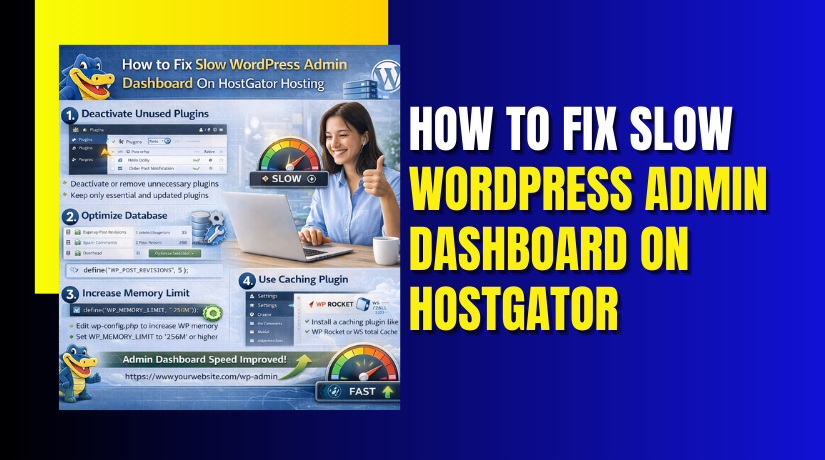
How to Fix Slow WordPress Admin Dashboard On HostGator Hosting
5 mins read

How to Fix Slow WordPress Admin Dashboard On HostGator Hosting

Introduction

A slow WordPress admin dashboard can significantly affect productivity, website management efficiency, and overall system performance. Delayed loading times, unresponsive menus, and frequent timeouts are often caused by overloaded plugins, unused themes, insufficient server resources, outdated configurations, or unoptimized databases. When left unresolved, these issues can disrupt daily website operations and increase the risk of system errors.

This guidde explains how to fix slow performance issues in the WordPress admin dashboard on HostGator hosting. It provides step-by-step instructions for removing unnecessary plugins and themes, optimizing PHP configuration settings, increasing memory limits, installing performance-enhancing plugins, and cleaning database records. By following this guide, website administrators can restore dashboard responsiveness, improve backend efficiency, and maintain a smooth website management experience.


1. Problem Slow WordPress Admin Dashboard.
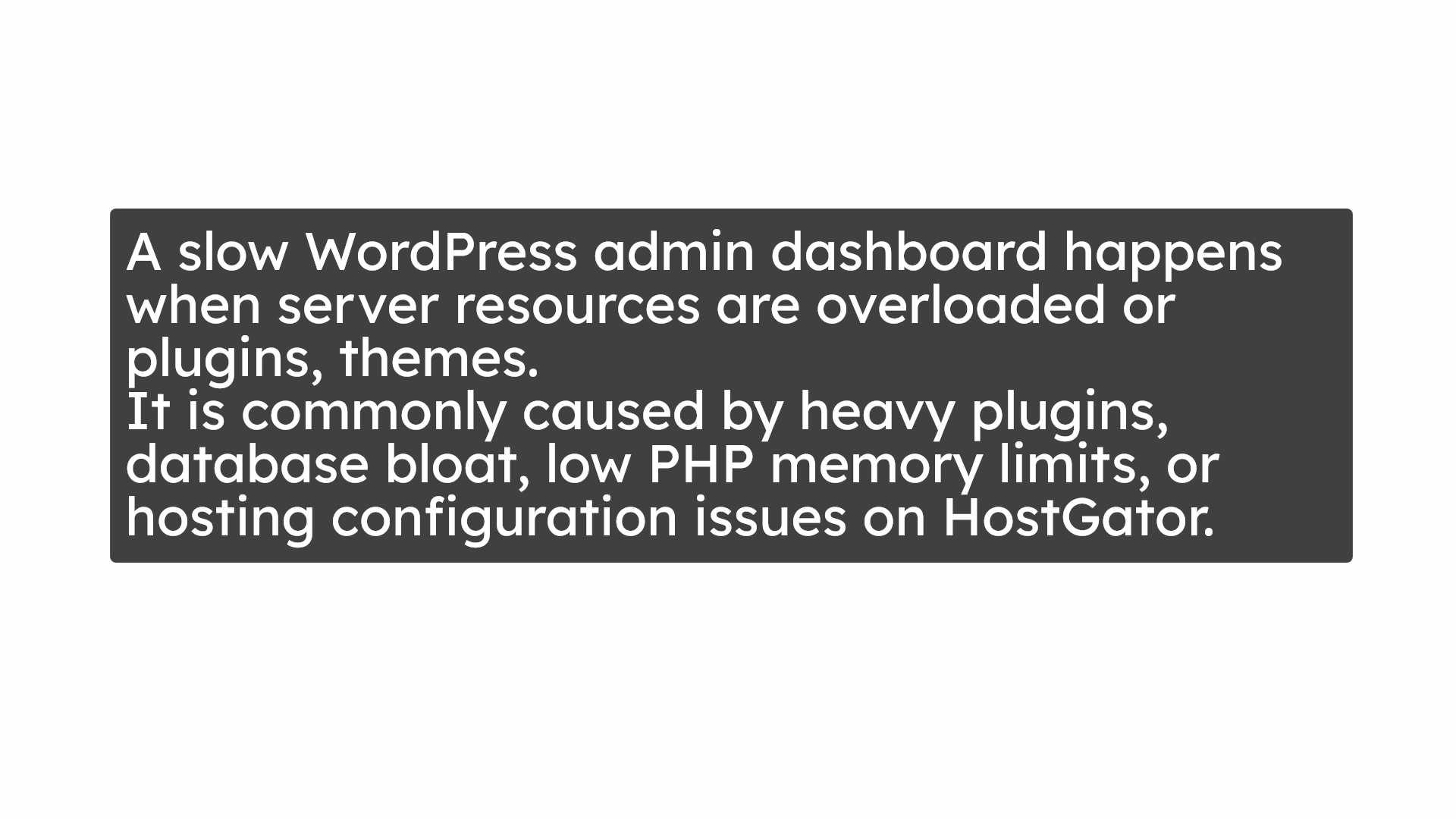
 Problem Slow WordPress Admin Dashboard.

2. Log In to WordPress Dashboard
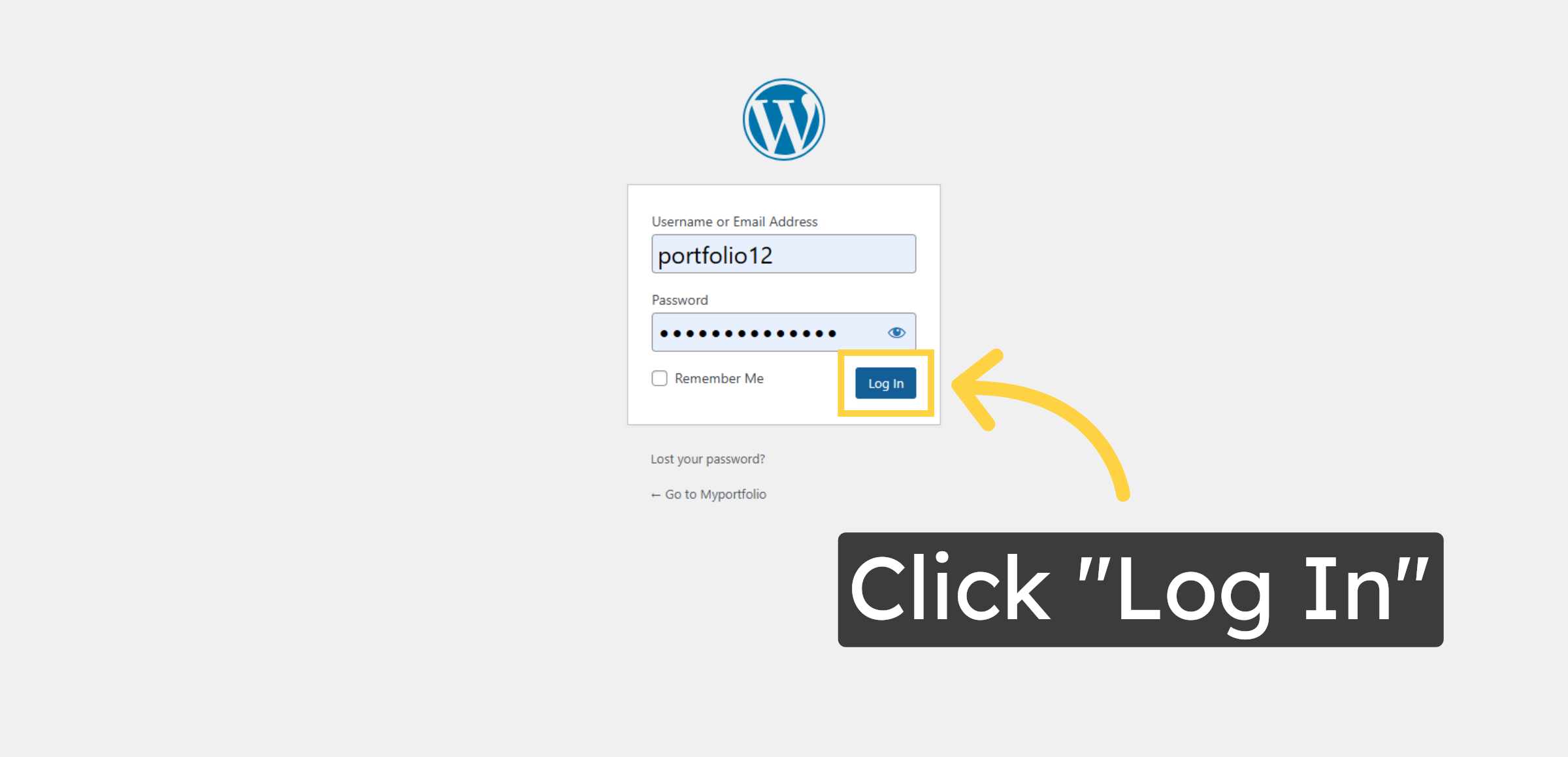
Click “Log In” to access your WordPress dashboard and begin troubleshooting the White Screen of Death issue.

Log In to WordPress Dashboard

3. Open Plugins Section
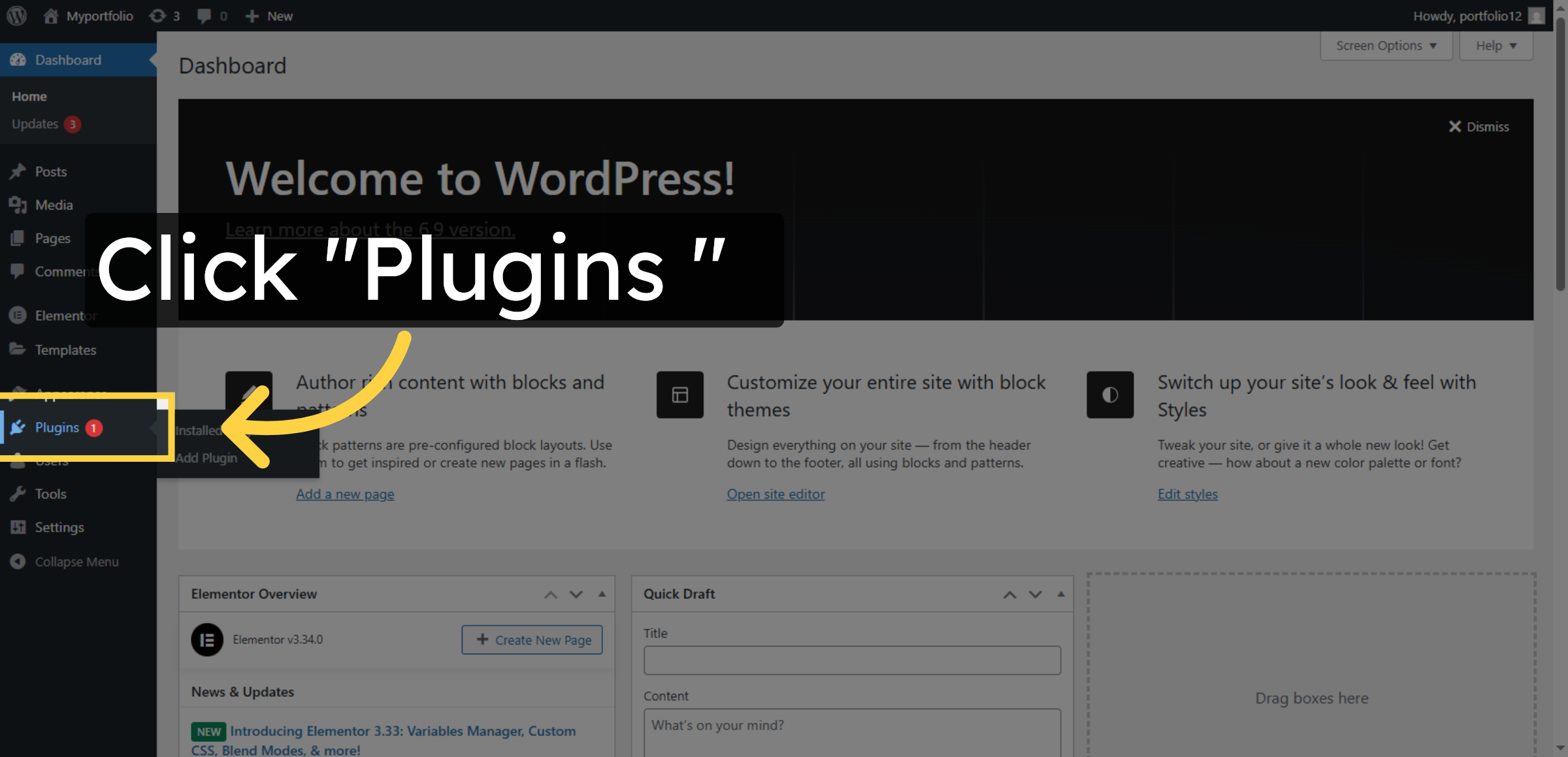
Click the Plugins section to review and manage active and inactive plugins.

Open Plugins Section

4. Initiate Plugin Deletion
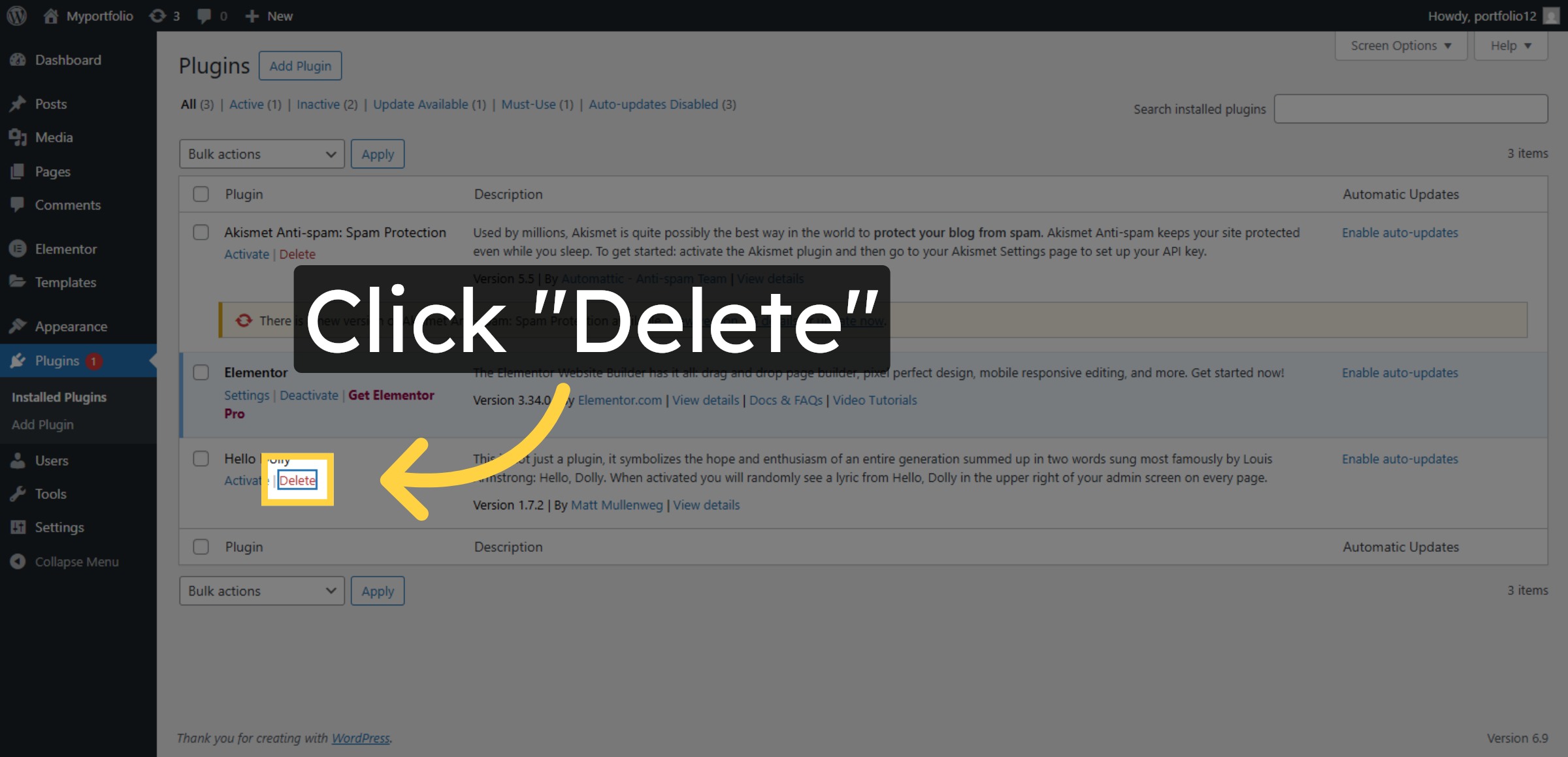
Click Delete to remove an unnecessary or problematic plugin from your WordPress site.

Initiate Plugin Deletion

5. Confirm Plugin Deletion
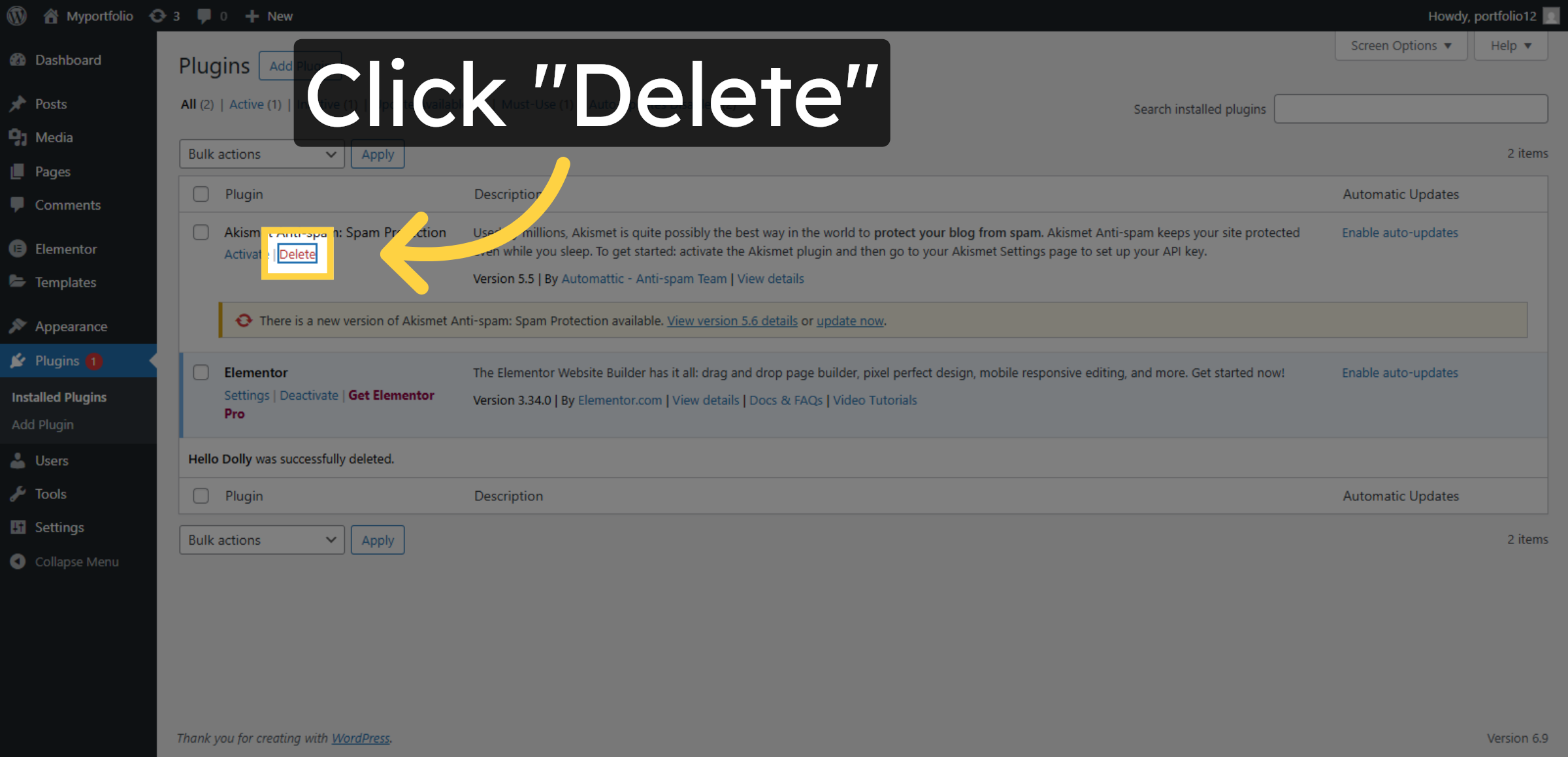
Click Delete again to confirm the removal of the selected plugin.

Confirm Plugin Deletion

6. Return To Themes Section
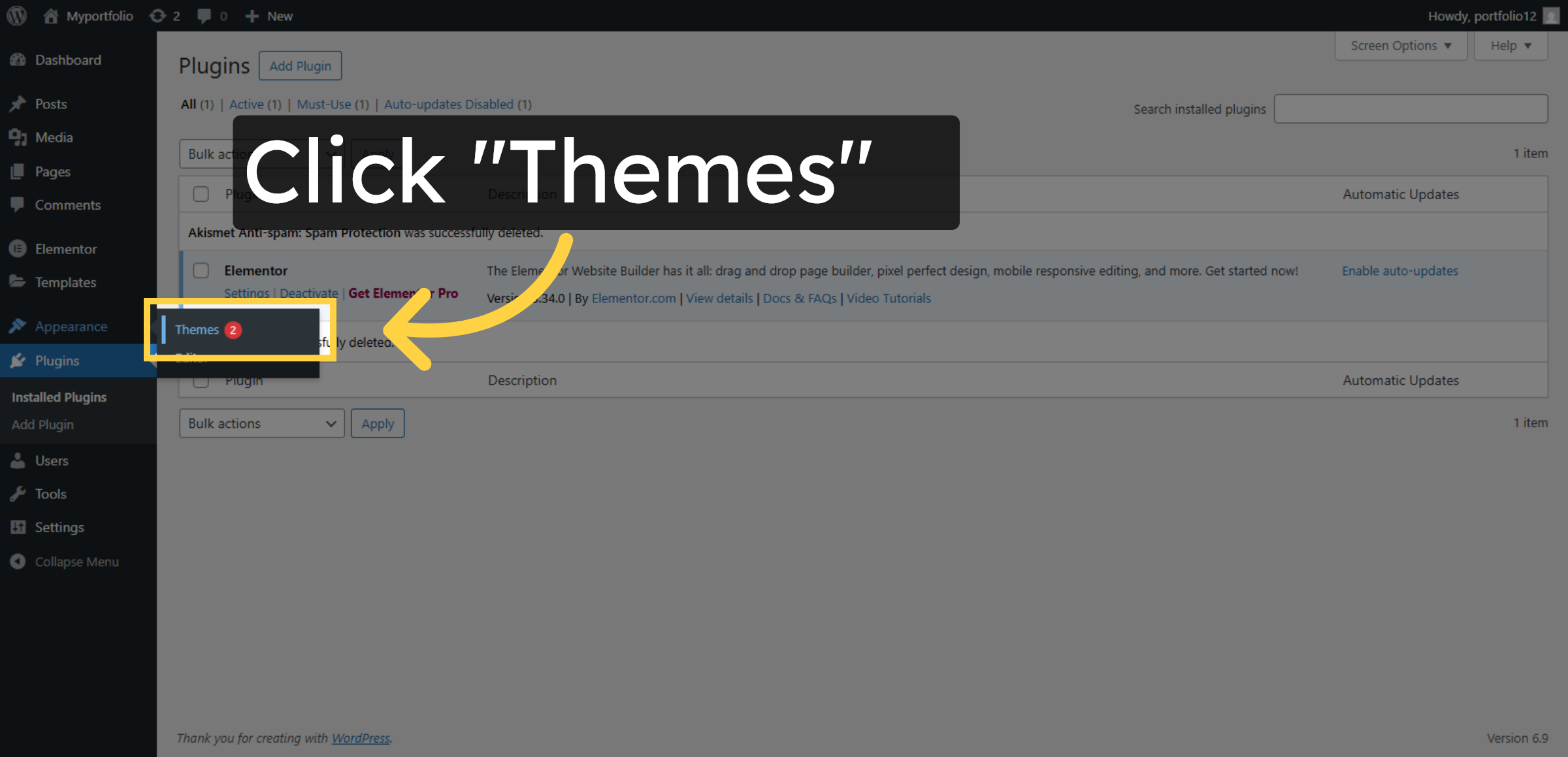
Click the Themes section again to manage your WordPress themes.

Return To Themes Section

7. View Twenty Twenty-Five Theme Details
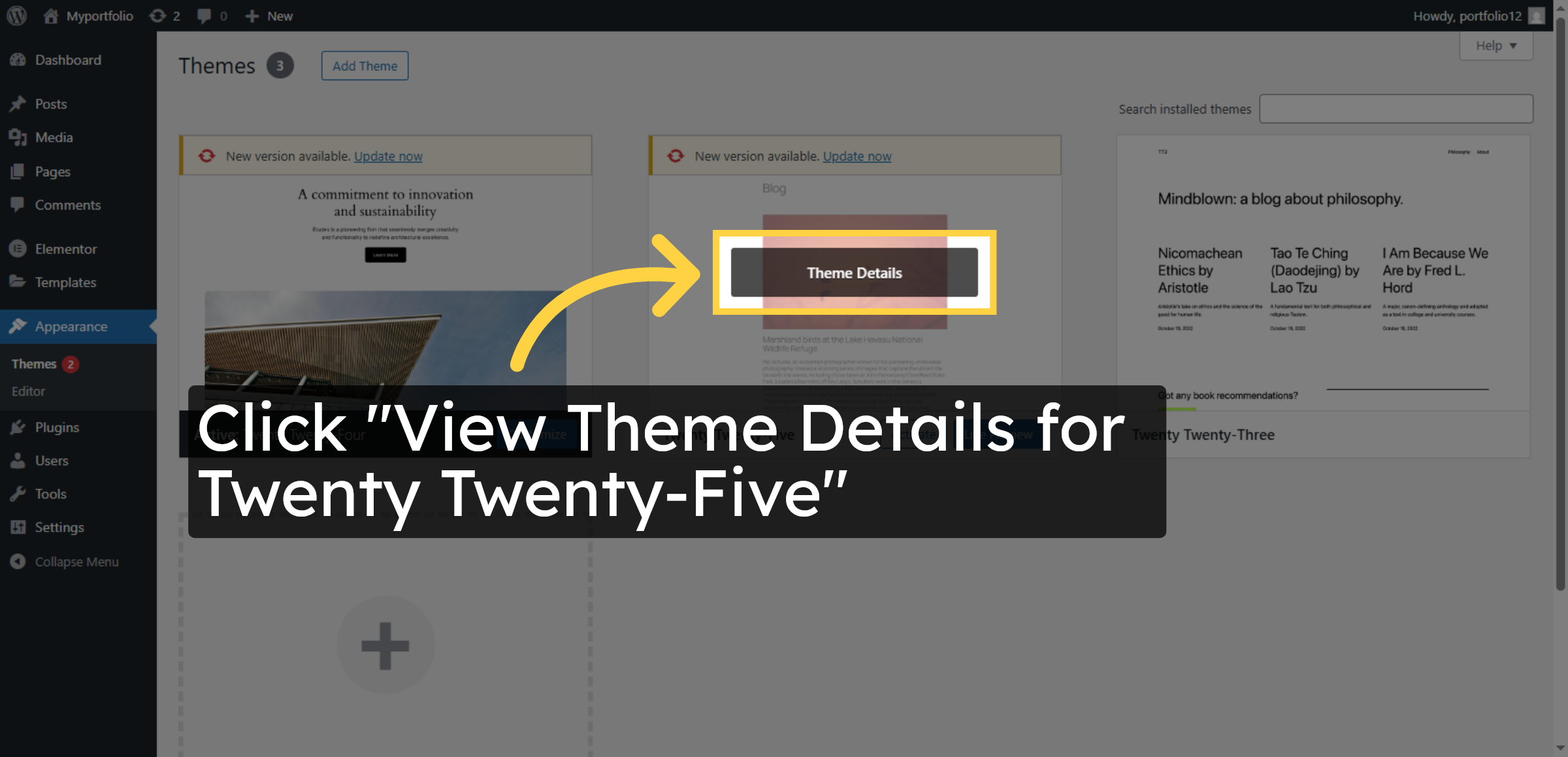
Click View Theme Details for Twenty Twenty-Five to inspect this theme’s information.

View Twenty Twenty-Five Theme Details

8. Delete Twenty Twenty-Five Theme
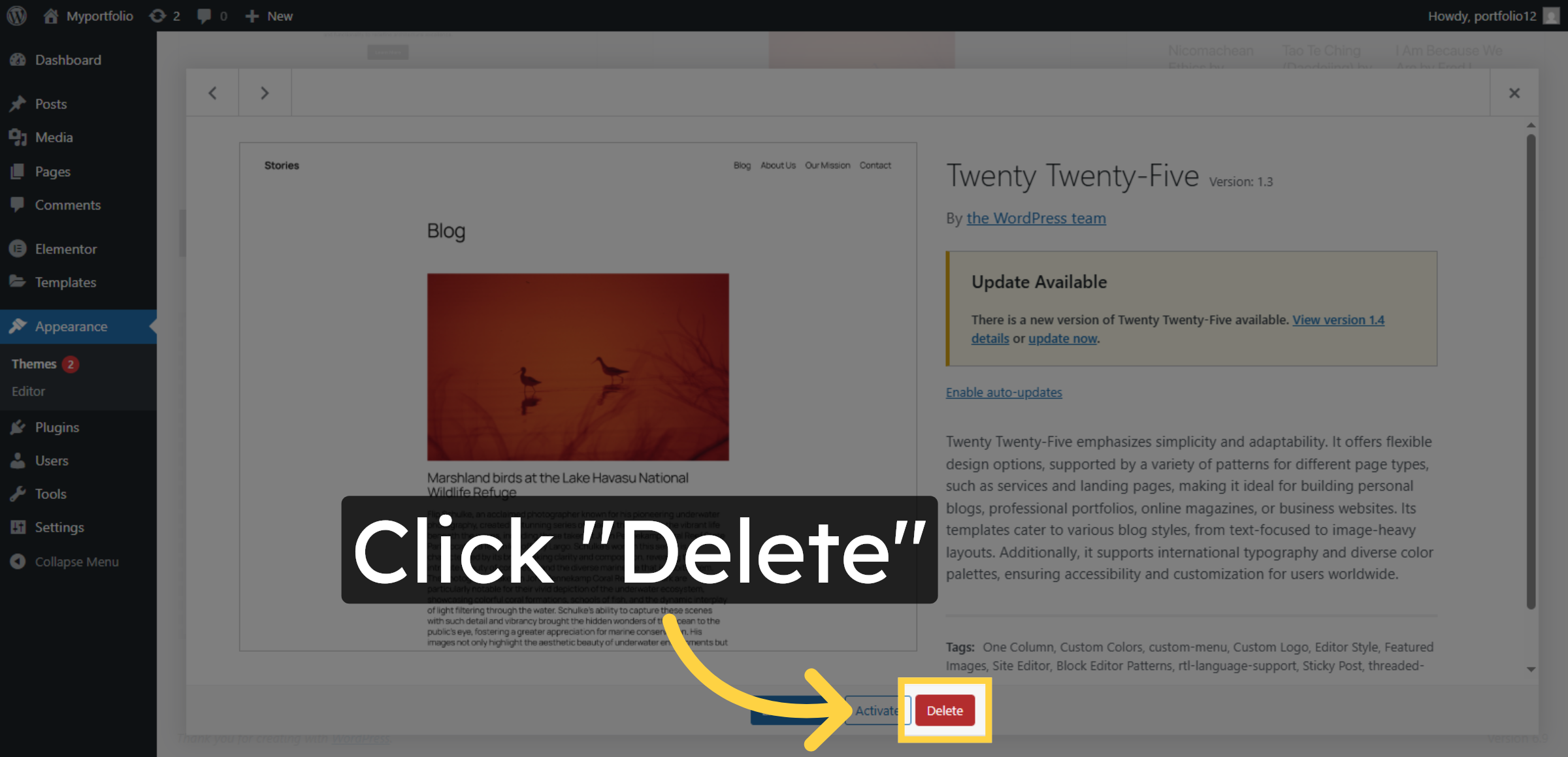
Click Delete to remove the Twenty Twenty-Five theme from your WordPress installation.

Delete Twenty Twenty-Five Theme

9. View Twenty Twenty-Three Theme Details
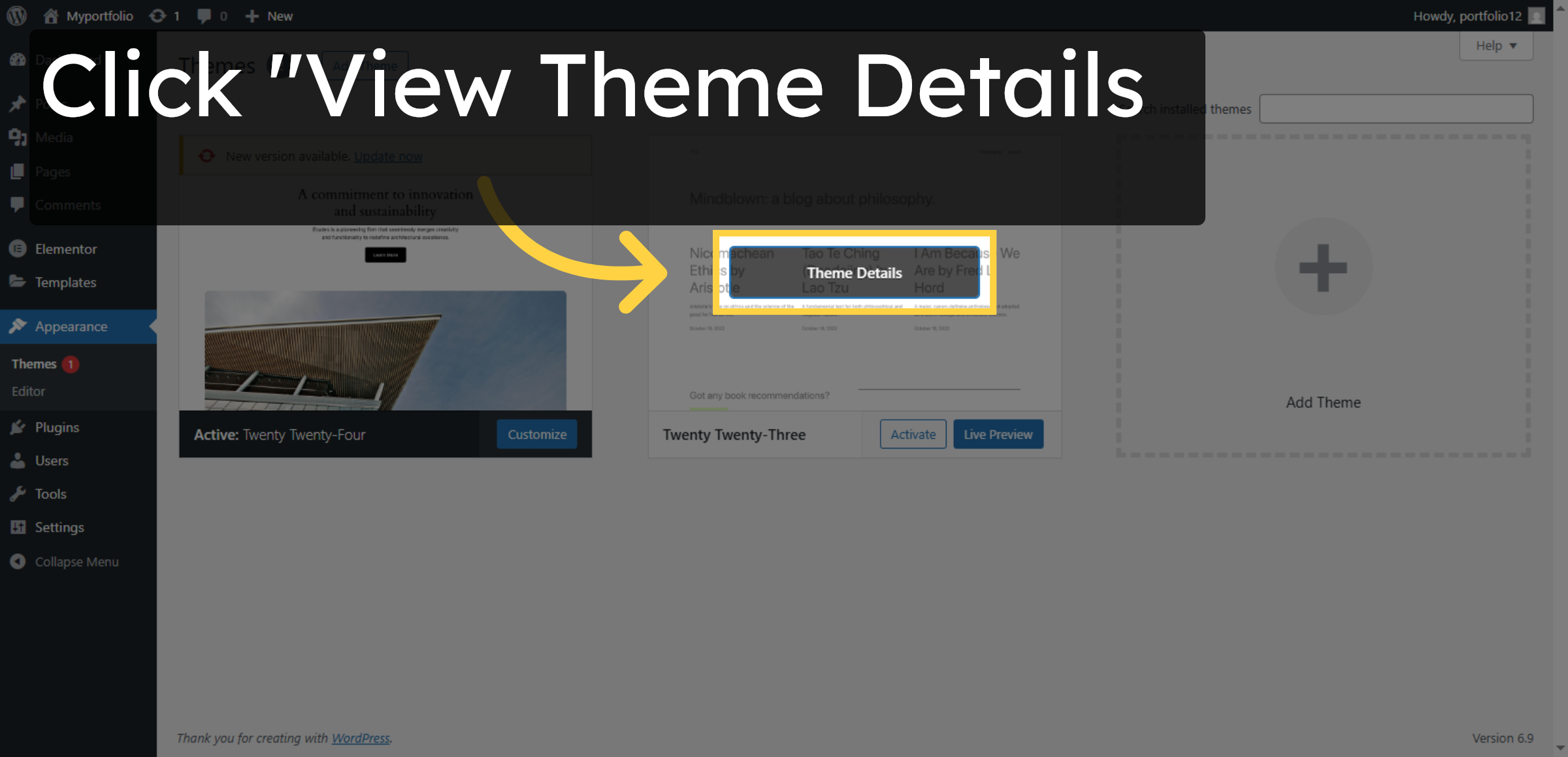
Click View Theme Details for Twenty Twenty-Three to review this theme’s details.

View Twenty Twenty-Three Theme Details

10. Delete Twenty Twenty-Three Theme
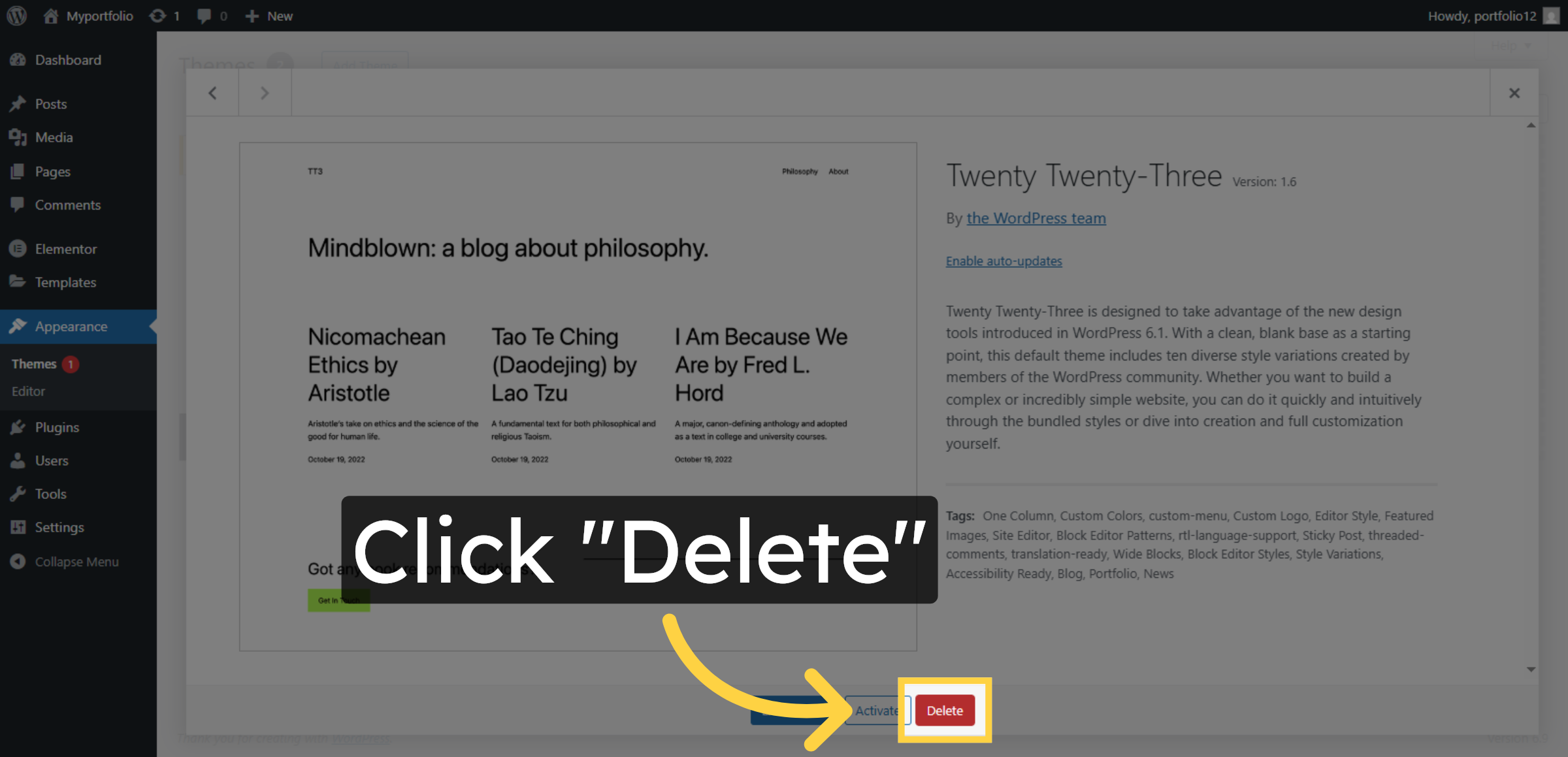
Click Delete to remove the Twenty Twenty-Three theme from your WordPress site.

Delete Twenty Twenty-Three Theme

11. Navigate To HostGator Website
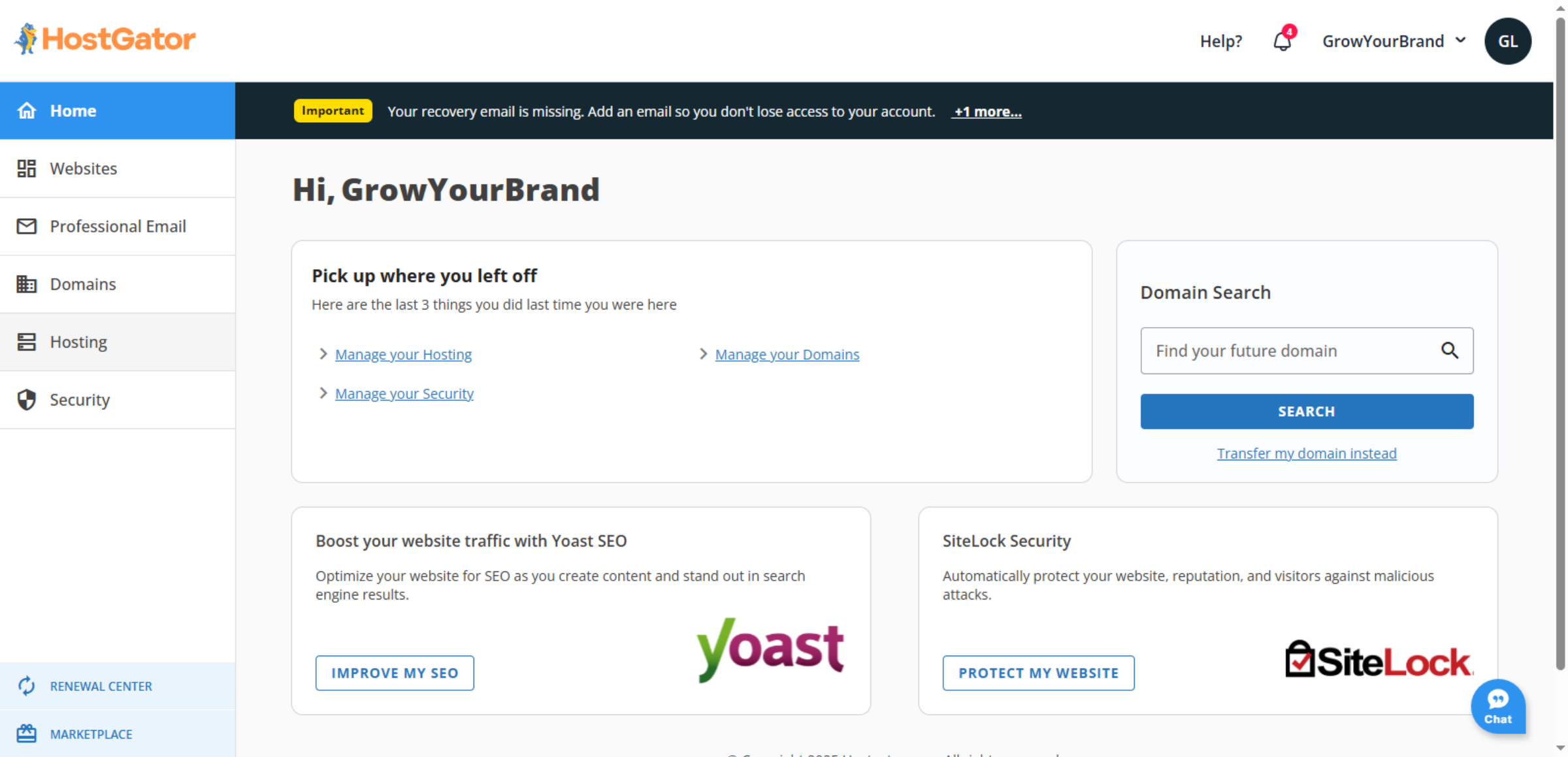
Switch to the HostGator website to access additional hosting management tools.

Navigate To HostGator Website

12. Open DNS Hosting Section
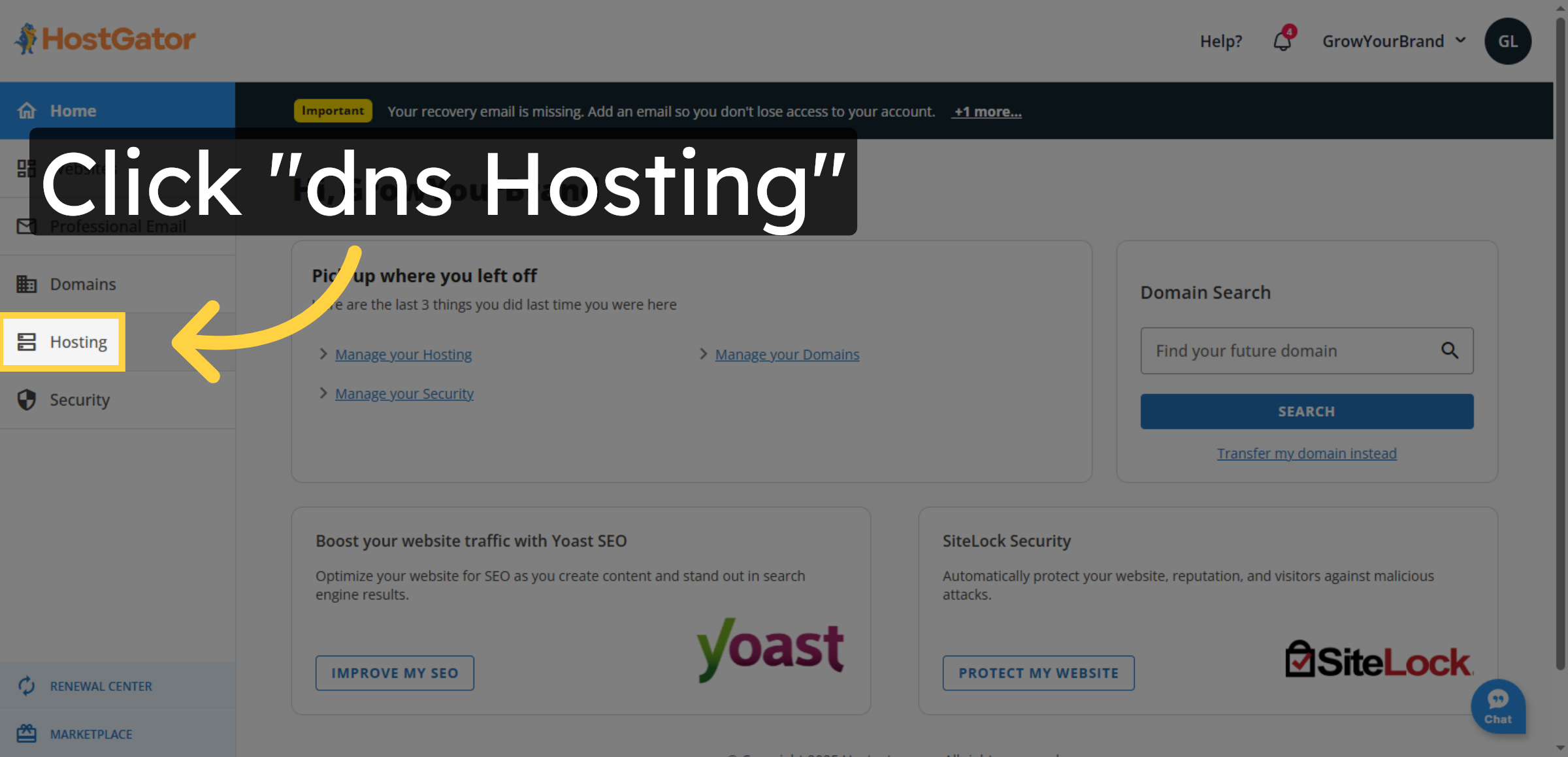
Click the DNS Hosting option to manage domain name system settings.

Open DNS Hosting Section

13. Access cPanel Interface
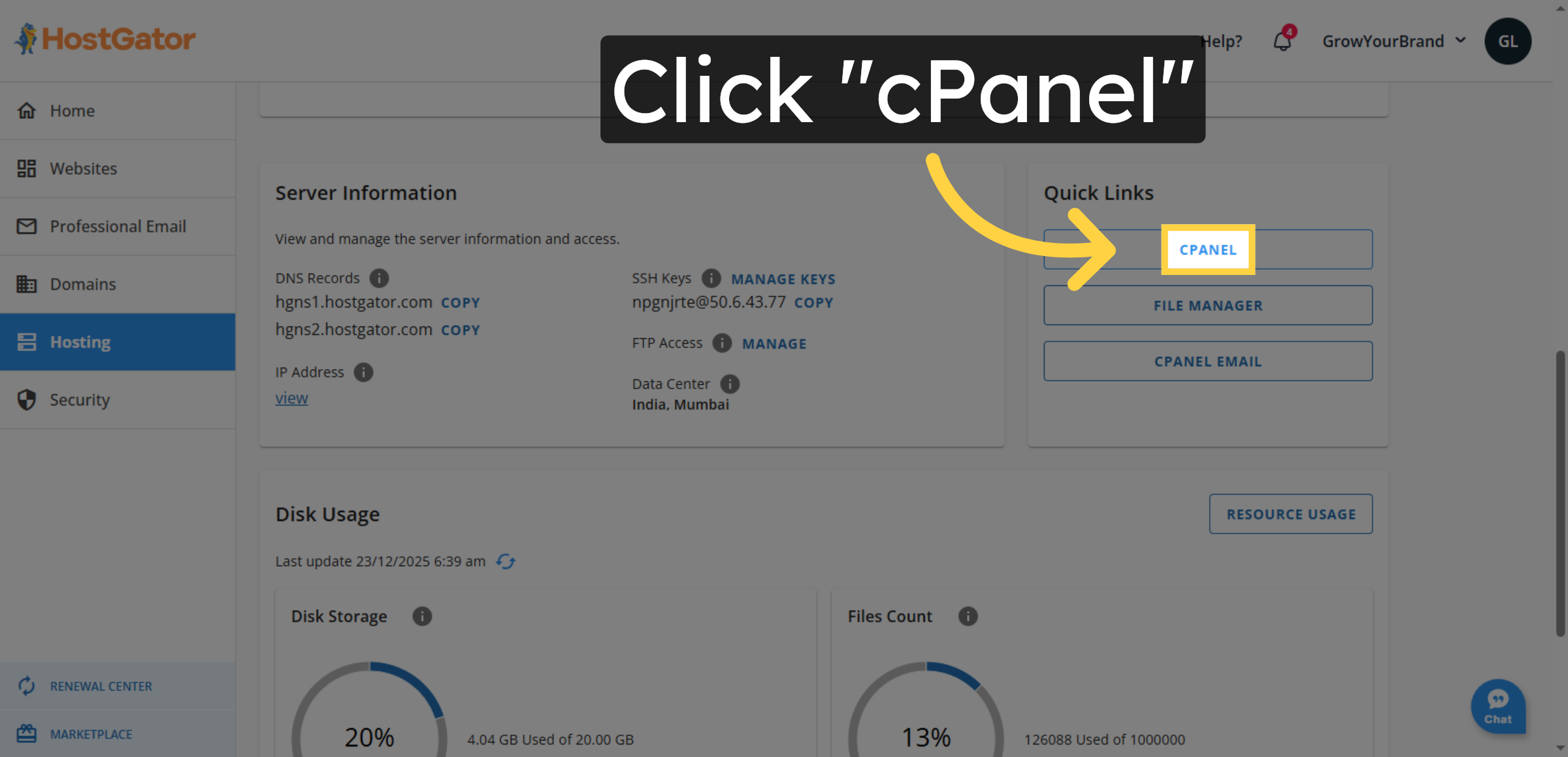
Click cPanel to open the control panel for advanced hosting configurations.

Access cPanel Interface

14. Switch To cPanel Login
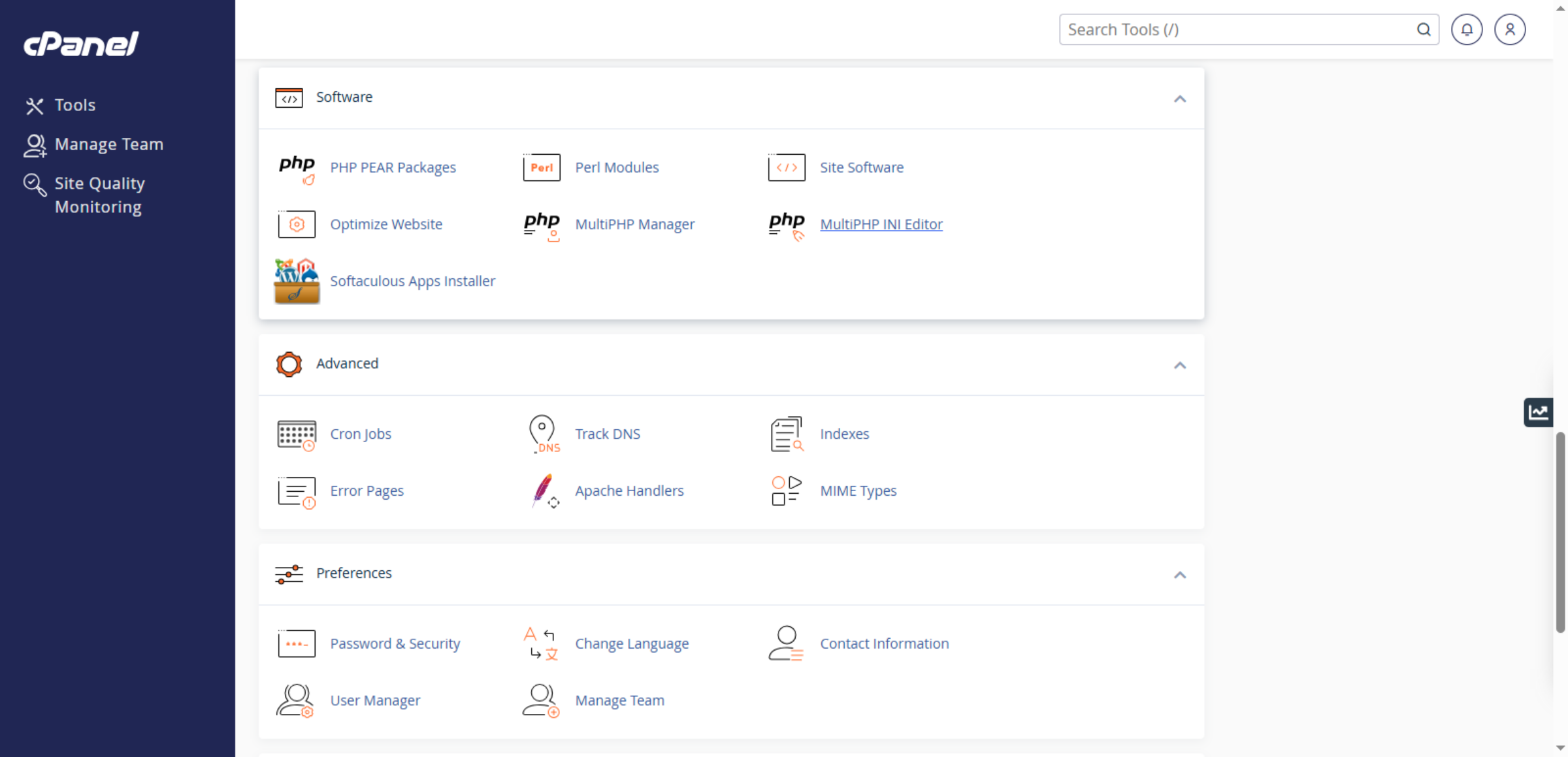
Switch to the cPanel login page to enter your hosting control panel.

Switch To cPanel Login

15. Open MultiPHP INI Editor
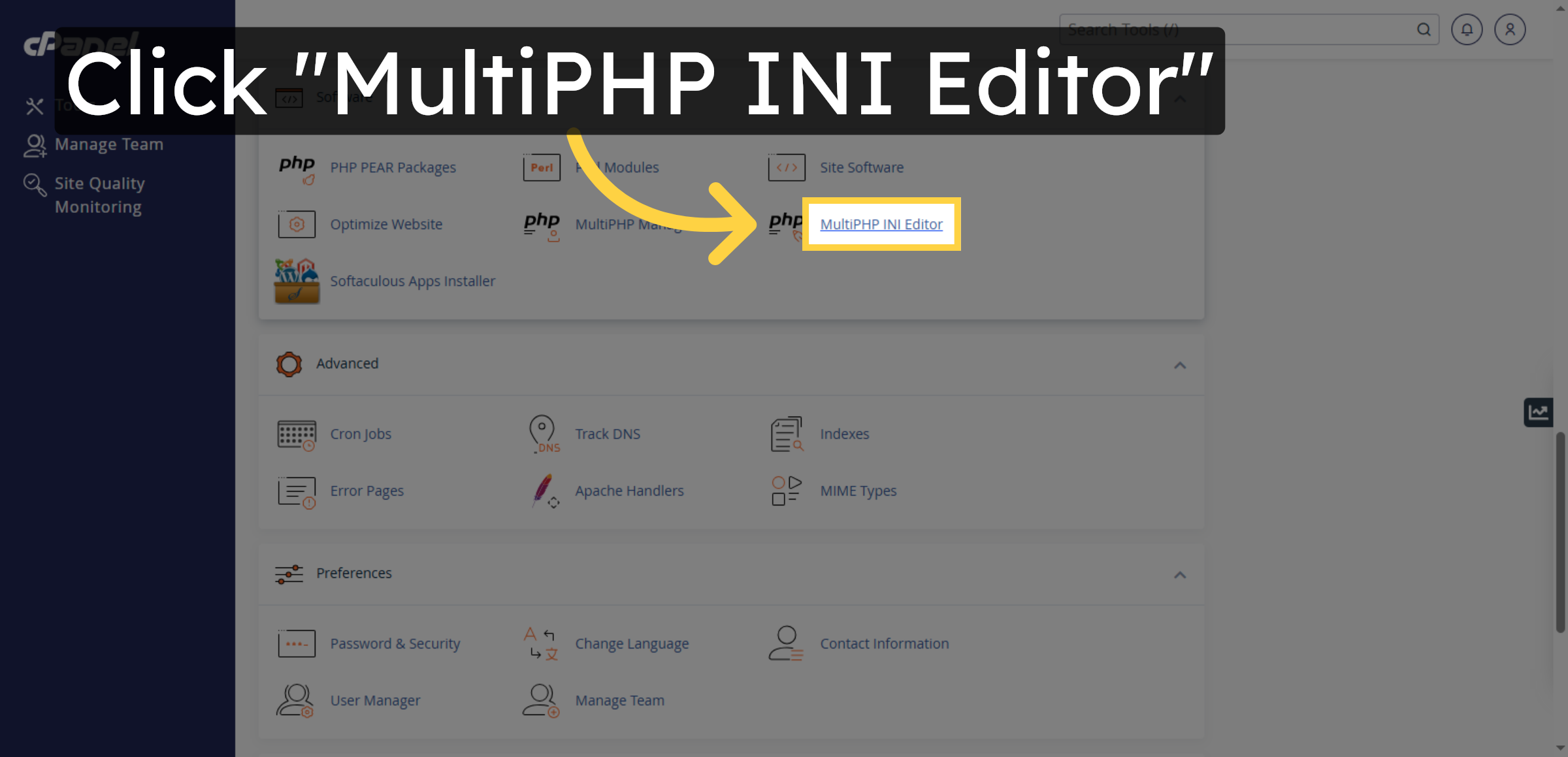
Click MultiPHP INI Editor to modify PHP configuration settings for your hosting account.

Open MultiPHP INI Editor

16. Select Home Directory Again
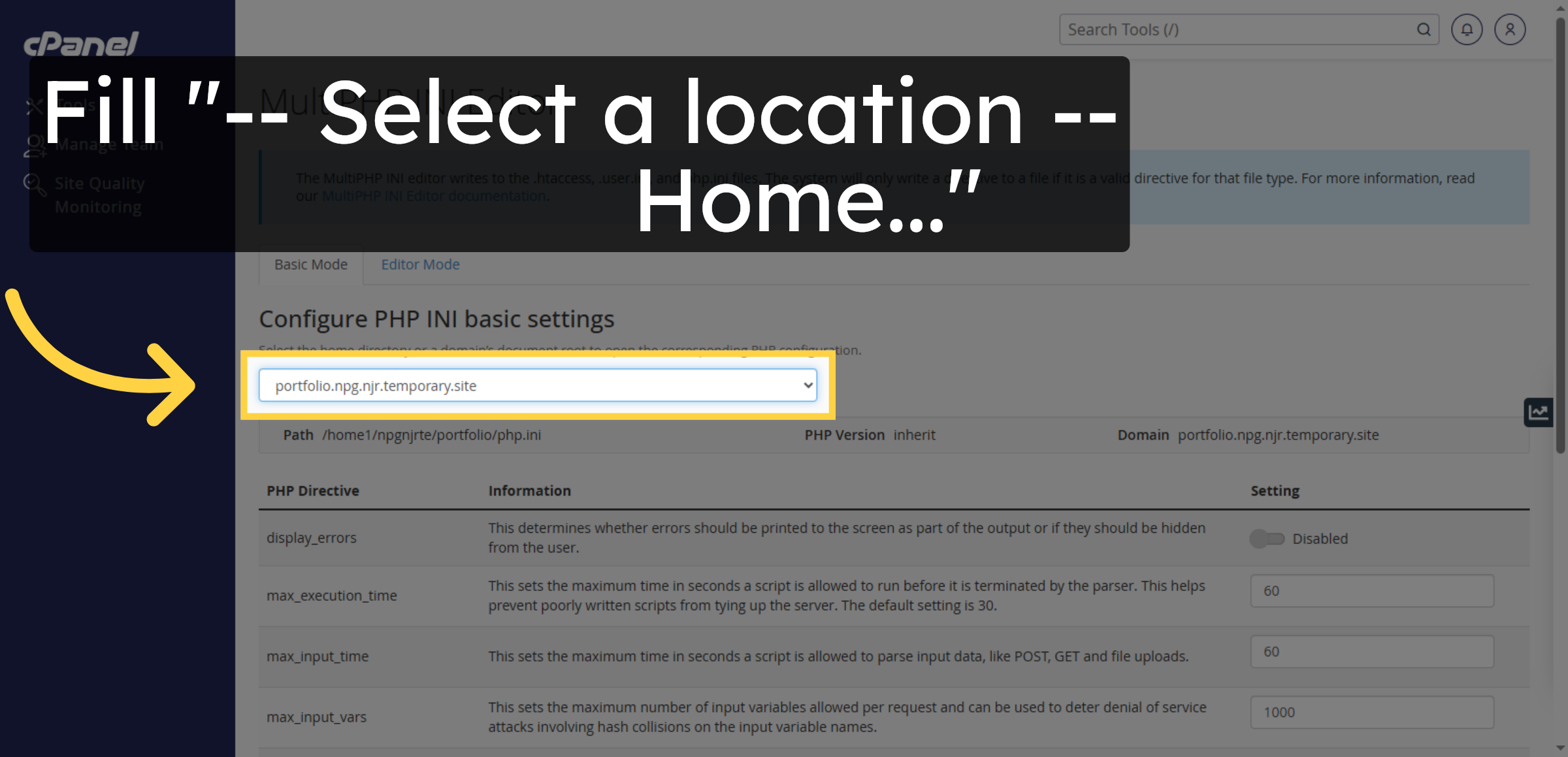
Fill the selection with Home directory to ensure PHP settings apply correctly.

Select Home Directory Again

17. Select Max Execution Time
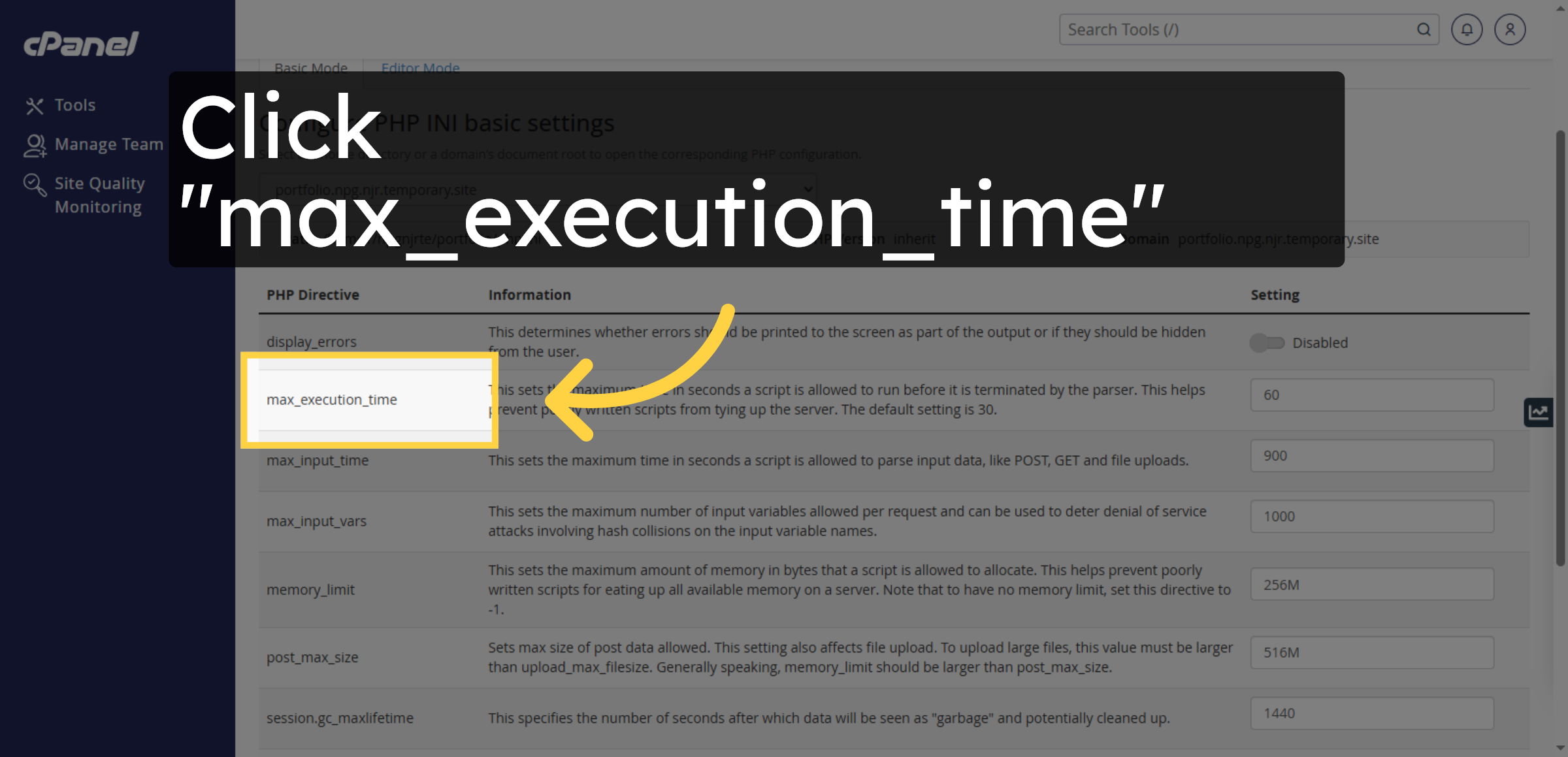
Click max_execution_time to adjust the script running time and prevent timeout or memory-related errors on your WordPress website.

Select Max Execution Time

18. Choose Current Execution Time
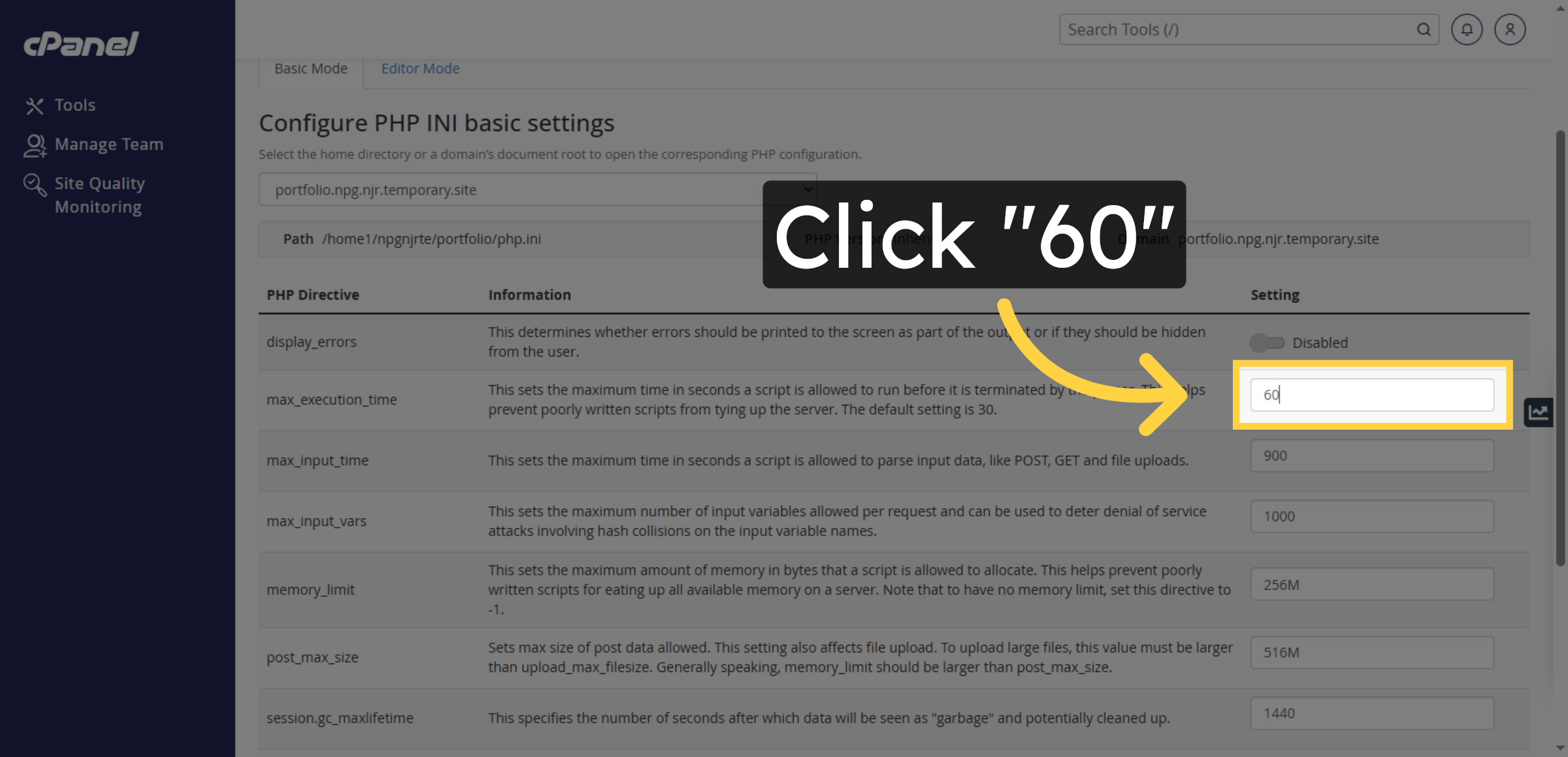
Click “60”.

Choose Current Execution Time

19. Choose Current Execution Time
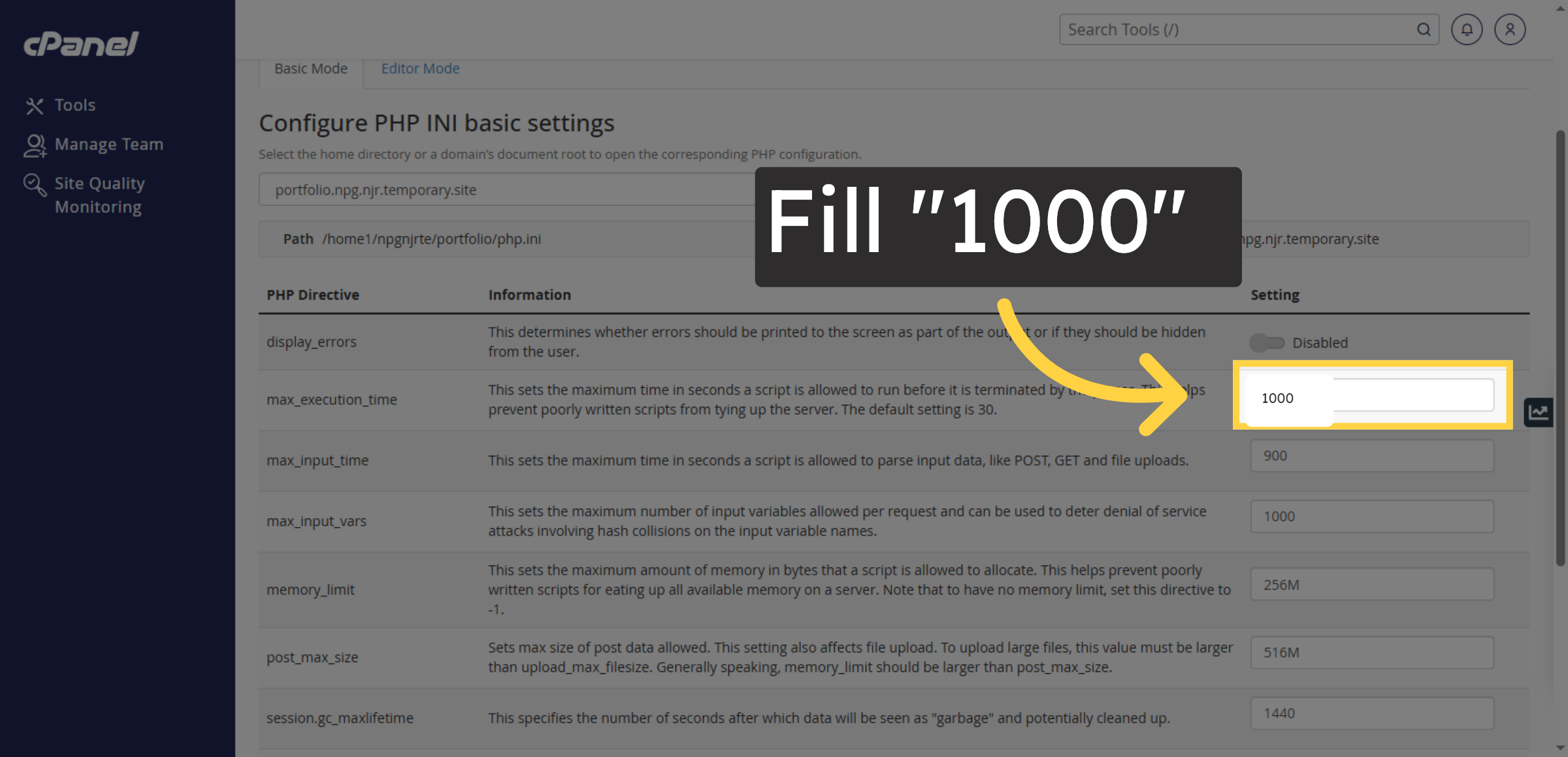
Fill “1000”.

Choose Current Execution Time

20. Select Memory Limit Setting
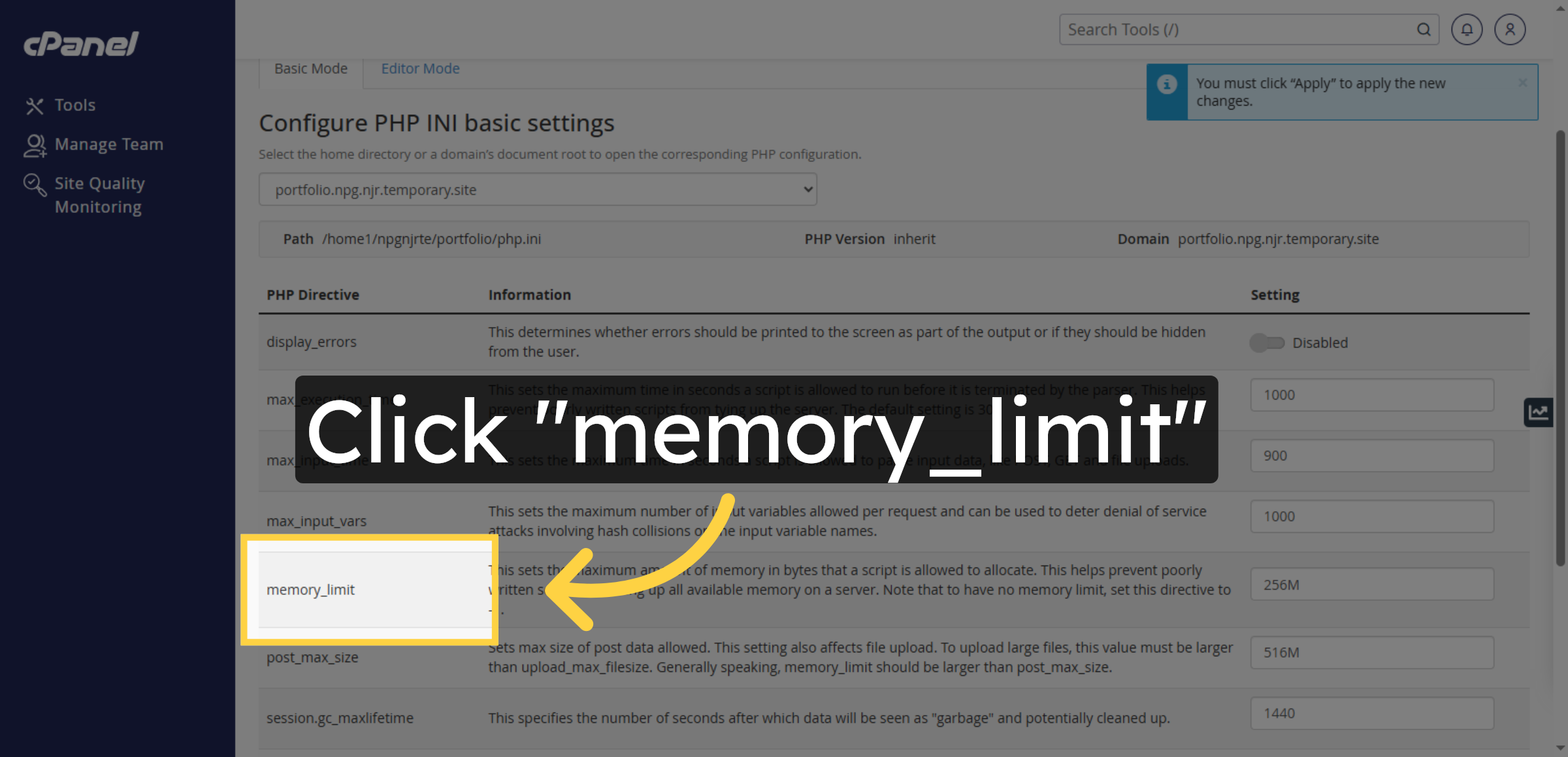
Click memory_limit to increase the PHP memory allocated to WordPress and fix the memory limit exhausted error.

Select Memory Limit Setting

21. Choose Current Memory Limit
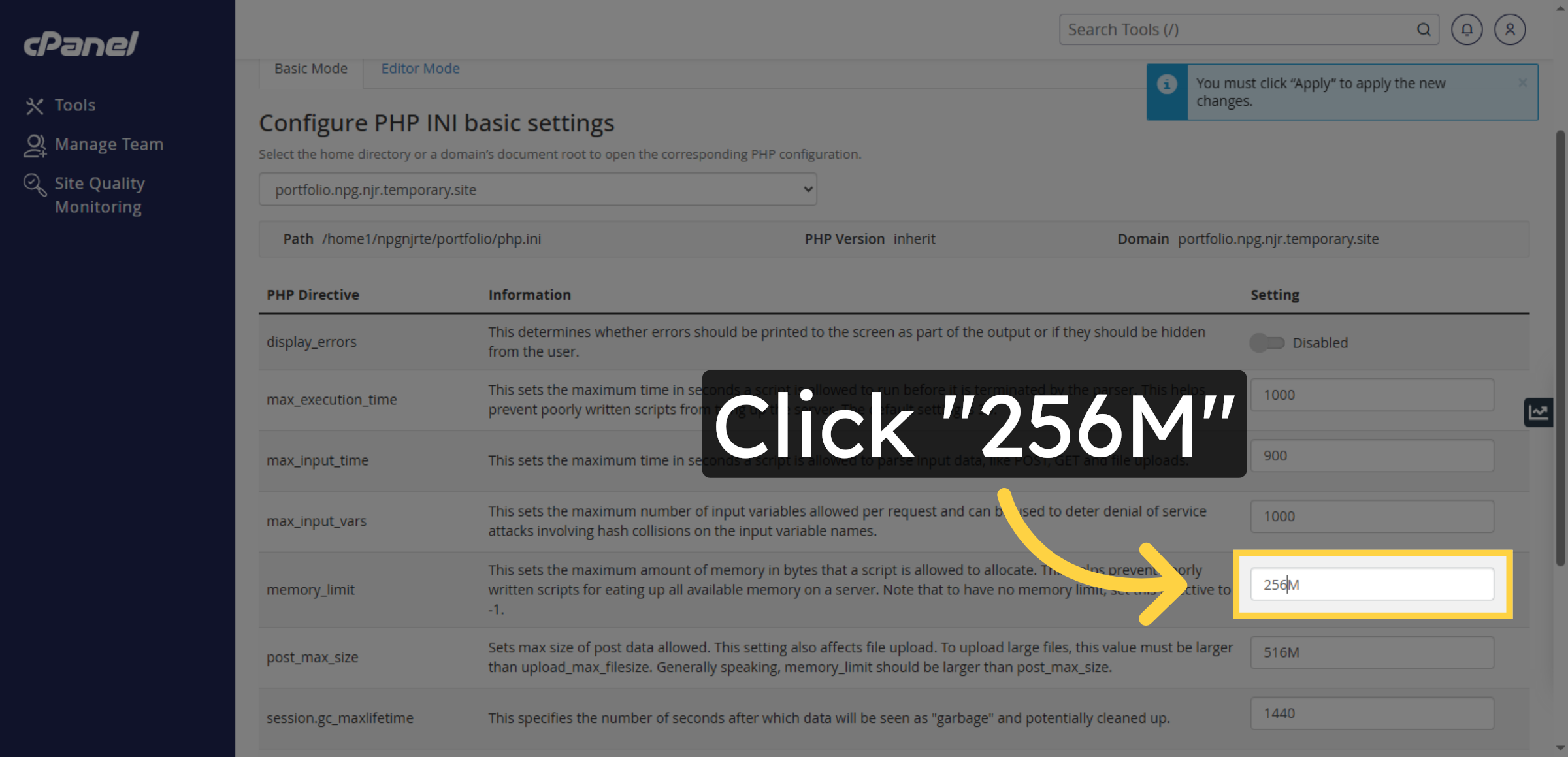
Click “256M”.

Choose Current Memory Limit

22. Enter New Memory Limit
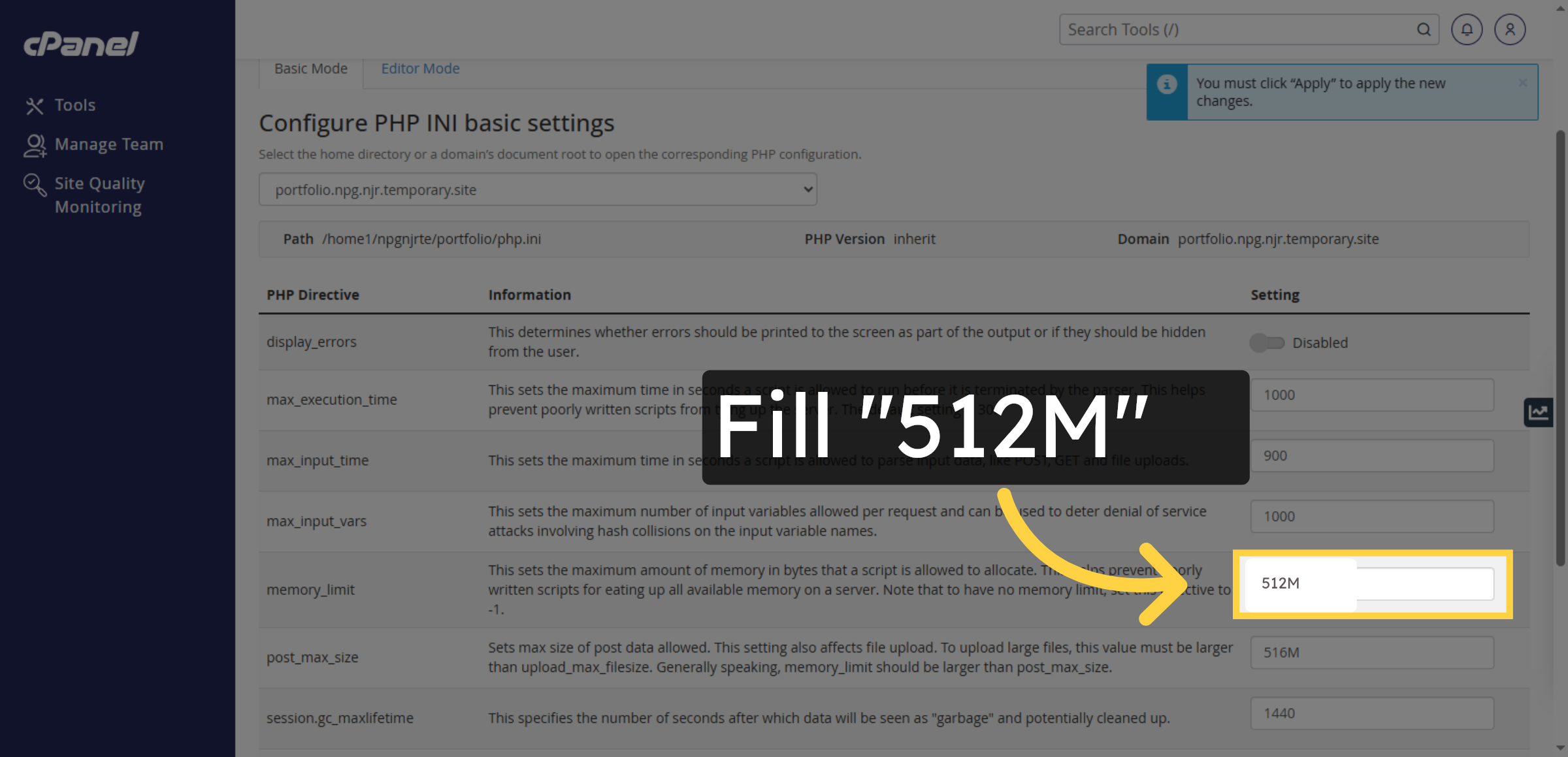
Enter your desired memory limit value, such as 512M.

Enter New Memory Limit

23. Apply Configuration Changes
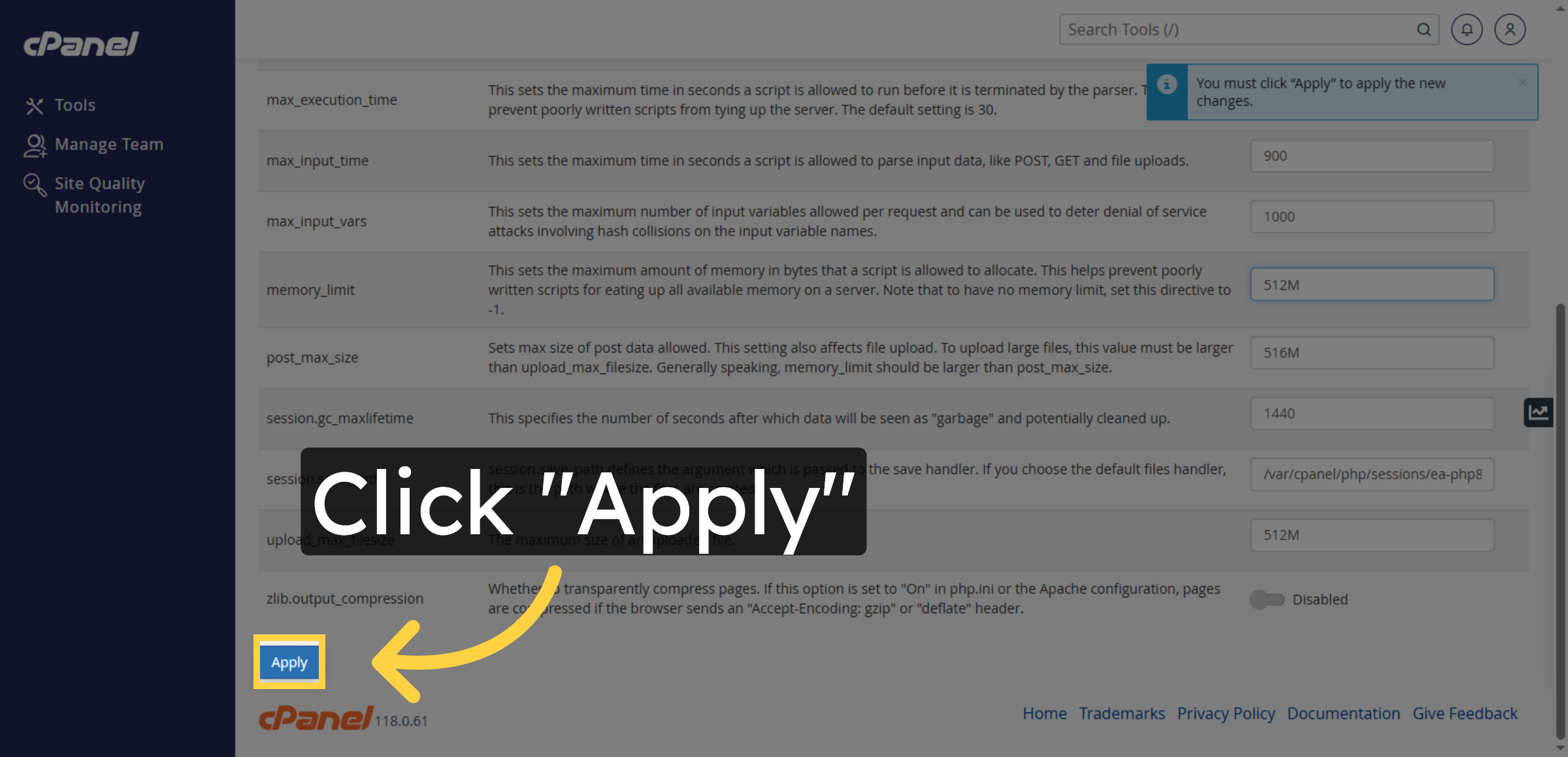
Click “Apply” to save and implement the new settings.

Apply Configuration Changes

Ad Banner

24. Method 2 : fix Slow WordPress Admin Dashboard through wp-rocket plugin
25. Select Upload Plugin
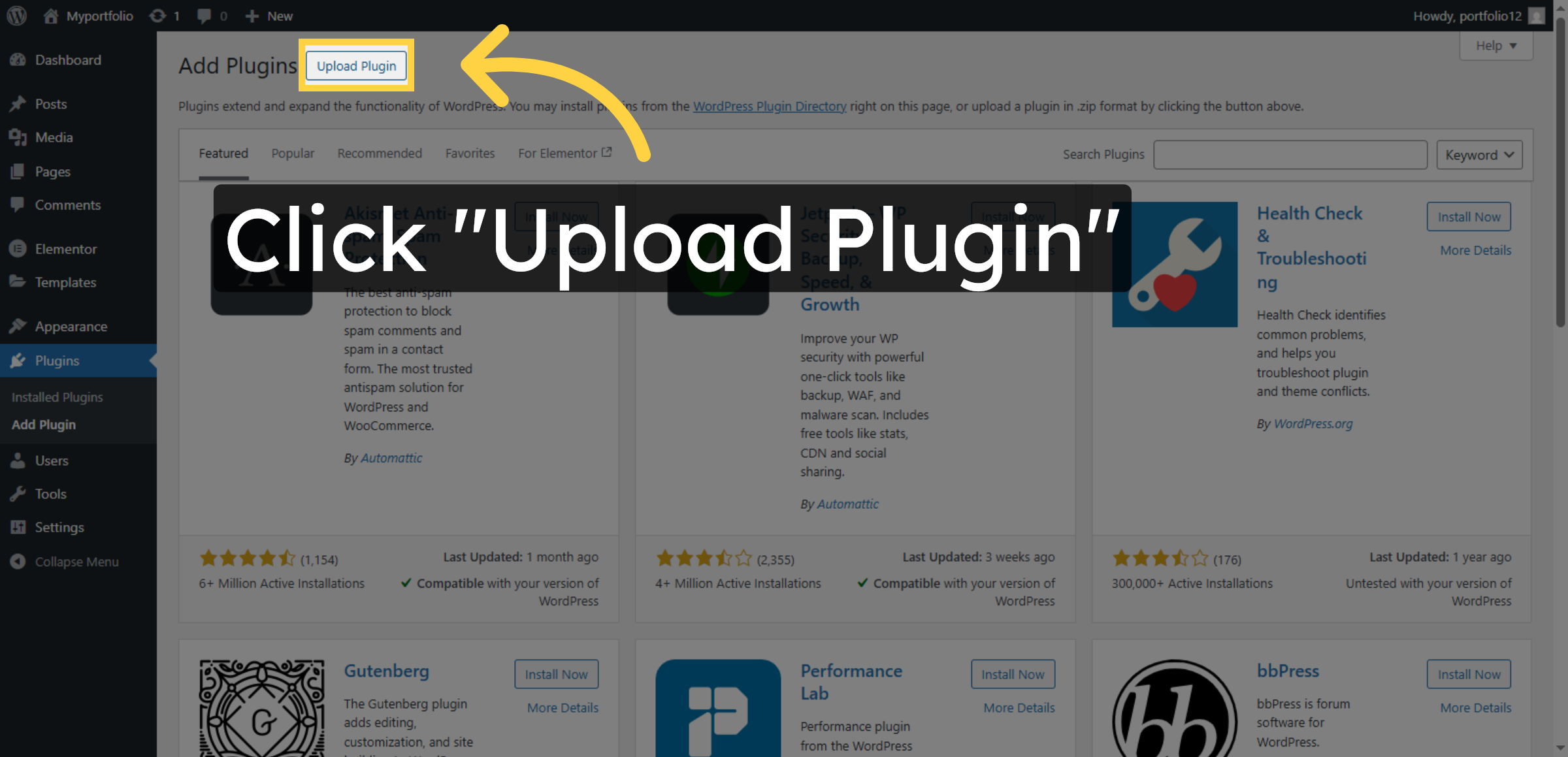
Click Upload Plugin to upload a plugin file from your computer.

Select Upload Plugin

26. Enter Plugin File Path
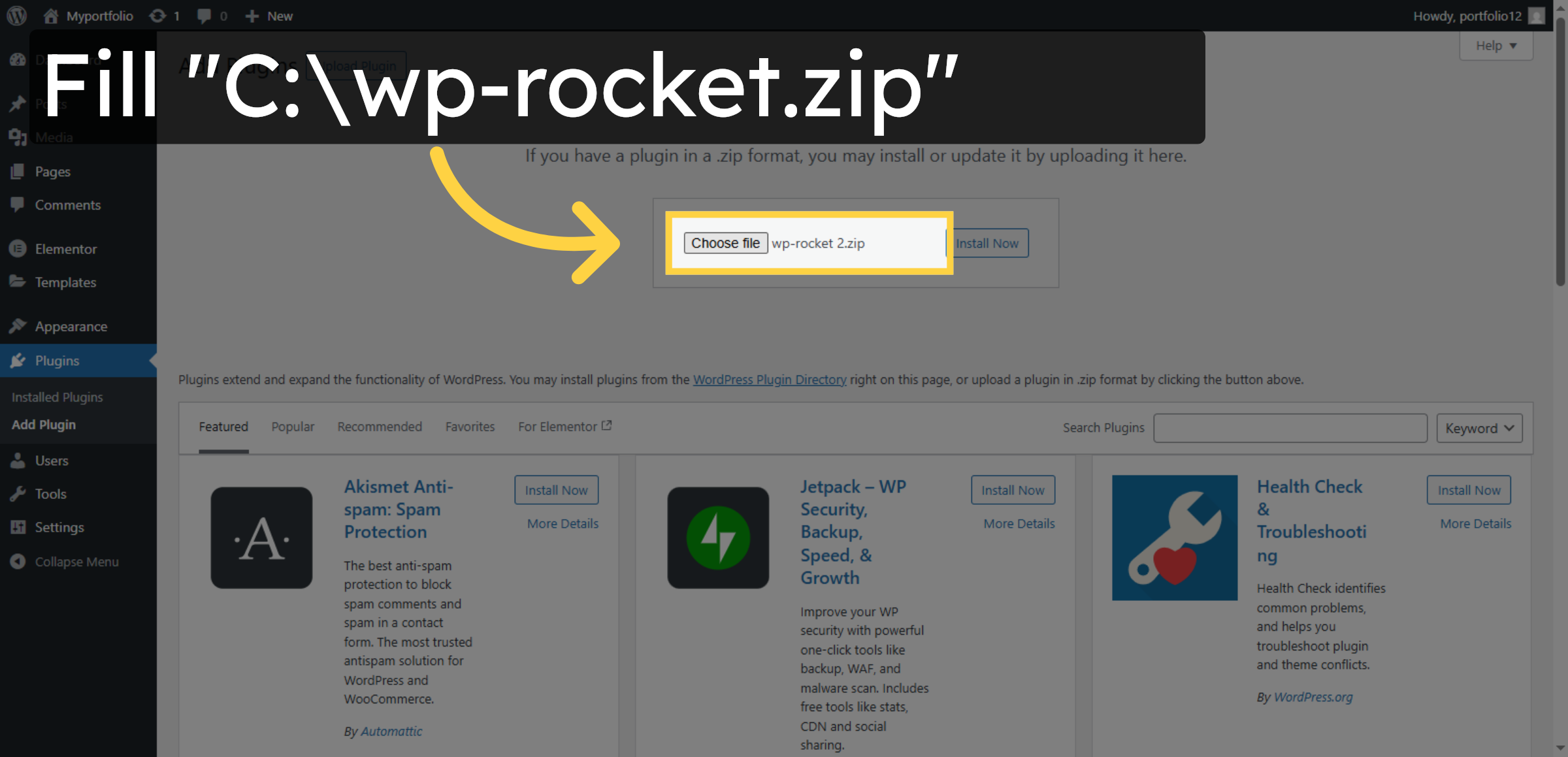
Enter the path to the WP Rocket plugin zip file to upload it for installation.

Enter Plugin File Path

27. Install Plugin
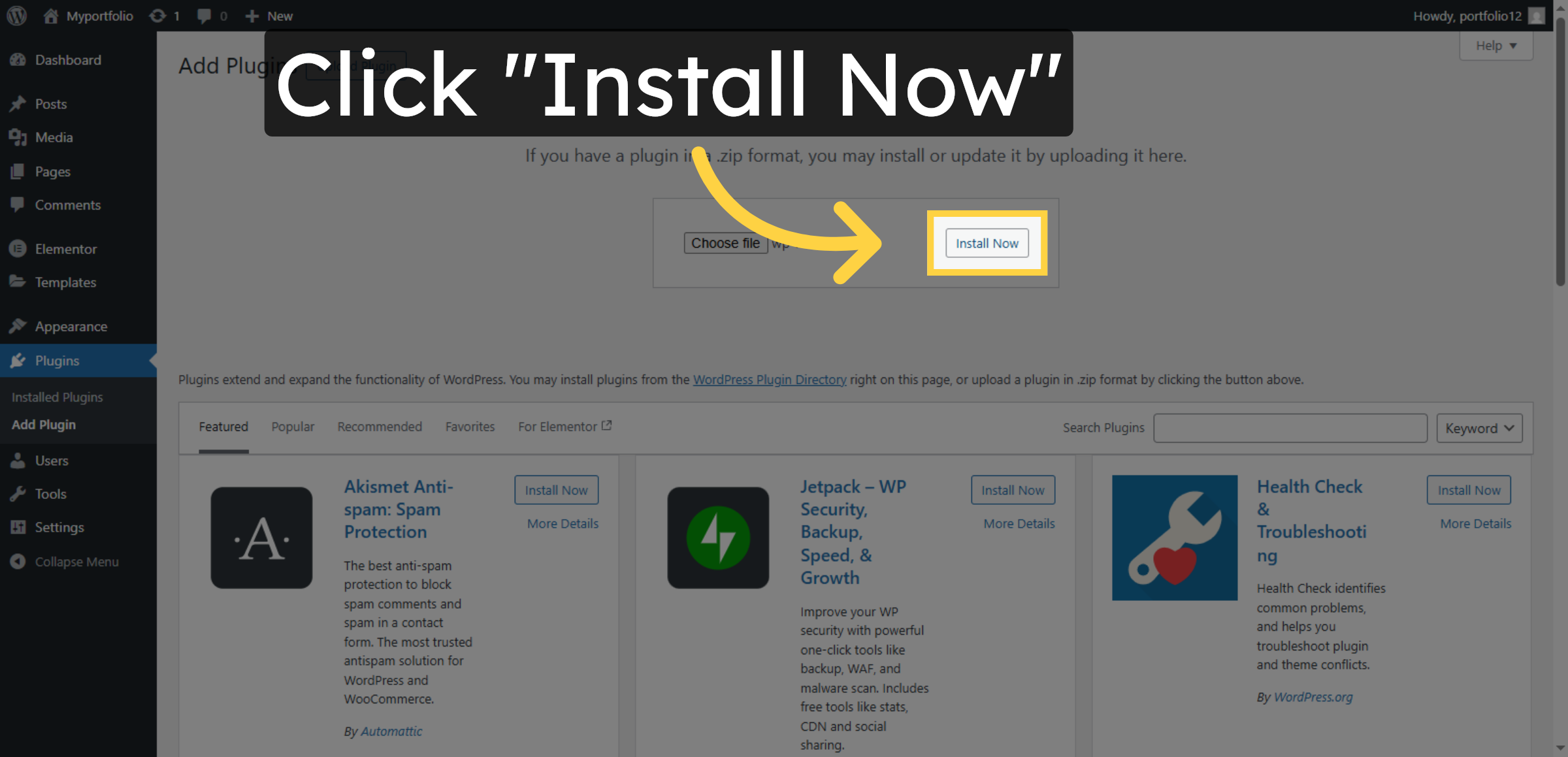
Click Install Now to begin installing the WP Rocket plugin on your WordPress site.

Install Plugin

28. Activate Plugin

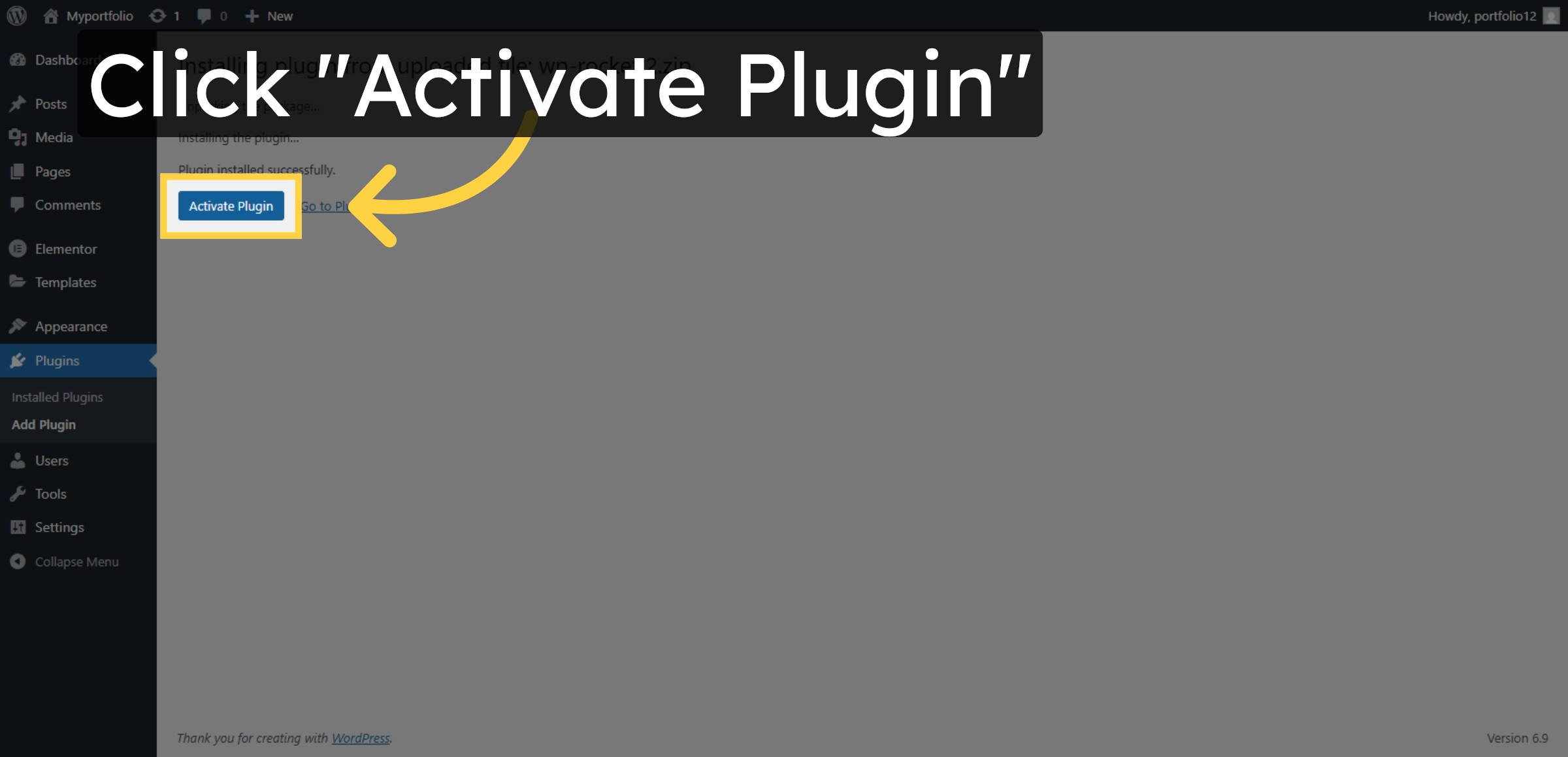
Click Activate Plugin to enable WP Rocket and start using its optimization features.

Activate Plugin

29. Open Plugin Settings
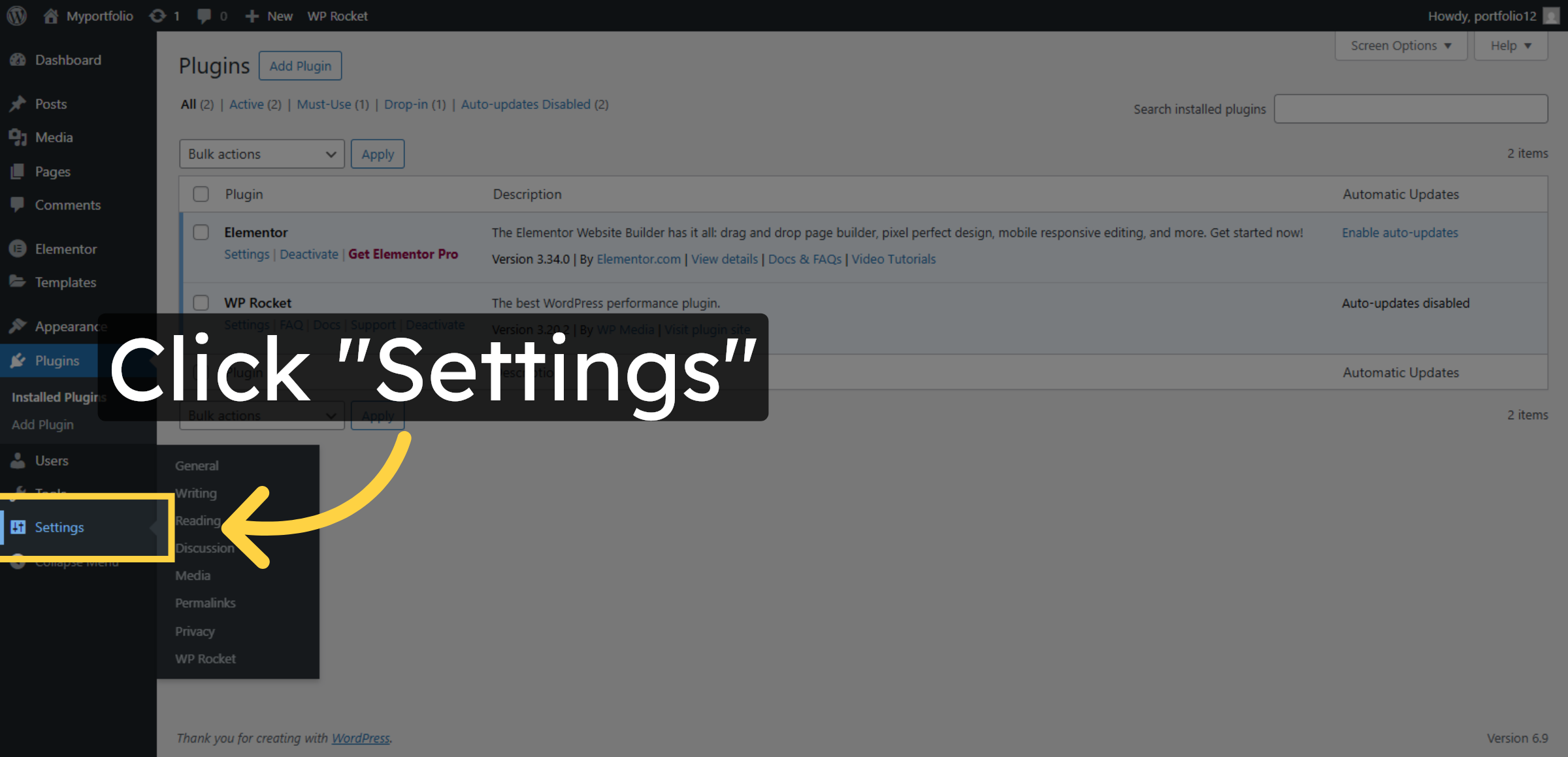
Click Settings to access the configuration options for WP Rocket.

Open Plugin Settings

30. Select WP Rocket Settings
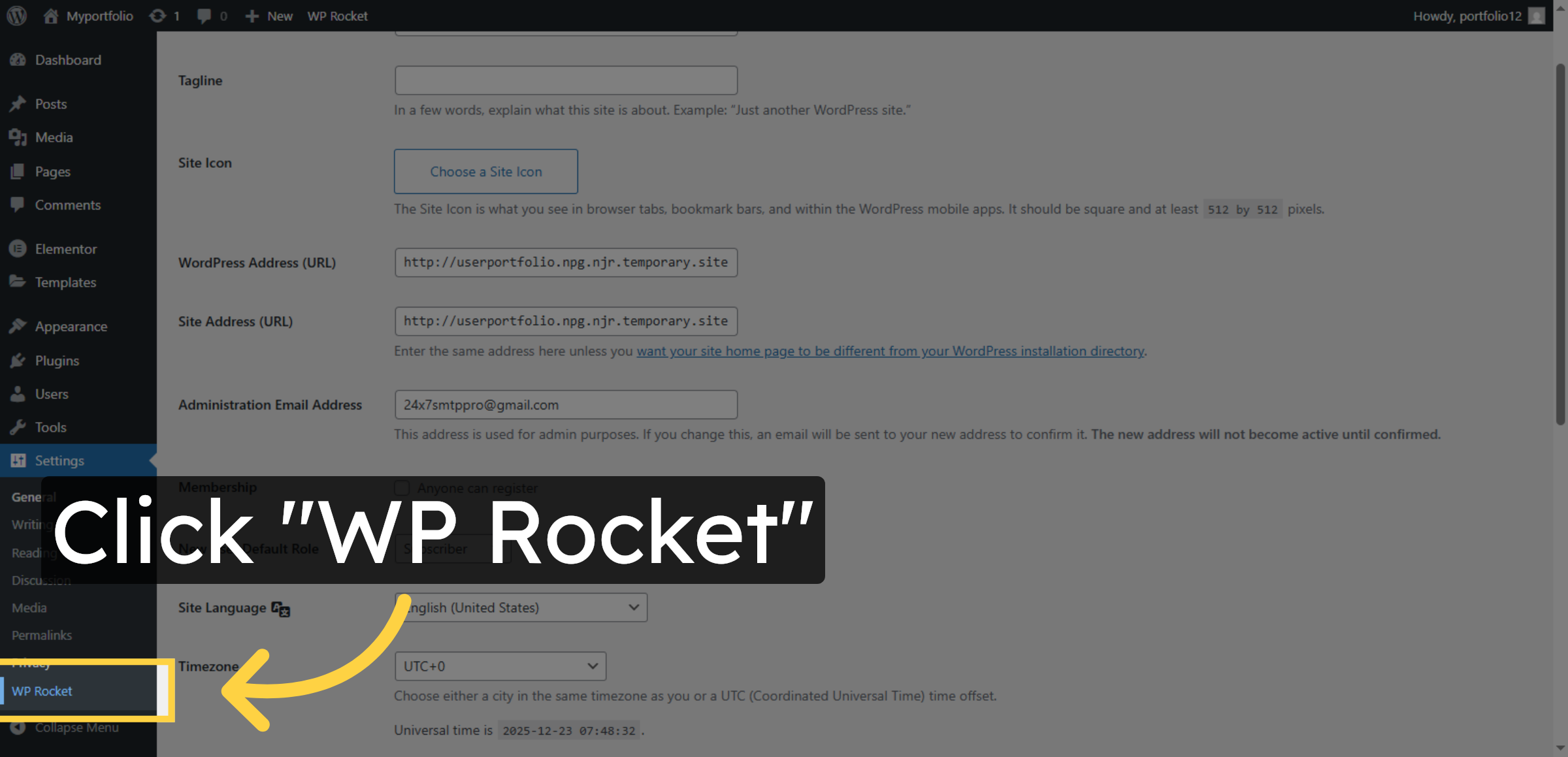
Click WP Rocket to open the plugin’s main settings page.

Select WP Rocket Settings

31. Access File Optimization
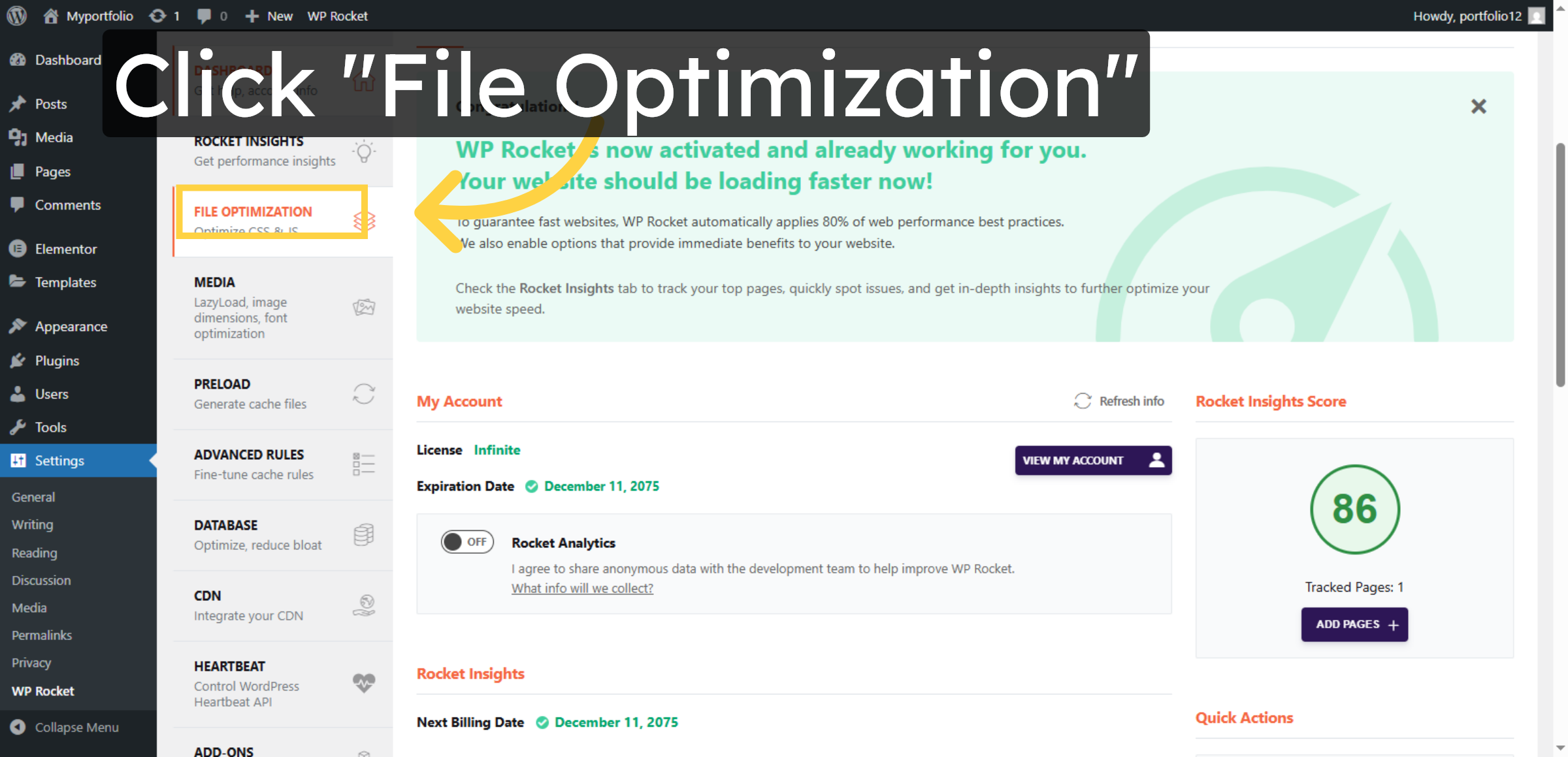
Click File Optimization to configure CSS and JavaScript optimization settings.

Access File Optimization

32. Enable CSS Delivery Optimization
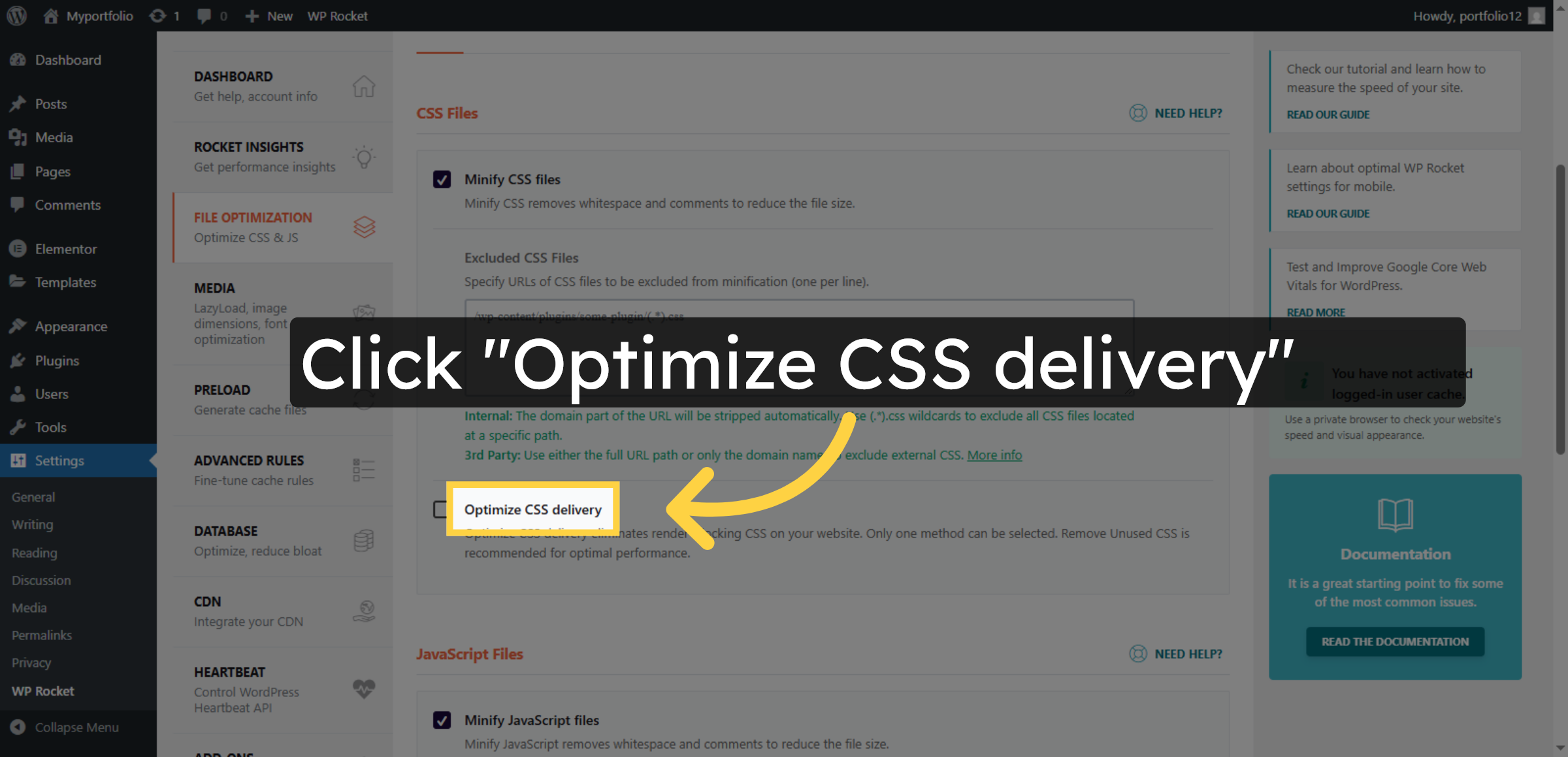
Click Optimize CSS delivery to improve how CSS files load on your site.

Enable CSS Delivery Optimization

33. Enable Remove Unused CSS
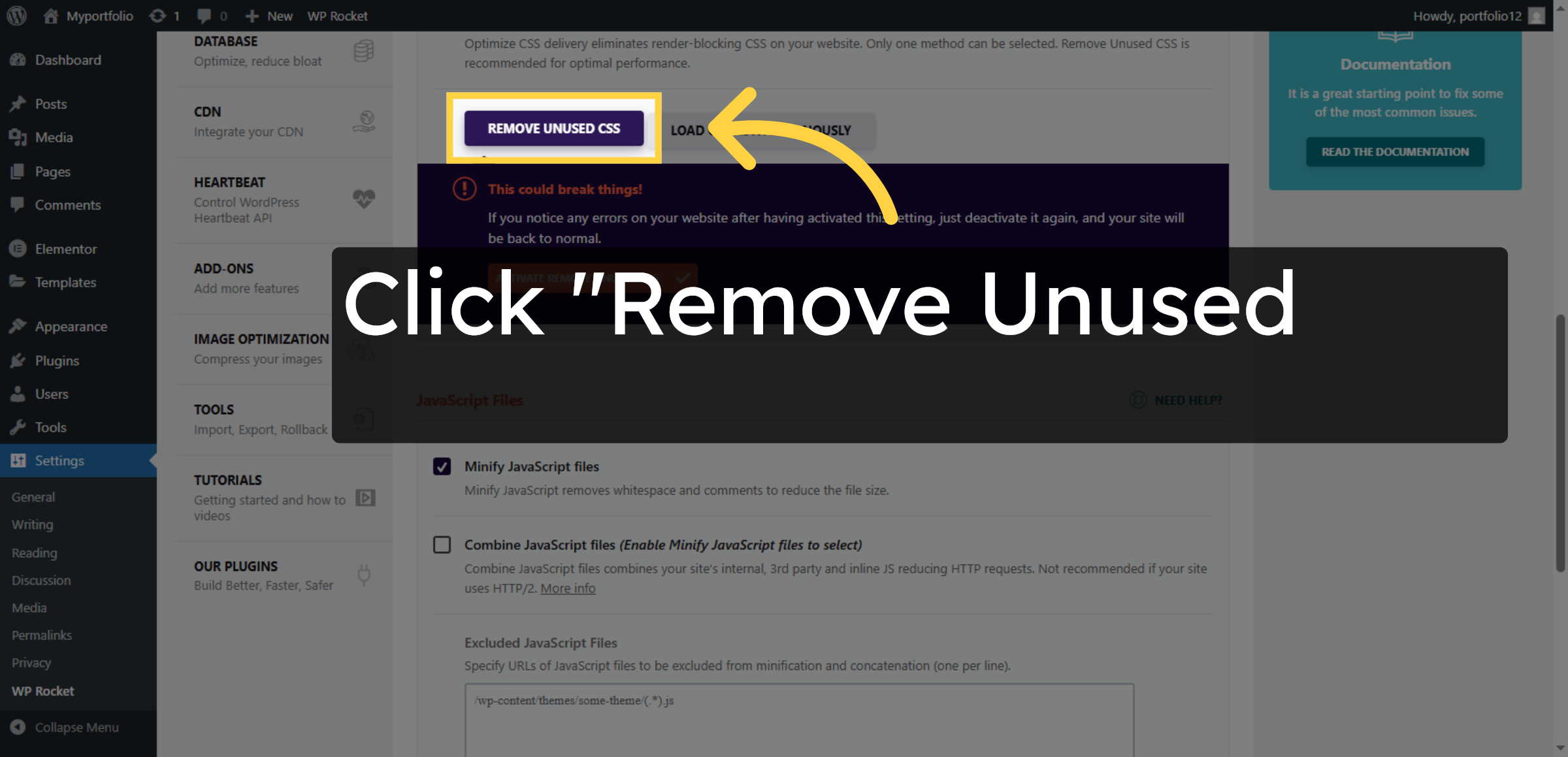
Click Remove Unused CSS to reduce unnecessary CSS and improve load times.

Enable Remove Unused CSS

34. Save File Optimization Changes
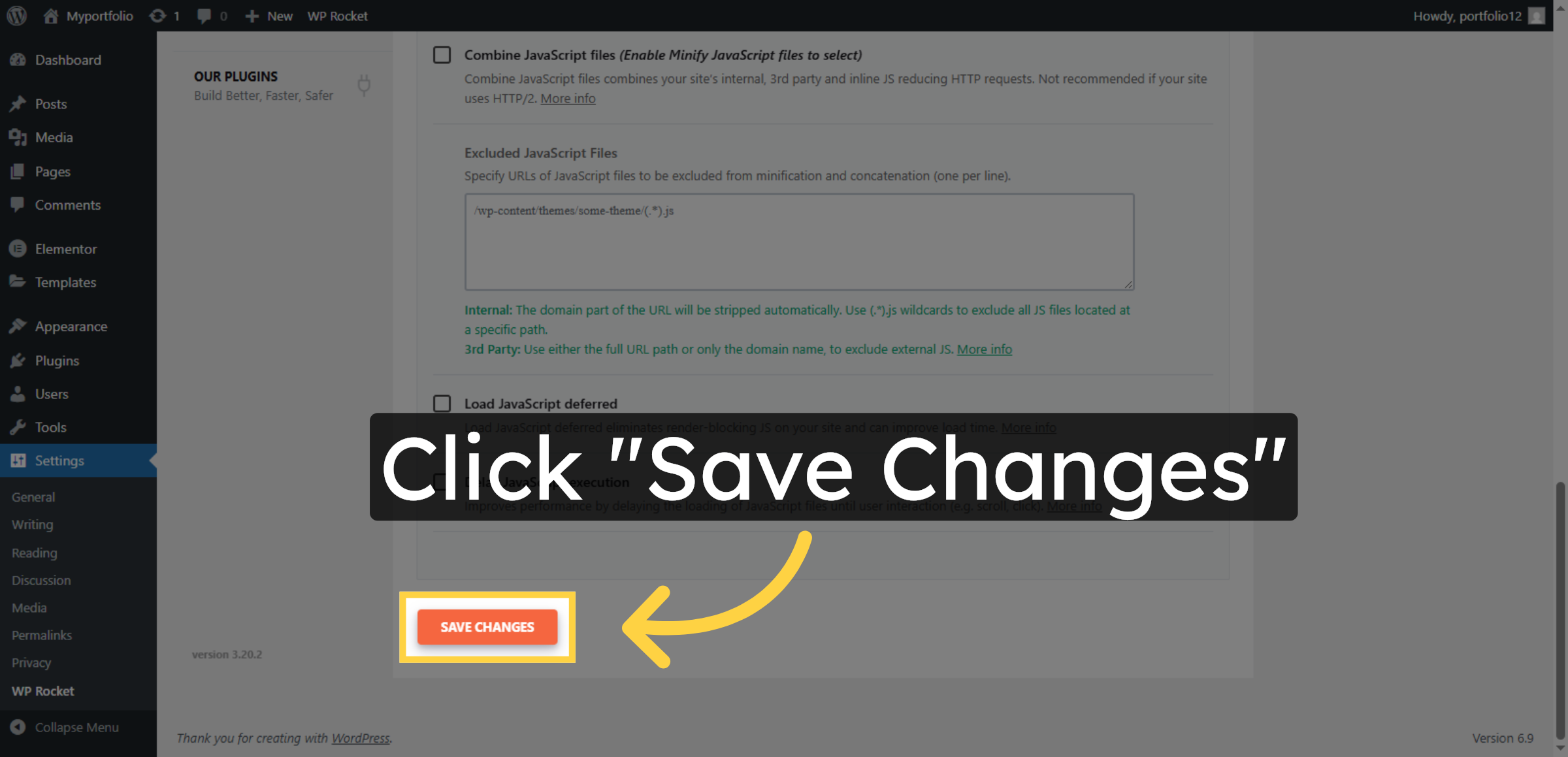
Click Save Changes to apply your CSS optimization settings.

Save File Optimization Changes

35. Set Trashed Posts Limit
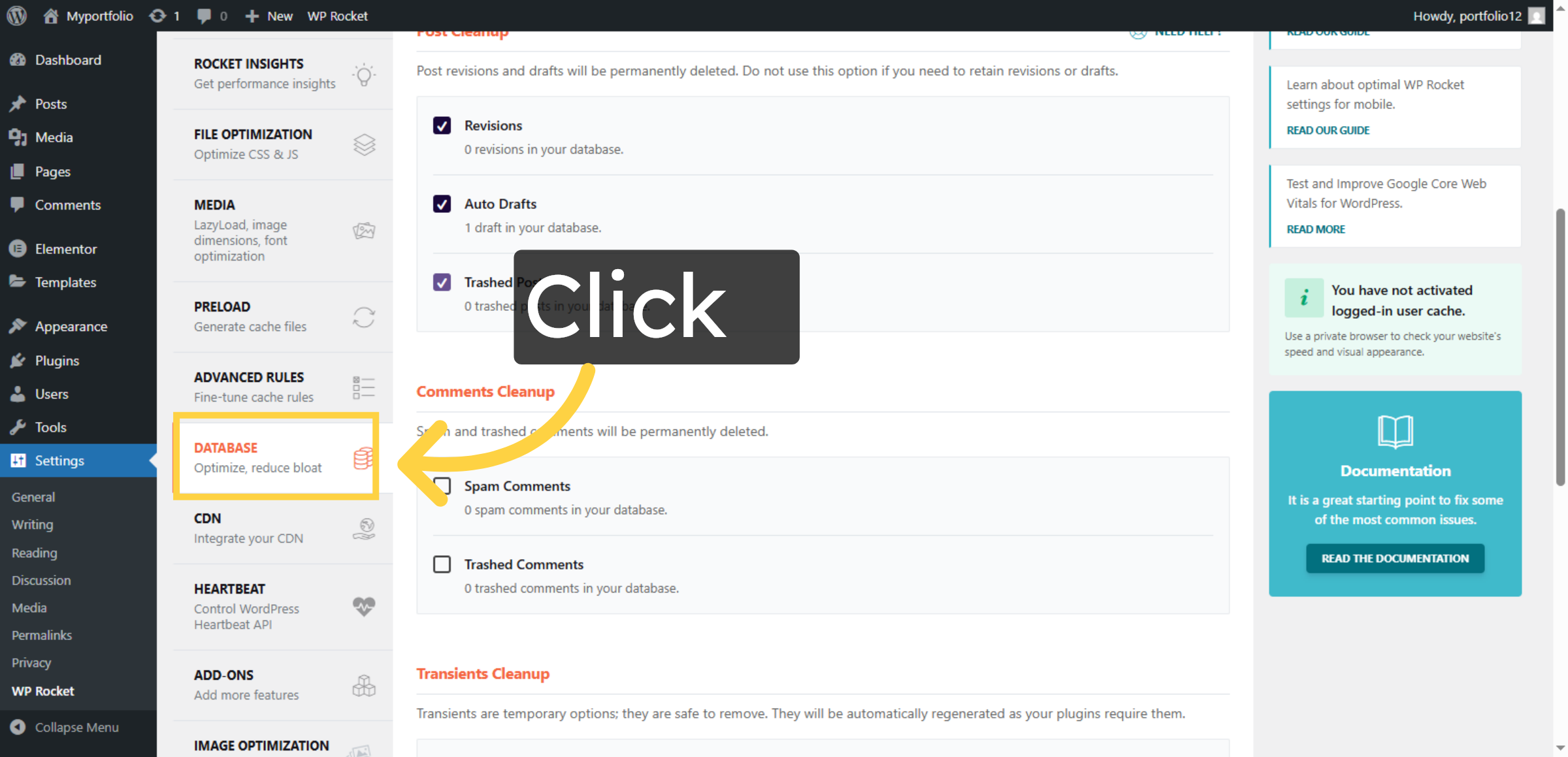
Enter 1 to limit the number of trashed posts retained before permanent deletion.

Set Trashed Posts Limit

36. Manage All Transients
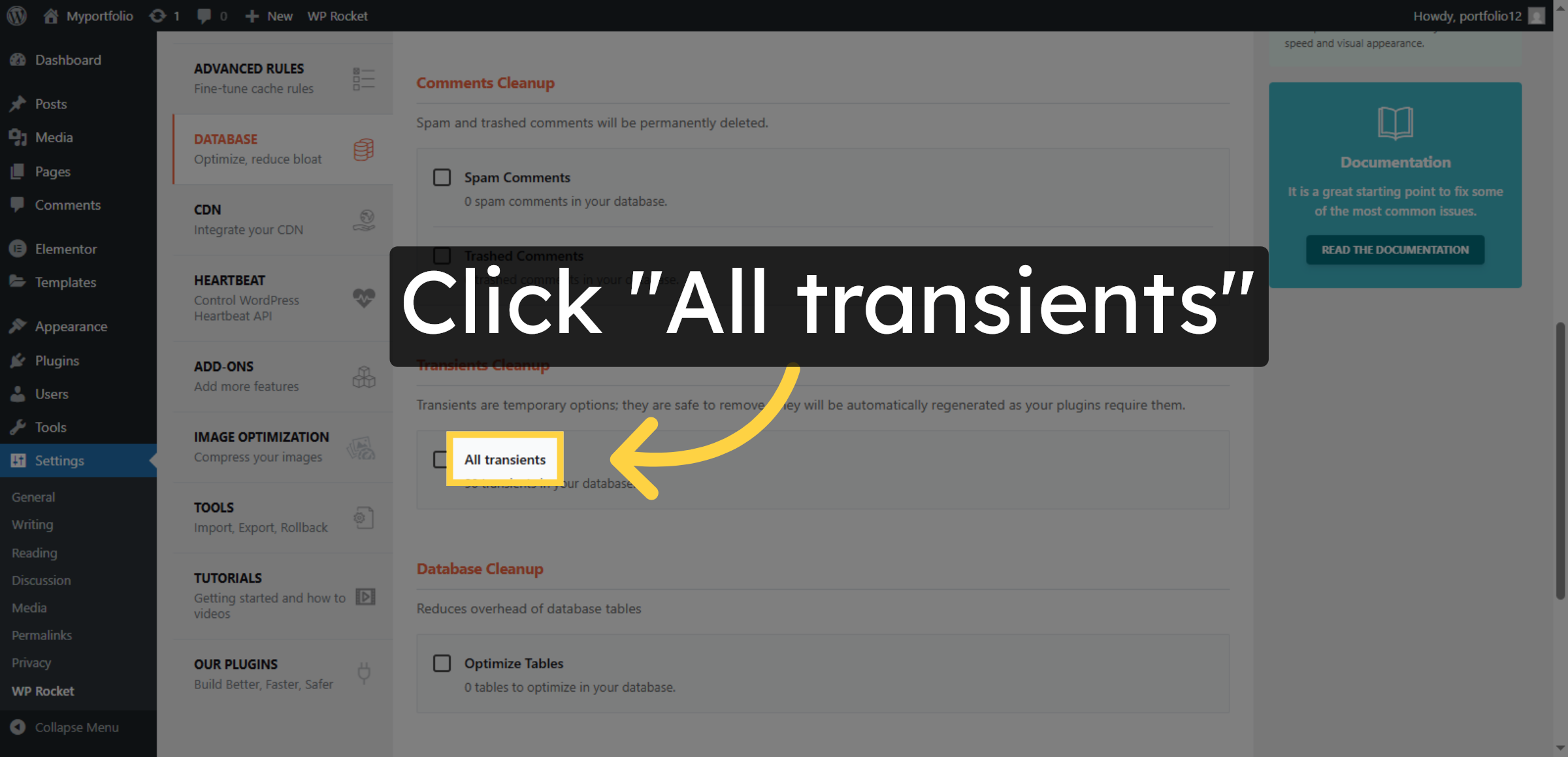
Click All transients to clear temporary cached data stored by WordPress plugins and themes.

Manage All Transients

37. Optimize Database Tables
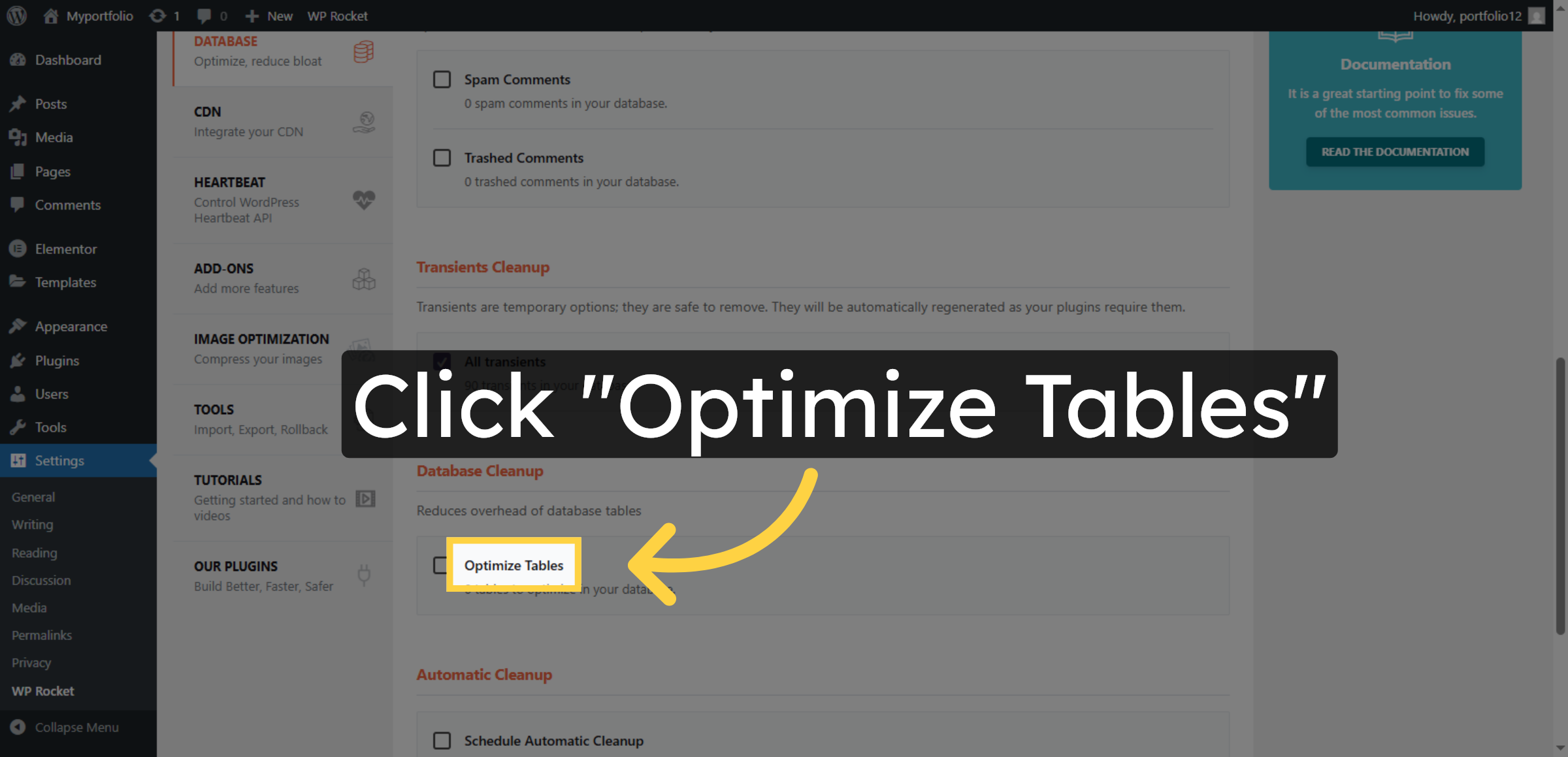
Click Optimize Tables to clean and optimize your WordPress database tables.

Optimize Database Tables

38. Save and Optimize Database
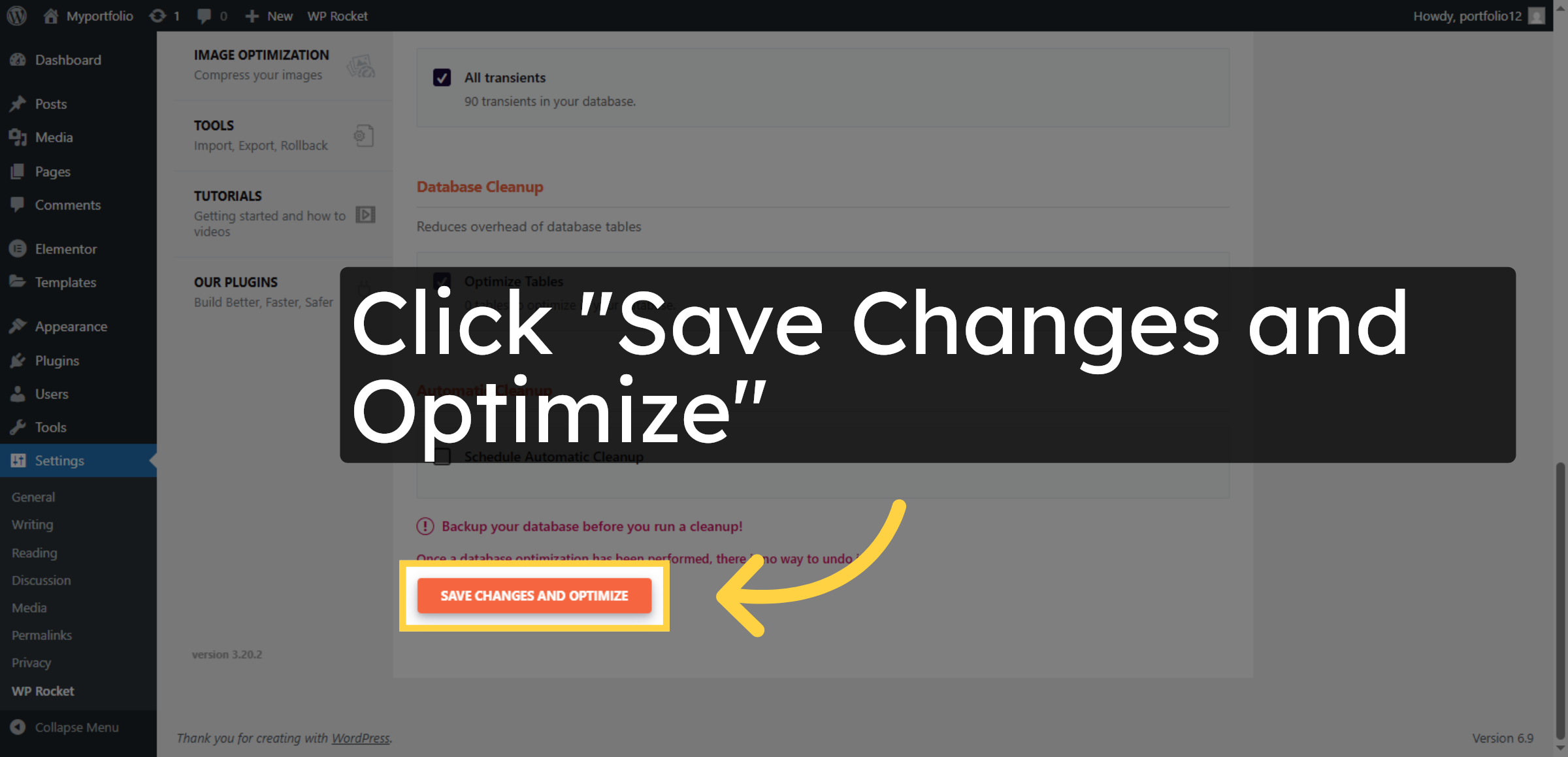
Click Save Changes and Optimize to apply all database optimization settings.

Save and Optimize Database

39. Conclusion
 Conclusion

Conclusion

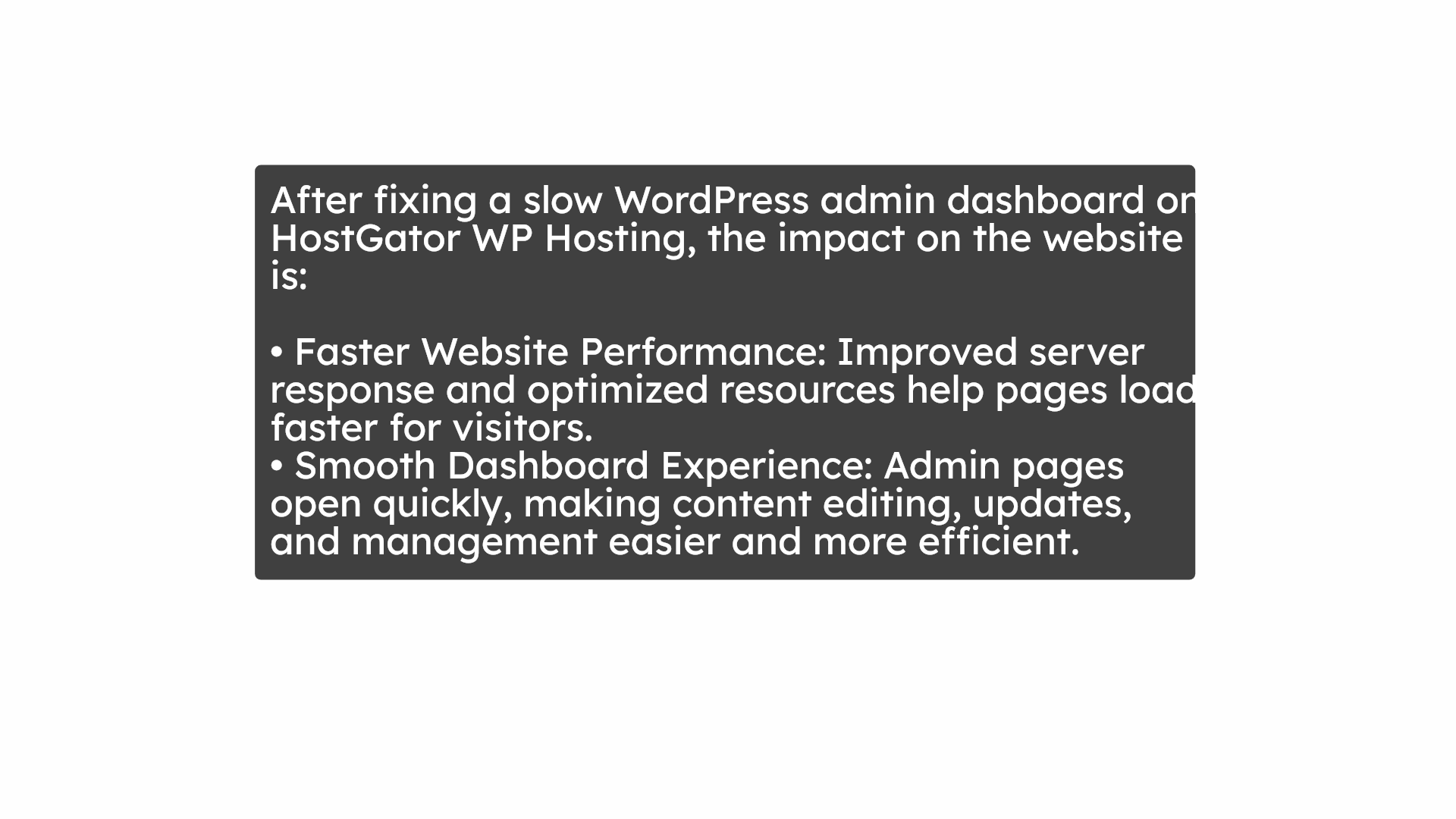
Improving the speed of the WordPress admin dashboard is essential for maintaining smooth and reliable website operations. By following the steps outlined in this guide, you have successfully optimized your hosting environment by removing unused components, adjusting server configurations, enhancing caching performance, and cleaning unnecessary database data. These improvements help reduce system load, minimize delays, and enhance administrative responsiveness.

To maintain long-term performance, it is recommended to regularly review plugins and themes, monitor server resources, perform routine database optimization, and keep WordPress updated. Proactive maintenance and performance monitoring will help prevent future slowdowns and technical issues. With consistent optimization practices in place, your WordPress dashboard will remain fast, stable, and fully functional.

WooHelpDesk Support

Need professional assistance with WordPress performance tuning, admin dashboard optimization, server configuration, or website maintenance? WooHelpDesk provides expert technical support to keep your website running efficiently.

 Visit: https://www.woohelpdesk.com

Call Us Toll-Free: +1 888 602 0119 (US & Canada)
Faster Performance | Expert Support | Reliable Solutions

Contact WooHelpDesk today for trusted WordPress and HostGator support services.


Leave a Reply

Your email address will not be published. Required fields are marked *

Leave a Reply

Your email address will not be published. Required fields are marked *