Introduction
Reliable email delivery is essential for maintaining effective communication between a website and its users. Contact form notifications, password reset emails, order confirmations, and system alerts depend on proper email configuration. On many shared hosting environments, including Bluehost, default PHP mail functions may fail or be blocked, resulting in undelivered messages and customer inquiries going unanswered.
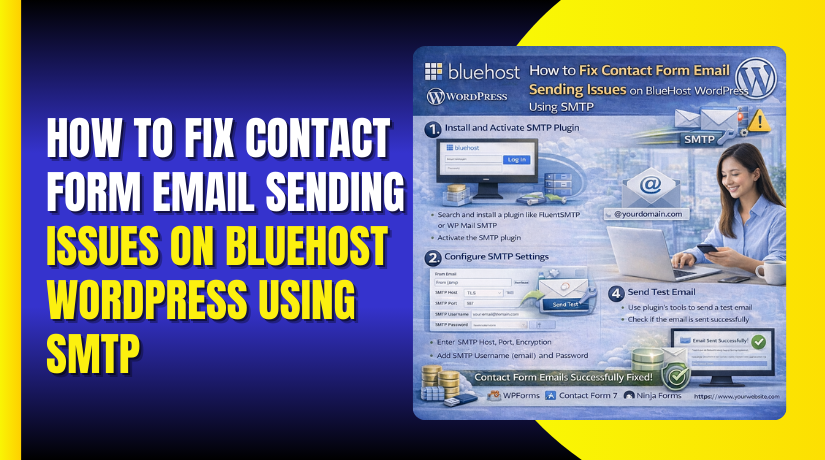
This guidde explains how to fix contact form email sending issues on a Bluehost WordPress website by configuring SMTP using the WP Mail SMTP plugin and integrating Google Gmail API authentication. It provides step-by-step instructions for installing the SMTP plugin, setting up Google Cloud credentials, enabling Gmail API access, configuring OAuth authentication, and testing email delivery. By following this guide, website administrators can ensure secure, authenticated, and consistent email delivery from their WordPress sites.
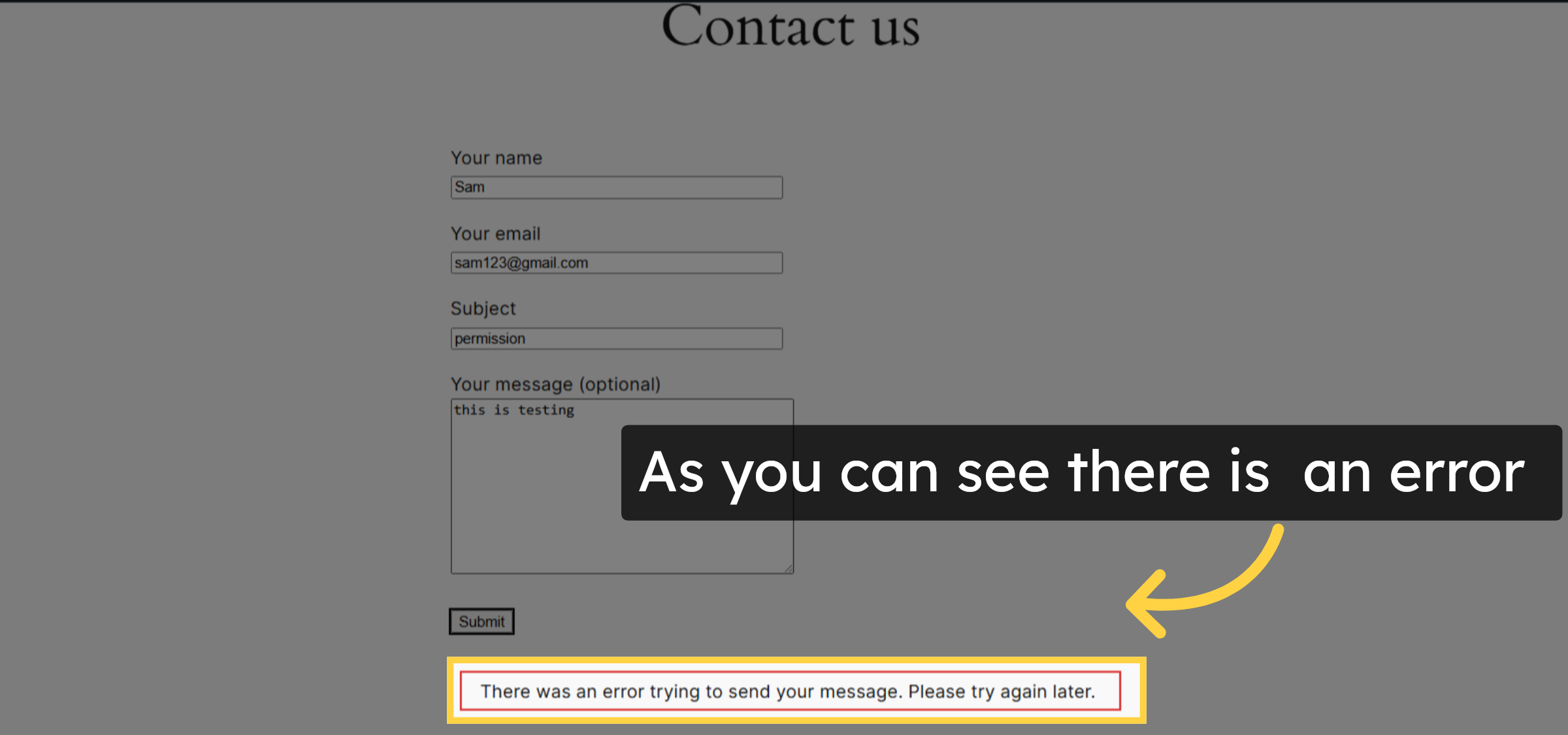
1. Unable to Send Message
An error occurred while sending the message due to a configuration issue. Please try again later or contact the site administrator for assistance.
2. Bluehost Hosting Dashboard
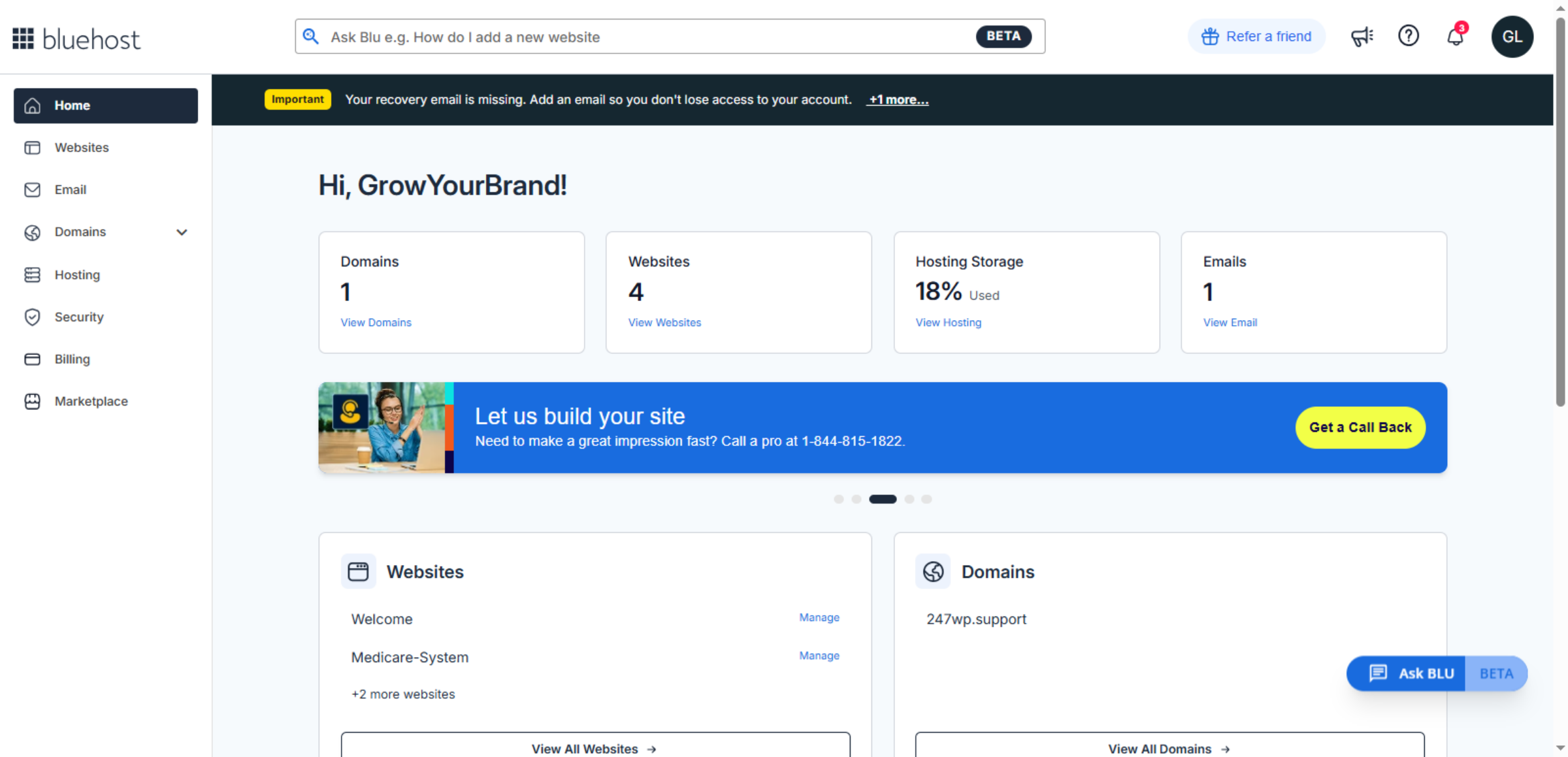
From the Bluehost Hosting Dashboard, configure an SMTP plugin in WordPress to ensure contact form emails are delivered reliably and avoid email sending failures.
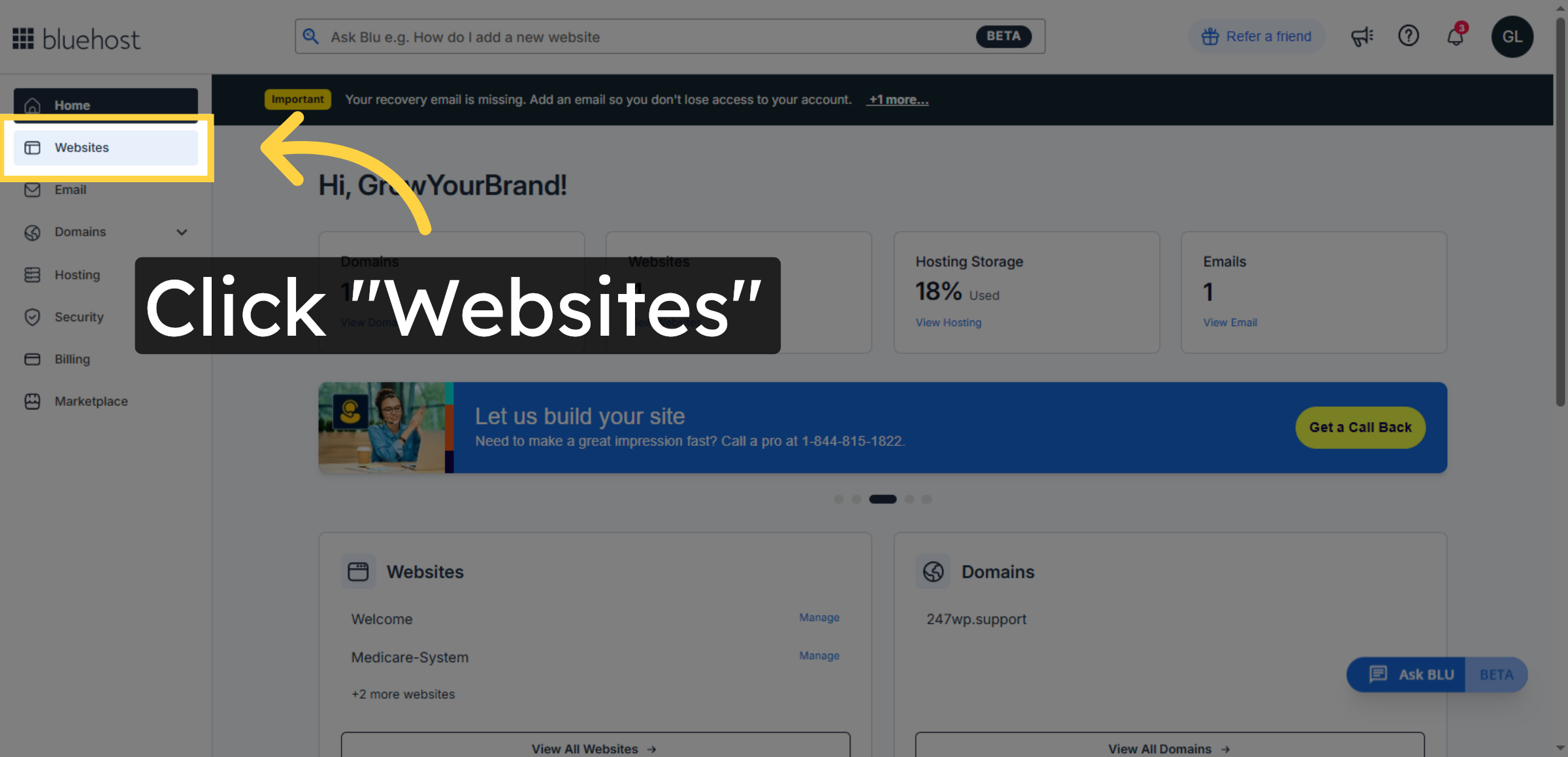
3. Access Websites Section
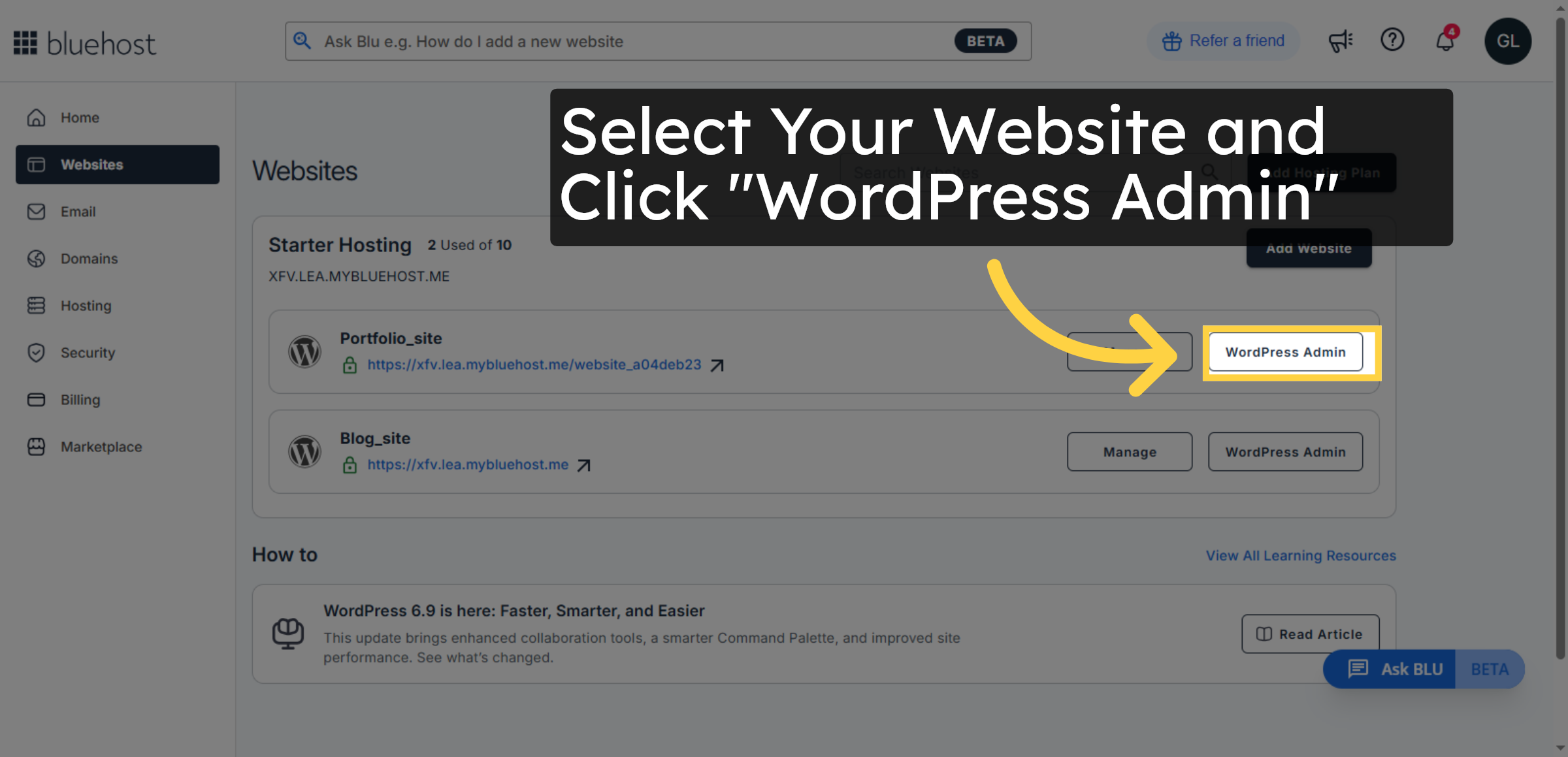
This step allows you to access the WordPress website for which email sending issues need to be fixed on Bluehost.
4. Open WordPress Admin
This step allows you to access the WordPress dashboard of the selected website, where email sending issues can be identified and fixed.
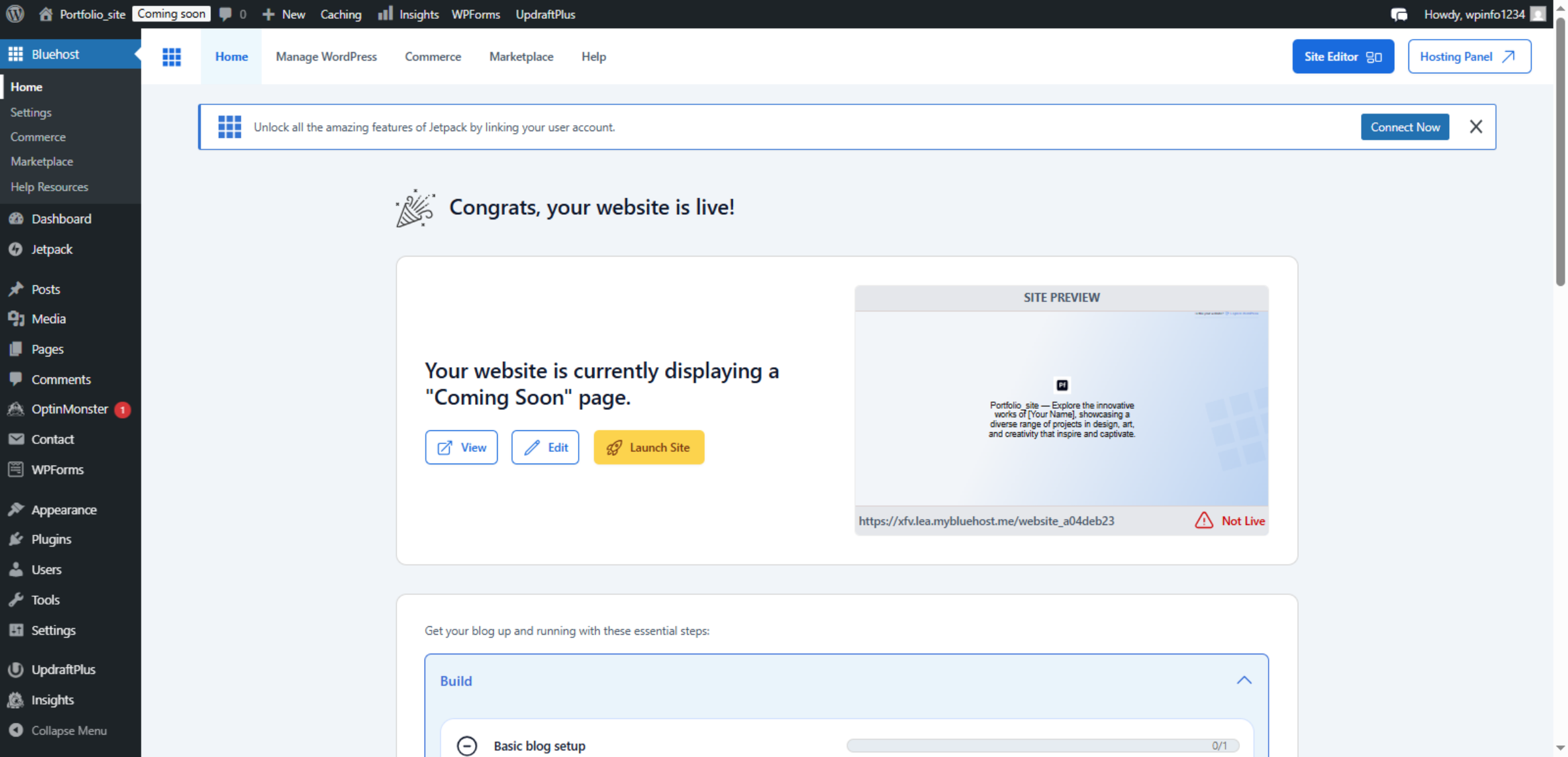
5. Switch to Site Dashboard
This screen confirms that you are now inside the WordPress Admin Dashboard, where email settings and plugins can be configured to fix email sending issues.
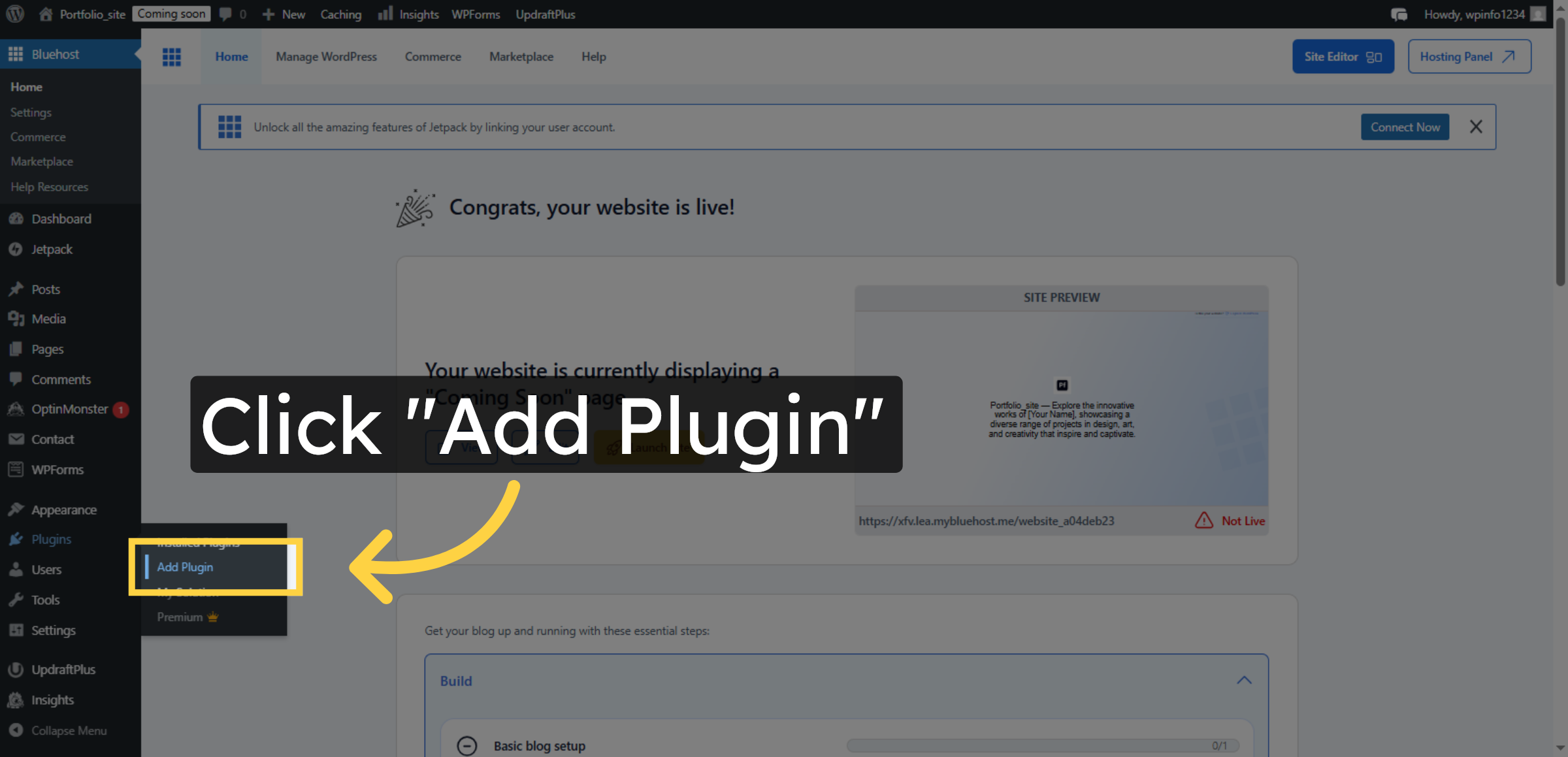
6. Open Plugin Installation
To resolve email delivery problems, you need to add an email/SMTP plugin from the WordPress plugin directory.
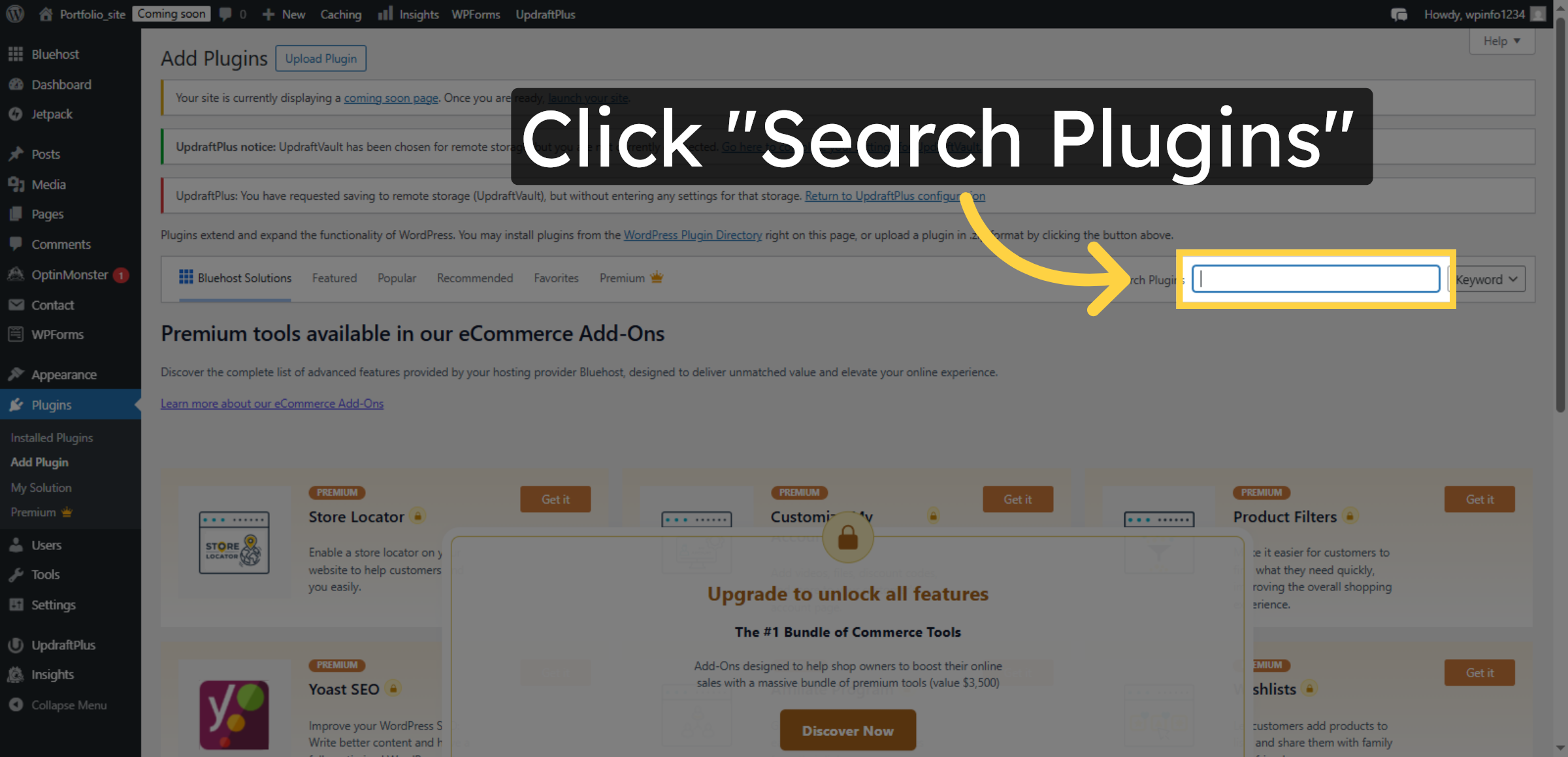
7. Search for Plugins
Click the Search Plugins field to find the SMTP plugin.
8. Enter SMTP in Search
Enter smtp in the search box to locate SMTP-related plugins.
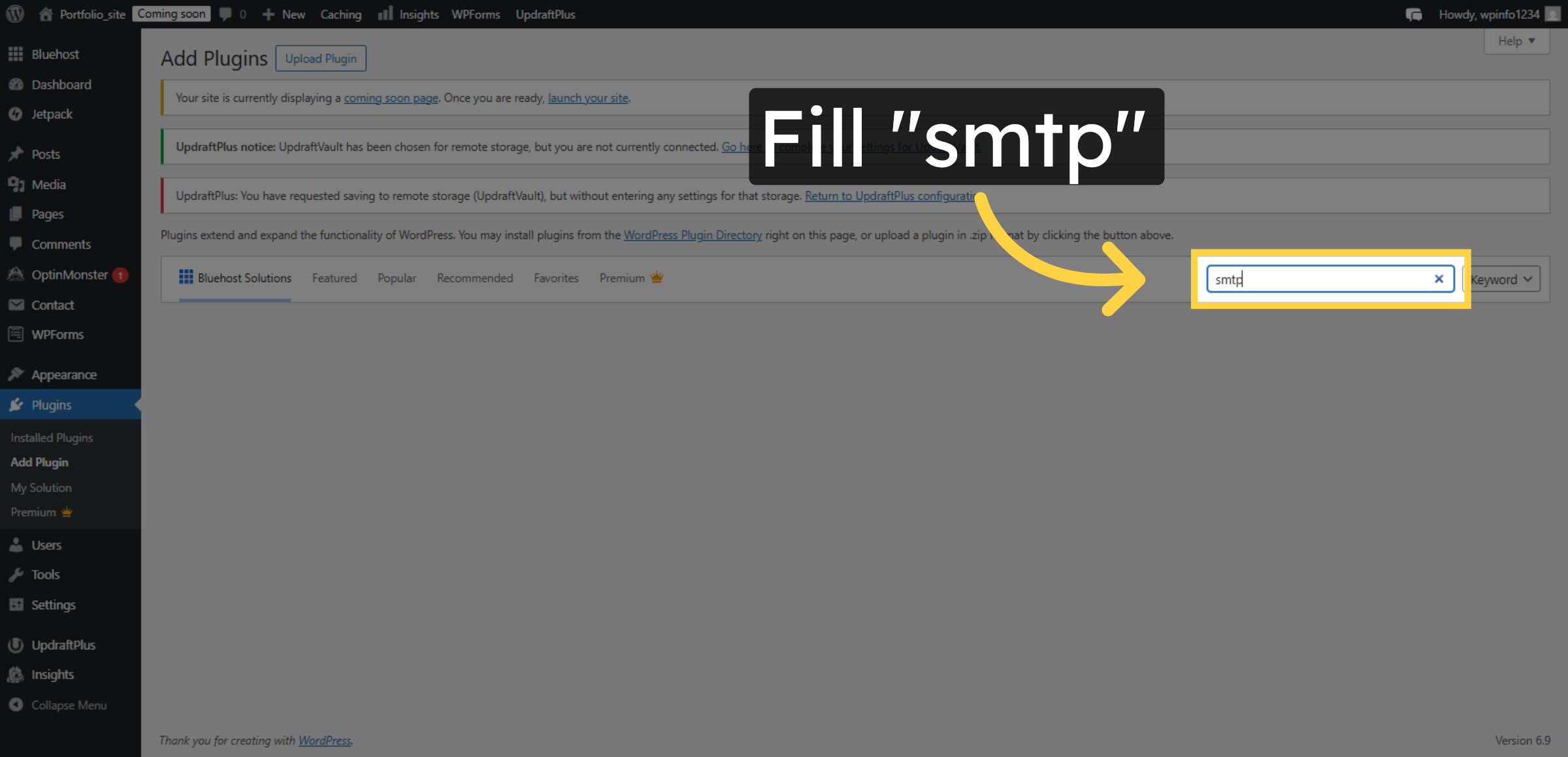
9. Install SMTP Plugin
This step installs the selected SMTP plugin required to fix email sending issues on your WordPress website.
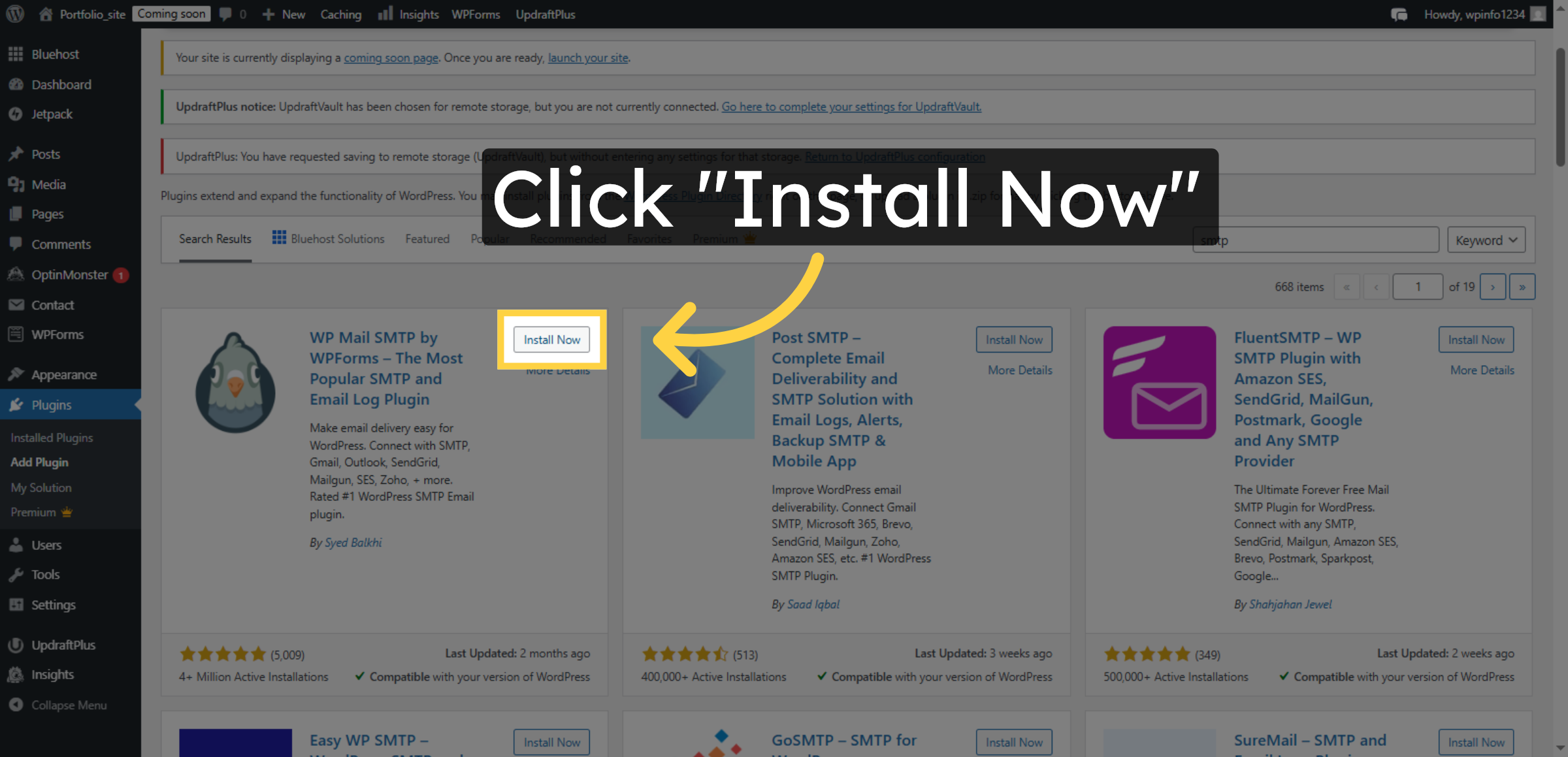
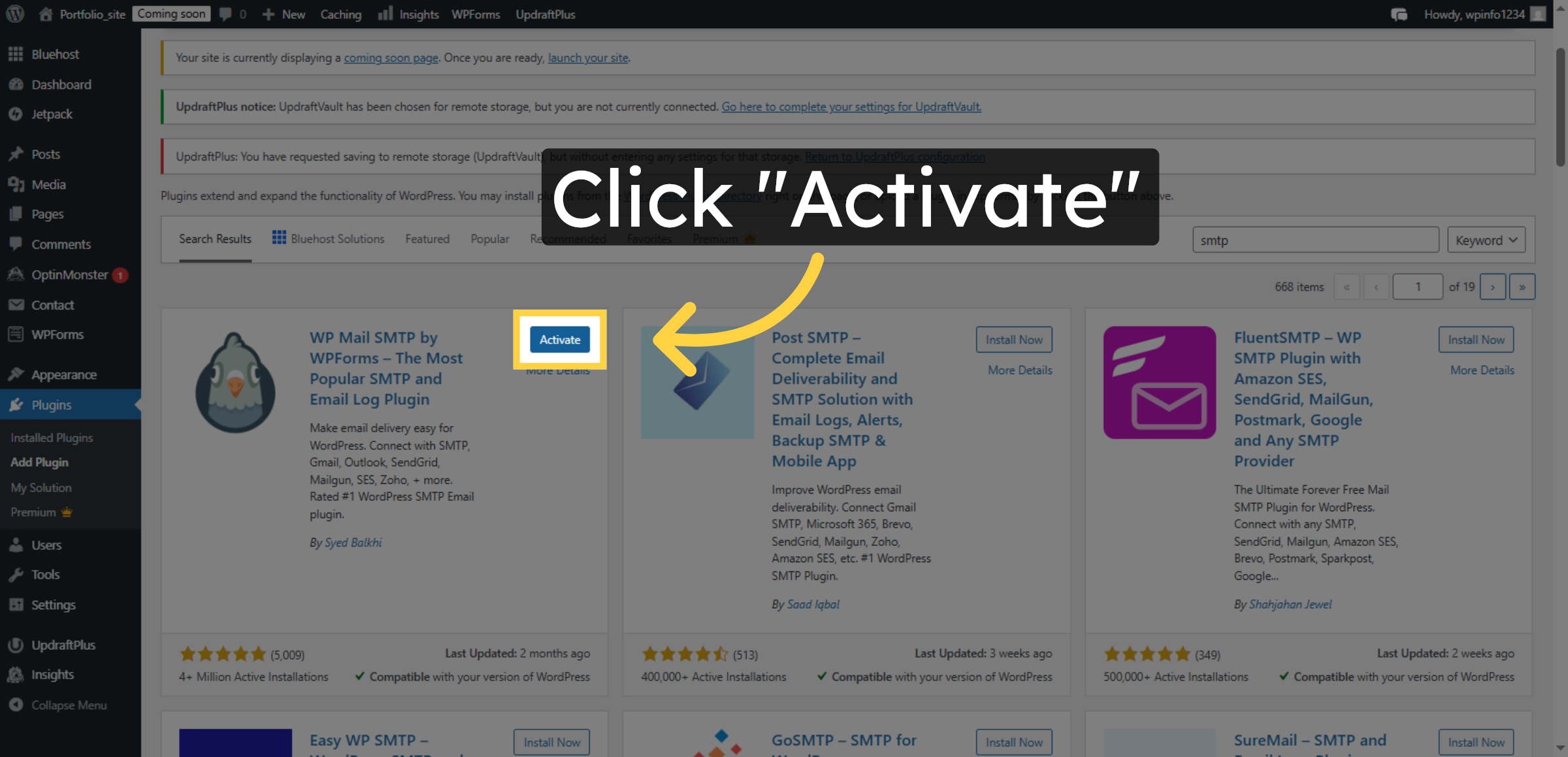
10. Activate SMTP Plugin
This step enables the installed SMTP plugin so it can start handling outgoing emails from your WordPress website.
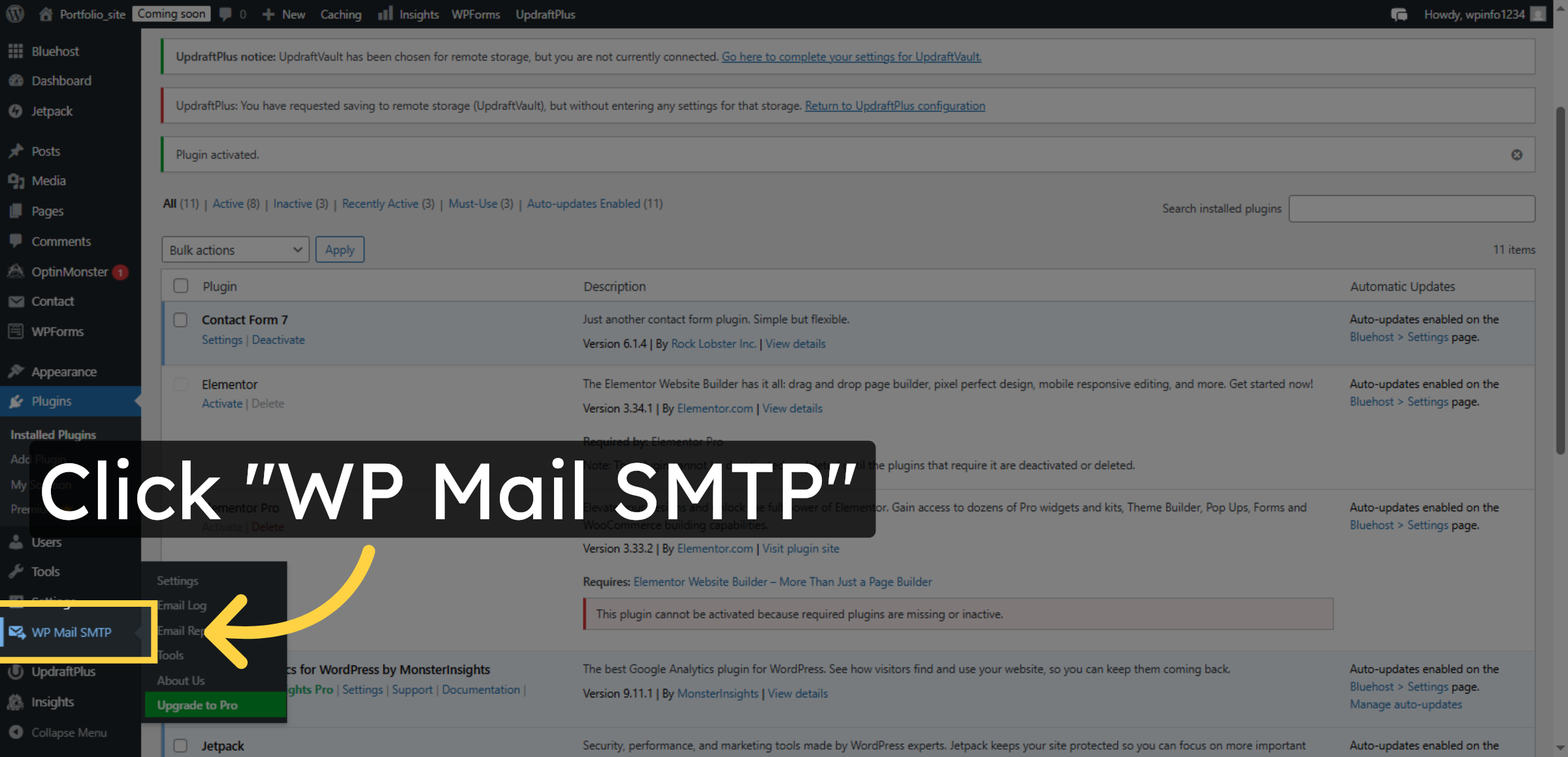
11. Open WP Mail SMTP Settings
Click WP Mail SMTP in the plugin list to configure email settings.
12. Enter Email Address
Enter your email address to be used for sending emails from your site.
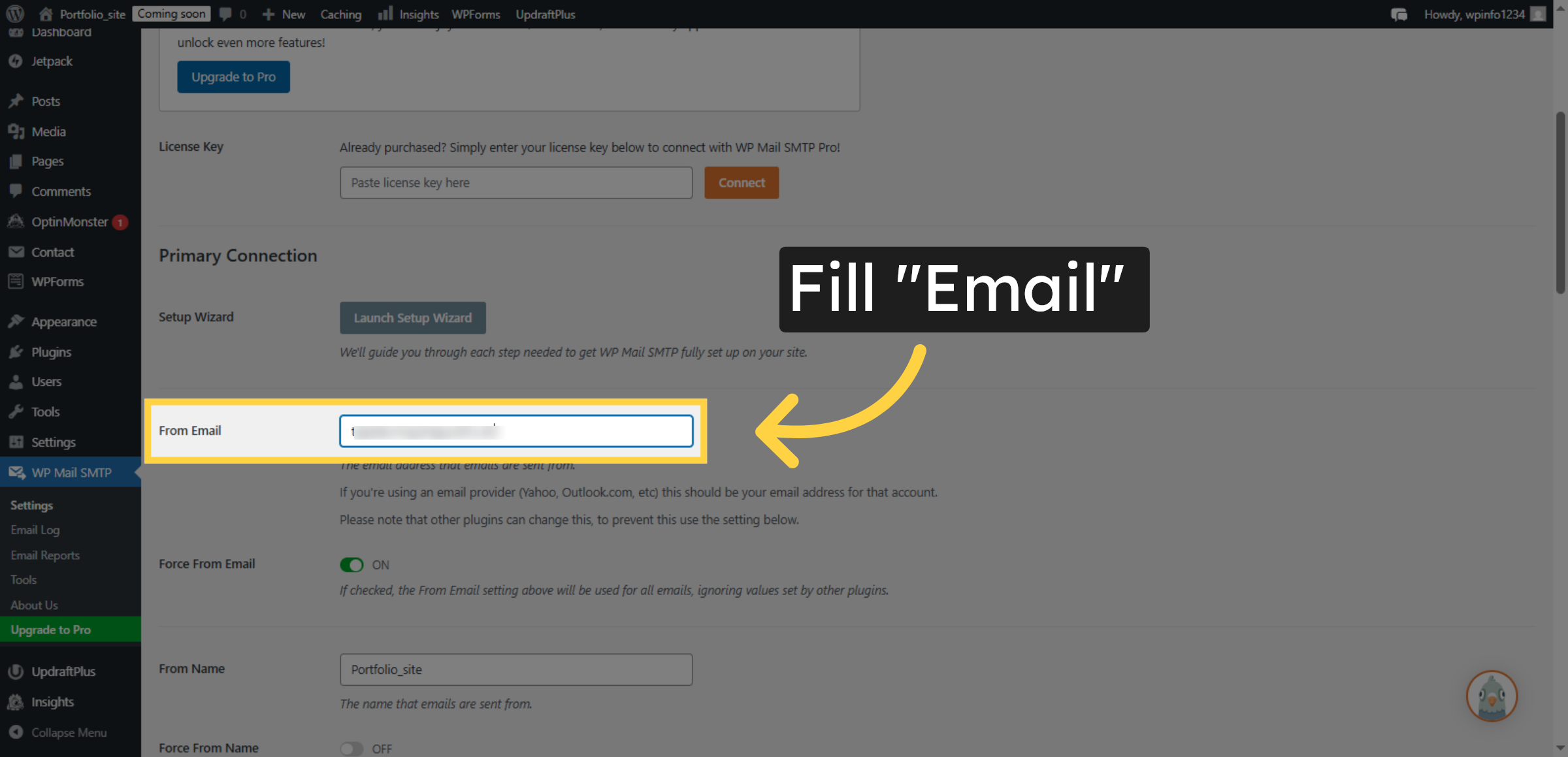
13. Proceed To Next Step
Click the option to enable email logging for troubleshooting purposes.
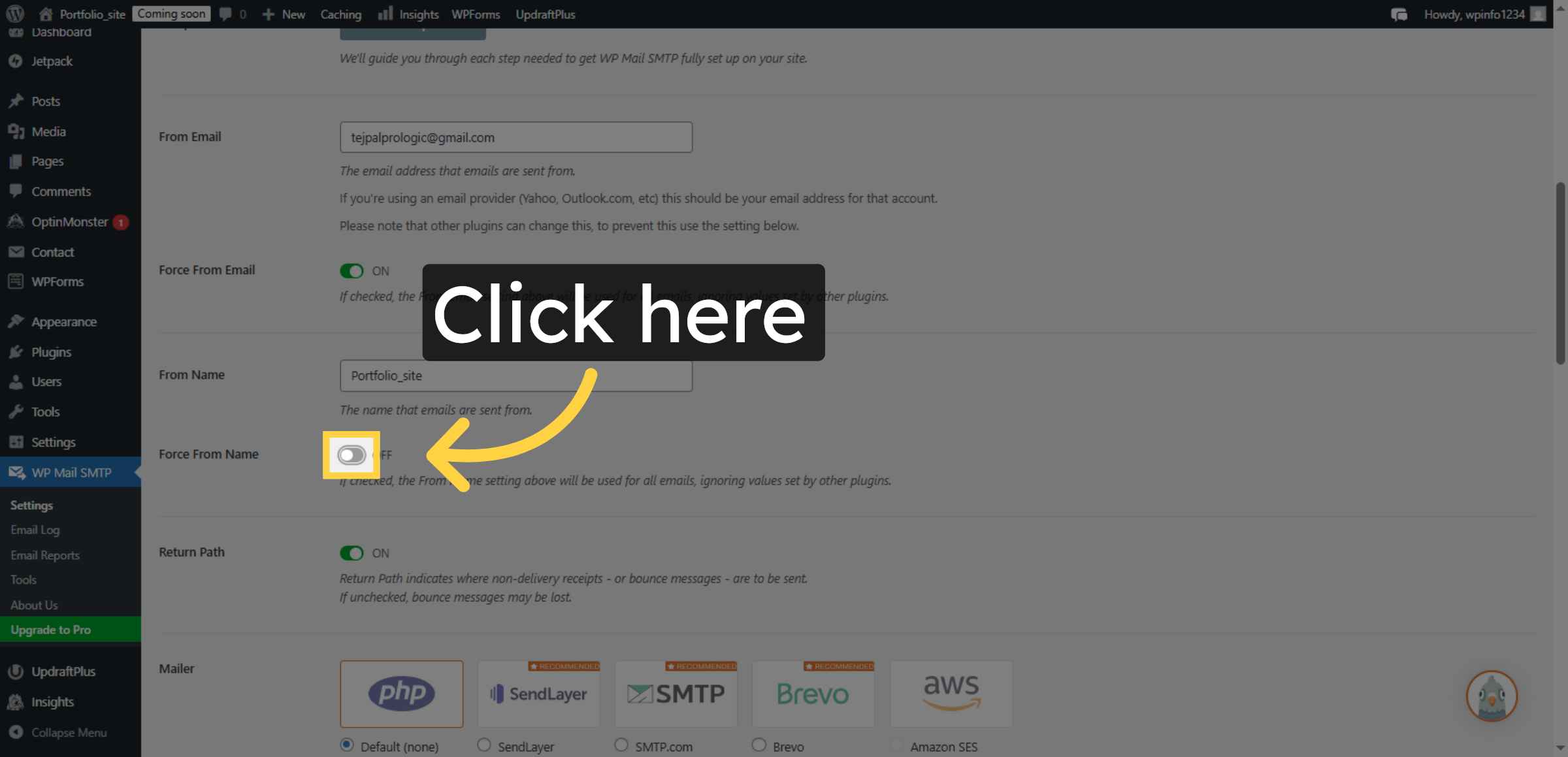
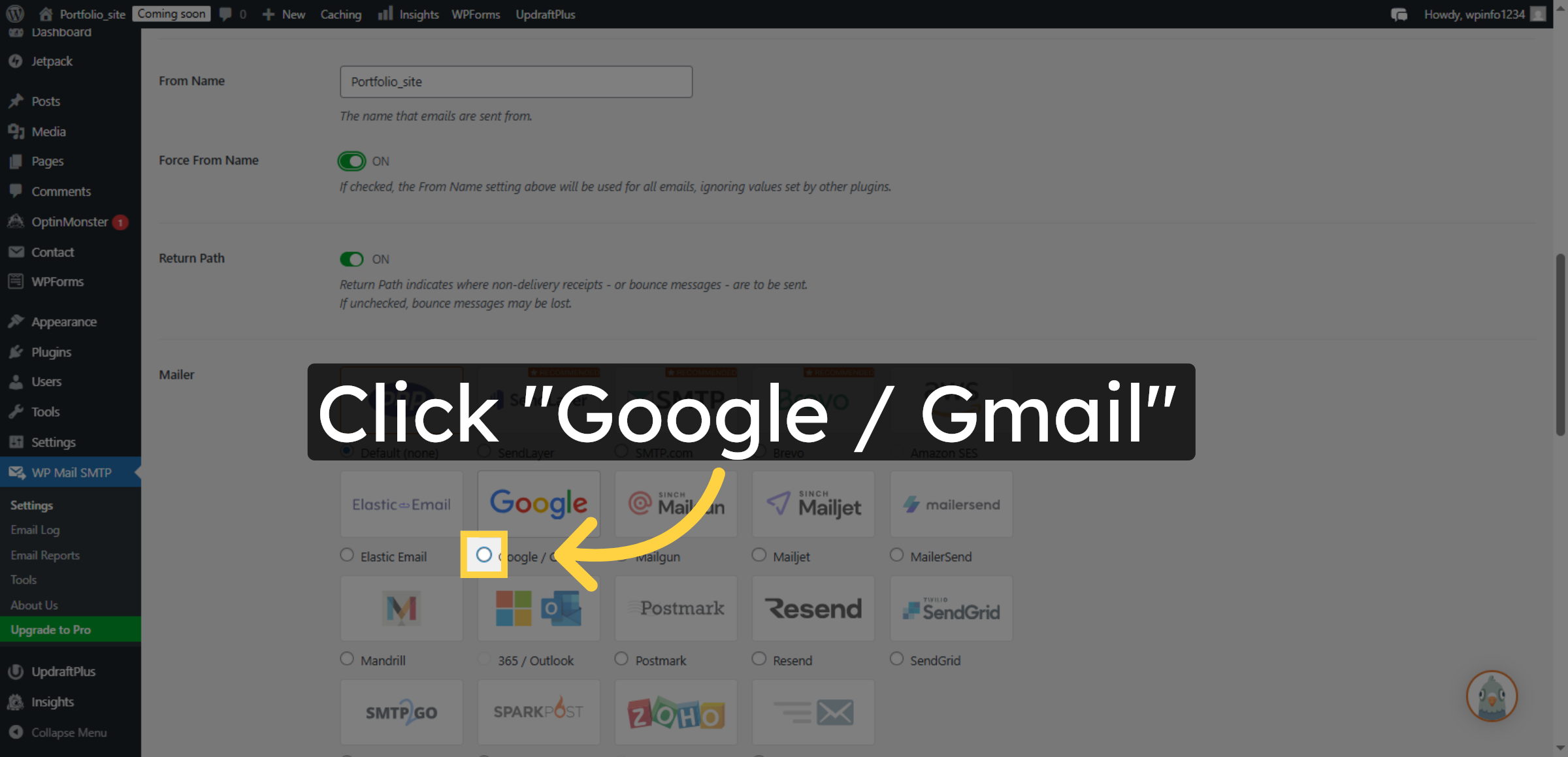
14. Select Google Gmail Option
This step selects Google / Gmail as the mailer in the SMTP plugin, enabling secure and authenticated email delivery.
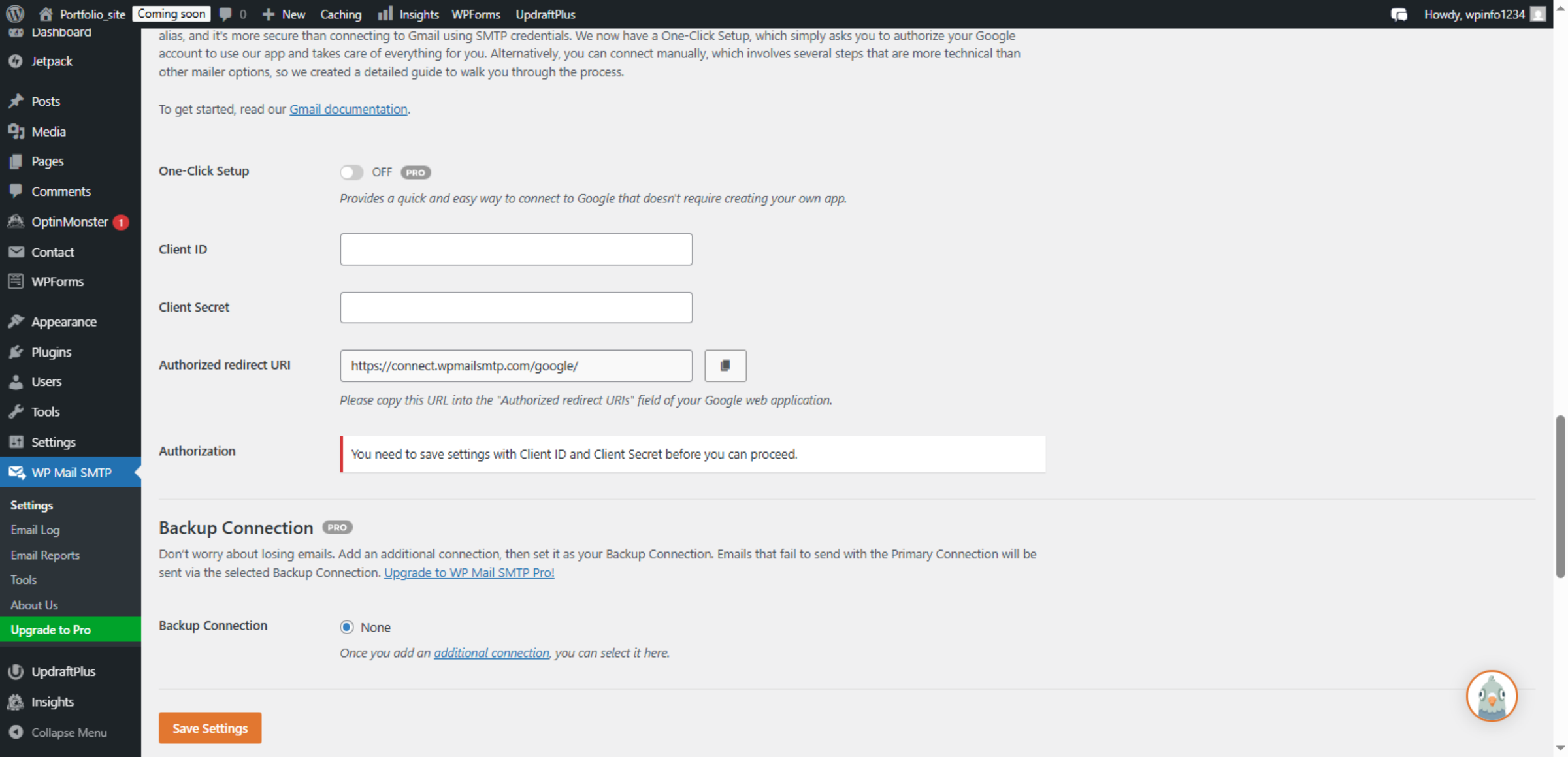
15. Open Backup Connection
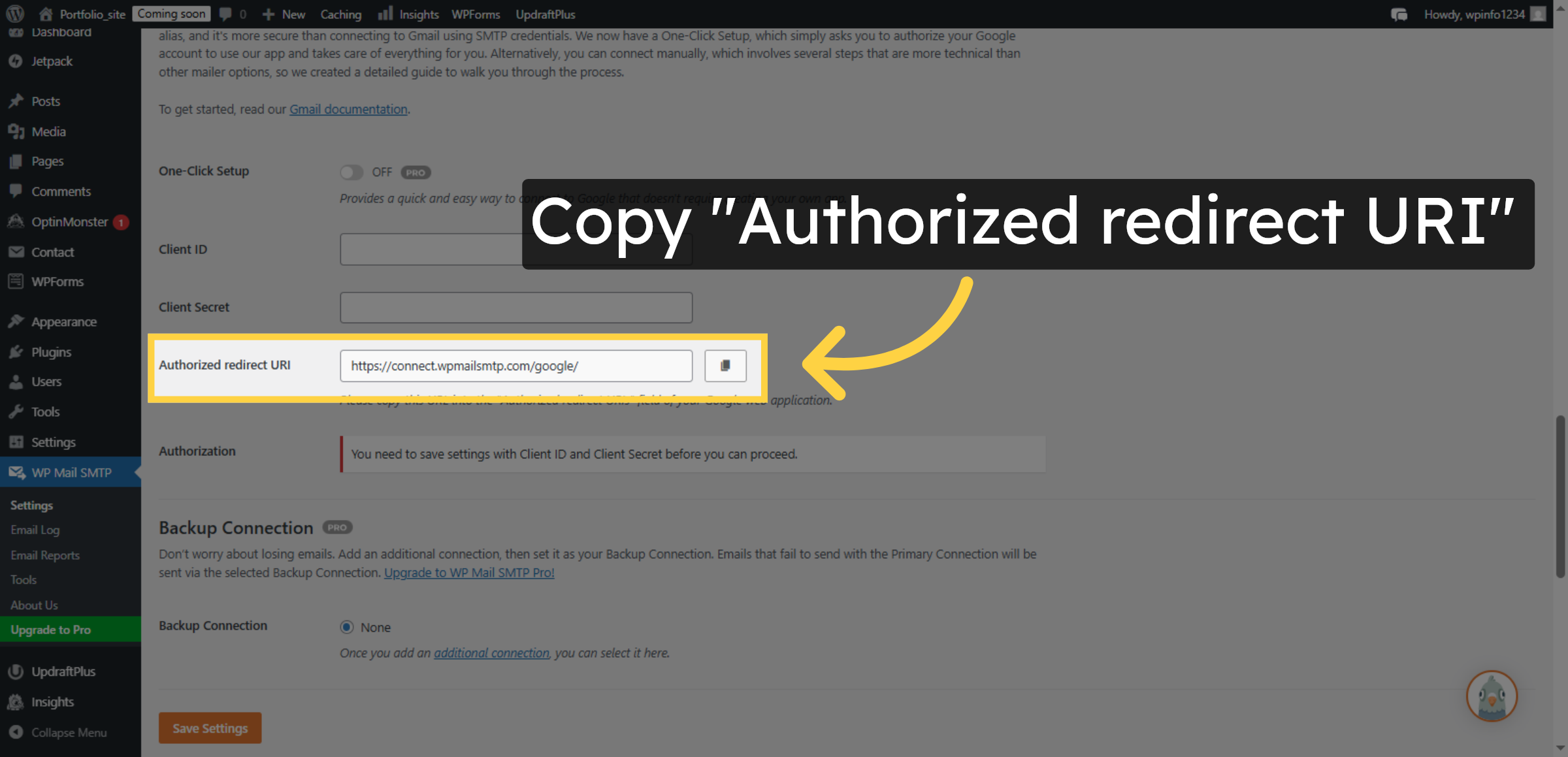
Copy the Authorized redirect URI provided to use in your Google Cloud project.
16. Go To Google Cloud Console
This step accesses the Google Cloud Console, which is required to configure Gmail authentication for WordPress email sending via SMTP.
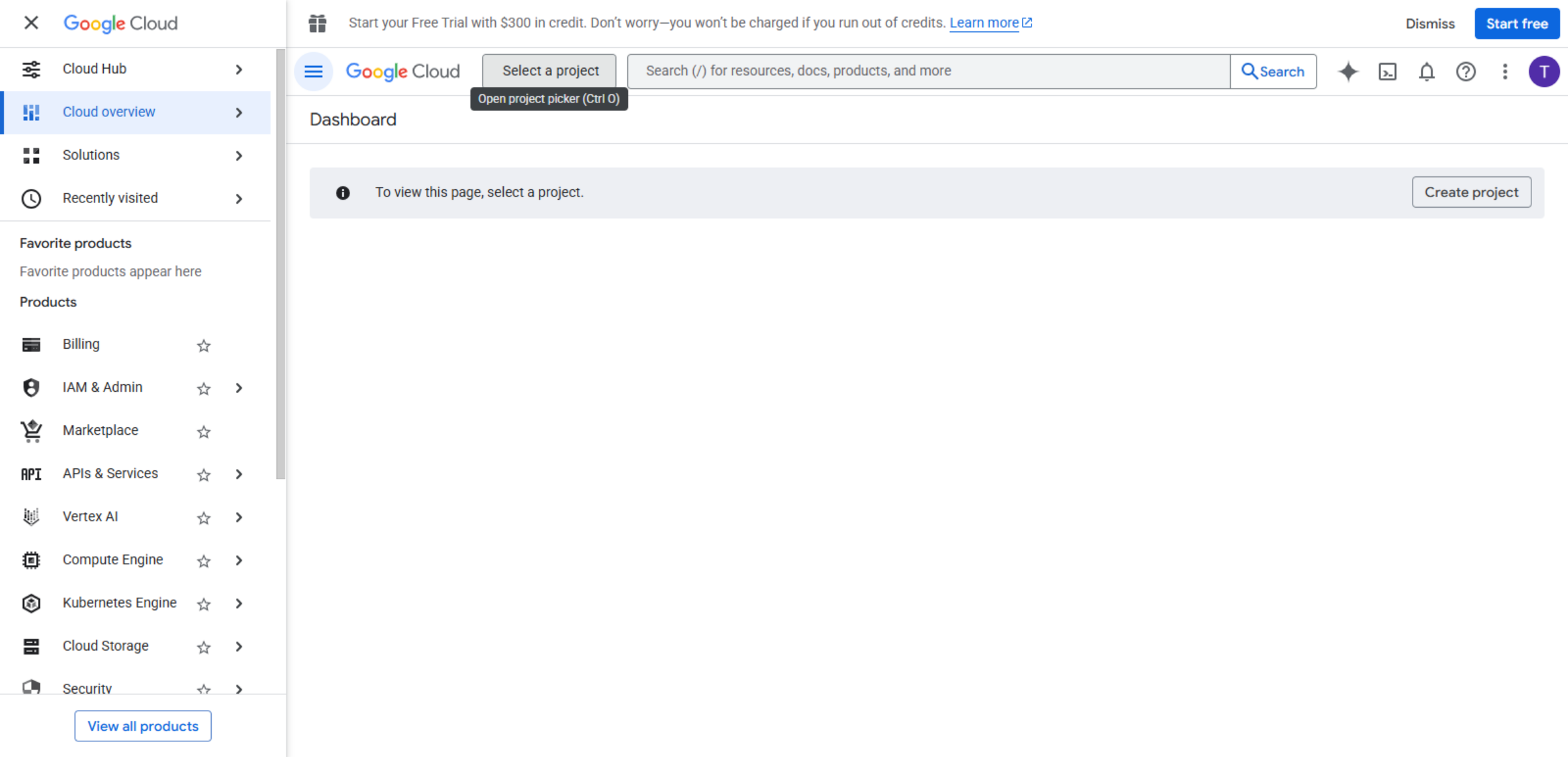
17. Select Project Menu
This step is used to select or create a Google Cloud project, which is required to configure Gmail authentication for WordPress SMTP email sending.
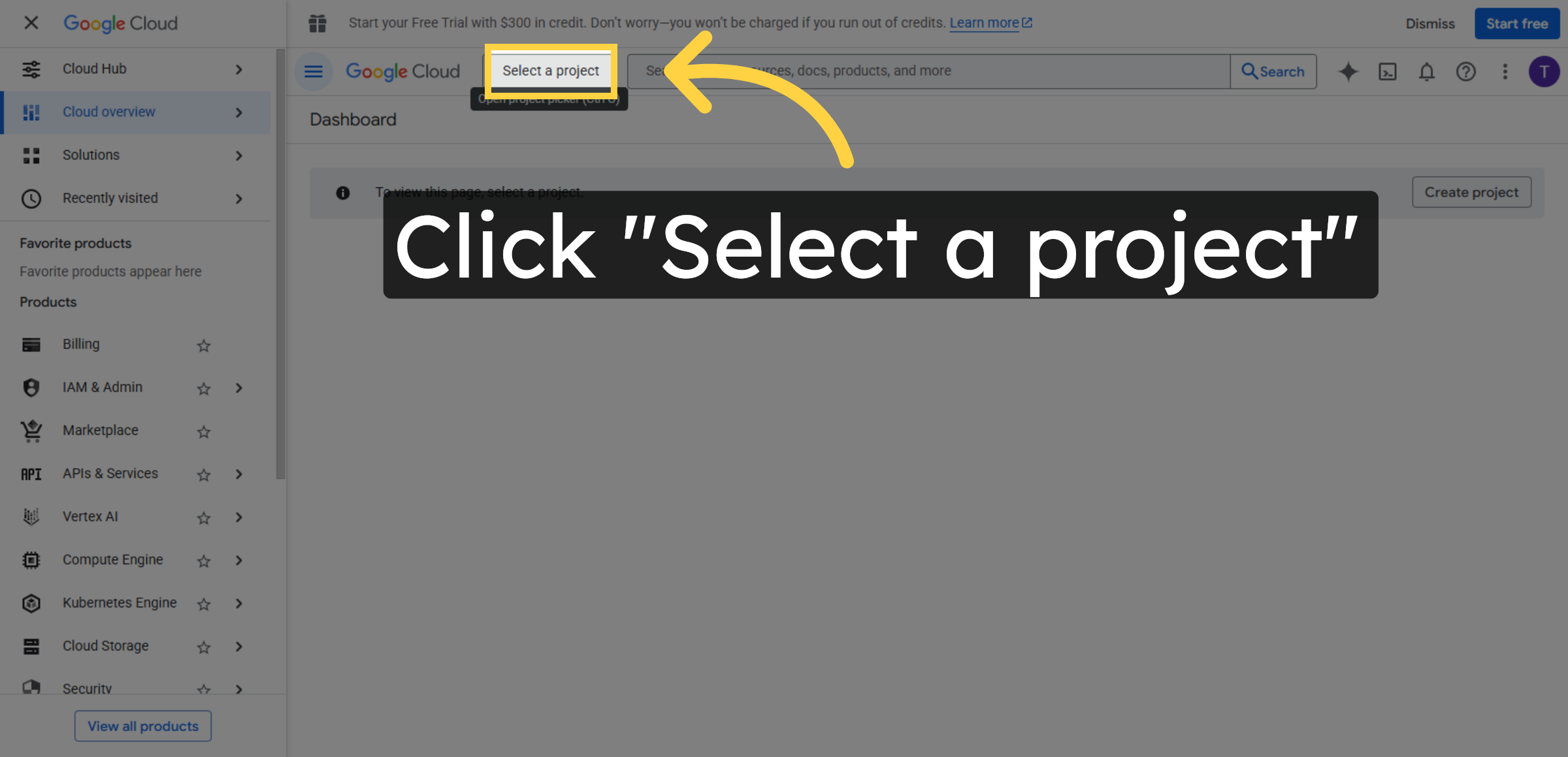
18. Create New Project
Click New project to start setting up a new Google Cloud project for API access.
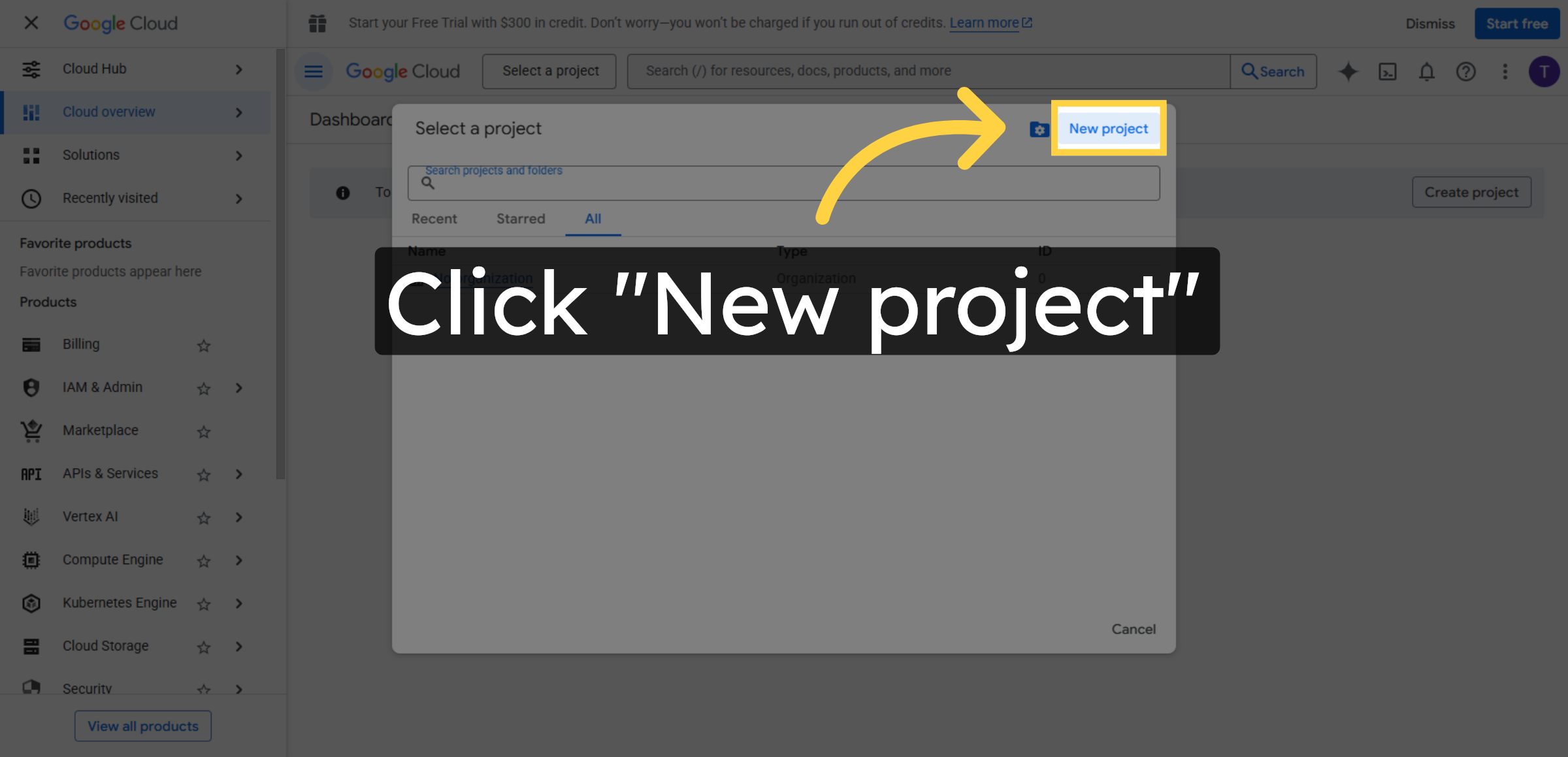
19. Enter Name Project
This step defines the name of the Google Cloud project that will be used for Gmail SMTP authentication.
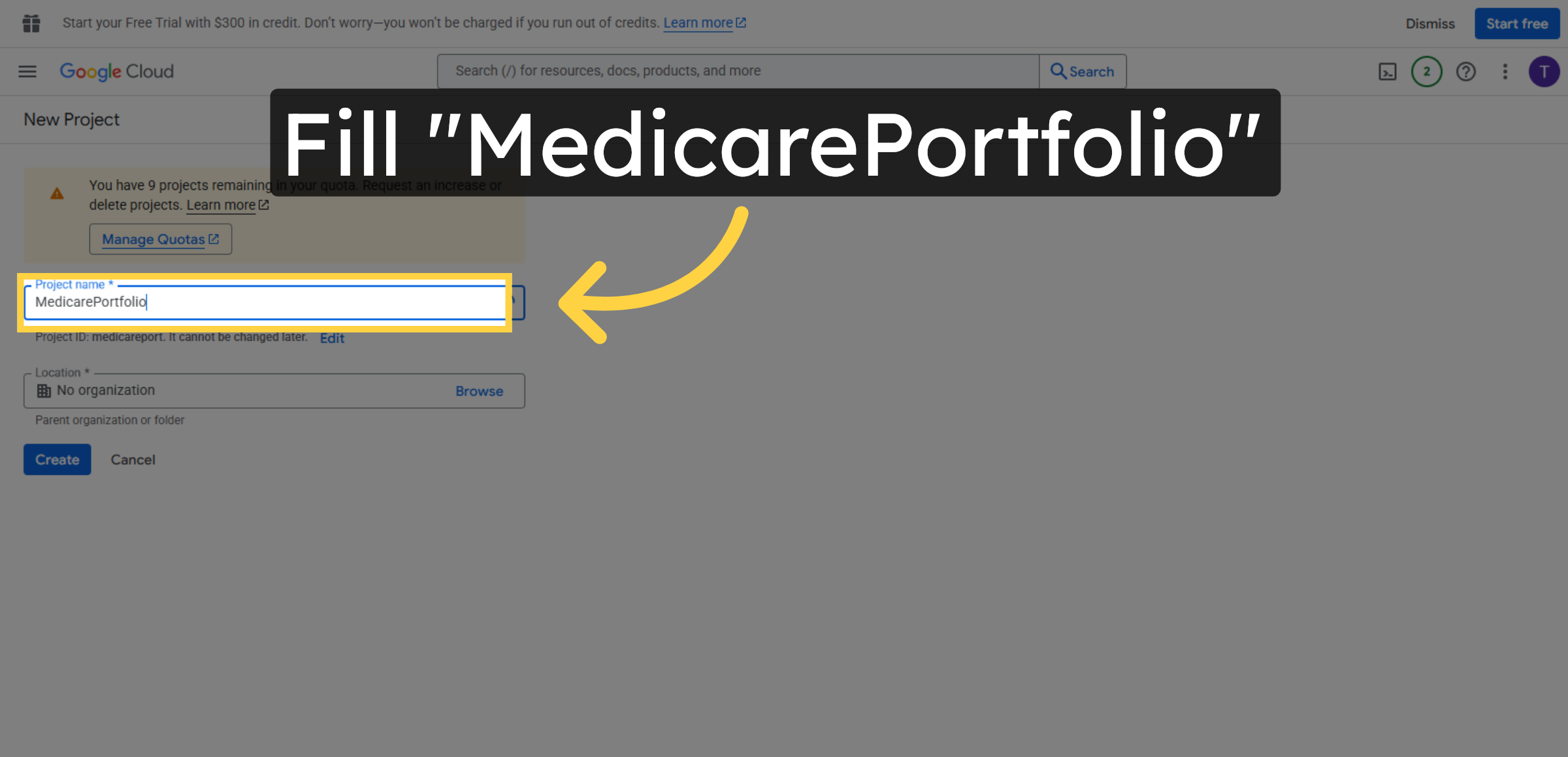
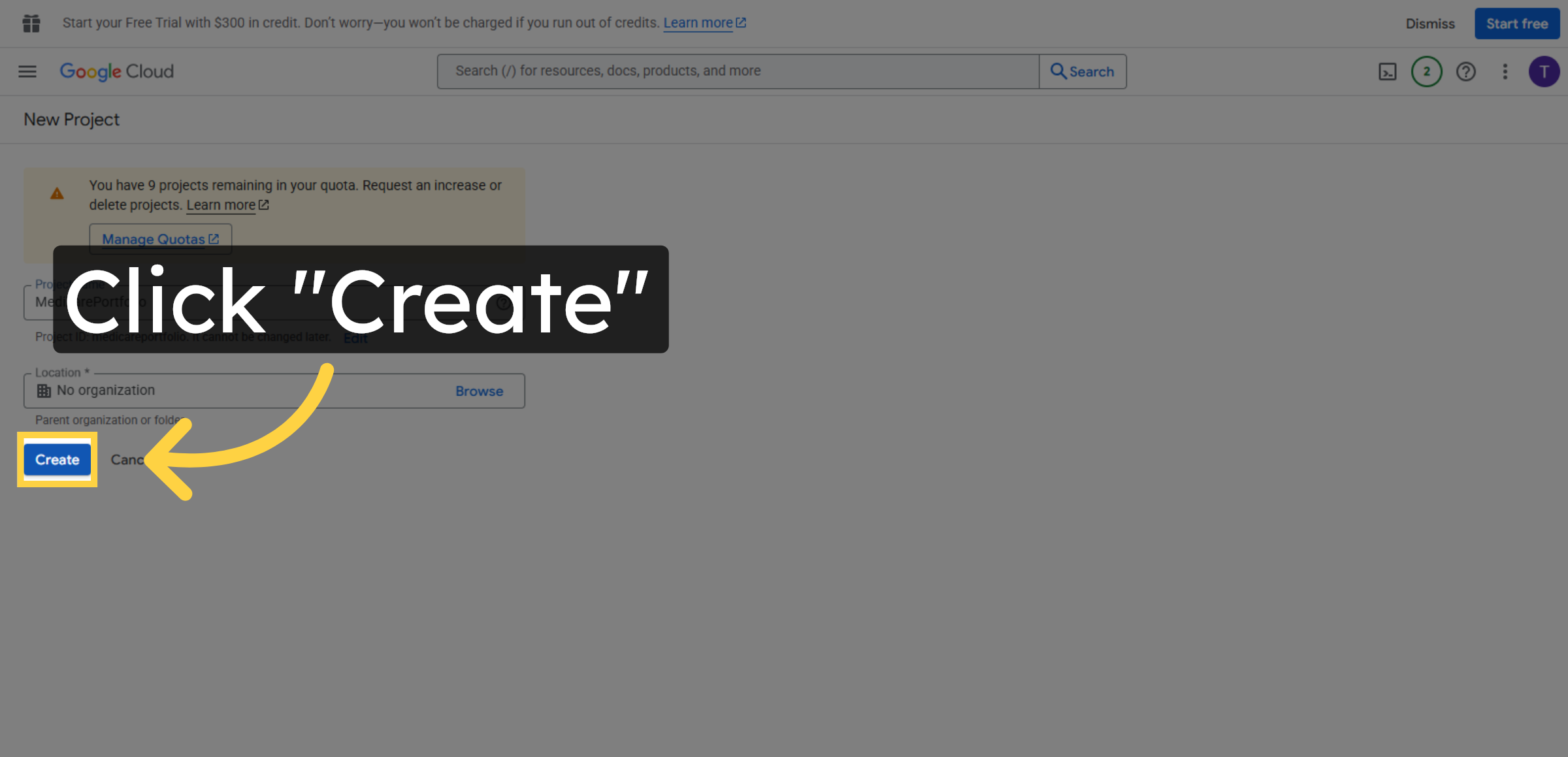
20. Confirm Project Creation
Click Create to generate the project. This project will host the Gmail API settings required for secure email delivery from your WordPress site.
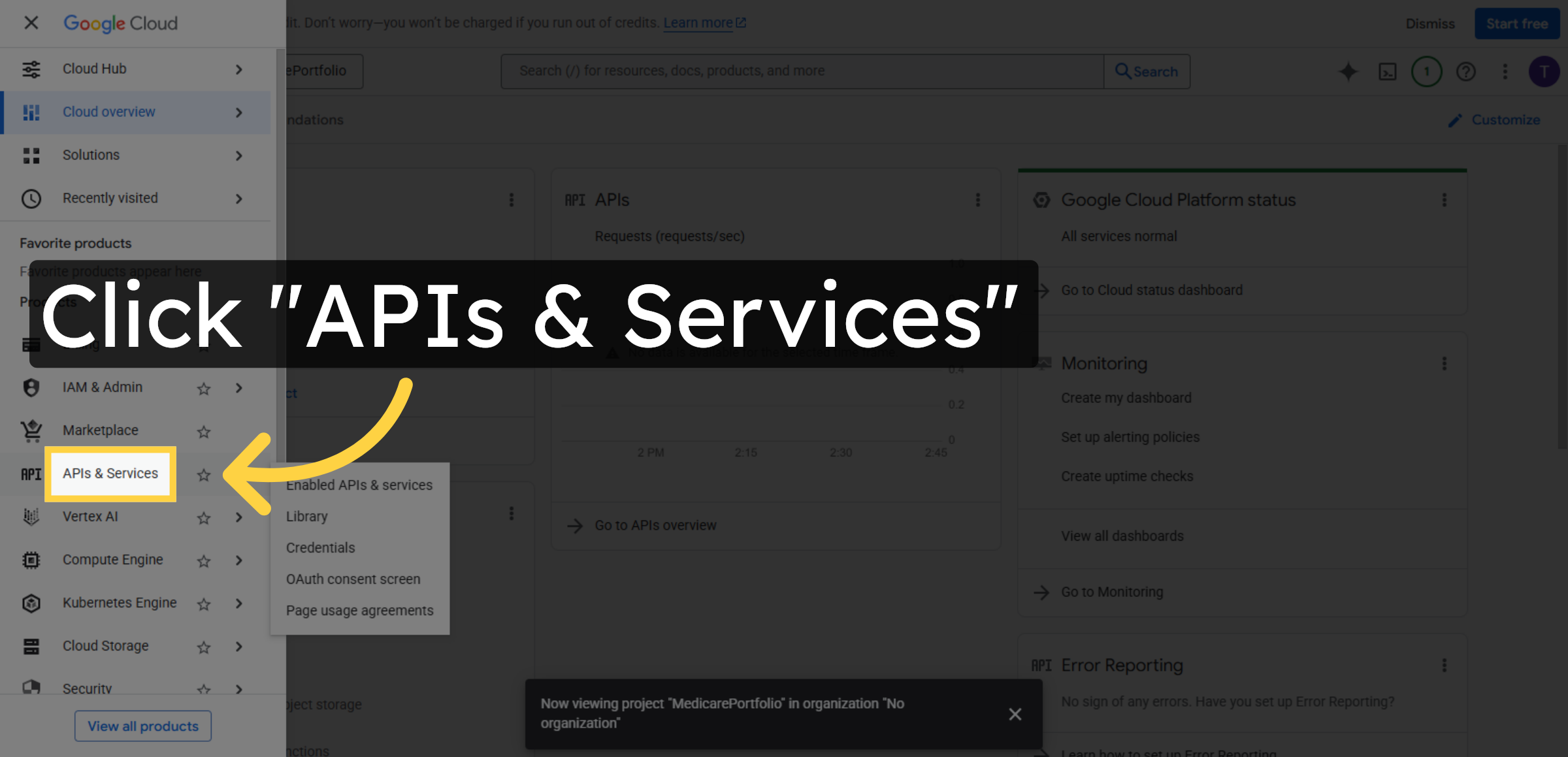
21. Open APIs & Services
Click APIs & Services to enable the Gmail API, which is required to authenticate Gmail for WordPress email sending.
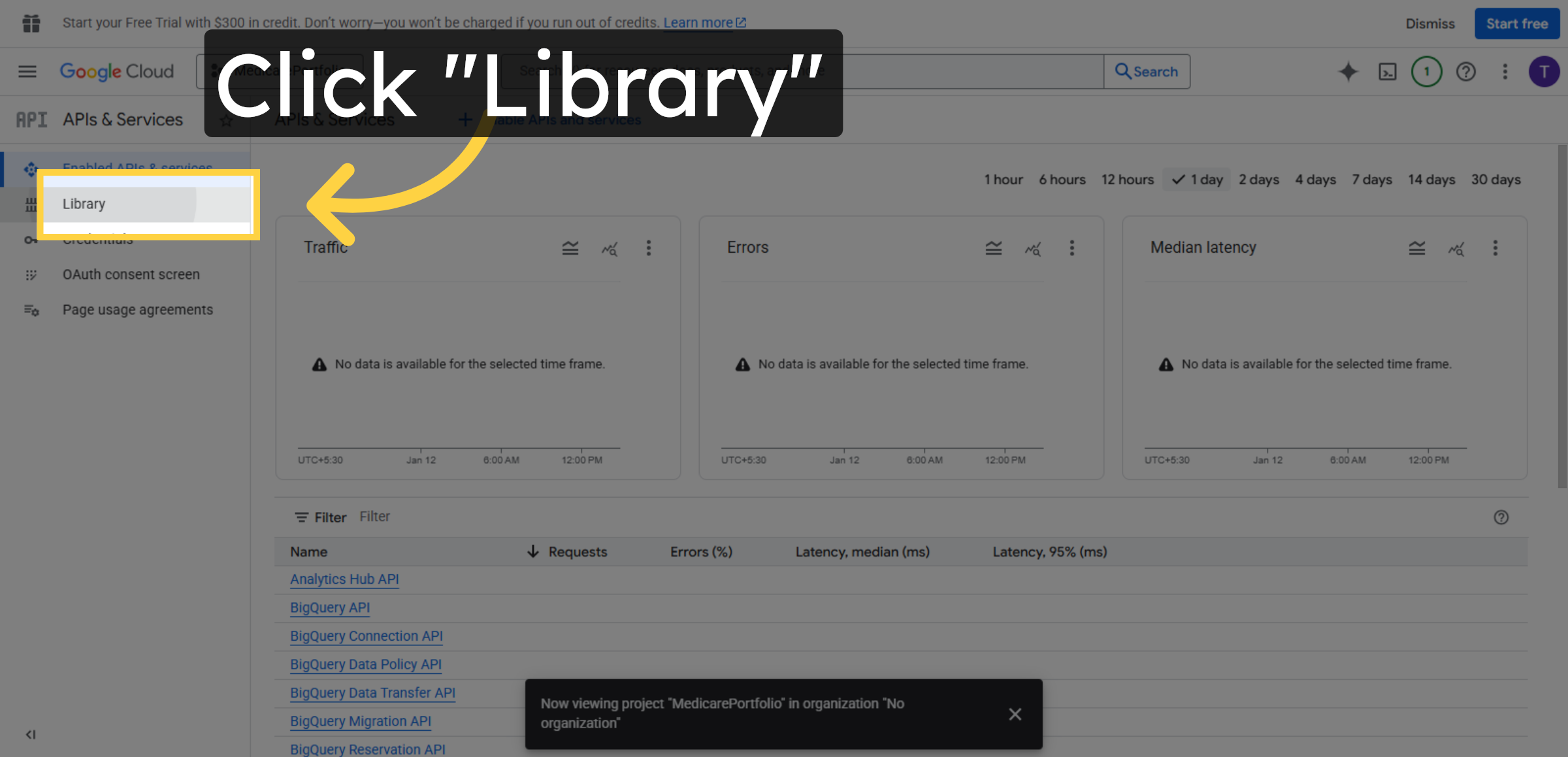
22. Navigate to API Library
Clicking Library allows you to browse and enable Google APIs required for Gmail authentication and WordPress email sending.
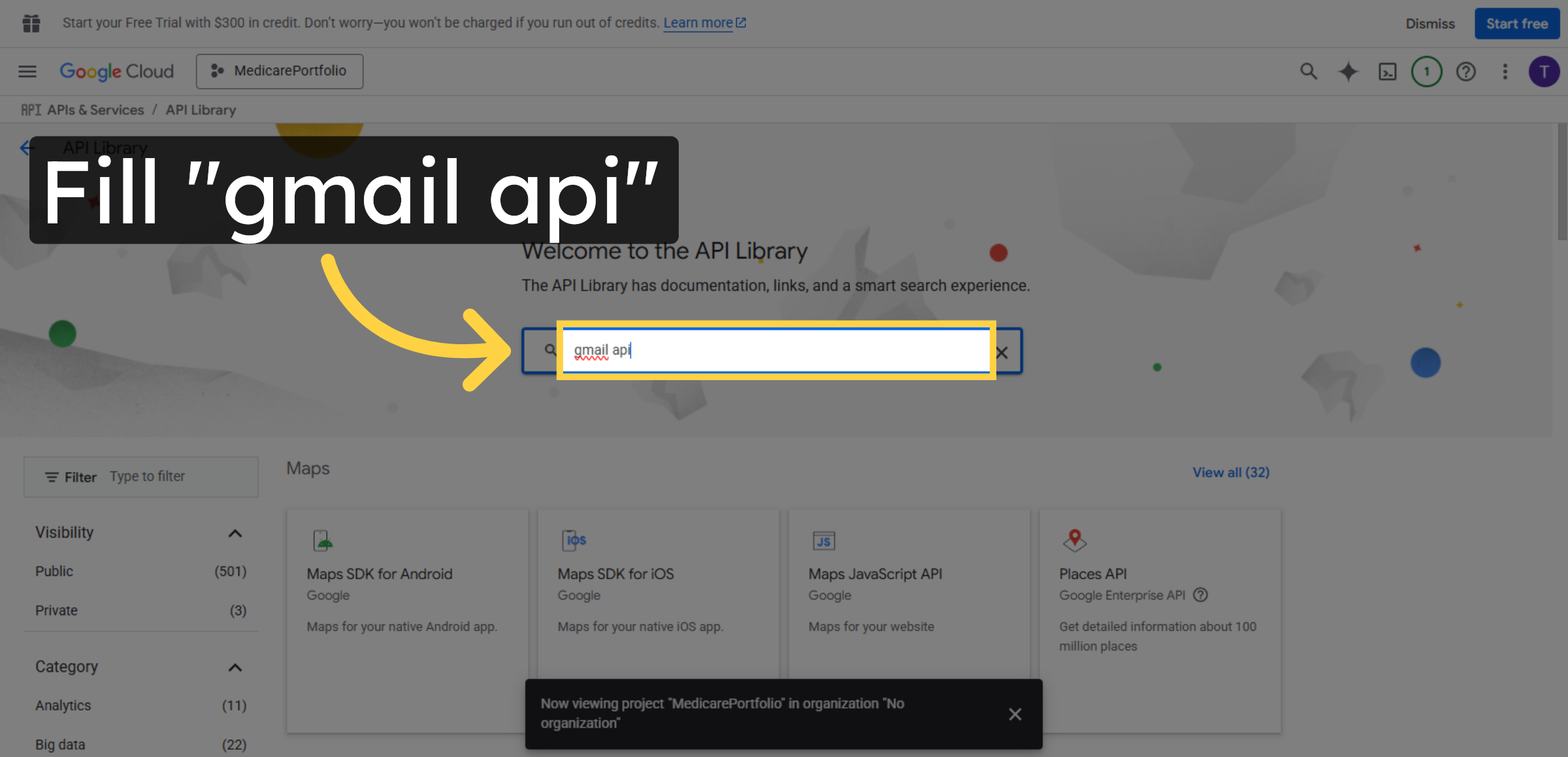
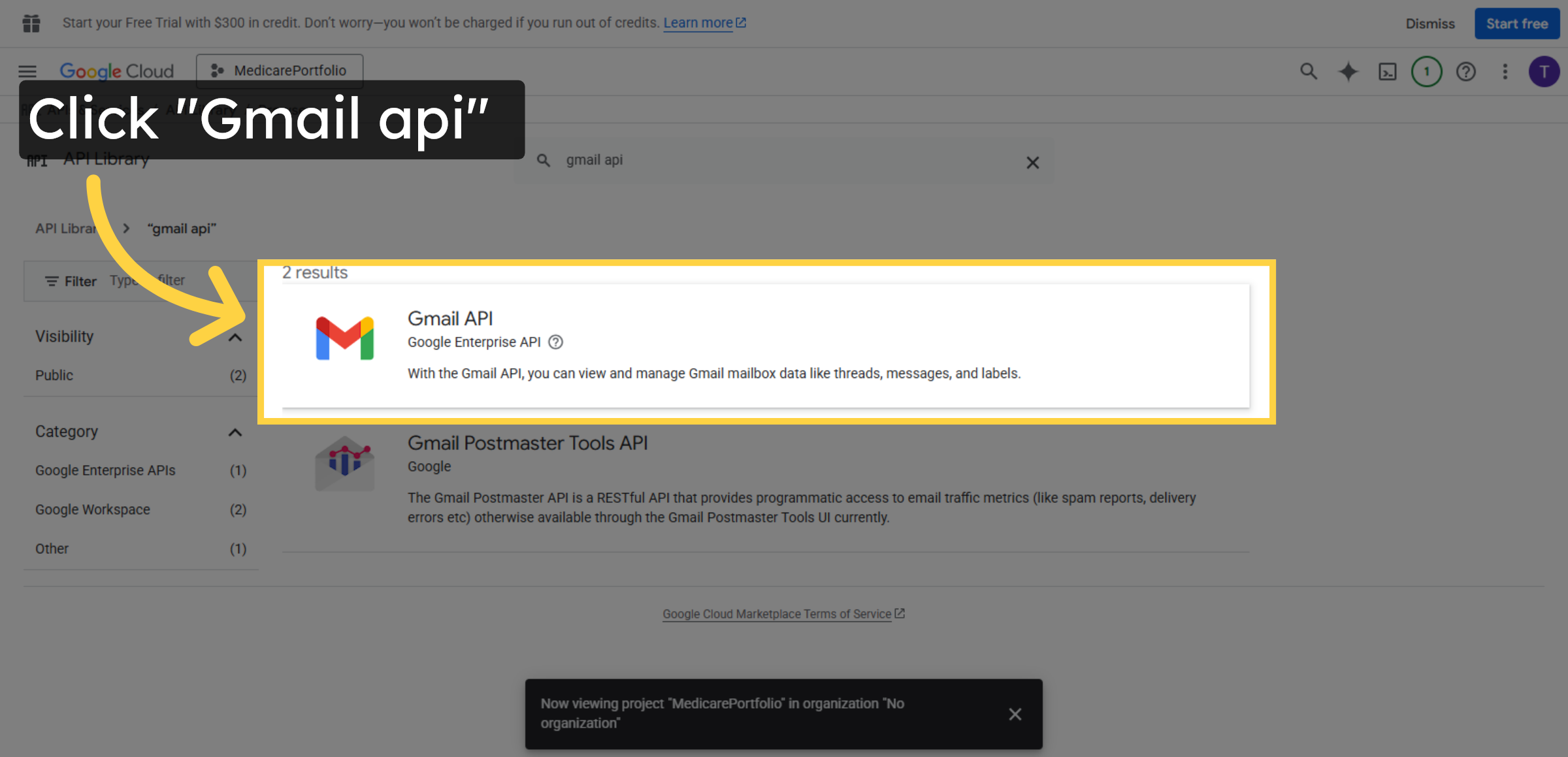
23. Search Gmail APIS
Fill gmail api in the search bar to find the Gmail API.
24. Select Gmail API
Click Help popup for additional information about the Gmail API.
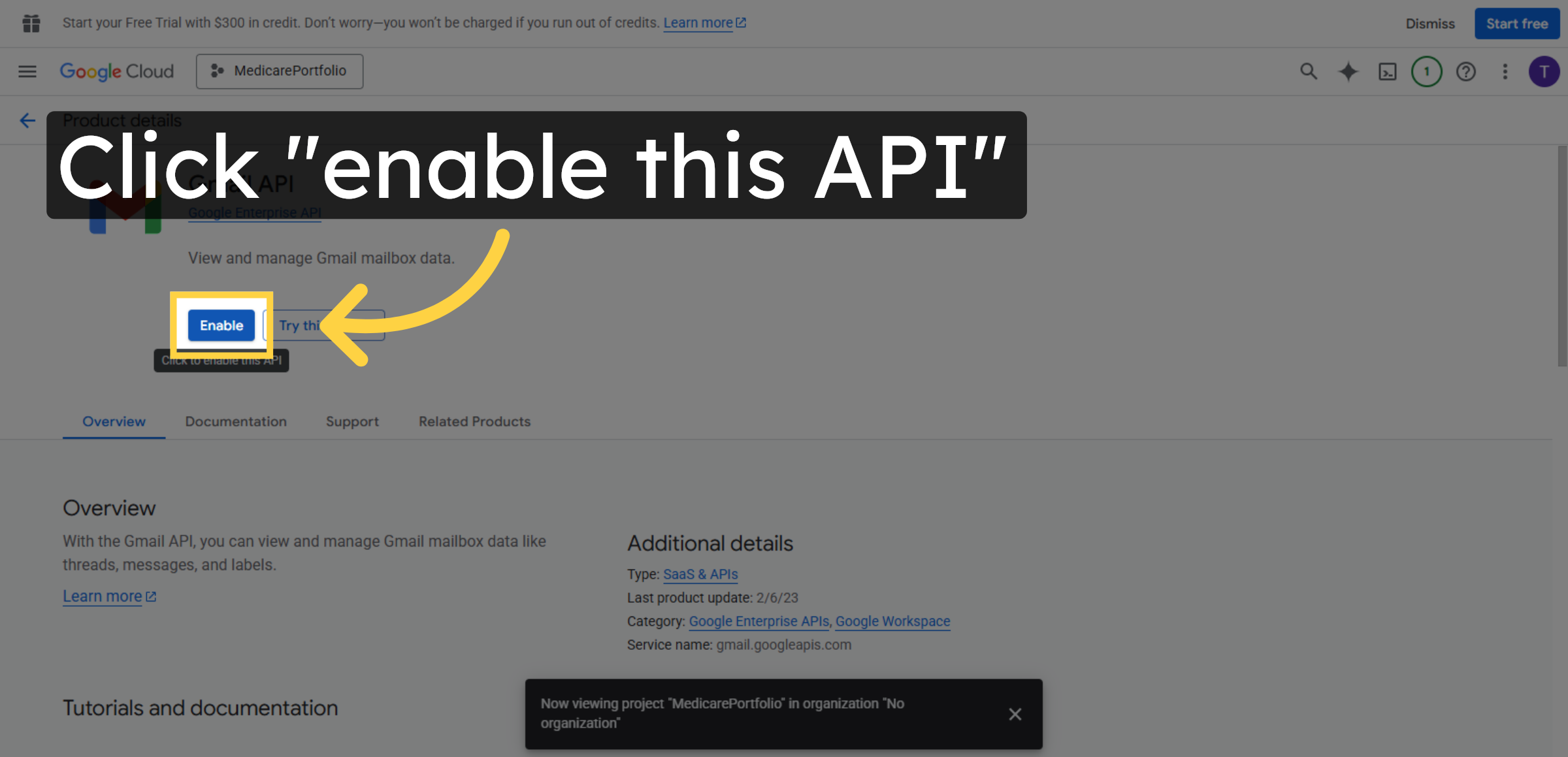
25. Enable Gmail API
Click enable this API to activate Gmail API for your project.
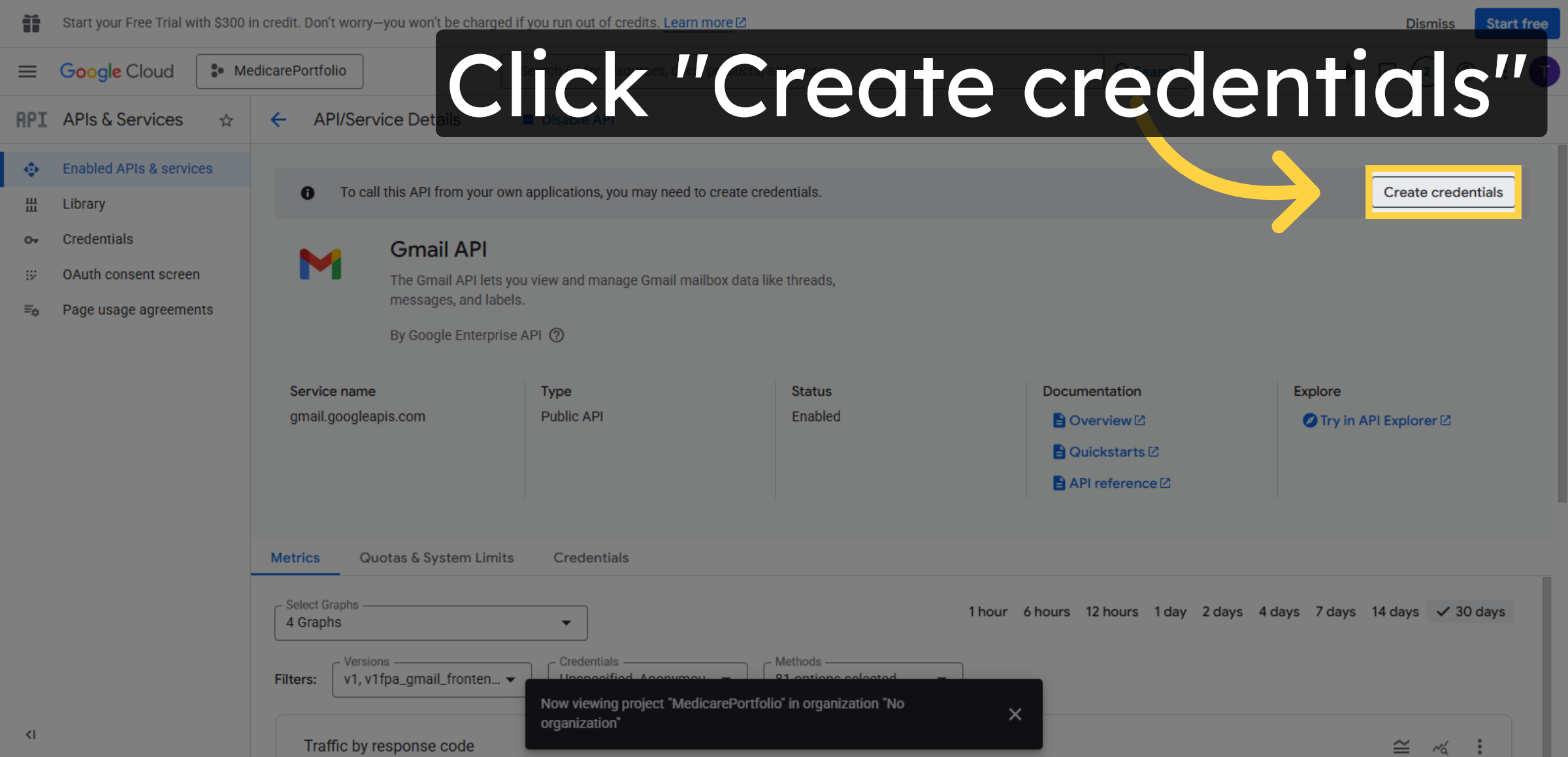
26. Create Credentials
Creating credentials allows WordPress to authenticate with Gmail and send emails securely using the Gmail API.
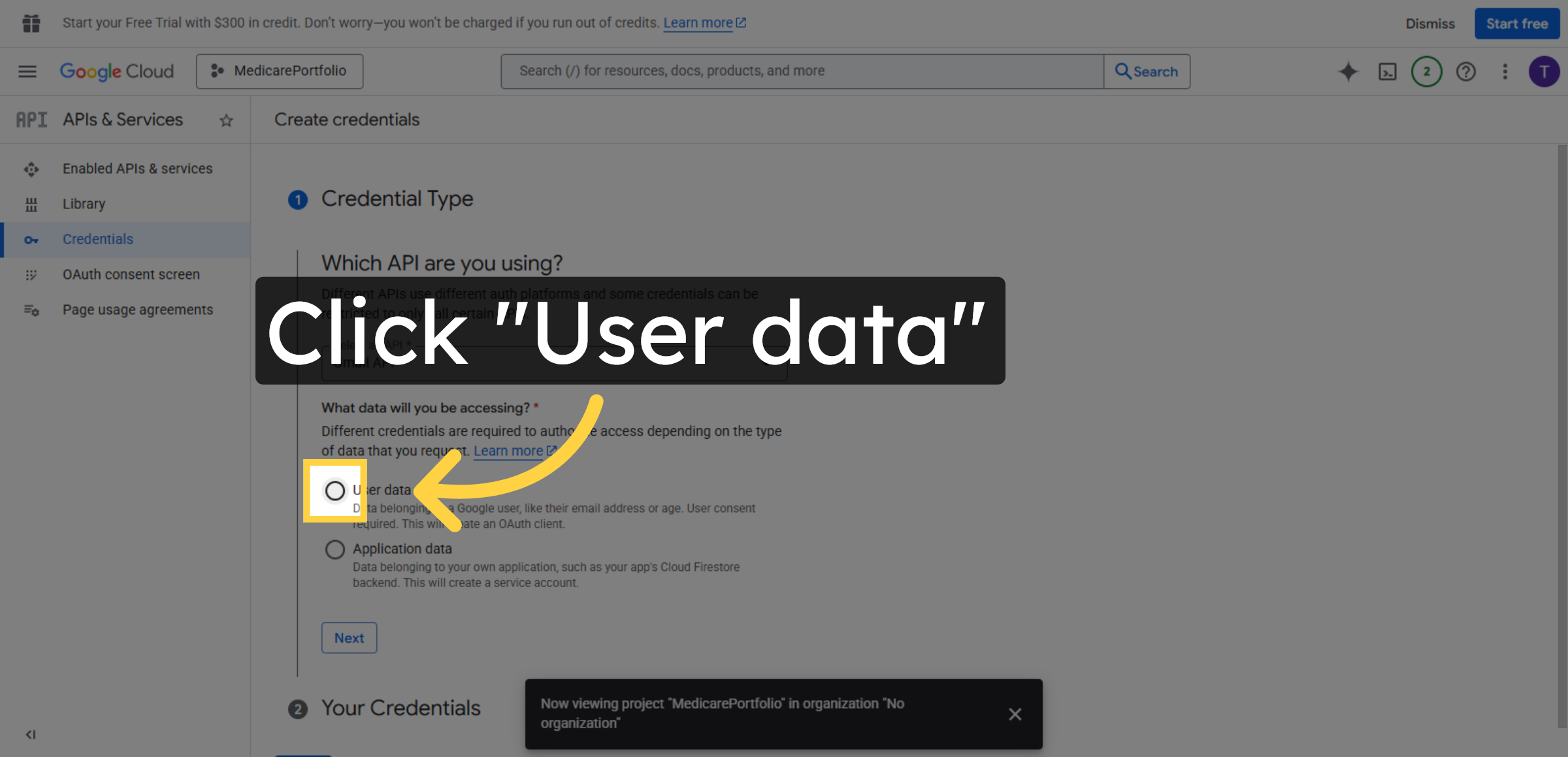
27. Select User Data
Selecting User data allows WordPress to send emails on behalf of your Gmail account using secure OAuth authentication.
28. Proceed to Next Step
Click Next to continue the credential creation process.
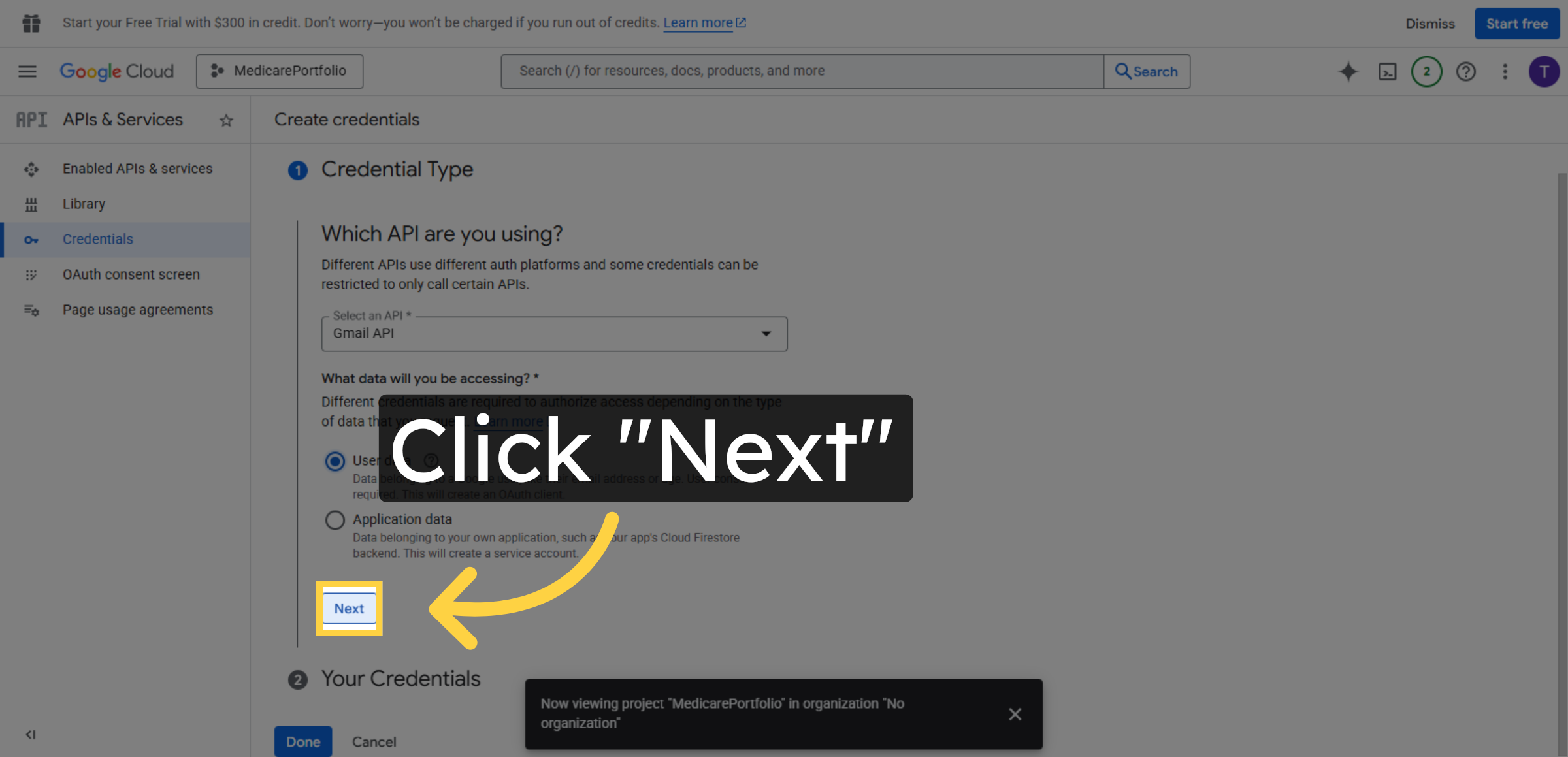
29. Set App Name
Fill MedicarePortfolio as the name of your application.
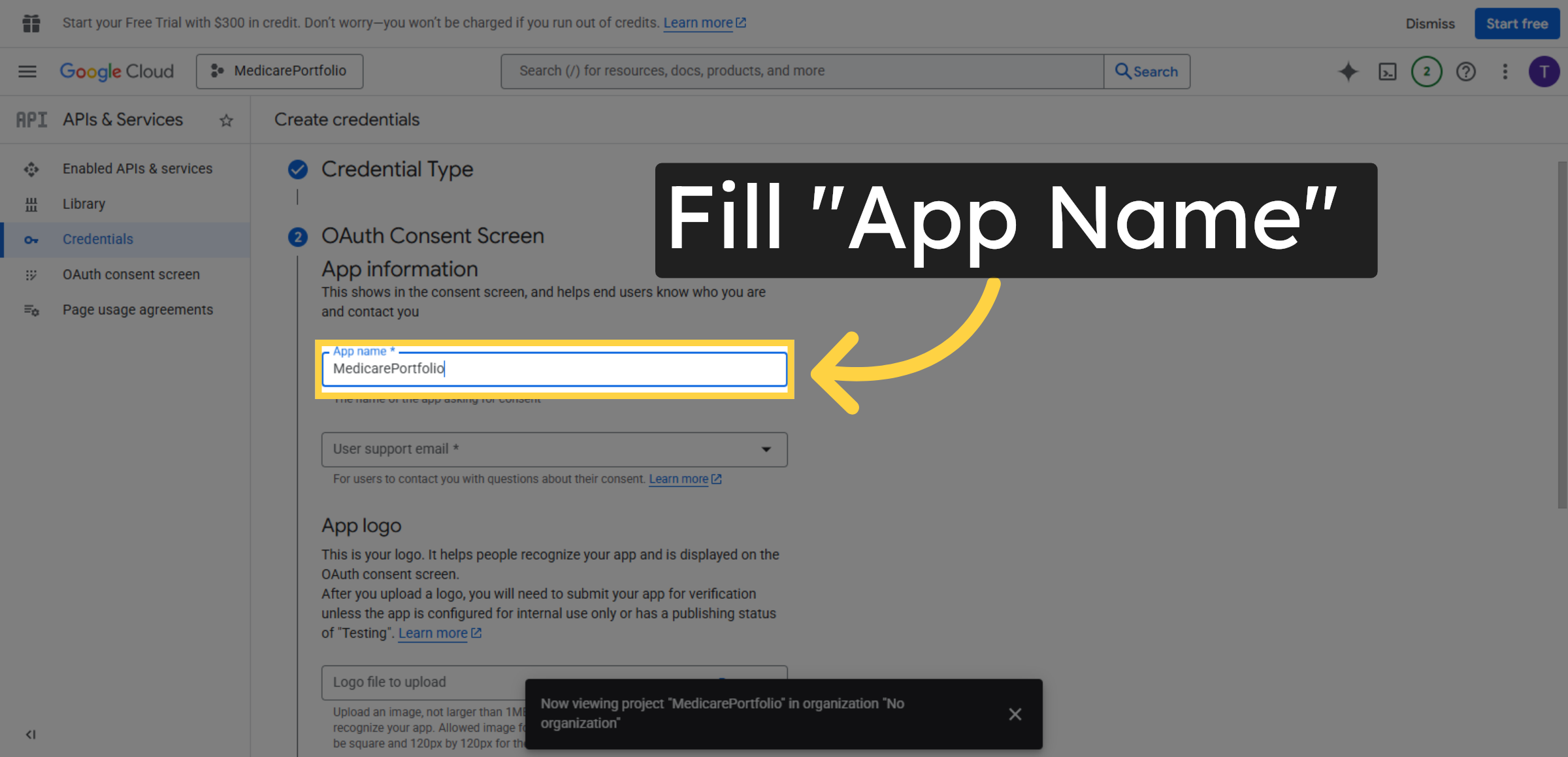
30. Enter Support Email
Click User support email to choose the contact email for users.
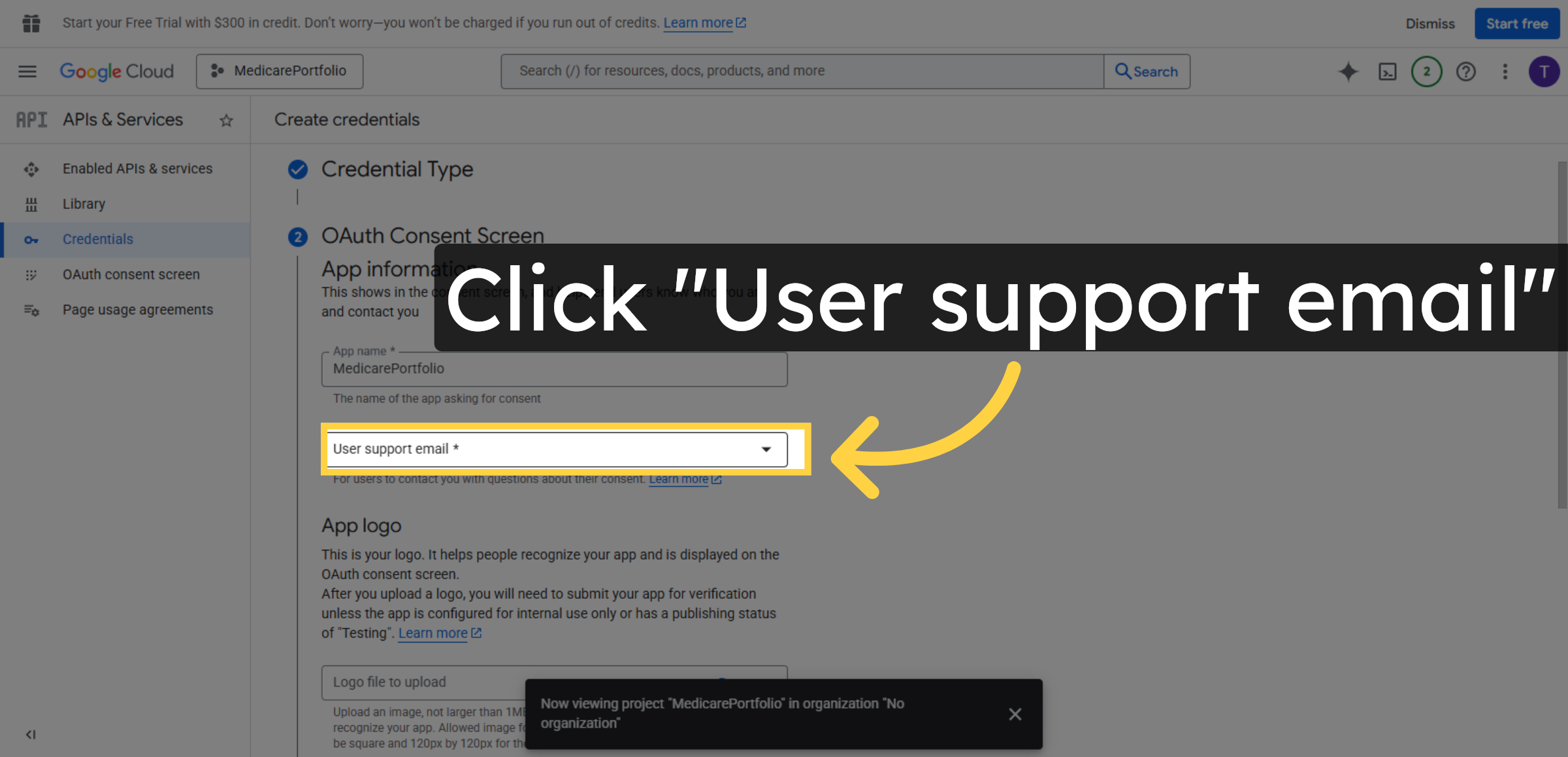
31. Open Email Addresses Section
Click Email addresses to manage authorized email addresses.
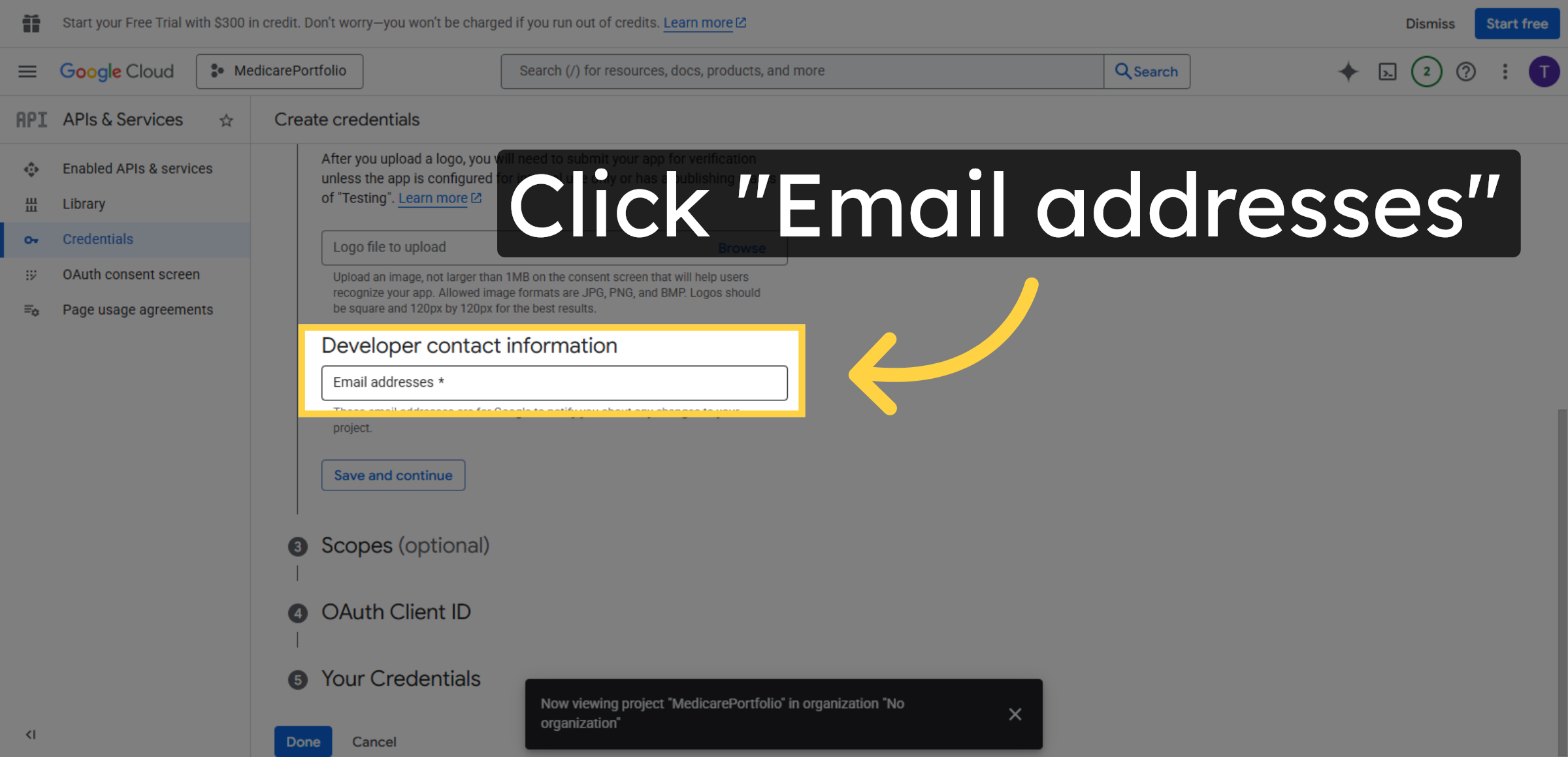
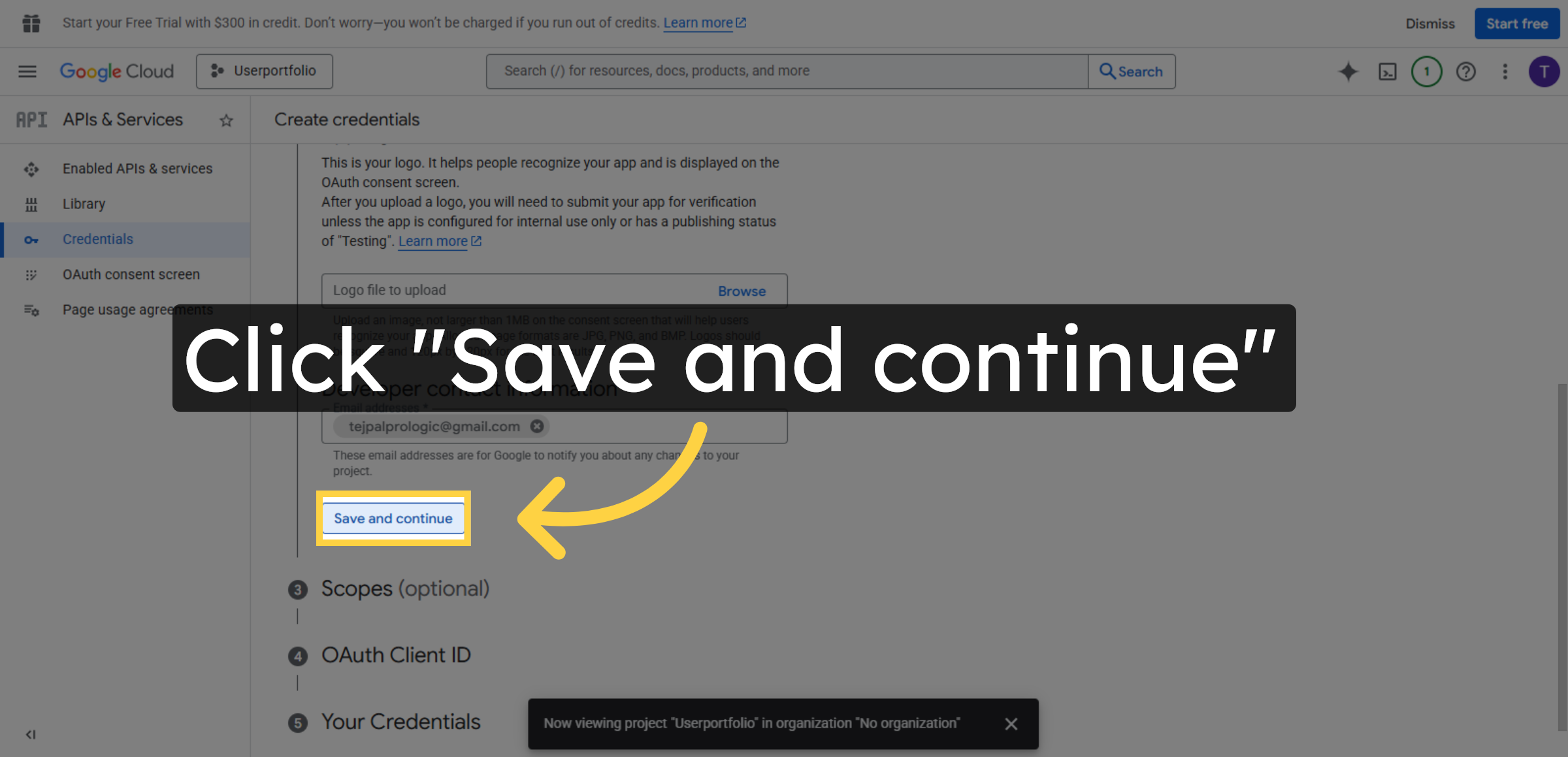
32. Save And Continue
Click Save and continue to proceed with the OAuth setup.
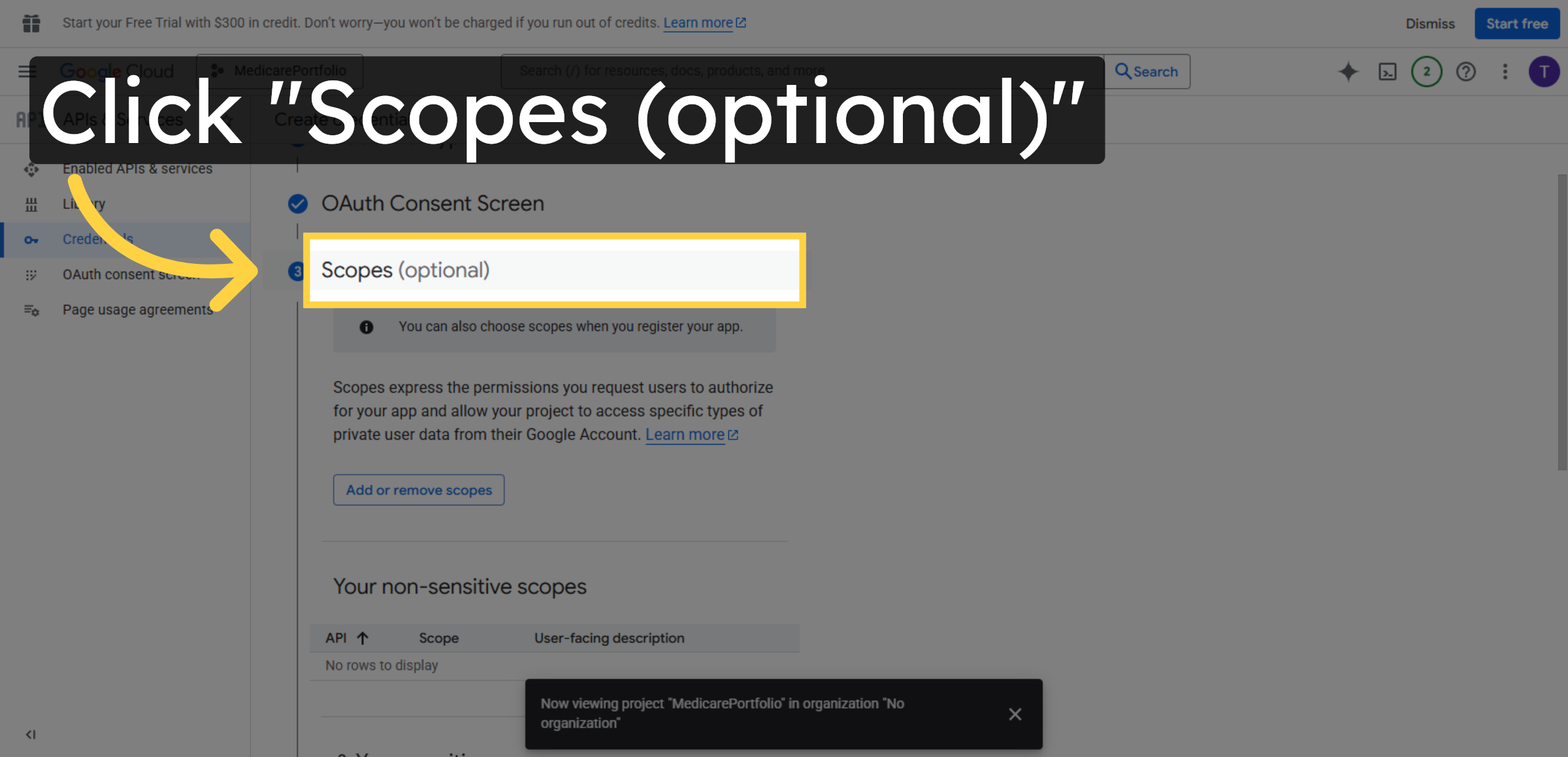
33. Open Scopes Section
Click Scopes (optional) to review or add API scopes.
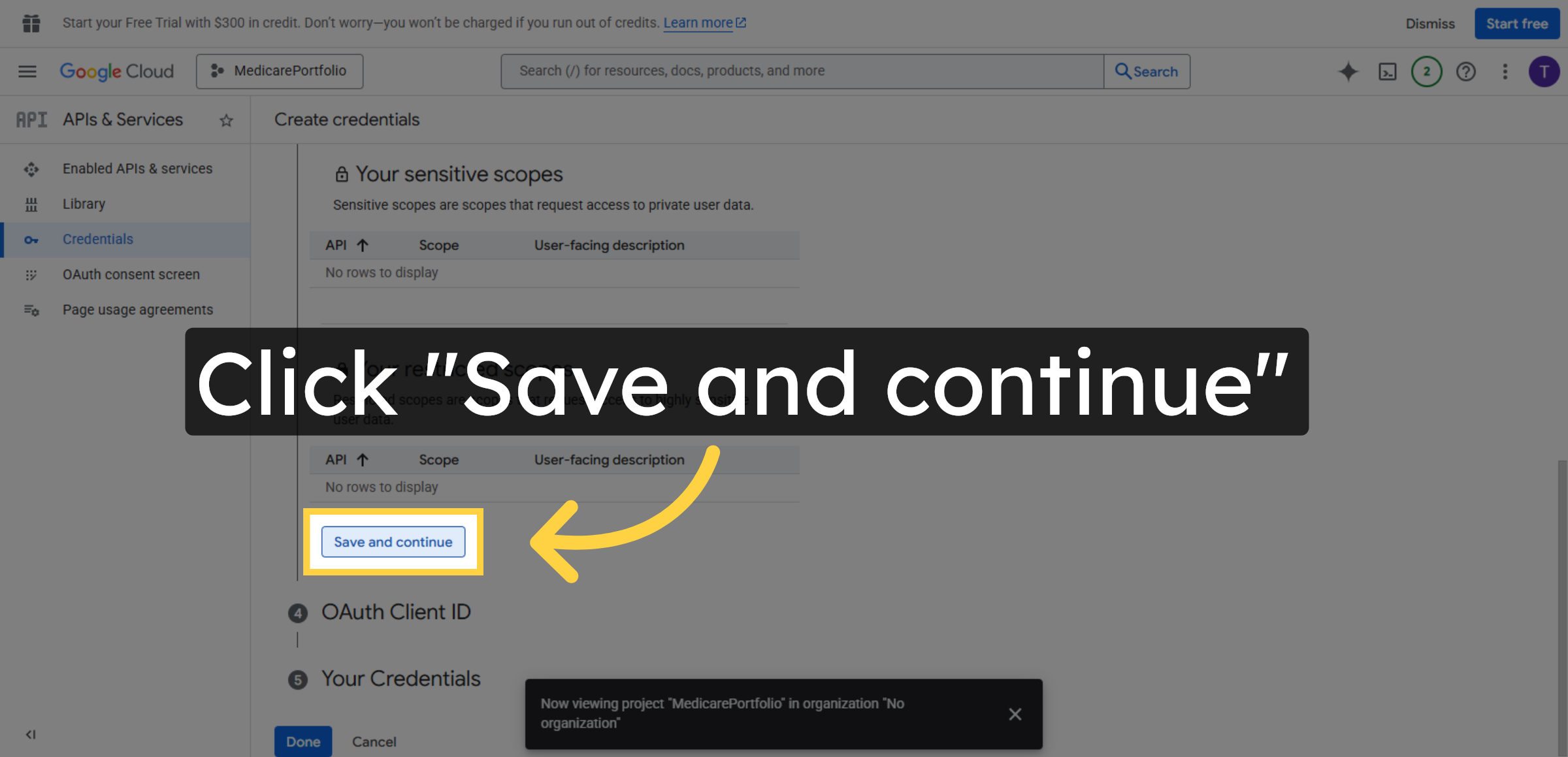
34. Save Scopes Settings
Click Save and continue to confirm your scopes configuration.
35. Proceed to Next Step
Click to move forward in the credential creation process.
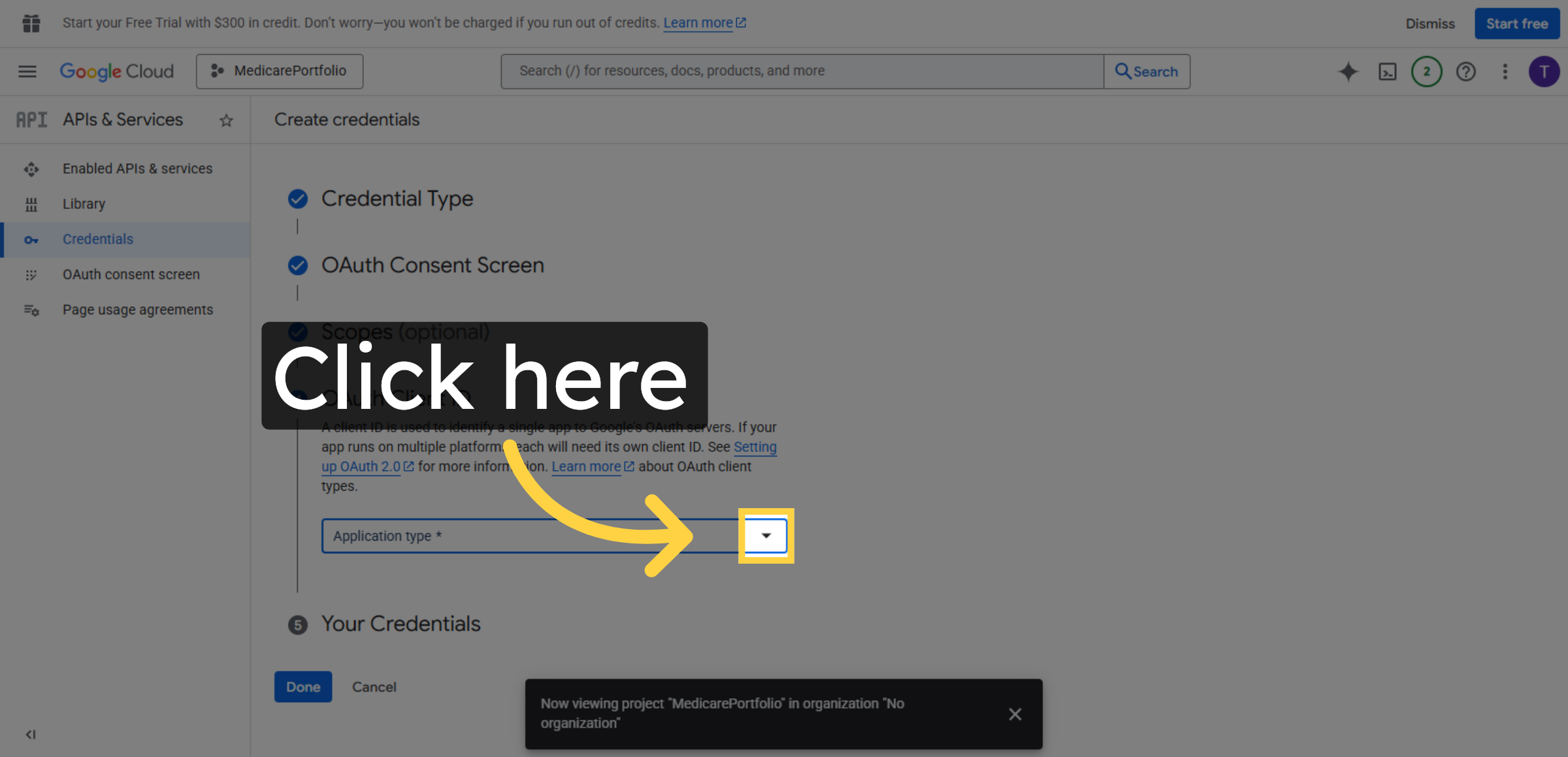
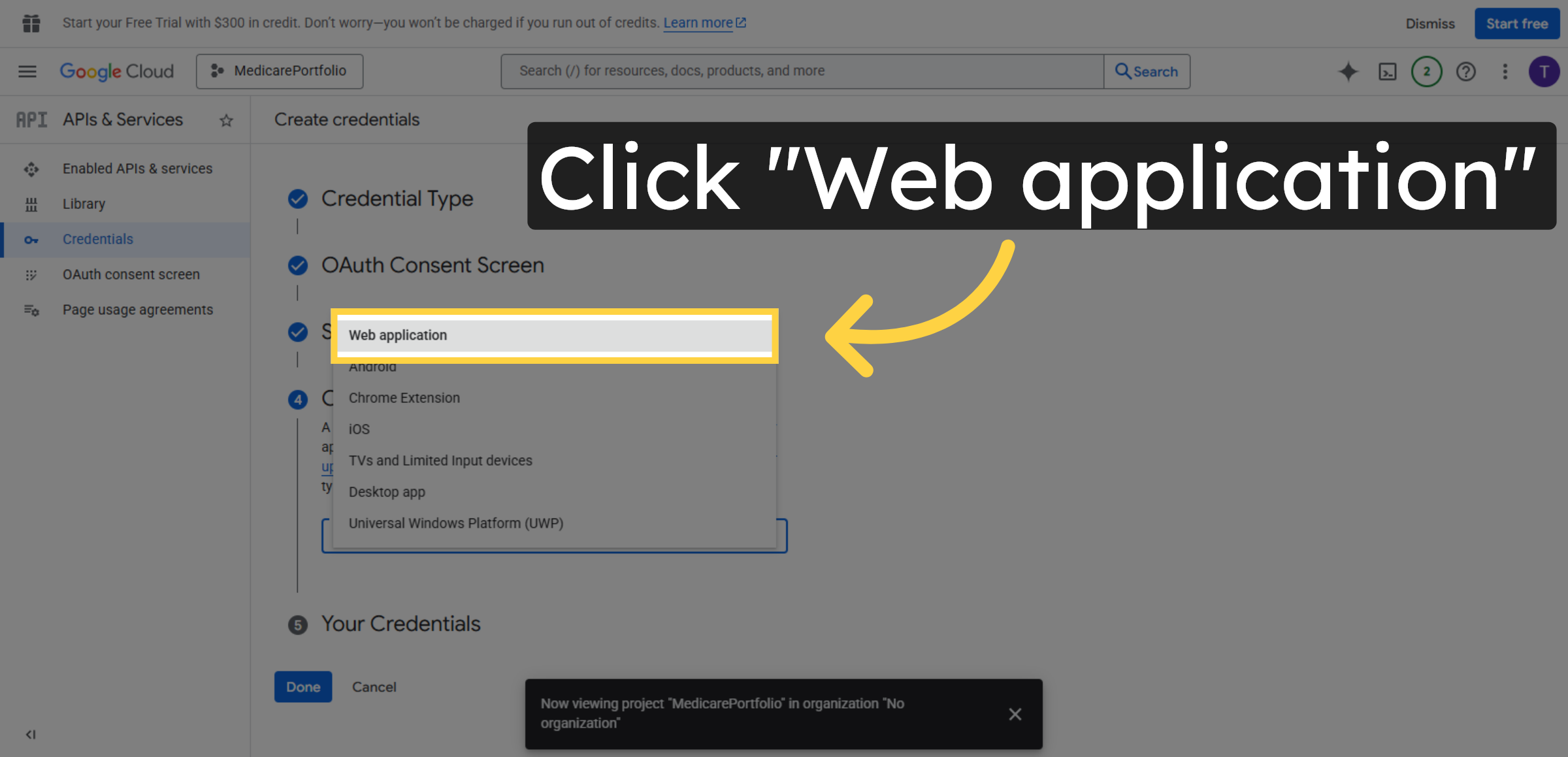
36. Select Web Application Type
Click Web application to specify the type of OAuth client.
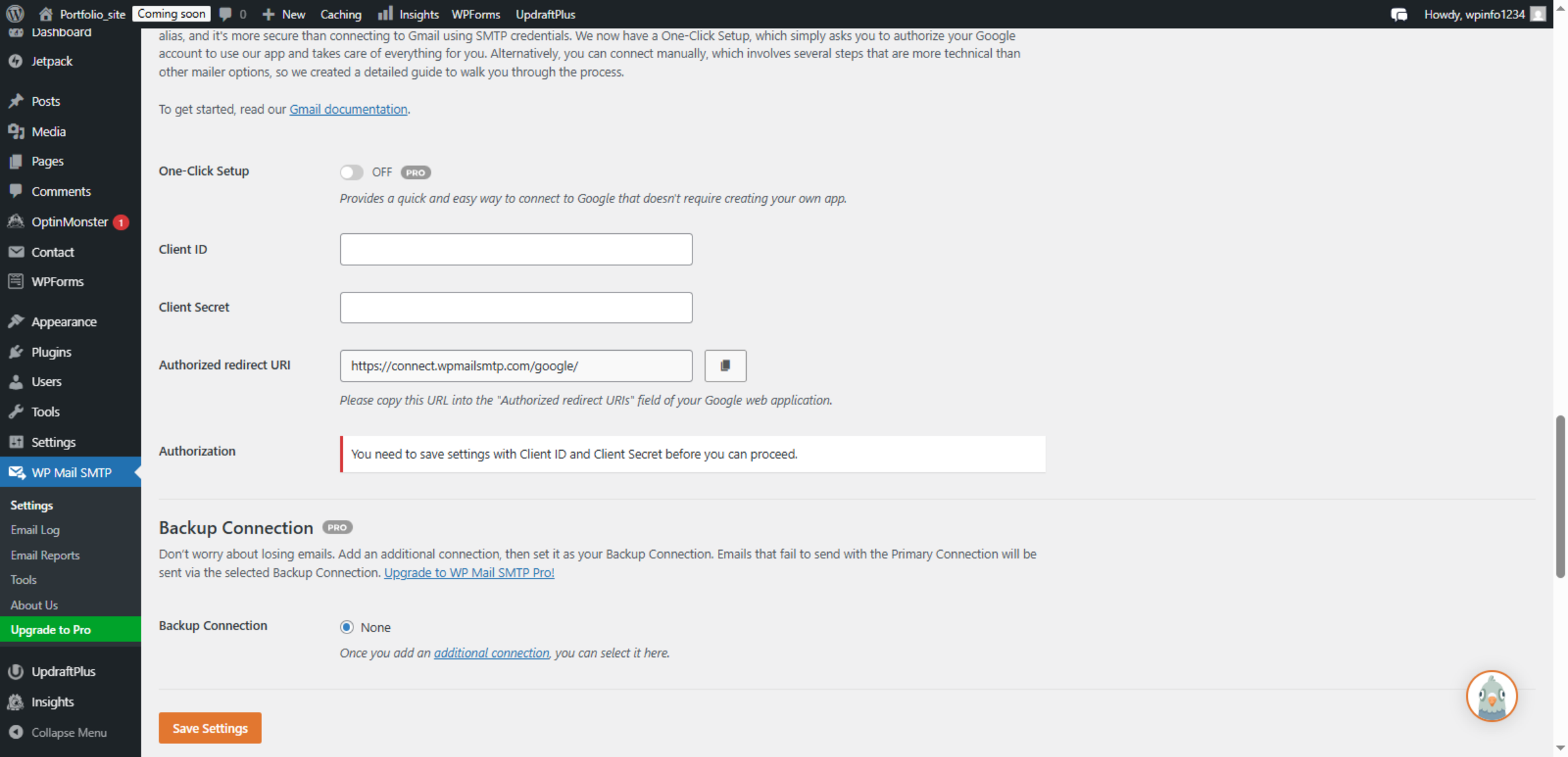
37. Return to WordPress Settings
Switch back to your WordPress site settings to copy the redirect URI.
38. Access Redirect URI Field
Click Authorized redirect URI field to prepare for pasting.
39. Switch to Google Cloud Console
Switch to the Google Cloud console to add the redirect URI.
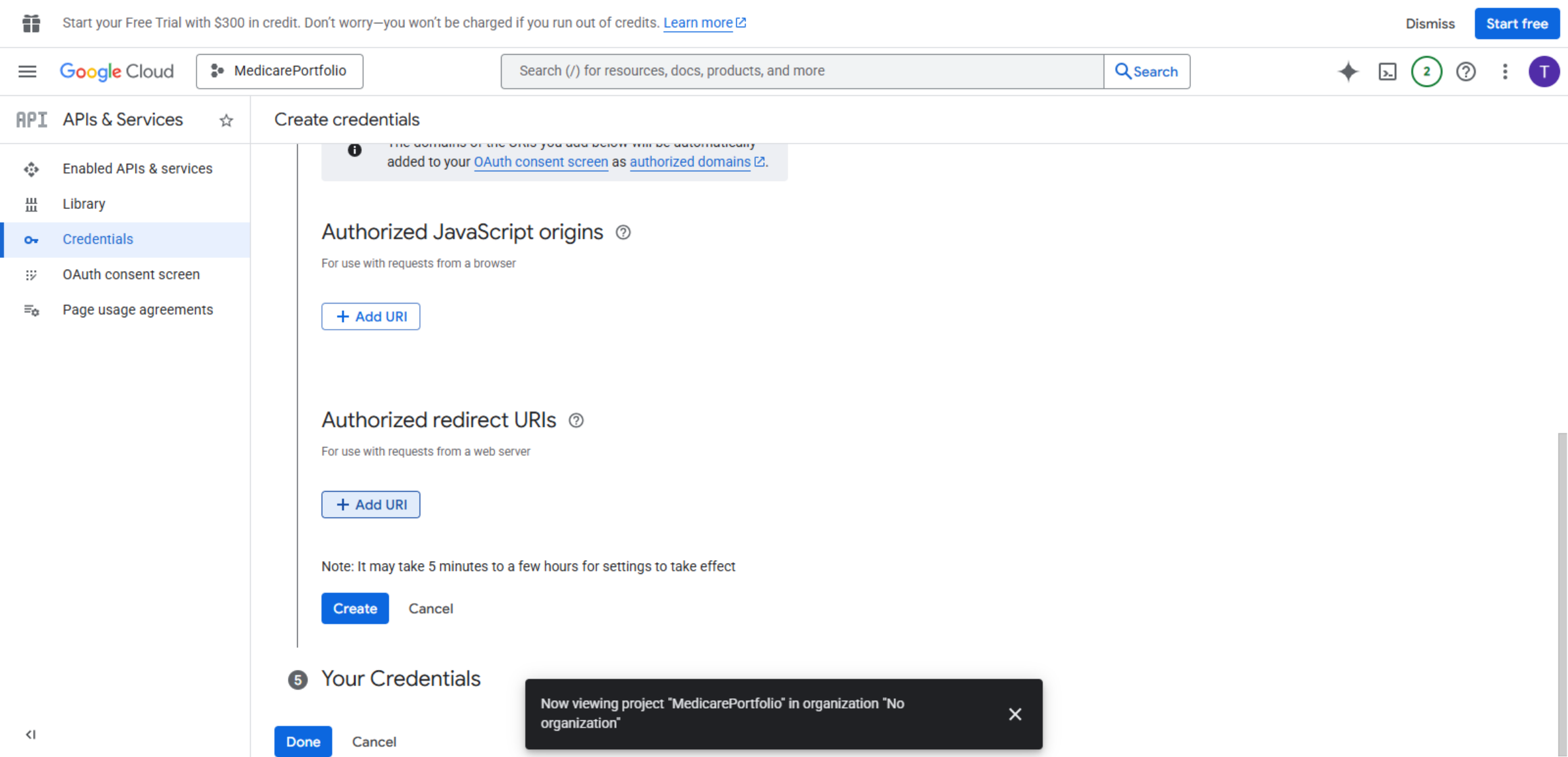
40. Add New URI
Click Add URI to input a new authorized redirect URI.
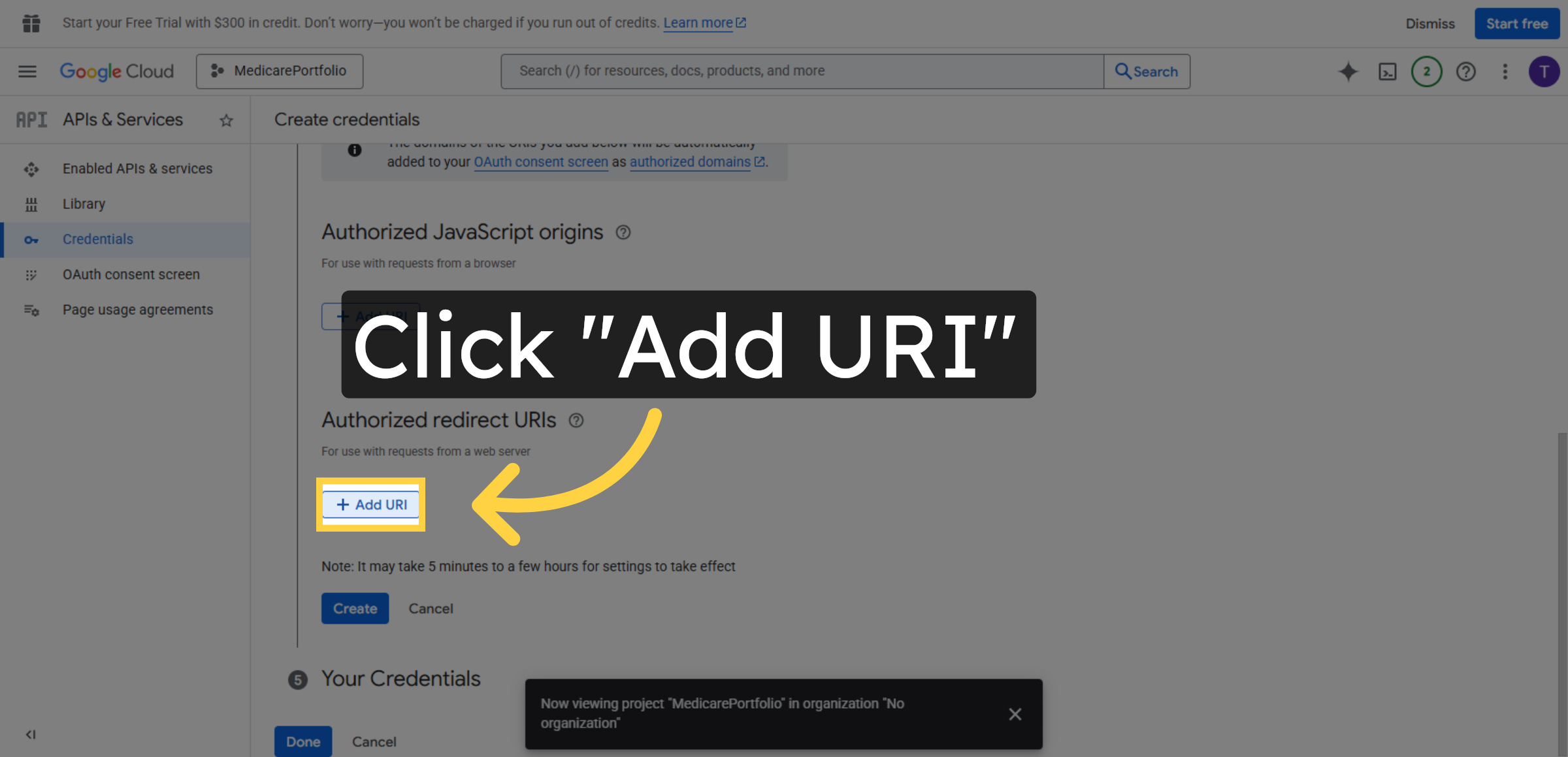
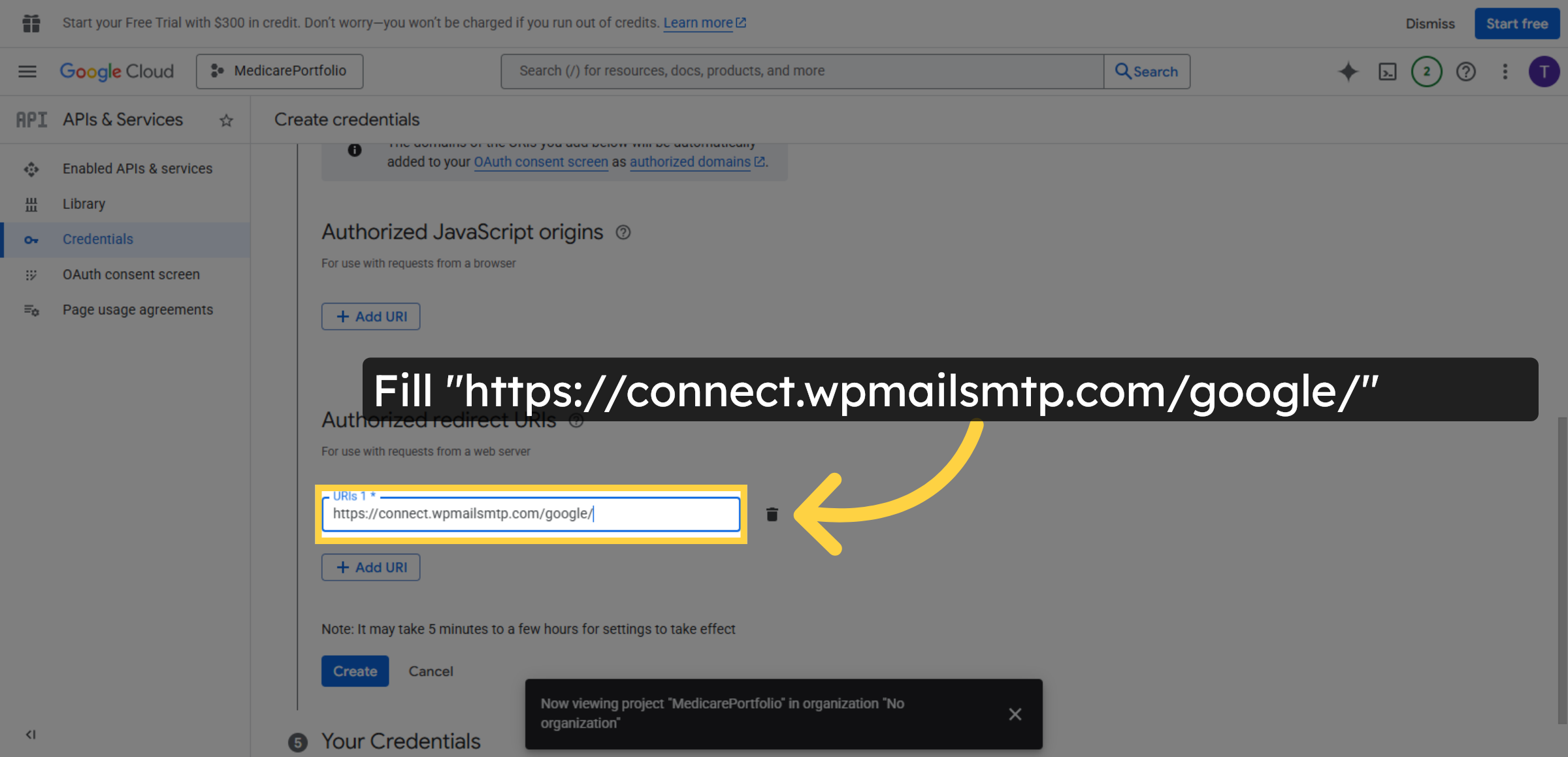
41. Enter Redirect URI
Fill https://connect.wpmailsmtp.com/google/ as the authorized redirect URI.
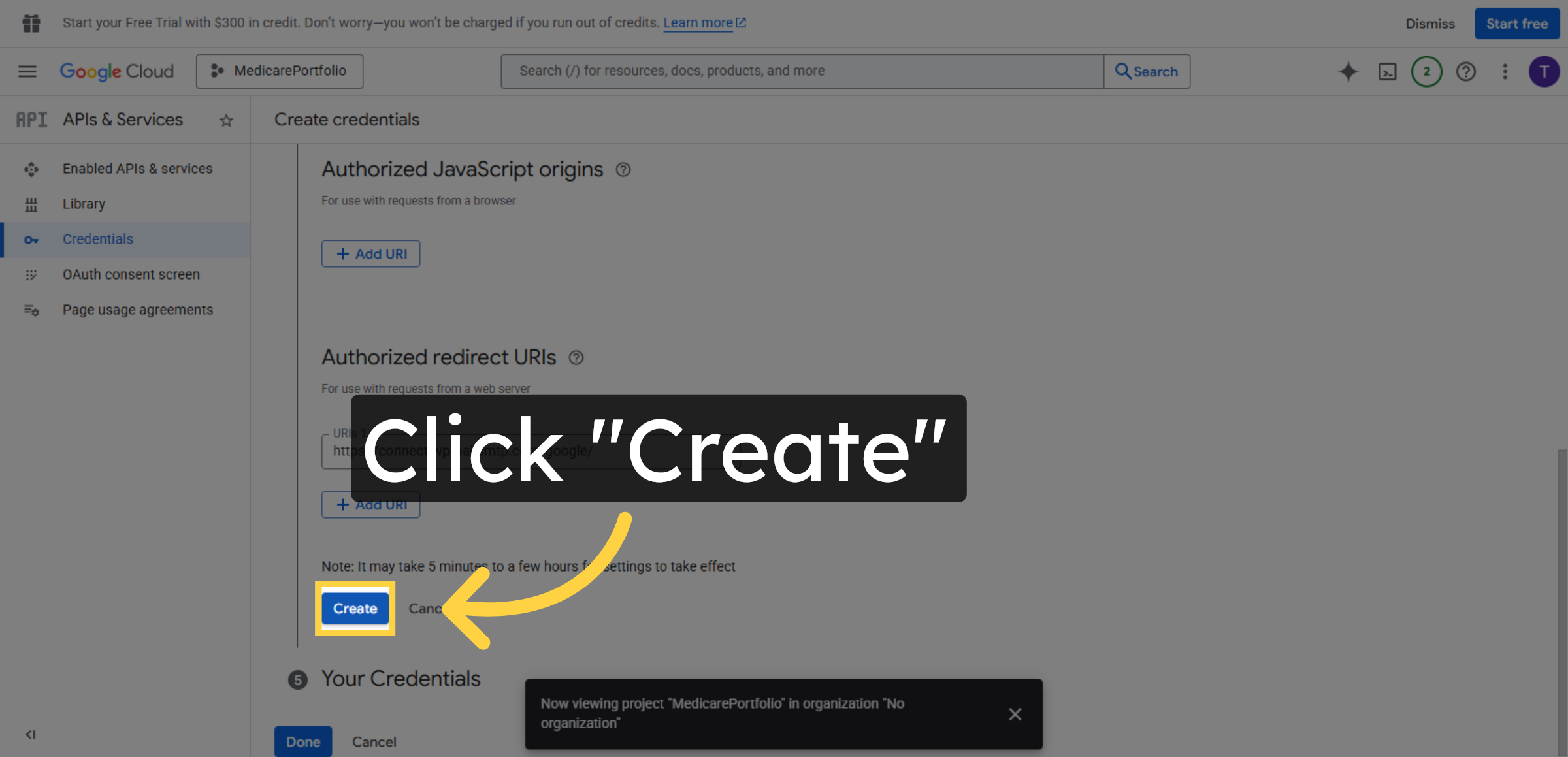
42. Create Redirect URI Entry
Click Create to save the new redirect URI in your project.
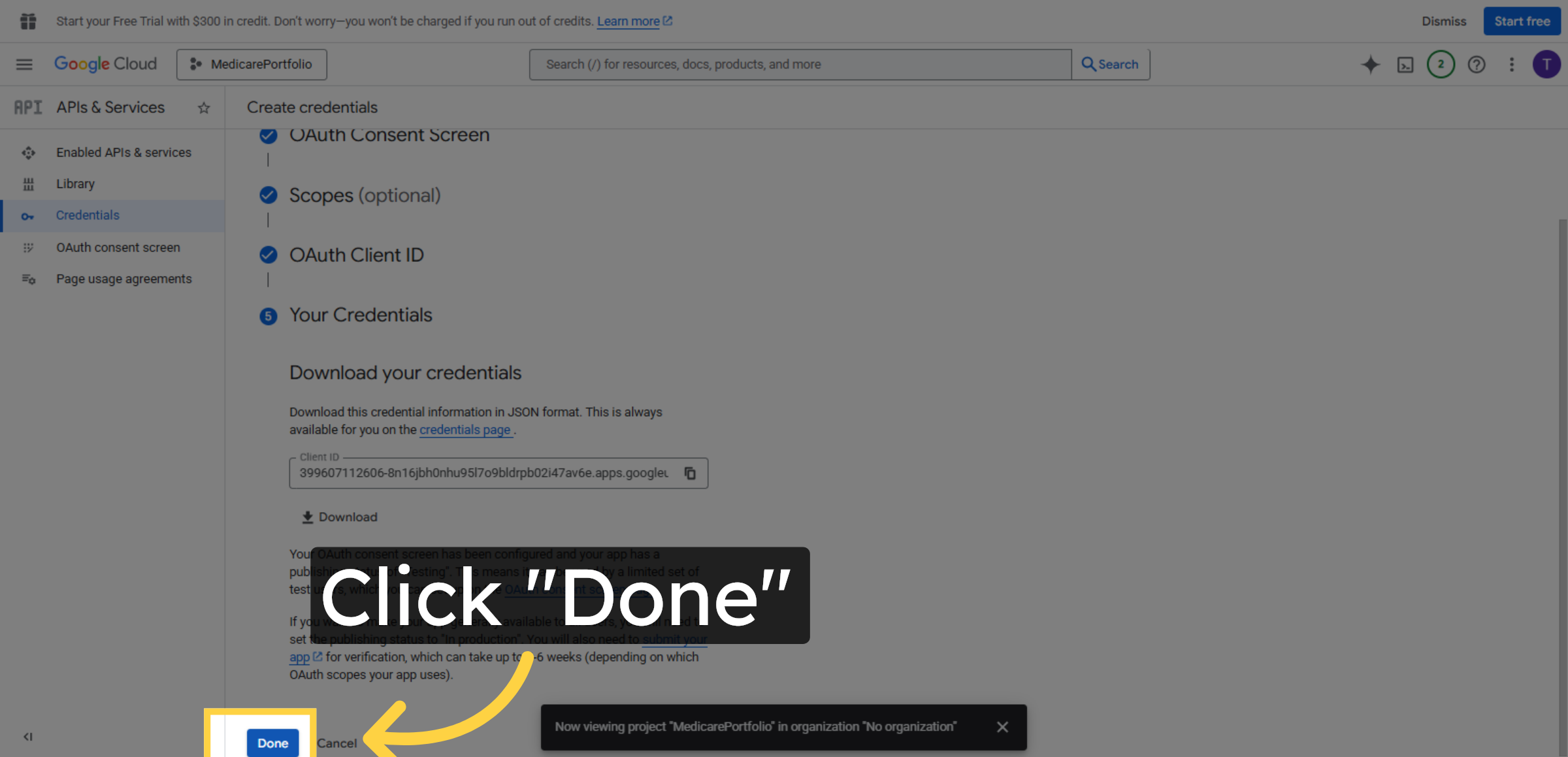
43. Complete URI Addition
Click Done to finish adding the authorized redirect URI.
44. Return to OAuth Consent Screen
Click OAuth consent screen again to finalize settings.
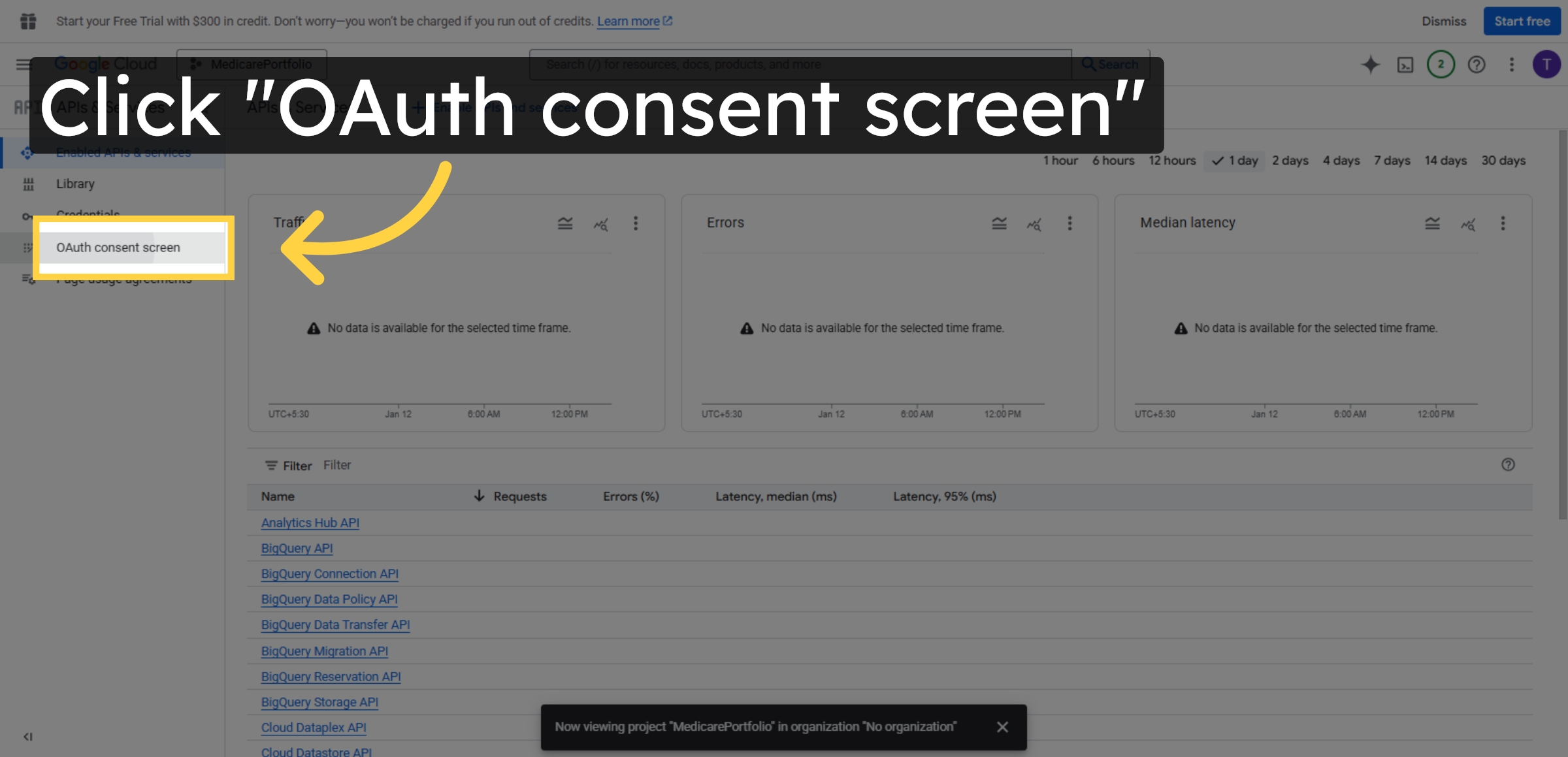
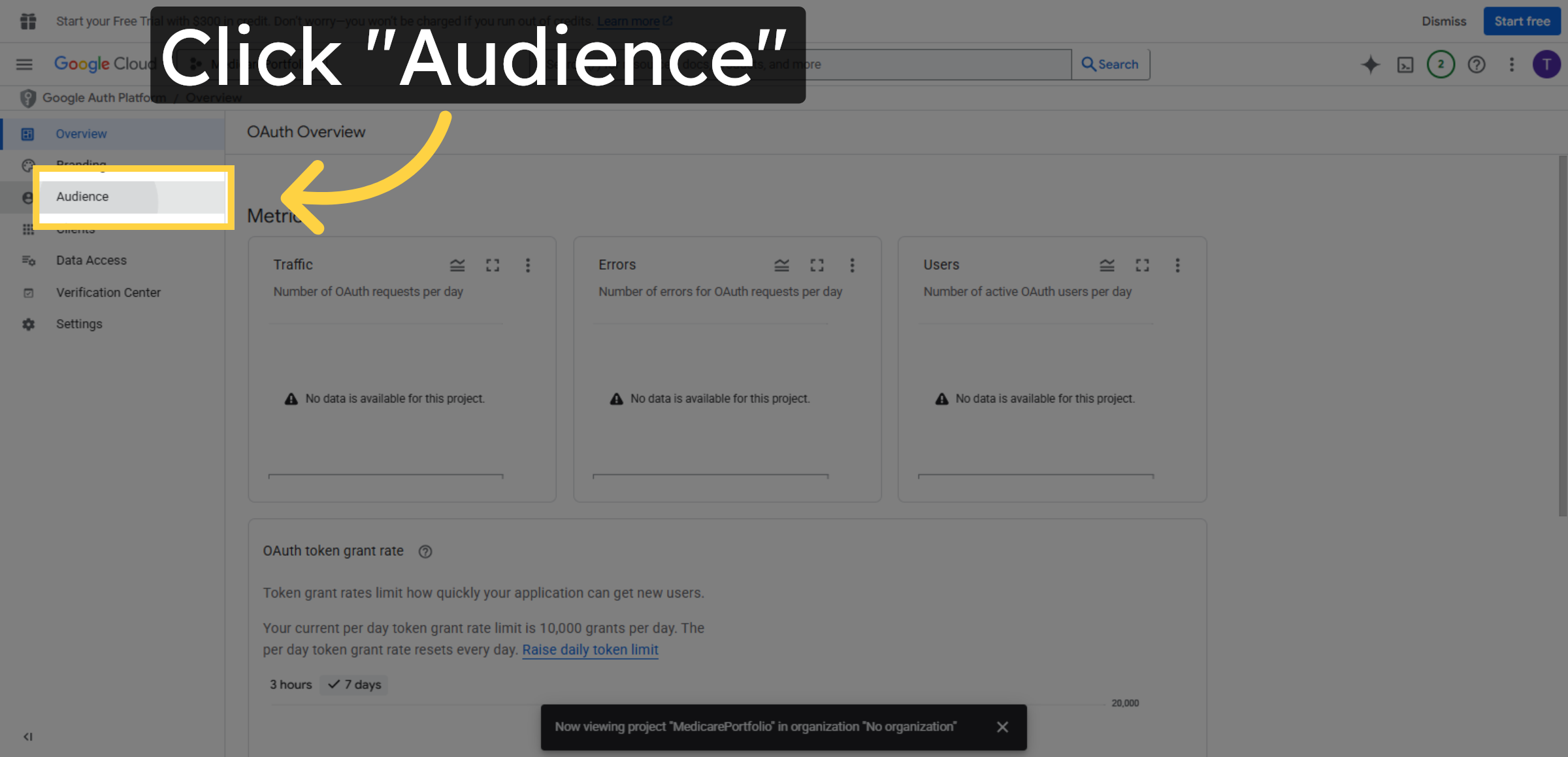
45. Open Audience Section
Click Audience to manage who can use your app.
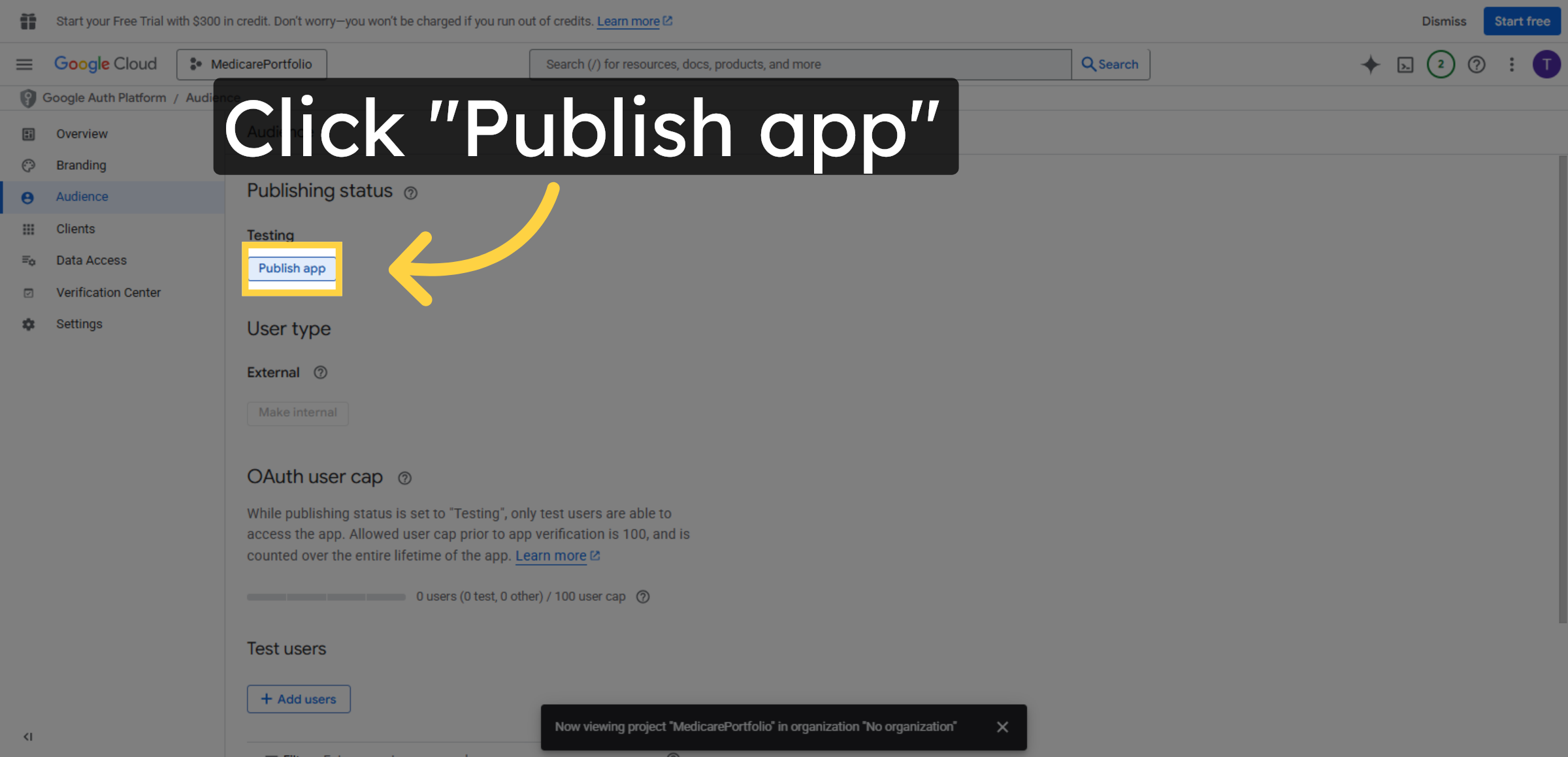
46. Publish OAuth App
Click Publish app to make your OAuth consent screen live.
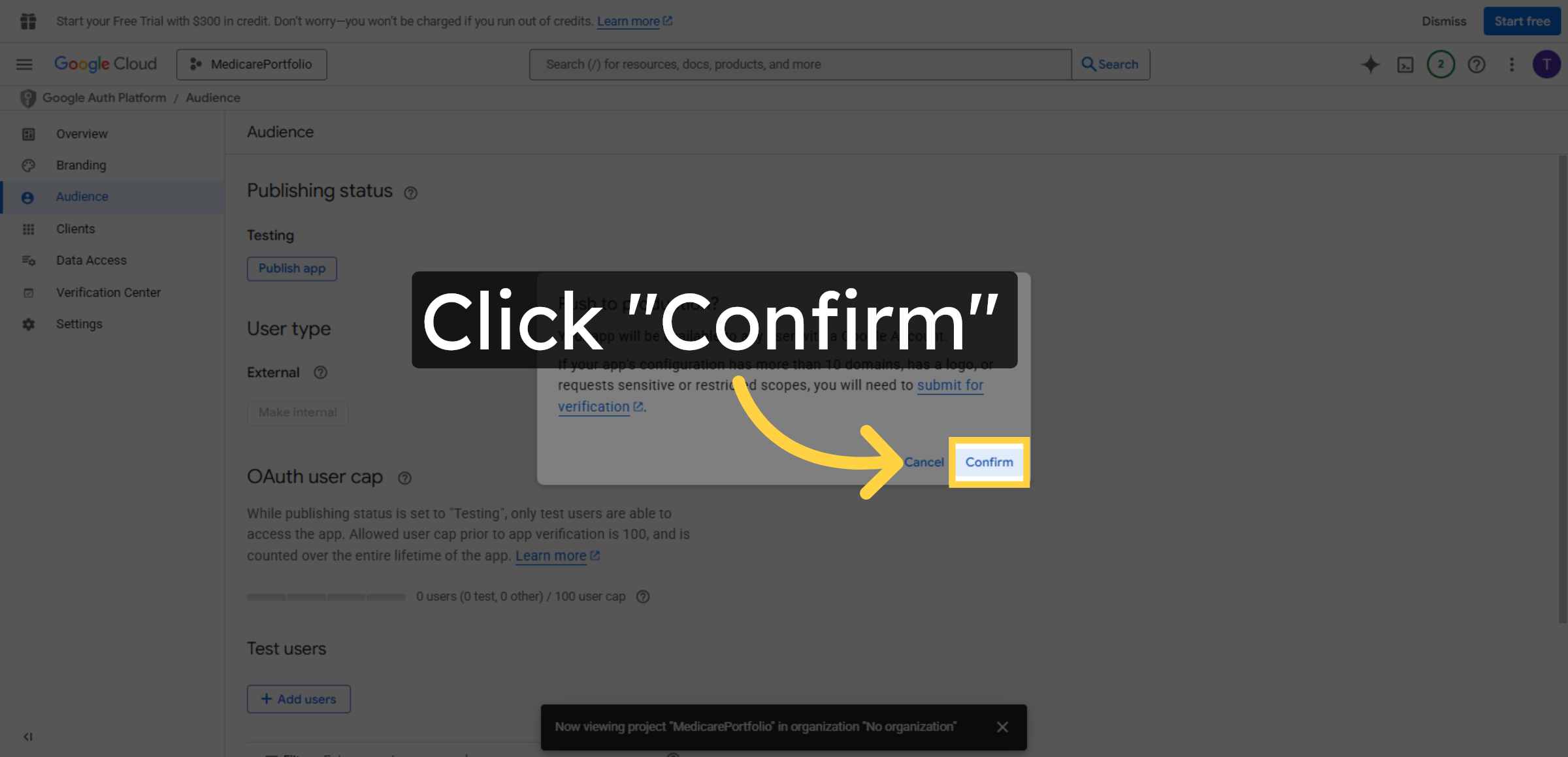
47. Confirm App Publishing
Click Confirm to finalize publishing your OAuth app.
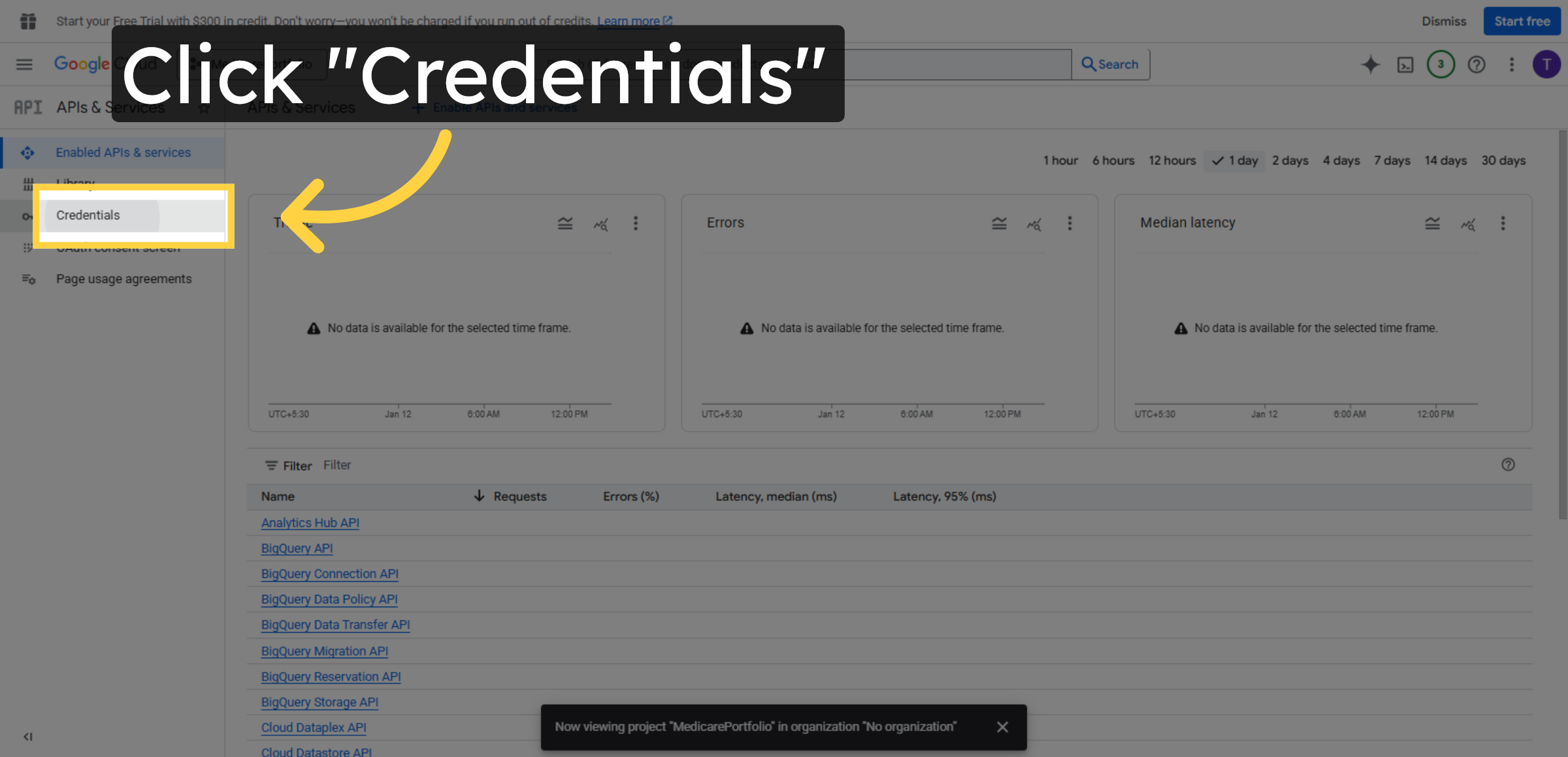
48. Return to Credentials
Click Credentials to view your OAuth client IDs and secrets.
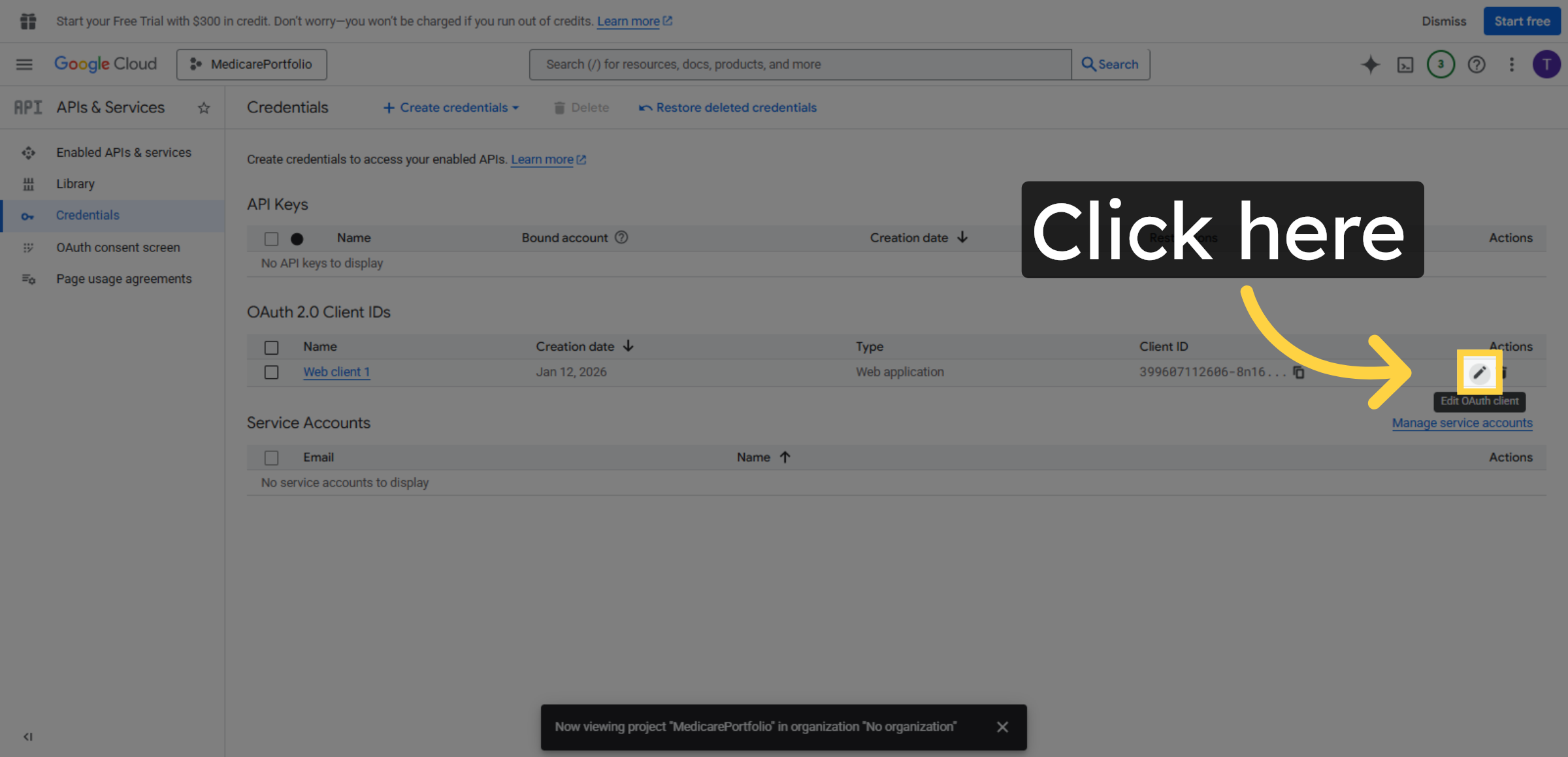
49. Select OAuth Client
Click to select the OAuth client you created for your app.
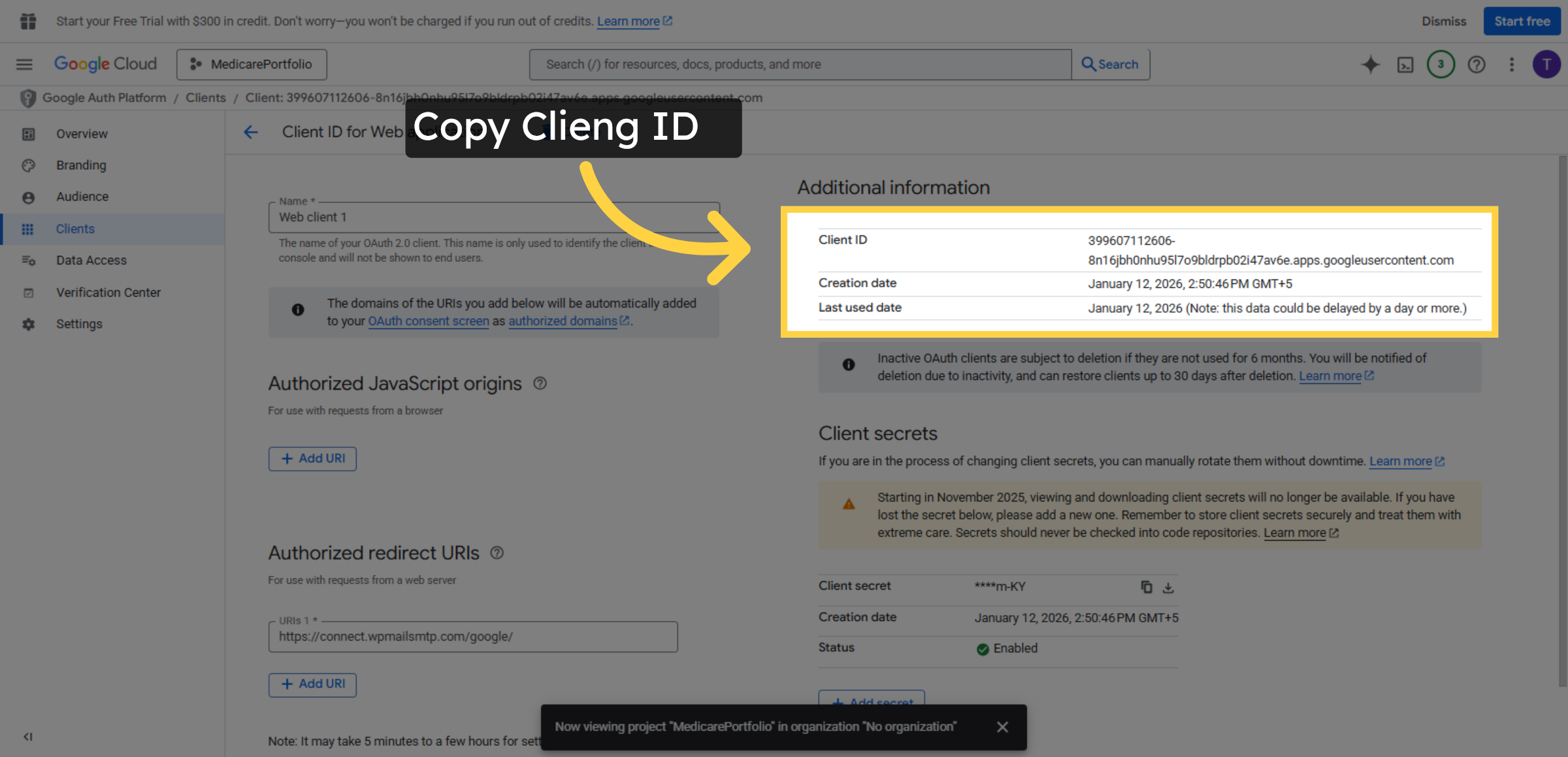
50. Open Client ID Details
Click the Client ID to view its details and copy credentials.
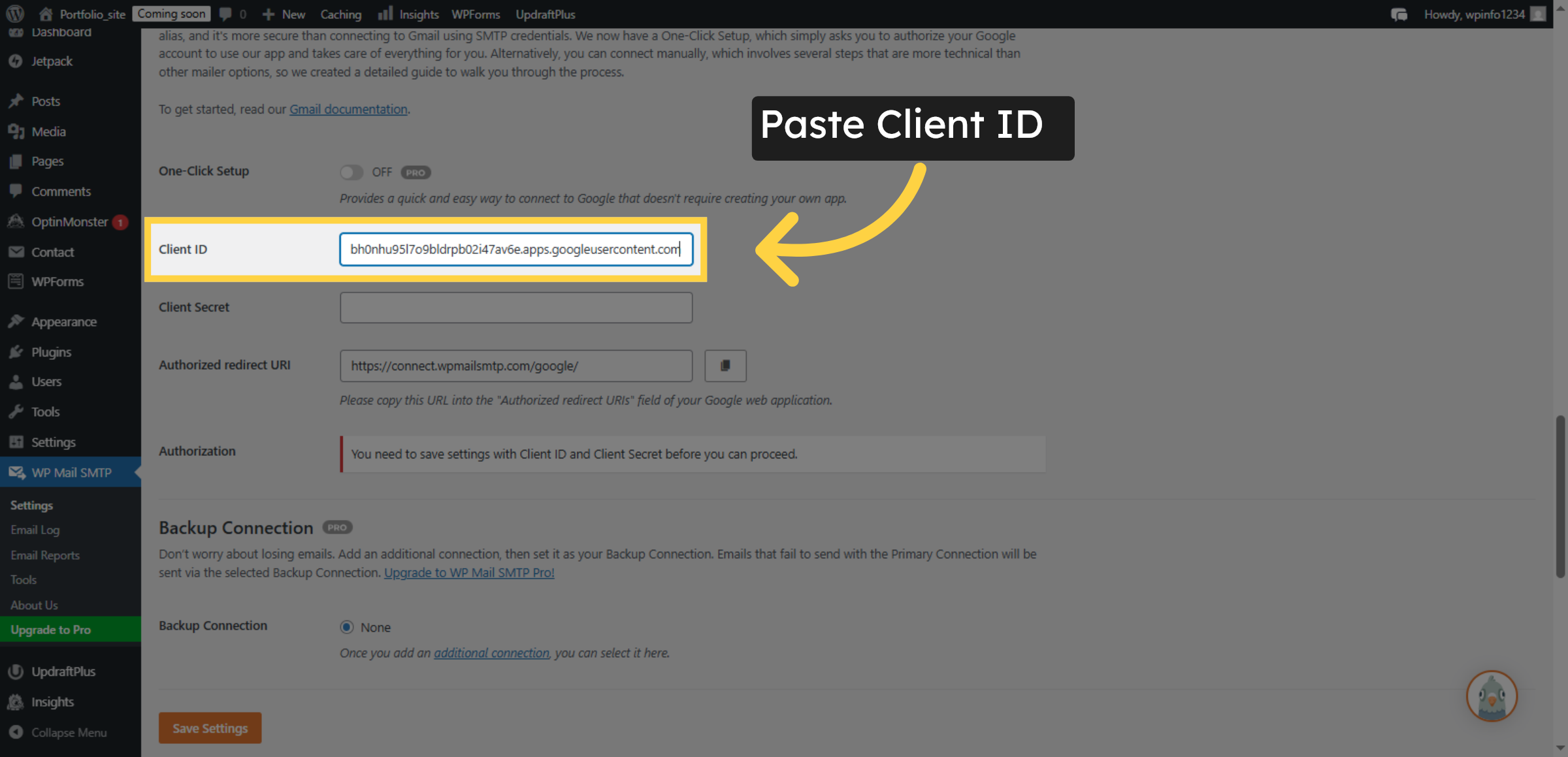
51. Enter Client ID
Fill your OAuth client ID into the Client ID field.
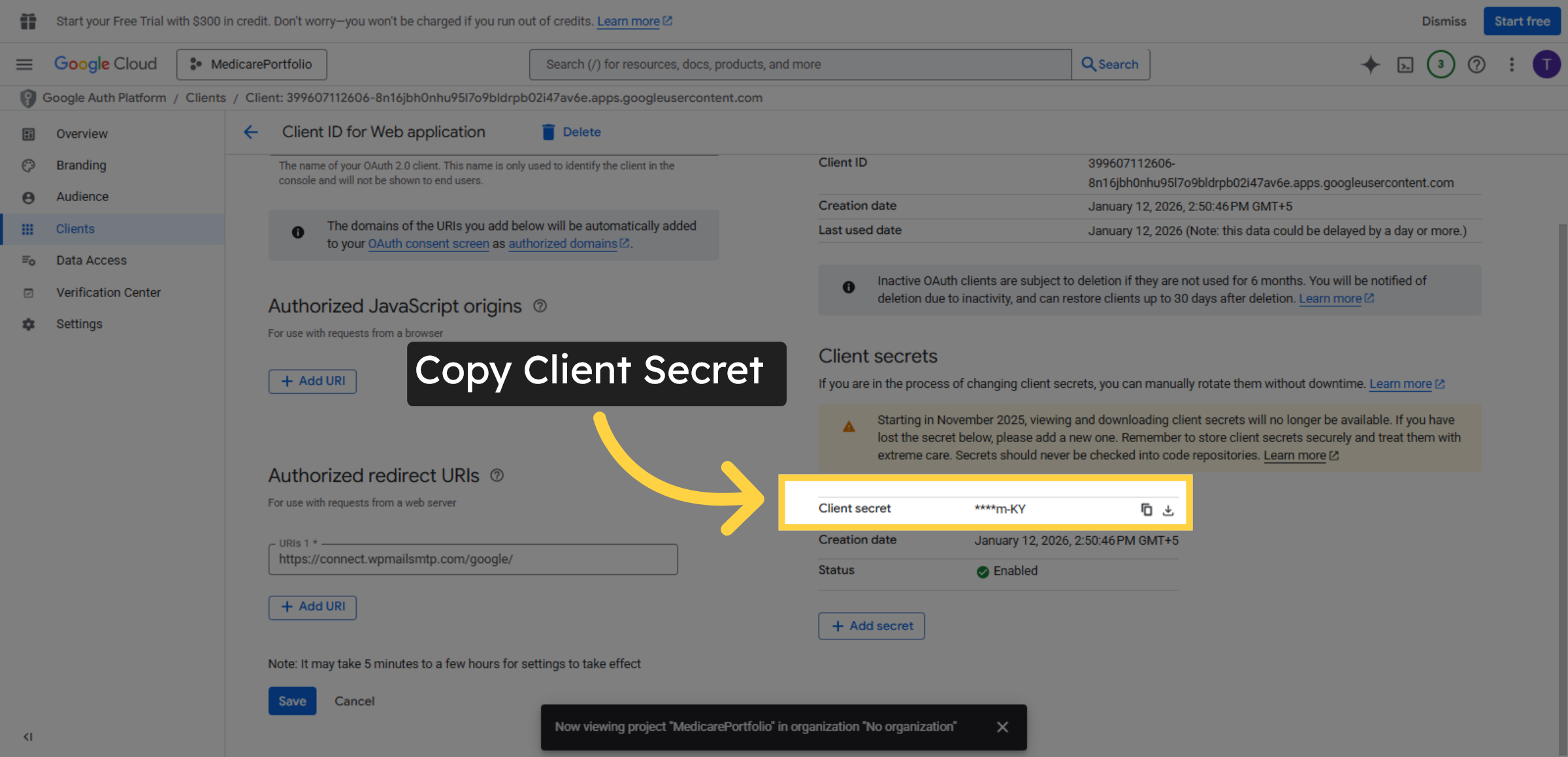
52. Copy Client Secret Details
Click the Client ID to access client secret information.
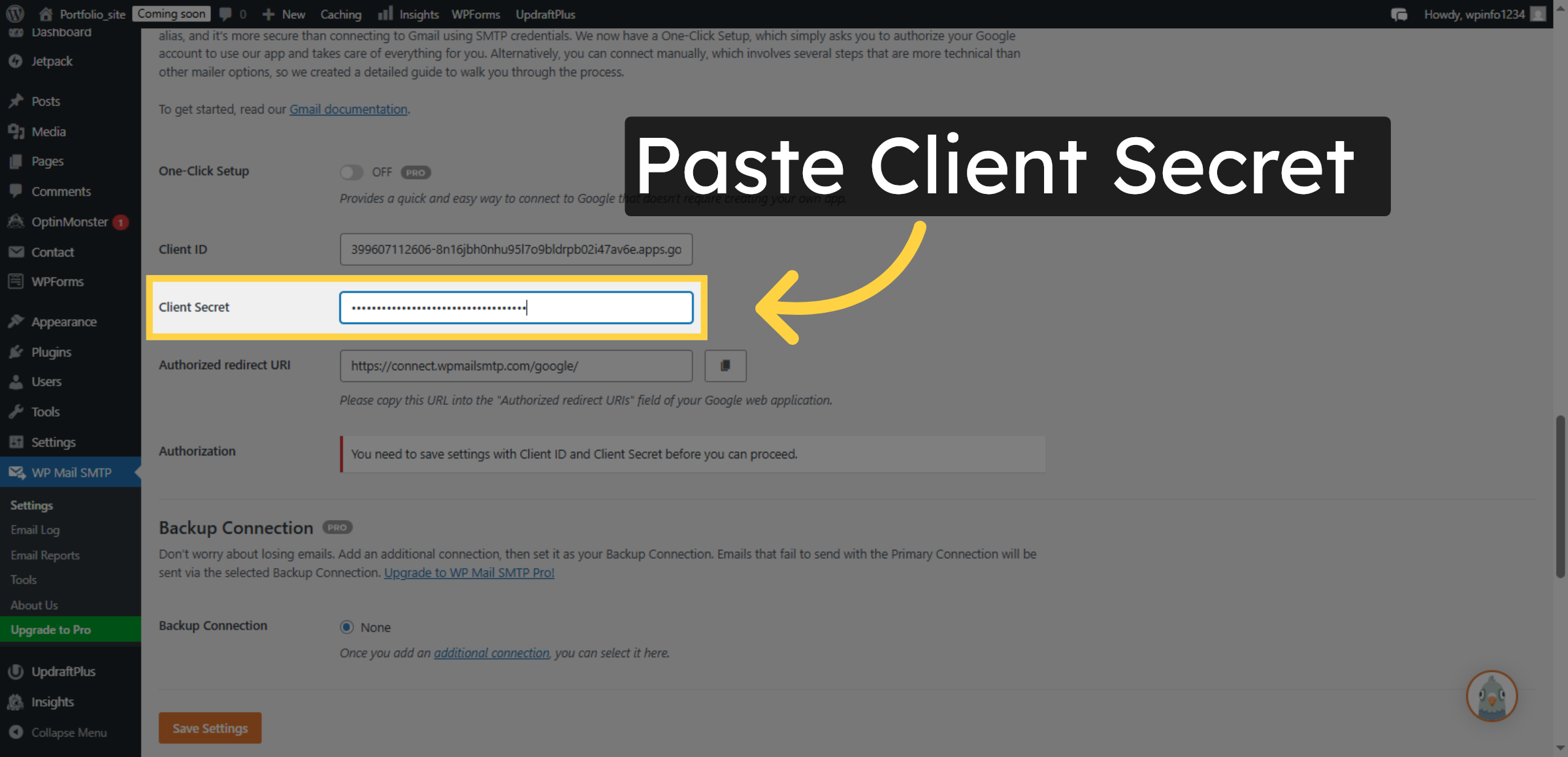
53. Enter Client Secret
Fill your client secret into the Client Secret field.
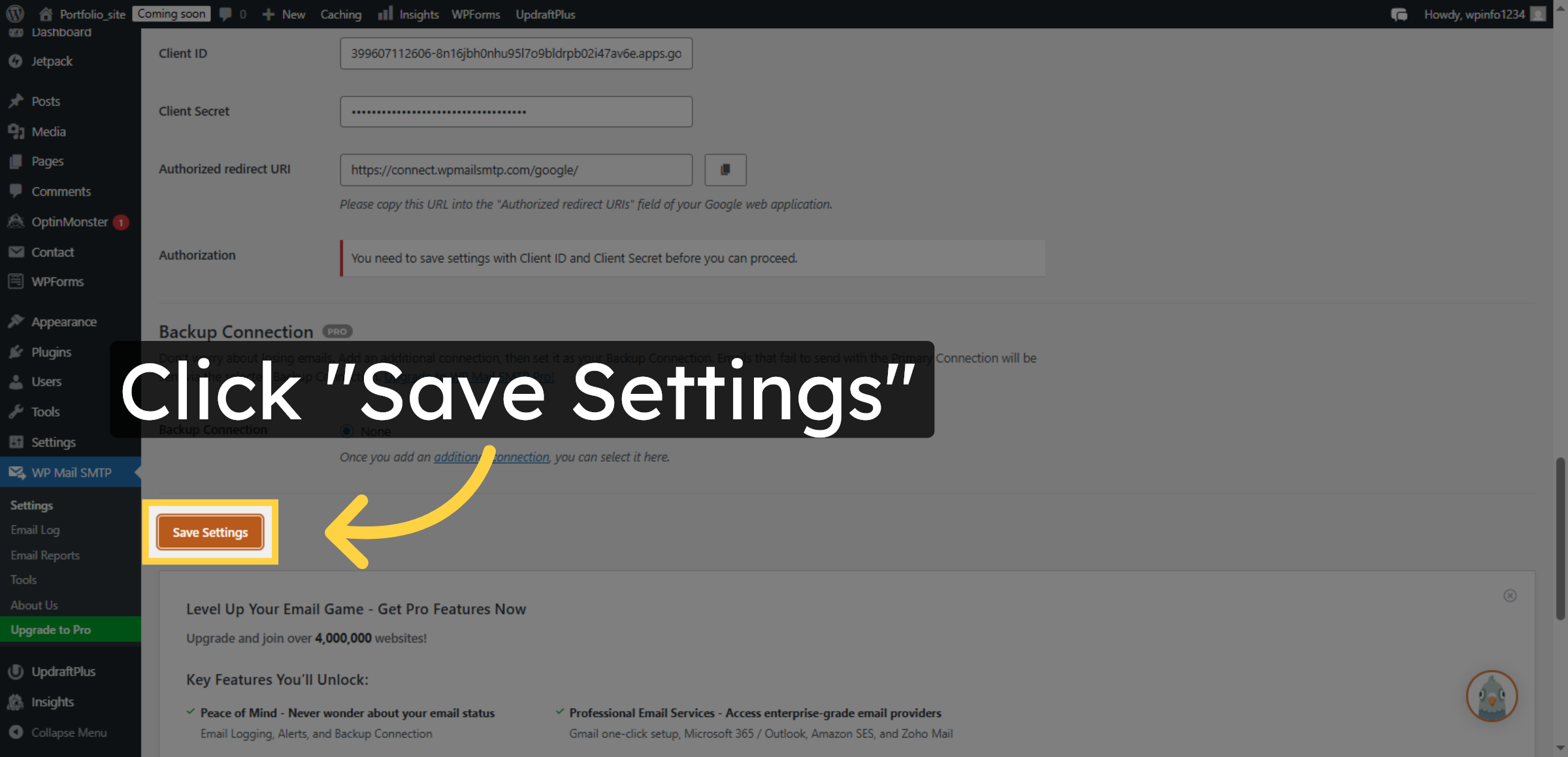
54. Save SMTP Settings
Click Save Settings to apply your SMTP configuration.
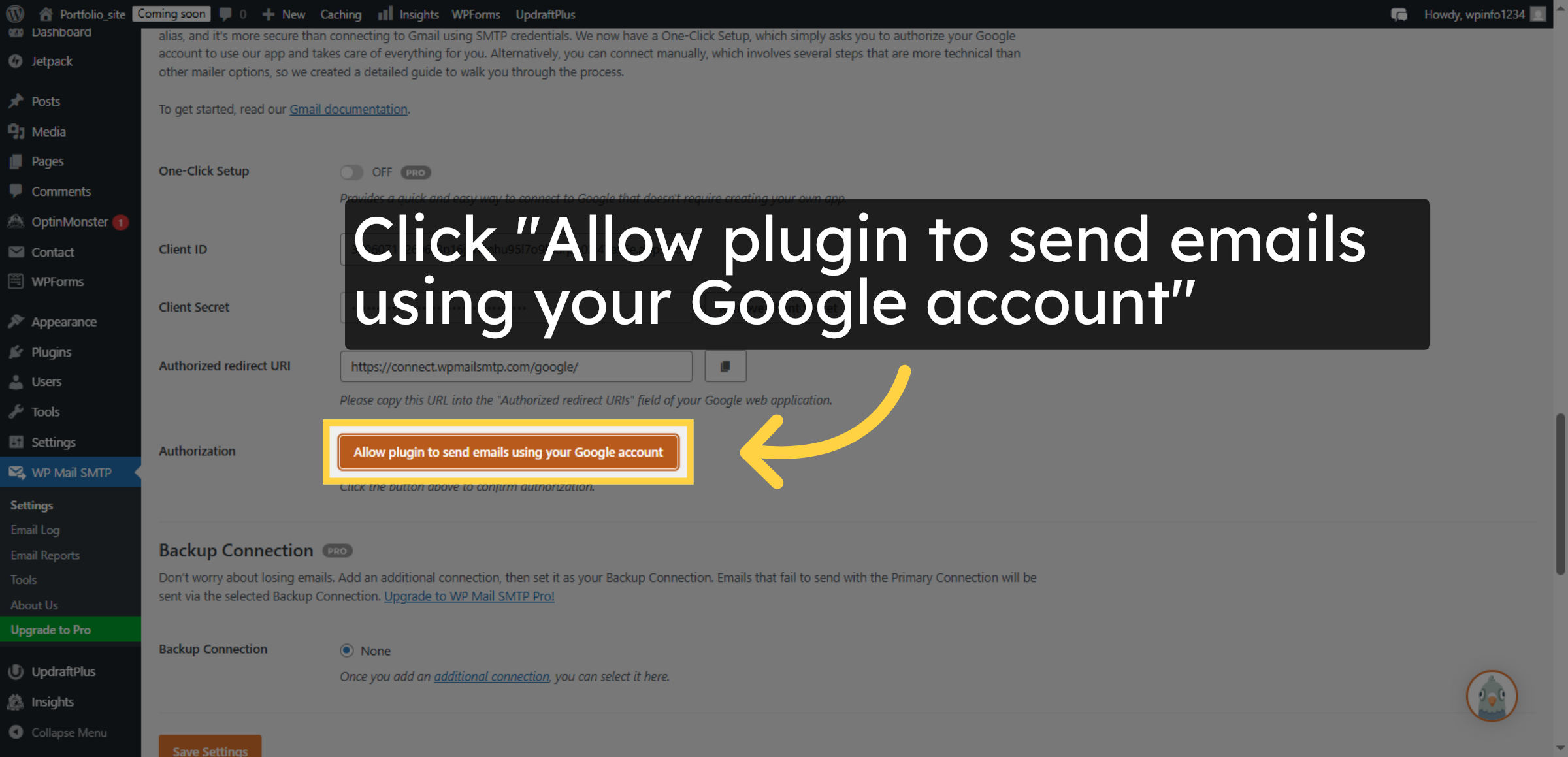
55. Allow Email Sending
Click Allow plugin to send emails using your Google account.
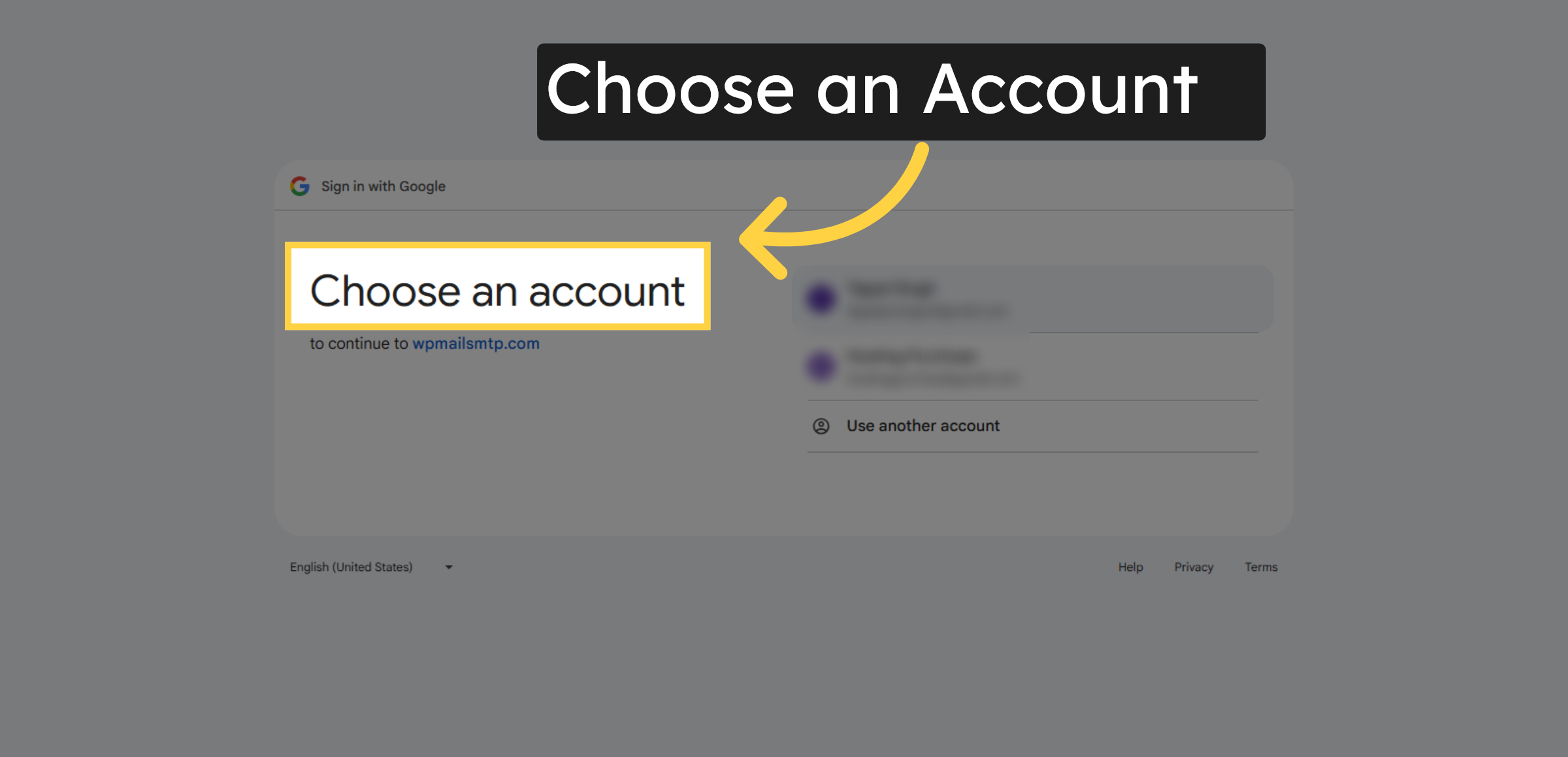
56. Select Google Account
Click your Google account to proceed with authorization.
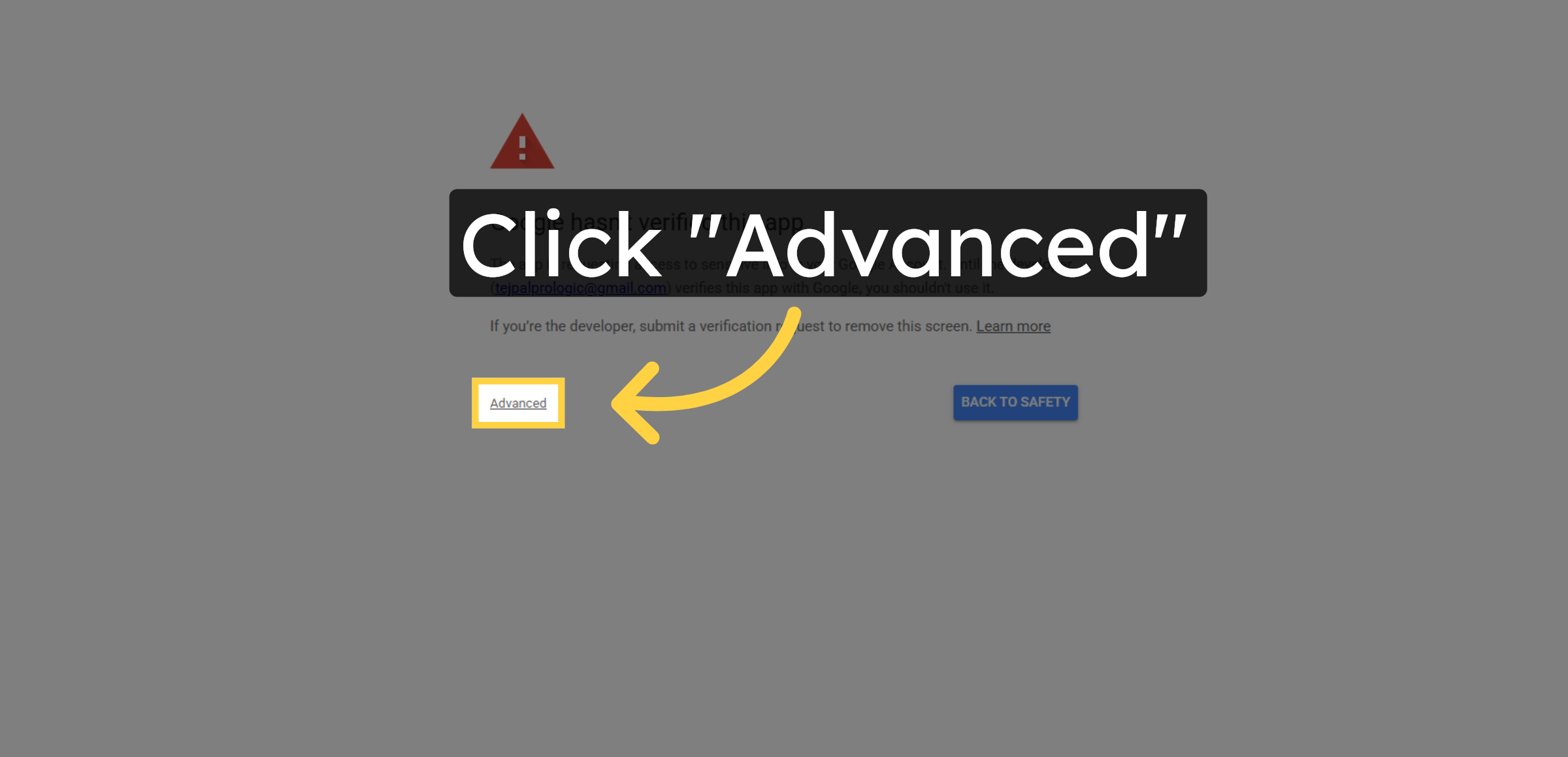
57. Open Advanced Options
Click Advanced to access additional sign-in options.
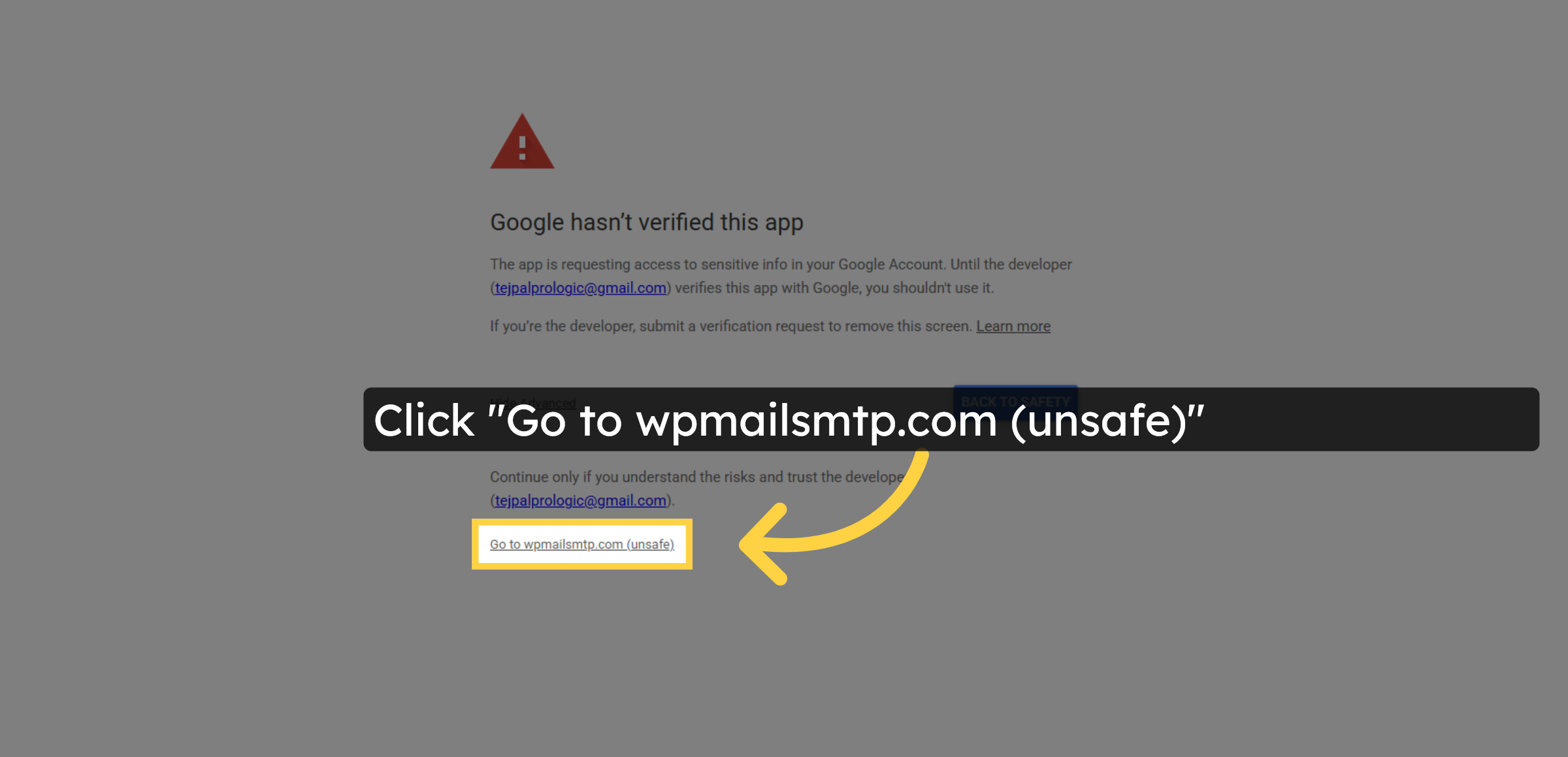
58. Proceed To Unsafe Site
Click Go to wpmailsmtp.com (unsafe) to continue authorization.
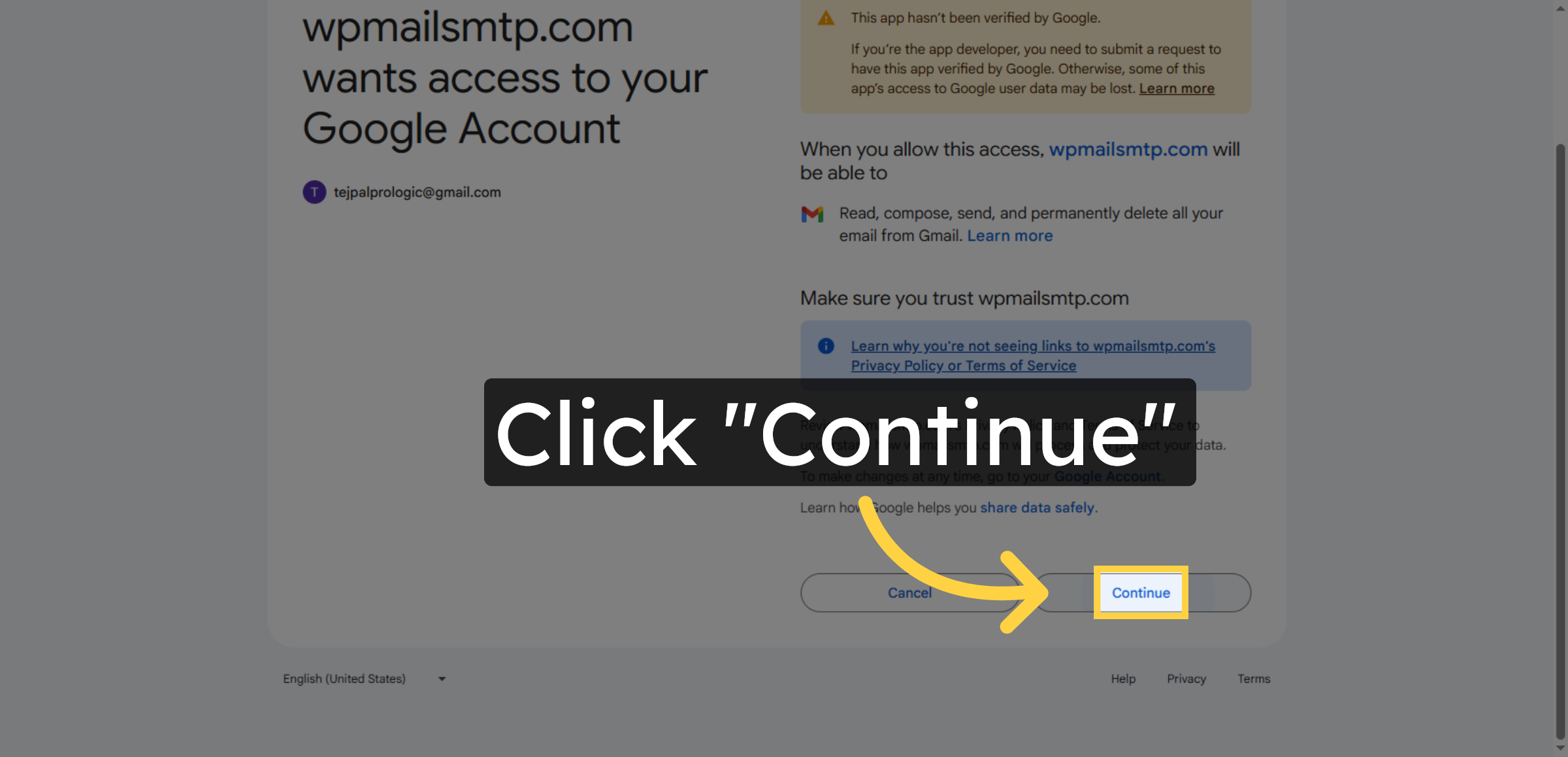
59. Confirm Authorization
Click Continue to approve plugin access to your Google account.
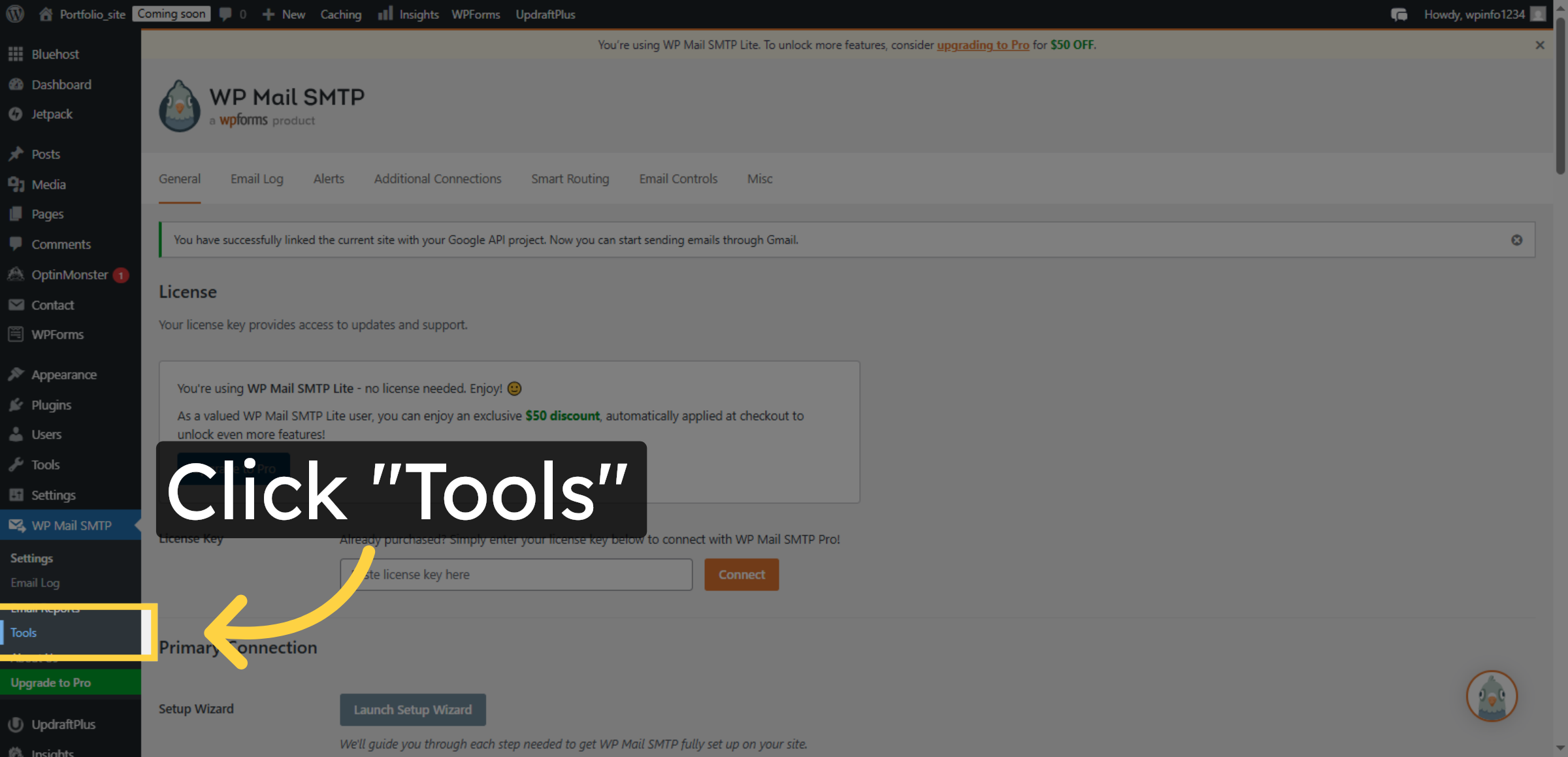
60. Open Tools Menu
Click Tools in the WordPress dashboard to access email testing.
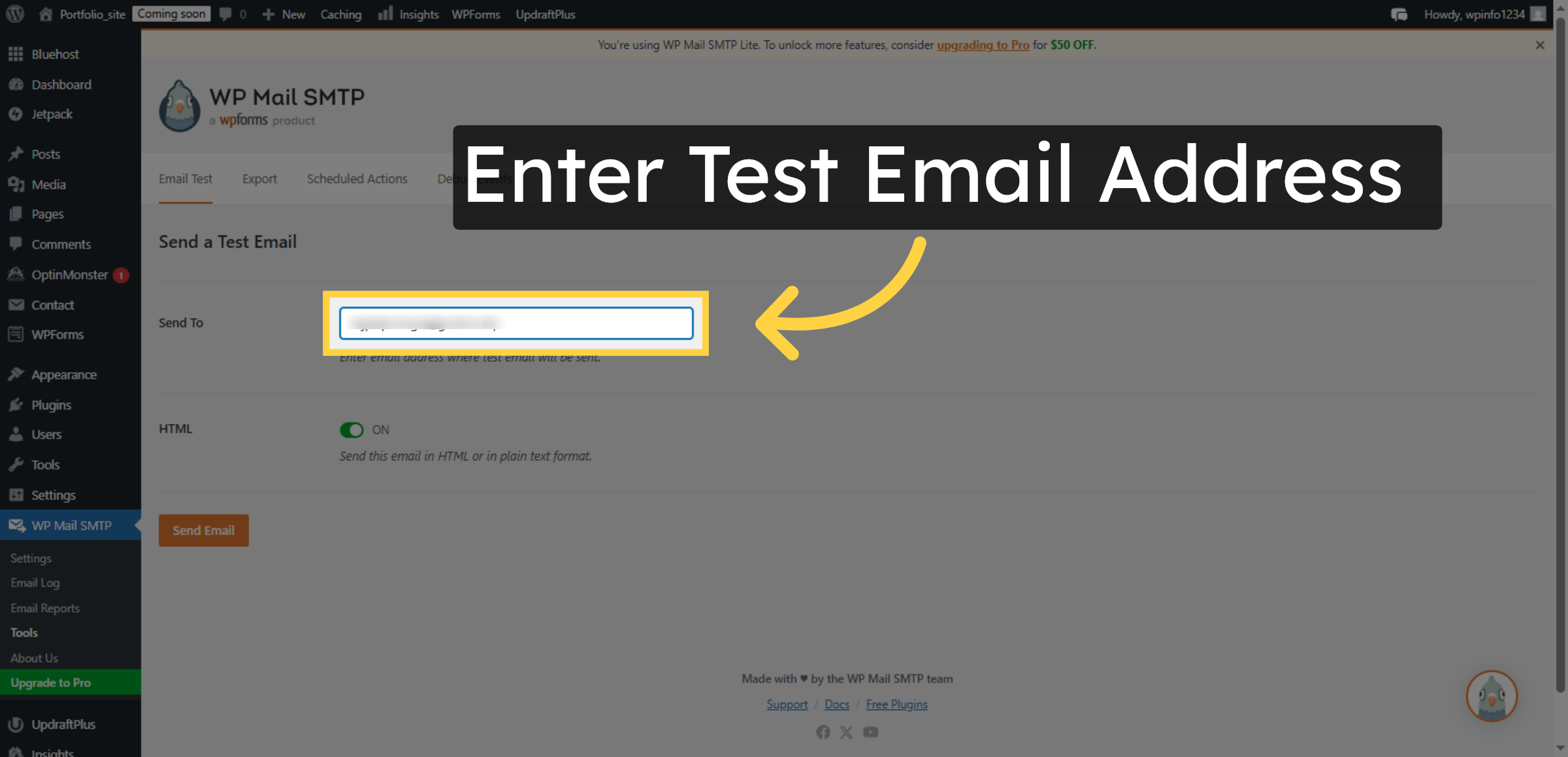
61. Enter Test Email Address
Fill your email address to receive the test email.
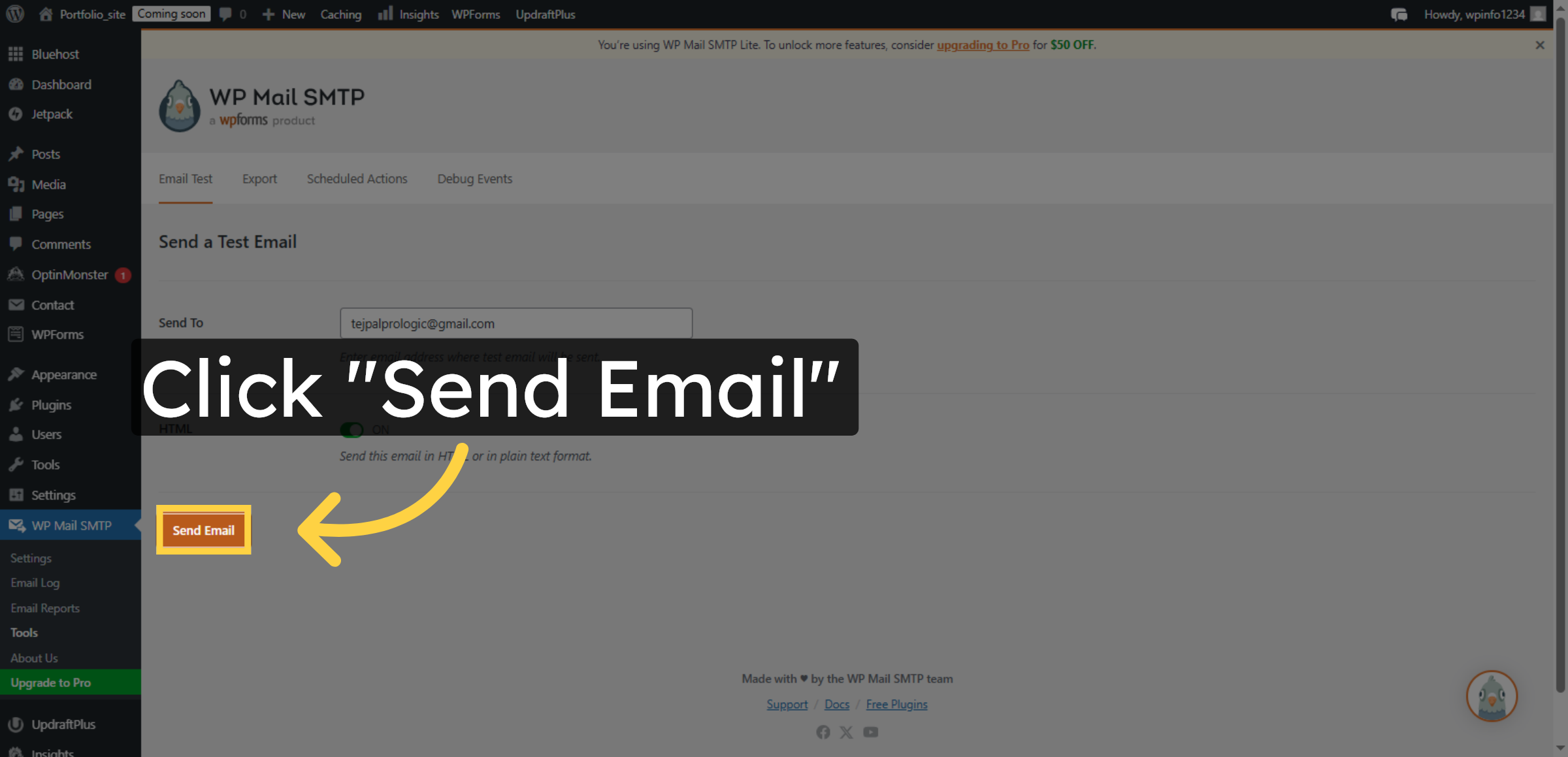
62. Send Test Email
Click Send Email to send a test message through the configured SMTP.
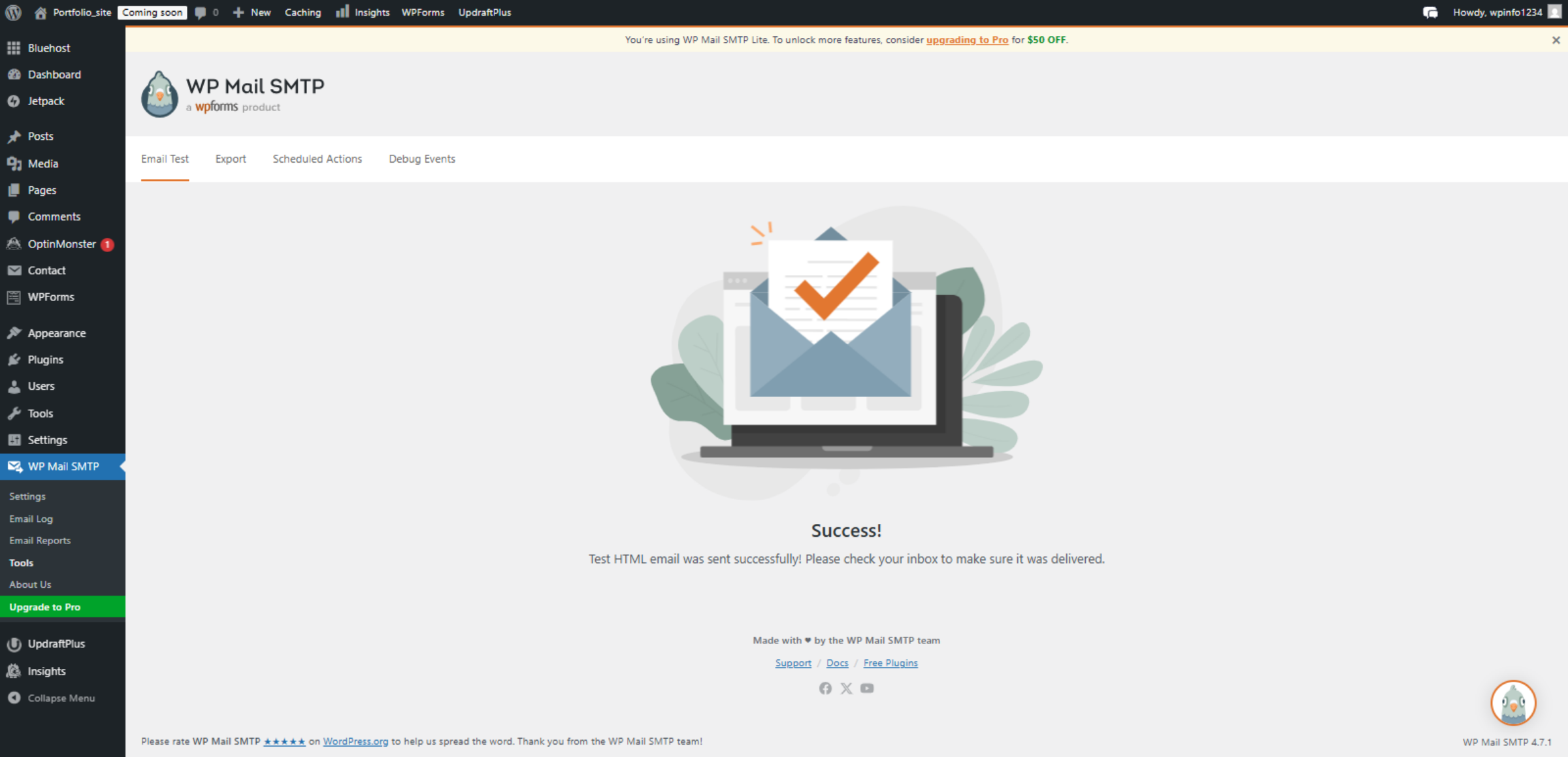
63. Confirm Success Message
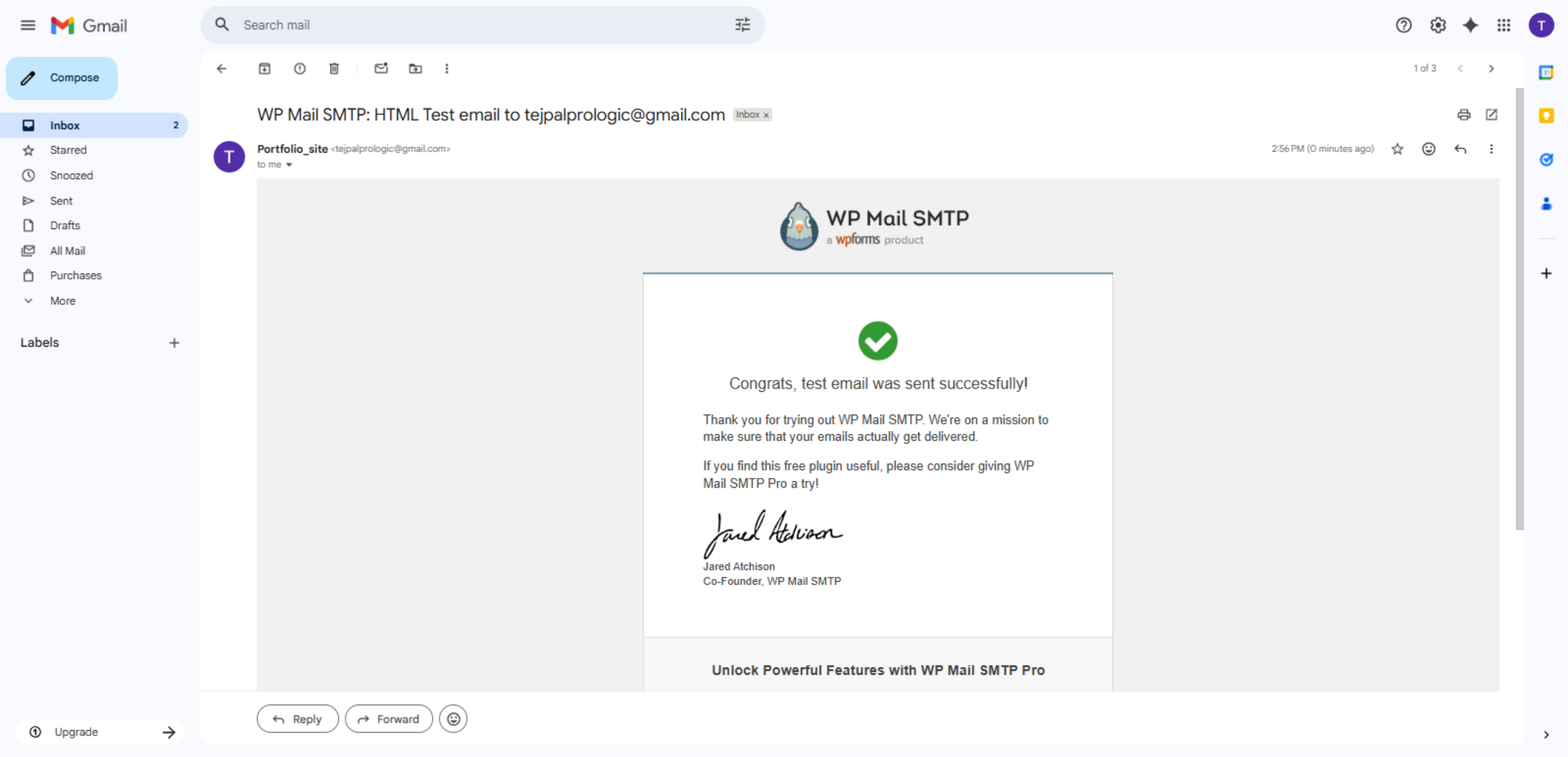
Click Success! Test HTML email was sent successfully! Please check your inbox to make sure it was delivered.
64. Open Gmail Inbox
Switch to your Gmail inbox to verify receipt of the test email.
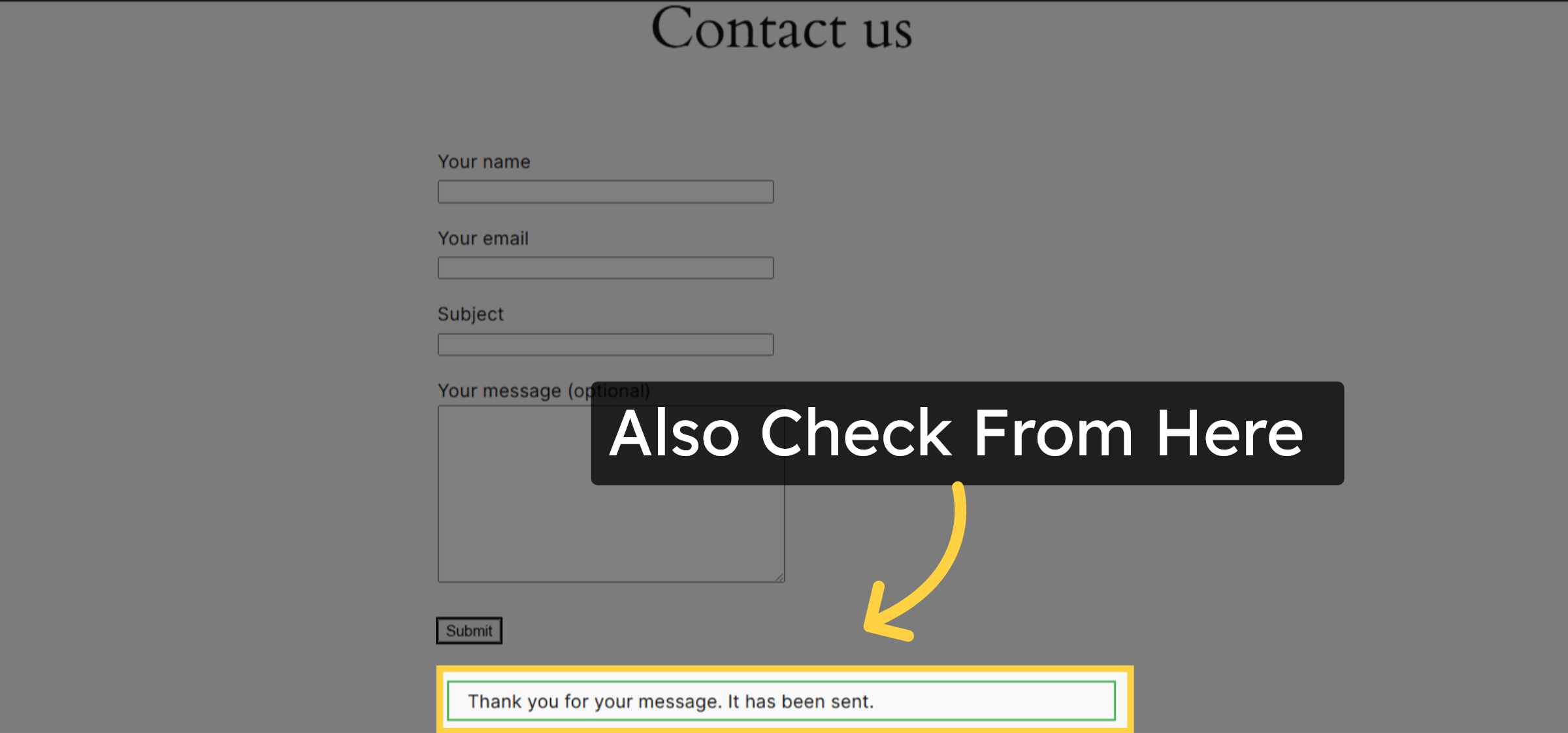
65. Also Check From Here
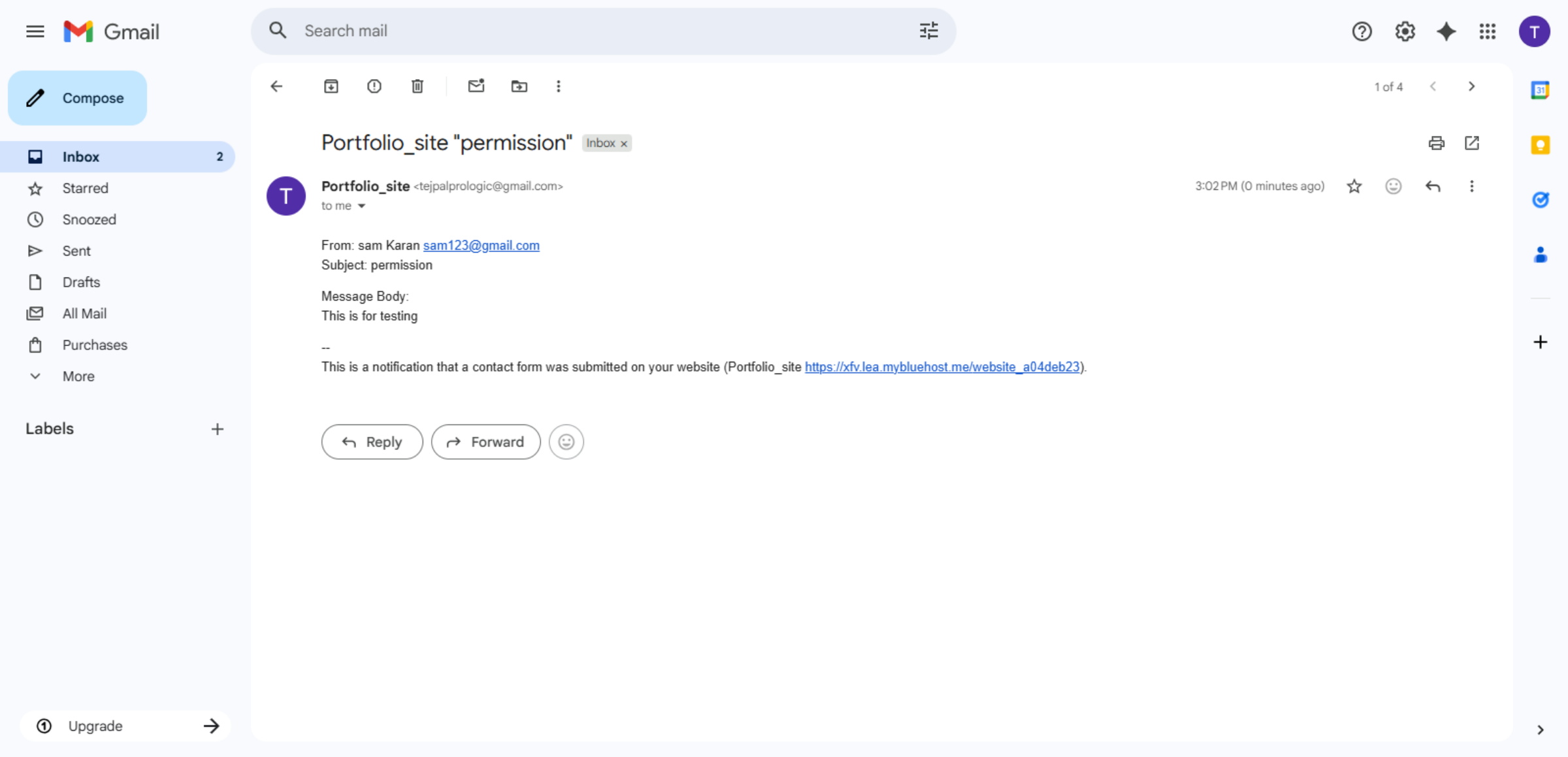
66. Review Email Permissions
Click here to finalize the email sending verification process.
Conclusion
Proper SMTP configuration is crucial for ensuring dependable email communication on WordPress websites. By following the steps outlined in this guidde, you have successfully integrated Google SMTP with your Bluehost-hosted WordPress site and configured secure authentication through the WP Mail SMTP plugin. This setup ensures that contact form submissions and system emails are delivered reliably to recipients without interruption.
To maintain long-term reliability, it is recommended to regularly review SMTP settings, monitor email logs, update authentication credentials when required, and test email functionality after major site updates. Proactive monitoring and maintenance help prevent future email delivery issues. With a correctly configured SMTP system in place, your website can maintain professional communication standards and improved user engagement.
WooHelpDesk Support
Need professional assistance with SMTP setup, email troubleshooting, Google API integration, or WordPress configuration? WooHelpDesk provides expert technical support to ensure reliable and secure email delivery.
Visit: https://www.woohelpdesk.com
Call Us Toll-Free: +1 888 602 0119 (US & Canada)
Reliable Email Delivery | Secure Configuration | Trusted Support
Contact WooHelpDesk today for dependable WordPress and Bluehost email support solutions.