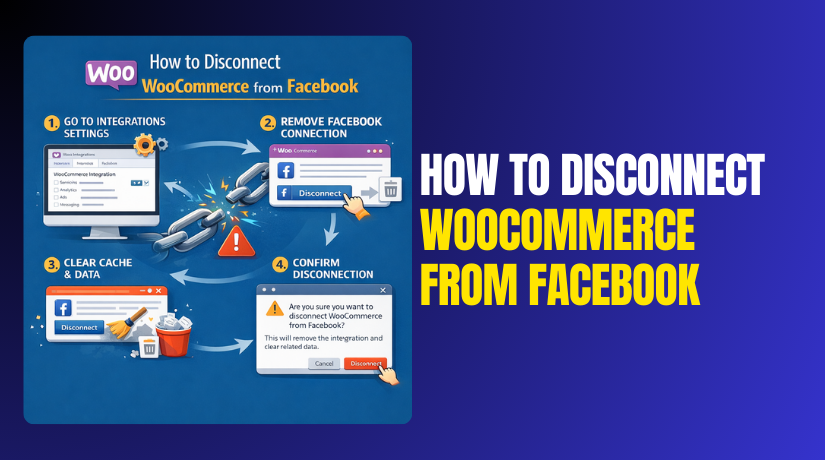
How to Disconnect WooCommerce from Facebook – Step-by-Step Guide
Table of Contents
- Introduction
- Before You Disconnect: Quick Checklist to Avoid Data Loss and Confusion
- Identify How Your Store Is Connected: Know What You Must Remove
- Method 1: How to Disconnect WooCommerce from Facebook Using Plugin
- Method 2: How to Disconnect WooCommerce from Facebook From The Meta Side
- Method 3: How to Disconnect WooCommerce from Facebook Sales Channel
- Common Issues After Disconnect and Fixes: Simple Steps That Work Fast
- Conclusion
Introduction
Many store owners connect WooCommerce with Facebook for product selling. This setup can push products to a Facebook catalog automatically. It can also track visitors with Pixel and event tools. Over time, setups change and problems can start appearing. You may see wrong products, wrong prices, or wrong stock. You may also change your business account or your Meta access. In these cases, you may need to Disconnect WooCommerce from Facebook. This is not only a button click in many setups. It is a full connection between your store and Meta assets. It can include catalogs, Pixel, domain, and shop settings. So you should plan the steps before you take action.
When people say WooCommerce Facebook disconnect, they may mean different things. Some users only want to stop product sync to Facebook. Some users want to remove the Facebook Shop from their pages. Some users want to remove tracking events from their site. Some users want to move everything to a new Meta Business. The right path depends on your current connection type. That is why this guide starts with safe planning first. If you skip planning, you may lose access to catalogs later. You may also break tracking that your ads depend on.
You should also know what disconnecting does not change. It does not delete products from your WooCommerce store. It does not remove your orders from WooCommerce. It does not change your store theme or checkout pages. It mainly stops Meta links and Meta data sync. Still, side effects can appear if you miss steps. You may see products still visible on Facebook for days. You may see old catalogs still listed in Commerce Manager. You may see Pixel still firing even after removal. So you should follow a clean plan from the start.
Before You Disconnect: Quick Checklist to Avoid Data Loss and Confusion
Before you disconnect, pause and do a few checks first. These checks help you avoid permission problems later. They also help you avoid deleting the wrong catalog. Many store owners rush and remove access by mistake. Then they cannot reconnect or confirm old settings again. Use this checklist to stay safe and in control.
Confirm You Have the Right Admin Access in Both Places
You need admin access in WordPress for this work. You also need access in your Meta Business tools. If you lack Meta access, you may get stuck mid process. You may also see errors while trying to disconnect assets. Check these access points before you start.
- Confirm you can log in to WordPress as an Administrator.
- Confirm you can open WooCommerce settings without any role limits.
- Confirm you can access Meta Business Suite for your business.
- Confirm you can access the Commerce Manager for catalogs and shops.
- Confirm you can access Business Settings for connected accounts.
If a client owns the Meta Business, ask for access first. Ask them to add you as Admin for the assets. Make sure they add you for catalog and Pixel too. Many users add page access but forget asset access. That mistake blocks removal and blocks clean reset later.
Create a Simple Backup of Your Site Before Any Change
A backup is your safety net during account changes. Even small setting changes can cause plugin issues later. A backup helps you roll back if something breaks. You do not need a complex backup process here. You just need a quick and reliable snapshot.
- Create a full site backup using your hosting backup tool.
- Save a copy of your database if your host allows it.
- If using a backup plugin, run a fresh backup now.
- Store the backup in a safe place outside the server.
This step is important when you plan full removal. It is also important when you plan a clean reconnect later. If anything goes wrong, you can restore quickly.
Note What Will Stop After You Disconnect the Integration
Disconnecting changes how WooCommerce and Facebook work together. You should know what features will stop after removal. This helps you avoid surprise issues in your sales flow. Write down what your store depends on today.
Here is what may stop after you Disconnect WooCommerce from Facebook:
- Product sync to the Facebook catalog may stop fully.
- Price and stock updates to Meta may stop fully.
- Facebook Shop listings may stop showing new product updates.
- Dynamic ads may stop matching products if the catalog breaks.
- Event tracking may change if Pixel settings get removed.
If you are running ads, be extra careful here. Many ads depend on catalog and events for results. If you remove the wrong thing, ads performance can drop fast. So note what is active in your business today. Also note what you still want after removal.
Decide Your Main Goal Before You Remove Anything
Different goals need different removal steps and checks. Decide your main goal clearly before you start. This prevents half removal and messy settings later. Use one simple goal statement for your plan.
Common goal examples you can use:
- “I only want to stop product sync to Facebook.”
- “I want to remove the Facebook Shop from my page.”
- “I want to switch to a new Meta Business account.”
- “I want to remove tracking and stop Meta events.”
- “I want a full reset and a clean new connection.”
If your goal is to Remove Facebook from WooCommerce fully, be clear. Full removal means you remove plugin links and Meta links. It may also mean you remove old catalogs and old Pixels. If you only want to stop sync, do less removal. You can stop sync without deleting every asset.
Save Your Current Connection Details for Reference
Before you change anything, record the existing connection details. This helps when you need to confirm what changed later. It also helps if you need to reconnect to the same assets. Many people disconnect and forget what was connected. Then they cannot match the right catalog later.
Create a simple note with these items:
- Connected Meta Business name and Business ID if visible.
- Connected Facebook Page name used for the shop.
- Connected catalog name in Commerce Manager.
- Connected Pixel name used for events tracking.
- Connected Instagram account if it is linked.
You can keep this note in a simple text file. You can also store screenshots for quick proof. This is very helpful when clients manage many assets. It is also helpful when multiple people access the business.
Optional: Export Your Product Catalog for Peace of Mind
This step is optional but very useful for some stores. If you rely on Facebook catalog sales, export helps you. It gives you a backup list of product data used in Meta. It is helpful if you later rebuild a new catalog. It is also helpful if you need to compare product issues.
You can export in one of these simple ways:
- Export WooCommerce products as a CSV file from WordPress.
- Export the catalog from Commerce Manager if export is available.
- Save a product feed link if you use a feed method.
This does not replace the real catalog connection. It is only a safety record for your own checks. Still, it reduces stress if you plan major changes.
Check If You Have Active Ads or Campaigns Using the Catalog
Many stores run catalog based ads in Meta Ads Manager. These ads pull products from your linked catalog automatically. If you disconnect without planning, those ads may break. They may keep running but show poor results. They may also stop delivering for some audiences.
Before any WooCommerce Facebook disconnect step, check these:
- Do you run Dynamic Product Ads using your catalog.
- Do you run retargeting ads based on Pixel events.
- Do you run conversion campaigns optimized for purchases.
- Do you use product sets for special ad groups.
If yes, pause ads or plan a safe switch first. You can also note which campaigns depend on the catalog. This helps you restore ads later without confusion.
Confirm Your Store Has HTTPS and Stable Domain Settings
Meta connections often depend on a verified domain and HTTPS. If your site has mixed content or HTTPS issues, Meta may error. These issues may show during removal or reconnection steps. So confirm your domain and SSL are stable.
Quick checks to do:
- Open your store in a browser and confirm the padlock shows.
- Confirm your WordPress Address and Site Address are correct.
- Confirm your site loads without redirect loops or errors.
- Confirm you can access wp-admin without warnings.
If your SSL has issues, fix that first. This makes later steps smoother and cleaner.
Review Caching and Security Plugins That Can Block Meta Scripts
Some security and cache plugins block scripts on the front end. They can block Meta Pixel or event scripts from loading. They can also block API calls from the integration plugin. If you have heavy security rules, note them now. This helps when you test changes later.
Common tools that can affect Meta scripts:
- Cache plugins with script delay or script combine options.
- Firewall tools that block external requests or admin AJAX calls.
- Cookie banner tools that delay tracking until consent.
- CDN tools that rewrite scripts or block third party domains.
You do not need to change these now. You only need to know they exist and may affect checks. This awareness saves time during later testing.
Identify How Your Store Is Connected: Know What You Must Remove
This is the most important step. You must identify the exact connection type on your store. Different setups use different tools and asset links. If you remove the wrong tool, the connection may remain. If you remove only one layer, sync may still continue. So first, find your connection type and confirm it.
There are three common connection types for WooCommerce and Facebook. Many stores use more than one type at once. For example, you may have a catalog sync and Pixel tracking too. Or you may have only Pixel tracking without any catalog. So check each type carefully and note what you find.
Connection Type A: WooCommerce Facebook Plugin Controls Catalog and Shop
This is the most common setup for WooCommerce stores. It uses a plugin that connects your store to Meta assets. The plugin can sync products to a Meta catalog automatically. It can also set up a Facebook Shop using the catalog. It often adds settings pages inside WordPress for Meta tools. If you see these settings, you likely have this connection type.
Signs you have the WooCommerce plugin connection:
- You see a Facebook or Meta option inside WooCommerce menus.
- You see a “Marketing” menu with a Facebook channel option.
- You see settings for catalog sync and product status mapping.
- You see a connection status showing a linked Meta account.
If this is your setup, your disconnect process will include plugin steps. It may also include Meta side removal for catalogs and shops. Many users call this the main WooCommerce Facebook disconnect step. It is often the cleanest path when done correctly.
How to confirm inside WordPress quickly:
- Open your WordPress dashboard and go to Plugins.
- Look for a plugin related to Facebook, Meta, or WooCommerce.
- Check WooCommerce menus for Facebook or Meta settings pages.
- Open the plugin settings and look for connected account details.
If the plugin shows a connected Business or Page, note that name. Also note if it shows a connected catalog and Pixel. This tells you what assets are linked through the plugin. This is key for a clean Remove Facebook from WooCommerce plan.
Connection Type B: Meta Commerce Manager Has a Partner Integration Link
Some stores connect to Meta using Commerce Manager directly. They may use a partner link or a data source link. In many cases, WooCommerce is listed as the partner platform. This link can exist even if plugin settings look unclear. This is why you must check Commerce Manager too.
Signs you have a Commerce Manager partner connection:


- You can see a catalog in the Commerce Manager for your store.
- The catalog data source shows a partner or platform connection.
- The catalog has products that match your WooCommerce store products.
- Commerce Manager shows shop settings linked to your Page.
If this is your setup, you must plan both sides carefully. Removing the plugin alone may not remove the Meta link fully. Also, removing Meta link alone may not clear plugin status. This is why you first map where the link exists.
How to confirm in Meta quickly:
- Open Meta Business Suite for your business.
- Go to the Commerce Manager and open your catalog list.
- Open the catalog and check “Data sources” or similar area.
- Look for a partner or platform name tied to WooCommerce.
If you see multiple catalogs, note the active one. Also note the catalog name used in ads, if any. This prevents removing the wrong catalog by mistake. It also helps when you plan the WooCommerce Facebook integration remove flow later.
Connection Type C: Pixel Only Setup Tracks Visitors Without Product Sync
Some store owners use only Pixel tracking for ads. They may not use a Facebook Shop or product catalog sync. They may add Pixel using a plugin or theme script method. They may also use a tag manager tool for Pixel scripts. In this case, disconnecting means removing tracking only. It does not involve a catalog removal in many cases.
Signs you have a Pixel only connection:
- You do not see a connected catalog or product sync setting.
- You only see Pixel scripts or event tracking settings.
- Ads Manager shows Pixel events but no catalog activity.
- Commerce Manager may not show any active catalog for the store.
This setup is common for service stores and lead sites. It is also common for small product stores testing ads. If your goal is to Remove Facebook from WooCommerce fully, check this too. Pixel tracking can remain even after catalog removal. That can confuse your later tests if you do not plan for it.
How to confirm Pixel exists on your site:
- Check if you use a Pixel plugin in the WordPress plugins list.
- Check if your theme has Pixel code in header settings.
- Check if you use a tag manager plugin for tracking scripts.
- Check if the WooCommerce Facebook plugin adds Pixel tracking too.
Some setups also use server events tools for tracking. These may be called API based tracking in some tools. You do not need to remove them. You only need to confirm they exist and note them.
Method 1: How to Disconnect WooCommerce from Facebook Using Plugin
Step 1: Confirm The Exact Plugin That Controls Your Facebook Connection
- Go to WordPress Dashboard → Plugins → Installed Plugins now.
- Search for Meta, Facebook, or WooCommerce Facebook in plugins.
- Open plugin details and confirm it handles catalog syncing.
- Note the plugin name for a safe WooCommerce Facebook disconnect.
- Do not uninstall yet, because settings are needed first.
Step 2: Open The Facebook Settings Area Inside WooCommerce
- Go to WooCommerce → Settings from your dashboard menu.
- Look for a tab named Integration, Facebook, or Marketing.
- Open the Facebook or Meta section to view connection status.
- Confirm the connected business or page name shown there.
- This confirms where to Remove Facebook from WooCommerce safely.
Step 3: Pause Product Sync Before You Disconnect Any Account
- Find a setting like Product Sync, Catalog Sync, or Sync Status.
- Turn Sync to Off if the option is available.
- Save changes using the Save button at page bottom.
- This reduces errors during WooCommerce Facebook integration removal steps.
- Wait one minute so settings save fully on the server.
Step 4: Disconnect The Connected Meta Account From The Plugin
- Locate a button named Disconnect, Unlink, or Remove Account.
- Click Disconnect and confirm the prompt when it appears.
- This starts the main Disconnect WooCommerce from Facebook action.
- Do not close the tab while the disconnect process runs.
- Reload the page and confirm the status shows Not Connected.
Step 5: Remove Linked Business Assets Inside The Plugin Settings
- Look for linked assets like Catalog, Pixel, or Facebook Page.
- Click Remove, Change, or Clear beside each asset.
- Save settings again to lock the asset removal properly.
- This prevents auto reconnection after a browser refresh later.
- It completes a cleaner WooCommerce Facebook disconnect on WordPress.
Step 6: Confirm Catalog Updates Are Fully Stopped In WordPress
- Open the plugin sync page and check last sync time.
- Ensure the sync status shows Disabled or Paused clearly.
- Check for queued sync jobs and cancel them if possible.
- Clear any pending product updates shown in the sync queue.
- This helps WooCommerce Facebook integration remove stay consistent.
Step 7: Troubleshoot When The Disconnect Button Is Missing
- First, confirm you are logged in as a WordPress Administrator.
- Update the plugin if it shows an available update.
- Refresh the page and try in an incognito browser window.
- Temporarily disable caching plugins that hide new admin changes.
- The button may appear after cache clears and admin reload.
Step 8: Fix A Stuck Connection Or Failed Disconnect Attempt
- Log out of WordPress and log in again carefully.
- Go back and click Disconnect one more time only.
- If it fails, disable sync first, then retry disconnect.
- Check your site firewall settings for blocked external requests.
- Whitelist Meta domains if your security tool blocks them.
Step 9: Clear Plugin Cache And Site Cache After Disconnect
- Purge your cache plugin cache from its dashboard option.
- Clear server cache from hosting panel if you use hosting cache.
- If you use Cloudflare, purge cache for updated admin scripts.
- This prevents old connection status from showing in admin.
- It confirms you truly Disconnect WooCommerce from Facebook successfully.
Step 10: Decide Whether To Keep Or Remove The Plugin After Disconnection
- Keep the plugin if you plan to reconnect soon.
- Remove the plugin only when you want a full removal.
- If removing, deactivate first, then delete the plugin safely.
- Recheck WooCommerce menus to confirm Facebook items disappear.
- This finalizes the full Remove Facebook from WooCommerce goal.
Method 2: How to Disconnect WooCommerce from Facebook From The Meta Side
Step 1: Sign In To Meta Business Suite With The Correct Admin Access
- Open Meta Business Suite using the business email login.
- Confirm you are inside the correct Business Account first.
- Check you have Admin role, not partial access rights.
- Wrong access causes errors during WooCommerce Facebook disconnect steps.
- If access is missing, request full asset access from the owner.
Step 2: Open Commerce Manager And Find The Exact Catalog Used
- Go to Commerce Manager from the Meta tools menu.
- Click Catalogs and locate the catalog linked to your store.
- Open each catalog and confirm products match your WooCommerce items.
- This prevents removing the wrong catalog by mistake later.
- It supports a clean Disconnect WooCommerce from Facebook process.
Step 3: Check The Data Source And Identify The WooCommerce Connection
- Inside the catalog, open Data Sources or Sources section.
- Look for a Partner Integration or Platform Connection entry.
- If you see WooCommerce listed, the link is still active.
- Note the source name and status to confirm next actions.
- This confirms where the WooCommerce Facebook integration remove must happen.
Step 4: Remove The Partner Integration Or Disconnect The Data Source
- Click the connected Partner or Integration option shown.
- Select Disconnect, Remove, or Stop Sharing Data if available.
- Confirm the removal prompt and complete the action carefully.
- This stops Meta from expecting new catalog updates from WooCommerce.
- It strengthens your full WooCommerce Facebook disconnect result.
Step 5: Disable The Shop Or Sales Channel If It Uses This Catalog
- Go to Shops or Commerce Settings within Meta tools.
- Find the shop linked to your Page and open shop settings.
- Turn off the shop, or remove the catalog connection from it.
- Save changes and confirm shop status shows inactive or disabled.
- This step helps fully Remove Facebook from WooCommerce sales flow.
Step 6: Remove Product Sets, Feeds, Or Rules That Depend On The Catalog
- Open the catalog and locate Product Sets if they exist.
- Delete product sets that were created for ads or shop sections.
- Remove any feed rules, schedules, or auto update options shown.
- This reduces leftover links after a WooCommerce Facebook disconnect.
- Keep notes if you plan to rebuild sets later.
Step 7: Check Ads Manager For Campaigns Still Using The Old Catalog
- Open Ads Manager and view active campaigns list.
- Look for Catalog Sales or Dynamic Ads campaign types.
- Pause these campaigns if they still reference the old catalog.
- This prevents broken ads after WooCommerce Facebook integration remove.
- Save the campaign names for future rework if needed.
Step 8: Review Pixel And Event Settings If You Want Full Removal
- Go to Events Manager and locate your connected Pixel.
- Check if the Pixel is still used for purchase tracking.
- If you want full removal, plan Pixel changes carefully.
- Do not delete Pixel if ads still rely on it.
- This avoids tracking loss after you Disconnect WooCommerce from Facebook.
Step 9: Confirm The Catalog Stops Updating And Shows No New Sync Activity
- Return to the catalog and check recent update activity logs.
- Confirm there are no new product updates coming from WooCommerce.
- If updates still appear, the partner link may still exist.
- Recheck data sources and remove any remaining connection entries.
- This confirms your WooCommerce Facebook disconnect is complete on Meta.
Step 10: Wait For Meta Changes To Reflect And Recheck After Some Time
- Meta updates can take time to reflect across tools.
- Recheck catalog status and shop status after some hours.
- Confirm product updates are not returning after the waiting period.
- This helps ensure you fully Remove Facebook from WooCommerce.
- Keep your notes ready for Part 4 troubleshooting steps.
Method 3: How to Disconnect WooCommerce from Facebook Sales Channel
Step 1: Open WooCommerce Marketing And Locate The Facebook Channel
- Go to WordPress Dashboard → WooCommerce → Marketing now.
- Look for a section named Facebook, Instagram, or Meta.
- Open the channel to view the current store connection status.
- This area often controls the shop visibility and product listing flow.
- It supports a clean Remove Facebook from WooCommerce process.
Step 2: Review What The Sales Channel Is Managing Right Now
- Check if the channel shows Catalog Sync as enabled.
- Check if it shows a linked Facebook Page or Shop.
- Check if it shows a linked Product Catalog name.
- Note these details before any WooCommerce Facebook disconnect action.
- This avoids removing the wrong channel or the wrong assets.
Step 3: Disable The Facebook Sales Channel Connection
- Find an option like Disable, Turn Off, or Deactivate Channel.
- Click the option and confirm the prompt shown on screen.
- This stops WooCommerce from pushing shop features through the channel.
- Save the settings to lock the change safely.
- This is a direct way to Disconnect WooCommerce from Facebook in WooCommerce.
Step 4: Remove The Linked Page, Catalog, And Shop References
- Look for linked assets shown inside the channel settings.
- Click Remove, Change, or Disconnect near each item.
- Remove the Facebook Page link if you see it listed.
- Remove the Catalog link if it still shows connected.
- This finalizes the WooCommerce Facebook integration remove within WooCommerce.
Step 5: Stop Any Remaining Product Sync Jobs In The Channel
- Open the channel sync section if it is available.
- Check for pending sync tasks or queued product updates.
- Cancel queued tasks if WooCommerce allows that option.
- Turn off auto sync schedules if you see scheduling settings.
- This prevents products from reappearing after WooCommerce Facebook disconnect.
Step 6: Verify The Shop Is No Longer Active From WooCommerce Side
- After disabling, confirm status shows Disconnected or Inactive.
- Refresh the page once to confirm the status stays the same.
- Open a product edit screen and check for Facebook channel options.
- If options are gone, the channel removal worked properly.
- This confirms you can safely Remove Facebook from WooCommerce.
Step 7: Clear Cache And Recheck The Admin Menus For Old Facebook Items
- Purge your cache plugin cache from the admin cache option.
- Clear server cache if your hosting uses built-in caching.
- Reload WooCommerce menus and confirm Facebook channel is removed.
- This prevents old UI items showing due to cached admin pages.
- It makes the WooCommerce Facebook disconnect result look correct.
Step 8: If The Facebook Channel Still Appears, Remove Related Plugin Entries
- Go to Plugins → Installed Plugins and locate Meta plugins.
- Deactivate the related Meta channel plugin if it remains active.
- Delete the plugin only after confirming you do not need it.
- Recheck WooCommerce Marketing again for channel removal success.
- This completes the full Disconnect WooCommerce from Facebook goal.
Common Issues After Disconnect and Fixes: Simple Steps That Work Fast
Issue 1: Products Still Showing on Facebook After You Disconnect
- Wait 24 to 48 hours for Meta refresh to complete.
- Disable the Shop inside Commerce Manager if it stays visible.
- Remove the catalog link from the shop settings carefully.
- Clear cache on your site to remove old sync status.
- This confirms a full Disconnect WooCommerce from Facebook result.
Issue 2: Catalog Still Updating Even After WooCommerce Facebook Disconnect
- Check Data Sources and remove any remaining partner connection.
- Confirm sync is off inside the Meta WooCommerce plugin.
- Look for multiple feeds that may update the same catalog.
- Remove extra sources to complete WooCommerce Facebook integration remove.
- This helps you fully Remove Facebook from WooCommerce data flow.
Issue 3: WooCommerce Shows Disconnected, But Meta Still Shows Connected
- Recheck Commerce Manager for an active partner integration entry.
- Disconnect the partner from the catalog data source section.
- Refresh Meta tools and confirm the status changes correctly.
- Log out and log in again to avoid stale sessions.
- This completes the WooCommerce Facebook disconnect on Meta side.
Issue 4: Permission Error or Missing Access During Removal Steps
- Confirm you are in the correct Business Manager account.
- Request Admin access for catalog, pixel, and page assets.
- Avoid employee role because it blocks removal options.
- Retry removal after access is granted and tools reload.
- This prevents failed Disconnect WooCommerce from Facebook attempts.
Issue 5: Wrong Catalog Connected to the Page or Ads
- Match catalog products with your WooCommerce store products first.
- Check catalog name used in campaigns inside Ads Manager.
- Disconnect the wrong catalog and connect the correct one.
- Pause catalog ads until the catalog mapping looks correct.
- This avoids a messy WooCommerce Facebook integration remove flow.
Issue 6: Pixel Still Firing After You Remove Facebook from WooCommerce
- Check plugin Pixel settings and turn tracking off completely.
- Check theme header scripts for old Pixel code snippets.
- Check tag manager for Pixel tags and disable them.
- Clear cache and retest events on key pages again.
- This supports a full WooCommerce Facebook disconnect cleanup.
Issue 7: Facebook Menus Still Appear in WooCommerce Dashboard
- Purge admin cache and reload the dashboard menus once.
- Deactivate Meta plugin if you want full menu removal.
- Delete the plugin only if you will not reconnect later.
- Check WooCommerce Marketing to confirm the channel is gone.
- This finalizes your Remove Facebook from WooCommerce goal.
Issue 8: Ads Performance Dropped After Disconnecting the Integration
- Pause campaigns that depend on catalog and purchase events.
- Confirm event tracking is still active if you need conversions.
- Reconnect correctly using the same Business and correct catalog.
- Test with a small product group before full sync again.
- This prevents repeat WooCommerce Facebook disconnect problems.
Conclusion
A clean removal needs both WooCommerce and Meta steps together. Always stop sync first, then remove account links safely. Remove catalogs, shops, and Pixel only when you truly need it. If you follow the steps, leftover links will not return. This makes Disconnect WooCommerce from Facebook stable and stress free. It also keeps your store data safe inside WooCommerce. For expert help with WooCommerce Facebook disconnect issues and fixes, visit https://www.woohelpdesk.com/ or contact at +1 888 602 0119 (US & Canada).



