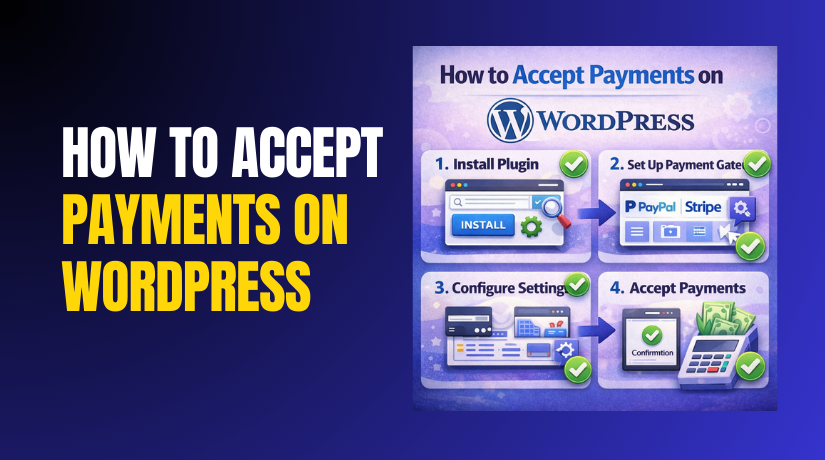
How to Accept Payments on WordPress Step by Step?
Table of Contents
- Introduction
- Why Accept Payments in WordPress?
- How Do WordPress Payment Processes Work?
- How To Accept Payments on a WordPress Site?
- What Are The Top 5 Best Plugins to Accept Payments in WordPress?
- Final Verdict
Introduction
Getting paid on your website should feel fast and simple. Many visitors leave when payment steps feel confusing or slow. WordPress online payments help you sell anytime without manual follow ups. You can accept cards, UPI, wallets, and bank transfers easily. You can sell products, services, bookings, or digital downloads smoothly. You can also collect donations, deposits, and membership fees reliably.
This guide explains how to receive payments on WordPress step by step. You will learn how to Accept payments on WordPress using trusted plugin methods. You will also learn WordPress payment gateway setup without coding stress. You will choose the right tool for your business and payment goals.
After finishing all parts, you will set up payment methods in WordPress with a clean user flow. You will understand gateway, processor, and merchant account terms clearly. You will know what happens after a customer clicks the pay button. You will reduce failed payments using better settings and checkout choices. You will track orders, receipts, and payments inside WordPress or WooCommerce.
Why Accept Payments in WordPress?
- Core Benefits of Accepting Payments on Your Website
- Accepting payments on your site removes delays and builds trust faster.
- Customers prefer paying instantly instead of waiting for your reply.
- Instant payment reduces lost leads caused by slow follow ups.
- A payment button makes your offer look real and professional.
- It also saves time because confirmations and receipts are sent automatically.
- More Sales With Less Friction
- Visitors want a quick path from interest to purchase.
- A direct checkout improves conversions on service and product pages.
- A clean payment flow reduces cart abandonment and user confusion.
- A simple checkout works better for mobile buyers and quick decisions.
- WordPress online payments support fast buying without extra steps.
- Benefits You Get From a Direct Payment Flow
- You close sales faster because visitors can pay immediately.
- You reduce manual work because payment confirms the order automatically.
- You reduce missed follow ups because emails are sent after payment.
- You improve trust because secure payment options appear clearly.
- You support global buyers using cards and wallet payment options.
- Better Cashflow and Stronger Business Operations
- Cashflow becomes predictable when payments happen on time.
- You can collect deposits before you start service work.
- You can collect full payment before shipping expensive items.
- You can offer recurring charges using subscription supported tools.
- You can track revenue in one place using clean payment reports.
- Ways Payments Improve Your Daily Operations
- You stop chasing payments through calls and repeated messages.
- You reduce cancellations using deposits and prepayment options.
- You send receipts automatically after payment completion.
- You keep customer details saved with order and payment history.
- You reduce accounting stress using exports and reporting tools.
- Better Customer Experience and Fewer Support Requests
- Customers want clear prices and a simple payment process.
- They want confirmation emails after paying successfully every time.
- They want receipts for records and refund support later.
- They also want payment methods they already trust and use.
- Set up payment methods in WordPress supports these expectations strongly.
- Customer Experience Improvements From Payment Setup
- Customers get instant confirmation and fewer confusing steps.
- Customers feel safer when trusted gateways are displayed clearly.
- Customers receive receipts and order details automatically by email.
- Customers can pay anytime without waiting for your team to reply.
- Customers can choose preferred payment methods and complete faster.
How Do WordPress Payment Processes Work?
WordPress Payment Basics
- WordPress does not process payments by itself by default.
- Payments happen using plugins and connected payment gateways.
- A payment gateway connects your site to payment networks securely.
- A payment processor handles approvals and settlements behind the scenes.
- Your plugin sends payment data securely to the chosen gateway.
Step by Step Payment Flow in Simple Words
- The customer clicks a pay button or checkout button on your site.
- Your plugin collects order details and the total amount to charge.
- The customer enters card details or selects a wallet payment method.
- The gateway checks details and requests authorization from the bank.
- The bank approves or declines based on funds and risk checks.
- Your site receives a success or failure response within seconds.
- If approved, the plugin creates an order and marks it paid.
- If declined, the plugin shows an error and allows retry options.
What Happens After the Payment Is Approved?
- The paid order is saved in your WordPress system automatically.
- The customer sees a success message with an order summary.
- The customer receives an email confirmation and payment receipt.
- Your admin receives a notification about the new paid order.
- The money settles to your bank account after processing time.
Key Terms You Must Understand Before Setup
- Payment terms confuse beginners during the first setup process.
- These terms help you avoid wrong settings and missed payments.
- These terms help when you choose plugins and gateway services.
- They also help during WordPress payment gateway setup decisions.
- They help you compare fees, payouts, and settlement time clearly.
Important Payment Terms Explained Simply
- Payment gateway means the service sending payment requests securely.
- Payment processor means the company moving funds and approvals.
- A merchant account means the account that receives card payments.
- Transaction fee means the cost taken per successful payment.
- Settlement time means how long money takes to reach your bank.
On Site Checkout vs Off Site Checkout
- Some payment methods keep users on your website during checkout.
- Some payment methods redirect users to a secure gateway page.
- Both methods can be safe and reliable for many businesses.
- Your choice depends on trust, speed, and compliance needs.
- How to receive payments on WordPress can use either method.
On Site Checkout Advantages and Limits
- Customers stay on your site during the entire payment flow.
- Branding stays consistent and helps build trust quickly.
- Some gateways require stricter security and compliance settings.
- You must keep SSL active and plugins updated for safety.
- You must test carefully to avoid checkout form errors.
Off Site Checkout Advantages and Limits
- The gateway handles sensitive details on their secure payment page.
- Setup can feel easier for beginners on shared hosting plans.
- Redirection can reduce conversion for some users sometimes.
- Branding may feel different from your site design style.
- Tracking may need extra steps using thank you page events.
How Plugins Fit Into This Payment Flow?
- Plugins create checkout forms and payment buttons on your pages.
- Plugins connect your site to the gateway using API keys.
- Plugins handle order creation and email notifications automatically.
- Some plugins support subscriptions and recurring payments too.
- Some plugins support invoices, coupons, and automated tax rules.
Core Jobs Handled by Payment Plugins
- They show payment buttons, forms, and checkout steps clearly.
- They validate details and prevent basic input errors.
- They send payment requests securely to the gateway provider.
- They confirm orders and trigger emails after successful payment.
- They store order details for admin reporting and tracking.
How To Accept Payments on a WordPress Site?
In this part, you will set up payments step by step. You will install a payment plugin and connect a gateway. You will create a payment page and test the complete payment flow. You will also confirm emails, receipts, and success messages work correctly.
Step 1: Decide what you are selling and how you will charge
Business Offer → Payment Type → Plugin Choice
- Decide if you sell products, services, bookings, or digital downloads.
- Decide if you need one time payments, subscriptions, or deposits.
- Decide if you want a cart checkout or a single pay button.
- This decision guides your Accept payments on WordPress setup.
- It also helps your WordPress payment gateway setup stay clean.
Common selling models in WordPress online payments
- One time service payment using a single checkout button.
- Product sales using cart and checkout with shipping options.
- Booking deposits to confirm appointment time slots.
- Donations and tips using simple payment forms.
- Subscription payments for memberships and recurring services.
Step 2: Choose the best payment method for your audience
Target Audience → Preferred Methods → Enable Gateways
- Choose card payments for most customers and global buyers.
- Choose PayPal for wallet users and faster buyer trust.
- Choose UPI if you target India based customers and payments.
- Choose bank transfer for B2B payments and large invoices.
- This helps set up payment methods in WordPress correctly.
Payment method selection tips that reduce checkout drops
- Offer at least two methods for higher checkout completion.
- Use a trusted gateway badge to improve payment confidence.
- Keep currency and country settings correct for buyer location.
- Keep the payment page simple and remove extra distractions.
- Show refund and support policy link near the pay button.
Step 3: Install a payment plugin that matches your workflow
WordPress Dashboard → Plugins → Add New → Search Plugin → Install → Activate
- Payment plugins create buttons, forms, and checkout experiences.
- For simple payments, use WP Simple Pay or WPForms Payments.
- For full store payments, use WooCommerce with Stripe or PayPal.
- For this tutorial, we will use WooCommerce with Stripe setup.
- This method fits most sites that want WordPress online payments.
What to check before plugin installation
- Your site must use HTTPS with an active SSL certificate.
- Your WordPress version should be updated to stable release.
- Your PHP version should meet plugin minimum requirements.
- Your theme should support modern blocks and checkout pages.
- Your hosting should allow outbound connections for gateway APIs.
Step 4: Install WooCommerce for a complete payment system
WordPress Dashboard → Plugins → Add New → Search WooCommerce → Install → Activate
- WooCommerce adds cart, checkout, and order management tools.
- It is the most common way to Accept payments on WordPress.
- It supports many gateways and payment method integrations.
- It also supports taxes, invoices, emails, and coupon features.
- It gives you clean order tracking for admin reporting.
WooCommerce setup basics you must complete
- Set your store address and business location correctly.
- Set currency to match your selling region and pricing rules.
- Set shipping zones only if you sell physical products online.
- Set tax settings if you must collect taxes on checkout.
- Set email sender name for professional customer receipts.
Step 5: Add Stripe to accept card payments
WordPress Dashboard → WooCommerce → Settings → Payments → Stripe → Enable
- Stripe is one of the easiest card gateways for WordPress.
- It supports cards, wallets, and fast payment confirmations.
- It is reliable for How to receive payments on WordPress needs.
- It offers secure checkout with strong fraud protection features.
- Stripe also supports webhooks for accurate order updates.
Stripe setup steps inside WooCommerce
- Install the official WooCommerce Stripe payment plugin.
- Create a Stripe account if you do not have one.
- Copy Publishable Key and Secret Key from Stripe dashboard.
- Paste keys into WooCommerce Stripe settings fields.
- Enable webhooks for automatic payment status updates.
Step 6: Add PayPal as a second payment option
WordPress Dashboard → WooCommerce → Settings → Payments → PayPal → Enable
- PayPal improves trust for many buyers and first time visitors.
- It helps customers pay using wallet or saved card details.
- It can reduce checkout drop offs in some store categories.
- PayPal is a common option for WordPress online payments.
- It is useful when customers avoid entering card details.
PayPal setup steps you should follow
- Install the recommended PayPal plugin for WooCommerce.
- Connect a PayPal account using the plugin connection method.
- Confirm currency and country settings match the PayPal account.
- Enable PayPal buttons on cart and checkout if needed.
- Test PayPal sandbox payments before going live.
Step 7: Configure checkout page settings for higher conversions
WordPress Dashboard → WooCommerce → Settings → Advanced → Checkout Page
- A clean checkout reduces confusion and improves completion rates.
- Use a single page checkout when possible for faster payments.
- Remove unnecessary fields that do not help order processing.
- Keep guest checkout enabled if you sell simple products.
- This improves Accept payments on WordPress conversion results.
Checkout settings that work well for most websites
- Enable guest checkout for faster first time purchasing.
- Keep account creation optional to reduce checkout friction.
- Use address fields only when shipping is actually needed.
- Add trust badges near the payment section for confidence.
- Add clear error messages for failed payment retry flow.
Step 8: Set confirmation messages and thank you page details
WooCommerce → Settings → Emails → Order Received Page
- Customers need clear confirmation after successful payment.
- Show order number, amount, and payment method clearly.
- Confirm email delivery and show next steps for the customer.
- Add support contact for refund requests and order questions.
- This improves WordPress payment gateway setup experience.
What your confirmation should always include
- A clear payment success message with order confirmation.
- The total amount paid and the chosen payment method.
- Expected delivery time or service start instructions.
- A link to contact support for payment related questions.
- A link to view order details if the user has account access.
Step 9: Test payment flow using sandbox or test mode
Stripe Test Mode → Test Order → Successful Payment → Confirm Emails
- Always test payments before accepting real customer payments.
- Stripe provides test cards for full payment testing.
- PayPal provides sandbox accounts for safe payment simulation.
- Confirm orders update correctly after payment success.
- Confirm failed payments show retry options and clear messages.
Testing checklist you must complete before going live


- Confirm payment success changes order status to processing.
- Confirm payment failure does not create a paid order.
- Confirm emails delivered to customer and admin inbox correctly.
- A confirmed refund process is available for customer support cases.
- Confirm webhooks work and avoid stuck pending payments.
Step 10: Publish payment pages and add payment buttons
Pages → Shop or Service Page → Add Checkout Link → Publish
- Add buy now buttons on product and service pages.
- Add a clear call to action text near pricing and benefits.
- Add a checkout link in menus for quick customer access.
- Add payment page link in footer and contact pages.
- This helps set up payment methods in WordPress for visibility.
Best places to add payment links for higher conversions
- Header menu for easy access from every page.
- Product pages near price and add to cart button area.
- Service pages near booking and consultation offer sections.
- Checkout page link inside cart and mini cart widgets.
- Footer links for users scrolling and searching for purchase paths.
What Are The Top 5 Best Plugins to Accept Payments in WordPress?
1. WooCommerce Payments Setup With Stripe and PayPal
Plugin Overview
- WooCommerce is the most common way to Accept payments on WordPress.
- It is best for stores selling physical or digital products online.
- It adds cart, checkout, coupons, taxes, and order management tools.
- It supports Stripe and PayPal for WordPress online payments easily.
- It fits stores that need scalable checkout and payment workflows.
Key Features
- Cart and checkout pages with full order flow
- It builds a complete shopping flow from product to payment.
- It handles cart totals, discounts, taxes, and final order summary.
- It supports guest checkout and customer account checkout options.
- Stripe card payments and wallet payment options
- It accepts credit and debit card payments through Stripe gateway.
- It supports wallet options like Apple Pay and Google Pay.
- It supports secure processing and helps reduce payment friction.
- PayPal checkout for wallet based buyer payments
- It lets users pay with PayPal balance or saved cards easily.
- It increases trust for buyers who avoid entering card details.
- It improves conversions when customers prefer PayPal payments.
- Taxes, coupons, shipping, and automated order emails
- It supports tax rules based on your store location settings.
- It supports coupon codes for promotions and seasonal discounts.
- It supports shipping zones, flat rates, and carrier rules.
- It sends order emails for confirmation, processing, and completion.
- Refund processing and payment tracking inside orders
- It stores payment status and transaction details in order records.
- It supports refunds depending on the gateway plugin features used.
- It helps track failed, pending, paid, and refunded orders easily.
- Reports and analytics for revenue and order trends
- It shows revenue, refunds, order totals, and product performance.
- It helps you see what sells best and what needs improvement.
- It supports better decision making using sales data trends.
- Extensions for advanced store and payment workflows
- It supports hundreds of extensions for shipping and checkout features.
- It supports subscriptions, bookings, memberships, and payment automation.
- It grows with your store as your business needs expand.
Pros
- Complete store system inside WordPress
- It lets you sell products and accept payments in one setup.
- It manages products, cart, checkout, and orders from one dashboard.
- It reduces the need for multiple separate payment tools.
- Multiple payment gateways and global support
- It supports Stripe and PayPal for WordPress online payments.
- It supports many other gateways based on your country’s needs.
- It helps you offer more payment options for better conversion.
- Strong order management and customer tracking
- It stores customer details, order notes, and payment status together.
- It makes refunds, updates, and support handling easier for admins.
- It improves daily workflow when order volume grows over time.
- Built for scaling and feature expansion
- It supports extensions for subscriptions, bookings, and memberships.
- It supports advanced shipping and tax workflows when needed.
- It helps businesses grow without switching platforms later.
- Supports checkout optimization and conversion improvements
- It supports checkout page changes using blocks and plugins.
- It supports coupons, offers, and cart rules for better sales.
- It supports analytics to measure checkout performance and trends.
Cons
- Setup can feel complex for beginners
- New users may need time to understand product and checkout settings.
- Tax and shipping setup can feel confusing during the first launch.
- Wrong settings can cause checkout errors and payment confusion.
- Too many extensions can reduce performance
- Adding many plugins can increase load time and script weight.
- Poorly coded add ons can create conflicts and checkout issues.
- You must keep only required extensions for stable performance.
- Checkout customization may need theme or plugin adjustments
- Some themes do not match the checkout layout perfectly by default.
- You may need extra plugins for better checkout field control.
- You may need small CSS fixes for perfect design matching.
- Advanced features can increase total cost
- Many premium extensions cost money for yearly renewals.
- Extra features like subscriptions and bookings raise total spend.
- Costs grow as you add more store features over time.
Download Link: Payment Gateway of Stripe for WooCommerce
2. WP Simple Pay
Plugin Overview
- WP Simple Pay is best for simple payment pages and form based checkout.
- It helps you Accept payments on WordPress without using WooCommerce.
- It connects directly with Stripe for fast and secure payments.
- It suits service payments, deposits, and one time charges well.
- It is useful when you want fewer plugins and faster setup.
Key Features
- Stripe payment forms using shortcodes and blocks
- You can create payment forms and embed them on any page.
- You can place forms using blocks or shortcodes without coding.
- You can make separate forms for different services or prices.
- One time payments and recurring subscription payments
- You can collect one time payments for single services or products.
- You can set recurring payments for memberships and subscriptions.
- You can offer monthly or yearly plans based on your pricing.
- Apple Pay and Google Pay through Stripe
- You can enable wallet payments inside your Stripe account settings.
- Wallet options speed up checkout and reduce customer typing.
- Wallet payments often increase conversion on mobile devices.
- Coupons, custom fields, and form based payments
- You can add coupon fields to run discounts and promotions.
- You can add custom fields for notes, phone, and service details.
- You can collect better intake information before payment completion.
- Secure Stripe checkout and compliance handling
- Payments are processed through Stripe with strong security controls.
- Stripe helps handle compliance needs like PCI requirements.
- This reduces risk when accepting card payments on your website.
- Webhook based status updates for confirmations
- Webhooks help confirm payment status changes automatically.
- They prevent pending payments from staying stuck for long time.
- They improve reliability for WordPress payment gateway setup.
- Email receipts through Stripe and plugin settings
- Customers receive payment receipts after successful payments.
- Admins can receive alerts for new payments and failures.
- Receipts reduce support requests and payment confusion later.
Pros
- Fast setup without a full store system
- You can start WordPress online payments without cart complexity.
- Setup is simple and suits beginners and service businesses.
- It is ideal when you want a quick payment page launch.
- Great for service providers and simple checkout needs
- It works well for consultants, agencies, and local service sellers.
- It supports deposits and fixed price service payments easily.
- It helps you Accept payments on WordPress with less friction.
- Recurring payments support for subscriptions
- You can charge monthly or yearly without extra store features.
- This fits memberships and recurring service retainers well.
- It helps predict revenue and reduce manual billing tasks.
- Lighter than large ecommerce systems
- It avoids heavy product, shipping, and cart features.
- It reduces plugin load compared to full ecommerce setups.
- It can improve speed when you only need payment forms.
- Quick way to Set up payment methods in WordPress
- Forms can be embedded anywhere with blocks and shortcodes.
- You can create multiple payment forms for different services.
- It supports fast testing and faster launch for new offers.
Cons
- Not ideal for complex cart and product catalogs
- It does not provide a full shopping cart experience.
- It is not best for stores with many products and variations.
- WooCommerce suits better when catalog and cart are needed.
- Advanced styling may need theme changes or CSS
- Some designs may need small layout adjustments for branding.
- You may need custom CSS for perfect visual matching.
- Theme conflicts can happen on some older WordPress themes.
- Some features require paid plans
- Advanced features may only be available in premium versions.
- Your total cost depends on the features your business needs.
- You should review plan features before choosing long term.
- No inventory and shipping features
- It does not manage product stock and shipping rules.
- It is not designed for physical product delivery workflows.
- It works best for services, deposits, and digital payments.
Download Link: WP Simple Pay
3. WPForms Payments
Plugin Overview
- WPForms is a form builder that supports payment fields.
- It helps you collect payments using order forms and invoices.
- It works well for quotes, service requests, and deposits.
- It supports How to receive payments on WordPress using forms.
- It fits best when you do manual fulfillment after payment.
Key Features
- Drag and drop payment form builder
- You can build payment forms without any coding skills.
- You can add fields like name, email, amount, and notes.
- You can create different forms for different services or offers.
- Stripe payments and PayPal support by plan
- You can connect Stripe for card based WordPress online payments.
- You can enable PayPal depending on the plan you use.
- Multiple payment options can reduce checkout drop offs.
- Conditional logic for smarter workflows
- You can show fields based on user selections and answers.
- You can collect better details for different service types.
- This improves lead quality and reduces support time later.
- File uploads for documents and attachments
- You can allow users to upload proof documents when needed.
- You can collect images, forms, or IDs for business verification.
- This helps when your process needs documents before delivery.
- Email notifications for customers and admins
- Customers receive confirmation emails after successful submission.
- Admins receive alerts so they never miss paid form entries.
- Notifications improve trust and reduce follow up questions.
- Form entries tracking and export for accounting
- You can view submissions inside WordPress as saved entries.
- You can export entries for reports and accounting workflows.
- This helps reconcile payments and track service requests easily.
- Anti spam tools and CAPTCHA for protection
- You can add CAPTCHA to stop fake payments and bot attacks.
- You can enable anti-spam settings for cleaner form submissions.
- This improves payment safety and reduces unwanted entries.
Pros
- Easy payment form creation without coding
- The builder is simple and works for beginners quickly.
- You can edit forms anytime without developer support.
- It helps you Accept payments on WordPress with less effort.
- Conditional logic improves form quality and reduces errors
- It collects better details by showing only relevant questions.
- It reduces wrong submissions and incomplete order requests.
- It improves conversion because the form feels shorter.
- Works well for service payments and invoice style checkout
- You can collect deposits and fixed service charges easily.
- You can use forms for quotes and paid booking requests.
- It fits businesses that confirm details after payment entry.
- Lead capture and payment collection in one form
- You can collect payment and customer details together.
- You can capture leads even when payment is not completed.
- It supports follow up workflows for sales and service teams.
- Strong option to Set up payment methods in WordPress for services
- It suits consultants, agencies, and local service providers well.
- It supports simple payment flows without a full store setup.
- It supports faster launch for new offers and service pages.
Cons
- Not a full ecommerce cart and checkout system
- It does not provide a cart experience for multiple products.
- It is not ideal for stores with catalogs and product variations.
- WooCommerce suits better for full ecommerce selling needs.
- Inventory and shipping workflows are not included
- It does not manage stock, shipping zones, and delivery methods.
- It is not designed for physical product shipping operations.
- It is best for services and form based payment requests.
- Subscription control depends on gateway plan and form features
- Recurring payments depend on Stripe settings and plan support.
- Advanced subscription workflows may need paid upgrades.
- Some billing features may require additional configuration steps.
- Complex payment workflows may need extra tools or upgrades
- Advanced automation may require add ons or integrations.
- Large workflows may need CRM tools or ecommerce plugins.
- Costs can grow when you add more business requirements.
Download Link: WPForms Payments
4. GiveWP Donation Payments
Plugin Overview
- GiveWP is built for donations and fundraising payments on WordPress.
- It helps nonprofits, charities, and creators collect donations easily.
- It supports WordPress online payments using clean donation forms.
- It supports recurring donations and donor management workflows.
- It works best when donations are the primary payment goal.
Key Features
- Donation forms with one time and recurring options
- You can create donation forms for one time giving easily.
- You can enable recurring donations for monthly support programs.
- You can offer fixed donation amounts and custom amount fields.
- Stripe and PayPal gateways through add ons
- You can accept card payments using Stripe gateway add ons.
- You can accept wallet donations using PayPal gateway add ons.
- Multiple gateway options improve trust and donation completion rates.
- Donor dashboards and donation history tracking
- Donors can view their donation history and payment details.
- Donors can manage recurring donations based on your setup.
- This improves trust and reduces support requests for donors.
- Donation goals, campaigns, and progress indicators
- You can create campaigns with goals and target amounts.
- Progress bars help donors feel motivated to contribute.
- Campaign pages help explain the cause and increase conversion.
- Email receipts and donor confirmation messages
- Donors receive automatic receipts after payment completion.
- Confirmation messages reduce confusion and build donor confidence.
- Receipts help donors with records and tax documentation needs.
- Reports and donor exports for accounting workflows
- You can export donor details and donation totals for accounting.
- Reports help track donation trends by campaign and time period.
- This supports planning and fundraising strategy decisions.
- Custom fields for donor details and dedication notes
- You can collect custom donor information when needed.
- You can allow dedication notes for memorial and special giving.
- This improves donor experience and campaign personalization.
Pros
- Purpose built for donations and fundraising campaigns
- It is designed specifically for donation collection workflows.
- It offers donation focused tools that regular payment plugins lack.
- It helps Accept payments on WordPress for donation based sites.
- Strong donor management tools for repeat giving
- Donor profiles help you track giving history and donor activity.
- Donor dashboards improve transparency and build long term trust.
- Better donor experience increases repeat donations over time.
- Campaign features help increase donations and support trust
- Goals and progress indicators encourage donors to contribute more.
- Campaign pages help explain the story and impact clearly.
- This improves conversion and reduces doubts before donating.
- Recurring giving support for stable monthly cashflow
- Monthly donations create predictable revenue for ongoing work.
- Recurring programs reduce fundraising pressure and time waste.
- It supports retention when donors want continuous contribution.
- Best fit for donation focused WordPress online payments
- It supports donation receipts, donor records, and campaign reporting.
- It fits nonprofit and creator websites better than store plugins.
- It supports fundraising without needing a full WooCommerce setup.
Cons
- Many advanced features require paid add ons and bundles
- Some gateway features and automation tools are paid upgrades.
- Costs can grow when you need multiple add ons together.
- You must plan a budget before scaling donation workflows.
- Not designed for product sales and store checkout
- It is not meant for product catalogs and cart based checkout.
- It does not manage shipping, inventory, or product variations.
- WooCommerce suits better for ecommerce store selling needs.
- Setup can feel heavy for one simple pay button
- If you only need one donation button, it can feel complex.
- The plugin includes many tools that small sites may not need.
- Simpler Stripe button tools may fit better in that case.
- Gateway add ons can increase total cost
- Stripe and PayPal gateways may require paid add ons.
- Total cost depends on gateway needs and donation features.
- This can be expensive for small organizations with low budgets.
Download Link: GiveWP Donation Payments
5. MemberPress Payments
Plugin Overview
- MemberPress is best for memberships and subscription based access.
- It helps you sell protected content, online courses, and premium areas.
- It supports WordPress payment gateway setup for recurring billing.
- It supports access rules, pricing tiers, and member account control.
- It is ideal for How to receive payments on WordPress subscriptions.
Key Features
- Stripe and PayPal recurring subscription payments
- It supports recurring billing using Stripe payment methods easily.
- It supports PayPal subscriptions for wallet based recurring buyers.
- It helps automate billing without manual invoice follow ups.
- Membership levels and content access restrictions
- You can create multiple membership plans with different pricing.
- You can restrict pages, posts, videos, and downloads by plan.
- This creates a clear value system for paid membership access.
- Drip content and scheduled lesson releases
- You can release course content slowly based on a schedule.
- Drip delivery reduces overwhelm and increases course completion rates.
- It helps keep members active and subscribed longer.
- Member dashboards for billing and account control
- Members can log in and view subscriptions and payment history.
- Members can update billing info depending on gateway support.
- This reduces support requests and improves user experience.
- Coupons, trials, and plan change options
- You can offer coupon discounts for launches and promotions.
- You can offer free trials to reduce purchase hesitation.
- You can allow upgrades or downgrades between membership tiers.
- Automated emails for renewals and payment failures
- It sends renewal reminders before subscriptions renew.
- It sends failed payment emails so users can update billing.
- Automation reduces churn and improves recurring revenue stability.
- Reports for membership revenue and retention tracking
- It shows reports for revenue, signups, and cancellations.
- It helps you track retention trends and membership performance.
- Better reporting supports smarter pricing and content planning.
Pros
- Best fit for recurring payments and gated content
- It is designed for membership billing and protected access rules.
- It is stronger than generic payment plugins for subscription sites.
- It helps Accept payments on WordPress for recurring membership offers.
- Reduces churn using automated renewal and reminder emails
- Reminder emails keep members informed before renewals happen.
- Failed payment emails help recover renewals quickly.
- This reduces cancellations caused by missed billing issues.
- Supports multiple pricing tiers for flexible offers
- You can create basic, standard, and premium membership plans.
- You can bundle different content access for each tier.
- This supports upsells and improves overall membership revenue.
- Keeps member accounts and billing inside WordPress easily
- Members can manage their account from one dashboard.
- Admins can manage members, access rules, and billing settings.
- This improves operations for subscription business owners.
- Supports WordPress online payments for subscription businesses
- It supports Stripe and PayPal subscription based payment collection.
- It supports trials, coupons, and renewals for membership growth.
- It supports stable recurring income with automation support.
Cons
- Not meant for a full product store checkout
- It does not offer a complete cart and product catalog workflow.
- It is not ideal for physical product selling and shipping needs.
- WooCommerce suits better for store based ecommerce checkout.
- Can be expensive for simple one time payment needs
- If you only need a pay button, it can be too much.
- Pricing is higher because it includes membership tools and features.
- Small sites may prefer simpler payment plugins for basic payments.
- Setup requires planning for access rules and content structure
- You must plan what content belongs to each membership tier.
- You must build access rules that match your content strategy.
- Poor planning can cause member confusion and access issues.
- Some integrations may require extra configuration and add ons
- Email marketing tools may need integration setup steps.
- Course tools may need extra plugin connections and settings.
- Some advanced features may require additional paid add ons.
Download Link: MemberPress Payments
Final Verdict
Accepting payments on WordPress is easy when your workflow is clear. Choose a plugin based on what you sell and how you charge. WooCommerce is best for full ecommerce stores and checkout control. WP Simple Pay is best for simple Stripe payments and service charges. WPForms payments are best for forms, invoices, and deposit requests. GiveWP is best for donation websites and fundraising campaigns. MemberPress is best for memberships and recurring subscription billing.
If you want product selling, choose WooCommerce with Stripe and PayPal. If you want fast service payments, choose WP Simple Pay. If you want payment request forms, choose WPForms payments. If you want donations, choose GiveWP for donation workflows. If you want subscriptions, choose MemberPress for member billing.
Have questions before starting with WooCommerce & WordPress? Get support here at WooHelpDesk.



