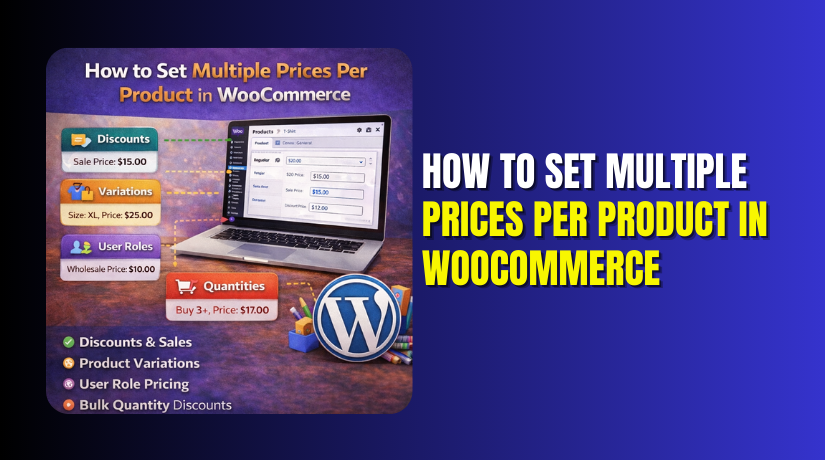
How to Set Multiple Prices Per Product in WooCommerce Step by Step?
Table of Contents
- Introduction
- Why Set Up Multiple Prices for a Product in WooCommerce?
- What Are Advantages of Setting Multiple Pricing in WooCommerce?
- What Are Common Scenarios to Set Up Different Pricing For a Product?
- How To Set Multiple Prices Per Product In WooCommerce?
- Method 1: Use WooCommerce variable product pricing with variations
- Method 2: Add tiered pricing for quantity based multiple prices
- Top 5 Best Plugins You Can Use to Set Multiple Prices Per Product in WooCommerce
- 1) Discount Rules for WooCommerce (Flycart)
- 2) WooCommerce Dynamic Pricing (WooCommerce extension)
- 3) Wholesale Prices & Tiered Pricing for WooCommerce
- 4) YITH WooCommerce Dynamic Pricing & Discounts
- 5) Dynamic Pricing With Discount Rules for WooCommerce (Acowebs)
- Which Plugin Approach Should You Choose for Your Store?
- Final Verdict
Introduction
Many stores need more than one price for one product. This helps you sell the same item in different ways. You might sell the same product in packs or sizes. You might also offer bulk deals for larger order quantities. This guide explains WooCommerce multiple prices per product step by step. You will learn the safest native method before using pricing rules. You will also learn how to keep pricing clear on mobile. Clear pricing improves trust, reduces returns, and increases checkout completion.
Your goal is simple, flexible pricing without confusing the buyer. Multiple pricing should feel natural on the product page. It should also stay easy for your team to manage. In this guide, you will set multiple product prices WooCommerce stores use daily. You will start with WooCommerce variable product pricing and variations. Later parts will cover tiered rules and dynamic discounts. You will finish with a pricing workflow that scales with growth.
Why Set Up Multiple Prices for a Product in WooCommerce?
- Serve options without creating new products: This keeps your catalog clean and avoids duplicate product listings. It also keeps reviews and SEO value on one product page. Buyers see all options and choose faster without extra clicks.
- Support upsells using option based pricing: Variation pricing lets premium options carry higher prices automatically. Customers understand upgrades when the option name explains the value. This is the simplest way to sell add-ons without bundles.
- Offer quantity based deals for larger purchases: Tiered pricing motivates customers to add more items per order. Buyers feel they are saving more as quantities increase. This can lift average order value without extra marketing spend.
- Set separate wholesale and retail prices: Role based pricing prevents manual discounts for every wholesale invoice. The correct price shows automatically after the customer logs in. This protects margins and keeps checkout simple for each customer group.
- Create regional or currency based price options: Different regions often expect different pricing and bundle structures. Multiple pricing helps match local buying behavior and order sizes. It also reduces refund requests caused by unclear pricing expectations.
What Are Advantages of Setting Multiple Pricing in WooCommerce?
- Higher conversions through faster product fit: Buyers quickly find the option that matches their exact needs. Clear options reduce doubt and reduce decision fatigue at checkout. This improves add to cart rate on mobile and desktop.
- Higher average order value from packs and upgrades: Packs and upgrades encourage customers to spend more per purchase. A visible price ladder makes mid tier options feel safest. This increases revenue without pushing aggressive upsell messages.
- Better price fairness across quantities and customer segments: Retail buyers pay normal prices while bulk buyers get savings. Wholesale buyers see their rates without asking for special codes. This builds trust and reduces price complaints after purchase.
- Fewer support tickets and checkout questions: Clear option labels answer pricing questions before customers message support. Buyers understand when a higher price applies to a premium option. This reduces confusion and reduces cart abandonment near checkout.
- Better inventory control with option level stock: Variable products allow stock and price settings per variation. This prevents overselling when only one option is running low. It also keeps fulfillment accurate when options ship differently.
What Are Common Scenarios to Set Up Different Pricing For a Product?
- Different prices for sizes, colors, or materials: Use variable products when each option needs its own price. This supports clear WooCommerce variable product pricing on one page. It also lets each option have its own image and stock.
- Different prices for single item and multipack bundles: Use pack options when customers commonly buy two or more units. Multipacks can be variations like one pack and three pack. This keeps buyers on one page while comparing value quickly.
- Different prices for wholesale, members, or VIP customers: Use role based pricing when price depends on customer type. Wholesale pricing often requires hiding retail prices for logged in roles. This keeps pricing private and prevents coupon misuse by retail buyers.
- Different prices based on quantity tiers: Use tiered pricing when price changes by quantity purchased. Show a clear table so buyers understand the price breaks. This supports bulk orders and improves profit planning for larger shipments.
- Different prices based on cart totals or conditions: Use rule based pricing when discounts depend on multiple conditions. Conditions can include cart amount, categories, or customer roles. This helps you run controlled promotions without editing every product price.
How To Set Multiple Prices Per Product In WooCommerce?
This section shows the simplest method that works without plugins. The native approach is variation pricing on variable products. It is best for option based pricing like size and pack. It is also ideal for clear WooCommerce product price options. Follow each step in order for best results.
Method 1: Use WooCommerce variable product pricing with variations
This method creates different prices for each selectable option. Buyers choose an option, then the product price updates. You can also set stock and images per variation. This is the most reliable way to set multiple product prices WooCommerce supports natively.
Step 1: Create the product and switch it to Variable product
- → WP Admin → Products → Add New
- Add a clear product title and short product summary.
- Scroll to Product data and choose Variable product.
- This enables variations, attributes, and per option prices.
Why this step matters for pricing control. Variable products let you attach pricing to options directly. Simple products can only have one base price field. Variable products also support per option inventory and shipping weights. This keeps your pricing and fulfillment aligned.
Step 2: Create attributes that represent your price options
- → Product data → Attributes → Add new
- Enter an attribute name like Size or Pack.
- Add values like Small | Medium | Large, or 1 Pack | 3 Pack.
- Tick Used for variations, then click Save attributes.
Why this step matters for buyer clarity. Attributes become the choices buyers see on product pages. Clear values reduce hesitation and reduce wrong orders later. Use consistent labels across products for faster shopping. Keep attribute values short for mobile screens and dropdowns.
Step 3: Generate variations from those attributes
- → Product data → Variations
- Select Create variations from all attributes.
- Click Go, then confirm the variation creation prompt.
- Review the list and remove combinations you do not sell.
Why this step matters for clean management. Too many variations slow editing and confuse shoppers. Remove invalid combinations to keep the option list short. Short lists are easier to scan and convert better. Clean variation lists also reduce the chance of pricing mistakes.
Step 4: Set a different price for each variation
- → Product data → Variations → open a variation row
- Enter the Regular price for that specific variation.
- Add Sale price only when you run a real promotion.
- Repeat for each variation, then click Save changes.
Why this step matters for pricing accuracy. Each variation has its own price fields and can differ. This is the core of WooCommerce multiple prices per product. It keeps the price tied to the chosen option. It also avoids confusing coupon stacking and hidden discounts.
Step 5: Set stock, images, and defaults for better conversions
- → Variation row → set Stock status and Manage stock
- Add a variation image if the option looks different.
- Set a default form value if one option sells most.
- Update the product and test the product page behavior.
Why this step matters for shopper confidence. Variation images reduce returns and improve selection accuracy. Default selections reduce decision effort and speed up checkout. Stock control per variation prevents overselling specific options. Together, these changes create a smoother buying experience.
Step 6: Improve variation labels and pricing display on the product page
- Keep option labels consistent with your store language.
- Use Pack wording for bundles and Size wording for apparel.
- Avoid technical codes like SKU style option labels.
- Keep the option order aligned with buyer preferences.
Why this step matters for trust and conversion. Confusing labels create doubt and slow checkout actions. Clear labels help buyers choose the right price quickly. It also reduces disputes caused by mismatched expectations. A clean display supports better time on page signals.
Step 7: Run a full test, then fix edge cases early
- → Open the product page in an incognito browser window
- Select each variation and confirm price updates correctly.
- Add each variation to the cart and check the cart price.
- Test checkout to confirm totals match variation pricing.
Why this step matters for preventing revenue leakage. Testing catches theme issues and caching conflicts quickly. Some themes show wrong price ranges when variations load. Some plugins hide variation selections on mobile screens. Fix these issues before marketing traffic arrives.
Method 2: Add tiered pricing for quantity based multiple prices
Tiered pricing means the unit price changes with quantity. Buyers see better value as they add more units. This supports WooCommerce multiple prices per product without cloning products. It also supports bulk orders with fewer coupons and edits.
Step 1: Plan your pricing tiers before installing anything
- Decide the goal for your tiered pricing offer first.
- Pick two to four tiers for a clean decision flow.
- Keep the jump between tiers meaningful for real motivation.
- Choose whether tiers set fixed prices or discount percentages.
- Write tiers on paper before touching plugin settings today.
Why this step matters for clean pricing. Too many tiers create confusion and slower buying. Too few tiers can make bulk buyers feel ignored. A simple tier ladder creates faster choices and better conversions.
Step 2: Choose the tiered pricing method you want to use
- Use per product tiers when only some products need tiers.
- Use category tiers when many products share the same breaks.
- Use role based tiers when wholesale needs different tier rules.
- Use variation tiers when each option needs its own tiers.
- Pick one main method to avoid overlapping pricing conflicts.
Why this step matters for predictable checkout totals. Overlapping rules can stack discounts in unwanted ways. Buyers then see unexpected totals and lose trust quickly. One clear rule set keeps your pricing stable and testable.
Step 3: Install a tiered pricing tool that fits your store
- Go to WP Admin → Plugins → Add New.
- Search for a tiered pricing tool you trust.
- Click Install Now, then click Activate after install.
- Confirm your shop and product pages load after activation.
- Avoid enabling extra modules you do not need initially.
Why this step matters for performance and layout stability. Pricing tools often add blocks, scripts, and display widgets. Keeping features minimal prevents conflicts with themes and builders. It also keeps the product page fast on mobile screens.
Step 4: Open the pricing rules screen inside WooCommerce
- Go to WP Admin → WooCommerce → Pricing Rules or plugin menu.
- Locate the area for product pricing or bulk pricing rules.
- Click Add New Rule to create your first tier rule.
- Name the rule clearly for staff and future maintenance.
- Use names like “Tiers for Coffee Pods” or “Bulk Pricing.”
Why this step matters for long term maintenance. Stores often grow to dozens of pricing rules quickly. Clear rule names prevent mistakes during future edits. It also helps support teams diagnose pricing issues faster.
Step 5: Select the products this rule should affect
- In the rule, find Apply to or Filter products.
- Choose Specific products for the first test rule.
- Search and select the target product you want to tier.
- Save selection before adding tier values to the rule.
- Expand later to categories once your test works well.
Why this step matters for safe rollout. Testing on one product reduces risk during setup. It also helps you check display, cart totals, and emails. Once stable, you can apply tiers to multiple products safely.
Step 6: Add tier ranges and set prices or discounts
- Find the section called Tiers, Ranges, or Bulk pricing.
- Add your first tier range, like 1 to 4 units.
- Add the next tier range, like 5 to 9 units.
- Add a final tier range, like 10 units and above.
- Set a fixed price per unit or set a discount percentage.
Why this step matters for buyer trust. Tier breaks should be easy to understand instantly. Use round numbers when possible for easier mental math. Avoid confusing ranges like 7 to 13 units. Clean ranges convert better and reduce hesitation.
Step 7: Choose how the discount applies during checkout
- Decide whether pricing applies per item or per cart line.
- Decide whether tiering uses total quantity or per variation.
- Choose whether tiers apply to sale items or exclude them.
- Choose whether tiers apply with coupons or block stacking.
- Keep stacking off until you confirm stable order totals.
Why this step matters for margin protection. Coupon stacking can double discounts and hurt profits. Sale stacking can also create unexpected low pricing. Start conservative, then open stacking when you trust results. Controlled pricing protects your store in busy seasons.
Step 8: Show a tiered pricing table on the product page
- Open the tool settings for price table display options.
- Enable the tier table for product pages or selected products.
- Place the table near the price area for quick visibility.
- Use clear labels like “Buy 5+” and “Pay per item.”
- Keep the table compact for mobile and small screens.
Why this step matters for conversion rate. Shoppers buy more when they see savings clearly. A table removes guesswork and reduces price anxiety. It also reduces support questions about bulk deal eligibility. Clear display improves WooCommerce product price options visibility.
Step 9: Test tiered pricing on product, cart, and checkout
- Open the product page in an incognito browser window.
- Add quantities that hit each tier range you created.
- Confirm the product price updates or cart reflects correct pricing.
- Go to checkout and confirm totals match expected tier logic.
- Place a test order and review the order confirmation email.
Why this step matters for preventing pricing disputes. Testing catches theme conflicts and caching issues early. It also confirms tax calculations use your final prices correctly. A complete test reduces refunds caused by wrong pricing displays.
Step 10: Add tiered pricing for variations when needed


- Go to WP Admin → Products → All Products → Edit product.
- Confirm the product is a variable product with variations.
- Open your pricing tool rule and select that variable product.
- Choose whether tiers apply to all variations or selected ones.
- Test each variation because prices can differ by option.
Why this step matters for accurate bundle and size tiers. Many stores sell both size and quantity together. A small pack and large pack need different breaks. Variation tiering makes bulk pricing feel fair and tailored. This supports WooCommerce variable product pricing with bulk logic together.
Top 5 Best Plugins You Can Use to Set Multiple Prices Per Product in WooCommerce
1) Discount Rules for WooCommerce (Flycart)
What this plugin is best for
This plugin is ideal for tiered pricing, bulk pricing, and rules. It helps you set multiple product price options using conditions. It also supports cart rules, BOGO deals, and role pricing. It works well for both small and large catalogs.
Key features
- Bulk discount rules: You can offer lower prices when quantity increases. It supports tiered pricing logic for faster upsell conversions.
- Product-specific discounts: You can apply rules to selected products only. This keeps premium items protected while discounting fast movers.
- Category-based pricing: You can apply discounts to whole product categories. This is useful for clearance, seasonal lines, and bundles.
- Cart-based conditions: You can trigger discounts using cart rules. This supports spend thresholds and cart mix promotions.
- Percentage discount types: You can run percent discounts on products. This works well for storewide sales and flash events.
- Fixed amount discounts: You can apply fixed discounts per item. It helps when you want predictable margins on bundles.
- Fixed price discounts: You can set a target price per product. This is useful for wholesale-like pricing without roles.
- BOGO style offers: You can run Buy X Get Y deals. These offers feel high value and lift average cart size.
- Role-based discount logic: You can offer special pricing to roles. This supports member pricing, reseller pricing, and VIP pricing.
- Pricing strategy support: You can model common discount strategies easily. This helps you align offers with inventory and revenue goals.
Pros
- Easy rule builder: Rules are straightforward and quick to configure. You can launch multi-price offers without custom code changes.
- Strong tiered pricing support: Quantity rules work well for many stores. It fits WooCommerce multiple prices per product use case.
- Versatile discount types: Percent, fixed, and conditional discounts are supported. You can mix product and cart logic for better control.
- Scales with catalogs: It supports category rules for faster management. This reduces time spent editing individual products repeatedly.
- Good for promotions: It supports common store promotions cleanly. This keeps campaigns consistent across products and checkout flows.
Cons
- Advanced setups need testing: Complex combinations require thorough checkout tests. Conflicts can happen when many discount plugins run together.
- Premium pricing varies: Paid plans depend on license count and offers. You should confirm current pricing on the official page.
- Rule overload risk: Too many rules can confuse your own team. You should document which rule controls each pricing scenario.
Download Link: Discount Rules for WooCommerce
2) WooCommerce Dynamic Pricing (WooCommerce extension)
What this plugin is best for
This extension is best for structured pricing tables and tier rules. It supports product pricing tables and category pricing rules. It also supports role-based pricing logic for groups. It fits stores needing precise, native-like control.
Key features
- Advanced product pricing tables: You can build quantity tables per product. You can use fixed, percentage, or fixed price adjustments.
- Quantity tally controls: You can choose how quantities are counted. It can count per variation, line item, or category totals.
- Advanced category pricing tables: You can create tiers for categories too. This helps when buyers mix products inside one category.
- Simple category pricing: You can apply flat category discounts. This is good for quick campaigns without complex tiers.
- Simple role-based pricing: You can discount by user role. This is useful for membership pricing and trade pricing.
- Examples-based setup approach: The plugin supports common pricing patterns. It helps you translate business rules into pricing tables.
- Role targeting for tiers: You can apply tiers to specific roles. This supports wholesale tiers without showing them publicly.
- Category-driven bundles: You can discount accessories when main items exist. This supports upsell patterns like cases with laptops.
Pros
- Strong table-based pricing: Tier tables are clear and predictable. This is great for WooCommerce variable product pricing models.
- Works across products and categories: You can set rules at both levels. This reduces manual edits and reduces pricing mistakes.
- Good for role pricing: Role rules support B2B style pricing. This supports WooCommerce product price options by customer type.
Cons
- Interface feels technical: It is powerful but less beginner friendly. You should standardize rule naming to avoid admin confusion.
- Cost can be higher: Extension pricing is subscription based. You should compare ROI before choosing for small catalogs.
Download Link: Dynamic Pricing for WooCommerce
3) Wholesale Prices & Tiered Pricing for WooCommerce (WooCommerce extension)
What this plugin is best for
This extension is built for B2B pricing and tiered price tables. It supports role-based wholesale pricing by customer groups. It also supports quantity tiers with an auto-generated table. It fits stores selling to both retail and wholesale.
Key features
- Customer groups system: You can organize buyers into pricing groups. Each group can see different prices for the same product.
- Role-based wholesale pricing: You can set wholesale prices by group. This supports WooCommerce multiple prices per product by role.
- Tiered pricing by quantity: You can set unit prices by thresholds. This is perfect for bulk orders and repeat customers.
- Auto tier pricing table: It can show a tier table automatically. Customers understand pricing faster and buy larger quantities.
- Hide prices for guests: You can hide pricing until login. This is common for B2B catalogs and dealer programs.
- Block checkout when needed: You can prevent purchasing for guests. This keeps wholesale purchasing limited to approved accounts.
- Category discounts: You can apply amount or percent discounts broadly. This supports markdowns per group without editing every item.
- Import and export via CSV: You can update prices in bulk. This helps when you manage thousands of SKUs.
- Custom messaging controls: You can show “login to view prices”. This improves clarity and reduces support messages.
Pros
- Built for B2B: The group structure matches real wholesale workflows. It supports repeat buyers, resellers, and multi-tier pricing.
- Tier tables improve conversions: The pricing table reduces decision friction. Buyers instantly see the benefit of ordering more units.
- Strong catalog control: Hide price and checkout gating is included. This helps protect wholesale pricing from public visibility.
Cons
- More setup time: You must plan groups and tiers carefully. Bad group design can cause unexpected pricing exposure.
- Price depends on plan: Subscription pricing is shown by billing options. You should confirm the current price before final purchase.
Download Link: Wholesale Prices & Tiered pricing for WooCommerce
4) YITH WooCommerce Dynamic Pricing & Discounts
What this plugin is best for
This plugin is best for promotions, scheduled rules, and offer building. It supports category discounts and cart discounts with targeting. It also supports popular promotions like BOGO and “3 for 2”. It’s strong for marketing-driven pricing strategies.
Key features
- Storewide discount rules: You can discount the full catalog quickly. This helps during big sales when speed matters most.
- Category discount rules: You can target specific product categories easily. This is ideal for seasonal categories and clearance campaigns.
- Cart-based discount rules: You can apply discounts based on cart logic. This supports spend thresholds, item counts, and role targeting.
- BOGO and bundle promos: You can build common promotion structures. It supports “2 for 1” and other well-known offer patterns.
- Quantity-based discounts: You can discount when customers buy more. This supports tiered pricing outcomes without manual edits.
- Rule scheduling: You can schedule start and end dates. This helps automate holiday pricing without late-night changes.
- Offer builder approach: You can configure promotions with a builder. This reduces setup time and helps with consistent campaigns.
Pros
- Strong promotions focus: It supports many popular marketing offers. This helps improve conversions and average order value.
- Scheduling reduces mistakes: Automated dates reduce forgotten sale endings. This protects margins after campaigns finish automatically.
- Good catalog-wide control: Category and storewide rules are fast. You can adjust promotions without editing product pages.
Cons
- Pricing not always visible in page text: Some pricing loads dynamically. You should confirm your plan price inside the checkout flow.
- Complex rule stacking: Multiple promotions can stack unexpectedly sometimes. You should test scenarios like coupons and automatic discounts.
Download Link: YITH WooCommerce Dynamic Pricing and Discounts
5) Dynamic Pricing With Discount Rules for WooCommerce (Acowebs)
What this plugin is best for
This plugin is best for bulk discounts, pricing tables, and gifts. It supports product price, cart total, and quantity modules. It also supports BOGO rules and product gifting in Pro. It is strong for automated discount campaigns.
Key features
- Product price discounts: You can discount product prices using rules. It supports percentage and fixed price discount types.
- Cart total discounts: You can discount when cart value reaches targets. This helps raise AOV using spend-based incentive pricing.
- Quantity pricing tables: You can show discounts as a pricing table. This makes WooCommerce tiered pricing plugin workflows clearer.
- Discount modules flexibility: You can discount items, quantity, totals. This supports many WooCommerce product price options and logic.
- Product gifting rules: You can gift products as rewards. This works well for first orders and category triggers.
- BOGO rules: You can set Buy X Get X deals. You can target cheapest items and nth quantity patterns.
- Dedicated pricing rules menu: It adds a Pricing Rules admin section. This keeps discount workflows separate from core WooCommerce settings.
Pros
- Feature rich rule set: It covers product, cart, and tier rules. You can build advanced campaigns without custom development work.
- Good pricing table support: Tables help customers understand bulk deals. This improves trust and reduces hesitation during checkout.
- Strong for automation: Scheduling and triggers reduce manual sale handling. This saves admin time during high traffic sales periods.
Cons
- Needs careful rule priority: Multiple rules can conflict without planning. You should document priorities and keep rule naming consistent.
- Pro pricing varies by license: Price is shown on the vendor site. You should confirm current plans before committing long term.
Download Link: WooCommerce Dynamic Pricing With Discount Rules
Which Plugin Approach Should You Choose for Your Store?
The best approach depends on how you sell products. It also depends on how many price options you need. Use this decision checklist to pick confidently.
- Choose variations when product options drive pricing
- Use variations for sizes, colors, and pack-based pricing.
Variations are best for WooCommerce variable product pricing. - Use variations when each option has a clear fixed price.
This keeps product pages clean and easy to understand.
- Choose tiered pricing plugins when quantity drives pricing
- Use tiered pricing when buyers need bulk incentives.
Tier pricing supports WooCommerce tiered pricing plugin strategies. - Use tier tables when you want buyers to see savings clearly.
Visible tiers increase average order value for many stores.
- Choose dynamic pricing rules when conditions drive pricing
- Use rules when pricing depends on cart totals or roles.
Rules handle complex WooCommerce product price options cleanly. - Use rules when promotions change frequently across seasons.
Rule engines reduce manual product edits and mistakes.
Final Verdict
You can set multiple prices in WooCommerce in three solid ways. The best choice depends on your pricing model and store stage. Use variations first when pricing is option-based and simple. Use tier pricing plugins when quantity drives buyer decisions often. Use dynamic pricing rules when conditions drive pricing across checkout.
If you run B2B sales, role pricing plugins are the cleanest path. They protect pricing, reduce coupon leakage, and simplify pricing audits. If you run campaigns frequently, rules plugins save admin time weekly. Choose one pricing engine and keep rules simple always. Test cart, checkout, and emails after every pricing change. This keeps WooCommerce multiple prices per product stable long term.
Have questions before starting with WooCommerce & WordPress? Get support here at WooHelpDesk.



