
Fixing Beaver Builder Buttons Not Working: Complete Troubleshooting Guide
Table of Contents
- Introduction
- Understanding the Problem: What “Not Working” Can Mean
- Pre-Troubleshooting Checklist
- How to Fix Beaver Builder Buttons That Won’t Work
- Advanced Troubleshooting and Prevention Tips
- Conclusion
Introduction
Beaver Builder is a popular page builder for WordPress. It allows users to build beautiful websites using a drag-and-drop interface. Its user-friendliness makes it a favorite among website developers and owners.
However, sometimes the buttons in Beaver Builder stop working. Particularly when you’re in the process of creating a page, this can be annoying. Even if you press a button, nothing will happen. Or you might save a change, and it doesn’t apply. Your time can be wasted on these minor matters.
Beaver Builder buttons may not function for a number of reasons. The problem could be with the browser, a plugin, or your website settings. It could also be a caching issue or a conflict with your theme.
We’ll walk you through every potential cause in this tutorial.
Whether your Beaver Builder button is not clickable, not redirecting, or not saving, this guide will help. We’ll go step by step so you can get back to building with confidence.
Understanding the Problem: What “Not Working” Can Mean
When a Beaver Builder button is not working, the issue can vary. The phrase “not working” can mean different things to different users. The first step in resolving the issue is identifying it precisely.
In most cases, the button issue falls into one of these types:
- Button not clickable – You hover or click, but nothing happens.
- Button not redirecting – You click it, but the link goes nowhere.
- Button click not responding – No action or feedback appears at all.
- Button link not working – The URL is missing or broken.
- Button not saving changes – You update settings, but they don’t apply.
- CTA button not working – Your call-to-action doesn’t respond as expected.
The underlying causes of each of these problems may differ. For example, a “not clickable” button could be blocked by CSS or JavaScript. A “not redirecting” issue might be due to a broken link or URL error. Sometimes, the button is set correctly but doesn’t save due to a caching problem.
Knowing exactly how your button is failing helps you troubleshoot better. We’ll go through each problem and its fix step by step. This will make sure your Beaver Builder buttons start working again smoothly.
Pre-Troubleshooting Checklist
It’s crucial to evaluate the fundamentals before moving on to more complex repairs. These small issues are often the reason Beaver Builder buttons stop working. You can save a great deal of time by solving them early.
- Clear Browser Cache and Site Cache
Your browser stores old versions of your site. This may make recent modifications invisible. Clear the cache by utilizing your browser’s options. Additionally, use a caching plugin such as WP Rocket or W3 Total Cache to clean the site’s cache. Make sure to clear the cache on any CDN you’re utilizing, such as Cloudflare.
This step refreshes your site fully and removes outdated scripts or styles.
- Try Incognito or Private Browsing Mode
Some issues are caused by stored cookies or cached sessions. Launch your website in a private or incognito window. This loads a clean version of the page. If the button works here, the problem may be linked to saved browser data. It’s a fast method to determine whether the problem is local.
- Disable Browser Extensions
Scripts are frequently blocked by extensions such as privacy tools or ad blockers. These scripts are sometimes required for Beaver Builder buttons to work. Try disabling all browser extensions temporarily. Reload the site and test the button again. To determine the cause, enable each extension one at a time if it works.
- Switch User Roles or View as a Guest
Beaver Builder sometimes sets button visibility based on user roles. Buttons could function properly if you are logged in as an administrator. Try using a different browser or logging out. This helps check if the button is visible and working for regular visitors. It’s a rapid method of ruling out permission-related problems.
- Check for Console Errors in the Browser
Right-click on your page and select “Inspect” to open developer tools. Reload the site after selecting the “Console” tab. Look for red error messages, which usually show JavaScript problems. These errors often point to plugin conflicts or script failures. Make a note of any error for the next step in debugging.
Once you’ve completed these checks, you’ll know whether the issue is simple or something deeper. If your Beaver Builder button still doesn’t work, it’s time to move on to full troubleshooting.
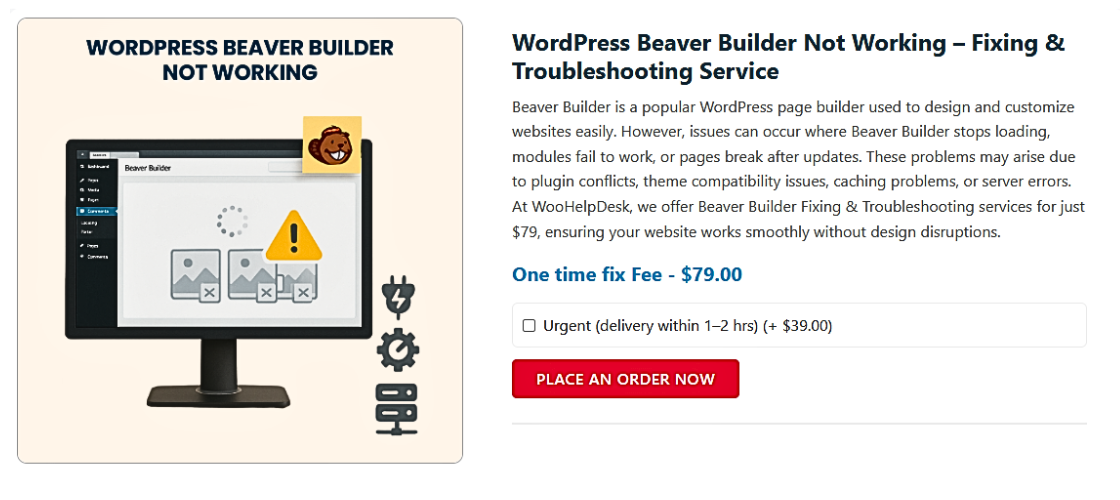
How to Fix Beaver Builder Buttons That Won’t Work
If your Beaver Builder button is still not working after basic checks, don’t worry. Now it’s time to dig deeper and apply the most common fixes. These solutions cover the technical reasons that usually cause buttons to stop responding. Follow each section carefully to test and fix the issue.
- Fix JavaScript or jQuery Conflicts
JavaScript is used to control how buttons work on your site. If another plugin or theme loads conflicting scripts, it can break the button.
You may notice the button doesn’t respond when clicked. This is often a sign that JavaScript has failed.
Here’s how to check:
- Open your page in Chrome.
- Right-click and select Inspect.
- Go to the Console tab.
- Check for any error notices that are in red.
If you see errors, try disabling plugins one at a time. After disabling each plugin, refresh the page and test the button. If the button starts working, the last plugin you disabled may be the cause.
Another option is to try using Twenty Twenty-One, which is the default WordPress theme. This will help check if your current theme is causing the conflict.
- Fix Caching and CDN Problems
Caching can help speed up your site, but it can also create issues. Sometimes changes made in Beaver Builder don’t show right away because of cached content.
First, make sure your WordPress caching plugin is clear. This covers plugins such as WP Rocket, W3 Total Cache, and WP Super Cache.
Be sure to clear the cache on any CDN you use, such as Cloudflare. CDNs often store versions of your pages and block new updates from showing.
Steps to follow:
- Clear your plugin cache
- Purge server-side cache (if using hosting cache like SiteGround Optimizer)
- Purge CDN cache (e.g., Cloudflare, BunnyCDN)
After clearing everything, reload your site and test the button. Try using a private window to be sure you’re seeing the latest version.
- Fix Button Not Saving Changes
Sometimes you make changes in the Beaver Builder button module, but they don’t stick. This is often caused by caching or a JavaScript error that blocks saving.
Other times, it’s due to server settings like limited memory or a timeout. Also, a slow or failing AJAX request can stop the change from saving.
To fix this:
- Disable caching as mentioned above
- Check for JavaScript errors
- Verify that your plugins, theme, and WordPress are up to date.
- If necessary, raise the PHP memory limit (contact your hosting provider).
If you’re still facing issues, try making changes using Beaver Builder’s Safe Mode. This mode disables most third-party plugins during editing and can help you isolate the issue.
- Fix Button Link Not Working or Redirecting
One common issue is that your button link is broken or missing. Sometimes, you forget to add a link. Other times, the URL is incorrect or formatted badly.
To check and fix this:
- Open the button settings in Beaver Builder.
- Make sure the link field is not empty.
- Double-check the URL format. Always include “https://”.
- If you’re linking to another page, make sure that page exists and is published.
Also, avoid using dynamic links unless you know how they work. Incorrect use of dynamic content can stop the button from redirecting properly.


If the link looks fine but still doesn’t work, try replacing it with a basic URL like https://google.com. This helps test if the link itself is the issue.
- Resolve Theme or Template Conflicts
Some themes override Beaver Builder’s default styles or scripts. This can make your button unclickable or remove its styling.
A theme conflict may cause:
- Buttons to be visible but not responsive
- Overlapping content blocking the button
- Button styles not saving or displaying
To check for theme problems, follow these steps:
- Use a default WordPress theme instead, such as Twenty-One.
- Check if the button works after changing the theme
- If it works, your main theme is likely the problem
To fix this, contact your theme developer. You can also try using Beaver Builder Safe Mode, which disables most external code while editing.
- Update Beaver Builder, Theme, and WordPress Core
Outdated software often leads to bugs and broken features. Your button might not respond simply because you’re using an older version.
Make sure these are up to date:
- Beaver Builder plugin
- Your WordPress theme
- The WordPress core software
Before updating, create a full backup of your site. Then, update everything from your WordPress dashboard. After updating, clear your cache and test the button again.
If the button still doesn’t work, try re-adding it from scratch. Sometimes older button modules carry over hidden bugs after updates.
Note: Remove and Rebuild the Button
If nothing works, the button module itself might be corrupted. Try deleting the button and adding a new one in its place. This often fixes bugs that are hard to detect.
Steps:
- Delete the current button block
- Drag in a new button module
- Re-add the link and settings
- Save and publish the page
This simple step can solve many strange button behaviors without deeper troubleshooting.
Advanced Troubleshooting and Prevention Tips
It’s time to employ sophisticated tools if you’ve tried everything and the button is still not functioning. These methods help you find hidden issues that basic steps might miss. We’ll also cover how to prevent these problems from happening again.
- Use Browser Developer Tools
Your browser has tools that help find hidden issues on your site. These tools can detect JavaScript errors or overlapping elements.
To use them:
- Right-click your page and click Inspect
- To look for red errors, select the Console tab.
- Check the Elements tab to see if other content is blocking your button
Make a note of any mistakes you discover. They often point to conflicts with plugins, scripts, or themes. You can search the exact error message online for more clues.
- Enable WordPress Debug Mode
WordPress has a built-in debug mode that logs hidden issues. It can catch problems that don’t appear on the frontend.
To turn it on:
- Use File Manager or FTP to access the files on your website.
- Open the wp-config.php file
- Add this line of code:
- define(‘WP_DEBUG’, true);
- Reload your website after saving the file.
Any errors will now be logged or displayed. Be careful using this on a live site, as some warnings may show publicly. For best results, enable debug mode on a staging site.
- Use Beaver Builder Safe Mode
Beaver Builder includes a Safe Mode that disables third-party plugins during editing. This helps isolate if the issue is coming from an outside plugin or theme.
To enable Safe Mode:
- Launch the editor for Beaver Builder.
- Click the tools icon (wrench)
- Select Enable Safe Mode
Now test your button again. If it functions properly in Safe Mode, another plugin or theme script is probably the source of the issue.
- Test in a Staging Environment
You can safely test on a staging site, which is a copy of your live site. Many hosting companies offer this feature with one click.
On a staging site, you can:
- Disable plugins freely
- Switch themes without risk
- Try different versions of Beaver Builder
This helps you test fixes without breaking your live site. Once you find the fix, apply it on the live site carefully.
- Prevent Future Button Issues
Once your buttons work again, you’ll want to avoid repeat problems. Follow these tips to reduce future risks:
- Always update Beaver Builder and WordPress regularly
- Use fewer plugins to avoid conflicts
- Clear cache after every major update or change
- Use staging to test new designs or features
- Keep regular backups of your site
By keeping your site lean, clean, and up to date, you’ll prevent most errors before they start.
Conclusion
Beaver Builder button issues can be confusing and frustrating. One moment your button works, and the next, it doesn’t respond at all. Whether it’s not clickable, not redirecting, or not saving changes, even a small error can disrupt your entire page layout and user flow.
If you’ve tried all possible fixes and the problem still won’t go away, don’t stress. Technical issues like these often need a deeper look from a skilled WordPress expert.
At WooHelpDesk.com, we specialize in fixing WordPress and Beaver Builder issues quickly and efficiently. Our support team can dig into the problem, find the root cause, and apply a working solution—without wasting your time.
Instead of struggling alone, let the pros handle it. Visit WooHelpDesk.com today and get expert help that keeps your site running smoothly.



