How to Fix “Duplicate Without User-Selected Canonical” in Google Search Console
Table of Contents
- Introduction
- SEO Impact of the Issue
- Causes of the “Duplicate Without User-Selected Canonical” Issue
- Step-by-Step Fix Guide for “Duplicate Without User-Selected Canonical”
- Best Practices to Prevent Canonical Issues
- Conclusion
Introduction
Search engines require assistance in determining which page version to index. A canonical tag is useful in this situation. It tells Google which page is the preferred one when duplicate pages exist. If you don’t set this tag, Google makes the decision for you.
In many websites, especially eCommerce or CMS-based ones, duplicate pages are common. For example, a product may have multiple URLs. One with and one without a filter. The same material may be displayed on both URLs. Without guidance, Google may treat both as separate pages. This can hurt your SEO and indexing performance.
If you’ve seen the message “Duplicate Without User-Selected Canonical” in your Google Search Console, you’re not alone. This is a google search console issue that affects many site owners. It means Google found duplicate pages but you didn’t select a preferred version. So, Google had to choose one on its own.
This situation is not always harmful, but it’s far from ideal. Why? Because it puts your ranking in Google’s hands. When Google chooses a canonical, it may not always pick the best one. The result? Your important pages may not show up in search results.
Here’s what you need to understand:
- Google discovered at least two pages with identical or comparable content.
- None of these pages had a canonical tag set by you.
- So, Google selected a version it thinks is best.
- It’s possible that your desired page isn’t even indexed.
This is what the “Duplicate Without User-Selected Canonical status” means. It shows that Google is handling a duplicate page without a canonical tag. That’s not good for SEO.
Leaving it to Google can lead to:
- Lost control over your content’s ranking.
- Missed traffic opportunities.
- Lower visibility for key pages.
Whenever you receive this notice on the Search Console, you should do something. It’s a sign your site needs attention.
SEO Impact of the Issue
At first glance, the problem of “Duplicate Without User-Selected Canonical” could appear minor. But it can have a big impact on your website’s SEO performance. If Google is unsure which version of a page to index, your content may not appear in search results at all.
When duplicate pages exist without a proper canonical tag, Google does the following:
- Attempts to guess the page’s main version.
- May index a version you didn’t want to rank.
- May skip indexing both versions to avoid duplication.
This leads to several SEO problems. Let’s explore each one.
- Important Pages May Not Be Indexed
Google may ignore the page you want ranked. Instead, it might choose a less relevant duplicate. If your preferred page isn’t indexed, it won’t show in search results.
- Dilution of Link Equity
When multiple versions of a page exist, backlinks are split. Instead of building strength on one page, link power is divided. This weakens the authority of your main page.
- Wasted Crawl Budget
Every website has a specific crawl budget allocated by search engines. Duplicate pages force Google to crawl more URLs for the same content. As a result, it spends less time on fresh or modified pages.
- User Confusion in Search Results
Sometimes, users see similar titles or URLs in search listings. They find it more difficult to choose the appropriate page as a result. They might skip your content altogether.
- Harm to Overall SEO Strategy
Without control over your canonical URLs, your SEO plan loses direction. Even well-optimized pages might underperform if Google picks the wrong version.
Search console duplicate URL issues like this should never be ignored. They point to a problem in how your site tells Google what to rank.
Fixing this issue ensures:
- Your best pages get indexed.
- Your backlinks are properly focused.
- Google understands your site’s structure better.
Causes of the “Duplicate Without User-Selected Canonical” Issue
You must first comprehend the causes of the “Duplicate Without User-Selected Canonical” issue before you can resolve it. There are several common reasons why Google flags pages this way in Google Search Console. Each one affects how your site presents duplicate content.
Let’s look at the most common causes in detail.
- No Canonical Tag on the Page
This is the most basic cause. When you don’t set a canonical tag, Google has no clear signal about which page version is preferred. It tries to choose for you. Sometimes, it picks the wrong page or none at all.
- Duplicate Page Without Canonical Tag
Some pages may be almost identical but have different URLs. For example, category pages, filter pages, or blog tags. If none of them use a canonical tag, Google sees them as duplicates with no clear owner.
This is a key trigger for the duplicate page without canonical tag status.
- Multiple Pages Using the Same Canonical Tag
Sometimes, different pages point to the same canonical URL. This causes confusion. For example:
- Page A has content and links to Page B as canonical.
- Page B also has content and links to Page A as canonical.
This is known as a google duplicate canonical tag issue. It creates a loop and leaves Google unsure which one to rank.
- CMS Behavior and Platform Settings
Some CMS platforms like WordPress or WooCommerce create URL variations. This happens with filters, categories, tags, or session IDs. Navigate to the “Why pages aren’t indexed” section. If not handled with canonicals, they become duplicates.
- Inconsistent URL Structures
Even a small URL change can create a duplicate:
- Trailing slash vs. no trailing slash.
- HTTP vs. HTTPS.
- Uppercase vs. lowercase.
- URL parameters (like ?ref=abc or ?sort=price).
Without proper canonical settings, Google sees each version as a new page. That’s when Search Console duplicate URL issues begin to appear.
These causes are silent but serious. If you don’t spot them early, they may harm your site’s indexing and traffic.
Step-by-Step Fix Guide for “Duplicate Without User-Selected Canonical”
When Google Search Console shows the “Duplicate Without User-Selected Canonical” warning, it means Google found similar content on multiple URLs, but you didn’t define a preferred (canonical) version. As a result, Google decided which one to index — and that may not be the page you wanted.
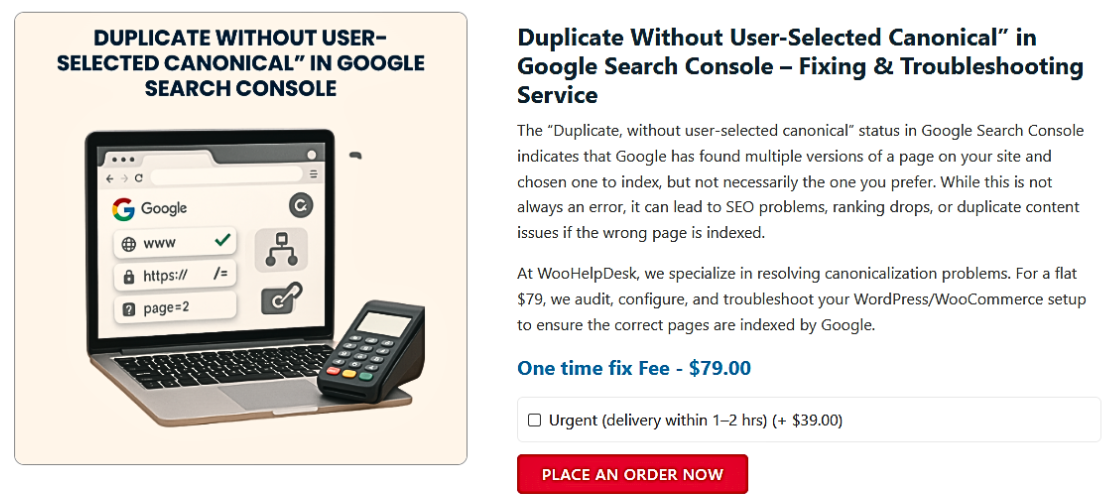
Follow this updated, step-by-step process using the latest GSC interface and methods to fix the issue correctly.
Step 1: Find the Affected Pages in Google Search Console
Here’s how to locate the URLs causing the problem:
- Sign in to Google Search Console.
- On the left menu, click Pages under the Indexing section.
- Scroll to the section titled Why pages aren’t indexed.
- Find the Duplicate row without the user-selected canonical.
- Click on that label to view the full list of affected pages.
This list shows which URLs Google considers duplicates but without your input. You should evaluate and update these pages.
🔹 Step 2: Inspect URLs Using the URL Inspection Tool
Once you identify affected URLs:
- Click any URL from the list.
- Use the URL Inspection Tool (from the left panel).
- Look for these key details:
- Canonical chosen by Google.
- User-declared canonical (will be empty if not set).
- Indexing status (indexed or not indexed).
This step helps you confirm which pages need canonical tags and which one should be the main version.
Step 3: Add Canonical Tags to the Preferred Page
Select the primary page you wish to have indexed for each set of duplicate pages.
- Open the HTML of the preferred page.
- Add this tag in the <head> section:
<link rel=”canonical” href=”https://www.example.com/your-main-page/” />
- Use the full, absolute URL (with HTTPS and correct casing).
- Verify that the canonical page self-references to itself.
Example:
If the correct page is:
https://www.example.com/product/shoes/
Then add this tag to its head:
<link rel=”canonical” href=”https://www.example.com/product/shoes/” />
Step 4: Fix Canonical Conflicts Between Similar Pages
Avoid linking multiple pages to each other as canonicals.
Bad example:
- Page A uses Page B as canonical.
- Page B uses Page A as canonical.
This creates a google duplicate canonical tag issue and confuses Google.


Best practice:
- Choose one main page.
- Have all duplicate pages (or similar content) point to that one.
Use canonicals to consolidate link equity and indexing.
Step 5: Correct Internal Links
Internal links help guide Google through your site.
Make sure these links:
- Make sure to always refer to the page’s canonical version.
- Avoid URLs with tracking codes, session IDs, or sorting parameters.
- Match the correct structure (HTTPS, lowercase, and consistent slashes).
Review and update your menus, product listings, blog sidebars, and footers.
Step 6: Handle URL Parameters and Filter Pages
CMS platforms (like WooCommerce or Shopify) often generate URLs with parameters like:
- ?ref=affiliate
- ?sort=price
- ?color=blue
These pages may have the same content as the main page but different URLs.
To prevent duplication:
- Add a canonical tag to each parameterized page.
- Point it back to the original version (without parameters).
Or, in Google Search Console:
- Go to Legacy Tools → URL Parameters.
- Tell Google which parameters do not change page content.
Be cautious. Incorrect settings may block useful pages from indexing.
Step 7: Use 301 Redirects for True Duplicates
If two pages are exactly the same and one isn’t needed, use a 301 redirect:
- Set up a redirect from the duplicate URL to the preferred page.
- This transfers link equity and prevents duplication.
Only use this if the duplicate page serves no unique purpose.
Step 8: Use SEO Plugins (If on WordPress)
If your site runs on WordPress, SEO plugins can simplify canonical setup:
- Yoast SEO
- Rank Math
- All in One SEO
These plugins:
- Automatically create canonical tags.
- Help prevent conflicting canonical issues.
- Provide easy editing from the admin panel.
Just ensure the theme or custom code does not override plugin settings.
Step 9: Validate Fixes in Google Search Console
Once your updates are complete:
- Go back to Search Console.
- Click on the issue Duplicate without user-selected canonical.
- Hit “Validate Fix” for the affected URLs.
Google will recheck the pages. If everything is correct, the warning will disappear within days or weeks.
Best Practices to Prevent Canonical Issues
Fixing the “Duplicate Without User-Selected Canonical” error is essential. But preventing it from returning is even more important. Canonical issues often come back during site updates, migrations, or when new content is added without proper SEO checks.
Search engines prefer clear and consistent site structures. If your pages send mixed signals — like missing canonicals or inconsistent URLs — Google may again index the wrong version. That can damage your SEO efforts and lower your visibility.
Here are the most effective best practices to prevent future canonical issues and keep your website SEO-friendly.
- Always Set a Canonical Tag on Every Important Page
Set a canonical or 301 redirect to the primary version if there are other versions. This tells Google that the current URL is the master version. It avoids confusion when duplicate content exists across similar pages.
Use this in the <head> of the page:
<link rel=”canonical” href=”https://www.example.com/page-url/” />
Apply it consistently to:
- Product and service pages
- Blog articles
- Filtered or sorted category pages
- Paginated content
- Use SEO Plugins to Handle Canonicals Automatically
If your site runs on WordPress, install trusted SEO plugins like:
- Yoast SEO
- Rank Math
- All in One SEO
These tools:
- Add canonical tags to every page automatically.
- Reduce manual work and human error
- Offer quick checks for missing or duplicate tags
Always check plugin settings after theme or plugin updates. Conflicts can sometimes remove or override canonicals.
- Keep URLs Clean, Consistent, and Canonical-Ready
Small changes in URLs can create unexpected duplicates. Maintain consistency across all internal links and site navigation.
Avoid:
- Mixing http:// and https://
- Capital letters in some URLs and lowercase in others
- Making the switch between URLs with and without trailing slashes
- Long URLs with unnecessary tracking parameters (?ref=, ?id=, etc.)
If alternate versions exist, set a canonical or 301 redirect to the main version.
- Schedule Regular SEO Audits
Regular audits help you catch canonical issues early. Use tools like:
- Google Search Console
- Ahrefs or SEMrush
- Screaming Frog (for crawling and duplicate detection)
Focus on:
- Missing or conflicting canonical tags
- Pages with parameter-based duplicates
- Indexing warnings in Search Console
Run audits at least every quarter, or after any major content or design change.
By following these proactive steps, you can avoid the Search Console duplicate URL issue and maintain control over your indexing. Prevention saves time, protects rankings, and keeps your SEO health strong.
Conclusion
Fixing the “Duplicate Without User-Selected Canonical” issue is key to better SEO. It helps Google in determining which pages to rank and index. Without setting a canonical tag, your valuable content might stay hidden.
Now you know the causes, solutions, and prevention tips. Use them to take control of your site’s visibility and indexing.
Keep your URLs clean. Always use canonicals. Audit your site regularly.
Need expert help?
Contact WooHelpDesk for technical SEO support and website audits. Call us at +1 888 602 0119 (US & Canada) — we’re here to help you grow.
Let’s make sure your website stays optimized, visible, and ready to rank.