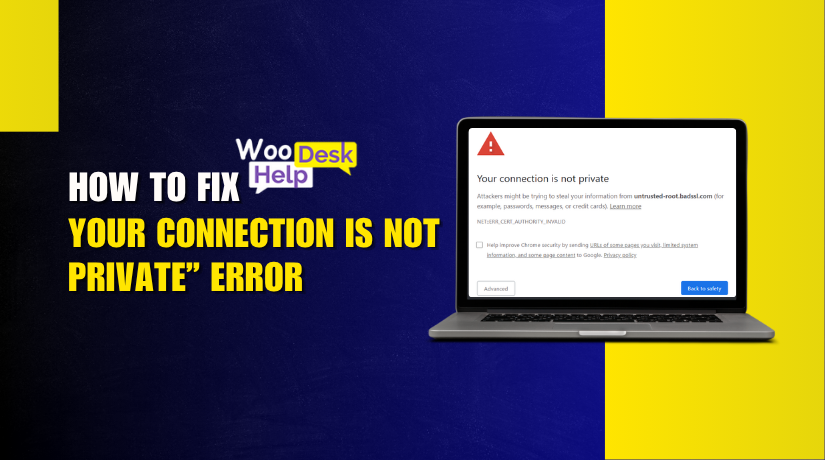
Your Connection is Not Private” Error: What It Means and How to Fix It
Table of Contents
- What Does the “Your Connection is Not a Private Error” Mean?
- SSL Certificates: What Are They Really?
- What Causes a “Your Connection Is Not Private” Error?
- HTTP vs HTTPS: Understanding the Difference
- What a “Your connection is not private” Error Looks Like on Each Browser
- How to Fix the “Your Connection Is Not Private” Error – Step-by-Step Guide
- How to Prevent “Your Connection Is Not Private” Error in Future
- Conclusion: Secure Your Website from “Your Connection is Not Private” Error
What Does the “Your Connection is Not a Private Error” Mean?
When you see the Your Connection is Not a Private Error, your browser is warning you that the website you’re trying to visit isn’t secure. This message, often called the your connection is not private warning, appears when your browser cannot verify a site’s SSL certificate. An SSL certificate is used to encrypt data between your browser and the website. If this certificate is missing, expired, or not trusted, the browser blocks the connection to protect your privacy.
This issue can happen for various reasons, such as an SSL misconfiguration, a certificate that’s expired, or an attempt by attackers to intercept your data. In some cases, this can be a sign of a your connection is not private attack, where someone tries to spy on or steal sensitive information you enter on an insecure site.
You may see different versions of this message based on the browser or device you use:
- In Google Chrome, you’ll see “Your connection is not private” with a warning about attackers trying to steal your data.
- In Mozilla Firefox, it shows “Your connection is not secure.”
- In Safari, it says “Your connection is not private” when the site identity can’t be verified.
- In Microsoft Edge, it shows “Your connection isn’t private.”
This error is common on various operating systems and devices:
- On Windows 10, it may show in Chrome or Edge during a certificate error.
- On Mac, you’ll typically see it in Safari or Chrome when the SSL is broken.
- On iPhone, the your connection is not private iPhone message shows up if Safari can’t verify the site’s certificate.
- On Android, the your connection is not private Android error often appears in Chrome when using public Wi-Fi or outdated security settings.
SSL Certificates: What Are They Really?
SSL certificates are essential tools for securing websites on the internet. They create a secure path between your browser and the website’s server. This means any data shared stays encrypted and protected from hackers. It’s a basic yet powerful layer of online security.
These certificates work using a method called encryption technology. Encryption turns readable data into secret code that’s hard to break. Only the correct server can decode and read your private information. This helps protect sensitive data like passwords, emails, and credit card numbers.
When a website has an SSL certificate, you’ll see a padlock icon The website address will also begin with “https” instead of just “http.” That extra “s” stands for “secure” and confirms the site is protected. It shows visitors that the site takes privacy seriously.
SSL certificates are issued by trusted groups called Certificate Authorities (CAs). These authorities check the website’s identity before issuing the certificate. This prevents fake or harmful websites from pretending to be real ones. Your browser trusts websites with valid SSL from known authorities.
There are various kinds of SSL certificates out there. Some are for single websites, others cover multiple domains or subdomains. Business websites often use extended validation certificates for added trust. Smaller sites can use free SSL options like Let’s Encrypt for basic protection.
Beyond safety, SSL also helps with SEO and search engine rankings. Google prefers websites that use HTTPS over those that don’t. It also helps increase user confidence when browsing or shopping online. People are more likely to stay when they feel secure.
What Causes a “Your Connection Is Not Private” Error?
- Expired SSL Certificate
The Your Connection is Not a Private Error may be caused by an SSL certificate that has expired. Browsers block sites with outdated certificates to protect users. This prevents data from being encrypted properly. Website owners should renew SSL certificates on time to maintain security and user trust.
- Untrusted Certificate Authority
For website validation, browsers rely on reliable certificate authority. If the SSL certificate is self-signed or not from a trusted authority, users see a your connection is not private warning. This prevents access and alerts users to possible risks like phishing or spoofed websites.
- Incorrect Date or Time
Your device’s system clock must match real-world time. Wrong date settings can confuse browsers during SSL validation. This often causes your connection is not private SSL errors. Adjusting your system time usually fixes the issue and restores secure access to websites.
- Corrupted Cache and Cookies
Stored cache or cookies can conflict with security updates. These outdated files may stop the SSL handshake, triggering Your Connection is Not a Private Error. Clean your browser’s cache and cookies on a regular basis to avoid interfering with certificate validation and security measures.
- Unsecured Public Wi-Fi
Connecting through unsecured networks can trigger your connection is not private attack warnings. Hackers may intercept unencrypted data on public Wi-Fi. Browsers respond by blocking access to protect sensitive user data. Avoid submitting personal information on open networks without a VPN.
- Aggressive Antivirus or Firewall
Some security software blocks SSL handshakes for extra protection. This interference causes your connection is not private SSL errors. Temporarily disabling HTTPS scanning or adding an exception may help. Make sure your antivirus is not blocking safe sites unintentionally.
- Outdated Web Browser
Old browser versions may not support new SSL protocols. This leads to the It’s not a private error with your connection. Keep your browser updated at all times. Latest versions include support for current encryption standards and help avoid certificate validation issues.
- Incorrect Website SSL Configuration
Server-side issues often lead to this browser warning. Misconfigured SSL chains or expired intermediate certificates can result in a your connection is not private warning. Site administrators should audit their certificate setup regularly to prevent broken encryption and trust errors.
- Unsupported Operating System
An outdated operating system may not support secure SSL protocols. This causes the Your Connection is Not a Private Error when visiting HTTPS websites. Updating your OS ensures compatibility with current encryption standards and prevents security certificate validation failures.
- Mobile Device Security Settings
On mobile devices, issues like wrong time zones or outdated apps may trigger your connection is not private SSL warnings. Restarting the phone, syncing time settings, or clearing browser data may help fix your connection on iPhone or Android devices.
HTTP vs HTTPS: Understanding the Difference
- Protocol Basics
HTTP stands for Hypertext Transfer Protocol. It works at the application layer. It helps browsers and servers exchange data across the web. HTTPS is Hypertext Transfer Protocol Secure. It includes all HTTP functions but adds encryption. HTTPS uses Transport Layer Security (TLS) to protect information. This keeps communication safe from attackers who may intercept data between client and server.
- Encryption Mechanism
HTTP transfers data in plaintext. This means anyone can read it. HTTPS uses an encryption protocol—TLS or older SSL—to secure the data. Before data leaves your browser, it is encrypted. When it reaches the server, it is decrypted. This ensures that personal details like login credentials and payment data stay hidden from malicious third parties during transit.
- Certificate Authority (CA) Verification
HTTPS websites need a digital certificate. This certificate is issued by a trusted Certificate Authority (CA). It includes information about the website owner, the CA, and a public key. Browsers validate this certificate before opening the website. HTTP websites skip this step. Without a certificate, users can’t be sure who is running the website, leading to trust issues.
- Browser Behavior and Security Warnings
Modern browsers like Chrome, Firefox, and Safari treat HTTP sites as risky. They display a “Not Secure” warning in the address bar. On the other hand, HTTPS sites show a padlock icon, indicating a secure connection. Browsers may block sensitive forms on HTTP sites. This prevents users from unknowingly submitting data over insecure channels.
- Impact on SEO and Search Rankings
Search engines like Google favor secure connections. HTTPS websites are given a slight ranking boost. This means HTTPS can directly affect your visibility in search results. If two sites have similar content, the secure one may rank higher. Switching to HTTPS is now considered a best practice for improving SEO and online trust.
- Data Integrity and Tampering
Data sent over HTTP can be modified or injected with malicious code. Hackers can use Man-in-the-Middle (MITM) attacks to alter requests. HTTPS ensures data integrity. It uses TLS to prevent any changes during transmission. This guarantees the information sent from the server reaches the client without being altered or corrupted in any way.
- Performance Improvements with HTTP/2
Older HTTPS setups were slower due to encryption overhead. However, with HTTP/2 and TLS 1.3, HTTPS now performs faster than HTTP in many cases. Features like multiplexing, header compression, and server push improve load speed. These advancements make secure websites just as fast—or faster—than traditional unencrypted sites.
- User Trust and Conversion Rates
Security symbols like the padlock icon improve user confidence. When visitors see HTTPS, they are more likely to stay and interact. It reduces bounce rates and increases form submission or checkout rates. In contrast, HTTP warnings scare users away. This makes HTTPS not just a technical requirement, but also a business advantage.
What a “Your connection is not private” Error Looks Like on Each Browser
Each browser handles the “your connection is not private” error differently. Some say “your connection is not secure.” Others show error codes to help identify the issue. Most browsers display a red warning sign or padlock icon. Below is how each browser presents this error and what it means.
1. Google Chrome
In Google Chrome, the error appears with a red exclamation mark. The page clearly states: “Your connection is not private.” It warns that attackers may try to steal your data. This includes passwords, credit cards, or personal messages. Below the warning, Chrome shows an error code. These codes help explain what caused the issue. The error can occur on Windows 10, Mac, or Android devices. This is how the your connection is not private Chrome message appears.
Common error codes in Chrome:
- NET::ERR_CERT_AUTHORITY_INVALID
- NET::ERR_CERT_COMMON_NAME_INVALID
- NET::ERR_CERT_DATE_INVALID
- ERR_SSL_VERSION_OR_CIPHER_MISMATCH
- SSL certificate error
- ERR_CERT_SYMANTEC_LEGACY
- Safari
In Safari, the message says: “This connection is not private.” A red cross appears on the padlock icon. Safari shows this when it can’t verify the site’s identity. It warns the website may be impersonating another domain. This error appears on Mac, iPhone, and iPad. There’s usually a “Show Details” button for more info. That’s how the your connection is not private Safari message looks.
Safari doesn’t initially display error codes, but you might later see:
- Expired certificate notices
- Untrusted root certificate
- Mixed content warnings
- Self-signed certificate alerts
3. Mozilla Firefox
In Mozilla Firefox, the error message reads: “Your connection is not secure.” A red padlock with a slash is also displayed. The browser warns that the site’s certificate is misconfigured. Firefox blocks access to protect your information. A button labeled “Advanced” may show more technical details. This message appears on Windows 10, Mac, or Linux. It reflects the your connection is not private Firefox error for users.
Common error codes in Firefox:
- SEC_ERROR_UNKNOWN_ISSUER
- SEC_ERROR_EXPIRED_CERTIFICATE
- SEC_ERROR_OCSP_INVALID_SIGNING_CERT
- MOZILLA_PKIX_ERROR_MITM_DETECTED
- SSL_ERROR_BAD_CERT_DOMAIN
4. Microsoft Edge
Microsoft Edge shows this warning with a red alert icon. The screen says: “Your connection isn’t private.” It warns of attackers trying to steal your data. Like Chrome, it adds an error code after the warning. The issue is frequent on Windows 10 systems. The error is almost identical to your connection is not private Chrome, but tailored for Edge users.
Common error codes in Edge:
- DLG_FLAGS_INVALID_CA
- DLG_FLAGS_SEC_CERT_CN_INVALID
- NET::ERR_CERT_COMMON_NAME_INVALID
How to Fix the “Your Connection Is Not Private” Error – Step-by-Step Guide
The “Your connection is not private” error usually means your browser is blocking access to a website because it can’t confirm that the site is secure. This could be due to issues with the website’s SSL certificate, your browser settings, or your network connection.
Below is a detailed, easy-to-follow, step-by-step guide that anyone can use to fix the issue.
- Reload the Page
Sometimes, the issue is just a temporary glitch.
- Click the refresh icon in your browser, or press F5.
- You can also use Ctrl + R (Windows) or Command + R (Mac).
- Try a hard refresh with Ctrl + Shift + R (Windows) or Command + Shift + R (Mac).
- This forces the browser to load a fresh copy of the page.
If the error disappears, you’re done. If not, move to the next step.


- Check the Website Address
A small typo in the URL can lead to this error.
- Make sure the address is typed correctly.
- The URL should start with https:// instead of http://.
- Check for misspelled domains (like gooogle.com instead of google.com).
- Avoid clicking on links from suspicious sources.
Correcting the URL might instantly fix the issue.
- Check Your Wi-Fi or Network Connection
A poor or unsecured connection can block secure websites.
- Move closer to your Wi-Fi router for a stronger signal.
- If you’re on public Wi-Fi, switch to your mobile hotspot or a trusted home network.
- Restart your router to refresh the network settings.
- Avoid open Wi-Fi networks that don’t require a password.
If the website opens after switching networks, your original connection was the issue.
- Disable VPN Temporarily
VPNs can sometimes interfere with secure website connections.
- Turn off the VPN from your system tray or app.
- Try reloading the website without the VPN.
- If it loads, the VPN may be blocking the SSL certificate.
- Re-enable the VPN once you’re done for continued privacy.
- Check Your Device’s Date and Time
Your browser verifies security certificates using your system’s date.
- If the date/time is wrong, your browser will assume the certificate is invalid.
- On Windows: Right-click the time → Adjust date/time → Turn on automatic sync.
- On Mac: System Settings → General → Date & Time → Enable automatic update.
Once corrected, refresh the site and check if the error is gone.
- Try Incognito or Private Browsing Mode
This opens a clean session without extensions or cached data.
- Chrome/Edge: Press Ctrl + Shift + N
- Firefox: Press Ctrl + Shift + P
- Safari: Click File > New Private Window
Try visiting the same site in this mode. If it works, the problem may lie in cookies or extensions.
- Clear Cache and Cookies
Old or corrupted browser data can prevent secure connections.
- Open your browser’s Settings > Privacy > Clear Browsing Data.
- Select both Cookies and Cached Files.
- Choose the time range “All Time” for best results.
- Click Clear Data, then restart your browser.
Now revisit the website to check if the error is fixed.
- Turn Off Browser Extensions
Some extensions can block SSL certificates or change network behavior.
- Go to your browser’s extensions or add-ons page.
- Turn off all extensions temporarily.
- Refresh the website.
- If it works, turn on each extension one by one to find the culprit.
Remove or update any extension causing the issue.
- Check Your Antivirus Settings
Antivirus software sometimes scans encrypted connections and causes errors.
- Open your antivirus dashboard or settings panel.
- Look for HTTPS scanning or SSL scanning.
- Turn it off temporarily.
- Try opening the website again.
If it loads, you can whitelist the site or adjust the software settings safely.
- Restart Your Device
Rebooting clears temporary memory and resets internet settings.
- Restart your computer, phone, or tablet.
- Also restart your router or modem by unplugging for 30 seconds.
- After restarting, try visiting the site again.
This step helps solve issues caused by background conflicts.
- Update Your Browser and Operating System
Outdated software may not support newer security protocols.
- Update your browser via its settings or download the latest version from its official site.
- On Windows: Settings > Windows Update > Check for Updates.
- On Mac: System Preferences > Software Update.
After updates, restart your device and retry the website.
- Change DNS Settings
Your DNS helps your browser find websites. A faulty DNS can break connections.
- Use trusted public DNS servers:
- Google: 8.8.8.8 and 8.8.4.4
- Cloudflare: 1.1.1.1 and 1.0.0.1
- Change them from your network settings or router settings.
Try visiting the website again after switching DNS.
- Flush DNS Cache
Your device stores DNS info that may become outdated.
- On Windows:
- Open Command Prompt.
- Type ipconfig /flushdns and press Enter.
- On Mac:
- Open Terminal.
- Type sudo killall -HUP mDNSResponder and press Enter.
This clears stored data and forces your browser to retrieve new DNS info.
- Use Another Browser
Each browser handles SSL differently.
- Try the same site in a different browser (e.g., Firefox instead of Chrome).
- If it works, update or reinstall the original browser.
- This helps identify if the issue is browser-specific.
- Run an SSL Test (For Website Owners)
If this is your own site, check the SSL setup.
- Visit https://www.ssllabs.com/ssltest
- Enter your domain and run the test.
- It will show certificate issues, expiry dates, and chain errors.
Resolve any issues indicated in the report by working with your hosting provider.
- Check SSL Certificate Expiry (For Website Owners)
An expired certificate blocks visitors from accessing your site.
- Open your website.
- Click the padlock icon in the browser bar.
- View the certificate and check the expiry date.
- If expired, renew it through your hosting panel or SSL provider.
- Don’t Bypass the Warning Unless You’re Sure
Clicking “Proceed anyway” can be dangerous.
- Avoid doing this unless you completely trust the website.
- If it’s your bank, email, or any site involving personal data, do not continue.
- Contact the website owner to alert them about the issue.
Bypassing the warning exposes your data to serious risks like theft.
How to Prevent “Your Connection Is Not Private” Error in Future
- Keep Your Device Time and Date Correct
An incorrect date or time can block secure websites from loading. Browsers rely on your system’s clock to check certificate validity. Always keep your device’s date and time set to update automatically. This prevents most timing-related connection issues before they start.
- Regularly Clear Browser Cache and Cookies
Old cookies or cache files can cause connection errors on trusted sites. Over time, this data may conflict with new security updates.To prevent issues, clear the cache and cookies in your browser once a week. Doing so keeps your browser fast and problem-free.
- Update Browser and Operating System Often
Outdated browsers or systems may not recognize updated security certificates. This can trigger connection errors even on safe websites. Always install the latest updates when available. Updated software protects you from bugs and keeps your browsing smooth and secure.
- Avoid Public Wi-Fi Without Protection
Public Wi-Fi is frequently unprotected and can result in security flaws. Avoid using open networks, especially without passwords. If you must use public Wi-Fi, connect through a trusted VPN. This protects your personal data and avoids unwanted certificate warnings.
- Use Trusted Antivirus and Adjust SSL Settings
Some antivirus tools scan encrypted websites, which can trigger false alerts. If you see frequent connection warnings, check your antivirus settings. Disable SSL scanning if needed. Always use antivirus software from trusted providers to avoid unnecessary conflicts.
- Install Only Trusted Browser Extensions
Unknown or poorly built extensions can block secure websites. Only install extensions from well-known developers or browser stores. Check reviews before adding any tool. Remove unnecessary or suspicious extensions to prevent interference with your secure connections.
- Double-Check Website URLs Before Visiting
Phishing websites often look real but have fake or missing certificates. Always check the spelling of a website before clicking any link. If unsure, type the address manually or use a bookmark. This helps you avoid fake sites and warnings.
- Set SSL Auto-Renewal if You Own a Website
If you manage a website, make sure your SSL certificate renews automatically. Expired certificates cause this error for every visitor. Most hosts offer auto-renew features. Turn it on to keep your website safe and always accessible to your users.
Conclusion: Secure Your Website from “Your Connection is Not Private” Error
The “Your Connection is Not Private” error can affect your website’s credibility and prevent users from accessing your content. This issue usually occurs when the browser cannot verify your site’s SSL certificate or there’s a configuration problem on your system or server.
If you’re seeing this warning, don’t panic. We’ve explained everything above—from understanding the causes to identifying how this error appears across different browsers and devices. We’ve also included a detailed guide on how to fix the issue and prevent it in the future. Just follow the steps provided.
If you’re still having problems or require technical assistance, our knowledgeable team can assist you.
👉 Visit https://www.woohelpdesk.com/
📞 Call us at +1 888 602 0119 (US & Canada)
We’ll quickly troubleshoot and resolve the issue so your site runs securely and smoothly.



