
How to Fix the “Are You Sure You Want to Do This?” Error in WordPress
Table of Contents
- What is the “Are You Sure You Want to Do This?” Error in WordPress?
- Common Causes of the ‘Are You Sure You Want to Do This?’ Error in WordPress
- How to Fix the “Are You Sure You Want to Do This?” Error in WordPress
- Preventing the “Are You Sure You Want to Do This?” Error in the Future
- Conclusion
What is the “Are You Sure You Want to Do This?” Error in WordPress?
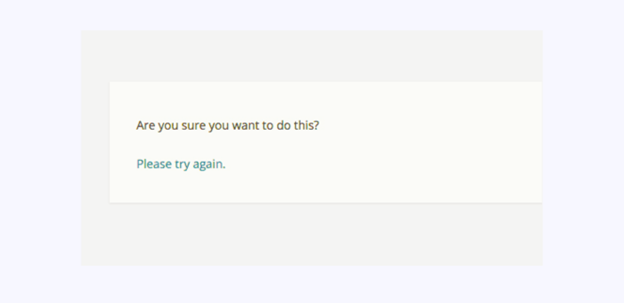
The “Are You Sure You Want to Do This?” error is a security-related message in WordPress. It occurs when WordPress cannot properly verify a request made by a user or admin. This error is frustrating because it does not provide exact details about what went wrong.
WordPress uses internal verification to prevent unwanted or harmful actions. A key part of this system is the nonce. A nonce is a one-time-use token attached to forms and URLs. Its purpose is to ensure that any action performed on the site is valid and secure.
When you perform an action like deleting a post, changing settings, or uploading a file, WordPress checks for a valid nonce. If the nonce is missing, expired, or invalid, the system blocks the action. This triggers the “Are You Sure You Want to Do This?” error.
There are many technical reasons this verification may fail. Common causes include:
- Session expiration: If your login session expires, the nonce becomes invalid.
- Plugin or theme conflicts: Some add-ons interfere with WordPress security checks.
- File corruption: Damaged or altered core files prevent proper validation.
- Caching issues: Cached pages may send outdated nonces to the server
- Form tampering: Incorrect or manually modified form data will fail verification.
The error can occur while performing various tasks, such as:
- Installing or updating plugins and themes.
- Uploading images, videos, or documents to the media library.
- Publishing or updating posts and pages.
- Assigning categories, tags, or menus.
- Updating WordPress settings or user roles.
Technically, this error is a protective measure. It helps prevent Cross-Site Request Forgery (CSRF) attacks. CSRF attacks attempt to force users to perform actions without their consent.
WordPress nonces act as a defense against these threats. When the nonce check fails, the system halts the request to protect the site.
This error does not mean your site is compromised. It simply means WordPress cannot confirm the action you requested. Although the message is vague, the issue can usually be fixed by following standard troubleshooting steps.
Common Causes of the ‘Are You Sure You Want to Do This?’ Error in WordPress
This error often blocks actions in your dashboard. Many factors trigger it. Here are the most common causes explained simply.
- Plugin Conflicts
When plugins operate with overlapping functions or incompatible code, internal conflicts occur. These conflicts interrupt normal site operations and cause unexpected error messages. A WordPress plugin error happens when the system cannot validate processes due to these clashes. The error appears when plugins override hooks or filter behaviors essential for completing a task. Even a small code mismatch between active plugins can trigger the disruption.
- Theme Conflicts
A site’s design theme must work alongside the WordPress core and installed plugins. A WordPress theme conflict happens if a theme includes outdated code, missing files, or improperly registered functions. This mismatch prevents the system from validating certain user requests. Theme conflicts often cause backend action failures, producing the “Are You Sure You Want to Do This?” message during dashboard activities.
- Session Expiration
WordPress stores session data to track logged-in users. If the session expires because of timeouts or server-side memory clearing, the system loses its ability to match user credentials. This creates a WordPress login error, as the system cannot authenticate your role. Once expired, any attempt to update or modify data triggers the generic verification failure.
- Nonce Verification Failure
Nonces (number used once) ensure secure communication between forms and the database. If these nonces are altered, removed, or expire before use, the request fails. This failure leads to a WordPress nonce verification problem. The site does not recognize the legitimacy of the action, and the process ends with the common security message displayed.
- Security Plugin Restrictions
Security plugins are designed to monitor and block suspicious activity. Overly strict security plugin settings can misidentify legitimate actions as harmful. This results in the system preventing normal tasks and displaying an error. A WordPress security issue develops when security rules conflict with the expected behavior of the core platform.
- Incorrect File Permissions
Every file and folder has permission settings that determine who can access or modify them. If set improperly, the site cannot complete its processes. WordPress file permissions errors occur when essential files are blocked from the server’s read/write access. As a result, the system halts the attempted action with the generic error message.
- User Role Limitations
WordPress assigns each user a role with defined capabilities. When a user attempts an action outside of their permitted tasks, the system denies the request. This mismatch produces WordPress user role issues. Administrators rarely encounter this, but editors, authors, or custom role users may trigger this error when trying restricted actions.
- Theme Compatibility Issues
Themes designed for older versions of WordPress may not work correctly with updated core files. An outdated theme can lack compatibility with newer functions or APIs. This results in a WordPress theme compatibility failure, causing WordPress to block intended operations with the standard error message.
- File Upload Errors
WordPress limits both file types and sizes to protect the system. Attempting to upload files outside of these restrictions causes the site to stop the process. A WordPress file upload error happens when unsupported formats or excessive file sizes are submitted, immediately resulting in the “Are You Sure You Want to Do This?” response.
- Security Nonce Expiration
Nonces are temporary tokens generated to validate actions. These tokens expire after a preset period. If a user delays submitting a form or an action beyond this window, the nonce becomes invalid. This expired token results in a WordPress security nonce error, stopping the operation without a detailed reason given.
- CSRF Protection Interference
Cross-Site Request Forgery (CSRF) protection blocks malicious requests from external sources. If improperly configured, CSRF checks may reject legitimate actions. A WordPress CSRF protection error arises when system verification rules prevent the task from proceeding, even though it originated from a valid user.
How to Fix the “Are You Sure You Want to Do This?” Error in WordPress
The “Are You Sure You Want to Do This?” error is frustrating for many users. It stops tasks without explaining the exact cause. The message usually appears when WordPress cannot verify an action.
This problem can happen when installing plugins, uploading files, or changing settings. The causes vary but are often linked to plugins, themes, memory limits, or security conflicts.
Below is a detailed troubleshooting guide to help you fix this error. Follow these steps in order for best results.
- Verify File Upload Formats
Uploading files in unsupported formats often triggers this error. WordPress accepts only certain file types like .zip for plugins and common image formats. Avoid using files like .rar or unusual document formats. Check all files before uploading. Make sure spreadsheets, presentations, and attachments meet format rules. If unsure, convert the file to a WordPress-friendly type before uploading. Verifying formats prevents many upload-related problems from happening.
- Deactivate All Plugins
Faulty or incompatible plugins frequently cause this error. You can disable plugins through your dashboard. Go to Plugins > Installed Plugins and deactivate all. If you regain access, you know a plugin caused the issue. Then reactivate each one individually and check the site. For dashboard access problems, use FTP. Rename the plugins folder inside wp-content to disable all plugins at once. Rename it back to restore plugins.
- Switch to a Default Theme
Sometimes your active theme causes conflicts. This is known as a WordPress theme conflict. Switching to a default theme like Twenty Twenty-One helps identify the issue. Through your dashboard, go to Appearance > Themes and activate a default theme. If you cannot access the dashboard, connect via FTP. Rename your active theme’s folder inside wp-content/themes. WordPress automatically reverts to a default theme and helps you test the site.
- Update Plugins and Themes
Outdated code can cause plugin or theme issues. A WordPress plugin error or theme conflict may appear when files are too old. Always keep all plugins and themes updated. In your dashboard, go to Dashboard > Updates. Select all items and click Update Plugins and Update Themes. Updated files reduce security risks and avoid problems caused by outdated PHP functions or deprecated WordPress hooks.


- Increase PHP Memory Limit
A low PHP memory limit often prevents processes from completing. The site can then display the error. Increase the limit by editing wp-config.php. Connect via FTP. Add this line before “That’s all, stop editing!”:
define(‘WP_MEMORY_LIMIT’, ‘256M’);
Alternatively, use .htaccess and add php_value memory_limit 256M. Some hosts may not allow changes. In that case, contact support. Raising the limit gives WordPress more resources to complete actions properly.
- Regenerate Security Keys
Corrupt or old security keys (salts) can cause the error. These keys verify users and secure sessions. To regenerate, connect to your site using FTP and open wp-config.php. Replace existing keys with new ones from https://api.wordpress.org/secret-key/1.1/salt/. Copy the keys and replace the old values in your file. Save and upload. This refreshes sessions and stops token mismatch problems.
- Clear WordPress Cache
Caching plugins improve performance but sometimes store bad data. Outdated cached files can block updates and cause errors. Open your caching plugin settings (e.g., W3 Total Cache). Find the clear cache button and run it. This forces WordPress to rebuild its cache with the latest data. Cached files are often a hidden reason for the “Are You Sure” error.
- Clear Browser Cache
Your browser cache may also hold outdated files. Cached styles or scripts can conflict with current site versions. Open your browser settings. Select the option to clear browsing data or cache. After clearing, close and reopen the browser. Try accessing your site again. A clean browser cache helps prevent many display and action problems.
- Ensure Proper File Permissions
Improper file permission settings can block system access. This creates WordPress file permissions issues. Use FTP or your host file manager to check file permissions. Recommended values are 755 for folders and 644 for files. Incorrect settings may prevent uploads, edits, or plugin installations. Always verify permissions if nothing else has solved the error.
- Reinstall Core WordPress Files
If files are corrupted, reinstalling core files may help. First, back up your site. Download the latest WordPress version from wordpress.org. Delete all site files except wp-content. Replace the rest with fresh WordPress files. Copy your backed-up wp-config.php into the new folder. Upload everything via FTP. This refreshes your core files without deleting your themes, plugins, or media.
Preventing the “Are You Sure You Want to Do This?” Error in the Future
The “Are You Sure You Want to Do This?” error can disrupt your work. While it is fixable, preventing it saves time and effort. Follow these key practices to avoid error in the future.
- Keep Your WordPress Site Updated
Always update your website to prevent unexpected issues. An outdated site often faces a WordPress error. Updates include security patches and compatibility improvements. Regularly update WordPress core, plugins, and themes to ensure smooth performance and fewer system conflicts that trigger error messages.
- Use Well-Coded Plugins
Select plugins from trusted developers and sources. Poor coding causes a WordPress plugin error. Avoid installing unnecessary or duplicate plugins. Check reviews and ratings before installation. Well-coded plugins reduce the risk of internal conflicts, validation failures, and security token mismatches that cause operational failures.
- Choose Compatible Themes
Use themes tested with the latest WordPress version. An incompatible theme may lead to a WordPress theme conflict. Before installing any theme, check its update history and active support. Outdated themes often fail to communicate properly with core WordPress files and generate error alerts.
- Log Out and Log In Again
Session timeouts often lead to the error. If inactive too long, you may face a WordPress login error. Logging out and back into the admin dashboard resets your session. This action refreshes your login tokens and allows secure system operations without triggering unexpected interruptions.
- Avoid Expired Nonces
Nonces prevent unwanted site changes. An expired nonce leads to WordPress nonce verification failure. Always complete your actions without leaving forms open too long. Avoid using old browser tabs for submitting forms. Keep active admin sessions current to prevent nonce validation from failing.
- Adjust Security Plugin Settings
Security plugins protect your site but can block legitimate tasks. Misconfigured settings lead to a WordPress security issue. Review rules carefully. Whitelist safe actions and avoid overly strict blocking features. Balancing security and usability minimizes unnecessary access blocks and prevents this frustrating error.
- Set Correct File Permissions
Check and adjust file and folder permissions. Incorrect values cause a WordPress file permissions conflict. The server needs the right permissions to read, write, and modify files. Use standard permission levels (755 for folders, 644 for files) to allow safe operations without system errors.
- Assign Correct User Roles
Give users the right access levels. Wrong settings cause WordPress user role issues. Assign admin roles only to trusted users. Use editor, contributor, or subscriber roles as needed. Limiting permissions prevents users from attempting tasks they are not authorized to perform within WordPress.
- Check Theme Compatibility Regularly
Outdated themes break when core files update. Verify that your theme supports the most recent version to prevent issues with WordPress theme compatibility. Visit the theme developer’s website or WordPress repository to verify compatibility. Update your theme regularly to avoid unwanted conflicts that trigger errors.
- Monitor File Upload Limits
Large or unsupported files can create a WordPress file upload error. Check your hosting file size limits. Resize large files before uploading. Use allowed file types only. Following these practices reduces blocked uploads and prevents error triggers related to file size or type.
- Configure CSRF Protection Properly
Cross-Site Request Forgery tools prevent external attack attempts. Bad settings cause a WordPress CSRF protection error. Review and fine-tune any CSRF protection plugin settings. Ensure real user actions are not mistaken for suspicious requests, which would result in blocked tasks and error messages.
Conclusion
The “Are You Sure You Want to Do This?” error is common in WordPress. It acts as a safety measure when something interrupts a site action.
Most of the time, this error happens because of expired sessions, plugin conflicts, theme problems, or file upload issues. WordPress uses a system of checks, including security tokens, to prevent unwanted changes. When these checks fail, the error appears.
You can solve it by following structured troubleshooting. Check for plugin or theme conflicts. Clear your cache.Raise the PHP memory limit if necessary. Change the security keys for WordPress. Make sure file permissions and user roles are set correctly.
To prevent this error in the future, keep WordPress, plugins, and themes updated. Use reliable plugins and well-supported themes. Avoid leaving admin forms open too long. Monitor security plugin settings so they do not block normal tasks.
This error does not mean your site is hacked or permanently damaged. It simply tells you that WordPress could not confirm a safe action.
With regular maintenance and the tips shared here, you can reduce the chances of seeing this error again. Keeping your site secure, up-to-date, and running smoothly should always be a top priority.



