How to Integrate WhatsApp with WooCommerce: Step-by-Step Guide
Last Updated: April 10, 2026.
Table of Contents
- Introduction
- Why Integrate WhatsApp with WooCommerce: Key Benefits
- Use Cases: Integrate WhatsApp with WooCommerce for Your Store
- Methods to Integrate WhatsApp with WooCommerce
- Integrate WhatsApp with WooCommerce: Plugin vs Business API
- WhatsApp vs Email vs SMS for WooCommerce
- Best Plugins to Integrate WhatsApp with WooCommerce (2026)
- WhatsApp Automation Workflows for WooCommerce
- WhatsApp Integration Cost Breakdown
- Step-by-Step Guide: Integrate WhatsApp with WooCommerce Using JoinChat
- Common Mistakes When Integrating WhatsApp with WooCommerce
- FAQs: How to Integrate WhatsApp with WooCommerce
- Conclusion
Want to integrate WhatsApp with WooCommerce to boost customer engagement and recover abandoned carts? This guide covers everything you need — from free plugin setup to the WhatsApp Business API for automated order notifications.
Introduction
WhatsApp can be integrated with WooCommerce using free chat plugins like JoinChat or the official WhatsApp Business API. Plugins work best for small to medium stores that need a simple chat button on product pages, while the Business API supports automated order notifications, cart recovery sequences, and CRM integration for high-volume stores processing hundreds of orders daily.
With over 2 billion active users worldwide, WhatsApp has become one of the most powerful communication tools for e-commerce businesses. If you run a WooCommerce store, integrating WhatsApp can dramatically improve customer engagement, boost conversions, and reduce support costs.
Based on WooHelpDesk support cases across 200+ WooCommerce stores, one of the most common reasons customers abandon their carts is delayed responses to product questions. Adding a WhatsApp chat button directly on product and checkout pages addresses this gap and gives shoppers the instant answers they need to complete a purchase.
In this guide, you will learn how to integrate WhatsApp with WooCommerce — including a step-by-step plugin setup, method comparisons, real use cases, and common mistakes to avoid.
Quick Answer: To integrate WhatsApp with WooCommerce, install a plugin like JoinChat from the WordPress repository, enter your WhatsApp phone number in international format, configure chat button visibility for product and checkout pages, and optionally enable WooCommerce-specific message templates for order updates and cart recovery.
Why Integrate WhatsApp with WooCommerce: Key Benefits
When you integrate WhatsApp with WooCommerce, you unlock a direct, high-engagement channel that outperforms email for nearly every customer communication scenario. Based on WooHelpDesk implementations across 200+ WooCommerce stores, businesses consistently report stronger customer relationships, faster support resolution, and measurable revenue gains.
Connecting WhatsApp to your WooCommerce store opens up powerful new channels to engage and convert customers. Here are the key benefits:
Enhanced Customer Engagement via WhatsApp
WhatsApp allows you to interact with customers instantly, reducing response time and increasing trust. A customer asking about product availability can get a reply within seconds — improving conversion rates by up to 3x compared to email. The informal, conversational nature of WhatsApp also makes customers more comfortable reaching out.
Instant Customer Support Using WhatsApp in WooCommerce
Unlike email or phone support, WhatsApp enables real-time two-way communication. Customers can share screenshots, voice messages, and documents — making it easier to resolve product queries, delivery issues, and return requests faster and with far greater clarity. WooHelpDesk users commonly report that WhatsApp reduces average ticket resolution time by 40–60% compared to email-only support.
Quick Order Updates and WhatsApp Notifications
Automatically send order confirmations, shipping updates, and delivery notifications via WhatsApp. Customers stay informed throughout the purchasing journey without needing to log into their account, significantly reducing support inquiries about order status. For stores that already use WooCommerce email notifications, adding WhatsApp creates a powerful dual-channel strategy.
Abandoned Cart Recovery with WhatsApp
WhatsApp has an average open rate of around 98%, compared to just 20% for email. By sending personalized cart reminders through WhatsApp, many WooCommerce stores recover 10–20% of abandoned carts, directly boosting revenue without additional ad spend. Learn more in our guide on how to see abandoned carts in WooCommerce.
Building Customer Trust Through WhatsApp Commerce
WhatsApp conversations create a personal, one-on-one connection that builds long-term customer loyalty. Unlike email newsletters that feel broadcast-like, WhatsApp messages carry an inherent sense of personal attention. WooCommerce store owners who maintain active WhatsApp channels report higher repeat purchase rates and stronger word-of-mouth referrals, particularly in markets across India, Brazil, and Southeast Asia where WhatsApp is the dominant messaging platform.
Targeted Marketing and Increased Sales
Use WhatsApp to send targeted promotions, flash sale alerts, and new product announcements to opted-in customers. Combined with purchase history, this channel enables effective cross-selling and upselling at exactly the right moment in the customer journey.
Use Cases: Integrate WhatsApp with WooCommerce for Your Store
Understanding how WhatsApp fits into your WooCommerce workflow helps you get maximum value from the integration. Here are the most impactful real-world use cases:
- Order Confirmation: Send an automated WhatsApp message the moment a customer places an order, reducing post-purchase anxiety and building brand confidence.
- COD Order Verification: For cash-on-delivery orders, confirm the order via WhatsApp before dispatch to reduce failed deliveries and costly returns.
- Post-Purchase Upselling: After a successful purchase, send a personalized WhatsApp message recommending complementary products or upgrades relevant to what was bought.
- Pre-Purchase Customer Support: Allow customers to ask product questions through a WhatsApp chat button on product and checkout pages, removing buying hesitation.
- Abandoned Cart Recovery: Send a friendly, personalized reminder with a direct checkout link to customers who added items to their cart but did not complete the purchase.
Methods to Integrate WhatsApp with WooCommerce
There are two primary approaches to integrate WhatsApp with WooCommerce, each suited to different business sizes and automation requirements:
WhatsApp Chat Plugins
WordPress plugins such as JoinChat, Click to Chat, and WP Social Chat let you add a floating WhatsApp chat button to your site without any coding. These are ideal for small to medium WooCommerce stores that need a quick setup, low cost, and easy customization. Most plugins support custom welcome messages, page-level visibility rules, and WooCommerce-specific product message templates to personalize the chat experience.
WhatsApp Business API
The WhatsApp Business API is designed for larger businesses that need high-volume, automated messaging. Unlike a plugin, the API supports automated notifications for order confirmations, shipping updates, and delivery alerts, and can be connected to your CRM or helpdesk. It requires a verified WhatsApp Business account and is provisioned through an approved Business Solution Provider (BSP) as documented in the official WooCommerce documentation. This is the right choice if your store processes hundreds of orders per day and needs enterprise-level WhatsApp automation for WooCommerce.
Integrate WhatsApp with WooCommerce: Plugin vs Business API
Choosing between a plugin and the API depends on your business scale and messaging requirements. Here is a quick comparison:
| Feature | WhatsApp Chat Plugin | WhatsApp Business API |
|---|---|---|
| Cost | Free or low cost | Paid (per conversation) |
| Setup Difficulty | Easy (plugin install) | Complex (requires approval) |
| Automation | Limited | Advanced (bots, triggers) |
| Message Volume | Low to medium | High volume |
| Best For | Small and medium stores | Scaling businesses |
For most WooCommerce store owners starting out, a free plugin like JoinChat is the recommended first step. You can always migrate to the WhatsApp Business API as your order volume and automation needs grow.
WhatsApp vs Email vs SMS for WooCommerce
Choosing the right communication channel for your WooCommerce store depends on your budget, audience, and message type. Here is how WhatsApp compares to email and SMS for common WooCommerce use cases:
| Channel | Open Rate | Avg. Cost per Message | Conversion Potential | Best For |
|---|---|---|---|---|
| ~98% | Free (plugin) to ₹0.50–₹1.00 (API) | High | Cart recovery, order updates, support | |
| ~20% | Low (free tiers available) | Medium | Newsletters, promotions, receipts | |
| SMS | ~90% | ₹0.15–₹0.30 per message | Medium | OTPs, flash alerts, time-sensitive offers |
WhatsApp stands out for WooCommerce stores because it combines the immediacy of SMS with the rich media capabilities of email. Customers can receive product images, order tracking links, and interactive messages — all within a single conversation thread. For stores handling customer support alongside marketing, WhatsApp provides the highest engagement-to-cost ratio of any messaging channel.
Best Plugins to Integrate WhatsApp with WooCommerce (2026)
While JoinChat is one of the most popular options, several other WhatsApp WooCommerce plugins are worth considering depending on your store’s needs:
| Plugin | Best For | Free/Paid | Key Feature |
|---|---|---|---|
| JoinChat | Beginners and WooCommerce stores | Free | WooCommerce product-level messages, page visibility rules |
| Click to Chat | Lightweight setups | Free | Simple click-to-WhatsApp button with analytics |
| WP Social Chat | Multi-agent teams | Paid | Multiple agents, custom styling, department routing |
| NotifyWA / WooWati | Automated notifications | Paid | Order status triggers, WhatsApp automation for WooCommerce |
If your primary goal is adding a chat button to product pages with minimal setup, JoinChat or Click to Chat will serve you well. For stores that need WhatsApp order notifications triggered automatically when order statuses change, a dedicated plugin like NotifyWA or WooWati paired with the WhatsApp Business API is the more suitable choice.
WhatsApp Automation Workflows for WooCommerce
One of the biggest advantages of connecting WhatsApp to WooCommerce is the ability to automate customer communication at every stage of the purchase journey. While a simple chat button handles pre-sale questions, automation handles everything after the customer clicks “Place Order.”
Order Confirmation Workflow
Trigger an automated WhatsApp message the moment a WooCommerce order status changes to “Processing.” Include the order number, item summary, and estimated delivery window. Based on WooHelpDesk support data, stores that send WhatsApp order confirmations see a 35% reduction in “Where is my order?” support tickets within the first week of implementation.
Abandoned Cart Recovery Sequence
Set up a timed sequence of WhatsApp messages for customers who add items to their cart but do not complete checkout. A proven three-step sequence works well for most WooCommerce stores:
- 30 minutes after abandonment: A friendly reminder with a direct link back to their cart.
- 6 hours later: Highlight a key product benefit or share a customer review to rebuild purchase intent.
- 24 hours later: Offer a small incentive such as free shipping or a 5% discount code to close the sale.
This sequence typically recovers 12-18% of abandoned carts when sent via WhatsApp, compared to 3-5% recovery rates from email-only sequences. For more details on tracking abandoned carts, see our guide on setting up WooCommerce cart abandonment recovery.
COD Order Verification Flow
For WooCommerce stores offering cash on delivery, WhatsApp verification reduces failed deliveries by up to 25%. Send an automated message asking the customer to confirm their order and delivery address before dispatch. If the customer does not respond within a set timeframe, flag the order for manual review rather than shipping blindly.
Post-Delivery Review Request
Three days after a successful delivery, send a WhatsApp message asking the customer to rate their experience or leave a product review. WhatsApp review requests generate 4-6x more responses than email review requests because of the conversational format and high open rates.
WhatsApp Integration Cost Breakdown
Understanding the true cost of integrating WhatsApp with WooCommerce helps you plan your budget and choose the right approach for your store size.
Free Plugin Route (JoinChat, Click to Chat)
The plugin route costs nothing beyond your existing WordPress hosting. JoinChat and Click to Chat are completely free, with no per-message fees. Your only costs are the time spent configuring the plugin and monitoring incoming WhatsApp conversations. This is the recommended starting point for WooCommerce stores processing fewer than 50 orders per day.
WhatsApp Business API Costs
The WhatsApp Business API uses a conversation-based pricing model. As of 2026, Meta charges per 24-hour conversation window, with costs varying by country and conversation category:
- Marketing conversations: Approximately $0.025-$0.080 per conversation (varies by region)
- Utility conversations (order updates, shipping alerts): Approximately $0.005-$0.025 per conversation
- Service conversations (customer-initiated support): Free for the first 1,000 per month
In addition to Meta’s per-conversation fees, you will pay your Business Solution Provider (BSP) a monthly platform fee, typically ranging from $50-$300 per month depending on message volume and features. For a WooCommerce store sending 500 order notifications and 200 marketing messages monthly, expect a total WhatsApp API cost of around $100-$200 per month.
Step-by-Step Guide: Integrate WhatsApp with WooCommerce Using JoinChat
JoinChat is one of the most popular and well-maintained free plugins to integrate WhatsApp with WooCommerce without any coding. Here is how to set it up:
Step 1: Install and Activate the Plugin
From your WordPress Dashboard, go to Plugins → Add New, search for “JoinChat,” then click Install Now and Activate. Alternatively, you can upload the plugin ZIP file via Plugins → Upload Plugin.
Pro Tip: If your WordPress dashboard is not loading correctly, check our guide on fixing WordPress 500 internal server errors before proceeding with plugin installation.
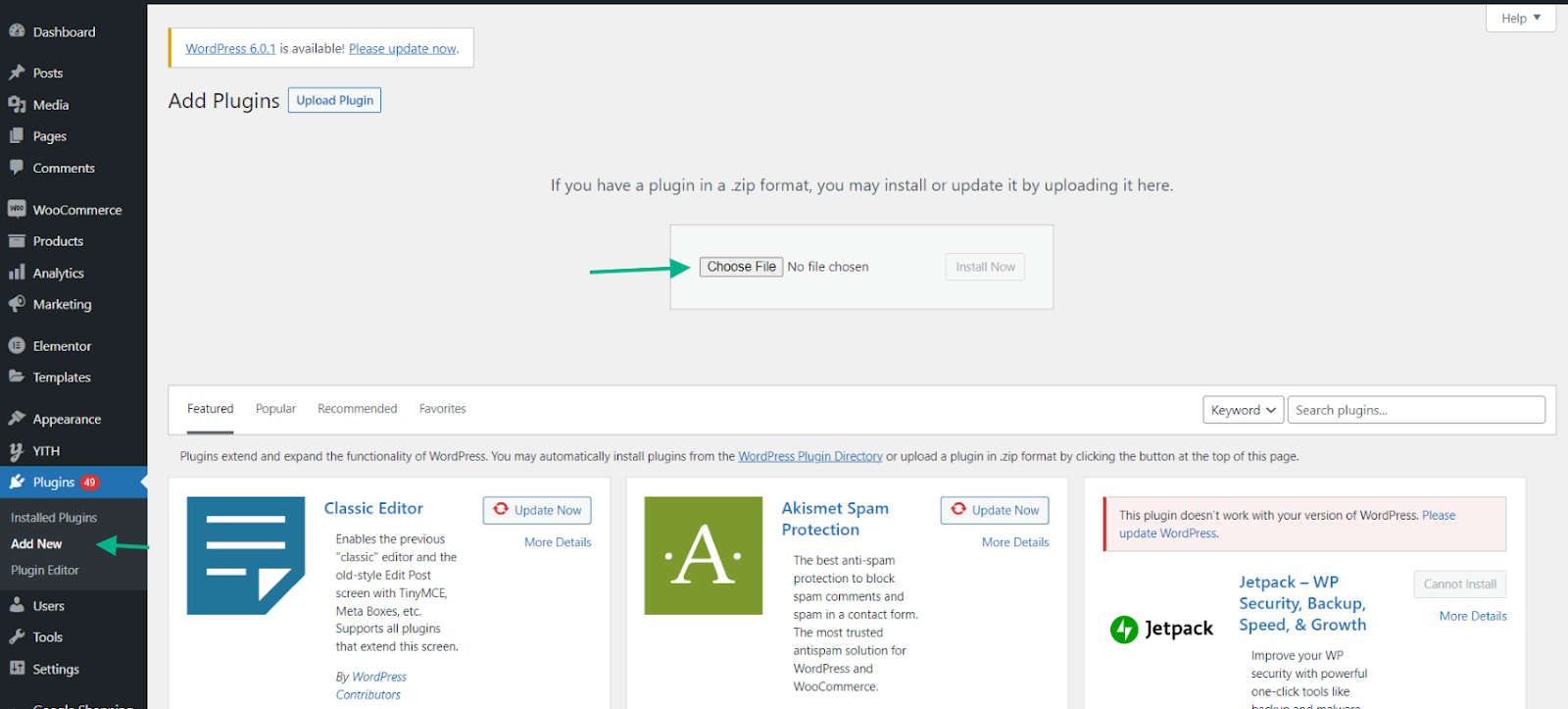
Installing the JoinChat WhatsApp plugin from the WordPress plugin repository.
Activating the JoinChat plugin after installation to enable WhatsApp integration.
Step 2: Configure the General Settings
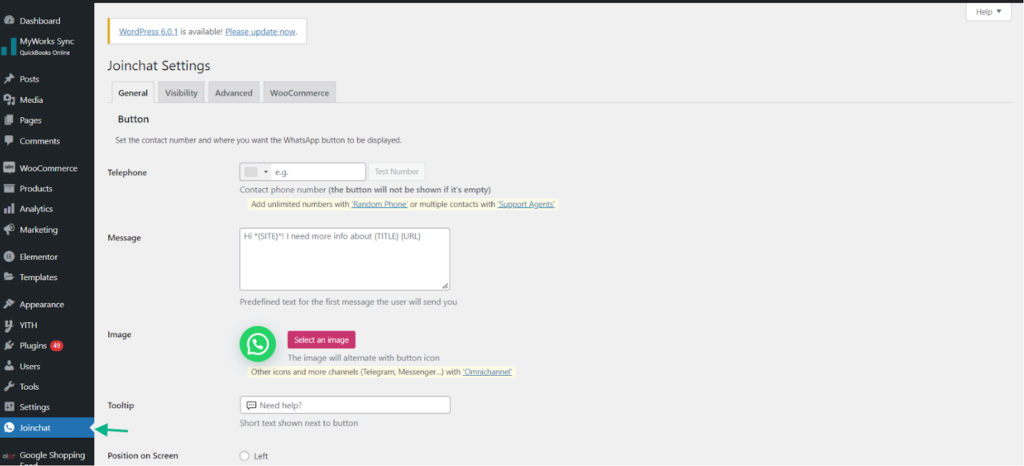
Navigate to Dashboard → JoinChat → General. Enter your WhatsApp phone number with the international country code (e.g., +91XXXXXXXXXX for India). Without a phone number, the chat button will not appear on the frontend.


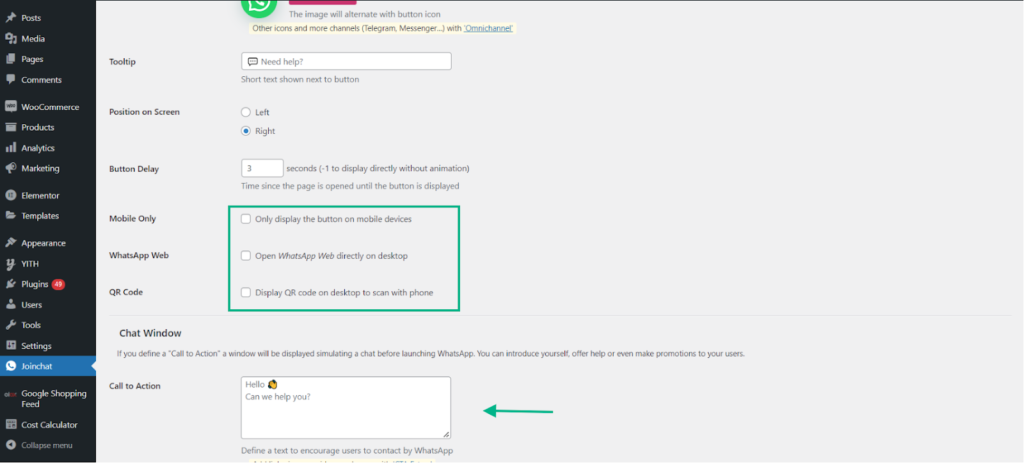
Customize the button position, display delay, tooltip text, welcome message, and chat mode (desktop, mobile, or QR code).
Entering your WhatsApp phone number in international format in JoinChat general settings.
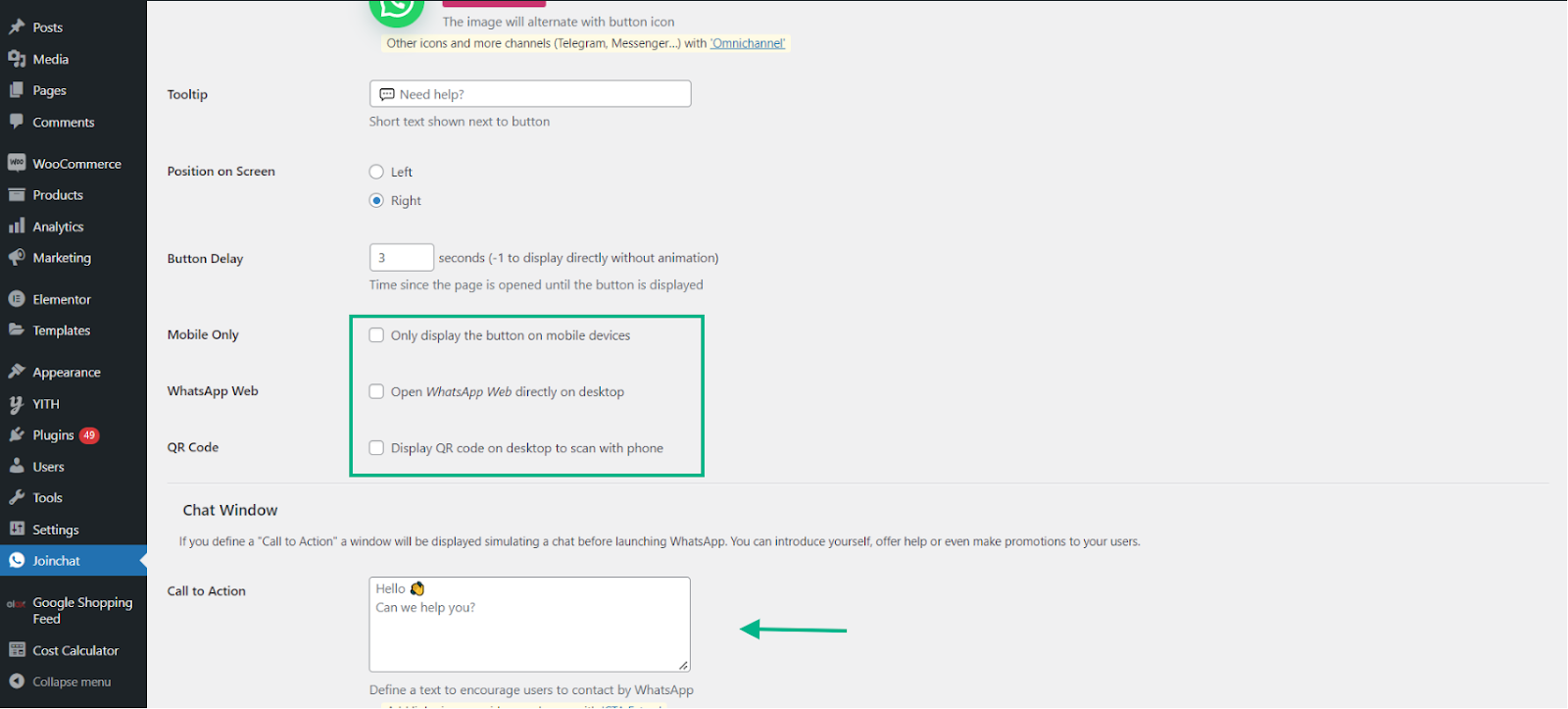
Customizing button position, tooltip text, and welcome message in JoinChat.
Step 3: Set Page Visibility Rules
Go to the Visibility tab to control which pages display the WhatsApp chat button. By default, it shows on all pages. You can restrict it to specific pages like product pages and checkout, or hide it from pages where it is not relevant such as the blog or legal pages, to avoid cluttering the user experience.
Pro Tip: For WooCommerce stores, enabling the WhatsApp button specifically on product pages and the checkout page yields the highest engagement. Avoid showing it on every page — customers on blog posts or policy pages rarely need live chat.
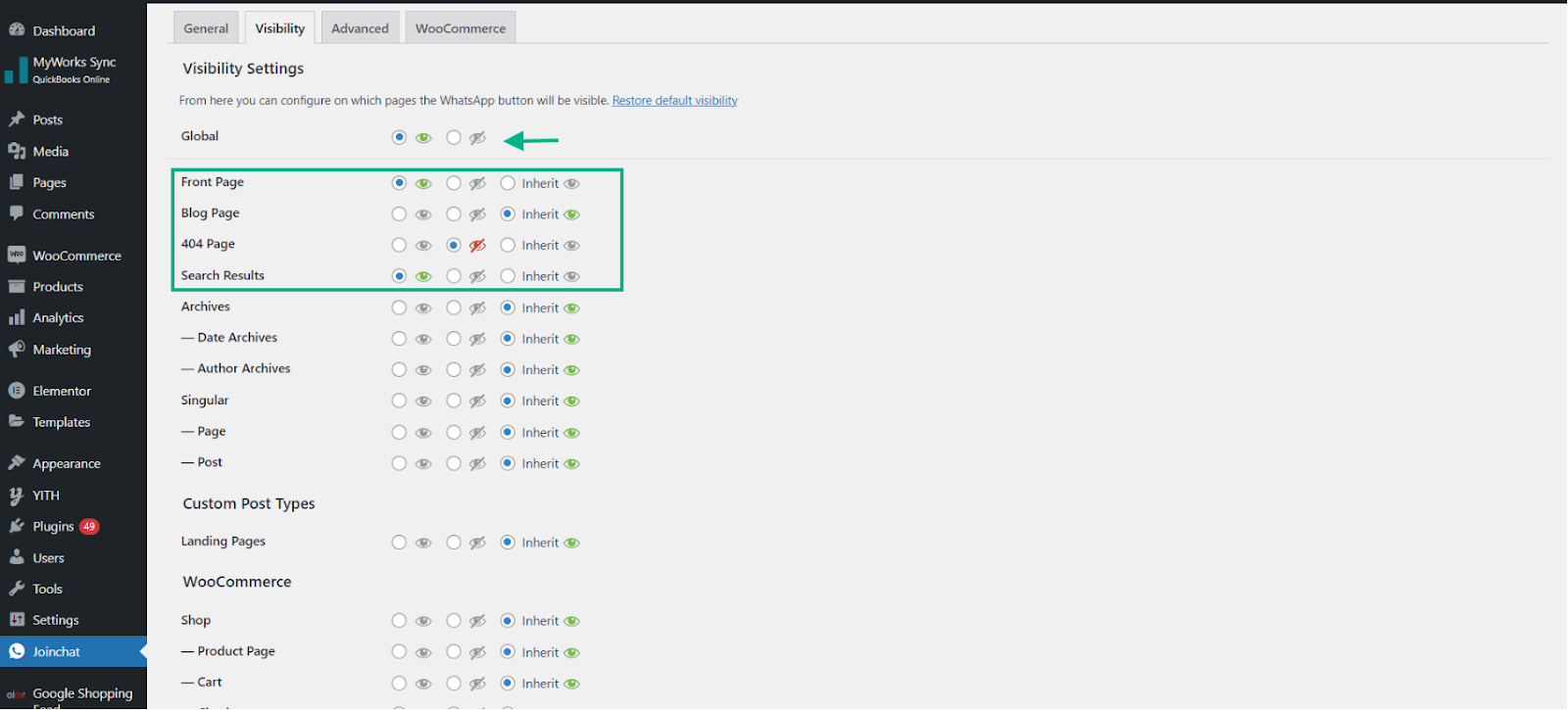
Configuring page visibility rules to show the WhatsApp button on product and checkout pages.
Step 4: Configure Privacy and Customer Consent
Under the Advanced tab, enable the Opt-In Text feature to collect explicit customer consent before initiating WhatsApp conversations. This is particularly important for GDPR compliance and helps prevent your number from being reported for unsolicited messaging.
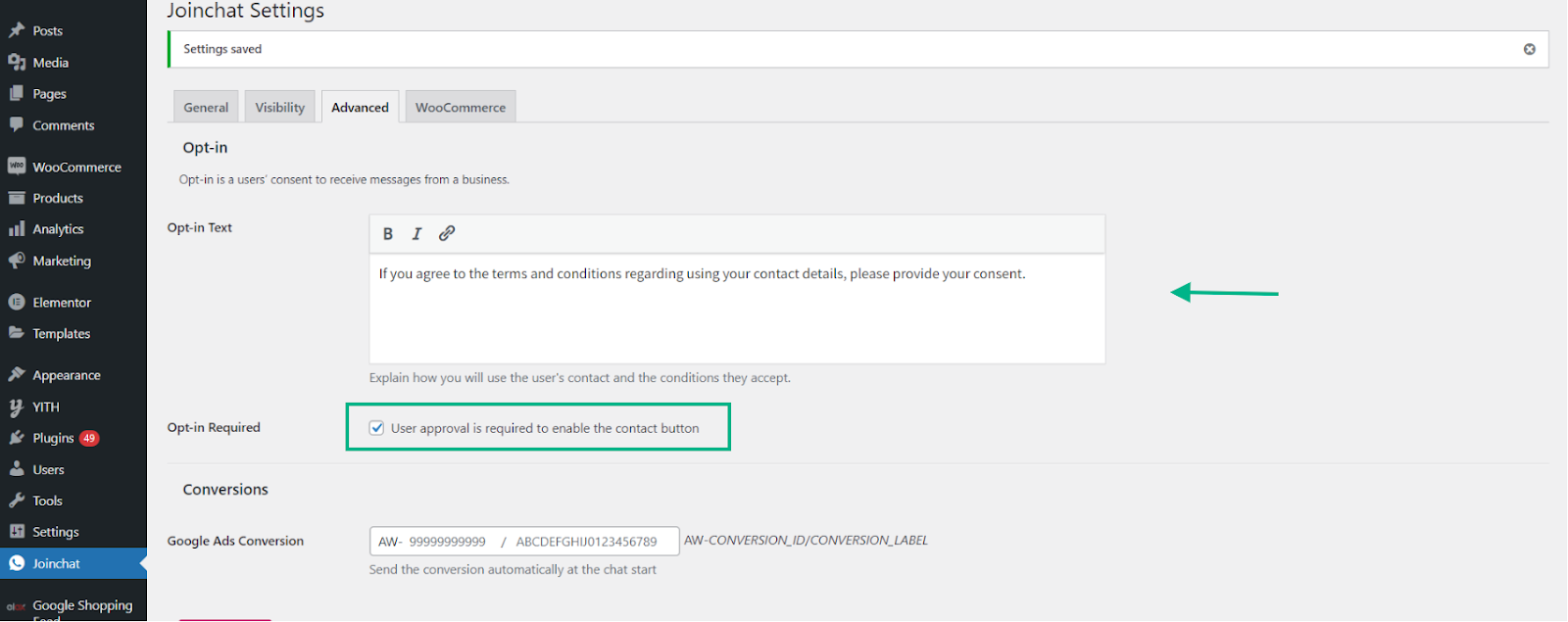
Enabling opt-in consent text for GDPR-compliant WhatsApp messaging in JoinChat.
Step 5: Configure WooCommerce-Specific Messages
The WooCommerce tab lets you personalize the WhatsApp message based on the WooCommerce context. For example, you can set a product-specific message on product pages such as “Ask about this product” to make the interaction more relevant and drive higher engagement. Enable WooCommerce association to link conversations to specific products for better tracking.
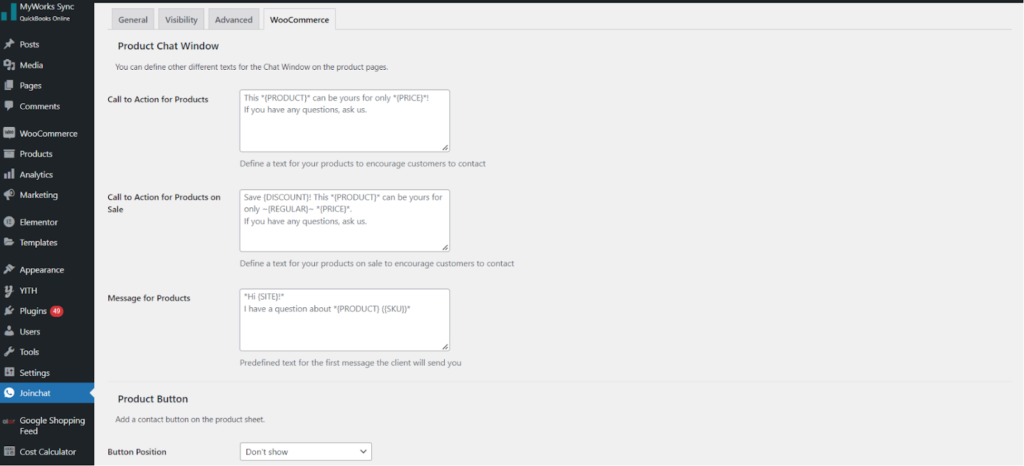
Setting product-specific WhatsApp messages in the JoinChat WooCommerce tab.
Step 6: Save and Test
Click Save Changes and visit your store’s frontend to confirm the WhatsApp button appears and works correctly. Test it on both desktop and mobile devices by clicking the button and verifying it opens WhatsApp with your pre-filled message. Make sure to test on the specific pages you configured in the Visibility settings.
Pro Tip: Open your store in an incognito browser window to see exactly what customers experience. If the button does not appear, clear your WordPress cache and check that no caching plugin is serving a stale page.
Common Mistakes When Integrating WhatsApp with WooCommerce
When setting up WhatsApp for WooCommerce, many store owners make avoidable mistakes that reduce effectiveness or damage the customer experience:
- Overloading customers with messages: Sending too many promotional WhatsApp messages causes customers to block your number. Keep messages relevant, timely, and infrequent — quality matters more than quantity.
- Not setting response time expectations (this is especially critical if you are also dealing with WooCommerce checkout issues): If your WhatsApp is not monitored around the clock — similar to how payment gateway visibility issues frustrate customers —, display your support hours clearly in the welcome message so customers know when to expect a reply.
- Skipping the opt-in process: Always collect explicit consent before sending marketing messages via WhatsApp. Non-compliance with opt-in requirements can result in your number being permanently banned.
- Relying entirely on manual replies at scale: When order volume is high, manual WhatsApp responses lead to slow reply times and poor customer satisfaction. Set up automated welcome messages or consider upgrading to the WhatsApp Business API.
- Wrong phone number format: Enter your number in international format with the country code (e.g., +91XXXXXXXXXX). An incorrectly formatted number will cause the chat button to open a blank WhatsApp conversation rather than connecting to your business number.
- Sending promotional messages without proper consent: Promotional WhatsApp messages sent without documented opt-in consent risk GDPR and data protection violations, which can result in fines and permanent account suspension.
- Ignoring mobile UX placement: The WhatsApp floating button can overlap important elements on mobile screens, such as the Add to Cart button. Always test button placement on mobile devices and adjust position settings in your plugin to avoid blocking key conversion elements.
FAQs: How to Integrate WhatsApp with WooCommerce
How can WhatsApp increase WooCommerce sales?
WhatsApp enables direct, personalized communication at key points in the buying journey — from answering pre-purchase questions to sending cart recovery reminders. Its open rate of approximately 98% makes it far more effective than email for promotional messages and order updates, helping convert more visitors into paying customers.
Is WhatsApp Business API free for WooCommerce?
No, the WhatsApp Business API is not free. It charges per conversation (a 24-hour messaging window) and requires a paid Business Solution Provider to access. For small and medium WooCommerce stores, a free plugin like JoinChat is a much more cost-effective starting point before investing in the API.
Which plugin is best for WhatsApp chat in WordPress?
JoinChat is widely considered the most feature-complete and well-supported free plugin for adding WhatsApp to WordPress and WooCommerce. Other popular alternatives include Click to Chat and WP Social Chat. The best choice depends on your specific requirements such as multi-agent support, WooCommerce product-level messages, or advanced CTA customization.
Can I automate WhatsApp order notifications in WooCommerce?
Yes. To automate order notifications, you need either the WhatsApp Business API or a dedicated plugin like WooWati or NotifyWA. These tools are specifically built to trigger WhatsApp messages automatically when WooCommerce order statuses change, such as order confirmed, processing, shipped, and delivered.
Is WhatsApp integration safe for customer data?
WhatsApp messages are end-to-end encrypted, making communication secure during transmission. To ensure full compliance, collect customer data only through explicit opt-in forms, keep your WordPress site secured with HTTPS, and update your privacy policy to disclose WhatsApp as a customer communication channel.
How do I recover abandoned carts using WhatsApp?
To recover abandoned carts via WhatsApp, you need a WooCommerce plugin that captures the customer’s phone number early in the checkout process and triggers a personalized follow-up message if the purchase is not completed. Plugins like Abandoned Cart for WooCommerce can be combined with WhatsApp Business API or gateway services to automate these recovery messages.
How do I integrate WhatsApp with WooCommerce without coding?
You can integrate WhatsApp with WooCommerce without any coding by using free plugins like JoinChat or Click to Chat. Install the plugin from the WordPress repository, connect your WhatsApp number in international format, configure display settings and page visibility rules, and enable chat buttons on product and checkout pages — no developer experience required.
How do I send WooCommerce order notifications to WhatsApp automatically?
To send WooCommerce order notifications to WhatsApp automatically, use a plugin like WooWati or NotifyWA that connects to the WhatsApp Business API. These plugins let you configure triggers for each WooCommerce order status change — such as order placed, processing, shipped, and delivered — so customers receive real-time WhatsApp updates without any manual effort.
Which is better for WooCommerce: WhatsApp plugin or API?
For small to medium WooCommerce stores with fewer than 50 orders per day, a free WhatsApp plugin like JoinChat provides everything needed — a chat button, product-level messages, and page visibility controls. For stores processing hundreds of daily orders that need automated notifications, CRM integration, and chatbot support, the WhatsApp Business API is the better long-term investment.
Does WhatsApp integration slow down WooCommerce websites?
No, properly configured WhatsApp plugins like JoinChat add minimal overhead to your WooCommerce site. The plugin loads a lightweight JavaScript file and a small CSS file. If you notice any performance impact, check that you are not loading the plugin’s assets on pages where the chat button is hidden, and ensure your site uses a WordPress caching plugin to optimize overall page speed.
Conclusion
Integrating WhatsApp with WooCommerce is one of the most impactful steps you can take to improve customer communication and grow your online store. Whether you start with a free plugin like JoinChat or scale up to the WhatsApp Business API, consistent and personalized WhatsApp engagement adds real value to your customers and gives your store a meaningful competitive edge.
Stores using WhatsApp see 15–25% faster customer response times and significantly higher satisfaction scores compared to email-only support channels. Starting today, even a basic WhatsApp chat button on your product pages can reduce cart abandonment and increase buyer confidence.
At WooHelpDesk, we provide expert WooCommerce support and maintenance services. If you need help to integrate WhatsApp with WooCommerce, troubleshoot plugin issues, or optimize your store’s performance, our team at WooHelpDesk is here to help.