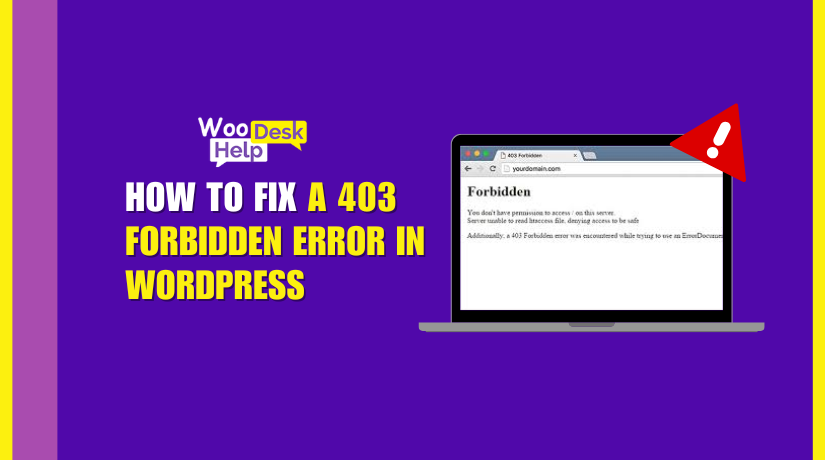
How to Fix a 403 Forbidden Error in WordPress
Table of Contents
- Introduction
- What Is a 403 Forbidden Error in WordPress?
- What Causes a 403 Forbidden Error in WordPress ?
- What Is the Impact of the 403 Forbidden Error in WordPress?
- How to Fix 403 Forbidden Errors in WordPress
- Preventing Future WordPress 403 Forbidden Errors
- Conclusion
Introduction
Encountering a WordPress 403 Forbidden Error can be frustrating. This error indicates that the server understands your request but refuses to authorize it. In simpler terms, it’s like being denied entry to a room you have the key for. This issue can disrupt your website’s functionality and user experience. Understanding its causes and solutions is essential for maintaining a smooth-running site.
What Is a 403 Forbidden Error in WordPress?
A 403 Forbidden Error in WordPress is an HTTP status code indicating that the server understands the request but refuses to authorize it. This commonly occurs when the server configuration denies access to a specific resource, despite the client’s credentials being valid.
In WordPress, this issue often stems from incorrect file permissions, a corrupted .htaccess file, or conflicts with security settings. For example, if the file permission settings are too restrictive, the server will block access, resulting in a 403 error WordPress site access issue. A common scenario involves a 403 Forbidden error wp-admin, where incorrect permissions prevent access to the admin panel. Similarly, misconfigured directives in the 403 Forbidden error WordPress .htaccess file can block resources and cause access denial.
Another trigger can be security plugins or firewall settings. A 403 forbidden wordpress firewall conflict may occur if security rules are too strict, causing legitimate traffic to be blocked. Cache-related issues can also contribute, requiring a 403 Forbidden error WordPress clear cache resolution to restore access
What Causes a 403 Forbidden Error in WordPress ?
WordPress displays a 403 Forbidden Error when the server recognizes your request but declines to approve it. This error can stem from various issues within your WordPress environment. Below are detailed explanations of common causes:
- Incorrect File and Folder Permissions
WordPress relies on specific file and folder permissions to function correctly. A 403 Forbidden error WordPress file permission could occur if these permissions are incorrectly set up and the server refuses access. Generally, files should have permissions set to 644 and directories to 755. Incorrect settings can lead to access issues.
- Corrupted .htaccess File
The .htaccess file controls various server configurations for your WordPress site. A corrupted or improperly configured 403 Forbidden error WordPress .htaccess file can block access to certain pages or the entire site. Regenerating this file often resolves the issue.
3. Plugin or Theme Conflicts
After updating a plugin, conflicts caused by outdated or badly coded plugins and themes may result in a WordPress 403 error. Security plugins, in particular, can sometimes block legitimate requests, causing a 403 Forbidden error wp-admin. Disabling all plugins temporarily and then reactivating them one by one often helps identify which plugin is causing the error. Similarly, switching to a default theme can determine if the issue originates from a custom theme.
- Security Plugin Restrictions
Although security plugins are intended to safeguard your website, they may have excessive restrictions. They might block legitimate users or actions, causing a 403 Forbidden error WordPress security plugin issue. Reviewing and adjusting plugin settings can alleviate this problem.
- Content Delivery Network (CDN) Conflicts
CDNs distribute content across multiple servers to improve website performance.However, misconfigurations can lead to a 403 Forbidden error WordPress CDN conflict, preventing access to certain resources. Disabling the CDN for a while can assist in determining whether it is the cause of the problem.
- Hotlink Protection Settings
Hotlink protection prevents other sites from directly linking to your site’s resources. If configured incorrectly, it can block legitimate access, resulting in a 403 error WordPress site access issue. Reviewing and adjusting these settings can restore proper access.
- Malware or Hacked Files
Malicious code or unauthorized modifications to your WordPress files can disrupt normal operations. Such issues might result in a 403 Forbidden error WordPress admin access denied as the server blocks suspicious activities. Scanning and cleaning your site can resolve this.
- Server Configuration Issues
Server settings, including firewall rules or IP restrictions, can inadvertently block access to your site. These configurations might need adjustment to resolve the 403 forbidden WordPress firewall error. Contacting your hosting provider can help address these settings.
- Browser Cache and Cookies
Cookies or cache issues in the browser may cause authentication procedures to fail. Clearing them might resolve the 403 Forbidden error WordPress clear cache issue. Another way to avoid these issues is to make sure your browser should be up to date.
- Incorrect URL or Missing Index Page
Attempting to access a directory without a default index page (like index.php or index.html) can lead to a 403 error on WordPress login. Ensuring the correct URL and presence of an index page is crucial.
What Is the Impact of the 403 Forbidden Error in WordPress?
If your WordPress website encounters a 403 Forbidden Error, there could be serious consequences. This error not only disrupts user experience but also affects your site’s visibility and credibility. Comprehending its effects is essential for a website to remain accessible and healthy.
- User Experience and Trust
When visitors face a 403 Forbidden WordPress admin error, they are denied access to content they expect to see. People become frustrated and lose faith in your website as a result. Repeated access issues can deter users from returning, affecting your site’s reputation.
- Search Engine Optimization (SEO) Challenges
Search engines, like Google, may encounter HTTP 403 error WordPress responses when crawling your site. These errors signal that content is inaccessible, which can lead to de-indexing of affected pages. Consequently, your site’s search rankings may decline, reducing organic traffic.
- Administrative Access Issues
Your WordPress dashboard may be locked due to a 403 Forbidden error wp-admin. This hinders your ability to manage content, update plugins, or perform essential maintenance tasks. Such restrictions can stall site development and updates.
- Revenue and Conversion Losses
If customers encounter a 403 error on WordPress login, they may abandon their purchase or inquiry. This directly impacts sales and lead generation efforts. For e-commerce sites, such errors can result in significant revenue losses.
- Increased Bounce Rates
Visitors who face a 403 error WordPress site access issue are likely to leave immediately. High bounce rates further impact SEO rankings by telling search engines that your website might not be offering worthwhile content.
- Potential Security Concerns
Sometimes, a 403 Forbidden error WordPress security plugin issue indicates that security measures are overly restrictive. While protecting your site is essential, false positives can block legitimate users and administrators, leading to unnecessary complications.
- Complications with Content Delivery Networks (CDNs)
A 403 Forbidden error WordPress CDN conflict can arise when CDNs misinterpret access permissions. This can prevent content from loading correctly for users, affecting site performance and user satisfaction.
- Impact on Site Performance
Frequent 403 Forbidden error WordPress clear cache problems can slow down your site. Users can encounter lag or be unable to access specific pages, which could give the impression that your website is unreliable.
- Loss of Competitive Edge
In today’s digital landscape, consistent accessibility is key. Recurring 403 Forbidden WordPress firewall errors can place your site at a disadvantage compared to competitors with seamless user experiences.
How to Fix 403 Forbidden Errors in WordPress
Step 1: Verify the URL
Ensure that the URL you’re trying to access is correct. A simple typo or attempting to access a restricted directory can trigger a 403 error.
Step 2: Clear Browser Cache and Cookies
Sometimes, outdated or corrupted browser data can cause access issues. Clear your browser’s cache and cookies, then try accessing your site again.
Step 3: Check File and Directory Permissions
Incorrect permissions can prevent access to certain files or directories.
Using cPanel:
- Log in to your hosting account and access the cPanel dashboard.
- Navigate to the “File Manager” section.
- Locate your WordPress directory, usually within the public_html
- Right-click on the directory and select “Change Permissions.”
- Set directories to 755 and files to 644.
- Ensure that the wp-config.php file has permissions set to 440 or 400.
Using FTP:
- Connect to your website using an FTP client like FileZilla.
- Navigate to your WordPress root directory.
- Right-click on folders and select “File permissions.”
- Set directories to 755 and files to 644.
- For wp-config.php, set permissions to 440 or 400.
Adjusting these permissions can resolve access issues.
Step 4: Deactivate All Plugins


A faulty or incompatible plugin can cause a 403 error.
Using WordPress Dashboard:
- Log in to your WordPress admin area.
- Navigate to Plugins > Installed Plugins.
- Select all plugins and choose “Deactivate” from the Bulk Actions dropdown.
- Check if the error persists.
- If resolved, reactivate each plugin one by one to identify the culprit.
Using cPanel File Manager:
- Access cPanel and open the File Manager.
- Navigate to public_html/wp-content/.
- Rename the plugins folder to plugins_old.
- Check if the error is resolved.
- If so, rename the folder back to plugins and reactivate plugins individually.
Using FTP:
- Connect via FTP and navigate to wp-content.
- Rename the plugins folder to plugins_old.
- Check your site; if it works, the issue is with a plugin.
- Rename the folder back and reactivate plugins one by one.
Step 5: Replace the .htaccess File
A corrupted .htaccess file can lead to access issues.
Using cPanel File Manager:
- Access cPanel and open the File Manager.
- Navigate to the root directory of your WordPress installation.
- Locate the .htaccess file, right-click, and choose “Rename” to .htaccess_old.
- Log in to your WordPress dashboard.
- Go to Settings > Permalinks and click “Save Changes” to generate a new .htaccess
Using FTP:
- Connect to your site via FTP.
- Navigate to the root directory and rename the .htaccess file to .htaccess_old.
- Log in to WordPress and regenerate the .htaccess file as described above.
Step 6: Disable Security Plugins Temporarily
Security plugins might block legitimate access due to strict settings.
Using WordPress Dashboard:
- Log in to your WordPress admin area.
- Navigate to Plugins > Installed Plugins.
- Deactivate any security plugins you have installed.
- Check if the 403 error is resolved.
- If so, review the plugin’s settings or consider using an alternative.
Using cPanel File Manager or FTP:
- Access the wp-content/plugins
- Rename the folder of the security plugin to disable it.
- Check if the error is resolved.
- If so, consider adjusting the plugin’s settings or replacing it.
Step 7: Check for Hotlink Protection
Hotlink protection prevents other sites from embedding your content but can sometimes block legitimate access.
Using cPanel:
- Log in to your cPanel account.
- Navigate to the “Hotlink Protection” section.
- Ensure that your own domain is listed as an allowed referrer.
- Disable hotlink protection temporarily to see if it resolves the issue.
Step 8: Disable CDN Temporarily
Content Delivery Networks (CDNs) can sometimes interfere with site access.
- Log in to your CDN provider’s dashboard.
- Temporarily disable the CDN.
- Check if the 403 error persists.
- If resolved, review your CDN settings or contact support for assistance.
Step 9: Scan for Malware
Malware infections can alter file permissions or inject malicious code.
- Install a reputable security plugin like Wordfence or Sucuri.
- Run a full site scan.
- If malware is detected, follow the plugin’s instructions to remove it.
Step 10: Contact Your Hosting Provider
If all else fails, the issue might be server-related.
- Reach out to your hosting provider’s support team.
- Provide details about the error and steps you’ve taken.
- They can check server logs and configurations to identify and resolve the issue.
Preventing Future WordPress 403 Forbidden Errors
A WordPress 403 Forbidden Error might be annoying to encounter. By implementing the following preventive strategies, you can minimize the risk of such errors and ensure a smoother experience for both administrators and visitors.
- Maintain Correct File and Directory Permissions
Make sure the permissions on your WordPress files and directories are correct. Generally, files should be set to 644 and directories to 755. Incorrect permissions can lead to access issues, resulting in a 403 Forbidden error. Regularly auditing these settings helps maintain site accessibility.
- Regularly Update Plugins and Themes
Conflicts caused by outdated plugins or themes might result in issues such as the WordPress 403 error following plugin updates.. Keep all components updated to their latest versions to ensure compatibility and security, reducing the likelihood of access-related issues.
- Monitor and Configure Security Plugins Carefully
Security plugins are essential but can sometimes be overzealous, causing a 403 Forbidden error WordPress security plugin issue. Regularly review and adjust their settings to prevent legitimate access from being blocked, ensuring both security and usability.
- Regularly Review and Update the .htaccess File
A lot of the behavior of your website is controlled by the.htaccess file. A misconfigured or corrupted file can result in a 403 Forbidden error WordPress .htaccess file. Regularly reviewing and updating this file helps prevent access issues.
- Ensure Proper Index Files Are Present
Missing index files, like index.php or index.html, can trigger a 403 Forbidden error wp-admin. Ensure these files are present in your directories to allow proper access and prevent server errors.
- Configure Firewalls and CDNs Appropriately
Misconfigured firewalls or Content Delivery Networks (CDNs) can lead to a 403 forbidden WordPress firewall or 403 Forbidden error WordPress CDN conflict. Regularly review their settings to ensure they aren’t inadvertently blocking legitimate traffic.
- Implement Regular Malware Scans
Malware can alter file permissions or inject malicious code, leading to access issues like the 403 error WordPress site access. Use reputable security tools to perform regular scans, ensuring your site remains clean and accessible.
- Clear Cache Periodically
Cached data can sometimes serve outdated or incorrect configurations, causing a 403 Forbidden error WordPress clear cache. Maintaining the most current and correct material for consumers is ensured by routinely cleaning the cache on your website.
- Maintain Accurate DNS and Hosting Configurations
Incorrect DNS settings or hosting misconfigurations can result in an HTTP 403 error WordPress. Regularly verify your domain’s DNS records and hosting settings to ensure they align correctly, preventing access issues.
- Regularly Back Up Your Website
Maintaining regular backups allows you to restore your site quickly in case of errors like the 403 Forbidden WordPress admin. This proactive measure ensures minimal downtime and preserves your site’s integrity.
Conclusion
The WordPress 403 Forbidden Error stems from various underlying causes, including incorrect permissions, corrupted .htaccess configurations, and conflicts with plugins or firewalls. To resolve these issues, you must methodically examine file permissions, review .htaccess directives, and deactivate potentially problematic plugins. Tools like cPanel’s File Manager and FTP clients offer precise control over these elements, enabling swift identification and resolution of the root cause. Proactively maintaining secure permissions, updating plugins, and scanning for malware ensures long-term site stability and performance. For further guidance, visit WooHelpDesk or Call +1 888 602 0119 (US & Canada) for professional support.



