
How to Use Waitlist for WooCommerce Effectively
Table of Contents
- Introduction & Core Functionality
- Customer-Facing Features
- Store Owner Experience & Setup Process
- Advanced Options and Developer Tools
- Compatibility and Limitations
- Conclusion
Introduction & Core Functionality
Running an online store is exciting but comes with challenges. One of the most common issues? Products going out of stock. When customers find something unavailable, they often leave. That’s a lost sale—and possibly a lost customer.
This is where the Waitlist for WooCommerce plugin helps. It gives your store a way to notify users when items are back in stock. This feature keeps customers engaged and improves your chances of making the sale later.
The plugin lets shoppers join a waitlist for any out-of-stock product. When the item is restocked, they receive an automatic email alert. This helps stores convert missed sales into confirmed orders.
It’s perfect for store owners who:
- Sell limited or seasonal products
- Frequently run out of high-demand items
- Want to better manage stock and customer expectations
The plugin also acts as a smart WooCommerce back in stock notifier. It removes the guesswork for both customers and store owners.
Let’s say you run a fashion store. A certain hoodie sells out fast. Shoppers can’t buy it now, but they can click “Join Waitlist.” Once the hoodie is restocked, they’ll get a quick email: “It’s available again!” That’s a potential sale saved.
With WooCommerce out of stock notifications, you build trust. Customers feel seen and valued. You also keep them from turning to competitors. That one email can make a big difference in your revenue.
Here’s how the plugin helps store owners:
- Know which products are most in demand
- Track customer interest in real time
- Restock smarter, based on actual demand
It’s more than just an alert system. It’s a WooCommerce stock alert plugin with real results. You’re not guessing what to reorder. You’re using real customer data.
You can also think of it as a WooCommerce pre-order plugin for sold-out items. It’s not taking money in advance, but it shows intent. That interest helps you plan and serve better.
The plugin works with simple and variable products. So whether you’re selling t-shirts, electronics, or handmade items—it fits.
In short, Waitlist for WooCommerce keeps your customers engaged and your store smarter. It’s a must-have tool for any serious WooCommerce business.
Customer-Facing Features
The Waitlist for WooCommerce plugin is built with your customers in mind. It creates a smooth and helpful experience when products are out of stock. Instead of leaving empty-handed, shoppers can stay connected and come back when items return.
Let’s explore the key features your customers will use and enjoy.
Easy Waitlist Signup
Customers can join a waitlist with just one click. When they visit a product that’s out of stock, a “Join Waitlist” button appears. Clicking it adds them to the list. No page reload is needed. They stay on the same screen and see a success message.
It works on:
- Single product pages
- Shop archive pages (if enabled)
- Product variations (color, size, etc.)
This feature encourages customers to stick around. They feel confident they’ll get another chance to buy.
Instant Email Alerts When Products Return
As soon as a product is back in stock, the plugin sends an automatic email. This WooCommerce back in stock notifier includes:
- A short message
- A link to the product page
- A friendly tone that invites them to shop
The email looks like other WooCommerce emails, so it blends in nicely. You can also customize the subject and message to match your brand voice.
This feature supports your customers’ needs and keeps them excited to buy.
Personal Waitlist Dashboard for Customers
Customers can view their joined waitlists from the “Your Waitlists” tab in their account. This makes it easy to:
- Track which products they’re waiting for
- Remove themselves from a list
- Stay organized and in control
It adds a layer of transparency that customers appreciate.
This also supports WooCommerce customer waitlist management from the user’s side. It’s useful, especially for those keeping an eye on several products.
Works With Guest and Registered Users
You can allow guest users to join a waitlist. Or, you can require them to create an account. There’s even an option to auto-create accounts silently, helping you grow your user base.
To follow privacy laws, you can also:
- Show a checkbox for consent
- Require users to agree before signing up
This is ideal for stores that serve different countries with different rules.
The plugin also offers double opt-in, where guests confirm their email before joining. This adds security and ensures the user really wants to join.
Use Case Examples
Here’s how different stores might use this plugin:
- A candle shop sells seasonal scents. Shoppers wait for restocks.
- A fashion brand runs limited drops. Customers join waitlists fast.
- A toy store restocks popular items. Parents want alerts quickly.
In all cases, the WooCommerce notify me when available feature keeps shoppers connected.
The plugin is simple, but powerful. It turns out-of-stock frustration into loyalty. Customers feel informed, not ignored.
By using the Waitlist for WooCommerce, you’re giving people a reason to come back. That builds trust—and repeat sales.
Store Owner Experience & Setup Process
The Waitlist for WooCommerce plugin is simple to use for store owners. It’s designed to work smoothly inside the WordPress dashboard. You don’t need any coding knowledge to set it up or manage it.
Let’s break down how it works behind the scenes.
Easy Plugin Installation
Installing the plugin is fast and simple. Follow these steps:
- Download the plugin file from your WooCommerce account.
- Go to your WordPress dashboard.
- Navigate to Plugins > Add New > Upload Plugin.
- Choose the file and click Install Now.
- Once installed, click Activate.
After activation, the plugin is ready to go. You’ll find its settings inside the WooCommerce settings area.
Setting Up the Plugin


To configure the plugin, go to:
WooCommerce > Settings > Products > Waitlist

Here you’ll find the main options. These allow you to control how the plugin behaves.
Some useful settings include:
- Require login to join – Only logged-in users can join a waitlist.
- Force account creation – Create accounts silently for guest users.
- Show opt-in checkbox – Let users consent before joining.
- Display waitlist button on shop pages – Show buttons outside the product page.
These options give you control while keeping things simple.
Managing Product Waitlists
As a store owner, you can manage waitlists from each product page. When editing a product, you’ll see a new Waitlist tab. This area gives you access to:
- See who joined the waitlist
- Add or remove users manually
- View archived lists of past sign-ups
- Send custom or manual emails
- Export the list as a CSV file
This helps you manage WooCommerce customer waitlist management with ease. You can also check the date each customer joined.
Track Product Demand with Waitlist Counts
In your Products list, the plugin adds a new column. This shows how many users are waiting for each product. You can sort by this column to:
- Identify popular out-of-stock items
- Plan restocks based on real demand
- Make smarter inventory decisions

This feature supports WooCommerce inventory management notifications. It gives you real insight into what your customers want most.
Customize Email Templates and Alerts
You can customize the email that customers receive. Go to:
WooCommerce > Settings > Emails > Waitlist Mailout
From here, you can:
- Change the email subject and message
- Match your brand voice and style
- Add tracking codes for Google Analytics
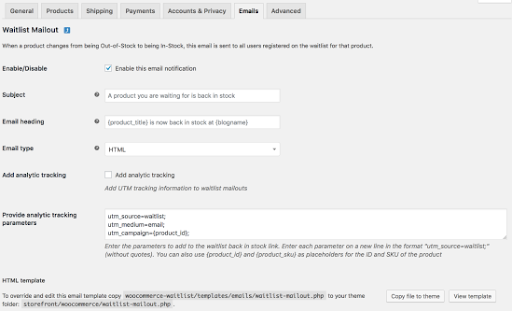
The plugin also supports admin notifications. You’ll get an email when someone joins a waitlist if enabled.
Use with Other WooCommerce Features
The plugin works with several popular WooCommerce tools:
- WPML for multilingual stores
- WooCommerce Subscriptions
- Product Bundles
- The Events Calendar
- Elementor (with shortcode)
It also fits perfectly with your theme’s layout. If needed, you can add shortcodes to place waitlist buttons anywhere.
You can also use:
- [woocommerce_waitlist product_id=123] – Adds waitlist button for a product
- [woocommerce_my_waitlist] – Shows the user’s full waitlist
These options make the plugin flexible and powerful.
In short, Waitlist for WooCommerce gives store owners full control. From setup to daily use, it’s smooth and easy. It helps you capture more sales and better manage your inventory.
Advanced Options and Developer Tools
The Waitlist for WooCommerce plugin offers powerful options for advanced users and developers. While it’s easy for beginners, it also supports deep customizations for unique store needs.
Advanced Settings for More Control
Inside the plugin settings, you can adjust how the waitlist works. These options let you fine-tune your workflow:
- Set a minimum stock level before notifications are sent.
- Choose to archive users after emails are sent.
- Decide whether to remove data when uninstalling the plugin.
- Keep users on the waitlist until they make a purchase.
These features help you build a smarter and more flexible system.
Developer-Friendly Features
If you’re working with a custom theme or developer tools, you’ll love the plugin’s hooks and filters. Developers can use actions like:
- wcwl_mailout_send_email
- wcwl_before_add_user_to_waitlist
- wcwl_enable_waitlist_for_backorder_products
These allow you to change how waitlists behave based on your needs. You can also override the plugin’s email templates. This helps keep the design and messaging consistent with your brand.
Shortcodes also make the plugin more flexible. You can add waitlist buttons or display waitlist info on any page. This works well with builders like Elementor and other custom layouts.
Compatibility and Limitations
The plugin is fully compatible with:
- WooCommerce Subscriptions
- WPML (for multilingual sites)
- Product Bundles
- Elementor
- The Events Calendar
However, it does not support composite products yet. If you use those, you may need a workaround or wait for future updates.
Conclusion
The Waitlist for WooCommerce plugin is a smart tool for any store. It turns lost sales into future orders with just a few clicks. You don’t need to be a tech expert to use it.
It works well for small stores, large catalogs, and everything in between. Customers stay connected, and you get clear insight into what they want.
Whether you’re managing backorders or tracking inventory interest, this plugin delivers. It’s more than just a WooCommerce waitlist plugin—it’s a complete WooCommerce backorder notification system.
If you’re serious about keeping customers happy and increasing sales, this plugin is a must-have.
👉 Still need help setting it up or customizing it for your store?
Reach out to us at WooHelpDesk — we’re here to support you every step of the way.



