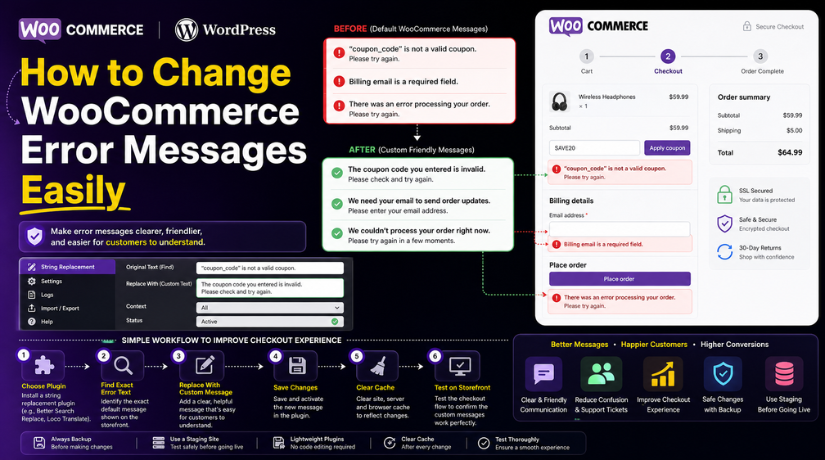
How to Change WooCommerce Error Messages Easily (Step-by-Step Guide)
Table of Contents
- Introduction
- What Are WooCommerce Error Messages?
- Why You May Need to Change WooCommerce Error Messages
- Important Things You Should Check Before Editing WooCommerce Error Messages on Your Website
- How to Change WooCommerce Error Messages Using a Plugin (Step-by-Step)
- Common Problems You May Face When Changing WooCommerce Error Messages on Your Store
- Conclusion
Introduction
Running a WooCommerce store is not only about products and payments. It is also about how clearly your store talks to customers. This is where error messages play an important role. WooCommerce shows error messages when something goes wrong during shopping. These messages appear when a customer misses a field, enters wrong details, applies an invalid coupon, or faces a checkout issue. If the message is not clear, the customer may feel confused and leave the store.
That is why many store owners want to learn how to change WooCommerce error messages in a simple and safe way. A better message can guide the customer faster and reduce frustration. It can also make your website look more professional and helpful. In many cases, small notice changes can improve the full buying experience. Clear wording builds trust and helps visitors complete their orders with less stress.
Many default messages work fine, but some feel too short, too technical, or too generic. That is why businesses often look for ways to customize WooCommerce error messages based on their store needs. This guide explains the basics first, so you understand what these messages are and why changing them can help your store perform better.
What Are WooCommerce Error Messages?
WooCommerce error messages are short notices shown to users when an action fails. These messages explain that something needs attention before the customer can continue. They are meant to stop mistakes and guide users toward the right action. For example, a customer may forget to enter an email address. WooCommerce then shows a message asking them to fill that field. A user may also enter an incorrect coupon code. In that case, WooCommerce shows a notice that the coupon is invalid. These messages are useful because they tell customers what went wrong at that moment. Without them, users would not know why the cart or checkout stopped working. This is why WooCommerce validation error messages are so important for every online store. They support the buying process and reduce confusion during checkout steps.
Why You May Need to Change WooCommerce Error Messages
Make WooCommerce Error Messages Easier for Customers to Understand
Many default WooCommerce notices are short but not always clear. Some messages explain the issue, but do not guide the customer properly. This can create confusion, especially for new users. When you change the text, you can make the message simpler and easier to follow. This is one of the main reasons store owners search for how to change WooCommerce error messages on their websites.
Replace Technical Wording With Simple and Friendly Language
Some default notices sound too technical for normal shoppers. Customers do not want to read system-style warnings during checkout. They want quick and clear help. When you customize WooCommerce error messages, you can replace hard wording with simple instructions. This makes the shopping process feel smoother and more user-friendly.
Match Error Messages With Your Brand Tone
Your website may use a friendly, premium, or professional tone. But default WooCommerce messages may not always match that style. This creates a small gap in the user experience. When you edit WooCommerce notices, you can write messages that sound more natural for your brand. This keeps the full website experience more consistent and polished.
Help Customers Fix Problems Faster
A good error message should do more than show a warning. It should also help the customer understand what to do next. For example, a better message can tell users which field is missing or what detail needs correction. This reduces delay and improves the checkout flow. Strong WooCommerce validation error messages can save time and reduce failed actions.
Improve the Checkout Experience on Your Store
Checkout is one of the most important steps in WooCommerce. If customers face unclear notices during payment or address entry, they may leave the site. Clear and helpful messages make checkout easier to complete. This is why many store owners focus on WooCommerce error message customization as part of user experience improvement.
Reduce Customer Frustration During Errors
Errors already create stress for online shoppers. If the message is confusing, the frustration becomes even worse. Customers may think the website is broken or hard to use. Changing the message into a calm and clear format helps reduce that feeling. A better notice can make even a problem feel easier to handle.
Lower the Chance of Cart Abandonment
Many users leave a store when something goes wrong during checkout. This often happens when they do not understand the message shown on the screen. If your notice explains the issue clearly, users are more likely to stay and try again. This is another strong reason to customize WooCommerce error messages and improve store conversions.
Reduce Unnecessary Support Requests
When customers cannot understand an error, they often contact support. This increases your support workload for simple problems. But clear notices can answer many questions before the customer asks them. When WooCommerce changes error text in a smarter way, users can fix common issues themselves. This saves time for both the business and the customer.
Make Your Store Look More Professional
Small details matter on an online store. Error messages are one of those details. If the text looks confusing or too generic, it can weaken trust. A custom message shows that your store is managed with care. It helps your website look more polished, professional, and customer-focused.
Improve the Full Shopping Journey
Error messages are not only warnings. They are part of the customer journey. They guide users when something needs attention. If that guidance is helpful, the user experience becomes better from start to finish. That is why WooCommerce error message customization is useful for stores that want better usability, better trust, and smoother shopping.
Important Things You Should Check Before Editing WooCommerce Error Messages on Your Website
Before you edit any WooCommerce notice, you should prepare carefully. This step helps you avoid bigger problems later. Many store owners rush into changes and break something important. A small text update can affect checkout, validation, or customer flow. That is why this part matters before any real editing starts. If you want safe WooCommerce error message customization, begin with the right checks. These checks help you change messages without harming the store experience.
Take a Full Backup Before Changing Any WooCommerce Notice
The first step is always a full website backup. This includes your files and database. If something goes wrong, you can restore the website quickly. Many users change text inside functions, plugins, or templates. A wrong edit can create errors on important pages. That is why backup should never be skipped. Even a small update can affect cart or checkout behavior. If you plan to edit WooCommerce notices, work with a backup first. It gives you safety and peace of mind during testing.
Use a Staging Website Before Making Changes on the Live Store
A staging site is the best place for testing changes. It lets you try edits without affecting real customers. This is very important for WooCommerce stores with daily orders. If you test on the live site, visitors may see broken messages or failed checkout actions. That can hurt trust and sales. A staging site gives you space to test every message properly. You can check if the new wording looks right and works well. This is a smart step before you learn how to change WooCommerce error messages on a live website.
Identify the Exact Error Message You Want to Change
You should know the exact message before editing anything. Do not guess the wording from memory. Open the page and trigger the notice again. Copy the full message exactly as it appears. This makes the next step easier and faster. Some WooCommerce notices look similar but come from different places. If you change the wrong message, your update will not work. This is common during WooCommerce change error text tasks. So first confirm the exact text, page location, and user action that triggers it.
Check Where the WooCommerce Error Message Is Appearing
Not every notice appears in the same place. Some messages show on product pages. Others appear on the cart, checkout, login, or account page. This matters because the message source may be different. A validation message may come from checkout logic. A coupon error may come from cart rules. A login notice may come from account settings or WordPress itself. If you know the page, you can troubleshoot faster. This also helps when you want to customize WooCommerce error messages in the correct way.
Understand Whether You Need to Change Only Text or the Full Logic
Some users only want to change the words shown on screen. Others want to change when the message appears. These are two different tasks. Editing text is usually simple and safer. Changing logic is more advanced and can affect store behavior. For example, changing a required field warning is one thing. Removing the validation check completely is another thing. Before starting, decide what you really need. This helps avoid confusion during WooCommerce error message customization. It also prevents unnecessary changes in store logic.


Check Whether Your Theme Already Overrides WooCommerce Templates
Many WooCommerce themes override default WooCommerce files. This means the theme may already control some notices. If you edit the wrong place, your changes may never appear. That is why theme overrides should be checked first. Some custom themes change cart, checkout, and account templates heavily. These edits can affect how notices display on the frontend. If your theme has WooCommerce overrides, test carefully. This step is important before trying to edit WooCommerce notices from code or plugins.
Keep Notes of Every Change You Plan to Make
Before editing, write down the message, page, reason, and new text. This simple habit saves time later. If something breaks, you can review your changes quickly. It also helps when many notices need updates. Good notes are useful for teams, developers, and future maintenance. They make your work more organized and easier to reverse. This is a smart habit for any WooCommerce error message customization task, whether you use code or a plugin.
How to Change WooCommerce Error Messages Using a Plugin (Step-by-Step)
Changing WooCommerce notices with a plugin is one of the easiest methods. It is a good option for store owners who do not want to edit code. This method is simple, safer, and easier to manage later. If you want to learn how to change WooCommerce error messages, follow these steps carefully.
Step 1: Choose a Plugin That Can Replace WooCommerce Notice Text
- First, you need a plugin that can replace or edit text.
- Some plugins are made for string replacement. Some work as translation tools. Others support WooCommerce message editing directly.
- Choose a plugin that is updated, trusted, and compatible with your current WooCommerce version.
- This is the first step in safe WooCommerce error message customization.
Step 2: Install the Plugin on Your WordPress Website
- Go to your WordPress dashboard and open the Plugins section.
- Click Add New and search for the plugin you want.
- Once you find it, click Install Now. After installation, click Activate.
- This will make the plugin ready for use.
- Now you can move forward and start to customize WooCommerce error messages from the dashboard.
Step 3: Open the Plugin Settings Area
- After activation, go to the plugin settings page.
- This may be under Settings, Tools, WooCommerce, or a separate plugin menu. Open the settings and review the available options.
- Some plugins ask you to scan the theme and plugin text first.
- Others allow direct text replacement.
- Before editing anything, understand how the plugin works. This helps you edit WooCommerce notices more correctly.
Step 4: Find the Exact WooCommerce Error Message on the Frontend
- Go to your store and trigger the error message you want to change. For example, apply an invalid coupon or leave a required checkout field empty.
- Copy the exact message shown on the screen.
- This step is very important. If the original text is not exact, the plugin may fail to replace it.
- Accurate matching is necessary for proper WooCommerce change error text results.
Step 5: Paste the Original Error Message Into the Plugin
- Now return to the plugin settings. Find the field where the original text should be entered. Paste the exact WooCommerce message there.
- Make sure spacing, punctuation, and wording are correct.
- Some plugins work only when the source text matches fully.
- This is why exact input matters during WooCommerce error message customization.
Step 6: Add Your New Custom WooCommerce Error Message
- In the next field, enter the new message you want customers to see.
- Keep the wording short, clear, and helpful.
- Tell users what went wrong and what they should do next.
- Avoid technical language.
- A better message improves user experience and makes WooCommerce validation error messages easier to understand.
Step 7: Save the Plugin Settings
- After entering both messages, click the Save Changes button.
- Make sure the update is stored properly. Some plugins apply changes instantly. Others may need an extra step, such as scan, sync, or publish.
- Always confirm that your new text has been saved before testing.
- This step completes the main part of the customized WooCommerce error messages process.
Step 8: Clear All Cache Before Testing
- Before checking the new message, clear all cache layers. This includes browser cache, caching plugin cache, server cache, and CDN cache if used.
- Old cached pages may still show the old message.
- Many users think the plugin failed, but the real issue is cache.
- This step is necessary when you edit WooCommerce notices on a live store.
Step 9: Test the Updated Error Message on the Store
- Now go back to the same page and trigger the error again.
- Check whether the new message appears correctly.
- Test the message on cart, checkout, product, or account pages based on where it appears. Also test on mobile if possible.
- This confirms whether your WooCommerce change error text update is working well.
Step 10: Review the Message From a Customer’s Point of View
- Do not stop after seeing the new text.
- Read the message like a real shopper. Ask whether it is easy to understand. Ask whether it clearly explains the problem.
- Ask whether it helps the customer take the next step.
- Good WooCommerce validation error messages should reduce confusion and improve checkout flow.
Step 11: Check for Plugin or Theme Conflicts If the Message Does Not Change
- If the message still does not update, check your theme and active plugins. A translation plugin, checkout plugin, or custom theme may override the text.
- Try disabling notice-related plugins one by one for testing.
- Also review whether your theme overrides WooCommerce templates.
- This step helps when WooCommerce error message customization does not work as expected.
Step 12: Repeat the Same Process for Other WooCommerce Error Messages
- Once one message works, you can repeat the same method for other notices.
- You can update coupon errors, checkout warnings, login notices, and required field messages.
- Follow the same process each time.
- This gives your store more consistent and user-friendly notice text.
- It is one of the easiest ways to customize WooCommerce error messages without coding.
Using a plugin is a beginner-friendly way to update notice text. It helps you change messages safely and quickly. But each change should still be tested carefully. If done properly, this method can improve your store experience and make WooCommerce error message customization much easier.
Common Problems You May Face When Changing WooCommerce Error Messages on Your Store
Changing WooCommerce notices looks simple at first. But many store owners face problems after making changes. Sometimes the new text does not appear. Sometimes the wrong message changes. In other cases, checkout notices stop working correctly. This is why testing and troubleshooting are very important. If you are working on how to change WooCommerce error messages, you should also understand the common problems that can happen. This helps you fix issues faster and avoid confusion during WooCommerce error message customization.
The New WooCommerce Error Message Does Not Show on the Frontend
This is one of the most common problems. You change the message, save it, and test again. But the old notice still appears on the page. In many cases, the issue is not the code or plugin. The real reason is usually cache. Browser cache, website cache, server cache, or CDN cache may still show the old version. This often happens after WooCommerce changes error text updates. Clear every cache layer before testing again. Then reload the page and trigger the same notice. Many message problems are solved at this step.
The Wrong WooCommerce Notice Gets Changed Instead of the Right One
Some WooCommerce notices look very similar. A store owner may copy the wrong text or edit a similar phrase. Then a different message changes while the original one stays the same. This creates confusion during testing. To avoid this problem, copy the exact message directly from the frontend. Check the full text, punctuation, and spacing carefully. This is important when you edit WooCommerce notices using a plugin or custom code. Exact matching helps you target the correct notice and avoid wrong replacements.
A Theme Override Stops the Updated Error Message From Appearing
Many WooCommerce themes include custom template overrides. These overrides may control cart, checkout, and account notices. If your theme already changes how messages display, your new edit may not work. The theme may continue to load its own version of the text. This is a common issue during WooCommerce error message customization. If the message does not change, check whether your theme overrides WooCommerce files. A custom theme can block plugin-based or code-based message changes without showing any warning.
Another Plugin Overrides the Error Message Again
WooCommerce stores often use many plugins at the same time. Some of these plugins also affect notices and validation text. Translation plugins, checkout field plugins, payment plugins, and custom notice plugins can all interfere. One plugin may update the text, but another may replace it again. This results in mixed or unexpected output. If you want to customize WooCommerce error messages safely, review all plugins that affect checkout, forms, and translations. Too many overlapping tools make notice control harder.
The Exact Error Message Was Not Matched Correctly
Many plugins replace messages only when the original text matches exactly. A small mistake can stop the replacement from working. Even a missing period or extra space can break the match. This is why exact wording matters so much. Before saving the replacement text, compare the original message carefully. Trigger the notice again if needed. This issue is very common when users try to change WooCommerce error messages for the first time. Small text differences often lead to failed results.
Translation Plugins Change the Notice Text Automatically
Some stores use translation or multilingual plugins. These tools can change WooCommerce strings automatically. This creates a problem when you try to replace the original message manually. You may edit one version of the text, but the translation plugin loads another version on the page. This can make your custom message disappear or show in mixed language. If you work with multiple languages, check translation settings first. Translation tools often affect WooCommerce validation error messages and should be reviewed before editing.
Conclusion
Changing WooCommerce error messages is a small task with a big impact. Clear messages help customers understand problems faster and complete their actions with less stress. Better notices can improve checkout flow, reduce confusion, and lower support requests. They also make your store feel more polished and user-friendly. But every change should be tested carefully before going live. Whether you use a plugin or another method, the goal should always be the same. The message should be simple, helpful, and easy to understand. If done correctly, customized WooCommerce error messages work can improve both user experience and store performance.
If you want to update notices without risking checkout problems, WooHelpDesk can help. Our team can assist with WooCommerce error message customization, checkout notice fixes, validation message updates, and store-level troubleshooting. Whether you want to edit WooCommerce notices, improve WooCommerce validation error messages, or safely change WooCommerce error text, WooHelpDesk can support you with the right solution for your store.



