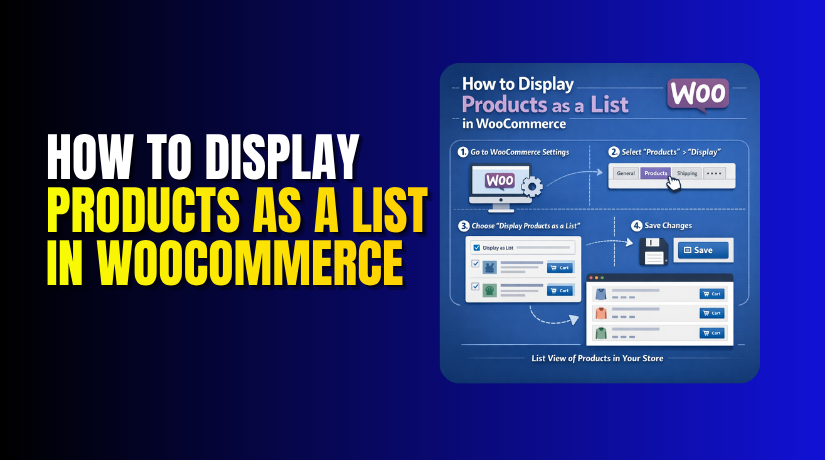
How to Display Products as a List in WooCommerce (Step-by-Step Guide)
Table of Contents
- Introduction
- What the Product List View Means in WooCommerce and How It Works
- How to Display Products as a List in WooCommerce Using a Plugin
- Important Features Every WooCommerce Product List Should Include for Better Results
- Common Problems When Switching to WooCommerce Product List View
- Conclusion
Introduction
WooCommerce shows products in a grid layout by default. This layout works well for many online stores. Still, it is not the best choice for every shop. Some store owners want to show more details on one page. That is where a list layout becomes very useful. A list view gives each product more space. It helps visitors read product details more easily. It also makes the shop page feel more clear and organized. If you want to display products as list in WooCommerce, this guide will help you understand the basics in a simple way.
Many WooCommerce stores sell products that need more explanation. A small grid box cannot always show enough information. Customers may want to see the product name, short details, price, and button together. They may also want to compare products quickly before opening each page. In such cases, the WooCommerce product list view can improve the shopping experience. It helps users scan products faster and understand what each item offers. This is very useful for stores with technical, wholesale, or feature-based products.
In this guide, you will learn the meaning of product list view in WooCommerce. You will also understand how it is different from the default grid layout. This basic understanding is important before making any design changes. Once you know how a list view works, the next steps become much easier.
What the Product List View Means in WooCommerce and How It Works
The product list view is a different way to show products. Instead of showing products in blocks across rows, WooCommerce shows them one below another. Each product appears in a longer horizontal section. This gives more room for important product details. In simple words, WooCommerce product list view means showing products in a vertical list instead of a box-style grid.
The default grid layout usually focuses on product images first. It often shows a title, price, and button in a small area. This style looks neat, but it can feel limited. It works best when product images do most of the selling. However, some stores need more text and product details. That is why many store owners prefer the WooCommerce grid to list view changes. A list format gives each product more space and improves content visibility.
So, the product list view in WooCommerce is a simple but useful layout option. It gives more room for content, improves product visibility, and helps buyers compare items with less effort. It is a smart choice for stores that want a more informative shop page. In the next part, you can explain why store owners use this layout and where it works best.
Reasons to Use Product List View in WooCommerce for Better Product Browsing
Better Product Details Stay Visible on the Shop Page
The default grid layout gives very little space to each product. Because of this, many useful details stay hidden from buyers. Most visitors only see the image, title, and price first. That may not be enough for stores selling detailed products. The WooCommerce product list view solves this issue well. It gives every product more horizontal space on the page. This extra space helps store owners show more useful details clearly. Buyers can understand the product faster without opening many pages.
Product Comparison Becomes Easier for Customers
Many customers compare products before making a final buying decision. This is very common in electronics, furniture, tools, and parts stores. In a grid, product details look short and hard to compare. Buyers often need to open several product pages one by one. That process takes more time and can feel frustrating. A WooCommerce list layout makes this process much easier. It shows more details in one clear row for each product. This helps buyers compare products quickly and choose with confidence.
List View Works Better for Products That Need More Explanation
Some products need more than a good image to sell well. Buyers often want to read features, size, usage, or stock details. A small grid layout cannot always show this information properly. That is why many stores prefer to display products as list in WooCommerce. A list format gives room for short descriptions and key points. It helps buyers understand the value of each product faster. This also makes the shopping experience more informative and practical.
Large Product Catalogs Look More Organized in List Layout
Stores with many products often face layout and browsing problems. A grid can look crowded when too many similar products appear together. Buyers may struggle to scan the page and spot differences quickly. A list view gives each product its own clear section. This makes the page feel more open and easier to read. The WooCommerce product list view is very helpful for large catalogs. It reduces confusion and improves the overall browsing experience. Customers can move through products with less effort and better focus.
Wholesale and B2B Stores Benefit More from Product List View
Wholesale buyers usually care more about product details than visuals. They often want to see names, prices, codes, and actions quickly. A list layout supports this style of shopping very well. It keeps important details visible in one clean row. This makes it easier for business buyers to act faster. A WooCommerce list layout is often a better choice for B2B stores. It helps reduce clicks and saves time during product selection. That makes the buying process smoother for serious customers.
Book, Parts, and Technical Stores Need a More Informative Layout
Some store types need stronger content support on shop pages. Book stores may need title, summary, and author details together. Parts stores may need SKU, size, or model details clearly shown. Technical stores may need short feature notes before visitors click further. A grid layout often hides this useful information. That is why many store owners move from WooCommerce grid to list view. A list format supports these products much better. It makes the shop page more useful for buyers who want details first.
List View Can Improve User Experience on Desktop and Mobile
A good layout should work well on all screen sizes. On the desktop, a list view uses horizontal space more effectively. It allows more product information without making the page messy. On mobile, it can still work very smoothly when designed well. Each product appears in a simple order that is easy to follow. Good WooCommerce product display settings help control this properly. They make sure the layout stays clean and easy to use. This improves browsing for visitors on both desktop and mobile devices.
Buyers Can Make Faster Decisions with More Visible Information
Customers buy faster when they understand products without extra effort. A list view gives them more details before they click deeper. This reduces confusion and saves time during product browsing. When buyers see useful information early, they feel more confident. That confidence can improve clicks, product views, and even conversions. The WooCommerce product list view helps create that clear experience. It supports faster decision-making by keeping important product details visible. This is one reason many store owners prefer list view today.
How to Display Products as a List in WooCommerce Using a Plugin
Step 1: Choose a WooCommerce Plugin That Supports Product List View
- First, you need a plugin that can change the shop layout. WooCommerce does not give a built-in list layout by default.
- That is why a plugin is the easiest option here.
- Choose a plugin that supports WooCommerce product list view properly. It should work well with your WooCommerce version and theme.
- It should also support mobile devices without layout problems.
- A good plugin makes it easier to display products as listed in WooCommerce without custom coding.
Step 2: Check the Plugin Features Before Installing It
- Before installing the plugin, review its main features carefully.
- Check if it offers a list view and grid view toggle.
- See whether it allows a default list layout setting. Also check if it supports image, title, price, and description control.
- These features help create a better WooCommerce list layout later. You should also check ratings, support, and update history.
- A well-maintained plugin usually gives better stability and fewer issues. This step helps you avoid problems after plugin installation.
Step 3: Install the WooCommerce Product List View Plugin
- Now go to your WordPress dashboard and open the Plugins area.
- Click on Add New to search for your chosen plugin. Type the plugin name and find the correct result.
- After that, click the Install button to add it. Wait for the installation process to complete fully. This step adds the plugin files to your website.
- It prepares your store for the WooCommerce grid to list view changes.
- Make sure you install the correct plugin before moving ahead.
Step 4: Activate the Plugin After Installation
- Once the plugin is installed, click the Activate button.
- This makes the plugin live on your website.
- After activation, new settings usually appear in the dashboard.
- Some plugins show settings under WooCommerce options.
- Others create their own settings menu in WordPress. You should locate these settings before making any changes.
- Activation alone does not always enable list view automatically. This step only turns the plugin on for use.
- The actual WooCommerce product display settings still need to be configured.
Step 5: Open the Plugin Settings and Review the Available Options
- After activation, open the plugin settings page carefully.
- Read the layout options before changing anything.
- Most plugins provide settings for view type and layout control. You may see options for grid view, list view, or both.
- Some plugins also allow product element control from this section.
- This is where you begin setting up the WooCommerce product list view.
- Take time to understand the options clearly. A better review now helps avoid design issues later. This step is important for proper plugin setup.
Step 6: Enable the Product List View from the Plugin Settings
- Now turn on the list view option in the plugin.
- This changes the product display from grid to list style. Some plugins use a simple enable or disable switch.
- Others may ask you to select the list layout manually. Once enabled, the store can start showing products in rows.
- This is the main step to display products as listed in WooCommerce. After this, product pages will begin following the new format.
- Make sure you save the settings after enabling list view.
Step 7: Choose Whether List View Should Be the Default Layout
- Many plugins let you choose the default product layout. You can keep both grid and list options available together.
- In that case, buyers can switch views on the shop page. You can also set the list view as the default layout. This means every visitor sees the list layout first.
- This setting is useful when your products need more visible details.
- It helps complete the WooCommerce grid to list view shifts properly.
- Choose the option that matches your store goals and product type.
Step 8: Decide Where the Product List View Should Appear
- Now choose the pages where the list view should work. Some store owners want it only on the main shop page.
- Others also want it on category and tag pages. A few plugins allow layout control for search results too. This step helps keep your store layout more organized.
- A clear setup improves the WooCommerce list layout across important pages.
- It also helps visitors get the same browsing experience everywhere.
- Make sure the selected pages match your store browsing style.
Step 9: Customize the Product Row Layout for Better Readability
- After enabling list view, customize how each product row looks.
- Most plugins let you change image size and placement. You may also control title position and description length.
- Some plugins let you move the price and button area too.
- This helps create a cleaner and more useful WooCommerce product list view. A good row design should feel balanced and easy to scan. Buyers should understand the product quickly from the shop page.
- Keep the design simple, clean, and user-friendly.
Step 10: Select Which Product Details Should Appear in the List
- Now choose the product details you want to show. Common options include image, title, short description, price, and cart button.
- Some stores also show rating, stock status, or SKU. This depends on your product type and selling style.
- Good WooCommerce product display settings help show only useful information. Too much content can make the list look crowded.
- Too little content can confuse buyers during browsing.
- So, choose only the details that improve clarity and buying decisions.
Step 11: Adjust Spacing, Alignment, and Button Position Carefully
- A list layout should not only work well but also look clean. That is why spacing and alignment matter a lot.
- Product rows should have enough space between them.
- Images, text, price, and buttons should align properly.
- The add to cart button should stay easy to notice.
- These small changes improve the full WooCommerce list layout greatly. A better layout makes product browsing feel smoother for visitors.
- This step helps your shop page look more professional and readable.
Step 12: Save the Settings and Check the Frontend Result


- After making all changes, save the plugin settings properly. Then open the shop page on the frontend.
- Check if products now appear in list format correctly. Review the image, title, price, and button placement.
- Also see whether the description looks clean and readable.
- This step confirms if the WooCommerce product list view is working well.
- If something looks wrong, go back and adjust the settings.
- Frontend checking is necessary before making the layout final.
Important Features Every WooCommerce Product List Should Include for Better Results
Product Image Should Stay Clear and Easy to Notice
A product image is one of the first things buyers notice. It helps visitors identify the item very quickly. In a list layout, the image should stay clear and properly sized. It should not look too small or too large. A balanced image improves the full WooCommerce product list view. It also helps the page look more clean and professional. Buyers often trust products more when visuals look neat. That is why product images should always be included.
Product Title Should Be Visible and Easy to Read
The product title tells buyers what the item actually is. If the title is hard to read, confusion starts quickly. In a list layout, the title should appear clearly near the image. It should also stand out from the rest of the text. A good title placement improves the WooCommerce list layout a lot. Buyers should understand the product name in one glance. This helps them scan products faster on the shop page. A readable title supports better browsing and faster clicks.
Short Description Helps Buyers Understand the Product Faster
A short description gives buyers quick details about the product. It explains the main value without opening the full page. This is very useful for stores selling detailed or technical items. The description should stay short, useful, and easy to scan. A strong WooCommerce product list view often includes this section. It helps visitors compare products without extra steps. This also saves time during shopping and improves user experience. A useful short description can support better buying decisions.
Product Price Must Stay Easy to Find on Every Product Row
Price is one of the most important parts of any product row. Buyers often check the price before reading more details. If the price is hidden, the layout feels less practical. In a list format, the price should stay visible and clear. This makes it easier to display products as listed in WooCommerce properly. A visible price also supports faster product comparison. Buyers feel more comfortable when pricing stays easy to spot. That is why prices should always be placed carefully.
Add to Cart Button Should Stay Visible and Easy to Click
The add to cart button is the main action point. If buyers cannot find it quickly, sales may drop. In a list layout, this button should stay clearly visible. It should also be placed near the price or description area. A clean button position improves the WooCommerce product display settings outcome. Buyers should know where to click without confusion. This makes shopping easier and reduces extra effort. A strong call-to-action button supports a smoother buying flow.
Stock Status Helps Buyers Know Product Availability Quickly
Stock status is another useful detail in many stores. It tells buyers whether the item is available right now. This is very helpful for fast buying decisions. If stock details are hidden, buyers may click only to feel disappointed. A WooCommerce list layout becomes more useful when stock status is shown. It improves trust and reduces confusion during shopping. This is especially helpful for stores with limited stock items. Clear availability information supports a better customer experience.
Product Rating Can Build More Trust on the Shop Page
Ratings help new buyers trust products more easily. When visitors see that other customers liked the product, confidence grows. A list layout gives enough room to show ratings clearly. This feature is useful for stores with strong customer reviews. It also makes the WooCommerce grid to list view change more valuable. Buyers can compare ratings without opening product pages one by one. This helps them choose products more quickly. Ratings are small, but they can influence buying decisions strongly.
SKU or Product Code Helps Technical and Wholesale Stores
Some stores need more than title and price on the shop page. Technical, wholesale, and parts stores often use product codes daily. In those cases, SKU visibility becomes very useful. It helps buyers identify the correct item without delay. A better WooCommerce product list view often includes SKU for such stores. This small detail can save time for repeat buyers. It also supports faster product search and better order accuracy. SKU is not needed for every store, but it matters a lot in some cases.
Category or Tags Can Improve Product Browsing for Some Stores
Category names or tags can help visitors understand product grouping. This feature is useful for stores with wide product ranges. It helps buyers know where the item belongs. In a list view, categories can support better scanning and filtering. A planned WooCommerce list layout may include this detail where needed. It should not be overused on every shop page. Still, for some stores, it improves product clarity well. Categories and tags can support a more organized product display.
Common Problems When Switching to WooCommerce Product List View
Theme Compatibility Issues Can Break the Product List Design
Some WordPress themes control WooCommerce layout styles strongly. Because of this, list view plugins may not work perfectly. Product rows may look broken, uneven, or poorly spaced. This is a common issue after switching layouts. The WooCommerce product list view may fail if theme styles override plugin settings. In such cases, buttons, text, or images may shift wrongly. This problem usually appears after frontend testing. Theme compatibility should always be checked before final use.
Plugin Conflicts Can Affect Product Layout and Shop Functions
Many WooCommerce stores use several plugins at the same time. Sometimes one plugin affects another plugin’s output. This can break styling, buttons, or product content display. A WooCommerce list layout may stop working correctly because of this. For example, another design plugin may load conflicting styles. A filter plugin may also change product loop behavior. These small conflicts can hurt the layout quickly. That is why plugin testing is very important after setup.
Mobile Display Problems Can Reduce User Experience on Small Screens
A list layout may look perfect on desktop screens first. Still, it can fail badly on mobile devices later. Product rows may become too long or poorly aligned. Images may also look too large for smaller screens. This problem often happens when responsive design settings are weak. A stable WooCommerce grid to list view setup must work on phones too. Mobile users should browse products without zooming or confusion. That is why mobile testing is always a required step.
Missing Product Details Can Make the List View Less Useful
Sometimes important product details do not appear in the list. This may happen because of plugin settings or theme limitations. A short description, rating, or stock status may stay hidden. That can reduce the value of the layout change. If you want to display products as list in WooCommerce, these details matter. Missing content makes the product row feel incomplete. It also makes comparison harder for buyers. This issue should be checked during plugin configuration and testing.
Slow Page Loading Can Happen When Too Much Content Is Added
A list layout can show more product details than a grid. That is useful, but it also increases page weight. Large images, long descriptions, and extra features can slow loading. A heavy WooCommerce product display settings setup can hurt performance. Slow pages often reduce user satisfaction and shopping time. Buyers may leave before checking your products fully. That is why product rows should stay useful but not overloaded. Speed should always remain part of layout planning.
Styling and Alignment Problems Can Make the Shop Page Look Unprofessional
Spacing, borders, and button alignment matter a lot in list view. If these parts look uneven, the page feels broken. Buyers may see the store as less trustworthy or unfinished. A clean WooCommerce list layout needs proper spacing between product rows. Titles, prices, and buttons should also align neatly. Small styling issues can affect the full browsing experience. These problems often happen when the plugin and theme do not match well. Careful testing usually helps find and fix them.
Conclusion
Displaying products in a list format can improve how buyers use your store. It gives more space for product details, makes comparison easier, and helps visitors understand items faster. This layout is very useful for stores that sell technical, wholesale, book, furniture, or feature-based products. With the right plugin and settings, you can create a clean WooCommerce product list view that looks better and works better. A strong WooCommerce list layout can improve browsing, support faster buying decisions, and create a smoother shopping experience across your store.
If you want to display products as listed in WooCommerce but need expert help, WooHelpDesk is here for you. Our team can help with plugin setup, WooCommerce product display settings, theme compatibility fixes, mobile layout improvements, and full WooCommerce grid to list view support. We can help you build a clean product layout that matches your store and improves user experience. Contact WooHelpDesk today for professional WooCommerce support and better store design.



