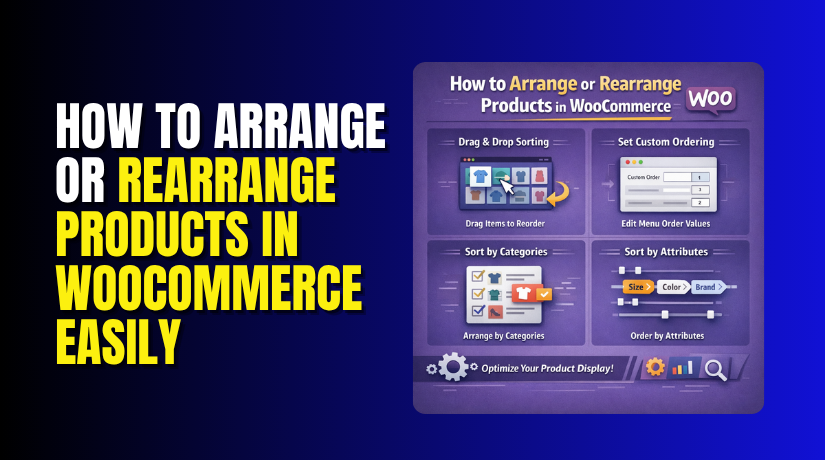
How to Arrange or Rearrange Products in WooCommerce Easily (Complete Guide)
Table of Contents
- Introduction
- What Does Product Arrangement Mean in WooCommerce?
- Why You May Need to Rearrange Products in WooCommerce
- How to Rearrange Products Using the Menu Order Option in WooCommerce (Step by Step)
- Common Problems When Rearranging Products in WooCommerce and How They Affect Display
- Conclusion
Introduction
A well-organized store always feels easier to use. That is also true for WooCommerce websites. When products appear in the right order, shoppers can find items faster. This improves browsing and makes the store look more professional. It also helps store owners guide visitors toward important products. If you want to Arrange Products in WooCommerce, you should understand how product order affects shopping behavior. A poor layout can hide useful items and reduce clicks. A better layout can improve attention, product views, and sales. Many store owners only focus on design and price. But product order also plays a big role in store performance. That is why learning how to rearrange WooCommerce pages correctly is important. It gives you more control over how your store looks and works.
In many cases, a simple product position change can make a visible difference. This is especially useful during sales, seasonal campaigns, or new product launches. A proper arrangement also supports a cleaner and smarter shopping experience. If your products are not showing in the right order, your store may feel confusing. That is why product arrangement should be part of regular store management.
What Does Product Arrangement Mean in WooCommerce?
Product arrangement means setting the order in which products appear. This order can show across the shop page or category pages. In WooCommerce, products do not always appear randomly. They usually follow a sorting rule or a custom order. This is where WooCommerce product sorting becomes important. It controls how products are displayed to visitors. Some stores show the newest products first. Others show products by popularity, rating, or price.
But sometimes, store owners want more control than default options provide. They may want to move selected products higher or lower manually. This is called a custom product arrangement. It helps highlight products based on business goals instead of default settings. When you change product order WooCommerce pages, you control product visibility more directly. This is helpful when promoting featured items or special offers. Product arrangement is not only about appearance. It also affects how users move through the store. A better order helps customers notice key products faster.
It can also reduce confusion on pages with many items. In simple words, arrangement means deciding which product appears first, second, or later. WooCommerce allows both automatic sorting and manual control. That is why many store owners use WooCommerce custom product order to improve store layout. You may also want to Sort products by category WooCommerce pages differently. This makes category sections easier to manage and more useful for shoppers.
Why You May Need to Rearrange Products in WooCommerce
To Show Important Products First
Not every product has the same value for your store. Some items bring more profit. Some products are new and need more attention. Some are bestsellers and should stay visible. When you Arrange Products in WooCommerce, you can place these items higher. This helps shoppers notice them faster. It also improves the chances of getting more clicks and sales from key products.
To Promote Seasonal or Limited-Time Products Better
Many stores sell products based on seasons, holidays, or special events. These products should appear earlier when demand is high. If they stay hidden lower on the page, customers may miss them. That is why many store owners rearrange WooCommerce pages during sales periods. This makes the store feel fresh and timely. It also helps promote products that matter most during a short selling window.
To Make the Shop Page Look More Organized
A poorly arranged product page can look random and confusing. Customers may not know where to focus first. This can make browsing harder and reduce interest. A better layout creates a cleaner shopping experience. With proper WooCommerce product sorting, store owners can build a more logical product flow. This improves the overall look of the shop page. It also makes the store feel more professional and easier to use.
To Help Customers Find Products More Easily
Customers want to reach useful products without wasting time. If product order is weak, visitors may leave quickly. A smart arrangement makes navigation easier and faster. It helps users find popular, useful, or relevant items sooner. When you Change product order WooCommerce pages carefully, you improve browsing for your visitors. This can reduce confusion and keep customers on the site longer. Better browsing often leads to better engagement and more sales.
To Highlight Featured or High-Profit Products
Some products need extra visibility because they support business goals. These may include featured products, high-margin items, or bundle offers. When such products appear first, they get more attention. This is one reason why WooCommerce custom product order is useful. It gives store owners more control over product placement. Instead of showing everything in a basic order, you can push valuable items higher and support better store performance.
To Arrange Products Differently for Each Category
Not every category should follow the same product order. One category may need premium products first. Another may need budget products first. Some categories may need new arrivals at the top. This is where it helps to Sort products by category WooCommerce pages properly. Category-based arrangement creates a better experience for shoppers. It also makes each section of the store feel more relevant and better planned.
To Support Promotions, Campaigns, and New Product Launches
Store owners often run discounts, launches, and special campaigns. During these times, product visibility becomes even more important. A good arrangement helps push campaign items to the top. This brings more attention to the products you want to sell first. Using WooCommerce menu order products settings can help with this process. It gives you better control during important sales periods. This makes your marketing efforts more effective and more visible.
To Improve Product Visibility Without Changing the Design
Sometimes the problem is not your theme or layout. The real issue is product position. A strong product may stay hidden too low. A useful item may not get enough views. In such cases, changing the order can solve the issue. When you arrange Products in WooCommerce properly, you improve visibility without redesigning the page. This is a simple method, but it can create a strong impact on product performance.
How to Rearrange Products Using the Menu Order Option in WooCommerce (Step by Step)
Step 1: Open the Products Section in Your WordPress Dashboard
- First, log in to your WordPress admin area.
- After that, go to the left sidebar and click Products. This section shows all the products added to your WooCommerce store.
- From here, you can manage product details, prices, stock, and display order.
- This is the starting point when you want to Arrange Products in WooCommerce manually.
Step 2: Make Sure Your Store Uses the Default Custom Sorting Option
- Before changing product positions, check the sorting setting first.
- WooCommerce must allow custom product order to work properly.
- Go to Appearance > Customize > WooCommerce > Product Catalog if your theme supports it.
- Look for the Default product sorting option.
- Set it to the option that supports custom order.
- In many stores, this is the default sorting setting. This step is important for proper WooCommerce product sorting.
Step 3: Open the Product Sorting Area from the Products Page
- Now go back to Products > All Products in the dashboard. At the top of the product list, WooCommerce may show a Sorting link.
- Click that option if it appears in your setup.
- This opens the manual sorting screen. Here, you can manage WooCommerce menu order products more easily.
- This area is made for store owners who want quick manual control.
Step 4: Drag and Drop Products into the Order You Want
- After opening the sorting screen, place your mouse on a product.
- Then drag it up or down to a new position.
- Move important products higher in the list. Move lower-priority products further down. WooCommerce saves this order for display.
- This is one of the easiest ways to Rearrange products WooCommerce shop pages without any plugin.
- It gives you direct control over product placement.
Step 5: Understand How Menu Order Works Behind the Scenes
- When you drag and drop products, WooCommerce changes their menu order values automatically. Products placed higher get stronger priority.
- Products placed lower get less priority.
- This is how WooCommerce custom product order works in the background. You do not always need to enter numbers yourself.
- WooCommerce handles that part when you sort products from the list screen.
Step 6: Check the Shop Page on the Frontend


- After rearranging the products, open your shop page on the frontend.
- Now check whether the products appear in the new order.
- This helps confirm that the changes are working correctly.
- If the order looks right, your manual arrangement is active. If not, another sorting setting may still be active.
- This step helps verify that your Change product order WooCommerce update is showing live.
Step 7: Clear Cache If the New Order Does Not Appear
- Sometimes the new product order does not show immediately.
- This often happens because of cache.
- If you use a caching plugin, clear the website cache.
- Also clear server cache or CDN cache if active.
- Then refresh the shop page again. In many cases, this fixes the issue. This is a common step when working with WooCommerce product sorting changes.
Step 8: Repeat the Process Whenever You Need to Update Product Priority
- Product arrangement is not a one-time task. You may need to update product order often.
- For example, you may want to push sale items higher.
- You may also want to move new arrivals to the top. This is why store owners regularly
- Arrange Products in WooCommerce based on promotions, seasons, and sales goals. Regular updates help keep the store fresh and useful.
Step 9: Use Category Planning If You Want Better Product Grouping
- If your store has many categories, plan the order carefully. You may want certain products to appear first in specific product sections.
- This helps improve user experience and category browsing.
- In many cases, store owners also want to Sort products by category WooCommerce pages for better control.
- Good category planning makes your store easier to browse and more organized.
Step 10: Use Menu Order for Better Visibility of Key Products
- The menu order option works best when product visibility matters. Use it to highlight featured items, top sellers, or seasonal products.
- This simple method helps you guide customer attention without changing your design.
- It is one of the easiest built-in ways to Rearrange products WooCommerce pages and improve product placement in a smart way.
Common Problems When Rearranging Products in WooCommerce and How They Affect Display
Product Order Changes Do Not Show on the Live Shop Page
This is one of the most common WooCommerce issues. You update the order in the dashboard, but the shop page still looks the same. This usually happens when the wrong sorting option is active. WooCommerce may still be showing products by date, price, or popularity. In that case, your manual changes will not appear. This can make WooCommerce custom product order seem broken even when it is saved correctly.
Cache Stops the New Product Order from Appearing
Cache often saves an older version of the shop page. Because of this, visitors may still see the previous product arrangement. This can happen with cache plugins, server cache, or CDN cache. Even after you Arrange Products in WooCommerce, the new order may stay hidden. That is why cache should always be checked after product sorting updates. A simple cache clear often solves this display problem.
Theme Settings Override WooCommerce Product Sorting
Some themes include their own shop page controls. These settings can replace normal WooCommerce sorting behavior. As a result, your product arrangement may not follow the order you set. This is common in custom or builder-based themes. A theme may use its own layout query for product display. That can block normal WooCommerce menu order products settings from working. This issue affects both shop pages and category pages.
Plugins Conflict with Manual Product Arrangement
Many WooCommerce stores use extra plugins for filters, layouts, and product displays. Some of these plugins change product order automatically. Others apply their own sorting rules in the background. Because of this, your manual changes may not show properly. This can create confusion when you try to rearrange products on WooCommerce pages. If another plugin controls display order, your custom arrangement may be ignored on the frontend.
Wrong Default Sorting Settings Block Custom Product Order
WooCommerce needs the correct sorting setting to show manual order. If the default catalog sorting is set to another option, your custom order may not appear. For example, if the store is sorting by latest products, your menu order changes may be skipped. This is a common reason why store owners cannot Change product order WooCommerce pages properly. The product order is saved, but the frontend follows another sorting rule.
Category Pages Do Not Match the Main Shop Page Order
Sometimes the main shop page looks correct, but category pages do not. This usually happens because category pages use different display settings. A theme or plugin may apply separate sorting to category sections. Because of this, the order may not stay consistent across the store. This becomes a problem when you want to Sort products by category WooCommerce pages in a planned way. A mismatch like this can make store navigation feel confusing.
Drag and Drop Sorting Option Is Not Visible
Some store owners cannot find the sorting option in the product area. This may happen because of theme changes, WooCommerce version differences, or screen setup. In some cases, the sorting link is hidden or replaced. This makes it harder to use WooCommerce product sorting features easily. Even though the menu order system still works, the missing drag-and-drop option can confuse beginners.
Product Queries in Custom Templates Ignore Your Arrangement
Custom shop templates sometimes use their own product queries. These queries may not respect the menu order setting. As a result, products may appear in a different order than expected. This often happens in highly customized WooCommerce stores. When this issue appears, it can make Arrange Products in WooCommerce tasks more difficult. The backend order is correct, but the template uses a different product logic on the frontend.
Out-of-Stock or Hidden Products Affect the Product Flow
Product order can also look strange when some items are hidden. Out-of-stock products may be pushed down or removed by settings. Private or hidden products may also change the visible product flow. Because of this, the frontend order may look different from the dashboard order. This can affect WooCommerce product sorting and make product arrangement harder to understand. It is important to check visibility settings during sorting work.
Conclusion
Product arrangement is more important than many store owners think. It affects product visibility, browsing flow, and customer attention. A smart order helps shoppers find key items faster. It also helps store owners support promotions and sales goals. In WooCommerce, you can manage product display using default sorting or manual order. You can also use the menu order option for better control. When used correctly, this method helps you Arrange Products in WooCommerce more effectively. It also supports a cleaner store structure and better shopping experience. At the same time, you should watch for common issues like cache, theme conflicts, and wrong settings. These problems can block your product order changes. Once you understand both setup and troubleshooting, managing product order becomes much easier. A well-arranged WooCommerce store always feels more useful, more organized, and more ready to convert visitors into buyers.
If you want expert help with product sorting, WooCommerce setup, or custom changes, WooHelpDesk can help. We assist with WooCommerce product sorting, layout fixes, product display issues, and store customization. Whether you need to Change product order WooCommerce pages, fix category display, or manage WooCommerce custom product order, our team can support you. If your store is not showing products in the right order, we can check the issue and fix it properly. Visit WooHelpDesk to get reliable support for your WooCommerce store.



