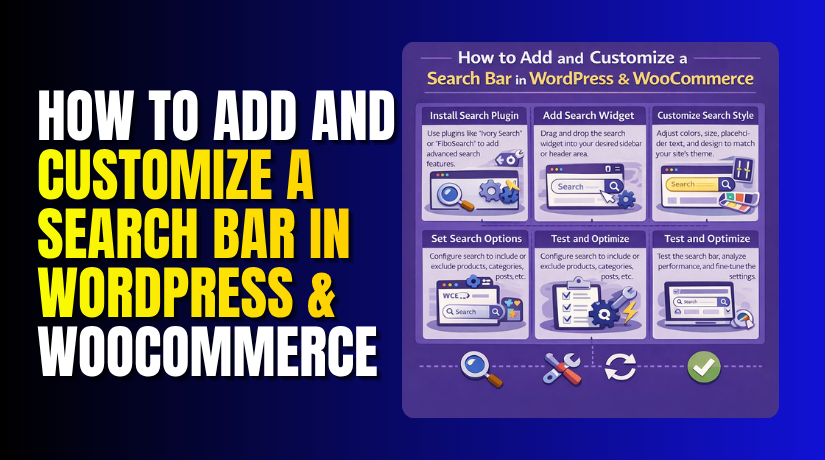
How to Add and Customize a Search Bar in WordPress & WooCommerce (Detailed Guide)
Table of Contents
- Introduction
- What Does a Search Bar Do in WordPress and WooCommerce?
- Why You Should Add a Search Bar to Your WordPress Website
- Important Things to Check Before Adding a Search Bar in WordPress
- How to Add a Search Bar in WordPress Using the WordPress Search Block
- How to Add a Search Bar in WooCommerce Using a Product Search Widget or Plugin
- How to Customize a Search Bar in WordPress (Step by Step)
- How to Customize a Search Bar In WooCommerce (Step by Step)
- Best Practices You Should Follow for Search Bar Design in WordPress and WooCommerce
- Conclusion
Introduction
A search bar is a small feature with a big job. It helps visitors find the right content faster. It also helps shoppers reach products without extra clicks. Many users visit a website with one goal in mind. They do not always want to open menus and browse many pages. They often want a quick way to search and move ahead. That is why many site owners choose to add a search bar in WordPress as early as possible. A good search option saves time and improves the overall user journey. It also makes the website look more useful and organized. If you run an online store, a WooCommerce search bar becomes even more important. It helps buyers search products directly and move closer to purchase. In this guide, you will learn how search works, why it matters, and how it supports better website use.
What Does a Search Bar Do in WordPress and WooCommerce?
A search bar gives users a direct path to the content they need. It works like a shortcut inside your website. Instead of opening many pages, users can type a word and search. This improves WordPress search functionality in a very practical way. On a blog or business website, the search bar helps users find posts, pages, services, and helpful information. This is useful when the website has many sections or a large content library. Users can move faster and stay focused on their goal.
On an online store, the WooCommerce search bar helps users find products quickly. They can search by product name, category, or related term. This makes shopping easier and less confusing. A better search experience can keep users active on the site longer. It can also improve clicks, page views, and sales. When the search tool works well, users feel more comfortable using the website again.
Why You Should Add a Search Bar to Your WordPress Website
A search bar is not just a design element. It is an important website tool. It helps users move faster and feel more comfortable. Many visitors land on a site with a question or purpose. They want answers, products, or specific pages. If they cannot find them quickly, they may leave. That is why it makes sense to add a search bar in WordPress on useful pages and key areas. A custom search bar WordPress setup can also improve the look and feel of your site. It can match your brand and make navigation more user-friendly. Search becomes even more useful when your site has many blog posts, service pages, or store items. It supports better movement through the website and gives users a better reason to stay.
Search Bar Makes Website Navigation Much Easier
Menus are useful, but they do not solve everything. Some users do not want to browse step by step. They want direct access to a page or product. A search bar gives them that option. It makes navigation faster and more flexible. This is helpful on both simple and complex websites.
Search Bar Improves Content Discovery on Large Websites
Many useful pages stay hidden because users never reach them. Search helps surface those pages more easily. Users can find old blog posts, service details, and support pages by keyword. This increases the value of content already on the site. It also helps visitors get more from one visit.
Search Bar Helps WooCommerce Customers Shop Faster
Store visitors often compare products before they buy. They may search by need, feature, or product type. A WooCommerce search bar helps them narrow their path. This makes shopping faster and less stressful. It also supports better product discovery in large stores. Faster product search can improve the buying journey.
Search Bar Can Help Reduce Website Bounce Rate
Visitors often leave when they cannot find what they need. Search reduces that risk by offering a quick solution. It gives users another way to move deeper into the site. When users find useful results, they stay longer. This supports better engagement and a stronger site experience.
Search Bar Improves the Mobile User Experience
Mobile screens have less space for menus and links. This can make browsing feel slower. A search bar solves this by giving users a direct option. They can search without opening many sections. This makes the site easier to use on phones and tablets. It is a simple feature that improves usability.
Important Things to Check Before Adding a Search Bar in WordPress
Before you add a search bar, check a few important things first. This helps you choose the right setup for your website. It also prevents design issues and poor search results later. A search feature should not be added without planning. It should match your website goals and user needs. If you want to add a search bar in WordPress the right way, start by checking your theme, layout, and search purpose. This step helps you avoid extra work later. It also helps you decide whether the default WordPress search functionality is enough or not.
Check Whether Your WordPress Theme Supports Search Features Properly
Your theme controls many layout and design options on the website. Some themes support search blocks, header search icons, and widget areas. Some themes offer more flexible search placement than others. That is why theme support matters before adding anything. Check whether your theme allows search in the header, sidebar, or footer. Also check whether it works well with blocks or page builders. If your theme has limited options, you may need a plugin. This is a simple step, but it saves time.
Decide the Main Purpose of the Search Bar on Your Website
Not every search bar works the same way on every website. Some websites need a full site search for pages and posts. Some online stores need only a WooCommerce search bar for products. Some websites may also need category-based or filtered search. So first decide what users should search on your site. This will help you choose the right method. A blog may need simple content search. A store may need product search with better filtering. The purpose always shapes the setup.
Decide the Best Location to Place the Search Bar
The search bar should appear where users can notice it fast. Good placement improves usability and gives better results. Most websites place search in the header for easy access. Some sites place it in the sidebar, shop area, or menu. WooCommerce stores often place product search near the top. That makes shopping easier for visitors. Choose a position based on your layout and user behavior. A visible search bar always works better than a hidden one. Placement matters as much as the feature itself.
Check Whether the Search Bar Will Work Well on Mobile Devices
Many users now browse websites from mobile phones first. So your search bar must work well on small screens. It should fit properly and stay easy to tap. The button, icon, and text area should all remain clear. If the bar looks broken on mobile, users may avoid it. That can hurt your site experience. Always preview the design on phones and tablets before final use. Good mobile search improves usability and supports better engagement.
Decide Whether Default Search Is Enough or You Need More Features
The default WordPress search functionality works for basic website needs. It can help users search posts, pages, and some content types. But it may not always give the best results. Store owners often need stronger product search features. They may want live search, product-only results, or category search. This is where plugins become useful. If your site is large, simple search may not be enough. Think about your future needs before choosing a method. This helps you build a better search experience from the start.
How to Add a Search Bar in WordPress Using the WordPress Search Block
Adding a search bar with the WordPress Search Block is simple. You do not need coding for this method. It works well for pages, posts, widget areas, and block-based templates. Follow these steps carefully.
Step 1: Log in to Your WordPress Dashboard
- First, open your WordPress admin panel and log in.
- Use your username and password to enter the dashboard.
- After login, you will see the main admin menu on the left side. This is where you manage pages, posts, design, and settings.
Step 2: Open the Page, Post, or Template Where You Want the Search Bar
- Now choose the area where you want to place the search bar. You can add it to a page, post, sidebar area, or template.
- If you want it on a normal page, go to Pages and click Edit.
- If you want it in a post, go to Posts and open the editor.
- If your theme supports site editing, you can also open the template area.
Step 3: Click the Block Inserter Button
- Inside the editor, look for the plus (+) icon.
- This is the block inserter button.
- Click it to open the block list. You will see many block options that WordPress provides by default.
- These blocks help you build page content easily.
Step 4: Search for the Search Block
- In the block search box, type Search.
- WordPress will show the Search Block in the results.
- Click on it to insert it into your page or template. The search bar will appear in the editor right away.
Step 5: Place the Search Block in the Right Position
- After adding the block, place it where users can find it easily.
- You can keep it near the top of the page, inside a sidebar, or in a header area. A visible place works best because visitors should not struggle to find it.
- Good placement improves the user experience.
Step 6: Customize the Search Bar Settings
- Now adjust the basic settings of the Search Block.
- You can change the placeholder text to something clear, like Search here or Search products. You can also show or hide the search button.
- Some themes also let you use a search icon instead of text.
- These changes help with WordPress search bar customization.
Step 7: Adjust the Width and Alignment if Needed
- Next, check the block layout options.
- You may want the search bar to be wider or aligned properly.
- Keep the size clean and easy to use.
- Make sure it does not look too small or too large. A balanced design looks better on the front end.
Step 8: Click Publish or Update
- Once everything looks correct, save your changes.
- Click Publish if it is a new page.
- Click Update if you edited an existing page. This will make the search bar live on your website.
Step 9: Preview the Search Bar on the Front End
- Open the page on the front end and check the search bar.
- See if it looks clean and fits your site design.
- Also make sure it appears in the right location.
- A quick preview helps you catch layout issues early.
Step 10: Test the Search Function Properly
- Now type a few keywords into the search bar and test it.
- Search for page names, blog topics, or product names.
- Check if the search results are useful. This step helps confirm that the WordPress search functionality is working correctly.
If you want a simple setup, this method works well. If you need advanced features later, you can use a plugin. But for many websites, the WordPress Search Block is a fast and clean option to add a search bar in WordPress.
How to Add a Search Bar in WooCommerce Using a Product Search Widget or Plugin
Adding a WooCommerce search bar is a smart step for any store. It helps shoppers find products faster. It also makes product browsing easier on large stores. If you want better store search, follow these steps carefully.
Step 1: Log in to Your WordPress Dashboard
- First, open your WordPress admin panel and log in.
- Enter your username and password correctly.
- After login, go to the main dashboard. This is where you control your store settings, pages, and plugins.
Step 2: Decide Where You Want to Show the Product Search Bar
- Before adding anything, choose the best search bar location.
- Most store owners place it in the header.
- Some place it in the sidebar or shop page area.
- Pick a spot where shoppers can find it quickly. A visible WooCommerce search bar works better for users.
Step 3: Check Whether Your Theme Supports Widgets, Blocks, or Header Search
- Now check what your theme allows.
- Some themes support widget areas and search blocks.
- Some themes also include a built-in header search option.
- Go to Appearance and review your theme settings.
- This helps you choose the easiest method for your store.
Step 4: Add a Product Search Widget or Block
- Go to Appearance > Widgets if your theme uses widget areas.
- Find the WooCommerce product search widget or search block.
- Drag it into the sidebar, footer, or another widget area.
- If your theme uses blocks, add the search block in the right section. Save the changes after placing it.
Step 5: Preview the Search Bar on the Front End
- After saving, open your website’s front end.
- Check whether the search bar appears in the correct place.
- Make sure it looks clean and fits the layout properly.
- A search bar should not look broken or too small. This step helps you catch design issues early.
Step 6: Install a Search Plugin if You Need Better Features
- If default search feels limited, install a plugin.
- Go to Plugins > Add New from the dashboard.
- Search for a WooCommerce search plugin.
- Many plugins improve search results, speed, and live search features. Install the plugin and activate it properly.
Step 7: Open the Plugin Settings and Configure Product Search Options


- After activation, open the plugin settings page.
- Many plugins let you choose product-only search.
- Some also allow category filters, live search, and SKU search.
- Enable the options that match your store needs.
- This step improves your WordPress search functionality for products.
Step 8: Set the Search to Show Products Only
- This is an important step for WooCommerce stores.
- Buyers want products, not blog posts or pages.
- In the plugin settings, choose product-only search if available.
- This makes results more relevant and helpful.
- A focused WooCommerce search bar improves the shopping experience.
Step 9: Add the Search Bar to the Best Store Location
- Now place the final search bar in the most useful area.
- The header is best for most stores.
- It keeps search visible on every page.
- Shop pages and product archive pages also work well. A good location makes the search tool easier to use.
Step 10: Test the Search with Real Product Keywords
- Now test the search bar properly.
- Type real product names into the field.
- Also test category names, short terms, and partial product names.
- Check whether the right items appear in results.
- Good testing shows whether the setup works well for shoppers.
Step 11: Check the Search Bar on Mobile Devices
- Many buyers use mobile phones for shopping.
- So open your store on a phone or tablet.
- Check whether the search bar fits the screen properly.
- Make sure the field and button are easy to tap. Mobile testing is very important for store usability.
Step 12: Improve the Search Further if Needed
- If results still look weak, improve the setup more.
- Use a stronger plugin or change plugin settings.
- You may also need category search or live results.
- Some stores need more advanced filters as they grow.
- A better custom search bar WordPress store setup gives users faster results.
How to Customize a Search Bar in WordPress (Step by Step)
After adding the search bar, the next step is customization. A search bar should match your website design. It should also feel simple and easy to use. Follow these steps to improve your WordPress search bar customization.
Step 1: Open the Page, Template, or Widget Area Where the Search Bar Is Added
- Go to the exact location where the search bar appears.
- This may be a page, header template, or widget area.
- Open that section inside the editor. You need this screen to start editing the design.
Step 2: Click on the Search Bar to Open Its Settings
- Select the search block or widget in the editor.
- This will open the settings panel.
- You will see options for layout, button style, and placeholder text.
- These options help you customize the search bar easily.
Step 3: Change the Placeholder Text
- Edit the placeholder text inside the search field.
- Use simple wording like Search here or Search products.
- Good text tells users what they can do. This small update improves usability right away.
Step 4: Edit the Search Button Text or Icon
- Now check the search button settings.
- You can keep button text like Search or use an icon.
- Choose the style that fits your website design. Keep it simple so users understand it quickly.
Step 5: Show or Hide the Search Button
- Some layouts look better with a visible button.
- Some work better with only a search icon.
- Use the option that fits your page best. But make sure the search still feels easy to use.
Step 6: Adjust the Width and Alignment
- Now check the size and placement of the search bar.
- Make it wide enough to notice and use easily.
- Align it properly with nearby content. A balanced layout improves the look of the page.
Step 7: Match the Search Bar Design with Your Theme
- Update colors, borders, and font styles if needed.
- The search bar should look like part of the website.
- It should not feel separate from the main design. This improves the overall website appearance.
Step 8: Preview the Search Bar on Desktop and Mobile
- After editing, preview the search bar on different screen sizes.
- Check the desktop view first. Then check the mobile view too.
- Make sure the design stays clean and usable on all devices.
Step 9: Save the Changes and Test the Search Again
- Once the design looks correct, save your changes.
- Then test the search field with sample keywords.
- Check both design and function together. A search bar should look good and work properly.
How to Customize a Search Bar In WooCommerce (Step by Step)
A WooCommerce search bar needs stronger customization than a normal blog search. Store users want faster and better product results. Follow these steps to improve store search in a useful way.
Step 1: Open the WooCommerce Search Plugin or Search Settings
- Go to the plugin settings if you use a search plugin.
- If your theme has store search options, open those settings.
- This is where you control how the product search works.
Step 2: Set the Search to Products Only
- Choose product-only search from the settings.
- This removes blog posts and pages from search results.
- It keeps the shopping experience focused and clean. This is one of the most useful search improvements.
Step 3: Enable Product Category Search
- Now turn on category search if the option exists.
- This helps buyers search inside specific product groups.
- It is very useful for stores with many categories. Category search reduces confusion and saves time.
Step 4: Enable Live Search Results
- Activate live search if your plugin supports it.
- This shows product suggestions while users type.
- Live search makes the store feel faster and more modern.
- It also helps buyers find products without extra clicks.
Step 5: Improve Search Accuracy with SKU, Tags, and Attributes
- Now enable advanced search fields if available.
- Let the search check SKU, tags, and product attributes.
- This improves the quality of search results. It is very useful for stores with technical or detailed products.
Step 6: Show Better Search Results with Product Images and Prices
- Some plugins let you display images and prices in live results.
- Turn on these options if they are available.
- This makes search results more useful for buyers. They can identify products faster before opening the full page.
Step 7: Adjust the Search Bar Design to Match the Store Layout
- Now style the search bar so it matches your store.
- Check width, button style, font, and spacing. A clean design improves trust and usability.
- Good design also makes the store look more professional.
Step 8: Place the Search Bar in a Strong Store Position
- If needed, move the search bar to a better location.
- The header works best for many stores. It stays visible on every page.
- Better placement improves user interaction and product discovery.
Step 9: Test the WooCommerce Search with Real Shopping Terms
- Search real product names, categories, and short terms.
- Check whether the right items appear quickly. Also test partial product names and common customer keywords.
- Good testing shows whether the setup is ready.
Step 10: Review Mobile Search Experience
- Finally, check the search bar on mobile devices.
- Make sure shoppers can tap and type easily.
- Check whether results appear clearly on smaller screens.
- Mobile-friendly search is very important for WooCommerce stores.
Best Practices You Should Follow for Search Bar Design in WordPress and WooCommerce)
A search bar should do more than just appear on the page. It should feel easy, clear, and useful from the first view. Good design helps users trust the search feature and use it without confusion. A poor search layout can be ignored, even if it works well. That is why design matters as much as function. If you want to improve WordPress search functionality, you must focus on usability and placement. The same is true for every WooCommerce search bar. A good search setup helps users find content, products, and useful pages faster. It also improves the overall website experience. These best practices will help you build a better search experience for both WordPress and WooCommerce users.
Keep the Search Bar Easy to Find on Important Website Areas
A search bar should be placed where users expect it most. The header is one of the best positions for this. It stays visible and works across many pages. Some websites also use the sidebar or shop page area. The goal is simple. Users should not waste time looking for a search. A hidden search bar loses value very quickly. Good placement improves usability and increases search use. If you plan to add a search bar in WordPress, start with a clear and visible location.
Use Clear Placeholder Text That Tells Users What They Can Search
Placeholder text should guide users in a simple way. It should tell them what they can type into the field. Short text like Search posts, Search products, or Search here works well. Avoid unclear words that confuse first-time visitors. This small detail improves search use more than many people expect. It helps users act faster and with more confidence. It also supports better WordPress search bar customization without needing major changes.
Keep the Search Bar Design Clean, Simple, and Easy to Use
A search bar should look neat and easy to understand. Avoid too many colors, shapes, or design effects. A simple search field with a clean button usually works best. Users want fast action, not extra design distractions. The search box should match the website style and remain readable. A cluttered search design can reduce trust and usability. A clean layout improves both appearance and function on every page.
Make Sure the Search Bar Works Properly on Mobile Devices
Many visitors now use phones more than desktop computers. That means the search bar must work well on smaller screens. The field should be wide enough to tap and type easily. The button or icon should also stay clear and touch-friendly. If mobile users struggle, they may stop using search completely. Always test the search bar on phones and tablets before final use. Mobile-friendly design is now a basic need, not an extra feature.
Use Product-Only Search for WooCommerce Stores When Needed
Store visitors usually want products, not posts or page results. That is why product-only search is often the better choice. A WooCommerce search bar should stay focused on shopping needs. Mixed results can slow users down and create confusion. Product-focused search keeps the store journey cleaner and faster. It also helps buyers move closer to the right item. This is one of the most useful search improvements for online stores.
Focus on Search Speed and Search Accuracy for Better Results
A search tool should return useful results without delay. Slow or weak search can frustrate users quickly. Fast results improve the experience and help users keep moving. Accuracy matters just as much as speed. If users search for a known item, they should see it easily. Better speed and better matching both improve trust. This is especially important when using a custom search bar WordPress layout on larger websites.
Test the Search Bar Regularly to Maintain Good User Experience
A search bar should not be added and then ignored. It should be tested often to make sure it still works well. Check its design, speed, and search results over time. Also test it after plugin changes, theme updates, or layout edits. Small problems can appear without warning. Regular testing helps you fix issues before users notice them. A reliable search feature supports a better website experience in the long run.
Conclusion
A search bar is one of the most useful tools on a website. It helps users find content, pages, and products much faster. It also improves navigation and makes browsing easier for every visitor. On WordPress websites, search helps users reach helpful information quickly. On online stores, a WooCommerce search bar supports faster product discovery and smoother shopping. When you combine the right placement, good design, and proper settings, search becomes much more effective. Strong WordPress search bar customization can also help your website look cleaner and feel easier to use. Whether you want to add a search bar in WordPress for blog content or build a better store search, the right setup can improve user experience in a big way.
If you want expert help with search setup, WooHelpDesk is ready to assist. Our team can help you add search bars in WordPress, improve WordPress search functionality, and build a better WooCommerce search bar for your online store. We can also help with WordPress search bar customization, design improvements, and custom search bar WordPress setup based on your website needs. If your current search is not working properly or your store search needs better results, WooHelpDesk can help you fix it the right way.



