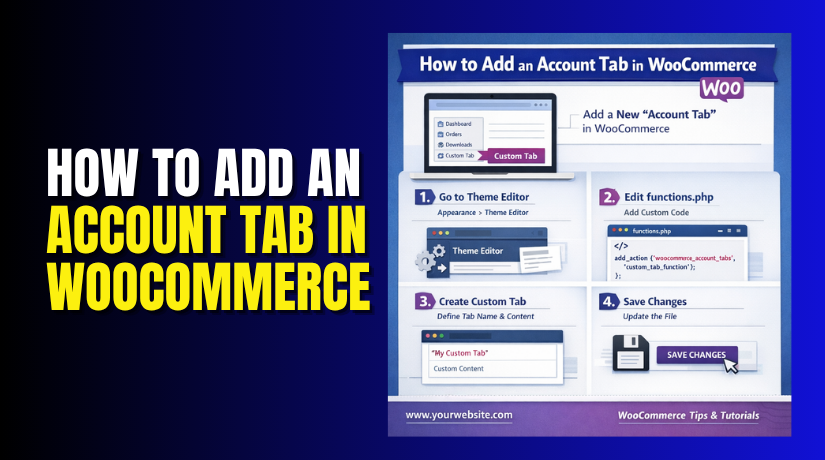
How to Add an Account Tab in WooCommerce (Step-by-Step Guide)
Table of Contents
- Introduction
- What Is a WooCommerce Account Tab?
- Why Store Owners Often Need a Custom Account Tab in WooCommerce
- Important Things You Should Check Before Adding a New Account Tab in WooCommerce
- How to Add an Account Tab in WooCommerce (Step-by-Step Guide)
- Common Problems You May Face When Adding a WooCommerce Account Tab
- Best Practices You Should Follow When Adding a New WooCommerce Account Tab
- Conclusion
Introduction
The WooCommerce My Account page is a key area for every customer. It helps users manage orders, addresses, account details, and downloads. Many store owners want more control over this section. That is why they look for ways to add an account tab in WooCommerce without making the page confusing. A new tab can improve navigation and make the account area more helpful.
It can also support better WooCommerce my account customization for stores with special customer needs. When you add a tab to WooCommerce my account page, you create a better experience after the sale. This small change can make the account section more useful and more professional. It also gives your store a simple way to show important content in the right place.
What Is a WooCommerce Account Tab?
A WooCommerce account tab is a menu item inside the My Account page. Customers click it to open a specific section or custom content. WooCommerce already includes default tabs like Dashboard, Orders, Downloads, Addresses, and Account Details. These built-in sections work well for many stores. Still, some businesses need more than the default setup. That is where a WooCommerce custom account tab becomes useful.
A custom tab lets you add another section based on your store needs. You can use it for support details, special instructions, return policies, tracking help, or member content. This is also part of smart WooCommerce account page edit work because it improves the page without changing the full layout.
In many cases, the new tab works through a custom URL structure. That is why terms like WooCommerce custom endpoint and WooCommerce endpoint customization are also important in this process. The endpoint controls where the tab opens and what content it shows.
Why Store Owners Often Need a Custom Account Tab in WooCommerce
To Give Customers Quick Access to Important Information
Many customers visit the account page after placing an order. They often need help with tracking, returns, support, or next steps. Default WooCommerce tabs may not always cover these needs clearly. A custom tab solves this problem in a simple way. When you add an account tab in WooCommerce, you make useful information easier to find. This improves navigation and reduces customer confusion.
To Improve WooCommerce My Account Customization
Every online store works in a different way. Some stores sell products, while others sell services or memberships. Because of this, the default account page may feel limited. A custom tab gives you more control over the customer area. It supports better WooCommerce my account customization without rebuilding the full page. This makes the account section more useful for your business model.
To Show Support, FAQ, or Help Content in One Place
Customers often need answers after they log in. They may want setup help, return steps, or contact details. Instead of sending them to many different pages, you can place this content inside one tab. A WooCommerce custom account tab makes support content easy to reach. This also saves time for both customers and store owners. It creates a cleaner and more user-friendly account experience.
To Add Store-Specific Features Without Editing the Full Account Page
Some store owners want to add rewards details, membership content, or custom messages. These features may not fit inside the default WooCommerce tabs. A new tab gives space for such store-specific content. This is a smart form of WooCommerce account page edit because it adds value without making major changes. You keep the main layout the same while improving function.
To Create a Better Post-Purchase Experience
The customer journey does not end after checkout. Buyers often return to the My Account page for updates and support. A custom tab helps guide them after the purchase. You can use it for care instructions, reorder help, or service details. When you add a tab to WooCommerce my account page, you improve the post-purchase experience in a simple way. This can also increase trust and repeat visits.
To Use Custom Endpoints for Better Content Control
Each custom tab usually works with its own page path or endpoint. This helps WooCommerce load the correct content in the correct place. That is why WooCommerce custom endpoint and WooCommerce endpoint customization matter in this setup. With the right endpoint, you can control how the tab works and what users see. This gives store owners a more flexible and organized account area.
Important Things You Should Check Before Adding a New Account Tab in WooCommerce
Before you add an account tab in WooCommerce, you should check a few basic things first. These checks help you avoid errors later. They also make the setup process smoother and safer. If you skip these steps, the new tab may not work properly. That is why preparation matters before any WooCommerce account customization work starts.
Confirm That WooCommerce Is Installed and Active
The first step is very simple. Make sure WooCommerce is installed on your website. Also confirm that the plugin is active in WordPress. If WooCommerce is not active, the My Account page will not work correctly. Any WooCommerce custom account tab feature depends on the main plugin. Without WooCommerce, the account menu and customer endpoints will not load.
Make Sure the My Account Page Is Set Up Correctly
You should also check that the My Account page exists. Open your WooCommerce settings and confirm the correct page is assigned. If the wrong page is selected, the account menu may not show. This can also affect any attempt to add a tab to WooCommerce my account page. A working My Account page is the base for all account area changes.
Check That Your Permalink Structure Is Working Properly
Permalinks play an important role in WooCommerce account pages. Each tab usually opens through a page URL or endpoint. If permalinks are broken, the new tab may show a 404 error. This is especially important for WooCommerce endpoint customization. Go to permalink settings and confirm everything is working as expected. A clean URL setup helps the tab open correctly.
Take a Full Website Backup Before Making Any Changes
Even when you use a plugin, a backup is still important. It protects your site if something goes wrong. A backup helps you restore the site quickly if needed. This is a smart step before any WooCommerce account page edit. It is always better to work safely, especially in a live store. Small changes can still affect customer pages.
Choose a Reliable Plugin for Account Tab Customization
Not every plugin is safe or well-maintained. Some plugins may cause errors or conflicts. Others may stop working after WooCommerce updates. That is why you should pick a trusted plugin with good reviews. A reliable plugin makes WooCommerce my account customization easier and safer. It also gives better options for tab labels, content, and display settings.
Test the Changes on a Staging Site If Possible
A staging site is the best place for testing. It lets you try new changes without affecting real customers. You can test the new tab, check the layout, and look for conflicts. This is very useful before you create a WooCommerce custom endpoint on the live store. Testing first helps you fix problems early and avoid customer issues later.
How to Add an Account Tab in WooCommerce (Step-by-Step Guide)
Adding a tab with a plugin is the easiest method for most users. You do not need custom coding for this setup. You only need to install the right plugin and follow each step carefully. This method is useful for safe WooCommerce my account customization and simple account page changes.
Step 1: Choose a Plugin That Supports WooCommerce Account Tabs
- Start by selecting a plugin that can create custom account tabs. The plugin should support tab labels, endpoint settings, and custom content.
- Some plugins also allow shortcode support and visibility control.
- This is helpful when you want flexible WooCommerce account page edit options.
- A good plugin makes it easier to add an account tab in WooCommerce without technical work.
Step 2: Install the Plugin on Your WordPress Website
- Go to your WordPress dashboard and open the Plugins section.
- Click on Add New and search for the plugin name.
- Once you find it, click Install Now.
- Wait until the installation process finishes completely.
- This step prepares your site for WooCommerce custom account tab creation.
Step 3: Activate the Plugin After Installation
- After the plugin installs, click the Activate button.
- Activation turns on the plugin features inside WordPress.
- Without activation, you cannot access the tab settings.
- Once active, the plugin will usually appear under WooCommerce settings or its own menu.
- Now you are ready to add a tab to WooCommerce my account page.
Step 4: Open the Plugin Settings Page
- Go to the plugin settings area from the dashboard menu.
- Different plugins place settings in different locations.
- Some appear inside WooCommerce settings, while others create a separate menu.
- Open the settings and review all available options first.
- This helps you understand how the plugin handles WooCommerce endpoint customization and content display.
Step 5: Create a New Account Tab
- Look for the option to add or create a new tab.
- Click that button to open the tab setup form.
- Here, you will usually enter the tab title and other details.
- This is the main step where the WooCommerce custom account tab begins.
- Use a clear and simple title that customers can understand easily.
Step 6: Add the Tab Name or Label
- Enter the name that customers will see in the account menu.
- This label should describe the tab clearly.
- Good examples include Support, Help Center, Rewards, or Tracking Info.
- Avoid long or confusing tab names.
- A short label improves navigation and makes your WooCommerce my account customization look cleaner.
Step 7: Set the Tab Slug or Custom Endpoint
- Most plugins ask for a slug or endpoint value.
- This becomes part of the tab URL. For example, a support tab may use a slug like support.
- This part is important because it controls the tab path.
- That is why WooCommerce custom endpoint and WooCommerce endpoint customization are key in this setup.
- Keep the slug short, clean, and unique.
Step 8: Choose the Tab Position on the My Account Page
- Many plugins let you control where the new tab appears.
- You can place it before or after default account tabs.
- Choose a position that makes sense for users.
- Important tabs should stay easy to find.
- A good position improves the flow when you add a tab to WooCommerce my account page.
Step 9: Add Content Inside the New Account Tab
- Now enter the content that will appear inside the tab.
- You can add plain text, helpful instructions, links, or shortcodes.
- Some plugins also support page builders or HTML blocks.
- Keep the content simple and useful for customers.
- This step completes the practical side of your WooCommerce account page edit.
Step 10: Set Visibility Rules if the Plugin Supports Them


- Some plugins allow display rules for each tab.
- You may show the tab only to logged-in users.
- You may also restrict it by user role or membership level.
- This is useful for stores with special customer groups.
- It gives more control over WooCommerce my account customization without extra coding.
Step 11: Save the New Tab Settings
- After filling in all details, click the save button.
- This stores the new tab settings in the plugin.
- Do not leave the page before saving properly.
- If settings are not saved, the tab may not appear.
- Saving correctly is necessary for every WooCommerce custom account tab setup.
Step 12: Visit the Frontend My Account Page and Check the Tab
- Open your website frontend and go to the My Account page.
- Look at the account menu and find the new tab.
- Click it and confirm that the content loads correctly.
- Make sure the label, URL, and position look right.
- This step helps confirm that your WooCommerce custom endpoint is working properly.
Step 13: Test the Tab on Desktop and Mobile Devices
- Do not test only on one screen size.
- Open the tab on desktop and mobile devices.
- Check the menu layout, spacing, and readability.
- Make sure customers can tap and open the tab easily.
- This keeps your WooCommerce account page edit user-friendly on all devices.
Step 14: Refresh Permalinks if the New Tab Shows a 404 Error
- If the tab opens with a 404 page, go to permalink settings.
- Open Settings > Permalinks in WordPress.
- Click Save Changes without changing anything else.
- This refreshes the URL structure and often fixes endpoint problems.
- It is one of the most common fixes in WooCommerce endpoint customization.
Step 15: Recheck the Tab and Make Final Improvements
- After refreshing permalinks, test the tab again.
- Check the content, styling, and user flow one more time.
- Update the label or content if something feels unclear.
- A well-planned tab improves customer experience and keeps the account page useful.
- This final review helps you properly add an account tab in WooCommerce with better results.
Common Problems You May Face When Adding a WooCommerce Account Tab
Adding a new tab looks simple, but small issues can appear. These problems are common during WooCommerce my account customization work. The good part is that most of them are easy to check and fix. You only need to know where the problem starts. This helps you complete the WooCommerce account page edit without breaking the customer area.
The New Account Tab Does Not Appear on the My Account Page
Sometimes the tab does not show after you create it. This usually happens because the plugin settings were not saved fully. It can also happen if the tab is disabled inside the plugin. In some cases, the My Account page is not set correctly in WooCommerce settings. If that happens, the custom tab will not load. Always recheck the plugin setup when you add an account tab in WooCommerce.
The Tab Opens but Shows a 404 Error
A 404 error is one of the most common issues here. This usually means the endpoint is not working correctly. It often happens after adding a new tab or changing the slug. In many cases, WordPress permalinks need a refresh. This issue is closely linked with WooCommerce custom endpoint setup. If the endpoint path is not registered properly, the new tab cannot open.
The Content Inside the Tab Does Not Display Properly
Sometimes the tab appears, but the content area looks empty. This may happen when content is not added correctly in the plugin. It can also happen if a shortcode does not work as expected. Some plugins need content to be saved in a specific format. This is a common issue during WooCommerce account page edit tasks. Always test the content after saving the new tab.
The Plugin Settings Do Not Save Correctly
In some cases, you update the tab settings, but nothing changes. This may happen because of caching, plugin conflict, or user permission issues. A weak plugin can also cause this problem. That is why trusted tools matter in WooCommerce my account customization. If the settings do not save, the new tab may never appear correctly. Always test changes after saving.
The Theme Styling Breaks the New Account Tab Layout
Not every WordPress theme handles WooCommerce pages in the same way. Some themes add custom styles that affect the My Account page layout. Because of this, the new tab may look broken or misplaced. The content may also appear too wide, too narrow, or poorly spaced. This can make your WooCommerce custom account tab look unprofessional. Theme testing is important after any account page change.
Another Plugin Creates a Conflict With the New Tab
Sometimes another plugin blocks the new account tab from working. This often happens when two plugins try to control the same endpoint or page area. Security, membership, and account page plugins can sometimes clash. This can affect the way you add tab to WooCommerce my account page. If you see strange behavior, a plugin conflict may be the reason. Testing one plugin at a time can help find the cause.
Best Practices You Should Follow When Adding a New WooCommerce Account Tab
A new tab should help customers, not confuse them. That is why good planning matters before and after setup. Best practices help you keep the account page simple and useful. They also support safe WooCommerce endpoint customization without hurting the user experience. A clean setup always works better than adding too many features at once.
Keep the Tab Name Short and Easy to Understand
Customers should know the tab’s purpose at first glance. Use simple names like Support, Help, Rewards, or Tracking. Do not use long labels that feel unclear. A short name improves the account menu and looks cleaner. This is important in every WooCommerce custom account tab setup. Clear tab names also reduce confusion for first-time users.
Add Only Tabs That Give Real Value to Customers
Do not create a new tab just because you can. Each tab should serve a clear purpose. It should help users find something useful after login. Good examples include support pages, order help, and custom member content. This makes WooCommerce my account customization more meaningful. Useful tabs improve the page without making it crowded.
Avoid Adding Too Many Tabs to the Account Menu
Too many tabs can make the account page feel messy. Customers may struggle to find the option they need. This can hurt the user experience instead of improving it. It is better to keep the menu clean and focused. When you add account tab in WooCommerce, think about quality more than quantity. A smaller menu often works better for customers.
Make the Content Inside the Tab Easy to Read
A good tab also needs good content. Use short text, simple headings, and helpful instructions. Avoid large text blocks that feel heavy to read. The content should solve a customer’s needs quickly. This supports a better WooCommerce account page edit and improves page usability. Helpful content makes the tab more effective.
Keep the New Tab Design Consistent With the Account Page
The new tab should match the rest of the store design. It should not feel like a separate or broken section. Use the same style, spacing, and tone as the existing account page. This helps the page feel more professional and organized. A consistent layout improves WooCommerce my account customization results. It also builds trust with customers.
Test the Tab After Plugin or WooCommerce Updates
Updates can affect custom account tabs over time. A plugin may change its settings or stop working correctly. WooCommerce updates can also affect endpoint behavior. That is why regular testing matters after updates. This is especially important for WooCommerce custom endpoint and endpoint-related features. A quick test can catch problems before customers report them.
Use a Trusted Plugin With Regular Updates and Support
The plugin choice matters a lot in this setup. A trusted plugin is more likely to work well with WooCommerce. It also gives better support and fewer security problems. Poor plugins may break the account page or create conflicts. This is why a reliable tool is important for WooCommerce endpoint customization. Good plugin support saves time later.
Conclusion
Adding a custom account tab is a smart way to improve the WooCommerce My Account page. It gives customers better access to support, guides, and other useful content. It also helps store owners organize the account area in a better way. When planned properly, this small change can bring real value. A simple and clean setup always works best.
Using a plugin makes this process much easier for most users. You can add a tab to WooCommerce my account page without writing custom code. You only need to choose the right plugin, follow the setup steps, and test the results. If you also check common issues and follow best practices, your tab will work more smoothly. That makes your WooCommerce account page edit safer and more useful.
If you want expert help with WooCommerce my account customization, WooHelpDesk can support you. Our team can help you add an account tab in WooCommerce, fix endpoint errors, adjust account page layout, and solve plugin conflicts. We also help with full WooCommerce custom account tab setup based on your store needs. If your account page needs expert care, contact WooHelpDesk for reliable WooCommerce support.
Frequently Asked Questions
Can I add custom tabs to WooCommerce My Account page without coding?
Yes, plugins like JERF – My Account Page Editor, JERF – My Account Page, or Custom My Account for WooCommerce allow you to add custom tabs without writing any code. These plugins provide drag-and-drop interfaces.
How do I add content to a custom WooCommerce account tab?
You can add content using the woocommerce_account_{endpoint}_endpoint action hook. Create a function that outputs your desired content and hook it to the custom endpoint you registered.
Will custom account tabs work with all WooCommerce themes?
Custom account tabs created through WooCommerce hooks or official plugins should work with most WooCommerce-compatible themes. However, some themes with heavily customized My Account pages may require additional CSS adjustments.
References and Resources
- WooCommerce Endpoints Documentation
- WooCommerce Developer Docs – Endpoints
- WordPress Hooks Documentation
Related Articles



