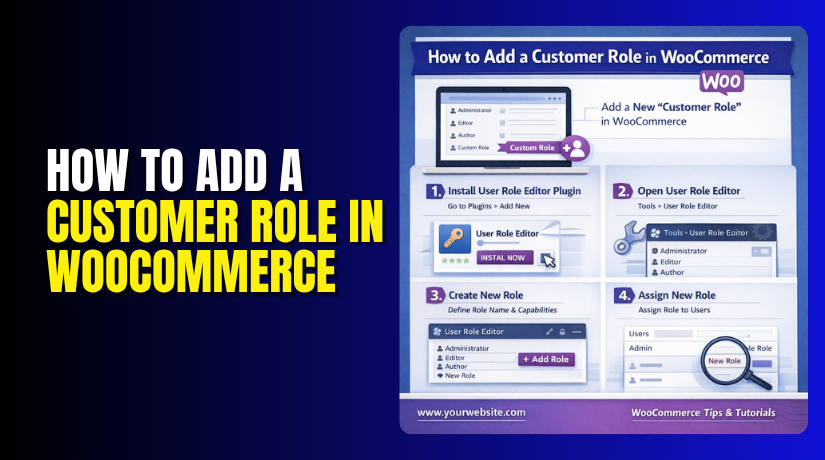
How to Add a Customer Role in WooCommerce (Step-by-Step Guide)
Table of Contents
- Introduction
- What the Customer Role Means in WooCommerce and How It Works
- Why Store Owners May Need to Add a Customer Role in WooCommerce
- How to Add a Customer Role in WooCommerce Manually from the Dashboard
- How to Add a Customer Role Using a Plugin (Step by Step Process)
- Common Reasons Why the Customer Role May Be Missing in WooCommerce
- Conclusion
Introduction
Running an online store needs more than products and payments. It also needs the right user access. That is where WooCommerce user roles become very useful. These roles control what each user can view and manage. In WooCommerce, the customer role is one of the most important roles. It is used for buyers who register, place orders, and manage account details. If this role is missing or assigned wrongly, store functions can become confusing. Many store owners need help with WooCommerce customer role setup during store creation or user management. Some also need to add customer roles in WooCommerce when updating old accounts. This guide explains the basics in a simple way. It helps beginners understand why this role matters. It also prepares you for the next steps in proper WooCommerce role management.
What the Customer Role Means in WooCommerce and How It Works
The customer role is a default user role in WooCommerce. It is created for people who buy from your store. This role gives users limited access to their own account area. They can log in, view orders, update addresses, and change account details. They cannot change store settings or manage products. That is why this role is safe for normal buyers. Compared with other WordPress user roles WooCommerce uses, the customer role is very limited. For example, an administrator has full website control.
An editor can manage content. A subscriber has basic site access. A customer, however, is focused on shopping activity only. This makes the role useful for online stores. If you want to create a user role WooCommerce users can use for buying, the customer role is usually the best starting point. In some cases, store owners also edit customer role WooCommerce settings with plugins. That is helpful when special store rules are needed.
Why Store Owners May Need to Add a Customer Role in WooCommerce
Existing Users May Have the Wrong Role Assigned
Sometimes a website user has the wrong account role. They may be saved as a subscriber or another role. This can create problems in the shopping process. The user may not get the right account features. In this case, store owners need to add customer roles in WooCommerce to fix account access. This is a common issue in stores with old users.
Store Owners Often Create Buyer Accounts Manually
Many store owners add users from the WordPress dashboard. This happens when helping a customer directly. It also happens when creating accounts for phone or offline orders. During this process, the correct role must be selected. That is why WooCommerce customer role setup is important. It helps store owners create buyer accounts in the proper way.
Registration Settings May Not Assign the Customer Role Correctly
Some websites have incorrect user registration settings. New users may get another role by mistake. This can happen after setup changes or plugin updates. When this happens, store owners need to check WooCommerce user roles carefully. They may need to change settings and assign the customer role again. Good WooCommerce role management helps prevent this problem.
Website Migration Can Affect User Role Structure
A website migration can sometimes break role settings. After moving the store, some roles may not work correctly. The customer role may disappear or stop assigning properly. This creates account issues for new or existing buyers. In such cases, store owners may need to restore or create user role WooCommerce settings again. This step helps the store run normally after migration.
Better Store Management Needs Proper Customer Role Assignment
A WooCommerce store works better with clear user access. Buyers should only see account tools meant for customers. They should not access admin or editing features. When roles are assigned correctly, store management becomes easier. This is why many businesses focus on WooCommerce role management from the start. It keeps the store more secure and organized.
Some Stores Need More Control Over User Access
Not every online store works in the same way. Some stores serve regular buyers, wholesale buyers, or special members. In these cases, owners may also add custom role WooCommerce options. Even then, the default customer role stays important. It is still the main role for standard buyers. Store owners may also use a WooCommerce role plugin to manage these roles more easily.
Wrong Roles Can Affect the Customer Experience
A wrong user role can confuse buyers. They may not see order history or account options correctly. This can lead to support requests and lost time. To avoid this, many store owners edit customer role WooCommerce settings when needed. A proper setup gives buyers a better shopping experience. It also makes the website easier to manage every day.
Important Things to Check Before You Add a Customer Role in WooCommerce
Make Sure WooCommerce Is Installed and Active
Before you change any user role, check WooCommerce first. The Customer role comes from WooCommerce itself. If the plugin is not installed or active, this role may not appear. This is the first step in proper WooCommerce customer role setup. Without WooCommerce, you cannot manage customer access correctly.
Check Whether User Registration Is Enabled in WordPress
Your website should allow user registration if customers need accounts. Go to the general settings and review this option carefully. If registration is disabled, new users may not join properly. This can create confusion during account setup. It also affects normal WooCommerce role management for new buyers.
Review the Default New User Role Setting
WordPress has a setting for the default role of new users. If this setting is wrong, buyers may get another role. For example, they may become subscribers instead of customers. That is why this setting matters before you add a customer role in WooCommerce. A correct default role helps avoid manual fixes later.
Review Existing WooCommerce User Roles on the Website
It is smart to check all current roles before making changes. This helps you understand how your store is already set up. Some websites use extra roles besides the standard ones. Reviewing all WooCommerce user roles makes the role update process safer. It also helps you avoid assigning the wrong access.
Check Whether a Role Plugin Is Already Managing User Access
Many websites use a WooCommerce role plugin or role editor tool. These plugins can add, remove, or change user roles. They can also affect how permissions work. Before making any updates, check whether such a plugin is active. This step is important for smooth WooCommerce role management and fewer conflicts.
Look for Custom Code That Changes User Roles
Some websites use code snippets to control user roles. This code may be added in the theme or a snippets plugin. It can change how roles are assigned or displayed. If the customer role behaves strangely, custom code may be the reason. Always review this before trying to edit customer role WooCommerce settings manually.
Confirm You Are Editing the Correct User Account
Before saving any role change, check the user account carefully. Make sure the username and email match the right person. Editing the wrong user can create account problems. This is a small step, but it matters a lot. Careful checks help you manage WordPress user roles WooCommerce stores use every day.
Take a Full Website Backup Before Making Changes
A backup is always a smart safety step. If something goes wrong, you can restore the website quickly. User role changes are simple, but plugin conflicts can still happen. A backup keeps your store safe during updates. This is a good habit for all WooCommerce customer role setup tasks.
How to Add a Customer Role in WooCommerce Manually from the Dashboard
Step 1: Log In to Your WordPress Admin Dashboard
- First, open your WordPress login page and sign in.
- Use an administrator account or another account with user editing access.
- You need the right permission to manage WooCommerce user roles from the dashboard.
Step 2: Open the Users Section from the Left Menu
- After login, go to the left admin menu.
- Click Users to open the full user list. This page shows all registered users on your website.
- Here, you can start the process to add a customer role in WooCommerce for an existing account.
Step 3: Find the User You Want to Update
- Now review the list of users carefully.
- Find the account that needs the Customer role. You can scroll through the list or use the search box.
- This helps save time on websites with many accounts.
Step 4: Click Edit Under the Selected User
- Once you find the correct account, move your cursor over it.
- Then click Edit below the username.
- This opens the full profile page for that user. Here, you can update account details and role settings.
Step 5: Locate the Role Dropdown Field
- On the user profile page, scroll down until you see the Role field.
- This field appears as a dropdown menu.
- It controls what access that user gets on your website.
- This field is important for proper WooCommerce role management.
Step 6: Select the Customer Role from the Dropdown
- Click the dropdown and choose Customer from the list.
- This changes the user into a WooCommerce customer account.
- After this change, the user can view orders and manage account details.
- They will not get admin or content editing access.
Step 7: Click the Update User Button to Save Changes
- After selecting the correct role, scroll to the bottom of the page.
- Click Update User to save the role change. This step is required.
- If you leave the page without saving, the new role will not apply.
Step 8: Confirm That the Customer Role Was Applied
- Once the page refreshes, check the role again.
- Make sure it now shows the customer.
- You can also return to the main Users list and confirm the update there.
- This final check helps ensure your WooCommerce customer role setup works correctly.
How to Add a Customer Role Using a Plugin (Step by Step Process)
Step 1: Log In to Your WordPress Admin Dashboard
- First, open your WordPress website and log in.
- Use an administrator account to manage roles and plugins.
- Without admin access, you may not see the required settings.
Step 2: Go to the Plugins Section
- From the left menu, click Plugins.
- Then click Add New Plugin at the top.
- This page allows you to search and install new tools for your website.
Step 3: Search for a User Role Management Plugin


- In the search box, type a role-related plugin name.
- You can search for terms like user role editor or WooCommerce role plugin.
- Choose a trusted plugin with good ratings and regular updates.
Step 4: Install the Plugin on Your Website
- After finding the plugin, click the Install Now button.
- Wait a few seconds for WordPress to finish the installation.
- Once installed, the button will change to Activate.
Step 5: Activate the Plugin
- Click Activate to enable the plugin on your website.
- After activation, a new settings page or menu may appear.
- This section will help you manage WooCommerce user roles more easily.
Step 6: Open the Plugin Settings Page
- Now go to the plugin’s settings area from the dashboard menu.
- Different plugins place this option in different locations. Some show it under Users, while others create a separate menu.
Step 7: Review the Available User Roles
- Inside the plugin page, you will see a list of roles.
- Look for the Customer role in that list. This step helps you confirm whether the role already exists on the website.
Step 8: Create or Restore the Customer Role If Needed
- If the Customer role is missing, use the plugin tools carefully.
- Some plugins let you create or copy a role.
- In this case, you can create a user role WooCommerce settings again if the role was removed.
Step 9: Edit the Customer Role Settings If Required
- Some plugins let you change permissions for each role.
- If needed, you can edit customer role WooCommerce settings from here.
- Only make small and safe changes, because wrong permissions can affect store access.
Step 10: Save the Role Changes
- After creating or updating the role, click the save button.
- Do not leave the settings page before saving.
- This step ensures your WooCommerce customer role setup is applied properly.
Step 11: Assign the Customer Role to a User
- Now go back to Users in WordPress.
- Open a user account and select Customer from the role dropdown.
- Save the profile to complete the role assignment.
Step 12: Test the Role and Confirm Everything Works
- Finally, check whether the updated user now has customer access.
- Confirm that the account can use normal shopping features only.
- This final check helps keep WooCommerce role management clean and secure.
Common Reasons Why the Customer Role May Be Missing in WooCommerce
WooCommerce Plugin Is Not Installed or Activated
The Customer role comes from WooCommerce itself. If WooCommerce is not installed, the role will not exist. If the plugin is installed but inactive, the role may not appear in the user role list. This is one of the most common reasons behind missing customer roles.
WooCommerce Installation Did Not Complete Properly
Sometimes WooCommerce installs, but the setup does not finish correctly. This can stop some default role data from loading. As a result, the Customer role may not be created as expected. A fresh setup check can help confirm this issue.
Website Migration Affected User Role Data
A site migration can break role settings during transfer. When files or database data do not move correctly, some roles may disappear. This often happens after server changes, backup restores, or staging-to-live moves. The customer role can be affected in this process.
A User Role Plugin Changed or Removed the Role
Some websites use role editor plugins for advanced control. These plugins can change, hide, rename, or remove default roles. If a WooCommerce role plugin changed settings, the customer role may no longer show normally. This is an important area to review.
Custom Code Is Overriding Default WooCommerce Roles
Many websites use custom snippets for role control. This code may be added in the theme, plugin, or code snippets tool. If the code changes role behavior, it may stop the Customer role from appearing. This is common on custom-built WooCommerce websites.
Theme Conflict Is Affecting Role Display
A poorly coded or heavily customized theme can affect role behavior. Some themes include custom account or access logic. This can interfere with normal WooCommerce user roles. If the role disappears after a theme change, the theme may be the cause.
Plugin Conflict Is Blocking the Role from Showing
Not all plugins work smoothly together. A conflict between WooCommerce and another plugin can break role loading. This can affect registration settings, user editing screens, or role display in the dashboard. Plugin conflicts are a common reason for this problem.
The Customer Role Exists but Is Not Showing in the Dropdown
Sometimes the role is still in the database, but it does not appear in the admin area. This can happen because of a temporary dashboard issue, plugin conflict, or cached admin screen. In this case, the role may still exist, but it is hidden from view.
Role Changes Were Not Saved Properly Earlier
If a role update failed earlier, the customer role may seem missing later. This can happen when changes were blocked by a security plugin, timeout, or admin error. A failed save can create confusion during WooCommerce role management.
Security or Caching Tools Are Interfering with Admin Changes
Some security and cache plugins affect how dashboard updates work. They may block role refresh, delay changes, or show outdated data. If the customer role suddenly disappears, these tools may be involved. Clearing cache and testing again can help.
Database Problems Are Affecting User Role Records
If the database has missing or damaged data, user roles may not work correctly. This can happen after failed updates, poor migrations, or server issues. In such cases, WooCommerce may not load the customer role properly. Database health checks may be needed.
WooCommerce Files Were Modified or Damaged
If WooCommerce core files are edited incorrectly, some default functions may break. This can affect how user roles are created and loaded. Damaged plugin files may stop the Customer role from working correctly.
Another Plugin Changed the Default Registration Role
Some registration or membership plugins take control of user roles. They may replace the WooCommerce customer role with another role. This can make it look like the customer role is missing, even though another plugin changed the registration flow.
Staging or Development Changes Were Moved Incorrectly
If changes from a staging site were pushed badly, user role settings may break. This is common when custom role logic is tested on another environment first. After moving those changes, the customer role may stop appearing properly on the live site.
Conclusion
Adding a customer role in WooCommerce is not difficult when you follow the right steps. You can assign the role manually, create new customer accounts, set it as the default role, or manage users in bulk when needed. The key is to keep your user access clear and properly organized. Good WooCommerce role management helps buyers use their accounts easily and keeps your store more secure. If the customer role is missing, a quick check of WooCommerce, plugins, themes, and settings can usually solve the problem. A proper WooCommerce customer role setup saves time, reduces account issues, and makes daily store management much smoother.
If you need help with WooCommerce user roles, customer account setup, or any other store issue, WooHelpDesk is here to help. Our team can assist with role settings, plugin conflicts, account problems, and complete WooCommerce support. Visit WooHelpDesk to get expert help and keep your online store running smoothly.
Frequently Asked Questions
What are the default WooCommerce customer roles?
WooCommerce adds two user roles: Customer and Shop Manager. The Customer role is automatically assigned to users who register or make a purchase. The Shop Manager role has access to WooCommerce settings, orders, products, and reports.
Can I create custom roles with specific WooCommerce permissions?
Yes, you can create custom roles using code with the add_role() function or plugins like Members or User Role Editor.
How do I assign wholesale pricing to specific customer roles?
You can use plugins like Wholesale Suite or WooCommerce Role-Based Pricing to set different pricing tiers for custom customer roles.
References and Resources



