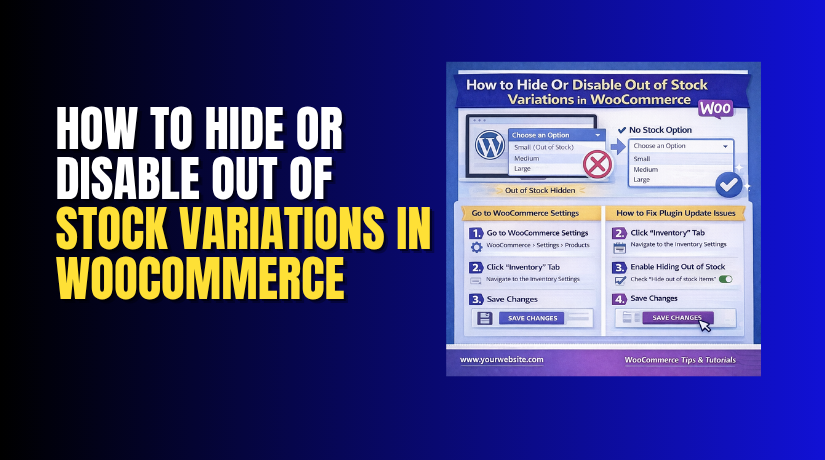
How to Hide Or Disable Out of Stock Variations in WooCommerce (Step-by-Step Guide)
Table of Contents
- Introduction
- What Are Out of Stock Variations in WooCommerce?
- Important Things to Check Before You Hide or Disable Out of Stock Variations in WooCommerce
- How to Hide Out of Stock Variations Using WooCommerce Settings (Step by Step)
- How to Disable Out of Stock Variations Instead of Hiding Them (Step by Step)
- How to Hide Or Disable Out of Stock Variations in WooCommerce Using Plugin
- Common Problems You May Face When Hiding or Disabling Out of Stock Variations in WooCommerce
- Conclusion
Introduction
If you sell variable products in WooCommerce, stock control becomes very important. Many stores offer product choices like size, color, style, or material. These choices are called variations in WooCommerce. The problem starts when some of those options are no longer available. Customers may still see them on the product page and feel confused. This often creates a poor shopping experience and may reduce sales. That is why many store owners want to hide out of stock variations WooCommerce stores show by default. Others prefer to disable out of stock WooCommerce options instead of removing them completely.
Both methods can help improve product page clarity. They also make it easier for buyers to choose what they can actually purchase. In many cases, proper WooCommerce out of stock settings can solve this issue. Still, the best method depends on how you want your store to behave. Some stores want a clean page with only available choices. Others want to keep unavailable choices visible for reference. This guide will help you understand the basics first. Then you can decide the right approach for your store.
What Are Out of Stock Variations in WooCommerce?
WooCommerce allows you to create variable products with different buying options. For example, one shirt may have many sizes and colors. Each size and color combination becomes a separate variation. Every variation can have its own price, image, and stock level. This gives store owners more control over product management. It also helps customers choose the exact option they want. A variation becomes out of stock when its quantity reaches zero. This does not always mean the full product is unavailable.
One color may be sold out while other colors remain available. One size may be gone while other sizes can still be purchased. This is where WooCommerce variation visibility becomes important for user experience. If unavailable options still appear without clear handling, shoppers may get frustrated. That is why many store owners use settings or tools to WooCommerce hide unavailable variations on product pages. Others keep them visible but make them unclickable.
This helps buyers understand which options are currently not available. So, before making any changes, you should understand the difference clearly. An out of stock variation affects only one option. A fully out of stock product affects the entire item. Knowing this difference helps you apply the right stock display method.
Important Things to Check Before You Hide or Disable Out of Stock Variations in WooCommerce
Check if WooCommerce Stock Management Is Enabled First
Before changing anything, make sure stock management is turned on in WooCommerce. If this setting is disabled, your store may not track product availability correctly. That means variation stock status may not update as expected. When this happens, WooCommerce variation visibility can become confusing on product pages. So always check the main inventory settings before moving ahead with any stock display change.
Confirm That Stock Is Managed at the Variation Level
Variable products need stock control for each variation separately. This means every size, color, or style should have its own stock setup. If stock is managed only at the parent product level, the result may be wrong. Some available choices may disappear, or sold-out choices may still show. This check is very important before you try to hide out of stock variations WooCommerce stores display.
Review the Stock Status of Every Variation Carefully
Open the product edit page and inspect each variation one by one. Make sure every option has the correct stock quantity and stock status. A wrong value can create display problems on the front end. For example, an available variation may look unavailable to customers. This can affect user trust and reduce sales. Clean stock data is the base of correct WooCommerce out of stock settings.
Check Whether Your Theme Changes Default Variation Behavior
Many WooCommerce themes change how product options appear on product pages. Some themes replace dropdowns with buttons, image selectors, or custom layouts. Because of this, default WooCommerce behavior may not work the same way. A theme can also affect how unavailable options are shown or hidden. So review your active theme before making any stock visibility changes on the site.
See If a Variation Swatches Plugin Is Active on the Store
Many stores use swatches plugins to show colors, labels, or image-based options. These plugins often control how variations appear to shoppers. They may also override the normal WooCommerce variation display settings. Because of this, WooCommerce hides unavailable variations that may not work through default settings alone. If a swatches plugin is active, test its settings carefully before applying any other method.
Decide Whether You Want to Hide or Disable Unavailable Variations
Before making changes, decide what customer experience you want to create. Some store owners want sold-out options removed from the page completely. Others want them visible but unclickable. If you want a cleaner page, hiding may work better. If you want shoppers to see all choices, disabling is often smarter. This decision helps you choose the right method to disable out of stock WooCommerce options or hide them.
Check How Variations Are Displayed on the Product Page
Not every WooCommerce store shows variations in the same format. Some use dropdowns, while others use swatches, radio buttons, or custom selectors. The display type affects how out-of-stock options behave on the front end. It also affects how users understand what is available. So you should test the variation display style before changing any setting related to stock visibility.
Think About the Customer Experience Before Applying Changes
Stock display changes should always support a better shopping experience. If you hide too many options, customers may not know other choices exist. If you show too many sold-out options, buyers may feel frustrated. The best setup depends on your products and your customers. Good WooCommerce variation visibility should make buying easier, not harder. That is why user experience should guide your final decision.
Test for Plugin Conflicts Before Making Major Changes
WooCommerce stores often use many plugins at the same time. Sometimes one plugin affects stock display, while another controls variation behavior. This can cause hidden options to still appear or disabled options to break. Before applying a new solution, review the plugins already running on the site. A quick check can prevent conflicts and help your stock display work correctly.
Take a Full Backup Before Using Plugin or Code Based Methods
Before you install a plugin or add custom code, create a backup. This step protects your store if something goes wrong after the change. A plugin conflict or code issue can affect product pages quickly. With a backup, you can restore the site without losing important data. This is a simple but very important step before adjusting WooCommerce out of stock settings.
How to Hide Out of Stock Variations Using WooCommerce Settings (Step by Step)
Step 1: Open Your WooCommerce Settings Area
- First, log in to your WordPress dashboard.
- After that, go to WooCommerce and click Settings.
- This section controls the main store settings for your website.
Step 2: Go to the Products and Inventory Settings
- Now click the Products tab from the top menu.
- After that, open the Inventory section.
- Here, WooCommerce shows the stock settings for your store.
Step 3: Find the Option to Hide Out of Stock Items
- Scroll down in the inventory settings page.
- Look for the option called “Hide out of stock items from the catalog.”
- This setting helps remove unavailable items from the shop view.
Step 4: Enable the Hide Out of Stock Option
- Now tick the checkbox for that option.
- This tells WooCommerce to hide products that are marked out of stock.
- It is one of the basic WooCommerce out of stock settings available by default.
Step 5: Save the Changes Properly
- After enabling the option, click the Save changes button.
- This is important because WooCommerce will not apply the setting until you save it.
Step 6: Open a Variable Product and Check Variation Stock
- Next, open one of your variable products from the Products section.
- Go to the Variations area and check if each variation has the correct stock status.
- This is important for proper WooCommerce variation visibility.
Step 7: Test the Product Page on the Front End
- Now visit that product page on your website.
- Check whether the unavailable variation still appears or not.
- This will help you see how your current theme and product setup handle stock display.
Step 8: Understand the Limitation of This WooCommerce Method
- This method is simple, but it may not fully hide every variation.
- In many cases, WooCommerce hides full out-of-stock products better than variation options.
- So if you still see some unavailable choices, your theme or plugin may be controlling that behavior.
Step 9: Clear Cache If the Change Does Not Show
- If the page still looks the same, clear your website cache.
- Also clear browser cache and any plugin cache if active.
- Sometimes old cached data prevents updated stock changes from appearing.
Step 10: Decide If You Need a Better Method
- If this built-in option works, you can keep using it.
- If not, you may need another way to hide out of stock variations WooCommerce stores show.
- In some cases, a plugin or custom setup works better.
How to Disable Out of Stock Variations Instead of Hiding Them (Step by Step)
Step 1: Open One Variable Product in WooCommerce
- First, log in to your WordPress dashboard.
- Go to Products and open a variable product.
- This helps you check how unavailable options appear now.
Step 2: Go to the Variations Section of the Product
- Scroll down to the Product data box.
- Select Variations from the product settings area.
- Here, you can review every size, color, or style option.
Step 3: Check the Stock Status of Each Variation
- Open each variation one by one.
- Make sure the stock quantity and stock status are correct.
- This is important before you disable out of stock WooCommerce options on the front end.
Step 4: Decide How You Want Disabled Variations to Look


- Now decide how unavailable options should appear to customers.
- You may want them greyed out, crossed out, or marked as unavailable.
- This improves WooCommerce variation visibility on the product page.
Step 5: Check Your Theme Settings for Variation Display Options
- Some WooCommerce themes include built-in controls for variation behavior.
- Go to your theme settings and look for product option display controls.
- Some themes can show sold-out options as disabled automatically.
Step 6: Check Your Swatches Plugin Settings If You Use One
- If your store uses a swatches plugin, open its settings.
- Many swatch plugins can keep unavailable options visible but unclickable.
- This is a common way to manage WooCommerce out of stock settings.
Step 7: Enable the Option That Shows but Disables Unavailable Choices
- If your theme or plugin has this feature, turn it on.
- This setting keeps sold-out options visible on the product page.
- Customers can see them, but they cannot select them.
Step 8: Add a Clear Out of Stock Label If Possible
- If the setting allows it, show an “Out of Stock” label.
- This makes the disabled variation easy to understand.
- It also helps customers know why that option cannot be selected.
Step 9: Save the Changes and Test the Product Page
- After enabling the setting, save your changes properly.
- Then open the product page on the front end.
- Check whether the sold-out variation stays visible but inactive.
Step 10: Test on Mobile and Desktop Before Final Use
- Finally, test the same product on desktop and mobile devices.
- Some stores show variations differently on different screens.
- A quick test helps make sure everything works correctly.
How to Hide Or Disable Out of Stock Variations in WooCommerce Using Plugin
Step 1: Decide If the Default WooCommerce Method Is Not Enough
- First, check whether WooCommerce settings solved your issue.
- If unavailable variations still show the wrong way, a plugin may help.
- This is useful when you want more control without coding.
Step 2: Go to the Plugins Area in WordPress Dashboard
- Now open your WordPress dashboard and go to Plugins > Add New.
- This is where you can search for WooCommerce variation tools.
- Use simple search terms related to stock variation control.
Step 3: Search for a Plugin That Supports Variation Stock Display
- Look for a plugin that can hide or disable unavailable variations.
- Check whether it works with variable products and swatches.
- A good plugin should support WooCommerce to hide unavailable variations clearly.
Step 4: Read the Plugin Features Before Installing It
- Before installing, open the plugin details page.
- Check if it can both hide and disable sold-out variations.
- Also see if it supports your theme and current WooCommerce version.
Step 5: Review Ratings, Updates, and Compatibility
- Now review the plugin rating and user feedback.
- Check when it was last updated by the developer.
- This helps you avoid outdated plugins that may break WooCommerce variation visibility.
Step 6: Install and Activate the Plugin
- If the plugin looks suitable, click Install Now.
- After installation, click Activate.
- The new plugin settings will now appear in your dashboard menu or WooCommerce settings.
Step 7: Open the Plugin Settings and Choose Your Preferred Method
- Now go to the plugin settings page.
- Select whether you want to hide unavailable options or disable them.
- This is where you control how hide out of stock variations WooCommerce behavior should work.
Step 8: Set the Display Style for Unavailable Variations
- Some plugins let you choose how unavailable options should appear.
- You may show them greyed out, crossed out, or labeled out of stock.
- This makes the product page easier for customers to understand.
Step 9: Save the Plugin Settings and Test a Variable Product
- After choosing the settings, save everything properly.
- Then open one of your variable products on the front end.
- Check if the plugin is controlling unavailable variations correctly.
Step 10: Clear Cache and Test More Than One Product
- If the changes do not show, clear your site and browser cache.
- Then test more than one variable product in the store.
- This helps confirm that the plugin works across your full product setup.
Step 11: Check for Theme or Plugin Conflicts
- If the result looks wrong, review your active theme and other plugins.
- Some swatches tools or product add-ons may override the new behavior.
- A quick conflict check can solve many display problems.
Step 12: Keep the Plugin Updated for Stable Performance
- Once everything works correctly, keep the plugin updated.
- This helps maintain compatibility with WooCommerce updates.
- It also reduces the risk of future stock display problems.
Common Problems You May Face When Hiding or Disabling Out of Stock Variations in WooCommerce
Even after applying the right method, some stores still face problems. These issues usually come from stock setup, theme behavior, or plugin conflicts. If you understand the common problems early, fixing them becomes much easier. This also helps you manage WooCommerce variation visibility in a better way.
Out of Stock Variations Still Show on the Product Page
This is one of the most common issues in WooCommerce stores. You apply the setting, but sold-out options still appear. In many cases, the stock status was not updated correctly. One variation may still be marked as in stock by mistake. Sometimes the product cache also shows old variation data. A theme or swatches plugin may also ignore default WooCommerce behavior. That is why WooCommerce hides unavailable variations and does not always work instantly. First, check the stock status of each variation carefully. Then clear your site cache and browser cache fully. After that, test the same product again on the front end.
Available Variations Also Become Unselectable by Mistake
Sometimes the issue affects both sold-out and available options together. A customer sees the variation, but cannot select the right option. This usually happens because of incorrect variation data. It can also happen when attributes are not matched properly. In some cases, a plugin conflict breaks the selection logic. When that happens, the store may disable out of stock WooCommerce options and active options together. This creates confusion and can hurt product sales quickly. To fix it, review the product attributes and variations again. Make sure every option has the correct stock and value settings. Then test the product without extra variation plugins if needed.
Product Page Does Not Update After Stock Changes
You update the stock, but the product page still shows old results. This problem is very common on busy WooCommerce websites. In many cases, the page is being served from cache. Sometimes object cache or CDN cache also delays stock changes. Because of this, your WooCommerce out of stock settings may look wrong even when they are correct. The best first step is clearing all active cache layers. This includes plugin cache, server cache, and browser cache. If your site uses a CDN, purge that cache too. After that, open the product page again and test carefully.
Variation Swatches and Dropdowns Show Different Results
Many WooCommerce stores do not use simple dropdowns anymore. They use color swatches, image swatches, or label buttons. These look better, but they can also change stock behavior. A swatches plugin may show unavailable options differently from default WooCommerce. Because of that, WooCommerce variation visibility may not match your main stock settings. One method may work well for dropdowns but fail for swatches. This is why testing the exact product display style is important. Always check how your swatches plugin handles sold-out options. Then compare that with the normal WooCommerce product behavior.
Hidden Variations May Reduce Product Choice Awareness
Hiding unavailable options can make the product page look cleaner. But it can also create a small drawback for some stores. Customers may not know that other sizes or colors exist. They only see the available choices at that moment. For some product types, this is completely fine. But for fashion, style, or custom products, visibility matters more. This is why some stores prefer not to fully hide out of stock variations WooCommerce pages show. They want customers to see every option, even if some are inactive. If product awareness matters in your store, disabling may work better than hiding.
Theme and Plugin Conflicts Can Break the Final Result
WooCommerce stores often run many plugins together at the same time. A stock plugin, swatches plugin, theme feature, or filter plugin may conflict. When that happens, your variation display may stop working correctly. One tool may try to hide the option. Another may try to show or style it differently. This can make WooCommerce hide unavailable variations settings and fail completely. If you see strange behavior, test with one change at a time. Disable extra plugins briefly on a staging site if possible. That helps you find the real source of the problem faster.
Conclusion
Managing out-of-stock variations in WooCommerce is not only a stock task. It also affects how customers use your store. When unavailable options appear in the wrong way, shoppers can feel confused. Some may leave the page without buying anything. That is why it is important to choose the right method for your store. You can hide unavailable options for a cleaner page. You can also disable them if you want customers to see all choices. Both methods can work well when your stock setup is correct. The best option depends on your product type, theme, plugins, and user experience goals. Before making changes, always test variation behavior carefully.
If your WooCommerce store is not handling out-of-stock variations correctly, WooHelpDesk is here to help. We can check your stock settings, variation setup, theme behavior, and plugin conflicts. Whether you want to hide sold-out options or show them as disabled, our team can help you apply the right solution for your store. We work on making your product pages clear, user-friendly, and easier for customers to shop. If you want expert help with WooCommerce variation issues, contact WooHelpDesk and let our team fix it for you.
Frequently Asked Questions
How do I hide out of stock variations in WooCommerce?
Go to WooCommerce → Settings → Products → Inventory and check “Hide out of stock items from the catalog.”
Can I show out of stock variations but make them unselectable?
Yes, use CSS to gray out or strike through out of stock variation options while keeping them visible.
Will hiding variations affect SEO?
Hiding out of stock variations does not significantly impact SEO since WooCommerce variations typically share the parent product URL.
References and Resources



