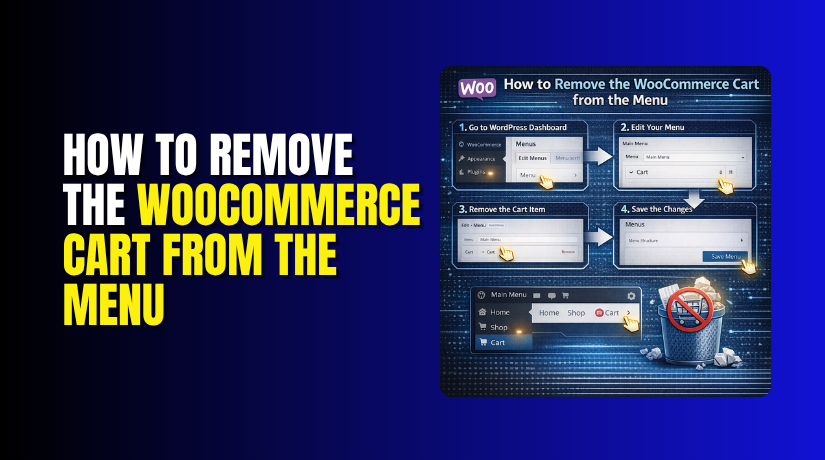
How to Remove the WooCommerce Cart from the Menu (Step-by-Step Guide)
Table of Contents
- Introduction
- Why the WooCommerce Cart Appears in the Menu on Many Websites
- When You Should Not Remove the WooCommerce Cart from the Menu on Your Store
- Important Things You Should Check Before Removing the Cart from the Menu
- Method 1: Remove the WooCommerce Cart from the WordPress Menu Settings
- Method 2: Remove the WooCommerce Cart from the Menu Using Theme Header Settings
- Method 3: Remove the WooCommerce Cart from the Menu Using Header Builder
- Common Problems You May Face When Removing the WooCommerce Cart from the Menu
- Best Practices You Should Follow Before and After Removing the WooCommerce Cart from the Menu
- Conclusion
- Frequently Asked Questions
Introduction
When you build an online store, every header element matters. A clean header helps visitors focus on shopping. Many WooCommerce themes show a cart icon in the menu by default. This works well for many stores, but not for all. Some website owners want to remove WooCommerce carts from menu areas for a cleaner design. Others want to improve navigation and reduce extra header items. In some cases, the cart link does not match the site layout. In other cases, it creates confusion on landing pages. That is why many users look for ways to hide WooCommerce cart icon elements from the header.
The cart can appear in different places on a WooCommerce website. Some themes place it inside the main navigation menu. Some show it as a header icon near search or account links. Some use a mini cart dropdown with item counts. Because of this, the removal method is not always the same. One website may need a simple menu edit. Another may need header setting changes. Some users want WooCommerce to remove carts from header sections only on specific layouts. Others want to disable WooCommerce cart menu options across the whole site.
There are also strong design reasons behind this change. A minimal header often looks more professional and balanced. It also gives more space to important links. For example, stores may prefer category links, contact links, or call buttons. Some businesses want visitors to move through custom product pages first. Some use direct checkout links instead of normal cart pages. In these cases, removing the menu cart makes sense. It becomes part of a better shopping flow. If your current header feels crowded, you may need to WooCommerce customize menu cart settings for better results.
Why the WooCommerce Cart Appears in the Menu on Many Websites
The WooCommerce cart often appears in the menu because themes add it automatically. Many modern WooCommerce themes include this feature by default. Theme developers do this to improve shopping access for customers. A visible cart helps buyers review products before checkout. It also shows item count and cart value on some stores. That is why the cart link is common in many layouts.
However, not every website adds the cart the same way. Some themes insert it into the main navigation menu. Some place it in the top header bar. Others add it only to the mobile header. A few themes also use sticky headers with separate cart icons. This means you may remove it from one place, but still see it somewhere else. That is why the source of the cart matters.
In many cases, the cart comes from theme settings. A theme may have a built-in header option for cart display. You may find settings like cart icon, mini cart, header cart, or menu cart. Turning off that option may solve the issue quickly. In other cases, the cart is added as a normal menu item. That means you can remove it directly from the WordPress menu screen. Some websites also use header builders or page builders. In that setup, the cart may be added as a design element. Then you must edit the header layout instead of the menu itself.
WooCommerce plugins can also affect cart placement. Some plugins add floating carts, sticky carts, or custom header icons. A page builder template may also override default theme behavior. That is why one website may need only one click, while another needs more steps. If you want to WooCommerce remove cart link elements correctly, you must first know how the site was built. Once you know the source, you can choose the best method without breaking the header layout.
When You Should Not Remove the WooCommerce Cart from the Menu on Your Store
Removing the cart can be useful, but not for every website. In some cases, it can make shopping harder. It can also reduce convenience for returning buyers. Before you remove anything, think about your store type and audience. Below are the main situations where you should keep the cart visible.
Do Not Remove It If Your Store Depends on Quick Cart Access
Some stores work best when buyers move fast. They add products quickly and review them often. In such stores, a visible cart helps a lot. Customers can see their cart status without extra clicks. If your visitors usually add many products at once, keep the cart visible. In this case, trying to WooCommerce remove cart link options may slow down the buying process.
Do Not Remove It If You Have Many Repeat Buyers
Repeat buyers often know your shopping flow already. They expect the cart to stay in the usual place. If you suddenly remove it, they may feel confused. Small header changes can affect familiar buying habits. This is common in wholesale stores or stores with frequent customers. If fast repeat ordering matters, avoid removing the cart from the main header.
Do Not Remove It If Mobile Shopping Is Important for Your Store
Mobile users need simple navigation. They do not want to search too much while buying. A visible cart gives them confidence during checkout steps. It also helps them check items anytime. If most traffic comes from phones, think carefully before changes. A cart icon may take up a small space, but it gives big value. In such cases, it may be better to keep it.
Do Not Remove It If Your Theme Uses a Mini Cart Shopping Flow
Some WooCommerce themes are built around mini cart features. They show item count, quick view, and fast checkout actions. In these designs, the cart is part of the store experience. Removing it may break that logic. If your theme promotes quick header cart use, keep it visible. You can still restyle it, but full removal may not be the best idea.
Do Not Remove It If the Cart Helps Users Feel Secure
Many shoppers like to see proof that their items were added. A visible cart icon with item count gives that proof fast. It reduces doubt during shopping and improves trust.
If you fully hide WooCommerce cart icon areas, some users may wonder whether products were added correctly. So always think about the shopper’s confidence, not just design.
Important Things You Should Check Before Removing the Cart from the Menu
Before making changes, you should inspect the cart setup carefully. This saves time and avoids wrong edits. Many users try to remove the cart quickly, but change the wrong area. Then the cart still appears on the front end. A few simple checks can prevent that problem.
Check if the Cart Was Added Manually in the WordPress Menu
Start with the basic menu settings first. Go to the WordPress menu area and inspect the active menu. Look for a cart page link, cart label, or icon item. If the cart was added manually, removal is very easy. You can simply delete it from the menu structure. This is the fastest way to remove WooCommerce carts from menu items when they were added by hand.
Check if the Active Theme Adds the Cart Automatically
Many WooCommerce themes insert the cart without asking. This is very common in store-focused themes. If you do not see the cart in menu settings, the theme may control it. In that case, menu editing alone will not help. You will need to inspect theme header options or customizer settings. This is often the reason users cannot disable WooCommerce cart menu layouts from the dashboard menu screen.
Check if the Website Uses a Page Builder or Custom Header Layout
Some websites use Elementor, WPBakery, or theme header builders. These tools can create custom headers outside normal WordPress menus. If the cart was added inside a builder layout, it must be removed there. Otherwise, your changes may not appear on the live site. This is an important step when trying to WooCommerce customize menu cart layouts on custom store designs.
Check the Cart on Desktop and Mobile Both
Do not test only one screen size. Some websites show different headers on desktop and mobile. You may remove the desktop cart, but the mobile icon may remain. Some themes even use separate sticky header settings. So always open the site on desktop, tablet, and mobile views. This helps you spot every cart location before editing.
Take a Backup Before Making Header or Menu Changes
A backup is always a smart step. Menu edits are usually safe, but theme or builder changes can affect layout. A backup lets you restore the site if anything breaks. This is especially important when custom code or advanced theme settings are involved. A few minutes of preparation can save hours of repair later.
Method 1: Remove the WooCommerce Cart from the WordPress Menu Settings
If the cart was added manually, this method is the easiest. You can remove WooCommerce cart from menu settings in a few simple steps. You do not need code for this method. You also do not need any extra plugin.
Step 1: Log in to Your WordPress Dashboard
- First, open your WordPress admin area.
- Enter your login details and go inside the dashboard.
- This is where you manage menus, pages, and theme settings.
Step 2: Open the Menu Settings
- Now go to Appearance > Menus.
- This page shows the menus used on your website.
- Some websites have one menu only.
- Some websites have separate menus for header, footer, and mobile.
Step 3: Select the Correct Menu
- If your site has more than one menu, choose the correct one.
- Usually, it will be called Primary Menu, Main Menu, or Header Menu.
- Open your website in another tab and check where the cart is showing.
- Then come back and select that menu.
Step 4: Find the Cart Item in the Menu
- Look at the menu structure on the right side.
- Try to find an item called Cart, Shopping Cart, or something similar.
- Sometimes the cart page is added with a custom name.
- In some cases, it may be added as a custom link.
Step 5: Remove the Cart from the Menu
- Click the cart item to open its settings. You will see a Remove
- Click it. This will remove the cart item from the menu only.
- It will not delete the real WooCommerce cart page from your site.
Step 6: Save the Menu
- After removing the item, click the Save Menu
- This step is very important. If you do not save, the change will not appear on the live site.
Step 7: Check Your Website Front End
- Now visit your website and refresh the page.
- Check the header area carefully.
- If the cart was added manually, it should now be gone.
- This is one of the easiest ways to WooCommerce remove cart link items from the menu.
Step 8: Check the Mobile Menu Too
- Do not check only the desktop header.
- Open your site on mobile view also.
- Some themes use a different menu for mobile devices.
- If the cart still shows there, you may need to edit that mobile menu too.
This method is best when the cart was added by hand. It is quick, safe, and beginner-friendly. If this method does not work, then the cart is likely coming from the theme header. In that case, move to the next method.
Method 2: Remove the WooCommerce Cart from the Menu Using Theme Header Settings
Many WooCommerce themes add the cart automatically. In this case, the cart does not appear inside the normal menu editor. That is why you need to check the theme settings. This method helps when you want to WooCommerce remove carts from header sections in a simple way.
Step 1: Open the WordPress Dashboard
- First, log in to your WordPress admin panel.
- Make sure you have access to theme settings and customization options.
Step 2: Open the Theme Customizer or Theme Panel
- Now go to Appearance > Customize.
- This opens the WordPress Customizer on many themes.
- Some premium themes use their own settings panel.
- In that case, look for options like Theme Options, Header Settings, or Theme Settings.
Step 3: Go to the Header or WooCommerce Section
- Inside the customizer or theme panel, find the section related to the header.
- Sometimes the cart setting is also placed inside a WooCommerce You may need to check both areas.
Step 4: Look for the Cart Option
Now search for settings like these:
- Cart Icon
- Header Cart
- Menu Cart
- Mini Cart
- WooCommerce Cart
Themes use different names, but the feature is the same. This is where you can hide WooCommerce cart icon settings without touching code.
Step 5: Disable the Cart Option
- When you find the cart setting, turn it off.
- Some themes use a switch button.
- Some themes use a checkbox.
- Others give a dropdown option like Show or Hide.
- Select the option that removes the cart from the header.
Step 6: Save or Publish the Changes
- After turning off the cart option, save your work.
- In the customizer, click Publish.
- In theme settings, click Save Changes. Without saving, the front end will stay the same.
Step 7: Refresh the Website and Check the Header
- Now go to your website and reload the page.
- Check the main header again. In many cases, the cart will disappear right away.
- This is a clean way to disable WooCommerce cart menu display if the theme controls it.
Step 8: Check Mobile and Sticky Header Layouts
- Some themes use separate header settings for mobile and sticky headers.
- So, if the cart is gone on desktop but still appears on mobile, open the mobile header settings too.
- Do the same for sticky header settings if your site uses them.
Step 9: Clear Cache if the Cart Still Shows
- If the cart still appears, clear your site cache. Also clear your browser cache.
- Sometimes old header files stay visible because of caching.
- After that, refresh the site again.
This method is useful when the theme adds the cart automatically. It is safer than random CSS fixes. It also gives cleaner results. If you want to WooCommerce customize menu cart settings the right way, theme controls are usually the best choice.
Method 3: Remove the WooCommerce Cart from the Menu Using Header Builder
Some WooCommerce websites do not use normal menu settings only. Many modern themes use a header builder instead. A header builder lets you create the top area by drag and drop. In this setup, the cart is often added as a separate header element. That is why menu editing may not remove it. If your site uses this type of layout, you need to edit the header builder directly. This method is useful when you want to remove WooCommerce carts from menu areas controlled by a custom header design.
Step 1: Log in to Your WordPress Dashboard
- First, open your WordPress admin panel.
- Make sure you have access to theme options or header settings.
- Most header builders are controlled from the theme dashboard.
Step 2: Find the Header Builder Option
- Now look for options like Header Builder, Theme Builder, Header Layout, or Customize Header.
- Different themes use different names.
- Some popular themes place this inside Appearance > Customize.
- Others place it inside the theme settings panel.
Note: If you are not sure where it is, check your active theme documentation or settings area. Many store themes show header controls very clearly.
Step 3: Open the Current Header Layout
Once you find the header builder, open the active header layout. You may see rows, columns, or sections like left, center, and right. Inside these areas, the theme shows header elements such as logo, menu, search, account, and cart.
Look carefully for the cart element. It may appear as:


- Cart
- Mini Cart
- WooCommerce Cart
- Cart Icon
- Menu Cart
This is the area you must edit if you want to hide WooCommerce cart icon sections added by the builder.
Step 4: Select the Cart Element in the Header
- Now click the cart element inside the builder.
- Some themes open settings on the left side. Others show a popup panel.
- In many cases, you will see options to edit, disable, or remove that item.
- Make sure you select the correct cart element. Some themes use more than one cart icon.
- For example, one may appear in the main header and another in the sticky header.
Step 5: Remove or Disable the Cart Element
- Now remove the cart item from the header layout.
- Some builders let you drag it out. Some give a delete icon.
- Others use a toggle to disable it.
- Choose the option that removes the cart completely from the visible header.
- This is one of the best ways to WooCommerce remove carts from header layouts because the change happens at the source.
- You are not just hiding the cart visually. You are removing the header element itself.
Step 6: Save or Publish the Header Changes
- After removing the cart, save your changes.
- Most builders use buttons like Publish, Save, or Update Header. This step is very important.
- If you close the builder without saving, the cart will still show on the site.
Step 7: Refresh the Website and Check the Header
- Now open the front end of your website.
- Refresh the page and inspect the header area.
- If the cart was controlled by the builder, it should now be gone.
- This is a clean way to disable WooCommerce cart menu layouts without using custom code.
Step 8: Check Mobile and Sticky Header Settings Too
- Many themes use separate builders for desktop, mobile, and sticky headers. So do not stop after checking the desktop version.
- Open the site on mobile view also.
- Scroll the page if your site uses a sticky header.
- If the cart still appears, return to the builder and inspect those layouts too.
Step 9: Clear Cache After Making Changes
- If the cart still appears after saving, clear your site cache and browser cache.
- Header files are often cached by themes, performance plugins, or servers.
- After clearing cache, refresh the website again.
This method works best on themes with advanced header controls. It is simple and safer than editing files. It also gives better long-term results. If your site uses a custom header builder, this is often the correct place to WooCommerce customize menu cart settings properly.
Common Problems You May Face When Removing the WooCommerce Cart from the Menu
Sometimes the cart does not disappear right away. This is common on WooCommerce websites with custom themes, mobile headers, or cache systems. Below are the most common problems and their simple fixes.
The Cart Still Shows After You Removed It
This is the most common issue. Many users remove the cart from one place, but it still appears on the site. Usually, this happens because the cart is coming from another source. For example, you may remove it from the menu, but the theme header still loads a cart icon.
Check all possible sources again. Inspect:
- Appearance > Menus
- Theme header settings
- Header builder
- Mobile header layout
- Sticky header layout
This helps you find the real source of the cart.
Cache Is Showing the Old Header
Sometimes your changes are correct, but the front end still shows old data. This happens because of caching. Your browser, caching plugin, or server may still load the older header version.
Clear all cache after every change. This includes:
- WordPress cache plugin
- CDN cache
- Browser cache
- Theme-generated cache
Then refresh the page again. This often solves the issue fast.
The Cart Is Gone on Desktop but Still Shows on Mobile
Many WooCommerce themes use different settings for mobile headers. That means removing the cart from the desktop does not always remove it from mobile.
Open the mobile header settings or mobile menu area. Check whether the cart is added there separately. Remove it from that layout too. Then test again on your phone or browser mobile mode.
The Theme Uses a Different Header Layout on Certain Pages
Some themes use one header for shop pages and another for landing pages. Because of this, the cart may disappear from one page but remain on another.
Check the header layout across important pages like:
- Homepage
- Shop page
- Product page
- Cart page
- Checkout page
- Mobile version
If the theme uses page-based headers, edit each active layout carefully.
A Plugin or Builder Is Overriding Your Menu Changes
Some WooCommerce plugins add cart icons automatically. A page builder may also load a custom header template. In that case, removing the menu item alone will not solve the problem.
Temporarily inspect active plugins related to:
- Header design
- Floating cart
- Mini cart
- WooCommerce layout
- Page builder templates
If needed, check whether a header template is active inside Elementor or your theme builder. This is important when trying to WooCommerce remove cart link settings from complex store layouts.
The Cart Appears in a Sticky Header Only
Some themes use a sticky header that appears while scrolling. The normal header may be clean, but the cart icon returns when you move down the page.
Scroll the page and test the sticky header carefully. If the cart appears there, open the sticky header settings and remove it separately. Many themes treat this as a different layout.
You Removed the Icon, but Space Is Still Left in the Header
Sometimes the cart disappears, but the header still shows an empty space. This usually happens when the builder reserves a column or block for the cart.
Return to the header builder and adjust the row layout. Remove the empty block or resize the columns. This helps create a balanced header after you remove cart icon WordPress WooCommerce elements.
Best Practices You Should Follow Before and After Removing the WooCommerce Cart from the Menu
Removing the cart from the menu can improve your header design. It can also make navigation look cleaner and more focused. But you should do it the right way. A careless change can confuse shoppers or break the layout. That is why a few best practices always matter. If you plan to remove WooCommerce carts from menu areas, follow these simple checks first.
Keep the Menu Clean but Still Useful for Shoppers
A clean menu looks better on most WooCommerce stores. It gives more room to important links and categories. But a clean menu should still stay useful for customers. Do not remove helpful shopping features without a reason. Your header should look simple, but it should still guide users well.
Make Sure Customers Can Still Reach the Cart Easily
Removing the menu cart does not mean hiding the cart completely. Customers still need a simple way to review their items. You can keep the cart link in other places if needed. For example, some stores place it near checkout buttons or account pages.
Check the Header Layout on Desktop, Tablet, and Mobile
Never test the header on one screen only. WooCommerce themes often use different layouts for each device. A cart may disappear on desktop but remain on mobile. In some themes, the sticky header also loads different elements.
Clear Cache After Every Change You Make
Cache can make header edits look like they failed. You may remove the cart correctly, but the old version still appears. This happens with browser cache, plugin cache, CDN cache, or server cache.
Test the Full Shopping Journey After Removal
A header change can affect more than design. It can also affect how people move through the store. So test the full buyer journey after removing the cart. Open products, add items, view the cart, and reach checkout.
Remove the Cart Only When It Matches Your Store Goal
Not every WooCommerce store needs the same header style. Some stores benefit from a minimal header. Others need quick cart access for faster buying. So the right choice depends on your store type.
Avoid Random Fixes Without Knowing the Real Cart Source
Many users try CSS first because it looks quick. But that is not always the best solution. CSS may hide the icon without removing the actual feature source. This can leave empty space or create layout issues later.
Conclusion
Removing the cart from the menu can make your header cleaner. It can also support a better layout on some stores. But the best result comes from careful testing. You should first check where the cart comes from. Then use the correct method for your theme or builder. After that, test desktop, mobile, and the full shopping journey. If the change improves usability, keep it. If it creates confusion, restore quick cart access.
The goal is not only to remove WooCommerce carts from menu areas. The goal is to improve the store experience in a smart way. If you need expert help to WooCommerce remove cart from header layouts or safely WooCommerce customize menu cart settings, WooHelpDesk can help you make the change without harming your store design or checkout flow.
Frequently Asked Questions
How do I remove the cart from the WooCommerce menu?
You can remove the cart icon by adding CSS (display:none on the cart element), using a plugin like Remove WooCommerce Cart, or adding a filter in functions.php to remove it from the navigation menu items.
Can I hide the cart only for non-logged-in users?
Yes, use conditional PHP code with is_user_logged_in() function to selectively display or hide the cart icon based on user login status. You can add this logic in your theme functions.php file.
Will removing the cart icon affect the cart page?
No, removing the cart icon from the menu only hides the visual shortcut. The actual cart page (/cart/) remains fully functional and accessible via direct URL or checkout flow.
References and Resources



