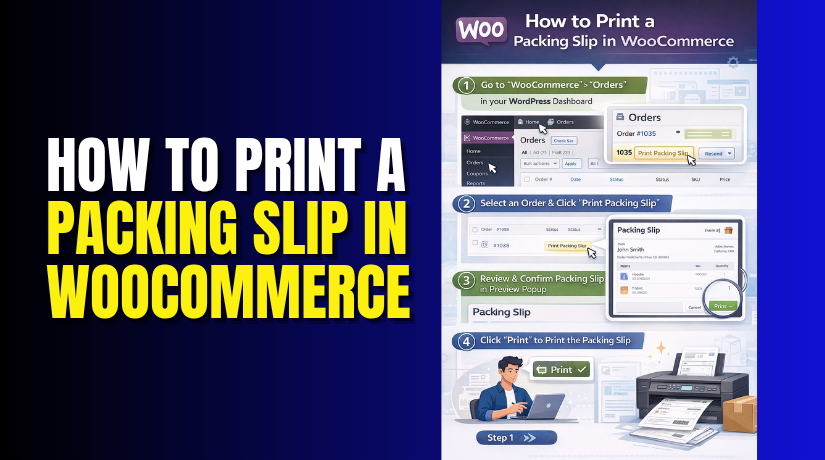
How to Print a Packing Slip in WooCommerce (Step-by-Step Guide)
Table of Contents
- Introduction
- What Is a Packing Slip in WooCommerce and What Does It Usually Include?
- Why Do Store Owners Need to Print Packing Slips in WooCommerce?
- List Of Common Ways to Print a Packing Slip in WooCommerce
- How to Print a Packing Slip in WooCommerce Using a Plugin (Step by Step)
- How to Print Packing Slips in Bulk for Multiple WooCommerce Orders
- What Information Should Be Included in a WooCommerce Packing Slip?
- Common Problems When Printing Packing Slips in WooCommerce
- Conclusion
Introduction
If you run an online store, smooth order handling is very important. A packing slip helps you pack items correctly and quickly. It gives your team the details needed before shipping. That is why many store owners search for how to print a packing slip in WooCommerce. A clear packing slip improves order accuracy and saves time daily. It also helps reduce confusion during busy sales periods.
When your packing process is organized, your customers get the right items faster. This creates a better shopping experience and fewer support issues. For many businesses, using a WooCommerce packing slip is a simple but smart step. It supports better workflow, cleaner packing, and easier order management.
What Is a Packing Slip in WooCommerce and What Does It Usually Include?
A packing slip is a document placed inside the order package. It helps the packing team check what should go inside. In simple words, a WooCommerce order packing slip shows product details for that order. It often includes the order number, customer name, shipping address, item names, and product quantities.
Some stores also include SKUs, notes, or store details. A packing slip is not the same as an invoice. An invoice is used for billing and payment records. A shipping label is different too because it is used outside the package. That label helps the carrier deliver the parcel.
Many store owners use WooCommerce invoice and packing slip tools together. This makes order documents easier to manage from one place. If you want to generate packing slip WooCommerce documents properly, you need to know this difference first. It helps you choose the right setup for your store.
Why Do Store Owners Need to Print Packing Slips in WooCommerce?
Packing slips help staff pack the correct products for each order
A packing slip gives the team a clear list of products. Staff can check item names, quantities, and order details quickly. This reduces confusion during packing. It also lowers the chance of sending wrong items. A proper WooCommerce packing slip makes the packing process more accurate and organized.
Packing slips make the order handling process faster every day
When staff have a printed packing slip, they work faster. They do not need to open each order again and again. All key details stay in one place. This saves time during daily packing. Learning how to print a packing slip in WooCommerce helps stores improve their regular workflow.
Packing slips reduce shipping mistakes and customer complaints
Wrong items, missing products, or quantity errors create problems later. A packing slip works like a checklist before shipping. Staff can review everything once before sealing the package. This simple step reduces errors. A clear WooCommerce order packing slip helps protect the store from avoidable mistakes and complaints.
Packing slips are useful for stores with many products or variations
Some stores sell simple items, while others sell many variations. In such cases, packing orders can become confusing very quickly. A packing slip helps staff identify the correct version of each item. This is very useful in busy stores. Many merchants use a print packing slip WooCommerce plugin for this reason.
Packing slips support better teamwork in growing WooCommerce stores
As a store grows, more people may handle packing and shipping. Everyone needs the same order information in a clear format. A packing slip makes this easy. It keeps the process standard for all staff members. Many tools that generate packing slip WooCommerce documents help teams work in a more organized way.
Packing slips work well with invoices and PDF order documents
Many stores need more than basic packing details. They may also need invoices or saved copies for records. In such cases, tools for WooCommerce invoice and packing slip management become useful. Some plugins also support WooCommerce PDF invoices and packing slips, which helps stores save, print, and manage order files easily.
List Of Common Ways to Print a Packing Slip in WooCommerce
There are a few common ways to print packing slips in WooCommerce. The best method depends on your store size, workflow, and technical comfort level. Some methods are easy for beginners, while others are better for custom stores. Understanding these options helps you choose the right setup from the start.
Using a WooCommerce Packing Slip Plugin
The most common method is using a dedicated plugin. This is the easiest option for most WooCommerce users. A print packing slip WooCommerce plugin adds the packing slip feature directly inside the order area. You can open an order, create the document, and print it quickly. Many plugins also offer bulk printing, PDF download, and simple layout settings. This makes them very useful for stores that handle daily orders. If you want to save time and avoid manual work, this method is usually the most practical one. It also works well for beginners who do not want custom code.
Using Order Management or Shipping Plugins
Some store owners already use shipping or order management plugins. In many cases, these tools also include packing slip features. This can be helpful because you do not need a separate plugin for every task. You may be able to print a WooCommerce order packing slip while managing labels, shipment tracking, or order status updates. This method works well for stores that already use advanced shipping workflows. It keeps order processing in one system and reduces the need to switch between tools. Still, you should always check what features the plugin includes before using it for packing slips.
Using Custom Code or Custom Templates
Some businesses need a more flexible setup. They may want a custom design, extra order fields, or a unique print layout. In such cases, custom code or custom templates may be the better option. This method gives more control, but it also needs technical knowledge. It is not the easiest choice for regular store owners. A custom solution may be useful when a simple plugin cannot meet your business needs. For example, some stores want special branding, warehouse notes, or custom product details on the slip. That is where custom development becomes helpful. Still, for most stores, a plugin remains the faster and easier way to handle WooCommerce PDF invoices and packing slips without extra complexity.
How to Print a Packing Slip in WooCommerce Using a Plugin (Step by Step)
Step 1: Open your WordPress dashboard and go to the Plugins section
- First, log in to your WordPress admin area.
- From the left menu, click Plugins and then click Add New.
- This is the place where you can install new tools for your store.
- Since WooCommerce does not fully print packing slips by default, you need an extra tool for this task.
- This is why many users search for how to print a packing slip in WooCommerce after setting up their store.
Step 2: Search for a packing slip plugin and install it
- In the plugin search bar, type packing slip related keywords.
- Choose a plugin that supports printing order documents.
- A good print packing slip WooCommerce plugin should be easy to use and work well with your current store setup.
- Click Install Now and wait a few seconds.
- After installation, click Activate.
- Once the plugin is active, new document options will usually appear inside your WooCommerce orders area.
Step 3: Check the plugin settings before printing your first slip
- After activation, some plugins open a settings page automatically.
- If not, find the plugin settings under WooCommerce or the plugin menu.
- Review the basic options carefully.
- You may find settings for logo, store address, paper layout, or PDF format.
- This step helps you prepare a clean WooCommerce packing slip before using it for real customer orders.
- Simple setup at this stage can save time later.
Step 4: Go to WooCommerce orders and choose the order you want
- Now open WooCommerce > Orders from your dashboard.
- You will see the list of all customer orders.
- Find the order you want to pack and click on it.
- This will open the order details page.
- Here, you can check the customer name, shipping address, product names, and quantities.
- A proper WooCommerce order packing slip depends on correct order details, so review them before moving ahead.
Step 5: Find the packing slip option inside the order page
- Once the order page is open, look for the new option added by your plugin.
- In many cases, you will see buttons like Print Packing Slip, Download Packing Slip, or Preview Document.
- Click the correct option to continue.
- This is the step where you generate packing slip WooCommerce documents directly from the order screen.
- Most good plugins make this process simple and quick.
Step 6: Preview the packing slip and check the order information
- After clicking the packing slip option, the document may open in a new page or PDF view.
- Read the details carefully before printing.
- Check the order number, shipping address, product names, quantities, and any notes shown on the slip.
- This review step is important because it helps you avoid packing errors.
- Some plugins also support WooCommerce invoice and packing slip options together, so make sure you are opening the correct document type.
Step 7: Print the packing slip for the package
- If everything looks correct, click the print button.
- Some plugins have their own print button.
- In other cases, you can use your browser print option.
- The printed slip can now be placed inside the package.
- This helps the team match items with the order quickly.
- It is one of the easiest ways to improve packing speed and accuracy in daily store work.
Step 8: Save the packing slip as a PDF if needed


- Many plugins also let you save the document as a PDF.
- This is useful if you want digital records or need to print it later.
- Stores that process many orders often prefer WooCommerce PDF invoices and packing slips because they are easier to store and manage.
- A saved copy also helps when staff need to review the order again later.
This final step completes the full process and shows exactly how to print a packing slip in WooCommerce in a simple and organized way.
How to Print Packing Slips in Bulk for Multiple WooCommerce Orders
Bulk printing is very useful for stores with many daily orders. Instead of opening every order one by one, you can select multiple orders together.
Step 1: Open the WooCommerce orders page
- Go to WooCommerce > Orders in your WordPress dashboard.
- This page shows all your order records in one place.
- If your plugin supports bulk printing, you can handle many orders from here without opening them one by one.
Step 2: Select multiple orders from the list
- Use the checkboxes beside each order to choose the orders you want.
- Select all the relevant orders that are ready for packing.
- This feature is useful for busy stores that handle many shipments every day.
Step 3: Choose the bulk action for packing slips
- After selecting the orders, open the Bulk Actions dropdown menu.
- Look for an action related to packing slips.
- It may say Print Packing Slips, Download Packing Slips, or something similar based on your plugin.
- Select it and apply the action.
Step 4: Print or download the bulk packing slips
- The plugin will generate the packing slips for all selected orders.
- You can then print them together or save them as files.
- This bulk method saves time and reduces repeated work.
- It is very useful when your store has a large order volume each day.
Step 5: Match each printed slip with the correct package
- After printing, keep each slip with its matching order items.
- This final step is important because it keeps the packing process organized.
- Bulk printing is fast, but careful matching still matters for correct shipping.
This method helps staff work faster and keeps the shipping process smooth. A bulk print feature is especially useful when your store handles high order volume every day. It reduces repetitive work and makes your document process more efficient.
What Information Should Be Included in a WooCommerce Packing Slip?
Order number should be included to identify each order correctly
The order number is one of the most important details. It helps staff identify the correct order quickly. This is useful when many orders are being packed together. It also helps the store team match the document with the right package. A clear order number makes every WooCommerce packing slip more useful during daily packing work.
Customer name and shipping address should appear clearly on the slip
A packing slip should show the customer name and shipping address. This helps confirm the package belongs to the correct buyer. It also supports better checking before shipping. If the wrong address appears, staff can notice it early. A proper WooCommerce order packing slip should always display this information in a simple and readable format.
Product names and quantities should be easy to read and verify
The packing team needs to know what goes inside the package. That is why product names and quantities must be clearly listed. This makes order checking faster and more accurate. It also reduces missing item mistakes. When store owners generate packing slip WooCommerce documents, product details should always be one of the main sections.
SKU or product codes can help stores with many similar items
Some stores sell many products that look almost the same. In that case, SKU numbers or product codes are very helpful. They help staff identify the exact product without confusion. This is especially useful for stores with many variations, sizes, or colors. A well-made slip from a print packing slip WooCommerce plugin often includes this option.
Store details can make the packing slip more complete and professional
Many store owners also add their store name, logo, or contact details. This gives the document a more professional look. It can also help the customer identify the seller later. While a packing slip is mainly for internal use, store details still improve presentation. Many WooCommerce invoice and packing slip tools allow simple branding options for this reason.
Notes or delivery instructions can help avoid packing mistakes
Some orders include special notes from the customer or store team. These notes may mention handling instructions, product checks, or delivery requests. Adding such details to the packing slip can be very useful. It helps staff follow order-specific instructions before sealing the package. This is another reason many stores use WooCommerce PDF invoices and packing slips tools with custom fields.
Common Problems When Printing Packing Slips in WooCommerce
Packing slip option not showing can happen when the plugin is missing or not set correctly
Sometimes store owners install WooCommerce but cannot find any packing slip option. This usually happens because the required plugin is not installed. In other cases, the plugin is active but not fully configured. You may need to check settings, permissions, or document options. If you are learning how to print a packing slip in WooCommerce, this is one of the first issues you may face.
Print layout looks broken when styles or settings do not match properly
A packing slip may open, but the design may not look right. Text can overlap, spacing may break, or the page may print poorly. This often happens because of browser print settings, plugin styling, or theme conflicts. A simple print layout is usually better for clean results. Most users solve this by adjusting plugin settings or testing another print method.
Wrong order details on the packing slip can confuse the packing team
Sometimes the generated document may show missing or incorrect details. Product quantities may look wrong, customer data may not match, or custom fields may not load properly. This can happen because of plugin conflicts or order data issues. A wrong slip creates packing mistakes very quickly. That is why every WooCommerce packing slip should be checked before printing and using it in live orders.
Bulk print not working may happen because the plugin does not support that feature
Some plugins work only for single order printing. When users try bulk printing, nothing happens or the option is missing. In some cases, the feature is available only in the paid version. It may also depend on the selected order status. If you want to print many slips together, choose a plugin that clearly supports bulk printing from the start.
Conclusion
Printing a packing slip in WooCommerce helps make order handling easier and faster. It gives your team a clear view of what needs to go inside each package. This reduces packing mistakes, saves time, and improves the full shipping process. Since WooCommerce does not offer full packing slip printing by default, using the right plugin is usually the easiest solution. It helps you create, print, and manage packing slips without extra confusion. Whether you handle a few orders or many each day, a proper packing slip system keeps your workflow organized and more accurate.
Need help setting up packing slips in WooCommerce? Want support with plugins, custom order documents, or printing issues? WooHelpDesk can help you manage your WooCommerce store more smoothly with the right setup and expert support.



