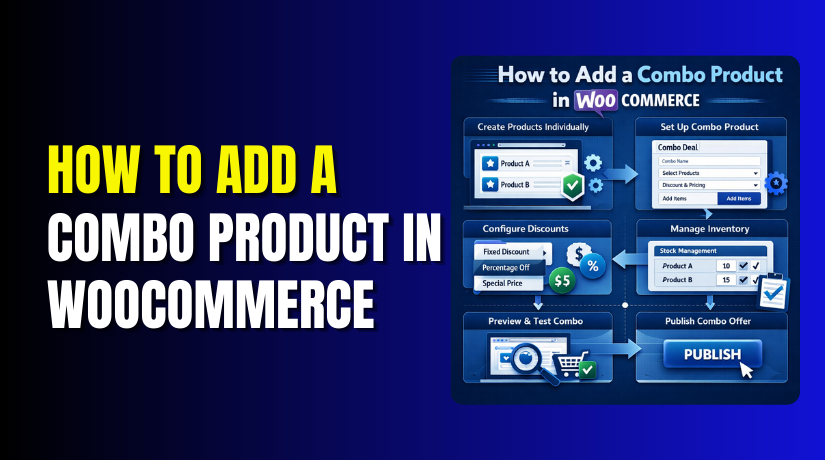
How to Add a Combo Product in WooCommerce (Step-by-Step Guide)
Table of Contents
- Introduction
- What a Combo Product Means in WooCommerce and How It Works?
- Benefits of Adding Combo Products in WooCommerce
- Things You Should Prepare Before Creating a Combo Product in WooCommerce
- How to Add a Combo Product Using WooCommerce Grouped Products
- How to Add a Combo Product in WooCommerce Using a Bundle Plugin
- Common Problems You May Face When Adding a Combo Product in WooCommerce
- Conclusion
Introduction
A WooCommerce combo product helps you sell two or more items together. It is a smart way to increase order value and improve the buying experience. Many store owners use combo offers to sell related products in one package. This setup also helps customers buy faster without searching for each item separately.
If you want to add a combo product WooCommerce style, this guide will help you understand the basics. You will also learn when to use combo offers and why they work well. Some stores use simple product links, while others use a WooCommerce product bundle setup.
The right method depends on your product type and selling goal. If planned well, combo products can improve product visibility and boost sales. They also help you present better offers in a clean and simple way.
What a Combo Product Means in WooCommerce and How It Works?
A combo product in WooCommerce is a group of related items. These items are sold together as one offer in the store. For example, a store can sell a shirt, cap, and belt together. This makes shopping easy because buyers get matching items in one place. A WooCommerce combo product can be created in different ways based on need.
Some store owners use WooCommerce grouped products for a simple combo setup. Others use plugins to build advanced offers with fixed prices or discounts. In many cases, a WooCommerce product bundle gives more control over pricing and display. The main idea is simple. You combine useful products and sell them together.
This method works well for beauty items, food packs, clothing sets, and gift boxes. If you want to create combo products WooCommerce stores can manage easily, you should first understand the setup style. A simple combo offer can save time for buyers and improve your store layout.
Benefits of Adding Combo Products in WooCommerce
Combo Products Help Increase the Average Order Value
A combo offer helps customers buy more items in one order. Instead of purchasing one product, they often choose a full set. This increases the total cart value without forcing extra sales steps. A well-made WooCommerce combo product gives buyers a complete offer that feels useful. This is one of the main reasons store owners add combo product WooCommerce style to their stores.
Combo Products Make Shopping Faster and Easier for Customers
Customers like simple product pages that save time and effort. Combo offers show related products together in one clear section. This reduces the need to search for each item separately. A good combo setup makes the buying process smoother and more comfortable. When you create combo products WooCommerce stores become easier for users to shop.
Combo Products Help Sell Related Items Together
Many products work better when they are sold as a set. For example, a phone case, charger, and screen guard match well. Selling such items together improves product connection and usefulness. A WooCommerce product bundle helps present these items in one simple offer. This also helps customers understand what products go well together.
Combo Products Can Improve the Value of Your Product Offers
A combo product often feels more useful than a single item. Customers see more value when multiple products come in one package. This improves the overall look of the offer on the product page. It also gives store owners a better way to promote deals. A clear WooCommerce combo product can make the store offer look stronger and smarter.
Combo Products Help Move Slow Selling Items More Easily
Some products do not sell quickly when listed alone in the store. You can combine such items with popular products in a combo. This improves product movement without using heavy discounts on each item. A smart WooCommerce bundled products setup helps clear stock in a natural way. It also keeps the offer useful for the customer.
Combo Products Support Better Product Visibility in the Store
When products are added into a combo, they get more attention. Customers see more items together on one product page. This improves visibility for items that may get ignored alone. A WooCommerce combo product helps store owners promote more products in less space. It also supports better cross-selling across the store.
Combo Products Can Improve Seasonal and Promotional Campaigns
Combo offers work very well during sales, events, and holiday promotions. You can create gift packs, festival sets, or limited-time deals. These offers look attractive and are easy for customers to understand. A WooCommerce product bundle is often a strong option for such campaigns. It helps you build special offers without making the setup too complex.
Combo Products Give Store Owners More Flexible Selling Options
Combo products give you more ways to sell the same catalog. You can mix products, test offers, and create fresh packages. This helps you present your store in a more active way. Many store owners use WooCommerce grouped products or bundle plugins for this reason. It gives better control over how products are shown and sold.
Things You Should Prepare Before Creating a Combo Product in WooCommerce
Before you build a combo offer, prepare everything clearly first. This step saves time and avoids setup mistakes later. A WooCommerce combo product works best when each item is planned well. You should know what products to combine and why. The combo should feel useful, simple, and easy to understand. Customers should quickly see the value of buying the set. Good planning also helps when you add a combo product WooCommerce style using any method.
Choose the Right Products Before You Create a Combo Product in WooCommerce
The first step is choosing products that fit well together. A combo should solve one need or support one use case. Random products in one pack can confuse the buyer fast. Related items always make the combo look more useful. For example, a t-shirt, cap, and belt make sense together. A shampoo, conditioner, and serum also create a clear set. When you create combo products WooCommerce stores can sell better, product matching matters most.
Decide the Price Structure Before You Add a Combo Product in WooCommerce
Pricing is one of the most important parts of combo planning. You should decide whether the combo will use regular prices or discounts. Some stores keep each item price separate inside the combo. Others give one reduced total to make the deal more attractive. A good price should show value without harming profit too much. This is very important when you add a combo product WooCommerce way for sales growth. If the savings are clear, customers notice the offer faster.
Check Product Stock Carefully Before Building WooCommerce Bundled Products
Stock problems can create issues after the combo goes live. You should check the stock level of every item first. One low-stock item can affect the whole combo offer. This is very important for WooCommerce bundled products and grouped item setups. If one item becomes unavailable, customers may not complete the purchase. Good stock checks help prevent order problems and unhappy buyers. This step is also useful when products are shared in other listings.
Prepare Product Titles Images and Descriptions for a Better Combo Page
A combo page should look clean and easy to understand. The title should clearly explain what the combo includes. The description should show why the set is useful. Product images should match the offer and look neat together. A strong product page helps buyers trust the combo faster. This is important for every WooCommerce combo product you plan to publish. If the combo looks confusing, customers may leave without buying.
Think About Shipping Rules Before You Create Combo Products in WooCommerce
Shipping should also be planned before the combo is created. Some combos contain small items with simple shipping needs. Others include products with different sizes or weights. This can affect delivery cost and shipping setup. When you create combo products WooCommerce style, shipping rules should not be ignored. You need to know if the combo will ship together or separately. This is even more important for larger or mixed-item combos. If shipping is unclear, the checkout may show wrong charges.
Test the Offer Idea Before You Build the Final WooCommerce Combo Product
Before final setup, review the combo like a customer would. Ask yourself if the products make sense together. Check if the price looks valuable and easy to understand. Think about whether the page will feel simple to shop. This small review can improve your final result a lot. A successful WooCommerce combo product usually starts with a clear idea. You do not need a very complex offer to get sales. You only need a useful set with a strong reason to buy.
How to Add a Combo Product Using WooCommerce Grouped Products
One simple way to create a combo is using grouped products. This method works well when you want to link related items. It is a built-in WooCommerce option, so no extra plugin is needed. That makes it a good choice for basic combo setups. Many store owners use WooCommerce grouped products for simple bundle-style offers. This method is easy to understand and fast to manage.
Step 1: Create the Products First
- First, create all the products you want in the combo.
- Each product must already be added in WooCommerce.
- Add the product name, price, image, and stock.
- This is important because grouped products only link existing products.
Step 2: Add a New Product for the Combo
- Now go to Products > Add New in your dashboard.
- This new product will be your main combo product page.
- Give it a simple and clear title. For example, you can write T-Shirt and Cap Combo.
Step 3: Add a Short Description


- Write a short description for the combo product.
- Explain what items are included in the combo.
- Keep it simple so customers understand it fast. This makes the page more clear and helpful.
Step 4: Select Grouped Product
- Scroll down to the Product Data
- From the dropdown, choose Grouped products.
- This tells WooCommerce that you want to link multiple products together.
Step 5: Add a Main Image
- Upload one image for the combo product page.
- This image should represent the full combo.
- A good image makes the product page look better.
Step 6: Link the Products
- Now go to the Linked Products
- Search and add the products you created. These products will become part of your combo.
- Make sure you select the correct items.
Step 7: Publish the Combo Product
- After linking all products, click Publish.
- Your combo product page is now live.
- Customers can open this page and see all linked products together.
Step 8: Test the Product Page
- Open the combo product on your website.
- Check if all products are showing correctly.
- Test the quantity boxes, prices, and add-to-cart option.
- This helps you make sure everything works properly.
This method is best for a basic combo setup. It is easy and does not need any extra plugin. If you want advanced features like one fixed price or discounts, then a bundle plugin is better.
How to Add a Combo Product in WooCommerce Using a Bundle Plugin
If you want more control, a bundle plugin is a better choice. This method is useful when grouped products feel too limited. A plugin helps you build a cleaner and stronger combo offer. It also gives better control over pricing, layout, and item rules.
Step 1: Choose a Bundle Plugin
- First, choose a WooCommerce bundle plugin for your store.
- This plugin will help you create a combo product easily.
- It gives more features than normal grouped products.
Step 2: Install and Activate the Plugin
- Go to your WordPress dashboard and open Plugins > Add New.
- Install your selected bundle plugin and activate it.
- After activation, new bundle options will appear in WooCommerce.
Step 3: Add a New Product
- Now go to Products > Add New.
- This new product will be your combo product page.
- Add a clear product title for the combo.
Step 4: Write the Product Description
- Write a short and simple description for the combo.
- Explain what products are included in the set.
- Keep the details easy for customers to understand.
Step 5: Select the Bundle Product Type
- Scroll down to the Product Data
- From the dropdown, select the bundle product type.
- The name may be Product Bundle or something similar, based on the plugin.
Step 6: Add Products to the Bundle
- Now add the products you want in the combo.
- Search and select each item one by one.
- These products will become part of the bundle.
Step 7: Set the Bundle Price
- After adding the products, set the combo price.
- You can use a fixed price or add a discount.
- This depends on how you want to sell the combo.
Step 8: Set Quantity Rules if Needed
- Some plugins let you control product quantity inside the bundle. You can keep fixed quantities or allow changes.
- Choose the option that fits your combo.
Step 9: Check Stock Settings
- Now review the stock settings for the combo products.
- Make sure all included items are in stock. This helps prevent order problems later.
Step 10: Add Product Image
- Upload a good image for the combo product page.
- This image should represent the full combo clearly.
- A strong image makes the page look better.
Step 11: Publish the Combo Product
- Once everything is ready, click Publish.
- Your combo product is now live on the website.
- Customers can now view and buy the bundle.
Step 12: Test the Product Page
- Open the combo product on the front end.
- Check the title, products, price, and add-to-cart button.
- Then test the cart and checkout process also.
This method is better when you want more control. It is useful for fixed pricing, discounts, and better layout.
Common Problems You May Face When Adding a Combo Product in WooCommerce
Creating a combo product looks simple at first. But small setup mistakes can cause big store problems later. Some issues affect pricing. Some affect stock. Some make the product page hard to understand. This is why every WooCommerce combo product should be checked carefully before promotion. Whether you use grouped products or a plugin, problems can still happen. The good part is that most issues are easy to fix. You only need to know where to look first. This section explains the most common problems in a simple way. It will help you manage the combo setup with more confidence.
Products Do Not Link Properly Inside the WooCommerce Combo Product
One common problem is wrong product linking. This mostly happens when products are not selected correctly during setup. Sometimes the wrong items are added to the combo by mistake. In other cases, one required product is missing from the set. This makes the WooCommerce combo product incomplete or confusing for buyers. Customers may not understand what the combo actually includes. To avoid this, always review the linked products before publishing. Check the product names, images, and prices one by one. Make sure every item belongs to the same offer idea. A small review can prevent many setup mistakes later.
Combo Product Pricing Does Not Show the Way You Expected
Pricing confusion is another common issue in combo setup. Some store owners expect one final price to show automatically. But this does not always happen with simple product methods. For example, WooCommerce grouped products usually show separate item prices. They do not always display one fixed combo price. This can confuse store owners and customers both. A WooCommerce product bundle plugin is often better for price control. It can show bundle savings more clearly on the page. To avoid pricing issues, decide the pricing method before setup starts. Then choose the right combo method based on that need.
Stock Problems Can Affect WooCommerce Bundled Products Very Quickly
Stock issues are very common when one product is used in many places. A child item may be sold alone and inside a combo too. If stock is not tracked properly, overselling can happen fast. This problem is more important for WooCommerce bundled products and plugin-based setups. One out-of-stock item can stop the whole combo from working well. Customers may try to buy the set and face checkout issues. To avoid this, review inventory rules before publishing the combo. Test how stock changes after a sample order. Good stock control keeps the combo product safe and reliable.
Shipping Charges Can Become Wrong for a WooCommerce Product Bundle
Shipping is another area where combo products can create confusion. Some bundles contain small items with easy shipping rules. Others include mixed products with different sizes or weights. If shipping is not configured properly, the cart total may become wrong. This is a common issue with many WooCommerce product bundle setups. Customers may see higher or lower delivery charges than expected. That can lead to cart abandonment or support complaints. To prevent this, test shipping before the combo goes live. Review how the plugin handles shipping for each item. A correct shipping setup makes checkout much smoother for buyers.
The Combo Product Page Can Look Confusing to Customers
A combo page should be clear from the first view. If the layout looks messy, customers may leave quickly. Too much text, weak images, or poor product matching can hurt the page. This can happen with any WooCommerce combo product if the page is not planned well. Buyers should understand what is included within a few seconds. They should also see the value of the offer clearly. Use a simple title, strong image, and short description. Keep the page clean and easy to scan. A better product page often leads to more trust and more sales.
Plugin Conflicts Can Break the Combo Setup in WooCommerce
Sometimes the problem is not the combo settings at all. The real issue may come from another plugin on the site. Some plugins do not work well together in WooCommerce. This may affect pricing, add-to-cart buttons, layout, or stock behavior. Plugin conflicts are more common when using advanced combo tools. A WooCommerce combo product may stop working correctly because of this. If something looks broken, test the combo after disabling other extra plugins one by one. Also make sure your theme is not affecting the product layout. A quick conflict check can save many hours of confusion.
Small Testing Steps Can Help You Avoid Most Combo Product Problems
Most combo product problems can be found before customers see them. You only need to test the page in a smart way. Open the product page and review the display first. Then add the combo to the cart and check the total. After that, test the checkout process fully. This simple routine helps you catch many issues early. It is useful for every WooCommerce combo product, no matter how basic or advanced it is. Testing helps with price, stock, layout, and shipping checks. A few minutes of review can protect your store from bigger problems later.
Conclusion
Adding a combo product in WooCommerce is a smart selling method. It helps you offer related products in one useful package. You can use WooCommerce grouped products for a simple setup. You can also use a WooCommerce product bundle plugin for more control. Both methods work well when planned the right way. The best option depends on your pricing, stock, and display needs. If you want a simple combo, grouped products are often enough. If you want discounts, fixed prices, or advanced settings, a plugin is better. The main goal is to keep the combo clear, useful, and easy to buy. A well-made combo can improve order value and customer experience at the same time.
If you want expert help with your combo setup, WooHelpDesk can help. Our team supports WooCommerce combo product setup, bundle customization, pricing fixes, stock issues, and checkout improvements. We can help you add a combo product WooCommerce style in the right way for your store. We also help with WooCommerce grouped products, WooCommerce bundled products, and advanced WooCommerce product bundle configuration. Visit WooHelpDesk and get professional support for your WooCommerce store.



