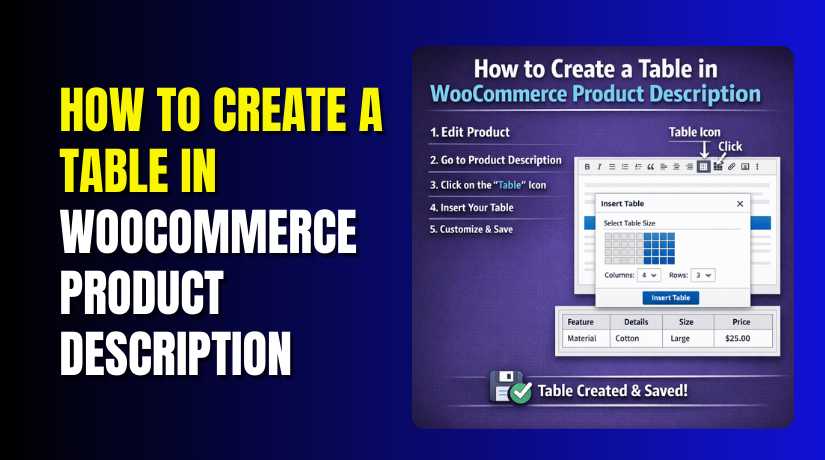
How to Create a Table in WooCommerce Product Description: Step-by-Step Guide
Table of Contents
- Introduction
- What Is Table in WooCommerce Product Description?
- Why Using a Table in WooCommerce Product Description Helps Store?
- Things You Should Prepare Before Creating a Table in WooCommerce Product Description
- How to Create a Table in WooCommerce Product Description Using the WordPress Block Editor
- How to Create a Table in WooCommerce Product Description Using Plugin
- Common Problems You May Face When Adding Tables in WooCommerce Product Description
- Conclusion
Introduction
A clear product page helps buyers understand your item very quickly. Many store owners use plain text for product details. That works, but it often looks messy and hard to scan. A better option is to organize details in a table format. When you create tables in WooCommerce product description areas, the content becomes cleaner and easier to read. Buyers can check size, material, features, and other details without confusion. This also improves WooCommerce product description formatting in a simple way.
If you want to add tables in WooCommerce product page content, you can do it without making the page look complex. A well-planned table also supports better product presentation and stronger user experience. It is one of the easiest WooCommerce product layout tips for stores with detailed items. In this guide, you will learn how tables work, why they matter, and when they help your store most.
What Is Table in WooCommerce Product Description?
A table in a WooCommerce product description is a structured way to show information. It places content into rows and columns for easy reading. Instead of writing long lines of text, you separate details into small sections. This helps buyers see the important points very fast. When store owners add tables in WooCommerce product page content, they usually show details like size, weight, color, material, or product usage.
This method makes How to display data in WooCommerce product pages much easier for both sellers and buyers. A table can also improve WooCommerce product content customization because it gives more control over layout. Some users prefer a simple block editor table. Others use WooCommerce HTML tables in product description areas for more design control. In some cases, a WooCommerce table plugin or WooCommerce product table shortcode may also be used. No matter the method, the goal stays the same. A table makes product details clean, organized, and simple to follow.
Why Using a Table in WooCommerce Product Description Helps Store?
Makes Product Information Much Easier for Shoppers to Read Quickly
Shoppers do not want to read large text blocks on product pages. They want fast answers before buying. A table solves this problem by showing details in a clear layout. When you create a table in WooCommerce product description content, the page becomes more readable. Buyers can scan the table and find what they need fast. This improves user experience and saves time for every visitor.
Helps Buyers Find Important Product Details Without Extra Effort
A table makes it easier to highlight the most useful information. Buyers can see details like dimensions, materials, or included items at once. This is better than hiding them in long paragraphs. Good WooCommerce product description formatting helps users focus on the key points. It also supports better buying decisions and reduces hesitation before checkout.
Improves the Overall Structure of the WooCommerce Product Page
A strong product layout makes a store look more professional. Tables help break up content and make the page feel balanced. When you add tables in WooCommerce product page sections, the product page looks more planned and useful. This is one of the most practical WooCommerce product layout tips for stores selling technical, fashion, or custom products with many details.
Reduces Buyer Confusion Before They Make a Purchase Decision
Many product returns happen because buyers miss important product information. A table reduces that risk. It shows exact details in a simple format that buyers can understand quickly. This supports better WooCommerce product content customization because you control what shoppers see first. Clear tables help customers feel more confident before they place an order.
Makes Technical Products and Detailed Products Easier to Understand
Some products need more explanation than others. Electronics, tools, furniture, or custom items often have many features. Writing everything in plain text can make the page look crowded. A table keeps the content neat and useful. If you want to improve How to display data in WooCommerce product pages, tables are a smart option. They make complex data look simple.
Can Improve User Experience and Support Better Conversions
A clean layout can improve trust and product understanding. When buyers understand the product faster, they are more likely to continue shopping. A good table does not guarantee sales, but it removes confusion. Whether you use a manual table, WooCommerce HTML table in product description, or a WooCommerce table plugin, the result is often a cleaner page. Some store owners also use a WooCommerce product table shortcode to save time and manage layout easily. In all cases, tables help create a better shopping experience.
Things You Should Prepare Before Creating a Table in WooCommerce Product Description
Before you create a table, you should plan the content first. A table looks simple, but poor planning can make it confusing. Good preparation helps you build a clean and useful layout. It also improves WooCommerce product description formatting from the beginning. If you want to create tables in WooCommerce product description sections the right way, start by choosing the correct details. Then organize those details in a way buyers can understand quickly. This step also supports better WooCommerce product content customization because you decide how the information should appear. A little planning saves editing time later and helps you add tables in WooCommerce product page content more smoothly.
Decide What Product Details You Want to Show Inside the Table
The first step is choosing what information belongs in the table. Not every detail needs a row. You should only add details that help buyers understand the product better. Common examples include size, material, weight, color, care instructions, model number, and package contents. These details work well because they are short and easy to compare. This is one of the most useful WooCommerce product layout tips for cleaner pages. If you add too many small or repeated details, the table may feel crowded. Focus on information that matters most before purchase. This makes How to display data in WooCommerce product pages much more effective for your visitors.
Group Similar Product Information Together for Better Table Structure
After selecting the details, group similar items together. This makes the table easier to read and understand. For example, size, width, and height can stay in one section. Material, finish, and texture can stay in another section. Shipping details and package contents can form another group. When related details stay close together, buyers do not need to search the page. This improves WooCommerce product description formatting and makes the table more useful. Grouping also supports better WooCommerce product content customization because the layout feels organized. A product table should guide the eye naturally. That is easier when similar information stays in one place.
Plan the Number of Rows and Columns Before Adding the Table
It is smart to plan the table layout before you build it. Most product tables only need two columns. One column shows the label. The second column shows the value. This simple layout works well for most stores. In some cases, you may need three columns for extra notes or product comparison. Still, keeping the structure simple is better for readability. When you create table in WooCommerce product description content, avoid adding too many columns. Wide tables often look messy on smaller screens. A clean layout is always better than a crowded one. Simple row and column planning is one of the best WooCommerce product layout tips for beginners.
Use Short and Clear Table Headings That Buyers Understand Fast
The labels inside the table should be short and direct. Buyers should understand each heading without extra effort. Use words like Size, Material, Weight, Color, Warranty, or Package Includes. Avoid internal terms or technical labels that normal shoppers may not understand. A table should make the product easier, not harder, to follow. Clear headings improve How to display data in WooCommerce product pages in a natural way. This also helps when you later style the table or update it for other products. Good headings are a small part of WooCommerce product content customization, but they make a big difference in user experience.
Check Whether the Table Will Look Good on Mobile Devices Too
Many shoppers visit WooCommerce stores from mobile devices. That is why you must think about mobile layout before adding a table. A table that looks fine on desktop may break on a phone. Very wide tables may force users to scroll sideways. That creates a poor shopping experience. So keep the layout narrow, simple, and easy to scan. Use fewer columns and shorter values where possible. This step matters whether you use the block editor, a WooCommerce table plugin, or a WooCommerce product table shortcode. Mobile planning is a key part of WooCommerce product description formatting because it affects real users directly.
Keep the Table Clean and Easy to Scan for Quick Reading
A good product table should look simple at first glance. Buyers should find the answer in seconds. That means the table should not feel heavy, crowded, or overloaded. Keep each row short and useful. Avoid long paragraphs inside table cells. If a detail needs a full explanation, place that outside the table. The table should handle direct data, not long content blocks. This approach helps you add table in WooCommerce product page areas without hurting the layout. It also works well if you later use WooCommerce HTML tables in product description sections for more control. Clean tables build trust and improve readability.
How to Create a Table in WooCommerce Product Description Using the WordPress Block Editor
The WordPress Block Editor gives a simple way to add tables. You do not need coding knowledge for this method. It works well for store owners who want a fast setup. If your product needs a simple table, this is often the easiest option. It helps you create table in WooCommerce product description content using built-in tools. This method also supports basic WooCommerce product content customization without using custom code. For many users, it is the best way to improve WooCommerce product description formatting while keeping the editing process simple.
Step 1: Log in to Your WordPress Dashboard and Open Products
- First, log in to your WordPress admin panel.
- After that, go to the left sidebar and click Products. You will now see your full product list.
- Choose the product where you want to add the table. You can also create a new product if needed.
- This is the first step to create a table in WooCommerce product description sections.
Step 2: Open the Product Edit Screen and Find the Description Area
- After selecting the product, open its edit page.
- Scroll down until you find the main product description box.
- This is the full content area where product details are added.
- Make sure you are working in the main description section, not the short description area.
- This helps with better WooCommerce product description formatting on the product page.
Step 3: Click the Plus Icon to Add a New Block
- Now click the plus icon inside the description editor.
- This opens the block search panel.
- The WordPress Block Editor lets you add many content blocks here.
- You can insert paragraphs, images, headings, lists, and tables.
- For this task, you need the table option.
- This is the easiest way to add tables in WooCommerce product page content without coding.
Step 4: Search for the Table Block in the Block Editor
- In the block search box, type Table.
- Once the Table block appears, click it.
- WordPress will insert the table block into the product description area.
- This method is simple for beginners and does not need technical skills.
- It is a very useful option for basic WooCommerce product content customization.
Step 5: Select the Number of Columns and Rows for Your Table
- After adding the Table block, WordPress will ask how many columns and rows you want. For most product tables, use 2 columns.
- The first column can show the detailed name.
- The second column can show the product value.
- Then choose the number of rows based on your product details.
- This is one of the best WooCommerce product layout tips for clear and simple tables.
Example:
- Column 1: Feature
- Column 2: Value
Step 6: Add Your Product Information Inside Each Table Cell
Now start entering your product details into the table. In the first column, add labels like:
- Size
- Material
- Color
- Weight
- Warranty
In the second column, add the related values. Keep the text short and clear. This makes How to display data in WooCommerce product pages much easier for shoppers. A clean table always works better than long text paragraphs.
Step 7: Format the Table So It Looks Clean and Easy to Read
- Once the data is added, check the table carefully.
- Make sure each row looks balanced. Keep labels short and values simple.
- Avoid adding large sentences inside table cells.
- The table should stay easy to scan.
- Good formatting improves WooCommerce product description formatting and helps buyers understand product details faster.
Step 8: Use the Block Settings to Adjust Basic Table Options


On the right side, you may see block settings for the Table block. Here, you can enable options like:
- Header section
- Footer section
- Basic table
When everything looks correct, click Update or Publish. Your table will now appear in the product description on the live page. At this stage, you have successfully used the block editor to create tables in WooCommerce product description content.
How to Create a Table in WooCommerce Product Description Using Plugin
Using a plugin is another simple way to build product tables. This method works well for store owners who want more control. It is also useful when the default editor feels too limited. If you manage many products, a plugin can save time. It can also improve WooCommerce product description formatting across your store. Many plugins offer ready-made styles, flexible layouts, and easier updates. That is why many sellers use a WooCommerce table plugin instead of manual editing.
Step 1: Log in to Your WordPress Dashboard and Open the Plugins Section
- First, log in to your WordPress admin area.
- After that, go to the left menu and click Plugins.
- Then click Add New Plugin from the top area.
- This is where you can search and install a plugin for product tables.
- If you want to create table in WooCommerce product description sections more easily, this is the best place to begin.
Step 2: Search for a Suitable WooCommerce Product Table Plugin
- In the plugin search bar, type terms like WooCommerce table plugin or product table plugin.
- You will now see different plugin options.
- Check the plugin name, ratings, number of active installs, and last update date.
- Choose a plugin that looks simple, trusted, and useful for product tables.
- A good plugin helps with better WooCommerce product description formatting and easier table creation.
Step 3: Install and Activate the Plugin on Your Website
- Once you choose the plugin, click Install Now.
- Wait for WordPress to complete the installation.
- After that, click Activate. The plugin is now active on your site.
- Some plugins create a new menu in the dashboard.
- Others place their settings inside WooCommerce.
- This step prepares your store for better WooCommerce product content customization.
Step 4: Open the Plugin Settings and Review the Main Options
- After activation, open the plugin settings page.
- Spend a few minutes checking the available options.
- Look for settings related to layout, columns, styles, display areas, and shortcodes.
- Many plugins offer built-in controls that help you add table in WooCommerce product page sections without coding.
- Understanding the settings first will make the next steps easier.
Step 5: Create a New Table From the Plugin Dashboard
- Now click the option to create a new table.
- Different plugins use different names.
- Some say Add New Table. Others say Create Table or New Product Table.
- Open that screen and start building your table.
- This is where you define the content structure.
- Most plugins make this process simple with ready-made options and table fields.
Step 6: Add the Rows and Columns You Need for Product Details
Next, choose how many rows and columns your table needs. In most cases, two columns are enough. The first column shows the detailed name. The second column shows the value. Then add rows for details like:
- Size
- Material
- Color
- Weight
- Warranty
- Package Includes
This is one of the easiest WooCommerce product layout tips for a clean table. Keep the layout simple so buyers can scan it quickly.
Step 7: Enter Product Information in a Clear and Organized Way
- Now fill the table with real product data.
- Use short and clear labels in the first column.
- Add matching values in the second column.
- Do not write long paragraphs inside the cells.
- A table should show facts quickly and neatly.
- This improves How to display data in WooCommerce product pages in a more useful way.
- A clean structure also helps buyers understand the product faster.
Step 8: Apply Basic Styling to Make the Table Easy to Read
Most plugins allow some table styling. Use those options to improve the design. You may be able to adjust:
- Table borders
- Header style
- Cell spacing
- Font size
- Row colors
- Alignment
These styling controls improve WooCommerce product description formatting and make the table match your store better. Keep the design simple and professional. Avoid too many colors or effects.
Step 9: Save the Table and Copy the Generated Shortcode if Available
- After building the table, click Save.
- Many plugins will generate a WooCommerce product table shortcode after saving.
- Copy that shortcode carefully.
- This shortcode is useful because it lets you place the same table inside the product description or other content areas.
- It also saves time when you want to reuse the same layout.
Step 10: Open the WooCommerce Product You Want to Edit
- Now go to Products in your dashboard.
- Open the product where you want to show the table.
- Scroll to the main description section.
- This is where you can place the shortcode or plugin-based content.
- This step connects the created table with the live product page.
Step 11: Paste the Shortcode Into the Product Description Area
- Inside the product description editor, paste the saved shortcode where you want the table to appear.
- Some plugins may also provide a special block or button instead of a shortcode.
- If your plugin uses a shortcode, placing it in the description is often the easiest method.
- This is a practical way to create tables in WooCommerce product description sections without writing custom code.
Step 12: Preview the Product Page on the Front End
- Before saving everything, click Preview to check the product page.
- Make sure the table looks correct on the front end.
- Check the text, spacing, headings, and alignment.
- Also check how it looks on mobile if possible.
- This preview step is very important because some plugin tables may look different outside the editor.
Step 13: Update or Publish the Product to Make the Table Live
- If the table looks correct, click Update or Publish.
- Your product table is now live on the WooCommerce product page.
- Buyers will now see a more organized layout with clear product details.
- This improves WooCommerce product content customization and makes the page easier to use.
Step 14: Reuse the Same Table Layout for Similar Products if Needed
- If your plugin supports reusable tables, use that feature for similar products.
- This saves time and keeps your product pages consistent.
- It is very useful for large stores with many items.
- A reusable setup is one of the biggest benefits of using a WooCommerce table plugin instead of creating every table manually.
Using a plugin is a smart option when you want more control, better styling, and easier updates. It is especially useful for stores with many products or detailed specifications. A good plugin helps you add table in WooCommerce product page sections faster and keeps your layout more professional.
Common Problems You May Face When Adding Tables in WooCommerce Product Description
Adding a table to a product page looks simple at first. But some issues can appear during setup or after publishing. These problems can affect design, readability, and user experience. That is why it is important to test the table carefully. Whether you create table in WooCommerce product description sections manually or use a WooCommerce table plugin, you should know the common issues first. This helps you fix problems faster and maintain clean WooCommerce product description formatting. A table should make the product page better, not harder to use. Below are the most common problems store owners face when they add table in WooCommerce product page content.
Table Layout Breaks on the Front End After Publishing
One common issue is layout breaking on the live product page. The table may look fine inside the editor but appear broken on the front end. Rows may shift, columns may look uneven, or the spacing may collapse. This usually happens because the theme styles the content differently. It can also happen when the table content is too wide. This affects How to display data in WooCommerce product pages clearly. To avoid this, preview the product before publishing. Use short text inside cells and keep the structure simple. If needed, test with basic styling first. Clean structure is one of the safest WooCommerce product layout tips for avoiding broken layouts.
Table Does Not Look Good on Mobile Devices and Small Screens
Mobile display is another common problem with product tables. A table may look perfect on desktop but become hard to read on phones. If the table has too many columns, users may need to scroll sideways. That creates a poor experience and can reduce trust. This issue often appears when store owners focus only on desktop design. Good WooCommerce product description formatting should work on all screen sizes. Keep the table narrow and use only the details that matter most. Two columns are usually best for mobile-friendly tables. Whether you use a block editor table or a WooCommerce product table shortcode, mobile testing is always necessary.
Table Styling Changes Because of the Active Theme on the Website
Sometimes the active theme changes the table appearance automatically. It may add borders, font changes, spacing, or background colors that do not match your product page. In some themes, table cells may even lose alignment or proper padding. This can make your table look unplanned or messy. Theme-related changes are common when you create table in WooCommerce product description areas using default tools. This is why many store owners later switch to a WooCommerce table plugin for better design control. If the theme changes your table style too much, you may need custom CSS or plugin settings to fix the issue. Matching the product page design is a key part of good WooCommerce product content customization.
Plugin Conflicts Can Affect the Table Display or Function
If you use a plugin-based table, plugin conflicts can sometimes create issues. Another plugin may affect the layout, shortcode output, or product editor behavior. In some cases, the table may not appear at all. In other cases, the design may break after updating a plugin. This is more likely on stores with many active tools. A WooCommerce table plugin can be very useful, but it should still be tested carefully. If you use a WooCommerce product table shortcode, make sure it works after every major update. Always test on a staging site when possible. Stable plugin use is important for smooth WooCommerce product content customization.
Table Content Looks Too Crowded and Hard for Buyers to Read
A table should make the product page clearer, not heavier. But sometimes store owners add too much content into one table. Long labels, large values, or extra rows can make the design feel crowded. When that happens, buyers may ignore the table completely. This reduces the value of your WooCommerce product description formatting. The best solution is to keep the content short and focused. Add only useful product data that supports buying decisions. Do not treat the table like a full content section. Use it for direct facts only. This is one of the most important WooCommerce product layout tips for readable product pages.
Table Does Not Match the Full Product Page Design Properly
Another issue is design mismatch. A table may work, but it may not look like part of the same page. The fonts, spacing, borders, or alignment may feel different from the rest of the product content. This can make the page look less professional. It may also affect how buyers trust the product details. Good WooCommerce product content customization should feel natural and consistent. The table should support the page design, not fight against it. This is why styling matters even for simple layouts. A clean table that matches the rest of the page will always feel more useful and more professional.
Editor Changes Can Remove or Disturb the Table Format Later
Sometimes a table looks fine when first created, but later edits affect the layout. This can happen when content is pasted from another source, when blocks are moved, or when plugin settings change. In HTML-based tables, even a small code error can break the whole structure. In shortcode-based tables, deleting one part by mistake can remove the output. This is a common issue when users handle many product updates quickly. If you use WooCommerce HTML table in product description areas, edit carefully and preview often. If you use a WooCommerce product table shortcode, save a copy before making changes. Careful editing helps protect your table structure over time.
Conclusion
Adding a table to your WooCommerce product description is a smart way to organize product details. It makes the page easier to scan and helps buyers find useful information faster. You can use the WordPress Block Editor for a simple setup. You can also use a WooCommerce table plugin when you need more control. Some stores may prefer a WooCommerce product table shortcode for easier placement and reuse. No matter which method you choose, keep the table clean, simple, and mobile-friendly. Good WooCommerce product description formatting supports better readability and a stronger shopping experience. When done correctly, tables improve both product clarity and page structure.
If you want expert help with product page design, layout fixes, or plugin setup, WooHelpDesk can help. Our team can support you with WooCommerce product content customization, table styling, shortcode setup, and product page improvements. Whether you want to create table in WooCommerce product description areas or improve the full product layout, we can make the process easier for your store. Contact WooHelpDesk for reliable WooCommerce support and practical solutions.



