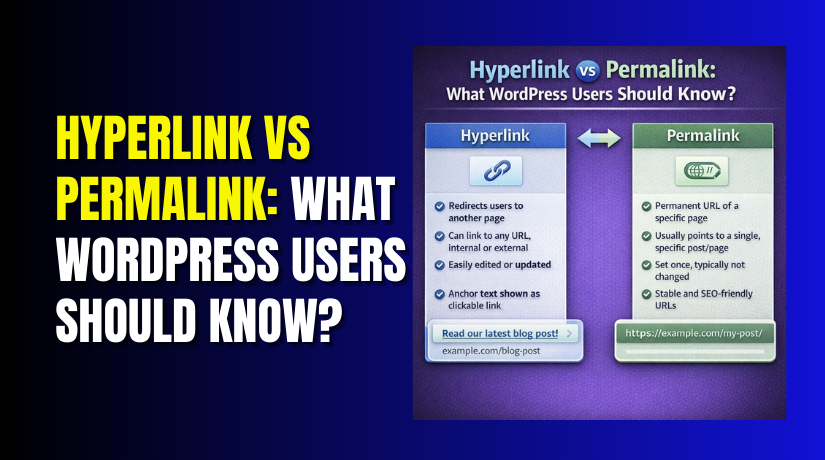
Hyperlink vs Permalink: What WordPress Users Should Know?
Table of Contents
- Introduction
- What is Permalink?
- What are the Key Features, Pros and Cons of Permalink?
- What is Hyperlink?
- What are the Key Features, Pros and Cons of Hyperlink?
- What is the Difference Between a Permalink and a Hyperlink?
- What are the Best Practices for Using Permalinks and Hyperlinks?
- Final Verdict
Introduction
If you have ever built a WordPress website, you have encountered two terms that often cause confusion: hyperlink and permalink. They sound similar. They both involve URLs. But they serve completely different purposes.
Understanding the distinction is essential for creating well-structured, SEO-friendly websites. Mixing them up can lead to broken links, poor user experience, and lost search rankings.
A permalink is the permanent web address of a specific page or post on your website. It is the URL visitors type in their browser to find your content. It should remain stable and descriptive.
A hyperlink is a clickable element within your content that takes visitors to another location. This could be another page on your site, a different website, or even a specific section within the same page.
This guide clarifies everything. You will learn what permalinks and hyperlinks are, their key features, and their pros and cons. You will understand the fundamental differences between them. You will get practical instructions for managing both effectively.
By the end, you will confidently use both tools to create a better WordPress website.
What is Permalink?
A permalink, short for “permanent link,” is the complete URL that points to a specific piece of content on your WordPress website. It is designed to be permanent, meaning it should not change over time.
Every page, post, category, and archive on your WordPress site has a unique permalink. When someone bookmarks your article, shares it on social media, or links to it from another site, they are using the permalink.
The permalink serves as your content’s permanent address. Just as your home address stays the same so people can find you, your content’s permalink should remain stable so visitors and search engines can reliably access it.
Components of a Permalink?
A WordPress permalink typically consists of:
- Domain name: Your website’s base address (e.g., yourwebsite.com)
- Path structure: Additional elements that organize your content (e.g., /category/post-name/)
- Slug: The final part that describes the specific content (e.g., /hyperlink-vs-permalink)
Permalink Structures
WordPress offers several built-in permalink structures:
| Structure Type | Example | Best For |
| Plain | /?p=123 | Not recommended for most sites |
| Day and Name | /2026/03/17/sample-post/ | News, time-sensitive content |
| Month and Name | /2026/03/sample-post/ | News, time-sensitive content |
| Numeric | /archives/123 | Not recommended |
| Post Name | /sample-post/ | Most websites, evergreen content |
| Custom Structure | /category/post-name/ | Sites with complex organization |
What are the Key Features, Pros and Cons of Permalink?
Key Features of Permalink
- Permanent Address: Permalinks are designed to be stable over time. Once you publish content, its permalink should ideally never change. This permanence ensures that bookmarks, backlinks, and search engine indexes continue working.
- Customizable Structure: WordPress lets you choose from several predefined structures or create your own using tags like %postname%, %category%, and %year%.
- Individual Slug Editing: You can edit the slug for any post or page directly in the editor. This lets you create descriptive, keyword-rich URLs without changing your global structure.
- SEO-Ready by Default: Well-structured permalinks help search engines understand your content. Including relevant keywords in your URL can improve click-through rates and search rankings.
- Category and Tag Archives: Permalinks also apply to your taxonomy archives. You can customize how category and tag URLs appear, making your site structure more logical.
- Flush/Refresh Capability: When you add new post types or encounter 404 errors, you can “flush” permalinks by simply saving your settings again. This refreshes WordPress’s rewrite rules without changing anything else.
Pros of Permalink
- Improved User Experience: Clean, readable URLs help visitors understand what a page is about before they click. A URL like /hyperlink-vs-permalink tells readers exactly what to expect.
- Better SEO Performance: Search engines use URLs as ranking signals. Descriptive, keyword-rich permalinks can improve your visibility in search results.
- Easier Sharing: Short, meaningful URLs are easier to copy, paste, and share on social media, in emails, and in messages. They look more trustworthy than long strings of numbers.
- Logical Site Organization: Your permalink structure reflects your content hierarchy. This helps both users and search engines understand how your site is organized.
- Stability for Backlinks: When other sites link to your content, they use your permalink. A stable structure preserves the value of those backlinks over time.
- Professional Appearance: Customized permalinks make your site look more professional and intentional compared to default “?p=123” URLs.
Cons of Permalink
- Broken Links When Changed: If you change a permalink after publishing, all existing links to that content break. Visitors will see 404 errors unless you set up proper redirects.
- Structure Decisions Are Permanent: Your chosen permalink structure affects every future URL. Changing it later requires managing redirects for all your existing content.
- Categories Can Create Dependency: If you include categories in your permalinks (/category/post-name/), changing a category name will change all URLs in that category. This creates maintenance work.
- Long URLs Can Look Messy: Poorly constructed custom structures can create excessively long URLs that look cluttered and unprofessional.
- Special Characters Cause Problems: Permalinks cannot include spaces, apostrophes, or many special characters. WordPress automatically removes or converts them, which may not always match your intent.
- Requires Regular Maintenance: When you add custom post types or experience 404 errors, you may need to flush your permalinks. This simple step is easy to forget.
What is Hyperlink?
A hyperlink, often simply called a “link,” is a clickable element on a webpage that directs visitors to another location. This is the fundamental building block of web navigation.
Hyperlinks connect web pages together. When you click on text that is underlined or in a different color, or when you click an image that takes you somewhere else, you are using a hyperlink.
Hyperlinks can point to:


- Another page on the same website (internal links)
- A different website entirely (external links)
- A specific section within the same page (anchor links or jump links)
- An email address (mailto links)
- A downloadable file
In HTML code, a hyperlink looks like this :
<a href=”https://example.com”>Clickable Text</a>
The components are:
- <a> tag: The HTML element that creates the link
- href attribute: The destination URL
- Anchor text: The visible, clickable text between the tags
Anchor links are a special type of hyperlink that jumps to a specific section within the same page . For example, clicking “Jump to Features” might scroll the page to a section with id=”features”. These are also called “jump links” or “page jumps.”
Where Hyperlinks Appear?
Hyperlinks can be added to virtually any element in WordPress :
- Text in paragraphs and headings
- Images and buttons
- Navigation menus
- Widgets and sidebars
- Footer content
What are the Key Features, Pros and Cons of Hyperlink?
Key Features of Hyperlink
- Clickable Navigation: Hyperlinks enable users to move between pages, websites, and sections. They are the primary mechanism for web navigation.
- Anchor Text Customization: You can choose any text to serve as the clickable link. This text ideally describes where the link leads, helping users decide whether to click.
- Multiple Destination Types: Hyperlinks can point to internal pages, external websites, specific page sections, email addresses, or downloadable files. This versatility makes them incredibly useful.
- Open in New Tab Option: You can configure links to open in a new browser tab, keeping your site open in the original tab for easy return.
- No-Follow Attribute: Links can include the rel=”nofollow” attribute, telling search engines not to pass ranking credit to the destination. This is useful for sponsored content or untrusted sources.
- Sponsored and UGC Tags: Modern WordPress supports additional relationship attributes like rel=”sponsored” and rel=”ugc” for more precise link classification.
- Image Links: Hyperlinks can be applied to images, creating clickable graphics that lead to other pages.
- Anchor Links: You can link to specific sections within the same page by adding HTML anchors and linking with hashtags.
Pros of Hyperlink
- Improves Navigation: Hyperlinks create pathways through your content. They help visitors find related information, products, and resources easily.
- Boosts SEO Value: Internal links distribute “link equity” throughout your site, helping search engines understand which pages are important. External links to authoritative sources can also add credibility.
- Enhances User Experience: Well-placed links help readers discover more content, answer their questions, and stay engaged with your site longer.
- Supports Accessibility: Properly implemented hyperlinks help screen reader users navigate your content. Descriptive anchor text provides context about where links lead.
- Enables Skimming: Readers often scan content before reading. Hyperlinks stand out visually, helping skimmers identify important resources and related topics.
- Flexible and Versatile: You can link anything to anywhere. This flexibility supports virtually any content strategy.
- Creates Jump Navigation: Anchor links let users skip directly to relevant sections, dramatically improving the experience on long pages.
Cons of Hyperlink
- Broken Links Damage UX: When hyperlinks point to deleted or moved pages, visitors encounter 404 errors. This frustrates users and damages trust.
- Overuse Creates Clutter: Too many links on a page can overwhelm visitors. Every link competes for attention, potentially diluting the importance of your key calls-to-action.
- Poor Anchor Text Hurts SEO: Vague anchor text like “click here” provides no context to search engines. It wastes an opportunity to signal what your linked pages are about.
- Accessibility Issues When Misused: Links that don’t clearly indicate their destination confuse screen reader users. Opening links in new tabs without warning can also disorient visitors.
- External Links Can Point to Bad Content: If you link to a site that later publishes inappropriate material, some of that negativity could reflect on your site.
- Requires Regular Maintenance: Large sites need periodic link checks to identify and fix broken links. This adds to your ongoing maintenance workload.
- Anchor Link Implementation Requires Care: Anchor links need unique IDs that don’t conflict with other page elements. Sticky headers can also obscure the target section if not properly accounted for.
What is the Difference Between a Permalink and Hyperlink?
Understanding the distinction between permalinks and hyperlinks is essential for effective WordPress management. This table summarizes the key differences:
| Comparison Factor | Permalink | Hyperlink |
| Definition | The permanent web address of a page or post | A clickable element that navigates to another location |
| Primary Purpose | To provide a stable, unique identifier for content | To connect content and enable navigation |
| Scope | One per page/post (unique identifier) | Many per page (navigation elements) |
| Location | Appears in browser address bar | Appears within content, menus, widgets |
| Stability | Should remain permanent; changes break links | Can be changed or removed anytime |
| User Interaction | Users type or bookmark the URL | Users click on text, images, or buttons |
| SEO Impact | Structure affects how search engines understand content | Anchor text and link quality affect ranking signals |
| Creation | Set globally or per-post via WordPress settings | Created per-link within the content editor |
| HTML Representation | Part of the page’s URL structure | <a href=”URL”>anchor text</a> |
| Management | Changed in Settings → Permalinks or post editor | Changed in the content editor via link toolbar |
| Consequence of Change | Breaks all inbound links unless redirected | Only affects that specific navigation path |
| Example | yourwebsite.com/hyperlink-vs-permalink/ | <a href=”/hyperlink-vs-permalink/”>click here</a> |
What are the Best Practices for Using Permalinks and Hyperlinks?
Permalink Best Practices
- Choose your structure early: Decide on a permalink structure when you first set up your site. Changing later creates extra work.
- Use post name structure: For most websites, the /post-name/ structure offers the best balance of readability, SEO value, and stability.
- Keep URLs short and descriptive: Include keywords but avoid unnecessary words. Remove stop words like “and,” “the,” and “or”.
- Avoid special characters: Use hyphens between words. WordPress automatically removes problematic characters, but you can optimize slugs manually.
- Don’t change permalinks after publishing: If you absolutely must change a URL, set up a 301 redirect from the old URL to the new one.
- Flush permalinks when needed: If you add custom post types or experience 404 errors, go to Settings → Permalinks and click Save Changes.
Hyperlink Best Practices
- Use descriptive anchor text: Tell users where the link goes. “Learn more about permalinks” is better than “click here”.
- Open external links in new tabs: For links to other websites, use the “open in new tab” option. This keeps your site open in the original tab.
- Link to relevant content: Help users find related information. Internal links improve engagement and SEO.
- Check links regularly: Broken links frustrate users and hurt credibility. Use link checking tools periodically.
- Don’t over-link: Too many links on a page can overwhelm visitors. Link only when it genuinely adds value.
- Use anchor links for long pages: Tables of contents and jump links help users navigate lengthy content quickly.
- Test anchor links thoroughly: Ensure your anchor IDs are unique and that scrolling works correctly, especially with sticky headers.
- Use appropriate rel attributes: Add rel=”nofollow” for paid links, rel=”sponsored” for sponsored content, and rel=”ugc” for user-generated content.
Final Verdict
Permalinks and hyperlinks are both essential components of WordPress, but they serve fundamentally different purposes. A permalink is the permanent address of your content—stable, unique, and designed to last. A hyperlink is a navigational tool that connects your content to other resources, whether on your own site or elsewhere on the web.
Understanding this distinction helps you make better decisions. Choose your permalink structure carefully from the start, as changes create extra work and risk broken links. Use descriptive, keyword-rich slugs that help users and search engines understand your content. When you must change URLs, always set up proper 301 redirects to preserve SEO value and prevent 404 errors.
Hyperlinks give you flexibility. Use them strategically to guide visitors through your site, distribute link equity, and enhance the user experience. Write descriptive anchor text, open external links in new tabs, and create anchor links for long pages. Regularly check for broken links and maintain your link strategy as your site grows.
Master both tools, and your WordPress site will be well-structured, user-friendly, and search-engine optimized.
Have questions before starting with WooCommerce & WordPress? Get support here at WooHelpDesk.



