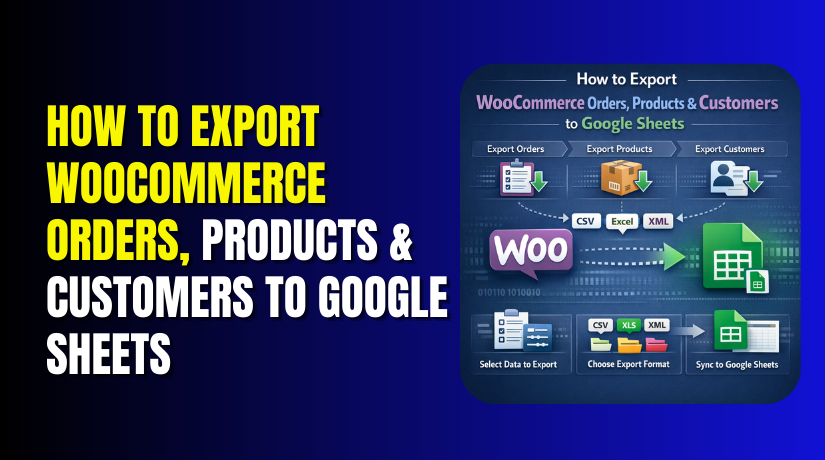
How to Export WooCommerce Orders, Products & Customers to Google Sheets (Step-by-Step Guide)
Table of Contents
- Introduction
- Why Many Store Owners Need to Export WooCommerce Data to Google Sheets
- Important Things You Should Check Before Exporting WooCommerce Data to Google Sheets
- How to Export WooCommerce Orders, Products & Customers to Google Sheets (Complete Guide)
- Common Problems During WooCommerce Export and How to Fix Them
- Conclusion
Introduction
Managing store data becomes easier when everything stays clear and organized. Many store owners want a simple way to view orders, products, and customer details in one place. That is why many users choose to Export WooCommerce data to Google Sheets for daily work. It helps you check important store details without opening many dashboard pages. You can sort data fast, share updates with your team, and build simple reports. This method also helps when you need a quick backup of store records. If you want better tracking, this guide will help you understand the process. It is also useful for people looking for smooth WooCommerce Google Sheets integration. If you plan to sync WooCommerce with Google Sheets, this guide is a good starting point.
This guide is helpful for many types of WooCommerce users. It is useful for store owners, managers, accountants, marketers, and support teams. It also helps developers who manage store data for clients. Some users want to export WooCommerce orders to Google Sheets for sales reports. Some want to check stock and WooCommerce export products to Google Sheets for inventory planning. Others want WooCommerce to export customers to Google Sheets for email lists or support records. No matter your goal, Google Sheets gives you a simple way to manage store data.
Why Many Store Owners Need to Export WooCommerce Data to Google Sheets
Better Reporting and Tracking for Daily Store Work
When you Export WooCommerce data to Google Sheets, reporting becomes much easier. You can sort data, apply filters, and check important details fast. This helps you track sales, product movement, and customer activity in one place. Google Sheets also makes it easier to review store performance without opening many WooCommerce pages.
Easy Sharing With Team Members and Staff
Many stores have different people handling daily work. Some manage orders, some check products, and some handle customers. Google Sheets makes sharing simple and quick. You can give access to your team without sharing full dashboard control. This makes WooCommerce Google Sheets integration useful for stores with multiple team members.
Simple Backup of Important Store Data
Store data is very important for every business. Orders, products, and customer records should stay safe and easy to access. Exporting this data to Google Sheets gives you an extra copy. This can help if your site has an issue or if data gets changed by mistake. A simple sheet backup can save time during urgent situations.
Better Order Management for Store Owners
Orders are one of the most important parts of any online store. When you export WooCommerce orders to Google Sheets, you can review order numbers, totals, statuses, and customer details more clearly. This helps you track pending, completed, and refunded orders. It also makes daily order handling faster and more organized.
Better Product Management and Stock Review
Products need regular checking, especially in growing stores. When WooCommerce exports products to Google Sheets, you can review names, prices, stock levels, and categories in one place. This helps you spot missing details or stock problems quickly. It is very useful for stores with many products and frequent updates.
Better Customer Management and Contact Review
Customer details are also easier to manage in a spreadsheet. When you WooCommerce export customers to Google Sheets, you can review names, emails, and order history more clearly. This helps with support work, follow-ups, and customer tracking. It also helps store owners understand buying patterns and repeat customers.
Useful for Marketing and Accounting Work
Marketing teams often need customer and order data for planning. Accounting teams may need totals, taxes, and payment details. Google Sheets makes this work easier because the data stays clean and simple to review. This is one strong reason many users choose to sync WooCommerce with Google Sheets for regular business tasks.
Important Things You Should Check Before Exporting WooCommerce Data to Google Sheets
Before you start the export process, check a few important things first. These steps help you avoid errors, missing data, and sync problems later. They also make the full export process smoother and easier to manage.
Make Sure Your WooCommerce Store Is Working Properly
Your store should work correctly before you export any data. Check that orders load properly and product details appear correctly. Also confirm customer records are showing without missing fields or errors. If your store already has data issues, the exported file may also contain problems. A clean store always gives better export results. This is very important when you want to Export WooCommerce data to Google Sheets without confusion.
Confirm That You Can Access Your Google Account
You also need proper access to your Google account. This is important because exported files will be uploaded or imported there. Make sure Google Sheets opens normally and your account has no login issue. If you plan to use a plugin or automation tool, account access matters even more. Many tools need Google permission before they can connect. This step supports a smooth WooCommerce Google Sheets integration setup.
Decide Exactly What Data You Want to Export
Do not export everything without a clear reason. First decide whether you need orders, products, customers, or all three. Some store owners only need order records for reporting work. Others need stock details because they want to WooCommerce export products to Google Sheets for inventory checks. Some users only need customer records for support or marketing tasks. A clear export goal saves time and keeps your sheet more organized.
Choose Whether You Need a One-Time Export or Regular Sync
This step is very important for long-term use. Some stores only need a one-time export for review or backup. Other stores need data updates every day or every week. In that case, a manual export may not be enough. You may need a plugin or automation tool to sync WooCommerce with Google Sheets automatically. Choosing the right method early helps you avoid extra work later.
Review Customer Privacy and Sensitive Store Data
Customer data should always be handled with care. Names, emails, phone numbers, and addresses are sensitive details. Before exporting them, make sure only the right people can access the sheet. Also avoid sharing the file with people who do not need it. This matters a lot when you WooCommerce export customers to Google Sheets for team use. Safe handling of store data protects both your business and your customers.
How to Export WooCommerce Orders, Products & Customers to Google Sheets (Complete Guide)
There is not just one way to move WooCommerce data into Google Sheets. The best option depends on your store size and daily needs. Some methods are simple and manual. Others are faster and more automatic. Let us look at the main ways store owners usually do this work.
Method 1: Export WooCommerce Orders, Products & Customers to Google Sheets Manually
The manual method is simple and works well for many store owners. You do not need advanced tools to get started. You only need WooCommerce export access and a Google account. Below is the full step-by-step process.
Step 1: Log In to Your WordPress Dashboard
- First, open your WordPress website admin panel.
- Enter your login details and go to the dashboard.
- From there, you can access your WooCommerce store settings and export options.
Step 2: Export Your WooCommerce Orders
- Go to the WooCommerce section and open the order export area.
- Select the order data you want to export.
- You can choose all orders or filter them by date or status.
- After that, download the file in CSV format.
- This is the first step to export WooCommerce orders to Google Sheets.
Step 3: Export Your WooCommerce Products
- Now go to the Products section in your dashboard.
- Use the export option to download your product data.
- You can export product names, prices, SKUs, categories, and stock details.
- Save the file in CSV format on your computer.
- This helps when you want to WooCommerce export products to Google Sheets.
Step 4: Export Your WooCommerce Customers
- Next, export your customer data.
- Some stores need a plugin for this step because customer export may not always be available by default.
- Choose the customer fields you need, like name, email, phone number, and address.
- Then download the customer file in CSV format.
- This is useful when you need to WooCommerce export customers to Google Sheets.
Step 5: Open Google Sheets
- Now open your Google account and go to Google Sheets.
- Click on Blank Spreadsheet to create a new sheet.
- You can also name it based on your store data, like Orders, Products, or Customers.
Step 6: Import the CSV File into Google Sheets


- In Google Sheets, click File and then click Import.
- Upload the CSV file from your computer.
- Choose how you want to import the file.
- You can add it as a new sheet or replace the current sheet.
- Then complete the import process.
Step 7: Repeat the Same Process for Other Data Files
- If you exported separate files for orders, products, and customers, repeat the same process for each file.
- Add each file into its own sheet tab.
- This keeps your data clean and easy to manage.
Step 8: Check and Organize the Data
- After importing, review the sheet carefully.
- Make sure all columns and values are showing correctly.
- Check dates, prices, customer details, and product information.
- Rename the tabs clearly so you can find data faster later.
Step 9: Save and Share the Google Sheet if Needed
- Once everything looks correct, your export is ready to use.
- You can now review the data, share it with your team, or use it for reports.
- This simple process helps you Export WooCommerce data to Google Sheets without complex setup.
Step 10: Use This Method When You Need a Simple Manual Export
- This method works best for store owners who need a quick export.
- It is easy, clear, and good for small or medium tasks.
- If you want live updates later, you can move to WooCommerce Google Sheets integration tools or sync WooCommerce with Google Sheets automatically.
Method 2: Export WooCommerce Orders, Products & Customers to Google Sheets Using a Plugin
Manual export works well for basic needs, but many store owners want a faster method. A plugin makes the process easier, cleaner, and more flexible. It helps when you need better control over fields, filters, and export settings. It is also useful when your store handles many orders, products, and customers. Many users choose this option for smoother WooCommerce Google Sheets integration. It is a practical method if you want to Export WooCommerce data to Google Sheets with less manual work.
Step 1: Choose a WooCommerce Plugin That Supports Google Sheets
- First, choose a plugin that can connect WooCommerce with Google Sheets.
- Make sure the plugin supports orders, products, and customers if you need all three.
- Also check that the plugin is easy to use and has clear settings.
- This helps you start your WooCommerce Google Sheets integration in the right way.
Step 2: Install and Activate the Plugin on Your Website
- Now go to your WordPress dashboard and open the Plugins section.
- Click Add New and search for your selected plugin.
- After that, click Install Now and then click Activate.
- Once the plugin is active, its settings will appear in the dashboard.
Step 3: Open the Plugin Settings
- After activation, open the plugin settings page.
- Some plugins show settings under WooCommerce.
- Some create their own menu in the dashboard.
- Open that section and check all available options before moving ahead.
- This helps you understand how the plugin works.
Step 4: Connect the Plugin With Your Google Account
- Now connect the plugin to your Google account.
- Most plugins will ask you to sign in with Google.
- After login, allow the required permissions.
- This step lets the plugin access your Google Sheets.
- Without this connection, it cannot Export WooCommerce data to Google Sheets.
Step 5: Select the Google Sheet You Want to Use
- After connecting your Google account, choose the Google Sheet where you want the data to go.
- Some plugins let you choose an existing sheet.
- Some plugins create a new sheet automatically.
- Pick the correct file so your exported data goes to the right place.
Step 6: Choose What Data You Want to Export
- Now select the type of WooCommerce data you want to export.
- You can choose orders, products, customers, or all of them.
- If you want sales details, choose orders. If you need stock and item details, choose products.
- If you need buyer records, choose customers.
- This is where you decide to export WooCommerce orders to Google Sheets, WooCommerce export products to Google Sheets, or WooCommerce export customers to Google Sheets.
Step 7: Select the Fields You Want in Google Sheets
- Next, choose the fields you want to send to the sheet.
- For orders, you may choose order number, customer name, total, and status.
- For products, you may choose product name, SKU, stock, and price.
- For customers, you may choose name, email, and phone number.
- Selecting only needed fields keeps your sheet clean.
Step 8: Map the Fields Correctly
- Now match WooCommerce fields with Google Sheets columns.
- This step is called field mapping.
- For example, the order number should go into the order number column.
- Customer email should go into the email column.
- Correct mapping keeps the exported sheet neat and easy to read.
Step 9: Run the Export Process
- After everything is ready, click the export button.
- The plugin will now send your WooCommerce data to Google Sheets.
- Depending on your data size, this may take a few seconds or more.
- This step completes the main process to sync WooCommerce with Google Sheets using a plugin.
Step 10: Open Google Sheets and Check the Exported Data
- Now open your Google Sheet and review the data.
- Check if all rows and columns are showing correctly.
- Make sure order details, product details, or customer records are in the right place.
- Also check dates, prices, and names carefully.
Step 11: Fix Any Missing or Wrong Data if Needed
- If something looks wrong, go back to the plugin settings.
- Check the selected fields and field mapping again.
- Then run the export once more.
- A small settings change can fix many export issues quickly.
- This helps improve your WooCommerce Google Sheets integration setup.
Step 12: Use the Exported Sheet for Daily Store Work
- Once the data looks correct, your sheet is ready to use.
- You can now track orders, review products, or manage customer records more easily.
- This plugin method is simple and useful for stores that need regular exports.
- It is a better option when manual export feels too slow.
Common Problems During WooCommerce Export and How to Fix Them
Even a simple export process can sometimes create problems. These issues may happen during manual export, plugin export, or automatic sync. The good part is that most problems can be fixed with basic checks. If you understand the common issues, you can solve them faster and avoid delays in your work.
Export File Not Downloading Properly
Sometimes the export file does not download after you click export. This can happen because of plugin conflict, browser issue, or server limit. First, refresh the page and try again. If the problem stays, test another browser and disable unnecessary plugins one by one. Also check if your website has memory or timeout limits. Fixing the download issue is important before you Export WooCommerce data to Google Sheets successfully.
Missing Order Data in the Exported File
In some cases, order details may not appear fully in the export. You may find missing totals, status details, or customer information. This usually happens when the wrong fields are selected during export. Go back to the export settings and review the selected order fields carefully. Then run the export again. This is very important when you want to export WooCommerce orders to Google Sheets with full and correct records.
Product Fields Not Matching Correctly
Product export may sometimes show data in the wrong columns. For example, SKU may appear under price or stock may appear under category. This usually happens because of wrong field mapping. Check the plugin settings or import setup and match each field carefully. A correct mapping gives a clean sheet and avoids confusion. This matters a lot when you WooCommerce export products to Google Sheets for stock review or product management.
Customer Details Not Exporting Correctly
Customer data may sometimes be missing or incomplete. You may not see email, billing address, or phone number in the sheet. This can happen if customer fields are not supported by the export tool or not selected properly. Review the plugin options and select the needed customer fields again. Also make sure your store is storing the data correctly. This helps when you need to WooCommerce export customers to Google Sheets for support or business use.
Google Sheets Formatting Issues After Import
Sometimes the export works, but the sheet looks messy after import. Dates may appear in the wrong format. Prices may lose currency style. Long numbers may look incorrect. To fix this, adjust the column format inside Google Sheets. Use date, currency, text, or number formatting as needed. Clean formatting makes the exported file much easier to read and use.
Sync Not Updating Automatically
This problem happens when the connection is active but the sheet does not refresh with new data. It may happen because the sync rule is broken, the Google account is disconnected, or the automation tool has stopped. First, check the plugin or automation dashboard for errors. Then reconnect the Google account if needed and test the workflow again. This is the main issue users face when they try to sync WooCommerce with Google Sheets on a regular basis.
Conclusion
Exporting WooCommerce data to Google Sheets can make store work much easier. It helps you manage orders, products, and customers in a simple format. You can review sales, track stock, and organize customer details faster. Manual export works well for basic needs. Plugin-based export gives better control and saves time. Automatic sync is the best choice for stores that need regular updates. The right method depends on your store size and daily workflow. Once your data is in Google Sheets, reporting and tracking become much more simple.
Need help with WooCommerce Google Sheets integration in your store? WooHelpDesk can help you set up the right solution for orders, products, and customer exports. Whether you want a manual export, plugin setup, or automatic sync, our team can handle it for you. Visit WooHelpDesk to get expert WooCommerce support and keep your store data better organized.



