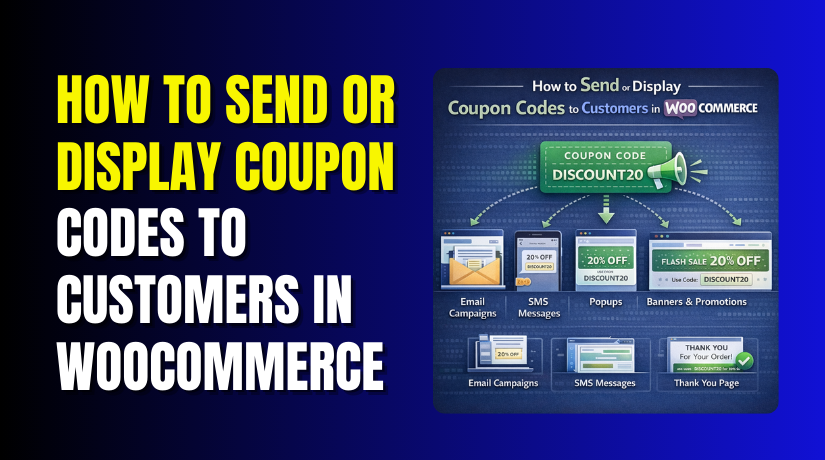
How to Send or Display Coupon Codes to Customers in WooCommerce (Complete Guide)
Table of Contents
- Introduction
- Why You May Need to Show Coupon Codes to Customers in Your WooCommerce Store
- Important Things You Should Check Before Sending or Displaying Coupon Codes in WooCommerce
- How to Display Coupon Codes on WooCommerce Pages (Step By Step)
- How to Send Coupon Codes by Email in WooCommerce (Step By Step)
- Common WooCommerce Coupon Code Problems Store Owners Face (With Fixes)
- Conclusion
Introduction
Running offers in an online store can improve customer response. A well-placed WooCommerce coupon code can push buyers to act faster. Many store owners create discounts but forget one key step. Customers must clearly see the offer before they can use it. That is why learning how to show and share WooCommerce coupons matters. If the coupon stays hidden, the offer may not help sales. If the coupon is shared in the right place, it can improve clicks and orders.
This guide will help you understand how to send or display coupons in simple ways. It is useful for store owners who want better results. It also works well for beginners who need a clear WooCommerce coupon code tutorial. Some users want to show discounts on the shop page. Others want to send coupon code WooCommerce emails to customers directly. Both methods can work when used correctly. You may also use a WooCommerce coupon plugin for better control.
No matter the method, the main goal stays the same. Make the offer easy to find, easy to understand, and easy to use. If you already know how WooCommerce creates coupon code, the next step is visibility. A strong WooCommerce discount code can help sales only when customers notice it. That is why proper display and sharing matter in every store.
In this blog, you will learn why coupons are useful and why showing them well can improve your store. You will also see how a simple WooCommerce discount coupon can support your marketing in a smart way.
Why You May Need to Show Coupon Codes to Customers in Your WooCommerce Store
Showing Coupon Codes Can Help Increase Conversions in WooCommerce
Customers often need a small reason to complete the purchase. A visible WooCommerce coupon code can give them that reason quickly. When people see a discount, they feel more ready to buy. It adds value without changing the product itself. This is why many store owners use WooCommerce coupons during sales campaigns. A discount can reduce hesitation and improve buyer confidence. It can also make your store feel more active and appealing. When the offer is easy to see, more users take action. A hidden coupon usually gets ignored by visitors.
Displaying Coupon Codes Can Help Reduce Cart Abandonment
Many shoppers add products but leave before finishing checkout. This is a common issue in online stores today. A visible WooCommerce discount coupon can help bring them back. When users notice savings, they often continue the purchase process. Even a small offer can reduce second thoughts. Some stores place the coupon message on the cart page. Others send coupon code WooCommerce emails to remind users later. Both methods can help reduce abandoned carts. The key is timing and visibility.
Coupon Codes Are Useful for Encouraging First-Time Orders
New visitors often need trust before placing the first order. A welcome offer can make that first step easier. Many stores use WooCommerce coupons to attract first-time buyers. A simple discount can reduce buying hesitation for new users. It gives them a reason to try your store. This works well for products with many similar competitors. A strong first offer can make your store stand out. You can show the offer on banners or signup forms. You can also send coupon code WooCommerce emails after registration.
Coupon Codes Can Help Reward Existing Customers in WooCommerce
Returning customers also need reasons to keep buying again. A repeat customer discount can build stronger customer loyalty. This is where a WooCommerce discount coupon becomes very useful. You can reward buyers after their first or second order. This makes them feel valued by your brand. It also increases the chance of another purchase. Many store owners use WooCommerce to create coupon code settings for this purpose. They create special offers only for past buyers. You can send these offers through email or account messages.
Showing Coupon Codes Can Support Seasonal and Limited-Time Promotions
Special events create strong buying interest for a short time. Festivals, holidays, and store sales are perfect examples. During these times, WooCommerce coupon code campaigns can perform very well. Customers already expect deals during these periods. When they see a discount clearly, they react faster. A visible WooCommerce discount code also creates urgency. It tells buyers that the offer may end soon. This can push quick purchase decisions.
Displaying Coupon Codes Can Improve Customer Engagement and Interest
Coupons do more than just reduce product prices. They also keep users interested in your store. A good offer can make people click, browse, and return. This is why WooCommerce coupons are also useful for engagement. Customers enjoy offers that feel clear and valuable. A visible deal can make them check more products. It can also make them sign up for updates. When used well, coupons support both marketing and user activity. Some store owners use a WooCommerce coupon plugin to manage this better.
Important Things You Should Check Before Sending or Displaying Coupon Codes in WooCommerce
Before you show or send any WooCommerce coupon code, check the setup carefully. A small mistake can make the offer fail for customers. That can lead to lost sales and support complaints. Many store owners create offers fast and skip testing. This often causes coupon errors during important sales campaigns. A working discount should be easy to view and easy to use. That is why checking each setting before launch matters. Whether you want to send coupon code WooCommerce emails or show offers on pages, the same rule applies. Review the coupon first, then publish it with confidence. This step is important in every WooCommerce coupon code tutorial because it helps avoid common mistakes later.
Check That You Have Created the Coupon Code Correctly in WooCommerce
Start with the basic coupon setup inside your store dashboard. Make sure the coupon name is clear and easy to read. The code should also be simple for customers to type. Avoid codes that look confusing or too long. Then check the discount type and coupon amount carefully. A fixed discount and a percentage discount work differently. You should also confirm whether the offer applies once or more. If you plan to WooCommerce create coupon code for a campaign, make sure every setting matches that goal. A good WooCommerce discount coupon starts with the right base setup. If the setup is wrong, the offer may not work later.
Review the Usage Restrictions Before Sharing the Coupon With Customers
Every WooCommerce coupon code can include rules for where it works. These settings control how and when customers can use it. For example, you may set a minimum spend amount. You may also limit the coupon to selected products. Some store owners apply the code only to certain categories. Others block sale items from using the discount. These settings are useful but must be checked carefully. A customer may see the code but still fail to apply it. That creates confusion and weakens trust in the store. Before you publish WooCommerce coupons, review all restrictions one by one. This helps make the offer clear and fair.
Make Sure the Coupon Expiry Date Is Still Correct Before Promotion
An expiry date is useful for limited-time discount campaigns. It creates urgency and pushes faster buying decisions. But the date must be correct before you share it. If the coupon expires too early, customers may feel disappointed. If it stays active too long, your planned campaign may lose control. This is why date checking matters before launch. Look at the start and end timing of the offer. Match it with the banner, email, or page message. A WooCommerce discount code should always match the promotion details shown to users. When people receive a code, they should have enough time to use it. That keeps the shopping experience smooth and clear.
Set the Usage Limits Properly So the Coupon Works as Planned
Usage limits help you control how many times a coupon works. You can limit the total number of uses. You can also limit one use per customer. This is useful for welcome offers and special campaigns. But wrong limits can block users from applying the discount. For example, the code may stop working too early. Or the same person may use it more than planned. Before sending WooCommerce coupons, review the full usage settings. Make sure the limit matches your business goal. If you want broad use, avoid too many restrictions. If you want a private offer, set limits more carefully. A good WooCommerce discount coupon should work exactly as expected.
Decide Clearly Where You Want to Show the Coupon on Your Store
A great coupon still fails if customers cannot see it. That is why coupon placement matters so much in WooCommerce. Before you launch the offer, choose the display area clearly. You may want it on the homepage for wide reach. You may prefer product pages for targeted product offers. Some stores place the message on cart or checkout pages. Others use popups, headers, or floating bars for better attention. If you plan to send coupon code WooCommerce messages by email, decide that before promotion starts. The right location depends on your campaign purpose. A store-wide deal works best in visible global areas. A product-based offer works better near the item itself.
Keep the Coupon Message Simple So Customers Understand It Fast
Customers should understand the offer in one quick look. Do not use long or confusing coupon text. Keep the message short, direct, and easy to follow. Mention the benefit first, then show the coupon code. You should also tell customers where they can use it. If there is a minimum spend, mention that clearly. If the offer ends soon, show the expiry date too. This makes the offer more useful and trustworthy. A WooCommerce coupon code tutorial should always include this point because wording affects results. Even a good WooCommerce discount code can fail if the message feels unclear. Good coupon language improves both clicks and conversions.
Test the Full Coupon Experience Before You Make It Live
Testing is one of the most important steps before launch. Do not assume the coupon will work because you created it. Open your store and check the whole customer journey. View the message on desktop and mobile devices. Add products to the cart and apply the code. Check if the discount shows correctly at checkout. If you plan to send coupon code WooCommerce emails, test the email too. Make sure the code is visible and easy to copy. Also check the message placement on all pages. A WooCommerce coupon plugin may also affect how the offer appears. Good testing helps you find issues before customers see them.
How to Display Coupon Codes on WooCommerce Pages (Step By Step)
Showing a WooCommerce coupon code in the right place helps customers notice the offer fast. If people cannot see the discount, they may not use it. That is why proper coupon placement matters. Below is a simple and easy step-by-step method you can follow.
Step 1: First Create the Coupon in WooCommerce
- Before you show the coupon on any page, make sure it is already created.
- Go to your WooCommerce coupon section and add the code.
- Set the discount type, amount, usage rules, and expiry date.
- Save it and test if it works. This is the first part of any WooCommerce coupon code tutorial.
- If the coupon does not work, customers cannot use it later.
Step 2: Decide Where You Want to Show the Coupon
- Now choose the page where the coupon should appear.
- This depends on your offer type. If the offer is for the full store, show it on the homepage.
- If the discount is for one product, show it on the product page. You can also show WooCommerce coupons on the cart or checkout page.
- Pick the place where customers will notice it easily.
Step 3: Write a Short and Clear Coupon Message
- Do not show only the code. Also write a simple message with it.
- Tell customers what they will get from the offer. For example, write “Use code SAVE10 and get 10% off.”
- This makes the WooCommerce discount coupon easier to understand.
- Keep the message short and clear. Long messages can confuse buyers.
Step 4: Show the Coupon on the Homepage
- The homepage is a good place for store-wide offers.
- Add the coupon in a banner, text box, or notice section.
- Keep it near the top if possible. This helps visitors see the offer quickly.
- A clear WooCommerce discount code on the homepage can improve interest from the first visit.
- This method works well for sale events and welcome offers.
Step 5: Show the Coupon on Product Pages
- If the offer is for selected items, use product pages.
- Add the coupon message near the price or add-to-cart button.
- You can also place it in the short description.
- This helps the customer see the offer while checking the product.
- A WooCommerce coupon code shown here feels more useful because it matches the item being viewed.
Step 6: Show the Coupon on the Cart Page
- The cart page is a very useful place for coupons.
- At this stage, the customer already wants to buy.
- Show the coupon above the cart items or near the coupon box.
- This reminds users to use the code before checkout.
- A visible WooCommerce discount code here can help reduce cart abandonment and improve sales.
Step 7: Show the Coupon on the Checkout Page


- The checkout page is the final step before payment. A coupon reminder here can help users complete the order.
- Keep the message short and place it in a clean area.
- Do not add too much text. The goal is to help the user, not distract them.
- If you use a WooCommerce coupon plugin, you may get more display options here.
Step 8: Use Header, Footer, or Sidebar for Store-Wide Offers
- If you want the coupon to stay visible on many pages, use the header, footer, or sidebar.
- These areas help users see the offer while browsing. A short WooCommerce discount coupon works best in these spaces.
- This method is helpful for seasonal sales or site-wide promotions. Keep the text short so it fits well.
Step 9: Use Popups or Announcement Bars if Needed
- For special offers, you can also use popups or top bars.
- A popup can show the coupon when someone enters the site. A top bar can keep the offer visible while they browse.
- This method can get more attention, but do not overuse it.
- Too many popups can annoy users. A good WooCommerce coupon plugin can help manage this better.
Step 10: Check the Coupon on Mobile Devices
- Many customers shop from mobile phones.
- So your coupon should also look good on small screens.
- Open your site on mobile and check each page.
- Make sure the code is easy to read and easy to copy.
- Also check banners and popups.
- A mobile-friendly WooCommerce coupon code can help more users use the discount.
Step 11: Test Everything Before Going Live
- Before you publish the coupon display, test the full process.
- Open the page, view the message, copy the code, and apply it in the cart. Then check the checkout page too.
- Make sure the offer works correctly.
- This step helps avoid customer complaints.
- Whether you display the offer or send coupon code WooCommerce emails, testing is always important.
The main goal is simple. Make the coupon easy to see and easy to use. A well-placed WooCommerce coupon code can improve clicks, sales, and customer response. Start with simple placement, test the results, and improve it over time.
How to Send Coupon Codes by Email in WooCommerce (Step By Step)
Sending a WooCommerce coupon code by email is a smart way to reach customers directly. It helps you share offers in a simple and personal way. Many store owners use email because customers can read the offer later. They can also return to the store when ready. If you want to send coupon code WooCommerce emails the right way, follow these easy steps below.
Step 1: First Create the Coupon in WooCommerce
- Before sending any email, first create the coupon in WooCommerce.
- Go to the coupon section in your dashboard.
- Add the coupon code, discount type, amount, and expiry date.
- Also check usage rules and limits carefully. Save the coupon and test it once.
- This is an important step in every WooCommerce coupon code tutorial.
- If the code does not work, the email will not help.
Step 2: Decide Which Customers Should Receive the Coupon
- Now decide who should get the coupon email.
- You may want to send it to new customers. You may want to reward old buyers with a special offer.
- Some stores send WooCommerce coupons to inactive users.
- Others send them only during a sale campaign.
- First choose the right customer group. This helps make your offer more useful and more effective.
Step 3: Choose the Right Reason for Sending the Coupon
- Every coupon email should have a clear purpose.
- You may send a welcome offer after signup.
- You may send a thank-you discount after purchase.
- You may also send a reminder for an abandoned cart.
- Some stores send a WooCommerce discount coupon during festive sales or weekend promotions.
- When the reason is clear, the email feels more natural. Customers also understand the offer faster.
Step 4: Write a Clear and Short Email Subject Line
- The subject line is the first thing customers will see.
- So keep it short and direct. Tell them there is a discount inside the email.
- For example, write “Your 10% Discount Code Is Here.” You can also say “Special Offer for Your Next Order.”
- A clear subject line helps users open the email faster.
- This makes your WooCommerce discount code campaign stronger from the start.
Step 5: Write a Simple Email Message With the Coupon Code
- Inside the email, keep the message easy to read.
- Do not write too much text. Start by telling the customer what the offer is.
- Then show the WooCommerce coupon code clearly in the email body.
- Also mention what discount they will get.
- Tell them where they can use the code.
- A short and simple message works better than a long one.
- Customers should understand the offer in seconds.
Step 6: Mention the Expiry Date and Important Coupon Rules
- If the coupon has an end date, mention it clearly.
- Customers should know how long the offer is active.
- If there is a minimum order amount, say that too.
- If the coupon works only on selected items, mention that also.
- This keeps the email honest and easy to understand.
- A good WooCommerce discount coupon should not confuse buyers.
- Clear rules can reduce questions and complaints later.
Step 7: Add a Direct Shop Link in the Email
- Do not only send the coupon code.
- Also add a direct link to your shop or offer page.
- This makes the next step easy for the customer.
- They can click and start shopping right away.
- You can link to the homepage, shop page, or product page.
- This simple step improves the value of your send coupon code WooCommerce
- It helps users move from email to purchase faster.
Step 8: Send Welcome Coupon Emails to New Customers
- Welcome emails are a common way to send discounts.
- When someone joins your store or newsletter, send them a special coupon.
- This can help turn a new visitor into a buyer.
- Many store owners use WooCommerce coupons for first orders.
- A welcome discount feels friendly and useful.
- It also gives new users a reason to trust your store. This is one of the easiest email coupon methods.
Step 9: Send Coupon Emails After a Customer Places an Order
- You can also send a coupon after an order is complete.
- This is a good way to bring the customer back again.
- For example, offer 10% off on the next purchase. This makes the buyer feel valued. It also supports repeat sales over time.
- Many stores use a WooCommerce coupon plugin for this type of email setup.
- It is a smart way to reward customers after purchase.
Step 10: Test the Coupon Email Before Sending It to Customers
- Before you send the email to all users, test it first.
- Send it to yourself or your team.
- Open it on desktop and mobile.
- Check if the coupon code is visible and correct.
- Click the shop link and test the coupon at checkout.
- This helps you catch small mistakes early. A tested WooCommerce coupon code tutorial always gives better results than a rushed campaign.
Sending coupons by email is simple when done the right way. The main goal is to keep the message clear and useful. Show the WooCommerce coupon code clearly, explain the offer, and add a direct link to the shop. When customers understand the offer fast, they are more likely to use it. This method works well for new customers, repeat buyers, and sale campaigns.
Common WooCommerce Coupon Code Problems Store Owners Face (With Fixes)
Sending or showing a WooCommerce coupon code looks simple at first. But small mistakes can stop the whole offer from working well. Customers may not see the code. They may get the email late. Sometimes the code shows correctly but fails at checkout. These problems can hurt trust and reduce sales. That is why you should know the common issues before running a campaign. In this part, you will learn the usual problems with WooCommerce coupons and the simple ways to fix them. This will help your store run better offers with less confusion.
Coupon Code Is Not Visible on the Website
One common problem is poor coupon visibility on the website. You may create the offer, but customers still do not notice it. This often happens when the coupon is placed in the wrong area. It may sit too low on the page or blend into the design. Sometimes the text is too small or the message is unclear. A hidden WooCommerce discount code will not help your sales. To fix this, place the coupon near important areas. Good spots include the homepage banner, product page, cart page, or checkout page. Keep the message short and make the code easy to read. Test the page on desktop and mobile before going live.
Coupon Email Is Not Reaching Customers
Sometimes the coupon email never reaches the customer inbox. This is a common problem in many online stores. The email may go to spam or may not send at all. Poor mail setup is often the main reason. Some stores also use weak subject lines, so users ignore the message. If you want to send coupon code WooCommerce emails correctly, test your email system first. Check your store email settings and make sure emails are sending properly. Use a trusted mail setup or email plugin if needed. Also write a clear subject line so users open the email. A working email system is very important for coupon campaigns.
Coupon Code Is Not Working at Checkout
A customer may see the offer but still fail to use it. This usually happens because of wrong coupon settings. The code may have product limits, category limits, or minimum spend rules. It may also be expired or already fully used. This creates frustration and can lead to lost orders. A broken WooCommerce discount coupon hurts the user experience. To fix this, review all coupon rules before promotion starts. Check the discount type, expiry date, usage restrictions, and usage limits. Then test the code with real products in the cart. This is a basic but important part of every WooCommerce coupon code tutorial.
Coupon Expired Before the Customer Used It
Some customers get the coupon but try to use it too late. When that happens, the code no longer works. This issue is common during short campaigns or delayed email delivery. Customers may feel disappointed if the offer ends too soon. A WooCommerce coupon code should give users enough time to act. To fix this, choose a fair expiry date before sending the offer. Match the date with your email, banner, or popup message. If the deal is very short, clearly mention the deadline. When the expiry date is easy to see, users can decide faster. Clear timing also reduces confusion and complaints.
Wrong Customers Received the Coupon
Another problem happens when the wrong people receive the offer. For example, a welcome coupon may go to old buyers. Or a loyalty coupon may go to new visitors. This can weaken the campaign and confuse customers. It can also reduce trust in your store message. A smart WooCommerce discount code should reach the right audience only. To fix this, first decide who should get the coupon. Then use the correct customer list, email group, or plugin rule. If needed, use a WooCommerce coupon plugin to manage targeted campaigns better. Always test your audience settings before sending the offer live.
Coupon Is Not Showing Properly on Mobile Devices
Many customers shop from phones now, not only computers. So your coupon display must also work well on mobile. Sometimes banners break on small screens. Popups may cover the whole page. The coupon code may look too small to read. These issues make WooCommerce coupons harder to use. To fix this, test every coupon display on mobile devices. Open your homepage, product pages, cart page, and checkout page on a phone. Make sure the message stays clear and easy to read. Also check that the code is easy to copy. A mobile-friendly coupon setup can improve results quickly.
Customers Miss the Coupon Offer Completely
Sometimes the coupon is live, but people still miss it. This happens when the message is weak or the location is poor. The offer may be visible, but not strong enough to catch attention. A long or confusing message can also lower response. A WooCommerce discount coupon should be simple and direct. To fix this, rewrite the coupon message in easy words. Tell users what they get and how to use it. Place the offer where buying decisions happen. The cart, checkout, and product pages work well for this. A strong message and smart placement can improve coupon use fast.
Coupon Conflicts With Theme or Plugin Settings
Some stores use many plugins and custom themes together. In such cases, a coupon may not display or work correctly. A popup plugin may hide the banner. A checkout plugin may affect the coupon field. Sometimes the theme style makes the message hard to read. These conflicts can break your WooCommerce coupon code campaign. To fix this, test the coupon after every design or plugin change. Disable one plugin at a time if needed and check the result. Also switch to a default theme for testing if the problem continues. A WooCommerce coupon plugin should be chosen carefully so it does not create new issues.
Conclusion
A coupon can help sales only when customers can see and use it. That is the main lesson from this guide. You may create a strong offer, but it still needs the right setup. A clear message, smart placement, and proper email timing all matter. Whether you want to show the code on pages or send it by email, the process should feel simple for customers. A good WooCommerce coupon code should be easy to notice, easy to understand, and easy to apply. When you check the settings and fix common problems early, your coupon campaign works better. This helps improve both customer experience and store conversions.
If your coupon code is not showing properly, WooHelpDesk can help. If your coupon email is not reaching customers, WooHelpDesk can check that too. We help store owners fix WooCommerce coupons, setup problems, display issues, and checkout errors. We can also help you choose the right WooCommerce coupon plugin for your store.



